Most people treat the Apple Watch Workout app like a big green start button: pick a workout, track time and calories, stop when you’re done. That surface-level experience is intentional, because Apple prioritises speed and clarity when you’re mid-session and out of breath. What’s easy to miss is that underneath that simplicity is one of the most configurable, sensor-rich workout systems in any consumer wearable.
Apple has spent years quietly refining the Workout app alongside watchOS updates, adding features that only reveal themselves if you dig into settings, customise views, or understand how the watch interprets your body data. Heart rate zones, power metrics, interval logic, auto-effort detection, and even how the watch decides what “counts” as exercise all live just below the default interface. The result is a tool that can feel basic on day one, but genuinely advanced once you start shaping it around how you actually train.
If you already rely on your Apple Watch for runs, gym sessions, cycling, or classes, you’re likely leaving accuracy, motivation, and useful feedback on the table. The tricks ahead focus on the Workout app itself, not third-party apps, and they’re designed to improve real-world training rather than impress on a spec sheet.
It’s built around sensors most users never actively control
Every Apple Watch workout pulls from a tightly integrated stack of hardware: optical heart rate, GPS, accelerometer, gyroscope, barometer, and in newer models, temperature sensing and dual-frequency location tracking. What’s less obvious is that the Workout app lets you decide how that data is presented and used, from live metrics on the screen to how effort is classified after the fact.
🏆 #1 Best Overall

- Water Resistant: Our innovative splash-proof stretchy apple watch band allows droplets slides away which makes it handle sweat, light rain, and even accidental splashes without any issues. For some types of spills on this apple watch strap, like coffee, just a quick rinse under water within 1 minute and you will get a clean band
- Variety of Colors: With 10 colors in one pack to match any outfit, these apple watch bands for women and men offers a fashionable touch to iWatch. With a range of color options, you can easily switch up your look to suit any occasion, from professional meetings to casual outings. Enjoy the versatility of a band that complements your lifestyle and personal style effortlessly
- Comfort & Durability: Enjoy all-day comfort with our iwatch bands for women, designed to fit your wrist without any constriction. Crafted from soft, skin-friendly and durable sweat-wicking nylon, this apple watch se band is lightweight and breathable, preventing irritation and ensuring your wrist stays comfortable and cool, even during workouts
- Customizable Fit: Find your perfect fit with these iphone watch bands for women. Featuring a reinforced stainless steel buckle, these wristbands are fully adjustable to your desired length. The stretchable design ensures a snug and comfortable fit, suitable for both women and men with wrist sizes from 4.5" to 8.7"
- Compatible Models: Butifacion elastic apple watch sport band compatible with Apple Watch 38mm 40mm 41mm 42mm 44mm 45mm 46mm 49mm, iWatch Series Ultra/Ultra 2//Ultra 3 & Series 11/10/9/8/7/6/5/4/3/2/1/SE 3. The Water-Resistant design and comfortable material makes it suitable for everyday activities and outdoor fun, also ideal as a surprise for Birthdays, Mother's Day, Father's Day, Valentine's Day, Christmas and Thanksgiving Day
For example, many users never change the default workout views, even though Apple allows per-workout customisation down to individual data fields. When you tailor those screens, the watch becomes far more useful mid-session, especially during intervals, strength training, or paced efforts where timing and feedback matter more than closing rings.
Apple hides advanced logic behind simple language
The Workout app rarely uses intimidating terminology, but that doesn’t mean it lacks depth. Features like automatic effort recognition, personalised calorie burn, and heart rate zone tracking are powered by algorithms that adapt over time based on your age, body metrics, fitness level, and training history.
Because Apple frames these features as “just working,” many users never realise they can fine-tune them or use them more deliberately. Once you understand what the watch is actually measuring and how it decides intensity, you can make small adjustments that significantly improve data accuracy and post-workout insights.
It’s designed to grow with you, not overwhelm you
Unlike many fitness watches that throw every metric at you from day one, Apple layers complexity as your usage deepens. The same Workout app works for a casual walk, a structured interval run, or a progressive strength session without forcing you into different modes or subscriptions.
That scalability is why so many powerful features feel hidden rather than advertised. The following tricks tap into those layers, showing you how to unlock tools that make the Apple Watch feel less like a passive tracker and more like an active training partner during real workouts.
Trick 1: Build Custom Workouts With Structured Intervals (And Why They Beat Open Goals)
Once you understand that the Workout app adapts to how you train, the most powerful upgrade you can make is moving beyond “Open Goal” sessions. Open goals are fine for casual movement, but they leave the watch guessing about intent, which limits how precise its feedback can be during and after the workout.
Custom workouts flip that dynamic. You tell the Apple Watch exactly what you’re trying to do, and in return it becomes far more accurate, more motivating, and easier to follow mid-session without pulling out your phone or doing mental math.
What a custom workout actually is (and why it matters)
A custom workout is a structured session made up of defined segments like warmups, work intervals, recovery periods, and cooldowns. Each segment can be based on time, distance, calories, or even left open, and they can repeat automatically without you touching the screen.
Because the watch knows what type of effort is coming next, it times haptics precisely, classifies intensity more accurately, and presents metrics that actually matter in that moment. That’s a big upgrade over an open goal where every spike or dip in effort is interpreted without context.
How to build a custom workout directly on the watch
You don’t need the iPhone Fitness app or any third-party tools. Everything happens on the watch in under a minute once you know where to tap.
Open the Workout app, choose your activity type, then tap the three-dot icon in the top-right corner. Select Create Workout, then Custom, and you’ll see the building blocks Apple uses for intervals.
From there, add a warmup if you want one, then create work and recovery segments using time or distance. You can set how many times those segments repeat, add a cooldown, and decide whether the workout should automatically move from one segment to the next.
Choosing the right interval trigger: time, distance, or open
Time-based intervals are ideal for most training, especially HIIT, tempo runs, and strength circuits. The watch vibrates exactly when the interval ends, which keeps your eyes up and your focus on movement rather than the display.
Distance-based intervals shine outdoors, particularly for running and cycling. With GPS locked in, the Apple Watch uses pace and distance data to trigger transitions precisely, which feels especially polished on newer models with dual-frequency GPS like the Series 9, Ultra, and Ultra 2.
Open segments are useful when structure still matters but flexibility is required, such as finishing a strength block or extending a final effort. You still benefit from structured tracking without being boxed into a fixed endpoint.
Why structured intervals dramatically improve live feedback
During a custom workout, the metrics shown on screen adapt to the segment you’re in. Heart rate zones, pace, power, cadence, or elevation gain become more meaningful when viewed against a known effort window.
This is where the Apple Watch’s sensors really earn their keep. Optical heart rate, accelerometer data, and GPS aren’t just recorded in the background; they’re interpreted differently depending on whether you’re warming up, pushing hard, or recovering.
The result is cleaner graphs in Fitness, more reliable effort classification, and fewer misleading spikes that come from mixing high and low intensity into one undefined block.
Haptics, alerts, and the underrated motivation boost
Structured workouts turn the Apple Watch into a quiet coach on your wrist. Taps signal when to push, when to recover, and when you’re done, without audio prompts or glancing at the screen.
That tactile feedback is especially effective during runs, indoor cycling, or circuits where stopping to check your watch breaks rhythm. It also keeps workouts honest, removing the temptation to shorten rest or extend work when fatigue sets in.
Over time, this consistency improves training discipline, which matters more for results than any single metric.
Battery life and comfort considerations during interval training
Custom workouts don’t meaningfully increase battery drain compared to open goals. The sensors are already active; the difference is how the data is segmented and displayed.
On longer interval sessions, especially outdoors, newer Apple Watch models benefit from more efficient GPS and processors, but even older Series watches handle structured workouts without issue. Comfort remains unchanged, as you’re not interacting with the watch more frequently once the workout starts.
If anything, fewer screen taps mid-workout reduce accidental pauses and sweaty-screen frustration.
Who benefits most from ditching open goals
If you do any kind of repeatable training, intervals, or planned sessions, custom workouts are a clear upgrade. Runners, cyclists, and functional fitness users will see immediate gains in clarity and consistency.
Even casual users benefit once workouts become more intentional. The moment you care about pacing, recovery, or progression, open goals start holding the Apple Watch back rather than letting it help.
Trick 2: Use Workout Views to Surface the Exact Metrics You Need Mid‑Session
Once you’ve committed to more structured training, the next bottleneck is visibility. If the Apple Watch shows the wrong data at the wrong moment, even the best workout plan becomes harder to execute in real time.
Workout Views let you control exactly what appears on the screen during a session, and in what order. Most users never touch them, yet they quietly determine whether you’re training by feel or by intention.
What Workout Views actually change during a workout
By default, most workouts show a generic mix of time, calories, and heart rate. That’s fine for casual movement, but it’s rarely the information you need when effort, pacing, or recovery matters.
Rank #2
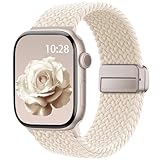
- Compatible Models: The HEARTBOOM magnetic nylon sport bands compatible for iWatch all versions. Suitable for Apple Watch Series 3/2/1 (38mm), Series 4/5/6/SE/SE 2/SE 3 (40mm), Series 7/8/9 (41mm), Series 11/10 (42mm). Pls check the model on the back of your watch to select the correct size
- Comfortable & Fit: HEARTBOOM stretchy apple watch band is made of recycled polyamide with a fabric weave, which is skin-friendly, breathable, lightweight, washable, sweat-resistant and quick-drying. Perfect for Fitness, Running, Yoga and daily wear, as it ensures that your wrist remains comfy and gentle feeling
- Multi Colors & Freely Adjustable: Our iwatch bands come with Various rich & muted colors for your choices, personalize your smartwatch to fit your outfit in daily life and easy change for every occasion. Suitable for women and men with 5.5"-9.6"(140mm~244mm) wrists. One size fit for most people,no need to measure your wrist to choose the size like the traditional braided bands
- Confidently Secure with Upgraded Magnets: Experience the perfect blend of style and security with our braided stretch band for Apple Watch. The enhanced magnetic Closure creates a strong, reliable connection that is easily adjustable for a flawless custom fit. Designed for all-day comfort and peace of mind, it stays put during any activity. Tool-free installation and one-click removal make it incredibly easy to use
- Perfect Gift: This apple watch bands blend fashion with functionality, look more fashionable and youthful. It's a a thoughtful and well-made gift. Suitable for Christmas, New Year's, Father's Day, Mother's Day and birthdays as a surprise for your parents, loved ones, and friends.We offer 24/7 friendly support
Workout Views let you swap those defaults for metrics like current pace, average pace, cadence, heart rate zones, elevation gain, or power, depending on the activity. The result is fewer swipes, faster glances, and decisions based on useful context instead of guesswork.
This becomes especially noticeable mid-interval, mid-climb, or late in a long session when cognitive load is already high.
How to customize Workout Views (and where most people miss the option)
Workout Views are customized per workout type, not globally. That means your Outdoor Run can show completely different data than Indoor Cycle or Strength Training.
On the Apple Watch, open the Workout app, tap the three dots next to a workout, tap the pencil icon, then scroll to Workout Views. From there, you can add, remove, reorder, and configure each data screen before you ever start moving.
You can also do this from the Watch app on iPhone under Workout, which is often faster and easier when fine-tuning multiple metrics.
Build views around decisions, not curiosity
The key is choosing metrics that help you make decisions mid-session, not data that’s merely interesting afterward. If a number doesn’t change how you train in that moment, it probably doesn’t belong on your main screen.
For runners, a first screen with current pace and heart rate zone keeps effort honest, while a second screen with average pace and distance helps manage the overall session. Cyclists often benefit from separating cadence and heart rate onto one screen and elevation or power onto another.
Strength and HIIT users can simplify even further, prioritizing elapsed time, heart rate, and intervals rather than calorie burn, which fluctuates wildly set to set.
Why fewer metrics often improve accuracy and focus
Cramming six metrics onto one screen makes each harder to read, especially on smaller Apple Watch case sizes. The display is bright and sharp, but glanceability still matters when you’re moving or fatigued.
Reducing each view to two or three high-priority fields makes readings faster and lowers the chance of misinterpreting pace or heart rate during effort spikes. This also reduces unnecessary wrist raises, which helps preserve battery life on longer outdoor sessions.
In practice, cleaner screens lead to steadier pacing and fewer reactive decisions driven by momentary noise.
Workout Views pair especially well with structured workouts
When combined with custom intervals or goal-based sessions, Workout Views become even more powerful. One view can focus on the current interval metrics, while another tracks overall progress without interrupting flow.
Haptic alerts handle transitions, while your customized screen confirms whether you’re actually hitting the intended effort. This division of labor keeps the Apple Watch informative without becoming distracting.
It’s one of the clearest examples of how Apple’s hardware, software, and haptics work better when you take control of the setup.
Comfort, durability, and real-world usability during intense sessions
Customizing views doesn’t change how the watch wears, but it does reduce mid-workout interaction. Less swiping with sweaty fingers means fewer accidental pauses and less frustration, especially during strength training or circuits.
Apple Watch materials, from aluminum to stainless steel and Ultra’s titanium, all handle frequent wrist raises and taps without issue, but minimizing interaction improves durability over time. It also keeps your focus on movement, not the screen.
Once dialed in, Workout Views fade into the background, which is exactly what good training tools should do.
Trick 3: Turn Pace, Power, and Heart Rate Zones Into Real‑Time Coaches
Once you’ve simplified your Workout Views, the next step is letting the right metrics actively guide you. Apple Watch can do far more than display pace or heart rate—it can nudge you back on track the moment you drift off target.
This is where zones transform the watch from a passive dashboard into something closer to a coach tapping you on the wrist.
Why zones matter more than raw numbers mid‑workout
Single data points are noisy. Pace spikes on hills, heart rate lags during intervals, and power fluctuates with form and fatigue.
Zones smooth out that chaos by giving your effort context. Instead of chasing an exact pace or BPM, you train within a range that aligns with the goal of the session, whether that’s aerobic efficiency, tempo control, or threshold work.
That mental shift alone reduces overcorrection and helps you hold steadier efforts, especially during longer runs or structured intervals.
Heart rate zones: the easiest coach to enable
Heart rate zones are available on Apple Watch Series 3 and newer, and they work across most cardio workouts. By default, Apple Watch calculates zones automatically using your age and recent workout data, but you can switch to manual zones if you prefer tighter control.
On iPhone, open the Watch app, go to Workout, tap Heart Rate Zones, and choose Automatic or Manual. From there, add Heart Rate Zone as a Workout View metric or select a zone‑based goal before starting your workout.
Once active, the watch uses haptic taps to alert you when you enter or leave your target zone. You don’t need to look down; you feel the correction immediately.
Pace zones for runners who want consistency, not guesswork
For outdoor running, pace zones are one of Apple Watch’s most underused tools. Instead of reacting to every second‑by‑second fluctuation, you train within a defined pace band that accounts for real‑world variability.
Start a Run workout, tap the three dots, choose Pacer or Custom, and set a target pace range. During the run, the watch will notify you if you’re too fast or too slow, using distinct haptic patterns.
This is especially effective on rolling terrain or crowded routes where traditional pace screens encourage constant wrist checking. The watch handles the monitoring so you can focus on form and breathing.
Running power zones: the most “pro” metric Apple offers
Running power is available on Apple Watch Series 8, Series 9, Series 10, and Ultra models, with no external sensor required. It measures effort output in watts, factoring in speed, incline, and acceleration.
Rank #3

- 【Fit All Models】SuperNaNa Sport silicone watch band compatible with apple watch bands 40mm 38mm 42mm 44mm 41mm 45mm 46mm 49mm women men,Soft breathable replacement sport strap for iwatch bands series 11 series 10 series 9 series 8 series 7 series 6 series 5 series 4 series 3 series 2 series 1. and iwatch Ultra 3 2, Ultra, SE(2nd Gen). All iwatch versions can attach perfectly and seamlessl.
- 【Soft Silicone Material】apple watch bands for women men are made of premium soft silicone, prevents skin from irritation, lightweight, persistent, skin-friendly, touch comfortable, water-resistant and sweat-proof; iphone watch bands for women perfectly fit for runs, hiking, rides, camping, climbing, swims, workouts, traveling and more outdoor activities. iWatch bands 40mm womens completely unburdened to wear on the wrist, perfect for all day.
- 【Adjustable size for all wrist】Our Sport apple watch strap compatible for 38mm/40mm/41mm/42mm(series 11 10), this size fits for 5.1"-7.1" (130mm-180mm) wrist; soft silicone iwatch strap compatible for 42mm(series 3 2 1)/44mm/45mm/46mm/49mm, this size fits for 5.9" - 7.9" (150mm-200mm) wrist. Please check the size on the back of your watch to choose the right size.
- 【Easy installation & removal】Our watch bands for women come with Innovative pin-and-tuck closure design, which locks onto smart watch interface precisely and securely. No tool needed,easy to install and remove,provides a secure and comfortable fit for extended wear.
- 【20+ Colors Choice】Silicone iwatch bands for women come with 20+ different cute colors available for women men. black starlight apple watch band etc colors personalize your Apple Watch and fit your daily mood and outfit. A idear option for your smartwatch accessories.
Power shines when pace breaks down, like on hills, trails, or windy days. By setting power zones, you keep effort consistent even when conditions aren’t.
You can add Running Power and Power Zones to your Workout Views or build a workout with power targets. When you drift outside the zone, haptics bring you back without forcing you to interpret terrain‑distorted pace numbers.
How haptics quietly replace constant screen checks
The real magic isn’t the zones themselves—it’s how Apple Watch communicates them. Haptic alerts are precise, unmistakable, and don’t require visual attention.
This reduces wrist raises, which improves comfort during long sessions and subtly helps battery life, particularly on smaller case sizes. On Ultra models, the larger case and louder haptics make zone alerts almost impossible to miss, even in cold weather or with gloves.
Over time, you’ll notice fewer reactive decisions and more controlled efforts simply because the watch intervenes early.
Building workouts that let zones do the thinking
Zones become even more powerful when paired with structured workouts. You can assign different zone targets to warm‑ups, work intervals, and recoveries, then let the watch handle transitions.
During the workout, your screen only needs to show the current zone and one supporting metric. The rest happens automatically through taps on your wrist.
This setup feels especially polished during tempo runs, long aerobic days, or heart rate–capped recovery sessions, where restraint is the real challenge.
Comfort, accuracy, and real‑world reliability
Zone‑based coaching depends on sensor accuracy, and Apple Watch performs best when worn snugly, slightly above the wrist bone. A secure sport band or trail loop keeps readings stable during sweat‑heavy sessions.
Because zones reduce the urge to stare at fluctuating numbers, you also avoid micro‑adjustments that lead to erratic pacing. The result is cleaner data and a workout that feels calmer and more intentional.
Once you trust zones, the watch stops feeling like a screen you manage and starts acting like a training partner that knows when to speak up—and when to stay quiet.
Trick 4: Auto‑Pause, Auto‑Detect, and Precision Start — How to Eliminate Bad Data
Once you trust zones and haptics to guide effort, the next upgrade is making sure the data itself isn’t quietly sabotaged. A surprising amount of workout inaccuracy comes from the first and last few seconds, stop‑and‑go interruptions, or workouts you forgot to start altogether.
Apple has built several safeguards into the Workout app that work in the background. Most people never turn them on, or don’t realize how much cleaner their metrics become once they do.
Auto‑Pause: Let the watch handle interruptions
Auto‑Pause automatically stops recording when your movement drops below a threshold, then resumes when you’re moving again. It’s designed primarily for outdoor runs and cycling, where traffic lights, crossings, or brief stops can wreck pace and effort averages.
To enable it, open the Watch app on your iPhone, go to Workout, then toggle Auto‑Pause. On the watch itself, you can also find it inside a specific workout’s settings before you start.
In real use, Auto‑Pause removes the mental overhead of constantly swiping to pause. Your average pace stabilizes, heart rate trends make more sense, and VO₂ max estimates are less likely to get skewed by standing still with an elevated pulse.
When Auto‑Pause helps—and when to turn it off
Auto‑Pause shines in urban environments or busy paths, especially during easy or steady runs where interruptions are unavoidable. It’s also useful for outdoor cycling, where coasting or stopping at junctions would otherwise dilute power and speed data.
For interval sessions or races, it’s better left off. You want the watch recording everything, including brief slowdowns, because those moments are part of the effort and recovery structure.
If you’re chasing consistency, check your Auto‑Pause setting before key workouts. Treat it like shoe choice: context matters.
Auto‑Detect: Salvaging the workouts you forget to start
Workout Auto‑Detect does exactly what it sounds like. If the watch senses sustained movement that matches a supported activity, it prompts you to start recording, then backfills data to the moment it detected motion.
You’ll find this under Watch app > Workout > Start Workout Reminder and End Workout Reminder. Make sure both are enabled, especially if you’re the type who warms up and forgets to hit start.
The data won’t be as clean as a manually started workout, but it’s far better than losing the session entirely. Calories, heart rate trends, and exercise minutes still count, which matters for long‑term consistency and health tracking.
Precision Start: The hidden fix for sloppy first minutes
Precision Start is one of the most overlooked features in the Workout app. When you select a workout but don’t press Start immediately, the watch locks GPS, heart rate, and sensors before the clock begins.
To use it, open a workout on your watch and wait a few seconds instead of tapping Start instantly. You’ll feel a subtle haptic when everything is ready, then begin.
This prevents the classic problem of inflated early pace, erratic heart rate ramps, and distance discrepancies. It’s especially noticeable on Ultra models, where dual‑frequency GPS benefits most from a clean lock before movement.
Why the first 30 seconds matter more than you think
Those opening moments set the baseline for pace smoothing, effort curves, and even training load calculations. If GPS is still settling or heart rate is lagging, the entire workout inherits that noise.
Precision Start effectively removes that variable. Your charts look calmer, your splits make more sense, and comparisons between workouts become genuinely useful instead of vaguely misleading.
If you care about trends rather than bragging numbers, this is one of the highest‑impact habits you can build.
Combining all three for “set it and forget it” accuracy
Used together, Auto‑Pause, Auto‑Detect, and Precision Start create a safety net around your workouts. You start clean, interruptions don’t pollute the data, and forgotten starts don’t erase effort.
Rank #4

- Newest Engraved Flower Design: SNBLK Apple watch band has clear vivid flower patterns made by advanced laser carving technology. Unique and stylish design that is sure to add a touch of elegance to your everyday outfit. One with sunflowers and the other with roses. Their cute floral print is perfect for anyone who loves nature and wants to add a personal touch to their daily wear. In addition, it's a thoughtful and well-made gift that is sure to be appreciated by anyone who receives it
- Comfortable to Wear: The Apple watch bands are made of high-quality soft silicone material that provides a comfortable and flexible fit on your wrist. The soft and lightweight nature of the band makes it perfect for everyday use, as it ensures that your skin remains comfy and free from irritation even when you wear the watch for extended periods of time. Plus, the silicone material is water-resistant and sweat-proof, making it perfect for use during physical activities or outdoor adventures
- Compatible Models & Size Options: These flower bands are designed for iWatch all versions. Suitable for Apple Watch Series 3/2/1(38mm),Series 4/5/6/SE/SE 2/3(40mm),Series 7/8/9(41mm),Series 11/10(42mm);For Series 3/2/1(42mm),Series 4/5/6/SE/SE 2/3(44mm),Series 7/8/9(45mm),Series 11/10(46mm),Ultra 3/Ultra 2/Ultra(49mm); 38/40/41/42mm Size fits 5.1"-7.1" (130mm-180mm) wrist, 44/45/46/49/42mm Size fits 5.9"-7.9" (150mm-200mm). Pls check the model on the back of your watch to select the correct size
- Enjoy the Thrill of Experimenting with Diverse Combinations: Enhance your iWatch with our stylish and intricately engraved printed strap, allowing you to personalize your smartwatch and effortlessly match your mood and outfit every day. Mix and match straps of various colors to elevate the look of your iWatch and showcase your distinct style. With a 6-pack of replacement, you can effortlessly transform your watch for various occasions, whether it's for sports, leisure, work, or everyday life
- Unmatched Durability: Our iWatch bands are built to withstand the test of time. Made from premium-grade silicone, it exhibits exceptional resistance to wear, tear, and daily use. Whether you're an athlete pushing your limits or a professional with a busy lifestyle, it is designed to keep up with your active routine, ensuring it remains in pristine condition. In addition, they comes with double hole and metal snap fastener, easier to take on/put off, no worry of loosing your watch any more
This trio is particularly valuable on smaller Apple Watch cases, where battery efficiency benefits from fewer screen interactions and cleaner recording windows. It also improves comfort, since you’re not constantly fiddling with the display mid‑session.
The end result is data you trust without obsessing over it. When the watch quietly handles the logistics, you’re free to focus on moving well instead of managing the tool on your wrist.
Trick 5: Race Against Your Past Self With Pacer and Route-Based Workouts
Once your workouts are starting clean and recording accurately, the next step is using that data for motivation rather than just storage. Apple Watch has a surprisingly powerful way to turn your own history into a live training partner, and most people never touch it.
Pacer and route-based workouts let you compete against a previous effort on the same course. Instead of chasing abstract pace targets, you’re racing a version of yourself that already proved what’s possible.
What Pacer actually does (and why it’s different from pace alerts)
Pacer isn’t just a reminder that you’re running too fast or too slow. It continuously compares your current progress against a past workout or a target time and tells you, in real time, whether you’re ahead or behind.
You’ll see prompts like “20 seconds ahead” or “15 seconds behind” during the workout, along with subtle haptic taps that don’t require staring at the screen. It’s feedback that works even when sweat, glare, or fatigue make visual metrics harder to read.
This turns the Apple Watch into something closer to a personal race marshal. The motivation feels external, even though it’s powered entirely by your own data.
How route-based racing works on Apple Watch
Route-based workouts are where Pacer becomes genuinely addictive. If you repeat a run or outdoor walk on the same route, the watch can use a previous effort as a virtual competitor mapped to that exact path.
As long as GPS tracking was enabled on the original workout, Apple Watch knows where you sped up, slowed down, or faded late. During the new session, it aligns your current location with that historical route rather than just elapsed time.
That means if you hammer the first mile but fade later, the watch will show you gaining time early and losing it back where you struggled before. It’s brutally honest and far more actionable than average pace.
How to set it up on the watch (no iPhone required)
On your Apple Watch, open the Workout app and choose an outdoor workout like Outdoor Run or Outdoor Walk. Tap the three-dot button, then choose Pacer.
From there, you can select a previous workout on the same route or set a target time for the distance. If you’ve run that course before, the watch will automatically offer eligible past efforts to race against.
Once selected, start the workout as usual. Pairing this with Precision Start makes a noticeable difference, since both GPS alignment and early pacing need a clean sensor lock to work properly.
Where this shines in real-world training
This feature is especially effective for runners and brisk walkers who train on familiar loops, park paths, or neighborhood routes. You don’t need a formal training plan to benefit; simply trying to beat your last “comfortable” run by a small margin adds structure without pressure.
It’s also excellent for learning pacing discipline. If you tend to go out too fast, racing a smarter past effort teaches restraint in the opening minutes, when heart rate and perceived effort often lie.
On Apple Watch Ultra and Series models with newer GPS hardware, route accuracy is tight enough that the feedback feels immediate rather than laggy. The Ultra’s larger display also makes the ahead/behind indicators easier to glance at mid-stride, especially on longer efforts.
Battery, comfort, and why this works even on long sessions
Because Pacer relies on GPS you’re already using, the battery impact is minimal compared to standard outdoor workouts. On Ultra models, you can comfortably use it on multi-hour sessions without anxiety, while smaller cases still handle typical 45–90 minute runs without issue.
Comfort matters here more than people expect. Racing your past self is engaging, but it shouldn’t require constant wrist flicks or taps. The haptics do most of the work, letting you stay focused on form and breathing rather than metrics.
The end result is motivation that doesn’t feel forced. You’re not chasing someone else’s pace or a generic plan, just nudging your own limits forward with a watch that quietly remembers what you did last time and asks if you can do a little better today.
How to Set These Features Up on iPhone vs Apple Watch (watchOS Explained)
After using features like Precision Start and Pacer in real workouts, the next question is always the same: where do you actually turn all this on. Apple splits Workout controls between the Watch itself and the iPhone’s Watch app, and knowing which device to use saves a lot of frustration before a session.
The general rule is simple. Anything that affects how a specific workout behaves lives on the Apple Watch, while defaults, alerts, and system-level behavior are usually handled on the iPhone.
Workout-specific controls: why the Apple Watch matters more than you think
Custom workouts, intervals, pacing, and race routes are all set up directly on the Watch. Apple treats these as in-the-moment training tools, not background preferences.
Open the Workout app on the Watch, scroll to the workout type you want, and tap the three-dot button. From here you can create or edit workouts, add intervals, enable Pacer, or select a Race Route if one is available.
This design makes sense in practice. You’re usually deciding how hard today’s run or ride should be while standing outside, warming up, or already moving, and the Watch is faster than digging through phone menus.
Precision Start and why it only lives on the Watch
Precision Start is intentionally not a toggle buried in settings. To use it, you select an outdoor workout on the Watch and pause on the start screen instead of immediately pressing Start.
The Watch waits until GPS, heart rate, and motion sensors are locked before beginning. Once everything is ready, you manually start the workout with a tap or button press.
This works identically across Series and Ultra models, though Ultra’s larger display and brighter screen make it easier to confirm readiness in direct sunlight. There’s nothing to enable on the iPhone for this feature, which is why many users miss it entirely.
Alerts, auto-pause, and reminders: best handled on iPhone
If you want consistent behavior across all workouts, the iPhone is the better setup tool. Open the Watch app on iPhone, go to Workout, and you’ll find options for things like reminders to start workouts, auto-pause, and goal alerts.
These settings apply broadly, which is ideal if you switch between running, walking, and cycling throughout the week. Setting them once on iPhone prevents needing to repeat the process on the smaller screen.
💰 Best Value
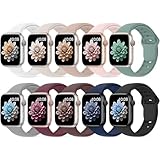
- 【Compatible Models】: UJUTL Sport silicone bands perfect compatible with Apple Watch Bands Series 11 10 -(42mm), Series 9 8 7 -(41mm), Series 6 5 4 SE3 SE2 -(40mm), Series 3 2 1 SE -(38mm), Check your watch size before ordering, Size fits 5.3"-7.6" (135mm-193mm) wrist
- 【Newest Original Design 】: The breathable groove design wicks away moisture to keep you cool during workouts and daily activities, Hidden buckle design that does not come into contact with any metal, Keep the irritate away from you
- 【Premium Material】: Comfort & Breathability - Made of high quality silicone, these bands provide soft, irritation-free wear for sensitive wrist, Durable & Easy to Clean - Non-sticky, stain-resistant silicone stays fresh through sweat, rain, and daily use. Simply wipe with a damp cloth for instant refresh
- 【10 Colors in One Pack】: Available in a variety of colors, these bands can be easily swapped out to match your outfit or mood, perfect for mixing styles with outfits or seasons. Also proper to be used as gifts for Wedding, birthday, Valentines' day, Mothers' day, father' day, Christmas, Thanksgiving Day etc
- 【Worry-Free Purchase】: To ensure 100% customer satisfaction, we provide 24/7 online support. If you encounter any issues with our product, please contact us immediately—we will prioritize resolving your concerns and offer tailored solutions promptly
It’s also easier to review what’s enabled at a glance. On the Watch, these options are spread across individual workout menus, which can feel fragmented if you’re trying to fine-tune your setup.
Custom metrics and workout views: Watch first, iPhone for cleanup
To change what you see during a workout, start on the Watch. Select a workout, tap the three-dot menu, then choose the workout’s preferences to customize views and metrics.
This lets you build screens around heart rate zones, power, elevation, or pace depending on your training focus. Runners and cyclists especially benefit from fewer, clearer metrics that reduce mid-workout distraction.
The iPhone Watch app mirrors these settings and is useful for reviewing or removing screens later. If you’re adjusting multiple workouts, the phone’s larger display makes fine-tuning less tedious.
Heart rate zones and effort tracking: set once, trust everywhere
Heart rate zones are managed from the iPhone. In the Watch app, go to Workout, then Heart Rate Zones, and choose whether zones are calculated automatically or set manually.
Once configured, these zones appear consistently across supported workouts on the Watch. This is especially valuable when paired with haptic alerts, allowing you to train by feel without staring at the display.
Because zone accuracy depends on personal data, double-check your age, weight, and health details in the Health app. A few minutes here improves every zone-based workout you do afterward.
Race Routes and history-based features: mostly automatic, but location matters
There’s no manual “enable” switch for Race Routes. The Watch learns eligible routes automatically once you repeat outdoor workouts on the same path with reliable GPS.
What you can control is location accuracy. On iPhone, go to Privacy and Security, then Location Services, and ensure Apple Watch Workout is set to Precise Location.
Without this, route-based features may never appear, especially in urban areas or tree-covered paths. Ultra models with dual-frequency GPS are more forgiving, but even they benefit from clean location permissions.
Battery and display considerations during setup
Some setup choices affect how long the Watch lasts during workouts. Turning on always-on display, frequent alerts, and multiple metric screens increases power draw, particularly on smaller case sizes.
On iPhone, you can review display and background refresh settings in one place, which is easier than toggling them individually on the Watch. Ultra models handle heavy setups better thanks to larger batteries, but Series watches still comfortably manage typical training sessions with thoughtful configuration.
Comfort also plays a role. If you’re constantly interacting with the screen to check data, it may be a sign your setup needs simplifying rather than adding more metrics.
When to reach for the iPhone versus trusting the Watch
Use the Watch when the decision affects today’s workout. Use the iPhone when the decision should apply to every workout you’ll do next week.
Apple’s split approach can feel unintuitive at first, but once you understand the logic, it becomes empowering. The Watch stays focused on action, while the iPhone handles structure and consistency.
Mastering where these features live is what turns the Workout app from something you start into something that actively shapes how you train, without adding friction or complexity to your routine.
Who These Tricks Are Best For — From Casual Exercisers to Data‑Driven Trainers
By this point, it should be clear that these Workout tricks aren’t about turning your Apple Watch into a lab instrument. They’re about removing friction, improving trust in the data, and letting the Watch adapt to how you actually move.
Whether these features feel essential or merely “nice to have” depends on how you train, how often you check your metrics, and how much mental load you want your Watch to carry for you.
If you work out a few times a week and want less thinking
Casual exercisers benefit most from automation and sensible defaults. Features like automatic interval recognition, smarter alerts, and clean metric screens mean you can press Start and focus on moving, not managing settings mid‑workout.
For this group, the biggest win is confidence. Knowing the Watch will catch a repeat route, log effort accurately, and summarize trends later makes workouts feel complete even when they’re short or unstructured.
If you’re consistent but not obsessed with data
Regular runners, cyclists, gym‑goers, and class attendees sit right in the sweet spot for these tricks. Custom workout views, smarter pacing cues, and history‑based features quietly improve session quality without turning training into homework.
This is also where battery and comfort decisions matter most. A thoughtfully configured Series 8, 9, or SE with a breathable sport band can handle daily workouts all week without anxiety or wrist fatigue.
If you train with intent and review your numbers
Data‑driven users will appreciate how these features tighten the feedback loop. Race Routes, precise GPS permissions, interval controls, and structured alerts turn the Workout app into a reliable training log rather than a rough activity tracker.
On Ultra models, dual‑frequency GPS, larger displays, and extended battery life make these tricks even more valuable during long runs, hikes, and multi‑hour sessions. The Watch becomes a dependable instrument, not something you need to second‑guess later in the Fitness app.
If you’ve felt the Workout app was “too basic”
Many people assume they’ve outgrown Apple’s Workout app and jump to third‑party platforms prematurely. In reality, most of the depth is already there, just hidden behind defaults that favor simplicity over discoverability.
These tricks reveal what the app is capable of once you shape it around your habits. For many users, that realization alone eliminates the need for extra subscriptions or complicated syncing workflows.
If you want better motivation without more pressure
The smartest part of these features is that they don’t demand perfection. They reward consistency, recognize progress automatically, and surface insights only when they’re meaningful.
That balance is where Apple Watch shines. Used thoughtfully, these Workout tricks help the Watch support your training rather than dominate it, regardless of where you fall on the fitness spectrum.
Taken together, these features prove the Workout app isn’t just something you launch at the start of a session. It’s a system that learns, adapts, and quietly gets better the more you understand how to guide it, making every workout feel a little more intentional without ever feeling heavier.