On paper, the Galaxy Watch Ultra looks easy to summarize: big titanium case, bright AMOLED, multi-band GPS, long battery life for a Wear OS watch. If you stop there, it risks blending into the growing crowd of rugged smartwatches chasing the same outdoors-first brief. Spend real time wearing it, though, and it becomes clear Samsung has layered far more nuance into the experience than the specs sheet lets on.

This is a watch designed not just to survive extreme conditions, but to adapt intelligently to how most people actually use a premium smartwatch day to day. Small software decisions, subtle hardware choices, and Samsung’s ecosystem integration combine to create depth that only reveals itself after weeks on the wrist. That’s where the real value of the Galaxy Watch Ultra starts to emerge.
Hardware that works harder than it looks
The Ultra’s 47mm titanium case sounds intimidating, but the weight distribution and curved lugs make it far more wearable than its dimensions suggest. Compared to many steel or polymer-based adventure watches, it sits flatter on the wrist and avoids the top-heavy feel that can cause fatigue during long workouts or all-day wear. The sapphire crystal’s slightly recessed placement also reduces accidental impacts without adding visual bulk.
Even the new Quick Button, which might seem like a simple shortcut key, becomes a powerful control point once you customize it. It can instantly trigger workouts, safety features, or navigation tools without digging through menus, which matters when your hands are wet, gloved, or cold. These are practical design decisions you only appreciate in real-world conditions, not spec comparisons.
🏆 #1 Best Overall
![Samsung Galaxy Watch Ultra (2025) 47mm LTE Smartwatch, Titanium Casing, Advanced Sleep Coaching, Running Coach, Energy Score, Heart Rate Tracking, GPS, Titanium Silver [US Version, 2 Yr Warranty]](https://m.media-amazon.com/images/I/51tqxcqQXyL._SL160_.jpg)
- WHY GALAXY WATCH ULTRA: Longest-lasting battery yet.¹* Advanced health and sleep tracking features.* Personalized Running Coach.* Durable titanium casing.* 10ATM Water Resistance.⁹* Dual-frequency GPS.* Personal AI assistant for hands free help.⁶*
- A BATTERY BUILT FOR ENDURANCE: Have the confidence to adventure off-grid with a battery that can keep up with you. Galaxy Watch Ultra features our longest-lasting battery yet,¹ so you can go to the extreme for days on end without needing to recharge.
- YOUR ADVENTURE STARTS THE NIGHT BEFORE: Fuel tomorrow’s performance with a great night’s sleep, thanks to Advanced Sleep Coaching² - now improved with even more ways to help you sleep smarter.
- BUILT FOR THE LONG RUN: Whether you’re on a trail or a track, unleash the winning runner within using Running Coach³ on Galaxy Watch Ultra. It analyzes factors⁴ such as your age, weight, oxygen levels and heart rate to guide you through your run.
- UPDATES THAT GIVE YOU THE EDGE: Navigate the wild more easily with Now Bar⁵ and an improved user experience. Now Bar conveniently puts the info you use the most - like weather, timers, directions and more - right on your main Watch screen.
Software depth hidden behind familiar menus
Wear OS on the Galaxy Watch Ultra feels familiar at first glance, especially to anyone coming from a previous Galaxy Watch. The difference lies in how deeply Samsung has optimized background behaviors, power management, and sensor fusion. GPS, heart rate, and altitude data work together more intelligently than before, reducing random spikes and improving consistency during long outdoor sessions.
Many of the most useful tools are tucked into secondary menus rather than highlighted during setup. Advanced workout screens, dual-frequency GPS settings, and recovery-focused health metrics often need a bit of digging, but once enabled, they dramatically change how informative the watch feels. This section of the guide will surface those hidden levers so you don’t miss out on what the hardware is already capable of.
Battery life that depends on how you configure it
Samsung’s battery life claims are realistic, but only if you understand how the Ultra manages power across different use cases. The watch behaves very differently during GPS-heavy outdoor activities versus everyday notifications, sleep tracking, and health monitoring. Small adjustments to display behavior, background sync, and workout settings can stretch endurance far beyond what most users experience out of the box.
This is where the Galaxy Watch Ultra quietly separates itself from many rivals. Instead of locking you into aggressive power-saving modes, it gives you granular control to balance visibility, performance, and longevity. Learning how to fine-tune those controls is one of the biggest “aha” moments for new owners.
A premium smartwatch that rewards curiosity
The Galaxy Watch Ultra isn’t trying to be a niche expedition tool or a fashion-first accessory. It’s a hybrid that rewards users willing to explore beyond default settings and surface-level features. From comfort tweaks to advanced fitness insights and outdoor navigation tools, there’s a surprising amount of functionality hiding in plain sight.
The following tips focus on those overlooked features and smart optimizations that transform the Ultra from a capable smartwatch into a genuinely great one. If you already like how it looks and feels, you’re about to get a lot more out of it.
1. Reprogram the Quick Button: Turn Samsung’s ‘Action Key’ Into a True Adventure Shortcut
Once you start digging beneath the default settings, the Galaxy Watch Ultra’s most underrated piece of hardware quickly reveals itself. That extra button on the left side isn’t just there for aesthetics or marketing parity with other “Ultra” watches—it’s a genuinely flexible control that can dramatically change how the watch behaves in real-world outdoor use.
Out of the box, Samsung assigns the Quick Button (sometimes labeled as the Action or Quick Key) to start a workout. That’s useful, but it barely scratches the surface of what this control can do, especially when you’re wearing gloves, dealing with sweat or rain, or moving fast and don’t want to poke at a touchscreen.
Where to find the Quick Button settings
Samsung doesn’t surface this during setup, which is why many owners never touch it. On the watch itself, head to Settings → Buttons and gestures → Quick button, or access the same menu through the Galaxy Wearable app on your phone for easier browsing.
From here, you’ll see separate options for a single press and a press-and-hold. This distinction is key, because it lets you map two entirely different actions to the same physical control without creating accidental triggers.
Best real-world remaps for outdoor and fitness use
If you spend time hiking, trail running, or cycling, assigning the Quick Button to launch a specific workout mode is far more powerful than the generic “exercise” shortcut. You can set it to jump straight into Hiking, Trail Run, Open Water Swim, or Cycling, bypassing menus and countdown screens.
Another smart option is using the button to drop a location marker during an activity. When you’re navigating unfamiliar terrain, being able to mark a car, trail junction, or campsite with a single press feels like a feature borrowed from dedicated GPS watches, not a general-purpose smartwatch.
For everyday wear, some users prefer mapping it to open Compass, Altimeter, or Weather. These apps benefit from instant access, and the Ultra’s improved sensors and dual-frequency GPS make the data far more reliable than earlier Galaxy Watch generations.
Why the Quick Button matters when conditions get rough
The Galaxy Watch Ultra is large, dense, and built to be worn in situations where touchscreens struggle. The titanium case, raised bezel edges, and stiff sport bands all point toward use with gloves, cold fingers, or wet hands.
In those conditions, a physical button becomes more than a convenience—it’s a usability upgrade. Being able to start or pause an activity, mark a lap, or open a navigation tool without touching the display reduces missed inputs and accidental swipes, and it saves battery by keeping the screen off longer.
Over long GPS sessions, those small efficiencies add up. Fewer screen wake-ups mean slightly better endurance, especially when you’re already pushing battery life with dual-band GPS and continuous heart rate tracking.
Using press-and-hold as an emergency or utility shortcut
The long-press function is where the Ultra starts to feel more like a serious tool watch. You can assign it to trigger SOS features, call an emergency contact, or launch safety tools depending on your region and carrier support.
Even if you never plan to use emergency functions, a long-press mapped to Flashlight or Compass is incredibly practical. The Ultra’s bright display and flat sapphire lens make the flashlight mode genuinely useful in tents, stairwells, or roadside situations, and it’s far faster to access via hardware than via tiles.
Limitations worth knowing before you customize
The Quick Button doesn’t support third-party app shortcuts as freely as some users expect. You’re largely working within Samsung’s predefined list of actions and system apps, which can feel restrictive compared to more open platforms.
That said, Samsung’s own fitness and outdoor tools are now mature enough that most users won’t feel shortchanged. The key is choosing actions you’ll actually use weekly, not features that sound impressive but stay buried once the novelty wears off.
A small change that transforms daily usability
Reprogramming the Quick Button doesn’t alter the watch’s specs, display, or sensors, but it fundamentally changes how the Galaxy Watch Ultra feels on the wrist. It shifts the experience from reactive to intentional, where the watch responds instantly to your habits instead of forcing you through menus.
For a device this large, rugged, and expensive, that sense of immediacy matters. Once the Quick Button is tuned to your activities, it stops feeling like an extra control and starts feeling like the reason the Ultra exists in the first place.
2. Master Dual‑Frequency GPS and Route Navigation for Hiking, Trail Running, and Open Water Use
Once the hardware controls are dialed in, the next leap in capability comes from understanding how the Galaxy Watch Ultra handles location tracking. This is where the watch quietly shifts from being a capable fitness tracker to a genuinely reliable outdoor navigation tool.
Samsung’s dual‑frequency GPS system is one of the Ultra’s most underappreciated strengths, especially if your activities regularly take you beyond clean urban environments or well-marked paths.
What dual‑frequency GPS actually changes in the real world
The Galaxy Watch Ultra uses dual‑band GNSS, typically tapping both L1 and L5 frequencies when conditions demand it. In practical terms, this improves accuracy in dense forests, narrow valleys, mountain switchbacks, and city canyons where GPS reflections usually distort tracking.
On trail runs and hikes, the difference shows up as cleaner tracks with fewer zigzags and less distance inflation. Elevation changes also align more closely with reality, which matters if you rely on ascent and descent metrics to pace long efforts.
Battery impact is real but manageable. Dual‑frequency mode draws more power, yet on the Ultra’s large chassis and battery, it remains viable for full‑day hikes if you manage screen wake behavior and avoid unnecessary background apps.
When to force accuracy and when to let the watch conserve power
By default, the Ultra dynamically switches GPS modes based on activity and signal quality. This is fine for casual runs or mixed‑use days, but for navigation‑critical outings, it’s worth manually prioritizing accuracy.
Inside Samsung Health activity settings, you can ensure high‑accuracy GPS is enabled for hiking, trail running, and open water swimming. This prevents the watch from downshifting to single‑band tracking when conditions momentarily improve, which can otherwise introduce inconsistencies in recorded routes.
For road runs or treadmill‑adjacent outdoor workouts, letting the watch manage GPS automatically saves battery without meaningful accuracy loss. The key is matching the mode to the terrain, not assuming maximum precision is always necessary.
Using breadcrumb navigation and routes without full maps
Unlike dedicated adventure watches with offline topographic maps, the Galaxy Watch Ultra focuses on route guidance rather than visual cartography. You can import GPX routes through Samsung Health or synced partner platforms and follow them directly on the watch.
The breadcrumb trail is clean, high‑contrast, and easy to read even in harsh sunlight thanks to the flat sapphire glass and strong peak brightness. Direction changes are clear, and off‑route alerts are quick enough to matter before you’ve drifted too far.
Rank #2
This approach works best for known routes or race courses where you want reassurance rather than exploration. It’s less about discovering trails and more about executing a plan accurately and efficiently.
Why the Ultra excels at open water tracking
Open water swimming is one of the hardest GPS scenarios for any wearable, and it’s where dual‑frequency support quietly pays dividends. Each arm recovery breaks the GPS signal, and single‑band systems often struggle to reconstruct a smooth path.
The Galaxy Watch Ultra does a notably better job of stitching these gaps together, producing straighter swim tracks and more believable distance totals. It won’t rival a swim buoy GPS, but it’s far more consistent than previous Galaxy Watch generations.
The watch’s weight and balance also matter here. Despite its size, the Ultra sits flat and stable on the wrist, and the fluororubber sport strap resists water drag without overtightening, improving both comfort and signal continuity.
Using the Compass and Backtrack features together
One of the smartest ways to use the Ultra’s navigation tools is combining GPS tracking with the built‑in Compass and backtrack functionality. If you start an outdoor activity with GPS enabled, the watch quietly logs your path even if you never load a route.
If conditions change or visibility drops, you can use backtrack to retrace your steps with simple directional guidance. Pairing this with a long‑press shortcut to the Compass, as discussed earlier, turns the watch into a fast‑access safety tool rather than a menu‑driven gadget.
This setup doesn’t replace full navigation equipment, but it’s ideal for trail runners, fast hikers, and paddlers who value speed and simplicity over deep map interaction.
Small setup tweaks that improve GPS reliability
Before starting any serious GPS session, give the watch a clear sky view for 30 to 60 seconds. This allows it to lock onto satellites fully, reducing early‑activity drift that can otherwise affect the entire track.
Keeping the watch snug, not tight, also improves results. Excess movement on the wrist increases signal interruption, especially during technical terrain or swimming.
Finally, resist the urge to stack too many live data screens. Fewer active metrics mean fewer screen wake‑ups, which subtly improves both battery life and GPS stability over long sessions.
In isolation, these details sound minor. Taken together, they unlock the Ultra’s true strength as a reliable, confidence‑building companion for outdoor use, not just a smartwatch that happens to survive it.
3. Unlock Pro‑Level Battery Gains With Custom Power Profiles (Beyond Standard Power Saving)
If the previous GPS tweaks help the Ultra track better, the next step is making sure it lasts long enough to matter. Samsung’s default Power Saving mode is blunt and effective, but it leaves a lot of efficiency on the table if you’re willing to fine‑tune how the watch behaves in different situations.
The Galaxy Watch Ultra’s real battery advantage isn’t just its larger cell or titanium case acting as a passive heat sink. It’s the way One UI Watch lets you quietly tailor performance, radios, and sensors without turning the watch into a dumb timer.
Think in scenarios, not percentages
Instead of waiting for the battery to dip and then panicking into Power Saving, treat battery life as a set of planned use cases. Daily wear, workouts, outdoor navigation, sleep tracking, and travel all place very different demands on the watch.
The Ultra is comfortable enough to wear 24/7, thanks to its balanced case and soft fluororubber strap, so building profiles around continuous use makes sense. The goal is consistency, not survival mode.
Use Samsung Modes to build “soft” power profiles
Modes are one of the most underused battery tools on Galaxy watches. Beyond Sleep or Theater, you can create custom Modes that quietly adjust multiple settings at once.
For example, a “Daily Wear” Mode can disable always‑on display, reduce screen wake sensitivity, keep Wi‑Fi off, and limit background app syncing. The watch still feels premium and responsive, but idle drain drops noticeably.
Tie that Mode to time of day or location, and it activates automatically without you thinking about it. That alone can add hours over a full day without touching formal Power Saving.
Exploit Exercise Power Saving for long workouts
Inside Samsung Health, there’s a separate Exercise Power Saving option that many owners overlook. This reduces background processes and screen behavior while preserving core sensors like GPS and heart rate during workouts.
For long hikes, trail runs, or paddling sessions, this is far superior to full Power Saving. You still get clean tracks and reliable metrics, but the watch stops behaving like a mini phone mid‑activity.
Combined with the Ultra’s stable wrist fit and strong GPS antenna, this setting is one of the easiest ways to stretch endurance sessions without sacrificing data quality.
Be selective with GPS and radios, not fearful of them
Dual‑frequency GPS is fantastic for accuracy in forests and urban canyons, but it isn’t free. If you’re running familiar routes or open terrain, switching back to standard GPS noticeably reduces draw over multi‑hour activities.
The same logic applies to LTE and Wi‑Fi. Leaving LTE enabled “just in case” is one of the fastest ways to burn through battery, especially in weak signal areas. Toggle it on only when you actually need standalone connectivity.
These are quick‑access settings, not buried menus, which makes proactive battery control realistic in daily use.
Fine‑tune health tracking instead of disabling it
Heart rate, stress, and blood oxygen tracking don’t all need maximum frequency all the time. Continuous monitoring is useful during workouts and sleep, but during desk hours it’s often overkill.
Setting heart rate to periodic measurement outside of exercise reduces background sensor use without breaking trends or insights. Sleep tracking still benefits from the Ultra’s snug fit and sensor array, while daytime drain drops quietly in the background.
This is where the Ultra’s comfort and case design matter. A watch that sits flat and doesn’t shift delivers reliable readings even with less aggressive sampling.
Reserve full Power Saving for true edge cases
Samsung’s full Power Saving and Watch‑Only modes are still valuable, especially for multi‑day trips or emergency scenarios. With its large battery, the Ultra can stretch dramatically here, turning into more of a digital instrument than a smartwatch.
But for most owners, living in those modes wastes what makes the Ultra enjoyable. Custom profiles let you stay in the sweet spot where the watch feels premium, tracks well, and still outlasts expectations.
Once you stop treating battery life as a single switch and start shaping it around how you actually use the watch, the Galaxy Watch Ultra finally behaves like the serious outdoor and daily companion it was designed to be.
4. Advanced Health Tracking Tweaks: Making Heart Rate, Sleep, and Stress Data More Accurate
Dialing back health sensors to save battery only works if the data you keep collecting is trustworthy. The Galaxy Watch Ultra has one of Samsung’s best sensor stacks to date, but accuracy still depends heavily on how you configure it, wear it, and interpret what it’s telling you.
This is where small adjustments make a bigger difference than most owners expect.
Rank #3
![Samsung Galaxy Watch Ultra (2025) 47mm LTE Smartwatch, Titanium Casing, Advanced Sleep Coaching, Running Coach, Energy Score, Heart Rate Tracking, GPS, Titanium Blue [US Version, 2 Yr Warranty]](https://m.media-amazon.com/images/I/41zL7T5J4xL._SL160_.jpg)
- WHY GALAXY WATCH ULTRA: Longest-lasting battery yet.¹* Advanced health and sleep tracking features.* Personalized Running Coach.* Durable titanium casing.* 10ATM Water Resistance.⁹* Dual-frequency GPS.* Personal AI assistant for hands free help.⁶*
- A BATTERY BUILT FOR ENDURANCE: Have the confidence to adventure off-grid with a battery that can keep up with you. Galaxy Watch Ultra features our longest-lasting battery yet,¹ so you can go to the extreme for days on end without needing to recharge.
- YOUR ADVENTURE STARTS THE NIGHT BEFORE: Fuel tomorrow’s performance with a great night’s sleep, thanks to Advanced Sleep Coaching² - now improved with even more ways to help you sleep smarter.
- BUILT FOR THE LONG RUN: Whether you’re on a trail or a track, unleash the winning runner within using Running Coach³ on Galaxy Watch Ultra. It analyzes factors⁴ such as your age, weight, oxygen levels and heart rate to guide you through your run.
- UPDATES THAT GIVE YOU THE EDGE: Navigate the wild more easily with Now Bar⁵ and an improved user experience. Now Bar conveniently puts the info you use the most - like weather, timers, directions and more - right on your main Watch screen.
Start with fit and strap choice, not software
Before touching a single setting, get the physical side right. The Ultra’s chunky titanium case and flat back are designed to sit securely, but strap choice matters more than on slimmer Galaxy Watches.
For workouts and sleep, a soft fluoroelastomer or fabric strap worn snugly above the wrist bone keeps the optical heart rate sensor stable. Metal bracelets look great day to day, but micro-shifts during movement introduce noise into heart rate, stress, and sleep-stage data.
If the watch rocks when you flex your wrist or leaves gaps during sleep, no software tweak will fix that.
Adjust heart rate sampling by context, not habit
Samsung’s default heart rate setting often errs on the side of “always on,” which isn’t always necessary. Continuous tracking is essential during workouts, walks, and sleep, but it adds little value during long periods of inactivity.
Set heart rate to continuous during exercise and sleep, then switch to periodic measurement for the rest of the day. Trends remain intact, resting heart rate stays accurate, and the sensor avoids collecting low-quality data when your wrist position is poor, such as while typing.
You end up with cleaner graphs and fewer unexplained spikes.
Calibrate heart rate zones for your actual fitness level
Out of the box, Samsung Health uses age-based heart rate zones, which are convenient but often wrong. If you’re fitter than average or returning from time off, those zones can misclassify effort and recovery.
Manually setting max heart rate or adjusting zones after a few hard workouts makes training load, VO2 max estimates, and recovery time far more meaningful. This is especially noticeable on the Ultra, where long GPS workouts amplify the impact of bad zone data.
Once tuned, the watch stops congratulating you for easy runs and starts flagging real strain.
Improve sleep tracking by stabilizing overnight conditions
Sleep accuracy on the Ultra is excellent when conditions are consistent. Wear the watch slightly tighter at night than during the day to reduce micro-movements, especially if you toss and turn.
Enable blood oxygen and skin temperature tracking only if you sleep with the watch every night. Sporadic use leads to misleading baselines, while consistent overnight wear lets the algorithms detect real deviations rather than one-off anomalies.
If you notice fragmented sleep stages, it’s often a fit issue, not poor sleep.
Understand stress tracking before trusting it
Stress readings on the Galaxy Watch Ultra rely heavily on heart rate variability, which is sensitive to posture, movement, and breathing. Taking manual stress readings while seated and relaxed produces far more reliable results than relying on background measurements alone.
Use stress tracking as a relative indicator, not an absolute score. Look for patterns across days, not single spikes after caffeine, meetings, or workouts.
When paired with guided breathing sessions, stress data becomes actionable rather than just interesting.
Let recovery metrics catch up before judging them
Metrics like energy score, readiness, and recovery depend on several days of clean data. Changing straps, altering heart rate frequency, or skipping sleep tracking resets the algorithm’s confidence.
After making adjustments, give the watch at least a week of consistent wear before evaluating whether the data feels accurate. The Ultra’s larger battery makes 24/7 wear realistic, which is exactly what these metrics need to shine.
Patience here pays off with insights that actually match how your body feels.
Keep sensors updated and know their limits
Samsung quietly improves health algorithms through firmware updates, not just major software releases. Keeping the watch and Samsung Health fully updated often improves accuracy without changing a single visible setting.
Also be aware of physical limitations. Tattoos, darker ink near the sensor area, and extreme wrist hair can still interfere with optical readings, even on the Ultra’s upgraded hardware.
Knowing when to trust the data, and when to sanity-check it against how you feel, is part of using a serious health wearable responsibly.
By combining smart sensor scheduling with better fit, calibrated zones, and realistic expectations, the Galaxy Watch Ultra’s health tracking shifts from “impressive on paper” to genuinely useful in daily life.
5. Hidden Display and Interface Controls That Improve Outdoor Visibility and One‑Handed Use
Once you trust the Ultra’s health data, the next frustration usually isn’t accuracy—it’s usability in real conditions. Bright sun, gloves, sweaty hands, or a trekking pole in one hand can make even a premium display feel clumsy if the right controls aren’t enabled.
Samsung hides several display and interface tweaks that quietly transform how the Galaxy Watch Ultra behaves outdoors, especially when you’re moving fast or only have one hand free.
Force peak brightness when sunlight overwhelms auto mode
The Galaxy Watch Ultra’s display is capable of extreme brightness, but adaptive brightness doesn’t always push it hard enough during rapid light changes. In settings, enabling the Extra brightness toggle allows the watch to override conservative auto limits when sunlight hits the sensor directly.
This is particularly noticeable during hiking, trail running, or cycling where shadows and glare constantly alternate. Battery impact is real, but the Ultra’s larger cell can absorb short bursts of peak brightness without derailing all‑day use.
Think of this as a situational override rather than a permanent setting—turn it on when visibility matters more than efficiency.
Use font weight and contrast instead of max brightness
Cranking brightness isn’t always the most efficient way to improve readability. Increasing font size and font weight, combined with reduced transparency, often makes text clearer in daylight while consuming less power.
Samsung’s high‑contrast font option subtly thickens system text without breaking app layouts. Notifications, workout stats, and navigation prompts become easier to parse at a glance, especially when the watch is vibrating on your wrist mid‑movement.
This is one of those changes you forget you made—until you try another watch and wonder why everything suddenly feels harder to read.
Enable glove-friendly touch sensitivity for cold or wet conditions
Buried in display settings is an enhanced touch sensitivity option designed for gloves or damp fingers. Even thin running gloves can otherwise cause missed swipes, which gets frustrating fast when stopping a workout or checking navigation.
With sensitivity increased, the Ultra becomes far more forgiving without triggering accidental touches during normal use. It pairs especially well with the watch’s sapphire glass, which remains smooth but less tactile when cold.
Rank #4
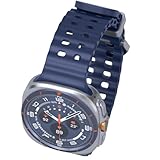
- 47mm - 1.5" Super AMOLED, 480x480px, 590mAh Battery, MIL-STD 810H certified, IP68/10ATM 100m water resistant, ECG certified
- 64GB, 2GB RAM, Exynos W1000 (3nm), Penta-core, Mali-G68 GPU, Android Wear OS 5, One UI Watch 8 with AI Assistant
- Unlock your full potential with Galaxy AI: Track and improve your fitness performance, monitor heart health with precision, get personalized wellness tips, optimize your sleep for better health, stay connected with smart replies, and enjoy music or podcasts on the go—all from your Galaxy Watch.
- Compatible with Android devices Only. Supports Google Pay. 3G: 850/900/1700/2100/1900/2100MHz, 4G LTE: 1/2/3/4/5/7/8/12/13/18/19/20/25/26/28/40/66/71 - eSIM.
- International Model - No Warranty. 100% Unlocked but Most US carriers may not allow International models. Will still work as Bluetooth Watch. Works outside US with all carriers. (Country selection may not be available during setup. Select Any, as Country will updated later after Connecting to WIFI in Settings.)
If you spend time outdoors year‑round, this single toggle can feel like a hardware upgrade.
Master one‑handed control with universal gestures
Samsung’s universal gestures are easy to dismiss as accessibility tools, but on the Galaxy Watch Ultra they’re genuinely practical. Double‑pinch to select and fist gestures to navigate let you interact with the UI when your other hand is occupied or when touch input is awkward.
These gestures work system‑wide, including notifications, workouts, and alarms. Once muscle memory kicks in, they’re often faster than swiping on a bouncing wrist during a run or climb.
For outdoor users, this is one of the Ultra’s most underrated advantages over traditional button‑only rugged watches.
Reassign the Quick Button for display-critical actions
The Ultra’s extra hardware button isn’t just for workouts. You can assign it to toggle flashlight mode, launch a specific app, or jump directly into a workout screen with large, readable metrics.
Mapping it to the flashlight is particularly useful at night, as it forces a full‑white display at maximum brightness instantly. This turns the watch into a surprisingly effective hands‑free light without navigating menus.
A single physical shortcut reduces reliance on touch when conditions are messy, which is exactly what a rugged watch should prioritize.
Customize Always On Display for real outdoor utility
Always On Display isn’t just about aesthetics. Selecting a watch face with bold AOD elements and enabling higher AOD brightness keeps time and key complications visible without wrist flicks.
This matters during activities like cycling or trekking where exaggerated wrist raises aren’t practical. The Ultra’s efficient display hardware means a well‑chosen AOD adds convenience with minimal battery penalty over a full day.
Avoid faces that strip too much information in AOD mode—clarity beats minimalism outside.
Use night and color filters to protect dark adaptation
Samsung’s night mode and color filters can reduce blue light and shift tones toward red or warmer hues. This preserves night vision during evening hikes or early‑morning starts without blasting your eyes.
Unlike basic brightness reduction, these filters maintain contrast while softening glare. It’s a small tweak that makes checking stats or maps far less jarring in low‑light environments.
Once enabled, it’s hard to go back to a stark white UI after sunset.
Together, these display and interface adjustments make the Galaxy Watch Ultra feel less like a shrunken phone and more like a purpose‑built outdoor instrument—readable, controllable, and cooperative even when conditions aren’t.
6. Use the Galaxy Watch Ultra as a Standalone Safety and Emergency Device
Once you’ve optimized visibility and controls, the next step is independence. The Galaxy Watch Ultra is designed to keep working when your phone isn’t nearby, turning it into a self‑contained safety tool rather than just a companion screen.
This matters most outdoors, where phones run out of battery, lose signal, or simply aren’t accessible when something goes wrong.
Set up LTE and location sharing for true phone-free security
If you’ve opted for the LTE version, the Ultra can place calls, send texts, and share live location without a paired phone. For hikers, runners, or solo cyclists, this is the difference between a smartwatch and a genuine safety device.
Make sure mobile data is enabled on the watch itself and that location permissions are set to “always” for emergency services. When active, the Ultra can transmit your position directly during an emergency call, even if your phone is miles away.
Battery impact is real, but manageable. LTE standby is efficient, and brief check-ins or emergency calls barely dent the Ultra’s multi‑day endurance when compared to continuous streaming or navigation.
Configure Emergency SOS and medical info before you need it
Samsung’s Emergency SOS can be triggered with a rapid press of the side button, even with gloves on or when the touchscreen is unresponsive. Once activated, the watch automatically contacts emergency services and sends your location to pre‑selected contacts.
Go beyond the default setup. Add medical conditions, allergies, medications, and blood type to your emergency profile so first responders can access it directly from the watch face.
This information is readable without unlocking the device, which is crucial if you’re unconscious or unable to interact. It’s one of the most overlooked yet valuable features on the Ultra.
Enable fall detection for high-risk activities
Fall detection isn’t just for older users. On a large, titanium‑cased watch like the Ultra, it becomes especially relevant during trail runs, climbing approaches, skiing, or mountain biking.
When a hard fall is detected and you don’t respond, the watch automatically initiates an emergency call. Sensitivity can be tuned so it doesn’t trigger during aggressive workouts but still reacts to genuine impacts.
Worn snugly on the wrist, the Ultra’s weight and size actually help here. The larger case improves motion detection accuracy compared to smaller, lighter watches.
Use the built-in siren and flashlight as immediate distress tools
The Galaxy Watch Ultra includes a high‑volume emergency siren designed to be heard over wind, water, or forest noise. It’s not something you’ll use often, but in poor visibility or unfamiliar terrain, sound carries farther than voice.
Pair this with the Quick Button‑assigned flashlight mode discussed earlier. A full‑brightness white screen can act as a visual beacon at night, while the siren draws attention during the day.
These features work without cellular service, making them useful even when you’re completely off‑grid.
Leverage offline resilience: GPS, workouts, and tracking without signal
Even without LTE coverage, the Ultra continues to log GPS routes, heart rate, elevation, and time. This data can be synced later, but more importantly, it gives rescuers a trail of where you’ve been if something goes wrong.
For endurance activities, this is where the Ultra’s rugged build and thermal tolerance matter. The titanium case, sapphire glass, and secure strap system keep it on your wrist and operational when conditions deteriorate.
A watch that survives the environment is more than a durability flex—it’s a safety requirement.
Understand the limits and plan around them
The Galaxy Watch Ultra is not a satellite communicator, and it can’t replace dedicated emergency beacons in extremely remote regions. Knowing that boundary helps you use it intelligently rather than overestimating its capabilities.
💰 Best Value
![Samsung Galaxy Watch Ultra (2025) 47mm LTE Smartwatch, Titanium Casing, Advanced Sleep Coaching, Running Coach, Energy Score, Heart Rate Tracking, GPS, Titanium Gray [US Version, 2 Yr Warranty]](https://m.media-amazon.com/images/I/51TP3sJXj6L._SL160_.jpg)
- WHY GALAXY WATCH ULTRA: Longest-lasting battery yet.¹* Advanced health and sleep tracking features.* Personalized Running Coach.* Durable titanium casing.* 10ATM Water Resistance.⁹* Dual-frequency GPS.* Personal AI assistant for hands free help.⁶*
- A BATTERY BUILT FOR ENDURANCE: Have the confidence to adventure off-grid with a battery that can keep up with you. Galaxy Watch Ultra features our longest-lasting battery yet,¹ so you can go to the extreme for days on end without needing to recharge.
- YOUR ADVENTURE STARTS THE NIGHT BEFORE: Fuel tomorrow’s performance with a great night’s sleep, thanks to Advanced Sleep Coaching² - now improved with even more ways to help you sleep smarter.
- BUILT FOR THE LONG RUN: Whether you’re on a trail or a track, unleash the winning runner within using Running Coach³ on Galaxy Watch Ultra. It analyzes factors⁴ such as your age, weight, oxygen levels and heart rate to guide you through your run.
- UPDATES THAT GIVE YOU THE EDGE: Navigate the wild more easily with Now Bar⁵ and an improved user experience. Now Bar conveniently puts the info you use the most - like weather, timers, directions and more - right on your main Watch screen.
That said, within cellular coverage or populated outdoor zones, it dramatically reduces risk compared to relying solely on a phone. It’s faster to access, harder to drop, and far more likely to still have power at the end of a long day.
Used intentionally, the Ultra becomes less about convenience and more about confidence—something you wear not just to track adventures, but to come home safely from them.
7. Strap, Fit, and Wearability Optimizations That Dramatically Improve Comfort and Sensor Accuracy
After talking about safety and resilience, it’s worth zooming in on something far more fundamental. None of the Galaxy Watch Ultra’s sensors, emergency tools, or endurance features work properly if the watch doesn’t sit correctly on your wrist.
This is one area where small adjustments make an outsized difference, especially given the Ultra’s size, weight, and rugged construction.
Choose the right strap for the activity, not just the look
Samsung’s Ultra-specific bands are not cosmetic accessories; they’re engineered to manage weight and stability. The Trail Band distributes pressure more evenly across the wrist, which noticeably reduces bounce during long runs or hikes.
The Marine Band is stiffer and heavier, but it locks the case down during swimming, paddling, or high-torque movements. For everyday wear, the Trail Band is usually the most forgiving, while third‑party silicone straps often lack the stiffness needed to stabilize the Ultra’s large sensor cluster.
Dial in tightness for sensors, not circulation
The optical heart rate and blood oxygen sensors need consistent skin contact, but overtightening actually degrades readings by restricting blood flow. A good rule is snug enough that the watch doesn’t shift when you shake your wrist, yet loose enough to slide a fingertip underneath without resistance.
For workouts, tightening the strap one notch compared to daily wear improves accuracy. After training, loosening it again prevents pressure points and skin irritation, especially in hot or humid conditions.
Position the case higher on the wrist than you think
Many users wear the Ultra too close to the wrist bone, which causes sensor dropouts and discomfort during flexion. Sliding the watch 1–2 cm up the forearm creates a flatter surface and more consistent contact.
This placement also reduces accidental button presses when your hand bends backward, something that matters when wearing gloves or trekking poles. Over long days, that small shift significantly improves comfort.
Use band curvature to counterbalance the Ultra’s weight
The Galaxy Watch Ultra is thick and top‑heavy compared to standard Galaxy Watches. Bands with built‑in curvature or reinforced ends pull the case back toward the wrist, preventing the watch from feeling like it’s tipping forward.
Flat, floppy straps exaggerate the Ultra’s mass and make it feel larger than it is. This is why the official bands feel more stable than many generic alternatives, even when the materials look similar.
Clean the sensors and strap more often than you expect
Sweat, salt, sunscreen, and dust accumulate quickly under a tightly worn watch. Even a thin film can interfere with heart rate and skin temperature readings.
A quick rinse with fresh water after workouts, especially after swimming or trail runs, keeps the sensor window clear and prevents skin irritation. Let both the case and band fully dry before wearing it again.
Optimize wrist settings and orientation in software
In Samsung Health and system settings, confirm that wrist orientation and button position match how you actually wear the watch. Wearing it on the opposite wrist or rotating the case without updating settings can subtly affect motion tracking and sleep detection.
If you switch wrists at night for comfort, be consistent. Frequent changes introduce variability in sleep and recovery metrics, making trends harder to interpret.
Account for temperature, layering, and seasonal changes
Cold weather tightens skin and reduces blood flow, which can make heart rate readings less reliable if the strap is too loose. In winter, wearing the watch slightly snugger or under a base layer improves consistency.
In hot weather, swelling can occur, so micro‑adjusting strap tightness throughout the day isn’t a bad habit. The Ultra is designed for extreme environments, but your wrist still changes with conditions.
Know when to switch straps for sleep tracking
The Ultra is capable of detailed sleep and skin temperature tracking, but its size means comfort matters more than with smaller watches. Softer, fabric‑based straps reduce pressure points overnight and improve adherence.
If sleep tracking is a priority, treating your nighttime strap as a separate tool is one of the easiest quality‑of‑life upgrades you can make. Better comfort leads to better data, and better data leads to smarter recovery decisions.
Who These Tips Matter Most For—and How to Set Up Your Galaxy Watch Ultra on Day One
All of the details above point to a bigger idea: the Galaxy Watch Ultra rewards intention. It is a serious, titanium‑cased, sapphire‑covered tool with a large footprint and equally large potential, but only if it’s set up with your actual habits in mind rather than left on default settings.
This final section is about alignment—making sure the way you wear, configure, and use the Ultra matches what you bought it for in the first place.
If you’re an outdoor athlete or endurance trainer
These tips matter most if you run, hike, cycle, or swim regularly and care about consistency more than flashy metrics. The Ultra’s size, weight, and dual‑frequency GPS are built for long sessions, but accuracy only holds if strap tension, wrist orientation, and sensor hygiene are dialed in from day one.
Spend extra time setting activity auto‑detection, GPS accuracy mode, and battery management profiles before your first long workout. Doing this early prevents weeks of skewed training data that never quite lines up later.
If you’re upgrading from a smaller Galaxy Watch or fitness band
The Ultra wears differently, both physically and behaviorally. Its thicker case, wider lugs, and higher mass mean comfort strategies that worked on a Watch 6 or Fit band don’t automatically translate here.
Day one is the moment to experiment with strap materials, button orientation, and sleep‑tracking expectations. Treat the Ultra less like a slim smartwatch and more like a rugged instrument that needs to be tuned to your wrist.
If you want reliable health and recovery insights, not just daily stats
Skin temperature trends, sleep staging, and resting heart rate only become useful when variability is minimized. That means consistent wear, consistent strap choice, and consistent wrist placement over time.
If recovery and readiness matter to you, your setup decisions in the first 48 hours matter more than any single workout. Stability beats novelty when it comes to health data.
Day one setup: what to prioritize before you start using it “normally”
Start by confirming wrist orientation, dominant hand, and button placement in system settings and Samsung Health. This ensures motion tracking, sleep detection, and gesture recognition behave as intended from the first recorded data point.
Next, review battery and performance modes rather than relying on the default. Decide whether you value maximum GPS accuracy, longer endurance, or a balanced profile, and set that expectation now so battery behavior doesn’t surprise you later.
Finally, customize tiles and shortcuts around how you actually move through your day. A watch this large should reduce friction, not add taps, and the Ultra’s screen real estate works best when your most‑used metrics are one swipe away.
Think of the Ultra as a long‑term instrument, not a plug‑and‑play gadget
The Galaxy Watch Ultra isn’t meant to disappear on your wrist the way smaller smartwatches do. Its materials, dimensions, and rugged design are intentional, and they shine when you meet them halfway with thoughtful setup and realistic use patterns.
If you take the time to configure it properly on day one, the Ultra becomes more comfortable, more accurate, and more trustworthy over months of wear. That’s where its real value lives—not in the spec sheet, but in how quietly and reliably it supports everything you do.
Taken together, these tips are about control. Control over comfort, data quality, battery life, and long‑term usefulness. Set the foundation correctly, and the Galaxy Watch Ultra stops feeling oversized or overbuilt and starts feeling exactly like what it’s supposed to be: a premium, purpose‑driven smartwatch that earns its place on your wrist every day.