If you’ve ever gone for a run, workout, or quick errand and wished your phone could stay behind without sacrificing your playlists, Amazon Music on Wear OS is built precisely for that moment. It turns a compatible Wear OS watch into a self-contained music player, letting your wrist handle playback while your phone stays in a locker, car, or at home. For Amazon Music subscribers, it’s one of the cleanest ways to make a smartwatch feel genuinely independent rather than just a remote control.
This app isn’t about novelty or flashy demos. It’s about practical, everyday listening that fits how people actually use smartwatches: short sessions, quick controls, Bluetooth earbuds, and minimal friction. Once it’s set up, Amazon Music becomes part of the watch’s core utility, much like GPS tracking or contactless payments.
What follows is a clear breakdown of what the Amazon Music Wear OS app really does, what it doesn’t, and why it can meaningfully improve how you use your smartwatch day to day.
It lets your watch stream and store music without your phone
Amazon Music on Wear OS allows direct playback from the watch itself, not mirrored audio from your phone. You can stream music over Wi‑Fi or LTE on supported cellular watches, or play downloaded tracks completely offline. This is the key difference between a true smartwatch music app and simple playback controls.
🏆 #1 Best Overall
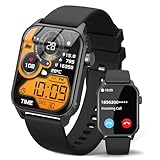
- 【1.83" HD Display & Customizable Watch Faces】Immerse yourself in a vibrant 1.83-inch IPS display, boasting a sharp resolution of 240*284 for crystal-clear visuals. Effortlessly personalize your smart watch with a wide array of customizable watch faces to suit your personal style for every occasion—whether trendy, artistic, or minimalist—ideal for casual, sporty, or professional. Its sleek, modern design complements any outfit, blending technology and fashion seamlessly for everyday wear
- 【120 Sports Modes & Advanced Health Tracking】Our TK29 smart watches for women men come equipped with 120 sports modes, allowing you to effortlessly track a variety of activities such as walking, running, cycling, and swimming. With integrated heart rate and sleep monitors, you can maintain a comprehensive overview of your health, achieve your fitness goals, and maintain a balanced, active lifestyle with ease. Your ideal wellness companion (Note: Step recording starts after exceeding 20 steps)
- 【IP67 Waterproof & Long-Lasting Battery】Designed to keep up with your active lifestyle, this smartwatch features an IP67 waterproof rating, ensuring it can withstand splashes, sweat, and even brief submersion, making it perfect for workouts, outdoor adventures, or rainy days. Its reliable 350mAh battery offering 5-7 days of active use and up to 30 days in standby mode, significantly reducing frequent charging. Ideal for all-day wear, whether you’re at the gym, outdoors, or simply on the go
- 【Stay Connected Anytime, Anywhere】Stay informed and in control with Bluetooth call and music control features. Receive real-time notifications for calls, messages, and social media apps like Facebook, WhatsApp, Twitter, and Instagram directly on your smartwatch. Easily manage calls, control your music playlist, and stay updated without needing to reach for your phone. Perfect for work, workouts, or on-the-go, this watch keeps you connected and never miss important updates wherever you are
- 【Multifunction & Wide Compatibility】Seamlessly handle heart rate monitoring, sleep tracking, and enjoy conveniences like camera/music control, Seamlessly handle heart rate monitoring, sleep tracking, and more-all directly from your wrist. This 1.83 inches HD smartwatch is compatible with iPhone (iOS 9.0+) & Android (5.0+), ensuring smooth daily connectivity and convenience throughout your day. More than just a timepiece, it’s a stylish, all-in-one wearable for smarter, healthier living
For runners, gym users, and commuters, this means fewer devices to juggle. Pair Bluetooth earbuds to your watch, start a playlist, and you’re fully untethered.
Offline playback is the real killer feature
With an Amazon Music Unlimited or Prime subscription, you can download playlists, albums, and curated stations directly to the watch’s internal storage. Once downloaded, playback works anywhere, including airplanes, underground gyms, or trails with no signal. Storage limits depend on the watch model, but most modern Wear OS watches comfortably handle several playlists without issue.
Downloads happen over Wi‑Fi and are managed from the watch interface, so there’s no need to sideload files or mess with a computer. It’s slower than downloading on a phone, but it’s set-and-forget once you understand the process.
Playback controls are designed for quick, glanceable use
The Wear OS app focuses on the essentials: play, pause, skip, shuffle, and volume control via the watch buttons or touchscreen. Recently played music, downloaded content, and recommended playlists are easy to access with minimal swiping. Voice control through Google Assistant can also kick off playback, though results vary depending on connection quality and account linking.
This simplicity works in the app’s favor during workouts, where sweaty fingers and small screens demand fewer options, not more. It feels purpose-built for wrist use rather than a shrunk-down phone app.
Compatibility depends on both your watch and your subscription
Amazon Music supports Wear OS 3 and newer, which includes watches like the Pixel Watch series, Samsung Galaxy Watch 4 and later, and several Fossil Group models. Older Wear OS watches running earlier software versions are not supported. On the subscription side, offline playback requires Amazon Music Prime or Amazon Music Unlimited, while free-tier users are largely locked out.
Cellular streaming also depends on having an LTE-enabled watch with an active data plan. Without it, streaming requires Wi‑Fi, making offline downloads the smarter option for most people.
Battery life trade-offs are real but manageable
Playing music directly from the watch uses more battery than phone-controlled playback, especially when streaming over LTE. Offline playback is noticeably more efficient and is the preferred option for longer workouts or runs. Expect battery drain similar to GPS tracking with Bluetooth headphones, which most modern Wear OS watches are designed to handle for typical exercise sessions.
In daily use, this means music playback is best treated as a feature you plan around, not something you leave running all day. Used intentionally, it fits comfortably within a normal charging routine.
It’s ideal for people who want less phone dependence, not power users
Amazon Music on Wear OS shines for people who value freedom and convenience over deep library management. You won’t be editing playlists, browsing liner notes, or diving into advanced recommendations from the watch. Instead, it’s about quick access to music you already love, wherever you happen to be.
If your goal is to leave your phone behind more often and still enjoy reliable, high-quality audio, this app delivers exactly that. The next step is understanding how to link your account and set it up correctly, because a smooth setup makes all the difference in daily use.
Requirements Checklist: Supported Wear OS Watches, Phones, and Amazon Music Plans
Before you start linking accounts or downloading playlists, it’s worth double-checking that your hardware and subscription line up. Amazon Music on Wear OS works well once everything is in place, but it is selective about software versions, supported watches, and which plans unlock offline playback.
Think of this as the pre-flight check that prevents frustration later, especially if your goal is phone-free listening.
Supported Wear OS versions and smartwatch models
Amazon Music requires Wear OS 3 or newer, which immediately rules out older Wear OS 2 watches regardless of how capable the hardware may still feel. If your watch hasn’t received the Wear OS 3 update, the Amazon Music app simply won’t appear in the Play Store.
In real-world use, the most reliable experiences come from Google and Samsung’s current platforms. This includes the Pixel Watch and Pixel Watch 2, Samsung Galaxy Watch 4, Watch 5, Watch 6, and newer Galaxy Watch models, all of which run Wear OS 3+ with strong app support and smooth background playback.
Several Fossil Group watches running Wear OS 3 are also compatible, such as select Fossil Gen 6, Skagen Falster, and Michael Kors models. These tend to offer lighter cases and slimmer profiles, which can be more comfortable for long workouts, though battery life during music playback is often a bit shorter than on Samsung’s larger watches.
If you’re shopping specifically for wrist-based music, prioritize a watch with solid battery capacity, stable Bluetooth, and enough internal storage. Music playback puts sustained load on the system, and smaller, fashion-forward cases can drain faster than sport-focused designs.
Phone requirements for setup and syncing
Even though the goal may be phone-free listening, an Android phone is still required for initial setup. You’ll need it to pair the watch, install the Amazon Music app, and link your Amazon account during the authorization process.
The phone must be running a recent version of Android with Google Play Services enabled. iPhones are not supported for Amazon Music on Wear OS, even if the watch itself has LTE, because the Wear OS ecosystem depends on Android for account syncing and app management.
Once setup is complete, day-to-day playback doesn’t require the phone nearby, as long as you’re using downloaded music or the watch has Wi‑Fi or LTE access. The phone becomes more of a control center than a constant companion.
Amazon Music plans and what they unlock
Your Amazon Music subscription determines what you can actually do from the wrist. Amazon Music Free does not support offline downloads on Wear OS and offers very limited playback options, making it a poor fit for standalone smartwatch use.
Amazon Music Prime allows offline playback on supported Wear OS watches, including downloaded playlists and albums. This tier is sufficient for most users who want reliable workout music without carrying their phone, though the catalog is smaller than Unlimited.
Amazon Music Unlimited offers the full experience, with the largest library, better recommendation access, and unrestricted offline downloads on the watch. If you already subscribe, this is the most seamless option and requires no additional upgrades for smartwatch use.
Connectivity options: Bluetooth, Wi‑Fi, and LTE
All supported Wear OS watches use Bluetooth to connect to wireless headphones, which is mandatory for private listening. Wired headphones are not supported, so stable Bluetooth performance matters more than you might expect during runs or gym sessions.
Streaming directly from the watch requires either Wi‑Fi or LTE. LTE-enabled watches with an active data plan offer the most freedom, but they also drain battery faster when streaming music continuously.
For most people, offline downloads are the sweet spot. Downloading playlists over Wi‑Fi at home and playing them offline delivers better battery life, fewer dropouts, and a more predictable experience during workouts.
Storage space and practical limits
Internal storage varies widely across Wear OS watches, typically ranging from 8GB to 32GB, with only a portion available for apps and media. In practice, this still allows for several playlists or albums, even at higher audio quality settings.
Music files are stored directly on the watch when downloaded, so managing space matters if you also use offline maps, podcasts, or fitness apps. The Amazon Music app lets you remove downloads easily, which helps keep storage under control.
If you plan to rely heavily on offline playback, a watch with more internal storage and a slightly larger case often delivers better long-term usability. It’s one of those specs that feels minor on paper but makes a noticeable difference in daily use.
With these requirements checked off, you’re ready to move from compatibility to action. The next step is linking your Amazon account and getting the app set up properly on the watch, which is where everything starts to feel real.
Preparing Your Watch: Storage, Connectivity, and Battery Considerations Before Setup
Before you open the Play Store or reach for your Amazon account, it’s worth spending a few minutes getting the watch itself ready. A little prep here avoids failed downloads, mid-run dropouts, and the kind of battery anxiety that can sour wrist-based music quickly.
Check available storage and clean house if needed
Even though many Wear OS watches advertise 16GB or more of internal storage, the usable space for apps and media is often much smaller once the system takes its share. Head into Settings on the watch, find Storage, and confirm you have at least a few gigabytes free before installing Amazon Music and downloading playlists.
If your watch already carries offline maps, podcasts, or older apps you no longer use, remove them now. Music downloads live entirely on the watch, and juggling storage after setup is far more annoying than starting with a clean slate.
Confirm your connectivity setup at home and on the go
For the smoothest initial setup, make sure the watch is connected to Wi‑Fi rather than relying on Bluetooth alone. Downloading the Amazon Music app and syncing playlists is faster, more reliable, and easier on the battery over Wi‑Fi than over LTE or a phone-tethered connection.
If you’re using an LTE-enabled watch, verify that the data plan is active and working independently of your phone. LTE is great for streaming on the fly, but for most users it’s best treated as a backup rather than the primary way to load music onto the watch.
Pair and test your Bluetooth headphones in advance
Amazon Music playback on Wear OS assumes wireless headphones, so this is not a step to skip. Pair your earbuds or headphones through the watch’s Bluetooth settings and play any audio source to confirm stable connectivity and acceptable volume levels.
Comfort matters here more than specs. A watch that sits well on the wrist, paired with secure-fitting earbuds, makes offline playback during workouts or long walks feel natural rather than fiddly.
Plan around battery life, not just battery percentage
Music playback is one of the more demanding tasks for a smartwatch, especially if streaming over LTE or using noise-canceling earbuds. Start setup with at least 50 percent battery, and ideally keep the watch on its charger during large downloads.
Smaller watches with slimmer cases often have less battery capacity, which doesn’t make them unusable but does change expectations. Offline playback at moderate volume is far gentler on battery than streaming, and this difference becomes obvious in real-world daily wear.
Update the watch software before installing Amazon Music
A pending Wear OS update can cause app installs to fail or behave unpredictably. Check for system updates and let them complete before heading to the Play Store, even if that means waiting a few extra minutes.
Once the watch is updated, charged, connected, and cleared for storage, you’re in the best possible position for a smooth Amazon Music setup. From here, linking your account and enabling playback from the wrist becomes a straightforward, almost anticlimactic process.
Rank #2
![Apple Watch Series 11 [GPS 46mm] Smartwatch with Jet Black Aluminum Case with Black Sport Band - M/L. Sleep Score, Fitness Tracker, Health Monitoring, Always-On Display, Water Resistant](https://m.media-amazon.com/images/I/312K597M2uL._SL160_.jpg)
- HYPERTENSION NOTIFICATIONS — Apple Watch Series 11 can spot signs of chronic high blood pressure and notify you of possible hypertension.*
- KNOW YOUR SLEEP SCORE — Sleep score provides an easy way to help track and understand the quality of your sleep, so you can make it more restorative.
- EVEN MORE HEALTH INSIGHTS — Take an ECG anytime.* Get notifications for a high and low heart rate, an irregular rhythm,* and possible sleep apnea.* View overnight health metrics with the Vitals app* and take readings of your blood oxygen.*
- STUNNING DESIGN — Thin and lightweight, Series 11 is comfortable to wear around the clock — while exercising and even when you’re sleeping, so it can help track your key metrics.
- A POWERFUL FITNESS PARTNER — With advanced metrics for all your workouts, plus features like Pacer, Heart Rate Zones, training load, Workout Buddy powered by Apple Intelligence from your nearby iPhone,* and more. Series 11 also comes with three months of Apple Fitness+ free.*
Step-by-Step: Installing Amazon Music on Your Wear OS Smartwatch
With the groundwork done, installing Amazon Music on a Wear OS watch is refreshingly direct. The key is knowing which screen to use, what prompts to expect, and where people typically get stuck the first time around.
Step 1: Open the Play Store on the watch, not the phone
Start on the watch itself and press the crown or side button to open the app launcher. Find and open the Google Play Store that lives on the watch, which is separate from the Play Store on your phone.
This matters because installing from the phone’s Play Store does not always push the watch version correctly. Searching directly on the watch ensures you’re downloading the Wear OS-optimized Amazon Music app, not just the companion listing.
Step 2: Search for Amazon Music and confirm Wear OS compatibility
Use voice input, handwriting, or the tiny keyboard to search for “Amazon Music.” The official app should appear clearly labeled as compatible with Wear OS.
If you don’t see it, double-check that your watch is running a supported version of Wear OS and that Google Play Services are up to date. Older watches or heavily customized models can occasionally lag behind on app availability.
Step 3: Install the app and allow it to finish syncing
Tap Install and let the watch do its thing. On faster watches with newer processors and more RAM, this takes under a minute, while older or slimmer models may need a bit more patience.
Keep the watch awake during installation. Letting the screen sleep or moving out of Wi‑Fi range can pause the process, which often looks like a freeze but usually just needs a retry.
Step 4: Launch Amazon Music on the watch
Once installed, open Amazon Music directly from the watch’s app list. The first launch is about setup, not playback, so don’t worry if it feels slower than expected.
You’ll be greeted with a prompt telling you to link your Amazon account. This is normal and required before you can browse, stream, or download anything.
Step 5: Link your Amazon account using the on-screen code
The watch will display a short activation code along with instructions to visit amazon.com/code on another device. Open that page on your phone or computer, sign in to your Amazon account, and enter the code.
Within a few seconds, the watch app should refresh automatically. If it doesn’t, back out of the app and reopen it rather than reinstalling, which is a common but unnecessary mistake.
Step 6: Confirm your subscription level and features
After linking, Amazon Music will adapt its interface based on your subscription. Amazon Music Unlimited users get full on-demand playback, offline downloads, and larger playlists, while Prime users get a more limited but still useful catalog.
Free-tier users can install the app, but playback options on the watch are extremely restricted. If wrist-based listening without a phone is your goal, a paid tier is realistically required.
Step 7: Grant storage and playback permissions
Amazon Music may ask for permission to store files locally and control audio playback. Accept these prompts, as denying them will prevent offline downloads and can cause playback to fail silently.
On some watches, these permissions appear one at a time rather than as a single bundle. If downloads don’t start later, revisiting app permissions in system settings is the first thing to check.
Step 8: Verify basic playback before downloading music
Before loading up albums or playlists, tap into any recommended station or playlist and press play. This confirms that your account is linked correctly and that Bluetooth audio routes to your headphones.
Think of this as a functional test. If playback works here, offline downloads are almost guaranteed to behave as expected once you start adding content.
What you can expect once installed
Amazon Music on Wear OS is designed around wrist-first control. You can browse playlists, control volume, skip tracks, shuffle, and manage downloads without touching your phone.
The interface is simplified for small screens, which helps usability on compact watches with narrower cases. Larger watches with wider displays feel less cramped, but even smaller models remain perfectly usable for everyday listening.
Common installation issues and quick fixes
If the app refuses to install, restart the watch and confirm Wi‑Fi connectivity before trying again. Installation failures are far more often caused by background updates or low battery than by account problems.
If the app installs but won’t link your account, make sure you’re signing in with the same Amazon account used for your music subscription. Family or shared accounts can work, but they occasionally require a fresh login to sync properly.
At this point, Amazon Music should be fully installed and linked on your Wear OS smartwatch. From here, the experience shifts from setup to personalization, choosing what to download, when to stream, and how to balance convenience with battery life directly from the wrist.
Linking Your Amazon Account: Pairing, Permissions, and Common Login Pitfalls
With the app installed and basic playback tested, the next step is making sure your Amazon account is properly linked and authorized on the watch. This is the part of setup where most Wear OS hiccups happen, especially on smaller screens or watches with slower processors.
The good news is that once the account link is stable, you almost never have to revisit it. Amazon Music tends to stay signed in across updates and reboots, even on watches with modest RAM and older Snapdragon Wear chipsets.
How the Amazon account linking process actually works
When you first open Amazon Music on your watch, it doesn’t usually ask you to type in your email and password on the tiny display. Instead, it hands off authentication to your paired Android phone.
A notification appears on the phone prompting you to approve the sign-in, similar to logging into Amazon on a smart TV or Fire device. As long as the phone is unlocked and signed into the correct Amazon account, approval takes just a tap.
Behind the scenes, the watch receives a secure token rather than your raw credentials. That’s why the pairing step is so sensitive to Bluetooth stability and background app permissions on the phone.
Phone pairing requirements that often get overlooked
For account linking to succeed, three things need to be true at the same time: Bluetooth must be active, the Wear OS companion app must be allowed to run in the background, and your phone must have an active internet connection.
Aggressive battery-saving modes on some Android phones can silently block the handoff. If the watch sits on a “Waiting for approval” screen for more than 30 seconds, check that the Wear OS app is excluded from battery optimization.
This is especially common on phones from Samsung, Xiaomi, and OnePlus, where background process limits are stricter by default.
Subscription checks and what level of access you’ll get
Once linked, Amazon Music verifies your subscription tier automatically. Amazon Music Unlimited gives full access to on-demand playback and offline downloads directly on the watch.
Prime members can stream a more limited catalog, and offline playback is restricted or unavailable depending on region and current Amazon policies. Free-tier accounts can log in, but playback on Wear OS is usually blocked entirely.
If you’re unsure what tier you’re on, open Amazon Music on your phone and confirm before troubleshooting the watch. The watch app doesn’t clearly explain subscription limitations, which can make a valid login feel like a technical failure.
Permissions that directly affect playback and downloads
Account linking alone isn’t enough; permissions decide whether the app actually works day to day. Amazon Music needs storage access for offline downloads, nearby device access for Bluetooth audio, and background activity permission to keep downloads running when your wrist is idle.
On some watches, especially those with near-stock Wear OS builds, these permissions are requested gradually rather than all at once. It’s easy to miss one prompt and assume everything is fine.
If music streams but won’t download, or downloads stall at zero percent, open the watch’s system settings, navigate to Apps, Amazon Music, and manually confirm all permissions are enabled.
Common login failures and what they really mean
If the app keeps asking you to sign in every time you open it, the account token isn’t being saved. This is usually caused by low storage on the watch or by the system killing the app too aggressively in the background.
Freeing up even a few hundred megabytes can stabilize things, particularly on watches with 8 GB of internal storage where system updates eat into available space quickly.
Another frequent issue is using multiple Amazon accounts across devices. If your phone is signed into one account and your subscription lives on another, the watch will link successfully but show an empty or restricted library.
Regional and language quirks worth knowing
Amazon Music availability on Wear OS isn’t perfectly consistent worldwide. In supported regions, the app generally behaves the same, but language mismatches between the watch system and the Amazon account can occasionally cause login loops.
Switching the watch language to match the primary language of your Amazon account, completing the login, and then switching back often resolves this. It’s an inelegant fix, but it works more often than you’d expect.
Rank #3

- Bluetooth Call and Message Alerts: Smart watch is equipped with HD speaker, after connecting to your smartphone via bluetooth, you can answer or make calls, view call history and store contacts through directly use the smartwatch. The smartwatches also provides notifications of social media messages (WhatsApp, Twitter, Facebook, Instagram usw.) So that you will never miss any important information.
- Smart watch for men women is equipped with a 320*380 extra-large hd full touch color screen, delivering exceptional picture quality and highly responsive touch sensitivity, which can bring you a unique visual and better interactive experience, lock screen and wake up easily by raising your wrist. Though “Gloryfit” app, you can download more than 102 free personalised watch faces and set it as your desktop for fitness tracker.
- 24/7 Heart Rate Monitor and Sleep Tracker Monitor: The fitness tracker watch for men has a built-in high-performance sensor that can record our heart rate changes in real time. Monitor your heart rate 26 hours a day and keep an eye on your health. Synchronize to the mobile phone app"Gloryfit", you can understand your sleep status(deep /light /wakeful sleep) by fitness tracker watch develop a better sleep habit and a healthier lifestyle.
- IP68 waterproof and 110+ Sports Modes: The fitness tracker provides up to 112+ sports modes, covering running, cycling, walking, basketball, yoga, football and so on. Activity trackers bracelets meet the waterproof requirements for most sports enthusiasts' daily activities, such as washing hands or exercising in the rain, meeting daily needs (note: Do not recommended for use in hot water or seawater.)
- Multifunction and Compatibility: This step counter watch also has many useful functions, such as weather forecast, music control, sedentary reminder, stopwatch, alarm clock, timer, track female cycle, screen light time, find phone etc. The smart watch with 2 hrs of charging, 5-7 days of normal use and about 30 days of standby time. This smart watches for women/man compatible with ios 9.0 and android 6.2 and above devices.
How to confirm your account is truly linked
The most reliable confirmation is not the home screen but the Library tab. If your playlists, recently played albums, or stations appear within a few seconds, the link is solid.
Try starting playback, locking the screen, and letting the watch sit for a minute. If audio continues uninterrupted through your headphones, the account token, permissions, and Bluetooth routing are all behaving correctly.
Once this stage is complete, Amazon Music effectively becomes a native part of the watch experience, ready for offline downloads, phone-free workouts, and everyday listening without constant setup friction.
Playing Music from the Wrist: Streaming vs Offline Playback Explained
With your account fully linked and playback confirmed, the next decision is how you actually want to listen. On Wear OS, Amazon Music supports two very different modes: live streaming and offline playback, and the experience changes dramatically depending on which you choose.
Understanding the trade-offs here is the key to frustration-free listening, especially if your goal is phone-free workouts or long days away from a charger.
Streaming directly from the watch: what it requires
Streaming means the watch is pulling music in real time from Amazon’s servers, just like your phone would. For this to work, your watch needs an active internet connection, either through Wi‑Fi or its own LTE connection if it’s a cellular model.
On Wi‑Fi-only watches, streaming is practical at home, in the office, or anywhere with a saved network. Once you step outside Wi‑Fi range, playback will stop immediately unless the watch has LTE or the tracks are downloaded.
LTE streaming: phone-free, but not consequence-free
If you’re using an LTE-enabled Wear OS watch with an active data plan, Amazon Music streaming works independently of your phone. This is ideal for runs, gym sessions, or errands where carrying a phone feels unnecessary.
The trade-off is battery drain. Continuous LTE streaming is one of the most power-hungry things a smartwatch can do, often cutting expected battery life in half or worse on compact cases under 45 mm.
Audio quality and stability when streaming
Amazon Music on Wear OS dynamically adjusts stream quality to maintain stability. Even if you have Amazon Music Unlimited, you should expect compressed audio rather than full HD or Ultra HD tiers.
In real-world use, this is rarely a problem through Bluetooth earbuds, but brief buffering can occur on LTE when signal strength fluctuates. If uninterrupted playback matters more than convenience, offline is the safer option.
Offline playback: the true phone-free experience
Offline playback stores playlists or albums directly on the watch’s internal storage. Once downloaded, no internet connection is required, and playback is rock-solid whether you’re on a trail, airplane mode, or deep inside a gym.
This is the mode most runners and fitness users end up relying on. It also dramatically improves battery efficiency compared to streaming, since the watch isn’t constantly maintaining a data connection.
Storage limits and how much music actually fits
Most Wear OS watches ship with 8 GB to 32 GB of internal storage, but a large chunk is reserved for the system. On an 8 GB watch, expect roughly 3 to 4 GB to be realistically usable for music and apps.
In practice, that translates to several hundred songs or a handful of long playlists. Downloads are stored within the Amazon Music app and can be removed individually if you need to free up space later.
What you can and can’t download
Offline downloads require an active Amazon Music Unlimited subscription. Prime Music users can browse and stream where supported, but offline playback on Wear OS is restricted without Unlimited.
You can download playlists, albums, and some curated stations, but you can’t download your entire library in bulk. Downloads must be initiated from the watch itself, not pushed remotely from the phone.
Battery behavior during offline listening
Offline playback is one of the most battery-efficient ways to use music on a smartwatch. With Bluetooth headphones connected, most modern Wear OS watches can handle a long workout session with minimal impact.
Watches with larger cases and batteries, often around 44 mm or more, handle extended offline playback more comfortably. Smaller, fashion-focused designs may still require daily charging if music is part of your routine.
Playback controls and daily usability
Whether streaming or offline, playback controls live directly on the watch screen. You can play, pause, skip tracks, shuffle playlists, and adjust volume, either via buttons, bezel, or touch depending on the watch design.
Voice control through Google Assistant is inconsistent with Amazon Music and shouldn’t be relied on. For predictable results, manual control from the watch interface is still the most reliable option.
Which mode should you actually use?
Streaming makes sense if you have LTE, don’t want to manage storage, and listen casually throughout the day. Offline playback is better for workouts, travel, and anyone who values battery life and reliability over instant access to everything.
Most experienced Wear OS users end up using both. They keep a few core playlists downloaded for everyday use and rely on streaming only when circumstances allow.
Downloading Music for Offline Use: Playlists, Limits, and Real-World Storage Impact
If you’ve decided offline playback is the right mode for your routine, the next question is how downloads actually work on a Wear OS watch day to day. This is where expectations matter, because smartwatch storage, download limits, and Amazon Music’s own rules shape what’s practical far more than most people realize.
How offline downloads work on Wear OS
All offline downloads must be initiated directly on the watch through the Amazon Music app. You browse your library, playlists, or albums on the watch screen and tap the download option there; there’s no way to queue or manage downloads remotely from your phone.
Downloads happen over Wi‑Fi or LTE if your watch supports it, but Wi‑Fi is strongly recommended. Large playlists can take time, and LTE downloads are slower and noticeably harder on battery life, especially on watches with smaller cells.
Once downloaded, music is encrypted and stored inside the Amazon Music app. You can’t access the files from the system storage menu, move them elsewhere, or play them with another music app.
What you can realistically download
Amazon Music allows offline downloads of playlists, albums, and some curated content, but there’s no bulk “download everything” option. Each playlist or album has to be selected individually, which encourages a more curated approach.
In real-world use, this works best when you think in terms of purpose-built playlists. A workout mix, a commuting playlist, and maybe one longer “all-day” selection are far more manageable than trying to mirror your entire phone library.
Dynamic or algorithm-driven playlists that update frequently may require re-downloading changes. If tracks are added or removed, the watch doesn’t always refresh automatically, so it’s worth checking before heading out without your phone.
Storage space: what fits and what doesn’t
Most modern Wear OS watches ship with 16 GB or 32 GB of total storage, but only a portion of that is available for media. After the operating system, apps, and cached data, usable space for music is often closer to 6–10 GB.
In practical terms, that usually translates to roughly 800 to 1,500 songs, depending on audio quality and playlist length. Amazon Music doesn’t expose granular bitrate controls on Wear OS, so you don’t get the same storage optimization options you might on a phone.
Watches positioned as fitness-first devices with larger cases often handle this better simply because they tend to include more internal storage and slightly larger batteries. Sleeker, lifestyle-focused models may fill up faster if you’re not careful.
Managing downloads over time
Amazon Music’s watch app includes a basic download management view where you can see what’s stored locally. Removing playlists or albums is straightforward, but there’s no automatic cleanup or “smart storage” feature.
If you rotate playlists frequently, it’s a good habit to check storage every few weeks. Watch performance can suffer if internal storage gets too tight, affecting app launches and sync behavior beyond just music.
Because downloads are tied to your subscription status, they’ll stop working if your Amazon Music Unlimited plan lapses. The files remain on the watch, but playback is disabled until your subscription is active again.
Offline playback quality and reliability
Offline playback is generally more stable than streaming, especially during workouts or outdoor activities. There’s no buffering, fewer dropouts, and Bluetooth connections to earbuds tend to stay locked in more consistently.
This reliability also shows up in battery performance. Playing downloaded tracks puts less strain on the processor and radios, which is why many runners and gym users prefer offline mode even on LTE-equipped watches.
From a comfort standpoint, this means fewer mid-workout interruptions and less screen interaction. Once a playlist starts, you can rely on hardware buttons, bezels, or quick taps rather than fiddling with connectivity settings.
Who offline downloads make the most sense for
Offline downloads are ideal if you train regularly, commute without your phone, or simply want predictable behavior from your watch. They’re also the best option if battery life is already a concern with your specific watch size or design.
If you mostly listen at your desk, at home, or with your phone nearby, streaming may be simpler. Storage management and download planning only pay off when you actually leave the phone behind.
Rank #4
![Apple Watch Series 11 [GPS 42mm] Smartwatch with Rose Gold Aluminum Case with Light Blush Sport Band - S/M. Sleep Score, Fitness Tracker, Health Monitoring, Always-On Display, Water Resistant](https://m.media-amazon.com/images/I/31J+F-pXaWL._SL160_.jpg)
- HYPERTENSION NOTIFICATIONS — Apple Watch Series 11 can spot signs of chronic high blood pressure and notify you of possible hypertension.*
- KNOW YOUR SLEEP SCORE — Sleep score provides an easy way to help track and understand the quality of your sleep, so you can make it more restorative.
- EVEN MORE HEALTH INSIGHTS — Take an ECG anytime.* Get notifications for a high and low heart rate, an irregular rhythm,* and possible sleep apnea.* View overnight health metrics with the Vitals app* and take readings of your blood oxygen.*
- STUNNING DESIGN — Thin and lightweight, Series 11 is comfortable to wear around the clock — while exercising and even when you’re sleeping, so it can help track your key metrics.
- A POWERFUL FITNESS PARTNER — With advanced metrics for all your workouts, plus features like Pacer, Heart Rate Zones, training load, Workout Buddy powered by Apple Intelligence from your nearby iPhone,* and more. Series 11 also comes with three months of Apple Fitness+ free.*
For most Wear OS owners, the sweet spot is selective downloading. Keep a few trusted playlists stored locally, refresh them occasionally, and treat offline playback as a reliability feature rather than a replacement for your entire music library.
Controls and Features on Wear OS: What You Can (and Can’t) Do Without Your Phone
Once you’ve committed to offline playback, the way you interact with Amazon Music changes in subtle but important ways. The experience is designed to be self-contained, but it’s also intentionally simplified to suit a small screen, limited input methods, and the realities of smartwatch battery life.
Understanding these controls upfront helps set expectations and avoids frustration the first time you leave your phone behind.
Core playback controls from the wrist
At its most basic, Amazon Music on Wear OS gives you reliable, no-nonsense playback controls. You can play, pause, skip forward and backward, and restart the current track directly from the watch screen.
Volume control is handled either through on-screen sliders or your watch’s physical buttons, depending on the model. Rotating crowns, touch-sensitive bezels, and side buttons all work well here, making volume changes possible without looking at the screen mid-run or mid-lift.
You can also see basic track information like song title, artist, and album art. Album art is often compressed to save storage and memory, but it’s still clear enough to identify what’s playing at a glance.
Selecting music without your phone
When offline, your music choices are limited to what you’ve downloaded to the watch. That includes playlists, albums, and any curated Amazon Music mixes you explicitly saved for offline use.
Navigation is straightforward but hierarchical. You drill down through playlists or albums rather than browsing freely, which keeps scrolling manageable on smaller displays, especially on 40–42mm cases.
Search is not available without a phone or active connection. This means no voice or text-based song searches once you’re offline, so preparation matters more than spontaneity.
Bluetooth headphone management
Pairing and managing Bluetooth headphones can be done entirely from the watch. Once paired, Amazon Music automatically routes audio to your selected earbuds or headphones without requiring phone involvement.
Connection stability is generally excellent during offline playback. With fewer radios active, Wear OS watches tend to maintain stronger Bluetooth links, even during high-movement activities like interval runs or gym circuits.
If you switch between multiple earbuds, expect to manually reconnect in the system Bluetooth menu. Amazon Music itself doesn’t manage device switching, which can feel clunky compared to phone-based playback.
Hardware controls and workout-friendly behavior
One of the strengths of wrist-based playback is how well it integrates with physical controls. On watches with rotating crowns or tactile buttons, you can control playback without interrupting a workout or unlocking the screen.
This is particularly useful on sport-focused designs with matte finishes, curved lugs, and lightweight aluminum or titanium cases. These watches are meant to disappear on the wrist, and minimal interaction aligns well with that philosophy.
However, button mapping is system-dependent. Amazon Music doesn’t let you customize which buttons control playback, so you’re working within Wear OS defaults rather than app-specific shortcuts.
What you cannot do without your phone
There are clear limitations once the phone is out of the equation. You can’t browse the full Amazon Music catalog, explore new releases, or access radio-style recommendations while offline.
Playlist editing is also off-limits. You can’t add or remove tracks from existing playlists, create new ones, or reorder songs directly from the watch.
Streaming over Wi‑Fi or LTE without the phone is possible on supported watches, but functionality remains limited. Even then, discovery features and deeper library management still push you back to the phone app.
Voice controls and Google Assistant limitations
Voice control is one of the most common pain points. While Google Assistant works well for system actions, it has limited integration with Amazon Music on Wear OS.
You generally can’t say commands like “play my workout playlist on Amazon Music” and expect consistent results. In most cases, Assistant either fails to launch playback or defaults to another service if one is set as the system preference.
This makes touch and hardware controls the most reliable way to manage music when your phone isn’t nearby.
Notifications, multitasking, and background behavior
Amazon Music behaves well in the background. You can switch to a workout app, check notifications, or use navigation features without stopping playback.
That said, heavy multitasking can expose hardware limits, especially on older Wear OS watches with less RAM. Slower app switching or delayed touch responses are more common when storage and memory are nearly full.
From a daily usability perspective, this reinforces why selective downloads and occasional storage cleanup matter just as much as raw battery capacity.
Battery impact during standalone playback
Without the phone, battery usage depends heavily on how you’re listening. Offline playback with Bluetooth headphones is the most efficient scenario and typically consumes less power than streaming over LTE.
Watches with smaller cases and batteries, often under 300mAh, benefit the most from this efficiency. You’ll get longer sessions and more predictable drain, which is critical if you’re also tracking workouts or GPS activity.
Streaming independently, while convenient, remains a battery-heavy option. It’s best treated as an occasional fallback rather than a daily listening mode.
Overall usability without the phone
Amazon Music on Wear OS is at its best when you treat it as a focused playback tool rather than a full-featured music app. It excels at delivering reliable, distraction-free listening from a compact device designed to move with you.
The trade-off is flexibility. You gain independence from your phone, but you give up discovery, deep library management, and advanced voice control.
For most users, that balance feels intentional. The watch becomes a dependable music companion, not a replacement for the phone, and understanding that distinction makes the experience far more satisfying.
Headphones, Connectivity, and Audio Quality: Bluetooth Pairing and Stability
Once you’re relying on the watch as a standalone music source, headphones become the final and most critical link in the chain. Good pairing behavior and stable Bluetooth performance matter more here than bitrate specs or codec checklists, especially when your phone is out of range.
This is where Wear OS shows both its maturity and its limits, depending heavily on the watch hardware and the headphones you choose.
Pairing Bluetooth headphones directly to a Wear OS watch
All Wear OS watches support direct Bluetooth headphone pairing, and Amazon Music works only with audio routed this way when playing without a phone. Pairing is handled at the system level, not inside the Amazon Music app itself.
From the watch, you’ll go into Settings, then Connectivity or Bluetooth, and add a new device. Put your earbuds or headphones into pairing mode, select them on the watch, and confirm the connection.
This process is generally smooth on modern Wear OS versions, but the small screen does make it feel slower than pairing on a phone. Expect a few extra taps and short delays, especially on watches with older processors or limited RAM.
Earbuds vs over-ear headphones: what works best
In real-world use, true wireless earbuds are the most practical match for smartwatch playback. They’re lighter, maintain a more consistent connection during movement, and don’t stress the watch’s Bluetooth radio as much as larger over-ear models.
Over-ear Bluetooth headphones do work, but they’re more sensitive to arm movement and body position. During runs or gym sessions, you’re more likely to experience brief dropouts as your wrist swings away from your head.
For workouts, compact earbuds with stable Bluetooth 5.x implementations deliver the most reliable experience. This matters more than brand or price when you’re pairing directly to a watch.
Bluetooth stability during movement and workouts
When listening from the wrist, your watch becomes the Bluetooth source, which changes how signal dropouts behave. Arm movement, sweat, and even the orientation of the watch case can affect connection quality.
Watches with aluminum or plastic cases often perform slightly better than stainless steel or titanium models, simply because there’s less metal interference around the antenna. This is a subtle difference, but noticeable during longer runs or outdoor workouts.
During testing, most modern Wear OS watches maintain a stable connection for offline playback, even with GPS tracking enabled. Dropouts tend to appear when multitasking heavily or when storage is nearly full, reinforcing the importance of keeping the watch lean and focused.
💰 Best Value
![Apple Watch Series 11 [GPS 42mm] Smartwatch with Jet Black Aluminum Case with Black Sport Band - S/M. Sleep Score, Fitness Tracker, Health Monitoring, Always-On Display, Water Resistant](https://m.media-amazon.com/images/I/31ybzrJZckL._SL160_.jpg)
- HYPERTENSION NOTIFICATIONS — Apple Watch Series 11 can spot signs of chronic high blood pressure and notify you of possible hypertension.*
- KNOW YOUR SLEEP SCORE — Sleep score provides an easy way to help track and understand the quality of your sleep, so you can make it more restorative.
- EVEN MORE HEALTH INSIGHTS — Take an ECG anytime.* Get notifications for a high and low heart rate, an irregular rhythm,* and possible sleep apnea.* View overnight health metrics with the Vitals app* and take readings of your blood oxygen.*
- STUNNING DESIGN — Thin and lightweight, Series 11 is comfortable to wear around the clock — while exercising and even when you’re sleeping, so it can help track your key metrics.
- A POWERFUL FITNESS PARTNER — With advanced metrics for all your workouts, plus features like Pacer, Heart Rate Zones, training load, Workout Buddy powered by Apple Intelligence from your nearby iPhone,* and more. Series 11 also comes with three months of Apple Fitness+ free.*
Codec support and real-world audio quality
Wear OS typically defaults to the standard SBC Bluetooth codec, with some watches supporting AAC depending on hardware and firmware. Advanced codecs like aptX or LDAC are rarely exposed or reliably used when pairing directly to a watch.
In practice, this doesn’t hurt the experience as much as you might expect. Amazon Music’s offline downloads on Wear OS are optimized for consistency and battery efficiency rather than audiophile-grade fidelity.
On good earbuds, the sound is clean, balanced, and perfectly adequate for workouts, commutes, or casual listening. You’ll notice limitations more in dynamic range than clarity, but those trade-offs are reasonable given the watch’s size and power constraints.
Volume control, latency, and playback responsiveness
Volume can be adjusted from the watch using touch controls, hardware buttons, or on the headphones themselves if they support it. Hardware buttons on the watch are especially useful mid-workout, as touch accuracy can drop with sweat or motion.
Latency is low enough for music playback but not ideal for video or spoken-word content that demands lip-sync accuracy. Since Amazon Music on Wear OS is music-first, this rarely becomes an issue.
Playback commands like pause, skip, and resume are generally responsive, though there can be a slight delay when the watch is waking from sleep. This is normal behavior and more noticeable on watches with aggressive battery-saving settings.
Managing multiple Bluetooth devices and reconnection behavior
Wear OS can remember multiple paired headphones, but it doesn’t always switch between them intelligently. If your earbuds were last connected to your phone, you may need to manually reconnect them to the watch before starting playback.
This is one of the most common friction points for new users. A quick habit of checking Bluetooth status on the watch before heading out prevents frustration later.
Once connected, reconnection after a brief signal loss is usually automatic. However, if playback stops entirely, restarting Amazon Music from the app list is often faster than troubleshooting Bluetooth menus.
What to expect in daily use
When everything is set up correctly, Bluetooth audio from a Wear OS watch feels surprisingly dependable. Offline Amazon Music playback with good earbuds delivers a lightweight, distraction-free listening experience that fits naturally into workouts and daily routines.
The key is realistic expectations. You’re trading absolute audio fidelity and seamless device switching for independence and simplicity, and for most users, that trade is well worth it.
With the right headphones and a bit of setup awareness, the watch becomes a genuinely capable music player, not just a backup option when your phone stays behind.
Troubleshooting and Pro Tips: Sync Issues, Downloads Failing, and Battery Drain
Even with everything set up correctly, real-world use can surface a few hiccups. Most Amazon Music issues on Wear OS fall into predictable categories, and the fixes are usually simple once you know where to look.
Think of this section as the final polish. A few adjustments here can turn a “mostly works” experience into something you trust every time you leave your phone behind.
When Amazon Music won’t sync or recognize your account
If the watch app opens but doesn’t show your library, playlists, or downloads, the issue is almost always account authentication. Amazon Music relies on the phone app to verify your subscription and region before passing access to the watch.
Start by opening Amazon Music on your phone and confirming you’re signed in to the correct Amazon account. Then open the Amazon Music app on the watch while the phone is nearby and unlocked, giving it a moment to resync.
If that fails, force-closing Amazon Music on both devices and reopening them in that order often resolves it. As a last step, uninstalling and reinstalling the watch app from the Play Store on the watch can reset the connection cleanly without affecting your account.
Downloads failing, stuck, or disappearing
Offline downloads are the most powerful feature of Amazon Music on Wear OS, but they’re also the most sensitive to setup conditions. Downloads will quietly fail if any requirement isn’t met.
Make sure the watch is connected to Wi‑Fi, not just Bluetooth. Cellular models can also download over LTE, but this is slower and drains the battery significantly, so Wi‑Fi is strongly recommended.
Battery level matters more than you might expect. Many Wear OS watches pause downloads below roughly 40–50 percent, especially if battery saver is enabled, so placing the watch on its charger during downloads dramatically improves reliability.
If a download stalls at a specific percentage, cancel it and restart rather than waiting it out. Long pauses usually indicate a dropped connection rather than slow progress.
Storage limits and why playlists may not fully download
Wear OS watches have limited internal storage, and Amazon Music doesn’t always warn you before hitting the ceiling. A typical smartwatch offers 4–8 GB of usable space once the system and apps are accounted for.
Large playlists, high-quality downloads, and cached album art add up quickly. If only part of a playlist downloads, check available storage in the watch’s settings and delete old music or unused apps.
For most users, smaller, purpose-built playlists work best. A few workout mixes or favorite albums provide more than enough variety without stressing storage or sync reliability.
Playback issues after a watch reboot or update
After a system update or restart, Amazon Music may temporarily forget downloaded content. This doesn’t always mean the files are gone, just that the app needs time to reindex them.
Open Amazon Music on the watch, leave it on the library screen for a minute, and avoid immediately starting playback. In many cases, downloads reappear without further action.
If music is truly missing, reconnect the watch to Wi‑Fi and re-download while charging. Updates can change how storage is managed, especially on newer Wear OS versions.
Managing battery drain during music playback
Streaming or playing offline music directly from the watch is one of the most battery-intensive things you can do. This is normal behavior and varies by watch size, chipset, and battery capacity.
Offline playback uses noticeably less power than streaming, especially when paired with Bluetooth earbuds. Turning off LTE and Wi‑Fi once downloads are complete can extend playback time significantly.
Screen usage matters more than audio decoding. Avoid waking the display unnecessarily, rely on hardware buttons for controls, and let the screen time out naturally during workouts.
Watch-specific settings that improve stability
Aggressive battery optimization can interfere with Amazon Music in the background. On some watches, disabling battery optimization for Amazon Music improves playback consistency and prevents unexpected pauses.
Keeping system animations minimal and avoiding heavy multitasking also helps. Music playback is most stable when Amazon Music is the primary active app rather than competing with fitness apps that constantly wake the system.
If your watch supports performance modes, using a balanced or performance profile during workouts can reduce Bluetooth dropouts at the cost of some battery life.
Pro tips for a smoother everyday experience
Download music the night before, not minutes before heading out. Background syncing is slower on watches, and patience here pays off later.
Use playlists instead of albums when possible. Playlists load faster and are easier to manage on a small screen, especially mid-activity.
Get into the habit of checking Bluetooth and battery status before starting playback. Ten seconds of preparation prevents most of the frustrations users blame on the app itself.
Final thoughts: making Amazon Music on Wear OS work for you
Amazon Music on Wear OS isn’t about replacing your phone’s music experience. It’s about freedom, letting you run, train, commute, or relax with nothing but a watch and a pair of headphones.
Once you understand its limits and strengths, the experience becomes dependable and genuinely useful. With offline downloads, smart battery habits, and a bit of setup awareness, music from the wrist stops feeling like a compromise and starts feeling intentional.
For Amazon Music subscribers who value independence and simplicity, Wear OS delivers exactly what it promises, as long as you meet it halfway.