Most people searching for “vibrate‑only” on Apple Watch are trying to solve a very specific problem: they want to feel notifications on their wrist without any sounds breaking the silence. That might be a meeting, a classroom, a hospital ward, or simply a preference for quieter tech that doesn’t announce every alert to the room.
Apple Watch can absolutely deliver discreet, vibration‑only alerts, but the way Apple labels and layers its settings can make this confusing. “Vibrate‑only” is not a single switch, and depending on how your watch is configured, you might still hear the occasional chime, tone, or system sound unless you understand what’s really happening under the hood.
Before diving into the step‑by‑step setup, it’s important to clarify exactly what vibrate‑only means on watchOS, how it’s achieved, and where the common misunderstandings come from. Once you grasp this, the actual setup becomes straightforward and far more reliable.
There Is No Literal “Vibrate‑Only” Mode
Apple Watch does not include a setting officially called “vibrate‑only.” Instead, vibration‑only behavior is the result of combining Silent Mode with haptic alerts. Silent Mode turns off audible notification sounds, while haptics handle the physical tap on your wrist.
🏆 #1 Best Overall

- Water Resistant: Our innovative splash-proof stretchy apple watch band allows droplets slides away which makes it handle sweat, light rain, and even accidental splashes without any issues. For some types of spills on this apple watch strap, like coffee, just a quick rinse under water within 1 minute and you will get a clean band
- Variety of Colors: With 10 colors in one pack to match any outfit, these apple watch bands for women and men offers a fashionable touch to iWatch. With a range of color options, you can easily switch up your look to suit any occasion, from professional meetings to casual outings. Enjoy the versatility of a band that complements your lifestyle and personal style effortlessly
- Comfort & Durability: Enjoy all-day comfort with our iwatch bands for women, designed to fit your wrist without any constriction. Crafted from soft, skin-friendly and durable sweat-wicking nylon, this apple watch se band is lightweight and breathable, preventing irritation and ensuring your wrist stays comfortable and cool, even during workouts
- Customizable Fit: Find your perfect fit with these iphone watch bands for women. Featuring a reinforced stainless steel buckle, these wristbands are fully adjustable to your desired length. The stretchable design ensures a snug and comfortable fit, suitable for both women and men with wrist sizes from 4.5" to 8.7"
- Compatible Models: Butifacion elastic apple watch sport band compatible with Apple Watch 38mm 40mm 41mm 42mm 44mm 45mm 46mm 49mm, iWatch Series Ultra/Ultra 2//Ultra 3 & Series 11/10/9/8/7/6/5/4/3/2/1/SE 3. The Water-Resistant design and comfortable material makes it suitable for everyday activities and outdoor fun, also ideal as a surprise for Birthdays, Mother's Day, Father's Day, Valentine's Day, Christmas and Thanksgiving Day
This design choice reflects Apple’s broader software philosophy: sound, vibration, and visual alerts are managed as separate layers. The watch assumes most users want some combination of all three, so you have to deliberately disable sound while keeping haptics enabled.
Once configured correctly, the experience feels like a true vibrate‑only mode, even though technically you are using Silent Mode plus haptics rather than a standalone feature.
What Silent Mode Actually Does
Silent Mode is the foundation of vibrate‑only alerts on Apple Watch. When enabled, notification sounds, message tones, call rings, timers, and most alert sounds are muted.
With Silent Mode on, notifications rely on haptic feedback instead of sound, assuming haptics are enabled in settings. You’ll still see notifications light up the display if Raise to Wake or Always On Display is active, but there will be no audible alert.
You can tell Silent Mode is active when the bell icon with a slash appears in Control Center on the watch. This setting persists until you turn it off manually, even across reboots.
What Still Makes Noise Even in Silent Mode
This is where many users get tripped up. Silent Mode does not mute absolutely everything under all conditions.
Alarms set through the Alarms app can still play sound if you haven’t configured them for haptics only. Emergency alerts, some system warnings, and certain accessibility sounds may also override Silent Mode depending on region and settings. If your watch is not worn on your wrist, it may play sounds instead of using haptics because it assumes you won’t feel the vibration.
In other words, Silent Mode is optimized for normal daily notifications, not for every possible system‑level event.
How Haptics Replace Sound
Haptics are the physical taps you feel on your wrist, generated by the Apple Watch’s Taptic Engine. This is what makes vibrate‑only alerts possible without feeling crude or overly aggressive.
You can choose between default and prominent haptics, with prominent haptics adding an extra tap before the main alert. This is especially useful in noisy environments or when wearing thicker watch bands that dampen vibration.
As long as haptics are enabled and Silent Mode is on, notifications like messages, emails, calendar alerts, and third‑party app notifications will arrive silently but noticeably.
Silent Mode vs Do Not Disturb and Focus
Silent Mode and Do Not Disturb are often confused, but they serve different purposes. Silent Mode controls how alerts are delivered, while Do Not Disturb and Focus modes control whether alerts are delivered at all.
If you enable Do Not Disturb or a Focus mode, many notifications may be suppressed entirely, meaning you won’t feel a vibration or hear a sound. Silent Mode, on the other hand, still allows notifications to come through, just without audio.
For true vibrate‑only behavior, Silent Mode should be on, while Do Not Disturb or Focus should be off or carefully customized to allow the notifications you want.
Common “Vibrate‑Only” Pitfalls to Watch For
One of the most common issues is users enabling Silent Mode but turning off haptics at some point in the past, resulting in notifications that appear visually but produce no vibration or sound. Another frequent problem is assuming Focus modes behave like Silent Mode, only to miss alerts entirely.
Wearing the watch loosely can also reduce the effectiveness of haptics, making it feel like vibrate‑only isn’t working. Apple Watch is designed to fit snugly, not tightly, so the Taptic Engine can transmit vibration properly through the case and band.
Understanding these distinctions upfront saves a lot of frustration and ensures that when you move on to the setup steps, you’ll get exactly the discreet, vibration‑only experience you’re expecting.
The Fastest Way: Enabling Silent Mode Directly on Your Apple Watch
Now that you understand how Silent Mode works and why it’s different from Focus or Do Not Disturb, the quickest way to get true vibrate‑only notifications is to turn it on directly from the watch itself. This method takes just a few seconds and doesn’t require touching your iPhone at all.
This is also the most reliable option when you’re already wearing the watch and need immediate discretion, such as walking into a meeting, classroom, hospital ward, or quiet public space.
Step-by-Step: Turning On Silent Mode from the Watch
Start by waking your Apple Watch, then press the Side Button below the Digital Crown once. This opens Control Center, which is where Apple keeps all the quick toggles for sound, connectivity, and Focus modes.
Look for the bell icon. When Silent Mode is off, the bell appears normal; tap it once and it will show a slash through it, indicating Silent Mode is now enabled.
At this point, all system sounds and notification sounds are muted. Incoming alerts will rely entirely on the Taptic Engine to notify you through vibration.
What Silent Mode Actually Changes (And What It Doesn’t)
With Silent Mode enabled, your Apple Watch will no longer play audible alert tones for notifications, timers, alarms, or incoming calls. Instead, you’ll feel a haptic tap on your wrist, assuming haptics are turned on in settings.
Importantly, Silent Mode does not block notifications. Messages, app alerts, calendar reminders, and health notifications still arrive on time, making this ideal for vibrate‑only use rather than full notification suppression.
Visual alerts still appear on the screen, so if Raise to Wake or Always On Display is enabled on supported models, you’ll often see the notification at the same time you feel it.
Quick Check: Make Sure Haptics Are Enabled
Silent Mode alone isn’t enough if haptics are disabled. To double‑check, open the Settings app on your Apple Watch, scroll to Sounds & Haptics, and confirm that Haptic Alerts are turned on.
If you want stronger feedback, enable Prominent Haptics. This adds a lighter tap followed by the main vibration, which is especially useful if you wear thicker sport bands, leather straps, or metal bracelets that slightly dampen vibration.
This setting does not affect battery life in any meaningful way, and in daily use it’s one of the easiest quality‑of‑life upgrades you can make.
How to Tell at a Glance That Silent Mode Is On
When Silent Mode is enabled, a small bell-with-slash icon appears at the top of the watch face in Control Center and in some notification views. This visual indicator is helpful if you’re unsure whether your watch is currently set to vibrate‑only.
If you’re not feeling vibrations but see notifications arriving silently, this is your cue to revisit haptics or check whether a Focus mode is interfering.
Expert Tip: Silent Mode and Nightstand or Sleep Use
Silent Mode is particularly effective overnight or during naps. Combined with Sleep Focus configured to allow critical alerts, your Apple Watch can wake you with haptic alarms that are far less jarring than sound but still effective.
Because the Taptic Engine is tightly integrated into the caseback and designed for constant skin contact, even lighter vibrations are usually enough to get your attention without disturbing others nearby.
For most users, enabling Silent Mode directly on the watch is the fastest, cleanest, and most predictable way to achieve true vibrate‑only alerts. Once it’s on, everything else becomes a matter of fine‑tuning rather than troubleshooting.
Fine‑Tuning Haptics: Making Sure Vibrations Are Strong and Reliable
Once Silent Mode is active, the entire experience hinges on how well you can feel the Taptic Engine doing its job. Apple’s haptics are subtle by design, but with the right settings, they’re surprisingly precise and dependable in real‑world use.
Set Haptic Strength the Right Way on Apple Watch
Start directly on the watch. Open Settings, tap Sounds & Haptics, and scroll to the Haptics section.
Make sure Haptic Alerts is turned on, then enable Prominent Haptics. This doesn’t just make vibrations “stronger” in a blunt way; it adds a short pre‑tap before the main tap, which makes alerts far easier to notice without feeling aggressive.
You can test this immediately by tapping the Haptic Strength slider or triggering a sample tap. If you barely feel it during the test, it will be even easier to miss in daily wear.
Why Prominent Haptics Matter More Than Volume
Prominent Haptics is one of the most overlooked Apple Watch settings, especially for users switching to vibrate‑only alerts. The extra lead‑in tap helps your wrist register the alert before the main vibration lands.
This is particularly important if you wear heavier cases like stainless steel or titanium models, or if your band doesn’t sit snugly against the wrist. Metal bracelets, thicker leather straps, and loose sport loops can all slightly diffuse vibration energy.
From a battery perspective, Prominent Haptics has a negligible impact. In everyday use, it’s a comfort and reliability upgrade, not a power drain.
Rank #2
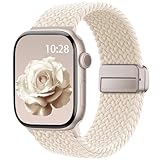
- Compatible Models: The HEARTBOOM magnetic nylon sport bands compatible for iWatch all versions. Suitable for Apple Watch Series 3/2/1 (38mm), Series 4/5/6/SE/SE 2/SE 3 (40mm), Series 7/8/9 (41mm), Series 11/10 (42mm). Pls check the model on the back of your watch to select the correct size
- Comfortable & Fit: HEARTBOOM stretchy apple watch band is made of recycled polyamide with a fabric weave, which is skin-friendly, breathable, lightweight, washable, sweat-resistant and quick-drying. Perfect for Fitness, Running, Yoga and daily wear, as it ensures that your wrist remains comfy and gentle feeling
- Multi Colors & Freely Adjustable: Our iwatch bands come with Various rich & muted colors for your choices, personalize your smartwatch to fit your outfit in daily life and easy change for every occasion. Suitable for women and men with 5.5"-9.6"(140mm~244mm) wrists. One size fit for most people,no need to measure your wrist to choose the size like the traditional braided bands
- Confidently Secure with Upgraded Magnets: Experience the perfect blend of style and security with our braided stretch band for Apple Watch. The enhanced magnetic Closure creates a strong, reliable connection that is easily adjustable for a flawless custom fit. Designed for all-day comfort and peace of mind, it stays put during any activity. Tool-free installation and one-click removal make it incredibly easy to use
- Perfect Gift: This apple watch bands blend fashion with functionality, look more fashionable and youthful. It's a a thoughtful and well-made gift. Suitable for Christmas, New Year's, Father's Day, Mother's Day and birthdays as a surprise for your parents, loved ones, and friends.We offer 24/7 friendly support
Check iPhone Haptic Mirroring (Often Missed)
Your iPhone can influence how certain alerts behave. On your iPhone, open the Watch app, go to Sounds & Haptics, and confirm that Haptic Alerts are enabled there as well.
If you’ve customized notification mirroring per app, make sure critical apps aren’t set to silent delivery without haptics. This is a common reason messages or calendar alerts appear visually but don’t vibrate.
As a quick sanity check, toggle Haptic Alerts off and back on, then send yourself a test notification. This refreshes the connection and often resolves inconsistent taps.
Fit, Comfort, and Real‑World Wearability Matter
The Apple Watch’s Taptic Engine is engineered to transmit vibration through the caseback into your wrist. That only works reliably if there’s consistent skin contact.
If you regularly miss alerts, try tightening the band by one notch or switching to a more flexible strap. Solo Loop, Sport Band, and Sport Loop straps generally transmit haptics better than rigid bracelets or thick padded leather.
For smaller wrists or lighter aluminum models, haptics can feel sharper simply because there’s less mass dampening the vibration. This isn’t a flaw, just a physical reality of how the watch sits on your arm.
System Alerts vs App Notifications
Not all vibrations are created equal. System alerts like alarms, timers, and emergency notifications use stronger, more persistent haptic patterns than standard app notifications.
If alarms feel reliable but messages don’t, the issue is almost always app‑level notification settings rather than haptics themselves. Check the specific app in the Watch app on iPhone under Notifications and ensure alerts are enabled and not set to Deliver Quietly.
Also note that Focus modes can suppress haptics entirely for certain apps, even when Silent Mode is on. If vibrations feel inconsistent during work hours or at night, review which Focus is active and what it’s allowed to interrupt.
Troubleshooting Weak or Missing Vibrations
If haptics still feel unreliable, restart the Apple Watch. This clears minor software hiccups that can affect the Taptic Engine, especially after watchOS updates.
Make sure your watchOS version is up to date, as Apple occasionally refines haptic patterns and responsiveness with system updates. Older versions can sometimes feel softer or less distinct.
Finally, remove any bulky third‑party case and test again. Some rugged cases add thickness between the watch and your wrist, which can significantly reduce how well vibrations transmit.
Silent Mode vs Focus Modes vs Do Not Disturb: Key Differences Explained
If vibrations feel inconsistent or sounds sneak through when you least expect them, the cause is usually not the Taptic Engine itself. It’s almost always how Silent Mode, Focus modes, and Do Not Disturb are interacting behind the scenes.
These three settings overlap, but they serve very different purposes. Understanding what each one actually controls is the key to getting reliable, vibration‑only alerts.
Silent Mode: The Foundation for Vibration‑Only Alerts
Silent Mode is the simplest and most important setting if your goal is discreet notifications. When enabled, it silences all notification sounds on the Apple Watch while still allowing haptics to come through.
You can turn it on by swiping up for Control Center on the watch and tapping the bell icon, or by going to Settings > Sounds & Haptics and toggling Silent Mode on. A crossed‑out bell icon at the top of the watch face confirms it’s active.
Silent Mode does not block notifications. Messages, calls, and alerts still arrive, just as vibrations instead of sounds, making this the setting most people actually want for offices, classrooms, and clinical environments.
Do Not Disturb: Notification Blocking, Not Sound Control
Do Not Disturb is often misunderstood as a silent switch, but it works very differently. Instead of muting sounds, it suppresses notifications entirely unless they’re specifically allowed.
When Do Not Disturb is on, your watch may not vibrate at all for incoming notifications, even though Silent Mode is enabled. That’s why users sometimes think haptics are broken when, in reality, alerts are simply being blocked.
You can manage this from Control Center or under Settings > Focus > Do Not Disturb. Pay close attention to allowed people, apps, and time‑based schedules, as these determine which alerts are permitted to bypass the silence.
Focus Modes: Advanced Filters With More Ways to Trip You Up
Focus modes expand on Do Not Disturb with custom profiles like Work, Sleep, Personal, or Fitness. Each Focus can have its own rules for which notifications are allowed, which are silenced, and which are delayed.
A Focus mode can allow vibrations from some apps, suppress others completely, and even change how notifications are delivered. This means you can be in Silent Mode and still miss vibrations if the active Focus doesn’t allow that app through.
Check the active Focus by opening Control Center on the watch. If something like Work or Sleep is highlighted, tap it and review its notification allowances in the iPhone’s Focus settings.
Why Silent Mode Alone Is Usually the Right Choice
If your goal is consistent, vibration‑only alerts without surprises, Silent Mode should be doing most of the work. It keeps notifications flowing while simply removing audible sounds.
Focus modes are powerful, but they’re better suited for intentional notification blocking rather than everyday silence. Many missed alerts come from forgotten Focus schedules that remain active longer than intended.
For most users, the cleanest setup is Silent Mode always on, with Focus modes used sparingly and reviewed carefully.
Common Pitfalls That Still Cause Sounds or Missed Vibrations
Alarms and timers can still play sounds if their individual settings are configured to override Silent Mode. Check the alarm volume and haptic settings under Sounds & Haptics if this happens.
Emergency alerts and some system warnings are designed to bypass silence for safety reasons. These may use louder haptics or brief sounds depending on region and settings.
Finally, remember that Focus modes sync across devices by default. Turning one on from your iPhone or Mac can silently change how your Apple Watch behaves, even if you never touched the watch itself.
Using Focus Modes for Context‑Specific Vibrate‑Only Behavior (Work, Sleep, Meetings)
If you want your Apple Watch to behave differently depending on where you are or what you’re doing, Focus modes are the layer that sits on top of Silent Mode. Think of Silent Mode as the baseline that removes sound, while Focus modes decide which vibrations you’re allowed to feel and which notifications never reach your wrist at all.
This is where vibrate‑only setups can either feel perfectly tuned or unexpectedly quiet. A Focus mode can block an alert before the watch ever has a chance to vibrate, even if Silent Mode is on and haptics are enabled.
How Focus Modes Interact With Silent Mode on Apple Watch
Silent Mode controls sound versus vibration. Focus modes control permission.
When a Focus is active, your Apple Watch still follows Silent Mode rules, but only for notifications that the Focus allows through. If an app or contact is blocked by that Focus, you won’t get a sound or a vibration because the alert never arrives.
This is why users sometimes assume vibration is broken at work or during meetings, when in reality the active Focus is filtering those notifications away.
Setting Up a Work Focus for Vibrate‑Only Alerts
A Work Focus is ideal for offices, classrooms, or shared spaces where you want discreet taps for important alerts and nothing else.
On your iPhone, go to Settings, then Focus, then Work. Under Allowed Notifications, review both People and Apps carefully. Only allowed items will trigger a vibration on your watch.
Make sure Time Sensitive Notifications are either enabled or disabled intentionally. If enabled, supported apps can break through with haptics even when most others are blocked, which can be helpful for urgent messages but surprising if you forgot it was on.
Once configured, turn on Silent Mode on the watch itself. With both in place, your Apple Watch will stay silent while delivering controlled, vibration‑only notifications during work hours.
Meeting Focus: Maximum Discretion, Minimal Taps
The Meeting Focus is where many missed vibrations happen, especially if it’s auto‑enabled by calendar events.
Open the Meeting Focus settings on your iPhone and check whether notifications are allowed at all. Some Meeting setups block everything except a small whitelist, which means no vibrations unless you explicitly allow them.
Rank #3

- 【Fit All Models】SuperNaNa Sport silicone watch band compatible with apple watch bands 40mm 38mm 42mm 44mm 41mm 45mm 46mm 49mm women men,Soft breathable replacement sport strap for iwatch bands series 11 series 10 series 9 series 8 series 7 series 6 series 5 series 4 series 3 series 2 series 1. and iwatch Ultra 3 2, Ultra, SE(2nd Gen). All iwatch versions can attach perfectly and seamlessl.
- 【Soft Silicone Material】apple watch bands for women men are made of premium soft silicone, prevents skin from irritation, lightweight, persistent, skin-friendly, touch comfortable, water-resistant and sweat-proof; iphone watch bands for women perfectly fit for runs, hiking, rides, camping, climbing, swims, workouts, traveling and more outdoor activities. iWatch bands 40mm womens completely unburdened to wear on the wrist, perfect for all day.
- 【Adjustable size for all wrist】Our Sport apple watch strap compatible for 38mm/40mm/41mm/42mm(series 11 10), this size fits for 5.1"-7.1" (130mm-180mm) wrist; soft silicone iwatch strap compatible for 42mm(series 3 2 1)/44mm/45mm/46mm/49mm, this size fits for 5.9" - 7.9" (150mm-200mm) wrist. Please check the size on the back of your watch to choose the right size.
- 【Easy installation & removal】Our watch bands for women come with Innovative pin-and-tuck closure design, which locks onto smart watch interface precisely and securely. No tool needed,easy to install and remove,provides a secure and comfortable fit for extended wear.
- 【20+ Colors Choice】Silicone iwatch bands for women come with 20+ different cute colors available for women men. black starlight apple watch band etc colors personalize your Apple Watch and fit your daily mood and outfit. A idear option for your smartwatch accessories.
If you want subtle taps for a specific contact or app, add them to the allowed list and leave Silent Mode on. This creates a “tap only if it truly matters” experience that works well in conference rooms, lectures, or medical environments.
Also check whether the Meeting Focus is set to turn on automatically. If it stays active after a meeting ends, it can quietly suppress vibrations for hours without you realizing why.
Sleep Focus and Overnight Vibration Behavior
Sleep Focus behaves differently from most other Focus modes and is closely tied to Apple Watch sleep tracking and battery optimization.
By default, Sleep Focus suppresses nearly all notifications, including vibrations, to prevent disruptions. This is intentional and not a malfunction of Silent Mode or haptics.
If you want overnight vibrations for emergencies or specific contacts, you must explicitly allow them in the Sleep Focus settings on your iPhone. Otherwise, expect your watch to remain largely silent and still, even if Silent Mode is off.
Checking the Active Focus Directly on the Watch
When vibrations don’t arrive as expected, always check the active Focus on the watch before changing other settings.
Swipe up to open Control Center and look for the Focus icon. If Work, Sleep, or Meeting is highlighted, that Focus is currently controlling what reaches your wrist.
Tap the Focus icon to turn it off temporarily, or switch to a different Focus, then test a notification. This quick check often explains inconsistent vibration behavior faster than digging through menus.
Practical Tips for Reliable Vibrate‑Only Focus Setups
If your goal is predictable vibration, keep Focus rules simple. Allow only what you truly need and avoid stacking multiple exceptions unless you understand how they interact.
Be cautious with automatic Focus schedules tied to time, location, or apps. These are convenient, but they’re also the most common reason users miss alerts and assume something is wrong with the watch.
For most people, Silent Mode should stay on all day, with Focus modes used deliberately for context, not as a replacement for basic vibration control. When configured thoughtfully, Focus modes become a precision tool rather than a source of confusion.
Notification Sound Pitfalls: Why Your Watch May Still Make Noise
Even with Silent Mode enabled and haptics set correctly, some Apple Watch owners are surprised to hear a chirp, tone, or spoken alert sneak through. This usually isn’t a bug, but a setting elsewhere in watchOS that behaves differently from standard notification sounds.
Understanding these edge cases is the difference between a reliably discreet watch and one that embarrasses you in a quiet room.
Silent Mode Doesn’t Mute Everything
Silent Mode is designed to silence notification sounds, but it does not mute all system audio. Certain alerts are intentionally treated as higher priority.
Emergency alerts, some government alerts, and safety notifications can still play sounds even when Silent Mode is on. Apple treats these as critical, and they bypass normal sound rules by design.
If you work in healthcare, education, or other noise-sensitive environments, it’s worth knowing that Silent Mode is vibration-first, not sound-proof in every scenario.
Critical Alerts and App-Level Overrides
Some apps can send Critical Alerts if you’ve allowed them. These alerts are explicitly designed to break through Silent Mode and Focus modes.
On your iPhone, open the Watch app, go to Notifications, select the app in question, and look for a Critical Alerts toggle. If it’s enabled, that app can play a sound regardless of Silent Mode.
This is common with medical apps, security systems, and smart home alerts. If you don’t need audible warnings, turn Critical Alerts off per app.
Phone Audio Bleeding Through During Calls
If your iPhone rings out loud, your Apple Watch may also emit sound, especially during incoming calls. This happens when call audio is set to mirror the iPhone instead of staying haptic-only on the watch.
Check this by opening the Watch app on iPhone, going to Sounds & Haptics, and reviewing the Ring Volume and Haptic Alerts settings. Lowering ring volume alone doesn’t guarantee silence if the phone itself is audible nearby.
In shared offices or classrooms, keeping both devices aligned matters more than adjusting the watch in isolation.
Keyboard Clicks, Siri, and Spoken Feedback
System interaction sounds are another common culprit. Keyboard clicks, Siri responses, and Voice Feedback can still produce noise if enabled.
On the watch, go to Settings, then Sounds & Haptics, and turn off Keyboard Clicks. For Siri, check Siri settings on both the watch and iPhone and set responses to headphones or silent mode where available.
If your watch suddenly “talks” after being quiet for weeks, this setting is often the reason.
Navigation, Workout, and Fitness Audio Prompts
Apple Maps turn-by-turn directions, Workout app cues, and third-party fitness apps can play audio prompts. These are treated more like guidance than notifications.
During a workout, the watch may announce pace, splits, or milestones aloud if voice feedback is enabled. You can adjust this in the Workout app settings on your iPhone under Voice Feedback.
Runners and gym users often notice this first, especially when switching from casual use to structured workouts.
Silent Mode vs Focus: A Common Misunderstanding
Silent Mode controls sound output. Focus modes control which notifications arrive at all. They are related, but not interchangeable.
If a Focus allows a call or alert through and that alert is marked as critical or audio-enabled, it can still make noise. This can feel inconsistent if you assume Silent Mode overrides Focus completely.
For true vibrate-only behavior, Silent Mode should be on, and Focus modes should be reviewed for exceptions that allow sound-capable alerts.
Accessory and Audio Device Interactions
Connected Bluetooth accessories can change how audio behaves. AirPods, car systems, or medical devices may cause alerts to route differently.
In some cases, the watch plays a sound because it assumes audio is being delivered privately through a connected device. When that connection drops or behaves unexpectedly, the sound can come from the watch speaker instead.
If noises appear random, check Control Center for connected audio devices and disconnect them temporarily to test.
Quick Troubleshooting Checklist
If your watch makes noise when it shouldn’t, start simple. Confirm Silent Mode is enabled, then check for active Focus modes and Critical Alerts.
Next, review app-specific notification settings, especially for health, security, and navigation apps. Finally, check system sounds like keyboard clicks, Siri, and workout voice feedback.
Most unexpected sounds come from one of these areas, not from a hardware issue or a failing speaker.
Setting Vibrate‑Only from the iPhone Watch App (Alternative Method)
If you prefer managing settings from a larger screen, the iPhone Watch app offers a clear, centralized way to force vibrate‑only behavior. This method is especially helpful if your watch is already on your wrist at work or if small on‑watch menus feel fiddly.
The Watch app also exposes a few haptic controls that are easier to overlook when changing settings directly on the watch.
Turn On Silent Mode from the Watch App
Start by opening the Watch app on your iPhone and making sure you’re on the My Watch tab. This tab mirrors most system‑level settings found on the watch itself.
Rank #4

- Newest Engraved Flower Design: SNBLK Apple watch band has clear vivid flower patterns made by advanced laser carving technology. Unique and stylish design that is sure to add a touch of elegance to your everyday outfit. One with sunflowers and the other with roses. Their cute floral print is perfect for anyone who loves nature and wants to add a personal touch to their daily wear. In addition, it's a thoughtful and well-made gift that is sure to be appreciated by anyone who receives it
- Comfortable to Wear: The Apple watch bands are made of high-quality soft silicone material that provides a comfortable and flexible fit on your wrist. The soft and lightweight nature of the band makes it perfect for everyday use, as it ensures that your skin remains comfy and free from irritation even when you wear the watch for extended periods of time. Plus, the silicone material is water-resistant and sweat-proof, making it perfect for use during physical activities or outdoor adventures
- Compatible Models & Size Options: These flower bands are designed for iWatch all versions. Suitable for Apple Watch Series 3/2/1(38mm),Series 4/5/6/SE/SE 2/3(40mm),Series 7/8/9(41mm),Series 11/10(42mm);For Series 3/2/1(42mm),Series 4/5/6/SE/SE 2/3(44mm),Series 7/8/9(45mm),Series 11/10(46mm),Ultra 3/Ultra 2/Ultra(49mm); 38/40/41/42mm Size fits 5.1"-7.1" (130mm-180mm) wrist, 44/45/46/49/42mm Size fits 5.9"-7.9" (150mm-200mm). Pls check the model on the back of your watch to select the correct size
- Enjoy the Thrill of Experimenting with Diverse Combinations: Enhance your iWatch with our stylish and intricately engraved printed strap, allowing you to personalize your smartwatch and effortlessly match your mood and outfit every day. Mix and match straps of various colors to elevate the look of your iWatch and showcase your distinct style. With a 6-pack of replacement, you can effortlessly transform your watch for various occasions, whether it's for sports, leisure, work, or everyday life
- Unmatched Durability: Our iWatch bands are built to withstand the test of time. Made from premium-grade silicone, it exhibits exceptional resistance to wear, tear, and daily use. Whether you're an athlete pushing your limits or a professional with a busy lifestyle, it is designed to keep up with your active routine, ensuring it remains in pristine condition. In addition, they comes with double hole and metal snap fastener, easier to take on/put off, no worry of loosing your watch any more
Scroll down and tap Sounds & Haptics. At the very top, toggle Silent Mode on.
When Silent Mode is enabled here, the watch speaker is muted entirely, but haptics remain active. Notifications, calls, and alerts will tap your wrist instead of making any sound.
Confirm Haptics Are Enabled (and Tuned Properly)
While still in Sounds & Haptics, make sure Haptic Alerts is switched on. If this is off, Silent Mode alone won’t help because the watch has no vibration output to fall back on.
Just below, you’ll see an option for Prominent Haptic. Turning this on adds an extra, more noticeable tap before the standard alert pattern.
For quieter environments like meetings, classrooms, or hospital floors, Prominent Haptic can improve reliability without increasing noise or distraction.
Adjust Alert Volume Without Affecting Vibration
Even though Silent Mode mutes sounds, the Alert Volume slider still matters in edge cases. Some system interactions reference this level before deferring to Silent Mode.
Drag the Alert Volume slider all the way down as a safety net. This ensures that if Silent Mode is ever toggled off accidentally, alerts remain quiet rather than suddenly audible.
This combination is particularly useful if you switch between vibrate‑only and normal use throughout the day.
Review System Sounds That Bypass Expectations
Scroll further down in Sounds & Haptics and look for system feedback options. Keyboard Clicks and Lock Sounds can feel like notification noises if you’re not expecting them.
Disable these if you want the watch to feel completely silent apart from vibration. They don’t affect notifications directly, but they often cause confusion when users think Silent Mode isn’t working.
Siri voice responses are controlled elsewhere, but reducing system sounds here tightens overall discretion.
Why the Watch App Method Can Be More Reliable
Using the iPhone Watch app avoids accidental toggles from the watch’s Control Center, especially during workouts or when sleeves brush the screen. It also makes it easier to audit everything in one place.
For users managing multiple Focus modes, health alerts, and third‑party apps, the Watch app acts like a master checklist. You can methodically confirm that sound is disabled and haptics are behaving exactly as expected.
If your goal is consistent, vibration‑only alerts across long workdays with minimal surprises, this approach tends to be the most dependable.
Model‑Specific Notes: Apple Watch Series, SE, Ultra, and watchOS Differences
Once you’ve locked in Silent Mode and tuned haptics, the experience can still vary slightly depending on which Apple Watch you’re wearing and which version of watchOS it’s running. These differences don’t usually change the end result, but they do affect how vibration-only alerts feel day to day.
Apple Watch Series (Series 4 through Series 9)
On mainstream Apple Watch Series models, Silent Mode and Haptic Alerts behave consistently across generations. The Taptic Engine has remained refined and precise, delivering a clean tap rather than a buzz, which works well for discreet environments.
Larger case sizes, like the 45 mm and 41 mm models, tend to transmit haptics more clearly through the wrist, especially with Prominent Haptic enabled. Aluminum cases feel slightly softer, while stainless steel models transmit vibration a bit more sharply due to the denser material.
If you wear your watch loosely or on a fabric band, you may want to tighten the fit slightly to avoid missing subtle alerts. This is especially relevant during long workdays when wrist position changes often.
Apple Watch SE (1st and 2nd generation)
The Apple Watch SE supports the same Silent Mode and haptic controls as higher-end Series models, but the haptics are slightly less nuanced. Alerts still vibrate reliably, just with less distinction between notification types.
Because the SE lacks some advanced sensors, it tends to generate fewer system alerts overall, which can actually be an advantage if you’re aiming for minimal interruptions. Battery life is also strong, so vibration-only use won’t meaningfully reduce daily endurance.
For students or office users who want quiet notifications without extra complexity, the SE delivers excellent value and predictable behavior once Silent Mode is enabled.
Apple Watch Ultra and Ultra 2
Apple Watch Ultra models are physically larger and heavier, which changes how vibrations feel on the wrist. Haptics are strong and unmistakable, even with gloves or during movement, making vibrate-only alerts very dependable.
The larger case and flat sapphire display mean fewer accidental Control Center swipes, reducing the risk of Silent Mode being toggled off unintentionally. This is particularly helpful in clinical or industrial settings.
If you use the Action Button, note that it produces haptic feedback even in Silent Mode. This is expected behavior and doesn’t indicate that notification sounds are leaking through.
watchOS Version Differences That Matter
watchOS 9, 10, and later versions place Sounds & Haptics in the same general location, but the layout and wording may differ slightly. In newer versions, Apple emphasizes haptic clarity, making Prominent Haptic more noticeable than in earlier releases.
Control Center access also changed in watchOS 10, shifting how quickly you can confirm Silent Mode at a glance. The bell icon still works the same way, but muscle memory from older versions can cause confusion at first.
If your watch updates automatically, it’s worth rechecking Silent Mode and Haptic settings after a major watchOS update. Apple occasionally resets or subtly adjusts defaults, which can explain sudden sounds after months of silence.
Older Models and Legacy Behavior
Series 3 and earlier models still support Silent Mode, but their haptics are weaker and easier to miss. If you rely on vibration-only alerts with these watches, Prominent Haptic is almost essential.
Battery wear on older devices can also affect haptic strength. If vibrations feel inconsistent, a battery service or upgrade may restore reliability more effectively than adjusting settings.
Pairing and iPhone Dependency Considerations
Regardless of model, notification behavior ultimately depends on how the watch mirrors or customizes iPhone alerts. If the iPhone allows sound for an app, the watch can still vibrate silently as long as Silent Mode is active.
However, some system alerts originate from the iPhone first. Keeping the iPhone itself on silent or in a Focus mode adds an extra layer of insurance, especially during meetings or overnight wear.
Understanding these model and software nuances helps explain why vibration-only alerts can feel perfect on one Apple Watch and slightly different on another, even with identical settings.
Battery Life and Wearability Considerations When Using Haptics All Day
Once you’ve dialed in vibration-only alerts, the next practical question is how running haptics continuously affects battery life and all-day comfort. The short answer is that haptics are generally efficient, but how they’re configured and how the watch fits your wrist makes a real difference over a full day.
How Much Battery Do Haptics Actually Use?
Compared to screen wake-ups, cellular use, or GPS workouts, haptic feedback is a relatively low drain on the Apple Watch battery. A brief tap from the Taptic Engine uses far less power than lighting up the display at full brightness.
That said, frequent notifications add up. If you receive dozens or hundreds of alerts per day, especially with Prominent Haptic enabled, you may notice a few percentage points of additional drain by evening, particularly on smaller models like the 41mm or older 40mm cases with smaller batteries.
On newer models such as Series 8, Series 9, and Ultra, the impact is usually negligible. The Ultra’s larger battery and more powerful haptic motor handle all-day vibration with ease, even alongside workouts and background health tracking.
Prominent Haptic vs Default Haptic: Battery Trade-Offs
Prominent Haptic delivers a stronger, more noticeable tap by using a distinct vibration pattern. This does consume slightly more energy than the default haptic, but the difference is minor in real-world use.
The bigger consideration is reliability rather than battery. If you miss notifications and instinctively wake the screen or check your phone more often, Prominent Haptic can indirectly save battery by reducing unnecessary screen interactions.
For users in quiet environments who depend on feeling every alert, the modest battery cost is usually worth the confidence that you won’t miss something important.
Fit, Strap Choice, and Haptic Perception
Haptics only work well if the watch is worn correctly. A loose fit, especially with heavier stainless steel or Ultra cases, can dull vibrations and make alerts easier to miss.
💰 Best Value
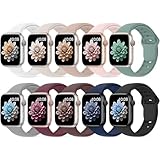
- 【Compatible Models】: UJUTL Sport silicone bands perfect compatible with Apple Watch Bands Series 11 10 -(42mm), Series 9 8 7 -(41mm), Series 6 5 4 SE3 SE2 -(40mm), Series 3 2 1 SE -(38mm), Check your watch size before ordering, Size fits 5.3"-7.6" (135mm-193mm) wrist
- 【Newest Original Design 】: The breathable groove design wicks away moisture to keep you cool during workouts and daily activities, Hidden buckle design that does not come into contact with any metal, Keep the irritate away from you
- 【Premium Material】: Comfort & Breathability - Made of high quality silicone, these bands provide soft, irritation-free wear for sensitive wrist, Durable & Easy to Clean - Non-sticky, stain-resistant silicone stays fresh through sweat, rain, and daily use. Simply wipe with a damp cloth for instant refresh
- 【10 Colors in One Pack】: Available in a variety of colors, these bands can be easily swapped out to match your outfit or mood, perfect for mixing styles with outfits or seasons. Also proper to be used as gifts for Wedding, birthday, Valentines' day, Mothers' day, father' day, Christmas, Thanksgiving Day etc
- 【Worry-Free Purchase】: To ensure 100% customer satisfaction, we provide 24/7 online support. If you encounter any issues with our product, please contact us immediately—we will prioritize resolving your concerns and offer tailored solutions promptly
Sport Bands and Solo Loop-style straps tend to transmit haptics best because they keep the watch snug against the wrist. Metal bracelets and leather straps, while stylish, can slightly dampen vibration unless properly adjusted.
Wrist size also matters. Users with smaller wrists often report stronger perceived haptics because the watch sits more securely, while larger wrists may benefit from Prominent Haptic or a tighter fit during working hours.
All-Day Comfort When Relying on Constant Haptics
The Taptic Engine is designed to be subtle, but frequent alerts can still feel fatiguing if your notification volume is high. This is especially noticeable for healthcare workers, students, or office staff receiving constant app pings.
Fine-tuning which apps are allowed to send haptic alerts can dramatically improve comfort. Limiting vibrations to messages, calls, and truly time-sensitive apps reduces both mental and physical distraction.
For sleep or overnight wear, haptics remain comfortable for most users, but Prominent Haptic may feel intrusive for lighter sleepers. Switching back to default haptics or enabling a Sleep Focus helps balance awareness with rest.
Battery Health on Older Watches
On older models with degraded batteries, haptic strength can feel inconsistent, especially toward the end of the day. This is not a settings issue but a power delivery limitation caused by battery wear.
If your watch struggles to deliver reliable vibration-only alerts despite correct settings, checking Battery Health in the Watch app is worthwhile. Below 80 percent maximum capacity, both haptics and overall responsiveness can suffer.
In these cases, a battery replacement or upgrading to a newer model often restores confidence in silent, vibration-only notifications far more effectively than tweaking software settings.
Practical Tips to Balance Silence, Awareness, and Endurance
If battery life is a concern, start by reducing notification frequency before disabling haptics. Fewer, more meaningful alerts preserve both battery and focus.
Lowering screen wake behavior, such as disabling Wake on Wrist Raise during long desk sessions, offsets any extra drain caused by haptics. This keeps your watch discreet while maintaining endurance.
Most importantly, remember that Silent Mode with haptics is designed for all-day use. With a proper fit, sensible notification management, and realistic expectations based on your model, vibration-only alerts remain one of the most battery-efficient and wearable-friendly ways to stay connected on an Apple Watch.
Quick Troubleshooting Checklist: When Vibrate‑Only Isn’t Working as Expected
Even with Silent Mode enabled and haptics configured, there are a few common reasons an Apple Watch may still make sounds or fail to vibrate reliably. Before assuming a hardware issue, work through the checklist below in order, as most problems come down to one overlooked setting or mode interaction.
1. Confirm Silent Mode Is Actually On
Start with the simplest check, as it’s the most frequently missed. Open Control Center on the watch by pressing the side button and look for the bell icon.
If the bell icon is not highlighted, Silent Mode is off and system sounds will still play. Tap it once to enable Silent Mode, which suppresses all audible alerts while allowing haptics to continue.
If you rely on Control Center regularly, remember that Focus modes can visually crowd the interface, making Silent Mode easy to overlook during quick checks.
2. Check That Haptics Are Enabled and Set Correctly
Silent Mode alone does nothing if haptics are disabled or misconfigured. On the watch, go to Settings, then Sounds & Haptics, and confirm that Haptic Alerts is turned on.
If haptics are enabled but feel inconsistent, toggle Prominent Haptic off and back on to reset the motor behavior. Some users find default haptics more reliable for all-day wear, especially on smaller or older models.
Also check that Cover to Mute is not interfering with alerts, as resting your palm on the screen immediately after a notification can cancel vibration feedback.
3. Make Sure You’re Wearing the Watch Properly
Haptics are physical feedback, so fit matters more than many users expect. A loose band, especially on aluminum models with lighter cases, can dramatically reduce perceived vibration strength.
The watch should sit snugly above the wrist bone with full sensor contact. If you frequently miss vibrations, tightening the band one notch or switching to a sport band or fabric loop can improve real-world haptic clarity.
This is particularly important for users working in motion-heavy environments like hospitals or classrooms, where subtle vibrations can get lost.
4. Check App-Specific Notification Settings
Some apps bypass your expectations by using their own alert styles. Open the Watch app on your iPhone, scroll to Notifications, and review each app individually.
Ensure that critical apps are set to Mirror iPhone Alerts or Custom with Sound disabled and Haptic enabled. If an app is allowed to play sound on the iPhone, it may still feel disruptive even if the watch itself is silent.
For maximum discretion, disable notifications entirely for low-priority apps rather than relying on haptics alone.
5. Understand Focus Modes vs Silent Mode
Silent Mode controls sound output, while Focus modes control which notifications are allowed through. If you’re still hearing sounds, check whether a Focus like Work, Personal, or Sleep is active on your iPhone and mirrored to the watch.
Some Focus modes allow urgent notifications with sound by design. Open Settings, Focus, and review the allowed apps and people lists to ensure nothing is punching through unexpectedly.
If you want vibration-only behavior across all contexts, Silent Mode should remain on, with Focus modes used purely for filtering, not sound control.
6. Check System Sounds That Ignore Silent Mode
A small number of system alerts behave differently from standard notifications. Emergency alerts, certain timers, and alarms may still produce sound unless explicitly configured.
For alarms, open the Alarms app on the watch and ensure the alarm volume is not set higher than intended. Timers can be set to vibrate-only, but they require manual adjustment per timer.
Emergency alerts are intentionally loud and cannot be fully silenced for safety reasons, which is expected behavior rather than a settings failure.
7. Restart the Watch After Major Settings Changes
If you’ve adjusted multiple notification or haptic settings and behavior still feels off, a restart can help. Power cycling the watch clears minor software hiccups that occasionally prevent haptics from triggering correctly.
Hold the side button, slide to power off, wait 30 seconds, then restart. This is especially useful after watchOS updates or when pairing changes with a new iPhone.
A restart won’t erase settings, but it often restores reliable vibration behavior immediately.
8. Rule Out Hardware or Battery Limitations
As covered earlier, older watches with worn batteries may struggle to deliver consistent haptic strength. If vibrations feel weak only late in the day, battery health is a likely culprit.
Also inspect the back of the watch for debris or damage that could affect the haptic motor’s performance. While Apple Watch is durable for daily wear, long-term exposure to dust or moisture can subtly impact feedback over time.
If none of the steps above resolve the issue, contacting Apple Support or visiting an Apple Store for a quick diagnostic is the fastest way to confirm whether hardware is involved.
Final Takeaway: Reliable Silence Comes From Layered Settings
Vibrate-only notifications on Apple Watch work best when Silent Mode, haptics, app permissions, Focus modes, and fit all align. One misconfigured layer can undo the rest, which is why methodical troubleshooting matters.
Once dialed in, Apple Watch remains one of the most discreet and comfortable wearables for staying connected in quiet environments. With the right setup, you can trust every alert to be felt, not heard, and stay focused without missing what matters.