If your Apple Watch feels like it’s constantly tapping your wrist, lighting up your screen, and stealing your attention, you’re not imagining it. Many people buy an Apple Watch expecting calm convenience, only to feel more interrupted than they did with just an iPhone in their pocket. The frustration usually isn’t the watch itself, but how notifications are set up by default.
The Apple Watch is designed to mirror your iPhone closely, and that’s where the problem starts. When every app, message thread, promotion, and system alert is allowed through, the watch becomes a nonstop messenger instead of a quiet assistant. Understanding why this happens is the first step toward fixing it without losing the alerts that actually matter.
Your Apple Watch Is Doing Exactly What You Told It To
Out of the box, watchOS assumes you want to see almost everything your iPhone receives. Most apps default to “Mirror iPhone,” which means if it buzzes on your phone, it buzzes on your wrist too. That’s great for awareness, but terrible for mental bandwidth.
Because the watch is physically attached to you, every notification feels more urgent than it really is. A Slack emoji reaction, a shopping app discount, or a social media like gets the same haptic tap as a message from a family member. Over time, your brain stops distinguishing importance and starts treating all notifications as interruptions.
🏆 #1 Best Overall
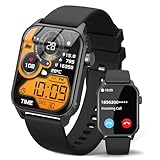
- 【1.83" HD Display & Customizable Watch Faces】Immerse yourself in a vibrant 1.83-inch IPS display, boasting a sharp resolution of 240*284 for crystal-clear visuals. Effortlessly personalize your smart watch with a wide array of customizable watch faces to suit your personal style for every occasion—whether trendy, artistic, or minimalist—ideal for casual, sporty, or professional. Its sleek, modern design complements any outfit, blending technology and fashion seamlessly for everyday wear
- 【120 Sports Modes & Advanced Health Tracking】Our TK29 smart watches for women men come equipped with 120 sports modes, allowing you to effortlessly track a variety of activities such as walking, running, cycling, and swimming. With integrated heart rate and sleep monitors, you can maintain a comprehensive overview of your health, achieve your fitness goals, and maintain a balanced, active lifestyle with ease. Your ideal wellness companion (Note: Step recording starts after exceeding 20 steps)
- 【IP67 Waterproof & Long-Lasting Battery】Designed to keep up with your active lifestyle, this smartwatch features an IP67 waterproof rating, ensuring it can withstand splashes, sweat, and even brief submersion, making it perfect for workouts, outdoor adventures, or rainy days. Its reliable 350mAh battery offering 5-7 days of active use and up to 30 days in standby mode, significantly reducing frequent charging. Ideal for all-day wear, whether you’re at the gym, outdoors, or simply on the go
- 【Stay Connected Anytime, Anywhere】Stay informed and in control with Bluetooth call and music control features. Receive real-time notifications for calls, messages, and social media apps like Facebook, WhatsApp, Twitter, and Instagram directly on your smartwatch. Easily manage calls, control your music playlist, and stay updated without needing to reach for your phone. Perfect for work, workouts, or on-the-go, this watch keeps you connected and never miss important updates wherever you are
- 【Multifunction & Wide Compatibility】Seamlessly handle heart rate monitoring, sleep tracking, and enjoy conveniences like camera/music control, Seamlessly handle heart rate monitoring, sleep tracking, and more-all directly from your wrist. This 1.83 inches HD smartwatch is compatible with iPhone (iOS 9.0+) & Android (5.0+), ensuring smooth daily connectivity and convenience throughout your day. More than just a timepiece, it’s a stylish, all-in-one wearable for smarter, healthier living
Wrist-Based Alerts Feel Louder Than Phone Notifications
A phone notification can be ignored, silenced by a pocket, or missed entirely if the screen is face down. The Apple Watch doesn’t give you that luxury. Its haptics are designed to be felt through skin contact, and even the subtle taps become impossible to ignore after dozens per day.
This constant physical feedback increases cognitive load. Instead of choosing when to check information, your attention is pulled on the watch’s schedule. That’s why many users describe the experience as stressful rather than helpful, even when the number of notifications hasn’t technically increased.
Too Many Apps Compete for “Important” Status
Most apps are built to maximize engagement, not to respect your time. When installed on iPhone, many automatically enable notifications, sounds, and banners, and those settings quietly carry over to the Apple Watch. The result is a watch that treats food delivery updates, fitness streaks, calendar reminders, and marketing alerts as equally critical.
On a small screen with limited interaction time, this lack of hierarchy is a real problem. The Apple Watch excels when it delivers quick, relevant information at the right moment. It becomes annoying when it acts like a billboard strapped to your wrist.
Context Is Missing by Default
Your watch doesn’t initially know when you’re working, exercising, sleeping, or relaxing unless you tell it. Without context-based controls, notifications arrive at the worst possible times: work messages during dinner, group chats during workouts, or app reminders while you’re trying to wind down.
Apple provides powerful tools like Focus modes, time-sensitive notifications, and smart delivery options, but they aren’t aggressively enabled or explained. Until you configure them, the watch treats every moment of your day the same, even though your priorities change hour by hour.
The Goal Isn’t Fewer Notifications, It’s Better Ones
The solution isn’t turning everything off and missing important messages. It’s deciding which alerts deserve wrist-level access and which can stay on your phone. Once you understand why notification overload happens, it becomes much easier to shape the Apple Watch into a calm, reliable filter instead of a constant interrupter.
In the next part, we’ll break down which types of notifications are genuinely useful on the Apple Watch, and which ones almost never earn their place on your wrist.
Deciding What Actually Deserves Your Wrist: Priority vs Noise
Once you accept that not every alert deserves equal treatment, the Apple Watch starts to make a lot more sense. The screen is small, the taps are subtle, and the whole point is quick awareness, not constant interaction. Your wrist should be reserved for things that benefit from immediacy, not anything that simply wants attention.
A useful mental shift is this: if a notification doesn’t change what you’d do in the next few minutes, it probably doesn’t belong on your watch. That single question cuts through most of the noise immediately.
The “Wrist Test”: A Simple Filter That Actually Works
Before touching any settings, it helps to define your own rules. Ask yourself what information truly benefits from a gentle tap on the wrist rather than waiting on the phone. Calls from important contacts, urgent messages, turn-by-turn navigation, and time-sensitive reminders usually pass this test easily.
On the other hand, anything that’s informational but not actionable often fails. News alerts, social media likes, marketing notifications, and app tips rarely require an immediate response. They’re better experienced on a larger screen, at a time you choose.
This approach respects the Apple Watch’s strengths. It’s light, comfortable, and always with you, but it’s not designed for deep reading or decision-making. Let it surface only what matters right now.
Notifications That Usually Earn Priority
Some categories consistently work well on the Apple Watch because they align with its glanceable nature. Phone calls and messages from real people are the obvious ones, especially when your phone isn’t in your hand. The subtle haptic tap is often enough to keep you connected without pulling you out of what you’re doing.
Calendar alerts, reminders, and alarms also shine here. A quick wrist tap before a meeting or task feels helpful rather than disruptive, especially when paired with Apple’s precise haptics instead of loud sounds. These notifications are short, clear, and time-bound, which is exactly what the watch handles best.
Health and safety alerts sit in a different category altogether. Activity milestones, workout cues, heart rate notifications, and fall detection are core reasons many people wear an Apple Watch in the first place. These are less about convenience and more about awareness, and they generally deserve to stay enabled.
Notifications That Usually Become Noise
Many apps default to treating their notifications as important when they aren’t. Social feeds, promotional emails, shopping apps, and news alerts often generate frequent interruptions without urgency. On a watch, these become repetitive taps that train you to ignore the device altogether.
Group chats can also be deceptive. While messages from close family or coworkers might matter, large or active groups often flood your wrist with chatter that isn’t directed at you. The Apple Watch doesn’t provide enough context at a glance to justify that level of interruption.
Fitness apps outside of active workouts are another common offender. Daily streak reminders, badges, or motivational nudges might feel encouraging on a phone, but on the wrist they can quickly feel like nagging. If it’s not tied to an active session or health concern, it’s usually safe to demote.
Why Mirroring iPhone Notifications Is Often the Wrong Choice
By default, many apps are set to mirror iPhone notifications on the Apple Watch. This sounds convenient, but it’s one of the main reasons the watch feels overwhelming. The iPhone is built for volume; the watch is built for selectivity.
Mirroring assumes that if something is worth showing on your phone, it’s worth showing on your wrist. In reality, the opposite is often true. The watch should be a filter, not a duplicate screen competing for your attention.
Breaking away from full mirroring is where most users see the biggest improvement. Choosing custom notification behavior per app takes a few minutes, but it dramatically changes how calm the watch feels throughout the day.
Think in Layers, Not Just On or Off
Notification control on Apple Watch isn’t binary. You don’t have to silence an app entirely to make it less intrusive. Many apps allow alerts to be delivered quietly, sent to Notification Center only, or limited to specific types of events.
For example, you might allow message notifications but disable sounds, or allow delivery notifications but not promotional updates. This layered approach keeps you informed without constant tapping and buzzing.
Apple’s haptic engine is also part of this equation. A gentle tap is very different from a repeated buzz paired with a sound. Adjusting how alerts arrive can be just as important as deciding whether they arrive at all.
Design Your Wrist for Real Life, Not Edge Cases
It’s tempting to keep extra notifications enabled “just in case,” but those edge cases rarely justify daily irritation. The watch is something you wear for hours, often during work, exercise, and rest. Comfort isn’t just about case size or strap material, it’s about mental comfort too.
A well-tuned notification setup makes the watch fade into the background until it’s genuinely needed. When an alert does arrive, it feels intentional rather than intrusive. That’s when the Apple Watch delivers real value, not as a constant messenger, but as a quiet assistant that knows when to speak up and when to stay silent.
The Master Switches: Core Apple Watch Notification Settings You Should Fix First
Once you accept that the watch should be selective, the next step is knowing where to apply pressure. Apple has a handful of high‑level switches that quietly control most of your daily notification experience, and fixing these first delivers the biggest payoff for the least effort.
Think of this as setting the foundation. If these switches are wrong, fine‑tuning individual apps later won’t feel nearly as effective.
Start in the Right Place: iPhone Watch App, Not the Watch Itself
Almost all meaningful notification control lives in the Watch app on your iPhone. While you can tweak a few behaviors on the watch, the iPhone gives you the full picture and prevents endless scrolling on a small screen.
Open the Watch app, tap Notifications, and pause for a moment. This screen governs how alerts behave across your entire watch experience, from workdays to workouts to evenings on the couch.
If your watch feels chaotic, this is ground zero.
Disable “Mirror iPhone Alerts” as a Default Mindset
At the top of the Notifications screen, you’ll see that many apps are set to Mirror my iPhone. This is the single biggest contributor to notification overload on Apple Watch.
Mirroring works well for a handful of core apps, but as a default behavior it’s far too generous. Social apps, retail apps, news apps, and games all get the same wrist priority as messages from real people.
The goal here isn’t to turn everything off immediately. It’s to recognize that mirroring should be an exception, not the rule.
Use Custom Notifications for the Apps That Matter
Scroll down and start tapping into individual apps, especially the ones you interact with daily. For each app, you’ll typically see three options: Mirror my iPhone, Custom, or Off.
Choosing Custom unlocks the most useful controls. You can decide whether alerts appear on the watch at all, whether they include sound, and whether they use haptics only.
For example, Messages might deserve full alerts, while Mail may be better as haptics-only or Notification Center delivery. This keeps you informed without constantly breaking your focus.
Turn On Notification Privacy for a Calmer Wrist
Back in the main Notifications menu, enable Tap to Show Full Notification. This hides message content until you deliberately tap the alert.
This single setting dramatically reduces mental noise. Instead of reading half a sentence every time your wrist lights up, you simply see which app is contacting you.
It’s also more comfortable in real-world wear, whether you’re in meetings, at the gym, or wearing short sleeves in public.
Let Your Wrist Position Work for You
Enable Wrist Down Privacy. When your wrist is lowered, notifications stay hidden, even if the screen wakes accidentally.
This pairs beautifully with always-on display models. You still get the convenience of glances, but without constant text flashing every time you move your arm.
It’s a small setting that improves comfort and discretion throughout the day.
Rethink Sounds: Haptics Are the Apple Watch’s Strength
If your watch feels annoying, sound is often the culprit. Inside the Sounds & Haptics section, consider turning off notification sounds entirely and relying on haptics instead.
Apple’s haptic engine is precise and expressive, especially on recent models with tighter case tolerances and better vibration isolation. A gentle tap is easier to ignore when you’re busy and easier to recognize when you’re not.
You can also adjust haptic strength here, which helps if alerts feel either too aggressive or too easy to miss.
Notification Indicator: Useful or Anxiety Fuel?
The red dot at the top of the watch face tells you there’s an unread notification. For some users, it’s helpful. For others, it becomes a constant reminder that something needs attention.
Rank #2
![Apple Watch Series 11 [GPS 46mm] Smartwatch with Jet Black Aluminum Case with Black Sport Band - M/L. Sleep Score, Fitness Tracker, Health Monitoring, Always-On Display, Water Resistant](https://m.media-amazon.com/images/I/312K597M2uL._SL160_.jpg)
- HYPERTENSION NOTIFICATIONS — Apple Watch Series 11 can spot signs of chronic high blood pressure and notify you of possible hypertension.*
- KNOW YOUR SLEEP SCORE — Sleep score provides an easy way to help track and understand the quality of your sleep, so you can make it more restorative.
- EVEN MORE HEALTH INSIGHTS — Take an ECG anytime.* Get notifications for a high and low heart rate, an irregular rhythm,* and possible sleep apnea.* View overnight health metrics with the Vitals app* and take readings of your blood oxygen.*
- STUNNING DESIGN — Thin and lightweight, Series 11 is comfortable to wear around the clock — while exercising and even when you’re sleeping, so it can help track your key metrics.
- A POWERFUL FITNESS PARTNER — With advanced metrics for all your workouts, plus features like Pacer, Heart Rate Zones, training load, Workout Buddy powered by Apple Intelligence from your nearby iPhone,* and more. Series 11 also comes with three months of Apple Fitness+ free.*
If you find yourself raising your wrist just to clear the dot, turn Notification Indicator off. You’ll still receive alerts, but without the persistent visual pressure.
This is especially helpful if you wear minimal or classic-style watch faces where visual calm is part of the appeal.
Group Notifications to Reduce Repetition
Notification Grouping is easy to overlook, but it plays a huge role in how noisy your watch feels. Set grouping to Automatic or By App rather than Off.
This prevents message threads, calendar updates, or app alerts from stacking one by one across the screen. Instead, they arrive as a single, manageable cluster.
On a small display, grouping isn’t just neatness, it’s usability.
Use Focus Modes as a Context Switch, Not a Lockdown
Focus modes apply directly to Apple Watch and are one of the most powerful master switches available. They allow you to change notification behavior based on time, location, or activity.
Work, Personal, Sleep, and Fitness focuses all let you define which people and apps can reach your wrist. When configured thoughtfully, your watch adapts to your day instead of interrupting it.
This matters for battery life too. Fewer wake-ups and fewer screen activations mean your watch quietly lasts longer, especially on smaller case sizes.
Cover to Mute: A Physical Escape Hatch
Enable Cover to Mute in Sounds & Haptics. When an alert comes in, placing your palm over the watch silences it instantly.
This gesture feels natural and works regardless of app or focus mode. It’s particularly useful in meetings or quiet spaces where a single unexpected sound feels amplified.
It reinforces the idea that the watch responds to you, not the other way around.
Announce Notifications: Powerful, but Rarely Necessary
If you use AirPods or compatible headphones, Announce Notifications can read alerts aloud. While useful in specific scenarios like walking or driving, it dramatically increases perceived notification volume.
Most users are better off disabling this entirely or limiting it to Messages from key contacts. Spoken alerts feel more intrusive than taps, even when they’re technically efficient.
On a device designed for subtlety, silence is often the better feature.
These master switches don’t eliminate notifications; they reshape them. Once they’re set correctly, the Apple Watch stops behaving like a second iPhone and starts acting like a wearable tool designed for comfort, awareness, and control.
Per‑App Control: Customizing Alerts App by App (Messages, WhatsApp, Email, Social)
Once the global controls are in place, the real relief comes from tuning individual apps. This is where your Apple Watch stops buzzing for everything and starts tapping you only when it matters.
Think of this as tailoring the watch to your actual relationships and habits, not the app developer’s idea of urgency.
How Per‑App Notifications Work on Apple Watch
Apple Watch notifications are managed from the Watch app on your iPhone, not directly on the watch. For most apps, you’ll see two choices: Mirror my iPhone or Custom.
Mirroring is convenient, but it’s also why many watches feel overwhelming. Custom lets you decide whether an app should deliver alerts quietly, loudly, or not at all on your wrist.
Path to know by heart: iPhone → Watch app → Notifications → scroll to the app you want to control.
Messages: Keep the People, Ditch the Noise
Messages is usually the most important app on the watch, and also the most abused. Group chats, verification codes, and automated texts all compete for the same wrist tap.
Open Watch app → Notifications → Messages. Switch from Mirror my iPhone to Custom.
Set Alerts to Allow Notifications, but turn off Sound and leave Haptic on. This keeps Messages noticeable without making your watch feel nervous or jumpy.
Scroll down and disable Show Previews. Seeing “Message from John” is often enough; full message previews invite constant wrist checking and break focus.
If group chats are your main problem, manage those on the iPhone side. Muting or hiding alerts for specific threads on iPhone automatically reduces what reaches the watch, without breaking one‑to‑one conversations.
WhatsApp and Other Messaging Apps: Notifications Without Conversations
Third‑party messaging apps like WhatsApp, Telegram, and Signal tend to be noisier than Apple’s own Messages. They also have fewer granular controls on watchOS.
In Watch app → Notifications → WhatsApp, choose Custom. Enable Notifications, but turn off Sound and consider turning off Haptic if the app is particularly active in your life.
For most people, WhatsApp works best as a glance-only app on the watch. You see that something arrived, but you decide whether it’s worth pulling out the phone.
Inside WhatsApp on iPhone, reduce group chat alerts aggressively. The Apple Watch reflects those choices, and it’s the fastest way to calm a constantly tapping wrist.
Email: Let Urgency Win, Not Volume
Email is one of the biggest culprits of notification fatigue on Apple Watch. The watch simply isn’t designed to triage dozens of incoming messages per day.
In Watch app → Notifications → Mail, avoid mirroring unless your iPhone mail notifications are already extremely strict.
Choose Custom and set Alerts to Allow Notifications. Turn Sound off and leave Haptic on, or disable alerts entirely and rely on badge counts.
Use the Mail settings to only allow notifications from VIPs or flagged threads. This transforms email alerts from a stream into a signal.
If you use Gmail or Outlook, consider disabling watch notifications completely. These apps are better checked intentionally than reacted to on a 41–45mm screen.
Social Apps: The Easiest Wins
Social media apps are the least valuable notifications on a watch and the easiest place to reduce clutter fast.
Instagram, Facebook, X, Snapchat, and similar apps rarely deliver anything that needs wrist‑level urgency. In Watch app → Notifications, select each social app and choose Notifications Off.
If you’re hesitant, try Custom with Notifications Off but Badges On. You’ll still see activity when you open the app, without constant interruptions.
This single change dramatically improves comfort and perceived battery life. Fewer taps mean fewer screen wake‑ups, which matters on smaller cases and older batteries.
Use Notification Style to Match the App’s Role
Not every app deserves the same treatment. Messages might earn haptics. Email might earn silent alerts. Social apps usually earn nothing.
Your watch is worn all day, against the skin, moving with your body. Treat notifications like physical taps from another person. If too many people are poking you at once, it stops being helpful.
When each app has a clear role, the Apple Watch feels calmer, more intentional, and far more comfortable to live with hour after hour.
Smart Stacking, Grouping, and Delivery: Making Notifications Easier to Scan
Once you’ve decided which apps deserve your attention, the next step is controlling how their alerts arrive. Even useful notifications become irritating if they’re scattered, repetitive, or demand attention one tap at a time.
Apple quietly gives you powerful tools to stack, group, and deliver notifications so they’re easier to scan at a glance. Done right, your watch feels less like it’s interrupting you and more like it’s quietly keeping things organized.
How Notification Stacking Actually Works on Apple Watch
On Apple Watch, notifications automatically stack in the Notification Center, accessible by swiping down from the top of the watch face. Instead of showing every alert full‑screen, the watch groups them into cards you can scroll through.
This matters because you’re usually interacting on a small 41–45mm display, often one‑handed, sometimes mid‑movement. Stacked notifications reduce wrist time, which improves comfort, focus, and even battery life over a full day of wear.
If notifications feel chaotic, it’s often because too many apps are allowed to present alerts as individual interruptions rather than grouped information.
Group Notifications by App, Not Chaos
By default, many apps are set to group notifications automatically, but it’s worth checking and tightening this up.
On your iPhone, go to Settings → Notifications → choose an app → Notification Grouping. Select By App rather than Automatic or Off.
Rank #3

- Bluetooth Call and Message Alerts: Smart watch is equipped with HD speaker, after connecting to your smartphone via bluetooth, you can answer or make calls, view call history and store contacts through directly use the smartwatch. The smartwatches also provides notifications of social media messages (WhatsApp, Twitter, Facebook, Instagram usw.) So that you will never miss any important information.
- Smart watch for men women is equipped with a 320*380 extra-large hd full touch color screen, delivering exceptional picture quality and highly responsive touch sensitivity, which can bring you a unique visual and better interactive experience, lock screen and wake up easily by raising your wrist. Though “Gloryfit” app, you can download more than 102 free personalised watch faces and set it as your desktop for fitness tracker.
- 24/7 Heart Rate Monitor and Sleep Tracker Monitor: The fitness tracker watch for men has a built-in high-performance sensor that can record our heart rate changes in real time. Monitor your heart rate 26 hours a day and keep an eye on your health. Synchronize to the mobile phone app"Gloryfit", you can understand your sleep status(deep /light /wakeful sleep) by fitness tracker watch develop a better sleep habit and a healthier lifestyle.
- IP68 waterproof and 110+ Sports Modes: The fitness tracker provides up to 112+ sports modes, covering running, cycling, walking, basketball, yoga, football and so on. Activity trackers bracelets meet the waterproof requirements for most sports enthusiasts' daily activities, such as washing hands or exercising in the rain, meeting daily needs (note: Do not recommended for use in hot water or seawater.)
- Multifunction and Compatibility: This step counter watch also has many useful functions, such as weather forecast, music control, sedentary reminder, stopwatch, alarm clock, timer, track female cycle, screen light time, find phone etc. The smart watch with 2 hrs of charging, 5-7 days of normal use and about 30 days of standby time. This smart watches for women/man compatible with ios 9.0 and android 6.2 and above devices.
This means instead of five separate pings from the same app, you’ll get one stack you can expand if and when you choose. It’s especially helpful for Messages, Slack, fitness apps, and anything that sends bursts of updates.
Grouping by app turns noise into a single decision: do I need this now, or can it wait?
Choose Delivery That Matches the Moment
Not all notifications need to interrupt you immediately. Apple Watch lets you control whether alerts arrive instantly or wait quietly in Notification Center.
For many apps, use Deliver Quietly. You’ll still see the notification when you swipe down, but your wrist won’t tap, buzz, or light up.
This is ideal for things like delivery updates, calendar reminders you’ve already seen on your iPhone, or secondary messaging apps. Quiet delivery respects your attention while keeping information accessible.
Banner Style: Temporary Is Your Friend
For apps that do show banners, temporary banners are usually the best choice on Apple Watch.
Temporary alerts appear briefly, then slide away into Notification Center without demanding action. Persistent alerts, on the other hand, stay on screen until dismissed, which can feel intrusive on a device you’re wearing against your skin.
On a watch, less visual friction equals better real‑world usability. You glance, absorb, and move on.
Manage Repeated Alerts Before They Stack Up
Some apps repeatedly notify you about the same thing: unread messages, ongoing workouts, or reminders that haven’t been acknowledged.
If you notice the same alert stacking over and over, check that app’s settings for repeat notifications or reminders. Turning these off prevents your Notification Center from filling with duplicates that don’t add value.
This also helps reduce unnecessary haptic taps, which can become uncomfortable over long days, especially with tighter bands or heavier stainless steel and Ultra cases.
Use Notification Center as a Holding Area, Not a To‑Do List
A subtle mindset shift helps here. Think of Notification Center as a quiet inbox you check intentionally, not something that should constantly pull your attention.
When notifications are grouped, quietly delivered, and stacked logically, swiping down becomes a quick scan rather than a chore. You see what matters, dismiss what doesn’t, and your watch returns to being a watch.
This approach pairs especially well with smaller cases and older models where screen space and battery capacity are more limited.
Why This Makes the Watch Feel Better to Wear
Fewer interruptions mean fewer screen wake‑ups, fewer vibrations, and less mental load. Over a full day, that translates into better battery life, less wrist fatigue, and a calmer relationship with your device.
When notifications are stacked and delivered thoughtfully, the Apple Watch feels lighter, even if the physical weight hasn’t changed. It blends into your routine instead of constantly stepping into it.
This is the difference between a watch that demands attention and one that earns it.
Using Focus Modes and Time-Based Filters to Silence the Watch Automatically
Once you’ve cleaned up how notifications stack and appear, the next step is stopping them from arriving in the first place when they’re not welcome. This is where Focus modes quietly transform the Apple Watch from reactive to context-aware.
Instead of manually muting your watch throughout the day, Focus modes let your devices decide when silence makes more sense than interruption. When configured well, they reduce noise without cutting you off from what actually matters.
How Focus Modes Control Apple Watch Notifications
Focus modes live on your iPhone, but they extend directly to the Apple Watch through iCloud syncing. When a Focus is active on your phone, your watch mirrors it automatically unless you’ve disabled syncing.
This matters because the watch is far more intrusive than the phone. A vibration against your wrist is harder to ignore than a silent banner in your pocket, especially during meetings, workouts, or sleep.
By filtering notifications before they reach your watch, Focus modes prevent unnecessary haptics, reduce screen wake-ups, and preserve battery life across long days.
Start With the Built-In Focus Modes (They’re Smarter Than They Look)
Apple’s default Focus modes like Do Not Disturb, Sleep, Work, and Fitness are already tuned for common situations. For most users, refining these is more effective than building custom modes from scratch.
Sleep Focus is especially important for watch wearers. It blocks almost all notifications, dims the display, and pairs with Sleep Tracking so your watch doesn’t light up or vibrate when you shift in bed.
Work Focus is ideal for limiting distractions without fully disconnecting. You can allow only priority contacts or apps while silencing social, promotional, and low-urgency alerts that don’t need wrist-level delivery.
Allow Fewer Apps Than You Think
The most common mistake with Focus modes is allowing too many apps through. On a watch-sized screen, even useful notifications become disruptive if there are too many of them.
Go to Settings on your iPhone, tap Focus, choose a Focus mode, then select Apps. Start with none allowed, then add only what you would genuinely want tapping your wrist during that context.
For many people, this list is surprisingly short: Messages from key contacts, phone calls, and perhaps one work or navigation app. Everything else can wait in Notification Center.
Use People Filters to Control Who Can Reach Your Wrist
People filters are just as important as app filters, especially for Messages and calls. Instead of letting every contact trigger a notification, you can allow only specific people.
This is invaluable during Work or Sleep Focus. Family members, emergency contacts, or a partner can still reach you, while group chats and casual conversations stay silent until you’re ready.
On the watch, this reduces the mental friction of checking every buzz “just in case,” which makes the device feel calmer and more intentional to wear.
Time-Based Scheduling: Let the Watch Follow Your Day
Focus modes can turn on automatically based on time of day. This is one of the easiest wins for notification sanity.
For example, you might schedule Work Focus from 9 a.m. to 5 p.m., Fitness Focus during evening workouts, and Sleep Focus at night. Once set, your watch transitions quietly between modes without any input.
This automation is especially helpful for users wearing heavier stainless steel or Ultra models, where repeated haptic alerts can feel more pronounced over long stretches.
Location-Based Focus for Context-Aware Silence
Time isn’t always the best trigger. Location-based Focus modes activate when you arrive at or leave specific places.
You can set a Focus to turn on automatically when you arrive at the office, the gym, or even your home. Your watch then adjusts notification behavior based on where you are, not just when.
This is particularly effective for hybrid work schedules or irregular routines, and it helps the watch adapt to real-world movement instead of rigid schedules.
Understand Focus Filters vs Notification Blocking
Focus modes don’t just block notifications; they can also filter content within apps. These Focus filters control what data apps show while a Focus is active.
For example, you can hide work calendars during personal time or limit Mail to specific inboxes. While this mostly affects the iPhone, it indirectly reduces what reaches your watch.
Fewer visible items mean fewer alerts generated in the first place, which keeps your watch quieter without sacrificing awareness.
Time-Sensitive Notifications: Use Sparingly
Apple allows certain alerts to break through Focus modes if they’re marked as time-sensitive. This includes things like ride arrivals, security alerts, or urgent reminders.
While useful, too many time-sensitive permissions undermine the entire system. Review which apps have this privilege and revoke it unless the alert truly demands immediate attention.
On a watch, restraint here improves trust. When something breaks through Focus, you know it’s worth glancing at.
Confirm That Focus Sync Is Enabled on the Watch
To make all of this work, your Apple Watch needs to mirror your iPhone’s Focus modes. Open the Watch app on your iPhone, go to General, then Focus, and make sure Mirror my iPhone is turned on.
Without this, your phone may be quiet while your watch continues to buzz, which defeats the purpose entirely.
Once synced, Focus changes feel seamless across devices, reinforcing the sense that your watch is an extension of your intent, not a separate source of noise.
Why Focus Modes Improve Comfort and Battery Life
Every notification triggers a screen wake and haptic feedback. Over a full day, that adds up to meaningful battery drain and constant micro-interruptions.
By silencing the watch automatically when attention isn’t needed, Focus modes reduce unnecessary vibrations and screen activations. This is especially noticeable on smaller cases and older models with tighter battery margins.
Rank #4
![Apple Watch Series 11 [GPS 42mm] Smartwatch with Rose Gold Aluminum Case with Light Blush Sport Band - S/M. Sleep Score, Fitness Tracker, Health Monitoring, Always-On Display, Water Resistant](https://m.media-amazon.com/images/I/31J+F-pXaWL._SL160_.jpg)
- HYPERTENSION NOTIFICATIONS — Apple Watch Series 11 can spot signs of chronic high blood pressure and notify you of possible hypertension.*
- KNOW YOUR SLEEP SCORE — Sleep score provides an easy way to help track and understand the quality of your sleep, so you can make it more restorative.
- EVEN MORE HEALTH INSIGHTS — Take an ECG anytime.* Get notifications for a high and low heart rate, an irregular rhythm,* and possible sleep apnea.* View overnight health metrics with the Vitals app* and take readings of your blood oxygen.*
- STUNNING DESIGN — Thin and lightweight, Series 11 is comfortable to wear around the clock — while exercising and even when you’re sleeping, so it can help track your key metrics.
- A POWERFUL FITNESS PARTNER — With advanced metrics for all your workouts, plus features like Pacer, Heart Rate Zones, training load, Workout Buddy powered by Apple Intelligence from your nearby iPhone,* and more. Series 11 also comes with three months of Apple Fitness+ free.*
The result isn’t just longer battery life, but a watch that feels less demanding on your wrist, allowing comfort, usability, and attention to stay in balance.
Haptics, Sounds, and Taps: Adjusting How Notifications Get Your Attention
Once you’ve reduced how many notifications reach your Apple Watch, the next step is refining how they make themselves known. Even a small tap on the wrist can feel intrusive if it’s constant, poorly timed, or too intense.
Apple gives you granular control over haptics and sounds, but many of the most helpful options are buried just deep enough that people never touch them. A few adjustments here can dramatically change how calm your watch feels during daily wear.
Choose Between Sound, Haptic, or Both
Start in the Watch app on your iPhone, then go to Sounds & Haptics. At the top, you’ll see toggles for Silent Mode and Haptic Alerts.
For most people trying to reduce annoyance, Silent Mode with haptics enabled is the sweet spot. You still get awareness through touch, but without audible interruptions that draw attention in meetings, public spaces, or quiet moments.
If you do rely on sounds, consider disabling haptics instead. Having both active often feels redundant, especially on aluminum models where vibrations are more noticeable due to lighter case weight.
Understand Default Haptics vs Prominent Haptics
Scroll down in Sounds & Haptics and you’ll see Prominent Haptic. This setting makes notification taps stronger and more pronounced.
Prominent haptics are useful if you frequently miss alerts, but they also increase wrist fatigue over a long day. On smaller case sizes like 41mm or 40mm, the sensation can feel sharper because there’s less mass to absorb the vibration.
For most users overwhelmed by notifications, leaving Prominent Haptic off creates a gentler, less demanding experience while still keeping alerts perceptible.
Adjust Haptic Strength to Match Your Sensitivity
Below the toggles, Apple lets you test and adjust haptic strength. This is often overlooked, but it matters more than people expect.
If notifications feel startling, dial the strength down one notch. If you’re missing alerts during workouts or while walking, slightly increasing it may be better than turning on Prominent Haptics.
Your strap choice also affects this. A snug sport band or trail loop transmits vibrations more clearly than a loose leather strap or metal bracelet, so tune strength with your actual daily wear setup in mind.
Control System Sounds That Add to Noise
Not all “annoying” alerts are app notifications. System sounds like charging chimes, lock sounds, and error tones quietly add to cognitive clutter.
In Sounds & Haptics, you can disable system sounds entirely. This doesn’t affect alarms or timers, but it removes small audio cues that rarely provide real value.
Over time, this makes the watch feel more like a passive tool than a device constantly asking for acknowledgment.
Use Cover to Mute as a Safety Valve
Cover to Mute is one of Apple Watch’s most underrated features. When enabled, placing your palm over the watch face instantly silences an incoming alert.
You’ll find it under Sounds & Haptics as well. It works regardless of app or notification type, giving you a quick, physical way to shut things up without navigating menus.
In real-world use, this is especially helpful during unexpected moments like a notification during a conversation or presentation, reinforcing the watch’s role as something you control, not something that controls you.
Haptics During Workouts and Activity
Workout alerts use the same haptic system but feel different because your wrist is already in motion. Strong haptics that feel fine at a desk can become distracting or even startling mid-run.
If you do a lot of fitness tracking, consider keeping global haptics moderate and relying on visual cues during workouts. The always-on display on newer models makes this easier, while older models benefit from fewer vibrations to preserve battery life.
This balance improves comfort during longer sessions and prevents alert fatigue from bleeding into your training.
Why Subtle Haptics Improve Battery and Wear Comfort
Every haptic tap uses energy, and stronger vibrations consume slightly more power. Over a full day, especially on smaller batteries or older watches, this contributes to faster drain.
More importantly, frequent strong taps create a sense of physical demand on your wrist. Over time, this affects comfort just as much as case thickness, weight, or strap material.
By dialing back intensity and removing unnecessary sounds, the watch becomes easier to live with hour after hour, which is the foundation of a better notification experience overall.
Health, Fitness, and Activity Alerts: Keeping the Useful Ones, Killing the Rest
Once you’ve softened haptics and removed unnecessary sounds, health and fitness alerts become the next major source of friction. These notifications are well‑intentioned, but Apple enables many of them by default, assuming everyone wants constant coaching on their wrist.
The goal here isn’t to turn health tracking off. It’s to keep the alerts that protect you or genuinely motivate you, while removing the ones that interrupt your day without changing your behavior.
Understand Why Health Alerts Feel So Intrusive
Health and Activity notifications bypass many of the rules you’ve already set. They often arrive with prominent haptics, appear full‑screen, and repeat daily if ignored.
Unlike app notifications, these alerts are framed as guidance rather than information. That’s why they can feel more personal and, at times, more nagging than a message or email.
Reducing overload starts with separating safety‑critical alerts from lifestyle nudges.
Heart Health Alerts: Leave These On
Heart rate alerts are one area where restraint usually isn’t the right move. High heart rate, low heart rate, and irregular rhythm notifications can surface serious issues you might otherwise miss.
On your iPhone, go to the Watch app, tap Heart, then review each alert category. For most people, keeping all three enabled is the safest option, even if you reduce other health notifications elsewhere.
These alerts are infrequent by design, and when they do appear, they’re worth your attention.
Cardio Fitness and VO₂ Max: Reduce the Frequency
Cardio Fitness notifications are useful in theory but noisy in practice. They tend to trigger after walks, short runs, or periods where effort wasn’t consistent.
In the Watch app, go to Heart, then Cardio Fitness Notifications. If you find these alerts more discouraging than helpful, turn them off or limit them to summaries you check manually in the Health app.
You’ll still get full trend data without the watch commenting on every marginal change.
Activity Rings: Customize, Don’t Disable
Activity rings are central to the Apple Watch experience, but their notifications are aggressively optimistic. Stand reminders, move goal nudges, and achievement alerts stack up fast.
On your iPhone, open the Watch app, tap Activity, then Notifications. From here, you can selectively disable Stand Reminders, Goal Completions, and Coaching.
Many experienced users keep goal completions on and disable coaching. This preserves positive reinforcement without the watch trying to manage your schedule.
Stand Reminders: Context Matters
Stand reminders are helpful for sedentary days and infuriating during travel, meetings, or recovery days. Unfortunately, they don’t adapt well to real‑world context.
If you work at a desk, consider keeping them enabled during weekdays and turning them off on weekends. The toggle lives in the same Activity notifications menu and takes seconds to adjust.
This small habit keeps the feature working for you instead of against you.
Workout Alerts: Trim Mid‑Session Interruptions
During workouts, the watch can alert you about splits, pace changes, heart rate zones, and milestones. These are valuable for training but distracting for casual exercise.
On the watch itself, open the Workout app, scroll to the bottom, and tap Settings. From here, review Alerts and turn off anything you don’t actively use.
This is especially important for runners and cyclists, where repeated taps can break focus and affect rhythm.
Mindfulness and Breathe: Choose Intention Over Automation
Mindfulness notifications are designed to build habits, but automated reminders can feel oddly intrusive. A breathing prompt arriving mid‑conversation rarely has the intended effect.
In the Watch app, go to Mindfulness, then Notifications. Turning off reminders doesn’t remove the app or your past sessions.
Many users prefer launching Mindfulness intentionally, which restores its value without adding noise to the day.
Sleep Notifications: Keep the Wind‑Down, Skip the Rest
Sleep tracking notifications are generally well‑behaved, but bedtime reminders can clash with variable schedules. Wind Down alerts are useful if you follow a routine, less so if evenings are unpredictable.
💰 Best Value
![Apple Watch Series 11 [GPS 42mm] Smartwatch with Jet Black Aluminum Case with Black Sport Band - S/M. Sleep Score, Fitness Tracker, Health Monitoring, Always-On Display, Water Resistant](https://m.media-amazon.com/images/I/31ybzrJZckL._SL160_.jpg)
- HYPERTENSION NOTIFICATIONS — Apple Watch Series 11 can spot signs of chronic high blood pressure and notify you of possible hypertension.*
- KNOW YOUR SLEEP SCORE — Sleep score provides an easy way to help track and understand the quality of your sleep, so you can make it more restorative.
- EVEN MORE HEALTH INSIGHTS — Take an ECG anytime.* Get notifications for a high and low heart rate, an irregular rhythm,* and possible sleep apnea.* View overnight health metrics with the Vitals app* and take readings of your blood oxygen.*
- STUNNING DESIGN — Thin and lightweight, Series 11 is comfortable to wear around the clock — while exercising and even when you’re sleeping, so it can help track your key metrics.
- A POWERFUL FITNESS PARTNER — With advanced metrics for all your workouts, plus features like Pacer, Heart Rate Zones, training load, Workout Buddy powered by Apple Intelligence from your nearby iPhone,* and more. Series 11 also comes with three months of Apple Fitness+ free.*
In the Watch app, tap Sleep, then review Notifications and Sleep Schedule settings. Keeping Wind Down enabled while disabling strict bedtime alerts offers flexibility without losing structure.
This balance supports better sleep without making the watch feel like a strict parent.
Handwashing and Environmental Alerts: Turn Off Unless You Need Them
Handwashing timers and environmental sound alerts were created for specific needs. For many users, they quickly become background annoyance.
Both live in the Watch app under Handwashing and Noise. If you don’t actively rely on these features, disabling notifications doesn’t affect core health tracking.
The sensors still work quietly in the background, preserving battery and attention.
Emergency and Fall Detection Alerts: Set and Forget
Fall Detection and Emergency SOS alerts should be configured carefully, then left alone. These are rare, critical notifications that don’t contribute to daily overload.
Check them under Emergency SOS in the Watch app. Confirm your settings and emergency contacts are correct.
Once set, they disappear into the background, exactly as they should.
Why Fewer Health Alerts Improve Daily Wearability
Every vibration adds physical presence to the watch. Over time, too many taps change how the watch feels on your wrist, especially on lighter aluminum models or smaller case sizes.
Reducing unnecessary health alerts improves comfort just as much as switching bands or adjusting fit. It also preserves battery life, particularly during long days or multi‑workout use.
The result is a watch that feels supportive rather than supervisory, which is where Apple Watch works best.
Context Matters: When Your iPhone Should Handle Notifications Instead
Once you’ve trimmed health and system alerts, the next big shift is understanding that not every notification deserves wrist time. The Apple Watch is at its best when it surfaces what’s urgent or actionable in the moment, not when it mirrors everything your phone can do better on a larger screen.
Letting the iPhone absorb certain notifications doesn’t weaken the Apple Watch experience. It sharpens it, turning taps into meaningful signals instead of constant background static.
Why the Wrist Isn’t Always the Right Place
A watch notification is inherently intrusive because it’s physical. Even a gentle tap is harder to ignore than a phone banner, especially during focused work, conversations, or downtime.
Long-form content, passive updates, and anything that requires reading context usually belongs on the iPhone. The watch excels at glanceable information and quick decisions, not scrolling or processing nuance.
If you find yourself regularly raising your wrist only to think “I’ll check this later,” that’s a strong sign the notification should stay on the phone.
Notifications That Almost Always Belong on iPhone
Social media alerts are the biggest offenders. Likes, follows, trending posts, and algorithm-driven prompts add noise without urgency, and they chip away at the calm presence the watch is meant to provide.
News apps fall into a similar category. Breaking news can be useful, but most headlines are better consumed intentionally on the iPhone, where screen size, readability, and context matter.
Retail, food delivery promotions, and subscription reminders are rarely time-sensitive. Letting these live on the phone reduces wrist clutter and improves battery life, especially on smaller Apple Watch case sizes.
How to Stop Mirroring Without Breaking the App
By default, many apps are set to mirror iPhone notifications on Apple Watch. This is convenient initially, but it’s also why overload sneaks in unnoticed.
Open the Watch app on iPhone, tap Notifications, then scroll to the app list. Switch individual apps from Mirror my iPhone to Notifications Off, or customize alerts if the app supports it.
This doesn’t disable notifications entirely. It simply reroutes them to the device better suited to handle them.
Smart Exceptions: When Partial Watch Alerts Make Sense
Some apps deserve a middle ground. Messaging apps, for example, are useful on the wrist for incoming messages, but not for reactions, group name changes, or read receipts.
Where available, enable alerts for direct messages only. This keeps genuine communication accessible without pulling every micro-interaction onto your wrist.
Calendar apps are another case. Event reminders are ideal on Apple Watch, while updates, cancellations, or agenda changes are often easier to review on the iPhone.
Focus Modes: Let Context Decide for You
Focus modes are one of the most underused tools for notification sanity. Because they sync across iPhone and Apple Watch, they can automatically shift which device handles alerts depending on time, location, or activity.
During work hours, you might allow calls, messages from key contacts, and calendar alerts on the watch, while everything else stays silent. In the evening, even messages might step back unless they’re urgent.
Set this up in the iPhone’s Focus settings, then review Allowed Notifications carefully. The watch will follow those rules without requiring constant manual changes.
The Psychological Benefit of Letting the Phone Do More
Reducing watch notifications isn’t just about fewer vibrations. It changes how your brain interprets them.
When alerts are rare, you trust them more. A tap on the wrist starts to mean “this matters now,” not “this is another thing to ignore.”
That trust is what makes the Apple Watch feel like a helpful companion rather than an anxious assistant, and it only happens when the iPhone is allowed to shoulder the bulk of the noise.
A Real-World ‘Less Annoying’ Setup: Recommended Notification Profiles for Everyday Use
All the tools you’ve just adjusted become far more effective when they’re applied with a clear, lived-in strategy. Instead of tweaking app by app forever, it helps to think in terms of simple notification profiles that match how most people actually use their Apple Watch day to day.
The goal here isn’t perfection. It’s a setup that feels calm on the wrist, preserves battery life, and still surfaces the things you genuinely care about in the moment.
The “Default Calm” Everyday Profile
This is the baseline most Apple Watch owners should live in 80 percent of the time. It prioritizes personal communication, time-sensitive alerts, and health signals, while quietly removing everything else.
Allow calls, direct messages, and calendar reminders to reach the watch. These benefit from quick glances and light haptic taps, especially when your phone isn’t immediately accessible.
Everything else should either mirror the iPhone silently or be turned off entirely on the watch. Social media, news, shopping apps, and promotional alerts belong on a larger screen where they can be ignored or dealt with intentionally.
The Work or Focused Hours Profile
During work hours, the watch should act more like a subtle assistant than a second inbox. This is where Focus modes shine when paired with aggressive notification filtering.
Enable alerts only from key contacts, work-critical messaging threads, and scheduled meetings. If an app doesn’t require immediate action within minutes, it probably doesn’t belong on your wrist during focused time.
This setup dramatically reduces unnecessary wrist movement, which also improves comfort and battery life, especially on smaller case sizes where frequent haptics feel more intrusive over long stretches.
The Evening and Wind-Down Profile
In the evening, your watch should fade further into the background. This is where many people realize how much noise they’ve been tolerating without question.
Allow calls from family, urgent messages, and perhaps activity reminders if they motivate you. Silence group chats, delivery updates, and passive notifications that don’t deserve your attention after hours.
Paired with a softer haptic setting and a dimmer always-on display, this profile makes the Apple Watch feel more like a lightweight companion than a buzzing device strapped to your wrist.
The Fitness and Activity-Only Profile
When working out, notifications should be almost nonexistent. Your watch is there to track movement, heart rate, pace, and time, not to interrupt your focus.
Enable only workout alerts, safety features, and music controls. Everything else can wait until the session ends.
This not only improves mental focus but also avoids accidental screen taps caused by sweat or movement, which is especially noticeable with aluminum models and sport bands designed for high activity.
Why These Profiles Work in Real Life
These setups respect how the Apple Watch is physically worn and used. It’s small, close to your body, and designed for quick interactions, not constant information consumption.
By aligning notifications with context, you reduce unnecessary haptics, extend battery life, and make the watch more comfortable to wear all day. The materials, case size, and band suddenly matter less when the device itself stops demanding attention.
Most importantly, notifications regain their meaning. When your watch taps you, you know it’s worth responding to.
Bringing It All Together
A less annoying Apple Watch isn’t about turning features off out of frustration. It’s about deciding what deserves space on your wrist and letting everything else stay on the phone.
Once notifications are filtered by priority and context, the watch becomes calmer, more trustworthy, and far more enjoyable to wear. That’s when it stops feeling like another screen and starts feeling like the quiet, helpful tool it was meant to be.