Garmin watches rarely get GPS “wrong,” but they often get it wrong for the way you train. Most users leave the default settings untouched, then wonder why a city run looks jagged, a forest hike comes up short, or a long ride drains the battery faster than expected. The issue isn’t the hardware—it’s how the GPS engine is being asked to work.
Garmin gives you unusually deep control over satellite systems, sampling behavior, and power trade‑offs, and those choices directly affect pace stability, distance accuracy, elevation correction, and how many hours your watch survives on the wrist. A 5K runner, a bike commuter, and an ultrarunner all need very different GPS behavior, even if they’re wearing the same watch.
This section explains what’s actually happening when your Garmin records an activity, why accuracy and battery life are always in tension, and how those trade‑offs show up in real-world training. Once this foundation is clear, the mode‑by‑mode recommendations that follow will make immediate sense.
What “GPS accuracy” really means on a Garmin watch
GPS accuracy on a Garmin is not a single measurement; it’s a balance of position precision, consistency, and correction over time. Your watch is constantly estimating where you are by combining satellite signals with internal sensors like the accelerometer, gyroscope, and barometric altimeter. The GPS track you see afterward is a filtered reconstruction, not a raw satellite trace.
🏆 #1 Best Overall

- Easy-to-use running watch monitors heart rate (this is not a medical device) at the wrist and uses GPS to track how far, how fast and where you’ve run.Special Feature:Bluetooth.
- Battery life: up to 2 weeks in smartwatch mode; up to 20 hours in GPS mode
- Plan your race day strategy with the PacePro feature (not compatible with on-device courses), which offers GPS-based pace guidance for a selected course or distance
- Run your best with helpful training tools, including race time predictions and finish time estimates
- Track all the ways you move with built-in activity profiles for running, cycling, track run, virtual run, pool swim, Pilates, HIIT, breathwork and more
Higher accuracy modes increase how often the watch checks satellite data and how many satellite constellations it listens to at once. This reduces corner‑cutting, pace spikes, and distance drift, especially in environments with signal reflection like cities, cliffs, or dense trees. The cost is power, because the GPS radio and processor stay active longer and work harder.
Lower accuracy modes rely more heavily on prediction and smoothing between fewer satellite fixes. On straight roads or open terrain, this can look nearly identical to high-accuracy tracking. Once direction changes rapidly or signal quality drops, errors compound and become visible.
Why battery life drops so fast in high‑accuracy modes
Battery drain isn’t just about how long GPS is “on”—it’s about how complex the math becomes each second. Multi‑band and multi‑GNSS modes process multiple frequencies from different satellite systems simultaneously, which dramatically improves position reliability but increases computational load. That’s why switching from standard GPS to multi‑band can cut battery life by 30–50 percent on the same watch.
Sampling frequency also matters. One‑second recording captures every pace change and corner but keeps the processor awake continuously. Smart recording reduces how often data points are logged, letting the watch sleep between fixes, which saves energy but can smooth away short surges or tight switchbacks.
Screen behavior, mapping, and sensors compound the effect. A bright AMOLED display, live maps, wrist‑based heart rate, music playback, and navigation prompts all stack on top of GPS demand. The result is that two activities of the same length can consume wildly different battery percentages depending on settings.
Real‑world trade‑offs by activity type
For road running and track workouts, high sampling frequency matters more than multi‑band reception. Pace stability and lap precision benefit from frequent fixes, while open skies minimize signal reflection. In this scenario, accuracy gains are noticeable, but battery impact stays manageable.
Trail running and hiking flip that equation. Trees, rock faces, and elevation changes punish single‑band GPS, so multi‑band or multi‑GNSS modes prevent distance loss and wandering tracks. Battery life drops faster, but the data is far more trustworthy, especially for long climbs and descents.
Cycling and ultra‑distance events reward efficiency. At higher speeds or over many hours, small GPS errors matter less than finishing with power left in the battery. Smart recording and reduced satellite complexity often produce cleaner files than expected, with dramatically longer runtime and less heat buildup on the wrist.
Understanding these trade‑offs is the key to configuring each activity correctly rather than chasing a single “best” GPS mode. With that context in place, the next sections break down every Garmin GPS option, explain what each one does under the hood, and show exactly where to change it on your watch and in Garmin Connect.
How Garmin GPS Actually Works: Satellite Systems, Sampling Rates, and What Your Watch Is Doing Under the Hood
Before diving into individual GPS modes, it helps to understand what your Garmin is actually doing once you press Start. GPS tracking isn’t a single on/off feature; it’s a stack of satellite systems, signal processing choices, recording intervals, and power‑management decisions working together in real time.
Think of your watch as a miniature navigation computer strapped to your wrist. Every setting you change alters how often it listens to space, how much data it keeps, and how hard the processor and battery are pushed while you move.
Satellite constellations: GPS, GLONASS, Galileo, and BeiDou
When Garmin says “GPS,” it’s really referring to the U.S. Global Positioning System constellation. This alone can provide accurate positioning in open environments, especially when the watch has a clear view of the sky and recent satellite data.
Additional systems like GLONASS (Russia), Galileo (EU), and BeiDou (China) expand the pool of available satellites. Using multiple constellations increases the chance your watch can see enough satellites at good angles, which matters in cities, forests, and mountains.
More satellites don’t automatically mean better accuracy. Your watch still has to decide which signals are clean, which are reflected, and which should be ignored, and that decision costs processing power and battery life.
Single-band vs multi-band: why frequency matters
Traditional Garmin GPS modes use a single frequency band, usually L1. This works well in open terrain but struggles when signals bounce off buildings, cliffs, or dense foliage, a problem known as multipath error.
Multi-band GPS listens to multiple frequencies from the same satellites, typically L1 and L5. By comparing how those signals arrive, the watch can detect reflections and calculate a far more precise position, especially in challenging environments.
The trade-off is energy consumption. Multi-band chips stay active longer and process more data per second, which is why switching from standard GPS to multi-band can noticeably shorten battery life on the same watch.
How your watch calculates distance, pace, and track shape
Your Garmin doesn’t just connect dots on a map. It fuses satellite position fixes with motion data from accelerometers, gyroscopes, and sometimes barometric altitude sensors.
Between GPS fixes, the watch estimates movement using wrist motion and prior speed. This smoothing helps stabilize pace readings but can introduce lag if sampling is infrequent or movement patterns change suddenly.
That’s why sharp turns, switchbacks, or interval surges expose weak GPS settings so quickly. The watch has less real data to work with, so it fills in the gaps as best it can.
Recording intervals: one-second vs smart recording
Recording interval controls how often your watch saves a GPS point to the activity file. One-second recording logs a data point every second, preserving fine detail in pace changes, corners, and elevation shifts.
Smart recording adapts the logging rate based on movement and direction. If you’re running straight at a steady pace, the watch may skip points, then log more frequently when things change.
This doesn’t change how often the GPS chip listens to satellites, but it does reduce how much data is written to memory and processed later. The result is smaller files, smoother tracks, and improved battery efficiency, with some loss of detail in technical terrain.
Why GPS accuracy isn’t just about satellites
GPS tracking never works in isolation. Screen brightness, map rendering, music playback, Bluetooth sensors, and wrist‑based heart rate all compete for power and processing time.
On AMOLED watches, frequent screen wake-ups and map redraws can consume as much energy as the GPS itself. On MIP displays, the screen is less demanding, but navigation prompts and backlight use still add up.
This is why two runners using the same GPS mode can see very different battery drain depending on whether they’re following a course, streaming music, or simply recording a run with the screen mostly off.
Chipsets, antennas, and watch design matter
Not all Garmin watches use the same GPS hardware. Newer models with updated chipsets and improved antennas lock onto satellites faster and maintain cleaner signals under stress.
Physical design plays a role too. Case materials, bezel shape, and antenna placement affect how well signals reach the receiver, especially when worn tightly or under layers.
This is one reason premium outdoor watches often outperform smaller or lifestyle-focused models in difficult conditions, even when using identical GPS settings.
What “accuracy” really means in Garmin data
GPS accuracy isn’t about perfection; it’s about consistency. A track that’s slightly offset but stable often produces better pace and distance metrics than one that constantly overcorrects.
Garmin’s algorithms prioritize repeatable movement patterns over raw satellite noise. That’s why smoothing, filtering, and sensor fusion are baked into every mode, even the most precise ones.
Understanding this helps explain why chasing maximum satellite complexity isn’t always the right answer. The goal is usable, trustworthy data that matches your activity, not theoretical precision at any cost.
With this foundation in place, the individual GPS modes start to make a lot more sense. Each one simply adjusts how aggressively the watch listens, records, and conserves energy based on the activity you’re doing and the environment you’re moving through.
Every Garmin GPS Mode Explained: GPS Only, All‑Systems, Multi‑Band, UltraTrac, and Auto Select
Once you understand how Garmin balances accuracy, consistency, and power draw, the individual GPS modes become far less mysterious. Each mode is essentially a preset that changes how many satellite constellations the watch listens to, how often it samples location data, and how aggressively it filters movement.
Garmin lets you choose these modes per activity, which is crucial. A road run, a forest hike, and a 12‑hour ultra place very different demands on the GPS system, even if they all involve moving from point A to point B.
GPS Only
GPS Only uses the original U.S. GPS satellite constellation and nothing else. This is the simplest mode, with the lowest processing overhead and predictable battery consumption.
In open environments like roads, tracks, and coastal paths, GPS Only can be surprisingly solid. Pace and distance are usually stable, especially on newer watches with improved antennas and sensor fusion from the accelerometer.
Where it struggles is signal obstruction. Tall buildings, dense tree cover, canyon walls, or sharp switchbacks increase the risk of drift, corner‑cutting, or delayed pace changes.
For most runners training on familiar routes, GPS Only is a sensible default. It also works well for cycling on open roads and treadmill‑adjacent outdoor workouts where absolute mapping precision matters less than consistency.
To change it on the watch, open the activity, hold the menu button, go to Settings, then GPS, and select GPS Only. In Garmin Connect, edit the activity settings and choose GPS Only under GPS Mode.
All‑Systems (GPS + Other Constellations)
All‑Systems mode combines GPS with other global satellite networks such as GLONASS, Galileo, and sometimes QZSS, depending on region and model. The watch listens to more satellites at once, improving reliability when signals are partially blocked.
This mode shines in mixed environments. Urban parks, rolling trails, tree‑lined roads, and suburban neighborhoods all benefit from the added satellite geometry.
Battery usage increases compared to GPS Only, but not dramatically on modern Garmin watches. For many users, this is the best balance of accuracy and endurance.
All‑Systems is an excellent choice for daily training if your routes vary. It’s also a strong option for cycling, where speed magnifies small GPS errors and smoother tracks matter.
You’ll find it in the same GPS menu as GPS Only, labeled as All‑Systems or GPS + GLONASS/Galileo on older devices. In Garmin Connect, it appears under each activity’s GPS Mode settings.
Multi‑Band (Dual‑Frequency GNSS)
Multi‑Band is Garmin’s most advanced GPS mode. It listens to multiple satellite constellations and multiple signal frequencies at the same time, dramatically reducing reflection errors and signal distortion.
This is the mode built for difficult environments. Dense forests, narrow mountain valleys, deep urban canyons, and technical trail networks are where Multi‑Band makes a visible difference.
Tracks are cleaner, corners are sharper, and elevation profiles align better with real terrain. Pace also stabilizes faster after turns or speed changes, which matters for trail racing and technical hiking.
The trade‑off is battery life. Multi‑Band draws significantly more power, especially on AMOLED watches where mapping and frequent redraws compound the drain.
Use this mode intentionally. Save it for races, navigation‑heavy adventures, or routes where accuracy truly affects safety or performance.
To enable it, select the activity, open Settings, go to GPS, and choose Multi‑Band. Not all Garmin watches support this mode, so it will only appear on compatible models like recent Forerunner, Fenix, Epix, and Enduro lines.
UltraTrac
UltraTrac is designed for extreme battery conservation. Instead of recording continuous GPS data, the watch samples location at extended intervals and fills in the gaps using motion sensors.
This dramatically extends battery life, often doubling or tripling recording time. It’s why UltraTrac exists on watches aimed at ultras, expeditions, and multi‑day events.
Rank #2

- Designed with a bright, colorful AMOLED display, get a more complete picture of your health, thanks to battery life of up to 11 days in smartwatch mode
- Body Battery energy monitoring helps you understand when you’re charged up or need to rest, with even more personalized insights based on sleep, naps, stress levels, workouts and more (data presented is intended to be a close estimation of metrics tracked)
- Get a sleep score and personalized sleep coaching for how much sleep you need — and get tips on how to improve plus key metrics such as HRV status to better understand your health (data presented is intended to be a close estimation of metrics tracked)
- Find new ways to keep your body moving with more than 30 built-in indoor and GPS sports apps, including walking, running, cycling, HIIT, swimming, golf and more
- Wheelchair mode tracks pushes — rather than steps — and includes push and handcycle activities with preloaded workouts for strength, cardio, HIIT, Pilates and yoga, challenges specific to wheelchair users and more (data presented is intended to be a close estimation of metrics tracked)
Accuracy is intentionally compromised. Tracks will look simplified, corners get smoothed, and short detours may disappear entirely.
UltraTrac is not for pace‑based training or detailed analysis. It’s for finishing the activity with a usable overview when battery survival matters more than precision.
You’ll typically find UltraTrac under the GPS Mode menu for long‑duration activities like Trail Run, Ultra Run, or Expedition. Garmin Connect mirrors these options per activity, not globally.
Auto Select
Auto Select allows the watch to choose the GPS mode for you. Garmin uses the activity type, watch model, and firmware logic to balance accuracy and battery life automatically.
On paper, this sounds ideal. In practice, results vary depending on your environment and expectations.
Auto Select often chooses All‑Systems for outdoor activities and may escalate to Multi‑Band on watches that support it when conditions seem challenging. It rarely chooses UltraTrac unless the activity profile is explicitly long‑duration.
For beginners or users who don’t want to micromanage settings, Auto Select is perfectly reasonable. For experienced athletes, it can feel opaque, especially when battery planning matters.
You can enable Auto Select in the same GPS Mode menu where other options live. If consistency matters to you, manually selecting a mode per activity usually produces more predictable results.
Choosing the right mode by activity
Road running and track workouts usually work best with GPS Only or All‑Systems. These modes provide stable pace and distance without unnecessary battery drain.
Trail running, hiking, and mountain activities benefit most from All‑Systems or Multi‑Band, depending on terrain density and navigation needs. Multi‑Band is especially valuable when following courses in complex terrain.
Cycling favors consistency over micro‑precision. All‑Systems is often the sweet spot, while GPS Only is fine for open roads and long endurance rides.
Ultra‑distance events, fastpacking, and multi‑day hikes are where UltraTrac earns its place. It’s a strategic compromise, not a quality setting.
Why per‑activity customization matters
Garmin treats GPS mode as an activity‑level setting, not a global one, for good reason. The optimal configuration for a 5K race is completely different from a 10‑hour hike with navigation.
Taking five minutes to customize GPS modes across your main activities pays dividends in battery predictability and data quality. Once set, you rarely need to revisit them unless your training changes.
This is where Garmin’s depth becomes a strength rather than a burden. You’re not locked into one definition of accuracy; you can choose the one that actually fits the day’s goal.
Mode‑by‑Mode Recommendations: The Best GPS Settings for Running, Cycling, Hiking, Trail Running, and Ultra Events
With the groundwork set, this is where the theory becomes practical. Each activity below reflects how Garmin watches behave in the real world, not just what the spec sheet promises, and the recommendations balance accuracy, battery life, and usability over weeks and months of training.
These settings live at the activity level on your watch. From the activity list, hold the menu button, open Settings, then GPS Mode. The same structure applies across Forerunner, Fenix, Epix, Instinct, and Enduro families, with small naming differences depending on software version.
Running: Road, Track, and Daily Training
For most road running, GPS Only or All‑Systems delivers the most stable pace and distance data. GPS Only is surprisingly effective in open environments and consumes less battery, making it ideal for daily mileage and recovery runs.
All‑Systems is the safer choice if you run in mixed conditions, such as tree‑lined streets or suburban routes with intermittent signal blockage. It smooths pace fluctuations without the extra power draw of Multi‑Band.
Multi‑Band is best reserved for dense urban areas, races with tight turns, or courses with tall buildings where pace accuracy matters more than battery longevity. On lighter watches like the Forerunner 265 or 965, battery impact is noticeable but manageable for most runs under two hours.
Track runners should disable Auto Select and manually choose GPS Only or All‑Systems. Multi‑Band can overcorrect on oval tracks, occasionally introducing lateral drift that affects lap distance consistency.
Cycling: Road, Gravel, and Indoor‑Adjacent Use
Cycling prioritizes consistent distance and elevation over second‑by‑second positional accuracy. All‑Systems is the default sweet spot for outdoor riding, especially on rolling terrain or long endurance days.
GPS Only works well for open rural roads and long fondos where battery preservation matters. The smoother movement profile of cycling means GPS sampling errors are less disruptive than they are when running.
Multi‑Band makes sense for urban riding, dense forest gravel routes, or mountain descents where switchbacks compress GPS tracks. It pairs well with navigation-heavy rides, especially when following a course with frequent turns.
If you frequently transition between indoor and outdoor riding, ensure the activity profile is not sharing settings with indoor bike mode. Indoor profiles ignore GPS entirely, and accidental overlap is a common source of confusion in Garmin Connect.
Hiking: Day Hikes and Navigation‑Focused Outings
Hiking benefits more from positional accuracy than pace precision. All‑Systems is the baseline recommendation, offering reliable tracks and elevation profiles without excessive drain.
Multi‑Band shines when hiking in forests, valleys, or mountainous terrain where satellite visibility changes constantly. It improves breadcrumb accuracy when retracing routes and reduces the chance of tracks drifting off established trails.
For long day hikes with navigation, pairing Multi‑Band with a slightly longer recording interval can extend battery life without sacrificing meaningful detail. This setting is found under Data Recording rather than GPS Mode, and it’s worth adjusting separately.
Touchscreen-equipped watches like Epix benefit from this accuracy when panning maps. Cleaner tracks make zooming and route-following less frustrating, especially with gloves or wet conditions.
Trail Running: Variable Terrain and Technical Routes
Trail running is where Garmin’s higher-end GPS modes earn their reputation. Multi‑Band is the preferred choice for technical terrain, steep climbs, and heavily wooded trails.
All‑Systems remains viable for smoother trails and shorter runs, particularly if battery life is a concern. It still handles elevation changes and directional shifts better than GPS Only in off-road environments.
If you follow courses or use ClimbPro, prioritize accuracy over battery. A precise track improves climb detection and reduces false elevation spikes, which directly affects pacing and effort management.
Trail runners using lighter watches should also consider strap choice and fit. A secure fit reduces arm swing movement that can amplify GPS noise, especially on rocky descents.
Ultra Events: Ultras, Fastpacking, and Multi‑Day Efforts
Ultra‑distance activities require intentional compromise. All‑Systems is often the best balance for single‑day ultras up to 15 hours, providing reliable tracking without pushing the battery into uncomfortable territory.
Multi‑Band is viable for shorter ultras or athletes using battery‑focused watches like Enduro or Fenix Solar models. Even then, it’s worth testing during long training runs to understand real-world drain.
UltraTrac is designed for multi‑day efforts where completion matters more than fine detail. Distance accuracy suffers, and pace data becomes largely symbolic, but the activity file survives when other modes would fail.
For stage races or expeditions, consider creating a dedicated activity profile with UltraTrac, extended recording intervals, and reduced sensor usage. This avoids compromising your standard run or hike profiles and keeps post‑activity analysis cleaner.
Garmin’s strength is that none of these choices are permanent. You can fine‑tune each profile as your goals evolve, whether that’s chasing marginal gains in a road race or ensuring your watch lasts until the final checkpoint.
Advanced Activity Profiles: Custom GPS Settings Per Sport (and Why You Should Use Them)
Up to this point, we’ve talked about GPS modes in isolation. The real power move is applying those modes differently for each sport so accuracy, battery life, and data quality all line up with how that activity actually behaves in the real world.
Garmin’s activity profiles are not just labels for sorting workouts. Each profile can store its own GPS mode, recording rate, sensor usage, alerts, and screens, which means a road run does not have to share compromises with a mountain hike or long ride.
Why Activity-Specific GPS Profiles Matter
Different sports stress GPS in different ways. Running demands clean pace and distance, cycling emphasizes smooth tracks at higher speeds, and hiking prioritizes elevation and navigation over instant pace.
Using one global GPS setting forces a compromise that’s rarely ideal. Creating sport-specific profiles lets you be aggressive where accuracy matters and conservative where battery life is the limiting factor.
This is also how you avoid constantly diving into settings before every workout. Once profiles are dialed in, you simply pick the activity and go.
Road Running: Consistency Beats Maximum Precision
For most road runners, All‑Systems is the sweet spot. It delivers stable pace, reliable distance, and clean splits without the increased battery drain of Multi‑Band.
Multi‑Band can be useful in dense urban corridors or under elevated roads, but for open suburban routes it rarely improves data enough to justify the cost. GPS Only is generally not recommended for structured training, as small pace errors add up quickly in intervals and tempo work.
Set recording to Every Second, leave auto-pause off unless you frequently stop at traffic lights, and prioritize a snug strap fit. Wrist movement has more impact on run GPS quality than most people realize.
Track Running: Precision With Minimal Signal Chaos
Track running is a special case where more satellites are not always better. Multi‑Band can actually introduce noise as signals bounce around stadium structures.
All‑Systems typically produces the cleanest results on standard 400 m tracks, especially when paired with Garmin’s Track Run activity where available. This profile applies lane-aware corrections that no GPS mode alone can fix.
If your watch supports Track Run, use it exclusively for track workouts and keep it separate from your normal run profile to preserve clean training data.
Trail Running: Terrain Dictates the Settings
Trail running benefits the most from Multi‑Band, particularly in forests, ravines, and mountainous terrain. Directional changes, switchbacks, and variable elevation expose weaknesses in simpler GPS modes.
For smoother, open trails, All‑Systems remains a solid option and significantly improves battery life for longer runs. GPS Only should be reserved for short, non-technical routes where you value duration over detail.
Enable elevation smoothing sparingly. Raw elevation data paired with accurate GPS produces better climb metrics, especially if you rely on ClimbPro or post-run ascent analysis.
Cycling (Road): Speed Masks Errors, Until It Doesn’t
Road cycling is forgiving of minor GPS drift at steady speeds, which is why All‑Systems works well for most riders. Distance and average speed remain reliable even with brief signal imperfections.
Rank #3

- Easy-to-use running smartwatch with built-in GPS for pace/distance and wrist-based heart rate; brilliant AMOLED touchscreen display with traditional button controls; lightweight design in 43 mm size
- Up to 11 days of battery life in smartwatch mode and up to 19 hours in GPS mode
- Reach your goals with personalized daily suggested workouts that adapt based on performance and recovery; use Garmin Coach and race adaptive training plans to get workout suggestions for specific events
- 25+ built-in activity profiles include running, cycling, HIIT, strength and more
- As soon as you wake up, get your morning report with an overview of your sleep, recovery and training outlook alongside weather and HRV status (data presented is intended to be a close estimation of metrics tracked)
Multi‑Band becomes worthwhile in urban riding, under tree cover, or on twisting descents where line accuracy matters for mapping and segment tracking. Battery impact is less noticeable on bike computers, but on watches it still matters for long rides.
Pairing a speed sensor can significantly reduce reliance on GPS for distance, allowing you to drop to All‑Systems without sacrificing accuracy.
Mountain Biking: GPS Stress Test by Design
Mountain biking pushes GPS harder than road cycling. Rapid direction changes, canopy cover, and variable speed all expose weaknesses in lower-fidelity modes.
Multi‑Band is strongly recommended if your watch supports it, especially for trail mapping and post-ride analysis. All‑Systems can work for smoother flow trails but may clip corners on tight switchbacks.
Disable auto-pause and avoid aggressive battery saver features. Interruptions in recording can distort elevation and trail flow metrics.
Hiking and Backpacking: Endurance First, Accuracy Second
Hiking prioritizes duration, navigation, and elevation over instantaneous pace. All‑Systems provides a good balance for day hikes, especially if you use maps or follow courses.
For multi-day efforts, UltraTrac or expedition-style profiles make sense, but only when you accept that distance and pace will be approximate. These modes are about preserving the activity file, not producing training-grade data.
Consider reducing recording intervals and disabling non-essential sensors. A dedicated hiking profile prevents these compromises from bleeding into your run or trail activities.
Open Water Swimming: Multi‑Band Isn’t Optional
Open water swimming is one of the hardest environments for GPS. The watch spends half its time underwater, constantly losing and reacquiring signal.
Multi‑Band significantly improves track continuity and reduces zigzagging, especially in choppy conditions. All‑Systems can work in calm water but often produces shorter-than-expected distances.
Wear the watch snug and slightly higher on the wrist to improve antenna exposure during arm recovery. Comfort matters here, as overly tight straps can restrict circulation over longer swims.
Triathlon and Multisport: Consistency Across Legs
For triathlon, the goal is consistent data across disciplines without manual intervention. Most athletes should use All‑Systems or Multi‑Band for the entire event rather than switching modes mid-race.
Multi‑Band is worth it for technical bike courses or urban runs, but test battery drain during brick sessions. The last thing you want is a watch dying late in the run.
Create a dedicated triathlon profile instead of reusing individual sport profiles. This keeps transitions clean and avoids mismatched GPS settings between legs.
Winter Sports: Speed Over Precision
Skiing and snowboarding involve high speeds with relatively predictable lines. All‑Systems generally provides excellent results with manageable battery usage.
Multi‑Band can improve lift-area tracking and tree skiing accuracy but offers diminishing returns on open slopes. GPS Only is acceptable for resort days if battery life is a concern.
Cold weather impacts battery chemistry, so err on the side of efficiency. A slightly less detailed track is better than a watch that dies before the last run.
How to Change GPS Settings Per Activity (Watch and App)
On the watch, hold the menu button, go to Activities & Apps, select the activity, then open Settings and navigate to GPS. From here, you can choose GPS Only, All‑Systems, Multi‑Band, or UltraTrac depending on the model.
In Garmin Connect, open the device settings, select Activities & Apps, choose the activity, and adjust GPS and recording options there. Changes sync automatically to the watch.
If you want deeper control, duplicate an activity profile and name it for the specific use case, such as “Trail Run Long” or “Ultra Hike.” This preserves your default profiles while letting you experiment without risk.
The payoff is subtle but meaningful. Cleaner tracks, more reliable pacing, better battery management, and activity files that actually reflect what happened on the ground.
How to Change Garmin GPS Settings on Your Watch: Step‑by‑Step by Device Generation
Once you understand which GPS mode fits each activity, the next step is knowing where Garmin hides those settings. The menu structure varies by generation and button layout, but the logic is consistent once you see the pattern.
Below is a practical, device‑by‑device walkthrough based on real-world use across running, cycling, hiking, and multisport testing.
Modern Button‑Driven Watches (Fenix 7 / Epix Gen 2 / Enduro 2 / Instinct 2)
These models use Garmin’s most complete activity settings system and offer per‑activity GPS control, including Multi‑Band on supported variants.
From the watch face, hold the top‑left button to open the main menu. Scroll to Activities & Apps, select the activity you want to edit, then open Settings and choose GPS.
You’ll see options such as GPS Only, All‑Systems, All‑Systems + Multi‑Band, and UltraTrac depending on the model. Select your preference, then back out to save.
For endurance athletes, this is also where you’ll find Satellite Auto Select on some firmware versions. In practice, manual selection is more predictable, especially for races or long trail days where consistency matters more than automation.
These watches are physically larger and heavier, especially the Fenix line, but the five‑button layout makes mid‑activity navigation reliable even with gloves, sweat, or cold fingers. That’s a real advantage when tweaking profiles before a long hike or ultra.
Touchscreen‑Focused Watches (Forerunner 955 / 965 / Venu 3)
Garmin’s newer touchscreen models combine gesture navigation with buttons, but GPS settings still live inside each activity profile.
Press the start button, scroll to the activity, then long‑press the same button to enter its settings. Open GPS and choose the desired mode.
You can also reach these settings via the touch interface by swiping down into the menu, but button access is faster and more reliable during workouts. In rain or sweat, the touchscreen can become inconsistent, which is why Garmin still keeps GPS control button‑based.
These watches are lighter and slimmer than the Fenix line, making them more comfortable for daily wear and long runs. Battery life is slightly shorter in Multi‑Band, so marathon and ultra runners should test race‑day settings in advance.
Older Button‑Based Watches (Fenix 6 / Forerunner 745 / Forerunner 245)
Older generations follow the same structure but with fewer satellite options. Most support GPS Only, GPS + GLONASS, or GPS + Galileo rather than All‑Systems or Multi‑Band.
Hold the menu button, go to Activities & Apps, select the activity, open Settings, then GPS. Choose your satellite combination and confirm.
If you see Recording instead of GPS, look inside that menu. Some older firmware nests satellite options one level deeper, which can be confusing if you’re used to newer models.
These watches still deliver excellent tracking in open environments and remain great value on the second‑hand market. Just don’t expect the same urban accuracy or tree‑cover performance as newer Multi‑Band devices.
Instinct and Tactical Variants (Instinct Solar / Instinct Crossover / Tactix)
Instinct models prioritize durability and battery life over interface polish, but GPS control is still straightforward.
From the watch face, hold Menu, select Activities, choose the activity, then open Settings and navigate to GPS. Options vary by generation, with newer Instinct 2 models offering All‑Systems support.
The monochrome display and fiber‑reinforced polymer case make these watches exceptionally comfortable for long wear, especially under jackets or gloves. They’re ideal for hiking, military use, or multi‑day trips where efficiency matters more than map‑perfect tracks.
For navigation-heavy outings, pair All‑Systems with longer recording intervals to strike a balance between accuracy and multi‑day battery life.
Changing GPS Settings in Garmin Connect (Phone and Desktop)
If navigating watch menus feels tedious, Garmin Connect offers a cleaner way to manage GPS modes, especially when setting up multiple activity profiles.
Open Garmin Connect, go to Devices, select your watch, then choose Activities & Apps. Pick the activity, open Settings, and adjust GPS and recording options. Sync the watch to apply changes.
This method is ideal for duplicating profiles, renaming them, and creating purpose‑built setups like “Trail Run Technical” or “Long Ride Battery Save.” It’s faster, clearer, and reduces the chance of accidentally changing your default profile before a key workout.
Just remember that the watch always has final authority. If a sync fails or settings look wrong before an activity, check directly on the device before you hit start.
Verifying GPS Mode Before You Start an Activity
Regardless of device generation, always confirm GPS mode before pressing start, especially for races or long sessions.
After selecting an activity, scroll to its settings and glance at GPS. On many watches, the satellite icon or mode label appears briefly on the start screen, but it’s easy to miss.
This quick check prevents common mistakes like starting a marathon in UltraTrac or burning battery unnecessarily on a recovery jog. It’s a small habit that pays off every time you upload your data and see a clean, believable track.
How to Change Garmin GPS Settings in Garmin Connect (Mobile and Desktop)
If you prefer a bigger screen and clearer menus than what your watch offers, Garmin Connect is the most efficient way to manage GPS settings. It’s especially useful once you start running multiple activity profiles with different accuracy and battery priorities.
The key thing to understand is that Garmin doesn’t apply GPS settings globally. Every activity profile has its own GPS mode, recording interval, and sensor behavior, which is why using Garmin Connect properly saves time and prevents mistakes.
Changing GPS Settings in Garmin Connect Mobile (iOS and Android)
Most Garmin users will do their setup in the mobile app, and thankfully the process is consistent across platforms. Small wording differences exist between models, but the structure stays the same.
Open Garmin Connect and tap the device icon in the top-right corner. Select your watch, then go to Activities & Apps to see a full list of activity profiles installed on the device.
Tap the activity you want to edit, such as Run, Trail Run, Bike, or Hike. From there, open Settings and look for GPS or GPS Mode, depending on the watch generation.
This is where you’ll choose between modes like GPS Only, All-Systems, All-Systems + Multi-Band, or UltraTrac. On newer watches, you may also see options tied to SatIQ or automatic multi-band behavior.
Rank #4

- Make a bold statement with this rugged GPS smartwatch, featuring a 0.9” display with solar charging lens and unlimited battery life with solar charging (assumes all-day wear with 3 hours per day outside in 50,000 lux conditions)
- Engineered with a supertough 45 mm fiber-reinforced polymer case and metal-reinforced bezel
- Built-in LED flashlight with variable intensities and strobe modes gives you greater visibility in the outdoors and provides convenient illumination when you need it
- Know your body better with health monitoring features, including wrist-based heart rate, advanced sleep monitoring, Pulse Ox and more (this is not a medical device, and data presented is intended to be a close estimation of metrics tracked; Pulse Ox not available in all countries)
- Navigate confidently with a 3-axis compass, barometric altimeter and multi-band GPS with SatIQ technology, which delivers superior positioning while also optimizing battery life
After selecting your preferred GPS mode, back out of the menus and allow the app to sync. The changes won’t apply until the watch finishes syncing, which can take a few seconds or longer if firmware updates are pending.
This mobile workflow is ideal for quickly tailoring different activities. For example, you might keep Road Run set to All-Systems + Multi-Band, while configuring Long Run or Ultra Run with All-Systems or even UltraTrac to preserve battery life.
Changing GPS Settings in Garmin Connect Desktop (Web)
Garmin Connect on desktop is often overlooked, but it’s extremely useful when you want a full overview of your activity profiles without phone-sized menus. It also makes duplicating and organizing profiles easier if you’re detail-oriented.
Log in at connect.garmin.com and click the device icon in the top-right corner. Select your watch, then open Activities & Apps from the device settings panel.
Choose the activity profile you want to edit and open its settings. GPS options appear under activity-specific configuration, alongside recording intervals, alerts, and data screens.
Just like on mobile, you’ll select the GPS mode per activity. Once saved, you must sync your watch either via the mobile app or Garmin Express for the changes to transfer.
Desktop is particularly useful if you run structured training plans, race profiles, or multiple cycling setups. Seeing everything laid out helps prevent subtle errors, like accidentally leaving a race profile in battery saver mode.
Understanding Which GPS Settings Are Available on Your Watch
Not every Garmin offers the same GPS options, and Garmin Connect only shows what your hardware supports. Entry-level and older watches may only display GPS or GPS + GLONASS, while newer multi-band models unlock more advanced choices.
If you don’t see All-Systems or Multi-Band in Garmin Connect, it’s a hardware limitation, not a software issue. Updating firmware won’t add missing satellite bands to the chipset.
Watches like the Forerunner 965, Fenix 7 series, Epix, and Enduro 2 expose the most granular GPS controls. Mid-range models like the Forerunner 255 or Instinct 2 balance features with excellent efficiency, even without full multi-band on every variant.
Using Garmin Connect to Create Purpose-Built Activity Profiles
One of the most powerful but underused features in Garmin Connect is activity duplication. This lets you create multiple versions of the same sport with different GPS and battery behaviors.
For example, you can duplicate Run and rename it something like “Race Run” or “Easy Run.” Set the race version to maximum accuracy and the easy version to a more conservative GPS mode.
This approach reduces pre-run fiddling on the watch itself. It also minimizes the risk of starting an important workout with the wrong settings, especially on watches with smaller displays or glove-friendly button layouts.
Syncing, Verifying, and Avoiding Common Mistakes
After changing any GPS setting in Garmin Connect, always confirm that the watch has synced fully. If Bluetooth drops mid-sync, the app may show the new setting while the watch still uses the old one.
Before starting an activity, scroll into the activity’s settings on the watch and double-check GPS mode. This is particularly important before races, long rides, or navigation-heavy hikes where errors are costly.
A common mistake is adjusting GPS settings in Garmin Connect but starting a similarly named activity on the watch that wasn’t edited. Make sure the profile name you see on the watch matches the one you configured.
Used correctly, Garmin Connect becomes the control center for accuracy, battery life, and data quality. Once your profiles are dialed in, your watch simply executes the plan, letting you focus on the effort rather than the settings screen.
Battery Life Impact Breakdown: What Each GPS Mode Really Costs You Over Time
Once your activity profiles are set correctly, the next real-world question is how much battery each GPS mode actually burns during weeks of training, not just on paper. Garmin’s quoted battery numbers are best‑case scenarios, and understanding the relative cost of each mode helps you choose settings that hold up across daily runs, long rides, and multi-day adventures.
Battery drain isn’t just about GPS alone. Screen brightness, wrist heart rate, music playback, navigation, sensors, and even ambient temperature all stack on top of your GPS choice, which is why two athletes using the same watch can see very different results.
GPS Only: The Baseline for Everyday Training
GPS Only uses a single satellite system, usually GPS (US), sampling position data once per second. It’s the least demanding true GPS mode and forms the baseline against which all others should be compared.
On modern Garmin watches like the Forerunner 255 or Instinct 2, GPS Only typically delivers around 25–30 hours of tracking. In practical terms, that’s a full week of daily one-hour runs with plenty of battery left for sleep tracking and smartwatch use.
The cost shows up over time if your routes are complex. Urban canyons, dense tree cover, and sharp switchbacks increase positional errors, which don’t drain the battery faster but can degrade pace and distance accuracy enough to matter for structured training.
All Systems (GPS + GLONASS/Galileo): The Accuracy-to-Efficiency Sweet Spot
All Systems activates multiple satellite constellations simultaneously, giving the watch more data points to triangulate your position. This improves track stability and pace smoothing without the extreme power draw of full multi-band.
Battery life typically drops by about 15–25 percent compared to GPS Only. A watch rated for 30 hours in GPS Only might land closer to 22–25 hours here, depending on chipset and firmware generation.
For most runners and cyclists, this is the best long-term compromise. You gain noticeable accuracy benefits on winding routes and in wooded areas, while battery drain remains predictable across weeks of regular training.
All Systems + Multi-Band: Maximum Precision, Maximum Cost
Multi-band (also called dual-frequency) listens to multiple frequencies from multiple satellite systems, dramatically reducing signal reflection errors. This is the gold standard for dense cities, mountain valleys, and technical trail running.
The tradeoff is substantial. Battery life is often cut nearly in half compared to GPS Only, with many watches delivering 10–15 hours of tracking in this mode.
Over time, this means more frequent charging and less margin for error on long events. Multi-band shines for races, key workouts, or navigation-critical outings, but it’s rarely practical as an always-on setting unless battery life is a non-issue.
UltraTrac and Extended Modes: Stretching Battery at the Expense of Detail
UltraTrac and similar extended tracking modes reduce how often GPS position is recorded, sometimes to once every 30–60 seconds. The watch fills in gaps using accelerometer data and estimated movement.
Battery life can increase dramatically, often doubling or tripling compared to GPS Only. This is why expedition watches like the Enduro 2 can record for days rather than hours.
The cost is accuracy. Distance, pace, and route fidelity suffer, especially on variable terrain or when stopping frequently. These modes make sense for ultra-distance hiking, backpacking, or adventure racing where location logging matters more than precise metrics.
Auto Select and SatIQ: Adaptive Efficiency in the Real World
Newer Garmin watches offer Auto Select or SatIQ, which dynamically switches between GPS modes based on signal quality. In open areas, the watch uses a low-power mode; in challenging environments, it escalates to multi-band.
Battery impact sits between All Systems and full multi-band, but the key advantage is efficiency over time. Instead of paying the battery penalty for worst-case conditions all the time, you only pay when needed.
For mixed-use athletes who run city streets one day and open roads the next, SatIQ often delivers the best week-to-week battery consistency with minimal accuracy compromise.
Navigation, Maps, and the Hidden Battery Multipliers
Following a course or using onboard maps adds another layer of battery drain, regardless of GPS mode. Screen-on time increases, the processor works harder, and recalculations during off-course events consume extra power.
Expect a further 10–20 percent reduction in total battery life during navigation-heavy activities. Multi-band plus maps is the most demanding combination, particularly on AMOLED watches like the Epix or Forerunner 965 at higher brightness settings.
If battery longevity matters more than visual clarity, lowering screen brightness and relying on breadcrumb navigation can meaningfully extend runtime without touching GPS mode.
Heart Rate, Music, and Sensors: The Compounding Effect
Wrist-based heart rate adds modest drain, but external sensors like power meters and radar lights are relatively efficient. Music playback over Bluetooth, however, can cut battery life by another 20–30 percent during activities.
When combined with high-accuracy GPS, these features accelerate battery depletion faster than most users expect. This is why long runs with music and multi-band often end with single-digit battery percentages.
Planning matters. If you want music for short workouts, use it freely. For long sessions, disabling music often saves more battery than downgrading GPS accuracy.
What Battery Life Looks Like Over a Typical Training Week
A runner training five to six hours per week in All Systems mode can often go seven days between charges on mid- to high-end Garmin watches. Switch that same volume to multi-band, and charging every three to four days becomes more realistic.
Cyclists and triathletes logging longer sessions will feel the difference sooner. Multi-hour rides and brick workouts amplify the cost of high-accuracy modes, especially with sensors and navigation layered in.
Understanding these patterns lets you assign GPS modes strategically. Save the expensive settings for sessions where accuracy truly matters, and let efficient modes handle the bulk of your training volume.
Common GPS Problems and Fixes: Bad Tracks, Pace Spikes, Dropouts, and Urban Canyon Issues
Once you start mixing GPS modes strategically, patterns emerge in the data. When tracks look wrong or pace behaves erratically, it’s rarely random—it’s usually a mismatch between environment, settings, and expectations.
This section breaks down the most common GPS complaints Garmin users encounter and explains what’s actually happening under the hood, along with clear, practical fixes you can apply immediately.
Jagged or “Drunken” GPS Tracks
If your route looks like it zigzags across roads or cuts corners you didn’t take, the watch is struggling to maintain a clean satellite lock. This is most common in tree cover, rolling terrain, or when starting an activity too quickly.
The fix often starts before you press Start. Wait for a full GPS lock with the watch held still, ideally with a clear view of the sky. On most Garmins, that extra 10–20 seconds significantly improves the initial track quality.
If jagged tracks persist, switch from GPS Only to All Systems for activities like trail running or hiking. On watches that support it, multi-band further tightens track lines by reducing signal bounce from terrain and foliage.
You’ll find this setting under Activity > Settings > GPS. Change it per activity rather than globally so everyday runs don’t pay the battery penalty.
Pace Spikes and Erratic Instant Pace
Sudden pace surges—especially at steady effort—are almost always GPS sampling noise, not fitness fluctuations. Instant pace relies on short-term position changes, which magnifies small GPS errors into big pace swings.
Multi-band helps, but it doesn’t eliminate this entirely. The most reliable fix is changing what you look at during the workout.
For running, switch your data field from Instant Pace to Lap Pace or 10–30 second averaged pace if your watch supports it. This smooths the signal without changing GPS mode or battery usage.
You can adjust this under Activity > Data Screens. From a training perspective, averaged pace aligns better with perceived effort and leads to more consistent pacing decisions.
💰 Best Value
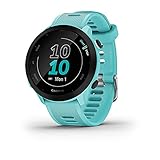
- Easy-to-use running watch monitors heart rate (this is not a medical device) at the wrist and uses GPS to track how far, how fast and where you’ve run
- Battery life: up to 2 weeks in smartwatch mode; up to 20 hours in GPS mode
- Plan your race day strategy with the PacePro feature (not compatible with on-device courses), which offers GPS-based pace guidance for a selected course or distance
- Run your best with helpful training tools, including race time predictions and finish time estimates
- Track all the ways you move with built-in activity profiles for running, cycling, track run, virtual run, pool swim, Pilates, HIIT, breathwork and more
Distance Coming Up Short or Long
If a known route consistently measures off, the issue is usually recording frequency combined with GPS accuracy. Short corners, switchbacks, and track workouts expose this most clearly.
Ensure your watch is set to Smart Recording rather than UltraTrac for standard activities. UltraTrac dramatically reduces GPS points and will undercount distance unless you’re specifically trying to extend battery life.
For track running or structured intervals, using multi-band with Smart Recording produces the most reliable lap distances. On compatible models, Track Run mode goes further by snapping laps to a standard 400 m oval, but only works on regulation tracks.
GPS Dropouts or Flat-Line Sections
When your track suddenly jumps in a straight line or shows missing sections, the watch temporarily lost satellite signal. This can happen under dense tree cover, narrow valleys, or near reflective rock faces.
First, check wrist placement. A snug fit with the watch worn slightly higher on the wrist improves antenna orientation, especially on lighter polymer cases like the Forerunner series.
Second, confirm your software is up to date. Garmin frequently improves satellite handling through firmware updates, particularly on newer multi-band chipsets.
If dropouts happen repeatedly in the same environment, move from GPS Only to All Systems or multi-band for those specific activities.
Urban Canyon Drift and City Running Issues
Tall buildings are the hardest test for any GPS watch. Signals reflect off glass and concrete, causing position jumps that no amount of smoothing can fully hide.
Multi-band is the single most effective solution here. By receiving multiple frequencies, the watch can identify and reject reflected signals, resulting in tighter tracks and more stable pace.
If your watch doesn’t support multi-band, All Systems is still a step up from GPS Only. Pair that with averaged pace fields to reduce the impact of unavoidable signal noise.
In dense cities, don’t judge accuracy block by block. Look at total distance and average pace over the full run, where Garmin’s algorithms tend to correct many short-term errors.
Cold Starts, Travel, and Satellite Data Issues
After flying long distances or not using GPS for several weeks, your watch may take longer to lock satellites and produce poorer initial accuracy.
Syncing with Garmin Connect refreshes satellite prediction data automatically. Do this before your first workout after travel to avoid long lock times and early-track drift.
If problems persist, powering the watch off and back on can reset the GPS subsystem. This is rarely needed, but it’s effective when the watch behaves inconsistently across multiple activities.
When Battery Saving Features Sabotage Accuracy
Battery Saver modes, Expedition profiles, and aggressive power management can override your GPS expectations. These modes intentionally reduce GPS sampling, even if the activity name suggests otherwise.
Always double-check the activity profile you’re using. Copying a profile and adjusting GPS mode manually is safer than assuming defaults are identical across activities.
This is especially important on AMOLED watches like the Epix or Forerunner 965, where battery-saving presets may quietly prioritize screen longevity over GPS fidelity.
Separating Real Problems from Normal GPS Behavior
No consumer GPS watch records a perfectly smooth line, even in ideal conditions. Minor deviations are normal and don’t meaningfully affect training load, VO2 max estimates, or recovery metrics.
Focus on patterns, not one-off glitches. If multiple activities in similar environments show the same issue, a settings change is justified. If not, the data is likely good enough for its purpose.
Understanding these limits helps you avoid chasing perfection at the cost of battery life or simplicity. The goal isn’t flawless tracks—it’s reliable, repeatable data that supports your training decisions.
Expert Setup Recommendations: My Go‑To Garmin GPS Configurations for Training, Racing, and Adventure
At this point, the theory matters less than real-world setups that work day after day. These are the configurations I actually use across different Garmin watches, refined through long training blocks, races, and plenty of imperfect GPS environments.
Think of these as starting templates, not rigid rules. Garmin gives you granular control for a reason, and the best setup always balances accuracy, battery life, and how much data you truly need.
Everyday Training Runs and Rides: Accuracy Without Overkill
For most daily runs and training rides, I prioritize consistency and battery efficiency over chasing perfect tracks. This is where many athletes unknowingly waste battery without gaining meaningful data.
My default choice here is GPS Only or All Systems, depending on the watch generation. On newer multi-band models like the Forerunner 255/265, 955/965, Fenix 7, or Epix, All Systems is my baseline for road running and cycling.
All Systems improves pace stability and distance accuracy in urban or tree-lined routes without the heavy battery hit of multi-band. For steady aerobic sessions, intervals, and long runs, it produces clean, repeatable data that feeds Garmin’s training metrics reliably.
To set this on the watch: Activity > Settings > GPS > GPS Mode > All Systems (or GPS Only on older models). You can also adjust it in Garmin Connect by editing the activity profile and syncing.
Intervals, Track Work, and Pace-Critical Sessions
When precision matters more than battery, I step things up deliberately. This includes track workouts, threshold intervals, and pace-driven race rehearsals where lap accuracy affects decision-making.
Here I use All Systems + Multi-Band on compatible watches. Multi-band improves signal separation near buildings, stadiums, and tree cover, reducing pace spikes during fast efforts.
The battery cost is real, but the payoff is smoother instantaneous pace and more trustworthy lap splits. For sessions under two hours, it’s a trade-off I’m comfortable making.
I also pair this with 1-second recording, which is the default on most modern Garmins. Avoid Smart Recording for interval work, as it can slightly blur pace changes during short reps.
Race Day Setup: Lock It In and Change Nothing Else
Race day is not the time to experiment. My goal is maximum confidence with minimal distractions.
For road races and triathlons, I use All Systems + Multi-Band, full stop. The added accuracy helps with pacing through dense start corrals, underpasses, and crowded city courses where GPS conditions are worst.
I disable battery saver features and avoid custom power modes. On AMOLED watches like the Epix or Forerunner 965, I accept the screen-on cost for the duration of the race.
The night before, I sync the watch to refresh satellite data, then leave it alone. On race morning, I let GPS lock fully before moving, even if that takes an extra 20 seconds.
Long Rides and Endurance Events: Battery First, Data Second
For century rides, gravel events, and all-day training, battery life becomes the limiting factor. Here, perfect tracks matter less than finishing with data intact.
I typically use All Systems for rides under six hours and GPS Only for anything longer, especially on older or smaller watches. On cycling activities, wheel speed sensors and power meters help stabilize speed and distance, reducing reliance on GPS precision.
Multi-band is rarely worth it for long rides unless you’re constantly navigating dense urban environments. Open roads and trails don’t benefit enough to justify the battery drain.
If you’re pushing battery limits, consider reducing backlight brightness or gesture sensitivity rather than downgrading GPS prematurely.
Hiking, Trail Running, and Mountain Use
This is where environment dictates everything. Trees, cliffs, and valleys are the hardest test for GPS.
For trail running, I use All Systems as a minimum and Multi-Band when battery allows. Elevation changes and switchbacks amplify GPS errors, and multi-band noticeably improves track fidelity and distance accuracy.
For hiking, especially multi-day trips, I switch to All Systems or even GPS Only depending on duration. Navigation accuracy matters, but not at the cost of losing GPS halfway through day two.
On supported watches, I enable map detail and leave course guidance on, but I avoid Expedition mode unless battery survival is the primary goal. Expedition is for emergencies, not performance tracking.
Ultra-Distance and Multi-Day Adventures
Ultras force you to think differently. The goal is usable data from start to finish, not perfect granularity.
For 100 km races and beyond, I often choose All Systems with careful power management elsewhere. If the watch won’t last, I drop to GPS Only before touching recording intervals or turning off sensors.
I avoid UltraTrac unless absolutely necessary. It can extend battery dramatically, but it sacrifices pace, distance accuracy, and training metrics that many athletes still want from an ultra.
Charging strategy matters more than GPS mode here. A short mid-race top-up often preserves full GPS accuracy better than downgrading settings from the start.
How I Customize Activity Profiles (And Why You Should Too)
One of Garmin’s most underused strengths is per-activity customization. I rarely rely on stock profiles without tweaks.
I duplicate activities for specific use cases, such as Run – Intervals, Run – Long, or Trail Run – Race. Each gets its own GPS mode, alerts, and screen layout.
This prevents mistakes like starting a long run in a battery-saving profile or racing with GPS Only by accident. Once set up, it’s effortless and far more reliable than changing settings on the fly.
You can do this directly on the watch or inside Garmin Connect under Activities & Apps. Changes sync automatically and persist until you alter them again.
My Bottom-Line Advice on Garmin GPS Settings
Garmin’s GPS options are powerful, but more is not always better. Most athletes benefit from All Systems for daily training, Multi-Band for races and precision sessions, and simpler modes for long adventures.
Chasing flawless tracks can quietly undermine battery life, simplicity, and enjoyment. The real win is dependable data that supports training decisions over weeks and months, not perfection on a single run.
Once you dial in a few purpose-built profiles, your watch fades into the background and does its job. That’s when Garmin’s GPS really shines—quietly, consistently, and exactly as much as you need.