If you’ve ever opened Google Fit and wondered whether it’s a full workout app, a medical tracker, or just a step counter with better graphics, you’re not alone. Google Fit sits in a slightly different space than platforms like Garmin Connect or Fitbit, and understanding that distinction is the key to using it well rather than feeling underwhelmed or confused.
At its best, Google Fit is a flexible health and fitness hub that pulls data from your phone, your Wear OS watch, and compatible third-party apps into one unified timeline. It’s designed to make everyday movement, basic health trends, and long-term consistency visible without overwhelming you with charts or requiring expensive hardware.
Before you start tweaking goals, connecting apps, or troubleshooting missing workouts, it’s important to be clear about what Google Fit actually does, what it deliberately avoids doing, and where it fits in Google’s broader health ecosystem.
Google Fit as a health data hub, not a hardcore training app
Google Fit’s core role is aggregation rather than specialization. It collects activity, movement, and basic health metrics from multiple sources and presents them in a clean, consistent interface that works the same on phones, tablets, and Wear OS watches.
🏆 #1 Best Overall
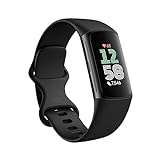
- Find your way seamlessly during runs or rides with turn-by-turn directions from Google Maps on Fitbit Charge 6[7, 8]; and when you need a snack break on the go, just tap to pay with Google Wallet[8, 9]
Unlike dedicated training platforms, Google Fit doesn’t try to coach you through structured plans or advanced performance metrics. There’s no built-in VO₂ max analysis, no adaptive training load, and no race prediction, even if your watch hardware is capable of capturing that data.
This design choice makes Google Fit approachable for beginners and sustainable for everyday users. It’s less about peak performance and more about maintaining awareness of how active you are across weeks, months, and years.
How Google Fit works across phones and Wear OS watches
On a smartphone, Google Fit uses your phone’s motion sensors and location data to estimate steps, distance, and activity time. This works surprisingly well for casual tracking, though accuracy depends heavily on whether you carry your phone consistently throughout the day.
On Wear OS watches, Google Fit becomes more reliable and more immediate. Wrist-based heart rate, continuous movement tracking, and on-watch workouts give you richer data, especially for walking, running, cycling, and general cardio sessions.
Battery impact is modest compared to many fitness-first platforms, which aligns with Google Fit’s philosophy. It’s built to run quietly in the background on devices like the Pixel Watch, Samsung Galaxy Watch, or Fossil Wear OS models without demanding daily charging sacrifices.
What Google Fit tracks well, and what it doesn’t
Google Fit excels at capturing steps, active minutes, heart rate trends, distance, calories burned, and general activity intensity. Its Heart Points system, developed with the American Heart Association, emphasizes movement intensity rather than raw step counts.
Sleep tracking support exists, but it’s often dependent on your device or connected app rather than Google Fit itself. Many users rely on Fitbit, Samsung Health, or third-party sleep apps to feed that data into Fit.
Where Google Fit falls short is advanced sport-specific analysis. Strength training lacks detailed rep and set tracking, swimming metrics are basic, and interval-based workouts don’t receive deep breakdowns without external apps.
What Google Fit is not designed to replace
Google Fit is not a replacement for medical-grade health monitoring. While it can display heart rate trends and activity patterns, it does not diagnose conditions, detect arrhythmias, or provide clinical insights.
It’s also not meant to replace brand-specific ecosystems like Garmin Connect, Polar Flow, or Fitbit Premium. Those platforms offer deeper analysis, proprietary algorithms, and device-exclusive features that Google Fit intentionally avoids duplicating.
Instead, Google Fit acts as a neutral layer that sits above those ecosystems, allowing you to view and combine data without locking you into a single hardware brand long-term.
The role of Google Fit within Google’s health ecosystem
Google Fit operates alongside, not inside, Fitbit’s platform, even after Google’s acquisition of Fitbit. While some Wear OS watches now ship with Fitbit features instead of Google Fit by default, Fit remains available as a standalone app and data hub.
Google Health Connect further reinforces this role by allowing Google Fit to share and receive data securely with other health apps. This makes Fit less about being the best tracker and more about being the most compatible one.
For users who switch phones, watches, or fitness apps over time, this flexibility is one of Google Fit’s biggest long-term advantages.
Who Google Fit is best suited for
Google Fit works best for people who value consistency, simplicity, and cross-device compatibility. If you want a single place to see how active you’ve been regardless of which watch or app you used, it’s an excellent foundation.
It’s particularly well suited to Wear OS owners who don’t want a subscription-heavy experience and Android users who want baseline health tracking without committing to a single brand ecosystem.
For serious athletes, Google Fit is most effective when treated as a companion rather than a primary training tool, pulling in summaries while deeper analysis lives elsewhere.
Why understanding these limits makes Google Fit more powerful
Most frustration with Google Fit comes from expecting it to behave like a full coaching platform or a medical dashboard. Once you understand that it’s designed to centralize, simplify, and contextualize your data, its strengths become clearer.
By using Google Fit as your health baseline and layering specialized apps on top where needed, you gain flexibility without losing continuity. That’s the philosophy that shapes every feature you’ll explore next, from Heart Points to app integrations and personalized goal setting.
How Google Fit Works Across Phones and Wear OS Watches
Once you understand Google Fit’s role as a central hub, the way it operates across phones and Wear OS watches starts to make sense. Rather than treating each device as a separate tracker, Google Fit stitches together activity, heart rate, and health signals into a single timeline tied to your Google account.
This cross-device approach is what allows you to start a walk with your phone, switch to a watch the next day, and still see one continuous record of your activity. The magic isn’t in any single sensor, but in how Google Fit prioritizes, reconciles, and syncs data from multiple sources.
One Google account, one health timeline
At the core of Google Fit is your Google account, not your phone or watch. As long as you’re signed into the same account, your data follows you across Android phones, Wear OS watches, and even web-based dashboards.
This is especially useful if you upgrade hardware frequently or rotate between devices. A Pixel phone today, a Galaxy phone next year, and a Fossil or Pixel Watch in between can all feed the same Google Fit history without manual exports or resets.
Because the data lives in the cloud, reinstalling Google Fit on a new phone immediately restores your past activity, goals, and trends. That continuity is one of Fit’s quiet strengths compared to device-locked fitness platforms.
How tracking differs on phones versus Wear OS watches
Google Fit behaves differently depending on whether it’s running on a phone or a watch. On a phone, it relies heavily on step counting, motion sensors, GPS, and context detection to infer activities like walking, running, or cycling.
Wear OS watches add a more dedicated fitness layer. With continuous heart rate sensors, tighter wrist-based motion tracking, and quicker access to manual workout modes, watches generally produce more accurate and complete activity records.
In real-world use, this means steps and Move Minutes may look similar between devices, but Heart Points and intensity tracking are far more reliable on a watch. For users serious about consistency, wearing a watch turns Google Fit from a passive tracker into an active one.
What happens when you use both at the same time
If you carry your phone while wearing a Wear OS watch, Google Fit automatically decides which data source to trust. Typically, the watch takes priority for heart rate and activity intensity, while the phone acts as a backup for steps and location.
This prevents double-counting, but it can occasionally create confusion if permissions aren’t set correctly. For example, if both devices are tracking a walk but only one has location access, you may see partial maps or missing distance data.
The best practice is to allow Google Fit full activity, location, and body sensor permissions on both devices, then let the platform handle source selection automatically. Manual overrides are rarely needed and often introduce errors.
Workout tracking and controls on Wear OS
On Wear OS watches, Google Fit offers on-watch workout controls for activities like walking, running, cycling, and strength training. These sessions track time, heart rate, calories, and Heart Points in real time, with data syncing back to your phone once the workout ends.
The experience varies slightly depending on the watch’s hardware. Watches with lighter cases, breathable straps, and balanced weight distribution tend to be more comfortable for longer workouts, which indirectly improves data quality by keeping the watch snug on your wrist.
Battery life also matters. Continuous heart rate tracking and GPS sessions will drain smaller Wear OS batteries quickly, so understanding your watch’s limits helps you avoid incomplete workouts or missing data.
Background tracking and passive activity detection
Google Fit doesn’t require you to manually start every workout. On both phones and watches, it passively tracks steps and movement throughout the day, converting them into Move Minutes and Heart Points when intensity thresholds are met.
On phones, this passive tracking is more dependent on system-level power management. Aggressive battery optimization or restricted background activity can reduce accuracy, especially on heavily customized Android skins.
Wear OS watches are generally better at consistent background tracking, but they still rely on proper permissions and up-to-date software. If passive tracking feels unreliable, the issue is usually settings-related rather than a sensor problem.
Sync timing, offline use, and delayed data
Google Fit doesn’t require a constant internet connection to function. Both phones and Wear OS watches can track activity offline, storing data locally until a connection is available.
Sync delays are normal, especially after long workouts or during travel. Data may appear on your watch immediately but take several minutes, or even hours, to fully populate on your phone.
If data seems missing, it’s often just waiting to sync. Force-closing the app or signing out rarely helps and can sometimes make things worse by interrupting background processes.
How third-party apps fit into the picture
When you connect third-party apps or devices, Google Fit treats them as additional data sources rather than replacements. A cycling app, gym tracker, or smart scale can feed data into the same timeline used by your phone and watch.
This is where conflicts can arise if multiple apps track the same activity. Google Fit usually prioritizes the most detailed source, such as a dedicated workout app over passive phone tracking.
For best results, avoid recording the same workout in multiple apps simultaneously unless you know how each one syncs. Let one app handle recording, and use Google Fit as the viewer and aggregator.
Practical setup tips for a smoother experience
Make sure Google Fit is installed and updated on both your phone and Wear OS watch, even if your watch ships with another fitness app by default. This ensures compatibility and background syncing.
Check permissions carefully, especially activity recognition, location, and body sensors. Missing permissions are the most common cause of inaccurate or incomplete data across devices.
Finally, wear your watch consistently and snugly, but comfortably. Good skin contact improves heart rate accuracy, which directly affects Heart Points and calorie estimates across the entire Google Fit ecosystem.
Key Metrics Explained: Move Minutes, Heart Points, Steps, Calories, and Beyond
Once your devices are syncing smoothly, the next step is understanding what Google Fit is actually measuring and why it matters. These metrics aren’t just vanity numbers; they’re designed to translate raw sensor data into signals you can act on day to day.
Google Fit blends phone sensors, Wear OS watch hardware, and third-party inputs into a single activity model. How you wear your watch, the type of workouts you log, and which apps you connect all influence how these numbers are calculated.
Move Minutes: the foundation of daily activity
Move Minutes track how long you’re physically active at any intensity above resting. This includes walking, household chores, casual cycling, and structured workouts, as long as Google Fit detects sustained movement.
Unlike step counts, Move Minutes don’t care how fast you’re moving or how many steps you take. A slow walk with your dog, a standing desk session with pacing, or a gentle mobility routine can all contribute.
For beginners, Move Minutes are often the most motivating metric because they reward consistency rather than performance. If you’re just starting out, hitting your daily Move Minutes goal matters more than chasing intensity.
Heart Points: intensity that actually improves fitness
Heart Points are Google Fit’s most important metric from a health perspective. Developed in collaboration with the American Heart Association, they’re designed to encourage moderate to vigorous activity that raises your heart rate.
You earn one Heart Point for each minute of moderate activity, such as brisk walking. Vigorous activities like running, HIIT, or fast cycling earn two points per minute.
Heart Points rely heavily on heart rate data, which is why watch fit and sensor quality matter. A snug but comfortable Wear OS watch with a reliable optical heart rate sensor will dramatically improve accuracy compared to phone-only tracking.
Steps: familiar, but not the whole picture
Steps are the most recognizable metric, but they’re also the least nuanced. Google Fit counts steps from your phone, watch, or both, and automatically deduplicates them when devices are synced correctly.
Step count is useful for gauging general movement, especially on rest days or during work hours. However, steps don’t reflect effort, intensity, or cardiovascular benefit.
If you rely heavily on cycling, strength training, swimming, or gym machines, your step count may look low even on very active days. In those cases, Move Minutes and Heart Points tell a more accurate story.
Rank #2

- Inspire 3 is the tracker that helps you find your energy, do what you love and feel your best. All you have to do is wear it.Operating temperature: 0° to 40°C
- Move more: Daily Readiness Score(1), Active Zone Minutes, all-day activity tracking and 24/7 heart rate, 20+ exercise modes, automatic exercise tracking and reminders to move
- Stress less: always-on wellness tracking, daily Stress Management Score, mindfulness sessions, relax breathing sessions, irregular heart rhythm notifications(2), SpO2(3), menstrual health tracking, resting heart rate and high/low heart rate notifications
- Sleep better: automatic sleep tracking, personalized Sleep Profile(1), daily detailed Sleep Score, smart wake vibrating alarm, sleep mode
- Comfortably connected day and night: calls, texts & smartphone app notifications(4), color touchscreen with customizable clock faces, super lightweight and water resistant to 50 meters, up to 10 day battery life(5)
Calories burned: estimates, not absolutes
Calories in Google Fit are calculated using a combination of movement data, heart rate, body metrics, and activity type. They include both active calories from movement and, in some views, your estimated resting burn.
These numbers are best used for trends rather than precision. Differences in metabolism, body composition, and sensor accuracy mean calorie counts can vary significantly between users.
For wearable users, calorie estimates improve with heart rate tracking and consistent wear. If your watch supports continuous heart rate monitoring and you wear it throughout the day, Google Fit’s calorie data becomes more reliable over time.
Distance, pace, and workout-specific metrics
For activities like walking, running, and cycling, Google Fit also tracks distance and pace. These metrics depend on GPS data, which is typically more accurate when recorded from your phone or a Wear OS watch with built-in GPS.
Shorter workouts and indoor sessions may rely on stride estimation instead of GPS. Watch size, weight, and comfort play a role here, as better wrist stability improves motion detection during runs and walks.
If precision matters, such as for race training or structured plans, using a dedicated workout mode or a third-party app that syncs to Google Fit can provide richer data without fragmenting your history.
Heart rate trends and resting heart rate
Google Fit shows heart rate samples and, on supported devices, resting heart rate trends. These metrics are long-term indicators rather than daily goals.
A gradually lowering resting heart rate often reflects improving cardiovascular fitness, while sudden spikes can indicate stress, illness, or poor recovery. Consistency in wear time is critical for meaningful trends.
Battery life plays a role here. Watches that last a full day and night without charging gaps provide more complete heart rate profiles than devices that need frequent top-ups.
Sleep, wellness, and connected health data
Sleep tracking isn’t native to Google Fit on all devices, but it integrates seamlessly with Wear OS sleep features and third-party apps. When connected, sleep duration and timing appear alongside your activity data.
Google Fit treats sleep and wellness metrics as context rather than performance targets. Poor sleep often explains low Heart Points or elevated resting heart rate on otherwise normal days.
If you use smart scales, blood pressure monitors, or wellness apps, Google Fit can store this data in one place. This turns the app into a long-term health log rather than just a fitness tracker.
How to prioritize metrics based on your goals
For general health and longevity, Heart Points should be your primary focus, with Move Minutes supporting daily consistency. Steps can act as a simple accountability tool but shouldn’t override intensity-based goals.
For weight management, combine calorie trends with Heart Points and weekly activity patterns instead of reacting to single-day numbers. Google Fit works best when viewed over weeks, not hours.
For wearable users, comfort and daily usability matter as much as specs. A watch that’s lightweight, breathable, and comfortable enough to wear all day will always produce better data than a more advanced device left on the charger.
Using Google Fit as a central health dashboard
The real power of Google Fit isn’t any single metric, but how they work together across devices and apps. Move Minutes show consistency, Heart Points show effort, and heart rate trends show adaptation.
As you fine-tune permissions, device fit, and connected services, these numbers become less abstract and more actionable. Google Fit stops being a passive tracker and starts functioning as a personal health control panel.
Understanding these metrics is what allows you to set smarter goals, spot meaningful changes, and use your phone or Wear OS watch as a long-term health companion rather than just a step counter.
Setting Up Google Fit the Right Way: Profiles, Goals, and Permissions
Once you understand how Google Fit interprets your health data, the next step is making sure the app is configured to reflect who you are and how you actually move. A rushed setup leads to misleading trends, inflated calorie counts, or missing metrics that quietly undermine everything you track later.
Getting this right from the start turns Google Fit from a generic activity app into a personalized health platform that works consistently across your phone, Wear OS watch, and connected devices.
Creating an accurate health profile
Your Google Fit profile is the foundation for every calculation the app makes, from calories burned to cardio effort. Height, weight, age, and biological sex all directly influence how heart rate zones and energy expenditure are estimated.
Set this up from the Profile tab and revisit it whenever something changes. Even a small weight update can noticeably affect calorie trends over time, especially if you’re tracking weight management or endurance training.
For Wear OS users, profile accuracy matters even more because heart rate–based metrics like Heart Points depend on personalized intensity thresholds. An outdated profile often results in Heart Points feeling either too easy or unrealistically hard to earn.
Understanding how Google Fit sets default goals
Google Fit’s default goals are intentionally conservative. The standard targets of 30 Heart Points and 60 Move Minutes per day are designed around general public health guidelines rather than athletic performance.
Heart Points emphasize moderate to vigorous activity, rewarding intensity over sheer volume. Move Minutes track any movement above resting levels, making them useful for encouraging daily consistency even on light or recovery days.
Think of these defaults as a baseline, not a finish line. They are meant to be achievable across a wide range of ages, fitness levels, and lifestyles, especially for people just getting active.
Customizing goals to match real-world habits
Custom goals are where Google Fit becomes more meaningful. You can adjust Heart Points and Move Minutes independently, allowing you to reflect how you actually train and live.
If you’re strength training, cycling, or doing short high-intensity sessions, increasing Heart Points while keeping Move Minutes moderate often produces more honest feedback. For walkers or people focused on general mobility, higher Move Minutes with standard Heart Points can feel more motivating.
Wear OS watches benefit from this tuning because they track activity passively throughout the day. A lightweight watch with a comfortable strap and good battery life encourages all-day wear, which makes personalized goals far more reliable than rigid step counts.
Choosing which metrics deserve your attention
Google Fit shows a lot of data, but not all of it needs equal weight. During setup, decide which metrics align with your priorities so you don’t chase numbers that don’t matter to you.
For health-focused users, Heart Points, resting heart rate trends, and weekly activity consistency should take priority. Steps are useful for accountability but can be misleading if you also cycle, row, or train indoors.
For fitness-focused users, activity type recognition and heart rate accuracy matter more than raw totals. Pairing Google Fit with a Wear OS watch that fits well on the wrist, uses a stable optical sensor, and stays comfortable during sweat-heavy workouts improves data quality dramatically.
Granting permissions without oversharing
Permissions are where many users either give Google Fit too little access or far more than necessary. During setup, Google Fit requests access to activity, location, body sensors, and sometimes storage depending on your device.
Activity and body sensor access are essential for meaningful tracking, especially on Wear OS. Location access improves outdoor workout accuracy but can be limited to “only while using the app” if privacy is a concern.
You don’t need to enable every optional permission. Google Fit works perfectly well without continuous background location tracking unless you frequently record runs or rides without your watch.
Optimizing permissions on Wear OS watches
On Wear OS, permissions live both on the phone and the watch itself. After pairing, check app permissions directly on the watch to ensure sensors like heart rate and motion are enabled.
Battery optimization settings are especially important. Aggressive battery management can pause background tracking, causing gaps in heart rate or activity data that aren’t always obvious until you review trends later.
If your watch offers different strap materials or case sizes, comfort matters more than aesthetics here. A watch that sits flat, uses breathable materials, and doesn’t shift during movement will maintain better sensor contact and more consistent readings.
Connecting third-party apps and devices correctly
Google Fit becomes far more powerful when connected to other apps, but setup order matters. Always configure and calibrate third-party apps first, then connect them to Google Fit rather than the other way around.
Popular integrations include sleep trackers, smart scales, cycling apps, and gym platforms. Once connected, review the data sources list inside Google Fit to avoid duplicates, which can inflate calories or activity totals.
For users with multiple devices, such as a phone, a Wear OS watch, and a cycling computer, this step is critical. Google Fit allows you to prioritize data sources so the most accurate device takes precedence for each metric.
Managing data sources and avoiding conflicts
Google Fit doesn’t merge data blindly. It assigns priority based on source reliability, but you can override this manually in the app’s settings.
For example, you might want heart rate data from your watch, steps from your phone during non-watch hours, and cycling data from a dedicated bike computer. Setting this up early prevents confusing discrepancies later.
This is especially useful if you switch watches or upgrade hardware. A new device with better sensors and battery life should be promoted as the primary source so historical trends remain consistent going forward.
Setting up activity tracking preferences
Automatic activity detection is helpful but not perfect. Google Fit does a good job recognizing walking and running, but strength training, yoga, and interval workouts often need manual logging.
During setup, familiarize yourself with the activity list and shortcuts so logging becomes second nature. Accurate activity types improve calorie estimates and intensity scoring, particularly for Heart Points.
On Wear OS, quick-start workout tiles reduce friction. A watch with responsive touch input, a smooth interface, and buttons you can use mid-workout makes manual tracking far more practical.
Reviewing privacy and data controls
Google Fit gives you granular control over what’s stored and synced. You can delete individual workouts, specific days, or entire data categories without wiping your whole history.
This matters if you’re testing devices, recovering from illness, or correcting accidental tracking. Cleaning up outliers keeps long-term trends meaningful rather than skewed by one-off errors.
For users treating Google Fit as a long-term health record, these controls are just as important as the tracking itself. A clean dataset is easier to interpret, easier to share with healthcare professionals, and more valuable over time.
Why setup quality directly affects motivation
When goals feel realistic and data feels accurate, Google Fit becomes motivating without being stressful. You stop checking the app obsessively and start trusting weekly and monthly patterns instead.
A properly configured setup also reduces friction. Fewer missed workouts, fewer duplicated entries, and clearer trends make it easier to stick with wearables and health tracking long term.
This is the point where Google Fit shifts from something you check to something that quietly supports your habits, ready to reflect progress when you decide to look deeper.
Using Google Fit on Wear OS: Real‑World Watch Experience, Battery Impact, and Sensors
Once your Google Fit setup is dialed in, the watch becomes the most important interface. Wear OS turns Fit from a passive log into something you interact with dozens of times a day, often without thinking about it.
How well this works depends not just on the app, but on the watch hardware, sensor quality, battery headroom, and how smoothly everything runs together during real workouts and everyday wear.
Day‑to‑day experience on Wear OS watches
Google Fit on Wear OS is designed for fast interactions rather than deep analysis. You start workouts, glance at Heart Points, and confirm progress toward Move Minutes without pulling out your phone.
Rank #3

- 【BUILT-IN GPS SMART WATCH – GO FURTHER, FREER, SMARTER】No phone? No problem. This fitness watch for women, featuring the latest 2025 technology, includes an advanced professional-grade GPS chip that precisely tracks every route, distance, pace (real-time & average), and calorie burned—completely phone-free. Whether you're chasing new personal records or exploring off the beaten path, your full journey is automatically mapped and synced in the app. Train smarter. Move with purpose. Own your progress. Own your journey.
- 【BLUETOOTH 5.3 CALLS & SMART NOTIFICATIONS】Stay effortlessly connected with this smart watch for men and women, featuring dual Bluetooth modes (BT 3.0 + BLE 5.3) and a premium microphone for crystal-clear calls right from your wrist—perfect for driving, workouts, or busy days. Receive instant alerts for calls, texts, and popular social apps like WhatsApp and Facebook. Just raise your wrist to view notifications and never miss an important moment.
- 【100+ SPORT MODES & IP68 WATERPROOF & DUSTPROOF】This sport watch is a versatile activity and fitness tracker with 100+ modes including running, cycling, yoga, and more. It features quick-access buttons and automatic running/cycling detection to start workouts instantly. Accurately track heart rate, calories, distance, pace, and more. Set daily goals on your fitness tracker watch and stay motivated with achievement badges. With IP68 waterproof and dustproof rating, it resists rain and sweat for any challenge. Not suitable for showering, swimming, or sauna.
- 【24/7 HEALTH ASSISTANT & SMART REMINDERS】This health watch continuously monitors heart rate, blood oxygen, and stress levels for comprehensive wellness tracking. Sleep monitoring includes deep, light, REM sleep, and naps to give you a full picture of your rest. Stay on track with smart reminders for sedentary breaks, hydration, medication, and hand washing. Women can also monitor menstrual health. Includes guided breathing exercises to help you relax. Your ultimate health watch with event reminders for a healthier life.
- 【ULTRA HD DISPLAY, LIGHTWEIGHT & CUSTOMIZABLE DIALS】This stylish wrist watch features a 1.27-inch (32mm) 360×360 ultra HD color display with a 1.69-inch (43mm) dial, offering vivid details and responsive touch. Its minimalist design fits both business and casual looks. Switch freely among built-in designer dials or create your own DIY watch face using photos, colors, and styles to showcase your unique personality. Perfect as a cool digital watch and fashion wrist watch.
On watches like the Pixel Watch, Galaxy Watch series, or TicWatch models, Fit feels native rather than bolted on. Tiles load quickly, animations stay fluid, and syncing to the phone happens quietly in the background.
Comfort matters more than specs here. A lightweight case, breathable strap, and a display that stays readable outdoors will determine whether you keep wearing the watch overnight and during long workouts.
Buttons, touchscreens, and mid‑workout usability
Touchscreens work well for casual activity tracking, but physical buttons still matter during exercise. Sweat, rain, and gloves can make swipe gestures unreliable when you’re trying to pause or end a session.
Watches with at least one well-placed button make Google Fit far easier to control mid‑run or during intervals. Rotating bezels or crowns add even more precision when scrolling metrics without blocking the screen.
If your watch relies entirely on touch, enabling larger on-screen controls and workout tiles is worth doing. It reduces missed inputs and accidental pauses that can ruin clean data.
Battery impact: what Google Fit really costs
Google Fit itself is relatively efficient, but the sensors it activates are not. Continuous heart rate monitoring, GPS tracking, and always-on displays all stack up quickly.
A 30–60 minute GPS workout with heart rate tracking typically uses 10–20 percent battery on modern Wear OS watches. Older models or watches with smaller batteries may drain faster, especially with LTE enabled.
For daily wear, background tracking of steps and heart rate has minimal impact. The real drain comes from long outdoor workouts, poor GPS signal, and third-party watch faces that refresh aggressively.
Optimizing battery life without losing data
If battery anxiety limits how often you track workouts, small adjustments make a big difference. Disable LTE during workouts if your phone is nearby, and lower screen brightness when exercising outdoors.
Use Google Fit’s built-in workouts instead of third-party apps when possible. Native integrations tend to manage sensors more efficiently on Wear OS.
On watches that support it, turn off always-on display during workouts. You’ll still get wrist-raise visibility, and battery life improves noticeably on longer sessions.
Sensor accuracy: heart rate, GPS, and motion tracking
Google Fit relies entirely on your watch’s sensors, not its own algorithms, for raw data. This means accuracy varies significantly between devices.
Modern optical heart rate sensors perform well for steady-state cardio like walking and running. High-intensity intervals, strength training, and cycling with wrist flexion still challenge wrist-based sensors.
GPS accuracy is generally solid on newer Wear OS watches, especially those with dual-band support. Older single-band GPS can drift in cities, under trees, or during quick direction changes.
What Google Fit does well with sensor data
Google Fit excels at consistency rather than extreme precision. Even if individual readings fluctuate, long-term trends for resting heart rate, activity volume, and cardio load remain useful.
Heart Points are particularly forgiving of sensor noise. They focus on intensity zones and duration rather than exact calorie burn, which makes them more reliable across different watches.
For users focused on general health, weight management, or habit building, this approach works well. You get actionable feedback without obsessing over marginal gains.
Sleep, SpO2, and advanced metrics on Wear OS
Google Fit itself offers limited native sleep tracking on Wear OS. Many watches handle sleep through manufacturer apps that then sync summary data back into Fit.
SpO2, skin temperature, and stress metrics depend entirely on the watch brand. Google Fit can store and display some of this data, but it does not analyze it deeply.
If advanced sleep or recovery insights matter to you, expect to rely on a companion app alongside Google Fit. Fit works best as the long-term archive rather than the primary sleep coach.
Durability, materials, and long‑term wear comfort
Fitness tracking only works if the watch stays on your wrist. Aluminum cases keep weight down, while stainless steel adds durability but can feel heavy during sleep or long runs.
Water resistance is essential for swimming and sweat-heavy workouts. Most Wear OS fitness-focused watches handle rain and rinsing easily, but not all are ideal for frequent pool use.
Straps make or break comfort. Silicone works for workouts, but switching to nylon or fabric for daily wear often improves skin comfort and encourages all-day tracking.
When Google Fit on Wear OS makes the most sense
Google Fit shines when your watch is always on and quietly collecting data. It’s less about pushing you during a single workout and more about building a clear picture over weeks and months.
If you value a clean interface, cross-device syncing, and flexibility with third-party apps, Wear OS plus Google Fit is a strong combination. The experience improves noticeably as hardware gets faster and sensors get better.
At its best, Google Fit on Wear OS fades into the background. You move, exercise, and live your day, and the data is simply there when you’re ready to look.
Connecting Third‑Party Apps and Devices: Turning Google Fit into a Health Data Hub
Once Google Fit is quietly collecting data from your phone or Wear OS watch, its real strength starts to show when you connect other apps and devices. This is where Fit shifts from being a simple tracker to a central health data hub that reflects how you actually train, move, and recover.
Rather than replacing specialized fitness apps, Google Fit works best when it sits in the middle. It pulls data in, normalizes it, and gives you a long-term view across brands, sensors, and workout styles.
How Google Fit integrations actually work
Google Fit uses Google Health Connect and its legacy Fit APIs to exchange data with other apps. When you connect a service, you’re usually allowing it to read from Fit, write to Fit, or both.
Read access lets an app use your existing steps, heart rate, or weight data. Write access allows that app to push workouts, calories, sleep, or body metrics back into Google Fit.
This matters because Google Fit does not always generate the most detailed metrics itself. Instead, it becomes the place where summaries from multiple sources live together over time.
Connecting apps from inside Google Fit
Most integrations start directly in the Google Fit app on your phone. Under Settings, you’ll find a section for managing connected apps and services.
Tapping an app shows exactly what data it can access, such as activity sessions, heart rate, sleep, or body measurements. You can revoke permissions at any time, which immediately stops syncing.
If you’re privacy-conscious, this granular control is one of Google Fit’s strongest advantages. You don’t have to fully trust an app to use it alongside Fit.
Popular fitness apps that pair well with Google Fit
Strava is one of the most common integrations, especially for runners and cyclists. When connected, your rides and runs sync into Google Fit as activities, contributing to Move Minutes and Heart Points.
Nike Training Club, Adidas Running, and similar coaching-focused apps also feed workouts into Fit. This allows guided sessions to count toward your daily and weekly goals without double-logging.
MyFitnessPal and other nutrition apps can sync weight and calorie data. While Google Fit doesn’t deeply analyze nutrition, having body metrics alongside activity data adds useful context over time.
Smartwatch and wearable brand integrations
Wear OS watches sync natively with Google Fit, but many brands also rely on their own apps first. Samsung Health, Fitbit, and Fossil’s wellness platforms often act as intermediaries.
In these setups, the watch records raw sensor data, the manufacturer app processes it, and Google Fit receives a cleaned summary. This is why heart rate trends appear, but detailed recovery scores may not.
Fitbit deserves special mention. Since Google owns Fitbit, syncing between Fitbit and Google Fit is improving, but it’s still not a full merge. Expect activity, heart rate, and sleep summaries, not Fitbit’s premium insights.
Using Google Fit with gym equipment and smart scales
Some smart scales, including models from Withings, Eufy, and Xiaomi, can push weight, body fat percentage, and BMI into Google Fit. These measurements appear under body metrics and update your long-term charts.
Gym equipment integrations are less common, but apps that log treadmill or cycling workouts can still sync sessions afterward. Google Fit treats these as standard activities, even if the data source is external.
The key advantage here is consistency. Your weight trend, activity volume, and cardio effort remain visible even as devices change.
Avoiding duplicate workouts and messy data
One common issue when connecting multiple apps is duplicate activity entries. This usually happens when both Google Fit and a third-party app track the same workout at the same time.
To prevent this, choose a single primary tracker for each activity type. For example, let Strava handle runs while Google Fit focuses on background steps and daily movement.
You can also disable activity tracking in Google Fit on your watch if another app is doing it better. Fit will still receive the final workout once it syncs.
Understanding data priority and conflicts
When multiple apps write the same data type, Google Fit uses internal priority rules to decide what appears. Heart rate from a chest strap may override optical wrist data, while logged workouts may override auto-detected ones.
You don’t see these rules directly, but you can influence them by limiting write permissions. Fewer sources usually mean cleaner, more reliable charts.
If something looks off, disconnecting and reconnecting an app often forces a data refresh. It’s a simple fix that solves many syncing quirks.
Using Google Fit as a long-term health archive
Google Fit excels at showing trends over months and years. Even if you switch watches, apps, or training styles, your history stays intact.
This is especially valuable for heart rate trends, activity consistency, and weight changes. You’re not locked into a single ecosystem or hardware brand.
Think of Fit less as a coach and more as your health ledger. The apps and devices may come and go, but the data story remains continuous.
Optimization tips for power users
If you use multiple fitness apps, audit your connected services every few months. Remove anything you no longer use to keep syncing clean and predictable.
Enable background sync and battery optimization exceptions for Google Fit and key apps. Aggressive battery management on Android can silently break data flow.
Finally, check your goals after adding new integrations. A sudden increase in Heart Points or Move Minutes may reflect better tracking, not a real change in effort, and adjusting expectations keeps the system motivating rather than confusing.
Activity Tracking in Practice: Walking, Running, Cycling, Strength Training, and More
Once your data sources are streamlined, Google Fit becomes far more useful in day-to-day workouts. This is where its flexibility shines, adapting to everything from casual walks to structured training sessions across phones, Wear OS watches, and third-party devices.
Rank #4

- 24H Accurate Heart Rate Monitoring: Go beyond basic tracking. Our watch automatically monitors your heart rate, blood oxygen (SpO2), and sleep patterns throughout the day and night. Gain deep insights into your body's trends and make informed decisions for a healthier lifestyle.
- Practical Sports Modes & Smart Activity Tracking: From running and swimming to yoga and hiking, track a wide range of activities with precision. It automatically records your steps, distance, calories burned, and duration, helping you analyze your performance and crush your fitness goals.
- 1-Week Battery Life & All-Day Wear: Say goodbye to daily charging. With an incredible up to 7-10 days of battery life on a single charge, you can wear it day and night for uninterrupted sleep tracking and worry-free travel. Stay connected to your data without the hassle.
- Comfortable to Wear & IP68 Waterproof: The lightweight, skin-friendly band is crafted for all-day comfort, even while you sleep. With IP68 waterproof, it withstands rain, sweat, It is not suitable for swimming or showering.
- Ease of Use and Personalized Insights via Powerful App: The display is bright and easy to read, even outdoors. Unlock the full potential of your watch. Sync with our dedicated app to view detailed health reports, customize watch faces, set sedentary reminders, and manage your preferences with ease.
Rather than forcing a rigid workout philosophy, Fit focuses on capturing movement accurately and translating it into consistent metrics like steps, distance, calories, Move Minutes, and Heart Points. How well it does that depends on the activity and how you track it.
Walking: background tracking that actually works
Walking is Google Fit’s strongest and most reliable activity, especially for users who don’t want to manually start workouts. On both Android phones and Wear OS watches, Fit uses a combination of accelerometer data, step cadence, and location changes to detect walks automatically.
For daily movement, background walking detection is usually enough. You’ll see steps, distance, time, and Heart Points logged without touching the app, making it ideal for commuting, errands, or active jobs.
If accuracy matters, wearing a watch improves consistency. Wrist-based step tracking is less prone to missed movement than a phone in a bag or jacket, and modern Wear OS watches with lighter cases and flexible straps are comfortable enough to wear all day without thinking about it.
Running: manual starts deliver better data
Running works best when you start the activity manually in Google Fit or a connected app like Strava. This locks in GPS, heart rate sampling, and pace tracking from the beginning, reducing gaps and smoothing out distance calculations.
On a Wear OS watch, GPS quality depends on the chipset and antenna design. Larger cases often house better antennas, while lightweight aluminum or titanium builds improve comfort during longer runs. Battery life is also a factor, as continuous GPS and heart rate tracking can drain smaller watches quickly.
If you use another running app, let it handle the session and sync to Fit afterward. You’ll still earn Heart Points and maintain a clean activity timeline without duplicate routes or conflicting pace data.
Cycling: where phone and watch roles differ
Cycling highlights the difference between phone-based and watch-based tracking. Phones generally offer more accurate GPS tracks thanks to larger antennas and better thermal management, especially on longer rides.
Wear OS watches can still work well for shorter or urban rides, particularly if you value heart rate data over route precision. A snug strap fit is critical here, as optical sensors struggle with vibration and loose contact during cycling.
If you use a bike computer or a cycling-focused app, treat Google Fit as the archive. Let the specialist hardware record the ride, then sync the summary to Fit for long-term trends and Heart Point totals.
Strength training: manual logging with realistic expectations
Strength training is where Google Fit is intentionally simple. You can log strength workouts manually, tracking duration and estimated intensity, but you won’t get automatic rep counting or exercise recognition.
This isn’t a flaw so much as a design choice. Fit focuses on cardiovascular load and movement time, so strength sessions mainly contribute Move Minutes and Heart Points based on heart rate response.
For users who lift regularly, pairing Fit with a dedicated strength app works best. Let the lifting app handle sets, reps, and progression, while Fit captures overall workload and keeps your weekly activity balance intact.
HIIT, classes, and mixed workouts
High-intensity interval training, circuit workouts, and fitness classes fall into a middle ground. Manually starting a workout ensures heart rate spikes and recovery periods are recorded accurately.
Wear OS watches with faster processors and responsive touchscreens make it easier to start and stop sessions mid-workout, even with sweaty hands. Silicone or fluoroelastomer straps are preferable here for grip, durability, and easy cleaning.
Expect calorie estimates to be rough. Focus instead on Heart Points and time spent active, which better reflect the cardiovascular impact of these sessions.
Auto-detection versus manual control
Google Fit’s auto-detection is best suited for low-intensity, repetitive movement like walking. For anything structured or performance-focused, manual control wins every time.
Auto-detected workouts can start late or end early, especially if your pace varies. This is normal behavior, not a bug, and understanding it prevents frustration when reviewing timelines.
A practical approach is to rely on auto-detection for daily life and manual tracking for intentional exercise. This keeps effort-based workouts precise without adding friction to your routine.
Phone-only tracking versus Wear OS watches
Using Google Fit on a phone alone is perfectly viable for beginners. You’ll get steps, basic activity detection, and GPS for manually started workouts, all without wearing extra hardware.
Wear OS watches add continuous heart rate data, better step consistency, and quicker workout interactions. Comfort matters here, as heavier watches or stiff straps often end up left on the charger, negating their advantages.
Battery life should guide your expectations. Slim, fashion-forward watches may need daily charging, while sport-focused models with larger cases often last longer during GPS-heavy weeks.
Making Heart Points work across activities
Heart Points are designed to normalize effort across different workouts. A brisk walk, a steady run, and a tough strength session can all contribute meaningfully, even if calories burned vary widely.
This makes Fit particularly useful for mixed-activity users who don’t follow a single sport. You’re rewarded for intensity and consistency rather than just distance or duration.
If your Heart Points spike after adding a new tracker or watch, revisit your goals. Better sensors often reveal effort that was previously invisible, not a sudden leap in fitness.
Less common activities and custom entries
Google Fit supports a wide range of activities beyond the basics, including yoga, swimming, rowing, and sports. Tracking depth varies, but logging them keeps your activity history complete.
Swimming works best with water-resistant Wear OS watches that support swim tracking, using movement patterns and duration rather than GPS. Strap material and secure fit matter more here than case size or weight.
For anything unsupported, manual entries still count. Consistency matters more than perfect categorization when building a long-term health record.
Practical accuracy tips for real-world use
Wear your watch snugly but comfortably, about a finger’s width above the wrist bone. This improves heart rate accuracy across all activities.
Keep Google Fit and related apps exempt from battery optimization. Missed background data is one of the most common causes of incomplete activity logs.
Finally, review your activity timeline weekly. Small anomalies are normal, but spotting patterns early helps you adjust tracking habits before bad data becomes long-term noise.
Interpreting Your Data: Trends, Weekly Reports, and What Actually Matters
Once your tracking habits are consistent, Google Fit becomes far more useful as a pattern-recognition tool than a daily scorecard. The real value sits in trends over time, not whether you hit a perfect number on any single day.
This is where many users either level up or quietly disengage. Learning what to look at, and what to ignore, makes the difference between actionable insight and background noise.
Daily numbers vs long-term trends
Daily stats are volatile by nature. Sleep, stress, weather, work schedules, and battery quirks can all skew a single day’s data.
Instead of fixating on individual readings, zoom out to weekly and monthly views. A gradual rise in Heart Points, steadier Move Minutes, or fewer completely inactive days tells you far more than a personal best that never repeats.
On Wear OS watches, this long-view approach also smooths out sensor differences. Upgrading from an older optical heart rate sensor to a newer watch often shifts baseline data slightly, which is normal and expected.
Understanding Google Fit’s weekly reports
Google Fit’s weekly summaries are designed to surface consistency, not extremes. They highlight total Move Minutes, Heart Points, and activity frequency rather than max performance.
Pay attention to streaks and averages. A week with five moderate workouts often beats one intense session followed by inactivity, even if calories burned look similar.
If you use both a phone and a watch, weekly reports also help verify sync health. Gaps or duplicated days often point to permission issues, battery restrictions, or overlapping tracking from multiple apps.
Heart Points trends: effort beats volume
Heart Points are most useful when viewed across weeks. Rising totals suggest improved cardiovascular engagement, even if workout duration stays flat.
Plateaus are not failures. They often indicate your body has adapted, meaning it may be time to slightly increase intensity, add interval work, or diversify activities rather than simply doing more.
If your Heart Points drop after switching watches, check heart rate zones and fit. Differences in case thickness, sensor placement, and strap tension can subtly affect how effort is detected.
Move Minutes and the reality of daily life
Move Minutes reward movement frequency, not athleticism. Short walks, standing breaks, and light activity all count, making this metric especially valuable for desk-heavy lifestyles.
Look for patterns rather than totals. If Move Minutes dip midweek but rebound on weekends, that’s a scheduling issue, not a motivation problem.
On larger, heavier watches, especially those with metal cases or bracelets, some users unconsciously move less during work hours. Comfort and wearability can influence behavior more than most people realize.
Spotting meaningful improvements beyond fitness
Not all progress shows up as higher numbers. Improved recovery, steadier sleep schedules, and fewer missed activity days often precede visible performance gains.
Google Fit’s integration with sleep and wellness data helps here. Even basic sleep duration trends can explain why certain weeks feel harder despite similar activity levels.
If you use third-party apps like sleep trackers or mindfulness tools, ensure they sync reliably. Fragmented data weakens trend accuracy, especially when reviewing longer timelines.
When to ignore the data entirely
There are days when metrics should take a back seat. Illness, travel, high stress, or poor sleep can distort readings and lead to overcorrection.
Google Fit does not punish rest days, and neither should you. Short-term dips rarely matter unless they become habits.
Learning when not to react is part of using health data responsibly. The goal is awareness, not constant optimization.
Using Google Fit as a personal baseline, not a competition
Google Fit works best when treated as your own reference point. Comparing your stats to friends, online averages, or fitness influencers often leads to misinterpretation.
Device choice, body composition, and lifestyle all affect metrics. A lightweight watch with all-day comfort may quietly enable better consistency than a feature-packed model that spends too much time on the charger.
Over time, your historical data becomes the most valuable feature Google Fit offers. It tells the story of how your habits evolve, which is ultimately more useful than any single achievement badge.
Troubleshooting Common Google Fit Issues (Syncing, Accuracy, Missing Data)
When Google Fit feels inconsistent, it can undermine the confidence you’ve built in your personal baseline. Most issues trace back to how data moves between your phone, watch, and connected apps rather than a fundamental problem with tracking itself.
Treat troubleshooting as calibration, not failure. A few targeted checks usually restore reliable trends without wiping your history or starting over.
💰 Best Value

- 【Superb Visual Experience & Effortless Operation】Diving into the latest 1.58'' ultra high resolution display technology, every interaction on the fitness watch is a visual delight with vibrant colors and crisp clarity. Its always on display clock makes the time conveniently visible. Experience convenience like never before with the intuitive full touch controls and the side button, switch between apps, and customize settings with seamless precision.
- 【Comprehensive 24/7 Health Monitoring】The fitness watches for women and men packs 24/7 heart rate, 24/7 blood pressure and blood oxygen monitors. You could check those real-time health metrics anytime, anywhere on your wrist and view the data record in the App. The heart rate monitor watch also tracks different sleep stages for light and deep sleep,and the time when you wake up, helps you to get a better understanding of your sleep quality.
- 【120+ exercise modes & All-Day Activity Tracking】There are more than 120 exercise modes available in the activity trackers and smartwatches, covering almost all daily sports activities you can imagine, gives you new ways to train and advanced metrics for more information about your workout performance. The all-day activity tracking feature monitors your steps, distance, and calories burned all the day, so you can see how much progress you've made towards your fitness goals.
- 【Messages & Incoming Calls Notification】With this smart watch fitness trackers for iPhone and android phones, you can receive notifications for incoming calls and read messages directly from your wrist without taking out your phone. Never miss a beat, stay in touch with loved ones, and stay informed of important updates wherever you are.
- 【Essential Assistant for Daily Life】The fitness watches for women and men provide you with more features including drinking water and sedentary reminder, women's menstrual period reminder, breath training, real-time weather display, remote camera shooting, music control,timer, stopwatch, finding phone, alarm clock, making it a considerate life assistant. With the GPS connectivity, you could get a map of your workout route in the app for outdoor activity by connecting to your phone GPS.
Google Fit not syncing between phone and Wear OS watch
If steps or workouts appear on your watch but not on your phone, the issue is usually background restrictions. On your phone, allow Google Fit and Google Play Services unrestricted background activity and disable aggressive battery optimization.
Make sure both devices are signed into the same Google account. Mixed accounts are a common cause of partial sync, especially if the watch was set up quickly or restored from a backup.
On Wear OS, open the Google Fit app and confirm it has recent sync activity. If not, toggling Airplane Mode briefly or restarting both devices often re-triggers the sync pipeline without data loss.
Workouts tracked but missing from daily totals
This typically happens when multiple apps record the same activity. Google Fit will prioritize one data source and quietly ignore the rest, which can make workouts appear incomplete.
Open Google Fit on your phone, go to Settings, then Manage connected apps. Disable write access for any app you no longer actively use, especially older running or cycling apps that may still be auto-recording.
For Wear OS users, ensure only one app is set to auto-detect workouts. Parallel tracking drains battery and increases the chance of conflicting data.
Step counts feel too high or too low
Step accuracy depends heavily on device placement and hardware. Phones in loose pockets or bags tend to overcount, while heavier watches with metal cases or bracelets can undercount during desk-heavy days due to reduced arm swing.
If you switch between phone-only tracking and a watch, expect some variance. Google Fit blends data sources, but abrupt changes in wear habits can distort short-term trends.
For consistent results, pick a primary tracking method for most days. A lightweight watch with all-day comfort usually produces the most stable step data over time.
Heart rate data missing or inconsistent
Missing heart rate graphs often come down to permissions or sensor contact. On Wear OS, ensure the watch fits snugly, sits slightly above the wrist bone, and isn’t sliding during movement.
Check that Google Fit has body sensor permissions enabled on both phone and watch. Updates or device migrations can silently revoke these permissions.
If readings drop during workouts, sweat or tattoos can interfere with optical sensors. Tightening the strap one notch or switching to a softer sport band often improves reliability.
GPS routes not appearing or distance looks wrong
GPS issues usually stem from location permissions or power-saving features. Set Google Fit’s location access to “Allow all the time” on your phone, especially if you start workouts from your watch.
Before outdoor activities, wait a few seconds for GPS lock. Starting immediately can result in shortened routes or jagged tracking.
Urban areas with tall buildings and metal structures can affect accuracy. Over longer runs or rides, these errors tend to average out, so focus on weekly distance rather than single-session anomalies.
Sleep data not showing in Google Fit
Google Fit relies on either a Wear OS watch or a connected third-party app for sleep tracking. If sleep suddenly disappears, confirm the source app is still connected and has permission to write data.
Time zone changes can also cause sleep sessions to land on the wrong day. This is common after travel and usually corrects itself within a few nights.
If you switch sleep apps, remove the old one from Google Fit to avoid gaps or overlapping sessions that weaken trend accuracy.
Duplicate activities or inflated totals
Duplicates happen when two devices or apps record the same workout. Google Fit doesn’t always merge them automatically, especially if start times differ slightly.
You can delete individual sessions from the Journal tab without affecting the rest of your data. This is safer than clearing all history and preserves long-term trends.
To prevent repeats, decide whether workouts are started from your watch or phone and stick to that habit. Consistency matters more than the specific device.
Data delays after app updates or phone changes
After updates, Google Fit may take several hours to resync historical data. This is normal and doesn’t mean information is lost.
If you’ve moved to a new phone, confirm Google Fit is fully updated and signed in before pairing your watch. Partial setups often cause silent sync failures.
Avoid factory resets unless absolutely necessary. Most issues resolve with permissions checks, app updates, and a single restart cycle.
When Google Fit still looks wrong but trends feel right
Occasional anomalies are inevitable in any health platform. A missed walk or a low heart rate day doesn’t erase weeks of consistent behavior.
Focus on rolling averages and patterns rather than isolated data points. If your weekly Move Minutes and Heart Points remain stable, the system is doing its job.
Google Fit is a long-term lens, not a live diagnostic tool. Trust the story your data tells over time, even when individual days look imperfect.
Advanced Tips and Optimizations to Get the Most Out of Google Fit
Once the basics are dialed in and your data looks consistent, Google Fit becomes far more powerful as a long-term health hub. This is where small adjustments, smarter integrations, and habit-level optimizations unlock clearer insights and better day-to-day usability.
The goal at this stage isn’t collecting more data, but collecting cleaner, more meaningful data that reflects how you actually live, train, and recover.
Choose a single “source of truth” for each metric
Google Fit works best when one app or device is clearly responsible for each type of data. For example, let your Wear OS watch handle steps and heart rate, while a dedicated sleep app writes sleep sessions.
Mixing sources for the same metric often leads to inflated totals or gaps that are hard to diagnose later. You can manage this by reviewing connected apps under Settings and removing write access where it isn’t needed.
This approach is especially important if you rotate between watches or occasionally use a fitness band alongside a smartwatch.
Fine-tune activity tracking on Wear OS
On Wear OS watches, automatic workout detection is convenient but not always precise. For activities like strength training, yoga, or indoor cycling, manually starting workouts produces cleaner heart rate curves and more accurate Move Minutes.
Pay attention to fit and comfort, especially with heart rate tracking. A snug strap, breathable material, and stable placement just above the wrist bone improve sensor accuracy and reduce data spikes.
Battery life also matters. If you’re tracking long workouts, disable unnecessary watch features like always-on display during sessions to ensure the activity completes and syncs properly.
Use Heart Points strategically, not obsessively
Heart Points are designed to reward intensity, not volume. A brisk 20-minute walk can be more valuable than an hour of slow movement if it elevates your heart rate consistently.
If your Heart Points feel low despite being active, check your heart rate zones. Inaccurate max heart rate estimates can undercount effort, especially for fit users or those returning to exercise after a break.
Rather than chasing daily targets, look at weekly totals and trends. Consistent accumulation matters more than hitting an arbitrary number every single day.
Turn Google Fit into a true hub with third-party integrations
Google Fit shines when it aggregates data rather than replacing specialized apps. Nutrition trackers, guided workout platforms, cycling computers, and sleep apps can all feed into Fit to create a unified health timeline.
Only connect apps you actively use. Overloading Google Fit with dormant or experimental apps increases the risk of sync errors and duplicate sessions.
If you stop using an app, remove it from Google Fit immediately. Historical data remains, but future clutter is avoided.
Leverage routines and contextual tracking on your phone
Your phone still plays a critical role, especially for users without a watch. Location-based walking detection, cycling commutes, and casual movement are often captured more reliably by the phone than a wearable left charging at home.
Make sure background activity recognition and location permissions are enabled. Aggressive battery optimization settings can silently block Fit from recording everyday movement.
For consistency, carry your phone in a similar position each day. Pocket, bag, or hand changes how steps and activity intensity are interpreted.
Understand trends with weekly and monthly views
Daily stats are useful for motivation, but they’re noisy. Google Fit’s real value emerges when you zoom out to see weekly and monthly patterns.
Use these views to identify habits rather than performance. A gradual rise in Move Minutes or steadier Heart Point accumulation is more meaningful than isolated peaks.
If you’re training for a goal, compare current trends to earlier months. Progress often shows up as consistency before it shows up as intensity.
Export and protect your long-term data
Google Fit allows data export through Google Takeout, which is worth doing periodically. This ensures you retain access to years of health history even if you change platforms later.
Exported data is also useful for sharing with healthcare professionals or importing into other fitness ecosystems. While not perfectly formatted, it preserves the raw record of your activity.
Think of this as backing up your health story, not just numbers.
Know when Google Fit is enough, and when it isn’t
Google Fit excels at lifestyle-level health tracking. It’s ideal for general fitness, daily movement, heart health awareness, and habit building.
If you’re pursuing advanced performance metrics, structured training plans, or medical-grade insights, pair Fit with specialized tools rather than forcing it to do everything.
Used this way, Google Fit stays fast, readable, and reliable instead of becoming cluttered or overwhelming.
Bringing it all together
At its best, Google Fit is a quiet system working in the background, turning your phone and wearable into a cohesive health companion. With clean data sources, thoughtful integrations, and realistic expectations, it becomes a powerful lens on your daily habits.
You don’t need perfect data for Google Fit to be valuable. You need consistency, context, and a willingness to look at trends instead of moments.
Set it up once, refine it occasionally, and let it support your health rather than demand constant attention.