Heart rate is the backbone of what the Inspire HR does well. It drives calorie burn estimates, sleep stages, resting heart rate trends, cardio fitness scores, and even how well automatic exercise tracking works. If your heart rate data is off, everything built on top of it gets a little shaky too.
The good news is that most accuracy problems don’t come from the sensor itself. They come from how the tracker is worn, when it’s worn, and a few small settings choices that many owners never think to adjust. Once those basics are dialed in, the Inspire HR is surprisingly consistent for an entry-level tracker.
This section walks you through how to physically wear the Inspire HR for the cleanest readings, how to adapt the fit for different activities and sleep, and a few practical tweaks that improve reliability without killing battery life.
Why fit matters more than the sensor itself
The Inspire HR uses an optical heart rate sensor that shines green LEDs into your skin to detect blood flow changes. That technology works best when the sensor sits flat against your skin with minimal movement and no gaps letting in outside light.
🏆 #1 Best Overall
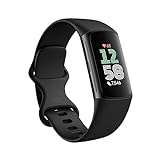
- Find your way seamlessly during runs or rides with turn-by-turn directions from Google Maps on Fitbit Charge 6[7, 8]; and when you need a snack break on the go, just tap to pay with Google Wallet[8, 9]
If the band is too loose, the tracker shifts as your wrist moves, especially during workouts. That movement creates noisy data, which often shows up as sudden heart rate spikes, dropouts, or strangely low readings when you know you’re working hard.
On the flip side, wearing it uncomfortably tight isn’t the answer either. Too much pressure can restrict blood flow and actually make readings worse, while also leaving red marks or irritation over time.
The ideal everyday wear position
For most people, the Inspire HR works best when worn about a finger’s width above your wrist bone, not directly on top of it. This gives the sensor a flatter, more stable surface and keeps it from knocking against bone during arm movement.
The band should feel snug but not constricting. A good test is whether you can slide one finger comfortably under the strap without forcing it. If the tracker leaves deep imprints or your hand feels tingly, it’s too tight.
Wearing it slightly higher than a traditional watch may look unusual at first, but it makes a noticeable difference in resting heart rate stability and all-day tracking consistency.
Adjusting fit for workouts versus daily wear
One of the most overlooked Inspire HR tips is changing the fit depending on what you’re doing. For everyday wear, comfort should come first, especially if you’re wearing it 24/7.
Before a workout, tighten the band by one notch. This reduces micro-movements when your arms swing or when you grip weights, which is when optical sensors struggle the most.
After the workout, loosen it back to your normal setting. This small habit improves workout heart rate graphs without sacrificing comfort or long-term wearability.
Wrist choice and dominant hand settings
Fitbit allows you to tell the app which wrist you wear the Inspire HR on and whether it’s your dominant hand. This isn’t cosmetic. It directly affects how motion data is interpreted and can subtly influence heart rate smoothing.
If you wear the tracker on your dominant wrist but leave the setting on non-dominant, you may see slightly inflated calorie burn or erratic exercise detection. Take 30 seconds to check this in the Fitbit app under device settings.
If heart rate accuracy during workouts has been inconsistent, consider switching to your non-dominant wrist for a week. Many users see cleaner graphs simply because there’s less aggressive arm movement.
Sleep tracking fit: snug, but forgettable
Sleep is where the Inspire HR quietly shines, but only if it stays put through the night. For sleep tracking, the band should be a touch snugger than daytime wear, but still comfortable enough to forget about.
If the tracker rotates around your wrist while sleeping, you’ll often see missing heart rate data or fragmented sleep stages. This is especially common for side sleepers or people with slimmer wrists.
Fabric or softer replacement bands can improve overnight comfort and reduce pressure points, which helps you keep the tracker on long enough to build meaningful sleep trends.
Skin tone, tattoos, and sweat considerations
Optical sensors can struggle with very dark tattoos directly under the sensor window. If you have wrist tattoos, try shifting the Inspire HR slightly higher or lower on your arm so the sensor sits on clearer skin.
Sweat can also interfere by creating a reflective layer between the sensor and skin. During intense workouts, tightening the band slightly and wiping the back of the tracker before starting can help.
After workouts, rinse the band and sensor with fresh water and dry them thoroughly. Clean optics equal more consistent readings over time, especially if you exercise frequently.
Understanding heart rate zones and “missing” data
It’s normal for the Inspire HR to show short gaps in heart rate during high-intensity or stop-and-go activities. This doesn’t mean the tracker is broken. It’s the sensor briefly losing a clean signal.
Instead of focusing on second-by-second accuracy, look at overall trends. Average heart rate, time spent in zones, and resting heart rate over days and weeks are where the Inspire HR is most reliable.
If you see persistent flat lines or long dropouts during normal walking or resting, that’s usually a fit or placement issue, not a hardware failure.
Resting heart rate: the metric worth obsessing over
Resting heart rate is one of the most valuable health metrics the Inspire HR provides, and it’s also the easiest to improve accuracy for. Wearing the tracker consistently, especially during sleep, has a bigger impact than any single workout tweak.
Make sure heart rate tracking is set to always on in the app. Turning it off to save battery undermines one of the Inspire HR’s biggest strengths.
Over time, ignore daily fluctuations and watch the long-term trend. A slowly decreasing resting heart rate often reflects improving fitness, better sleep, or reduced stress, even if your workouts stay the same.
When to trust the numbers and when not to
The Inspire HR is very good at capturing patterns, changes, and relative effort. It’s less reliable for moment-to-moment precision during intense interval training or heavy lifting.
Use it as a guide, not a medical instrument. If a reading feels off in the moment but the overall workout summary makes sense, the tracker is doing its job.
Once fit, position, and settings are dialed in, heart rate data becomes a powerful tool rather than a source of confusion, and it unlocks far more value from a tracker that often gets underestimated.
Understand 24/7 Heart Rate Metrics: Resting HR, Zones, and What the Data Actually Means
Once you’ve sorted fit, placement, and expectations, the Inspire HR’s heart rate data starts to tell a much clearer story. This is where the tracker quietly does its best work, not in flashy real-time numbers, but in how it builds a picture of your body over days and weeks.
The key is knowing which heart rate metrics actually matter and how to interpret them without overthinking every spike or dip.
Resting heart rate: your baseline health indicator
Resting heart rate is the most meaningful number the Inspire HR gives you, especially if you wear it day and night. Fitbit calculates it using periods of inactivity and sleep, which is why consistent wear matters more than any single workout.
For most adults, a resting heart rate between 60–80 bpm is typical, but the real value is your personal trend. If your resting heart rate gradually drops over time, it often signals improving cardiovascular fitness, better recovery, or reduced stress.
Don’t panic over daily jumps of a few beats. Hydration, alcohol, illness, poor sleep, or a hard workout the day before can all push it up temporarily without meaning anything is wrong.
Why sleep is critical for accurate heart rate data
The Inspire HR leans heavily on sleep data to refine resting heart rate and overall trends. During sleep, movement is minimal, giving the optical sensor cleaner readings than during the day.
If you only wear the tracker for workouts or daytime steps, your resting heart rate will be less stable and slower to update. Wearing it overnight dramatically improves the quality of all heart rate-based insights, including cardio fitness estimates and zone calculations.
Comfort helps here. The Inspire HR’s lightweight body and soft silicone band make overnight wear easy, but loosening the strap one notch at night often improves comfort without sacrificing accuracy.
Heart rate zones: effort, not performance
Fitbit’s heart rate zones are designed to show relative effort, not athletic performance. The Inspire HR uses your age-based max heart rate estimate to divide activity into Fat Burn, Cardio, and Peak zones.
Fat Burn covers lighter, sustainable effort like brisk walking or easy cycling. Cardio reflects moderate-to-hard effort where breathing becomes noticeable, and Peak is short bursts near your upper limits.
Treat these zones as guidance, not judgment. Spending more time in higher zones doesn’t automatically mean a better workout, especially if your goal is consistency, weight management, or overall health.
Why zone minutes matter more than step counts
Active Zone Minutes are one of the Inspire HR’s most underrated features. Instead of rewarding sheer movement, they reward elevated heart rate, which better reflects actual exertion.
A slow jog, fast walk uphill, or intense housework session can earn more zone minutes than a long, casual stroll. This makes the Inspire HR surprisingly good for people who don’t follow traditional workout routines.
If you feel like you’re “doing enough” but your step count says otherwise, zone minutes often tell a more accurate story of your daily effort.
Understanding spikes, drops, and “weird” readings
Short-term heart rate spikes during stress, caffeine intake, or sudden movement are normal. The Inspire HR is sensitive enough to catch these changes, which can be surprising if you’re new to continuous tracking.
Likewise, brief drops or flat sections usually happen when the sensor loses contact during wrist flexing, sweat buildup, or rapid movement. These moments rarely affect daily averages or zone totals.
Focus on patterns, not individual moments. If your daily averages, resting heart rate, and weekly trends look reasonable, the tracker is working as intended.
How heart rate connects to other Fitbit features
Heart rate underpins much of the Inspire HR’s software experience. Calories burned, sleep stages, cardio fitness estimates, and even some workout summaries depend on reliable heart rate data.
Improving heart rate accuracy improves everything else automatically. That means proper fit, clean sensors, consistent wear, and keeping heart rate tracking set to always on are more impactful than tweaking individual settings.
This is where the Inspire HR punches above its price. When heart rate data is solid, the tracker becomes a genuinely useful health tool rather than just a step counter with a screen.
Unlock Smarter Sleep Tracking: Sleep Stages, Sleep Score, and Bedtime Mode Tips
Once heart rate tracking is dialed in during the day, the Inspire HR quietly becomes even more useful at night. Sleep is where continuous heart rate, movement data, and long battery life come together into something genuinely actionable.
Many owners wear the Inspire HR to bed without ever digging into what it’s actually measuring. With a few small adjustments and the right expectations, its sleep features can help you spot patterns that affect energy, workouts, and overall health.
How Sleep Stages really work on the Inspire HR
The Inspire HR tracks sleep stages using a combination of wrist movement and heart rate variability. This allows it to estimate time spent awake, in light sleep, deep sleep, and REM, rather than just total hours asleep.
To get sleep stages instead of a basic sleep log, you generally need at least three hours of continuous sleep with a stable heart rate signal. If your band is loose, the sensor loses contact, or battery is very low, the app may default to a simpler sleep record.
Don’t panic over one night of missing stages. Consistent wear, snug but comfortable fit, and a clean sensor usually fix the issue without any setting changes.
What the different sleep stages are telling you
Light sleep makes up the bulk of most nights and isn’t a bad thing. It’s where your body transitions between deeper stages and wakefulness, and longer light sleep often appears during stressful or irregular weeks.
Deep sleep is when physical recovery happens. Shorter deep sleep phases can show up after late workouts, alcohol, heavy meals, or inconsistent bedtimes.
REM sleep is closely tied to mental recovery and memory. If your REM time fluctuates wildly, look at bedtime consistency and late-night screen use before blaming the tracker.
Understanding your Sleep Score without overthinking it
The Sleep Score pulls together duration, depth, and restlessness into a single number that’s easy to scan in the morning. It’s designed to highlight trends, not grade individual nights.
A lower score after a short night or late bedtime is expected and useful. A high score after seven to eight hours of steady sleep reinforces habits that are already working.
Use the score as a comparison tool across weeks. If your average score improves after small routine changes, the Inspire HR is doing exactly what it should.
Why heart rate accuracy matters more at night
Sleep stage detection relies heavily on subtle heart rate changes. Poor daytime fit habits often show up more clearly during sleep tracking.
Wearing the Inspire HR slightly higher on your wrist at night can improve readings. This reduces pressure from wrist bending and keeps the sensor flat against the skin.
If you notice frequent “awake” spikes while you’re clearly asleep, it’s often a fit issue rather than restless sleep.
Rank #2

- Inspire 3 is the tracker that helps you find your energy, do what you love and feel your best. All you have to do is wear it.Operating temperature: 0° to 40°C
- Move more: Daily Readiness Score(1), Active Zone Minutes, all-day activity tracking and 24/7 heart rate, 20+ exercise modes, automatic exercise tracking and reminders to move
- Stress less: always-on wellness tracking, daily Stress Management Score, mindfulness sessions, relax breathing sessions, irregular heart rhythm notifications(2), SpO2(3), menstrual health tracking, resting heart rate and high/low heart rate notifications
- Sleep better: automatic sleep tracking, personalized Sleep Profile(1), daily detailed Sleep Score, smart wake vibrating alarm, sleep mode
- Comfortably connected day and night: calls, texts & smartphone app notifications(4), color touchscreen with customizable clock faces, super lightweight and water resistant to 50 meters, up to 10 day battery life(5)
Bedtime Mode: the feature most people never enable
Bedtime Mode (sometimes called Sleep Mode depending on app version) dims the screen, disables notifications, and prevents accidental wake-ups during the night. On a tracker as light as the Inspire HR, this makes a noticeable difference.
Without Bedtime Mode, wrist turns, blanket pressure, or arm movement can light up the display. That glow is enough to fragment sleep, especially for light sleepers.
Set Bedtime Mode to turn on automatically if your firmware supports it, or manually enable it before sleep. It’s one of the easiest quality-of-life upgrades available.
Silent alarms beat phone alarms for better mornings
The Inspire HR’s vibration alarm is ideal for waking without jolting your nervous system. It’s subtle but effective, especially when paired with consistent sleep tracking.
Waking during lighter sleep phases often feels easier, even if the alarm time stays the same. Over time, your sleep data helps you fine-tune that window.
For shared bedrooms, this is one of the tracker’s most underrated features.
Charging habits that protect sleep tracking
With up to five days of battery life, the Inspire HR is well suited to overnight wear. The key is avoiding last-minute low-battery situations.
Top up the battery during showers or while getting ready in the evening. A 15–20 minute charge is often enough to cover a full night.
If battery drops below critical levels overnight, sleep data may be incomplete or missing stages.
Naps, irregular sleep, and what the tracker can and can’t see
The Inspire HR can detect longer naps, but short or highly irregular ones may not register as full sleep sessions. This is normal for wrist-based trackers at this level.
If naps are important to you, check total daily sleep rather than obsessing over perfect logs. The value lies in cumulative rest, not flawless charts.
Shift work and fragmented sleep schedules still benefit from trend tracking, even if individual sessions look messy.
Comfort tweaks that make overnight wear easier
The Inspire HR’s slim plastic case and soft silicone band are well suited to sleep, but strap tension matters. Too tight increases pressure and false wake readings; too loose breaks sensor contact.
If you wake up with wrist marks or irritation, loosen the band one notch at night. Comfort directly affects data quality.
Clean the band and sensor regularly, especially if you sweat at night. Skin oils and residue interfere with optical sensors more than most users realize.
Using sleep data to improve daytime energy
Sleep insights connect back to everything the Inspire HR tracks during the day. Poor sleep often explains sluggish workouts, lower zone minutes, and elevated resting heart rate.
When you see a pattern between short sleep and higher stress metrics, it’s a cue to adjust routines rather than push harder.
This feedback loop is where the Inspire HR quietly excels. It doesn’t just record sleep, it helps explain how last night affects today.
Use Exercise Modes Properly: When to Start, Auto-Detect vs Manual, and Best Modes for Accuracy
Once sleep and recovery are dialed in, exercise tracking is where the Inspire HR turns daily movement into something measurable and motivating. How you start workouts, and which modes you rely on, directly affects heart-rate accuracy, calorie estimates, and how useful your trends are over time.
Many users leave this part on autopilot, but a few small habit changes can make the tracker feel far more precise and consistent.
Manual starts vs auto-detect: what’s actually happening
The Inspire HR can automatically recognize certain activities like walking, running, and some cardio sessions. This is convenient, but it always kicks in after about 10–15 minutes of continuous movement.
That delay means the warm-up phase is often missing, and heart-rate zones can look artificially compressed. Calories and active minutes still count, but the data is less complete than it could be.
Manually starting an exercise tells the tracker to lock into a higher sampling mode immediately. This improves heart-rate responsiveness and gives you a cleaner start-to-finish record.
When auto-detect is good enough
Auto-detect works best for casual, unplanned movement. Think dog walks, errands, or a spontaneous stroll that turns longer than expected.
If your goal is general activity tracking rather than performance or consistency, letting the Inspire HR auto-log is perfectly fine. It preserves battery life and keeps your day uncluttered.
For users focused on daily step goals and overall calorie burn, auto-detect is a low-effort win.
When you should always start workouts manually
Planned workouts benefit enormously from a manual start. This includes gym sessions, treadmill runs, cycling, structured home workouts, and any session where effort changes quickly.
Manual starts give the optical heart-rate sensor time to stabilize early, reducing the spike-and-drop patterns common in the first few minutes. That matters for zone minutes and recovery insights later.
If you care about comparing one workout to the next, consistency matters more than convenience. Manual starts create that consistency.
Choosing the right exercise mode for better accuracy
The Inspire HR offers a limited but purposeful list of exercise modes, and choosing the closest match matters more than many realize. Each mode uses slightly different algorithms for movement and heart-rate interpretation.
For walking and running, always use the dedicated Walk or Run modes instead of generic Workout. These modes handle arm swing and pace changes more intelligently.
For strength training, HIIT, or circuit workouts, the Workout mode is usually the best fit. It prioritizes heart rate over step patterns, which improves calorie estimates when movement is irregular.
Cycling, spinning, and non-step-based workouts
Cycling is where many wrist trackers struggle, and the Inspire HR is no exception. Arm movement is limited, so heart-rate tracking becomes the primary data source.
Use the Bike mode for outdoor rides and spinning classes. Even without built-in GPS, heart-rate trends and duration still provide meaningful fitness data.
For rowing machines, ellipticals, or similar equipment, Workout mode again tends to give the most stable results. Focus on heart-rate zones rather than calories for these sessions.
Understanding heart-rate zones and what really matters
The Inspire HR’s value lies more in trends than single-session perfection. Zones like Fat Burn, Cardio, and Peak help contextualize effort without requiring technical knowledge.
If your heart rate takes a few minutes to climb at the start, that’s normal for optical sensors on a slim plastic case like this. A slightly snug band and a manual start help minimize lag.
Over time, watch how long it takes to reach certain zones rather than chasing exact calorie numbers. That’s where fitness improvements become obvious.
Ending workouts correctly (and why it matters)
It’s easy to forget to stop a workout, especially after intense sessions. Leaving a mode running can inflate calories and muddy recovery data.
Get into the habit of ending workouts as soon as you cool down. Clean start and end points make post-exercise heart-rate recovery easier to spot in the app.
This also helps battery life, which is still a major advantage of the Inspire HR compared to larger, brighter trackers.
Comfort, fit, and sensor contact during exercise
Exercise accuracy is heavily influenced by how the tracker sits on your wrist. The Inspire HR’s lightweight build and soft silicone strap are comfortable, but they can shift during sweat-heavy workouts.
Move the band slightly higher up your arm and tighten it one notch before starting. This improves sensor contact without cutting off circulation.
After workouts, loosen the band back to your normal setting. Long-term comfort keeps you wearing the tracker consistently, which is ultimately what makes the data useful.
Using exercise data alongside sleep and recovery
Exercise doesn’t exist in isolation, and the Inspire HR quietly connects these dots for you. Hard workouts following poor sleep often show elevated resting heart rate and fewer zone minutes.
When you notice this pattern, it’s not a failure. It’s feedback that helps you adjust intensity or timing.
This is where manually tracked workouts really shine. Clean exercise data makes the sleep and recovery insights you saw earlier far more meaningful in everyday use.
Make the Most of Active Zone Minutes (and Why They Matter More Than Steps)
Once you start paying attention to heart-rate trends across workouts, sleep, and recovery, Active Zone Minutes become the natural next step. They tie all that heart-rate data together into something you can actually act on day to day.
On the Inspire HR, Active Zone Minutes are arguably the most important fitness metric on the device. They quietly replaced steps as Fitbit’s main indicator of meaningful activity, and for good reason.
What Active Zone Minutes actually measure
Active Zone Minutes are based entirely on heart rate, not movement. You earn them when your heart rate reaches zones that Fitbit considers moderate or vigorous for your age and baseline fitness.
Time spent in the Fat Burn zone earns one minute per minute. Time spent in Cardio or Peak earns double minutes, which rewards intensity rather than duration.
This matters because a brisk walk, a hard bike ride, and a short HIIT session can all contribute meaningfully, even though their step counts look very different.
Why steps can be misleading on the Inspire HR
Steps are easy to understand, but they don’t tell the full story. You can rack up thousands of steps at a slow pace without ever challenging your cardiovascular system.
The Inspire HR’s slim plastic case and lightweight build make it comfortable enough to wear all day, which is great for step tracking. But the real value comes when that same comfort enables continuous heart-rate monitoring.
Cycling, strength training, rowing, and even carrying groceries won’t add many steps. They can still generate Active Zone Minutes if your heart rate climbs, which better reflects real effort.
How the Inspire HR calculates your zones
By default, the Inspire HR uses your age to estimate heart-rate zones. Over time, it adjusts slightly based on your resting heart rate and activity patterns.
Because the tracker is small and uses an optical sensor, there can be a short delay before zones register, especially at the start of workouts. That’s why a proper warm-up and snug fit matter more here than with step counting.
You can review your zones in the Fitbit app and see exactly when you crossed into Fat Burn, Cardio, or Peak. This context helps you understand why some workouts feel harder than others, even if they’re shorter.
Using Active Zone Minutes to guide weekly goals
Fitbit’s default goal is 150 Active Zone Minutes per week, which aligns with general health guidelines. This goal is far more flexible than a daily step target.
Instead of stressing about hitting a number every day, you can spread effort across the week. A longer weekend workout can balance lighter weekday movement.
Rank #3

- 【BUILT-IN GPS SMART WATCH – GO FURTHER, FREER, SMARTER】No phone? No problem. This fitness watch for women, featuring the latest 2025 technology, includes an advanced professional-grade GPS chip that precisely tracks every route, distance, pace (real-time & average), and calorie burned—completely phone-free. Whether you're chasing new personal records or exploring off the beaten path, your full journey is automatically mapped and synced in the app. Train smarter. Move with purpose. Own your progress. Own your journey.
- 【BLUETOOTH 5.3 CALLS & SMART NOTIFICATIONS】Stay effortlessly connected with this smart watch for men and women, featuring dual Bluetooth modes (BT 3.0 + BLE 5.3) and a premium microphone for crystal-clear calls right from your wrist—perfect for driving, workouts, or busy days. Receive instant alerts for calls, texts, and popular social apps like WhatsApp and Facebook. Just raise your wrist to view notifications and never miss an important moment.
- 【100+ SPORT MODES & IP68 WATERPROOF & DUSTPROOF】This sport watch is a versatile activity and fitness tracker with 100+ modes including running, cycling, yoga, and more. It features quick-access buttons and automatic running/cycling detection to start workouts instantly. Accurately track heart rate, calories, distance, pace, and more. Set daily goals on your fitness tracker watch and stay motivated with achievement badges. With IP68 waterproof and dustproof rating, it resists rain and sweat for any challenge. Not suitable for showering, swimming, or sauna.
- 【24/7 HEALTH ASSISTANT & SMART REMINDERS】This health watch continuously monitors heart rate, blood oxygen, and stress levels for comprehensive wellness tracking. Sleep monitoring includes deep, light, REM sleep, and naps to give you a full picture of your rest. Stay on track with smart reminders for sedentary breaks, hydration, medication, and hand washing. Women can also monitor menstrual health. Includes guided breathing exercises to help you relax. Your ultimate health watch with event reminders for a healthier life.
- 【ULTRA HD DISPLAY, LIGHTWEIGHT & CUSTOMIZABLE DIALS】This stylish wrist watch features a 1.27-inch (32mm) 360×360 ultra HD color display with a 1.69-inch (43mm) dial, offering vivid details and responsive touch. Its minimalist design fits both business and casual looks. Switch freely among built-in designer dials or create your own DIY watch face using photos, colors, and styles to showcase your unique personality. Perfect as a cool digital watch and fashion wrist watch.
This approach works especially well with the Inspire HR’s strong battery life. You can track consistently for days without charging, making weekly patterns easier to spot.
Everyday activities that quietly earn zone minutes
Not all Active Zone Minutes come from formal workouts. Fast walking, yard work, climbing stairs, or playing with kids can push you into Fat Burn without you realizing it.
Because the Inspire HR is slim, light, and comfortable under sleeves, you’re more likely to wear it during these everyday moments. That’s when zone minutes quietly accumulate.
Check the app’s timeline view to see where these minutes came from. Many users are surprised to find meaningful effort outside of workouts.
When to ignore steps and trust zones instead
On days when you’re short on time, Active Zone Minutes become your shortcut. Ten to fifteen minutes of focused intensity can matter more than an hour of casual movement.
This is especially helpful if you notice fatigue from poor sleep or elevated resting heart rate. You can aim for fewer but more intentional zone minutes instead of chasing steps.
The Inspire HR’s simplicity works in your favor here. There’s no overload of metrics on the screen, just enough feedback to help you adjust without second-guessing yourself.
Using zone minutes alongside sleep and recovery data
Active Zone Minutes make more sense when viewed next to sleep and resting heart rate trends. High zone minutes paired with poor sleep often show slower recovery the next day.
This doesn’t mean you did something wrong. It means your body is asking for adjustment, not abandonment.
Because the Inspire HR tracks all of this in the background with minimal effort from you, patterns emerge naturally. Over time, you’ll learn when to push for Cardio minutes and when a lighter Fat Burn day is the smarter choice.
Improve Battery Life Without Losing Key Features: Display, HR, and Sync Optimizations
By now, it’s clear that wearing the Inspire HR consistently is what unlocks trends in heart rate, sleep, and zone minutes. Battery life is what makes that consistency possible.
The good news is that the Inspire HR already has efficient hardware and a simple OLED display. With a few targeted adjustments, you can stretch it closer to five days without sacrificing the data that actually matters.
Use screen wake intentionally, not automatically
The Inspire HR’s display is small but power-hungry compared to the rest of the tracker. Most battery drain complaints trace back to how often the screen lights up, not to heart-rate tracking.
In the Fitbit app, turn off wrist-based Quick View if you don’t need the screen to wake every time you move your arm. Relying on tap-to-wake instead cuts dozens of unnecessary screen activations throughout the day.
This works especially well because the Inspire HR has a responsive touch sensor and a compact screen. A quick tap is faster than waiting for a gesture to register, and it keeps the display dark when you’re walking, typing, or driving.
Keep continuous heart rate on, but avoid redundant checks
Continuous heart-rate tracking is the backbone of Active Zone Minutes, calorie estimates, resting HR, and sleep stages. Turning it off to save battery defeats the purpose of owning the Inspire HR.
What does help is avoiding frequent manual heart-rate checks on the device screen. Each time you wake the display and scroll to heart rate, the optical sensor ramps up brightness briefly, which adds up over the day.
Trust the background tracking instead. The Inspire HR’s green LEDs are designed for low-power, all-day use, and the data quality doesn’t improve by checking it repeatedly on the wrist.
Limit notifications to the ones you actually act on
Notifications are convenient, but each vibration motor activation and screen wake costs power. The Inspire HR’s slim case doesn’t leave much room for a large battery, so notification overload shows up quickly.
In the Fitbit app, choose calls, texts, or one or two priority apps rather than mirroring everything from your phone. Most users find that notifications they can’t respond to on the tracker don’t need to appear there at all.
Because the Inspire HR sits flat and light on the wrist, subtle vibrations are easy to miss anyway. Fewer, more meaningful alerts improve both battery life and usability.
Sync smarter, not constantly
The Inspire HR stores several days of data internally, including minute-by-minute heart rate and detailed sleep logs. It doesn’t need to sync constantly to do its job.
If you open the Fitbit app dozens of times per day, you’re forcing repeated Bluetooth connections that slowly drain both the tracker and your phone. Let the app sync passively a few times a day instead.
A good rhythm is morning and evening syncs. You still get timely insights without turning Bluetooth into a background battery leak.
Be selective with exercise modes, especially connected GPS
Starting a workout doesn’t just track movement, it increases sensor sampling and screen usage. That’s appropriate during training, but unnecessary for casual activity.
For walks under 15 minutes, let SmartTrack handle it automatically. The Inspire HR is good at detecting sustained movement without you pressing anything.
When using connected GPS with your phone, remember that the phone takes the biggest hit, but the tracker still works harder to maintain the connection. Use it when you care about pace and route, not for every outing.
Sleep tracking is efficient, so let it run
Many users assume overnight tracking drains the battery most. In reality, the Inspire HR is optimized for sleep, using minimal screen activity and steady, low-power heart-rate sampling.
Turning off sleep tracking or wearing the device loosely at night doesn’t meaningfully improve battery life. It just reduces data quality and breaks long-term trends.
Because the Inspire HR is slim, rounded, and lightweight, it’s one of the more comfortable Fitbit models for overnight wear. That comfort is part of what makes consistent sleep data possible without extra battery cost.
Charge strategically instead of waiting for zero
Lithium-ion batteries last longer when they’re topped up regularly rather than fully drained. Waiting until the Inspire HR hits critical battery can shorten long-term capacity.
Short charges during a shower or desk break are enough to keep it between 30 and 80 percent. You don’t need to baby it, just avoid running it flat repeatedly.
Over months of use, this habit preserves both daily battery life and overall reliability, which is especially important for an older but still capable tracker like the Inspire HR.
These adjustments don’t turn the Inspire HR into a different device. They simply remove waste. When display use, syncing, and notifications are aligned with how you actually live, the tracker fades into the background and keeps doing what it does best: quietly collecting the data that helps you make better decisions.
Customize Notifications So They’re Helpful, Not Annoying
Once you’ve trimmed unnecessary screen use and background syncing, notifications are the next big quality-of-life lever. Left untouched, they can buzz constantly and undo some of the battery and focus gains you’ve just made.
The Inspire HR handles notifications well for its size, but its narrow display and single vibration motor mean you need to be selective. The goal is awareness, not distraction.
Start with fewer notifications than you think you need
By default, the Inspire HR mirrors a lot of what your phone sends. On a slim tracker with a small vertical screen, that quickly turns into a stream of half-read alerts.
Open the Fitbit app, tap your profile photo, select Inspire HR, then Notifications. Disable everything, then add back only what genuinely matters, usually calls, texts, and maybe calendar reminders.
Most people find that app notifications add little value here. Reading a truncated Slack message or social alert on a one-inch screen rarely saves time.
Understand what the Inspire HR can and can’t show
This tracker displays notification previews, not full messages. You’ll see the sender and the first part of the content, but long messages are cut off.
There’s also no way to reply from the Inspire HR itself. That limitation makes it even more important to only surface notifications that prompt quick awareness, not interaction.
Think of it as a tap on the shoulder, not a replacement for your phone.
Use call notifications as your priority alert
Incoming calls are where the Inspire HR shines. The vibration is strong enough to notice during a walk or workout, and the caller ID is clear despite the narrow display.
If you only enable one notification type, make it calls. This gives you confidence to leave your phone in a bag or on a desk without worrying about missing something important.
Declining calls from the tracker is quick and saves you from pulling your phone out unnecessarily.
Schedule quiet time instead of toggling manually
Rather than turning notifications on and off throughout the day, use Do Not Disturb or Sleep Mode from the device settings in the Fitbit app.
You can manually enable it from the tracker with a few swipes, which is useful for meetings, workouts, or evenings when constant buzzing isn’t welcome.
This approach preserves battery and focus without forcing you to remember to disable individual apps later.
Match notifications to how you actually wear the tracker
Because the Inspire HR is lightweight and sits close to the wrist, vibration strength feels different depending on strap tightness and placement.
If notifications feel too subtle, wear it slightly higher on the wrist during the day. If they feel intrusive, loosening the band by one notch often makes a noticeable difference.
This small comfort adjustment improves both notification awareness and all-day wearability, especially if you’re wearing it through work, workouts, and sleep.
Be mindful of platform differences
On Android, you have finer control over which apps can send notifications to the Inspire HR. On iPhone, notifications are more tightly tied to system permissions.
If alerts seem inconsistent, check that Bluetooth is stable and background app refresh is enabled for Fitbit. Notification issues are often phone-side settings, not tracker problems.
Keeping the Fitbit app running quietly in the background helps notifications arrive promptly without repeated reconnecting, which also helps battery efficiency.
Notifications should support habits, not interrupt them
The Inspire HR works best when it fades into your routine. Thoughtfully chosen notifications reinforce that by keeping you informed without pulling your attention away from what you’re doing.
When alerts are limited to moments that matter, you’re more likely to notice them, trust them, and keep wearing the tracker consistently.
That consistency is where the Inspire HR delivers real value, quietly tracking heart rate, activity, and sleep while only tapping your wrist when it truly needs to.
Hidden Display Controls: Screen Wake, Brightness, Clock Faces, and Navigation Shortcuts
Once notifications are dialed in, the next layer of day-to-day satisfaction comes from how the Inspire HR’s screen behaves. This tracker doesn’t have a flashy display, but it has more control than most people realize, and small tweaks here can make it feel faster, clearer, and less distracting.
Because the Inspire HR is slim, light, and always in contact with your wrist, display behavior directly affects comfort, battery life, and how often you actually check your stats.
Understand how screen wake really works
The Inspire HR offers two ways to wake the screen: wrist raise and tap. Wrist raise feels natural during walks or workouts, but it can be inconsistent if the band is loose or your arm motion is subtle.
Rank #4

- 24H Accurate Heart Rate Monitoring: Go beyond basic tracking. Our watch automatically monitors your heart rate, blood oxygen (SpO2), and sleep patterns throughout the day and night. Gain deep insights into your body's trends and make informed decisions for a healthier lifestyle.
- Practical Sports Modes & Smart Activity Tracking: From running and swimming to yoga and hiking, track a wide range of activities with precision. It automatically records your steps, distance, calories burned, and duration, helping you analyze your performance and crush your fitness goals.
- 1-Week Battery Life & All-Day Wear: Say goodbye to daily charging. With an incredible up to 7-10 days of battery life on a single charge, you can wear it day and night for uninterrupted sleep tracking and worry-free travel. Stay connected to your data without the hassle.
- Comfortable to Wear & IP68 Waterproof: The lightweight, skin-friendly band is crafted for all-day comfort, even while you sleep. With IP68 waterproof, it withstands rain, sweat, It is not suitable for swimming or showering.
- Ease of Use and Personalized Insights via Powerful App: The display is bright and easy to read, even outdoors. Unlock the full potential of your watch. Sync with our dedicated app to view detailed health reports, customize watch faces, set sedentary reminders, and manage your preferences with ease.
If you find yourself twisting your wrist repeatedly, enable tap-to-wake and get used to a single, deliberate tap on the display. It’s often more reliable indoors or while seated, especially at a desk.
You can toggle screen wake behavior in the device settings within the Fitbit app. Turning off wrist raise entirely can reduce accidental wake-ups and preserve battery, particularly if you’re sensitive to screens lighting up at night.
Use brightness strategically, not just for looks
Brightness on the Inspire HR isn’t about aesthetics; it’s about legibility versus battery drain. The brighter setting makes stats easier to read outdoors, but it also shortens battery life and makes nighttime glances more noticeable.
For most people, the default brightness is the sweet spot. It’s readable in normal daylight and gentle enough for evening use without feeling intrusive.
If you exercise outdoors frequently, consider temporarily increasing brightness during the day and switching it back later. This small habit can extend overall battery longevity without sacrificing usability when you need it most.
Clock faces affect more than style
Clock faces on the Inspire HR look simple, but they change how information is presented and how often you interact with the screen. Some faces prioritize steps and heart rate, while others keep things minimal with time and date.
If you’re actively working on daily movement goals, a data-heavy face reduces the need to swipe through menus. If you wear the tracker mainly for sleep and passive health tracking, a cleaner face keeps the device visually quieter.
Clock faces are changed through the Fitbit app, and switching between them doesn’t impact performance. It’s worth experimenting for a few days at a time to see which layout naturally fits your habits.
Learn the swipe logic to move faster
Navigation on the Inspire HR follows a consistent swipe pattern that isn’t always obvious at first. Swiping up from the clock face brings you into daily stats, while swiping left or right cycles through different metrics like heart rate, steps, distance, and calories.
Swiping down gives quick access to settings and controls, including alarms and timers. This shortcut is especially useful when you want to make a quick adjustment without digging through menus.
Once the swipe logic clicks, the tracker feels significantly faster to use. You’ll spend less time tapping and more time getting exactly the information you want.
Use the side button with intention
The physical button on the Inspire HR does more than just wake the screen. A quick press wakes or exits, while a longer press acts as a back function when you’re deep in menus.
During workouts, this button becomes essential for pausing or ending sessions accurately. Getting comfortable with its feel prevents accidental inputs, especially since the tracker is small and lightweight.
Because the Inspire HR sits close to the wrist, button presses feel different depending on strap tightness. A secure but not overly tight fit gives the most reliable control without digging into the skin.
Reduce screen interruptions during sleep
If you wear the Inspire HR overnight, display behavior matters just as much as notifications. Accidental screen wake during sleep can be distracting, especially if you move your arms frequently.
Disabling wrist raise at night or using Sleep Mode prevents the screen from lighting up while still allowing full sleep tracking. This keeps the tracker discreet and comfortable during long nights of wear.
A calmer screen experience at night improves sleep comfort and makes it easier to forget you’re wearing a device at all, which is exactly what a good sleep tracker should do.
Why display control improves long-term wearability
The Inspire HR’s strength is consistency, not flash. When the screen wakes when you expect it to, shows the right information, and stays quiet when it should, the tracker becomes part of your routine instead of a distraction.
These small display optimizations also protect battery life, helping the Inspire HR comfortably last several days between charges. Fewer charges mean fewer interruptions and more complete health data.
Mastering these hidden controls turns a basic-looking tracker into a more refined daily companion, proving that the Inspire HR has more depth than its minimalist design suggests.
Water Resistance Explained: Swimming Tracking, Shower Use, and What to Avoid
Once you’ve dialed in daily wear and display behavior, the next confidence hurdle for many Inspire HR owners is water. This is a tracker designed to stay on your wrist most of the time, and understanding its limits helps you wear it more freely without shortening its lifespan.
What Fitbit’s water resistance rating really means
The Inspire HR is rated to 5 ATM, which means it’s designed to handle water pressure equivalent to 50 meters under controlled conditions. In real-world terms, that covers swimming, splashing, rain, and everyday water exposure without worry.
This rating is about pressure, not depth alone, so gentle movement matters. Calm pool laps are fine, while sudden force from water jets or high-speed diving is not what the tracker is built for.
Using the Inspire HR for swim tracking
The Inspire HR includes a dedicated Swim exercise mode that tracks duration, laps, distance, and calories burned. It uses wrist motion to estimate laps, so consistent strokes and push-offs produce the most accurate results.
Heart-rate tracking can continue during swims, but optical sensors are less reliable underwater. Expect trends rather than precision, which is normal for wrist-based trackers at this size and price point.
Pool, ocean, and post-swim care
Chlorinated pools and saltwater are both safe for short sessions, but residue should never be ignored. Rinsing the tracker with fresh water after swimming helps protect the sensor window, charging contacts, and strap material over time.
Let the Inspire HR dry completely before charging. Moisture trapped around the contacts is one of the easiest ways to cause long-term reliability issues.
Is showering with the Inspire HR actually safe?
Technically, yes, the Inspire HR can handle shower water. Practically, it’s better to remove it when you can, especially during hot showers.
Heat, steam, soap, and shampoo are tougher on seals than cool, clean water. Over months of daily exposure, this combination can slowly weaken water resistance even if nothing fails immediately.
Water situations you should avoid completely
Hot tubs, saunas, and steam rooms are the biggest enemies of the Inspire HR. High heat expands materials and compromises seals far faster than cold or lukewarm water ever will.
High-pressure water, such as power showers, water slides, or jet sprays, should also be avoided. The force matters more than the depth and can push water past seals that are otherwise intact.
Button use and underwater handling
Avoid pressing the side button while the Inspire HR is submerged. Button movement can temporarily open tiny gaps that water can slip through under pressure.
If you need to start or stop a swim, do it before entering or after exiting the water. This small habit dramatically reduces long-term water-related wear.
Strap comfort and fit during water activities
The stock elastomer strap is designed for water use and dries quickly, making it comfortable for swims and sweaty workouts. Keeping it slightly snug during swimming improves tracking accuracy and prevents the tracker from twisting on the wrist.
After water exposure, loosening the strap slightly helps prevent skin irritation. A quick rinse and dry keeps both comfort and hygiene in check during frequent wear.
How water habits affect long-term durability
The Inspire HR’s strength is its ability to stay on your wrist across most daily activities, but smart water habits extend that advantage. Treating water resistance as a safety margin rather than a challenge keeps the tracker reliable for years, not just months.
Used correctly, the Inspire HR transitions effortlessly between workouts, swims, and daily life. Understanding where to draw the line lets you enjoy that flexibility without risking one of the device’s most valuable traits: dependable, all-day wear.
Syncing, Data History, and Fitbit App Settings You Should Check Immediately
Once you’re confident wearing the Inspire HR through workouts, sleep, and everyday life, the next step is making sure the data it collects actually makes it into the Fitbit app correctly. This is where many users unknowingly leave accuracy, history, and battery life on the table.
The Inspire HR is simple on the wrist, but the app does most of the heavy lifting. A few quick checks here can prevent lost data, confusing stats, and syncing headaches later on.
Make sure automatic syncing is actually enabled
The Inspire HR relies on Bluetooth syncing to move data from the tracker to your phone, and it does not sync continuously in the background like a smartwatch. If automatic sync is off, your data can sit on the tracker until it overwrites older records.
Open the Fitbit app, tap your profile picture, select the Inspire HR, and confirm that All-Day Sync is turned on. Also check that Bluetooth permissions are enabled at the system level on your phone, especially after operating system updates.
If you notice missing steps or heart rate gaps, manually pulling down on the app dashboard to force a sync usually fixes it. Making this a daily habit, even once per day, dramatically reduces data loss.
Understand how much data the Inspire HR can store
The Inspire HR has limited onboard memory compared to newer trackers. It can store about seven days of detailed motion data, roughly five days of minute-by-minute heart rate data, and up to a week of sleep records.
If you go longer than that without syncing, the tracker starts overwriting the oldest information. This matters most for heart rate trends, sleep stages, and workout intensity data.
For users who wear the Inspire HR 24/7, syncing every one to two days is ideal. This ensures long-term trends in the app reflect what actually happened on your wrist.
Check your time zone and clock settings
Incorrect time settings cause subtle but frustrating issues, especially with sleep tracking and workouts that cross midnight. Sleep sessions can appear split or misaligned if the app and tracker are not perfectly in sync.
In the Fitbit app, confirm your phone’s time zone is correct and that the Inspire HR is set to sync its clock automatically. If you’ve traveled recently or switched daylight saving time, force a manual sync to update the tracker’s internal clock.
This small step keeps sleep scores, resting heart rate trends, and daily step totals aligned with real-world timing.
Review notification and app permission settings
Even if you don’t plan to use the Inspire HR for notifications, the permissions still matter. Restricted background activity can interrupt syncing and cause delayed data uploads.
On your phone, allow the Fitbit app to run in the background and disable aggressive battery optimization for it. On Android, this often lives under Battery or App Power Management settings.
On iPhone, make sure Background App Refresh is enabled for Fitbit. These settings do more for reliable syncing than any troubleshooting later.
Confirm heart rate tracking mode is set correctly
The Inspire HR uses continuous optical heart rate tracking by default, but it’s worth confirming. If heart rate tracking is accidentally turned off, you lose resting heart rate, sleep stages, and zone minutes.
In the device settings inside the Fitbit app, check that Heart Rate is set to On, not Auto or Off. Auto can reduce tracking during perceived inactivity, which affects all-day metrics.
Consistent heart rate data is the backbone of what makes the Inspire HR more than just a step counter.
Check how workouts are recognized and logged
The Inspire HR uses SmartTrack to automatically detect common activities like walking, running, and cycling. While convenient, SmartTrack can sometimes mislabel workouts or miss shorter sessions.
In the app, review SmartTrack settings and adjust minimum activity duration if needed. Shortening it helps capture quick walks or brief cardio sessions that would otherwise go unlogged.
For more accurate records, starting workouts manually from the tracker itself gives cleaner heart rate zones and duration data.
Review data sharing and cloud backup settings
Your fitness history lives primarily in Fitbit’s cloud, not on the tracker. As long as your account is active and syncing, your data is safe even if the Inspire HR is reset or replaced.
Still, it’s worth confirming you’re logged into the correct Fitbit account, especially if you’ve used multiple email addresses over the years. Accidentally creating a new account is one of the most common reasons users think their history disappeared.
Once synced, your Inspire HR’s value compounds over time through trends, not just daily stats.
💰 Best Value

- 【Superb Visual Experience & Effortless Operation】Diving into the latest 1.58'' ultra high resolution display technology, every interaction on the fitness watch is a visual delight with vibrant colors and crisp clarity. Its always on display clock makes the time conveniently visible. Experience convenience like never before with the intuitive full touch controls and the side button, switch between apps, and customize settings with seamless precision.
- 【Comprehensive 24/7 Health Monitoring】The fitness watches for women and men packs 24/7 heart rate, 24/7 blood pressure and blood oxygen monitors. You could check those real-time health metrics anytime, anywhere on your wrist and view the data record in the App. The heart rate monitor watch also tracks different sleep stages for light and deep sleep,and the time when you wake up, helps you to get a better understanding of your sleep quality.
- 【120+ exercise modes & All-Day Activity Tracking】There are more than 120 exercise modes available in the activity trackers and smartwatches, covering almost all daily sports activities you can imagine, gives you new ways to train and advanced metrics for more information about your workout performance. The all-day activity tracking feature monitors your steps, distance, and calories burned all the day, so you can see how much progress you've made towards your fitness goals.
- 【Messages & Incoming Calls Notification】With this smart watch fitness trackers for iPhone and android phones, you can receive notifications for incoming calls and read messages directly from your wrist without taking out your phone. Never miss a beat, stay in touch with loved ones, and stay informed of important updates wherever you are.
- 【Essential Assistant for Daily Life】The fitness watches for women and men provide you with more features including drinking water and sedentary reminder, women's menstrual period reminder, breath training, real-time weather display, remote camera shooting, music control,timer, stopwatch, finding phone, alarm clock, making it a considerate life assistant. With the GPS connectivity, you could get a map of your workout route in the app for outdoor activity by connecting to your phone GPS.
Customize which metrics appear on your dashboard
The default Fitbit dashboard often hides useful insights behind extra taps. Customizing it makes the Inspire HR feel more informative without changing the device itself.
Reorder tiles to keep heart rate, sleep, steps, and active minutes front and center. Removing unused tiles reduces clutter and helps you spot trends faster.
This small tweak improves daily usability and keeps the app aligned with how you actually use the tracker.
Watch how syncing affects battery life
Frequent syncing itself does not drain the Inspire HR much, but constant Bluetooth connection attempts can. If your phone struggles to maintain a stable connection, battery life on the tracker can suffer.
If you notice unusually fast battery drain, try toggling Bluetooth off and back on, then syncing once manually. Stable connections use less power than repeated failed sync attempts.
With healthy settings, the Inspire HR comfortably delivers multiple days of battery life even with heart rate tracking enabled full time.
Why these app checks matter long term
The Inspire HR’s strength is consistency, not flashy features. Syncing reliability and clean data history are what turn daily wear into meaningful health insight.
Taking a few minutes to confirm these settings ensures the tracker’s lightweight design, comfortable strap, and long battery life actually translate into accurate records. When the app is configured properly, the Inspire HR quietly does its job without needing constant attention.
Band, Comfort, and Wearability Tips for All-Day and Night Use
Once your data and syncing habits are dialed in, the next factor that determines how useful the Inspire HR becomes is whether you actually want to keep it on. Comfort is not a bonus feature here; it is what enables continuous heart rate, sleep tracking, and long-term trends to exist at all.
The Inspire HR’s slim case and lightweight build are designed for 24/7 wear, but small adjustments to the band and fit can make the difference between forgetting it’s there and constantly noticing it.
Dial in the fit for daytime accuracy and comfort
The Inspire HR works best when it sits flat against your wrist without digging in. During the day, the band should feel secure but loose enough that you can slide a finger underneath without resistance.
If the band is too tight, you may see skin irritation and inconsistent heart rate readings during movement. Too loose, and the optical sensor can lose contact during walks, workouts, or arm swings.
A good rule is to wear it slightly higher up your wrist, about one finger-width above the wrist bone, especially during exercise. This placement improves sensor contact while keeping pressure off the joint itself.
Adjust your band specifically for sleep tracking
What feels fine during the day often feels too tight at night. Your wrists can subtly swell while sleeping, and a snug daytime fit can become uncomfortable after several hours.
Before bed, loosen the band by one notch so it rests gently against the skin. This reduces pressure marks and makes it far easier to sleep through the night with the tracker on.
Despite the looser fit, sleep tracking remains accurate because movement is minimal and the sensor stays in consistent contact. Comfort here directly affects sleep data quality because taking the tracker off overnight breaks trends.
Rotate wrist placement to reduce irritation
If you wear the Inspire HR nonstop, even a soft silicone band can cause irritation over time. Switching the tracker to your opposite wrist at night gives your skin time to recover without sacrificing sleep data.
Fitbit allows you to specify which wrist you wear the device on in the app, which helps maintain heart rate accuracy. Just remember to update this setting if you switch wrists regularly.
This simple habit is especially helpful for users with sensitive skin or those prone to sweat buildup during workouts.
Clean the band and sensor more often than you think
Comfort issues are often caused by buildup, not fit. Sweat, lotion, sunscreen, and soap residue can accumulate under the band and around the heart rate sensor.
Rinse the band with lukewarm water and mild soap every few days, and wipe the sensor window with a soft cloth. Let everything dry completely before putting it back on.
A clean band feels better, smells better, and improves sensor contact, which supports more reliable heart rate and sleep readings over time.
Consider alternative bands for long-term wear
The stock silicone band is durable and workout-friendly, but it is not always ideal for all-day use. Many Inspire HR owners find that breathable woven or fabric-style third-party bands feel lighter and less sweaty.
These bands can dramatically improve overnight comfort and reduce skin irritation, especially in warm climates. Just make sure the band holds the tracker securely so the sensor stays flush against your skin.
Swapping bands does not affect battery life or tracking features, but it can significantly improve how willing you are to wear the device continuously.
Use clasp position to fine-tune micro-adjustments
The Inspire HR band holes may feel like they jump between too tight and too loose. Instead of focusing only on hole selection, adjust where the excess strap sits against your wrist.
Positioning the clasp slightly off-center can relieve pressure points without changing the overall tightness. This trick is subtle but effective, especially during long workdays or overnight wear.
Comfort often comes down to these small refinements rather than major changes.
Why wearability directly affects your results
The Inspire HR delivers its best insights when it stays on your wrist most of the time. Heart rate trends, resting heart rate, sleep stages, and active minutes all depend on consistent wear.
When the tracker is comfortable enough to forget, you naturally collect better data without effort. That is when the Inspire HR’s simple design turns into a long-term health tool rather than just a step counter.
Know the Inspire HR’s Limits: What It Can’t Do—and How to Work Around Them
Once the Inspire HR is comfortable enough to stay on your wrist all day, the next step is understanding what it was designed to do—and what it deliberately leaves out. This tracker is focused, not incomplete, and knowing its boundaries helps you get better results instead of feeling like you are missing features.
Think of this section as setting realistic expectations, then learning how to stretch them intelligently.
No built-in GPS, but still useful location data
The Inspire HR does not have onboard GPS, so it cannot independently map runs, walks, or bike rides. If you leave your phone behind, distance is estimated using stride length and movement patterns.
The workaround is Fitbit’s connected GPS feature. When you start an exercise from the Inspire HR while carrying your phone, the app borrows the phone’s GPS to create a full route map and pace breakdown.
This setup uses slightly more phone battery, but it delivers reliable location data without draining the tracker itself.
Limited exercise modes, but strong automatic tracking
You will not find advanced workout profiles, interval training tools, or downloadable exercise apps on the Inspire HR. The exercise list is intentionally short to keep navigation simple on the narrow touchscreen.
Where it quietly excels is SmartTrack. The tracker automatically detects activities like walking, running, cycling, and elliptical workouts after about 10 to 15 minutes and logs them without manual input.
If you care more about consistent activity records than structured training plans, this automatic approach often works better than expected.
No apps or watch faces, but fewer distractions
Unlike Fitbit smartwatches, the Inspire HR does not support third-party apps or customizable watch faces. What you see is what you get: time, stats, and basic notifications.
This limitation actually helps battery life and readability. The grayscale display stays clear in sunlight, responds reliably to swipes, and avoids the clutter that can make larger devices feel overwhelming.
If your goal is health tracking rather than mini-phone functionality, this simplicity becomes a strength.
Basic notifications only, with smart filtering
You can receive call, text, and app notifications, but you cannot reply from the Inspire HR or view long message threads. Notifications are glanceable rather than interactive.
The key workaround is selective notification control in the Fitbit app. Turning off non-essential apps dramatically reduces wrist buzz and makes important alerts stand out.
This also saves battery and keeps the Inspire HR feeling calm instead of intrusive during the day.
No music, payments, or voice features
There is no onboard music storage, Bluetooth audio control, contactless payments, or voice assistant support. The Inspire HR stays firmly in the tracker category, not smartwatch territory.
For workouts, many users pair it with wireless earbuds connected directly to their phone. This keeps the tracker lightweight while still covering entertainment and payment needs through your phone.
If you rarely want to leave your phone behind, this trade-off is easy to live with.
Heart rate and sleep tracking have boundaries
The optical heart rate sensor performs best during steady activities and everyday movement. During high-intensity intervals or rapid arm motion, readings may lag or smooth out peaks.
Wearing the band snugly and slightly higher on the wrist helps, as does focusing on trends rather than second-by-second numbers. For most users, resting heart rate and cardio fitness trends remain consistent and useful.
Sleep tracking is automatic and reliable, but advanced metrics like blood oxygen variation are limited to supported regions and sleep-only estimates. There is no real-time SpO2 display or on-demand measurement.
Water resistance is solid, but not specialized
The Inspire HR is rated for swimming and handles showers, rain, and pool workouts without issue. Swim tracking works well for basic lap counts and duration.
It is not designed for open-water swimming or high-impact water sports. Heart rate tracking in water can be inconsistent, which is normal for optical sensors.
Rinsing the tracker after swims helps preserve the band material and sensor clarity over time.
Storage and history rely on syncing
The tracker stores a limited amount of data on-device before needing to sync with the Fitbit app. If you go several days without syncing, older detailed records may be summarized.
Regular syncing ensures you keep full workout details, sleep stages, and heart rate graphs. Keeping Bluetooth enabled in the background makes this process nearly automatic.
This cloud-based approach allows long-term trend analysis without needing large onboard storage.
Understanding the value of these limits
The Inspire HR’s constraints are not flaws so much as design decisions. By avoiding power-hungry features and complex software, it delivers strong battery life, light weight, and dependable everyday tracking.
When you work within those limits—using connected GPS, SmartTrack, selective notifications, and proper fit—you get a tracker that quietly supports healthier habits without demanding constant attention.
For many owners, that balance is exactly what makes the Inspire HR worth wearing long after the excitement of a new device fades.