Opening a Fitbit box is usually exciting, but it can also be slightly intimidating if you are not sure what you are supposed to do first. Between the tracker, the app, and your phone settings, it is easy to worry about missing a step before you even begin. This section is here to slow things down and make sure you are fully prepared before you tap “Set up device” for the first time.
Before we touch the app or power anything on, we are going to walk through what should be in the box, which phones work properly with Fitbit today, and what you actually need versus what you can safely ignore for now. Getting these basics right prevents the most common setup problems, from pairing failures to missing health data on day one.
Once you have confirmed these essentials, you will be in the best possible position to move straight into a smooth, frustration-free setup and start collecting meaningful fitness and health data right away.
What should be in the box when you open your Fitbit
Every new Fitbit includes the core components needed to get started, though the exact contents vary slightly by model. You should always find the Fitbit device itself, already partially charged, along with a charging cable designed specifically for that model.
🏆 #1 Best Overall
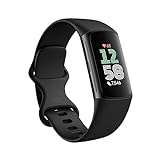
- Find your way seamlessly during runs or rides with turn-by-turn directions from Google Maps on Fitbit Charge 6[7, 8]; and when you need a snack break on the go, just tap to pay with Google Wallet[8, 9]
Most Fitbit trackers and watches include two band sizes in the box, usually labeled small and large. This is not about wrist style or preference, but proper sensor contact, which directly affects heart rate accuracy, sleep tracking, and skin temperature readings on supported models.
Some models include a removable band already attached, while others ship with the band integrated into the case. Do not worry about swapping bands yet, as setup is easier with the band already installed and secured comfortably on your wrist.
If anything is missing, especially the charging cable, stop and resolve that first. Fitbit uses proprietary chargers, and borrowing the wrong one can delay setup or cause charging issues.
Phone compatibility: what works and what causes problems
Fitbit devices require a compatible smartphone or tablet to complete setup and sync data. In practical terms, that means an iPhone or Android phone that can install the current version of the Fitbit app from the App Store or Google Play.
For iPhone users, most recent iPhones running a modern version of iOS work well. Older iPhones that can no longer update their operating system may install the app but fail during pairing or syncing. If your iPhone struggles with other Bluetooth accessories, expect similar behavior with Fitbit.
Android compatibility is broader but also more variable. Most phones running a relatively recent version of Android work without issue, but heavy battery optimization settings on some brands can interfere with syncing. This does not mean your phone is unsupported, just that you may need to allow the Fitbit app to run freely in the background later.
Tablets and Chromebooks are not recommended for first-time setup, even if the app installs. Fitbit pairing is optimized for phones with consistent Bluetooth behavior and background app support.
Internet, Bluetooth, and account basics you will need
You do not need anything fancy to set up a Fitbit, but a few basics are non-negotiable. Your phone must have Bluetooth turned on and working reliably, as the Fitbit never connects directly to Wi‑Fi during setup.
An internet connection is required to download the app, create or sign into a Fitbit account, and complete firmware updates. This can be Wi‑Fi or mobile data, but a stable connection is strongly recommended, especially for the first sync.
If you already have a Google account, that will be used as part of the Fitbit login experience. New users will be guided through account creation inside the app, while returning users can sign in and add a new device without losing past data.
What you do not need to worry about yet
You do not need to fully charge your Fitbit before setup. Most devices ship with enough battery to complete pairing, and the app will prompt you if charging is required later.
You also do not need to adjust advanced health settings, subscription options, or workout preferences right away. These can be customized gradually once the device is synced and collecting baseline data.
Third-party apps, premium plans, and custom watch faces are optional and can safely wait until after your first day or two of use. The goal at this stage is simply to get the device connected and worn correctly.
Quick pre-setup checklist before moving on
Before continuing, make sure your Fitbit is out of the box, your preferred band size is attached, and the device fits snugly but comfortably on your wrist. Your phone should be charged enough to last through setup, with Bluetooth and internet access enabled.
If all of that is in place, you are ready to install the Fitbit app and begin pairing your device. Taking these few minutes now eliminates most beginner issues and makes the rest of the setup feel surprisingly straightforward.
Installing the Fitbit App: Android vs iPhone Differences, Accounts, and Google Login Explained
With your phone ready and your Fitbit nearby, the next step is getting the Fitbit app installed and signed in correctly. This part of the process looks simple on the surface, but small differences between Android and iPhone can affect how smoothly setup goes, especially around permissions and account login.
Think of the Fitbit app as the control center for your device. It handles syncing, software updates, health data interpretation, and almost every setting that affects daily comfort, battery life, and tracking accuracy.
Where to download the Fitbit app and what to look for
On both platforms, the app is simply called “Fitbit” and is published by Google LLC. Avoid similarly named apps or older Fitbit-branded tools, as they will not work with current devices.
On Android, open the Google Play Store and search for Fitbit. On iPhone, open the Apple App Store and do the same. The download is free, and there is no need to start a subscription just to get set up.
Once installed, keep the app on your home screen for easy access. You will return to it often during the first few days as the device updates firmware and learns your baseline activity and sleep patterns.
Android vs iPhone: key setup differences you should know
The core Fitbit experience is very similar on Android and iPhone, but the setup flow and system permissions behave differently. Knowing this ahead of time prevents most “my Fitbit won’t sync” frustrations.
On Android, you will be prompted to allow several permissions in sequence, including Bluetooth access, location access, and background activity. Location access is required for Bluetooth scanning on Android, even though Fitbit is not tracking your location unless you enable GPS workouts later.
On iPhone, permissions appear more gradually. iOS will ask for Bluetooth access first, then later request permission for notifications, motion and fitness data, and background app refresh. Saying yes to these prompts is critical for reliable syncing and accurate health tracking.
Background behavior is another difference. Android allows more flexibility but can aggressively close apps to save battery, so you may need to exempt Fitbit from battery optimization later. iPhone manages this automatically, but only if Background App Refresh is enabled.
Creating a Fitbit account: new users vs returning users
When you open the app for the first time, you will be asked to sign in or create an account. This account is where all your health data lives, not on the device itself.
If you are new to Fitbit, the app will guide you through account creation step by step. You will be asked for basic details like height, weight, age, and sex, which are used to calculate calories burned, stride length, and heart rate zones.
Returning Fitbit users can sign in and add a new device without losing past data. Your steps, sleep history, and workouts will reappear once the new Fitbit syncs for the first time.
Understanding Google login and what changed with Fitbit accounts
Fitbit accounts are now part of Google’s ecosystem. This means most users will sign in using a Google account, even if they previously used a standalone Fitbit login.
If you already have a Google account, the app will encourage you to use it. This simplifies sign-in across devices and improves long-term account security without changing how your Fitbit works day to day.
If you are migrating an older Fitbit account, the app will walk you through linking it to Google. Your historical data stays intact, and the process usually takes just a few minutes.
You do not need a Gmail address specifically. Any Google account works, including those tied to custom email domains.
Permissions explained in plain language (and why they matter)
During setup, the app will ask for several permissions that may sound intrusive but are essential for basic functionality. Each one has a clear purpose tied to daily usability.
Bluetooth permission allows your phone to communicate with the Fitbit. Without it, syncing, time updates, and firmware downloads will fail.
Motion and fitness permissions allow the app to combine phone and device data for more accurate activity tracking. This improves step counting consistency and helps the app detect workouts more reliably.
Notification access allows your Fitbit to mirror calls, texts, and app alerts. You can fine-tune which notifications appear later, so it is safe to allow this during setup.
Background activity and battery optimization permissions ensure the app can sync quietly throughout the day. This is especially important for sleep tracking, where missed syncs can lead to gaps in data.
Choosing the right options during first launch
The app will offer optional features like Fitbit Premium trials, wellness programs, and coaching content during setup. These can be skipped without affecting core tracking.
Focus instead on completing the basic onboarding steps and reaching the point where the app asks you to pair a device. Once pairing begins, the app experience becomes much more intuitive and visual.
Do not worry if the interface feels busy at first. Most tiles and features stay out of the way unless you tap into them, and the home screen will gradually personalize itself as your Fitbit collects data.
Common installation mistakes and how to avoid them
One of the most common mistakes is denying a permission and assuming it can be ignored. If something does not work later, revisit app permissions in your phone’s settings rather than reinstalling the app immediately.
Another frequent issue is using multiple Google accounts on the same phone and signing into the wrong one. Make sure you know which account you want tied to your health data before proceeding.
Finally, avoid installing the app on multiple phones during initial setup. Pairing works best when you complete setup on one primary device first, then add a second phone later if needed.
Once the app is installed, signed in, and granted the necessary permissions, you are ready for the most important moment: pairing your Fitbit to your phone. This is where the device truly comes to life, syncing time, updating software, and preparing to track your first full day of activity.
Pairing Your Fitbit for the First Time: Step-by-Step Setup (and How to Fix Common Pairing Issues)
With the app installed and permissions in place, pairing is where your Fitbit shifts from a simple gadget to a personalized health tracker. This process syncs the correct time, activates sensors, and prepares the device for software updates and daily use.
Take your time here. A calm, methodical setup prevents most early frustrations and ensures your first day of data is complete and accurate.
Before you start: quick checks that prevent problems
Make sure your Fitbit has at least a partial charge before pairing. New devices often ship with low battery, and pairing can fail or stall if power drops mid-process.
Turn Bluetooth on in your phone’s settings, not just within the Fitbit app. On iPhone, Bluetooth must be enabled system-wide, and on Android, Location services should also be on to allow device discovery.
Place your Fitbit close to your phone, ideally within a few inches. Avoid pairing near other Bluetooth devices like wireless headphones or smart speakers during initial setup.
Starting the pairing process in the Fitbit app
Open the Fitbit app and stay on the main dashboard. Tap the profile icon in the top corner, then choose “Set up a device.”
Select Fitbit from the list, then choose your specific model. This matters because screen prompts and button placement vary between trackers like the Inspire series and watches like the Versa or Sense.
The app will guide you step by step, showing visuals that match what should appear on your Fitbit’s screen. Keep the app open and do not switch to other apps during this process.
Confirming the on-screen pairing code
Most Fitbit devices display a four-digit code once detected. When the same code appears in the app, confirm it matches and approve the pairing.
If you do not see a code, gently wake the screen or press the side button. On smaller trackers, the code may appear briefly and require another tap to re-display.
This step ensures your phone connects to the correct device, especially important if other Fitbits are nearby.
Software updates and initial syncing
After pairing, the app may immediately begin a firmware update. This can take anywhere from five to twenty minutes depending on the model and update size.
Keep your Fitbit close to the phone and do not force-close the app. Interrupting an update is one of the fastest ways to cause setup issues.
Your Fitbit may restart during this process. This is normal and usually happens once or twice before completion.
What successful pairing looks like
Once pairing is complete, your Fitbit will display the correct time and date. The app dashboard will populate with steps, heart rate, and battery level within a few minutes.
Rank #2

- Inspire 3 is the tracker that helps you find your energy, do what you love and feel your best. All you have to do is wear it.Operating temperature: 0° to 40°C
- Move more: Daily Readiness Score(1), Active Zone Minutes, all-day activity tracking and 24/7 heart rate, 20+ exercise modes, automatic exercise tracking and reminders to move
- Stress less: always-on wellness tracking, daily Stress Management Score, mindfulness sessions, relax breathing sessions, irregular heart rhythm notifications(2), SpO2(3), menstrual health tracking, resting heart rate and high/low heart rate notifications
- Sleep better: automatic sleep tracking, personalized Sleep Profile(1), daily detailed Sleep Score, smart wake vibrating alarm, sleep mode
- Comfortably connected day and night: calls, texts & smartphone app notifications(4), color touchscreen with customizable clock faces, super lightweight and water resistant to 50 meters, up to 10 day battery life(5)
You may also receive a short vibration or on-screen confirmation on the device. This indicates the connection is active and syncing properly.
At this point, your Fitbit is ready to be worn throughout the day and during sleep.
If pairing fails: the most common fixes
If the app cannot find your Fitbit, close the app completely and reopen it. This refreshes Bluetooth scanning without resetting progress.
Restart your phone and power-cycle your Fitbit if the issue persists. On most models, holding the side button for several seconds triggers a reboot.
Double-check that your Fitbit is not already paired to another phone or tablet. If it is, you will need to remove it from Bluetooth settings on that device before continuing.
Bluetooth conflicts and hidden connections
Sometimes a phone connects to a Fitbit at the system level without completing app setup. If pairing stalls, go to your phone’s Bluetooth settings and forget any existing Fitbit connections.
Return to the Fitbit app and restart the pairing flow from the device setup menu. This forces a clean connection handshake.
Avoid pairing directly through Bluetooth settings. Fitbit devices should always be paired through the app to ensure proper data syncing and updates.
iPhone-specific pairing issues
On iOS, make sure Bluetooth and Background App Refresh are enabled for the Fitbit app. Without background access, syncing may fail even if pairing appears successful.
If you see repeated connection drops, disable Low Power Mode temporarily. This can restrict Bluetooth activity during setup.
Check that your iPhone is running a recent version of iOS, as older versions may not fully support newer Fitbit models.
Android-specific pairing issues
On Android, confirm that Location services are turned on and allowed for the Fitbit app. This is required for Bluetooth scanning even though no GPS data is collected.
Battery optimization settings can interfere with setup. Set the Fitbit app to “Unrestricted” or “Not optimized” in battery settings during pairing.
If you use a phone with aggressive background management, such as some Samsung or Xiaomi models, keep the screen awake until pairing completes.
When a factory reset is necessary
If your Fitbit was previously used or pairing fails repeatedly, a factory reset may be required. This clears old connections and restores default settings.
The reset method varies by model and usually involves holding one or more buttons while connected to the charger. Follow the instructions shown in the app or Fitbit’s support prompts carefully.
After resetting, return to the app and begin pairing again as if the device were brand new.
Pairing more than one phone or switching devices later
Fitbits are designed to sync with one primary phone at a time. If you plan to switch phones, remove the device from the old phone’s app before pairing with the new one.
You can view data on multiple devices using the same account, but only one phone should handle Bluetooth syncing.
Once pairing is stable on your main phone, adding tablets or web access becomes much smoother.
A final patience check
Pairing can feel slow, especially during updates, but rushing or interrupting the process usually causes more delays. Let each step complete fully before moving on.
If something feels stuck, pause, read the on-screen instructions, and avoid guessing. Fitbit’s setup flow is designed to recover from most hiccups if given time.
With pairing complete, your Fitbit is now fully activated and ready to start building a meaningful picture of your daily activity, sleep, and health patterns.
Essential Permissions and Settings: Location, Notifications, Health Data, and Why They Matter
Now that your Fitbit is paired and syncing reliably, the app will prompt you for several permissions. This step is easy to rush through, but these settings directly affect what your Fitbit can track, how accurate the data is, and how useful the device feels day to day.
Think of permissions as the bridge between the hardware on your wrist and the software doing the interpretation. If that bridge is incomplete, features may appear broken or inconsistent even though the Fitbit itself is working perfectly.
Location access: not about tracking you, but enabling tracking
The Fitbit app will ask for Location access during setup, and this often raises concerns. On both Android and iOS, Location permission is required for Bluetooth scanning and for mapping outdoor activities, even when your Fitbit does not have built-in GPS.
For Fitbits without GPS, your phone’s location is used to create route maps for walks, runs, and rides. Without Location access set to “Allow while using the app” or “Always allow,” activity maps may fail to save or workouts may not start properly.
On Android, this permission is mandatory for Bluetooth discovery due to how the operating system works. Fitbit does not store your continuous location history unless you actively record a GPS-based exercise.
Motion, fitness, and activity permissions
These permissions allow the Fitbit app to read movement data from your device and, on iOS, from the phone itself. They are essential for step counting, activity minutes, exercise detection, and calorie estimates.
If motion access is denied, you may see step counts on the device but missing or delayed data in the app. This can make daily totals look incomplete or reset unexpectedly.
Always allow motion and fitness access when prompted. If you skipped this during setup, you can re-enable it later in your phone’s system settings under the Fitbit app.
Health data permissions and what they unlock
Health permissions control access to heart rate, sleep, blood oxygen estimates, stress metrics, and other wellness data. These permissions are what turn your Fitbit from a basic step counter into a health-focused wearable.
On iOS, this is handled through Apple Health. Granting read and write access allows Fitbit to store detailed health metrics and, if you choose, share selected data with Apple Health for a unified view.
On Android, health permissions are managed directly within the Fitbit app. If these are restricted, features like sleep stages, resting heart rate trends, and readiness-style insights may never appear.
Notification access: making your Fitbit useful beyond fitness
Notification permission allows your Fitbit to mirror calls, texts, and app alerts from your phone. Without it, the device will still track activity but will feel disconnected from your daily routine.
During setup, allow notification access and then fine-tune it inside the Fitbit app. You can choose which apps are allowed, preventing unnecessary buzzes while still catching important alerts.
If notifications stop working later, the most common cause is the permission being revoked by the operating system after an update or battery optimization change.
Background app refresh and battery optimization settings
For reliable syncing, the Fitbit app needs permission to run in the background. This is especially important for syncing sleep data overnight and updating health metrics throughout the day.
On iPhone, enable Background App Refresh for Fitbit. On Android, set the app to “Unrestricted” or exclude it from battery optimization to prevent the system from shutting it down.
Aggressive battery management can delay syncs, cause missed notifications, or make it seem like your Fitbit stopped tracking when the data simply hasn’t transferred yet.
Why these settings affect accuracy and battery life
Permissions are not just about access; they also influence how efficiently your Fitbit works. When settings are configured correctly, syncing happens quickly and the device can return to low-power states, preserving battery life.
If permissions are partially blocked, the Fitbit may attempt repeated syncs or fail to offload data efficiently. This can lead to faster battery drain and inconsistent health metrics.
A properly configured app creates a smoother software experience and helps your Fitbit deliver consistent results without extra effort on your part.
How to review and adjust permissions after setup
If you are unsure what you allowed during setup, it’s worth doing a quick review. Open your phone’s Settings, find the Fitbit app, and confirm that Location, Motion, Notifications, and Health access are enabled.
Inside the Fitbit app, visit the device settings and notification menus to customize alerts and syncing behavior. Small adjustments here can significantly improve comfort and daily usability.
Taking a few minutes to confirm these settings now ensures that your Fitbit delivers accurate data from your very first full day of wear, without silent limitations holding it back.
Navigating the Fitbit App: Dashboard, Today View, Health Metrics, and Where Everything Lives
Once permissions are set correctly, the Fitbit app becomes the control center for everything your device does. This is where your raw sensor data turns into understandable insights, and where most first-time users either feel confident or overwhelmed.
The good news is that Fitbit’s layout is intentionally simple. You do not need to explore every menu on day one to start getting useful data.
The Today tab: your daily home base
When you open the Fitbit app, you land on the Today tab by default. Think of this as a live snapshot of your day, updating as your Fitbit syncs in the background.
At the top, you’ll see your step count, calories burned, and active minutes. Depending on your device, you may also see floors climbed, distance, or exercise minutes presented as easy-to-read tiles.
Scrolling down reveals health-focused metrics like heart rate, sleep, and stress. Each tile is tappable, opening a deeper view without forcing you to dig through menus.
Understanding tiles and how to customize them
Tiles are modular cards that display individual metrics. Fitbit lets you reorder, add, or remove these so the most important data is always visible.
Tap Edit in the Today view to rearrange tiles. If you care more about sleep and heart rate than steps, move those to the top.
This customization improves daily usability and reduces friction, especially if you’re wearing a slimmer tracker with limited on-device screens.
Dashboard vs Today view: what’s the difference?
Many users refer to the Today tab as the dashboard, and functionally, they’re the same thing. Fitbit uses “Today” to emphasize daily habits rather than long-term charts.
Historical trends live one layer deeper. Tapping any tile opens weekly, monthly, and sometimes yearly views that help you spot patterns over time.
This separation keeps the main screen uncluttered while still giving access to deeper health insights when you’re ready.
Health Metrics: where the meaningful data lives
The Health Metrics section is where Fitbit aggregates deeper physiological data. This includes resting heart rate, heart rate variability, breathing rate, skin temperature variation, and blood oxygen trends on supported models.
Rank #3

- 【BUILT-IN GPS SMART WATCH – GO FURTHER, FREER, SMARTER】No phone? No problem. This fitness watch for women, featuring the latest 2025 technology, includes an advanced professional-grade GPS chip that precisely tracks every route, distance, pace (real-time & average), and calorie burned—completely phone-free. Whether you're chasing new personal records or exploring off the beaten path, your full journey is automatically mapped and synced in the app. Train smarter. Move with purpose. Own your progress. Own your journey.
- 【BLUETOOTH 5.3 CALLS & SMART NOTIFICATIONS】Stay effortlessly connected with this smart watch for men and women, featuring dual Bluetooth modes (BT 3.0 + BLE 5.3) and a premium microphone for crystal-clear calls right from your wrist—perfect for driving, workouts, or busy days. Receive instant alerts for calls, texts, and popular social apps like WhatsApp and Facebook. Just raise your wrist to view notifications and never miss an important moment.
- 【100+ SPORT MODES & IP68 WATERPROOF & DUSTPROOF】This sport watch is a versatile activity and fitness tracker with 100+ modes including running, cycling, yoga, and more. It features quick-access buttons and automatic running/cycling detection to start workouts instantly. Accurately track heart rate, calories, distance, pace, and more. Set daily goals on your fitness tracker watch and stay motivated with achievement badges. With IP68 waterproof and dustproof rating, it resists rain and sweat for any challenge. Not suitable for showering, swimming, or sauna.
- 【24/7 HEALTH ASSISTANT & SMART REMINDERS】This health watch continuously monitors heart rate, blood oxygen, and stress levels for comprehensive wellness tracking. Sleep monitoring includes deep, light, REM sleep, and naps to give you a full picture of your rest. Stay on track with smart reminders for sedentary breaks, hydration, medication, and hand washing. Women can also monitor menstrual health. Includes guided breathing exercises to help you relax. Your ultimate health watch with event reminders for a healthier life.
- 【ULTRA HD DISPLAY, LIGHTWEIGHT & CUSTOMIZABLE DIALS】This stylish wrist watch features a 1.27-inch (32mm) 360×360 ultra HD color display with a 1.69-inch (43mm) dial, offering vivid details and responsive touch. Its minimalist design fits both business and casual looks. Switch freely among built-in designer dials or create your own DIY watch face using photos, colors, and styles to showcase your unique personality. Perfect as a cool digital watch and fashion wrist watch.
You can access Health Metrics by tapping the heart icon or entering through individual tiles. These numbers are not meant to fluctuate dramatically day to day.
Instead, Fitbit encourages you to look at trends. Stability often matters more than chasing a single “perfect” reading.
What requires overnight wear to show up
Some metrics only appear after several nights of sleep tracking. Skin temperature variation, HRV, and breathing rate typically require at least three nights of consistent wear.
This is why early data may look incomplete during your first week. Nothing is broken; the app is still building your baseline.
Wearing your Fitbit comfortably overnight, with a snug but not tight fit, improves sensor contact and long-term accuracy.
Sleep section: more than just hours slept
Tapping the Sleep tile opens one of Fitbit’s most detailed areas. You’ll see total sleep time, sleep stages, and a sleep score if your device supports it.
Scroll down to find breakdowns of light, deep, and REM sleep. Over time, the app highlights consistency rather than perfection.
This focus on patterns makes Fitbit particularly friendly for beginners who want insight without pressure.
Exercise tab: tracking movement and workouts
The Exercise tab houses logged workouts, both automatic and manual. Fitbit automatically detects common activities like walking, running, and cycling.
You can also start workouts from the app if your device supports phone-based GPS. This is useful for smaller trackers without built-in GPS hardware.
Workout summaries show duration, heart rate zones, and calorie estimates, helping you understand effort rather than just distance.
Discover tab: programs, education, and coaching
The Discover tab is Fitbit’s content hub. This includes guided workouts, mindfulness sessions, challenges, and educational articles.
Some content requires a Fitbit Premium subscription. The app will clearly label what is free versus paid.
You can safely ignore this tab during your first few days if your goal is basic tracking. Nothing critical lives here.
Profile and device settings: where control lives
Tap your profile icon in the top corner to access account and device settings. This is where you manage paired devices, update firmware, and customize notifications.
Inside your device settings, you’ll find options for screen brightness, clock faces, vibration strength, and quick replies. These settings affect comfort and battery life directly.
Adjusting brightness and vibration early can noticeably extend battery life, especially on color-screen models.
Notifications and daily usability tweaks
Notification controls live inside both the app and your phone’s system settings. Here, you choose which apps can send alerts to your wrist.
Limiting notifications improves focus and prevents unnecessary battery drain. Most users find calls, texts, and calendar alerts sufficient.
This balance keeps the device helpful without becoming distracting.
Where to find sync status and troubleshoot quickly
If data looks missing, pull down on the Today screen to force a manual sync. A spinning indicator confirms the app is communicating with your Fitbit.
You can also check sync status inside the device settings menu. This is the fastest way to confirm whether the issue is tracking-related or simply delayed syncing.
Understanding where this lives saves frustration and prevents unnecessary resets.
How the app layout supports long-term habits
Fitbit’s design prioritizes glanceable data and gentle nudges rather than constant alerts. This makes it well-suited for all-day wear, including sleep.
The app works equally well on Android and iOS, with near-identical layouts. Switching phones later does not require relearning the interface.
Once you know where everything lives, the app fades into the background, letting your Fitbit quietly collect meaningful data while you focus on living your day.
Customizing Your Fitbit Experience: Watch Faces, Tiles, Goals, and Notifications
Once you know where the main controls live, the next step is making your Fitbit feel like it belongs on your wrist. Customization is not about aesthetics alone; it directly affects comfort, battery life, and how often you actually engage with your data.
Think of this stage as tuning the experience to match your daily rhythm. A few small changes here can turn your Fitbit from a passive tracker into something genuinely useful.
Choosing a watch face that fits your lifestyle
Your watch face is what you see every time you raise your wrist, so it sets the tone for your entire experience. Fitbit offers both digital and analog-style faces, with varying levels of data shown at a glance.
To change it, open the Fitbit app, tap your profile icon, select your device, and choose Clock Faces. You can browse, preview, and install faces directly from your phone.
Some faces focus purely on time and date, which can feel cleaner and less distracting. Others display steps, heart rate, battery level, and calories, saving you from swiping through menus during the day.
Keep in mind that data-heavy and animated faces consume more power. If battery life matters to you, especially on models like the Versa, Sense, or Charge with color displays, a simpler face can add an extra day or two between charges.
Comfort matters here too. High-contrast faces with larger fonts are easier to read outdoors and during workouts, reducing wrist twisting and unnecessary interactions.
Understanding and organizing tiles for quick access
Tiles are the swipeable screens that live behind your main watch face. They act like shortcuts, letting you check key stats without opening full apps on the device.
Common tiles include Today (your daily activity summary), Heart Rate, Sleep, Exercise, and Weather. Some models also support tiles for mindfulness sessions or timers.
To manage tiles, go to your device settings in the app and select Tiles. From here, you can add, remove, or reorder them to match how you actually use your Fitbit.
Place the tiles you check most often closest to the watch face. This reduces swiping and makes quick check-ins feel effortless, especially during walks or between meetings.
If your Fitbit has a smaller screen, like the Inspire series, fewer tiles usually mean a better experience. Less clutter makes navigation smoother and improves real-world usability.
Setting realistic daily goals that motivate instead of overwhelm
Fitbit assigns default goals, such as 10,000 steps per day, but these are not one-size-fits-all. Custom goals help turn tracking into something encouraging rather than discouraging.
You can adjust goals for steps, distance, active minutes, calories, floors climbed, and hourly movement. These live in the app under the relevant health or activity category.
Start with goals that reflect your current habits, not your ideal future self. If you average 4,000 steps, setting a 6,000-step goal builds momentum without frustration.
Your Fitbit uses these goals to trigger reminders and celebrations on your wrist. Hitting achievable targets creates positive feedback that reinforces daily wear.
Over time, you can raise goals gradually as your fitness improves. This approach keeps the data meaningful and avoids the burnout that comes from unrealistic expectations.
Customizing notifications without turning your wrist into a distraction
Notifications are one of the biggest quality-of-life features on a Fitbit, but they require restraint. The goal is to stay informed, not interrupted.
Inside the Fitbit app, open your device settings and select Notifications. From there, you can choose calls, texts, calendar alerts, and specific apps.
You’ll also need to allow permissions at the phone level. On Android, this includes notification access and background activity; on iPhone, Bluetooth and notification mirroring must remain enabled.
Most beginners are happiest starting with calls, texts, and calendar alerts only. Social media and email notifications tend to add noise without much value on a small screen.
Vibration strength plays a role here too. Stronger vibrations are easier to notice but can feel intrusive and drain battery faster, especially during all-day wear.
Fine-tuning comfort, visibility, and battery life
Small adjustments in device settings can dramatically improve how your Fitbit feels over long periods. Brightness, screen wake behavior, and vibration all affect comfort and endurance.
Lower brightness reduces eye strain indoors and extends battery life. Many users find medium brightness is a good balance, even on outdoor walks.
Turning off raise-to-wake or shortening screen timeout can also save power, particularly on AMOLED-equipped models. These changes matter if you wear your Fitbit to sleep or track multi-day activity.
If your band feels uncomfortable, consider adjusting the fit or switching strap materials. Silicone bands are durable and sweat-resistant, while woven or leather options can feel better for all-day wear.
Comfort and battery life are closely linked to consistency. A Fitbit that feels good on your wrist and lasts several days is far more likely to become part of your routine.
What to customize now versus what can wait
During your first day or two, focus on watch face choice, tile order, basic goals, and essential notifications. These deliver the biggest immediate improvements with minimal effort.
Advanced features like third-party apps, premium insights, and detailed health trends can wait until you have a few days of data. Early overload often leads to confusion or disengagement.
Your Fitbit will quietly learn your patterns as you wear it. Customization is not a one-time setup, but an ongoing process that evolves with your habits.
By making thoughtful adjustments now, you create an experience that feels personal, comfortable, and genuinely helpful from the very first day.
Understanding Core Health & Fitness Tracking: Steps, Heart Rate, Sleep, Exercise, and Active Zone Minutes
Once your Fitbit feels comfortable and the basics are dialed in, the real value comes from what it quietly tracks in the background. These core health and fitness metrics are always on, require very little interaction, and become more accurate the longer you wear your device.
Rank #4

- 24H Accurate Heart Rate Monitoring: Go beyond basic tracking. Our watch automatically monitors your heart rate, blood oxygen (SpO2), and sleep patterns throughout the day and night. Gain deep insights into your body's trends and make informed decisions for a healthier lifestyle.
- Practical Sports Modes & Smart Activity Tracking: From running and swimming to yoga and hiking, track a wide range of activities with precision. It automatically records your steps, distance, calories burned, and duration, helping you analyze your performance and crush your fitness goals.
- 1-Week Battery Life & All-Day Wear: Say goodbye to daily charging. With an incredible up to 7-10 days of battery life on a single charge, you can wear it day and night for uninterrupted sleep tracking and worry-free travel. Stay connected to your data without the hassle.
- Comfortable to Wear & IP68 Waterproof: The lightweight, skin-friendly band is crafted for all-day comfort, even while you sleep. With IP68 waterproof, it withstands rain, sweat, It is not suitable for swimming or showering.
- Ease of Use and Personalized Insights via Powerful App: The display is bright and easy to read, even outdoors. Unlock the full potential of your watch. Sync with our dedicated app to view detailed health reports, customize watch faces, set sedentary reminders, and manage your preferences with ease.
Think of this stage as learning how to read your data, not trying to optimize it. The goal for your first week is understanding what each metric means and where to find it in the Fitbit app.
Steps: Your all-day movement baseline
Steps are the simplest metric, but they set the foundation for everything else. Your Fitbit counts steps automatically using motion sensors, whether you are walking outside, moving around the house, or pacing during a phone call.
You can see your daily step total front and center on your Fitbit and in the app’s Today tab. Tapping into the step tile shows hourly movement patterns, which is often more useful than the total number.
The default daily goal is usually 10,000 steps, but this is adjustable. If you are new to wearables or coming from a sedentary routine, lowering the goal early on can make progress feel more achievable and motivating.
Heart rate: The engine behind most insights
Continuous heart rate tracking is what turns a Fitbit from a pedometer into a health tool. Optical sensors on the back of the device measure your heart rate throughout the day and night.
Fit and placement matter here. The band should sit snugly, about a finger’s width above your wrist bone, tight enough to stay in contact but not restrictive.
In the app, heart rate data appears as a live reading, resting heart rate, and daily graph. Resting heart rate becomes meaningful after a few days of consistent wear and is one of the clearest indicators of cardiovascular fitness and recovery.
If you notice gaps or unusually high readings early on, do not panic. Skin tone, wrist movement, and loose fit can affect accuracy, especially during the first day.
Sleep tracking: More than just hours asleep
If you wear your Fitbit overnight, sleep tracking begins automatically with no manual input. This is where battery life and comfort adjustments you made earlier really pay off.
In the app, sleep data breaks down into total time asleep, time awake, and sleep stages like light, deep, and REM. The sleep score combines duration, depth, and restfulness into a single number.
Early sleep data should be treated as directional, not diagnostic. Focus on trends over several nights rather than stressing over one short or restless sleep.
For best results, make sure sleep tracking is enabled in the app and that your device has enough battery before bed. Many users aim to charge during showers or desk time to avoid overnight gaps.
Exercise tracking: Automatic and manual workouts
Fitbit recognizes common activities like walking, running, and cycling automatically once you move for a sustained period. These auto-detected exercises appear in the app after you finish, labeled as SmartTrack sessions.
You can also start workouts manually from your Fitbit, which gives more detailed data and clearer start and end times. This is especially helpful for gym sessions, structured runs, or interval workouts.
Inside the app, each exercise shows duration, heart rate zones, calories burned, and pace or distance when GPS is involved. Accuracy improves when your profile details like height, weight, and dominant wrist are set correctly.
For beginners, manual tracking is optional. Letting the device auto-detect activity during your first week keeps things simple and still provides useful insight.
Active Zone Minutes: Effort over volume
Active Zone Minutes are Fitbit’s way of rewarding intensity, not just movement. Instead of counting steps alone, this metric tracks how long your heart rate stays elevated during moderate or vigorous activity.
You earn one minute for moderate effort and two minutes for vigorous effort. The default weekly goal is 150 minutes, which aligns with general health guidelines.
You can see Active Zone Minutes accumulate during workouts, brisk walks, or even energetic chores. This makes it easier to feel accomplished on days when step counts are lower.
For new users, this metric often becomes more meaningful than steps. It reflects how hard your body is working, not just how far you moved.
Where to find and understand everything in the app
All core metrics live on the Today tab in the Fitbit app. You can tap any tile to see deeper detail or reorder tiles so the most important data appears at the top.
Do not feel pressure to monitor everything daily. Many users check steps and heart rate during the day, then review sleep and exercise data every few days.
If something looks confusing or incomplete, it is usually a sync issue or a normal first-week adjustment. Keeping Bluetooth on and opening the app once or twice a day helps data stay up to date.
As you wear your Fitbit consistently, these metrics begin to connect. Steps influence calories, heart rate drives zone minutes, sleep affects recovery, and exercise ties it all together into a clearer picture of your health.
Battery, Charging, and Syncing Basics: How to Maximize Battery Life and Avoid Data Gaps
Once you start relying on steps, heart rate, sleep, and workouts, battery and syncing quietly become the foundation of your Fitbit experience. Most data gaps, missing sleep, or delayed stats trace back to one of these two areas rather than a faulty device.
Getting into a simple charging and syncing routine early keeps your data consistent and your Fitbit feeling effortless instead of demanding attention.
Understanding Fitbit battery life in the real world
Fitbit trackers and watches are designed for multi-day use, not nightly charging like many smartwatches. Depending on the model, screen size, and features enabled, battery life typically ranges from about five days to over a week.
Real-world battery life depends heavily on how you use it. GPS workouts, frequent screen wake-ups, bright displays, and continuous notifications drain the battery faster than passive daily tracking.
If your Fitbit advertises seven days of battery life, expect closer to four or five with regular GPS workouts and notifications turned on. This is normal behavior, not a defect.
How to charge your Fitbit correctly (and safely)
Most Fitbits use a proprietary charging cable with magnetic alignment or charging pins. The charger only fits one way, so if it does not snap into place easily, rotate it rather than forcing it.
Plug the charging cable into a USB wall adapter or a powered USB port on a computer. Avoid low-power ports on keyboards or unpowered hubs, as they can cause slow or inconsistent charging.
You will usually see a battery icon or percentage appear on the screen within a few seconds. If nothing appears, reseat the charger and gently wipe the charging contacts with a dry cloth to remove sweat or residue.
When and how often you should charge
The easiest habit is charging while you shower or get ready in the morning. Even 15 to 20 minutes can add a meaningful battery boost and avoids losing sleep tracking overnight.
Try not to let the battery drain to zero regularly. Lithium batteries last longer when kept between roughly 20 and 80 percent, though occasional full charges are completely fine.
If you plan a long GPS workout or a travel day, charge to full beforehand. Fitbit devices prioritize tracking accuracy, which can shorten battery life during intense use.
Battery-saving settings worth adjusting as a beginner
Screen wake behavior has the biggest impact on battery. If your Fitbit offers both wrist-raise and button wake, keeping wrist-raise enabled but reducing screen timeout helps conserve power.
Always-on display modes look great but significantly shorten battery life. For most beginners, leaving this off preserves battery without affecting core tracking.
Notifications are another silent drain. Start by allowing only essential alerts like calls or texts, then add more later if you find you miss them.
What syncing actually does (and why it matters)
Your Fitbit stores data locally on the device throughout the day. Syncing transfers that data to the Fitbit app, where it becomes visible, analyzed, and safely backed up to your account.
If you do not sync regularly, your Fitbit will still track activity, but the app may appear incomplete or out of date. This is one of the most common causes of missing sleep or exercise summaries.
Most Fitbits can store several days of data, but syncing once or twice daily prevents overwriting and ensures nothing gets lost.
How to keep syncing reliable on Android and iPhone
Bluetooth must be turned on for syncing to work. You do not need to keep the app open constantly, but opening it once in the morning and once in the evening is a good habit.
On iPhone, allow the Fitbit app to run in the background and enable notifications and Bluetooth permissions. Restricting background activity often causes delayed or failed syncs.
On Android, battery optimization settings can interfere with syncing. Make sure the Fitbit app is excluded from aggressive battery-saving modes so it can connect when needed.
Recognizing and fixing common sync problems
If data looks frozen, pull down on the Today tab to manually trigger a sync. A progress bar or spinning icon usually appears near the device name.
If syncing fails repeatedly, toggle Bluetooth off and on, then try again. Restarting the phone solves many issues without touching the Fitbit itself.
Only unpair and re-pair the device as a last resort. This process can temporarily disrupt data continuity if done incorrectly, so it is best used when other steps fail.
Preventing sleep and workout data gaps
Sleep tracking depends on battery and fit. Make sure your Fitbit has at least 20 percent battery before bed and sits snugly, not loosely, on your wrist.
Workout data is more battery-intensive, especially with GPS. Ending workouts properly and syncing shortly afterward ensures the session uploads cleanly.
If you notice a missing night or incomplete workout early on, do not panic. One-off gaps are common during the first week as habits and settings settle.
A simple daily routine that just works
Wear your Fitbit throughout the day, charge it briefly during a low-activity window, and open the app once or twice daily. This single habit loop prevents nearly every beginner frustration.
When battery, charging, and syncing fade into the background, the metrics you explored earlier start telling a clearer story. Consistency here makes everything else in the Fitbit app feel smarter and more reliable.
Your First 24 Hours with Fitbit: What to Do, What to Ignore, and How to Get Meaningful Data Fast
Once syncing and daily habits are in place, the first day with a Fitbit is about letting the device learn you, not forcing perfect data. This is the window where many new users either overthink the numbers or miss easy wins that make the experience click early.
Think of the next 24 hours as calibration time. You are setting baselines, confirming comfort, and learning which features matter now versus later.
Hour 0–1: Check fit, comfort, and basic settings
Before chasing stats, make sure the Fitbit actually feels right on your wrist. It should sit one finger-width above the wrist bone, snug enough that it does not slide, but loose enough to avoid pressure marks.
Most Fitbit bands are silicone and designed for all-day wear, but wrist size and shape matter more than materials. If the tracker feels top-heavy or twists, adjust the band or swap sizes now rather than adapting your wrist to the device.
Open the Fitbit app and confirm your profile details. Height, weight, age, and sex directly affect calorie burn, distance, and heart rate zone calculations, so accuracy here matters more than any setting deeper in the menus.
What to do immediately in the Fitbit app
Start by visiting the Today tab and scrolling slowly from top to bottom. This helps you understand which tiles are active on your model and which metrics your device actually supports.
💰 Best Value

- 【Superb Visual Experience & Effortless Operation】Diving into the latest 1.58'' ultra high resolution display technology, every interaction on the fitness watch is a visual delight with vibrant colors and crisp clarity. Its always on display clock makes the time conveniently visible. Experience convenience like never before with the intuitive full touch controls and the side button, switch between apps, and customize settings with seamless precision.
- 【Comprehensive 24/7 Health Monitoring】The fitness watches for women and men packs 24/7 heart rate, 24/7 blood pressure and blood oxygen monitors. You could check those real-time health metrics anytime, anywhere on your wrist and view the data record in the App. The heart rate monitor watch also tracks different sleep stages for light and deep sleep,and the time when you wake up, helps you to get a better understanding of your sleep quality.
- 【120+ exercise modes & All-Day Activity Tracking】There are more than 120 exercise modes available in the activity trackers and smartwatches, covering almost all daily sports activities you can imagine, gives you new ways to train and advanced metrics for more information about your workout performance. The all-day activity tracking feature monitors your steps, distance, and calories burned all the day, so you can see how much progress you've made towards your fitness goals.
- 【Messages & Incoming Calls Notification】With this smart watch fitness trackers for iPhone and android phones, you can receive notifications for incoming calls and read messages directly from your wrist without taking out your phone. Never miss a beat, stay in touch with loved ones, and stay informed of important updates wherever you are.
- 【Essential Assistant for Daily Life】The fitness watches for women and men provide you with more features including drinking water and sedentary reminder, women's menstrual period reminder, breath training, real-time weather display, remote camera shooting, music control,timer, stopwatch, finding phone, alarm clock, making it a considerate life assistant. With the GPS connectivity, you could get a map of your workout route in the app for outdoor activity by connecting to your phone GPS.
Tap into heart rate, steps, and active zone minutes, even if the numbers look unimpressive. These are your core daily metrics, and familiarity now makes trends easier to spot later.
If your Fitbit has a screen, swipe through the watch faces and widgets once. You do not need to customize anything yet, but knowing where stats live on the device reduces friction during workouts or quick checks.
What to ignore on day one (seriously)
Do not worry about sleep scores the first night. Fitbit needs several nights to establish a baseline, and the first result is often labeled as incomplete or unscored.
Ignore calorie burn totals for now. Early readings can feel either shockingly high or oddly low until your heart rate patterns settle over a few days of normal wear.
Skip premium upsells and deep insights during the first 24 hours. Focus on collecting clean data first; interpretation comes later and works best once trends exist.
Your first walk, workout, or activity
If you want to test activity tracking on day one, keep it simple. A casual walk or light workout is enough to confirm that heart rate and movement tracking are working as expected.
You can either let Fitbit auto-detect the activity or manually start a workout from the device or app. Manual tracking gives cleaner data and helps you learn the controls, but auto-detection works well for walking and running.
Do not obsess over GPS accuracy or pace on the first outing. Satellite lock, stride estimation, and route smoothing improve once the device has a few sessions logged.
Charging strategy during the first day
Most Fitbits ship partially charged, but battery levels can vary. Top up the battery during a low-activity window like showering or desk time rather than waiting for a low-battery warning.
Avoid letting the battery fully drain during the first 24 hours. Early shutdowns can interrupt background processes like heart rate learning and sleep readiness tracking.
As a rule of thumb, short and frequent charges are better than infrequent full drains. This keeps the device ready for overnight wear without making charging feel disruptive.
Preparing for your first night of sleep tracking
About an hour before bed, check battery level and aim for at least 20 percent. If needed, a 10–15 minute charge is usually enough to cover the night.
Make sure the band is slightly snugger than daytime wear. Loose fit is the number one reason sleep stages fail to register, especially light and REM sleep.
Enable sleep mode or do not disturb if your model supports it. This prevents screen lighting and notifications from breaking sleep while keeping tracking active in the background.
What “good data” actually looks like on day one
Meaningful data in the first 24 hours is about consistency, not precision. Seeing steps increase through the day, heart rate respond to movement, and sleep recorded at all means the system is working.
Minor gaps, odd spikes, or missing labels are normal early on. Sensors adapt, and Fitbit’s algorithms refine results as your personal patterns emerge.
If the app shows trends starting to form rather than perfect charts, you are exactly where you should be.
Common first-day mistakes to avoid
Do not constantly force sync every few minutes. This drains phone and device battery and can cause unnecessary connection hiccups.
Avoid tightening the band excessively to “improve accuracy.” Comfort directly affects long-term wear, which matters more than marginal sensor gains.
Resist comparing your numbers to friends or online averages right away. Your Fitbit is learning you, not competing with anyone else yet.
How to know everything is set up correctly
By the end of the first 24 hours, you should see steps, heart rate, and at least a partial sleep record in the app. Syncing should happen automatically when you open the app without error messages.
The device should feel natural on your wrist, not something you are constantly adjusting or aware of. Comfort is a better setup indicator than any metric.
If those boxes are checked, you are past the hardest part. From here, Fitbit quietly shifts from new gadget to background tool, and that is when the data becomes genuinely useful.
Troubleshooting and Beginner Mistakes: Sync Failures, Inaccurate Data, and When to Reset
Even when everything looks right on day one, small issues can still pop up. Most Fitbit problems are not hardware failures, but simple setup hiccups that are easy to fix once you know where to look.
This section focuses on the three areas that trip up new users most often: syncing, data accuracy, and knowing when a reset is actually necessary. Think of this as your calm checklist before frustration sets in.
When your Fitbit will not sync (and why it usually is not broken)
If your Fitbit stops syncing, the most common cause is a temporary Bluetooth disconnect rather than a device fault. Fitbit relies on low-energy Bluetooth, which prioritizes battery life over constant connection.
Start by opening the Fitbit app and waiting 10–15 seconds on the main dashboard. Many syncs complete quietly in the background without showing a progress bar.
If nothing updates, toggle Bluetooth off and back on from your phone’s settings, not the app. This refreshes the connection without touching your Fitbit at all.
Make sure the Fitbit app is allowed to run in the background. On both Android and iOS, battery optimization settings can quietly block syncing if the app is restricted.
If syncing still fails, force-close the Fitbit app, reopen it, and try again. This step alone resolves the majority of “stuck” syncs during the first week.
Common syncing mistakes beginners make
Repeatedly tapping “Sync now” every few minutes can actually slow things down. Fitbit queues data and transfers it in batches, so constant interruptions can cause delays.
Keeping the app closed for days at a time can also lead to confusion. Most Fitbit models store several days of data, but long gaps can increase sync time or cause partial uploads.
Using multiple phones or tablets with the same Fitbit can create conflicts. A Fitbit is designed to pair with one primary phone at a time for stable syncing.
Why your steps, heart rate, or calories look “wrong” at first
Early data often feels inaccurate because your Fitbit has not learned your baseline yet. Algorithms adjust over several days based on how you move, sleep, and exercise.
Step counts may seem high if you gesture a lot with your hands or push a stroller. Wrist-based trackers count motion, not foot strikes, so context matters.
Heart rate spikes during stress, caffeine intake, or dehydration are normal. This does not mean the sensor is faulty, only that it is measuring more than exercise.
Calorie burn is an estimate, not a direct measurement. It combines movement, heart rate, age, height, weight, and sex, and becomes more realistic as more data accumulates.
Fit and wear: the biggest accuracy factor people overlook
A loose band is the number one cause of missing heart rate and fragmented sleep data. The sensor needs consistent skin contact, especially during rest.
During workouts, the band should feel secure but not tight enough to leave marks. For sleep, slightly snugger than daytime wear produces better results without discomfort.
Wearing the Fitbit too low on the wrist can also affect readings. Position it about a finger’s width above the wrist bone for more stable contact.
Switching wrists frequently can confuse trend tracking. If you change sides, update wrist placement in the app so the data stays consistent.
Fixing missing or partial sleep tracking
If sleep does not appear at all, check that your heart rate was recorded overnight. Sleep stages rely on heart rate variability, not just motion.
Low battery is a common culprit. Most models need at least 20 percent charge to track sleep reliably.
Very short sleep sessions or frequent awakenings can result in “basic” sleep logs without stages. This is normal and improves as patterns stabilize.
If sleep tracking stops entirely, remove the device from your wrist for a few minutes, then wear it again before bed. This resets the sensor’s skin detection.
When to restart versus when to factory reset
A simple restart fixes most issues and does not erase data. This is the first step for syncing problems, frozen screens, or unresponsive buttons.
A factory reset should be a last resort. It wipes the device and requires re-pairing, but it can help if syncing fails repeatedly across multiple phones.
Before resetting, always try restarting both the phone and the Fitbit. In many cases, the phone is the real source of the problem.
If you do reset, your historical data remains safe in your Fitbit account as long as it was synced previously.
Battery anxiety: what is normal and what is not
Battery drain is often heavier in the first few days. Software updates, frequent syncing, and sensor calibration all use extra power early on.
Features like always-on display, GPS workouts, and frequent notifications significantly impact battery life. This is expected behavior, not a defect.
If your battery drops unusually fast, check for stuck syncing or excessive notification mirroring. Adjusting these settings can dramatically improve endurance.
Over time, most users settle into a predictable charging routine that matches their model’s advertised battery range.
When to contact Fitbit support
If your Fitbit will not power on after charging, will not pair with any phone, or consistently fails to record heart rate despite proper fit, it may be defective.
Contact support if factory reset does not resolve the issue. Fitbit can run remote diagnostics and determine whether a replacement is needed.
Most issues are resolved without replacement, especially during the first two weeks. Patience and methodical troubleshooting go a long way.
Final reassurance before you move on
If your Fitbit feels comfortable, syncs most of the time, and shows trends rather than perfection, you are on track. Early quirks are part of the onboarding process, not a sign you did something wrong.
The goal is not flawless data on day one, but building a habit of wearing and checking your device. Everything else improves naturally from there.
With syncing stable and expectations set, your Fitbit becomes less something you manage and more something that quietly works in the background. That is when the experience truly clicks.