When your Fitbit or Google Pixel Watch won’t sync, it feels less like a small glitch and more like the entire point of the device has collapsed. Your steps, sleep, heart rate, workouts, and readiness scores are all trapped on your wrist, and the app just spins or throws an error. Before fixing it, it helps to understand how syncing is actually supposed to work, because most failures happen at very specific breakpoints.
Fitbit syncing is not a single action. It’s a chain of handoffs between your watch, your phone, the Fitbit app, Google services, and Fitbit’s cloud servers, all of which must cooperate within tight battery and background-processing limits. The good news is that once you know where this chain usually snaps, you can fix most issues in minutes without resetting your watch or losing data.
This section breaks down the syncing pipeline in plain language, shows where Pixel Watch, Versa, Sense, and Charge models commonly fail, and explains why some “fixes” work instantly while others do nothing at all.
The basic Fitbit sync pipeline, step by step
At a high level, your Fitbit or Pixel Watch records data locally on the device using its onboard sensors and storage. This includes movement, heart rate, SpO2 estimates, skin temperature variation, GPS tracks, and sleep stages, all stored temporarily until a sync occurs.
🏆 #1 Best Overall

- 24/7 Heart Rate Monitor :This blood pressure watch supports real-time dynamic heart rate, blood oxygen, blood pressure ,Sleep Tracking,temperature monitoring so you can know more about your physical condition
- 1.10 inch AMOLED HD Touch screen: The Stopwatch pairs flawlessly with the Skin-friendly fitness straps, while its 1.10 inch AMOLED HD Touch Color Screen design and multitude of invigorating watch faces blow you away any moment
- 25 Sport Modes Activity Tracker: you can select any number of sports modes in the app as your exclusive sports mode to record your sports data.can record all daily health data such as steps, distance, and calorie consumption in the App "Keep Health"
- 5 ATM Waterproof activity & fitness trackers :step counter for walking Designed according to waterproof and dustproof standard, you can wear it when washing hands, taking bath, swimming, diving or getting caught in the rain will not damage your watches
- Multiple Convenient Functions :This smart band has multiple functions such as remote photography, mobile search, drinking water reminder, sedentary reminder, menstrual reminder cycle, real-time weather display, etc
When syncing works, the watch connects to your phone over Bluetooth Low Energy, not standard Bluetooth audio. The Fitbit app then pulls that stored data from the watch, packages it, and uploads it to your Fitbit account via the internet, where it becomes visible across devices and services.
If any one of these links fails, syncing stalls. The watch may say it’s connected, the app may open normally, and yet no new data appears.
Bluetooth is the most fragile link
Bluetooth Low Energy is optimized for battery life, not reliability. Your Fitbit or Pixel Watch maintains a lightweight connection that can drop silently if the phone switches apps, enters power-saving mode, or connects to another wearable or car system.
On Android, especially Pixel phones, background Bluetooth access is tightly controlled. If the Fitbit app is restricted from running in the background, the phone may appear connected while refusing to transfer data.
On iPhone, Bluetooth permissions are simpler but more aggressive memory management can suspend the Fitbit app entirely. This is why syncing often fails when the app hasn’t been opened in days.
The Fitbit app is both the bridge and the bottleneck
The Fitbit app does far more than display stats. It manages Bluetooth permissions, background refresh, account authentication, firmware updates, and data uploads, all while adapting to frequent Android and iOS changes.
If the app cache becomes corrupted, background activity is disabled, or a partial update occurs, syncing can fail even though Bluetooth is technically connected. This is common after OS updates, especially major Android releases or iOS point updates.
Pixel Watch users are especially vulnerable here because they rely on both the Fitbit app and Google system services working in harmony.
Account authentication failures are invisible but common
Your watch can sync locally to your phone but still fail to upload data if your Fitbit account session expires. This often happens after password changes, Google account migrations, or region changes.
When this occurs, the app may show yesterday’s data but refuse to update today’s metrics. No error appears, and restarting the watch alone does nothing.
This is why logging out and back into the Fitbit app sometimes fixes “mystery” sync failures that look like Bluetooth problems.
Firmware and app versions must agree
Fitbit devices run their own firmware, separate from your phone’s OS. If your watch firmware is newer than your Fitbit app, or vice versa, syncing can partially break.
This shows up as missing workouts, incomplete sleep data, or GPS maps that never finish processing. Charge and Versa models are especially sensitive here because they have limited onboard storage and rely on frequent syncs.
Pixel Watch firmware mismatches can also cause repeated disconnect loops that look like Bluetooth failures but are actually software incompatibilities.
Battery optimization quietly kills syncing
Modern phones aggressively restrict background apps to save power. If the Fitbit app is optimized or put to sleep, syncing only works while the app is open on screen.
This is one of the most common causes of “it only syncs when I open the app” complaints. The watch is fine, Bluetooth is fine, but the phone refuses to wake the app in the background.
Fitbit devices themselves can also pause syncing when battery levels drop too low, prioritizing core tracking over data transfer.
Why factory resets rarely fix the real problem
Resetting the watch wipes local data and forces a clean Bluetooth pairing, but it does nothing to fix app permissions, background restrictions, account issues, or OS-level conflicts.
That’s why factory resets sometimes appear to work temporarily, only for syncing to break again days later. The underlying failure point was never addressed.
Understanding this syncing chain lets you target the real cause first, starting with fast, low-risk fixes before moving on to re-pairing or resets only when they’re truly necessary.
Quick Checks First: The 5 Fastest Fixes That Solve Most Sync Problems
Before digging into re-pairing or resets, it’s worth tackling the failure points that break syncing most often. These checks take minutes, don’t erase data, and resolve the majority of Fitbit and Pixel Watch sync complaints when applied in the right order.
1. Force a manual sync with the app open and the watch awake
Syncing is not fully automatic on most Fitbit devices, especially models like Charge, Versa, and Sense that rely on frequent short Bluetooth sessions. If the app hasn’t been opened recently, the watch may never get a chance to push stored data.
Open the Fitbit app, pull down on the dashboard to trigger a manual sync, and keep the app on screen. Wake the watch, keep it close to the phone, and avoid switching apps until the sync completes.
On Pixel Watch, open both the Fitbit app and the Pixel Watch app to ensure Wear OS services are active. Many “stuck at syncing” cases resolve immediately once both apps are running together.
2. Toggle Bluetooth properly, not just on and off
Bluetooth stacks can get stuck in a partially connected state where the phone thinks the watch is paired, but data packets never flow. Simply switching Bluetooth off and back on doesn’t always clear this state.
Turn Bluetooth off, wait at least 15 seconds, then turn it back on. After that, open the Fitbit app and trigger a manual sync rather than waiting for it to happen automatically.
If you’re using a Pixel phone with a Pixel Watch, also check that Bluetooth scanning is enabled under Location settings. Disabling scanning can cause intermittent disconnects that look like random sync failures.
3. Check battery levels on both the watch and the phone
Low battery changes how both devices behave, often without warning. Fitbit trackers and watches will delay or pause syncing when battery drops too low, prioritizing step counting and heart rate over data transfer.
Aim for at least 20 percent battery on the watch and avoid syncing while the phone is in extreme power-saving mode. On Charge models especially, syncing often fails silently when battery dips below this threshold.
Pixel Watch users should also be aware that aggressive battery saver modes can throttle background processes needed for Fitbit syncing, even if Bluetooth remains connected.
4. Confirm the Fitbit app is allowed to run in the background
This is where many long-term sync issues originate. If the Fitbit app is restricted, syncing only works when you actively open it, making background updates impossible.
On Android, go to App Info for Fitbit, set Battery usage to Unrestricted or Allow background activity, and disable any sleep or deep sleep settings. On Samsung phones, also remove Fitbit from “Sleeping apps.”
On iPhone, ensure Background App Refresh is enabled for Fitbit and Low Power Mode is off. Without background access, even a perfectly paired watch won’t sync reliably.
5. Log out of the Fitbit app and sign back in
When account tokens expire or get corrupted, syncing can break in ways that mimic Bluetooth or hardware failures. Data may appear stuck on yesterday, workouts never upload, or sync spins endlessly without errors.
Log out of the Fitbit app, force-close it, then log back in using the same account the watch was originally paired with. This refreshes authentication without touching the watch or erasing stored data.
This step is especially effective after app updates, phone OS upgrades, or switching phones. It resolves a surprising number of “nothing else worked” sync problems across Versa, Sense, Charge, and Pixel Watch models.
Bluetooth & Phone Issues: Fixing the #1 Cause of Fitbit Sync Failures
If logging out and back in didn’t restore syncing, the next most likely culprit is the Bluetooth connection itself. Fitbit syncing lives or dies by a stable, low-energy Bluetooth link, and small disruptions at the phone level can completely block data transfer even when the watch looks connected.
This is where most “my Fitbit won’t sync” cases are actually resolved, without resets or data loss. Work through these steps in order, since each one fixes a different class of Bluetooth failure.
6. Toggle Bluetooth off and on (the right way)
A quick Bluetooth toggle sounds basic, but it clears stuck connections and refreshes the phone’s Bluetooth stack. This is especially effective after phone OS updates, long uptimes, or traveling between locations with heavy wireless interference.
Turn Bluetooth off in system settings, wait at least 30 seconds, then turn it back on. Avoid using the quick settings tile alone on Android, as it doesn’t always fully reset the radio.
After re-enabling Bluetooth, open the Fitbit app and pull down to sync manually. If the sync starts immediately, the issue was a stalled Bluetooth session rather than a watch problem.
7. Make sure the watch is connected to the correct phone
Fitbit devices can only maintain an active sync relationship with one phone at a time. If your Versa, Sense, Charge, or Pixel Watch has been paired to a previous phone or tablet, syncing may silently fail.
In Bluetooth settings on your phone, confirm the watch appears as Connected, not just Paired or Saved. If you recently switched phones, the watch may still be trying to talk to the old one.
Pixel Watch users should also check the Watch app and Fitbit app together, since Wear OS pairing and Fitbit syncing are separate layers. A watch can look connected in one app while failing in the other.
8. Restart the phone (not just the watch)
Many users restart their Fitbit but leave the phone running for weeks. Bluetooth services on Android and iOS can degrade over time, especially if multiple devices are paired.
Fully power down the phone, wait 30 seconds, then turn it back on. This resets Bluetooth, background services, and app permissions in one step.
Rank #2

- 【Superb Visual Experience & Effortless Operation】Diving into the latest 1.58'' ultra high resolution display technology, every interaction on the fitness watch is a visual delight with vibrant colors and crisp clarity. Its always on display clock makes the time conveniently visible. Experience convenience like never before with the intuitive full touch controls and the side button, switch between apps, and customize settings with seamless precision.
- 【Comprehensive 24/7 Health Monitoring】The fitness watches for women and men packs 24/7 heart rate, 24/7 blood pressure and blood oxygen monitors. You could check those real-time health metrics anytime, anywhere on your wrist and view the data record in the App. The heart rate monitor watch also tracks different sleep stages for light and deep sleep,and the time when you wake up, helps you to get a better understanding of your sleep quality.
- 【120+ exercise modes & All-Day Activity Tracking】There are more than 120 exercise modes available in the activity trackers and smartwatches, covering almost all daily sports activities you can imagine, gives you new ways to train and advanced metrics for more information about your workout performance. The all-day activity tracking feature monitors your steps, distance, and calories burned all the day, so you can see how much progress you've made towards your fitness goals.
- 【Messages & Incoming Calls Notification】With this smart watch fitness trackers for iPhone and android phones, you can receive notifications for incoming calls and read messages directly from your wrist without taking out your phone. Never miss a beat, stay in touch with loved ones, and stay informed of important updates wherever you are.
- 【Essential Assistant for Daily Life】The fitness watches for women and men provide you with more features including drinking water and sedentary reminder, women's menstrual period reminder, breath training, real-time weather display, remote camera shooting, music control,timer, stopwatch, finding phone, alarm clock, making it a considerate life assistant. With the GPS connectivity, you could get a map of your workout route in the app for outdoor activity by connecting to your phone GPS.
Once the phone is back on, open the Fitbit app and wait a full minute before syncing. This gives background processes time to initialize properly.
9. Check for Bluetooth conflicts with other devices
Bluetooth headphones, car systems, keyboards, and smart home devices can interfere with Fitbit syncing, especially on older phones with limited Bluetooth bandwidth.
Temporarily disconnect or turn off other Bluetooth accessories, then try syncing again. This is particularly important if syncing fails only at home, in the car, or at the gym.
Charge models are more sensitive to interference due to smaller antennas, while Pixel Watch and Sense models handle congestion better but are not immune.
10. Verify Bluetooth permissions inside the Fitbit app
Modern phone operating systems require explicit permission for Bluetooth access, and these settings can reset after updates. If Bluetooth access is denied, syncing will never complete even though pairing looks correct.
On Android, go to Settings > Apps > Fitbit > Permissions and confirm Nearby Devices, Bluetooth, and Location are allowed. Location is required for Bluetooth scanning on many Android versions.
On iPhone, go to Settings > Fitbit and ensure Bluetooth is enabled. Also confirm Location is set to While Using the App or Always for consistent syncing.
11. Disable aggressive battery optimization for Bluetooth and Fitbit
Battery optimization doesn’t just affect apps; it can throttle Bluetooth itself. This is a common issue on Samsung, OnePlus, Xiaomi, and Pixel phones using adaptive battery features.
On Android, search system settings for Battery Optimization or Adaptive Battery and exclude the Fitbit app. Also disable Bluetooth power-saving options if available.
Pixel Watch users should be especially careful here, since Wear OS relies on persistent background connections. If the phone cuts Bluetooth aggressively, health data, workouts, and sleep tracking uploads will lag or fail entirely.
12. Forget and re-pair Bluetooth only if syncing still fails
If none of the steps above work, a clean Bluetooth re-pair is the next escalation. This does not erase your Fitbit data when done correctly.
In phone Bluetooth settings, choose the watch and select Forget or Unpair. Then open the Fitbit app and follow the prompts to reconnect the existing device.
Do not remove the device from your Fitbit account unless instructed later in the guide. Removing it entirely triggers a factory reset, which should be a last resort.
Device-specific Bluetooth tips that actually matter
Pixel Watch models rely on both Bluetooth and background Wear OS services, so keeping the Watch app and Fitbit app updated together is critical. Mismatched versions can cause sync stalls without clear error messages.
Versa and Sense models with built-in Wi‑Fi may appear connected but still fail to sync if Bluetooth is unstable. Wi‑Fi does not replace Bluetooth for Fitbit data syncing.
Charge trackers are lightweight and comfortable for all-day wear, but their smaller size means weaker radios. Keeping the phone nearby during sync and avoiding interference makes a noticeable difference in real-world reliability.
Once Bluetooth and phone-level issues are fully ruled out, persistent sync failures usually point to firmware or app-level bugs rather than connectivity. That’s where the next set of fixes comes into play.
Fitbit App Problems: Permissions, Background Sync, and App Corruption
When Bluetooth is stable but syncing still stalls, the problem is often the Fitbit app itself. Permissions get quietly revoked, background activity is restricted, or the app’s local database becomes corrupted after an update.
This is especially common on Android phones running newer versions of Android, where privacy controls are aggressive by default. Pixel Watch users are also affected because Fitbit data flows through both the Fitbit app and Wear OS services in the background.
Check critical Fitbit app permissions (Android and iOS)
Start by confirming that the Fitbit app has all required permissions. Missing just one can block background syncing even though the app opens normally.
On Android, go to Settings > Apps > Fitbit > Permissions and enable Location, Nearby Devices, Physical Activity, and Notifications. Location must be set to Allow all the time, not only while using the app, because Bluetooth scanning is tied to location services.
On iPhone, go to Settings > Fitbit and allow Bluetooth, Background App Refresh, Motion & Fitness, and Notifications. If Location is enabled, set it to Always and turn on Precise Location.
Background app refresh and data access settings
Even with permissions granted, the operating system may prevent the Fitbit app from running in the background. This is one of the most common causes of delayed or missing syncs.
On Android, open Settings > Apps > Fitbit > Battery and select Unrestricted or No restrictions. Also disable any system-level Data Saver features for the Fitbit app.
On iOS, open Settings > General > Background App Refresh and confirm it’s enabled globally and specifically for Fitbit. Low Power Mode should be turned off during troubleshooting, as it suspends background sync.
Pixel Watch and Wear OS app dependencies
Pixel Watch models depend on both the Fitbit app and Wear OS services working together. If either is restricted, syncing can fail silently.
Make sure the Google Pixel Watch app, Fitbit app, and Google Play Services are all updated from the Play Store. An outdated Play Services version can break health data transfers even when Bluetooth appears connected.
Also check that the Pixel Watch app itself is allowed unrestricted background activity. Many users fix stubborn sync failures simply by adjusting this one setting.
Clear Fitbit app cache without erasing data (Android)
If permissions and background access are correct but syncing still fails, the app’s cache may be corrupted. Clearing the cache often resolves this without risking your data.
On Android, go to Settings > Apps > Fitbit > Storage and tap Clear cache only. Do not tap Clear data at this stage.
Reopen the Fitbit app, keep the phone unlocked, and place the watch nearby. A manual sync usually completes within a minute if cache corruption was the issue.
Sign out and back into the Fitbit app
Account token issues can prevent data from uploading even when the device syncs locally. This often happens after password changes or server-side updates.
Open the Fitbit app, tap your profile icon, scroll down, and sign out. Restart the phone before signing back in to force a clean authentication handshake.
Once signed back in, allow the app to re-establish permissions if prompted. Your data remains stored in your Fitbit account and will resync automatically.
Reinstall the Fitbit app as a controlled reset
If problems persist, a clean reinstall of the Fitbit app can resolve deeper corruption. This is not the same as removing the device from your account and does not factory reset the watch.
Delete the Fitbit app, restart the phone, then reinstall it from the App Store or Play Store. Sign in and allow all requested permissions when prompted.
After reinstalling, open the app and wait for the device to sync before launching other apps. Pixel Watch, Versa, Sense, and Charge models all benefit from this clean app state, especially after major OS updates.
Server outages and partial sync failures
Occasionally, the issue isn’t your phone or watch at all. Fitbit’s servers can experience partial outages that affect dashboards, sleep data, or workout uploads.
If the app opens but data won’t update across multiple devices, wait an hour and try again. Repeated reinstalls won’t help during server-side issues and can add unnecessary frustration.
Once the Fitbit app is fully trusted by the operating system and running cleanly in the background, most stubborn sync failures disappear. If syncing still fails after these steps, the issue is more likely firmware-related on the watch itself, which requires a different approach.
Device-Specific Fixes: Pixel Watch vs Versa, Sense, and Charge Models
At this point, app-level and account issues have largely been ruled out. If syncing is still unreliable, the next step is to address how each Fitbit device family handles Bluetooth, background services, and firmware updates, because Pixel Watch behaves very differently from Versa, Sense, and Charge models.
Google Pixel Watch: Wear OS sync problems and how to fix them
Pixel Watch uses Wear OS with Fitbit layered on top, which means syncing depends on both the Fitbit app and core Google system services. This added complexity is the most common reason Pixel Watch sync issues feel inconsistent or intermittent.
Start by checking Bluetooth and system services, not just the Fitbit app. On the paired phone, open Settings, go to Apps, then ensure Bluetooth, Google Play Services, and the Fitbit app all have background activity enabled and battery usage set to Unrestricted.
If sync stalls or only works manually, restart the watch itself. Press and hold the crown and side button until the watch restarts, then leave it on the charger and unlocked for several minutes while the Fitbit app is open on your phone.
Wear OS updates can also temporarily break syncing until both sides are fully updated. On the watch, go to Settings, System, Software updates and install anything pending, then check the Play Store on the watch for Fitbit app updates.
If Pixel Watch shows as connected in Bluetooth but won’t sync data, toggle Bluetooth off and back on from the phone, not the watch. This forces a fresh handshake without unpairing and often restores live sync within seconds.
Rank #3

- Inspire 3 is the tracker that helps you find your energy, do what you love and feel your best. All you have to do is wear it.Operating temperature: 0° to 40°C
- Move more: Daily Readiness Score(1), Active Zone Minutes, all-day activity tracking and 24/7 heart rate, 20+ exercise modes, automatic exercise tracking and reminders to move
- Stress less: always-on wellness tracking, daily Stress Management Score, mindfulness sessions, relax breathing sessions, irregular heart rhythm notifications(2), SpO2(3), menstrual health tracking, resting heart rate and high/low heart rate notifications
- Sleep better: automatic sleep tracking, personalized Sleep Profile(1), daily detailed Sleep Score, smart wake vibrating alarm, sleep mode
- Comfortably connected day and night: calls, texts & smartphone app notifications(4), color touchscreen with customizable clock faces, super lightweight and water resistant to 50 meters, up to 10 day battery life(5)
Only consider re-pairing the Pixel Watch if the Fitbit app repeatedly fails to recognize it. In that case, back up data first, then remove the watch from the Fitbit app and reset it through the watch settings, not through Android’s Bluetooth menu.
Fitbit Versa and Sense: hybrid smartwatch sync fixes
Versa and Sense models sit between Pixel Watch and trackers in complexity. They rely on Bluetooth LE and local storage, which makes them more resilient but also more sensitive to stale connections.
If sync hangs on “looking for device,” place the watch on its charger and keep the screen awake. These models aggressively sleep their radios when battery drops below roughly 20 percent, even if Bluetooth appears connected.
Restart the watch using the hardware button or buttons, not from the app. A proper device restart clears firmware-level sync queues that app reinstalls cannot touch.
On Android phones, verify that the Fitbit app is excluded from battery optimization. Versa and Sense frequently fail to sync in the background if the phone restricts Bluetooth scanning, especially on Samsung, OnePlus, and Xiaomi devices.
If notifications arrive but health data doesn’t sync, the Bluetooth connection is alive but data transfer is blocked. Toggle Bluetooth off, wait 30 seconds, then toggle it back on and open the Fitbit app immediately to force a full data upload.
Firmware updates are critical on Versa and Sense. If a pending update is paused or stuck, syncing can fail until the update completes, even if everything else appears normal.
Fitbit Charge models: tracker-specific sync issues
Charge devices are simpler but more sensitive to connection interruptions. Because they lack the processing headroom of smartwatches, small glitches can stop sync entirely until corrected.
First, confirm the Charge is actively paired inside the Fitbit app, not just visible in Bluetooth settings. If it appears twice or shows as unavailable, remove the extra listing and restart both the tracker and phone.
Keep the Charge close to the phone during sync, ideally within a few inches. These trackers use low-energy Bluetooth and can fail mid-sync if the phone locks or the distance increases.
If the Charge syncs some data but skips sleep or workouts, it’s often due to onboard memory filling up. A tracker restart clears the buffer and usually triggers a full data transfer on the next sync.
Charging the device above 50 percent before syncing helps prevent power-saving behavior from interrupting uploads. This is especially important on older Charge models with reduced battery health.
Only perform a factory reset on a Charge if the screen freezes, the device won’t restart, or it fails to appear in the Fitbit app after all other steps. Factory resets erase on-device data but do not delete cloud-stored history.
When device-specific resets are actually necessary
Re-pairing or resetting should be the final step, not the first. These actions are justified only when the device no longer appears in the Fitbit app, firmware updates fail repeatedly, or Bluetooth connections drop immediately after pairing.
Before resetting any device, confirm your Fitbit account syncs correctly on another phone or the web dashboard. This ensures the issue is truly device-level and not account-related.
Handled carefully, most Pixel Watch, Versa, Sense, and Charge sync problems can be fixed without losing data or starting over. The key is addressing the specific way each device communicates rather than applying the same fix to every model.
Battery, Power, and Sensor States That Can Block Syncing
Even when Bluetooth and app permissions are correct, syncing can stall if the watch or tracker has quietly entered a power-saving or sensor-protection state. These modes are designed to extend battery life or protect hardware, but they often pause background data transfers without making it obvious to the wearer.
Before assuming a software bug, it’s worth checking how much power the device has, what mode it’s in, and whether sensors are actively running. These checks are quick, reversible, and often fix partial syncs where steps appear but workouts or sleep do not.
Low battery thresholds that pause background syncing
Fitbit devices start restricting background activity well before they fully power down. On Versa, Sense, and Charge models, syncing can become unreliable once battery drops below roughly 20 percent, especially for sleep and heart rate data.
Google Pixel Watch behaves similarly but is more aggressive when Battery Saver is enabled. If Battery Saver is on, the watch may only sync when the Fitbit app is actively open on the phone and the screen is awake.
Charge the device past 50 percent, then manually trigger a sync with the Fitbit app open. If a backlog of data suddenly uploads, battery-level throttling was the blocker.
Charging state conflicts and partial power modes
Syncing while the device is on the charger can produce mixed results depending on model. Pixel Watch generally syncs fine while charging, but some Versa and Charge models delay transfers until removed from the charger and worn again.
This happens because certain sensors pause during charging to reduce heat and protect the battery. If sleep or heart rate data is missing, take the device off the charger, wear it for a few minutes, then retry sync.
Avoid syncing during the first minute after connecting or disconnecting the charger. Let the device settle into a stable power state before forcing a manual refresh.
Battery Saver, Sleep Mode, and Bedtime Mode side effects
Battery Saver, Sleep Mode, and Bedtime Mode are useful for extending runtime, but they limit background processes. On Pixel Watch, Battery Saver can disable continuous heart rate tracking and delay Fitbit data uploads.
On Versa and Sense, Sleep Mode can pause notifications and background syncing until the mode is exited. If the watch stayed in Sleep Mode after waking up, data may remain stored on-device.
Manually turn off these modes, wait 30 seconds, and initiate a sync. This often releases queued data without requiring a restart.
Sensors paused due to skin contact or wear detection
Fitbit devices rely on skin contact sensors to decide when to collect and transmit data. If the watch is worn too loosely, over a sleeve, or on a tattooed area, sensors may pause and create gaps that never upload.
Versa and Sense models with metal cases and curved backs are especially sensitive to fit and strap tension. Charge trackers can lose contact during sleep if the band is worn too loosely, leading to missing sleep stages.
Adjust the fit so the device sits flat and snug, then wear it for several minutes before syncing. This reactivates sensors and often restores normal data flow.
Water Lock, Swim Mode, and lingering activity states
If Water Lock or a swim workout was used, the device may still be in a restricted input mode. In rare cases, the activity never fully closes, preventing the sync process from finalizing.
Pixel Watch and Sense usually prompt you to end Water Lock manually. Charge devices may require a swipe-and-hold or button press depending on generation.
End the activity, unlock the screen, and confirm you’re back on the main watch face. Then initiate sync with the phone nearby and unlocked.
Thermal protection and overheating pauses
Overheating can silently suspend syncing to protect the battery and internal components. This is more common during long GPS workouts, charging in warm environments, or wearing the watch tightly during intense exercise.
Pixel Watch may display a temperature warning, but Versa and Charge models often do not. Instead, they simply delay syncing until temperatures normalize.
Remove the device, let it cool for 10 to 15 minutes, then try syncing again. Avoid charging immediately after heavy workouts if sync issues are frequent.
Battery health degradation on older devices
As batteries age, voltage drops can trigger power-saving behavior even when the percentage looks acceptable. Older Charge and Versa models may show 40 percent but still restrict syncing due to battery wear.
This often presents as repeated partial syncs or data that only uploads after charging. It’s a hardware limitation rather than an app fault.
If charging above 70 percent consistently resolves sync failures, battery health is likely the root cause. While not urgent, it’s a sign the device is nearing the end of reliable daily use.
Account, Cloud, and Server Issues: When It’s Not Your Device
If your watch is powered, comfortable on the wrist, and behaving normally but data still won’t appear, the problem often lives beyond Bluetooth. Fitbit and Pixel Watch rely on account authentication and cloud processing to turn raw sensor data into visible metrics.
This layer fails quietly. Steps, sleep, GPS routes, and heart rate can sit on the watch for hours or days, waiting for the server to accept them.
Check for Fitbit or Google service outages first
Before changing settings, confirm the servers are actually available. Fitbit sync depends on backend services that occasionally go down during maintenance or high-traffic periods.
Visit Fitbit’s official status page or search for “Fitbit sync outage” in real time. If multiple users report delays, wait it out rather than troubleshooting your device.
During outages, data is usually safe on the watch. Once services recover, the backlog syncs automatically as long as the device reconnects within its storage window.
Google account vs Fitbit account confusion
Pixel Watch and newer Fitbit models now sit at the intersection of Google and Fitbit accounts. If you recently switched phones, changed your Google email, or reinstalled the app, account mismatches are common.
Open the Fitbit app and confirm which account you’re signed into. The email shown must match the one originally used to set up the watch.
Rank #4
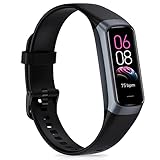
- 【All-day Health Monitor】The fitness tracker watch will automatically track your real-time heart rate, blood pressure and blood oxygen throughout the day to help you better understand your health. Equipped with a high-performance chipset, the fitness tracker automatically analyzes your overall sleep quality (deep/light/wake time) at night and gives you a nightly sleep score in the app to help you adjust your lifestyle and make you healthier.
- 【Smart Notification Remider】 With Bluetooth connection to your phone, it can support incoming calls/text alerts/APP message notifications (WhatsApp/Facebook/Instagram etc.), you will never miss your important messages. With the fitness watch, you can also perform sedentary reminder, water reminder, alarm clock, stopwatch, remote control photo, find devices, etc. to make your life healthier and smarter.
- 【25 Sports Modes】 Fitness tracker supports 25 professional sports modes, you can choose any number of sports modes as your exclusive sports modes in the app, such as walking, running, swimming, yoga, etc. and track your steps, heart rate, distance and calories to help you stay motivated, accomplish your sports goals, record your sports data, and make your sports more scientific.
- 【Long Battery Life】The fitness watch uses magnetic fast charging to provide a better battery life experience. It takes 1-2 hours to fully charge and can be used for up to 7 days of regular use and 15 days of standby. Compatible mobile phone system: android5.0 (inclusive) and IOS9.0 (inclusive) or above.
- 【1.1" AMOLED Touch Color Screen】AMOLED HD touch color screen is designed with clear and bright display, providing you with high quality touch and visual experience. This smartwatch includes a large number of original dials and supports custom dials.
If the app silently created a new account during setup, the watch may be syncing to the cloud but not to the profile you’re viewing. Logging into the correct account often makes missing data reappear instantly.
Stuck cloud syncs and partial uploads
Sometimes data uploads halfway and then stalls, especially after long GPS workouts or multi-day offline use. The app may show a spinning sync icon that never completes.
Force-close the Fitbit app, reopen it, and pull down to manually sync. Keep the phone unlocked and the app in the foreground until completion.
If that fails, toggle Airplane Mode on the phone for 30 seconds, then turn it off and retry. This forces a fresh server connection without touching device pairing.
Time zone and date mismatches
Cloud processing depends on accurate timestamps. If your phone’s time zone changed during travel or daylight saving adjustments, Fitbit’s servers can misfile new data.
On your phone, enable automatic date and time. Then open the Fitbit app, go to settings, and confirm the time zone matches your current location.
After correcting this, sync again. Sleep and activity data may suddenly populate once timestamps align correctly.
Background sync permissions and cloud throttling
Even when Bluetooth works, the app needs permission to talk to Fitbit’s servers in the background. Android and iOS both restrict this aggressively to save battery.
On Android, disable battery optimization for the Fitbit app and allow background data usage. On iOS, ensure Background App Refresh is enabled for Fitbit.
Without these permissions, sync may only complete when the app is open, leading users to assume the watch is at fault when it’s actually cloud access being blocked.
Regional server routing and VPN interference
Using a VPN can route Fitbit traffic through unsupported regions, causing sync failures or extreme delays. This is especially common on work phones or privacy-focused setups.
Disable any VPN temporarily and retry syncing. If data uploads immediately, add Fitbit to the VPN’s bypass list.
Regional mismatches can also happen after moving countries. Confirm your profile region in the Fitbit account settings matches where you currently live.
Account security checks and silent logouts
Google security updates occasionally invalidate app tokens. The Fitbit app may appear logged in but silently fail to authenticate with the cloud.
Log out of the Fitbit app, then log back in using the same account credentials. This does not erase device data or require re-pairing.
After logging back in, initiate a manual sync. In many cases, days of missing data populate within minutes.
When data is delayed but not lost
Fitbit devices store several days of data locally, depending on model and activity type. Charge and Versa models typically hold around a week of core metrics, while Pixel Watch varies based on GPS usage.
If syncing resumes within that window, your historical data should upload intact. Avoid factory resets unless the app explicitly reports data corruption.
Patience here is often the fix. Once the cloud reconnects cleanly, the system usually catches up without any permanent loss.
Advanced Fixes Without Data Loss: Reconnecting, Re-Pairing, and Cache Resets
If syncing still stalls after permissions, VPNs, and account checks, the problem is usually a broken handshake between the watch, the phone, and Fitbit’s cloud. The good news is that you can often rebuild this connection without wiping your watch or losing stored health data.
These steps are more deliberate than basic toggles, but they are still safe when followed in order. The goal is to refresh the communication layers, not erase your history.
Step 1: Perform a clean Bluetooth reconnect (without removing the device)
Start by resetting the Bluetooth connection itself, which is often where the sync pipeline quietly fails. This is especially common after OS updates or switching between multiple phones or earbuds.
On your phone, turn Bluetooth off completely for 30 seconds, then turn it back on. Keep the Fitbit app closed during this time so the connection resets at the system level first.
Once Bluetooth is back on, open the Fitbit app and trigger a manual sync. For many Versa, Sense, and Charge users, this alone restores normal syncing.
Step 2: Restart the watch the right way for your model
A proper watch restart clears temporary memory without touching stored activity data. This is not a factory reset and is safe for all models.
For Charge models, connect the charger and hold the side button for about 10 seconds until the Fitbit logo appears. Release and allow the tracker to boot fully.
For Versa and Sense, hold the side button until the power menu appears, then choose Restart. Avoid holding it long enough to trigger recovery mode.
For Google Pixel Watch, press and hold the crown and side button together until the Google logo appears. This clears Wear OS background services that often block Fitbit sync.
Step 3: Force-close and relaunch the Fitbit app cleanly
If the app itself is stuck in a partial sync state, restarting the watch alone will not help. The app needs a fresh session as well.
On Android, open the app switcher and swipe the Fitbit app away. On iOS, swipe it off the screen from the multitasking view.
Wait a few seconds, then reopen the app and stay on the main dashboard until syncing completes. Leaving the app mid-sync can restart the failure loop.
Step 4: Clear the Fitbit app cache on Android (safe and reversible)
Corrupted cached files are a major cause of repeat sync failures on Android, especially after app updates. Clearing the cache does not delete your account, device pairing, or stored cloud data.
Go to Settings > Apps > Fitbit > Storage and tap Clear Cache only. Do not tap Clear Data unless explicitly instructed later.
Reopen the Fitbit app and initiate a sync. Many users see immediate improvement, especially on Samsung and Pixel phones running newer Android versions.
Step 5: Re-pair Bluetooth without removing the Fitbit from the app
If Bluetooth credentials are damaged, the phone and watch may appear connected but fail to exchange data. Re-pairing at the Bluetooth level can fix this without triggering a factory reset.
On your phone, go to Bluetooth settings and tap the connected Fitbit device. Choose Forget or Unpair.
Do not remove the device from the Fitbit app. After forgetting it in Bluetooth settings, reopen the Fitbit app and follow the prompts to reconnect the watch.
This rebuilds the secure Bluetooth channel while preserving your device profile and stored metrics.
Pixel Watch-specific fix: Restart Fitbit system services
Pixel Watch syncing issues are often tied to Wear OS services rather than the Fitbit app alone. The watch can track steps and heart rate perfectly while failing to upload anything.
On your phone, go to Settings > Apps > Fitbit > Permissions and confirm all required permissions are allowed. Then check Google Play Services and ensure it is up to date.
Restart both the phone and the Pixel Watch back-to-back. Open the Fitbit app first, then wake the watch and keep both devices close together during the first sync.
iPhone-specific fix: Reset Bluetooth network settings carefully
On iOS, Bluetooth network corruption can affect only one accessory, making the issue hard to spot. This step is more advanced but still avoids data loss.
Go to Settings > General > Transfer or Reset iPhone > Reset > Reset Network Settings. This will remove saved Wi‑Fi and Bluetooth connections but not apps or data.
After the reset, reconnect Bluetooth, open the Fitbit app, and allow it to rediscover your device. Syncing often resumes immediately once the Bluetooth stack is rebuilt.
When re-pairing works but sync is still slow
After reconnection, the first sync can take several minutes, especially if days of activity are waiting to upload. This is normal behavior, not a failure.
Keep the app open, keep the screen awake, and avoid switching apps during this time. Pixel Watch GPS workouts and Sense stress metrics can take longer due to file size.
💰 Best Value
![SAMSUNG Galaxy FIT 3 [2024] 1.6' AMOLED Display | 14 Days Battery Life | 100+ Watchfaces | 100+ Exercise Modes | International Model - (Gray)](https://m.media-amazon.com/images/I/41nTjvUQRPL._SL160_.jpg)
- Vibrant 1.6” AMOLED Display – Large, high-res screen with smooth touch for easy navigation
- 5ATM & IP68 Water Resistance – Swim-ready and dust-resistant for active lifestyles
- Up to 14 Days Battery Life – Powerful 208mAh battery for long-lasting performance
- 101+ Workout Modes with Auto Detection – Automatically tracks common workouts for seamless fitness tracking. Advanced Health Tracking – Includes sleep coaching, SpO2, heart rate, and snore detection
- International Model No Warranty in the US. Compatible with Android and iOS devices. Samsung Pay - Not Supported.
Once the backlog clears, daily syncing usually returns to near-instant behavior.
Why these steps protect your data
Fitbit devices store activity locally and prioritize upload integrity over speed. These fixes target communication layers, not internal storage.
As long as you do not remove the device from the Fitbit app or perform a factory reset, your historical data remains intact. That is why these steps should always come before any reset recommendation.
If syncing still fails after all of the above, the issue is likely firmware-level or account-specific, which requires a different approach covered in the next section.
Last Resort Solutions: Factory Reset—What You’ll Lose and How to Prepare
If you have worked through app permissions, Bluetooth resets, re‑pairing, and patient resyncing without success, a factory reset becomes the final lever to pull. This is not a casual step, but in cases of corrupted firmware, failed updates, or account-level desync, it can be the only way to restore reliable syncing.
Before you reset anything, pause and confirm that syncing truly fails across multiple attempts and environments. A reset should solve deep software faults, not mask temporary connectivity hiccups.
What a factory reset actually does
A factory reset wipes the watch or tracker itself, not your Fitbit account. It clears local storage, cached firmware states, Bluetooth pairing keys, and any incomplete sync data stuck on the device.
Your historical activity, sleep, heart rate trends, and health metrics live in your Fitbit account on Google’s servers. If your device has synced at least once in the past, that data remains safe after a reset.
Anything that has not synced yet will be permanently lost. This usually includes today’s steps, the most recent workout, or a night of sleep if the device has been offline.
What you will lose on each device type
On Google Pixel Watch, a reset removes downloaded apps, tiles, watch faces, Google Wallet cards, offline music, and custom settings like display brightness or vibration strength. LTE models will need to re‑activate cellular service through your carrier during setup.
On Versa and Sense models, expect to lose on‑device apps, clock faces, alarms, timers, and quick replies. Health metrics already synced, including ECGs or stress data, remain in your account.
On Charge trackers, the impact is lighter but still noticeable. You will lose clock face settings, alarms, exercise shortcuts, and any unsynced activity stored in the tracker’s limited internal memory.
How to prepare before resetting
First, attempt one final manual sync with the watch and phone side by side, the Fitbit app open, and the phone screen awake. If anything uploads, wait until it completes before proceeding.
Make sure you know your Fitbit account login and that the app shows the correct email address. Resetting without access to the account can lock you out of your own data during setup.
Charge the device to at least 50 percent. Factory resets combined with low battery are a common cause of setup failures and boot loops.
Device-specific factory reset steps
For Google Pixel Watch, open Settings on the watch, go to System, then Disconnect and Reset. Keep the watch on the charger until the reset finishes and the setup screen appears.
For Versa and Sense, press and hold the side button(s) until you see the shutdown screen, then continue holding to trigger the reset prompt. Some older Versa models require initiating the reset from the Fitbit app instead.
For Charge models, connect the charger, then press the button or sensor area in the pattern specified for your model until the reset screen appears. The exact sequence varies slightly between Charge 4, 5, and newer versions.
Set up the device as new, not restored
During setup, resist the temptation to rush or multitask. Keep Bluetooth on, location enabled, and stay inside the Fitbit app until pairing fully completes.
When prompted, set the device up as new rather than restoring old settings. Restoring can reintroduce the same corrupted configuration that caused syncing to fail in the first place.
Once setup finishes, allow the initial sync to complete even if it seems slow. Pixel Watch health data, GPS calibration, and Sense stress sensors may take several minutes to stabilize.
When a factory reset still does not fix syncing
If syncing fails even after a clean reset and fresh setup, the problem is rarely the hardware alone. This usually points to a Fitbit account issue, a blocked background process on the phone, or a regional service outage.
At this stage, contact Fitbit support with the reset already completed. Providing that context speeds up escalation and avoids repeating steps you have already tried.
A factory reset is disruptive, but when done deliberately and prepared properly, it often restores full syncing and daily usability. The key is treating it as a controlled repair, not a desperate last click.
When to Stop Troubleshooting: Hardware Faults, Warranty, and Google Support Options
By this point, you have ruled out Bluetooth conflicts, app permissions, background restrictions, account errors, and corrupted setups. If syncing still fails after a clean factory reset and fresh pairing, continuing to repeat software fixes usually wastes time rather than solves the problem.
This is the moment to step back and determine whether you are dealing with a true hardware fault or a device that qualifies for repair or replacement under warranty.
Signs the problem is likely hardware, not software
Persistent sync failure across multiple phones is one of the clearest red flags. If your Pixel Watch, Versa, Sense, or Charge will not sync with a second Android phone or an iPhone using a different Fitbit account, the issue is almost certainly inside the device itself.
Battery-related symptoms are another strong indicator. Devices that drain from 100 percent to empty within hours, shut down during syncing, or refuse to charge past a certain percentage often cannot maintain the Bluetooth connection long enough to complete data transfer.
Sensor and radio failures can also break syncing indirectly. A watch that no longer tracks heart rate, fails to detect wrist presence, or cannot acquire GPS may still appear functional but lacks stable internal communication, which disrupts sync reliability.
Physical damage matters even if the screen looks fine. Water exposure beyond rated limits, corrosion around charging contacts, or a slightly bent case can interfere with antennas and internal connections, especially on slim devices like Charge and Pixel Watch.
Model-specific hardware failure patterns to watch for
Google Pixel Watch models are most vulnerable to charging and battery degradation over time. If the watch overheats on the charger, disconnects randomly, or shows inconsistent battery percentages, syncing failures often follow shortly after.
Fitbit Sense and Versa models commonly develop side button or haptic issues. When the button becomes unresponsive or triggers randomly, the watch may repeatedly interrupt background syncing or fail to stay awake long enough to transfer data.
Charge trackers are compact and comfortable for daily wear, but their sealed design means any internal failure is effectively non-repairable. Repeated sync dropouts combined with poor battery life or unresponsive touch input usually indicate end-of-life hardware.
None of these failures are caused by user error, and no amount of app reinstalling will fix them once they appear.
Understanding Fitbit and Google warranty coverage
Most Fitbit and Google Pixel Watch devices include a one-year limited hardware warranty from the original purchase date. This covers manufacturing defects but not accidental damage, unauthorized repairs, or water damage beyond rated resistance.
If your device is still within warranty and shows documented syncing failure after factory reset, replacement is often approved quickly. Support teams typically ask for proof of purchase, serial number, and confirmation that software troubleshooting is complete.
Extended retailer warranties or credit card protections may apply even if the manufacturer warranty has expired. This is especially relevant for Pixel Watch models purchased through Google Store or major electronics retailers.
If your device is out of warranty, support may still offer a discounted replacement. While not guaranteed, it is common for long-term Fitbit users with well-documented issues.
How to contact the right support team and get escalated faster
Pixel Watch users should contact Google Support directly, not Fitbit support, even though health data flows through the Fitbit app. Google handles hardware diagnostics, replacements, and advanced Wear OS troubleshooting.
Fitbit-branded devices like Versa, Sense, and Charge should go through Fitbit Support via chat or phone. Starting with chat often leads to faster escalation once logs are reviewed.
Before contacting support, gather your device serial number, Fitbit account email, phone model, OS version, and confirmation that a factory reset was completed and setup was done as new. Providing this upfront avoids repeating steps and shortens resolution time.
Be clear but calm when describing the issue. State that syncing fails consistently despite reset and fresh pairing, and mention any battery or sensor abnormalities you have observed.
Deciding when replacement makes more sense than repair
If your device is older than two to three years and shows declining battery life alongside sync issues, replacement is usually the better investment. Modern Fitbit and Pixel Watch models offer improved battery efficiency, faster syncing, and more stable software support.
Comfort and daily wearability also matter. Newer designs tend to be thinner, lighter, and better balanced on the wrist, which improves sleep tracking accuracy and long-term comfort.
From a value perspective, spending hours troubleshooting a failing tracker often costs more in frustration than upgrading to a device that simply works. Sync reliability is foundational, and no feature matters if your data never reaches the app.
Closing guidance: knowing when to stop is part of fixing the problem
Effective troubleshooting includes recognizing when the problem is no longer solvable at home. Once you have ruled out software, accounts, and setup errors, continuing to tinker can delay the solution rather than bring it closer.
Whether that next step is a warranty replacement, a support escalation, or a thoughtful upgrade, moving forward restores what matters most: reliable health data, consistent syncing, and a wearable you can trust day after day.
If your Fitbit or Pixel Watch has reached that point, you have not failed the troubleshooting process. You have completed it.