Control Center is the fastest way to take control of your Apple Watch when something needs attention right now. If you’ve just updated to watchOS 26 and found yourself swiping the screen out of habit, you’re not alone. Apple has continued refining how Control Center works, but its role as the watch’s instant command hub hasn’t changed.
At its core, Control Center is where you manage essential system functions without digging through apps or settings. Things like checking battery status, turning on Airplane Mode before a flight, muting notifications during a meeting, or quickly locating your iPhone all live here. In watchOS 26, Control Center remains central to daily usability, especially as the Apple Watch continues to add more health, connectivity, and background features that need quick access.
This section explains what Control Center actually is in watchOS 26, why it still matters no matter which Apple Watch you wear, and how it fits into Apple’s evolving navigation logic before we walk through exactly how to open it.
Control Center is the Apple Watch’s system dashboard
Think of Control Center as the watchOS equivalent of the iPhone’s Control Center, scaled down and optimized for a small display. It’s a single, vertically scrolling panel that gives you immediate access to system toggles, status indicators, and a handful of utility actions.
🏆 #1 Best Overall

- Water Resistant: Our innovative splash-proof stretchy apple watch band allows droplets slides away which makes it handle sweat, light rain, and even accidental splashes without any issues. For some types of spills on this apple watch strap, like coffee, just a quick rinse under water within 1 minute and you will get a clean band
- Variety of Colors: With 10 colors in one pack to match any outfit, these apple watch bands for women and men offers a fashionable touch to iWatch. With a range of color options, you can easily switch up your look to suit any occasion, from professional meetings to casual outings. Enjoy the versatility of a band that complements your lifestyle and personal style effortlessly
- Comfort & Durability: Enjoy all-day comfort with our iwatch bands for women, designed to fit your wrist without any constriction. Crafted from soft, skin-friendly and durable sweat-wicking nylon, this apple watch se band is lightweight and breathable, preventing irritation and ensuring your wrist stays comfortable and cool, even during workouts
- Customizable Fit: Find your perfect fit with these iphone watch bands for women. Featuring a reinforced stainless steel buckle, these wristbands are fully adjustable to your desired length. The stretchable design ensures a snug and comfortable fit, suitable for both women and men with wrist sizes from 4.5" to 8.7"
- Compatible Models: Butifacion elastic apple watch sport band compatible with Apple Watch 38mm 40mm 41mm 42mm 44mm 45mm 46mm 49mm, iWatch Series Ultra/Ultra 2//Ultra 3 & Series 11/10/9/8/7/6/5/4/3/2/1/SE 3. The Water-Resistant design and comfortable material makes it suitable for everyday activities and outdoor fun, also ideal as a surprise for Birthdays, Mother's Day, Father's Day, Valentine's Day, Christmas and Thanksgiving Day
Unlike apps, Control Center is always available on top of whatever you’re doing. Whether you’re mid-workout, checking a message, or just glancing at the time, it’s designed to be reachable in a second and dismissed just as quickly.
What you can control from Control Center in watchOS 26
Control Center houses features that affect how the watch behaves rather than what it shows. This includes wireless controls like Airplane Mode and cellular or Wi‑Fi status, sound and focus-related tools such as Silent Mode and Focus modes, and safety or convenience features like Emergency SOS, Find My iPhone pinging, and battery percentage.
As Apple Watch hardware has grown more capable, with brighter displays, all-day battery targets, cellular independence, and deeper health tracking, Control Center has become the place where you sanity-check the watch’s state. A quick glance can tell you if low battery might affect sleep tracking later, or if a Focus mode is blocking notifications you expected to see.
Why Control Center still matters despite navigation changes
One of the biggest points of confusion for users upgrading from older versions of watchOS is that Control Center is no longer tied to a swipe-up gesture from the watch face. Apple shifted that gesture to Smart Stack interactions in earlier updates, and watchOS 26 continues that design direction.
Even though how you access Control Center has changed, its importance hasn’t. In fact, as watchOS leans more heavily on layered interfaces and contextual widgets, Control Center remains the one place that bypasses everything else. It’s intentionally separate from apps, complications, and Smart Stacks so you can always reach core controls without visual clutter or extra taps.
Consistent across Apple Watch models
Whether you’re using an Apple Watch SE, a stainless steel Series model, or an Ultra with a larger case and Action button, Control Center works the same way. Screen size, materials, and strap choice don’t affect its layout or availability, which is crucial for muscle memory and everyday reliability.
That consistency is part of why Control Center still matters in watchOS 26. No matter how Apple evolves the interface or adds new features, this panel remains the common language across the entire lineup, ensuring every user can quickly manage their watch with confidence before moving on to the exact steps to access it.
The New Way to Open Control Center in watchOS 26: Step-by-Step from Any Screen
With the role of gestures now focused on Smart Stack navigation, Apple has anchored Control Center to a physical control that works the same way everywhere. In watchOS 26, accessing Control Center is deliberately simple, consistent, and independent of what’s currently on screen.
This change is easy once you know it, but it’s also the single most common point of confusion for users upgrading from older versions of watchOS.
Step 1: Locate the Side Button, not the Digital Crown
On every Apple Watch model, the Side Button is the elongated button below the Digital Crown. It sits flush to the case on aluminum and stainless steel models, and slightly more pronounced on the Apple Watch Ultra due to the thicker titanium housing.
The Digital Crown is no longer involved in opening Control Center. Rotating or pressing it handles scrolling, zooming, or returning to the app grid or watch face, depending on your settings.
Step 2: Single-press the Side Button from any screen
Press the Side Button once with a quick, deliberate tap. Control Center immediately slides in, regardless of whether you’re on the watch face, inside an app, viewing a workout, or interacting with Smart Stack widgets.
There’s no need to return to the watch face first. This is intentional, and it’s one of the biggest usability improvements in modern watchOS because it removes extra navigation steps during everyday use.
What you’ll see when Control Center opens
Control Center appears as a vertically scrollable panel with large, touch-friendly icons. These include connectivity status, Airplane Mode, Wi‑Fi and cellular indicators, Silent Mode, Focus modes, battery percentage, and safety tools like Emergency SOS and Find My iPhone ping.
On larger displays, such as the Apple Watch Ultra or 45mm and 49mm cases, the spacing feels more relaxed and easier to tap during movement. On smaller SE models, everything remains reachable without crowding, maintaining the same functional layout.
How this differs from older swipe-based Control Center access
Before Apple introduced Smart Stack navigation, users accessed Control Center by swiping up from the bottom of the watch face. That gesture no longer exists in watchOS 26, and trying it will either do nothing or interact with widgets instead.
If you’re instinctively swiping and not seeing Control Center, nothing is broken. You’re simply using an interaction Apple intentionally retired to make room for layered glanceable content.
Using Control Center while apps and workouts are active
One of the strengths of the Side Button approach is that it works even when the watch is busy. You can open Control Center mid-workout to check battery life, toggle Silent Mode in a meeting, or confirm connectivity while streaming music over cellular.
This is especially useful on watches with all-day battery targets and health tracking running in the background. A quick check can help you decide whether to conserve power before sleep tracking or a long GPS session.
Apple Watch Ultra and the Action button: what doesn’t change
The Action button on Apple Watch Ultra does not open Control Center by default. It’s reserved for workouts, shortcuts, or user-defined actions, and Control Center access remains tied exclusively to the Side Button.
This keeps behavior consistent across the lineup, so muscle memory carries over whether you’re wearing an SE with a sport band or an Ultra with a rugged trail loop.
If Control Center doesn’t appear
If a single press doesn’t bring up Control Center, check that you’re not long-pressing the Side Button, which triggers emergency features instead. Also confirm you’re pressing the correct button, as the Digital Crown is often pressed by mistake during early adjustment.
In rare cases, a frozen app can delay the animation. A second press after a moment usually resolves it without needing to restart the watch.
Once this Side Button interaction clicks, Control Center becomes second nature again. From that point on, it’s always one press away, no matter what you’re doing on your Apple Watch.
What Changed from watchOS 10–25: Why Swipe Gestures No Longer Work the Same Way
If the Side Button method feels unfamiliar, that’s because it replaces nearly a decade of swipe-based muscle memory. From watchOS 1 through watchOS 9, and even into early iterations of watchOS 10, Control Center was something you reached by swiping up from the bottom edge of the watch face.
Starting in watchOS 26, that gesture has been fully retired. The change isn’t a bug or a temporary learning curve issue; it’s the result of Apple fundamentally rethinking how surface-level information lives on the watch.
The bottom-edge swipe was repurposed, not removed
The most important shift is that the bottom-edge swipe is no longer reserved for system controls. In watchOS 26, that gesture space is now shared with glanceable content layers, such as widgets, contextual hints, and interactive elements tied to the active watch face.
On larger displays like the 45mm and 49mm cases, this allows Apple to surface more information without shrinking tap targets. On smaller cases, it reduces accidental activations that were common when reaching for Control Center during workouts or notifications.
Why Apple moved Control Center to a hardware button
Apple’s design team has been steadily moving critical system actions to physical controls where possible. The Side Button offers a consistent, unambiguous input that works the same whether you’re on the watch face, inside an app, or mid-workout with sweaty hands and a moving wrist.
This is especially relevant for watches focused on health and fitness tracking. When you’re wearing an Apple Watch for long runs, strength training, or sleep tracking, software gestures can fail due to moisture, gloves, or motion. A physical button press is far more reliable in real-world wear.
Rank #2
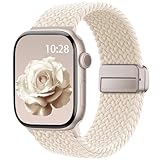
- Compatible Models: The HEARTBOOM magnetic nylon sport bands compatible for iWatch all versions. Suitable for Apple Watch Series 3/2/1 (38mm), Series 4/5/6/SE/SE 2/SE 3 (40mm), Series 7/8/9 (41mm), Series 11/10 (42mm). Pls check the model on the back of your watch to select the correct size
- Comfortable & Fit: HEARTBOOM stretchy apple watch band is made of recycled polyamide with a fabric weave, which is skin-friendly, breathable, lightweight, washable, sweat-resistant and quick-drying. Perfect for Fitness, Running, Yoga and daily wear, as it ensures that your wrist remains comfy and gentle feeling
- Multi Colors & Freely Adjustable: Our iwatch bands come with Various rich & muted colors for your choices, personalize your smartwatch to fit your outfit in daily life and easy change for every occasion. Suitable for women and men with 5.5"-9.6"(140mm~244mm) wrists. One size fit for most people,no need to measure your wrist to choose the size like the traditional braided bands
- Confidently Secure with Upgraded Magnets: Experience the perfect blend of style and security with our braided stretch band for Apple Watch. The enhanced magnetic Closure creates a strong, reliable connection that is easily adjustable for a flawless custom fit. Designed for all-day comfort and peace of mind, it stays put during any activity. Tool-free installation and one-click removal make it incredibly easy to use
- Perfect Gift: This apple watch bands blend fashion with functionality, look more fashionable and youthful. It's a a thoughtful and well-made gift. Suitable for Christmas, New Year's, Father's Day, Mother's Day and birthdays as a surprise for your parents, loved ones, and friends.We offer 24/7 friendly support
watchOS 26 prioritizes layered information over global gestures
Another reason swipe gestures feel different is that watchOS 26 leans heavily into layered UI. Widgets, Smart Stack-style elements, and contextual prompts now occupy areas that were previously “dead zones” reserved for system actions.
As a result, a swipe that once opened Control Center may now scroll, reveal widgets, or interact with the watch face itself. This is intentional, and it allows Apple to make better use of high-resolution OLED displays without compromising readability or battery efficiency.
Why older habits break hardest on upgraded watches
If you’ve worn an Apple Watch daily for years, the swipe-up habit is deeply ingrained. That’s why the transition feels more jarring on a Series 7, Series 8, or Ultra that’s been upgraded, compared to a brand-new watch where no habits exist yet.
The hardware hasn’t changed much in terms of size, weight, or comfort, so your wrist movements are the same. What’s changed is the software priority, and Apple is asking longtime users to reassign Control Center access from a gesture to a button.
This change applies across every Apple Watch model
There’s no model-specific exception here. Whether you’re using an Apple Watch SE with a sport band, a stainless steel Series model with a link bracelet, or an Ultra designed for endurance use, swipe-up access to Control Center is gone in watchOS 26.
That consistency is deliberate. Apple wants Control Center access to feel identical regardless of materials, display size, or target audience, reducing confusion when switching watches or recommending one to a family member.
Why the change ultimately improves daily usability
While it takes a few days to adjust, the Side Button approach proves faster and more dependable over time. You no longer have to aim for a specific edge of the display, and you won’t accidentally open Control Center when scrolling through widgets or notifications.
For everyday use, especially on a device designed to be worn all day with limited battery capacity, that reliability matters. Once the old swipe habit fades, accessing Control Center in watchOS 26 becomes more consistent than it ever was before.
Accessing Control Center When You’re Inside Apps, Workouts, or Smart Stack Views
Once you’ve accepted that swipe-up is no longer the gateway, the next question is usually situational: what happens when you’re already deep inside something else? That’s where watchOS 26’s consistency really shows its value.
No matter what’s on screen, Control Center now lives behind the Side Button. The context you’re in doesn’t change the gesture, and that’s intentional.
Opening Control Center from inside any app
If you’re using Messages, Music, Maps, or a third‑party app, a single press of the Side Button brings up Control Center immediately. You don’t need to back out to the watch face or pause what you’re doing.
The app stays exactly where it was underneath. When you dismiss Control Center, you’re dropped straight back into the same screen, making quick toggles like Silent Mode or Focus far less disruptive than before.
Accessing Control Center during workouts
Workouts are where many longtime users feel the change most sharply, especially runners and cyclists who relied on swipe gestures mid-session. In watchOS 26, the Side Button is the only reliable way in.
Press the Side Button once during an active workout and Control Center slides in over your metrics. From here, you can enable Water Lock, check battery percentage, or adjust connectivity without stopping the workout or fumbling through menus.
This is particularly helpful on larger, heavier models like Apple Watch Ultra, where edge swipes were already awkward with gloves, sweat, or motion. The physical button is easier to hit consistently, even during high-intensity movement.
What happens when Smart Stack is on screen
Smart Stack is now the primary swipe-up destination, so this is where confusion tends to spike. When widgets are visible, swiping further won’t reveal Control Center anymore.
Instead, press the Side Button from the Smart Stack view. Control Center opens on top of the widgets, and when you exit, you return to the same Smart Stack position rather than the watch face.
This makes Smart Stack feel more like a persistent layer than a detour, which improves flow during everyday use and reduces unnecessary navigation steps.
Edge cases: Water Lock, Theater Mode, and Focus
Even when Water Lock is active, Control Center access follows the same rule. Press the Side Button to view Control Center, then use the Digital Crown as prompted to unlock and disable Water Lock.
Theater Mode and Focus modes don’t block Control Center either. You can always reach it via the Side Button, regardless of whether the display is dimmed, notifications are silenced, or sleep-related restrictions are active.
This universality is key to Apple’s design shift. Control Center is now a dependable system layer, not a gesture that competes with scrolling, widgets, or app-specific interactions.
Why this matters in real-world daily wear
On a device worn all day, comfort and predictability matter as much as features. Whether your watch is aluminum on a sport loop, stainless steel on a bracelet, or titanium built for durability, the software interaction is now identical.
Battery life benefits indirectly too. Fewer accidental gestures mean fewer screen wake-ups and less UI redraw, which adds up over a long day of notifications, workouts, and background health tracking.
Once you internalize that Control Center is always one Side Button press away, regardless of context, the friction disappears. That consistency is what makes watchOS 26 feel calmer and more deliberate in everyday use.
Using the Side Button in watchOS 26: Model-by-Model Behavior Explained
With the new navigation logic now clear, the next question most owners ask is whether their specific Apple Watch behaves differently. The reassuring answer is that watchOS 26 standardizes Control Center access across the lineup, but there are a few hardware nuances worth understanding.
This is especially helpful if you rotate between multiple watches, upgraded recently, or are considering a different model for daily wear.
Apple Watch Series 9, Series 8, and Series 7
On modern Apple Watch Series models, the Side Button is now a dedicated system control. A single press always opens Control Center, no matter what’s on screen.
This applies whether you’re on the watch face, inside an app, viewing notifications, or browsing the Smart Stack. The Digital Crown continues to handle scrolling, zooming, and returning to the watch face, so there’s no overlap or confusion between controls.
In daily use, this feels especially natural on aluminum and stainless steel models, where the button placement is easy to reach without shifting your grip. During workouts or one-handed use, the reliability of a physical press matters more than swipe precision.
Apple Watch SE (2nd generation)
The Apple Watch SE follows the same Side Button behavior as the flagship models. Press once to open Control Center, every time.
Rank #3

- 【Fit All Models】SuperNaNa Sport silicone watch band compatible with apple watch bands 40mm 38mm 42mm 44mm 41mm 45mm 46mm 49mm women men,Soft breathable replacement sport strap for iwatch bands series 11 series 10 series 9 series 8 series 7 series 6 series 5 series 4 series 3 series 2 series 1. and iwatch Ultra 3 2, Ultra, SE(2nd Gen). All iwatch versions can attach perfectly and seamlessl.
- 【Soft Silicone Material】apple watch bands for women men are made of premium soft silicone, prevents skin from irritation, lightweight, persistent, skin-friendly, touch comfortable, water-resistant and sweat-proof; iphone watch bands for women perfectly fit for runs, hiking, rides, camping, climbing, swims, workouts, traveling and more outdoor activities. iWatch bands 40mm womens completely unburdened to wear on the wrist, perfect for all day.
- 【Adjustable size for all wrist】Our Sport apple watch strap compatible for 38mm/40mm/41mm/42mm(series 11 10), this size fits for 5.1"-7.1" (130mm-180mm) wrist; soft silicone iwatch strap compatible for 42mm(series 3 2 1)/44mm/45mm/46mm/49mm, this size fits for 5.9" - 7.9" (150mm-200mm) wrist. Please check the size on the back of your watch to choose the right size.
- 【Easy installation & removal】Our watch bands for women come with Innovative pin-and-tuck closure design, which locks onto smart watch interface precisely and securely. No tool needed,easy to install and remove,provides a secure and comfortable fit for extended wear.
- 【20+ Colors Choice】Silicone iwatch bands for women come with 20+ different cute colors available for women men. black starlight apple watch band etc colors personalize your Apple Watch and fit your daily mood and outfit. A idear option for your smartwatch accessories.
This consistency is important because the SE lacks some advanced sensors but runs the same watchOS interface. From a usability standpoint, you’re not giving anything up in navigation or system access.
If you’re using the SE as a lightweight daily watch with a focus on comfort, battery life, and value, watchOS 26 actually improves the experience. Fewer gestures mean fewer accidental inputs on the slightly smaller display.
Apple Watch Ultra and Ultra 2
The Apple Watch Ultra models add an extra variable: the Action Button. Importantly, this does not replace or interfere with Control Center access.
The Side Button still opens Control Center with a single press, just like on every other Apple Watch. The Action Button remains fully customizable for workouts, waypoints, flashlight, or shortcuts, depending on how you’ve set it up.
Because the Ultra is often used in motion-heavy environments like hiking, diving, or training, this separation of roles is intentional. Control Center stays locked to the Side Button, while the Action Button handles task-specific functions without risking accidental system toggles.
Older Apple Watch models supported by watchOS 26
If you’re running watchOS 26 on an older supported model, such as Series 6 or earlier, the behavior is still the same. Side Button equals Control Center, universally.
What changes most on older hardware isn’t functionality, but feel. Displays are slightly smaller, bezels are thicker, and animations may be less fluid, but the navigation logic is identical.
This is a quiet win for longevity. Apple is clearly prioritizing muscle memory over visual flourish, which helps older watches remain pleasant to use rather than feeling left behind.
What no longer depends on model or screen size
In previous versions of watchOS, screen size and edge sensitivity could subtly affect how easy it was to access Control Center. Larger displays made swipe gestures easier, while smaller ones required more precision.
watchOS 26 removes that variability. Whether your watch is 41mm, 45mm, or Ultra-sized, Control Center access is no longer tied to gesture accuracy.
That consistency matters in real-world wear, especially when your hands are wet, gloved, or moving. The Side Button becomes a reliable anchor point across the entire lineup.
Why Apple standardized this across all models
From a design perspective, this is about reducing cognitive load. When every watch behaves the same way, you stop thinking about how to get somewhere and just do it.
It also aligns with how the Apple Watch is actually worn and used. Between notifications, workouts, health tracking, and quick checks throughout the day, predictable hardware controls reduce friction and fatigue.
Regardless of materials, weight, or strap choice, the interaction stays constant. That’s a subtle but meaningful improvement that becomes more noticeable the longer you live with watchOS 26.
Common Problems and Fixes: When Control Center Won’t Appear
Even with Apple’s push toward consistency in watchOS 26, there are still moments when Control Center feels like it’s gone missing. In nearly every case, the issue comes down to context, settings, or a small hardware-related hiccup rather than a real system failure.
The key thing to remember is this: in watchOS 26, Control Center is only accessed with the Side Button. If that input is blocked, reassigned, or misunderstood, Control Center won’t show up.
You’re still trying to swipe up
This is by far the most common problem, especially for long-time Apple Watch users. Swiping up from the bottom edge no longer opens Control Center in watchOS 26, regardless of model or screen size.
The fix is simple but requires muscle memory retraining. Press the Side Button once, firmly, and release. If nothing happens, you’re likely dealing with one of the issues below rather than a gesture problem.
An app is blocking system overlays
Certain full-screen apps, especially workout apps, navigation tools, or third-party fitness platforms, can temporarily suppress system overlays. This can make it seem like the Side Button isn’t working.
Try pressing the Digital Crown once to return to the watch face, then press the Side Button again. Control Center is most reliable when triggered from the watch face or app grid.
Water Lock or Swim Mode is active
If you’ve enabled Water Lock, touch input is disabled by design. While the Side Button should still work, users often confuse the locked state for a frozen interface.
Rotate the Digital Crown until Water Lock disengages, then try the Side Button again. This is especially common after swimming, showering, or accidental activation during workouts.
Accessibility features are intercepting the Side Button
Accessibility settings can change how physical buttons behave. AssistiveTouch, button click speed adjustments, or custom gestures may override the default Side Button action.
On the watch, go to Settings, Accessibility, and review any enabled features. Temporarily turning off AssistiveTouch or custom button mappings often restores normal Control Center access immediately.
The Side Button isn’t registering reliably
Physical factors matter more than most people expect. Protective cases, tight bands, dirt buildup, or even glove pressure can prevent a clean button press.
Remove any case, wipe the button area with a dry cloth, and try pressing the Side Button with a deliberate click. On Ultra models, the larger case and flatter edges can make partial presses more common if the watch is worn very snugly.
Low Power Mode or Focus modes are causing confusion
Low Power Mode and certain Focus states don’t remove Control Center, but they can change what you expect to see once it opens. This can make it feel like nothing happened.
Press the Side Button and look carefully for simplified or dimmed icons. If needed, disable the active Focus or exit Low Power Mode to confirm Control Center is opening normally.
watchOS 26 is temporarily glitching
Minor software hiccups still happen, especially right after an update. Animations may fail to trigger, or button presses may not register correctly.
Restart the Apple Watch by holding the Side Button and powering it off, then turning it back on after 30 seconds. This resolves the vast majority of post-update Control Center issues without further troubleshooting.
Rank #4

- Newest Engraved Flower Design: SNBLK Apple watch band has clear vivid flower patterns made by advanced laser carving technology. Unique and stylish design that is sure to add a touch of elegance to your everyday outfit. One with sunflowers and the other with roses. Their cute floral print is perfect for anyone who loves nature and wants to add a personal touch to their daily wear. In addition, it's a thoughtful and well-made gift that is sure to be appreciated by anyone who receives it
- Comfortable to Wear: The Apple watch bands are made of high-quality soft silicone material that provides a comfortable and flexible fit on your wrist. The soft and lightweight nature of the band makes it perfect for everyday use, as it ensures that your skin remains comfy and free from irritation even when you wear the watch for extended periods of time. Plus, the silicone material is water-resistant and sweat-proof, making it perfect for use during physical activities or outdoor adventures
- Compatible Models & Size Options: These flower bands are designed for iWatch all versions. Suitable for Apple Watch Series 3/2/1(38mm),Series 4/5/6/SE/SE 2/3(40mm),Series 7/8/9(41mm),Series 11/10(42mm);For Series 3/2/1(42mm),Series 4/5/6/SE/SE 2/3(44mm),Series 7/8/9(45mm),Series 11/10(46mm),Ultra 3/Ultra 2/Ultra(49mm); 38/40/41/42mm Size fits 5.1"-7.1" (130mm-180mm) wrist, 44/45/46/49/42mm Size fits 5.9"-7.9" (150mm-200mm). Pls check the model on the back of your watch to select the correct size
- Enjoy the Thrill of Experimenting with Diverse Combinations: Enhance your iWatch with our stylish and intricately engraved printed strap, allowing you to personalize your smartwatch and effortlessly match your mood and outfit every day. Mix and match straps of various colors to elevate the look of your iWatch and showcase your distinct style. With a 6-pack of replacement, you can effortlessly transform your watch for various occasions, whether it's for sports, leisure, work, or everyday life
- Unmatched Durability: Our iWatch bands are built to withstand the test of time. Made from premium-grade silicone, it exhibits exceptional resistance to wear, tear, and daily use. Whether you're an athlete pushing your limits or a professional with a busy lifestyle, it is designed to keep up with your active routine, ensuring it remains in pristine condition. In addition, they comes with double hole and metal snap fastener, easier to take on/put off, no worry of loosing your watch any more
Last resort: unpairing isn’t usually necessary
In rare cases, persistent system issues can survive restarts. Before considering unpairing, make sure watchOS 26 is fully updated and that your paired iPhone is running the latest compatible iOS version.
Unpairing and re-pairing should be a final step, not a first reaction. Control Center access problems are almost always solved by correcting input expectations or clearing a temporary software state.
What You’ll Find Inside Control Center in watchOS 26 (And What’s Been Reorganized)
Once Control Center opens normally, the next moment of confusion for many users is simply orientation. watchOS 26 doesn’t radically reinvent Control Center, but it does refine how information is grouped, prioritized, and revealed as you scroll.
If you’re coming from an older watchOS version, everything you rely on is still here. It’s just been tightened up to better fit different Apple Watch sizes, from smaller aluminum models to the larger Ultra case.
The core quick toggles (now more visually grouped)
At the top of Control Center, you’ll still find the essentials: Airplane Mode, Wi‑Fi, and Cellular. In watchOS 26, these appear more clearly grouped as connectivity controls, reducing accidental taps and making status easier to read at a glance.
Cellular status is especially clearer on LTE and Ultra models, where signal and connection state are easier to distinguish during outdoor use. This is helpful when battery life or coverage matters, like workouts or travel days.
Focus, Do Not Disturb, and Sleep controls
Focus modes remain a central part of Control Center, but watchOS 26 presents them more cleanly. Instead of feeling buried among unrelated toggles, Focus states sit together and reflect their active status more obviously.
If Sleep Focus is enabled, you’ll notice fewer distractions in Control Center overall. That’s intentional, and it’s one reason some users think options are missing when they’re simply hidden by context.
Battery status and Low Power Mode
Battery percentage is still accessible from Control Center, and Low Power Mode remains one tap away. What’s changed is how subtle the interface becomes once Low Power Mode is active.
Icons may dim or simplify, especially on older Apple Watch models where Apple prioritizes readability and efficiency. On Ultra models with larger displays, the layout feels roomier, but the behavior is the same across the lineup.
Audio output and Silent Mode
Silent Mode, headphone output, and audio routing controls are still here, but they’re easier to scan quickly. This matters more than it sounds, especially if you switch between AirPods, a car system, or the watch speaker during the day.
Haptic-only users will appreciate that Silent Mode remains a single, deliberate tap. The control hasn’t moved, but its spacing makes accidental activation less common when navigating on the go.
Ping iPhone, flashlight, and everyday utilities
Classic utilities like Ping iPhone, Flashlight, and Water Lock haven’t gone anywhere. They now sit lower in the stack, which matches how most people use Control Center: quick checks first, tools second.
Flashlight behavior is unchanged, using the display rather than a physical LED, and it remains one of the most battery-intensive tools. On aluminum and stainless steel watches alike, it’s still best used briefly.
Accessibility shortcuts and Assistive features
If you use Accessibility Shortcuts, they may appear in Control Center depending on how your watch is configured. This includes AssistiveTouch and other input aids, which can visually crowd Control Center if multiple features are enabled.
This is where many “missing” icons actually go. watchOS 26 prioritizes active accessibility features, so turning them on or off directly affects what Control Center looks like.
What’s no longer front-and-center
Some controls that used to appear immediately now require a scroll. Apple has clearly optimized Control Center for clarity rather than density, especially on smaller watch sizes.
Nothing essential has been removed, but watchOS 26 expects users to scroll with intention. Once you adjust to that mental model, Control Center feels calmer and more predictable during daily use.
Consistency across Apple Watch models
Whether you’re using an SE, Series model, or Apple Watch Ultra, Control Center behaves the same. The difference is comfort, not capability.
Larger cases make scrolling and icon separation feel more forgiving, while smaller watches benefit from the cleaner hierarchy. In real-world wear, that consistency matters more than raw screen size.
Control Center in watchOS 26 is less about new buttons and more about reducing friction. Once you know where things live now, it becomes a faster, more confident part of everyday Apple Watch use.
Tips for Faster Access: Real-World Navigation Tricks Apple Doesn’t Spell Out
Once you understand the new layout, the real speed gains come from how you move around it. watchOS 26 doesn’t advertise these habits, but they make Control Center feel instant rather than interruptive during daily wear.
Get muscle memory with the Side Button, not the screen
In watchOS 26, Control Center is always a single press of the Side Button, regardless of whether you’re on the watch face or deep inside an app. There’s no swipe gesture fallback anymore, so training your thumb or index finger matters more than precision tapping.
On smaller case sizes like the 40mm or 41mm SE, this is actually faster than the old swipe-up motion. On Ultra and larger Series models, the raised Side Button is easy to find even with gloves or wet fingers, which makes access more reliable outdoors.
Press first, scroll second
Control Center now opens to the top every time, so resist the instinct to scroll immediately. The most commonly used toggles sit in the first screenful, and unnecessary scrolling is the biggest slowdown we see in real-world use.
If you consistently need items lower in the stack, slow your Digital Crown scroll rather than flicking. The crown gives finer control than swiping, especially on curved-edge displays where accidental taps are more common.
Use Apple Pay habits to avoid accidental launches
Double-pressing the Side Button still launches Apple Pay, and it’s easy to overshoot when you’re in a hurry. A single, deliberate press is all you need for Control Center, and developing that timing prevents wallet screens from interrupting quick checks.
This matters most when you’re wearing the watch snugly for workouts or sleep tracking. A tighter fit improves heart-rate accuracy but makes button presses feel firmer, so intentional input saves time.
Leverage the Action Button if you have an Ultra
On Apple Watch Ultra models, the Action Button can be assigned to Water Lock, which indirectly reduces Control Center trips. If you swim, surf, or shower with the watch, this removes one of the most common reasons people open Control Center mid-activity.
It’s not a replacement for Control Center, but it offloads a frequent task. That’s especially useful given the Ultra’s larger case, where reaching across the screen while wet isn’t always comfortable.
💰 Best Value
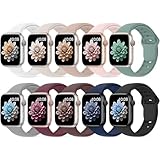
- 【Compatible Models】: UJUTL Sport silicone bands perfect compatible with Apple Watch Bands Series 11 10 -(42mm), Series 9 8 7 -(41mm), Series 6 5 4 SE3 SE2 -(40mm), Series 3 2 1 SE -(38mm), Check your watch size before ordering, Size fits 5.3"-7.6" (135mm-193mm) wrist
- 【Newest Original Design 】: The breathable groove design wicks away moisture to keep you cool during workouts and daily activities, Hidden buckle design that does not come into contact with any metal, Keep the irritate away from you
- 【Premium Material】: Comfort & Breathability - Made of high quality silicone, these bands provide soft, irritation-free wear for sensitive wrist, Durable & Easy to Clean - Non-sticky, stain-resistant silicone stays fresh through sweat, rain, and daily use. Simply wipe with a damp cloth for instant refresh
- 【10 Colors in One Pack】: Available in a variety of colors, these bands can be easily swapped out to match your outfit or mood, perfect for mixing styles with outfits or seasons. Also proper to be used as gifts for Wedding, birthday, Valentines' day, Mothers' day, father' day, Christmas, Thanksgiving Day etc
- 【Worry-Free Purchase】: To ensure 100% customer satisfaction, we provide 24/7 online support. If you encounter any issues with our product, please contact us immediately—we will prioritize resolving your concerns and offer tailored solutions promptly
AssistiveTouch can be faster than tapping
If AssistiveTouch is enabled, certain hand gestures can open Control Center without touching the screen. This is invaluable when your hands are dirty, gloved, or occupied, and it works consistently across Series, SE, and Ultra models.
The trade-off is visual clutter inside Control Center if too many accessibility features are active. Fine-tuning which shortcuts are enabled keeps the interface clean while still giving you hands-free access.
Know when not to open Control Center at all
Some actions people instinctively use Control Center for are faster elsewhere in watchOS 26. Silent Mode can be toggled automatically via Focus, and many connectivity states are visible in the Smart Stack without pressing any buttons.
Treat Control Center as a deliberate tool, not a reflex. When you open it with intent, the new hierarchy feels faster, calmer, and more predictable across long battery days and constant on-wrist use.
Frequently Asked Questions About Control Center in watchOS 26
Even once the new navigation clicks, a few practical questions tend to surface during daily use. These are the issues readers most often run into after updating to watchOS 26, especially when muscle memory from older versions gets in the way.
How do you open Control Center in watchOS 26?
In watchOS 26, Control Center is accessed with a single press of the Side Button from most screens. You no longer swipe up from the bottom of the display to open it.
This change applies across Apple Watch Series models, SE, and Ultra. The gesture-based entry was retired to reduce accidental activations and free up edge gestures for other system interactions.
Why doesn’t swiping up open Control Center anymore?
Apple removed the swipe-up gesture to prevent conflicts with app navigation, the Smart Stack, and full-screen content. On smaller case sizes like 40mm or 41mm, edge swipes were especially prone to misfires during workouts or one-handed use.
By moving Control Center to a physical button, watchOS 26 prioritizes intentional input. The result is fewer interruptions and a more consistent experience across different wrist sizes and band tightness.
Does this work the same on all Apple Watch models?
Yes, the Side Button method is consistent across Series, SE, and Ultra models running watchOS 26. The physical placement differs slightly, especially on the larger Ultra case, but the behavior is identical.
On Ultra models, the larger case and flatter display actually make the button press feel more deliberate. On smaller aluminum models, the change reduces screen clutter and accidental touches during movement.
Can I still access Control Center during workouts?
You can, but it requires a deliberate Side Button press. During workouts, this helps prevent Control Center from appearing when you’re swiping between metrics or adjusting pace screens.
If Water Lock is enabled, you’ll need to unlock the screen before interacting with Control Center. This is by design, especially for swimming and high-sweat activities where touch accuracy drops.
What happened to Control Center while apps are open?
Control Center is still accessible from within most apps using the Side Button. The key difference is that it no longer overlays accidentally when you’re scrolling or reaching for in-app controls.
This makes third-party apps feel more stable, particularly navigation, fitness, and audio apps where edge gestures previously caused interruptions. Developers don’t need to change anything for this behavior to work.
Can I customize what appears in Control Center?
Control Center items are still managed automatically by watchOS, based on system features and enabled settings. You can’t manually reorder tiles, but features like Focus, Wi‑Fi, or Silent Mode appear only when relevant.
Keeping unnecessary features disabled in Settings helps keep Control Center lean. This improves glanceability, especially on smaller displays where every tile competes for attention.
Why does Apple Pay open instead of Control Center?
Apple Pay still uses a double-press of the Side Button. If you press too quickly or too firmly, watchOS may interpret it as a double-press instead of a single one.
Slowing down your press slightly solves this almost immediately. This is more noticeable when wearing the watch snugly for sleep tracking or workouts, where button travel feels stiffer.
Is there a way to open Control Center without pressing any buttons?
Yes, AssistiveTouch can be configured to open Control Center using hand gestures. This is especially useful if your hands are wet, gloved, or busy, or if button presses are uncomfortable.
The downside is visual complexity if too many accessibility features are enabled. Fine-tuning gestures keeps Control Center clean while still offering hands-free access.
Does opening Control Center affect battery life?
Opening Control Center itself has a negligible impact on battery life. However, toggling features like cellular, background app refresh, or Always-On Display can meaningfully affect endurance over a long day.
On Ultra models with larger batteries, these changes are less noticeable. On smaller aluminum models, smart use of Control Center can add hours of real-world wear time.
What should I do if Control Center won’t open at all?
First, confirm you’re pressing the Side Button once, not swiping the screen. If that doesn’t work, restart the watch and check that watchOS 26 installed correctly.
If the issue persists, check accessibility settings and button configurations, especially if AssistiveTouch or custom gestures are enabled. In rare cases, unpairing and re-pairing the watch resolves persistent input issues.
Is Control Center still necessary with Smart Stack and Focus?
Control Center is no longer the first stop for everything, and that’s intentional. Smart Stack surfaces context-aware information, while Focus automates many silence and notification behaviors.
Control Center remains the fastest way to manually intervene. Think of it as a utility panel you open with purpose, not a screen you constantly live in.
As watchOS 26 settles into daily use, Control Center feels less like a reflex and more like a precision tool. Once the new access method becomes second nature, it blends seamlessly into workouts, sleep tracking, and all-day wear, regardless of case size, materials, or how tightly you wear your band.