If you have ever scrolled through your Garmin’s activity list looking for something like stair climbing, parkour, CrossFit-style circuits, martial arts, or even just a generic “fitness” option that actually fits what you do, you have already run into Garmin’s version of “custom.” Garmin uses the word loosely, and understanding what it really means is the key to tracking niche or personal activities accurately.
This matters because activity type isn’t just a label. It controls which sensors are used, how metrics like calories and training load are calculated, how workouts are categorized in Garmin Connect, and whether the data feeds into features like VO2 max, recovery time, or training status. Before you try to add anything new, it’s important to know what Garmin allows at the watch level, what’s handled in the app, and where the hard limits are.
What follows breaks down the three different ways Garmin lets you “customize” activities, and why only one of them is truly custom in the way most users expect. Once you see the differences, choosing the right workaround for your specific watch model becomes much easier.
Built-in activity profiles: fixed sports with configurable settings
Every Garmin watch ships with a set of preloaded activity profiles like Run, Bike, Strength, Yoga, Cardio, or Hike. These are not customizable in a fundamental sense, even on high-end models like the Forerunner 965, Fenix 7, or Epix Pro. You cannot create a brand-new sport from scratch at the firmware level.
🏆 #1 Best Overall

- Easy-to-use running smartwatch with built-in GPS for pace/distance and wrist-based heart rate; brilliant AMOLED touchscreen display with traditional button controls; lightweight design in 43 mm size
- Up to 11 days of battery life in smartwatch mode and up to 19 hours in GPS mode
- Reach your goals with personalized daily suggested workouts that adapt based on performance and recovery; use Garmin Coach and race adaptive training plans to get workout suggestions for specific events
- 25+ built-in activity profiles include running, cycling, HIIT, strength and more
- As soon as you wake up, get your morning report with an overview of your sleep, recovery and training outlook alongside weather and HRV status (data presented is intended to be a close estimation of metrics tracked)
What you can do is copy an existing activity and adjust its settings. This includes data screens, GPS usage, alerts, auto lap behavior, power fields, and sensor pairing. On watches that support activity duplication, such as most modern Forerunner, Fenix, Epix, Venu, and Instinct models, this is often the fastest way to “fake” a custom activity.
However, under the hood, the activity still behaves like its parent sport. A duplicated Run still contributes to running metrics, and a copied Cardio profile will never generate cycling-specific data, no matter how you rename it. Renaming changes how it looks on the watch and in Garmin Connect, not how Garmin interprets the effort.
Renaming activities: cosmetic customization, not functional change
Renaming an activity is the most common source of confusion. You can rename a copied activity on the watch itself or inside Garmin Connect, and it will display that custom name everywhere, including on the watch, in the app, and on Garmin Connect Web.
What does not change is how Garmin processes the data. Calories, intensity minutes, and training load still follow the rules of the original activity type. For example, if you rename Cardio to “Kickboxing,” Garmin still treats it as a generic heart-rate-based cardio session with no sport-specific adaptations.
This approach works well when your main goal is organization and record-keeping. If you want your activity history to reflect what you actually did, even if the metrics are approximate, renaming is often good enough. It is also the most universally supported option across Garmin’s lineup, including older and more budget-focused watches.
Custom activities in Garmin Connect: labels without watch-level control
Garmin Connect allows you to create custom activity types that exist only in the app. These are useful for manual entries or for reclassifying activities after the fact, such as logging climbing gym sessions, team sports, or niche training formats.
The limitation is that these custom activity types cannot be pushed to the watch as selectable profiles. You cannot start a “custom” Garmin Connect activity directly from your wrist. This means they are not helpful for real-time tracking unless you record the session using another activity and edit it later.
For data-driven users who care about clean logs but don’t need live metrics, this can still be valuable. Just be aware that edited activities may lose some advanced metrics depending on the original profile and your watch model.
Connect IQ activity apps: the closest thing to true custom
If you want something that behaves differently at recording time, Connect IQ is where Garmin gets closest to true customization. Third-party developers can create activity apps that define their own data fields, logic, and tracking behavior.
These apps can be installed directly on compatible watches, and they appear alongside built-in activities in the activity list. This is how you get dedicated apps for sports Garmin doesn’t officially support, like pickleball, disc golf with advanced scoring, or specialized strength and interval training formats.
There are trade-offs. Connect IQ apps may not integrate fully with Garmin’s training metrics, battery impact can be higher, and long-term support depends on the developer. Compatibility also varies by watch, with newer models offering better performance, larger memory, and smoother UI handling.
Why model differences matter more than most people expect
Not all Garmin watches support activity duplication, advanced data screens, or Connect IQ activity apps. Entry-level models like older Vivosmart bands or basic Vivofit devices have very limited customization, while mid-range watches like the Venu Sq or Forerunner 55 sit somewhere in between.
Higher-end watches give you more flexibility not because they allow true custom activities, but because they offer more starting points to adapt. More memory, better processors, longer battery life, and deeper sensor access all make workarounds more effective.
Understanding these constraints upfront saves time and frustration. Instead of chasing a “custom activity” that your watch simply cannot support, you can choose the method that gives you the most accurate data with the least compromise for your specific device.
Quick Compatibility Check: Which Garmin Watches Support Customisation (Fenix, Forerunner, Venu, Vivoactive, Instinct & More)
Before you try to build or install anything, it helps to know what your specific Garmin model can realistically do. Garmin uses the same platform across many watches, but features like activity duplication, data screen depth, and Connect IQ activity apps vary more than most owners expect.
Think of this section as a filter. It tells you whether your watch can handle renamed activities, adapted built‑in profiles, or full Connect IQ activity apps, and where the practical limits are.
Fenix, Epix, Enduro, MARQ: maximum flexibility
If you own a Fenix series watch (Fenix 6, 7, 7 Pro, Fenix E), Epix Gen 2, Enduro, or MARQ, you’re working with Garmin’s most capable hardware and software stack. These watches support activity duplication, deep data screen customisation, and Connect IQ activity apps without meaningful restrictions.
Memory, processor speed, and sensor access are all generous here. That matters when you’re running third‑party activity apps or building complex data screens with multiple metrics like power, pace bands, or heart rate zones.
In real‑world use, these models handle niche activities best because you can clone a close match, rename it, change its icon, and still keep advanced metrics like training load, VO2 max contribution, and recovery time. Battery life is also strong enough that Connect IQ apps rarely become a deal‑breaker.
Forerunner series: depends heavily on the tier
Forerunner watches are split sharply by level. The higher you go, the closer the experience gets to Fenix‑class flexibility.
Forerunner 955, 965, 945 LTE, and 745 fully support activity duplication, custom data screens, and Connect IQ activity apps. These are excellent choices if you want custom sports tracking without the size or weight of a Fenix, especially for runners and triathletes who value comfort and lighter cases.
Mid‑range models like the Forerunner 255 and 265 allow deep data screen customisation and Connect IQ apps, but activity duplication options can be more limited depending on firmware. You can still adapt existing profiles very effectively, just with fewer cosmetic tweaks.
Entry‑level models such as the Forerunner 55 and older 45 focus on simplicity. They allow data screen edits but do not support duplicating activities or running complex Connect IQ activity apps, which makes true customisation much harder.
Venu and Venu Sq: visually flexible, functionally selective
The Venu line prioritises AMOLED displays, comfort, and everyday wearability. Cases are slimmer, materials lighter, and the UI is touch‑first, which changes how activity customisation feels.
Venu 2, Venu 2 Plus, and Venu 3 support Connect IQ apps and solid data screen customisation. You can adapt many built‑in activities and install third‑party activity apps, but training metrics integration is lighter than on Forerunner or Fenix models.
Venu Sq and Sq 2 models are more constrained. They support basic data screen edits and some Connect IQ apps, but activity duplication and advanced metric handling are limited. They work best for logging rather than deep performance analysis.
Vivoactive series: capable but no longer expanding
Vivoactive 4 and 4S sit in an interesting middle ground. They support Connect IQ activity apps, editable data screens, and flexible activity lists, even though the line is no longer actively developed.
You can track many niche activities here using adapted profiles or third‑party apps, especially gym‑based or recreational sports. The watches are light, comfortable, and still very usable day to day, but they lack newer training insights and sensor upgrades.
If you already own a Vivoactive, it’s usually worth working within its limits rather than upgrading purely for custom activities.
Instinct and Instinct 2: rugged, focused, and limited by design
Instinct watches are built for durability first. Thick fiber‑reinforced cases, monochrome displays, and extreme battery life define the experience.
Instinct 2 and 2X support Connect IQ apps and allow data screen customisation, but activity duplication and cosmetic changes are minimal. You can track unusual activities, especially outdoor or tactical ones, but presentation and training metrics are simpler.
Original Instinct models are more restricted and do not support Connect IQ activity apps at all. For these watches, renaming activities in Garmin Connect after the fact is often the most practical workaround.
Vivosmart, Vivofit, Lily, and older lifestyle devices
Slim bands like Vivosmart, Vivofit, and Lily models are designed for passive tracking and simplicity. They do not support custom activities, activity duplication, or Connect IQ activity apps.
You can still log activities manually in Garmin Connect or edit recorded sessions afterward, but live tracking of niche sports isn’t possible on the device itself. These watches prioritise comfort, size, and battery longevity over flexibility.
If custom activity tracking is important to you, these models are not the right foundation.
Quick rule of thumb before you proceed
If your watch supports Connect IQ activity apps, you have the widest range of options. If it also allows activity duplication, you can usually create a convincing custom setup using built‑in profiles with minimal compromise.
If neither is available, your best option is post‑activity editing in Garmin Connect. Knowing where your watch sits on that spectrum will make the next steps far clearer and save you from chasing features your hardware simply doesn’t support.
Option 1: Renaming an Existing Activity on Your Garmin Watch (Fastest and Most Reliable Method)
If your watch doesn’t support true custom activity creation, this is the workaround Garmin users rely on most. You take an existing activity profile that uses similar sensors and metrics, then rename it to match what you actually do.
This method works on almost every Garmin that allows basic activity editing, from Forerunner and Fēnix models to Vivoactive and Instinct. It’s fast, doesn’t require apps or syncing gymnastics, and keeps your data clean and consistent over time.
Why renaming works better than you might expect
Under the hood, Garmin activity profiles are just sensor and algorithm bundles. A renamed “Cardio” activity still tracks heart rate, calories, and time exactly the same way, regardless of what you call it.
What changes is how your activity appears on the watch, in Garmin Connect, and in your long-term history. For niche sports like Hyrox, CrossFit-style circuits, rucking, padel, pickleball, or dog walking, naming clarity matters more than the label Garmin originally chose.
This approach also avoids the reliability issues of third-party Connect IQ apps, which can drain battery faster, break after firmware updates, or lack proper training load integration.
Best base activities to repurpose
Choosing the right starting activity is the most important decision. You want one that already tracks the sensors and metrics your sport relies on.
Cardio is the most flexible option and works well for gym circuits, functional training, martial arts, and hybrid workouts. It records heart rate, calories, and time without forcing pace or distance into the data.
Other good candidates include Walk for rucking or weighted hikes, Trail Run for off-grid running or obstacle courses, Indoor Bike for spin-style classes, and Strength if you want rep counting and rest tracking, even if the exercise library isn’t a perfect match.
Avoid repurposing Run or Bike unless pace, distance, and VO2-style metrics genuinely matter. Otherwise, you’ll end up with misleading charts and training status noise.
Step-by-step: renaming an activity directly on the watch
On most modern Garmin watches, start by pressing the activity button to open the activity list. Scroll to the activity you want to repurpose.
Open the activity’s settings menu, usually accessed by a long press of the menu or up-left button. Look for Edit Name or Rename.
Enter the new name using the watch’s on-screen keyboard or character scroll. Short, clear names work best for visibility during workouts and in Garmin Connect.
Save the changes and return to the activity list. The renamed activity is now ready to use like any native profile.
This process is consistent across Fēnix 6, 7, and 8 series, Forerunner 255, 265, 745, 955, 965, Vivoactive 4 and 5, Venu series, and Instinct 2 models, though button labels and menu depth vary slightly.
If your watch doesn’t allow renaming on-device
Some older or more limited models don’t expose name editing directly on the watch. In those cases, you can still rename activities after recording them in Garmin Connect.
Record the session using the closest matching activity. Sync your watch, then open the activity in Garmin Connect on mobile or web.
Edit the activity title and, where available, change the activity type. This won’t change the watch-side experience, but it keeps your history organized and searchable.
Rank #2
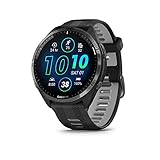
- Brilliant AMOLED touchscreen display with traditional button controls and lightweight titanium bezel
- Battery life: up to 23 days of battery life in smartwatch mode, up to 31 hours in GPS mode
- Confidently run any route using full-color, built-in maps and multi-band GPS
- Training readiness score is based on sleep quality, recovery, training load and HRV status to determine if you’re primed to go hard and reap the rewards (data presented is intended to be a close estimation of metrics tracked)
- Plan race strategy with personalized daily suggested workouts based on the race and course that you input into the Garmin Connect app and then view the race widget on your watch; daily suggested workouts adapt after every run to match performance and recovery
This workaround is especially relevant for original Instinct models and older Vivoactive and Forerunner devices with restricted menus.
Customising data screens to match your renamed activity
Renaming alone is only half the job. To make the activity feel purpose-built, adjust the data screens.
Within the activity settings, edit data screens to show what actually matters. Heart rate, timer, calories, elevation, lap time, or interval countdowns are often more useful than pace or distance.
On AMOLED watches like Venu or Forerunner 265, fewer fields per screen improve legibility during intense workouts. On MIP displays like Fēnix or Instinct, contrast and layout matter more than colour.
This step has zero impact on battery life but massively improves real-world usability.
How this affects training load, recovery, and metrics
Renamed activities still feed into Garmin’s training ecosystem based on their original activity category. Cardio, Strength, and Walk contribute differently to training load and recovery estimates.
That’s usually a good thing. A renamed Cardio-based Hyrox session won’t inflate running load or skew VO2 max trends the way a mislabeled Run would.
If your watch supports Training Load Focus, Body Battery, or Recovery Time, those metrics remain accurate as long as the base activity matches intensity and movement patterns.
Limitations you should understand upfront
Renaming does not change the underlying sport classification in Garmin’s backend. You won’t unlock sport-specific metrics that don’t exist for the base activity.
You also can’t create multiple copies of the same activity on most watches without duplication support. One renamed Cardio profile means one niche use case at a time.
Despite that, for the majority of users and sports, this method delivers the cleanest balance of accuracy, stability, and simplicity.
Who this option is best for
Renaming an activity is ideal if you want reliable tracking without technical friction. It’s especially well suited to users who value battery life, stable firmware behaviour, and clean long-term data over visual flair.
If you train consistently in one or two niche disciplines and don’t want to babysit third-party apps, this is the solution to start with. Many experienced Garmin users never move beyond it, even on high-end watches, because it simply works.
Option 2: Creating a Custom Activity in Garmin Connect (Mobile App vs Web Differences Explained)
If renaming an on-watch activity feels too limiting, the next step up is creating a custom activity inside Garmin Connect itself. This approach sits between simple renaming and full Connect IQ apps, and it’s where many users get confused because Garmin’s mobile app and web platform behave very differently.
This option does not create a brand-new sport engine on the watch. Instead, it creates a custom-labelled activity that lives in your Garmin Connect account and syncs to compatible watches with varying levels of control.
What Garmin means by a “custom activity”
In Garmin terms, a custom activity is a clone of an existing activity type with a new name, icon, and optional field layout. Under the hood, it still inherits the original activity’s movement model, calorie algorithm, and training load behaviour.
Think of it as a dressed-up template rather than a blank canvas. This is why choosing the correct base activity matters just as much here as it did with renaming directly on the watch.
Creating a custom activity using Garmin Connect (Mobile App)
On iOS and Android, the Garmin Connect app allows limited custom activity creation, and availability depends heavily on your watch model and firmware generation. The feature is most consistent on newer Forerunner, Venu, vívoactive, and Fēnix lines.
To start, open Garmin Connect, tap More, then Activities, and choose Create Activity or Custom Activity if the option appears. You’ll be prompted to select a base activity like Cardio, Strength, Indoor Row, or Walk.
After naming the activity, you can sometimes choose a basic icon and assign default data screens. On AMOLED watches like the Venu Sq or Forerunner 265, Garmin often restricts you to fewer screens and fields for readability and touch usability.
Once saved, the activity syncs to your watch and appears alongside native profiles. On-device behaviour feels almost identical to a renamed activity, but the label and icon now originate from your Connect account rather than the watch itself.
Limitations of the mobile app approach
The mobile app does not expose advanced controls. You cannot modify recording intervals, GPS behaviour, power support, or sport-specific metrics beyond what the base activity already allows.
On some watches, especially older MIP-based models or entry-level devices like vívoactive 4 or Venu Sq, custom activities created in the app may not sync at all. In those cases, Garmin silently defaults back to on-watch renaming as the only option.
If you’re primarily using Garmin Connect Mobile and don’t see the custom activity option, it’s not user error. It’s a platform limitation.
Creating a custom activity using Garmin Connect (Web)
The web version of Garmin Connect offers the most control and the clearest interface for custom activities. If you want this option to work reliably, this is the platform to use.
Log into connect.garmin.com, go to Activities, then Activity Settings, and choose Create Custom Activity. From here, you select a base activity and gain access to deeper configuration options.
You can define default data screens, set auto lap behaviour, and choose which metrics appear during the activity. While this still won’t unlock new physiological metrics, it gives you more control over how information is presented on the watch.
Once saved, sync your watch via Bluetooth or USB. On higher-end models like Fēnix, Epix, Enduro, and recent Forerunners, the activity appears exactly like a native profile, including button shortcuts and glance integration.
Mobile vs web: what actually syncs to your watch
The web platform pushes more metadata to the watch than the mobile app. This includes icon consistency, screen order, and in some cases lap behaviour.
Mobile-created activities often behave like renamed profiles with cloud-backed labels. Web-created activities feel more “native” once synced, especially on watches with physical buttons and deeper activity menus.
If you care about polish, consistency, and long-term stability, the web version is the safer choice.
How custom activities affect battery life and daily usability
Custom activities created in Garmin Connect have no measurable impact on battery life compared to their base activity. GPS usage, sensor polling, and screen behaviour remain unchanged.
Comfort and wearability are unaffected as well, but usability improves if the activity is clearly named and easy to access. On rugged watches like Instinct or Fēnix with thicker cases and glove-friendly buttons, having the correct label reduces menu time and mis-clicks during real workouts.
On lighter watches with slimmer profiles, like Forerunner 255 or Venu, clarity matters more than customization depth. A clean name and simple screens often outperform complex layouts during sweaty or fast-paced sessions.
Who should use Garmin Connect custom activities
This option is ideal for users who want better organization and clarity in Garmin Connect without installing third-party apps. It suits people tracking recurring niche activities like CrossFit-style circuits, mobility sessions, indoor bootcamps, or hybrid workouts.
If you review your data regularly on the web dashboard and care about how activities are grouped and displayed over time, custom activities strike a strong balance between control and reliability.
For many intermediate Garmin users, this becomes the long-term solution. It keeps your data clean, your watch stable, and your training metrics meaningful without adding complexity you don’t actually need.
Option 3: Using Garmin Connect IQ Apps to Track Niche or Unsupported Sports
If Garmin Connect custom activities feel too limited, the next step is Garmin Connect IQ. This is Garmin’s app store for watch-based apps, data fields, widgets, and full activity replacements.
Unlike renamed or custom activities, Connect IQ activity apps can behave like entirely new sport modes. They can change how data is recorded, displayed, and categorized, making them the most flexible option for niche or unsupported sports.
This approach adds power, but also trade-offs. Stability, battery life, and data consistency depend heavily on the app quality and your specific watch model.
What a Connect IQ activity app actually is
A Connect IQ activity app is a standalone activity profile created by a third-party developer. It appears in your watch’s activity list alongside Garmin’s native sports.
When you start one, the watch runs that app instead of a built-in Garmin activity. The app controls data screens, sensor usage, lap behavior, and how the activity is labeled when it syncs to Garmin Connect.
Examples include dedicated apps for padel, squash, martial arts, kayaking variants, parkour, CrossFit-style workouts, dance, sailing disciplines, and even referee or coaching activities.
Sports and activities Connect IQ is best suited for
Connect IQ shines when the activity is structurally different from Garmin’s defaults. This includes sports where distance or pace is irrelevant, or where reps, rounds, or time-in-zone matter more than GPS tracks.
Common examples include boxing, judo, Brazilian jiu-jitsu, functional fitness competitions, obstacle course racing, HYROX-style events, indoor climbing, or team sports like basketball and handball.
It’s also useful for lifestyle tracking that doesn’t fit neatly into fitness categories, such as yard work, stage performances, or physically demanding jobs. These are situations where accurate labeling matters more than advanced training metrics.
How to find and install a Connect IQ activity app
Open the Garmin Connect IQ Store on your phone or via the web. Use the search function and filter by “Activities” rather than data fields or widgets.
Before installing, check three things carefully: compatible watch models, last update date, and user reviews. Apps that haven’t been updated in years may still install but can behave unpredictably after firmware updates.
Once installed, sync your watch. The activity will appear in the activity list, usually at the bottom. On button-based watches, you can reorder it for quicker access.
Watch model differences that matter more than you think
High-end watches like Fēnix, Epix, Enduro, and Forerunner 9xx models handle Connect IQ apps best. They have more memory, faster processors, and fewer restrictions on data screens and background processes.
Mid-range watches like Forerunner 255, Venu Sq, and Vivoactive models can run activity apps, but with limits. Expect fewer data fields, simpler layouts, and occasional lag when starting or saving activities.
Entry-level or older watches may support Connect IQ but struggle with full activity apps. On these models, battery drain and slower UI response are more noticeable, especially during longer sessions.
Battery life and performance considerations
Connect IQ activity apps almost always use more battery than native Garmin activities. The difference can be minor for short workouts but significant for multi-hour sessions.
GPS-heavy apps or those with frequent screen refreshes are the biggest offenders. On AMOLED watches like Venu or Epix, custom screens with constant animations can reduce battery life faster than expected.
Rank #3

- Our brightest AMOLED touchscreen display with button controls and an aluminum bezel in 42 mm size to fit smaller wrists
- Up to 10 days of battery life in smartwatch mode and up to 18 hours in GPS mode for a more complete picture of your training and recovery
- Train for an event, achieve a milestone, or improve your fitness with Garmin Coach training plans; these running and triathlon plans are personalized to you and adapt based on your performance and recovery
- Training readiness score is based on sleep quality, recovery, training load and HRV status to determine if you’re primed to go hard and get the most out of your workout (data presented is intended to be a close estimation of metrics tracked)
- Built-in microphone and speaker let you make and take phone calls from your wrist when your watch is paired to your smartphone — and you can even use your smartphone’s voice assistant to respond to text messages and more
For rugged watches with larger cases and physical buttons, like Instinct or Fēnix, usability is usually better. Buttons remain reliable with sweat or gloves, and thicker cases house larger batteries that absorb the extra load.
How data from Connect IQ apps appears in Garmin Connect
This is where compromises become visible. Some Connect IQ activities sync cleanly with proper icons and labels, while others appear as “Other” or use generic activity types.
Training metrics like VO2 max, Training Effect, and Load often do not apply. These apps may record heart rate and time accurately but won’t contribute meaningfully to Garmin’s training algorithms.
If your priority is accurate categorization and personal record keeping, this may be acceptable. If you rely heavily on Garmin’s performance analytics, native or custom Connect activities remain superior.
When Connect IQ is the right choice
Choose this option if your sport fundamentally doesn’t fit Garmin’s structure. If renaming or custom activities feel like compromises that distort your data, a purpose-built app can feel far more satisfying.
It’s especially valuable for athletes who want on-watch prompts, round counters, or sport-specific screens that Garmin doesn’t offer. In these cases, usability during the session matters more than post-workout analytics.
Think of Connect IQ as a specialist tool. It’s not always the cleanest or most efficient solution, but when it fits your use case, nothing else in the Garmin ecosystem comes close.
Step-by-Step Walkthrough: Adding and Syncing a Custom Activity to Your Watch
With the trade-offs clear, this is where theory becomes practice. Garmin doesn’t use a single universal method for “custom activities,” so the exact steps depend on whether your watch supports custom activities, renamed activities, or requires a Connect IQ workaround.
The walkthrough below starts with the cleanest and most data-friendly method, then branches out for models with different capabilities.
Method 1: Creating a Custom Activity in Garmin Connect (Best-Case Scenario)
If your watch supports true custom activities, this is the most seamless option. You get a dedicated activity name, icon, data fields, and full integration with Garmin’s training metrics.
This works on many recent mid-range and premium models, including Fēnix 6 and newer, Epix Gen 2, Forerunner 255/265/955/965, Venu 2 and newer, and several Edge cycling computers.
Step 1: Open Garmin Connect and Navigate to Activities
Open the Garmin Connect app on your phone. Tap the three-line menu, then go to Activities & Apps and select Activities.
Scroll to the bottom and look for Create Activity or Add Activity. If you don’t see this option, your watch likely doesn’t support true custom activities and you’ll need to skip ahead to the next method.
Step 2: Choose a Base Activity Type
Garmin requires every custom activity to be built on an existing activity profile. Choose one that most closely matches how your activity behaves.
For example, strength training works well for calisthenics or CrossFit-style workouts. Cardio is ideal for dance, martial arts, or general conditioning. Hike or Walk can be repurposed for loaded carries or rucking.
This choice affects calorie estimates, intensity tracking, and whether GPS or distance is expected.
Step 3: Name and Customize the Activity
Give the activity a clear, specific name. This is what you’ll see on the watch and in Garmin Connect history, so avoid vague labels.
From here, you can configure data screens, alerts, auto lap behavior, and GPS settings. On AMOLED watches like Venu or Epix, keep screens simple to preserve battery life during longer sessions.
On button-driven watches like Fēnix or Instinct, adding more data fields doesn’t impact usability as much, especially when wearing gloves or training outdoors.
Step 4: Save and Sync to Your Watch
Once saved, the activity won’t appear on your watch immediately. You must sync.
Open Garmin Connect, pull down to force a sync, and keep the app open until the process completes. For Wi‑Fi-enabled watches, you can also trigger a sync directly from the watch if it’s connected to a known network.
After syncing, check your watch’s activity list. The new activity should appear alongside native ones like Run or Bike.
Method 2: Renaming and Repurposing an Existing Activity (Most Common Workaround)
If your watch doesn’t support custom activities, renaming is the next best option. This is common on older Forerunner models, Vivoactive, Venu Sq, and some Instinct variants.
While less elegant, this method preserves Garmin’s internal logic and keeps your data usable.
Step 1: Choose an Activity to Sacrifice
Pick an activity you never use. Cardio, Other, or Indoor Walk are common choices.
On the watch, go to Activities, select the activity, then open Settings. Look for Rename or Edit Name, depending on your model.
Step 2: Rename the Activity on the Watch
Rename it to match your real activity, such as Mobility Flow, Parkour, or Kettlebells. This name will appear on the watch and in Garmin Connect.
You’re not changing the underlying activity type, only the label. Garmin still treats it as Cardio or Other behind the scenes.
Step 3: Adjust Data Screens and Alerts
This step matters more than the name. Configure screens to show what you actually care about, such as heart rate, timer, lap count, or cadence if supported.
For strength-style workouts, disabling auto lap can prevent cluttered data. For interval-based activities, time-based alerts are often more useful than distance.
Step 4: Accept the Data Limitations
Renamed activities usually contribute to general metrics like calories and heart rate trends, but not advanced training features.
VO2 max, Training Effect, and Load may be ignored or inconsistently applied. This is normal and not a sync issue.
Method 3: Using a Connect IQ Activity App (When Native Options Fall Short)
If neither custom activities nor renaming deliver the experience you want, Connect IQ fills the gap. This is common for niche sports like climbing, HYROX, combat sports, or obstacle racing.
This approach works across nearly all modern Garmin watches, including entry-level models.
Step 1: Open the Connect IQ Store
From Garmin Connect, open the Connect IQ Store and search for your activity. Look for apps with recent updates and clear descriptions of what data they record.
Pay attention to user reviews that mention battery usage and sync behavior.
Step 2: Install and Grant Permissions
Install the app and approve any requested permissions. Some apps need access to heart rate, GPS, or storage to function properly.
Once installed, sync your watch again. The app will appear in your activity list, often with a distinct icon.
Step 3: Test Before a Real Session
Before committing to a long workout, start a short test activity. Confirm that buttons respond correctly, screens are readable in your lighting conditions, and the app saves without errors.
This is especially important on smaller watches where screen real estate and touch accuracy can affect usability mid-workout.
Step 4: Review How the Activity Appears in Garmin Connect
After syncing, check how the session is categorized. Some apps map cleanly to known activity types, while others appear as Other.
If long-term data consistency matters to you, this review step helps avoid surprises later.
How to Confirm the Activity Is Properly Synced
Regardless of method, always verify the result in Garmin Connect. Open the activity, check the name, icon, and recorded metrics.
If something looks wrong, such as missing heart rate or incorrect duration, it’s usually due to base activity selection or app limitations, not a faulty sync.
Fixing these issues early saves frustration once you’ve logged weeks or months of data.
Model-Specific Notes That Can Save You Time
Fēnix and Epix models offer the most flexibility, with deeper customization and better battery tolerance for custom screens. Their larger cases and physical buttons also improve real-world usability during complex activities.
Forerunner watches prioritize training metrics, so custom activities may exist but contribute less to performance analytics. This is a design choice, not a bug.
Venu and Vivoactive models emphasize daily wear comfort and AMOLED visuals. They handle custom activities well but benefit from simpler data screens to protect battery life.
Instinct models are rugged and reliable but limited in customization. Renaming activities is often the most stable solution here, especially for outdoor or tactical use.
Each method exists for a reason. Choosing the one that matches your watch and your priorities is what turns a workaround into a genuinely useful tool.
Custom Data Screens, Metrics, and Sensors: Making Your Activity Actually Useful
Once your custom activity exists and syncs correctly, the real value comes from what the watch actually records while you’re moving. A poorly configured activity is little more than a stopwatch, while a well-tuned one can feel purpose-built for your sport.
This is the step where many Garmin owners stop too early. Spending a few minutes here dramatically improves usability, battery efficiency, and the quality of your long-term data.
Understanding How Garmin Treats Custom Activities
Garmin does not create entirely new physiological models for custom activities. Instead, every custom activity is built on top of a base activity type such as Run, Bike, Cardio, or Other.
That base choice determines which sensors are active, how calories are calculated, and whether advanced metrics like VO2 max, Training Effect, or recovery time are applied. No amount of data screen tweaking can override those foundational rules.
Rank #4

- Easy-to-use running watch monitors heart rate (this is not a medical device) at the wrist and uses GPS to track how far, how fast and where you’ve run.Special Feature:Bluetooth.
- Battery life: up to 2 weeks in smartwatch mode; up to 20 hours in GPS mode
- Plan your race day strategy with the PacePro feature (not compatible with on-device courses), which offers GPS-based pace guidance for a selected course or distance
- Run your best with helpful training tools, including race time predictions and finish time estimates
- Track all the ways you move with built-in activity profiles for running, cycling, track run, virtual run, pool swim, Pilates, HIIT, breathwork and more
This is why choosing the closest matching base activity earlier matters more than the name or icon you see on the watch.
How to Edit Data Screens on the Watch
On most Garmin watches, data screens are edited directly on the device. From the activity list, select your custom activity, open Settings, then Data Screens.
You can add multiple screens, each with one to four data fields depending on your model and screen size. Larger watches like Fēnix, Epix, and Enduro make four-field layouts readable, while smaller Forerunner and Venu models benefit from simpler layouts.
Physical-button watches are easier to adjust mid-activity, especially in wet or gloved conditions. Touch-based models look great but reward minimalism when you’re actually moving.
Editing Data Screens in Garmin Connect vs On-Device
Garmin Connect mobile allows limited screen editing for some watches, but behavior varies widely by model and software version. Many advanced changes still require on-watch setup.
Garmin Connect web offers deeper visibility into activity profiles, but it does not replace on-device customization for most current watches. This can feel inconsistent, but it’s normal within the Garmin ecosystem.
If you don’t see a setting in the app, check the watch itself before assuming the feature doesn’t exist.
Choosing Metrics That Actually Match Your Activity
It’s tempting to load every available data field, but relevance matters more than volume. A niche activity tracked with irrelevant metrics becomes noisy and harder to interpret later.
For strength-based or skill-based activities, elapsed time, heart rate, and calories are often more meaningful than pace or distance. For outdoor sports, elevation, ascent, and GPS accuracy tend to matter more than cadence.
Ask one simple question: what decision will this data help me make next time? If the answer is unclear, remove the field.
Heart Rate, GPS, and Motion Sensors Explained
Heart rate recording depends on both the base activity and the sensor source. Optical heart rate works well for steady efforts but struggles with rapid arm movement or gripping, such as climbing or kettlebell work.
External heart rate straps provide more consistent data and unlock features like heart rate variability on supported models. If accuracy matters, pairing a strap is one of the most impactful upgrades you can make.
GPS is controlled by the base activity and activity settings, not the name of your custom profile. Indoor or stationary custom activities will not record GPS unless built on a GPS-enabled base.
Advanced Metrics: What You Will and Won’t Get
Training Effect, VO2 max updates, and recovery time only apply when Garmin’s algorithms consider the activity valid for those calculations. This usually means Run or Bike-based activities with sufficient intensity and duration.
Custom activities built on Cardio or Other generally record basic effort without influencing training status. This is intentional and prevents skewed performance data.
If training load and readiness matter to you, keep performance workouts tied to core activity types and reserve custom profiles for tracking, not benchmarking.
Power, Cadence, and External Sensors
Cycling-based custom activities can use power meters, cadence sensors, and speed sensors just like standard cycling profiles. This makes them ideal for niche disciplines like gravel racing, bikepacking, or indoor trainer variants.
Running power and cadence depend on both watch support and the base activity. Some custom activities will display these fields but won’t use them for deeper analysis.
Always test sensor pairing before relying on it mid-session, especially if you switch between activities frequently.
Battery Life and Screen Complexity Trade-Offs
Every additional data field increases processing demand, especially on AMOLED watches with higher refresh rates. Over long sessions, this can meaningfully affect battery life.
Outdoor endurance models like Fēnix, Enduro, and Instinct tolerate complex screens better due to larger batteries and lower-power displays. Venu and Vivoactive models benefit from fewer screens and longer screen timeout settings.
If your custom activity is meant for long sessions, optimize for clarity first and endurance second.
Connect IQ Data Fields: Powerful but Situational
Connect IQ offers custom data fields that can transform a generic activity into something highly specialized. Examples include interval timers, climbing metrics, or sport-specific counters.
These fields run as apps within the activity and can increase battery drain or introduce lag on older or smaller watches. They also rely on third-party maintenance, which is not guaranteed long-term.
Use them when they solve a real problem, not just because they exist.
Testing Screens in Real Conditions
A quick test activity in your living room is not enough. Screens that look perfect indoors may be unreadable in bright sun, rain, or fast movement.
Wear the watch as you normally would, with your usual strap tension and gear. Comfort, button access, and glance readability all affect whether your setup works in practice.
This is where Garmin’s physical design, case size, and strap choice matter just as much as software.
Common Mistakes That Undermine Custom Activities
The most common mistake is using a visually correct activity name with an incompatible base activity. This leads to missing metrics and confusing summaries later.
Another issue is overloading screens with data you never check. More fields do not equal better tracking.
Finally, many users forget to revisit custom activities as their goals change. Treat them as living tools, not set-and-forget features.
Limitations and Gotchas: What Custom Activities Can’t Do (Training Load, VO2 Max, Badges)
Once you’ve dialed in screens, sensors, and base activity choices, it’s important to understand where Garmin draws hard lines. Custom activities are flexible on the surface, but many of Garmin’s most valuable performance metrics remain tightly controlled behind the scenes.
These limitations aren’t bugs or misconfigurations. They’re deliberate design choices tied to how Garmin’s algorithms interpret physiological stress and movement patterns.
Training Load and Training Effect Are Not Guaranteed
Training Load and aerobic/anaerobic Training Effect depend on a known activity classification. When you create a custom activity by copying or renaming an existing one, the underlying base activity determines whether load is calculated.
If your custom activity is built on Run, Trail Run, Cycling, or similar supported profiles, Training Load usually works as expected. If it’s based on Other, Cardio, or a gym-style activity, the session may record heart rate and calories but contribute nothing to Training Load.
This matters most for users following Garmin Coach plans or relying on Load Focus, Acute Load, or Training Readiness. A week full of custom activities can look deceptively “easy” if those sessions are invisible to load calculations.
VO2 Max Estimates Are Strictly Activity-Specific
VO2 Max is one of the most restricted metrics in the Garmin ecosystem. It is only estimated during specific outdoor activities, primarily running and cycling, and only when pace, heart rate, and motion patterns meet Garmin’s criteria.
Renaming an activity to look like “Run” does not unlock VO2 Max if the base activity isn’t supported. Even a custom activity built from Run can fail to update VO2 Max if GPS signal, pace consistency, or heart rate data are insufficient.
Strength training, indoor workouts, martial arts, CrossFit-style sessions, and most niche sports will never update VO2 Max, regardless of how well they’re tracked.
Badges and Challenges Often Ignore Custom Activities
Garmin badges and challenges are surprisingly literal. Many of them check for a specific activity type, not just distance, time, or calories.
For example, a “Run 5K” badge typically requires the activity to be logged as Run, not a renamed custom activity that looks identical. The same applies to cycling distance badges, streaks, and some monthly challenges.
If badges motivate you, it’s often better to use a native activity profile and accept imperfect labeling, or manually edit the activity type in Garmin Connect after syncing.
Intensity Minutes Can Be Inconsistent
Intensity Minutes are more forgiving than Training Load, but they’re not universal. Activities with steady heart rate data usually count, but the thresholds and multipliers vary by activity type.
Some custom activities accumulate minutes more slowly, especially if they’re based on Other or Cardio. This can make high-effort sessions feel underrepresented in weekly totals.
Watches with newer firmware and Firstbeat analytics, like Fēnix 7, Epix, and Forerunner 955/965, handle this better than older or entry-level models, but inconsistencies still happen.
Recovery Time and Training Status May Be Skewed
Recovery Time and Training Status depend on Training Load history. If your custom activities don’t generate load, they also don’t influence recovery recommendations.
This can lead to misleading signals, such as a watch suggesting you’re fully recovered after a hard functional fitness or climbing session. The watch isn’t wrong; it simply wasn’t allowed to count that effort.
Endurance-focused users should be especially cautious here, as this affects long-term trend tracking more than single workouts.
Strength, Muscle Maps, and Exercise Detection Are Limited
Custom activities cannot access Garmin’s strength exercise library, automatic rep detection, or muscle group maps unless they are based on the Strength activity itself.
If you rename Strength to something like “Hyrox” or “Functional Fitness,” you retain those features. If you build from Cardio or Other, you lose them entirely.
There is no way to merge free-form activity tracking with structured strength analytics in a single custom profile.
Connect IQ Apps Don’t Bypass Core Restrictions
Connect IQ data fields and apps can add timers, counters, or sport-specific metrics, but they cannot unlock Training Load, VO2 Max, or badges.
These apps operate on top of Garmin’s activity framework, not inside the physiological engine. Even the best third-party field can’t change how Garmin classifies the workout at a system level.
This is why two activities that look identical on the watch face can produce very different results in Garmin Connect.
💰 Best Value

- Brilliant AMOLED touchscreen display with traditional button controls; lightweight design in 46 mm size
- Up to 13 days of battery life in smartwatch mode and up to 20 hours in GPS mode
- As soon as you wake up, get your morning report with an overview of your sleep, recovery and training outlook alongside HRV status, training readiness and weather (data presented is intended to be a close estimation of metrics tracked)
- Plan race strategy with personalized daily suggested workouts based on the race and course that you input into the Garmin Connect app and then view the race widget on your watch; daily suggested workouts adapt after every run to match performance and recovery
- Training readiness score is based on sleep quality, recovery, training load and HRV status to determine if you’re primed to go hard and get the most out of your workout (data presented is intended to be a close estimation of metrics tracked)
Model Differences Matter More Than You Expect
Higher-end watches like Fēnix, Epix, Enduro, and advanced Forerunners offer more base activities to copy from, increasing the odds of preserving key metrics. Entry-level models like Vivoactive, Venu Sq, or older Vivosmart-derived platforms are more restrictive.
AMOLED models prioritize visual flexibility, while outdoor-focused MIP models prioritize endurance and analytics depth. That balance affects how forgiving custom activities feel in daily use.
Before investing time perfecting a setup, it’s worth checking what your specific model actually supports, not just what Garmin Connect allows you to name.
Best Workarounds for Popular Niche Activities (Hyrox, CrossFit, Martial Arts, Gym Circuits, Team Sports)
Once you understand that Garmin’s physiology engine is locked to a small set of core activity types, the goal shifts from “perfect classification” to “least compromised tracking.” The most reliable approach is to start with an activity that already behaves closest to your sport, then rename or lightly customize it so the data that matters most still flows correctly.
Below are the most effective real‑world setups for common niche activities, based on how Garmin watches actually behave across Fēnix, Epix, Forerunner, Venu, Vivoactive, and Instinct families.
Hyrox and Functional Fitness Racing
Hyrox sits in an awkward middle ground between endurance racing and structured strength, which Garmin still cannot fully reconcile in a single activity profile. The safest workaround is to duplicate the Strength activity and rename it to “Hyrox” or “Functional Fitness.”
This preserves exercise detection, rep counting, rest timers, and muscle group mapping, which matter during sled pushes, wall balls, and lunges. On watches with larger screens like Fēnix, Epix, and Forerunner 955/965, the data pages remain readable even during fast transitions.
The tradeoff is that you lose VO2 Max updates and proper Training Load classification for the running segments. If endurance metrics matter more than strength analytics for you, an alternative is to copy Cardio, rename it to Hyrox, and manually add lap presses for each station, accepting that muscle maps and rep detection will be gone.
Battery life is rarely a concern here, even on AMOLED models, since Hyrox events fall well within the 3–4 hour range. Comfort and strap security matter more, as frequent burpees and carries can shift looser silicone bands.
CrossFit and Affiliate-Style WODs
For CrossFit, the Strength activity remains the least bad option on almost every Garmin model. Renaming Strength to “CrossFit” keeps automatic exercise recognition, rest tracking, and strength history intact inside Garmin Connect.
This setup works best on watches that support on-device editing, allowing you to skip or adjust exercises mid-WOD. Entry-level models can feel clunkier here, as editing sets requires more button presses and breaks workout flow.
What you lose is metabolic intensity accuracy. Garmin will often underestimate Training Load for high-heart-rate metcons, especially those with short intervals and minimal rest. The watch isn’t failing; it’s treating the session as resistance training, not metabolic conditioning.
Some athletes run two activities back-to-back, logging strength work as Strength and conditioning as Cardio. This gives cleaner data but fragments the workout, which not everyone wants in their training log.
Martial Arts (BJJ, Muay Thai, Boxing, Karate)
For striking and grappling sports, Cardio is usually the most honest foundation. Copy Cardio, rename it to the specific discipline, and focus on heart rate, duration, and calorie trends rather than advanced metrics.
Wrist movement during grappling can confuse optical heart rate sensors, especially on slimmer watches with lightweight cases. Using a chest strap dramatically improves data quality, particularly on Fēnix and Forerunner models that support external sensors well.
Impact and abrasion also matter here. Sapphire lenses and reinforced bezels on higher-end models hold up better against glove friction and mat contact. Lighter Venu or Vivoactive models are more comfortable under wraps but may show cosmetic wear sooner.
Training Load and recovery estimates will be present, but interpret them conservatively. Sparring intensity varies wildly, and Garmin has no way to distinguish drilling from live rounds.
Gym Circuits and Bootcamp-Style Classes
For mixed circuits that blend bodyweight, kettlebells, rowing, and short runs, Cardio remains the most balanced option. Renaming it to “Bootcamp” or “Gym Circuit” keeps continuous heart rate tracking and contributes to Training Load without forcing strength structure where it doesn’t fit.
This approach works especially well on AMOLED watches, where large, high-contrast heart rate fields are easy to glance at during fast transitions. Battery drain is minimal, even with always-on display enabled for hour-long classes.
If your class leans heavily toward weighted movements and you care about strength progression over cardio metrics, duplicating Strength is still viable. Just be aware that auto-detection struggles with unconventional movements like sandbag carries or sled drags.
There is no hybrid profile that perfectly handles both. Choosing which data you value more is the real customization decision.
Team Sports (Football, Hockey, Basketball, Soccer)
Garmin includes several team sports by default on higher-end models, but coverage is inconsistent across the lineup. If your sport isn’t listed, copying Cardio and renaming it is the most reliable fallback.
Team sports benefit from continuous heart rate and time tracking, not VO2 Max or pace analysis. GPS is often unnecessary indoors and can drain battery outdoors during stop-and-go play without adding meaningful insight.
For outdoor sports like soccer or field hockey, enabling GPS can help with distance trends over a season, but expect noisy pace data due to frequent direction changes. Watches with multi-band GPS handle this better, though the battery cost is higher.
Durability and strap security matter more here than analytics depth. A secure silicone or nylon strap and a low-profile case reduce the risk of knocks and distractions during play.
What These Workarounds Have in Common
Every workaround relies on choosing the least-wrong base activity rather than trying to force Garmin to understand something it wasn’t designed for. Renaming an activity changes how you see it, not how Garmin interprets it internally.
Once you accept that limitation, customization becomes practical instead of frustrating. You gain cleaner logs, more meaningful trends, and fewer misleading recovery suggestions, even if the label on the activity is more personal than physiological.
The key is consistency. Using the same workaround every time matters more than chasing the “perfect” profile that doesn’t truly exist on any current Garmin watch.
Troubleshooting, Sync Issues, and Pro Tips for Long-Term Activity Management
Once you’ve settled on a consistent workaround, the remaining friction usually comes from syncing behavior, device limits, or Garmin’s behind-the-scenes data rules. These issues aren’t always obvious, especially if you rotate between devices or tweak activities over time.
This section focuses on keeping your custom activities stable, predictable, and useful months or years down the line.
Why Your Custom Activity Isn’t Showing Up on the Watch
If you renamed or duplicated an activity in Garmin Connect but don’t see it on the watch, the most common cause is an incomplete sync. Open Garmin Connect, pull down to force a manual sync, and keep the app open until it finishes.
On some older or lower-memory models, especially Vivosmart, Vivoactive, and older Forerunners, the watch can only store a limited number of activity profiles. If you’ve hit that ceiling, newly added or renamed activities won’t appear until you remove one from the watch.
It’s also worth restarting the watch after adding or editing activities. Garmin watches cache activity lists aggressively, and a reboot often resolves phantom sync issues without further troubleshooting.
Renamed Activities Reverting to Their Original Name
If your custom name keeps reverting after a sync, you’re likely editing it in the wrong place. Renaming must happen in the watch’s activity settings or within the device-specific activity list in Garmin Connect, not the general activity history.
Another common cause is syncing between multiple devices. If you own two Garmin watches, the older firmware or more limited model can overwrite activity settings during sync, forcing names back to default.
To prevent this, finalize your activity setup on one watch first, sync fully, then add the second device back into Garmin Connect. It’s not intuitive, but it avoids silent conflicts.
GPS, Sensors, and Battery Drain Problems
Custom activities copied from GPS-based profiles can quietly drain battery if GPS remains enabled unnecessarily. This is especially noticeable on long indoor sessions like martial arts, gym circuits, or team sports.
Check each custom activity’s sensor settings directly on the watch. Disable GPS, turn off navigation prompts, and remove alerts you don’t need. On AMOLED models with smaller batteries, like Venu or Venu Sq, this makes a measurable difference.
Heart rate accuracy can also vary if you’ve chosen a mismatched base profile. Strength-based profiles prioritize rep detection and may smooth heart rate differently than Cardio, which can skew calorie estimates for hybrid workouts.
Garmin Connect IQ Apps: When They Help and When They Don’t
Connect IQ activity apps can feel like true custom activities, but they come with trade-offs. They record as separate activity types and often don’t feed cleanly into Training Load, Body Battery, or recovery metrics.
They also rely on third-party support. If the developer stops updating the app, a firmware update can break it overnight, leaving you with stranded data and no fix.
Use Connect IQ apps when native profiles truly fail, such as niche sports with unique timers or scoring. For long-term consistency, built-in profiles with renaming remain the safer option.
Historical Data and Long-Term Trends
Changing activity types mid-season fragments your data. Garmin treats each activity type as its own dataset, so trends like weekly load, sport-specific summaries, and badges may reset or split.
If you’ve already logged months of data under a generic label, resist the urge to “fix” it retroactively by switching profiles. Consistency matters more than semantic accuracy when reviewing progress over time.
For users who care deeply about analytics, exporting activities to tools like TrainingPeaks or spreadsheets can help normalize data across renamed profiles. Garmin Connect itself won’t merge activity types.
Firmware Updates and Unexpected Behavior Changes
Garmin firmware updates occasionally tweak how activities behave, especially around strength detection, GPS filtering, or recovery calculations. A custom setup that worked perfectly last year may feel off after an update.
After any major firmware install, do a quick audit. Check GPS status, data screens, alerts, and auto-pause settings for each custom activity.
This is especially important on watches that balance performance and size, like the Forerunner 255 or Venu series, where Garmin may adjust defaults to improve battery life or responsiveness.
Comfort, Durability, and Real-World Wearability Tips
Custom activities often mean unconventional movement, which makes comfort and fit more important than metrics. For high-impact or contact sports, a low-profile case and snug silicone or nylon strap reduce distractions and accidental pauses.
Sweat-heavy activities benefit from quick-drying bands and watches with polymer cases, which resist corrosion better than metal over time. Even premium models track best when they’re comfortable enough to forget you’re wearing them.
If an activity feels annoying to record, you’ll stop using it. Practical wearability is part of long-term data quality.
Pro Tips for Keeping Your System Clean and Sustainable
Limit yourself to a small, intentional set of custom activities. Too many similar profiles create confusion and make post-workout review less useful.
Name activities based on how you’ll interpret the data later, not what the activity “should” be called. Clarity beats correctness in Garmin’s ecosystem.
Finally, document your setup once. A quick note in your phone or training log explaining which base profile you used and why can save hours of guesswork months later.
Final Takeaway
Garmin doesn’t truly support fully custom activity types, but with smart workarounds, you can track almost anything accurately enough to matter. The goal isn’t perfection, it’s consistency, clarity, and usefulness over time.
By understanding how renaming, duplication, and Connect IQ apps actually behave across different models, you stay in control of your data instead of fighting the platform. When your watch works with you instead of against you, even niche activities become part of a coherent, valuable training picture.