If you have ever looked at an Apple Watch face and wondered how some people squeeze in weather, calendar events, fitness rings, and battery status all at once, you are already halfway to understanding complications. They are the small but powerful pieces of information that turn your watch from a simple time display into a glanceable command center for daily life.
This matters because the Apple Watch is designed to be checked for seconds, not minutes. Complications are how Apple delivers useful data in those micro-moments, whether you are in a meeting, on a run, or juggling groceries with one hand. Before you start adding or changing them, it helps to clearly understand what complications are, what they can show, and where their limits are.
Once you grasp this, customizing your watch face becomes less about decoration and more about building a tool that fits how you actually live and move each day.
What “complications” mean on an Apple Watch
The term complication comes from traditional mechanical watches, where it describes any function beyond telling the time, such as a date window, moon phase, or chronograph. Apple borrowed the term but expanded it dramatically, using software instead of gears and springs.
🏆 #1 Best Overall

- Water Resistant: Our innovative splash-proof stretchy apple watch band allows droplets slides away which makes it handle sweat, light rain, and even accidental splashes without any issues. For some types of spills on this apple watch strap, like coffee, just a quick rinse under water within 1 minute and you will get a clean band
- Variety of Colors: With 10 colors in one pack to match any outfit, these apple watch bands for women and men offers a fashionable touch to iWatch. With a range of color options, you can easily switch up your look to suit any occasion, from professional meetings to casual outings. Enjoy the versatility of a band that complements your lifestyle and personal style effortlessly
- Comfort & Durability: Enjoy all-day comfort with our iwatch bands for women, designed to fit your wrist without any constriction. Crafted from soft, skin-friendly and durable sweat-wicking nylon, this apple watch se band is lightweight and breathable, preventing irritation and ensuring your wrist stays comfortable and cool, even during workouts
- Customizable Fit: Find your perfect fit with these iphone watch bands for women. Featuring a reinforced stainless steel buckle, these wristbands are fully adjustable to your desired length. The stretchable design ensures a snug and comfortable fit, suitable for both women and men with wrist sizes from 4.5" to 8.7"
- Compatible Models: Butifacion elastic apple watch sport band compatible with Apple Watch 38mm 40mm 41mm 42mm 44mm 45mm 46mm 49mm, iWatch Series Ultra/Ultra 2//Ultra 3 & Series 11/10/9/8/7/6/5/4/3/2/1/SE 3. The Water-Resistant design and comfortable material makes it suitable for everyday activities and outdoor fun, also ideal as a surprise for Birthdays, Mother's Day, Father's Day, Valentine's Day, Christmas and Thanksgiving Day
On an Apple Watch, a complication is a small widget-like element on the watch face that displays live information from an app. It can update throughout the day and is often tappable, acting as a shortcut that opens the full app with a single press.
Think of complications as tiny, always-on dashboards. They are designed to be readable at a glance, even on smaller case sizes like 40mm or 41mm, without hurting battery life or overwhelming the screen.
Common examples you’ll actually use every day
Some complications focus on awareness. Weather conditions, temperature, chance of rain, sunrise and sunset times, and Air Quality Index are popular because they reduce the need to pull out your iPhone.
Others are about time management. Calendar, Reminders, Timers, and World Clock complications help you stay oriented during busy days, especially when paired with faces that prioritize clarity like Modular, Infograph, or Utility.
Health and fitness complications are a major reason many people customize their watch face at all. Activity Rings, Workout shortcuts, Heart Rate, Blood Oxygen, and Mindfulness sessions give instant feedback and gentle accountability without opening an app.
How complications differ by watch face
Not every watch face supports the same number or type of complications. Some faces are minimal by design, offering only one or two slots, while others are built for information density.
Faces like Modular, Modular Duo, Infograph, and Infograph Modular are designed for users who want as much data as possible on-screen. They support multiple complication sizes, including large rectangular areas that can show charts, timelines, or multiple data points.
More classic or artistic faces, such as Portraits, California, or Motion, prioritize aesthetics and legibility. These often limit complications to corners or a single circular slot, which means choosing what matters most becomes more important.
Sizes and shapes matter more than you think
Complications are not one-size-fits-all. They come in different shapes, such as circular, corner, rectangular, inline, and large modular blocks, and each shape supports different kinds of information.
A circular complication might show a simple icon and number, like temperature or battery percentage. A rectangular complication can display richer data, such as upcoming calendar events or a multi-hour weather forecast.
This is why the same app can look very different depending on the face and slot you choose. Understanding these sizes helps you avoid frustration when a complication does not show as much detail as you expected.
Which apps can offer complications
Apple’s built-in apps all support complications, and they are usually the most reliable in terms of updates, battery efficiency, and consistency across watchOS versions. These include Weather, Calendar, Fitness, Clock, Maps, and Now Playing.
Third-party apps can also provide complications, but only if the developer has specifically designed them to do so. Popular examples include fitness platforms, task managers, weather services, and smart home controllers.
Not all complications update at the same frequency. To preserve battery life, watchOS controls how often complications refresh in the background, which means some data may update less frequently than the full app view.
Practical limits you should know upfront
Complications are powerful, but they are not mini apps running continuously. They are snapshots of information, designed to be lightweight and battery-friendly on a device worn all day.
Some complications only update when you raise your wrist, others refresh on a schedule, and some rely on your iPhone being nearby for the most current data. Cellular models offer more independence, but even they follow system limits to preserve battery life.
You may also notice that certain complications disappear or become unavailable when switching faces. This is normal behavior and reflects the design philosophy of each face rather than a problem with your watch.
How to choose complications that actually help you
The best complication setup is highly personal. A commuter might prioritize weather, transit, and calendar events, while a runner may want heart rate, workout shortcuts, and Activity Rings front and center.
Comfort and readability matter just as much as information. On smaller watches or slimmer wrists, overcrowding a face can make complications harder to read and reduce the overall experience.
A good rule is to start with the information you check on your iPhone multiple times a day. If it earns that much attention, it likely deserves a place on your watch face.
Why understanding complications comes before customization
Before you add, remove, or rearrange complications using your Apple Watch or the iPhone Watch app, it helps to know what each slot is capable of showing. This prevents trial-and-error frustration and makes customization faster and more satisfying.
Once you understand how complications work, you can confidently tailor different faces for different contexts, such as work, workouts, evenings, or travel. Many experienced users rotate faces throughout the day, not because it looks cool, but because it makes the watch more useful.
With this foundation in place, you are ready to start adding complications step by step and shaping your Apple Watch into something that feels purpose-built for your daily routine.
Before You Start: Apple Watch Models, watchOS Versions, and Face Limitations You Should Know
Before you start tapping and customizing, it helps to ground expectations in the realities of your specific Apple Watch. Complications are powerful, but they are shaped by hardware, software, and face design choices that Apple tightly controls.
Knowing these boundaries upfront saves time and explains why a complication appears on one face but not another, or why a friend’s watch seems to offer options you do not see.
Apple Watch model differences that affect complications
Every Apple Watch supports complications, but not every model supports the same faces or layouts. Case size, display shape, and overall screen area directly influence how many complication slots a face can offer and how readable they are in daily wear.
Apple Watch SE models focus on value and comfort, offering most standard faces and complication types but skipping a few advanced faces tied to premium hardware. They are excellent for everyday use, but you may notice fewer ultra-dense layouts compared to higher-end models.
Apple Watch Series models add features gradually by generation, with newer displays offering better brightness, thinner bezels, and improved legibility for smaller complications. These improvements matter when you rely on glanceable data throughout the day.
Apple Watch Ultra stands apart with its larger 49mm case, flat sapphire crystal, and expansive display. Ultra-exclusive faces like Wayfinder and Modular Ultra support more complications at once, making them ideal for outdoor use, travel, and data-heavy setups without sacrificing readability or comfort on the wrist.
Case size and wrist comfort matter more than you think
A 41mm or 40mm Apple Watch naturally limits how dense a face can feel, even if the face technically allows multiple complications. On smaller wrists, tightly packed data can feel cluttered and harder to read at a glance.
Larger cases like 45mm, 46mm, or Ultra’s 49mm give complications more breathing room. This improves real-world usability, especially during workouts, commutes, or quick wrist checks where clarity matters more than aesthetics.
When choosing complications later, balance information density with comfort and legibility. A cleaner face often feels faster and more satisfying over long-term daily wear.
watchOS version requirements and feature availability
Complication options are also governed by your watchOS version. New watchOS releases often introduce new faces, redesigned complication slots, or expanded support for third-party apps.
If your watch cannot update to the latest watchOS, you may see fewer face options or miss newer complication styles. This is especially common on older Series models that still function well but no longer receive major software updates.
You can check your watchOS version directly on the watch or in the iPhone Watch app. Keeping both your iPhone and Apple Watch updated ensures the widest compatibility and the smoothest customization experience.
Why some watch faces support more complications than others
Each Apple Watch face is intentionally designed with specific use cases in mind. Simple faces like California or Typograph emphasize visual balance and traditional watch aesthetics, limiting complication slots by design.
Utility-driven faces such as Modular, Infograph, and Modular Duo prioritize information density. These faces are ideal if you want weather, calendar, activity, battery, and app shortcuts visible at all times.
Some faces allow complications only in certain shapes, such as circular, rectangular, or corner-based slots. If a complication does not appear as an option, it usually means it does not support that specific shape, not that your watch is malfunctioning.
Built-in vs third-party complications
Apple’s built-in apps, such as Weather, Calendar, Activity, and Heart Rate, are optimized for battery efficiency and system integration. They tend to update reliably and work consistently across most faces.
Third-party apps can offer excellent complications, but their availability depends on whether the developer has designed and maintained them properly. Some apps only support one complication type or appear only on certain faces.
If a third-party complication fails to update frequently, it is often due to system-imposed refresh limits rather than poor app quality. Apple prioritizes battery life and thermal efficiency on a device meant to be worn all day.
Cellular, GPS, and iPhone proximity limitations
Not all complications are equally independent. GPS-only models rely heavily on a nearby iPhone for real-time data such as live weather, messaging status, or connected app updates.
Cellular models offer more freedom, especially for travel, workouts, and commuting without an iPhone. Even so, background updates remain carefully managed to preserve battery life and ensure all-day wearability.
Understanding this relationship helps explain why some complications update instantly while others refresh only when you raise your wrist or open the app.
Face availability can change with regions and watchOS updates
Some faces are tied to watchOS releases, regional availability, or specific hardware. Apple occasionally retires older faces or introduces new ones that only appear on certain models.
If you do not see a face shown in screenshots or videos, it may require a newer watchOS version or a different Apple Watch generation. This is normal and not something you can unlock through settings.
Once you understand which faces and complications your watch supports, customization becomes much more predictable. With these boundaries clear, you can move confidently into the step-by-step process of adding complications directly on the watch or through the iPhone Watch app.
How to Add or Change Complications Directly on Your Apple Watch (Step-by-Step on the Wrist)
Now that you understand which faces and complications your Apple Watch supports, the most immediate way to customize is directly on the watch itself. This method is ideal when you want quick tweaks without reaching for your iPhone, and it works consistently across modern watchOS versions.
Everything happens through the face editing interface, which is designed for one-handed use and short interactions. Apple keeps this process intentionally tactile, using the Digital Crown and simple taps to minimize friction.
Rank #2
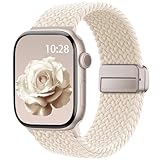
- Compatible Models: The HEARTBOOM magnetic nylon sport bands compatible for iWatch all versions. Suitable for Apple Watch Series 3/2/1 (38mm), Series 4/5/6/SE/SE 2/SE 3 (40mm), Series 7/8/9 (41mm), Series 11/10 (42mm). Pls check the model on the back of your watch to select the correct size
- Comfortable & Fit: HEARTBOOM stretchy apple watch band is made of recycled polyamide with a fabric weave, which is skin-friendly, breathable, lightweight, washable, sweat-resistant and quick-drying. Perfect for Fitness, Running, Yoga and daily wear, as it ensures that your wrist remains comfy and gentle feeling
- Multi Colors & Freely Adjustable: Our iwatch bands come with Various rich & muted colors for your choices, personalize your smartwatch to fit your outfit in daily life and easy change for every occasion. Suitable for women and men with 5.5"-9.6"(140mm~244mm) wrists. One size fit for most people,no need to measure your wrist to choose the size like the traditional braided bands
- Confidently Secure with Upgraded Magnets: Experience the perfect blend of style and security with our braided stretch band for Apple Watch. The enhanced magnetic Closure creates a strong, reliable connection that is easily adjustable for a flawless custom fit. Designed for all-day comfort and peace of mind, it stays put during any activity. Tool-free installation and one-click removal make it incredibly easy to use
- Perfect Gift: This apple watch bands blend fashion with functionality, look more fashionable and youthful. It's a a thoughtful and well-made gift. Suitable for Christmas, New Year's, Father's Day, Mother's Day and birthdays as a surprise for your parents, loved ones, and friends.We offer 24/7 friendly support
Step 1: Wake the watch and enter face edit mode
Raise your wrist or tap the display to wake the Apple Watch. Make sure you are looking at the watch face you want to modify, not an app or notification.
Press and hold firmly on the watch face until it slightly shrinks and the Edit button appears near the bottom. This long-press gesture is the gateway to all face-level customization.
Step 2: Access the complication editing screen
Tap Edit to enter the face editor. You will see horizontal panels you can swipe through, typically starting with Style or Color before reaching Complications.
Swipe left until you land on the Complications screen. Faces that do not support complications will skip this panel entirely, which is normal behavior and not a software issue.
Step 3: Select the complication slot you want to change
Each complication slot is outlined and tappable. Depending on the face, these may appear in corners, along the edge, in sub-dials, or embedded within modular layouts.
Tap the specific complication position you want to edit. The active slot will highlight, and the list of compatible apps will appear.
Step 4: Scroll and choose a new complication
Use the Digital Crown to scroll through available complication options. The list includes Apple’s built-in apps first, followed by third-party apps that support that specific slot size and shape.
Tap the complication you want to assign. The preview updates instantly, letting you judge legibility, balance, and how it complements the face’s design and case size.
Step 5: Adjust additional slots if the face supports more
If your face supports multiple complications, tap each slot one by one and repeat the selection process. Large faces like Modular, Infograph, and Wayfinder benefit from mixing quick-glance data with one or two deeper utility complications.
Smaller faces often reward restraint. Prioritize clarity over density to keep the watch readable at arm’s length, especially on 41 mm and 42 mm cases.
Step 6: Save your changes and return to the face
When you are finished, press the Digital Crown once to exit editing mode. Your changes are saved automatically, with no confirmation prompt required.
The updated face becomes active immediately, and complications begin updating according to system refresh rules and connectivity status.
What to do if a complication does not appear
If an app is missing from the list, it usually means it does not support that complication type or face. Some apps only offer circular, corner, or rectangular formats, which limits where they can appear.
Make sure the app is installed on both the iPhone and the Apple Watch. If it still does not show up, open the app once on the watch to complete background setup.
Using face-specific gestures and layouts
Certain faces behave differently in edit mode. Infograph-style faces rely heavily on corner and sub-dial positioning, while portrait and photo faces offer minimal complication support by design.
Rugged faces like Wayfinder on Apple Watch Ultra prioritize outdoor readability, larger touch targets, and high-contrast data. These design choices affect which complications are available and how much information they display at a glance.
Real-world tips for choosing complications on the wrist
Think about when you actually glance at your watch. Morning routines often benefit from Weather, Calendar, or Battery, while workouts and commutes favor Activity, Now Playing, or Maps.
If a complication feels slow or inconsistent, try replacing it with a system app equivalent. Apple’s built-in complications are deeply optimized for battery life, thermal control, and all-day wear comfort.
Comfort, visibility, and daily usability considerations
Complication density affects readability, especially in bright sunlight or during movement. Highly detailed complications may look impressive indoors but become harder to read outdoors or during exercise.
If you wear your watch tightly during workouts or loosely throughout the day, test how easily complications can be read at different wrist angles. A cleaner layout often improves real-world usability more than adding extra data.
When editing directly on the watch makes the most sense
On-wrist editing is best for quick adjustments, travel changes, or experimenting with layouts in real time. It also avoids syncing delays and lets you see exactly how the face behaves in your current lighting and environment.
For deeper organization, bulk changes, or browsing many faces at once, the iPhone Watch app offers more space and context. But for everyday personalization, editing directly on the Apple Watch remains the fastest and most intuitive option.
How to Add or Customize Complications Using the iPhone Watch App (Best for Precision Editing)
If editing directly on the watch is about speed and experimentation, the iPhone Watch app is about control and clarity. The larger screen makes it easier to see every available slot, compare complication styles, and fine-tune layouts without rushing or mis-tapping on the wrist.
This method is especially useful when setting up a new Apple Watch, reorganizing multiple faces, or dialing in a layout you want to rely on every day. It also lets you browse complication options calmly, without the watch dimming or timing out mid-edit.
Before you start: what you need
Make sure your Apple Watch is paired and connected to your iPhone via Bluetooth or Wi‑Fi. The Watch app mirrors what your watch supports, so both devices should be running compatible versions of iOS and watchOS.
Third-party complications only appear if their apps are installed on the iPhone and have companion watch apps enabled. If you’re missing a complication you expect to see, check the app’s Watch settings first.
Step-by-step: adding or changing complications from the Watch app
1. Open the Watch app on your iPhone.
2. Tap the Face Gallery or My Faces tab at the bottom, depending on whether you’re editing an existing face or starting fresh.
3. Select the watch face you want to customize.
Once inside the face editor, you’ll see a large preview of the watch face with editable areas highlighted. These correspond exactly to the complication slots you’d see on the watch itself, but with more room to work.
Selecting a specific complication slot
Tap the complication position you want to change, such as Top, Bottom, Corner, Sub-dial, or Bezel. The available slots depend entirely on the face design, not the Watch app.
Infograph and Modular faces show many editable zones, while simpler faces like California or Portrait offer fewer options. This is a design limitation of the face, not your watch model.
Choosing a complication app
After tapping a slot, scroll through the list of available apps. Apple’s built-in apps appear first, followed by third-party apps that support complications.
Tap an app to see its available complication styles. Some apps offer multiple layouts depending on the slot size, such as text-only, icon-based, or data-rich versions with graphs or rings.
Previewing the complication before committing
As you tap different complication options, the face preview updates instantly. This lets you judge legibility, balance, and visual weight without guessing how it will look on your wrist.
Pay attention to text size, contrast, and how much information is shown. A complication that looks impressive on the phone may feel crowded or hard to read once scaled down on the watch.
Saving changes and syncing to your watch
There is no save button. Changes sync automatically to your Apple Watch as long as it’s connected.
If the update doesn’t appear right away, give it a few seconds. Heavy faces with multiple third-party complications may take slightly longer to refresh, especially on older watch hardware.
Managing multiple faces with different complication setups
The Watch app makes it easy to maintain several faces for different parts of your day. You might have a clean, battery-friendly face for work and a data-dense face for workouts or travel.
To duplicate a face, scroll to it in My Faces, swipe left, and tap Duplicate. You can then customize the copy without disturbing your original layout.
Precision editing tips you only get on the iPhone
The iPhone interface makes it easier to compare complication options back-to-back. This is ideal when choosing between similar apps like Weather, Carrot, or Apple’s own forecasts.
You can also spot alignment issues more clearly. On faces with symmetrical layouts, such as Infograph or Modular Ultra, mismatched complication styles stand out more clearly on the phone screen than on the watch.
Understanding limitations by face type and watch model
Not every complication works on every face. Circular complications won’t appear on rectangular slots, and some detailed complications are restricted to larger faces like Modular or Wayfinder.
Certain faces and complications are exclusive to specific models. For example, Wayfinder and some depth- or action-oriented complications are limited to Apple Watch Ultra, reflecting its larger case, brighter display, and outdoor-focused design.
Battery life and performance considerations
Complications that refresh frequently, such as live weather, navigation, or third-party fitness data, can have a small but noticeable impact on battery life. This matters more on older models or smaller case sizes with reduced battery capacity.
If all-day battery life is a priority, mix high-refresh complications with static ones like Date, Battery, or World Clock. Apple’s system complications are generally the most efficient and consistent.
Real-world use cases where the Watch app shines
If you’re setting up a watch face for a specific purpose, like travel, endurance training, or workdays, the Watch app lets you plan deliberately instead of reacting in the moment. You can think through what information you actually need at a glance.
It’s also ideal for users with smaller wrists or tighter bands, where viewing angles matter more. Testing layouts on the phone first reduces the trial-and-error you’d otherwise do on the wrist.
When to switch back to on-watch editing
Once your core layout is set, small tweaks are often faster directly on the watch. Swapping one complication during a commute or adjusting for a workout is usually more convenient on-wrist.
Think of the iPhone Watch app as your design studio and the watch itself as your daily workbench. Using both together gives you the most flexible and comfortable customization experience.
Which Apple Watch Faces Support Complications — and How Many You Can Use on Each
Once you’re comfortable switching between the Watch app and on-watch editing, the next step is choosing a face that actually gives you room to work. Apple Watch faces vary widely in how many complications they support, where those complications sit, and how readable they are in daily use.
Rank #3

- 【Fit All Models】SuperNaNa Sport silicone watch band compatible with apple watch bands 40mm 38mm 42mm 44mm 41mm 45mm 46mm 49mm women men,Soft breathable replacement sport strap for iwatch bands series 11 series 10 series 9 series 8 series 7 series 6 series 5 series 4 series 3 series 2 series 1. and iwatch Ultra 3 2, Ultra, SE(2nd Gen). All iwatch versions can attach perfectly and seamlessl.
- 【Soft Silicone Material】apple watch bands for women men are made of premium soft silicone, prevents skin from irritation, lightweight, persistent, skin-friendly, touch comfortable, water-resistant and sweat-proof; iphone watch bands for women perfectly fit for runs, hiking, rides, camping, climbing, swims, workouts, traveling and more outdoor activities. iWatch bands 40mm womens completely unburdened to wear on the wrist, perfect for all day.
- 【Adjustable size for all wrist】Our Sport apple watch strap compatible for 38mm/40mm/41mm/42mm(series 11 10), this size fits for 5.1"-7.1" (130mm-180mm) wrist; soft silicone iwatch strap compatible for 42mm(series 3 2 1)/44mm/45mm/46mm/49mm, this size fits for 5.9" - 7.9" (150mm-200mm) wrist. Please check the size on the back of your watch to choose the right size.
- 【Easy installation & removal】Our watch bands for women come with Innovative pin-and-tuck closure design, which locks onto smart watch interface precisely and securely. No tool needed,easy to install and remove,provides a secure and comfortable fit for extended wear.
- 【20+ Colors Choice】Silicone iwatch bands for women come with 20+ different cute colors available for women men. black starlight apple watch band etc colors personalize your Apple Watch and fit your daily mood and outfit. A idear option for your smartwatch accessories.
Think of each face as having a fixed “layout architecture.” You’re not just picking a look—you’re choosing how much information you can surface at a glance and how comfortably it fits your wrist size, case dimensions, and typical viewing angle.
High-density faces for maximum information
If your goal is pure functionality, these faces give you the most complication slots and the best flexibility for data-heavy setups.
Infograph is the most complication-rich standard face available on Series models. It supports up to eight complications, including four large corner slots and multiple sub-dials, making it ideal for weather, calendar, activity, timers, and world time all at once.
Infograph Modular trades some visual flair for structure. It typically supports six complications, including a large central slot that works well for detailed data like full weather forecasts, calendar timelines, or third-party fitness stats.
Wayfinder, exclusive to Apple Watch Ultra, also supports up to eight complications. Its outer bezel-style layout takes advantage of the Ultra’s larger case, flat sapphire crystal, and higher brightness, making it excellent for navigation, altitude, depth, and action-oriented use cases.
Balanced faces for everyday wear
These faces strike a middle ground between aesthetics and utility, making them popular for daily use at work, travel, or casual wear.
Modular is a long-time favorite and usually supports five complications. The rectangular center slot is especially useful for apps that show live or frequently updated data without overwhelming the display.
California, Meridian, Metropolitan, World Time, Solar Dial, Activity Analog, and GMT generally support four complications. These faces work well on both aluminum and stainless steel models, and they scale nicely across 41 mm, 45 mm, and Ultra-sized cases.
Utility and Chronograph Pro typically support three complications. They’re easy to read at a glance and pair well with leather or sport bands when you want something functional but restrained.
Minimalist faces with limited complication slots
Some faces prioritize typography, photography, or animation over information density. These are best if you want a clean look with just one or two key data points.
Simple usually supports one complication, often placed at the bottom. It’s a good choice if you only need the date, battery level, or a single shortcut.
Photos and Portrait faces typically support up to two complications, depending on layout and image cropping. Keep in mind that high-contrast photos improve legibility, especially on smaller wrists or when using tighter bands.
Numerals Duo and Astronomy offer very limited complication support, usually one or two at most. They’re more about mood and visual impact than productivity.
Faces like Snoopy don’t support complications at all. They’re designed as expressive watch faces rather than functional dashboards.
How face size, case size, and model affect complication options
Not all complication slots behave the same across case sizes. Smaller cases may scale text and icons down, which can affect readability for detailed complications like weather graphs or multi-line calendars.
Apple Watch Ultra faces, especially Wayfinder, are designed around the Ultra’s larger dimensions, titanium case, and extended battery life. Some complications that feel cramped on a 41 mm Series watch are far more usable on the Ultra’s broader display.
Older models and smaller batteries may also limit how aggressively you want to populate a face. A fully loaded Infograph with multiple live-updating complications can be more demanding over a long day than a simpler Modular or Utility layout.
Choosing the right face based on how you actually use your watch
If you check your watch dozens of times a day for quick data, faces with four or more complications tend to justify their visual complexity. They reduce the need to raise your wrist repeatedly or open apps.
If comfort, aesthetics, or formal wear matter more, minimalist faces with one or two carefully chosen complications often feel better over long stretches. A lighter visual load pairs nicely with slimmer bands and makes the watch feel more like a traditional timepiece.
The key is matching the face’s complication capacity to your real-world habits. Once you understand which faces support what—and why—you can build layouts that feel intentional instead of crowded.
Choosing the Most Useful Complications: Real-World Scenarios (Fitness, Work, Travel, Health)
Once you understand which faces support which complication layouts, the next step is deciding what information actually deserves that space. The most effective Apple Watch faces aren’t the ones with the most complications, but the ones that surface the right data at the exact moment you need it.
Think of complications as tools, not decorations. Below are real-world scenarios that show how different combinations make the watch feel purpose-built for your day, rather than a tiny, crowded phone screen on your wrist.
Fitness and Active Lifestyles: Quick Metrics Without Breaking Stride
For workouts, runs, and daily movement tracking, complications should prioritize glanceability. You want clear numbers, strong contrast, and minimal interaction.
The Activity Rings complication is the foundation for most active users. On faces like Modular, Infograph, or Wayfinder, it gives instant feedback on movement, exercise, and stand goals without opening the Fitness app.
Workout is another high-value complication if you exercise regularly. Placing it in a corner or central slot lets you start a run, HIIT session, or strength workout with a single tap, which matters when you’re already in motion.
Heart Rate works best as a secondary complication. It’s useful for checking recovery or stress levels throughout the day, but it updates less frequently unless you open the app, so it doesn’t need the most prominent slot.
For outdoor activities, especially on Apple Watch Ultra or larger cases, Compass, Waypoints, or Elevation add real utility. These complications take advantage of the larger display, better brightness, and longer battery life, making them practical rather than novelty features.
Use-case tip: If you switch between workouts and everyday wear, consider duplicating a favorite face and swapping only the complications. That way your muscle memory stays intact while the data changes.
Work and Productivity: Reducing Phone Checks During the Day
In a work setting, complications should help you stay oriented and on schedule without pulling you into notifications. Calendar and time-related data shine here.
Calendar is one of the most powerful complications Apple offers. The full calendar complication shows your next appointment and time remaining, while smaller versions simply indicate what’s next. On busy days, this single slot can replace multiple phone checks.
Clock-based complications like World Time or Dual Time are invaluable if you work across time zones. They’re especially effective on faces like GMT or Infograph, where the design echoes traditional travel watches while remaining practical.
Reminders works well if you rely on task lists. It’s less about showing everything and more about surfacing the next actionable item. On smaller cases, this is best kept to a corner slot to maintain legibility.
Battery is often overlooked for workdays, but it’s one of the most anxiety-reducing complications you can add. Knowing whether your watch will last through meetings or travel helps you plan charging breaks instead of reacting to low-power alerts.
Use-case tip: If your watch feels distracting at work, remove high-motion complications like Weather animations or constantly updating graphs. Static text-based complications feel calmer and more professional.
Travel and Commuting: Context-Aware Information on the Move
When traveling, complications should adapt to location, time changes, and navigation needs. This is where Apple Watch starts to feel like a true travel instrument rather than a simple accessory.
Weather is essential, but choose the right version. The Conditions or Temperature complication is clearer for quick checks, while the forecast graph is better suited to larger displays where trends matter more than exact numbers.
World Clock becomes especially useful when paired with travel-heavy faces. On Apple Watch Ultra, Wayfinder’s outer ring and multiple slots make tracking home and destination time zones effortless.
Maps or Compass complications are best placed where accidental taps are unlikely. They’re incredibly useful for walking directions or orienting yourself in unfamiliar areas, but only if you can activate them intentionally.
For frequent flyers, third-party apps like Flighty offer excellent complications that display gate changes, delays, and countdowns. These are most readable on Modular-style faces with rectangular slots.
Use-case tip: Before a trip, temporarily switch to a travel-focused face. Once you’re home, switch back. Face switching is faster than constantly editing complications.
Health and Wellness: Subtle Insights You’ll Actually Notice
Health complications work best when they inform without alarming. The goal is awareness, not constant monitoring.
Heart Rate, Blood Oxygen, and ECG complications are most useful when placed on faces you wear during quieter parts of the day. They’re not meant for constant checking, but for occasional reassurance or trend awareness.
Sleep-related complications, such as Sleep Stages or Sleep Schedule, pair well with evening or bedtime-focused faces. They’re especially readable on dimmer, minimalist faces that reduce visual noise before sleep.
Mindfulness and Noise are often underrated. Noise can alert you to prolonged exposure in loud environments, while Mindfulness acts as a gentle nudge rather than a demand for attention.
On smaller watches or slimmer wrists, prioritize single-metric health complications. Multi-line health data can feel cramped and harder to read, reducing their usefulness.
Use-case tip: Health complications don’t need to live on your main face. Creating a secondary “wellness” face keeps your everyday watch face clean while still giving health data a dedicated space.
Balancing Function, Comfort, and Aesthetics
Complications don’t exist in isolation. Their usefulness is affected by case size, band choice, and how the watch sits on your wrist throughout the day.
Heavier bands or tighter fits make frequent wrist raises more noticeable, which increases the value of at-a-glance complications. Lighter bands and looser fits often pair better with simpler faces that don’t demand constant attention.
Material and finish matter too. High-contrast complications stand out more on darker watch faces, while polished cases and lighter bands often suit cleaner layouts with fewer distractions.
Rank #4

- Newest Engraved Flower Design: SNBLK Apple watch band has clear vivid flower patterns made by advanced laser carving technology. Unique and stylish design that is sure to add a touch of elegance to your everyday outfit. One with sunflowers and the other with roses. Their cute floral print is perfect for anyone who loves nature and wants to add a personal touch to their daily wear. In addition, it's a thoughtful and well-made gift that is sure to be appreciated by anyone who receives it
- Comfortable to Wear: The Apple watch bands are made of high-quality soft silicone material that provides a comfortable and flexible fit on your wrist. The soft and lightweight nature of the band makes it perfect for everyday use, as it ensures that your skin remains comfy and free from irritation even when you wear the watch for extended periods of time. Plus, the silicone material is water-resistant and sweat-proof, making it perfect for use during physical activities or outdoor adventures
- Compatible Models & Size Options: These flower bands are designed for iWatch all versions. Suitable for Apple Watch Series 3/2/1(38mm),Series 4/5/6/SE/SE 2/3(40mm),Series 7/8/9(41mm),Series 11/10(42mm);For Series 3/2/1(42mm),Series 4/5/6/SE/SE 2/3(44mm),Series 7/8/9(45mm),Series 11/10(46mm),Ultra 3/Ultra 2/Ultra(49mm); 38/40/41/42mm Size fits 5.1"-7.1" (130mm-180mm) wrist, 44/45/46/49/42mm Size fits 5.9"-7.9" (150mm-200mm). Pls check the model on the back of your watch to select the correct size
- Enjoy the Thrill of Experimenting with Diverse Combinations: Enhance your iWatch with our stylish and intricately engraved printed strap, allowing you to personalize your smartwatch and effortlessly match your mood and outfit every day. Mix and match straps of various colors to elevate the look of your iWatch and showcase your distinct style. With a 6-pack of replacement, you can effortlessly transform your watch for various occasions, whether it's for sports, leisure, work, or everyday life
- Unmatched Durability: Our iWatch bands are built to withstand the test of time. Made from premium-grade silicone, it exhibits exceptional resistance to wear, tear, and daily use. Whether you're an athlete pushing your limits or a professional with a busy lifestyle, it is designed to keep up with your active routine, ensuring it remains in pristine condition. In addition, they comes with double hole and metal snap fastener, easier to take on/put off, no worry of loosing your watch any more
The best complication setup is one you forget about because it quietly works. If a complication never gets tapped or glanced at, it’s a candidate for removal, no matter how impressive it looks.
Third-Party App Complications: How to Find, Enable, and Troubleshoot Them
Once you’ve dialed in Apple’s built-in complications, third-party apps are where your watch face becomes truly personal. Weather services, fitness platforms, task managers, and travel apps can surface exactly the data you care about, without needing to open the app itself.
This is also where expectations matter. Not every app supports complications, and not every watch face supports every type of complication.
Finding Apps That Support Complications
The easiest way to discover complication-ready apps is through the App Store on your iPhone. Look for phrases like “Apple Watch complication support” or screenshots showing watch faces with live data.
Some categories consistently offer strong complication support. Weather, calendars, fitness tracking, hydration, navigation, and finance apps tend to invest the most in useful, glanceable designs.
Use-case tip: Apps that advertise widgets but don’t mention complications may still lack watch face support. Widgets are for the iPhone; complications are a separate feature built specifically for the watch.
Installing and Enabling Third-Party Complications
After installing an app on your iPhone, open the Watch app and scroll down to the Installed on Apple Watch section. If the app appears here, it’s already on your watch and eligible to offer complications if supported.
If the app is listed under Available Apps, tap Install. Keep both devices nearby, as some apps take a minute or two to sync fully.
Visual cue to watch for: A successful install usually adds the app icon to your watch’s app grid or list. If the app isn’t visible on the watch, its complications won’t appear yet.
Adding a Third-Party Complication to a Watch Face
On the Apple Watch, press and hold the current watch face until Edit appears. Swipe to the Complications screen, tap the complication slot you want to change, and scroll until you see third-party app names mixed in with Apple’s options.
On the iPhone, open the Watch app, tap Face Gallery or My Faces, select your active face, and tap the specific complication position. Third-party apps appear alphabetically within each complication category.
Important limitation: If an app doesn’t show up here, it either doesn’t support complications or doesn’t support that specific slot size on the selected face.
Understanding Face and Slot Compatibility
Not all complications are universal. Circular, corner, rectangular, and modular slots are treated as different formats, and many third-party apps only support one or two of them.
For example, a fitness app may offer a rich rectangular complication on Modular faces but only a simple icon-based version on Infograph faces. This is a design choice, not a malfunction.
Use-case tip: If a complication looks too basic or unhelpful, try switching to a different watch face rather than replacing the app. The same app can feel completely different across face types.
Granting Permissions So Complications Actually Update
Third-party complications rely heavily on background permissions. Open the iPhone’s Settings app, scroll to the app’s name, and ensure Background App Refresh is enabled.
Location-based apps like weather or navigation also need location access set to While Using or Always. Without this, complications may show stale data or placeholder symbols.
Battery consideration: Allowing background updates has a small impact on battery life, but well-designed complications update intelligently and rarely cause noticeable drain on modern Apple Watch models.
Common Third-Party Complication Issues and Fixes
If a complication isn’t showing up at all, start by restarting both the Apple Watch and iPhone. This clears most sync-related issues, especially after a fresh install.
If the complication appears but doesn’t update, open the app directly on the watch once. Many apps require an initial launch to complete setup or request permissions.
If data still looks frozen, remove the complication, restart the watch, then add it again. This forces watchOS to rebuild the complication link from scratch.
When an App Claims Support but Still Doesn’t Work
Some apps advertise complication support that’s limited to newer watchOS versions or specific watch models. Ultra-exclusive features, for example, may only work on larger displays with higher brightness or extra screen real estate.
Check the App Store description for version notes, and confirm your watchOS is up to date. Older watches can still run complications, but developers sometimes simplify or retire features on aging hardware.
Honest reality check: If an app hasn’t been updated in over a year, its complication may technically exist but function poorly. In those cases, a more actively maintained alternative is often the better long-term value.
Choosing Third-Party Complications That Earn Their Place
The best third-party complications answer a question instantly. Weather at a glance, your next calendar event, or current activity progress are all examples of information that justifies its space.
Avoid complications that require frequent tapping to make sense. If you always have to open the app, it’s not doing its job as a complication.
Use-case tip: Third-party complications shine brightest on secondary or task-specific faces. A travel face, workout face, or workday face can carry more data without cluttering your primary everyday setup.
Managing and Reordering Complications for Speed, Battery Life, and Readability
Once you’ve chosen complications that earn their place, the next step is arranging and managing them so your watch face feels instant, legible, and efficient. This is where small adjustments make a noticeable difference in daily use, especially on smaller cases or older hardware.
Reordering Complications on iPhone (Most Precise Method)
The iPhone Watch app gives you the clearest overview of what’s on your face and how everything is prioritized. It’s the best place to fine-tune order, especially on faces with many complication slots.
Step-by-step:
1. Open the Watch app on your iPhone.
2. Tap Face Gallery or My Faces, then select the active face.
3. Scroll to the Complications section to see each slot listed in order.
4. Tap a slot and choose a different complication to replace it.
Visual tip: The order shown here mirrors the physical layout of the face. Top-to-bottom or left-to-right placement matters for how quickly your eyes find information.
Reordering Directly on the Apple Watch (Fast Adjustments)
If you want to make quick changes without reaching for your phone, the watch itself works well for swapping priorities.
Step-by-step:
1. Press and hold the watch face until it enters edit mode.
2. Swipe left or right to reach the Complications editor.
3. Tap a complication area to select it.
4. Turn the Digital Crown to cycle through available options.
5. Press the Crown again to save.
Use-case tip: This method is ideal when you’re testing layouts in real time, like seeing whether a larger complication improves readability during workouts or outdoor use.
Prioritizing Speed: Put the Most-Tapped Complications Where Your Eyes Go First
Your most frequently checked complication should sit in the most visually dominant position. On faces like Infograph or Modular, that’s usually the center or top-left area.
Think in terms of movement efficiency. A complication you check dozens of times a day, like weather, activity rings, or next calendar event, deserves prime placement over novelty or rarely used data.
Battery Life: What Actually Matters (and What Doesn’t)
Modern Apple Watch models handle complications efficiently, but not all data updates equally. Live-updating complications like continuous weather radar, stock tickers, or GPS-based metrics can cause slightly more background activity.
Best practice:
– Keep constantly updating complications limited to one or two per face.
– Use static or infrequently updating complications for secondary slots, like date, battery percentage, or sunrise/sunset.
– If battery life is critical, build a simplified face for long days or travel.
Real-world note: On Apple Watch Ultra or newer Series models, the difference is minimal, but on older or smaller battery watches, simplifying your face can extend usability by hours.
Improving Readability on Small vs Large Watch Sizes
Case size changes everything. A 41mm watch with four tiny complications can feel cramped, while a 45mm or Ultra case handles dense layouts comfortably.
For smaller watches:
– Favor larger complications over multiple small ones.
– Avoid text-heavy complications with long labels.
– Choose high-contrast apps that remain legible in bright sunlight.
For larger watches:
– Group related data together, such as weather plus air quality or fitness plus heart rate.
– Don’t fill every slot by default. Empty space can improve glance clarity.
Managing Complications Across Multiple Faces
You don’t need one face to do everything. Apple Watch performs best when each face has a job.
Practical approach:
– Everyday face: Time, date, weather, activity.
– Work face: Calendar, reminders, world time.
– Fitness face: Workout, heart rate, activity rings.
– Minimal face: Time only or time plus battery for evenings.
Switching faces is faster than opening apps, and it keeps each layout clean and purposeful.
Removing or Replacing Complications That No Longer Add Value
Over time, your habits change. A complication that made sense months ago might now just be visual noise.
Audit your face occasionally:
– If you never tap it, question why it’s there.
– If it duplicates information already shown elsewhere, remove it.
– If it’s hard to read at a glance, replace it with a simpler alternative.
Managing complications isn’t about cramming in features. It’s about shaping a watch face that feels effortless, fast, and genuinely helpful every time you raise your wrist.
Common Problems and Fixes: Missing Complications, Blank Slots, or Apps Not Showing
Even with a carefully chosen face, complications don’t always behave as expected. If a slot is blank, an app doesn’t appear in the list, or a complication refuses to update, it’s usually a software rule or compatibility limit rather than a fault with your watch.
💰 Best Value
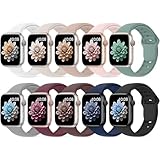
- 【Compatible Models】: UJUTL Sport silicone bands perfect compatible with Apple Watch Bands Series 11 10 -(42mm), Series 9 8 7 -(41mm), Series 6 5 4 SE3 SE2 -(40mm), Series 3 2 1 SE -(38mm), Check your watch size before ordering, Size fits 5.3"-7.6" (135mm-193mm) wrist
- 【Newest Original Design 】: The breathable groove design wicks away moisture to keep you cool during workouts and daily activities, Hidden buckle design that does not come into contact with any metal, Keep the irritate away from you
- 【Premium Material】: Comfort & Breathability - Made of high quality silicone, these bands provide soft, irritation-free wear for sensitive wrist, Durable & Easy to Clean - Non-sticky, stain-resistant silicone stays fresh through sweat, rain, and daily use. Simply wipe with a damp cloth for instant refresh
- 【10 Colors in One Pack】: Available in a variety of colors, these bands can be easily swapped out to match your outfit or mood, perfect for mixing styles with outfits or seasons. Also proper to be used as gifts for Wedding, birthday, Valentines' day, Mothers' day, father' day, Christmas, Thanksgiving Day etc
- 【Worry-Free Purchase】: To ensure 100% customer satisfaction, we provide 24/7 online support. If you encounter any issues with our product, please contact us immediately—we will prioritize resolving your concerns and offer tailored solutions promptly
The fixes below follow the same practical mindset as face management: identify the constraint, adjust one setting at a time, and confirm the result on-wrist before moving on.
Why Some Complications Don’t Appear on Certain Watch Faces
Not every complication works on every face. Apple limits which complication families each face supports, based on layout, size, and visual design.
For example:
– Infograph faces support many data-dense complications.
– Simple faces like California or Numerals often limit you to circular or text-based options.
– Portrait, Photos, and Snoopy faces intentionally restrict complications for aesthetics.
If an app’s complication doesn’t appear, switch to a more flexible face such as Modular, Modular Duo, Infograph, or Utility and check again.
Blank Complication Slots After Adding or Editing a Face
A blank slot usually means the face expects a complication, but none is assigned or the assigned app can’t load.
Fix it directly on the watch:
– Press and hold the watch face.
– Tap Edit, then swipe to the complications screen.
– Tap the empty slot and actively select a complication, even if it’s the same one again.
Fix it from iPhone:
– Open the Watch app.
– Tap the face under My Faces.
– Tap the affected complication slot and choose a different option, then switch back if needed.
This forces a refresh and often resolves silent loading failures.
App Installed on iPhone but Not Showing as a Complication
An app must meet Apple’s complication guidelines to appear. Being installed alone is not enough.
Checklist:
– Open the Watch app and scroll to Installed on Apple Watch.
– If the app is listed under Available Apps, tap Install.
– Launch the app once on the watch to complete setup and permissions.
Some third-party apps also hide complications until you enable them inside the app’s own settings, especially fitness, weather, and finance apps.
Complications Missing After a watchOS Update
Major watchOS updates can temporarily break complication links, especially on older Series models with limited memory.
Quick recovery steps:
– Restart the Apple Watch.
– Restart the paired iPhone.
– Reopen the Watch app and reselect the affected complications.
If the problem persists, remove the face entirely and add it again. This clears cached layout data without affecting your health or activity history.
Third-Party Complications Not Updating or Showing Live Data
When a complication shows outdated or frozen information, the issue is often background refresh or permissions.
Check the following on iPhone:
– Watch app > General > Background App Refresh.
– Ensure the app is enabled.
– Check location, motion, or health permissions if the app relies on them.
Battery-saving modes can also restrict updates. Low Power Mode intentionally pauses most complication refreshes to extend battery life, especially noticeable on smaller watches like 41mm or older Series models.
Complications Removed Automatically or Replaced with Dashes
If you see dashes or placeholders, the app feeding that complication may be unavailable.
Common causes:
– The app was deleted from the watch.
– The iPhone is out of range for data-dependent apps.
– The app hasn’t been updated to support your current watchOS version.
Reinstall the app, confirm connectivity, and check the App Store for updates. This is more common with niche apps that don’t receive frequent maintenance.
Face Supports Complications, but Not the One You Want
This is a design limitation, not a bug. Each slot type only accepts certain complication shapes.
Practical workaround:
– Switch the face temporarily to see which slot type the app supports.
– Choose a visually similar complication that offers the same information.
– Build a second face dedicated to that data, rather than forcing it into an incompatible layout.
This approach keeps readability high and avoids clutter, especially on smaller displays where legibility matters more than density.
Apple Watch Ultra or Larger Screens Showing Fewer Issues
Larger displays like the Ultra or 45mm cases handle complication-heavy faces better. More memory and thermal headroom also help maintain live updates.
On smaller or older watches:
– Favor Apple’s built-in complications for reliability.
– Limit always-updating data like live weather or stock tickers.
– Keep one simplified face for long days to reduce background load.
This isn’t about capability; it’s about matching the face to the hardware for smoother daily wear.
When All Else Fails: Last-Resort Fixes
If complications still refuse to appear:
– Unpair and re-pair the Apple Watch using the Watch app.
– Restore from the most recent backup.
– Reinstall only essential third-party apps first and test before adding more.
This resets complication indexing without affecting movement tracking, health metrics, or fitness history, and it’s surprisingly effective for stubborn edge cases.
Troubleshooting complications is part of the customization process. Once you understand the rules each face and app follows, fixing issues becomes quick, predictable, and far less frustrating.
Expert Tips for Power Users: Smart Stacks, Modular Faces, and Complication-First Watch Setups
Once you understand how complications behave and how faces limit them, customization becomes less about trial and error and more about intent. This is where experienced Apple Watch users get the most value, by designing faces around information flow, not just aesthetics.
The goal is simple: surface the right data at the right moment, with minimal taps and maximum clarity, regardless of screen size or watch model.
Using Smart Stack as a Dynamic Extension of Your Watch Face
Smart Stack isn’t a replacement for complications; it’s a flexible second layer. Think of your watch face as your always-visible dashboard, and Smart Stack as a context-aware drawer that adapts throughout the day.
For power users, the trick is restraint. Keep your main face focused on time-critical data like activity rings, calendar, or weather, then let Smart Stack handle secondary metrics such as heart rate trends, sleep stages, or mindfulness prompts.
To optimize Smart Stack:
– Remove cards you never swipe to, especially third-party widgets that update frequently.
– Pin one or two essentials, like Weather or Calendar, so they stay accessible.
– Allow Smart Stack suggestions, but audit them weekly to prevent clutter.
On watches with smaller cases or older chipsets, this approach preserves battery life while still giving you depth when you need it.
Why Modular Faces Are Still the Power User Favorite
Despite newer, more expressive faces, Modular, Modular Compact, and Modular Duo remain the most efficient complication canvases Apple has ever made. They prioritize density and legibility over decoration.
These faces shine on 44mm, 45mm, and Ultra displays, where spacing keeps text readable without feeling cramped. On smaller cases, Modular Compact offers a better balance, reducing eye strain while still supporting multiple data points.
Best practices for Modular faces:
– Reserve the large center slot for glanceable data like calendar events, weather conditions, or battery status.
– Use corner complications for tap-first actions such as workouts, timers, or music.
– Avoid stacking multiple “live” complications that refresh constantly, which can impact smoothness over long days.
This layout mirrors professional instrument panels, which is why it works so well for productivity-focused users.
Building a Complication-First Watch Setup
A complication-first mindset flips the usual approach. Instead of choosing a face you like and filling it in, you start with the data you need, then select the face that supports it best.
Ask yourself three questions:
– What do I need to see without tapping?
– What can wait one tap?
– What only matters occasionally?
From there, build faces with specific roles. One for workdays with calendar, reminders, and weather. One for workouts with activity, heart rate, and training apps. One minimalist face for evenings that prioritizes comfort and battery longevity.
Switching faces via swipe or automation is faster than overloading a single face, and it keeps each layout readable and purpose-driven.
Optimizing for Battery Life and Performance
Power users often push complications hardest, which makes efficiency more important. Not all complications are equal in how they consume resources.
To keep performance smooth:
– Favor Apple’s native complications for always-on data.
– Limit third-party complications that rely on constant background updates.
– Use darker faces and fewer live elements if you rely heavily on Always On Display.
Apple Watch Ultra users get more thermal and battery headroom, but even there, cleaner setups feel faster and more predictable during long wear.
Matching Faces to Real-World Wearability
Customization isn’t just software deep; it affects how the watch feels on the wrist. Dense, data-heavy faces suit daytime use when quick glances matter. Simpler faces pair better with softer bands, sleep tracking, or evening wear.
If you rotate bands often, consider matching faces to strap styles. Sport bands and trail loops pair naturally with Modular or Wayfinder-style layouts, while leather or metal bracelets look better with cleaner faces and fewer complications.
This balance between function and form is what makes the Apple Watch feel personal rather than generic.
Putting It All Together
The most effective Apple Watch setups aren’t the ones with the most complications; they’re the ones that surface exactly what you need, exactly when you need it. Smart Stack adds flexibility, Modular faces deliver efficiency, and a complication-first mindset keeps everything intentional.
Once you design your faces around real daily use instead of novelty, your watch stops feeling like a gadget and starts behaving like a well-tuned instrument. That’s when Apple Watch customization truly clicks, and why taking the time to refine your setup pays off every single day.