If you’re adding Google Assistant to a Fitbit, it’s important to understand what kind of assistant experience you’re actually getting on your wrist. This isn’t the same as using Assistant on a Pixel phone or a full Wear OS watch, and expectations matter a lot here.
On supported Fitbits, Google Assistant is designed to be quick, glanceable, and task-focused. It shines at simple voice commands you’d normally reach for your phone for, but it also has clear boundaries that can surprise users coming from older Fitbits with Alexa or from Wear OS devices.
What Google Assistant on Fitbit is genuinely good at
At its best, Google Assistant on Fitbit works like a fast voice shortcut layer rather than a full conversational assistant. You raise your wrist, trigger Assistant, and issue short, direct commands.
You can set timers and alarms, start or stop a stopwatch, and create reminders that sync to your Google account. These reminders appear across your phone and other Google devices, which makes them more useful than watch-only alerts.
🏆 #1 Best Overall

- Get inspired and stay accountable with Versa 4 + Premium - learn when to work out or recover, see real-time stats during exercise and find new ways to keep your routine fresh and fun.Operating temperature: -14° to 113°F.
- Built for better fitness results: Daily Readiness Score(1), built-in GPS and workout intensity map, Active Zone Minutes, all-day activity tracking and 24/7 heart rate, 40+ exercise modes and automatic exercise tracking, water resistant to 50 meters
- Tools to measure and improve sleep quality: personalized Sleep Profile(1), daily sleep stages & Sleep Score, smart wake alarm and do not disturb mode
- Maintain a healthy body and mind: daily Stress Management Score, reflection logging, SpO2(2), health metrics dashboard(3), guided breathing sessions, menstrual health tracking and mindfulness content
- Designed for fitness & beyond: on-wrist Bluetooth calls, texts and phone notifications(4), customizable clock faces, Fitbit Pay(5), Amazon Alexa built-in(6), Google Wallet & Maps (Google Maps Android only, coming Spring 2023 to iOS), 6+ day battery(7)
It’s also reliable for quick questions like weather forecasts, calendar checks, basic math, or asking what’s next on your schedule. The responses are brief and optimized for the smaller screen, which helps keep interactions fast.
Smart home control works, but in a limited way
If you already use Google Home, Fitbit’s Assistant can control compatible smart home devices. You can turn lights on or off, adjust thermostats, and control plugs or scenes with simple commands.
This works best when your device names are short and clearly defined in the Google Home app. Complex routines or multi-step automations usually won’t trigger cleanly from the watch.
There’s also no visual smart home dashboard on Fitbit. Everything is voice-only, which is fine for quick commands but not ideal for managing multiple rooms or devices.
Messaging, calls, and communication caveats
Google Assistant on Fitbit can send text messages, but the experience depends heavily on your phone. You dictate a message, confirm it, and it sends via your paired Android phone.
You can’t scroll through full message threads, browse inboxes, or initiate messages to obscure contacts reliably. It’s built for short replies or quick outbound messages, not ongoing conversations.
Calling is even more limited. You can ask Assistant to call a contact, but the call itself is handled by your phone, not the watch speaker, even on models with a built-in mic.
What Google Assistant cannot do on Fitbit
This is where many users get caught off guard. Google Assistant on Fitbit cannot launch third-party apps, browse the web, or perform complex follow-up conversations.
You can’t ask it to open Spotify playlists, navigate maps, dictate long emails, or interact deeply with Google services like Gmail or Docs. Those tasks require a phone or a Wear OS watch.
There’s also no offline mode. If your Fitbit doesn’t have an active Bluetooth connection to your phone, Assistant simply won’t work, even for basic commands.
Device compatibility is narrower than many expect
Google Assistant only works on select Fitbit models released after Google’s acquisition. These include Fitbit Sense, Sense 2, Versa 3, and Versa 4.
Older devices like Versa 2, Charge series trackers, and Inspire models do not support Google Assistant at all. Many of these still rely on Alexa or have no voice assistant support.
Even within supported models, features can vary slightly depending on firmware version and region, so two identical watches may behave differently if they’re set up in different countries.
Regional and language limitations still apply
Google Assistant on Fitbit isn’t available everywhere. Some regions only support Alexa, while others support neither assistant at all.
Language support is also more limited than on phones. If your Google account is set to a language or region that Fitbit doesn’t officially support, Assistant setup may fail or never appear as an option.
This is one of the most common reasons users think their watch is broken when, in reality, it’s a regional restriction.
Battery life and daily usability trade-offs
Using Google Assistant doesn’t drain the battery aggressively on its own, but frequent voice use does add up. On watches like the Sense and Versa 3, heavy Assistant usage can shave noticeable time off multi-day battery estimates.
There’s no always-listening hotword detection like “Hey Google” on most Fitbit models. You usually need to press a button or swipe to activate Assistant, which helps preserve battery life.
From a comfort and wearability standpoint, nothing changes physically. The mic is already built into the watch case, and Assistant doesn’t affect how the watch feels on the wrist during workouts or sleep.
How this compares to Wear OS and older Fitbit assistants
Compared to Wear OS watches, Google Assistant on Fitbit is intentionally simpler. You gain longer battery life and a lighter, more fitness-focused experience, but you give up app depth and Assistant flexibility.
Compared to Alexa on older Fitbits, Google Assistant integrates better with Android phones and Google services. However, Alexa still offers broader smart home skills in some regions.
Understanding this balance upfront helps you decide whether Assistant on Fitbit fits your daily routine or whether a Wear OS device would be a better long-term value.
Fitbit Models That Support Google Assistant: Full Compatibility Breakdown
With the trade-offs and regional limits in mind, the next step is confirming whether your specific Fitbit model can actually run Google Assistant. This is where most confusion happens, especially since newer Fitbit models don’t automatically mean better Assistant support.
Fitbit’s Google Assistant rollout was limited to a short list of watches released during a specific transition period after Google acquired Fitbit. Several newer devices look similar on the surface but quietly dropped Assistant support altogether.
Fitbit watches that officially support Google Assistant
Only two Fitbit smartwatch models support Google Assistant as a native voice assistant today.
The Fitbit Sense (original, 2020) is the most fully featured option. It includes a built-in microphone and speaker housed in an aluminum case with a stainless steel bezel, and Google Assistant runs smoothly alongside Fitbit’s health sensors like EDA stress tracking and skin temperature sensing. In real-world use, Assistant tasks like setting reminders, checking the weather, and controlling Google smart home devices work reliably, provided your region is supported.
The Fitbit Versa 3 also supports Google Assistant and offers nearly identical Assistant functionality to the Sense. It uses the same side-button activation method and has comparable battery life, typically lasting five to six days with moderate use. The Versa 3 lacks some advanced health sensors found on the Sense, but for everyday Assistant use, there’s no meaningful difference.
Both watches rely on Bluetooth pairing with your phone, and Assistant responses are delivered visually on-screen rather than through spoken audio in most regions. The microphone quality is good enough for short commands, even during light movement, but it’s not designed for dictation-heavy use.
Fitbit models that do not support Google Assistant (including newer ones)
This is where expectations often clash with reality. Several newer Fitbit models removed Google Assistant support entirely, even though they launched after Google’s acquisition of Fitbit.
Fitbit Sense 2 does not support Google Assistant. Despite its updated sensors, slimmer case, and improved battery efficiency, it only supports Amazon Alexa in supported regions. Google Assistant was intentionally excluded, and there is no workaround or software update that restores it.
Fitbit Versa 4 also does not support Google Assistant. Like the Sense 2, it launched with Alexa-only voice support, despite having a microphone and modern hardware. Many users assume Assistant can be added later, but that option never appears in the Fitbit app.
All Fitbit fitness trackers, including Charge 5, Charge 6, Inspire models, Luxe, and Ace devices, do not support Google Assistant. Most lack microphones altogether, and even models with limited voice features rely on phone-based interactions instead of on-device assistants.
Older models like the Fitbit Ionic technically supported voice features in the past but are discontinued and no longer recommended due to safety recalls and lack of ongoing software support.
Why Google Assistant support is limited to these models
Google Assistant on Fitbit requires a specific hardware and software combination that only the Sense and Versa 3 were designed around. These watches use an earlier Fitbit OS configuration that allowed deeper Assistant integration before Google shifted strategy.
Newer Fitbit watches focus more heavily on battery life, simplified software, and health tracking consistency. Removing Google Assistant reduces background processes, improves standby time, and lowers regional compliance complexity, but it also limits hands-free functionality.
From a wearability standpoint, this decision doesn’t change comfort or materials, but it does change how interactive the watch feels day to day. If voice control is central to how you use a smartwatch, this distinction matters more than raw sensor upgrades.
How to quickly check if your Fitbit is Assistant-compatible
The fastest way to confirm compatibility is through the Fitbit app on your phone. Open the app, tap your profile picture, select your device, and look for a Voice Assistant or Google Assistant option in the settings menu.
If Google Assistant is supported and available in your region, you’ll see it listed alongside Alexa or as a selectable assistant. If the option doesn’t appear at all, the watch either doesn’t support Assistant or is restricted by region or language settings tied to your Google account.
This check is especially important for second-hand purchases or refurbished devices, where model names like “Sense” and “Sense 2” are often confused.
Compatibility summary for buyers deciding between Fitbit and Wear OS
If Google Assistant on the wrist is a must-have, your choices within the Fitbit ecosystem are limited to the Sense (original) and Versa 3. These models strike a balance between multi-day battery life, lightweight comfort, and basic voice control without the app complexity of Wear OS.
If you want deeper Assistant integration, spoken responses, and broader app control, a Wear OS watch will still offer a more capable Assistant experience, but with shorter battery life and a heavier daily wear footprint.
Knowing exactly which Fitbit models support Google Assistant upfront saves time, frustration, and unnecessary returns before you ever reach the setup screen.
Key Requirements Before You Start: Phone, OS, Region, and Account Checks
Once you’ve confirmed that your Fitbit model technically supports Google Assistant, the next step is making sure the surrounding ecosystem is ready. This is where most setup failures happen, not because the watch is incompatible, but because one requirement quietly blocks the feature from appearing.
Think of Google Assistant on Fitbit as a three-part handshake between your watch, your phone, and your Google account. All three have to line up before the option becomes visible in the Fitbit app.
Rank #2

- Get inspired and stay accountable with Versa 4 + Premium - learn when to work out or recover, see real-time stats during exercise and find new ways to keep your routine fresh and fun.Operating temperature: -14° to 113°F. Radio transceiver: Bluetooth 5.0.Maximum operating altitude : 28,000 feet (8,534 m).
- Built for better fitness results: Daily Readiness Score(1), built-in GPS and workout intensity map, Active Zone Minutes, all-day activity tracking and 24/7 heart rate, 40+ exercise modes and automatic exercise tracking, water resistant to 50 meters
- Tools to measure and improve sleep quality: personalized Sleep Profile(1), daily sleep stages & Sleep Score, smart wake alarm and do not disturb mode. Compatibility-Apple iOS 15 or higher, Android OS 9 or higher
- Maintain a healthy body and mind: daily Stress Management Score, reflection logging, SpO2(2), health metrics dashboard(3), guided breathing sessions, menstrual health tracking and mindfulness content
- Designed for fitness & beyond: on-wrist Bluetooth calls, texts and phone notifications(4), customizable clock faces, Fitbit Pay(5), Amazon Alexa built-in(6), Google Wallet & Maps (Google Maps Android only, coming Spring 2023 to iOS), 6+ day battery(7)
Compatible phone requirements (Android vs iPhone)
Google Assistant on Fitbit requires an Android phone. An iPhone can pair with supported Fitbit models for fitness tracking and notifications, but Assistant activation is not available on iOS.
Your Android phone should be running Android 8.0 or newer, with Google Play Services enabled and updated. Older Android versions may still pair with the watch, but Assistant setup often fails silently or never appears as an option.
If you’re switching from an iPhone to Android or using multiple phones, make sure the Fitbit app is only actively paired to one Android device during setup. Dual-device pairing can prevent Assistant from registering correctly.
Required Fitbit models and firmware status
Even on a compatible Sense or Versa 3, Google Assistant will not appear unless the watch firmware is fully up to date. Fitbit rolls Assistant support into system updates rather than app updates.
Before troubleshooting anything else, place the watch on its charger, open the Fitbit app, and manually check for updates under device settings. Low battery levels or interrupted updates can delay Assistant availability.
From a daily wear perspective, firmware updates don’t change comfort, weight, or materials, but they can affect battery behavior during the first day. Expect slightly higher drain right after updating as background services reindex.
Region availability and country restrictions
Google Assistant on Fitbit is region-locked. Even if the hardware supports it, the feature will not activate in countries where Google has not enabled Assistant for Fitbit devices.
The region is determined by a combination of your Google account country, phone region, and language settings. Using a VPN does not reliably bypass this and can cause repeated setup failures.
If you recently moved countries or imported a Fitbit from another market, double-check that your Google account country matches your current location. Mismatches here are one of the most common reasons the Assistant toggle never appears.
Language settings that quietly block Assistant
Google Assistant on Fitbit only supports specific languages, and the watch language must match one of them. Unsupported languages will hide the Assistant option entirely rather than showing an error.
Set both your phone language and your Google Assistant language to the same supported option before starting. English (US, UK, AU, CA), French, German, Spanish, and a handful of others are commonly supported, but not all regional variants are.
After changing language settings, restart both the phone and the watch. Assistant eligibility is often checked only during initial pairing or after a reboot.
Google account requirements and sign-in checks
You must be signed into a Google account on your phone to use Google Assistant on Fitbit. Guest accounts, work-managed profiles, or restricted enterprise accounts can block activation.
If you use multiple Google accounts, make sure the one signed into Google Assistant on your phone matches the account you want to use for voice commands. Account switching after setup can break Assistant responses.
For users migrating from older Fitbits, this is also where Google account linking matters. Newer Fitbit experiences increasingly rely on Google sign-in rather than legacy Fitbit-only accounts.
Fitbit app version and required permissions
The Fitbit app must be fully updated from the Play Store. Assistant support is surfaced through the app, not directly on the watch.
Grant all requested permissions during setup, especially microphone, contacts, and background activity access. Denying these can cause Assistant to activate but fail to respond or time out.
From a usability standpoint, these permissions don’t affect comfort or wearability, but they directly impact reliability. Assistant feels seamless when everything is allowed and frustratingly inconsistent when it isn’t.
Bluetooth, Wi‑Fi, and connectivity expectations
Google Assistant on Fitbit relies on your phone’s internet connection. The watch itself does not have independent cellular connectivity.
Bluetooth must remain connected, and Wi‑Fi should be enabled on the phone for best response times. Poor connectivity leads to delayed replies or “can’t reach Google right now” errors.
In real-world daily use, this means Assistant works best indoors or in areas with stable data. It’s useful for quick reminders, timers, and smart home controls, but less reliable during outdoor workouts or travel.
Why meeting every requirement matters before setup
If even one requirement is missing, Google Assistant may not appear at all, leaving users searching through menus that simply don’t exist. This often leads to the mistaken belief that the watch doesn’t support Assistant.
Taking five minutes to confirm phone OS, region, language, account, and updates saves far more time than troubleshooting after the fact. Once everything is aligned, enabling Assistant is usually straightforward and stable.
With these checks complete, you’re ready to move into the actual step-by-step setup process inside the Fitbit app, where Assistant can finally be added and activated properly.
Step-by-Step: How to Add and Set Up Google Assistant on a Compatible Fitbit
Once all prerequisites are in place, the actual setup process is done almost entirely through the Fitbit app on your phone. The watch itself plays a secondary role, acting as the interface once Assistant is enabled.
This sequence matters. If you try to activate Assistant from the watch before finishing the app-based steps, you’ll usually hit a dead end or see a prompt telling you to continue on your phone.
Step 1: Confirm your Fitbit model supports Google Assistant
Before opening the app, it’s worth double-checking hardware compatibility. Google Assistant is not available on every Fitbit, even if the device is relatively new.
As of now, Google Assistant is supported on Fitbit Sense, Sense 2, Versa 3, and Versa 4. Older models like Versa 2 rely on Amazon Alexa instead, while fitness bands like Charge, Inspire, and Luxe do not support voice assistants at all.
This limitation is tied to onboard microphones, processing capability, and Google’s software roadmap rather than pricing or build quality. A Versa 4, for example, is lighter and more fitness-focused than a Sense, but both handle Assistant equally well in daily use.
Step 2: Open the Fitbit app and select your watch
On your Android phone, open the Fitbit app and make sure it’s fully synced with your watch. Syncing ensures the app can push Assistant settings directly to the device.
Tap the device icon in the top-left corner, then select your connected watch from the list. This takes you into the device-specific settings menu, where Assistant lives.
If your watch doesn’t appear here, Assistant setup won’t work. Resolve any pairing or sync issues before moving on.
Step 3: Navigate to Google Assistant settings
Inside the watch settings page, scroll until you see the Google Assistant option. On supported models, it typically appears under a section related to apps or voice assistants.
Tap Google Assistant, then choose Set up Google Assistant. At this point, the Fitbit app hands off to Google’s authorization flow.
If the option isn’t visible at all, it almost always means one of the earlier requirements wasn’t met, most commonly language, region, or Google account sign-in.
Step 4: Sign in with your Google account and grant permissions
You’ll be prompted to sign in using your Google account. This should be the same account you already use for Google Assistant on your phone, smart speakers, or smart home devices.
During this step, Google will ask for several permissions, including microphone access, contacts, and activity-related data. These permissions allow Assistant to recognize your voice, set reminders, read messages, and control connected services.
From a real-world usability standpoint, denying permissions severely limits Assistant’s usefulness. Timers may work, but messaging, reminders, and smart home commands often fail silently.
Step 5: Choose Assistant preferences and defaults
After authorization, you’ll see a brief preferences screen. Here you can choose whether Google Assistant or Alexa is your default voice assistant if your watch supports both.
You can also review voice match settings and notification behavior. Voice match helps Assistant recognize you, but on Fitbit watches it’s more about account linking than security.
These choices don’t affect battery life in a noticeable way. In everyday wear, Assistant has a minimal impact compared to GPS workouts or always-on display modes.
Step 6: Activate Google Assistant on the watch itself
Once setup is complete in the app, your Fitbit will sync and activate Assistant automatically. On the watch, you can usually access it by pressing and holding the side button or swiping to the Assistant app, depending on the model.
The first time you activate it, the watch may display a brief confirmation or tutorial. Speak a simple command like “set a 10-minute timer” to confirm everything is working.
Response speed depends heavily on your phone’s connectivity. Indoors on stable Wi‑Fi, responses feel nearly instant. Outdoors or on weak data, delays are common.
Rank #3
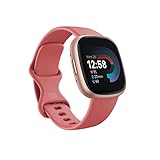
- Get inspired and stay accountable with Versa 4 + Premium - learn when to work out or recover, see real-time stats during exercise and find new ways to keep your routine fresh and fun
- Built for better fitness results: Daily Readiness Score(1), built-in GPS and workout intensity map, Active Zone Minutes, all-day activity tracking and 24/7 heart rate, 40+ exercise modes and automatic exercise tracking, water resistant to 50 meters
- Tools to measure and improve sleep quality: personalized Sleep Profile(1), daily sleep stages & Sleep Score, smart wake alarm and do not disturb mode
- Maintain a healthy body and mind: daily Stress Management Score, reflection logging, SpO2(2), health metrics dashboard(3), guided breathing sessions, menstrual health tracking and mindfulness content
- Designed for fitness & beyond: on-wrist Bluetooth calls, texts and phone notifications(4), customizable clock faces, Fitbit Pay(5), Amazon Alexa built-in(6), Google Wallet & Maps (Google Maps Android only, coming Spring 2023 to iOS), 6+ day battery(7)
Step 7: Test common commands to confirm full functionality
Before relying on Assistant day to day, it’s smart to test a few core tasks. Try setting a reminder, asking for the weather, and controlling a smart home device if you have one linked to Google Home.
Also test messaging or calling features if supported in your region. Some users discover partial functionality here due to local restrictions or carrier limitations.
In terms of daily wearability, using Assistant doesn’t change how the watch feels on the wrist. Microphone placement on Sense and Versa models is unobtrusive, and voice activation works reliably without awkward wrist positioning.
What to do if Google Assistant doesn’t appear during setup
If you don’t see Google Assistant in the Fitbit app, don’t assume the watch is defective or unsupported. The most common causes are incorrect language settings, an unsupported country, or being signed in with a legacy Fitbit-only account.
Double-check that your phone’s system language is set to a supported Assistant language, not just within the Fitbit app. Also confirm you’re logged in using a Google account, not an older Fitbit login.
Restarting both the phone and watch, then forcing a manual sync, often resolves lingering visibility issues.
Regional limitations and feature availability to keep in mind
Even when Assistant is available, features vary by country. Some regions support reminders and queries but restrict calling, messaging, or certain smart home actions.
This isn’t tied to hardware quality or price tier. A premium Fitbit Sense worn in an unsupported region behaves the same as a Versa 4 there.
For buyers comparing Fitbit to Wear OS watches, this is an important distinction. Fitbit’s Assistant integration is clean and battery-efficient, but more regionally limited than full Wear OS implementations.
Understanding ongoing usage and limitations
Google Assistant on Fitbit is designed for quick, glanceable interactions, not long conversations. It excels at timers, reminders, weather checks, and basic smart home control.
It’s less reliable for complex queries, navigation, or offline use. Because the watch depends on your phone’s connection, Assistant performance drops sharply when Bluetooth or data quality suffers.
From a value perspective, Assistant is a convenience feature rather than a core reason to buy a Fitbit. When it works, it feels seamless. When it doesn’t, the watch still functions perfectly well as a fitness and health tracker.
Using Google Assistant on Your Fitbit: Voice Commands That Work Best
Once Google Assistant is active, the real value comes from knowing what it does well on a Fitbit and where its limits show. Fitbit’s implementation prioritizes speed, low battery impact, and wrist-first interactions rather than deep conversational queries.
Think of Assistant here as a quick-access tool layered onto a fitness-focused watch. When used within those expectations, it feels genuinely helpful instead of frustrating.
Timers, alarms, and reminders: the most reliable use case
Timers and alarms are where Google Assistant on Fitbit is at its best. Saying “set a 10-minute timer” or “wake me up at 6:30 tomorrow” works quickly and almost never fails.
This is especially useful during workouts, cooking, or daily routines where touching the screen is inconvenient. On Sense and Versa models, the vibration motor is strong enough that timers remain noticeable even during movement.
Reminders synced to your Google account also behave consistently. Commands like “remind me to take my medication at 9 PM” sync back to your phone and other Google devices without extra setup.
Weather, calendar, and quick info checks
Short informational queries are another strong area. Asking “what’s the weather today,” “will it rain this evening,” or “what’s on my calendar tomorrow” returns concise, glanceable responses tailored to the watch display.
The small screen size works in Assistant’s favor here. Responses are stripped of clutter, making them easier to read than on a phone in many situations.
These queries are low-impact on battery life, which matters on Fitbits that prioritize multi-day wear over daily charging. In real-world use, occasional Assistant checks barely register compared to GPS workouts or continuous heart rate tracking.
Smart home control that actually makes sense on a watch
If your Google Assistant ecosystem is already set up at home, basic smart home commands translate well to Fitbit. Commands like “turn off the living room lights” or “set the thermostat to 72 degrees” tend to work reliably.
The key is keeping commands simple and room-specific. Complex routines or multi-step automations are hit-or-miss, especially if device names are long or similar.
From a usability standpoint, this works best when your watch is worn snugly but comfortably. A secure silicone strap helps ensure the microphone picks up your voice without needing exaggerated wrist positioning.
Messaging and calling: useful, but region-dependent
In supported regions, Assistant can send texts or initiate calls using your paired phone. Commands like “text Alex I’m running late” or “call home” work as long as permissions are granted in the Fitbit app.
This feature is heavily affected by regional availability and language settings. If messaging doesn’t work despite Assistant being active, it’s usually a software or country limitation rather than a hardware fault.
Audio quality depends on your phone handling the call, not the watch itself. Fitbit models without speakers still act as a trigger, keeping the watch lightweight and comfortable for all-day wear.
Health, fitness, and Fitbit-specific commands
This is where expectations need adjusting. Google Assistant does not deeply control Fitbit health features in the way some users expect.
You can ask basic things like “start a run” or “how many steps have I taken today” on some models, but results vary by firmware version and region. Touch-based controls remain more reliable for workouts, especially for GPS activities where accuracy and confirmation matter.
From a design perspective, this separation helps preserve battery life and reduces accidental activations during exercise. Fitbit continues to treat fitness tracking as a first-class, tap-driven experience.
What tends not to work well on Fitbit Assistant
Long, conversational questions and web-style searches often fall short. Queries like “compare two restaurants nearby” or “explain a news story” usually return truncated or unhelpful results.
Offline use is another limitation. Without a stable Bluetooth connection to your phone and active data, Assistant responses may fail entirely.
Navigation is also better handled on your phone. Fitbit screens, while bright and comfortable on the wrist, aren’t designed for turn-by-turn maps or complex location searches.
Tips for better voice recognition and response speed
Speak naturally but clearly, and pause briefly after activating Assistant. Shouting or rushing commands often reduces accuracy rather than improving it.
Wearing the watch correctly matters more than most users realize. A snug fit keeps the microphone aligned while maintaining comfort, especially on aluminum-cased models like Versa 4 that sit flatter on the wrist.
If responses feel slow, check your phone’s connection and background app restrictions. Assistant performance is closely tied to the phone, not the watch’s processor or price tier.
How this compares to Google Assistant on Wear OS watches
Compared to Wear OS devices like the Pixel Watch, Fitbit’s Assistant is narrower in scope but more power-efficient. You give up deeper app integrations and conversational depth in exchange for longer battery life and a lighter, more fitness-first watch.
For users transitioning from older Fitbits, this strikes a familiar balance. Assistant adds convenience without turning the watch into a mini phone on your wrist.
Understanding these strengths helps you use Google Assistant on Fitbit the way it was designed to be used, quick, practical, and unobtrusive during daily wear.
Battery Life, Performance, and Real-World Usability Impact
Once Google Assistant is enabled, the most important question for everyday Fitbit users is how much it changes the watch you already know. The short answer is that it adds convenience without fundamentally altering Fitbit’s long-standing strengths around battery life, comfort, and fitness reliability.
Fitbit’s approach here is intentionally restrained. Assistant is available when you ask for it, not running continuously in the background like it can be on Wear OS watches.
How Google Assistant affects battery life on Fitbit
In real-world use, Google Assistant has a minimal impact on battery life if you use it sparingly. Issuing a handful of voice commands per day typically reduces battery life by a few percentage points, not hours.
On devices like the Versa 4 and Sense 2, which are rated for around six days of use, most users still comfortably reach five to six days with Assistant enabled. The battery drain becomes noticeable only if you repeatedly trigger Assistant throughout the day or keep the screen active for extended voice interactions.
Unlike Wear OS watches, Fitbit does not support an always-listening hotword. This design choice preserves battery and prevents accidental wake-ups during workouts, sleep, or wrist movement.
Performance and response speed in daily use
Assistant performance on Fitbit is closely tied to your phone, not the watch’s internal hardware. Commands are processed via Bluetooth using your phone’s data connection, which means response speed depends on signal quality and background app permissions.
Rank #4
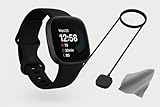
- COMPLETE SMARTWATCH BUDLE: Includes the original Fitbit Versa 4, a Fast Charger, and a Microfiber Cleaning Cloth — everything you need for an upgraded experience right out of the box.
- BUILT-IN GPS: Track your runs, walks, or bike rides without needing your phone. See pace, distance, and routes directly on your wrist.
- ALL-DAY HEALTH TRACKING: Monitor your heart rate, steps, calories burned, and sleep quality to better understand your health and reach your fitness goals.
- MICROFIBER CLEANING CLOTH INCLUDED: Keep your screen and bands spotless with the included high-quality cloth — no scratches, no smudges.
- CRYSTAL-CLEAR DISPLAY: Bright, full-color AMOLED touchscreen makes it easy to read notifications, stats, and messages even in sunlight.
When the phone connection is strong, simple commands like setting alarms, checking weather, or controlling smart home devices respond quickly. There is little lag between speaking and receiving feedback, especially on newer models with brighter AMOLED displays and faster touch response.
If performance feels inconsistent, it is rarely due to the watch’s processor. Aluminum-cased models such as the Versa 4 and Sense 2 are lightweight and comfortable, but they rely on efficient software rather than raw computing power.
Impact during workouts and fitness tracking
One of Fitbit’s biggest advantages is that Assistant does not interfere with fitness tracking. Workouts, heart rate monitoring, GPS activity, and sleep tracking continue uninterrupted, even if Assistant is enabled.
Voice commands are intentionally limited during exercise. This reduces accidental activations when arms swing or when the watch shifts slightly on the wrist, particularly during runs or strength training.
From a wearability standpoint, this matters. Fitbit watches are designed to sit flat and stable, with soft-touch straps and balanced case dimensions that prioritize comfort over bulk. Assistant respects that design by staying out of the way unless explicitly called upon.
Comfort, materials, and real-world wearability considerations
Because Assistant usage involves speaking toward your wrist, fit and comfort matter more than most people expect. A properly adjusted strap keeps the microphone aligned without creating pressure points, especially during long days or sleep tracking.
The aluminum cases used on Assistant-compatible Fitbits keep weight low and reduce wrist fatigue. This makes it easier to use voice commands casually, such as when cooking, commuting, or managing reminders, without feeling like you’re wearing a heavy computer.
Finishing and durability also play a role. Fitbit’s matte finishes resist fingerprints and minor scuffs, which helps the watch maintain a clean look even with frequent screen activations.
Battery-saving tips if you use Assistant frequently
If you rely on Google Assistant multiple times per day, a few small adjustments can help preserve battery life. Reducing screen timeout and disabling unnecessary notifications has a bigger impact than turning Assistant off entirely.
Make sure the Fitbit app is exempt from aggressive battery optimization on your phone. Background restrictions can cause Assistant delays, leading to repeated activations that drain both devices faster.
Charging habits also matter. Topping up for 10 to 15 minutes while showering or getting ready can offset any additional drain from voice usage without changing your routine.
Fitbit versus Wear OS: practical trade-offs
Compared to Wear OS watches like the Pixel Watch, Fitbit’s Assistant experience is more limited but significantly more efficient. You gain days of battery life, lighter materials, and a simpler interface at the cost of deep app control and conversational responses.
For users coming from older Fitbits, this feels like a natural evolution rather than a disruption. Assistant enhances daily usability without compromising the core reasons people choose Fitbit in the first place.
Understanding this balance helps set realistic expectations. Google Assistant on Fitbit is not meant to replace your phone, it is meant to reduce how often you need to take it out.
Common Google Assistant Setup Problems on Fitbit (And How to Fix Them)
Once expectations are set around what Assistant on Fitbit can and cannot do, most frustrations come down to setup details rather than hardware faults. The good news is that nearly all Assistant issues on Fitbit are fixable in a few minutes, without resets or returns.
Below are the most common problems I see when testing and troubleshooting Fitbit smartwatches, along with clear, step-by-step fixes that work in the real world.
Google Assistant option is missing on your Fitbit
If you do not see Google Assistant in the Fitbit app or on the watch itself, the first thing to check is model compatibility. Only select Fitbit models support Assistant, including Sense, Sense 2, Versa 3, and Versa 4.
If you are using models like Charge, Inspire, Luxe, Ace, or older Versa generations, Assistant is not supported at all. No software update or workaround can add it, because these devices lack the required microphone and system integration.
Also confirm your Fitbit firmware is fully up to date. In the Fitbit app, go to your profile, select your device, and check for updates, then restart both the watch and phone once the update completes.
Assistant is available, but setup fails or never finishes
This usually happens when the Fitbit app does not have full background permissions on your phone. During setup, the app needs uninterrupted access to complete Google account linking.
On Android, disable battery optimization for the Fitbit app and Google app. On iPhone, make sure Background App Refresh is enabled for Fitbit and that Low Power Mode is turned off during setup.
If the setup screen freezes, force close the Fitbit app, reopen it, and try again while connected to stable Wi‑Fi or strong mobile data. Avoid setting up Assistant on weak public networks, as timeouts are common.
Google Assistant does not respond when you speak
When Assistant launches but does not hear commands, microphone access is usually the culprit. Check that microphone permissions are enabled in the Fitbit app and that Assistant voice input is turned on in the watch settings.
Fit and comfort also matter more than people expect. If the watch is worn too loosely or rotated away from the top of your wrist, the microphone opening can miss your voice, especially in noisy environments.
Wipe the microphone area with a dry cloth to remove sweat or debris. Fitbit’s matte aluminum cases resist grime well, but daily wear can still affect mic clarity over time.
Assistant works, but commands fail or return errors
If Assistant hears you but responds with messages like “Something went wrong” or “Try again later,” the issue is usually phone connectivity. Fitbit relies on your phone for cloud processing, even though the request starts on your wrist.
Make sure Bluetooth is stable and that your phone has internet access. Turning Bluetooth off and back on, or restarting the phone, often resolves intermittent failures immediately.
Also confirm that the Google account signed into Assistant matches the primary account on your phone. Mismatched accounts can block reminders, smart home commands, and calendar actions.
Assistant is slow or inconsistent throughout the day
Performance drops are often caused by aggressive background management on the phone, especially on Android devices from Samsung, Xiaomi, or OnePlus. These systems may quietly suspend the Fitbit app to save battery.
Add Fitbit to the “never sleep” or “unrestricted” app list in your phone’s battery settings. This prevents delayed responses and repeated activation attempts, which can drain both the watch and phone faster.
On the watch itself, keep animations and screen wake time reasonable. Fitbit’s lightweight software is efficient, but unnecessary screen usage still adds latency over long days.
Assistant cannot set reminders, send messages, or control smart devices
This is often misunderstood as a bug, but it is actually a limitation of Fitbit’s Assistant integration. Compared to Wear OS, Fitbit supports a narrower set of actions focused on reminders, timers, questions, and basic smart home controls.
Make sure Google Assistant is fully set up on your phone first. If it does not work on the phone, it will not work on the watch.
For messaging and advanced app control, Fitbit intentionally defers to phone notifications rather than full voice replies. This trade-off preserves battery life and keeps the watch lightweight and comfortable for all-day wear.
Google Assistant suddenly disappeared after working before
This usually happens after a major firmware update, account change, or region setting adjustment. Assistant availability is tied to both your Google account and supported regions.
Check that your Google account region matches a supported country and that Assistant language settings are unchanged. Some language combinations are not supported on Fitbit even if they work on phones.
If Assistant still does not appear, log out of the Fitbit app, log back in, and re-enable Assistant from scratch. This refreshes permissions without affecting health data or watch settings.
Battery drains faster after enabling Assistant
While Assistant on Fitbit is more efficient than Wear OS, frequent voice usage will still have an impact. This is more noticeable on slimmer models with smaller batteries, such as Versa 4.
Reduce screen timeout, limit always-on display use, and avoid repeated failed activations. A properly fitted strap helps here, as fewer misactivations mean fewer screen wake-ups.
In real-world use, most people can offset Assistant drain with short daily top-ups. The lightweight aluminum construction keeps charging fast and comfortable, even during quick breaks.
Regional or language restrictions block Assistant entirely
Google Assistant on Fitbit is not available in every country or language combination. Even if the watch is sold locally, Assistant may be disabled based on Google’s service availability.
Check your Google account language and Assistant language settings in the Google app. Use a single supported language during setup rather than bilingual configurations.
If Assistant is unavailable in your region, there is no reliable workaround. In these cases, Fitbit’s built-in apps and notification system still deliver strong daily usability without voice control.
Regional Restrictions, Language Support, and the Fitbit-to-Google Transition
If Google Assistant does not appear on your Fitbit even after following the setup steps, the cause is almost always regional, language-based, or tied to where your device sits in Google’s evolving Fitbit strategy. These limitations are not obvious during purchase, which is why they catch many users off guard.
💰 Best Value

- Get inspired and stay accountable with Versa 4 + Premium - learn when to work out or recover, see real-time stats during exercise and find new ways to keep your routine fresh and fun.Operating temperature: -14° to 113°F.
- Built for better fitness results: Daily Readiness Score(1), built-in GPS and workout intensity map, Active Zone Minutes, all-day activity tracking and 24/7 heart rate, 40+ exercise modes and automatic exercise tracking, water resistant to 50 meters
- Tools to measure and improve sleep quality: personalized Sleep Profile(1), daily sleep stages & Sleep Score, smart wake alarm and do not disturb mode
- Maintain a healthy body and mind: daily Stress Management Score, reflection logging, SpO2(2), health metrics dashboard(3), guided breathing sessions, menstrual health tracking and mindfulness content
- Designed for fitness & beyond: on-wrist Bluetooth calls, texts and phone notifications(4), customizable clock faces, Fitbit Pay(5), Amazon Alexa built-in(6), Google Wallet & Maps (Google Maps Android only, coming Spring 2023 to iOS), 6+ day battery(7)
Understanding these boundaries upfront helps you decide whether enabling Assistant is possible on your watch at all, or whether the limitation is permanent rather than a setup mistake.
Where Google Assistant on Fitbit is officially supported
Google Assistant on Fitbit is enabled only in select countries where Google supports Assistant on third-party wearables. This includes markets such as the United States, United Kingdom, Canada, Australia, and a number of Western European countries.
Availability is determined by your Google account region, not where you physically are on a given day. If your Google account is registered to an unsupported country, Assistant will not appear, even if the watch model itself supports it.
This also explains why two identical Fitbits can behave differently when set up with different Google accounts.
Language support is more restrictive than on phones
Even in supported regions, Fitbit Assistant language support is narrower than on Android phones or Google Nest devices. Fitbit requires a single supported language during setup, rather than mixed or bilingual configurations.
For example, English (US) works reliably, but pairing English with a secondary language can silently disable Assistant. Some regional English variants and many non-Latin languages are not supported on Fitbit, even if they work perfectly on your phone.
If Assistant disappears after initially working, language changes are often the trigger.
Why changing regions rarely works long-term
Some users attempt to change their Google account region or phone language to unlock Assistant. While this can sometimes make the Assistant tile appear temporarily, it often breaks later with sync issues, missing voice responses, or account verification errors.
Google cross-checks region data across your Google account, Play services, and Assistant backend. When these do not align, Assistant is quietly disabled again after an update or re-sync.
For everyday reliability, it is best to treat region availability as fixed rather than something to bypass.
Which Fitbit models are affected by Google’s platform shift
Google Assistant support on Fitbit is closely tied to device generation. Earlier Fitbit OS models like the original Sense and Versa 3 were designed during the early Google acquisition phase and launched with Assistant as a headline feature.
Newer Fitbit models reflect Google’s shift toward Wear OS–based Pixel Watches. As a result, Assistant support on recent Fitbit-branded watches has become inconsistent or absent, even when hardware capabilities would allow it.
This is a strategic decision, not a technical limitation.
Fitbit OS vs Wear OS: why the experience differs
Fitbit watches that support Assistant run a lightweight Fitbit OS, not Wear OS. This keeps the watches thinner, lighter, and more battery-efficient, with multi-day endurance and fast charging in compact aluminum cases.
The trade-off is that Assistant on Fitbit is cloud-dependent and response-based, rather than fully conversational. You get quick answers, smart home control, timers, and reminders, but not on-watch app launching or deep system control.
Wear OS watches, including Google’s own Pixel Watch line, offer a fuller Assistant experience but with shorter battery life and bulkier hardware.
Google account migration and Assistant eligibility
Most Fitbit users are now required to migrate to a Google account. This migration is mandatory for Assistant and cannot be skipped on supported models.
If you previously used a Fitbit account without Google login, Assistant will not appear until migration is complete. Conversely, migrating does not guarantee Assistant availability if your region or language is unsupported.
The migration improves long-term software support but adds another layer of eligibility checks.
What this means for buyers choosing a Fitbit today
If Google Assistant is a must-have feature, you should verify three things before buying: your country is supported, your preferred language is supported, and the specific Fitbit model still includes Assistant functionality.
Fitbits continue to excel in comfort, health tracking, and battery life, especially for sleep and all-day wear. However, Google is clearly positioning advanced voice interaction as a Wear OS advantage rather than a Fitbit staple.
Knowing this distinction helps avoid disappointment and ensures you choose the right device for how you actually plan to use voice assistance.
Google Assistant vs Amazon Alexa on Fitbit: Which Makes More Sense Today?
Once you understand why Assistant behaves differently on Fitbit OS, the next natural question is whether Google Assistant is actually the right voice assistant to use on a Fitbit at all. After all, several Fitbit models also support Amazon Alexa, and on the surface they appear to offer similar hands-free convenience.
In practice, the choice is less about features and more about ecosystem fit, long-term support, and how Google is shaping Fitbit’s future.
Availability on Fitbit models: a shrinking overlap
Historically, Fitbit offered both assistants on models like Versa 2, Versa 3, Sense, and Sense 2. That overlap is narrowing, not expanding.
Google Assistant remains available on select Fitbit models tied closely to Google accounts, while Alexa support has become inconsistent and, in some regions, harder to activate reliably. Newer Fitbit releases are no longer adding Alexa, and Google has made no indication that it will return as a priority feature.
If you are buying a Fitbit today with voice control in mind, Google Assistant is the safer assumption, even if its functionality is more limited than on Wear OS.
Setup experience: Google Assistant is more tightly integrated
Setting up Google Assistant on a supported Fitbit happens directly through the Fitbit app and your Google account. Once account migration is complete, Assistant setup typically takes only a few taps, assuming your language and region are supported.
Alexa setup requires linking an Amazon account, enabling skills, and granting permissions that can feel fragmented on a small-screen device. Users switching phones or resetting their watch often report needing to repeat the entire Alexa setup process.
From a day-to-day usability standpoint, Google Assistant feels more native on Fitbit, even though both rely heavily on cloud processing.
What each assistant does better on Fitbit
Google Assistant on Fitbit excels at personal productivity. Timers, alarms, reminders, calendar checks, weather, and quick factual questions work smoothly, especially if you already use Google services on your phone.
Alexa performs well for Amazon-centric smart homes. If your house is built around Echo devices, Alexa routines, and Ring or Amazon-branded accessories, Alexa can feel more natural for controlling lights and scenes.
Neither assistant offers deep on-watch app control, message dictation across all apps, or conversational follow-ups. These limitations are tied to Fitbit OS, not the assistant itself.
Battery life and performance considerations
Both assistants are designed to preserve Fitbit’s signature multi-day battery life. Voice processing is mostly offloaded to the cloud, and the microphone is not continuously listening unless you manually trigger the assistant.
In real-world use, enabling either assistant has minimal impact on battery endurance. A Sense or Versa-class Fitbit can still comfortably last several days with sleep tracking, workouts, and occasional voice commands.
This is a key advantage over Wear OS watches, where deeper Assistant integration often comes at the cost of daily charging.
Regional support and reliability differences
Google Assistant’s biggest weakness on Fitbit is regional availability. Some countries support Assistant on Android phones but not on Fitbit watches, leading to confusion during setup.
Alexa also has regional restrictions, but its availability on Fitbit has not expanded in recent years. In some markets, Alexa setup options appear inconsistently or fail during account linking.
Before choosing either assistant, it is essential to check Fitbit’s current country and language support list. If Assistant does not appear during setup, switching to Alexa is not a guaranteed workaround.
Long-term outlook: where Google is clearly investing
Google’s strategy is increasingly clear. Fitbit is positioned as a health-first, lightweight wearable with excellent comfort, slim aluminum cases, soft-touch straps, and strong sleep tracking, not as a full smart assistant platform.
Advanced voice interaction, richer app control, and on-device intelligence are being reserved for Wear OS and the Pixel Watch line. Within that framework, Google Assistant makes more sense as the default assistant on Fitbit, even in its constrained form.
Alexa, while still functional on some models, feels more like a legacy option than a future-facing one.
So which assistant should you choose?
If you already use Google services, rely on Google Calendar and reminders, and want the simplest setup path, Google Assistant is the better choice on Fitbit. It aligns with Google account migration and is more likely to remain supported.
If your smart home is deeply tied to Amazon Alexa and your Fitbit model already has Alexa enabled and working in your region, it can still serve you well for basic commands.
For most buyers and upgraders today, however, Google Assistant is the assistant Fitbit is built around going forward. Understanding its limits helps set realistic expectations and ensures you choose a Fitbit for what it does best: comfortable all-day wear, excellent health tracking, and just enough voice assistance to stay hands-free without draining your battery or overwhelming the hardware.