If you’ve ever stood at a trailhead scrolling your phone for directions or doubled back mid-run because a turn didn’t look familiar, a GPX route is the fix you didn’t know your Garmin watch was built for. Instead of guessing where to go, you load a planned route onto the watch and let it guide you in real time, right from your wrist. This is one of the most powerful features Garmin offers, yet it’s often underused because the terminology feels more technical than it really is.
At its core, adding a GPX route lets your Garmin watch act like a purpose-built navigation tool, not just a fitness tracker. Whether you’re following a marathon course, riding unfamiliar roads, or hiking where cell signal disappears, GPX routes turn pre-planning into confidence on the move. Once you understand what a GPX file actually contains and how Garmin uses it, the rest of the process becomes straightforward.
What a GPX route actually is
A GPX file, short for GPS Exchange Format, is a standardized file that stores geographic data like latitude, longitude, elevation, and the sequence of points that form a route. Think of it as a digital breadcrumb trail created ahead of time, either by you or someone else, that a GPS device can follow precisely. GPX files are platform-agnostic, which is why they work across Garmin, Strava, Komoot, AllTrails, and countless mapping tools.
For Garmin watches, GPX routes are typically imported as Courses inside Garmin Connect. A course is Garmin’s internal representation of a GPX route, optimized for navigation on a small screen with GPS guidance. Depending on your watch model, that course may appear as a simple line to follow, a full-color map overlay, or a turn-by-turn experience with alerts.
🏆 #1 Best Overall

- Easy-to-use running watch monitors heart rate (this is not a medical device) at the wrist and uses GPS to track how far, how fast and where you’ve run.Special Feature:Bluetooth.
- Battery life: up to 2 weeks in smartwatch mode; up to 20 hours in GPS mode
- Plan your race day strategy with the PacePro feature (not compatible with on-device courses), which offers GPS-based pace guidance for a selected course or distance
- Run your best with helpful training tools, including race time predictions and finish time estimates
- Track all the ways you move with built-in activity profiles for running, cycling, track run, virtual run, pool swim, Pilates, HIIT, breathwork and more
Why GPX routes are better than just recording an activity
Recording an activity only tells you where you’ve been after the fact. Following a GPX route actively tells you where to go before you make a wrong turn. That difference matters most when you’re in unfamiliar territory, racing on a defined course, or trying to stick to a specific distance or elevation profile.
Using a GPX route also reduces mental load. Instead of constantly checking street signs or trail markers, you glance at your watch for confirmation, which is especially valuable during long runs, endurance rides, or technical trail hikes where focus and pacing matter.
Navigation styles you’ll see on Garmin watches
Not all Garmin watches handle GPX routes the same way, and understanding this helps set expectations. Entry-level and older models often use breadcrumb navigation, which shows a line representing the route and your position moving along it. Higher-end models like the Forerunner 9xx series, Fenix, Epix, and Enduro add full onboard maps, trail names, and context around the route.
Some watches also support turn prompts derived from the route data, especially when the GPX file includes course points or comes from platforms like Komoot. Others rely purely on visual guidance, which is still highly effective once you’re used to it.
Common activities that benefit from GPX routes
Runners use GPX routes to preview race courses, plan long runs with exact distances, or explore new cities without stopping. Cyclists rely on them for road rides, gravel routes, and bikepacking trips where missing a turn can mean adding hours. Hikers and trail runners use GPX routes for safety, especially in remote areas where signage is minimal and battery life matters more than phone reception.
Garmin watches are particularly well-suited for this because of their GPS accuracy, long battery life, and durability. Following a GPX route uses far less power than phone-based navigation and keeps everything integrated into your training data.
Why GPX is the format Garmin users should care about
While there are other file types like TCX and FIT, GPX is the most widely supported and easiest to work with when moving routes between platforms. Garmin Connect, third-party route builders, and even manual file transfers over USB all support GPX cleanly. That flexibility means you’re not locked into one ecosystem or app to plan your routes.
Once a GPX route is correctly added, it behaves like a native feature on your watch. You can sync it wirelessly, select it before an activity, and follow it without touching your phone again. The next sections walk through exactly how to do that, step by step, using every method Garmin supports so you can choose the one that fits your setup and watch model best.
Check Your Garmin Watch: Route Compatibility, Maps, and Model Differences
Before you start importing GPX files, it’s worth taking a minute to understand what your specific Garmin watch can and can’t do with routes. Garmin uses the same GPX format across its ecosystem, but the way a route looks and behaves on your wrist depends heavily on the model, its mapping capabilities, and how Garmin Connect handles syncing for that device.
This step saves frustration later. If you know whether your watch supports courses, maps, turn prompts, or just a breadcrumb line, you’ll know exactly what to expect once the route is loaded.
Does your Garmin watch support GPX routes?
Most modern Garmin GPS watches support GPX routes in some form, but not all of them support full navigation. Entry-level models typically allow courses to be followed as a simple line, while higher-end watches add mapping, street names, and richer guidance.
As a general rule, if your watch has built-in GPS and supports activities like Run, Bike, or Hike, it can usually follow a GPX route. Models without GPS, or lifestyle-focused devices like older Vivomove or Vivosmart bands, do not support route navigation at all.
Here’s how Garmin families typically break down in real-world use:
– Forerunner 55, 165, 245, 255, and Venu Sq models support breadcrumb-style courses without full maps.
– Forerunner 745, 945, 955, 965, Fenix, Epix, Enduro, and MARQ models support full-color onboard maps.
– Instinct and Instinct Solar models support breadcrumb routes with excellent battery life, but no background maps.
– Edge bike computers behave similarly to high-end watches, but with larger screens and more detailed prompts.
If you’re unsure, check your watch’s specs in Garmin Connect or on Garmin’s product page and look specifically for “Courses” or “Navigation.”
Breadcrumb routes vs full maps: what you’ll actually see
On breadcrumb-only watches, the GPX route appears as a thin line on a blank screen. Your position moves along that line in real time, and you’ll get alerts if you drift too far off course, but you won’t see roads, trails, or landmarks underneath.
On watches with full maps, the experience is much closer to a dedicated GPS unit. You’ll see streets, trails, elevation shading, and your route overlaid on top, which makes decision-making at complex intersections far easier.
Neither approach is wrong. Breadcrumb navigation is surprisingly effective for running, trail use, and long adventures, and it uses less processing power, which can help with battery life on smaller watches.
Turn-by-turn prompts: when they work and when they don’t
Turn prompts are not guaranteed just because your watch has maps. Garmin generates turn notifications based on the data inside the GPX file, not just the visual shape of the route.
Routes created in platforms like Komoot often include embedded course points and instructions, which Garmin can convert into turn alerts. Routes drawn manually or exported from Strava may follow the path perfectly but still lack turn prompts, even on premium watches.
If turn alerts matter to you, especially for cycling or urban running, it’s worth choosing a route platform known for clean navigation data. Otherwise, visual following works just as well once you’re comfortable glancing at your wrist.
Maps: preloaded, downloadable, or not included
Some Garmin watches ship with maps already installed, while others allow you to download them later through Garmin Express or Wi‑Fi. Higher-end models usually include full regional maps out of the box, which adds to their size, weight, and price but massively improves navigation clarity.
Watches without maps don’t need them to follow GPX routes. The route itself lives independently of the map layer, so you’re not blocked from using GPX files just because your watch storage is limited.
If your watch does support maps but they’re missing or outdated, fix that before troubleshooting route issues. An incomplete map install can make a route appear blank or behave inconsistently.
Activity profiles matter more than most people expect
Routes are tied to activity types in Garmin Connect, and that choice affects whether the route shows up on your watch. A cycling route won’t appear if you’re starting a Run activity, even though the GPX file itself is compatible.
When you add a route, make sure it’s assigned to the activity you actually plan to use. This is one of the most common reasons people think a GPX import failed when it’s actually working as intended.
Some watches allow the same route to be used across multiple activities, but many require you to duplicate or reassign it in Garmin Connect.
Storage limits and route size considerations
Garmin watches don’t advertise strict limits on the number of routes you can store, but storage and memory still matter. Large GPX files with excessive track points can sync slowly or fail on older or lower-powered models.
For running and cycling, simpler routes are better. Most route builders let you reduce point density during export, which makes syncing faster and navigation smoother.
If routes aren’t appearing, deleting old or unused courses from your watch and Garmin Connect can often fix the issue without touching the GPX file itself.
Quick checklist before adding a GPX route
Before moving on to the actual upload methods, take a moment to confirm a few basics. Make sure your watch supports courses, your firmware is up to date, and the activity profile matches how you plan to use the route.
If your watch has maps, confirm they’re installed and enabled. If it doesn’t, set expectations for breadcrumb navigation so you’re not surprised once you’re out on the trail or road.
Once those boxes are checked, adding GPX routes becomes straightforward. The next steps walk through every supported method, starting with the easiest options inside Garmin Connect and moving to manual file transfers when needed.
Method 1: Add GPX Routes Using the Garmin Connect Mobile App (iOS & Android)
If you want the least friction and the fewest things to go wrong, the Garmin Connect mobile app is the best place to start. It handles GPX imports, activity assignment, and syncing to your watch in one flow, without touching a computer or file system.
This method works for nearly all modern Garmin GPS watches that support Courses, including Forerunner, Fēnix, Epix, Venu, Enduro, Instinct, and Edge devices paired to a phone. As long as your watch syncs normally with Garmin Connect, you’re good to go.
What you need before you start
You’ll need the GPX file saved somewhere your phone can access. Common sources include Files or iCloud on iOS, Downloads on Android, email attachments, or third‑party apps like Strava, Komoot, AllTrails, or Ride with GPS.
Make sure your watch is already paired to the Garmin Connect app and syncing reliably. If daily activity and workouts sync without issues, routes will too.
Importing a GPX file directly into Garmin Connect
Open the Garmin Connect app on your phone. Tap the More tab in the bottom right on iOS, or the three‑line menu on Android, then go to Training and Planning followed by Courses.
In the Courses screen, tap the plus icon or Create Course. Instead of drawing a route, look for Import or Import GPX, which opens your phone’s file picker.
Navigate to where your GPX file is stored, select it, and confirm the import. Garmin Connect will process the file and create a course from it, usually within a few seconds.
If the app asks you to choose an activity type, pick the one you actually plan to use on the watch, such as Run, Trail Run, Ride, Gravel Ride, or Hike. This choice directly affects whether the route appears later.
Using the phone share menu to import a GPX
Another reliable option is importing from the system share menu, which is especially useful when downloading GPX files from websites or emails.
On iOS, open the Files app or your email attachment, tap the share icon, and choose Open in Garmin Connect or Copy to Garmin Connect. The app will launch automatically and begin the import.
On Android, open the file from Downloads or your file manager, tap Share, and select Garmin Connect. If you don’t see it immediately, tap More apps to reveal the full list.
This method bypasses manual navigation inside the app and often feels faster once you’re used to it.
Reviewing and cleaning up the route before syncing
Once the GPX is imported, Garmin Connect shows a route preview. Take a moment here instead of tapping Save immediately.
Check the activity type, distance, and elevation profile to make sure the file imported correctly. If the route looks jagged, loops strangely, or starts in the wrong place, the GPX itself may be the issue.
You can rename the course, add notes, or change the activity type before saving. Clean names are easier to recognize on the watch, especially on smaller displays.
Syncing the route to your Garmin watch
After saving the course, it lives in Garmin Connect but isn’t automatically on your watch yet. To push it over, open the course and tap Send to Device or Sync to Device.
Make sure your watch is powered on and connected via Bluetooth. Keep the app open until the sync completes, especially for longer routes or watches with onboard maps.
On some models, syncing large or detailed routes may take a minute or two. Interrupting the process can cause the route not to appear until the next successful sync.
Rank #2

- Designed with a bright, colorful AMOLED display, get a more complete picture of your health, thanks to battery life of up to 11 days in smartwatch mode
- Body Battery energy monitoring helps you understand when you’re charged up or need to rest, with even more personalized insights based on sleep, naps, stress levels, workouts and more (data presented is intended to be a close estimation of metrics tracked)
- Get a sleep score and personalized sleep coaching for how much sleep you need — and get tips on how to improve plus key metrics such as HRV status to better understand your health (data presented is intended to be a close estimation of metrics tracked)
- Find new ways to keep your body moving with more than 30 built-in indoor and GPS sports apps, including walking, running, cycling, HIIT, swimming, golf and more
- Wheelchair mode tracks pushes — rather than steps — and includes push and handcycle activities with preloaded workouts for strength, cardio, HIIT, Pilates and yoga, challenges specific to wheelchair users and more (data presented is intended to be a close estimation of metrics tracked)
Finding the route on your watch
On the watch, routes are accessed from within an activity, not from a universal menu. Start by selecting the activity you assigned earlier, such as Run or Ride.
Before pressing Start, scroll to Navigation or Courses, then select your route from the list. If it’s not there, double‑check the activity type and sync status in Garmin Connect.
Once selected, start the activity as normal. Depending on your watch, you’ll see either full map navigation with turn prompts or a breadcrumb trail line to follow.
Common mistakes and quick fixes
If the route doesn’t appear on the watch, the most common cause is an activity mismatch. A cycling course won’t show up under Run, even though the GPX imported successfully.
If syncing stalls or fails, toggle Bluetooth off and back on, then manually sync from the Garmin Connect app. Restarting the watch can also clear stuck transfers.
For watches with limited memory or older processors, very dense GPX files can cause issues. Re‑exporting the route with fewer track points often fixes slow syncing or missing routes without changing the path itself.
Why the mobile app method works so well
Garmin Connect on mobile quietly handles a lot of compatibility details in the background. It converts GPX files into Garmin’s internal course format, ties them to activity profiles, and manages device‑specific syncing limits.
For runners and cyclists who plan routes regularly, this becomes a fast, repeatable workflow that fits naturally into daily training. Download a route, import it, sync, and head out the door without ever opening a laptop.
For most users, this method alone covers nearly every GPX scenario. When it doesn’t, the next methods step outside the app and give you more direct control.
Method 2: Add GPX Routes via Garmin Connect on the Web (Desktop Browser)
If the mobile app feels limiting or a GPX file refuses to import cleanly, Garmin Connect on the web gives you more visibility and control. This method is especially useful when managing multiple routes, editing activity types, or working with files downloaded from third‑party platforms on a computer.
You’ll need a desktop or laptop browser and a Garmin Connect account. Your watch does not need to be physically connected by USB for this method, as syncing still happens wirelessly through Garmin Connect once the route is added.
Step 1: Sign in to Garmin Connect (Web)
Open a desktop browser and go to connect.garmin.com. Log in using the same account that your watch is paired to.
Once logged in, make sure your device appears under the Devices section. If your watch hasn’t synced recently, trigger a sync from the Garmin Connect mobile app before continuing.
Step 2: Navigate to the Courses section
From the left-hand sidebar, select Training, then click Courses. This is Garmin’s central hub for routes, whether they’re created manually, imported, or synced from partners.
If you already have courses here from Strava, Komoot, or previous imports, you’ll see them listed. Imported GPX files will live alongside these once added.
Step 3: Import the GPX file
In the top-right corner of the Courses page, click Import. Select the GPX file from your computer and confirm.
Garmin Connect will process the file and convert it into a Course. This usually takes a few seconds, but large hiking routes or high-resolution tracks can take longer to appear.
If the import fails, the file is often malformed or too dense. Re-exporting the route from the source platform with fewer track points usually resolves this without changing the route itself.
Step 4: Assign the correct activity type
After import, open the newly added course. At the top of the course page, verify the Activity Type.
This step matters more than it looks. A course set to Cycling will not appear under Run or Trail Run on the watch, even if everything synced correctly.
You can change the activity type directly from this page. For mixed terrain routes, Trail Run or Gravel Ride tend to behave more predictably across Garmin devices.
Step 5: Review the course details before syncing
Scroll through the course page and check distance, elevation profile, and map alignment. This is your chance to catch obvious issues like missing sections or incorrect scaling.
On watches with onboard maps, turn-by-turn prompts are generated based on this data. If the route looks jagged or overly detailed, it may slow down older watches during navigation.
Step 6: Sync the course to your watch
Once the course looks correct, syncing happens automatically through Garmin Connect. Open the Garmin Connect mobile app and pull down to force a manual sync if needed.
You can also sync via Garmin Express if your watch is connected to a computer by USB, though this is optional. The course will transfer to the watch just like one added through the mobile app.
On watches with slower processors or limited storage, large courses may take a minute or two to finish transferring. Let the sync complete fully before disconnecting or starting another action.
Finding the course on your watch
Courses added via the web appear on the watch exactly the same way as mobile-imported routes. Start the relevant activity, scroll to Navigation or Courses, and select the route.
If it doesn’t appear, double-check the activity type and confirm the sync completed successfully. A quick restart of the watch can also refresh the course list.
Why the web method is worth using
Garmin Connect on the web is better suited for bulk route management and troubleshooting. You can quickly delete duplicates, rename courses, or reassign activity types without working on a small phone screen.
For athletes planning training blocks, long bike tours, or multi-day hikes, this method scales better. It’s also the cleanest way to manage GPX files downloaded directly to a computer from platforms like Komoot, AllTrails, or event organizers.
When a GPX file won’t behave in the mobile app, importing it through the web interface often succeeds without extra steps. It’s a reliable middle ground before resorting to manual USB file transfers.
Method 3: Manually Transfer GPX Files Using a USB Cable (Advanced / Offline Method)
If Garmin Connect refuses to cooperate, you’re working without internet access, or you want full control over file placement, manual USB transfer is the fallback that almost always works. It bypasses Garmin Connect entirely and places the GPX file directly onto the watch’s internal storage.
This method feels more technical, but it’s also the most transparent. What you copy is exactly what the watch reads, which makes it invaluable for troubleshooting stubborn routes or prepping devices in bulk.
Before you start: when this method makes sense
Manual transfer is best used when GPX imports fail in Garmin Connect, when you’re traveling without reliable connectivity, or when handling large numbers of routes from events or tour organizers. It’s also useful for older Garmin models that sync slowly or behave inconsistently with the mobile app.
Most modern Garmin GPS watches support this method, including Forerunner, Fenix, Epix, Enduro, Instinct, Edge bike computers, and many older models. If your watch shows up as a removable drive when plugged into a computer, you’re good to go.
What you’ll need
You’ll need the GPX file saved locally on your computer and the Garmin charging/data cable that came with your watch. Any Windows PC or Mac will work, and no additional software is required.
If you’re using a Mac running recent versions of macOS, you may need to allow external storage access the first time you connect the watch. This is normal and doesn’t affect the process.
Step 1: Connect your Garmin watch to your computer
Plug your watch into the computer using the USB cable. After a few seconds, the watch should enter data transfer mode and appear as a removable storage device.
On Windows, it will show up under This PC as a new drive. On macOS, it typically appears in Finder’s sidebar under Locations.
If nothing appears, try a different USB port or cable and make sure the watch is powered on. Charging-only cables will not work for file transfer.
Step 2: Locate the correct folder on the watch
Open the Garmin drive and look for a folder called Garmin. Inside it, you’ll see several subfolders used by the operating system.
For routes and courses, the correct destination is usually:
Garmin > NewFiles
On some older models, courses may also appear under:
Garmin > Courses
If both folders exist, use NewFiles. The watch processes files from this folder on its next restart and moves them automatically.
Step 3: Copy the GPX file to the watch
Drag and drop your GPX file into the NewFiles folder. Avoid renaming the file during transfer unless the name contains special characters or is excessively long.
Stick to simple filenames with letters, numbers, and hyphens. This reduces the chance of the watch failing to parse the file.
Do not unzip compressed folders or place GPX files inside subfolders. The watch only scans the top level of NewFiles.
Step 4: Safely eject and restart the watch
Once the file transfer finishes, safely eject the Garmin drive from your computer. This step matters, especially on macOS, to avoid file corruption.
Unplug the cable and allow the watch to restart if it doesn’t do so automatically. During startup, the watch processes new GPX files and converts them into usable courses.
On watches with slower processors or limited memory, this step can take a bit longer than usual. Let it finish before pressing buttons or starting an activity.
Rank #3

- Easy-to-use running smartwatch with built-in GPS for pace/distance and wrist-based heart rate; brilliant AMOLED touchscreen display with traditional button controls; lightweight design in 43 mm size
- Up to 11 days of battery life in smartwatch mode and up to 19 hours in GPS mode
- Reach your goals with personalized daily suggested workouts that adapt based on performance and recovery; use Garmin Coach and race adaptive training plans to get workout suggestions for specific events
- 25+ built-in activity profiles include running, cycling, HIIT, strength and more
- As soon as you wake up, get your morning report with an overview of your sleep, recovery and training outlook alongside weather and HRV status (data presented is intended to be a close estimation of metrics tracked)
Step 5: Confirm the route appears on the watch
After the watch boots up, start the relevant activity profile such as Run, Bike, or Hike. Navigate to Navigation or Courses and look for your route by name.
If the course doesn’t appear, restart the watch once more. If it still doesn’t show up, double-check that the GPX file was placed in NewFiles and not accidentally nested inside another folder.
Common issues and how to fix them
If the watch freezes during startup, the GPX file may be overly complex or corrupted. Reconnect the watch to your computer, delete the problematic file, and try a simplified version exported with fewer track points.
Routes with extremely high point density can strain older watches, especially during navigation with maps enabled. Re-export the GPX using a reduced resolution or smoothing option from platforms like Komoot or AllTrails.
If the route appears but won’t load during an activity, confirm that the activity type matches the course type. Some watches hide courses if the activity profiles don’t align.
Model-specific notes worth knowing
Fenix, Epix, and Edge devices with onboard maps handle large GPX files better but still benefit from clean, efficient routes. Long multi-day hikes or bikepacking routes should be split into segments for faster loading and better battery management.
Forerunner and Instinct models without full mapping still follow breadcrumb trails reliably, but they may skip turn prompts or redraw maps more slowly. This is expected behavior and not a transfer issue.
Storage space can also be a limiting factor. If your watch is nearly full with music, maps, or old activities, deleting unused files can prevent transfer failures.
Why this method remains valuable
Manual USB transfer strips the process down to its essentials and removes software guesswork. When everything else fails, this method almost always succeeds.
It’s not the fastest or most convenient approach, but for athletes who rely on routes in remote locations or during events, it’s a critical skill worth knowing.
Importing Routes from Third-Party Platforms (Strava, Komoot, AllTrails & More)
Once you understand manual GPX transfer, importing routes from third-party platforms feels far less mysterious. Most services either sync directly with Garmin Connect or let you export a GPX file that Garmin can read cleanly.
For most users, the smoothest experience comes from linking accounts and letting Garmin Connect handle the file conversion. That said, not all platforms behave the same way, and some are better suited to specific activities like trail running or hiking.
Using direct account sync (the easiest method)
Several popular route platforms offer native Garmin integration, which automatically sends saved routes into Garmin Connect as Courses. This avoids manual file handling entirely and preserves metadata like distance, elevation, and turn cues when supported by your watch.
To set this up, log in to Garmin Connect on the web. Go to Account Settings, then Connected Apps, and authorize the third-party service you want to use.
Once connected, any route you save or star in that platform will usually appear in Garmin Connect under Training > Courses within a few minutes. From there, sync your watch normally through the Garmin Connect app or Garmin Express.
Importing routes from Strava
Strava works slightly differently than trail-focused platforms, but it’s still very reliable. Routes you create in Strava’s Route Builder or save from other users can be sent to Garmin automatically once accounts are linked.
In Garmin Connect web, ensure Strava is listed under Connected Apps. In Strava, open the route and make sure it’s starred or saved, not just viewed.
The route will appear in Garmin Connect as a Course, typically categorized by activity type like Run or Ride. If it doesn’t show up, force a sync in the Garmin Connect mobile app or refresh the Courses page on the web.
One thing to note is that Strava routes can be point-dense, especially in urban areas. On older Forerunner or Instinct models, very complex Strava routes may load slowly unless simplified.
Importing routes from Komoot
Komoot offers one of the cleanest Garmin integrations, especially for hiking, gravel riding, and bikepacking. Its route smoothing and activity-specific planning translate exceptionally well to Garmin watches with and without maps.
After linking Komoot to Garmin Connect, planned tours marked as “planned” or “completed” will sync automatically. You can control which activity types sync inside Komoot’s connection settings.
Komoot also embeds turn-by-turn instructions when your watch supports them. On Fenix, Epix, and Edge devices, this results in clear prompts and reliable re-routing behavior.
If you prefer manual control, Komoot allows GPX export per tour. Download the GPX Track option rather than GPX Route for best compatibility with Garmin navigation.
Importing routes from AllTrails
AllTrails does not currently offer a direct Garmin Connect sync, so GPX export is required. This extra step is worth it for trail runners and hikers who rely on community-verified routes.
Open the trail in AllTrails on the web, choose Export Map File, and select GPX. Save the file locally, then upload it to Garmin Connect via Training > Courses > Import.
Once imported, rename the course inside Garmin Connect if needed. AllTrails route names can be long and may truncate on smaller watch displays.
AllTrails GPX files often include high point density and elevation data. For long hikes, consider simplifying the file before syncing to improve battery life and navigation responsiveness.
Other platforms and GPX marketplaces
Services like Ride with GPS, Wikiloc, Gaia GPS, and Trailforks follow similar patterns. Some support direct Garmin sync, while others rely on GPX export.
When given multiple GPX options, choose GPX Track rather than GPX Route. Garmin watches interpret tracks more consistently, especially on devices without full mapping.
After importing, always verify the route inside Garmin Connect before syncing. Zoom in, scroll the elevation profile, and confirm the start point matches your intended direction.
Syncing the imported route to your watch
Once the course appears in Garmin Connect, syncing is identical regardless of source. Open the Garmin Connect mobile app, ensure your watch is connected via Bluetooth, and wait for sync to complete.
On Wi‑Fi–enabled watches, syncing can also occur automatically when the watch is charging. For Edge bike computers and map-heavy watches, this can be faster and more reliable.
After syncing, check the route directly on the watch under Navigation or Courses. Confirm it loads fully before starting the activity, especially if you’re heading somewhere remote.
Compatibility and model-specific behavior
Watches with full-color maps like the Fenix, Epix, and higher-end Forerunners display imported routes with rich detail and benefit most from platforms like Komoot and Ride with GPS. Turn prompts, distance-to-next, and elevation previews are all supported when included in the GPX.
Instinct models and older Forerunners use breadcrumb-style navigation. The route will still guide you accurately, but without map tiles or dynamic re-routing.
Battery life can be affected by route complexity and navigation features. For ultra-distance activities, disable unnecessary alerts and consider splitting routes to preserve endurance.
When third-party routes don’t appear
If a synced route doesn’t show up on the watch, confirm it exists in Garmin Connect first. If it’s missing there, the issue is with the import or account connection.
Try toggling the third-party connection off and back on in Garmin Connect, then re-sync. This often forces a fresh route transfer.
As a last resort, export the GPX manually from the platform and import it into Garmin Connect or copy it via USB. Knowing both methods ensures you’re never locked out of navigation when you need it most.
Syncing and Finding the Route on Your Watch Before You Start an Activity
Once the GPX file is safely inside Garmin Connect, the final step is making sure it actually lands on your watch and is easy to access when you’re ready to move. This is where small differences between Garmin models matter, and where a quick check can save a lot of frustration at the trailhead.
Confirm the route has synced to the watch
Start by opening the Garmin Connect mobile app and checking that your watch shows as connected. A successful Bluetooth sync is usually automatic, but it’s worth waiting until the sync animation fully completes.
If your watch supports Wi‑Fi, placing it on the charger can trigger a background sync without your phone. This is particularly useful for long or map-heavy routes on Fenix, Epix, Enduro, and Edge devices, where Bluetooth transfers can be slower.
On the watch itself, navigate to the Navigation or Courses menu and look for the route name. If it appears there, the sync has completed successfully.
Where to find routes on different Garmin watches
Most modern Garmin watches follow a similar structure, but menu labels can vary slightly by generation and firmware. On Fenix, Epix, and newer Forerunners, press the top-left button, select Navigation, then Courses.
Instinct models typically use Navigate instead of Courses, reflecting their breadcrumb-style navigation system. You’ll still see the route name, total distance, and elevation summary if the GPX includes it.
On Edge bike computers, routes live under Navigation > Courses, and you can preview the map in more detail thanks to the larger screen and cycling-focused interface.
Loading the route inside an activity profile
Garmin watches don’t follow routes globally; each route must be loaded within the activity you plan to use. This is a common point of confusion for new users.
Select your activity first, such as Run, Trail Run, Hike, or Bike. Before pressing start, scroll down to Navigation or Courses and choose the route you want to follow.
Once loaded, the watch will usually return you to the activity start screen with a small navigation icon confirming the course is active.
Previewing the route on the watch
Before you step outside, take a moment to preview the route directly on the watch. This ensures the file loaded correctly and gives you confidence in the navigation.
Rank #4

- Make a bold statement with this rugged GPS smartwatch, featuring a 0.9” display with solar charging lens and unlimited battery life with solar charging (assumes all-day wear with 3 hours per day outside in 50,000 lux conditions)
- Engineered with a supertough 45 mm fiber-reinforced polymer case and metal-reinforced bezel
- Built-in LED flashlight with variable intensities and strobe modes gives you greater visibility in the outdoors and provides convenient illumination when you need it
- Know your body better with health monitoring features, including wrist-based heart rate, advanced sleep monitoring, Pulse Ox and more (this is not a medical device, and data presented is intended to be a close estimation of metrics tracked; Pulse Ox not available in all countries)
- Navigate confidently with a 3-axis compass, barometric altimeter and multi-band GPS with SatIQ technology, which delivers superior positioning while also optimizing battery life
On map-enabled watches, you can pan and zoom the route line, inspect turns, and view elevation profiles. Touchscreen models like the Epix and Forerunner 965 make this especially quick, even with gloves off.
Breadcrumb-style watches will show a simplified line, but you can still confirm the route length and general shape. If the preview looks wrong, it’s better to fix it now than mid-activity.
Checking start point and direction
Garmin routes are directional, and starting at the wrong end can trigger immediate off-course alerts. Look at the start marker on the map and compare it to your physical location.
If you’re not at the exact start point, most watches will guide you to the course automatically. Some higher-end models also support on-device recalculation, but this depends on the activity and map type.
If the route is reversed, go back to Garmin Connect and flip it there rather than trying to work around it on the watch.
Understanding turn prompts and alerts
Turn-by-turn prompts depend on how the GPX was created and what your watch supports. Routes from Komoot, Ride with GPS, and Garmin Connect usually include rich cue sheets.
On watches with full maps, you’ll see upcoming turns, distance-to-next, and off-course warnings. On simpler models, alerts may be limited to deviation notifications and basic guidance.
If you don’t see turn alerts during preview, the route will still work, but you’ll need to follow the line more actively.
What to do if the route still doesn’t appear
If the route is visible in Garmin Connect but missing on the watch, force a manual sync by opening the app and pulling down on the home screen. Restarting the watch can also clear stalled transfers.
Check that the route is compatible with your device type. Very large GPX files or courses with excessive track points can fail silently on older watches.
As a fallback, connect the watch to a computer via USB and place the GPX file directly into the NewFiles or Courses folder. The watch will process it on the next reboot, bypassing wireless sync entirely.
Final checks before pressing start
Make sure GPS has locked before you begin, especially in wooded or mountainous areas. A solid fix improves route accuracy and reduces false off-course alerts.
Confirm battery levels with navigation enabled, as following a course increases power draw. On long days, disabling music, reducing backlight brightness, and limiting alerts can make a meaningful difference.
Once everything looks right, press start with confidence, knowing the route is loaded, visible, and ready to guide you from the first step or pedal stroke.
Following a GPX Route on Your Garmin Watch: Turn-by-Turn, Breadcrumbs, and Alerts
With the route loaded and synced, the experience now shifts from file management to real-world navigation. What you see on the screen, and how much guidance you receive, depends on your Garmin model, the activity profile you choose, and how the GPX file was created.
This is where understanding Garmin’s navigation language pays off, because not every watch follows a route in the same way.
How Garmin Watches Display Routes
At the most basic level, every Garmin that supports courses will show a breadcrumb trail. This is a line drawn over your activity screen that represents the GPX track, with your position moving along it in real time.
Entry-level and midrange watches like the Forerunner 55, Venu Sq, Instinct, and older Vivoactive models rely primarily on this breadcrumb view. There’s no street-level context, just you, the line, and alerts if you drift away.
Higher-end watches such as the Forerunner 955, Fenix 7, Epix, Enduro, and Edge cycling computers add full color maps underneath the route. Roads, trails, elevation contours, and points of interest give you much better spatial awareness, especially in unfamiliar terrain.
Breadcrumb Navigation: What It’s Like in Practice
Breadcrumb navigation works best when the route closely matches visible paths on the ground. You follow the line by keeping your position icon aligned with it, correcting course when it begins to drift.
When you go off-route, most watches will vibrate or beep and display an “Off Course” alert. This usually triggers after 10–30 meters of deviation, depending on GPS accuracy and model.
There’s no automatic rerouting on breadcrumb-only watches. You manually return to the line, at which point the alert clears and normal tracking resumes.
Turn-by-Turn Prompts and Cue Sheets
Turn-by-turn directions rely on cue points embedded in the GPX file. These are not generated by the watch unless it supports on-device routing with maps.
Routes created in Garmin Connect, Komoot, Ride with GPS, and similar planners usually include these cues. When present, you’ll see upcoming turns listed during route preview and receive alerts as you approach them during the activity.
On watches with full maps, turn prompts include street or trail names, arrows, and distance-to-next-turn fields. On simpler models, prompts may be limited to generic “Turn Left” or “Turn Right” alerts without context.
Choosing the Right Activity Profile
Always start the route from the activity it was designed for. Running routes should be launched from Run or Trail Run, cycling routes from Bike, and hiking routes from Hike or Walk.
This matters because activity profiles control GPS behavior, map detail, alert sensitivity, and battery usage. Launching a cycling route from Run can cause strange pacing data and overly aggressive off-course alerts.
Some watches store the same course under multiple activity types, but the navigation behavior still changes based on how you start it.
Using Climb, Elevation, and Course Data Screens
On supported models, you can add dedicated navigation data screens before you start. Popular options include Course, Elevation Plot, ClimbPro, and Distance to Destination.
ClimbPro is particularly useful for hilly cycling and trail routes. It automatically breaks climbs into segments and shows remaining ascent, grade, and distance without needing a structured workout.
If your watch doesn’t support these features, you’ll still see total ascent and descent in the course summary, but not live climb breakdowns.
Off-Course Alerts and Rejoining the Route
When you miss a turn or intentionally detour, your watch will alert you that you’re off course. On breadcrumb-only devices, this is your cue to backtrack or visually rejoin the line.
On watches with maps and on-device routing, behavior varies. Some models can calculate a new path back to the course, while others simply point you in the general direction of the nearest track point.
If rerouting behaves unpredictably, the most reliable method is to manually navigate back to the visible route line and continue from there.
What Happens If You Start Mid-Route
Garmin watches do not require you to start at the beginning of a course. If you join partway through, the watch will snap your position to the nearest point and guide you forward.
Turn prompts may behave inconsistently until you reach the next cue point. This is normal and not a sign the route is broken.
If the route is directional and you’re going the opposite way, alerts may feel wrong or delayed. In that case, it’s better to reverse the route in Garmin Connect before syncing.
Battery Impact While Following Routes
Navigation increases power consumption, especially with maps, frequent alerts, and backlight use. AMOLED models like Epix and Venu can drain faster if brightness and gesture wake are left high.
For long days, consider switching to GPS-only mode instead of multi-band, reducing backlight timeout, and disabling music and phone notifications.
Solar-assisted models like Fenix Solar and Instinct Solar help offset usage, but route guidance still draws more power than a standard activity.
Ending the Activity and Saving the Route Data
When you finish the activity, save it as usual. The route itself remains stored on the watch unless you manually delete it.
In Garmin Connect, your completed activity will show both your recorded track and the planned course. Deviations are visible, making it easy to review navigation accuracy or identify missed turns.
If you plan to reuse the route, no further action is needed. It stays available for future activities until storage limits are reached or you remove it manually.
Common Problems and Fixes: Routes Not Showing, Sync Errors, or Navigation Issues
Even when you’ve followed the steps correctly, route issues can still pop up. Most problems fall into a few predictable categories: compatibility limits, sync hiccups, file formatting quirks, or how the watch handles navigation in real-world conditions.
The good news is that almost all of these are fixable in a few minutes once you know where to look.
Route Not Appearing on the Watch at All
If a route shows in Garmin Connect but not on your watch, start by confirming the watch actually supports courses. Entry-level models like some older Forerunners, Vivosmart bands, or basic Venu Sq variants may record GPS but lack full course navigation.
On supported models, routes only appear under Navigation or Courses, not inside the activity history. On the watch, go to Activities, select your sport, then look for Navigation or Courses before starting the activity.
If the route was synced but still doesn’t show, force a manual sync. Open Garmin Connect, pull down to refresh, keep the app open, and wait for the sync completion banner before checking the watch again.
Wrong Activity Type or Missing Turn Prompts
Garmin ties routes to activity types more closely than many users expect. A cycling route followed during a run may load, but turn alerts and distance prompts can behave erratically or not fire at all.
In Garmin Connect, open the course, tap the three-dot menu, and set the correct activity type. Re-sync the route after making the change, as edits don’t always propagate automatically.
💰 Best Value
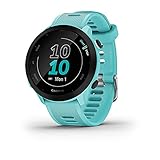
- Easy-to-use running watch monitors heart rate (this is not a medical device) at the wrist and uses GPS to track how far, how fast and where you’ve run
- Battery life: up to 2 weeks in smartwatch mode; up to 20 hours in GPS mode
- Plan your race day strategy with the PacePro feature (not compatible with on-device courses), which offers GPS-based pace guidance for a selected course or distance
- Run your best with helpful training tools, including race time predictions and finish time estimates
- Track all the ways you move with built-in activity profiles for running, cycling, track run, virtual run, pool swim, Pilates, HIIT, breathwork and more
Trail routes created as generic “other” activities are especially prone to this. Assign them to Trail Run, Hike, or MTB depending on how you plan to use them.
GPX File Imports That Fail or Partially Load
If a GPX file won’t import into Garmin Connect, the file itself is often the problem. GPX files with multiple tracks, waypoints, or embedded timestamps can confuse the parser.
Open the file in a route editor like Komoot, GPX Studio, or Garmin Connect Web and re-export it as a single-track course. Avoid FIT or TCX conversions unless you specifically need structured workouts.
When transferring via USB, confirm the file is placed in the correct folder. It must go into the Garmin/NewFiles directory, not Courses or Activities. The watch converts it on the next boot or disconnect.
Sync Errors Between Phone and Watch
Bluetooth sync issues are common, especially after firmware updates or long gaps between syncs. If routes stop syncing entirely, restart both the phone and the watch first.
If that doesn’t work, remove the watch from Garmin Connect, then re-pair it as a new device. This sounds drastic, but it fixes corrupted sync states without deleting your activity history.
On Android, disable battery optimization for Garmin Connect. On iOS, ensure Bluetooth permissions and background app refresh are enabled, or the sync may silently fail.
Route Shows but Map Screen Is Blank
If the route loads but you see only a breadcrumb line on a white or empty background, the watch likely doesn’t have maps installed. Breadcrumb navigation works without maps, but full map detail requires region-specific map files.
On watches like Fenix, Epix, Enduro, and Forerunner 955/965, check Garmin Express or Garmin Connect Web to confirm maps are installed and up to date. Maps are large files and won’t install over Bluetooth alone.
If storage is nearly full, the watch may refuse to load maps even if they appear installed. Removing unused courses or music can free enough space for proper map rendering.
Off-Course Alerts Trigger Constantly
Off-course alerts are sensitive by design, especially on narrow trails or in dense forest. Multi-band GPS improves accuracy but also exposes small deviations that trigger warnings.
If alerts become distracting, you can disable off-course alerts per activity in the watch settings. This keeps the route visible without constant vibration or beeping.
Wearing the watch snugly also matters. A loose fit can reduce GPS accuracy, particularly on lighter plastic-cased models or during arm swing-heavy activities like trail running.
Navigation Arrow Points the Wrong Way
This usually happens when starting mid-route or joining the route from the opposite direction. The watch snaps to the nearest point but assumes forward travel along the original course direction.
If you plan to go the opposite way, reverse the route in Garmin Connect before syncing. Doing this on the phone or web app is far more reliable than trying to mentally compensate mid-activity.
Compass calibration can also play a role. If the arrow spins or points erratically while standing still, recalibrate the compass from the watch’s sensors menu.
Turn Alerts Are Late or Missing
Turn prompts rely on cue points embedded in the route, not just the line itself. Routes drawn manually without turn data may display perfectly but provide no alerts.
Platforms like Komoot and Garmin Connect automatically generate cue points, while raw GPX tracks from mapping software often do not. Rebuilding the route with turn-by-turn navigation enabled usually fixes this.
GPS accuracy also affects timing. In cities or tree cover, alerts may fire late. This is normal behavior and not a hardware fault.
Watch Says “Course Too Large” or Fails to Load Long Routes
Every Garmin watch has a limit on course points, and long or highly detailed routes can exceed it. Ultra-distance GPX files with thousands of track points are the most common offenders.
Simplify the route using a GPX editor to reduce point density. Most tools can do this automatically without changing the visible path in any meaningful way.
If you regularly follow long routes, higher-end models like Fenix, Epix, Enduro, and Forerunner 955/965 handle larger files more gracefully thanks to faster processors and more internal storage.
Course Loads but Crashes or Freezes Mid-Activity
This is rare, but it can happen on older watches when maps, music, and navigation are all running together. High memory usage increases the risk.
Before long routes, close background features like music playback and minimize widget usage. Restarting the watch before the activity clears cached data and improves stability.
Keeping firmware up to date is critical here. Garmin frequently fixes navigation-related bugs quietly in software updates, especially for newer AMOLED models with more complex graphics.
When All Else Fails
If a route refuses to behave despite troubleshooting, try creating a fresh version from scratch in Garmin Connect or Komoot and syncing that instead. Corrupted files don’t always show obvious errors.
As a last resort, loading the GPX via USB often succeeds when wireless sync doesn’t. It bypasses Bluetooth entirely and gives the watch a clean file to process.
Once you’ve resolved the underlying issue, routes tend to work consistently. Garmin’s navigation system is reliable day-to-day, but it does reward careful setup and clean source files.
Pro Tips for Power Users: Course Limits, Battery Impact, Maps vs Breadcrumbs, and Best Practices
Once you’re comfortable loading GPX routes and troubleshooting the occasional sync issue, a few advanced considerations can dramatically improve reliability, battery life, and overall navigation confidence. These are the details experienced Garmin users quietly optimize to make routes feel seamless in real-world use.
Understand Course Point Limits (and Why They Matter)
Garmin watches don’t think in miles or kilometers when loading a route. They think in course points, which are the individual GPS coordinates that make up a GPX file.
Exceed the limit, and you’ll see errors like “Course too large” or find the route missing entirely. Entry-level and older watches have lower limits, while modern Fenix, Epix, Enduro, and Forerunner 9xx series models support significantly more points.
Routes created for hiking or trail running are especially prone to hitting limits because trail platforms often record extremely dense tracks. Simplifying the GPX to reduce point density almost always fixes the issue without altering the path you’ll see on the watch.
Maps vs Breadcrumbs: What Your Watch Is Actually Displaying
Not all Garmin navigation is created equal. Some watches show full vector maps with roads, trails, and terrain, while others only display a breadcrumb trail on a blank background.
Breadcrumb navigation is simpler and lighter on resources. It works well for running and cycling on familiar roads but offers no context beyond the line you’re following.
Full mapping models provide turn previews, nearby trails, rerouting, and better situational awareness. The trade-off is higher battery usage and more processing load, especially on AMOLED displays where map redraws are frequent.
Battery Impact of Course Navigation
Following a route uses more battery than free-form GPS tracking, even without maps. Turn alerts, off-course detection, and screen wake-ups all add overhead.
Maps amplify this effect. Long activities with maps, music, and multi-band GPS enabled can cut battery life by a noticeable margin, particularly on smaller watches like the Forerunner 265 or Venu series.
For ultra-distance events or all-day hikes, consider disabling music, reducing backlight brightness, and using standard GPS instead of multi-band unless accuracy is critical. On solar models, route navigation benefits from sunlight but still requires smart power management.
Turn-by-Turn Cues: When to Expect Them (and When Not To)
Turn prompts don’t come from the GPX file alone. They depend on how the route was created and whether it includes course points or was generated on routable maps.
Routes built directly in Garmin Connect, Komoot, or synced from compatible platforms usually include turn cues. Simple track-only GPX files often don’t.
If you want consistent alerts, rebuild the route in Garmin Connect using the “Create Course” tool rather than importing a raw track. The visual path may look identical, but the underlying data is more watch-friendly.
Storage, Performance, and Watch Stability
Every course you sync takes up internal storage and memory. On newer watches with fast processors and ample storage, this is rarely an issue, but older models can slow down when overloaded.
Delete unused courses periodically, especially before big events. Keeping only the routes you actually need improves menu responsiveness and reduces the chance of freezes mid-activity.
Restarting the watch before a long navigation session is a simple habit that clears memory and prevents odd behavior. It’s especially useful if you’ve recently synced music, maps, or large data files.
Choosing the Right Route Source for the Activity
Garmin Connect is ideal for straightforward road runs and rides, especially when you want reliable turn cues and seamless syncing. It’s also the safest option for compatibility across all Garmin models.
Komoot excels for hiking, gravel riding, and trail discovery, but its routes can be point-heavy. Simplifying before syncing keeps things smooth.
Strava and AllTrails routes often need an extra step, either rebuilding or cleaning the GPX, to behave perfectly on the watch. Treat them as starting points rather than final files.
Best Practices Before You Head Out
Sync your watch well before the activity, not at the trailhead. Large courses and map updates can take several minutes, especially over Bluetooth.
Open the course on the watch once before starting the activity. This confirms it loads correctly and gives the GPS time to settle.
Finally, trust the line. Minor alert delays, especially in cities or tree cover, are normal. If the route is visible and progressing, the watch is doing its job.
Mastering these power-user details turns Garmin navigation from a feature you occasionally use into one you rely on. With clean routes, realistic expectations, and a few smart habits, following GPX courses becomes one of the most dependable tools your Garmin watch offers.