A watch face on Wear OS is more than a static background with the time slapped on top. It is a small, self-contained piece of software that controls how information is displayed, how often the screen refreshes, how complications update, and even how much battery your watch uses throughout the day. If you are coming from an older smartwatch, a basic fitness tracker, or a traditional digital watch, this difference is the key to understanding why customization on Wear OS feels both more powerful and occasionally more complex.
Wear OS treats watch faces almost like mini apps, built to adapt to different screen sizes, shapes, and hardware capabilities. A modern Galaxy Watch or Pixel Watch can switch faces instantly, but behind the scenes the system is managing animations, touch zones, sensors, and always-on display behavior. This flexibility is what allows deep personalization, but it also explains why changing and editing faces is not always handled in just one simple menu.
By the end of this section, you will understand what a Wear OS watch face actually is, why customization behaves differently than on older or simpler smartwatches, and how this design unlocks the editing options you will use later in the guide. This foundation makes the step-by-step instructions ahead feel logical instead of overwhelming.
Watch faces on Wear OS are interactive software, not just designs
On Wear OS, a watch face is built using Google’s watch face framework, which allows developers to define interactive areas, data sources, and visual states. That is why tapping different parts of the screen can open apps, change modes, or trigger shortcuts, instead of just showing the time. The face is actively communicating with the system, pulling in live data like heart rate, steps, weather, calendar events, or battery status.
🏆 #1 Best Overall
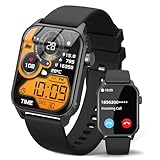
- 【1.83" HD Display & Customizable Watch Faces】Immerse yourself in a vibrant 1.83-inch IPS display, boasting a sharp resolution of 240*284 for crystal-clear visuals. Effortlessly personalize your smart watch with a wide array of customizable watch faces to suit your personal style for every occasion—whether trendy, artistic, or minimalist—ideal for casual, sporty, or professional. Its sleek, modern design complements any outfit, blending technology and fashion seamlessly for everyday wear
- 【120 Sports Modes & Advanced Health Tracking】Our TK29 smart watches for women men come equipped with 120 sports modes, allowing you to effortlessly track a variety of activities such as walking, running, cycling, and swimming. With integrated heart rate and sleep monitors, you can maintain a comprehensive overview of your health, achieve your fitness goals, and maintain a balanced, active lifestyle with ease. Your ideal wellness companion (Note: Step recording starts after exceeding 20 steps)
- 【IP67 Waterproof & Long-Lasting Battery】Designed to keep up with your active lifestyle, this smartwatch features an IP67 waterproof rating, ensuring it can withstand splashes, sweat, and even brief submersion, making it perfect for workouts, outdoor adventures, or rainy days. Its reliable 350mAh battery offering 5-7 days of active use and up to 30 days in standby mode, significantly reducing frequent charging. Ideal for all-day wear, whether you’re at the gym, outdoors, or simply on the go
- 【Stay Connected Anytime, Anywhere】Stay informed and in control with Bluetooth call and music control features. Receive real-time notifications for calls, messages, and social media apps like Facebook, WhatsApp, Twitter, and Instagram directly on your smartwatch. Easily manage calls, control your music playlist, and stay updated without needing to reach for your phone. Perfect for work, workouts, or on-the-go, this watch keeps you connected and never miss important updates wherever you are
- 【Multifunction & Wide Compatibility】Seamlessly handle heart rate monitoring, sleep tracking, and enjoy conveniences like camera/music control, Seamlessly handle heart rate monitoring, sleep tracking, and more-all directly from your wrist. This 1.83 inches HD smartwatch is compatible with iPhone (iOS 9.0+) & Android (5.0+), ensuring smooth daily connectivity and convenience throughout your day. More than just a timepiece, it’s a stylish, all-in-one wearable for smarter, healthier living
This is also why some faces feel smoother or more responsive than others. A well-optimized face will animate fluidly, update complications efficiently, and sip battery power, while a poorly made one may stutter or drain your watch faster. Customization is not just cosmetic; it affects daily usability and comfort, especially on smaller cases where clutter can hurt readability.
Why Wear OS customization feels different from older smartwatches
Older smartwatches and fitness trackers often used fixed templates with limited options, such as changing colors or swapping a single data field. Everything was controlled by the manufacturer, and editing usually happened in one place, either on the watch or in the phone app. Wear OS breaks away from that model by letting both Google and third-party developers create faces with their own rules.
Because of this, customization is spread across multiple layers. Some changes are made directly on the watch with long-press gestures, others live inside the phone’s companion app, and deeper options may only appear inside a third-party watch face app. This can feel inconsistent at first, but it is what allows far more creative and functional designs.
Complications are the core of Wear OS personalization
Complications are small widgets embedded into a watch face, similar to complications on traditional mechanical watches but powered by software. They can show live data like steps, heart rate, weather, next calendar event, or even shortcuts to apps. On Wear OS, complications are modular, meaning you can often swap them independently without changing the entire face.
This system is one of the biggest upgrades over older smartwatches. Instead of choosing between a sporty face or a professional one, you can tailor a single face to match your day, your outfit, or your workload. The same watch can look minimal during work hours and data-rich during workouts, simply by editing complications.
Why some faces customize on the watch and others require your phone
Wear OS supports both on-watch editing and phone-based customization, but not every face uses both. Stock faces from Google, Samsung, or Fossil usually allow quick edits directly on the watch, such as changing colors or complications with a long press. Third-party faces often rely on a phone app for deeper controls, like fonts, layout spacing, or advanced color palettes.
This split exists because phone apps offer more screen space and processing power. Adjusting fine details is easier on a phone than on a small round display, especially on watches with slim bezels or curved glass. Understanding this design choice helps avoid frustration when a face seems limited on the watch itself.
Version differences matter more than most people realize
Wear OS has gone through major changes, especially from Wear OS 2 to Wear OS 3 and beyond. Newer versions standardize how complications behave, improve battery efficiency, and tighten security around background processes. This means a face that feels basic or clunky on an older Fossil watch may feel smooth and flexible on a newer Galaxy Watch or Pixel Watch.
Manufacturers also add their own layers on top of Wear OS. Samsung’s One UI Watch, for example, tweaks how faces are previewed and edited, while Google keeps things closer to stock. These differences affect where settings are located and how much control you have, which is why the upcoming sections will break customization methods down clearly by device and method rather than assuming one universal process.
Before You Start: Wear OS Versions, Brand Skins, and Compatibility Differences (Pixel, Samsung, Fossil, TicWatch)
Before diving into the mechanics of changing and editing watch faces, it helps to understand why the same face can behave differently depending on your watch. Wear OS is a shared platform, but the version you’re running and the brand-specific skin layered on top directly affect what you can customize, where the controls live, and how smooth the experience feels day to day. Knowing these differences upfront prevents confusion when instructions don’t match your screen exactly.
Wear OS versions: why the software generation matters
Wear OS 3 and newer versions fundamentally changed how watch faces are handled compared to Wear OS 2. Face previews load faster, complication syncing is more reliable, and battery drain from animated or data-heavy faces is better controlled. If you’re upgrading from an older Fossil or TicWatch running Wear OS 2, expect face editing to feel more responsive and more consistent on newer hardware.
Newer Wear OS versions also restrict how deeply third-party faces can run background processes. This improves battery life and thermal comfort on the wrist, especially on compact watches, but it means some older faces lose advanced effects or real-time animations. When a face looks simpler than expected, it’s often a software safeguard rather than a missing feature.
Pixel Watch: closest to “stock” Wear OS
Pixel Watch models run Google’s cleanest interpretation of Wear OS, with minimal visual alterations. Watch face selection and editing are handled either directly on the watch with a long press or through the Pixel Watch app on your phone, where layouts and complications are clearly labeled. The experience prioritizes clarity over depth, which makes it ideal for beginners.
Customization tends to focus on color themes, complication swaps, and subtle layout changes rather than extreme visual overhauls. This fits the Pixel Watch’s compact case, domed glass, and emphasis on comfort and all-day wearability. If you value simplicity and predictable behavior, Pixel Watch faces are the most straightforward to manage.
Samsung Galaxy Watch: One UI Watch adds layers and options
Samsung’s Galaxy Watch lineup uses One UI Watch on top of Wear OS, and this significantly changes the face-editing workflow. Face previews are more visual, editing menus are deeper, and Samsung-exclusive faces offer extensive color, hand style, and complication layout options. Many edits can be done directly on the watch without touching your phone.
The trade-off is complexity. Some settings live in the Galaxy Wearable app, others are only accessible from the watch, and Samsung Health complications often integrate more tightly than Google’s equivalents. The upside is flexibility, especially on larger Galaxy Watch models where screen size makes detailed editing comfortable and practical.
Fossil watches: clean design, lighter customization
Fossil’s Wear OS watches typically stick close to stock behavior, with a visual style that emphasizes traditional watch aesthetics. Face editing is usually available on the watch itself, with phone-based controls used mainly for downloading and managing additional faces. Customization options are present but intentionally restrained.
This approach aligns with Fossil’s focus on slim cases, lighter weight, and all-day comfort over heavy data density. Battery life can be more sensitive to animated or always-on faces, so simpler designs often deliver better real-world usability. Fossil owners benefit most from faces that balance style with restraint.
TicWatch: features depend heavily on model and software support
TicWatch devices vary more than most brands when it comes to watch face behavior. Some models run newer Wear OS versions smoothly, while others rely on older software with limited update paths. This directly affects which faces are compatible and how reliably complications update.
Mobvoi’s own faces often integrate tightly with fitness and dual-display features, but third-party faces may feel inconsistent. On watches with secondary low-power displays, certain faces won’t fully support always-on behavior. It’s worth checking compatibility notes before investing time in deep customization on a TicWatch.
Phone compatibility and companion apps
All Wear OS watches require an Android phone, but the companion app experience differs by brand. Pixel Watch uses the Pixel Watch app, Samsung relies on Galaxy Wearable, Fossil uses its own companion app, and TicWatch models often combine Mobvoi and Wear OS apps. Each handles face syncing and previews slightly differently.
Some faces install directly from the Play Store on the watch, while others require a phone app for full control. If a face seems uneditable on the watch, checking its phone companion app is often the missing step. This split is normal and not a sign that something is broken.
Why instructions don’t always match your screen
Even within the same Wear OS version, menu names and gestures can vary by brand. A long press on the watch face might open an editor immediately on one device, while another shows a carousel first. Screen size, bezel thickness, and input methods all influence how these menus are presented.
Understanding these differences sets realistic expectations before you start customizing. The core principles stay the same, but the path to get there changes slightly. With this foundation in place, the next steps will make sense no matter which Wear OS watch you’re wearing.
How to Change Your Watch Face Directly on the Watch (Step-by-Step on Wear OS)
Once you understand that menus and gestures vary slightly by brand, changing your watch face directly on the watch becomes second nature. This is the fastest way to refresh the look of your Wear OS smartwatch, and it works even when your phone isn’t nearby.
The exact wording on your screen may differ, but the flow below applies to Pixel Watch, Samsung Galaxy Watch, Fossil, and most TicWatch models running modern Wear OS.
Step 1: Wake the watch and return to the current watch face
Start from the main watch face, not an app or settings screen. If you’re inside an app, press the side button once or swipe until you’re back at the home screen.
This matters because the long-press gesture only works from the active watch face itself. On watches with rotating bezels or crowns, you don’t need to rotate anything yet.
Step 2: Long press on the watch face
Touch and hold the center of the screen for about one second. You don’t need to press hard; a steady hold is enough.
On most Wear OS watches, this opens a horizontal carousel of available watch faces. Some Samsung models briefly dim the screen before the carousel appears, which is normal.
Step 3: Swipe left or right to browse installed faces
Swipe horizontally to scroll through all watch faces currently installed on your watch. You’ll usually see a live preview rather than a static thumbnail, giving you a sense of animations, colors, and complication layout.
This is where screen size and resolution come into play. Larger watches like the Galaxy Watch 6 Classic or Pixel Watch 2 make details easier to judge, while smaller cases may feel more condensed.
Step 4: Tap a face to apply it
Once you land on a face you like, simply tap it. The watch face applies instantly, without a confirmation step.
If the face includes heavier animations or detailed complications, you may notice a slight delay the first time it loads. This is normal and doesn’t indicate a performance issue.
Step 5: Enter edit mode for the selected face
With your chosen face active, long press on it again. This time, look for an Edit, Customize, or pencil-style icon on the screen.
Some faces jump straight into customization, while others show small dots or side panels you swipe through. The interaction depends on the face designer, not just the watch brand.
Step 6: Customize colors, layouts, and complications
Most modern Wear OS faces allow on-watch editing of at least three elements: color themes, complication slots, and layout styles. Swipe left or right to move between customization categories.
Tap a complication area to choose what information appears there, such as battery level, steps, weather, calendar, or heart rate. Faces with many complications look powerful but can impact battery life, especially on smaller watches.
Step 7: Confirm and return to the watch face
After making changes, swipe all the way to the end or tap a checkmark if one appears. Your edits save automatically.
There’s no risk of losing the face if you back out accidentally. Wear OS keeps your last applied settings unless you change them again.
What to do if long press doesn’t work
If long pressing the watch face does nothing, check whether a physical bezel or crown is intercepting input. On some Samsung watches, the bezel must be stationary for touch input to register correctly.
Also confirm you’re not in a locked or water mode. These modes disable touch gestures and can make the watch feel unresponsive until turned off.
Why some faces have limited on-watch editing
Not every watch face exposes full customization on the watch itself. Many third-party faces rely on companion phone apps for deeper control, especially for fine-grained complication behavior or advanced color palettes.
This is common and intentional, not a limitation of your watch hardware. If a face feels basic on the watch, it often becomes much more flexible when paired with its phone editor.
Practical tips for choosing faces directly on the watch
When browsing on the watch, prioritize legibility and comfort over novelty. Faces with high contrast, larger fonts, and simpler layouts are easier to live with during workouts, quick glances, and outdoor use.
If you rotate through multiple faces, keep battery life in mind. Always-on display behavior, background animations, and frequent complication updates all affect daily wearability, especially on smaller batteries like the Pixel Watch’s.
How to Edit and Customize a Watch Face on the Watch: Complications, Colors, Styles, and Layouts
Once you’ve selected a watch face you like, the real personalization happens directly on the watch. Editing on-device is the fastest way to tweak how your watch looks and behaves in daily use, without pulling out your phone.
Most Wear OS watches follow the same interaction pattern here, whether you’re using a Pixel Watch, Galaxy Watch, or a Fossil-made model. The options you see depend on the face itself, but the editing flow is consistent across brands.
Rank #2

- Long Battery Life - Unleash your potential with up to 10 days on a single charge, ensuring you stay connected and active without frequent recharging, more accurate tracking with extra battery life.
- Vibrant AMOLED Display - Track workouts and explore with ease on a stunning AMOLED display that offers crystal-clear visuals, making it perfect for both indoor and outdoor use.
- Advanced Health Monitoring - Stay on top of your health with comprehensive tracking features including heart rate, SpO2, and stress monitoring, providing you with valuable insights to maintain your well-being.
- Premium Style and Comfort - Experience the perfect blend of premium style and all-day comfort, making the moto watch 120 an ideal accessory for any occasion.
- Compatibility - Designed for versatility, the moto watch 120 is compatible with both iPhone and Android phones, ensuring seamless integration with your favorite devices.
Entering edit mode on the watch
From the active watch face, press and hold on the screen until it slightly zooms out or vibrates. This gesture works from the home screen only, not inside apps or tiles.
Swipe left or right to cycle through available faces if you want to switch, or tap the Edit button or pencil icon on the current face. Some faces enter edit mode immediately when long-pressed, skipping the extra tap.
If your watch has a rotating crown or bezel, you can usually scroll through options with hardware controls instead of swiping. This is especially helpful on smaller displays where touch targets feel tight.
Understanding customization categories
Once inside edit mode, you’ll move horizontally through different customization panels. Each panel controls a specific aspect of the face, such as complications, colors, or layout styles.
Think of these panels as modular layers. You’re not redesigning the face from scratch, but adjusting predefined elements the designer has made available.
Not every face exposes the same categories. Minimal faces may only offer color changes, while data-heavy faces can include multiple layout and complication layers.
Editing complications: what shows and where
Complications are the small data widgets embedded into a watch face. Common examples include battery percentage, steps, weather, calendar events, heart rate, or sunrise and sunset times.
Tap directly on a complication slot to edit it. The watch will show a list of compatible data sources, pulled from both system apps and installed third-party apps.
Some complication slots are flexible, letting you choose almost anything. Others are restricted to certain data types, like time, health, or weather, depending on the face design.
Choosing the right complications for daily wear
It’s tempting to fill every slot, but more complications mean more background updates. On smaller watches like the Pixel Watch or Galaxy Watch 40mm, this can noticeably affect battery life.
For everyday comfort, prioritize glanceable information you actually check. Battery level, next calendar event, and weather tend to be more useful than constantly updating metrics like live heart rate.
If you use always-on display, complications with frequent refresh cycles can also increase screen burn-in risk over long periods. Simpler data ages better on OLED panels.
Changing colors and themes
After complications, swipe to the color or theme panel. Here you can adjust accent colors, background tones, and sometimes font colors.
Some faces offer fixed colorways inspired by classic watch dials, while others let you fine-tune individual elements. Samsung’s default faces are especially flexible here, often allowing separate hand, index, and accent colors.
High-contrast color combinations improve outdoor legibility and reduce eye strain. Dark backgrounds with bright accents also help conserve battery on OLED-based Wear OS watches.
Adjusting styles, fonts, and visual elements
Many faces include a style panel that changes the overall character of the watch face. This might swap analog hands, digital fonts, index markers, or even the presence of a seconds hand.
Analog-style faces often let you choose between sportier or more traditional hand designs. These changes affect not just aesthetics but also readability at a glance.
On digital faces, font weight and spacing can make a big difference on small screens. Thicker fonts are easier to read during movement, workouts, or quick wrist raises.
Modifying layouts and information density
Some faces allow you to switch between layout presets. These change how information is arranged, such as moving complications from the edges to the center or stacking data vertically instead of radially.
Denser layouts are useful during workdays when you want more information on-screen. Simpler layouts feel better for exercise, sleep tracking, or casual wear when comfort and clarity matter more.
Layout changes don’t usually affect performance, but faces with animated elements or layered backgrounds can increase power draw, especially with always-on display enabled.
Navigating edits using the crown or bezel
If your watch includes a rotating crown or bezel, use it. Scrolling through options with hardware controls is faster and more precise than swiping, particularly when wearing gloves or during workouts.
On Galaxy Watch models with a physical or touch bezel, rotating while in edit mode moves cleanly between categories. On Pixel Watch, the crown scrolls vertically through options within a panel.
Using hardware controls also reduces accidental taps, which helps when editing faces with many small complication slots.
Saving changes and applying the face
As you move through edit panels, changes preview in real time. You don’t need to manually save each adjustment.
Once you reach the final panel, swipe all the way through or tap the checkmark to confirm. Exiting edit mode automatically applies the last configuration you previewed.
If you back out mid-edit, Wear OS typically keeps the most recent confirmed state. You won’t lose the face or revert to defaults unless you explicitly change it again.
Why some options may be missing
If you expect to see certain options and they’re not there, it’s usually a face limitation, not a software bug. Watch faces define what can be edited on-device.
Third-party faces often keep advanced controls, like complication refresh rates or detailed color mapping, inside their phone companion apps. This keeps on-watch editing fast and lightweight.
System faces from Google and Samsung tend to expose more controls directly on the watch, optimized for quick adjustments without needing your phone nearby.
Practical on-watch customization tips
Make edits in real lighting conditions. A face that looks great indoors may be hard to read outside, especially with muted colors or thin fonts.
If comfort matters, test the face during movement. Busy layouts can feel overwhelming when you’re walking, running, or lifting, even if they look impressive when stationary.
Finally, remember that your watch face is part of your daily wear, just like a traditional watch dial. The best customization is the one that fades into the background while still giving you exactly the information you need.
Changing and Editing Watch Faces Using Your Phone (Wear OS App, Pixel Watch App, Samsung Wearable)
If on-watch editing is about quick tweaks, your phone is where deeper personalization really opens up. Companion apps give you a larger screen, clearer previews, and access to face libraries that simply aren’t practical to browse on a small display.
This is also where brand differences matter most. Google, Samsung, and third-party Wear OS watches all approach phone-based customization slightly differently, even though the end goal is the same.
Using the Wear OS app (most non-Samsung watches)
For Wear OS watches from brands like Fossil, TicWatch, Skagen, or older Pixel Watch models, the standard Wear OS app is the control center. Once your watch is paired, open the app and tap the Watch faces section.
Here you’ll see a carousel of faces currently installed on your watch, along with a gallery of additional faces you can add. Tapping a face lets you preview it instantly on your watch, with changes syncing in real time over Bluetooth.
Editing a face from the Wear OS app is more detailed than on the watch itself. You can adjust colors, dial styles, and complications with clear labels and full-screen previews, which makes it easier to understand what each option actually changes.
Complication slots are especially easy to manage here. Instead of cycling through long lists on the watch, the phone app shows full complication names and icons, reducing trial and error.
Once you’re done, changes apply automatically. There’s no save button to hunt for, and you can switch between faces as often as you like without affecting battery life or performance.
Using the Pixel Watch app
The Pixel Watch app is more refined than the generic Wear OS app and tightly integrated with Google’s design language. If you’re using a Pixel Watch or Pixel Watch 2, this is the primary way Google expects you to customize faces.
From the Watch faces tab, you can browse installed faces, explore Google’s built-in collection, and install new designs with a single tap. The app does an excellent job of showing how faces look in ambient mode versus full brightness, which helps with real-world readability.
Editing a face brings up structured panels for layout, colors, and complications. Google’s system faces tend to offer fewer but more carefully tuned options, prioritizing legibility, battery efficiency, and smooth animations.
Complication editing is particularly strong here. Health metrics, calendar data, and smart home controls are clearly grouped, making it easier to build a face that fits your daily routine without clutter.
Because Pixel Watch faces are optimized for Google’s hardware, changes sync quickly and feel responsive, even when switching between multiple faces throughout the day.
Using the Samsung Wearable app (Galaxy Watch)
Samsung takes the most expansive approach to phone-based face customization. If you’re using a Galaxy Watch, the Samsung Wearable app is far more than a pairing tool.
Open the Watch faces section and you’ll find a large storefront-style gallery, including Samsung’s own designs and third-party faces from the Galaxy Store. Many faces here are more visually ambitious, with layered textures, animated elements, and dense complication layouts.
Editing a Samsung face on your phone often reveals options that aren’t visible on the watch itself. You can fine-tune color accents, hand styles, background textures, and complication placement with precision.
Rank #3

- 1.4" Super AMOLED, 450x450px 321ppi, Exynos W920 Dual-core 1.18GHz, 590mAh Battery, Android Wear OS 3.5, One UI Watch 4.5, Bluetooth 5.2, Wi-Fi
- GPS route and Auto Workout Tracking, 2x tougher Sapphire crystal glass face , Water-resistant.
- Advanced Sleep Coaching analyzes your sleep stages, then provides tips, and sleep reports to manage your overall sleep quality.
- Get more accurate wellness readings with the redesigned BioActive Sensor. The improved shape gets closer to your skin to track your heart rate and more.
- Compatible with Android devices. NO Cellular / LTE Compatibility.
Samsung also allows deeper customization of Always On Display behavior for supported faces. This can affect battery life, but it’s useful if you want a consistent look throughout the day.
Once applied, faces sync quickly, and Galaxy Watches handle frequent face switching well thanks to efficient memory management. Still, heavily animated faces may impact battery life compared to simpler designs.
Installing and managing third-party watch faces
Beyond system apps, many popular Wear OS watch faces are installed through the Google Play Store on your phone. After installation, these faces appear automatically in your watch face list.
Most third-party faces include their own companion apps. These apps often unlock advanced controls like custom data refresh rates, fine-grain color control, or alternate layouts that aren’t exposed through standard Wear OS editing.
It’s worth spending time in these companion apps. While the interface can vary in quality, they often allow more creative freedom than system faces, especially for users who want detailed health data or unique visual styles.
If a face doesn’t appear after installation, give it a moment or manually sync from the phone app. In rare cases, a restart of the watch helps complete the installation.
Common pitfalls when editing from your phone
If edits don’t seem to apply, the most common issue is a weak Bluetooth connection. Keep your phone nearby and unlocked during customization to ensure changes sync properly.
Another common confusion is editing the wrong face. Make sure the face you’re customizing is actually the active one on your watch, especially if you have multiple similar designs installed.
Finally, remember that not all faces support the same level of customization. If an option is missing on your phone, it’s almost always a limitation of the face itself, not your watch or app.
Practical phone-based customization tips
Use your phone to set up faces when you have time to experiment. The larger screen makes it easier to judge spacing, color contrast, and overall balance.
Think about daily wearability, not just appearance. Faces with many complications look impressive, but they can feel busy during workouts or quick glances.
Treat your watch face like a well-chosen traditional dial. The best setups combine comfort, clarity, and personality without demanding constant attention.
Using Third-Party Watch Face Apps: Play Store, Facer, WatchMaker, and OEM Stores Explained
Once you’ve explored the built-in faces and basic phone-based editing, third-party watch face apps open the door to far deeper personalization. This is where Wear OS starts to feel less like a preset accessory and more like a customizable instrument you can tune to your lifestyle.
Third-party faces vary widely in quality, battery efficiency, and design philosophy. Some aim for traditional watchmaking aesthetics, while others push into highly technical, data-rich layouts that would be impossible on an analog dial.
Installing watch faces directly from the Play Store
The simplest route is the Google Play Store, either on your phone or directly on your watch. When browsing on your phone, look for listings labeled as compatible with Wear OS, then install both the phone and watch components if prompted.
After installation, the face usually appears automatically in your watch’s face picker within a minute or two. If it doesn’t, a quick sync or watch restart almost always resolves it.
Play Store faces range from minimalist designs with excellent battery life to complex dashboards packed with health metrics, weather, and shortcuts. Pay attention to update history and developer responsiveness, as well-maintained faces tend to behave better after Wear OS updates.
Understanding companion apps and advanced controls
Many Play Store faces install a companion app on your phone. This app is often where the real power lies, offering controls that go far beyond what you can access on the watch itself.
You may find options for second-by-second data refresh rates, precise complication placement, or granular color tuning that affects legibility in bright sunlight. These settings can materially affect daily usability, comfort during workouts, and battery drain.
If a face feels sluggish or drains battery faster than expected, check the companion app first. Reducing animation frequency or sensor polling can dramatically improve real-world wear time without sacrificing style.
Facer: massive variety with trade-offs
Facer is one of the most popular third-party platforms, offering thousands of community-created and premium watch faces. It’s ideal if you like changing styles often or want designs inspired by luxury watches, sci-fi interfaces, or playful graphics.
Setup requires installing Facer on both your phone and watch, then selecting faces through the phone app. Once synced, the chosen face becomes active on your watch like any other.
The trade-off is performance. Because many Facer faces rely on layered graphics and scripts, they can be heavier on battery and occasionally less smooth, especially on older Wear OS hardware with smaller batteries or slower processors.
WatchMaker: deep customization for power users
WatchMaker appeals to users who want total control over how a face looks and behaves. It supports custom animations, conditional logic, and fine-tuned complication behavior that goes far beyond standard templates.
You install WatchMaker on both devices, then browse or create faces within the phone app. Changes sync in near real time, making it easier to experiment with layout and functionality.
This level of freedom comes with responsibility. Poorly optimized faces can impact battery life and responsiveness, so WatchMaker is best suited for users comfortable tweaking settings and testing real-world performance over a full day.
OEM stores and brand-specific watch face ecosystems
Some manufacturers supplement the Play Store with their own watch face collections. Samsung, for example, offers exclusive faces through its Galaxy Watch ecosystem, while Fossil and others occasionally bundle branded designs through companion apps.
These faces are often better optimized for the specific hardware, taking into account screen size, curvature, brightness, and sensor layout. That usually translates to smoother animations, better legibility, and more predictable battery consumption.
OEM faces may not offer the same visual variety as community platforms, but they tend to feel more cohesive in daily wear. If comfort, reliability, and polish matter more than novelty, these are often a smart choice.
Choosing the right third-party face for daily wear
When evaluating third-party faces, think beyond how they look in screenshots. Consider how often you check your watch, whether you rely on glanceable information during workouts, and how long you expect the battery to last between charges.
A beautifully detailed face can feel impressive at first, but cluttered layouts or small text can become frustrating over time. Faces that balance spacing, contrast, and complication density usually feel better after weeks of use, not just the first day.
Treat third-party faces the way you would a physical watch dial. The best ones complement your routine, enhance usability, and make the watch feel personal without getting in the way of everyday life.
Advanced Customization Tips: Complications, Battery Impact, Always-On Display, and Readability
Once you’ve settled on a watch face that fits your style, the real refinement happens in how you configure it. Complications, display behavior, and readability choices all shape how the watch feels in daily wear, often more than the visual theme itself.
This is where a Wear OS smartwatch stops feeling like a generic gadget and starts behaving like a personal instrument, tuned to how you move, glance, and interact throughout the day.
Using complications intelligently, not excessively
Complications are the small widgets embedded into a watch face, showing information like weather, steps, battery level, calendar events, or heart rate. Most modern Wear OS faces allow anywhere from two to eight complications, depending on layout and screen size.
The key is prioritization. Ask yourself which information you actually check at a glance, not what looks impressive in a screenshot. For many users, time, date, battery, and one dynamic data point such as weather or next appointment cover 90 percent of real-world needs.
Overloading complications can hurt usability. Smaller text becomes harder to read on 40–44mm displays, especially during motion, and crowded layouts increase the chance of accidental taps. A cleaner face with fewer, well-placed complications often feels faster and more comfortable over long-term wear.
Placement matters just as much as quantity. Complications near the edges are easier to glance at but more prone to accidental touches, while central complications are readable but can distract from the time itself. Experiment over a full day before committing.
Understanding battery impact from watch face design
Not all watch faces are created equal when it comes to power consumption. Faces with continuous animations, live seconds hands, frequent data refreshes, or complex background textures draw more power than static or minimally animated designs.
OLED-based displays, used on most Wear OS watches, consume less power when showing darker pixels. Faces with black or very dark backgrounds typically use less battery than bright, full-color designs, especially with Always-On Display enabled.
Third-party faces vary widely in optimization. Well-built faces from reputable developers tend to batch data updates and limit background processes, while poorly optimized faces may constantly poll sensors or refresh complications more often than necessary. If you notice sudden battery drain after switching faces, that face is often the culprit.
As a general rule, if a face looks like it belongs in a video game menu, expect a battery trade-off. If it looks closer to a traditional watch dial, it will usually be more efficient.
Always-On Display behavior and what to look for
Always-On Display, or AOD, keeps a simplified version of your watch face visible when your wrist is down. This is one of the most important factors in both battery life and readability.
A good AOD mode strips the face down to essentials. Time should be high-contrast, static, and free of unnecessary color. Many quality faces dim complications or remove them entirely in AOD mode, which significantly reduces power draw.
Some faces allow separate customization for AOD, letting you choose whether complications remain visible or whether seconds are hidden. If your watch offers this option, it’s worth adjusting. Removing seconds alone can noticeably improve standby battery life.
Poor AOD design is easy to spot. If the screen looks cluttered, unevenly dimmed, or hard to read indoors, the face may not be well optimized. Since AOD is what you see most often throughout the day, its clarity matters more than the interactive mode.
Improving readability in real-world conditions
Readability is not just about font size. Contrast, spacing, and color choice all affect how quickly you can read the time in bright sunlight, low light, or while moving.
High-contrast combinations, such as white or light gray text on a black background, remain the easiest to read across lighting conditions. Thin fonts and decorative typefaces may look elegant but can blur at a glance, especially on smaller displays.
Rank #4

- 【1.83" HD Display & Customizable Watch Faces】Immerse yourself in a vibrant 1.83" IPS display, boasting a sharp resolution of 240*284 for crystal-clear visuals. Effortlessly personalize your smart watch with a wide array of customizable watch faces to suit your personal style for every occasion—whether trendy, artistic, or minimalist—ideal for casual, sporty, or professional. Its sleek, modern design complements any outfit, blending technology and fashion seamlessly for everyday wear
- 【Stay Connected Anytime, Anywhere】Stay informed and in control with Bluetooth call and music control features. Receive real-time notifications for calls, messages, and social media apps like Facebook, WhatsApp, Twitter, and Instagram directly on your smartwatch. Easily manage calls, control your music playlist, and stay updated without needing to reach for your phone. Perfect for work, workouts, or on-the-go, this watch keeps you connected and never miss important updates wherever you are
- 【120 Sports Modes & Advanced Health Tracking】Our TG08 smart watches for women men come equipped with 120 sports modes, allowing you to effortlessly track a variety of activities such as walking, running, cycling, and swimming. With integrated heart rate and sleep monitors, you can maintain a comprehensive overview of your health, achieve your fitness goals, and maintain a balanced, active lifestyle with ease. Your ideal wellness companion (Note: Step recording starts after exceeding 20 steps)
- 【IP67 Waterproof & Long-Lasting Battery】Designed to keep up with your active lifestyle, this smartwatch features an IP67 waterproof rating, ensuring it can withstand splashes, sweat, and even brief submersion, making it perfect for workouts, outdoor adventures, or rainy days. Its reliable 350mAh battery offering 5-7 days of active use and up to 30 days in standby mode, significantly reducing frequent charging. Ideal for all-day wear, whether you’re at the gym, outdoors, or simply on the go
- 【Multifunction & Wide Compatibility】Seamlessly handle heart rate monitoring, sleep tracking, and enjoy conveniences like camera/music control, Seamlessly handle heart rate monitoring, sleep tracking, and more-all directly from your wrist. This 1.83" HD smartwatch is compatible with iPhone (iOS 9.0+) & Android (5.0+), ensuring smooth daily connectivity and convenience throughout your day. More than just a timepiece, it’s a stylish, all-in-one wearable for smarter, healthier living
Consider how the face behaves during motion. If you often check your watch while walking, exercising, or carrying something, larger numerals and uncluttered layouts are far more practical than dense information grids.
Also pay attention to wrist orientation and case size. On watches with curved glass or smaller diameters, edge-mounted complications can distort slightly at certain angles. Faces designed specifically for your watch model often account for this better than generic designs.
Balancing aesthetics with daily usability
It’s tempting to treat watch faces like wallpapers and change them daily, but most users end up gravitating toward one or two faces that simply work. Those faces usually balance visual appeal with clarity, responsiveness, and battery efficiency.
Think of your smartwatch the way you would a physical watch. A highly skeletonized mechanical dial may be fascinating, but not everyone wants to read one in a hurry. The same principle applies here.
Take time to live with a face for several days. Pay attention to battery life, how often you miss information at a glance, and whether the face still feels comfortable after a long day on the wrist. The best customization choices reveal themselves through use, not initial impressions.
Common Problems and Fixes: Missing Watch Faces, Sync Issues, and Customization Not Saving
Even after you find a watch face that looks great and reads well in daily use, Wear OS can sometimes get in the way. Missing faces, phone-to-watch sync problems, or edits that mysteriously revert are all common frustrations, especially for newer users or those switching brands.
Most of these issues are software-related rather than hardware faults. With a few targeted checks, you can usually restore full control without resetting your watch or sacrificing battery life.
Watch faces not appearing on the watch
One of the most frequent complaints is installing a watch face on the phone, only to find it missing on the watch. This usually happens because Wear OS treats watch faces as separate watch-side apps, even when installed from the phone.
Start by opening the Play Store directly on the watch. Scroll to Manage apps, then Installed, and check whether the face appears there. If it does, the face is installed but simply not active.
If the face is not listed, make sure you selected the correct device during installation on your phone. On phones with multiple Wear OS devices paired historically, Google Play may default to the wrong target.
Also verify that the watch face supports your Wear OS version. Older faces built for Wear OS 2 may not appear on newer Wear OS 4 devices like the Galaxy Watch 6 or Pixel Watch 2, even if the Play Store allows the download.
Downloaded faces stuck on “installing” or “pending”
If a watch face shows as pending for a long time, the issue is usually a stalled sync rather than a failed purchase. This is common on watches with smaller batteries or aggressive background limits, such as Fossil and older TicWatch models.
First, place the watch on its charger and keep the phone nearby with Bluetooth and Wi‑Fi enabled. Charging temporarily relaxes system restrictions and often allows the install to complete within a few minutes.
If that fails, open the Play Store on the watch, scroll to Settings, and confirm you are signed into the same Google account used on the phone. Mismatched accounts can silently block installations.
As a last step, restart both the phone and the watch. This clears background sync queues without affecting stored faces or health data.
Watch face customization not saving
Few things are more irritating than carefully adjusting colors, complications, or layouts only to have the face revert later. This issue is most often tied to how the face developer handles presets rather than a system bug.
When customizing on the watch, make sure you exit the editor using the confirm or checkmark action rather than swiping away. On some faces, swiping cancels changes even though the preview updates.
If you are editing from the phone companion app, wait a few seconds after applying changes before locking the phone or switching apps. Wear OS sync is not instant, and interrupting it can discard the update.
Battery optimization can also interfere. On your phone, disable battery restrictions for the Wear OS app and any third-party watch face app. This is especially important on Samsung phones with aggressive background management.
Complications resetting or showing the wrong data
Complications are small but powerful, and they are also the most fragile part of customization. If a complication resets to a default or shows outdated information, the source app is usually the cause.
Open the app providing the complication on both the phone and the watch at least once. Many apps require an initial launch to grant permissions or complete setup before complications behave reliably.
Health and fitness complications are particularly sensitive. If step counts or heart rate widgets vanish, check that health permissions are still enabled after system updates. Wear OS updates can quietly revoke access.
Also be aware that some faces limit which complication types can be placed in certain slots. A face designed for symmetry may reject data-heavy complications even if they appear selectable.
Faces disappearing after a software update
Major Wear OS updates can temporarily hide or disable faces, especially third-party ones. This is more common after version jumps or One UI Watch updates on Samsung devices.
Give the watch some time after the update completes. The system often rebuilds app caches in the background, which can take several minutes while the watch warms slightly and battery drains faster than usual.
If faces do not return, open the Play Store on the watch and check for updates to the missing face. Developers frequently release compatibility patches shortly after system updates.
In rare cases, the face may no longer be supported. If it relied on deprecated APIs, it may stop appearing entirely, even though it remains listed in your purchase history.
Sync issues between phone and watch
When changes on the phone do not reflect on the watch, the connection itself is usually the weak link. Bluetooth alone is often not enough for reliable face syncing.
Ensure both devices are connected to the internet, ideally the same Wi‑Fi network. Wear OS uses cloud-based syncing for some settings, not just direct Bluetooth transfers.
If you recently changed phones, confirm the watch is fully paired and not running in a limited mode. Partial pairing allows notifications but blocks deeper customization features.
For persistent issues, unpairing and re-pairing the watch can help, but treat this as a last resort. While most data restores automatically, some locally stored faces and presets may need to be reconfigured.
Performance and battery problems after changing faces
If a new face causes lag, stuttering animations, or faster battery drain, it may simply be too demanding for your watch’s hardware. High-resolution animated backgrounds and frequent data refreshes are the usual culprits.
This is more noticeable on watches with smaller batteries or older processors, where efficiency matters more than visual flair. A face that looks stunning in screenshots may feel less comfortable after a full day on the wrist.
Try disabling nonessential complications or switching to a static background. If the watch feels warmer than usual or drains significantly faster, reverting to a simpler face is often the most practical fix.
Remember that comfort and usability are part of personalization too. The best watch face is not the most complex one, but the one that fits seamlessly into how you actually wear and use your watch every day.
Best Practices for Choosing the Right Watch Face for Battery Life, Fitness, Work, and Style
Once you understand how watch faces affect performance, the next step is choosing the right one for how you actually use your watch. A great face should complement your routine, not fight it, whether that means lasting through a long day, supporting workouts, or looking appropriate at work.
Wear OS gives you enormous flexibility, but not every face is equally well suited to every scenario. Thinking about battery behavior, data visibility, comfort, and visual tone will help you get more out of your smartwatch without constant tweaking.
Choosing a watch face that maximizes battery life
If battery life is a priority, simplicity is your strongest ally. Faces with dark backgrounds, especially true black on AMOLED displays, consume noticeably less power than bright or photo-heavy designs.
Limit the number of active complications. Each live data point, such as heart rate, weather, or step count, refreshes in the background and adds to power drain, particularly if it updates every few seconds.
Avoid faces with continuous animations or second-by-second sweeping hands. These look impressive in the store preview but can shave hours off daily battery life, especially on smaller watches like the Pixel Watch or Fossil Gen models with compact batteries.
Always-on display behavior matters too. Some faces handle AOD intelligently by switching to a simplified layout, while others remain relatively busy. A clean, stripped-down AOD view can make the difference between ending the day comfortably or hunting for a charger by dinner.
Watch faces for fitness and health tracking
For workouts and active days, prioritize clarity over decoration. Large numerals, bold progress rings, and high-contrast layouts are easier to read at a glance when moving or sweating.
Choose faces that support fitness-focused complications natively, such as heart rate zones, step goals, active minutes, or recovery metrics. Built-in support is usually more reliable and efficient than stacking third-party widgets.
Consider comfort and durability as part of the decision. During exercise, a lighter visual design reduces eye strain, and simpler layouts are less distracting when checking stats mid-run or mid-set.
If you frequently switch between workouts and daily use, look for faces that allow multiple presets. Being able to swap from a fitness-heavy layout to a calmer daily view without changing faces entirely saves time and frustration.
Professional and work-friendly watch faces
In work environments, subtlety often matters more than features. Analog-style faces or minimalist digital layouts tend to blend better with formal attire and meeting settings.
Avoid overly bright colors, playful fonts, or busy data clusters if discretion is important. A face that looks refined on a steel bracelet or leather strap can make your smartwatch feel closer to a traditional timepiece.
Focus on essential complications that support productivity, such as calendar events, time zones, or discreet notifications. Too much information can be distracting, especially during long meetings or focused work sessions.
💰 Best Value
![Samsung Galaxy Watch 7 44mm Bluetooth AI Smartwatch w/Energy Score, Wellness Tips, Heart Rate Tracking, Sleep Monitor, Fitness Tracker, 2024, Green [US Version, 1Yr Manufacturer Warranty]](https://m.media-amazon.com/images/I/41QxsjHdBbL._SL160_.jpg)
- PUSH PAST YESTERDAY: Looking for a great way to bring out your personal best every day. Challenge yourself to excel on your next run or bike ride using tracking with Galaxy AI¹ that lets you compare your current performance to your last one²
- START YOUR DAY WITH YOUR ENERGY SCORE: Know how ready you are to take on the day using your personalized Energy Score with Galaxy AI¹; It calculates today’s physical readiness based on what you did yesterday
- KEEP A CLOSER EYE ON YOUR HEART HEALTH: Get the most out of your fitness workouts using improved Heart Rate Tracking³ with Galaxy AI¹ that filters out your body’s movements for a more accurate reading
- GET A BOOST TOWARD YOUR GOALS: Stay on track toward your goals using personalized suggestions from Wellness Tips⁴; Your Watch collects the insights and then they’re analyzed on your phone
- BETTER SLEEP. A HEALTHIER YOU: Learn better habits for more restful nights using sleep tracking⁵ with Galaxy AI¹ — it also helps detect moderate to severe sleep apnea⁶; Get helpful insights collected by your Watch and analyzed by your phone
For hybrid workdays, choose faces that balance style and utility. A clean layout with optional complications lets you stay informed without constantly signaling that you are wearing a tech device.
Matching watch faces to personal style and daily wear
Your watch face should feel like it belongs on your wrist, not just on the screen. Case size, materials, and strap choice all influence what styles look and feel right in real-world wear.
Larger watches can handle more visual detail without feeling cramped, while smaller cases benefit from restrained layouts and generous spacing. Overcrowded faces on compact watches often feel uncomfortable to read.
If you rotate straps often, choose faces with flexible color customization. Neutral faces adapt better to different bands, whether silicone for workouts or metal for everyday wear.
Photo-based faces can be fun, but they work best when paired with simple hands and minimal overlays. If the time is hard to read or complications obscure the image, the novelty fades quickly.
Let your hardware guide your choice
Not all Wear OS watches perform the same. Older processors or watches with smaller batteries benefit more from efficient, static faces than cutting-edge designs.
High-resolution displays make fine details look beautiful, but they also reveal lag if a face is poorly optimized. If scrolling stutters or transitions feel slow, the face may be pushing the hardware too hard.
Comfort is part of the equation too. A face that constantly demands attention or frequent interaction can make the watch feel intrusive rather than helpful.
The goal is balance. The best watch face is the one that feels invisible when you do not need it and instantly useful when you do, fitting naturally into how you live, work, and move throughout the day.
Frequently Asked Questions About Wear OS Watch Faces (Updates, Payments, Permissions, and Safety)
As you dial in a watch face that fits your hardware, lifestyle, and personal style, a few practical questions usually come up. These are the things readers ask most often after living with a Wear OS watch for a few days or weeks, especially when downloading faces beyond the defaults.
Do watch faces update automatically on Wear OS?
Most watch faces installed through the Google Play Store update automatically, just like regular apps. Updates typically happen quietly in the background when your watch is charging and connected to Wi‑Fi or your phone.
If a face introduces new customization options or bug fixes, you may need to reselect it or open its settings to see the changes. In rare cases, especially after major Wear OS updates, a face may require a manual update or reinstall to function properly.
Older watches with limited storage sometimes pause automatic updates. If a face feels outdated or buggy, checking the Play Store on the watch or phone is a good first step.
Why do some watch faces cost money?
Paid watch faces usually reflect extra design work, ongoing updates, and better optimization. Well-made faces are often tested across multiple screen sizes, resolutions, and Wear OS versions, which takes time and resources.
Many developers offer a free version with limited complications or color options, then unlock the full experience with a one-time payment. This model is common and generally more transparent than subscription-based designs.
From a value perspective, a high-quality face that you wear every day often costs less than a single strap change and can dramatically alter how your watch feels on the wrist.
How do payments for watch faces work?
Payments are handled through your Google account, not directly on the watch. You can purchase faces from the Play Store on your phone or on the watch itself, depending on the app and region.
Once purchased, the face is tied to your Google account and can usually be installed on future Wear OS watches you own. This makes upgrading hardware less painful if you have a small collection of favorite faces.
Refunds follow Google Play policies, so if a face does not perform well on your specific watch, act quickly within the refund window.
What permissions do watch faces actually need?
Basic watch faces usually need minimal permissions, such as access to time, date, and battery status. Faces with complications may request access to health data, weather, calendar events, or location.
Always pause before granting sensitive permissions like precise location or health metrics. A weather complication may need location access, but a purely decorative face should not.
If something feels off, you can review or revoke permissions at any time from the watch’s settings or the companion app on your phone.
Are third-party watch faces safe to install?
Faces downloaded from the Google Play Store are scanned and sandboxed like other Android apps, which significantly reduces risk. That said, quality varies widely.
Stick to developers with clear descriptions, recent updates, and a solid review history. Poorly maintained faces are more likely to drain battery, lag during interactions, or break after system updates.
Avoid sideloading faces from unofficial sources unless you fully understand what you are installing. The visual payoff is rarely worth the security trade-off for most users.
Can a watch face affect battery life?
Yes, and sometimes dramatically. Faces with constant animations, live backgrounds, or frequent data refreshes place more strain on the processor and display.
Always-on display behavior matters too. A well-designed AOD mode uses fewer pixels and muted colors, which is especially important on OLED screens.
If battery life feels shorter after switching faces, try returning to a simpler design for a day and compare results. The difference is often obvious in real-world wear.
Why does my watch face reset or disappear after an update?
Major Wear OS updates can reset certain system settings, including the active watch face. This is more common when moving between Wear OS versions or when manufacturers layer their own UI changes on top.
Customizations within a face, such as colors or complications, may also reset if the developer updates the face structure. It is annoying, but not usually permanent.
Keeping a short list of favorite faces installed makes recovery quick if something resets unexpectedly.
Can I use the same watch face across different Wear OS brands?
In most cases, yes. Wear OS faces are designed to scale across different screen sizes and shapes, whether you are using a Pixel Watch, Galaxy Watch, or Fossil model.
However, manufacturer-specific features can affect compatibility. Samsung’s One UI Watch, for example, may handle complications or fonts slightly differently than stock Wear OS.
If a face looks cramped or misaligned, it may not be fully optimized for your watch’s dimensions or resolution.
Do watch faces have access to my payments or Google Wallet?
No watch face has direct access to payment credentials or Google Wallet transactions. Payments are handled at the system level by Wear OS and secured by Google’s services.
A face can display a shortcut or complication that launches Wallet, but it cannot initiate or intercept payments. You still need authentication, such as a PIN or pattern, to complete a transaction.
If a face claims payment-related features beyond simple shortcuts, treat that as a red flag.
What should I do if a watch face causes lag or overheating?
First, switch back to a default face and see if performance improves. This helps confirm whether the face is the issue or if something else is running in the background.
If the face is the culprit, uninstall it and check for updates from the developer. Persistent overheating or stuttering is a sign the face is not well optimized for your hardware.
Comfort matters. A warm watch or sluggish interface makes daily wear less pleasant, no matter how good the design looks.
Is it worth rotating watch faces regularly?
Rotating faces can extend battery life, reduce visual fatigue, and keep the watch feeling fresh. Many users settle into a small rotation based on workdays, workouts, and weekends.
Just like swapping straps, changing faces lets you adapt the same hardware to different situations. A sporty face for the gym and a restrained analog layout for meetings can coexist easily.
Wear OS makes switching fast, so experimentation is part of the fun rather than a chore.
Final thoughts on choosing and managing watch faces
Watch faces are where Wear OS becomes personal. They influence how often you glance at your wrist, how comfortable the watch feels during long days, and how naturally it fits into your routines.
The best approach is intentional simplicity. Choose faces that respect your hardware’s limits, complement your watch’s size and materials, and surface information only when it matters.
Once you understand updates, permissions, and performance trade-offs, customizing your Wear OS watch stops feeling technical and starts feeling effortless. That is when the watch truly earns its place on your wrist.