If you bought a Galaxy Watch hoping to use Google Assistant instead of Bixby, you’re not alone. This is one of the most common frustrations I hear from Samsung watch owners, especially those coming from Wear OS watches made by Fossil, Pixel, or Mobvoi. The short version is that Google Assistant can now run on many Galaxy Watch models, but Samsung still keeps Bixby deeply embedded in the system.
Before you dive into setup steps or button remapping, it’s important to understand what can realistically be replaced, what can only be partially bypassed, and what Samsung simply doesn’t allow you to change. Knowing these limits upfront will save you time and help you decide whether Google Assistant will feel like a true replacement or more of a companion alongside Bixby.
Which Galaxy Watch models support Google Assistant
Google Assistant is available on Galaxy Watch models running Wear OS powered by Samsung, not on older Tizen-based watches. That means Galaxy Watch 4, Watch 4 Classic, Watch 5, Watch 5 Pro, Watch 6, Watch 6 Classic, and newer models are supported, provided they’re updated to recent versions of Wear OS and One UI Watch.
If you’re using a Galaxy Watch Active 2, Watch 3, or anything older, Google Assistant is not supported at all. On those watches, Bixby is the only voice assistant, and there is no official workaround.
🏆 #1 Best Overall
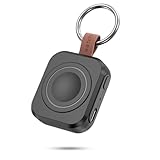
- Designed for Samsung Watch: This portable charger for Samsung Watch 8/8 Classic/7/ 7 Ultra / 6 /6 Classic / 5 / 5 Pro / 4 /3, Active 2 / Active 1 ensures seamless compatibility with new and old watches. This for Samsung galaxy watch charger can be carried around without a power source and can solve your low battery anxiety anytime.
- Easy Charging: Simply place the watch in the center of the charging area and press the power button to start charging immediately. The built-in magnets hold the watch in place, ensuring that the charging contacts are perfectly aligned for efficient charging. Once charging is complete, the portable galaxy watch charger can be turned off by pressing the power button twice; if no manual operation is required, the galaxy watch will automatically power off after 30s of inactivity.
- 1200mAh Battery: The portable watch charger has a built-in 1200mAh battery that can charge your watch 1-2 times. Ideal goods for traveling, exercising or extended outdoor activities.
- Compact and Portable: The 1200mAh galaxy watch ultra charger measures 5 x 4.6 x 1.5 cm (2*1.8*0.6 in), which is small enough to fit in a pocket or small purse. The watch charger comes with a keychain and eliminates the need for a charging cable, making it perfect for traveling and carrying.
- Package Includes: 1*Portable charger for samsung galaxy watch, 1*USB-C Charging Cable (1 meter), 1*Instruction Manual. It is very suitable as a Christmas gift, New Year's gift, Valentine's Day gift, Mother's Day gift, Father's Day gift, etc. to give to family and friends on special days.
What Google Assistant can do on a Galaxy Watch
Once installed, Google Assistant works much like it does on other Wear OS devices. You can ask it to set timers, start workouts, send texts, control smart home devices, check the weather, add reminders, and launch apps that support voice actions.
In daily use, Assistant is generally faster and more accurate than Bixby, especially for natural language commands and Google ecosystem tasks. If you rely heavily on Google services like Calendar, Maps, Keep, or Home, Assistant feels immediately familiar and more capable.
What Bixby still controls no matter what
This is where expectations need to be realistic. You cannot fully remove Bixby from a Galaxy Watch, and you cannot make Google Assistant the system-wide default assistant.
Key system functions remain tied to Bixby, including certain deep device controls, Samsung-specific settings, and some watch-level automations. Voice wake words are also restricted: “Hey Google” works only when Assistant is open or properly configured, while “Hi Bixby” remains active at the system level.
Button behavior and long-press limitations
Samsung allows limited customization of physical buttons, but with strict boundaries. On most Galaxy Watch models, the long-press of the top button is hard-coded to launch Bixby, and this cannot be reassigned to Google Assistant through official settings.
You can, however, map Google Assistant to shortcuts like double-press actions or tiles, depending on your One UI Watch version. This makes Assistant accessible, but it will never fully replace Bixby as the primary button-triggered assistant.
Voice activation: coexistence, not replacement
Google Assistant and Bixby coexist rather than compete directly on Galaxy Watch. You can enable Google Assistant voice activation, but it doesn’t disable Bixby’s wake word, and the two assistants don’t share system priority.
In practice, this means you’ll likely use Google Assistant for queries and daily tasks, while Bixby remains in the background for system-level interactions. It’s not elegant, but it’s the reality of Samsung’s software control.
Battery life and performance considerations
Running Google Assistant alongside Bixby does have a small impact on battery life, particularly if voice activation is enabled. On larger watches like the Watch 5 Pro or Watch 6 Classic, the hit is minimal, often less than a few percentage points per day.
On smaller models with compact batteries, like the standard Watch 4 or Watch 6, heavy voice usage can be more noticeable. Disabling always-listening features and relying on manual activation helps keep endurance consistent.
What “replacing Bixby” really means in daily use
For most users, replacing Bixby doesn’t mean removing it entirely. It means choosing Google Assistant as your go-to for voice commands, searches, and smart home control, while tolerating Bixby’s continued presence for button presses and system hooks.
If you approach the switch with that mindset, Google Assistant dramatically improves the Galaxy Watch experience. The next step is setting it up properly and minimizing how often you’re forced back into Bixby, which is exactly what we’ll tackle next.
Galaxy Watch Models and Software Versions That Support Google Assistant
Before you invest time tweaking shortcuts or retraining muscle memory away from Bixby, it’s important to know whether your Galaxy Watch actually supports Google Assistant at a system level. Samsung’s support is tied very closely to both the watch model and the version of Wear OS and One UI Watch it runs.
In short: if your Galaxy Watch runs Wear OS 3 or newer, Google Assistant is officially supported. Older Tizen-based watches are excluded entirely, no matter how capable the hardware may feel in daily use.
Galaxy Watch models with official Google Assistant support
Google Assistant is supported on Samsung Galaxy Watch models released from 2021 onward that use Wear OS powered by Samsung. These watches have the necessary Google services framework baked into the OS.
Supported models include:
– Galaxy Watch 4 and Watch 4 Classic
– Galaxy Watch 5 and Watch 5 Pro
– Galaxy Watch 6 and Watch 6 Classic
– Galaxy Watch FE (where available)
– LTE and Bluetooth variants of the above
Across these models, the experience is broadly similar. The differences come down to performance headroom, battery capacity, and comfort rather than Assistant features. Larger watches like the Watch 5 Pro or Watch 6 Classic handle frequent voice use more gracefully thanks to bigger batteries and improved thermal management.
Wear OS and One UI Watch version requirements
Google Assistant requires Wear OS 3 or newer, paired with One UI Watch 4 or later. In practical terms, this means your watch must be updated to Samsung’s post-Tizen software platform.
Most Galaxy Watch 4 units shipped with early Wear OS 3 builds and gained Google Assistant via a firmware update. Newer watches like the Watch 5 and Watch 6 ship with Assistant-ready software out of the box, though you still need to enable and sign in manually.
To check your version:
– On the watch, go to Settings → About watch → Software information
– Look for Wear OS version and One UI Watch version
If your watch is eligible but missing Assistant, installing the latest software update usually resolves it.
Galaxy Watch models that do not support Google Assistant
Any Galaxy Watch running Samsung’s older Tizen OS does not support Google Assistant, and there is no workaround. This includes:
– Galaxy Watch (original)
– Galaxy Watch Active and Active 2
– Galaxy Watch 3
These watches are limited to Bixby for voice control. While they remain solid timepieces with good build quality and comfortable wear, their software stack simply cannot run modern Google services.
No amount of app sideloading or companion phone tweaking will change this. If Google Assistant is a priority, upgrading hardware is the only option.
Regional and language availability caveats
Even on supported hardware, Google Assistant availability can vary slightly by region and language. In most major markets, English support is fully mature, while some languages may lack voice activation or certain Assistant actions.
Samsung accounts, Google accounts, and phone region settings all play a role here. If Assistant installs but refuses to activate by voice, this is often a regional limitation rather than a hardware fault.
What support really means in day-to-day use
Having official support doesn’t mean Google Assistant fully replaces Bixby across the system. As covered earlier, Samsung still reserves key system hooks, especially hardware button behavior, for its own assistant.
What support does mean is stability, speed, and reliability. Assistant runs natively, integrates with Google services like Calendar and Maps, and feels responsive even on smaller watches like the standard Watch 4 or Watch 6.
Once you confirm your watch and software version are compatible, the remaining challenge isn’t whether Google Assistant works, but how to configure it so it’s the assistant you actually use. That’s where setup, shortcuts, and practical workarounds become essential.
What Changes When You Add Google Assistant: Real-World Expectations
Once Google Assistant is installed and signed in, the Galaxy Watch experience shifts in meaningful but very specific ways. This is not a full replacement of Bixby at the system level, but it does change how you interact with your watch day to day, especially for voice-driven tasks.
Think of Google Assistant as an additional, more capable layer rather than a takeover. Understanding where it shines and where Samsung still draws firm boundaries will save you frustration.
You gain a smarter voice assistant, not a new system default
Google Assistant becomes available as an app and a voice service, but Bixby remains the system’s primary assistant. Samsung does not allow Assistant to replace Bixby everywhere, particularly for hardware buttons and certain system controls.
In practical terms, this means you can talk to Google Assistant, but you don’t “remove” Bixby from the watch. Both coexist, and how often you encounter Bixby depends on how you configure shortcuts.
Voice queries feel faster and more accurate
In real-world use, Google Assistant is noticeably better at natural language requests. Dictating messages, setting reminders, checking calendar events, or asking quick questions generally works with fewer retries than Bixby.
This is especially noticeable on smaller watches like the Galaxy Watch 4 or Watch 6 40mm, where screen interactions feel cramped. Being able to rely on voice more confidently improves everyday usability without adding friction.
Deeper Google service integration changes daily workflows
The biggest functional upgrade is how tightly Assistant connects to Google services. Google Calendar, Google Maps, Google Keep, and Google Tasks all work more predictably through voice than their Samsung equivalents.
For users already living in Google’s ecosystem on their phone, this reduces mental overhead. You stop translating between assistants and start issuing the same commands on your wrist that you already use on your phone or smart speaker.
Button behavior largely stays Samsung-controlled
This is where expectations need to be realistic. The long-press of the top button still defaults to Bixby on most Galaxy Watch models, even after Assistant is installed.
Some newer software versions allow limited remapping or workarounds using accessibility or third-party apps, but this is not officially supported behavior. If you expect a clean, Apple Watch–style button swap, Samsung does not currently offer it.
Rank #2

- Compatible Model: Only designed for Samsung Galaxy Watch FE 40mm 2024 release & 5 40mm 2022 release & Galaxy 4 40 mm 2021 release! Not for galaxy watch 8 40/44mm, watch 7 40/44mm,watch 6 40/44mm,watch 5 pro 45mm, watch 5/4 44mm
- Waterproof & Anti-Fog: HASDON for Samsung Galaxy FE/watch 5/ watch 4 screen protector and case help you solve the problem of insensitive touch screen. Water and fog will not trap in the screen and affect the touch screen, no worry about daily use
- High Sensitivity Touch: Ultra-Thin tempered glass with 99.99% transparency keep watch's original response sensitivity, make sure the application is launched quickly, giving you a bare metal touch
- FULL PROTECTIVE: This 40mm for Samsung Galaxy Watch FE/Galaxy Watch 5 & Galaxy Watch 4 Bumper Cover + Tempered Glass Screen Protector can protect your watch from dust, dirt, scratches damages
- Easy to Install: Easy to install and remove without removing the band. Install the case first, then use a suction cup to grasp the screen protector to alignment of the screen. Accurate holes access to all controls and sensors, firm and secure
“Hey Google” works, but it’s not always perfect
Hands-free activation via “Hey Google” is supported on eligible Wear OS Galaxy Watches, but it depends heavily on language, region, and microphone conditions. In quiet environments, detection is reliable; outdoors or during workouts, it can be hit or miss.
Battery impact is modest but real. Always-listening voice detection does consume more power, especially on smaller batteries like the Watch 4 40mm, so users chasing maximum battery life may prefer manual activation.
Some system actions still route back to Bixby
Certain watch-specific tasks, such as deep system settings, Samsung Health controls, or device-level toggles, may still invoke Bixby or require manual interaction. This is a deliberate design choice by Samsung, not a bug.
Over time, you’ll learn which commands Assistant handles smoothly and which ones are better done via touch or Bixby. Most users naturally gravitate toward Assistant for information and communication, and avoid voice for system tuning altogether.
Performance remains smooth on supported hardware
On Wear OS–based Galaxy Watches, Assistant runs natively and feels well optimized. There’s no noticeable lag compared to Bixby, even on older models like the Galaxy Watch 4, which speaks to Google’s lightweight Wear OS implementation.
Thermals, comfort, and wearability are unchanged. The watch feels the same on the wrist, with the same aluminum or stainless steel case options, same strap compatibility, and no impact on durability or water resistance.
This is a quality-of-life upgrade, not a reinvention
Adding Google Assistant doesn’t transform the Galaxy Watch into a Pixel Watch. Samsung’s software philosophy, UI layers, and ecosystem integrations still define the experience.
What changes is how pleasant and effective voice control feels. For many users, that alone is enough to justify the switch, as long as you go in knowing that Bixby isn’t disappearing, just becoming easier to ignore.
How to Install Google Assistant on Your Galaxy Watch (Step-by-Step)
If you’re comfortable with the trade-offs outlined above, installing Google Assistant is straightforward on supported Galaxy Watch models. The process happens directly on the watch, with a few checks on your paired phone to avoid common setup snags.
This walkthrough assumes you’re using a Wear OS–based Galaxy Watch paired to an Android phone, which is required for Assistant support.
Step 1: Confirm Your Watch Model and Software
Google Assistant is only available on Galaxy Watches running Wear OS powered by Samsung. That includes the Galaxy Watch 4, Watch 4 Classic, Watch 5, Watch 5 Pro, Watch 6, Watch 6 Classic, and newer generations.
On your watch, open Settings, scroll to About watch, and check the software version. You should be on Wear OS 3 or later with an up-to-date One UI Watch build; older Tizen-based models like the Galaxy Watch 3 are not compatible, regardless of updates.
Step 2: Make Sure Your Phone Is Properly Set Up
Your paired phone needs a few things in place before the watch install will complete cleanly. You must be signed into a Google account on the phone, have the Google app installed and updated, and be using a supported language and region.
If Google Assistant works on your phone, that’s a good sign. If it doesn’t, fix that first, as the watch relies on the same account and backend services.
Step 3: Open the Play Store on Your Galaxy Watch
On the watch itself, press the side button to open the app drawer, then launch the Play Store. This is the watch-native store, not the Play Store on your phone.
If prompted, make sure you’re logged into the same Google account used on your phone. A mismatch here is one of the most common reasons Assistant refuses to install or activate later.
Step 4: Search for and Install Google Assistant
In the Play Store, tap Search and either type “Google Assistant” or use voice input. Select Google Assistant from the results and tap Install.
The download is small and typically completes in under a minute on Wi‑Fi. Installation time is negligible, even on older hardware like the Galaxy Watch 4 with its smaller battery and tighter thermal envelope.
Step 5: Launch Google Assistant and Grant Permissions
Once installed, open Google Assistant directly from the Play Store or app drawer. You’ll be guided through a brief setup flow that asks for microphone access, basic permissions, and account confirmation.
Take your time here and approve everything Assistant requests. Skipping permissions will limit functionality and can cause Assistant to silently fail when invoked later.
Step 6: Enable Voice Activation (Optional)
If you want hands-free access, enable “Hey Google” detection during setup or later in the Assistant settings. This allows you to summon Assistant without pressing any buttons.
Be aware of the battery trade-off, especially on smaller cases like the 40mm Watch 4 or Watch 6. Always-listening detection is convenient but not free from a power perspective.
Step 7: Test Basic Commands Immediately
Before changing any button shortcuts or habits, test a few simple commands. Ask for the weather, set a timer, send a message, or ask a general question.
If these work reliably, your installation is complete. If Assistant opens but fails to respond, double-check language settings, permissions, and Google account sync on both watch and phone.
Troubleshooting If Assistant Doesn’t Appear or Install
If Google Assistant doesn’t show up in the Play Store, your watch is either unsupported, running outdated software, or tied to an unsupported region. Updating the watch firmware and rebooting often resolves this.
If installation succeeds but Assistant won’t activate, restart both the watch and phone, then reopen Assistant and repeat the permission prompts. In stubborn cases, uninstalling and reinstalling Assistant from the watch Play Store fixes account handshake issues.
What This Step Does and Does Not Change
Installing Google Assistant does not remove Bixby or alter Samsung’s system defaults. The watch still ships with Bixby deeply integrated into system-level controls and certain health or device actions.
What you gain is a fully functional Google Assistant that’s ready for manual or voice activation. In the next step, you’ll decide how accessible it should be in daily use, especially if you want to minimize accidental Bixby interactions.
Setting Google Assistant as the Default Voice Assistant (Where Possible)
Now that Google Assistant is installed and responding correctly, the natural next question is whether you can fully replace Bixby. The short answer is that Samsung allows partial reassignment, but not a complete system-wide switch.
What you can do is make Google Assistant the assistant you actually use day to day, even if Bixby still exists in the background. How far you can go depends on your watch model, Wear OS version, and which inputs you rely on most.
Understanding Samsung’s Limits on “Default” Assistants
On Galaxy Watch models running Wear OS 3 or newer, Samsung does not offer a true “default assistant” toggle. Bixby remains the system-level assistant tied to certain actions, particularly power management, deep device settings, and some Samsung Health-related prompts.
That said, Samsung does allow you to reassign key inputs so that Google Assistant becomes your primary interaction point. In real-world use, this effectively sidelines Bixby unless you deliberately call it.
Changing the Side Button Shortcut to Google Assistant
This is the single most important step if you want Google Assistant to feel like the default assistant.
On your watch, go to Settings, then Advanced features, then Customize keys. Select the Home key or Side button option labeled Press and hold.
From the list of available actions, choose Google Assistant instead of Bixby. Once set, pressing and holding the top button will launch Assistant every time.
This works on Galaxy Watch 4, Watch 5, Watch 6, and Watch 6 Classic models running One UI Watch 4.5 or newer. Older Tizen-based Galaxy Watches do not support this reassignment.
What Happens to Bixby After Reassigning the Button
Reassigning the button does not disable Bixby, uninstall it, or stop it from running in the background. It simply removes Bixby from the most obvious hardware shortcut.
Bixby can still be launched manually from the app drawer, and in some regions it may still respond to “Hi Bixby” if voice wake-up is enabled. If you never open it, though, it largely fades out of daily use.
From a usability standpoint, this change alone makes Google Assistant feel like the default assistant for most people.
Rank #3

- Cute Floral Engraved Design: The Galaxy Watch 7 Band features precision laser engraving technology, creating vivid and lifelike floral patterns that add 3D elegance and a luxurious tactile feel. Perfect for any occasion, pretty roses bring timeless sophistication for formal events, while vibrant sunflowers radiate youthful energy for casual wear. This stylish Samsung watch bands for women is a beautiful floral print that celebrates and love nature, adding a personal look to your daily outfit
- High Quality Silicone Material: Crafted from premium silicone, the Samsung Watch 7 Bands are ultra-lightweight, skin-friendly, and hypoallergenic, ensuring a soft, smooth, irritation-free, and comfortable wearing experience all day long. Designed with waterproof and sweatproof properties, they’re effortless to clean and maintain. The bands’ ergonomic design and secure fit ensure they stay comfortably in place during any activity—whether you’re hitting the gym, working, sleeping, or playing sport
- Compatible Models: SNBLK 20mm silicone Samsung Watch bands are wildly compatible with Samsung Galaxy Watch 7 40mm 44mm/Galaxy Watch 6 40mm 44mm/Galaxy Watch 4 40mm 44mm/Watch 5 40mm 44mm/Galaxy Watch 6 classic 43mm 47mm/Galaxy Watch 5 pro 45mm/Samsung Galaxy Watch 42mm/Galaxy Watch FE/Galaxy Watch Active 2 40mm 44mm /Samsung Galaxy Watch 3 41mm/Samsung Galaxy Watch 4 Classic 42mm 46mm/Samsung Gear s2 Watch/Samsung Gear Sport Watch; Also works with any other smartwatch model with 20mm lugs
- Diverse Color Styles: This 6-pack of engraved bands offers multi-color combinations to match your mood and outfit. Featuring neutral tones like black, white, and starlight, plus vibrant hues such as red, purple, and green, it suits any occasion. Perfect for quick strap changes, this set is ideal for any occasion—whether it's an anniversary, birthday, or holiday. A practical and thoughtful gift, it’s designed for your wife, friends, or loved ones who appreciate both style and functionality
- Easy Adjustment & Installation: Featuring cleverly designed spring bars, it ensures quick and secure installation or removal for precise fit every time. The band is easy to adjust and wear, allowing you to customize the length for a perfect fit. Designed to accommodate wrists ranging from 5.5" to 7.6" (140mm to 195mm), it offers versatile adjustability for a wide range of users. While the durable buckle design provides a secure and seamless fit, ensuring stability and safety during any activity
Using “Hey Google” as Your Primary Voice Trigger
If you enabled voice activation earlier, “Hey Google” becomes another way to bypass Bixby entirely. On supported models, the watch listens for Google’s wake phrase independently of Bixby’s voice detection.
In practice, this means you can raise your wrist and speak naturally without touching any buttons. This is especially useful when exercising, cooking, or wearing gloves.
Battery impact is worth mentioning. Always-on listening consumes more power, and on smaller cases like the 40mm Watch 4 or Watch 6, you may notice a measurable hit by the end of the day.
What You Still Cannot Change (Important Reality Check)
There is no supported way to make Google Assistant respond to Samsung’s “Hi Bixby” wake phrase. That trigger is locked to Bixby at the system level.
You also cannot remove Bixby from the watch, hide it completely, or stop Samsung from using it for certain system prompts. Some setup flows, device permissions, and Samsung ecosystem features still reference Bixby internally.
If you expect a Pixel Watch-style experience where Google Assistant fully replaces the manufacturer assistant, Galaxy Watch hardware does not allow that today.
Model and Software Compatibility Notes
Button reassignment and Assistant integration work best on Galaxy Watch 4 and newer models running Wear OS 3.5 or later. This includes both Bluetooth and LTE variants.
Battery life expectations vary by case size, chipset, and usage. On a Watch 6 Classic with its larger battery and stainless steel case, Assistant feels more forgiving for heavy use than on smaller aluminum models.
If your watch does not show Google Assistant as an option in button settings, check for software updates on both the watch and the connected phone before assuming it’s unsupported.
What “Default” Really Means in Daily Use
Once the side button launches Google Assistant and “Hey Google” is active, most users stop thinking about Bixby entirely. Timers, messages, smart home controls, reminders, and general questions all route through Google’s ecosystem.
Bixby remains technically present, but functionally sidelined. For most Galaxy Watch owners, this is as close as Samsung currently allows to making Google Assistant the default voice assistant.
Remapping Buttons and Gestures: Using Google Assistant Instead of Bixby
Once Google Assistant is installed and signed in, the biggest quality-of-life improvement comes from changing how you actually launch it. This is where Galaxy Watch finally starts to feel less like a Samsung-first device and more like a neutral Wear OS smartwatch.
Button remapping does not remove Bixby, but it changes muscle memory. In daily use, that distinction matters far more than it sounds.
Understanding Samsung’s Button Logic Before You Change Anything
Most Galaxy Watch models use a two-button layout: a Home button (top) and a Back button (bottom). By default, a long-press of the Home button launches Bixby, while a double-press opens Samsung Pay or another Samsung-defined shortcut.
Samsung allows limited reassignment of these actions, but only within guardrails it controls. The good news is that Google Assistant now sits inside those guardrails on modern Wear OS builds.
How to Remap the Home Button to Google Assistant
On your watch, open Settings, then scroll to Advanced features, and tap Customize buttons. Select Home button, then choose Press and hold.
If Google Assistant is installed correctly, it will appear in the list alongside Bixby. Select Google Assistant, back out of settings, and test it immediately with a long press.
From this point on, holding the Home button triggers Google Assistant instead of Bixby. Response time is generally quick, though slightly slower on older chips like the Exynos W920 in the Watch 4 compared to the newer W930 in the Watch 6 series.
What Happens to Bixby After Remapping
Bixby does not disappear, and Samsung does not offer a true disable switch. It remains accessible through the app drawer and may still surface during certain Samsung-only workflows.
However, once the Home button is reassigned, Bixby loses its primary entry point. In real-world wear, especially when the watch is paired with a Galaxy phone, this effectively sidelines it.
Using Double-Press Shortcuts Strategically
Samsung lets you assign a double-press of the Home button separately from long-press behavior. While Google Assistant cannot always be assigned here on every software version, it is worth checking.
If Assistant is not available, a practical workaround is assigning a neutral app like the app launcher or recent apps. This minimizes accidental returns to Samsung Pay or Bixby-related screens.
On watches with rotating bezels, like the Classic models, this combination of bezel navigation and Assistant-on-hold feels especially fluid during daily use.
Gesture Limitations You Need to Know About
Samsung’s gesture controls, such as wrist flicks or double-pinches on newer models, are not fully open to third-party assistants. These gestures typically remain tied to system actions like answering calls or dismissing alerts.
You cannot map a gesture directly to Google Assistant. Voice activation via “Hey Google” and the Home button long-press are currently the only reliable entry points.
This is one area where the Galaxy Watch still trails the Pixel Watch in assistant-centric design.
Reliability, Comfort, and Daily Wear Considerations
Button-based Assistant access is more consistent than voice wake in noisy environments. During workouts, commuting, or outdoor use, the physical press is faster and less error-prone.
From a comfort standpoint, long-pressing the Home button is easy even on smaller 40mm cases, though users with gloves or larger fingers may prefer the tactile certainty of the Classic’s raised buttons.
There is a minor battery trade-off. Frequent Assistant use, especially with voice responses enabled, will shave more percentage points on aluminum models with smaller batteries than on larger stainless steel variants.
Troubleshooting If Google Assistant Does Not Appear
If Google Assistant is missing from the button customization menu, start by updating the watch software and the Google Assistant app itself. Also confirm that the watch is running Wear OS 3.5 or newer and is signed into a Google account.
Restarting both the watch and the paired phone resolves more detection issues than most people expect. If Assistant still does not appear, uninstalling and reinstalling it from the Play Store on the watch usually forces the system to re-register it as an eligible shortcut.
This is not user error; it is a quirk of how Samsung exposes assistant hooks within Wear OS.
What This Setup Feels Like in Real Use
With the Home button mapped to Google Assistant, the watch becomes faster to live with. Timers, messages, navigation prompts, smart home commands, and quick questions all flow through Google without detours.
Bixby remains in the background, but it no longer defines how you interact with the hardware. For most Galaxy Watch owners, this button remap is the single change that makes Assistant feel genuinely usable rather than optional.
Using Google Assistant Day-to-Day on Galaxy Watch: Commands, Speed, and Accuracy
Once Google Assistant is mapped to the Home button, it quickly becomes part of muscle memory. The experience feels less like “using an app” and more like interacting with the watch’s core interface, which is exactly what Bixby was meant to be.
What matters next is how well Assistant performs in real situations: what it understands, how fast it responds, and where Samsung’s limits still show.
Voice Commands That Work Reliably
Google Assistant on Galaxy Watch excels at short, intent-driven commands. Timers, alarms, reminders, calendar checks, and weather queries are consistently accurate, even when spoken quickly or casually.
Messaging is one of its strongest use cases. Saying “send a WhatsApp message to Alex” or “reply yes” works smoothly across SMS, WhatsApp, and Telegram, assuming those apps are installed and permissions are granted on the phone.
Navigation requests like “navigate to home” or “directions to the nearest coffee shop” hand off cleanly to Google Maps. On LTE models, this works without the phone nearby, which is a major advantage over Bixby’s more limited offline behavior.
Rank #4

- Please note: Compatible with Galaxy Watch 7, 6, 5, 4 (44mm) Only
- Made from the high quality tempered-glass for maximum scratch protection
- 9H hardness, 99.99% HD clarity, and maintains the original touch experience
- Hydrophobic and oleo-phobic coating to reduce sweat and reduce fingerprints
- Include 3 pcs tempered glass screen protectors
Smart Home and Cross-Device Control
If your Google Home ecosystem is already set up, the watch becomes a surprisingly capable control surface. Lights, thermostats, plugs, TVs, and routines all respond just as they would from a Pixel Watch or Android phone.
Commands like “turn off the living room lights” or “start my bedtime routine” complete quickly and rarely need repetition. This is one area where Google Assistant clearly outclasses Bixby, especially for non-Samsung smart home gear.
The watch’s small speaker limits spoken responses, but vibration confirmations and on-screen cards usually provide enough feedback to know the command succeeded.
Speed Compared to Bixby and Pixel Watch
On Galaxy Watch 5 and Watch 6 models, Assistant typically launches in about one second from a button press. Response time after speaking is slightly slower than on a Pixel Watch, but faster than Bixby in most everyday tasks.
The difference becomes more noticeable on older hardware like the Galaxy Watch 4, where Assistant can take an extra beat to process longer questions. It is still usable, but best treated as a quick-command tool rather than a conversational assistant.
Animations and haptics remain very “Samsung,” which helps the experience feel native even though the assistant itself is Google-powered.
Accuracy in Noisy or Active Environments
Microphone performance is tied more to hardware than software, and Galaxy Watch microphones are competent but not class-leading. In quiet rooms, Assistant’s transcription accuracy is excellent and noticeably better than Bixby’s.
Outdoors, during workouts, or on public transport, accuracy drops unless commands are short and clearly spoken. This is where button-based activation matters, since voice wake is unreliable in these conditions.
For runners or cyclists, pausing briefly before speaking improves results. The watch’s aluminum or stainless steel case material does not change mic quality, but tighter strap fit does help reduce vibration noise.
What Google Assistant Still Cannot Replace
Despite the improvements, Google Assistant cannot fully replace Bixby at the system level. You cannot use it to change certain watch settings like display modes, Samsung Health configuration, or power options.
Samsung still reserves deep hardware control for Bixby, including some routines and device-specific features. Assistant is better viewed as the default interface for actions, not the administrator of the watch.
This split is intentional, and while it limits power users, most casual and intermediate users will rarely run into it during daily use.
Battery Impact in Real-World Use
Using Google Assistant several times an hour has a measurable but manageable impact on battery life. On 40mm models, especially the aluminum versions, heavy voice use can shave 10 to 15 percent off a full day.
Larger cases like the 44mm, 45mm, and Classic models absorb the hit more easily thanks to larger batteries. Turning off spoken responses and relying on haptics helps preserve power without sacrificing functionality.
Compared to Bixby, Assistant consumes slightly more battery per interaction, but completes tasks faster, which partially offsets the difference over a full day.
Daily Wearability and Comfort Considerations
From a physical usability standpoint, Assistant fits naturally into how Galaxy Watches are worn. The Home button press is easy to reach whether the watch is on a silicone sport band, leather strap, or metal bracelet.
On smaller wrists or slimmer cases, accidental presses are rare, and the button resistance feels deliberate enough for confident activation. Classic models with rotating bezels benefit from extra grip, especially when hands are wet or sweaty.
In daily wear, Assistant feels like a convenience feature rather than a distraction, which is exactly what most users want when replacing Bixby.
Known Limitations and Samsung Restrictions You Should Know About
Once Google Assistant becomes part of your daily routine, most interactions feel natural and friction-free. Still, there are hard boundaries set by Samsung that explain why Assistant can replace Bixby only up to a point.
Understanding these limits upfront prevents frustration and helps you decide when Assistant is the right tool and when Bixby remains unavoidable.
You Cannot Fully Remove or Disable Bixby
Bixby is baked into Galaxy Watch firmware at the system level, and Samsung does not allow it to be uninstalled, disabled, or hidden entirely. Even if Google Assistant is set as your default for the Home button, Bixby remains active in the background.
Certain triggers, such as some system prompts or recovery modes, will still surface Bixby regardless of your preferences. This behavior is consistent across Galaxy Watch 4, 5, 6, and newer models running Wear OS with One UI Watch.
System-Level Controls Are Locked to Bixby
Google Assistant cannot access deep system toggles that Samsung reserves for Bixby. This includes actions like changing display modes, enabling power-saving profiles, controlling Always On Display behavior, or modifying Samsung Health tracking settings.
If you try to issue these commands, Assistant will either fail silently or redirect you to manual settings. In real-world use, this mostly affects power users rather than casual wearers checking the weather or setting reminders.
Button Mapping Has Strict Limits
Samsung only allows Google Assistant to replace Bixby on the Home button press or press-and-hold, depending on software version. You cannot assign Assistant to the Back button, rotating bezel actions, or gesture shortcuts.
This restriction applies equally to Classic models with stainless steel cases and rotating bezels, as well as aluminum sport-focused versions. No case size or finish changes this behavior, even though ergonomics differ slightly between 40mm, 44mm, 45mm, and 47mm watches.
“Hey Google” Wake Word Is Not Always Available
Hands-free activation using “Hey Google” depends on region, language, and software version, and it is not consistently reliable on Galaxy Watch. Samsung prioritizes button-based activation to manage battery drain and background microphone access.
Even when wake-word support is available, it often disables itself after updates or requires re-training. Most users end up relying on the Home button, which is more consistent and easier to trigger during workouts or while walking.
Samsung Apps Do Not Always Cooperate
Many first-party Samsung apps are optimized specifically for Bixby. This includes Samsung Health, Calendar, Clock, and Modes and Routines, which may respond partially or not at all to Google Assistant commands.
For example, Assistant can log a generic workout or start a timer, but it cannot reliably launch a specific Samsung Health exercise profile. If you rely heavily on Samsung’s ecosystem, you will still encounter moments where Bixby is the only assistant that understands what you want.
Offline and Low-Connectivity Performance Is Limited
Google Assistant relies heavily on cloud processing, which means its usefulness drops sharply without a stable connection. On LTE models, this is less noticeable, but Bluetooth-only watches paired to a phone can struggle if the phone connection is weak.
Bixby handles some basic commands locally, giving it an edge in airplane mode or low-signal environments. This difference matters most during travel, outdoor workouts, or battery-saving scenarios.
Software Updates Can Change Behavior Without Warning
Samsung has a history of quietly adjusting assistant behavior with One UI Watch updates. Button mappings, default assistant settings, and permission requirements have changed between minor updates in the past.
Google Assistant may temporarily disappear, reset to Bixby, or require reconfiguration after an update. This is not common, but it is frequent enough that experienced Galaxy Watch users keep it in mind.
Expect Inconsistencies Across Models and Sizes
While features are broadly similar across Galaxy Watch generations, smaller models with tighter internal layouts can behave differently. Battery impact, microphone sensitivity, and response speed can vary slightly between a 40mm aluminum watch and a 47mm Classic with a heavier stainless steel case.
These differences do not break functionality, but they can affect how often you choose to use Assistant. Larger watches tend to feel more forgiving in daily use simply because they have more thermal and battery headroom.
Samsung’s Restrictions Are Intentional, Not Temporary
The split between Bixby and Google Assistant is not a bug or an unfinished transition. Samsung deliberately keeps system authority in-house while allowing Assistant to handle general queries and smart actions.
For most users, this balance works well once expectations are set correctly. Google Assistant becomes your primary interface, while Bixby remains the silent administrator you only notice when you hit a wall.
Battery Life, Performance, and Wear OS Trade-Offs After Switching Assistants
Once you move daily voice interactions from Bixby to Google Assistant, the watch’s power and performance behavior changes in subtle but important ways. These differences are not deal-breakers, but they explain why Samsung has never made Assistant the default.
💰 Best Value

- Made from the high quality tempered-glass for maximum scratch protection and no residue when removed
- 2.5D rounded edge glass for comfort on the fingers and hand
- 9H hardness, 99.99% HD clarity, and maintains the original touch experience
- Hydrophobic and oleo-phobic coating to reduce sweat and reduce fingerprints
- Include 3 pcs tempered glass screen protectors
Understanding these trade-offs upfront helps you tune settings intelligently instead of chasing battery drain after the fact.
Battery Impact: What Actually Changes Day to Day
Google Assistant draws more power than Bixby when actively used because it relies heavily on cloud processing and real-time data sync. The hit comes from wake-ups, microphone access, and background network activity rather than constant idle drain.
On Galaxy Watch 4 and Watch 5 models, expect roughly a 5–10 percent reduction in daily battery life if you trigger Assistant frequently. On Watch 6 and Watch 6 Classic, the newer Exynos chipset and slightly larger batteries soften the impact, especially on 44mm and 47mm cases.
If you only use Assistant a few times per day, the difference is often negligible. Heavy users who dictate messages, control smart homes, or ask navigation questions repeatedly will notice it more quickly.
Always-On Listening vs Manual Activation
Unlike phones, Galaxy Watches do not support a true always-listening “Hey Google” mode by default. This limitation works in your favor for battery life, since Assistant only wakes when you press a button or tap the screen.
If Google Assistant is mapped to a hardware key, power usage remains predictable and controlled. Battery problems almost always come from users enabling too many background permissions or combining Assistant with LTE and continuous health tracking.
Leaving Assistant as an on-demand tool rather than a passive listener is the single biggest reason battery life stays reasonable.
Performance and Response Time Compared to Bixby
Google Assistant generally feels faster for general knowledge queries, smart replies, and Google ecosystem tasks. Speech recognition is more accurate, especially for natural language and non-US accents.
Bixby, however, still wins on system-level actions like changing watch settings or triggering Samsung-specific features. These commands execute locally or semi-locally, which is why Bixby can feel instant even when connectivity is weak.
On Bluetooth-only models paired to a phone, Assistant response time depends heavily on the phone’s connection quality. LTE models handle Assistant more consistently but consume more power when the cellular radio is active.
Wear OS Resource Management and Background Limits
Wear OS aggressively limits what third-party apps can do in the background, and Google Assistant is not exempt. This prevents runaway battery drain but also means Assistant sometimes needs a second to wake fully.
You may notice a brief delay before the microphone activates or a query processes, particularly after the watch has been idle. This behavior is normal and tied to Wear OS memory management, not a bug with Assistant itself.
Samsung tunes these limits tightly to protect battery health, especially on smaller cases like the 40mm aluminum models.
Thermal and Comfort Considerations During Extended Use
Extended Assistant use, especially over LTE or during navigation, can slightly warm the watch. This is more noticeable on stainless steel Classic models, which retain heat longer than aluminum cases.
The warmth is rarely uncomfortable but can be felt during workouts or outdoor use in hot weather. Larger watches with more internal volume dissipate heat better and feel more stable during sustained Assistant sessions.
From a wearability standpoint, this is another reason frequent Assistant users tend to prefer the larger sizes.
Interaction Trade-Offs You Learn to Live With
Switching assistants does not change Samsung’s core control hierarchy. Google Assistant cannot fully replace Bixby for system permissions, deep settings, or Samsung app automation.
What you gain is flexibility, better language understanding, and tighter integration with Google services like Calendar, Maps, and Home. What you give up is the illusion that one assistant can do everything on a Galaxy Watch.
Once you accept that Assistant is your conversational interface and Bixby is the system gatekeeper, the experience feels intentional rather than compromised.
Optimizing Battery Without Giving Up Assistant
Turning off unused background permissions for Assistant in the Wear OS app makes a noticeable difference. Location access can usually be set to “While using the app” without breaking functionality.
Keeping screen wake gestures under control also helps, since many Assistant interactions wake the display. Pairing Assistant use with a darker watch face and moderate brightness preserves battery without sacrificing usability.
These small adjustments matter more than disabling features outright and allow Assistant to remain a daily tool rather than a battery liability.
Troubleshooting, Common Issues, and When Bixby Still Makes Sense
Even once Google Assistant is installed and working, Galaxy Watch owners tend to hit a few predictable friction points. Most aren’t deal-breakers, but understanding why they happen makes the experience far less frustrating and helps you decide when Assistant is the right tool and when Bixby is still the better choice.
Google Assistant Doesn’t Launch or Says It’s Unavailable
If Assistant refuses to open or reports that it’s unavailable, the issue is almost always software alignment. The watch must be running Wear OS 3 or newer, and the Google Assistant app needs to be updated directly from the Play Store on the watch, not just the phone.
A quick restart of both the watch and the paired phone often resolves stalled permissions. If that fails, check that the Google account on the watch matches the primary account on your phone, as mismatches can quietly block Assistant services.
Assistant Works, But Voice Wake Isn’t Reliable
“Hey Google” detection on Galaxy Watch is intentionally conservative to protect battery life. Smaller models like the 40mm and 42mm cases tend to be more aggressive about disabling background listening when the watch is idle or warm.
If voice wake is inconsistent, launching Assistant via a button or tile is more reliable and barely slower in real-world use. This is a design trade-off rather than a fault, and Samsung prioritizes standby endurance over always-on listening.
You Can’t Replace Bixby on the Side Button
This is one of the most common points of confusion. Samsung does not allow Google Assistant to fully replace Bixby as the long-press side button action on Galaxy Watch models.
At best, you can assign Assistant to a double-press shortcut on supported models like the Galaxy Watch 4, 5, and 6 series. Long-press remains reserved for Bixby, and there’s no official workaround that survives software updates.
Assistant Can’t Change System Settings or Control Samsung Apps
Google Assistant has limited system-level permissions on Galaxy Watch. It can’t toggle core settings like power modes, advanced display options, or Samsung Health tracking states.
Bixby still handles deep integration with Samsung’s own apps and services, including Modes and Routines, system toggles, and some device controls. This is why both assistants end up coexisting rather than one fully replacing the other.
Battery Drain Feels Worse After Switching
Assistant itself isn’t unusually power-hungry, but how you use it matters. Frequent voice queries, navigation requests, or LTE-based searches will draw more power than Bixby’s shorter, on-device commands.
On aluminum models, battery drain is more noticeable simply because the battery is smaller. Stainless steel Classic models mask the drain better thanks to larger cases, but they still benefit from limiting background permissions and keeping Assistant usage intentional rather than constant.
Assistant Responses Are Slow or Laggy
Response time depends heavily on connectivity. Assistant performs best when the watch is tethered to a phone over Bluetooth with a stable data connection.
Standalone LTE use introduces latency, especially for queries involving Maps, reminders, or smart home controls. This isn’t a Galaxy Watch-specific flaw but a reality of cloud-based assistants running on compact hardware.
When Bixby Still Makes Sense
Despite its reputation, Bixby remains the better choice for certain tasks. Anything involving system control, Samsung Health workflows, or device automation works more reliably with Bixby than Assistant.
Bixby is also lighter on battery during quick interactions, such as starting a workout, checking battery status, or enabling a mode. For users who value efficiency over conversational flexibility, keeping Bixby in the mix is practical rather than a compromise.
Using Both Assistants Without Friction
The most realistic setup is treating Google Assistant as your conversational and cloud-connected assistant, and Bixby as your system operator. Assistant handles questions, reminders, navigation, and smart home commands, while Bixby quietly manages the watch itself.
Once you stop trying to force Assistant into roles Samsung has locked down, the experience becomes smoother and more predictable. Each assistant plays to its strengths, and the watch feels more capable as a result.
Final Thoughts: Setting Expectations the Right Way
You can absolutely use Google Assistant instead of Bixby for most everyday interactions on a modern Galaxy Watch. What you can’t do is erase Bixby entirely or expect Assistant to control the watch at a system level.
Understanding these boundaries upfront prevents disappointment and lets you tailor the setup to your habits, watch size, and battery expectations. When configured thoughtfully, Google Assistant becomes a genuine upgrade in daily usability, while Bixby remains a background tool you only notice when it’s actually the better option.