Garmin goals sit at the center of how your watch interprets effort, progress, and recovery, yet many users change a number without realizing how deeply it affects everything else. A daily step tweak, a new workout target, or an updated weight goal can quietly reshape your activity rings, Training Status, calorie burn, and even suggested workouts. Understanding how these targets interact is the difference between a watch that motivates you and one that constantly feels out of sync.
Garmin doesn’t treat goals as isolated checkboxes. Activity, workout, and weight goals form a connected system that feeds into Garmin Connect and back onto your wrist, influencing insights like Body Battery, recovery time, intensity minutes, and long-term trends. Before you start changing numbers, it helps to know what each goal controls and how Garmin prioritizes them behind the scenes.
Once this connection clicks, setting goals becomes strategic rather than guesswork. You’ll know which goals belong on the watch, which are best handled in Garmin Connect, and how to avoid conflicts that cause inaccurate feedback or stalled progress.
Activity goals: the daily baseline your watch is built around
Activity goals are the foundation of the Garmin ecosystem and apply to almost every smartwatch model, from Venu and Forerunner to Fenix and Instinct. These include daily steps, floors climbed, distance, calories, and intensity minutes, with steps being the most visible and influential. On many devices, step goals can auto-adjust based on recent performance, subtly raising or lowering the target to stay achievable.
🏆 #1 Best Overall

- Easy-to-use running watch monitors heart rate (this is not a medical device) at the wrist and uses GPS to track how far, how fast and where you’ve run.Special Feature:Bluetooth.
- Battery life: up to 2 weeks in smartwatch mode; up to 20 hours in GPS mode
- Plan your race day strategy with the PacePro feature (not compatible with on-device courses), which offers GPS-based pace guidance for a selected course or distance
- Run your best with helpful training tools, including race time predictions and finish time estimates
- Track all the ways you move with built-in activity profiles for running, cycling, track run, virtual run, pool swim, Pilates, HIIT, breathwork and more
These goals drive your daily rings, move alerts, and several health insights. Miss them consistently and Garmin Connect may show declining trends, while regularly exceeding them can increase suggested targets and influence adaptive coaching features. Because activity goals run 24/7, they affect battery usage minimally but heavily shape how “active” your day looks in the app.
Workout goals: structured intent for training sessions
Workout goals are tied to deliberate exercise rather than general movement. These appear when you create or follow workouts in Garmin Connect, use Garmin Coach plans, or set targets like time, distance, pace, heart rate, or calories for a specific activity. They are most impactful on training-focused watches such as Forerunner, Fenix, Epix, and Enduro, where performance metrics are more advanced.
Unlike activity goals, workout goals directly feed into Training Status, Training Load, VO2 max estimates, and recovery recommendations. Setting overly aggressive workout targets can push your watch to flag strain or poor recovery, even if your daily activity goals are modest. When aligned properly, workout goals help Garmin understand not just how much you move, but why you’re training.
Weight goals: long-term context for health and calorie metrics
Weight goals live primarily inside Garmin Connect and act as a long-term reference rather than a daily target. Whether you’re aiming to lose, gain, or maintain weight, this goal influences calorie burn estimates, nutrition tracking, and health trend summaries. It does not directly affect daily rings, but it shapes how Garmin interprets energy balance over weeks and months.
Frequent weight updates improve accuracy, especially if your body composition is changing. Many users overlook this and wonder why calorie numbers feel off, even with consistent workouts. Weight goals work best when updated realistically and paired with stable activity and workout targets.
How these goals influence each other inside Garmin Connect
Garmin Connect acts as the command center where all goals converge. Activity goals establish your daily workload, workout goals define training stress, and weight goals provide physiological context. When one is out of proportion, such as very high step goals paired with intense training plans, the system can skew recovery advice and health insights.
This interaction is why Garmin may suggest rest days, adjust intensity minutes expectations, or flag imbalances in weekly load. The watch itself mirrors these decisions through alerts, widgets, and post-activity summaries. Understanding this flow makes it easier to adjust goals intentionally instead of reacting to confusing feedback.
Common misunderstandings that lead to poor goal setup
A frequent mistake is treating steps as the main fitness metric while following a serious training plan. High step goals layered on top of structured workouts can inflate fatigue without adding meaningful fitness gains. Another issue is setting weight goals but never updating actual weight, which gradually erodes calorie and health accuracy.
Users also often change goals on the watch without realizing Garmin Connect may override or sync them differently depending on the model. Some entry-level and lifestyle watches limit goal customization on-device, pushing changes back to the app. Knowing where each goal truly lives prevents settings from silently reverting.
Why goal alignment matters more than goal ambition
Garmin watches are designed to reward consistency, not heroics. Goals that reflect your real schedule, recovery capacity, and lifestyle produce clearer insights and more trustworthy coaching feedback. Ambitious goals only work when they scale together across activity, workouts, and weight.
When aligned, your watch feels intuitive, your data trends make sense, and progress becomes measurable rather than frustrating. This alignment is the groundwork that makes the step-by-step goal changes ahead actually stick.
What You Can (and Can’t) Change on Your Garmin Watch vs Garmin Connect App
Once your goals are aligned conceptually, the next challenge is knowing where to actually change them. Garmin splits goal controls between the watch and Garmin Connect, and that split isn’t always obvious. Which settings stick, sync, or quietly revert depends on the goal type, your watch series, and how Garmin’s software prioritizes data sources.
Think of the watch as an execution tool and Garmin Connect as the authority. The watch is designed for quick adjustments and feedback during daily wear, while the app handles deeper configuration that affects long-term metrics like Training Status, Body Battery, and health trends.
Goals you can reliably change on the watch itself
Most Garmin watches allow you to change basic daily activity goals directly on the device. This typically includes step goals, floors climbed, and sometimes intensity minutes, depending on the model. On-device changes are fastest when you want a temporary adjustment without opening your phone.
On performance-oriented watches like Forerunner, Fenix, Epix, and Instinct, you can usually edit step goals from the Activity widget or User Profile menu. The interface varies slightly by generation, but the flow is generally Menu → User Profile or Activity Tracking → Goals. The physical buttons and screen size matter here, as smaller displays make scrolling through numeric goals slower and less precise.
However, these changes are not always permanent. If Garmin Connect has a different value set, the next sync can overwrite what you changed on the watch. This is especially common if you’ve enabled automatic step goals in the app.
What the watch cannot change (even if it looks like it can)
Weight goals cannot be meaningfully set or managed on the watch alone. Even if your watch shows weight-related stats or calorie estimates, the actual goal logic lives in Garmin Connect. Entering weight on the watch, where supported, updates a data point, not the goal framework.
Workout goals tied to structured training plans also fall into this category. You can view workouts, daily suggestions, and plan progress on the watch, but you cannot change the underlying goal parameters from there. Attempting to “work around” this by skipping workouts or editing targets mid-session often leads to skewed training load and recovery metrics.
Some watches expose intensity minutes targets on-device, but the app still governs how those minutes are calculated and weighted. Changing the number on the watch doesn’t change how Garmin classifies moderate versus vigorous effort, which is a common source of confusion.
Why Garmin Connect is the real source of truth
Garmin Connect controls how goals interact with each other. Step goals influence daily activity tracking, but workout goals feed into Training Load, Acute Load, and Training Status. Weight goals affect calorie burn estimates, health snapshots, and long-term trend charts.
When you adjust goals in the app, those changes propagate outward to your watch, widgets, notifications, and post-activity summaries. This is why changes made in Garmin Connect are far more stable across software updates, device resets, and multi-device setups.
If you wear more than one Garmin device, such as a Forerunner for running and a Venu for daily wear, Garmin Connect ensures consistent goals across both. The watch alone cannot coordinate that level of synchronization.
Device-specific limitations that catch users out
Entry-level and lifestyle watches like the Vivosmart, Vivomove, and some Venu Sq models offer limited on-device goal control. These devices prioritize slim cases, lighter materials, and long battery life over deep menu systems. As a result, most meaningful goal changes must be done in Garmin Connect.
Premium models with larger cases, sapphire displays, and button-driven navigation offer more flexibility on the watch, but even they defer final authority to the app. The extra hardware mainly improves usability, not control depth.
Battery life also plays a role. Watches designed for weeks of endurance minimize background processing, which is another reason Garmin centralizes goal logic in the app rather than the device.
Automatic goals vs manual goals: where each is controlled
Automatic step goals can only be enabled or disabled in Garmin Connect. When active, Garmin adjusts your step target daily based on recent activity, recovery, and trends. Manually changing steps on the watch while auto-goals are enabled is temporary by design.
Intensity minutes behave similarly. You can see progress and alerts on the watch, but the weekly target and calculation rules live in the app. This directly affects your activity rings and weekly summaries.
Training plans and daily suggested workouts are entirely app-driven. The watch displays instructions and adapts in-session pacing, but the goal logic responds to metrics like sleep, HRV, and training history processed in Garmin Connect.
How syncing can undo your changes without warning
If you change a goal on the watch and immediately open Garmin Connect, the app may overwrite the watch before you notice. This happens when the app hasn’t been updated to match the device-side change. The reverse can also occur if the app syncs later with an older configuration.
To avoid this, always make permanent changes in Garmin Connect first. Let the app sync fully, then verify on the watch. This order prevents the frustrating loop of goals reverting overnight.
This is particularly important for weight updates. If you log weight inconsistently across the app, watch, or a connected smart scale, Garmin may prioritize the most recent source, not the most accurate one.
Practical rule of thumb for goal changes
Use the watch for awareness and short-term adjustments. Use Garmin Connect for anything that affects trends, coaching, or health insights. If a goal influences Training Status, recovery time, calorie burn, or long-term charts, it belongs in the app.
When in doubt, assume the watch is reflecting decisions already made elsewhere. Treat Garmin Connect as the control room, and the watch as the instrument panel you interact with during real-world wear.
How to Change Daily Activity Goals (Steps, Floors, Intensity Minutes, Calories)
With the groundwork out of the way, this is where daily activity goals actually get locked in. Steps, floors, intensity minutes, and calories all look simple on the watch face, but each one is governed slightly differently behind the scenes.
In practice, Garmin Connect is where these goals should be set if you want them to stick. The watch is best treated as a quick reference and progress display, especially once syncing, recovery metrics, and adaptive targets come into play.
Changing your daily step goal
Step goals are the most visible activity target, and also the most misunderstood. Garmin supports both automatic and manual step goals, but only one can be active at a time.
To change steps in Garmin Connect on iOS or Android, open the app, tap More, then Garmin Devices, select your watch, and open User Settings or Activity Tracking depending on model. From here, choose Steps and either toggle off Auto Goal or set a fixed daily number.
When Auto Goal is enabled, Garmin recalculates your target based on recent step history, rest days, and recovery patterns. This is why your goal may quietly rise or fall even when you haven’t touched the settings.
If you want a fixed number for consistency or motivation, disable Auto Goal first. Any step goal changed directly on the watch while Auto Goal is on will revert after the next sync.
On the watch itself, many models let you temporarily adjust steps via the activity tracking or goals menu. This is useful for travel days or recovery weeks, but it is not a permanent override.
Adjusting floors climbed goals
Floors are supported on Garmin watches with a barometric altimeter, such as Forerunner, Fenix, Epix, Venu, and many Instinct models. If your watch lacks an altimeter, this goal will not appear at all.
In Garmin Connect, go to More, then Activities & Apps, open Activity Tracking, and select Floors. From here, you can set a daily floor target or disable the goal entirely.
Floors are sensitive to elevation changes, pressure shifts, and stair cadence. In real-world use, softer footwear, slow stair climbing, or windy conditions can slightly affect counts.
Because of this variability, floors are best treated as a supplemental goal rather than a primary performance metric. Setting a modest, repeatable target usually produces better long-term consistency than chasing aggressive numbers.
Setting intensity minutes correctly
Intensity minutes are a weekly goal, even though progress is shown daily on your watch. This is a key distinction that often causes confusion.
To change the goal, open Garmin Connect, tap More, then Health & Performance, and select Intensity Minutes. From here, you can set your weekly target, typically starting at 150 minutes, which aligns with general health guidelines.
Garmin counts moderate and vigorous activity differently. Vigorous minutes, detected through sustained heart rate elevation, are doubled automatically.
Rank #2

- Easy-to-use running smartwatch with built-in GPS for pace/distance and wrist-based heart rate; brilliant AMOLED touchscreen display with traditional button controls; lightweight design in 43 mm size
- Up to 11 days of battery life in smartwatch mode and up to 19 hours in GPS mode
- Reach your goals with personalized daily suggested workouts that adapt based on performance and recovery; use Garmin Coach and race adaptive training plans to get workout suggestions for specific events
- 25+ built-in activity profiles include running, cycling, HIIT, strength and more
- As soon as you wake up, get your morning report with an overview of your sleep, recovery and training outlook alongside weather and HRV status (data presented is intended to be a close estimation of metrics tracked)
Because this metric feeds directly into Training Status, recovery insights, and weekly load summaries, changes should always be made in the app. The watch only displays progress and alerts; it does not control the underlying rules.
If you follow structured workouts or daily suggested workouts, intensity minutes will accumulate automatically. Manual adjustments are best reserved for lifestyle-focused users rather than performance-driven training blocks.
Changing daily calorie goals
Garmin calorie goals refer to active calories, not total calories burned. Resting calories are calculated automatically based on age, sex, height, weight, and basal metabolism.
To adjust this goal, open Garmin Connect, go to More, then Health & Performance, and select Calories. From here, you can set a daily active calorie target or turn the goal off entirely.
Active calorie goals are influenced heavily by heart rate accuracy and activity tracking consistency. Wearing the watch snugly, especially during workouts, improves reliability.
If your calorie goal feels unreachable, it is often a signal that your daily activity level is being overestimated elsewhere, or that your weight and body profile need updating. Correcting those inputs usually produces better results than inflating or deflating the calorie target itself.
Device-specific differences to be aware of
Higher-end Garmin watches with larger displays and physical buttons often allow limited goal adjustments directly on the device. Touchscreen-focused models like Venu rely more heavily on the app for deeper configuration.
Battery life can also influence how aggressively Garmin adapts goals. Watches with multi-day endurance tend to collect more continuous data, which can lead to more responsive auto-goal adjustments.
Regardless of model, the syncing hierarchy remains the same. Garmin Connect holds authority over daily activity goals, and the watch mirrors those decisions during real-world wear.
Common mistakes that cause goals to reset
The most common issue is changing a goal on the watch and then opening Garmin Connect before the device syncs properly. The app overwrites the watch using the last saved configuration.
Another frequent problem is switching between automatic and manual goals without realizing it. Auto Goal will always take precedence once re-enabled.
Finally, users who connect third-party platforms or smart scales should be cautious. Weight, calorie burn, and activity targets can all be influenced indirectly by external data sources if they sync more recently than Garmin Connect.
Keeping Garmin Connect as the single source of truth avoids nearly all of these issues and keeps your daily rings, charts, and long-term trends aligned.
How to Set and Edit Workout & Training Goals (Distance, Time, Pace, Heart Rate)
Once daily activity goals are dialed in, the next layer of customization happens at the workout and training level. These goals are more precise and directly influence metrics like Training Status, Training Load, Recovery Time, and suggested workouts.
Unlike step or calorie targets, workout goals are tied to specific activities such as running, cycling, swimming, or strength training. They are managed almost entirely through Garmin Connect, with the watch acting as the execution tool during real-world sessions.
Understanding workout goals vs activity goals
Workout and training goals are not the same as daily activity rings. A daily step goal resets every day, while a workout goal applies only when you start a specific activity profile.
For example, setting a 10 km running goal does nothing unless you actually start a Run activity. Once active, the watch uses that goal to drive alerts, pacing screens, and post-workout analysis.
These goals also feed into Garmin’s training algorithms. Consistently hitting time, distance, or heart rate targets improves the accuracy of VO2 Max estimates and future workout suggestions.
Setting distance or time goals for a workout
Distance and time goals are the most commonly used and are ideal for beginners and structured training plans alike. They work across nearly all Garmin activity profiles.
In the Garmin Connect app, open the More tab, select Training & Planning, then choose Workouts. From here, you can either create a new workout or edit an existing one.
When building a workout, add a step and choose Duration Type. This is where you select Distance or Time and enter your target value. Save the workout, then send it to your watch.
On most Forerunner, Fenix, Epix, and Instinct models, the workout will appear under Training or Workouts when you start the activity. Venu and Vivoactive models rely more heavily on app-created workouts and offer fewer on-watch editing options.
Setting pace and speed targets for structured training
Pace and speed goals are best used when you want controlled intensity, such as tempo runs, intervals, or race preparation. These targets require GPS-based activities like running or cycling.
While creating or editing a workout step in Garmin Connect, select Target instead of Duration. You can then choose Pace or Speed and define a range rather than a single number.
Using a range is critical. Garmin’s coaching engine responds better to tolerance bands and will provide clearer alerts if you drift outside the target zone.
During the workout, the watch displays real-time pace guidance and vibrates or beeps when you are too fast or too slow. Watches with larger displays and higher-resolution panels, like Epix or Forerunner 965, make this easier to monitor at a glance during motion.
Using heart rate goals for intensity control
Heart rate-based goals are ideal for aerobic base building, recovery sessions, and long-term fitness improvements. They are especially useful if pace fluctuates due to terrain, heat, or fatigue.
In Garmin Connect, heart rate targets are set the same way as pace targets, but you select Heart Rate as the target type. You can define the target using beats per minute or heart rate zones.
Accuracy here depends heavily on sensor quality and fit. Optical heart rate works well for steady efforts, but a chest strap provides more reliable data during intervals or strength workouts.
Heart rate-based workouts have a direct impact on Training Load and Recovery Time. Staying within the intended zone prevents Garmin from misclassifying an easy workout as overly strenuous.
Editing and adjusting existing workout goals
To edit a workout, return to Training & Planning, open Workouts, and select the workout you want to change. Adjust distance, time, pace, or heart rate targets as needed, then re-save and re-send it to your watch.
A common mistake is editing a workout but forgetting to sync the device. If the watch still shows the old version, force a manual sync before starting the activity.
Another issue occurs when users edit a workout on the watch itself. On-watch edits are temporary on many models and will be overwritten by Garmin Connect during the next sync.
How these goals affect Training Status and suggested workouts
Garmin uses completed workouts and their intensity to shape Training Status labels like Productive, Maintaining, or Overreaching. Consistently ignoring pace or heart rate targets can confuse these classifications.
Suggested workouts also adapt based on how closely you follow prescribed goals. If you routinely exceed targets, Garmin may reduce intensity recommendations to compensate.
Battery life plays a subtle role here as well. Watches with longer endurance capture more continuous heart rate and recovery data, which improves the quality of training insights over time.
Device-specific limitations to keep in mind
Entry-level and lifestyle-focused models often support following workouts but not creating or deeply editing them on the watch. These models depend on Garmin Connect for setup.
Button-driven watches are easier to manage mid-workout, especially when checking pace alerts or heart rate zones. Touchscreen-only models can be less reliable in rain, sweat, or cold conditions.
Regardless of device, Garmin Connect remains the control center. Treat it as the final authority for workout and training goals to avoid syncing conflicts and unexpected changes during training.
Changing Weight Goals and Body Composition Targets in Garmin Connect
Once workout and activity goals are dialed in, weight goals are the next layer that quietly influences how Garmin interprets your overall health trends. These targets live entirely inside Garmin Connect rather than on the watch itself, but they still shape long-term insights like calorie balance, resting energy use, and health summaries.
Unlike step counts or training targets, weight goals update slowly and reward consistency rather than daily spikes. That makes setting them correctly far more important than many users realize.
Where weight goals live in Garmin Connect
Open the Garmin Connect app and tap your profile icon in the top corner. From there, go to Settings, then User Profile, and select Weight.
This is the only place where official weight targets are defined. If you are using the web version of Garmin Connect, the path is similar: Profile > Account Settings > User Profile > Weight.
Changes made here sync automatically to your account rather than to a specific device. That means whether you are wearing a Forerunner, Fenix, Venu, or a lightweight tracker like the vívosmart, they all reference the same underlying weight goal.
How to set or change a weight goal step by step
Inside the Weight section, you will see your current weight, goal weight, and the unit system you are using. Tap Edit, enter your target weight, and confirm the change.
Garmin does not enforce a time-based deadline for weight goals. The system assumes gradual progress, which avoids pushing aggressive calorie targets that can distort recovery and training metrics.
If you switch between metric and imperial units, double-check your goal afterward. Unit changes can sometimes round values in a way that subtly shifts the final target.
Rank #3

- Nautical smartwatch features a 1.4" stunning AMOLED display with a titanium bezel and built-in LED flashlight
- Built-in inReach technology for two-way satellite and LTE connectivity (active subscription required; coverage limitations may apply, e.g., satellite coverage up to 50 miles offshore; some jurisdictions regulate or prohibit the use of satellite communication devices)
- Boat mode brings your vessel-connected apps to the forefront that let you control your autopilot and give you access to trolling motor and other boat data — so you can easily take command from your smartwatch
- Keep your focus on the water, and control your compatible chartplotter via Bluetooth connectivity with voice commands
- Enjoy comprehensive connectivity and remote control capabilities with select compatible Garmin chartplotters, autopilots, Force trolling motors, Fusion stereos and more
Understanding how Garmin uses weight goals behind the scenes
Weight goals directly influence daily calorie estimates and long-term trends in Garmin Connect. As your logged weight changes, Garmin adjusts basal metabolic rate estimates, which affects how active calories and total burn are displayed.
This data feeds into health snapshots and long-term wellness charts rather than Training Status labels. You will not see immediate changes to suggested workouts, but recovery time and energy expenditure trends become more accurate over weeks of consistent logging.
Watches with longer battery life, such as the Fenix and Enduro lines, tend to produce better long-term insights simply because they capture more continuous data between charges.
Body composition data: what Garmin supports and what it doesn’t
Garmin does not calculate body fat or muscle mass on its own. Body composition targets only appear if you connect a compatible smart scale, such as the Garmin Index S2.
Once paired, Garmin Connect automatically pulls in body fat percentage, skeletal muscle mass, BMI, and hydration estimates. These metrics sit alongside weight rather than replacing it.
It is important to treat these numbers as trend indicators, not absolute truths. Even high-end consumer scales are sensitive to hydration, time of day, and skin contact, especially if you frequently train or sweat heavily.
Setting realistic body composition targets with a smart scale
If you use a Garmin Index scale, you cannot manually set a body fat or muscle mass “goal” in the same way you set a weight target. Instead, Garmin tracks changes over time and highlights trends in the Health Stats section.
The most effective approach is to pair a conservative weight goal with regular weigh-ins under similar conditions. Over weeks, Garmin Connect reveals whether weight loss is coming from fat, lean mass, or a mix of both.
For endurance athletes, maintaining muscle while reducing body fat often produces better performance gains than chasing the lowest possible scale weight.
Common mistakes that distort weight and body composition data
The biggest error is inconsistent weigh-ins. Logging weight at random times of day, especially after workouts or late meals, introduces noise that can mask real progress.
Another issue is forgetting to sync the scale or app regularly. If weight data lags behind activity data, calorie trends and health summaries can look misleading.
Finally, some users change weight goals too frequently. Constantly adjusting the target makes it harder to see long-term trends and can create unrealistic expectations around weekly progress.
How weight goals affect daily activity and health insights
Weight goals do not alter step goals or move alerts, but they do influence how Garmin presents calorie balance over time. This becomes especially noticeable in weekly and monthly summaries.
Health features like Body Battery and stress tracking remain independent of weight goals, but more accurate weight data improves the context around recovery and fatigue patterns.
When combined with consistent training goals and reliable heart rate data, a well-set weight target helps Garmin Connect tell a more coherent story about your overall fitness rather than just isolated workouts.
Device-Specific Differences: Forerunner, Fenix, Venu, Vivoactive, Instinct Explained
While goals ultimately live inside Garmin Connect, the way you view, adjust, and interact with them varies noticeably by watch family. Hardware controls, screen type, training features, and software depth all shape how goal-setting feels day to day.
Understanding these differences helps avoid frustration, especially if you expect the same behavior across a Forerunner and an Instinct, or a Venu and a Fenix.
Garmin Forerunner: Training-first control with deep goal integration
Forerunner models are built around structured training, and that philosophy carries directly into goal handling. Step goals, intensity minutes, and training plans are all visible on the watch, but most edits still happen in Garmin Connect.
On newer Forerunners with touchscreens, like the Forerunner 265 and 965, you can quickly check step goals and progress via glanceable widgets. Button-only models rely more on scrolling, which is slower but extremely reliable during sweaty runs or rain.
Training-related goals, such as weekly mileage or race targets, are tightly linked to Garmin Coach and Daily Suggested Workouts. Changing these goals in the app can directly alter workout recommendations, training load focus, and even recovery time estimates.
Fenix and Epix: Maximum flexibility, minimal hand-holding
The Fenix and Epix lines offer the most control, but also expect the user to know what they want. These watches display step goals, floors climbed, and intensity minutes clearly, yet they rarely prompt you to change them on-device.
Because these models are designed for long battery life and extreme durability, the interface prioritizes consistency over convenience. Most users will adjust activity and weight goals exclusively in Garmin Connect, then use the watch to monitor progress rather than manage settings.
If you use advanced metrics like training readiness, endurance score, or multi-week training status, be aware that frequent goal changes can make trends harder to interpret. Fenix-class watches shine when goals are stable and long-term.
Venu series: Touch-first simplicity with lighter training influence
Venu watches emphasize daily wellness, comfort, and an Apple Watch–like experience. With AMOLED displays and full touchscreen control, checking step goals and activity progress is fast and visually intuitive.
However, goal-setting depth is lighter. You can view daily step goals and calorie progress on the watch, but workout-specific or weight goals still require the Garmin Connect app.
Because Venu models lack advanced training metrics like training load focus, changing goals has less downstream impact on performance insights. This makes them ideal for users who want motivation and clarity without managing complex training data.
Vivoactive: Balanced daily fitness with fewer dependencies
Vivoactive sits between Forerunner and Venu in both hardware and software philosophy. Touchscreens handle most navigation, with buttons as backup, making goal tracking easy during everyday wear.
Step goals and intensity minutes are front and center, and automatic step goal adjustment is common on these models. If you prefer fixed targets, disabling auto goals in Garmin Connect is especially important here.
Since Vivoactive lacks deep training status metrics, goal changes mainly affect activity rings, weekly summaries, and calorie views rather than structured workout guidance.
Instinct: Rugged tracking with app-first goal management
Instinct watches are built for durability and battery life, not frequent on-watch configuration. The monochrome display shows progress toward step goals and intensity minutes clearly, but nearly all goal changes happen in the app.
There is no touchscreen, and menus are intentionally minimal. This keeps the watch reliable in harsh conditions but makes it impractical to tweak goals on the fly.
Instinct users benefit most from setting long-term, realistic goals in Garmin Connect and letting the watch quietly track progress in the background, especially during outdoor work, hiking, or multi-day trips.
What stays consistent across all Garmin watches
Regardless of model, Garmin Connect remains the control center for weight goals, custom step targets, and long-term activity planning. Once synced, every watch reflects those changes reliably.
Health metrics like Body Battery, stress, and sleep tracking remain unaffected by the watch family itself. What changes is how prominently goals are displayed and how much they influence training suggestions.
Choosing the right approach comes down to how hands-on you want to be. Training-focused watches reward careful goal planning, while lifestyle models prioritize visibility and motivation over complexity.
How Goal Changes Affect Training Status, Body Battery, and Health Insights
Once goals are synced across your watch and Garmin Connect, they do more than fill rings or tick boxes. On training-capable Garmins especially, those targets quietly influence how your effort is interpreted, how recovery is framed, and how useful the health insights feel day to day.
Understanding these knock-on effects helps you avoid the common trap of chasing numbers that work against your body rather than with it.
Training Status: Why aggressive goals can skew performance feedback
On Forerunner, Fenix, Epix, Enduro, and other training-focused models, Training Status is driven by recent load, intensity, and consistency. While step goals and calorie targets do not directly feed the Training Status algorithm, they strongly influence how much non-training stress you accumulate.
If you dramatically raise daily step goals or intensity minutes, you often add extra low- to moderate-effort activity on top of structured workouts. Over time, this can push your Acute Load higher without a matching increase in aerobic benefit, nudging Training Status toward Maintaining or even Overreaching.
This is why runners and cyclists often see “Unproductive” despite feeling busy all day. The watch sees accumulated fatigue without clear performance gains, especially if recovery time is ignored.
Intensity minutes and their indirect effect on training balance
Intensity minutes are weighted toward elevated heart rate, not sport type. If you raise the weekly target significantly, everyday activities like brisk walking, physical work, or long hikes begin to count toward what the system interprets as training stress.
On watches with advanced metrics, this can blur the line between intentional workouts and background activity. The result is a higher overall load but less clarity around whether that load is improving fitness.
If Training Readiness or suggested workouts start feeling overly conservative, it is often a sign that intensity minute goals are too ambitious for your current recovery capacity.
Body Battery: How goal pressure shows up as “low energy” days
Body Battery is heavily influenced by sleep quality, stress levels, and overall exertion. When daily activity goals are raised too quickly, Body Battery often drains faster and recovers more slowly, even if sleep duration stays the same.
This is especially noticeable on watches worn 24/7, where constant movement and elevated heart rate reduce daytime recharge opportunities. Users often misinterpret this as a sensor issue, when it is simply the system reflecting higher physiological demand.
Lowering step or intensity goals does not artificially inflate Body Battery. Instead, it allows the metric to reflect a more realistic balance between effort and recovery.
Sleep, stress, and the compounding effect of daily goals
Garmin’s stress tracking is continuous, not workout-based. Pushing to hit daily goals late in the evening, especially intensity minutes, can elevate stress scores and suppress overnight Body Battery recovery.
Rank #4
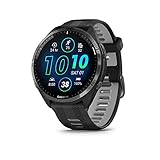
- Brilliant AMOLED touchscreen display with traditional button controls and lightweight titanium bezel
- Battery life: up to 23 days of battery life in smartwatch mode, up to 31 hours in GPS mode
- Confidently run any route using full-color, built-in maps and multi-band GPS
- Training readiness score is based on sleep quality, recovery, training load and HRV status to determine if you’re primed to go hard and reap the rewards (data presented is intended to be a close estimation of metrics tracked)
- Plan race strategy with personalized daily suggested workouts based on the race and course that you input into the Garmin Connect app and then view the race widget on your watch; daily suggested workouts adapt after every run to match performance and recovery
This creates a feedback loop where poor recovery leads to lower readiness the next day, yet the same ambitious goals remain in place. Over several weeks, health insights may begin flagging inconsistent sleep or elevated stress trends.
For many users, shifting activity goals earlier in the day or slightly reducing targets improves sleep scores without reducing total weekly movement.
Weight goals and how they influence health insights, not training metrics
Weight goals set in Garmin Connect do not directly affect Training Status, VO2 max, or workout suggestions. Their influence is limited to weight trend charts, calorie estimates, and long-term health summaries.
However, aggressive weight-loss targets often lead users to increase activity goals while under-fueling. The watch cannot detect calorie intake, so it may interpret declining performance or rising fatigue as poor recovery rather than insufficient energy availability.
For endurance-focused users, conservative weight goals paired with stable activity targets tend to produce more reliable training insights over time.
Common mistakes when changing goals mid-training cycle
One of the most frequent issues is changing multiple goals at once. Raising steps, intensity minutes, and adding extra workouts simultaneously makes it difficult for Garmin’s algorithms to establish a stable baseline.
Another common mistake is enabling auto step goals while also following a structured training plan. Auto goals react to recent activity, which can unintentionally push daily movement higher during already demanding training weeks.
A better approach is to adjust one goal, observe its impact for two to three weeks, then fine-tune. Garmin’s metrics reward consistency far more than sudden ambition.
Practical guidance: aligning goals with useful insights
If Training Status accuracy matters to you, keep daily activity goals supportive rather than competitive with workouts. Steps and intensity minutes should encourage movement on rest days, not overload hard training days.
If Body Battery and stress insights are your priority, aim for goals that allow at least one noticeable recharge window during the day. This is especially important for users wearing larger, heavier watches like Fenix or Instinct models around the clock.
When goals feel aligned, Garmin’s health and training insights become less noisy and more actionable. The watch stops nagging and starts guiding, which is ultimately the point of setting goals in the first place.
Common Mistakes When Editing Garmin Goals (And How to Fix Sync Issues)
When goals feel aligned, Garmin’s insights become quieter and more useful. When they don’t, it’s often because something subtle has gone wrong during editing or syncing rather than the goal itself being unrealistic.
Most problems fall into a few predictable categories. The fixes are usually simple once you know where Garmin Connect draws its source of truth.
Changing goals on the watch instead of Garmin Connect
One of the most common mistakes is editing goals directly on the watch and expecting them to persist everywhere. On many models, on-device changes are temporary and get overwritten by Garmin Connect during the next sync.
For step goals, always confirm the setting inside the Garmin Connect app. Open the app, go to More, Activity Tracking, then Goals, and check that the value matches what you set on the watch.
If the app and watch disagree, the app wins. Sync again and let the watch update from Connect rather than the other way around.
Forgetting that auto goals override manual targets
Auto step goals are useful for casual users but problematic for anyone following structured training. If auto goals are enabled, Garmin recalculates your step target daily based on recent activity.
This leads to confusion when a manually set goal appears to “change itself.” To fix it, go to Garmin Connect, Activity Tracking, Goals, Steps, and turn auto goal off.
Once disabled, manual goals will remain stable and easier to align with workouts, rest days, and recovery metrics like Body Battery.
Editing multiple goals at once and blaming sync
When several goals are changed in the same session, users often assume syncing has failed if metrics behave oddly. In reality, Garmin’s algorithms are recalibrating across steps, intensity minutes, workouts, and weight trends simultaneously.
This can temporarily skew calorie estimates, training load comparisons, and activity rings. Nothing is broken, but the data will look inconsistent for a week or two.
The fix is patience and restraint. Change one goal, sync, and let the system adapt before touching anything else.
Weight goals not updating charts or health insights
Weight goals are handled differently from activity goals. They live under User Profile rather than Activity Tracking, which is easy to miss.
In Garmin Connect, go to More, Settings, User Settings, then Weight. Confirm both your current weight and target weight are correct, then save and sync.
If charts still don’t update, check that you’re logging weigh-ins consistently. Garmin does not estimate weight changes automatically, even if activity levels increase.
Training plans overriding your activity goals
Garmin Coach plans and Daily Suggested Workouts can indirectly override how goals feel, even if the numbers stay the same. High-volume training weeks often leave little room for step or intensity targets.
Users sometimes lower goals during a plan and later forget to raise them again. Others raise goals and wonder why Training Status suddenly dips.
If you’re using a training plan, treat activity goals as background movement only. Avoid adjusting them mid-plan unless recovery metrics are clearly suffering.
Sync delays caused by Bluetooth, Wi-Fi, or battery state
Goal changes don’t apply instantly if the watch hasn’t completed a full sync. Bluetooth-only syncs can stall if the app is backgrounded or the watch battery is low.
Open Garmin Connect, pull down to force a sync, and keep the app open until it completes. For Wi-Fi-enabled watches like Fenix or Forerunner models, placing the watch on the charger often triggers a more reliable sync.
If syncing repeatedly fails, restarting both the phone and watch resolves most cases without deeper troubleshooting.
Multiple Garmin devices fighting for priority
Users with more than one Garmin device often see goals revert or duplicate. This happens when device priority isn’t clearly defined.
In Garmin Connect, go to More, Garmin Devices, then select your primary watch and set it as Preferred Activity Tracker. This ensures goals sync consistently to the device you wear most.
Without this step, older devices can silently push outdated settings back into your account.
Outdated firmware or app versions
Goal syncing issues sometimes come down to software mismatches. A watch running older firmware may not fully support newer goal structures introduced in Garmin Connect updates.
Check for updates in Garmin Connect under Garmin Devices, then Software Update. Also confirm your phone’s app store version is current.
Keeping both sides updated improves sync reliability and reduces strange behavior around daily rings, goals, and health summaries.
Time-of-day and timezone confusion
Goals reset based on the watch’s internal clock, not your phone’s. If you travel or change time zones, daily goals may appear incomplete or already partially achieved.
After travel, allow the watch to acquire GPS or manually sync to update time and location. This resets the daily cycle correctly.
Once aligned, goal progress and activity rings return to normal behavior without manual correction.
Advanced Tips: Adaptive Goals, Auto Step Targets, and Coaching Integrations
Once syncing and device priority are behaving correctly, Garmin’s more advanced goal systems start to make sense. These features quietly adjust your targets behind the scenes, which is powerful when understood and confusing when it isn’t.
This is where Garmin moves beyond static numbers and into adaptive training logic that reacts to your activity patterns, recovery, and coaching plans.
Understanding Adaptive Goals vs Fixed Goals
Garmin supports both fixed goals and adaptive goals, depending on the metric and device. A fixed goal is a number you manually choose, like 8,000 steps per day or three strength workouts per week.
Adaptive goals change automatically based on recent performance. They are designed to push you slightly harder when you’re consistent, and ease back when you miss targets or show signs of fatigue.
The key mistake many users make is assuming a goal has changed due to a sync error, when in reality Garmin has adjusted it intentionally.
How Auto Step Targets Actually Work
Auto step goals are Garmin’s most common adaptive feature, and they’re enabled by default on many watches. Instead of locking you into a single step count, Garmin calculates your target using a rolling average of recent activity.
If you consistently exceed your daily steps, the goal gradually increases. If you miss several days, it drops to something more achievable rather than punishing you with constant failures.
💰 Best Value

- Designed with a bright, colorful AMOLED display, get a more complete picture of your health, thanks to battery life of up to 11 days in smartwatch mode
- Body Battery energy monitoring helps you understand when you’re charged up or need to rest, with even more personalized insights based on sleep, naps, stress levels, workouts and more (data presented is intended to be a close estimation of metrics tracked)
- Get a sleep score and personalized sleep coaching for how much sleep you need — and get tips on how to improve plus key metrics such as HRV status to better understand your health (data presented is intended to be a close estimation of metrics tracked)
- Find new ways to keep your body moving with more than 30 built-in indoor and GPS sports apps, including walking, running, cycling, HIIT, swimming, golf and more
- Wheelchair mode tracks pushes — rather than steps — and includes push and handcycle activities with preloaded workouts for strength, cardio, HIIT, Pilates and yoga, challenges specific to wheelchair users and more (data presented is intended to be a close estimation of metrics tracked)
You can check or disable this in Garmin Connect by going to More, Activities, Steps, then Step Goal. Turning off Auto lets you set a manual number that won’t change day to day.
Why Auto Goals Can Affect Motivation
Adaptive goals are designed to keep streaks alive, not to chase arbitrary milestones. For beginners or users returning from injury, this keeps daily rings achievable and prevents burnout.
For highly structured athletes, auto step goals can feel vague or too easy, especially if steps aren’t a primary training metric. In those cases, manual goals provide clearer intent and better alignment with training plans.
Neither approach is better universally. The right choice depends on whether your goal is habit-building or performance-driven.
Adaptive Goals and Training Status Metrics
On watches that support Training Status, Training Readiness, or Body Battery, adaptive goals influence how these metrics are interpreted. Garmin looks at consistency, not just single-day spikes.
Repeatedly missing adaptive goals can lower your perceived activity baseline, which may subtly affect recovery suggestions and daily activity insights. This does not ruin your training data, but it can change how conservative Garmin’s recommendations become.
If you’re following a structured plan, it’s often better to judge progress by workouts completed rather than daily rings alone.
Garmin Coach and Plan-Based Goal Overrides
When you activate a Garmin Coach plan or a self-guided training plan, some manual goals take a back seat. The plan becomes the primary driver of success metrics.
You’ll notice that daily activity rings still function, but the real progress tracking shifts to completed workouts, plan confidence, and performance benchmarks like pace or heart rate targets.
This is intentional. Garmin Coach prioritizes plan adherence over generic goals, which helps prevent conflicts between step targets and recovery days.
What Happens When Goals and Coaching Clash
A common frustration is seeing low step counts or activity rings on rest days during a coaching plan. This does not negatively impact the plan or your Training Status.
Garmin separates training load from daily movement. Rest days are baked into adaptive coaching logic, even if your step goal appears unmet.
If ring completion bothers you psychologically, lowering manual step goals during a plan can reduce unnecessary pressure without affecting training outcomes.
Device-Specific Differences You Should Know
Higher-end watches like Fenix, Epix, and Forerunner models with training metrics handle adaptive logic on the device itself. This means goals and coaching adjustments continue even if you miss occasional syncs.
Entry-level or lifestyle-focused models rely more heavily on Garmin Connect for calculations. Syncing regularly matters more if you want adaptive goals to stay accurate.
Battery life also plays a role. Watches with multi-week battery endurance are better suited to adaptive tracking because they capture more continuous data with fewer gaps.
Weight Goals and Why They Stay Manual
Unlike steps or activity minutes, weight goals remain fully manual. Garmin does not auto-adjust target weight or timelines, even when syncing with smart scales.
This is by design. Weight trends are influenced by too many external factors for safe automation, so Garmin limits adaptation to insights rather than goal changes.
You can still benefit from adaptive feedback through weight trend graphs and health insights, but the end target is always yours to define.
Using Adaptive Features Without Losing Control
The smartest approach is selective automation. Let Garmin handle adaptive steps or activity minutes, but keep performance goals like race pace, weight, or weekly workouts manual.
Review goals monthly rather than daily. Adaptive systems work best over time, not when second-guessed after a single off day.
When set up intentionally, adaptive goals become a quiet assistant rather than a source of confusion, supporting long-term consistency without demanding constant micromanagement.
Troubleshooting and Best Practices for Keeping Goals Accurate Long-Term
Once your goals are set and behaving as expected, the bigger challenge is keeping them accurate as your fitness, routines, and devices change. Most long-term issues don’t come from the goals themselves, but from small data gaps or mismatched settings that quietly compound over time.
This final section focuses on diagnosing common problems and building habits that keep Garmin goals aligned with real-world performance, not just app numbers.
When Goals Don’t Match Your Effort
A frequent complaint is hitting workouts hard while daily goals still appear unmet. This usually happens when training stress and general activity are being evaluated separately, which is how Garmin is designed to work.
If you’re following a structured training plan, especially for running or cycling, your Training Status and Load are more important than step rings. In these cases, consider lowering manual step goals so recovery days don’t feel like failures.
Another cause is misclassified activity. Strength training, yoga, and indoor workouts contribute less to steps, even when they’re physically demanding. Check Activity Minutes and Intensity Minutes to get a more complete picture of effort.
Sync Issues That Quietly Break Goal Accuracy
Garmin goals rely on consistent data flow between your watch and Garmin Connect. If goals stop adapting or progress looks frozen, syncing is the first thing to check.
Open Garmin Connect, pull down to force a sync, and confirm your device shows “Last synced” within the current day. Watches like Fenix and Forerunner can store data for days, but delayed syncs can disrupt adaptive step calculations and insights.
If problems persist, restarting the watch and phone often resolves background Bluetooth issues without resetting data.
Changing Devices Without Resetting Expectations
Upgrading or rotating between multiple Garmin watches can temporarily distort goals. Different models estimate movement slightly differently based on sensors, size, and how they’re worn.
After switching devices, review step goals, activity minutes, and heart rate zones in Garmin Connect. Don’t assume the previous targets still make sense with a lighter watch, different strap fit, or improved GPS and heart rate accuracy.
Comfort and wear time matter here. A watch worn 24/7 produces far more reliable adaptive goals than one taken off overnight or during desk work.
Weight Goals That Stall or Feel Disconnected
Because weight goals are manual, accuracy depends on consistency rather than automation. Irregular weigh-ins or switching between scales can flatten trend lines and reduce insight quality.
If you use a Garmin Index scale, confirm it’s syncing under Devices in Garmin Connect. For third-party scales, ensure they’re properly linked through Apple Health or MyFitnessPal, depending on your setup.
Avoid adjusting target weight too frequently. Garmin’s trend analysis works best when the goal stays fixed for several weeks, even if day-to-day readings fluctuate.
How Goal Changes Affect Training Status and Insights
Altering goals doesn’t erase training history, but it does influence how Garmin interprets momentum. A sudden jump in activity goals can push Training Load into “Overreaching,” while lowering them too aggressively may understate progress.
Make changes in small increments. For steps or activity minutes, adjustments of 5 to 10 percent are usually enough to reflect lifestyle changes without confusing adaptive algorithms.
After a goal change, give Garmin at least one to two weeks to recalibrate insights before judging accuracy.
Best Practices for Long-Term Accuracy
Review goals monthly, not reactively. Fitness improves in waves, and Garmin’s adaptive logic needs time to smooth out anomalies like travel, illness, or unusually hard weeks.
Keep personal details current. Weight, age, and heart rate zones directly influence calorie burn, intensity minutes, and recovery metrics.
Wear the watch consistently and snugly, especially during sleep and workouts. Sensor contact and comfort affect everything from resting heart rate to stress tracking.
When to Ignore the Numbers
Not every missed ring is a problem. Garmin is excellent at tracking trends, but real-world fitness includes rest, life stress, and imperfect schedules.
If your Training Status is productive, workouts feel strong, and recovery metrics are stable, minor goal misses can be safely ignored. Goals are guidance tools, not scorecards.
Learning when to trust the system and when to step back is what separates sustainable tracking from burnout.
Final Takeaway: Goals Should Serve You
Garmin goals work best when they evolve with you, not when they’re treated as rigid rules. By syncing regularly, adjusting gradually, and understanding how different goal types interact, you keep the data meaningful instead of overwhelming.
Whether you’re chasing performance, improving health, or managing weight, accurate goals turn your Garmin watch from a passive tracker into a long-term training partner. Set them intentionally, review them calmly, and let the ecosystem do what it’s designed to do: support consistency over time.