Changing the language on a Wear OS watch seems simple until the screen suddenly switches to something you can’t read, or the option you expect to see just isn’t there. This usually happens because Wear OS handles language in two different ways, depending on your phone, watch brand, and software version. Once you understand which mode your watch is using, the rest of the setup becomes much more predictable.
Wear OS can either mirror the language of your paired phone or run its own language independently on the watch itself. The experience varies between Pixel Watch, Samsung Galaxy Watch, Fossil, TicWatch, and older Wear OS models, and it can even change after a system update. This section explains how that relationship works so you know exactly where to make changes and why some menus behave differently.
By the end of this part, you’ll know whether your watch is locked to your phone’s language, when you can override it directly on the watch, and what limitations are normal rather than bugs. That context makes the step-by-step instructions later much easier to follow, especially if you’re setting up a new watch, traveling, or dealing with an imported model.
Phone-synced language: the default behavior for most Wear OS watches
On most modern Wear OS devices, the watch automatically follows the system language of the phone it’s paired with. If your Android phone is set to English (US), the watch interface, system menus, and most built-in apps will display in English without offering a separate language selector on the watch.
🏆 #1 Best Overall
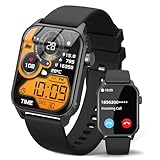
- 【1.83" HD Display & Customizable Watch Faces】Immerse yourself in a vibrant 1.83-inch IPS display, boasting a sharp resolution of 240*284 for crystal-clear visuals. Effortlessly personalize your smart watch with a wide array of customizable watch faces to suit your personal style for every occasion—whether trendy, artistic, or minimalist—ideal for casual, sporty, or professional. Its sleek, modern design complements any outfit, blending technology and fashion seamlessly for everyday wear
- 【120 Sports Modes & Advanced Health Tracking】Our TK29 smart watches for women men come equipped with 120 sports modes, allowing you to effortlessly track a variety of activities such as walking, running, cycling, and swimming. With integrated heart rate and sleep monitors, you can maintain a comprehensive overview of your health, achieve your fitness goals, and maintain a balanced, active lifestyle with ease. Your ideal wellness companion (Note: Step recording starts after exceeding 20 steps)
- 【IP67 Waterproof & Long-Lasting Battery】Designed to keep up with your active lifestyle, this smartwatch features an IP67 waterproof rating, ensuring it can withstand splashes, sweat, and even brief submersion, making it perfect for workouts, outdoor adventures, or rainy days. Its reliable 350mAh battery offering 5-7 days of active use and up to 30 days in standby mode, significantly reducing frequent charging. Ideal for all-day wear, whether you’re at the gym, outdoors, or simply on the go
- 【Stay Connected Anytime, Anywhere】Stay informed and in control with Bluetooth call and music control features. Receive real-time notifications for calls, messages, and social media apps like Facebook, WhatsApp, Twitter, and Instagram directly on your smartwatch. Easily manage calls, control your music playlist, and stay updated without needing to reach for your phone. Perfect for work, workouts, or on-the-go, this watch keeps you connected and never miss important updates wherever you are
- 【Multifunction & Wide Compatibility】Seamlessly handle heart rate monitoring, sleep tracking, and enjoy conveniences like camera/music control, Seamlessly handle heart rate monitoring, sleep tracking, and more-all directly from your wrist. This 1.83 inches HD smartwatch is compatible with iPhone (iOS 9.0+) & Android (5.0+), ensuring smooth daily connectivity and convenience throughout your day. More than just a timepiece, it’s a stylish, all-in-one wearable for smarter, healthier living
This phone-synced setup is intentional and helps keep notifications, Google Assistant responses, and voice dictation consistent. It also reduces battery drain and background syncing complexity, which matters on compact watches with smaller batteries like the Pixel Watch or Galaxy Watch 6.
If your watch language changes unexpectedly, it’s often because the phone language was changed first, even temporarily. Common triggers include setting up a new phone, adding a secondary language on Android, restoring a backup, or switching regions while traveling.
Watch-independent language: when the watch controls its own settings
Some Wear OS versions and manufacturers allow the watch to use a different language than the phone. This is more common on older Wear OS builds, certain Fossil or Mobvoi models, or watches sold in specific regions where multi-language support is emphasized.
When this mode is available, you’ll see a Language option directly on the watch under Settings > System or Settings > General. Changing it affects the watch interface only, while your phone remains unchanged, which can be useful if you share a phone or want bilingual notifications.
The trade-off is that not all apps respect the watch-only language setting. Third-party apps, watch faces, and even some fitness or health screens may still follow the phone language, leading to a mixed-language experience.
Why some language options are missing or greyed out
If you open language settings and can’t select anything, your watch is almost certainly locked to phone-synced mode. This is normal behavior on newer Wear OS versions and isn’t a defect or region lock.
Greyed-out options can also appear if the watch hasn’t finished syncing after setup, is in battery saver mode, or hasn’t received the full language pack yet. Keeping the watch on its charger, connected to Wi‑Fi, and paired to the phone for several minutes often resolves this.
In rare cases, region-specific firmware limits which languages are available, especially on imported models. This doesn’t usually affect major languages, but it can restrict less common regional variants.
How Google Assistant and voice input affect language behavior
Google Assistant on Wear OS always prioritizes the phone’s primary language, even if the watch supports independent language selection. That means voice commands, dictation replies, and spoken prompts will follow the phone, not the watch.
If the watch language doesn’t match the Assistant language, you may see text in one language and hear responses in another. This can feel broken, but it’s expected behavior and tied to how Assistant accounts are managed across devices.
For the most consistent experience, especially if you rely on voice input for messaging, workouts, or navigation, aligning the phone and watch language is usually the most stable option.
What this means for daily use and long-term comfort
Language settings affect more than menus; they influence notification previews, fitness metrics labels, health insights, and even how clearly complications display on small watch faces. On compact cases with dense information, like 40–42mm models, a mismatched or unfamiliar language can noticeably impact readability and comfort.
Battery life and performance aren’t directly affected by language choice, but repeated syncing changes and Assistant reconfiguration can cause short-term drain. Once set correctly, language behavior on Wear OS is generally stable and doesn’t need frequent adjustment.
Understanding whether your watch is phone-synced or watch-independent is the foundation for changing the language successfully. With that clear, the next steps become straightforward, regardless of brand, Wear OS version, or where the watch was originally sold.
Before You Start: Wear OS Version, Phone Type, and Brand Differences That Matter
Before diving into the actual language settings, it helps to understand why the steps can look different from one Wear OS watch to another. Language behavior on Wear OS is shaped by three things working together: the Wear OS version on the watch, the type of phone it’s paired with, and the manufacturer’s own software layer.
If you know where your watch sits in those three categories, you’ll avoid the most common frustrations, like missing menu options, settings that snap back, or languages that refuse to download.
Why your Wear OS version changes what you can control
Wear OS has gone through several major shifts, and language control is one area that evolved quietly but significantly. On older Wear OS 2.x watches, the system language is almost always tied directly to the phone’s primary language, with little or no option to override it on the watch itself.
Wear OS 3 and newer, found on devices like the Pixel Watch, Galaxy Watch 4 and later, and newer Fossil models, allows more flexibility. Many of these watches support changing the language directly on the watch, though some still default to mirroring the phone during initial setup.
You can check your Wear OS version by going to Settings, then About, then Versions on the watch. If your watch is running an older version, don’t assume something is broken if you can’t find a standalone language menu; it may simply not exist on that software generation.
Android phone vs iPhone pairing: what really works
Wear OS is designed first and foremost for Android, and language control reflects that. When paired with an Android phone, the watch typically inherits the phone’s system language during setup and syncs changes automatically unless you manually override it on the watch.
If you’re using an iPhone with a Wear OS watch, language behavior is more limited and less predictable. Some language changes must be made on the watch itself, while others may not fully apply, especially for Assistant, voice dictation, and system prompts.
This doesn’t affect basic usability like timekeeping, step tracking, or heart rate monitoring, but it can impact daily comfort. On smaller displays or dense watch faces, partial translations or mixed-language menus can make notifications and fitness stats harder to read at a glance.
Brand-specific software layers you need to account for
Not all Wear OS watches present settings in the same way. Google’s Pixel Watch uses a near-stock Wear OS interface, which tends to expose language settings more clearly and behaves predictably when paired with a Pixel or other Android phone.
Samsung’s Galaxy Watch models run Wear OS with One UI Watch layered on top. Language options may appear under different menu names, and Samsung services can override Google defaults, especially for keyboard input, voice typing, and system prompts.
Other brands like Fossil, TicWatch, and Montblanc often sit somewhere in between. They generally follow Google’s structure but may hide language options deeper in the menu or delay applying changes until the watch restarts or reconnects to Wi‑Fi.
Imported and region-locked models: what to expect
If your watch was purchased in another country, language availability may depend on the firmware it shipped with. Major global languages are usually included, but regional variants or less common dialects may not appear, even if the hardware supports them.
This is more common on LTE models, where carrier certification can restrict system languages. It doesn’t affect physical aspects like case size, materials, or strap compatibility, but it does influence daily usability if your preferred language isn’t available.
In these cases, changing the phone language may unlock additional options, while changing the watch language alone may do nothing. Knowing this upfront saves time and avoids unnecessary factory resets.
Initial setup vs post-setup changes
Language behavior can differ depending on when you make the change. During initial setup, the watch almost always mirrors the phone’s language, and some watches lock that choice until setup is fully complete.
After setup, most modern Wear OS watches allow more flexibility, but changes may take several minutes to apply. Keeping the watch on its charger, connected to Wi‑Fi, and within Bluetooth range of the phone helps ensure language packs download correctly.
If you’re setting up a watch for travel, resale, or gifting, it’s often easier to set the phone language first, complete setup, and then fine-tune the watch language afterward. This approach minimizes sync conflicts and reduces the chance of greyed-out options later.
Why this matters for comfort, battery life, and daily wear
Language settings directly affect how information fits on the screen. Longer words or unfamiliar abbreviations can crowd complications, truncate notifications, and reduce clarity, especially on slimmer cases or watches with narrow bezels.
While language choice doesn’t permanently impact battery life, repeated changes can trigger background syncing, Assistant updates, and keyboard downloads. This can cause short-term drain on the first day, particularly on smaller batteries like those found in compact 40–41mm models.
Once your Wear OS version, phone type, and brand behavior are clear, changing the language becomes a controlled process instead of guesswork. With those variables understood, you’re ready to move on to the exact steps for your specific setup.
Method 1: Changing the Language Automatically by Updating Your Phone’s Language
Once you understand how tightly Wear OS mirrors your phone, this method becomes the most reliable and least frustrating way to change languages. For most users, especially during initial setup or after a reset, the watch simply follows whatever language the paired phone is using.
This approach works across nearly all modern Wear OS watches, including Google Pixel Watch, Samsung Galaxy Watch running One UI Watch, Fossil Gen models, and TicWatch. It avoids greyed‑out menus on the watch and reduces the chance of partial translations or missing system text.
Why changing the phone language works so well
Wear OS is designed to treat the phone as the “source of truth” for system preferences. Language, region, keyboard layout, and Assistant voice are all initially pulled from the phone during setup and periodically rechecked afterward.
Because of this, many watches won’t fully switch languages unless the phone changes first. Even if the watch shows multiple language options, selecting them may do nothing if the phone language doesn’t match.
This is especially common on imported watches, carrier-specific models, or watches updated across multiple Wear OS versions. Changing the phone language first clears those conflicts.
Step-by-step: Change the language on an Android phone
On your phone, open Settings and scroll to System. Tap Languages or Languages & input, then select Languages.
Add your preferred language if it isn’t already listed. Drag it to the top of the list so it becomes the primary system language.
Once the phone switches languages, leave it unlocked and connected to the internet. Keep Bluetooth on and make sure the watch is nearby, ideally on its charger to prevent sleep or sync interruptions.
Within a few minutes, the watch should automatically update. You may see brief syncing messages or a short delay while language packs download in the background.
What to expect on the watch during the change
The watch may briefly lag, show mixed-language menus, or restart its interface. This is normal, especially on watches with smaller processors or limited RAM.
Text-heavy areas like Settings, notifications, Google Assistant prompts, and system apps usually update first. Third-party apps may take longer or require their own in-app language settings.
Rank #2
![Apple Watch Series 11 [GPS 46mm] Smartwatch with Jet Black Aluminum Case with Black Sport Band - M/L. Sleep Score, Fitness Tracker, Health Monitoring, Always-On Display, Water Resistant](https://m.media-amazon.com/images/I/312K597M2uL._SL160_.jpg)
- HYPERTENSION NOTIFICATIONS — Apple Watch Series 11 can spot signs of chronic high blood pressure and notify you of possible hypertension.*
- KNOW YOUR SLEEP SCORE — Sleep score provides an easy way to help track and understand the quality of your sleep, so you can make it more restorative.
- EVEN MORE HEALTH INSIGHTS — Take an ECG anytime.* Get notifications for a high and low heart rate, an irregular rhythm,* and possible sleep apnea.* View overnight health metrics with the Vitals app* and take readings of your blood oxygen.*
- STUNNING DESIGN — Thin and lightweight, Series 11 is comfortable to wear around the clock — while exercising and even when you’re sleeping, so it can help track your key metrics.
- A POWERFUL FITNESS PARTNER — With advanced metrics for all your workouts, plus features like Pacer, Heart Rate Zones, training load, Workout Buddy powered by Apple Intelligence from your nearby iPhone,* and more. Series 11 also comes with three months of Apple Fitness+ free.*
Screen fit can change slightly after the update. Some languages use longer words, which can affect how complications, tiles, or notification previews fit on compact displays, particularly 40–41mm cases.
Samsung Galaxy Watch and One UI Watch behavior
Samsung Galaxy Watches running Wear OS with One UI Watch still follow the phone-first rule. If your Galaxy phone language changes, the watch will mirror it automatically.
If you use a non-Samsung Android phone, the behavior is the same, but syncing may take longer. Keeping the Galaxy Wearable app open during the change helps trigger a faster update.
Samsung-specific apps, such as Samsung Health or Bixby, may briefly remain in the old language until their services refresh. This usually resolves itself within a few minutes.
Pixel Watch and stock Wear OS behavior
Pixel Watch follows Google’s reference behavior most closely. Once the phone language changes, the watch updates quietly in the background without extra prompts.
On first-generation Pixel Watch models with smaller batteries, you may notice a short-term battery dip while language files and Assistant data sync. This stabilizes after the first full charge cycle.
Because Pixel Watch uses a clean Wear OS interface, system menus and Google apps typically switch languages faster than on heavily skinned watches.
Common issues and how to avoid them
If the watch doesn’t change language after 10–15 minutes, check that Wi‑Fi is enabled on the watch, not just Bluetooth. Some language packs won’t download over Bluetooth alone.
Avoid changing languages repeatedly in a short period. Rapid toggling can confuse the sync process and temporarily lock language menus on the watch.
If you recently updated Wear OS or restored from a backup, give the watch time to finish background setup before assuming the language change failed. Patience here often prevents unnecessary resets.
When this method is the best choice
This phone-first method is ideal during initial setup, when fixing an accidentally changed language, or when dealing with a watch that won’t allow manual language selection.
It’s also the cleanest option if you’re gifting or reselling a watch. Set the phone to the target language, complete setup, and the watch arrives ready to use without additional steps.
Once the watch has fully synced and stabilized, you can decide whether to keep the phone and watch matched or explore manual language control directly on the watch in the next method.
Method 2: Changing the Language Directly on the Wear OS Watch (When Available)
If you’d rather control the language from the watch itself, or you’re using the watch without its paired phone nearby, some Wear OS versions allow manual language selection directly on the device.
This option isn’t universal. Availability depends on your Wear OS version, the manufacturer’s software layer, and whether the watch is set to mirror the phone by default.
When this option appears on Wear OS
Manual language selection is most commonly found on newer Wear OS 3 and Wear OS 4 builds, especially on watches sold in multi-language regions.
Samsung Galaxy Watch models running One UI Watch often expose a language menu, but it may be locked to phone sync unless you disable it first.
Pixel Watch generally hides this option entirely and relies on phone language syncing, even on the latest software.
How to check if your watch supports direct language changes
On the watch, press the side button to open the app list, then go to Settings.
Scroll to System, then look for Languages, Language & input, or Language and region. Menu naming varies slightly by brand and Wear OS version.
If you see a list of languages rather than a sync toggle, your watch supports manual selection.
Step-by-step: Changing the language on the watch
Open Settings on the watch and navigate to System.
Tap Languages or Language & input, then select Language.
Choose your preferred language from the list. The watch may briefly display a loading indicator while applying the change.
Most watches restart the system UI automatically. If prompted to reboot, allow it for the change to fully apply.
Disabling phone language sync (Samsung and similar skins)
On Samsung Galaxy Watch models, the language menu may be greyed out at first.
Look for an option labeled Sync with phone or Use phone language. Toggle this off to unlock manual language selection.
Once disabled, you can select a different language on the watch without changing your phone’s system language.
What changes immediately—and what doesn’t
System menus, quick settings, and core UI elements usually switch language right away.
Google apps such as Assistant, Maps, or Wallet may take a few minutes to refresh, especially if the watch needs to download additional language data over Wi‑Fi.
Third-party apps follow their own language rules. Some use the watch language, others mirror the phone, and a few rely on in-app settings only.
Battery and performance considerations
Changing language directly on the watch triggers background downloads, which can cause a temporary battery dip.
On smaller watches like the Pixel Watch or Galaxy Watch 40 mm variants, this can be noticeable during the first few hours.
Keeping the watch on its charger or above 50 percent battery helps avoid slowdowns or interrupted downloads.
Common problems and how to fix them
If the language list is empty or incomplete, connect the watch to Wi‑Fi. Bluetooth alone may not be enough to fetch language packs.
If your chosen language reverts after a reboot, the phone may still be enforcing sync. Double-check the phone’s Wear OS or Galaxy Wearable app settings.
If menus become unreadable due to an accidental language change, use icon positions rather than text to navigate back to the language menu. Restarting the watch can also restore temporary UI hints in your original language.
Region and firmware limitations to be aware of
Imported watches sometimes ship with region-locked firmware that restricts available languages.
Japanese, Korean, or China-market models may only offer a limited language set unless reflashed with international firmware, which is not officially supported.
In these cases, phone-based language syncing from Method 1 is often the only safe option without voiding warranty or risking stability.
When changing the language on the watch makes the most sense
This method is ideal if you’re traveling and want temporary language control without touching your phone.
It’s also useful for shared devices, fitness-only use, or situations where the watch is paired to a work phone with restricted system settings.
If your watch supports it, direct language control offers flexibility, but it’s still secondary to phone-based syncing on most Wear OS devices.
Brand-Specific Notes: Pixel Watch, Samsung Galaxy Watch, Fossil, TicWatch, and Others
While Wear OS aims for consistency, each manufacturer layers its own setup logic and companion app behavior on top. Understanding these differences helps avoid the common frustration of language settings that appear to change, then silently revert.
Google Pixel Watch and Pixel Watch 2
Pixel Watch models are the most tightly aligned with Google’s default Wear OS behavior. By design, the watch language mirrors the phone language and cannot be permanently changed on the watch itself unless the phone language changes first.
Rank #3

- Bluetooth Call and Message Alerts: Smart watch is equipped with HD speaker, after connecting to your smartphone via bluetooth, you can answer or make calls, view call history and store contacts through directly use the smartwatch. The smartwatches also provides notifications of social media messages (WhatsApp, Twitter, Facebook, Instagram usw.) So that you will never miss any important information.
- Smart watch for men women is equipped with a 320*380 extra-large hd full touch color screen, delivering exceptional picture quality and highly responsive touch sensitivity, which can bring you a unique visual and better interactive experience, lock screen and wake up easily by raising your wrist. Though “Gloryfit” app, you can download more than 102 free personalised watch faces and set it as your desktop for fitness tracker.
- 24/7 Heart Rate Monitor and Sleep Tracker Monitor: The fitness tracker watch for men has a built-in high-performance sensor that can record our heart rate changes in real time. Monitor your heart rate 26 hours a day and keep an eye on your health. Synchronize to the mobile phone app"Gloryfit", you can understand your sleep status(deep /light /wakeful sleep) by fitness tracker watch develop a better sleep habit and a healthier lifestyle.
- IP68 waterproof and 110+ Sports Modes: The fitness tracker provides up to 112+ sports modes, covering running, cycling, walking, basketball, yoga, football and so on. Activity trackers bracelets meet the waterproof requirements for most sports enthusiasts' daily activities, such as washing hands or exercising in the rain, meeting daily needs (note: Do not recommended for use in hot water or seawater.)
- Multifunction and Compatibility: This step counter watch also has many useful functions, such as weather forecast, music control, sedentary reminder, stopwatch, alarm clock, timer, track female cycle, screen light time, find phone etc. The smart watch with 2 hrs of charging, 5-7 days of normal use and about 30 days of standby time. This smart watches for women/man compatible with ios 9.0 and android 6.2 and above devices.
If you go to Settings > System > Languages on the watch, you’ll often see the menu but with limited or non-persistent options. Any manual change made here typically resets after a reboot or reconnection to the phone.
This approach improves consistency for Google Assistant, voice dictation, and notifications, but it can be limiting for travelers or bilingual users. Battery life is usually unaffected beyond a short language pack download, and the compact 41 mm case means keeping the watch on the charger during changes helps maintain responsiveness.
Samsung Galaxy Watch (Wear OS models)
Samsung Galaxy Watch 4, 5, and 6 models run Wear OS with One UI Watch layered on top, which changes how language control works. In most cases, the watch language follows the phone language, but Samsung allows more flexibility than Google.
You can change the language from the Galaxy Wearable app under General > Language, or directly on the watch under Settings > General > Language. If “Follow phone language” is enabled, you must disable it before selecting a different option.
Samsung’s language packs are larger due to One UI Watch assets, so expect a short spike in battery drain and warmth during the download. On smaller 40 mm models, performance may dip briefly, but it stabilizes once the install completes.
Fossil Gen 5, Gen 6, and Skagen Wear OS watches
Fossil Group watches tend to offer the most straightforward on-watch language control. You can usually change the language directly from Settings > System > Languages without needing to adjust the phone.
That said, the Fossil Smartwatches app may still override the setting if the phone language is enforced during setup. If the language reverts, open the companion app and confirm that language sync is disabled.
These watches often have slimmer cases and lighter stainless steel builds, which makes them comfortable for daily wear but also means smaller batteries. Keeping the watch charged during language changes avoids slow menus or stalled downloads.
TicWatch Pro and TicWatch E series
Mobvoi’s TicWatch models, including the Pro 3 and Pro 5, follow near-stock Wear OS behavior with a few caveats. Language usually mirrors the phone, but some models allow temporary changes directly on the watch.
TicWatch devices with dual-display technology may take longer to apply language changes, especially if Wi‑Fi is not enabled. Bluetooth-only connections often fail to fetch full language packs.
Because Mobvoi firmware updates are less frequent, older models may lack newer language options entirely. If a language does not appear, it’s usually a firmware limitation rather than a setup error.
Other Wear OS brands (Xiaomi, Oppo, Montblanc, Tag Heuer, and imports)
Luxury and niche Wear OS watches often follow phone-based language syncing strictly, especially models focused on design, materials, and finishing rather than software flexibility. Tag Heuer and Montblanc, for example, prioritize stability over customization.
Xiaomi and Oppo Wear OS models sold outside your region may have restricted language lists tied to firmware. Even if the phone supports the language, the watch may not display it unless it’s officially supported for that market.
In these cases, changing the phone language remains the safest and most reliable method. Reflashing firmware or sideloading language packs can affect durability, battery efficiency, and long-term stability, and is not recommended for everyday users.
Across all brands, if a language option appears greyed out or missing, it usually points to phone sync enforcement, region-locked firmware, or a pending update. Addressing those factors first saves time and avoids unnecessary resets.
Common Problems and Fixes: Greyed-Out Language Options, Missing Languages, and Sync Issues
Even after understanding how language syncing works across brands, many users hit practical roadblocks when trying to change the language on a Wear OS watch. These issues usually aren’t bugs in the traditional sense, but side effects of how Wear OS balances phone control, firmware limits, and battery-aware behavior.
Below are the most common problems you’ll encounter, why they happen, and how to fix them without resorting to a factory reset unless absolutely necessary.
Language options are greyed out on the watch
A greyed-out language menu almost always means the watch is locked to the phone’s system language. This is standard behavior on newer Wear OS versions, especially on Pixel Watch, Galaxy Watch, and luxury-brand models that prioritize stability over customization.
The fix is simple but not always obvious. Change the language on the paired phone first, then keep the watch awake and connected while it syncs. Once the watch finishes applying the change, you can usually switch the phone back if your model supports independent language settings.
If the option stays greyed out even after changing the phone language, check the companion app. In Pixel Watch and Samsung Wearable apps, look for a language sync or system sync toggle and confirm it’s enabled rather than partially stuck.
The language you want doesn’t appear at all
Missing languages are usually a firmware or region issue, not a pairing problem. Imported watches, carrier-specific models, and older Wear OS builds often ship with a reduced language pack tied to the market they were sold in.
First, confirm the watch is fully updated. Go to Settings on the watch, check for system updates, and keep it on Wi‑Fi and the charger during the process. Language packs are often bundled with system updates and won’t download over Bluetooth alone.
If the language still doesn’t appear, check whether the manufacturer officially supports it on your model. Slimmer watches with smaller batteries sometimes ship with fewer preloaded languages to save storage and power, especially on older hardware.
Watch language keeps reverting back
If your watch briefly switches language and then snaps back, the phone is overriding it. This happens when the phone’s system language and the watch’s language don’t match, and forced syncing is enabled.
To fix this, align both devices to the same language temporarily. Let the watch complete the sync, then explore whether your model allows independent changes afterward. Samsung and Google watches tend to enforce syncing more strictly than near-stock Wear OS devices like TicWatch.
Also make sure the companion app isn’t running aggressive battery optimization on the phone. If the app gets suspended mid-sync, the watch may never finalize the language change.
Language change is stuck, slow, or partially applied
A slow or incomplete language change usually points to power or connectivity limitations. Language packs are larger than they appear, and watches with compact cases and lightweight stainless steel builds often have smaller batteries and slower storage.
Place the watch on its charger, enable Wi‑Fi, and keep the screen awake while the change applies. Avoid switching apps or letting the watch go to ambient mode during this process, especially on dual-display models like the TicWatch Pro.
If menus change language but apps don’t, give it time. Third-party apps often update their language settings separately and may require a restart to fully reflect the change.
Phone and watch show different languages
This isn’t always an error. Some Wear OS versions allow partial independence, where system menus follow one language and apps follow another. It’s more common on older Wear OS builds and near-stock implementations.
If this mismatch is unwanted, restart both devices and reopen the companion app to force a clean sync. Confirm that both devices are signed into the same Google account, as account mismatches can silently block system-level updates.
In rare cases, uninstalling and reinstalling the companion app resolves stubborn sync conflicts without wiping the watch itself.
Language changed accidentally and you can’t navigate menus
This is more common than people admit, especially on small round displays where swipe gestures are easy to misfire. The good news is that language menus are usually in the same position regardless of language.
Use icon recognition rather than text. Look for the gear icon for Settings, then the globe or letter-based icon for Language. If you’re completely stuck, changing the phone language will force the watch back into a familiar language during the next sync.
As a last resort, factory reset from the companion app rather than the watch itself. This avoids guessing through unfamiliar menus and preserves pairing stability.
When a factory reset is actually justified
A reset should be the final step, not the first. It’s only worth doing if the watch refuses to sync languages after updates, restarts, and phone-side changes have all failed.
Before resetting, ensure the watch is fully charged and backed up through the companion app. After setup, apply the desired phone language first, then pair the watch to avoid repeating the same issue.
In real-world use, most language problems come down to syncing rules and firmware limits rather than hardware faults. Once those constraints are understood, Wear OS becomes far more predictable and less frustrating to live with day to day.
Travel, Imported Watches, and Region Locks: What You Can and Can’t Change
Once basic syncing issues are ruled out, language problems almost always trace back to region rules rather than user error. This becomes especially relevant if you’re traveling internationally, using an imported model, or setting up a watch that wasn’t originally sold in your country.
Wear OS is more flexible than it used to be, but it still inherits regional limitations from both Google and the manufacturer. Understanding which settings are cosmetic and which are locked saves a lot of frustration.
Traveling with a Wear OS watch: what changes automatically
When you travel, your watch does not automatically change system language based on location. Wear OS prioritizes the phone’s system language, not GPS location, SIM country, or Wi‑Fi region.
If you land in a new country and your watch suddenly displays unfamiliar text, it’s almost always because your phone switched languages during setup, roaming, or SIM installation. Changing the phone language back will correct the watch on the next sync.
Time format, date format, and weather units may change automatically depending on region, even if language stays the same. This behavior is normal and doesn’t indicate a deeper language issue.
Imported watches and missing language options
Imported Wear OS watches are common, especially Samsung Galaxy Watch and older Fossil or TicWatch models sold for specific markets. These watches often support fewer system languages than global retail units.
If a language is missing or greyed out, it usually means the firmware build does not include that language pack. No amount of resetting, syncing, or reinstalling apps will add it.
Rank #4
![Apple Watch Series 11 [GPS 42mm] Smartwatch with Rose Gold Aluminum Case with Light Blush Sport Band - S/M. Sleep Score, Fitness Tracker, Health Monitoring, Always-On Display, Water Resistant](https://m.media-amazon.com/images/I/31J+F-pXaWL._SL160_.jpg)
- HYPERTENSION NOTIFICATIONS — Apple Watch Series 11 can spot signs of chronic high blood pressure and notify you of possible hypertension.*
- KNOW YOUR SLEEP SCORE — Sleep score provides an easy way to help track and understand the quality of your sleep, so you can make it more restorative.
- EVEN MORE HEALTH INSIGHTS — Take an ECG anytime.* Get notifications for a high and low heart rate, an irregular rhythm,* and possible sleep apnea.* View overnight health metrics with the Vitals app* and take readings of your blood oxygen.*
- STUNNING DESIGN — Thin and lightweight, Series 11 is comfortable to wear around the clock — while exercising and even when you’re sleeping, so it can help track your key metrics.
- A POWERFUL FITNESS PARTNER — With advanced metrics for all your workouts, plus features like Pacer, Heart Rate Zones, training load, Workout Buddy powered by Apple Intelligence from your nearby iPhone,* and more. Series 11 also comes with three months of Apple Fitness+ free.*
This is most common on watches originally sold in China, South Korea, or Japan. The hardware is identical, but the software image is region-specific and locked at the firmware level.
Why some language options are greyed out
A greyed-out language option usually indicates one of three things: the watch firmware doesn’t support it, the phone-watch pairing region doesn’t match, or the watch requires a system update before unlocking additional languages.
Check for updates on both the watch and phone companion app first. Some Wear OS updates silently add language support, especially on newer Google Pixel Watch and Samsung models.
If the language remains unavailable after updating, it is almost certainly a regional firmware limitation rather than a bug.
Samsung Galaxy Watch vs Pixel Watch: regional behavior differences
Samsung Galaxy Watch models running Wear OS are more tightly controlled by sales region. Language availability, Samsung Pay regions, and even voice assistant languages are linked to the original CSC (country code) of the device.
Google Pixel Watch models are generally more flexible. Language options are broader, and most regions receive the same core firmware, making them easier to use internationally.
In daily wear, this means a Pixel Watch is more forgiving for travelers and expats, while a Galaxy Watch may require accepting certain regional constraints long-term.
Cellular models and eSIM limitations
On LTE-enabled Wear OS watches, language and region issues can overlap with cellular restrictions. Some regions tie system language availability to supported carriers and eSIM profiles.
Changing the language will not unlock cellular support in unsupported countries. Likewise, activating an international eSIM will not expand the list of available system languages.
If cellular setup fails after a language change, switch back to the original language temporarily, complete activation, then retry your preferred language.
China-market watches and Wear OS restrictions
Watches originally sold for mainland China often run heavily modified firmware. Google services, including full Wear OS language syncing, may be limited or absent.
Even if the watch appears to support Wear OS, system language options can be permanently restricted. These models are usually identifiable by missing Google Assistant, limited Play Store access, or non-standard setup flows.
In these cases, the only true fix is flashing international firmware, which is advanced, risky, and not recommended for everyday users.
What you can safely change without breaking anything
You can always change watch faces, time format, date format, and most app languages without affecting system stability. These settings are largely independent of region locks.
Changing the phone’s system language is also safe and reversible, making it the best first step when testing language behavior. If the watch responds correctly, you’ve confirmed syncing is working as intended.
Avoid repeated factory resets when dealing with region limits. They won’t unlock features and can actually complicate future pairing if the firmware remains unchanged.
When region locks affect daily usability
For most users, region-locked language limitations are an annoyance rather than a deal-breaker. Core features like fitness tracking, notifications, battery life, and comfort remain unaffected.
Where it matters most is accessibility, voice input, and long-term comfort. Using a second language daily on a small round display can make navigation slower and more error-prone.
If language flexibility is critical to you, it’s worth factoring into purchase decisions. Global models with broad firmware support offer better long-term value, especially if you travel frequently or plan to keep the watch for several years.
Language vs Region vs Voice Assistant: Avoiding Side Effects with Google Assistant and Apps
Once language limits and region locks are understood, the next layer that often causes confusion is how language, region, and Google Assistant interact on Wear OS. These three settings sound related, but they behave very differently behind the scenes.
Changing one without understanding the others can lead to missing Assistant features, broken voice dictation, or apps showing mixed languages. Knowing what each setting actually controls helps you avoid those side effects.
System language: what the watch displays and understands
The system language determines how menus, settings, notifications, and most first-party apps appear on the watch. On Wear OS, this usually mirrors your phone’s system language unless you manually override it.
If your watch supports independent language selection, changing the system language affects on-screen text only. It does not automatically change region-specific services, app availability, or Assistant behavior.
This is why some users see a fully translated interface but still get voice errors or unsupported features. The watch looks right, but the services underneath are still tied to another region.
Region settings: app availability, services, and hidden limits
Region is not always exposed as a visible setting on Wear OS, but it exists at the firmware and Google account level. It influences which apps appear in the Play Store, which services are enabled, and which Assistant features work.
For example, changing your system language to Spanish does not make your watch behave like it was sold in Spain or Mexico. Payment services, Assistant languages, and even fitness features can remain tied to the original sales region.
This is why imported watches often feel inconsistent. The hardware is identical, but region rules quietly limit what software features you can actually use.
Google Assistant language vs system language
Google Assistant runs on its own language model, separate from the watch’s interface language. On Wear OS, Assistant language is inherited from your Google account, not the watch itself.
If Assistant does not support your selected language in your region, voice commands may fail, default to English, or stop responding entirely. This can happen even when the rest of the watch is perfectly translated.
To fix this, open Google Assistant settings on your phone, check the Assistant language list, and confirm your desired language is supported and active. If it is missing, the watch cannot override that limitation.
Voice dictation and reply issues after a language change
One of the most common side effects of switching languages is broken voice dictation for replies. You may see correct text on screen, but spoken input produces errors or incorrect words.
This happens when the system language and Assistant language do not match. The microphone works, but the speech engine is listening for a different language than the UI suggests.
Aligning the phone system language, Assistant language, and watch language usually resolves this. A quick reboot after changing settings helps the watch reload the correct speech models.
Third-party apps and mixed-language behavior
Many third-party Wear OS apps follow the phone’s language, not the watch’s. Others use their own in-app language settings or default to English regardless of system preferences.
This can result in a watch where settings are in one language, notifications in another, and apps in a third. While frustrating, this is an app-level issue rather than a watch fault.
If consistency matters, check each app’s settings on the phone first. Fitness, messaging, and navigation apps are the most likely to ignore watch language changes.
Assistant availability on specific brands and models
Not all Wear OS watches support Google Assistant equally, even if they run the same software version. Samsung, Pixel Watch, Fossil, and TicWatch models differ based on hardware, microphones, and regional certification.
On some models, Assistant is disabled entirely in certain regions regardless of language choice. On others, it works only with specific languages tied to the Google account.
If Assistant is critical to your daily use, verify both language and region support before assuming a language change will preserve full functionality.
Best-practice setup to avoid breakage
Start by setting your phone’s system language and Google Assistant language first. Let the watch sync automatically before attempting any manual language overrides.
If you need a different display language without affecting Assistant, change the watch language only if your model allows it independently. Avoid mixing unsupported Assistant languages with region-locked firmware.
This approach keeps notifications readable, voice input reliable, and apps behaving predictably, even on imported or travel-used watches.
What Happens After You Change the Language: Apps, Notifications, Health Data, and Battery Impact
Once the language switch is complete, the watch doesn’t just redraw menus. Wear OS reloads system resources, re-syncs with the phone, and reinterprets how apps, notifications, and voice features behave together.
Most changes are subtle, but some can catch users off guard, especially if the watch was imported, used while traveling, or paired to a phone with different regional settings.
System UI and built-in apps
The system interface updates first. Settings, tiles, quick toggles, and core apps like Clock, Weather, and Calendar usually reflect the new language immediately after a brief refresh or reboot.
💰 Best Value
![Apple Watch Series 11 [GPS 42mm] Smartwatch with Jet Black Aluminum Case with Black Sport Band - S/M. Sleep Score, Fitness Tracker, Health Monitoring, Always-On Display, Water Resistant](https://m.media-amazon.com/images/I/31ybzrJZckL._SL160_.jpg)
- HYPERTENSION NOTIFICATIONS — Apple Watch Series 11 can spot signs of chronic high blood pressure and notify you of possible hypertension.*
- KNOW YOUR SLEEP SCORE — Sleep score provides an easy way to help track and understand the quality of your sleep, so you can make it more restorative.
- EVEN MORE HEALTH INSIGHTS — Take an ECG anytime.* Get notifications for a high and low heart rate, an irregular rhythm,* and possible sleep apnea.* View overnight health metrics with the Vitals app* and take readings of your blood oxygen.*
- STUNNING DESIGN — Thin and lightweight, Series 11 is comfortable to wear around the clock — while exercising and even when you’re sleeping, so it can help track your key metrics.
- A POWERFUL FITNESS PARTNER — With advanced metrics for all your workouts, plus features like Pacer, Heart Rate Zones, training load, Workout Buddy powered by Apple Intelligence from your nearby iPhone,* and more. Series 11 also comes with three months of Apple Fitness+ free.*
On most modern Wear OS versions, fonts and spacing automatically adjust to the selected language. Languages with longer words or different scripts may slightly change menu density or text wrapping, but this does not affect usability or touch accuracy.
Pre-installed apps provided by the watch brand, such as Samsung Health or Pixel-specific tools, typically follow the watch language rather than the phone language.
Third-party apps and mixed-language results
Third-party apps are less predictable. Many mirror the phone’s language instead of the watch’s, while others default to English unless manually changed inside the app itself.
This is why you may see a fitness app in English, system menus in Spanish, and notifications in French at the same time. It feels broken, but it’s simply how developers handle localization across phone-watch pairs.
If consistency matters, open the app on your phone and check its language or region settings. Messaging, navigation, payment, and fitness apps are the most common offenders.
Notifications and message previews
Notifications follow the language of the app sending them, not the watch. Changing the watch language does not translate incoming messages or alerts.
For example, WhatsApp notifications will appear in whatever language the app uses on your phone. System-generated notifications, like battery warnings or pairing alerts, use the watch language instead.
Text direction and character support generally improve when the watch language matches the notification language, especially for non-Latin scripts.
Health, fitness, and historical data
Health data is not reset or lost when you change the language. Metrics like steps, heart rate, sleep stages, VO2 max, and workout history remain intact.
What does change is how data is labeled and displayed. Units, descriptors, and workout names adapt to the new language, but the underlying measurements stay the same.
If you export data to third-party services, the exported file may reflect the new language for labels, which can matter for manual tracking or spreadsheets.
Voice input, dictation, and Assistant behavior
Voice dictation and Assistant responses often reload language models after a language change. This can take a few minutes or require a reboot and Wi‑Fi connection.
Accuracy usually improves when the watch language, Assistant language, and phone language are aligned. Mixed settings can cause slower wake times, incorrect transcriptions, or Assistant reverting to a default language.
If dictation suddenly stops working, check that the selected language is supported for voice input in your region, not just for display.
Battery life and performance impact
In normal use, changing the language has no meaningful impact on battery life. The watch does not continuously consume extra power once the language switch is complete.
You may see slightly higher drain in the first few hours as system caches rebuild and Assistant downloads language resources. This stabilizes quickly.
Performance, responsiveness, and thermal behavior remain unchanged. The processor, sensors, display, and background services operate the same regardless of language choice.
Region-linked features and limitations
Language changes do not override regional restrictions. Features like Google Wallet, LTE calling, Assistant availability, or ECG functions remain tied to the watch’s certified region and firmware.
This is especially important for imported watches. Switching the language to match your country does not unlock region-locked health features or services.
In some cases, selecting an unsupported language for your region can temporarily hide features rather than break them. Reverting to a supported language restores normal behavior.
When a reboot or resync is worth doing
If you notice delayed notifications, inconsistent app languages, or voice features acting strangely, a reboot is often enough to settle everything.
For persistent issues, toggling Bluetooth off and on or reopening the Wear OS companion app on your phone forces a clean resync.
These steps don’t erase data and are safe to perform anytime, especially after major system-level changes like language or region adjustments.
Last-Resort Solutions: Rebooting, Re-Pairing, Factory Reset, and When to Contact Support
If language settings still refuse to stick, appear greyed out, or behave inconsistently across apps, it’s time to move beyond simple toggles. These steps escalate gradually, starting with fixes that preserve your data and ending with a full reset only if absolutely necessary.
Think of this as a controlled reset ladder. You stop as soon as the issue is resolved.
Reboot the watch the right way
A reboot clears temporary system caches and reloads language resources without touching your data. This is often enough after a language change, especially on older Wear OS versions or watches that haven’t been restarted in weeks.
On most Wear OS watches, press and hold the side button, then select Restart. If the interface language is unreadable, look for the power icon or the circular arrow symbol rather than text.
After rebooting, give the watch two to three minutes to fully settle. Language mismatches often resolve once background services and Google Play components finish loading.
Restart and resync the paired phone
Wear OS relies heavily on the phone connection, especially for language syncing, Assistant settings, and app localization. If the phone is out of sync, the watch may revert or partially apply language changes.
Restart your phone, then open the Wear OS or Galaxy Wearable app and keep it open for a minute. This forces a fresh sync of system preferences, including language and region data.
If you recently changed your phone’s system language, this step is especially important. The watch may not fully adopt the new language until the phone completes a clean restart.
Unpair and re-pair the watch
If the watch shows mixed languages across menus, apps, and notifications, re-pairing can fix deeper sync corruption. This step removes the Bluetooth pairing but keeps your Google account intact.
From the companion app on your phone, choose Unpair or Disconnect. Follow the prompts on both devices, then set the watch up again as if it were new.
During setup, choose your desired language carefully and keep the phone unlocked and nearby. A stable Bluetooth connection during initial setup greatly reduces the chance of language glitches later.
Factory reset as a final software fix
A factory reset wipes the watch completely and rebuilds the system from scratch. This is the most reliable solution for language bugs caused by failed updates, imported firmware quirks, or repeated setup attempts.
On the watch, go to Settings > System > Reset. If the language makes navigation difficult, look for the gear icon, then scroll to the bottom for the reset option.
After resetting, set the language during the very first setup screen. Let the watch finish updates before installing apps, restoring backups, or changing regions.
What a reset does and does not fix
A factory reset fixes software-level issues like stuck languages, broken Assistant dictation, or apps refusing to localize. It also resolves problems caused by switching phones or restoring from old backups.
It does not unlock region-restricted features or change the watch’s certified market. ECG, Google Wallet availability, LTE calling, and certain Assistant features remain tied to the original firmware and region approval.
If the language option is missing even after a reset, the limitation is almost certainly regional rather than a bug.
When it’s time to contact support
If the watch cannot complete setup in your language, crashes during language selection, or repeatedly reverts after resets, contact official support. This is rare but does happen with faulty firmware builds or hardware issues.
Have your model name, Wear OS version, and region of purchase ready. Support teams can confirm whether your language is officially supported or if a firmware update is pending.
For imported watches, the manufacturer can also clarify which languages are fully supported versus display-only. This saves hours of trial and error.
Final takeaway
Most language issues on Wear OS are solved long before a factory reset is needed. A proper reboot, clean resync, or careful re-pairing usually restores normal behavior without data loss.
When deeper steps are required, taking them methodically prevents frustration and protects your setup. By understanding what language changes can and cannot do, you stay in control of the experience rather than fighting it.
Once configured correctly, Wear OS handles language reliably across daily use, travel, updates, and long-term ownership.