If your Garmin is showing miles when you think in kilometers, or feet when you train by meters, it is more than a cosmetic annoyance. Units affect how you read effort, how you pace workouts, and how confidently you interpret navigation and health data during daily use.
This is especially important on Garmin watches because units are deeply tied into training metrics, maps, and historical data in Garmin Connect. A quick toggle can change what you see on the watch face, during activities, and inside post-workout analysis, but not always in the way people expect.
Before changing anything, it helps to understand exactly what switching units does, what it does not do, and where Garmin applies those settings across the watch, the app, and the web dashboard. That clarity prevents confusion later, especially if you use multiple devices or follow structured training plans.
Distance, pace, and speed behave differently than most people expect
When you switch between metric and statute units, Garmin does not recalculate your underlying activity data. Your run is still recorded in the same raw GPS points and timestamps; only how those numbers are displayed changes.
🏆 #1 Best Overall

- Easy-to-use running watch monitors heart rate (this is not a medical device) at the wrist and uses GPS to track how far, how fast and where you’ve run.Special Feature:Bluetooth.
- Battery life: up to 2 weeks in smartwatch mode; up to 20 hours in GPS mode
- Plan your race day strategy with the PacePro feature (not compatible with on-device courses), which offers GPS-based pace guidance for a selected course or distance
- Run your best with helpful training tools, including race time predictions and finish time estimates
- Track all the ways you move with built-in activity profiles for running, cycling, track run, virtual run, pool swim, Pilates, HIIT, breathwork and more
Distance switches cleanly between kilometers and miles, but pace and speed also flip formats. Runners will see min/km instead of min/mile, while cyclists may notice km/h instead of mph, which can feel dramatically different if you are used to pacing by instinct.
This matters most during workouts and races. A target pace of 4:30 per kilometer is not mentally interchangeable with a 7:14 mile, even though they describe the same effort, and that moment of hesitation can throw off pacing if you change units right before an event.
Elevation, ascent, and navigation data are heavily unit-dependent
Elevation is one of the most overlooked areas where units matter. Switching units changes feet to meters for elevation gain, loss, and current altitude, which directly affects how you interpret climbs on trail runs, hikes, or bike routes.
On watches with onboard maps like the Fenix, Epix, Forerunner 9xx, Enduro, or Instinct Solar models, contour lines, elevation profiles, and climb metrics all follow your unit preference. A 300-meter climb sounds very different from a 1,000-foot climb, even though they describe the same terrain.
If you use ClimbPro, elevation alerts, or breadcrumb navigation, consistent units make route planning far easier, especially when importing GPX files from third-party platforms that may assume metric by default.
Body metrics, gear weight, and daily health stats also change
Units affect more than workouts. Body weight switches between kilograms and pounds, which impacts how trends are displayed in Garmin Connect and how calorie estimates are contextualized.
Gear weight, pack weight for hiking profiles, and even swimming pool length units can change depending on your settings. For athletes who track equipment lifespan or load-bearing activities, mismatched units can quietly skew how data feels over time.
Health metrics like hydration tracking also follow unit preferences, changing fluid ounces to milliliters, which is especially noticeable if you log intake manually.
Watch settings vs Garmin Connect settings: the most common source of confusion
Garmin allows unit changes both on the watch itself and inside the Garmin Connect app, but they are not always mirrored instantly. On many modern watches, the app setting takes priority and pushes changes to the device during sync.
This can lead to situations where the watch appears correct, but the app shows different units, or vice versa. It is particularly common if you use multiple Garmin devices, such as a watch and a cycling computer, all tied to the same Garmin Connect account.
Understanding where the “master” unit setting lives for your setup is critical, and it is one of the most common mistakes that causes users to think their watch is ignoring their preferences.
Historical activities stay intact, but perception changes
Switching units does not rewrite past activities, training load, or VO2 max calculations. Garmin simply re-labels how values are displayed across your history.
That said, reviewing old workouts can feel different when numbers are presented in unfamiliar units. A long run that once felt manageable may suddenly look intimidating when viewed in kilometers instead of miles, even though nothing about the effort has changed.
This is normal, and it is one reason many experienced users recommend switching units well before starting a new training block, not mid-plan.
Model differences matter more than Garmin admits
While Garmin’s ecosystem is broadly consistent, older models and entry-level watches handle unit settings more simply. Devices like the Forerunner 45, Vivosmart bands, or earlier Vivoactive models may rely more heavily on app-based settings and offer fewer granular options on the watch itself.
Higher-end watches often allow per-activity unit overrides, while simpler models apply one global setting to everything. Knowing which category your watch falls into prevents frustration when you go looking for a setting that may not exist on your specific device.
Once you understand how units ripple through distance, pace, elevation, health stats, and maps, changing them becomes a confident choice rather than a trial-and-error exercise. The next step is seeing exactly where to make that change, whether you prefer doing it directly on the watch or through Garmin Connect.
Understanding Garmin’s Unit Systems: Metric, Statute/Imperial, and Mixed Units Explained
Before you change anything, it helps to understand what Garmin actually means by “units.” Garmin does not treat units as a simple miles-versus-kilometers switch, especially on newer watches.
Depending on your model, you may be choosing between full preset systems or building a custom mix that controls distance, pace, elevation, weight, temperature, and even pool length separately.
Metric units: the global default
Metric is Garmin’s most complete and consistently supported unit system. It uses kilometers for distance, meters for elevation, kilometers per hour or minutes per kilometer for speed and pace, kilograms for weight, and Celsius for temperature.
If you train internationally, follow structured training plans, or compare data with coaches and platforms outside the US, metric tends to be the least confusing. Maps, breadcrumb navigation, climb totals, and elevation gain all feel more coherent because everything scales in base-10 units.
Metric also tends to align best with Garmin’s deeper analytics, such as training load, endurance score, and hill metrics, particularly on higher-end watches like the Forerunner 955, Fenix 7, or Epix.
Statute/Imperial units: familiar, but slightly fragmented
Garmin labels imperial-style units as Statute. This typically means miles for distance, feet for elevation, miles per hour for speed, minutes per mile for pace, pounds for weight, and Fahrenheit for temperature.
For runners and walkers in the US or UK, this often feels more intuitive day to day. Seeing a 6:30 min/mile pace on your wrist is easier to interpret than 4:02 min/km if that is what you have trained with for years.
Where statute units can feel less tidy is elevation-heavy activities. Large elevation numbers in feet can look dramatic on hikes or trail runs, even when effort is moderate, which sometimes leads users to think something is wrong with their data.
Mixed units: Garmin’s most powerful and misunderstood option
On many mid-range and premium Garmin watches, Mixed Units lets you choose the unit for each measurement type independently. For example, you can use miles for running distance, meters for elevation, kilograms for body weight, and Celsius for temperature.
This is especially popular with trail runners, cyclists, and hikers who want clean elevation profiles in meters but still prefer miles for pacing. It is also useful if you track strength training and body composition, where kilograms often feel more precise.
Mixed units do not affect how the watch records data internally. They only control how values are displayed on the watch, in Garmin Connect, and on the web dashboard.
What actually changes when you switch units
Changing units affects display, not the underlying activity file. Distance, pace, ascent, calories, training load, and VO2 max remain mathematically identical.
You will see changes across activity screens, data fields, lap summaries, maps, and post-workout charts. A climb shown as 1,000 feet will instantly appear as roughly 305 meters if you switch units, without recalculating the effort.
Health stats follow the same rule. Weight, hydration, temperature, and sleep metrics are relabeled, not reinterpreted.
Pace, speed, and why this matters most for runners and cyclists
Pace is where unit changes feel most dramatic. Minutes per mile and minutes per kilometer are not directly intuitive translations, so workouts can look faster or slower at a glance even though nothing changed physiologically.
Cyclists often feel this more with speed and elevation combined. Miles per hour paired with meters of climbing can feel mismatched unless you intentionally use mixed units.
If you use pace targets, alerts, or structured workouts, always double-check how your watch displays pace after changing units to avoid missing cues during training.
Maps, navigation, and elevation gain quirks
Navigation screens respect your unit settings, including turn-by-turn distance prompts and remaining ascent. This is critical on long hikes or ultra-distance events where mental math adds fatigue.
One subtle detail is that some older or entry-level watches simplify navigation units based on global settings only. You may not see per-measure customization unless your watch supports mixed units explicitly.
Elevation gain and loss are especially sensitive to perception. Switching from feet to meters often makes climbs look more manageable and evenly distributed across a route profile.
Why different devices can show different units
Garmin watches, bike computers, and handheld GPS units can each have their own unit settings, even when synced to the same Garmin Connect account. This is one of the most common causes of confusion.
Your watch may be set to mixed units, while a Garmin Edge cycling computer defaults to statute. Garmin Connect will usually follow the device that last synced or the platform where the change was made.
Understanding this hierarchy explains why your watch can look “wrong” even though you already changed units somewhere else.
Choosing the right system for your training and daily wear
There is no universally correct unit system, only the one that minimizes friction for how you train and live. Runners focused on race pacing may prefer a single, consistent unit system, while outdoor athletes often benefit from mixed units.
Battery life, comfort, materials, and durability do not change with unit selection, but daily usability absolutely does. The less time you spend translating numbers in your head, the more useful your watch becomes.
Once you understand how Garmin defines and applies each unit system, the next step is simply choosing where to make the change so it sticks across your watch, app, and connected devices.
How to Change Units Directly on Your Garmin Watch (Button-by-Button Walkthrough)
If you want the change to apply immediately and affect what you see mid-activity, adjusting units on the watch itself is the most reliable approach. This bypasses any sync delays and avoids the “why didn’t it change?” moment that can happen when relying on the app alone.
Garmin’s menu structure is broadly consistent, but the exact button presses depend on whether your watch uses physical buttons, a touchscreen, or a hybrid of both. The steps below cover the three most common layouts you’ll encounter across Forerunner, Fēnix, Epix, Instinct, Venu, Vivoactive, and Lily models.
Five-button Garmin watches (Forerunner, Fēnix, Epix, Instinct)
This layout uses five physical buttons and no touchscreen, with the top-left button acting as the main menu shortcut. It’s the most common setup on performance-focused Garmin watches.
From the watch face, press and hold the top-left button to open the main menu. Scroll using the bottom-left or right-side buttons and select System.
Rank #2

- Easy-to-use running smartwatch with built-in GPS for pace/distance and wrist-based heart rate; brilliant AMOLED touchscreen display with traditional button controls; lightweight design in 43 mm size
- Up to 11 days of battery life in smartwatch mode and up to 19 hours in GPS mode
- Reach your goals with personalized daily suggested workouts that adapt based on performance and recovery; use Garmin Coach and race adaptive training plans to get workout suggestions for specific events
- 25+ built-in activity profiles include running, cycling, HIIT, strength and more
- As soon as you wake up, get your morning report with an overview of your sleep, recovery and training outlook alongside weather and HRV status (data presented is intended to be a close estimation of metrics tracked)
Inside System, scroll to Units and select it. You’ll now see either a single Unit System option or a list of individual measurement types, depending on your model and firmware.
If your watch shows Unit System, choose Statute (miles, feet, pounds), Metric (kilometers, meters, kilograms), or Statute UK on some older models. The change applies instantly across activities, maps, and widgets.
On higher-end models like the Fēnix 7 or Forerunner 965, you may see separate entries for Distance, Pace/Speed, Elevation, Weight, and Temperature. This is where mixed units live, letting you fine-tune without forcing everything into one system.
Press the back button until you return to the watch face. There’s no save confirmation, which can feel abrupt, but the change is already locked in.
Touchscreen-focused Garmin watches (Venu, Vivoactive)
Watches in the Venu and Vivoactive lines rely primarily on touch input, with one or two physical buttons depending on generation. The flow is more phone-like but still lives in the system menu.
From the watch face, press and hold the main button or swipe down to access the menu, then tap Settings. Scroll and tap System.
Tap Units to open measurement preferences. As with button-driven models, you’ll either see a global Unit System toggle or individual unit categories.
Select Metric or Statute, or customize each measurement if your watch supports mixed units. The interface updates immediately, including widgets like steps, weather, and elevation.
Swipe or press the button to exit back to the watch face. No restart is required, and your next activity will reflect the new units automatically.
Touch-only Garmin watches (Lily and similar)
Smaller lifestyle-focused watches like the Lily rely almost entirely on touch gestures and simplified menus. The options are fewer, but the core unit switch is still there.
From the watch face, swipe down to open the menu and tap Settings. Scroll to System, then tap Units.
You’ll typically see a single toggle between Metric and Statute rather than individual unit categories. Make your selection and swipe back to exit.
Because these models emphasize daily wear over advanced training, unit changes mainly affect distance, weight, and weather rather than detailed pace or navigation metrics.
What changes immediately and what doesn’t
Once you change units on the watch, live data fields update right away. Pace screens, distance totals, elevation profiles, and turn alerts all follow the new units during your next activity.
Previously recorded activities do not get rewritten on the watch itself. When viewed in Garmin Connect, historical data will usually display using your current unit preferences, but the underlying data remains unchanged.
Body metrics like weight and height also switch units, but they don’t convert values automatically. If you manually entered a weight in pounds and switch to kilograms, double-check the number to make sure it still makes sense.
Common on-watch mistakes to avoid
One frequent issue is changing Unit System but overlooking individual unit overrides. If your watch supports mixed units, a pace or elevation setting may still be locked to an old preference.
Another pitfall is backing out too quickly and assuming the change didn’t save. Garmin doesn’t use confirmation prompts here, so the absence of feedback can feel misleading.
Finally, remember that changing units on the watch does not automatically update other Garmin devices you own. A Forerunner and an Edge bike computer can happily disagree until you adjust each one manually.
With the on-watch settings handled, the next step is understanding how Garmin Connect interacts with these choices and when the app should, or shouldn’t, be your primary control point.
How to Change Units Using the Garmin Connect Mobile App (iOS and Android)
Once you move beyond basic on-watch toggles, the Garmin Connect mobile app becomes the real control center. This is where unit preferences are applied more globally, especially for activity analysis, health data, and how your history is displayed across devices.
If you own multiple Garmin products or regularly review workouts on your phone, setting units here helps keep everything consistent without diving into menus on each watch.
Step-by-step: Changing units in the Garmin Connect app
Open the Garmin Connect app on your iPhone or Android device and make sure it has synced recently with your watch. If the sync icon is spinning or stuck, wait until it completes before changing anything.
Tap the three-line menu icon in the top-left corner, then scroll down and select Settings. From there, tap User Settings, followed by Units of Measure.
You’ll now see a list of unit categories rather than a single metric or imperial switch. This includes distance, pace or speed, elevation, weight, height, temperature, and sometimes swim pace depending on your device profile.
Choosing between metric, statute, or mixed units
Garmin Connect allows more flexibility than most watch menus. You can go fully metric, fully statute, or mix units in a way that matches how you actually train.
For example, many runners choose kilometers for distance but minutes per mile for pace. Cyclists often stick with kilometers and meters, while hikers may prefer feet for elevation but kilometers for distance.
Each category can be changed independently, so take a moment to scroll through the full list before backing out. It’s easy to miss elevation or temperature if you’re focused only on distance.
How and when changes sync back to your watch
After adjusting units in the app, the changes don’t always apply to your watch instantly. The watch must complete a full sync with Garmin Connect, either automatically via Bluetooth or manually by pulling down on the app’s home screen.
Most modern Garmin watches will adopt the app’s unit preferences, especially for activity screens and summaries. However, some models prioritize on-watch settings if they conflict, which can result in mismatched units until both are aligned.
If your watch still shows old units, open the device page in Garmin Connect, tap your watch name, and initiate a manual sync. In stubborn cases, restarting the watch resolves it.
What the app controls versus what stays device-specific
Garmin Connect primarily affects how data is displayed and interpreted across your account. Activity summaries, charts, training load, VO2 max estimates, and health trends all follow the app’s unit settings.
Navigation and mapping deserve special attention. Distance and elevation units in course previews and turn-by-turn prompts usually match app preferences, but map scale labels can still depend on regional defaults or watch firmware.
Some sport-specific fields, like rowing pace or pool swim units, may still need to be adjusted on the watch itself. The app won’t always expose every niche metric, even on high-end models.
Managing units when you own multiple Garmin devices
If you use more than one Garmin device, such as a Forerunner for running and an Edge bike computer, the app becomes especially important. Unit changes in Garmin Connect apply at the account level, not per device.
That said, each device can still override certain fields locally. A bike computer might stay in kilometers while your watch shows miles if they were configured separately.
To avoid confusion, set your preferred units in the app first, then check each device’s on-watch unit menu to confirm it matches. This is the cleanest way to prevent conflicting data during synced activities.
Weight, height, and body metrics: a quiet trouble spot
Body metrics follow the same unit rules, but Garmin does not automatically convert manually entered values. If you switch from pounds to kilograms, your weight number remains exactly the same unless you edit it.
This can quietly throw off calorie burn, training load, and recovery estimates. After changing units, go back to User Settings and review weight and height to ensure the numbers still reflect reality.
Smart scales connected to Garmin Connect usually handle conversions correctly, but it’s still worth double-checking after any unit change.
Troubleshooting when units don’t behave as expected
If activities still display the wrong units, first confirm that the app and watch agree on the same settings. Mixed configurations are the most common cause of confusion.
Next, check whether you’re looking at live data, an activity summary, or historical charts. Live screens follow the watch, while charts almost always follow the app.
Finally, remember that firmware updates can occasionally reset unit preferences on the device. If something suddenly looks off after an update, revisit both the app and watch settings before assuming your data is broken.
Changing Units via Garmin Connect Web Dashboard (Desktop Users)
If you prefer a larger screen and more granular control, the Garmin Connect web dashboard is the most transparent place to manage units. It exposes the same account-level settings as the mobile app, but with clearer labels and fewer hidden sub-menus.
This is especially helpful if you regularly review training load, long-term charts, or navigation data on a desktop after syncing from your watch.
Where unit settings live on the web dashboard
Start by signing in at connect.garmin.com using the same account paired with your watch. Once logged in, look to the top-right corner and click your profile avatar.
From the dropdown menu, select Account Settings, then open the Display Preferences or General Settings section, depending on your region and recent interface updates. Garmin occasionally renames these headings, but units are always grouped with language and time format options.
Rank #3

- Nautical smartwatch features a 1.4" stunning AMOLED display with a titanium bezel and built-in LED flashlight
- Built-in inReach technology for two-way satellite and LTE connectivity (active subscription required; coverage limitations may apply, e.g., satellite coverage up to 50 miles offshore; some jurisdictions regulate or prohibit the use of satellite communication devices)
- Boat mode brings your vessel-connected apps to the forefront that let you control your autopilot and give you access to trolling motor and other boat data — so you can easily take command from your smartwatch
- Keep your focus on the water, and control your compatible chartplotter via Bluetooth connectivity with voice commands
- Enjoy comprehensive connectivity and remote control capabilities with select compatible Garmin chartplotters, autopilots, Force trolling motors, Fusion stereos and more
Selecting metric, statute, or mixed units
Within the unit preferences area, you’ll typically see three main options: Metric, Statute (Imperial), or Statute UK. Metric uses kilometers, meters, kilograms, and Celsius.
Statute switches distance to miles, elevation to feet, weight to pounds, and temperature to Fahrenheit. Statute UK is a hybrid that keeps miles for distance but uses metric units for most other measurements, which is popular with runners and cyclists in the UK.
Select your preferred option and save changes. There’s no sync button here; the change applies instantly to your Garmin Connect account.
How web-based changes affect your watch and activities
Once updated, the new unit settings become the default for synced activity summaries, charts, and reports viewed on the web dashboard. Historical activities are re-labeled using the new units, but the underlying data remains unchanged.
Your watch will adopt these units the next time it syncs, unless the device has been manually set to override units locally. This is common on advanced models like the Fenix, Epix, or Enduro, which allow on-watch unit control per activity profile.
If you notice a mismatch, sync your watch, then check its System or Units menu directly to confirm it’s not locked to a different preference.
Units for pace, speed, elevation, and maps
Pace and speed are tied directly to distance units. Switching from kilometers to miles will change pace from min/km to min/mi across activities like running, walking, and hiking.
Elevation follows the same logic, converting between meters and feet in activity summaries, elevation charts, and climb metrics. Map-based distances and breadcrumb trails also update visually, which can make long routes feel very different at a glance even though the GPS data is identical.
For cyclists using Garmin Edge devices alongside a watch, the web dashboard ensures consistency when comparing rides and runs in the same training calendar.
Weight, body metrics, and training calculations on desktop
The web dashboard is the easiest place to audit body metrics after changing units. Navigate to Account Settings and review weight, height, and date of birth under User Profile.
If you switched unit systems, manually entered values will not auto-convert. A weight of 180 entered in pounds will still read as 180 if you switch to kilograms, which can significantly skew calorie burn, VO2 max estimates, and recovery metrics.
Smart scales synced to Garmin Connect usually handle this correctly, but manual confirmation is still essential for accurate training insights.
Why desktop users often catch issues first
Long-term charts, year-over-year comparisons, and detailed splits are more readable on a desktop screen. Unit inconsistencies stand out faster here than on a watch face or phone.
If something looks off, such as unusually high elevation gain or impossibly slow pace, the web dashboard is the fastest place to confirm whether it’s a unit mismatch rather than a sensor or GPS problem.
For users managing multiple devices or exporting data to third-party platforms, setting units correctly on the web first creates a clean foundation that everything else syncs from.
Activity-Specific Units: Pace vs Speed, Elevation, Pool Lengths, and Navigation Data
Once your global unit system is set, Garmin lets you fine-tune how specific activities display their data. This is where most confusion happens, especially when running, cycling, swimming, or navigating with maps, because pace, speed, elevation, and distance can behave differently depending on the activity profile.
These settings live partly on the watch and partly in Garmin Connect, and understanding where each one applies will prevent mismatched screens or strange-looking summaries.
Pace vs Speed: Choosing What Makes Sense Per Sport
Garmin automatically assumes pace for activities where time per distance matters most, like running, walking, and trail running. Speed is the default for cycling, rowing, and many water sports.
To change this on most modern Garmin watches, hold the Up or Menu button, go to Activities, select the activity, then enter Settings and look for Pace/Speed or Data Screens. Here you can choose pace (min/km or min/mi) or speed (km/h or mph), regardless of your global unit system.
This is especially useful for runners who train on treadmills or tracks but prefer cycling-style speed for indoor cardio, or for cyclists who want pace displayed during gravel or MTB sessions. The watch casing, button layout, and screen size do not affect this behavior, but touchscreen models like Venu and Epix make navigating these menus slightly faster.
Elevation Units and How They Affect Climb Metrics
Elevation units follow your distance system by default, switching between meters and feet. This applies to total ascent, descent, elevation profiles, and climb-related fields like Grade Adjusted Pace and ClimbPro.
You generally cannot mix elevation units independently from distance units on the watch. If you want elevation in meters but distance in miles, that combination is not supported natively and will require post-activity data interpretation rather than live display changes.
On watches with barometric altimeters, such as the Forerunner 955, Fenix, and Instinct series, changing elevation units does not affect sensor accuracy or battery life. It only changes how the data is labeled and displayed, both on-device and in Garmin Connect.
Pool Lengths and Swim-Specific Measurements
Swimming is one of the few areas where units and measurements are tightly intertwined. Pool length must always be entered manually and does not auto-convert when you change between metric and imperial systems.
On the watch, go to Activities, choose Pool Swim, then Settings, and select Pool Size. You can choose a standard length like 25 m, 50 m, 25 yd, or enter a custom length.
If you switch from meters to yards and forget to update pool length, your distance, pace, and stroke metrics will all be wrong, even though stroke detection itself still works. This is a common mistake and one of the biggest causes of wildly inaccurate swim summaries.
In Garmin Connect, pool length is shown per activity and cannot be retroactively converted. Comfort-wise, this matters most for frequent swimmers using lightweight watches, where repeated indoor sessions magnify small errors over time.
Navigation Data, Maps, and Course Distances
Navigation units affect map scales, course distances, turn alerts, and remaining distance fields during an activity. When you switch units, breadcrumb trails and courses visually rescale, but the underlying GPS track remains unchanged.
On mapping-capable watches like Fenix, Epix, and Forerunner 965, distance-to-next and elevation-to-go fields update immediately after a unit change. This can make a familiar route feel shorter or longer at a glance, even though nothing about the route itself has changed.
Garmin Connect Web is the best place to confirm navigation consistency, especially if you create courses on desktop and sync them to multiple devices. Ensuring the same unit system across watch, phone app, and web dashboard prevents mismatches when following courses or comparing hikes and runs.
Multisport Profiles and Shared Settings
Multisport activities, such as triathlon or brick workouts, inherit unit preferences from their individual sport profiles. If your run leg shows pace in min/mi but your bike leg shows km/h unexpectedly, one of those activity profiles is using a different setting.
Edit each activity individually on the watch to ensure consistency. This is particularly important for athletes using quick-release kits or swapping between watch and Edge devices during training.
Because multisport watches are often larger and heavier, with longer battery life designed for endurance events, Garmin assumes advanced users will want granular control here. Taking a few minutes to audit these settings avoids confusion during race-day data review.
Common Pitfalls That Break Data Consistency
The most frequent issue is assuming that changing units in Garmin Connect will retroactively convert past activities. It does not. Historical data stays exactly as recorded, which is why old runs may still show min/km after a switch to miles.
Another common mistake is mixing manual entries with auto-recorded data. Manually logged hikes or gym sessions will not convert distances or elevation correctly if entered under the wrong unit system.
If something looks off, like unusually slow pace or excessive elevation gain, check the activity-specific unit first before blaming GPS accuracy, sensor drift, or watch hardware. In most cases, the issue is a setting mismatch rather than a performance or durability problem with the watch itself.
Model-Specific Differences: Forerunner, Fenix, Epix, Venu, Instinct, and Edge Devices
Even though Garmin uses the same Connect ecosystem across its lineup, the way you access unit settings can feel very different depending on the watch family. Button layouts, touchscreen support, and the target user all influence where Garmin hides these options and how granular the control is.
Understanding these differences matters because a Forerunner set up for racing, a Fenix built for expedition use, and an Edge mounted to your bike all prioritize units slightly differently. Below is how unit changes work in practice on each major Garmin platform.
Forerunner Series (55, 165, 255, 265, 745, 955, 965)
Forerunner watches are optimized for runners and triathletes, so unit settings are closely tied to activity profiles like Run, Track Run, Treadmill, and Bike. Most models rely on five-button navigation, with newer AMOLED versions adding limited touchscreen support outside of activities.
On the watch, go to Menu > System > Units. From here you can set Distance, Pace/Speed, Elevation, Weight, and Temperature independently. This is where you ensure miles pair with min/mi or kilometers pair with min/km.
For activity-level overrides, open Menu > Activities & Apps, select an activity like Run, then Settings > Units. This is critical for track runners who want meters on the track but miles for road runs.
Forerunners are lightweight and comfortable for daily wear, but because they are training-first devices, Garmin assumes you want precision. If your pace feels “wrong” during workouts, it is almost always an activity-specific unit override rather than a global setting issue.
Fenix Series (Fenix 6, 7, 7 Pro)
The Fenix line is Garmin’s most configurable platform, designed for long battery life, rugged durability, and complex navigation. These watches use a full five-button layout with no reliance on touch, even on solar models.
Unit settings live under Menu > System > Units, similar to Forerunner, but with additional relevance for elevation, vertical speed, and map-based navigation. Hikers and climbers should pay close attention to elevation units, especially if comparing watch data to printed maps or GPX files.
Each activity profile also supports its own unit configuration, and the list is longer than on Forerunner models. Activities like Hike, Climb, Ski, and Expedition can each display distance and ascent differently.
Because Fenix watches are often paired with Garmin Explore and desktop-created courses, mismatched units are most noticeable during navigation. A course built in kilometers will still work on a miles-based watch, but the on-screen numbers may feel unintuitive unless everything matches.
Epix Series (Gen 2 and Pro)
Epix watches share nearly identical software with the Fenix line but add a high-resolution AMOLED display and optional touchscreen input. The unit menus are in the same locations, but scrolling and selection can be done via touch when not recording an activity.
Rank #4
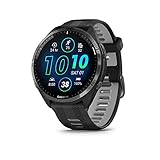
- Brilliant AMOLED touchscreen display with traditional button controls and lightweight titanium bezel
- Battery life: up to 23 days of battery life in smartwatch mode, up to 31 hours in GPS mode
- Confidently run any route using full-color, built-in maps and multi-band GPS
- Training readiness score is based on sleep quality, recovery, training load and HRV status to determine if you’re primed to go hard and reap the rewards (data presented is intended to be a close estimation of metrics tracked)
- Plan race strategy with personalized daily suggested workouts based on the race and course that you input into the Garmin Connect app and then view the race widget on your watch; daily suggested workouts adapt after every run to match performance and recovery
Go to Menu > System > Units to set global preferences, then adjust per-activity units under Activities & Apps. The visual clarity of the Epix display makes unit mismatches more obvious, especially for pace fields and map scale.
Because Epix is often worn as a daily smartwatch due to its screen quality and premium materials, users sometimes change weight or temperature units for lifestyle tracking and forget about activity-specific overrides. Always double-check your primary sport profiles after changing global units.
Battery life remains excellent despite the display, but long navigation sessions magnify the importance of consistent units. A multi-hour hike feels mentally harder when ascent and distance are shown in unfamiliar measurements.
Venu Series (Venu Sq, Venu 2, Venu 3)
Venu watches focus on everyday fitness, health tracking, and smartwatch features, with a strong emphasis on touchscreen interaction. These models use fewer buttons, so unit settings are more streamlined but slightly less granular.
On the watch, open Settings > System > Units. You can switch between Metric and Statute, but some sub-unit customization is handled primarily through Garmin Connect rather than directly on the watch.
Activity-specific unit overrides are more limited compared to Forerunner or Fenix. Most users rely on the global unit setting, which works well for casual running, gym workouts, and walking.
Because Venu models are often used alongside health metrics like weight, hydration, and sleep, make sure your body weight unit matches what you use in Garmin Connect. Mismatches here can affect calorie estimates and long-term trends.
Instinct Series (Instinct 2, Instinct 2X)
Instinct watches are built for durability and extreme battery life, with a high-contrast monochrome display and button-only control. The interface is simpler, but unit settings still allow meaningful customization.
Navigate to Menu > Settings > System > Units to set distance, speed, elevation, and temperature. The wording may differ slightly depending on firmware version, but the structure is consistent.
Instinct models are popular with hikers, military users, and outdoor workers who switch between environments. If you use Expedition or UltraTrac modes, confirm your units before starting, as mid-activity changes are not supported.
Because the display is less data-dense, the wrong unit can make values feel exaggerated or minimized. A climb shown in feet instead of meters can look dramatic, even when the effort was moderate.
Edge Devices (Edge 530, 540, 840, 1040)
Edge bike computers handle units differently because they prioritize cycling metrics and are often paired with a watch. Unit settings affect speed, distance, elevation, temperature, and even map scale.
On the device, go to Menu > Settings > System > Units. You can choose Metric or Statute, with limited per-field customization compared to watches.
If you use both an Edge and a Garmin watch, do not assume one will sync unit preferences to the other. Each device maintains its own unit system, even though activities flow into the same Garmin Connect account.
This matters most for triathletes and cyclists who analyze pace, speed, and elevation across platforms. A ride recorded on an Edge in km/h and a run recorded on a watch in min/mi can coexist, but comparisons only make sense when you expect the difference.
When creating courses on Garmin Connect Web for Edge navigation, always confirm the unit system before syncing. This avoids confusion mid-ride when distance-to-go or climb metrics appear unfamiliar.
How Unit Changes Affect Past Activities, Training Metrics, and Data Consistency
Once you start mixing watches, bike computers, and the Garmin Connect ecosystem, unit settings stop being cosmetic and start influencing how you interpret your training history. The good news is that Garmin handles unit conversions intelligently, but there are a few important nuances worth understanding before you make changes.
What Happens to Past Activities When You Change Units
Changing units does not rewrite or corrupt past activity files. Your original activity data is always stored in base metric values internally, regardless of whether you recorded it in miles or kilometers.
When you view older activities after switching units, Garmin Connect simply converts the display values. A 10-mile run becomes 16.09 km, average pace switches from min/mi to min/km, and elevation changes from feet to meters without altering the underlying effort or GPS track.
This applies consistently across the watch history, the Garmin Connect mobile app, and the web dashboard. You are not “re-recording” history, only changing how it is presented.
Why Pace, Speed, and Elevation Can Feel Different After a Switch
Even though the math is accurate, perception changes. Runners often feel faster or slower after switching because pace values look numerically different, even though effort and performance are identical.
For example, a 9:00 min/mi pace becomes roughly 5:35 min/km. Cyclists switching from mph to km/h see speed numbers jump significantly, which can feel motivating or confusing depending on expectations.
Elevation is another common source of misinterpretation. A 1,000-foot climb looks far less dramatic at 305 meters, which can subtly affect how hard a hike or ride feels when reviewing it later.
Training Load, VO2 Max, and Performance Metrics Stay Consistent
Key performance metrics such as Training Load, VO2 Max, Acute Load, Recovery Time, and Training Readiness are unit-agnostic. These calculations rely on heart rate, power, pace trends, and physiological models, not the unit labels you see on screen.
Switching units will not reset, inflate, or reduce these metrics. A watch like the Forerunner 965 or Fenix 7 continues to assess your fitness the same way, whether you prefer miles or kilometers.
This consistency is especially important for athletes following Garmin Coach plans or long-term structured training. Your plan integrity remains intact after a unit change.
Maps, Courses, and Navigation Prompts
Maps and turn-by-turn navigation adapt immediately to your selected units. Distance-to-next-turn, remaining distance, and climb metrics will update to reflect miles or kilometers.
However, courses created in Garmin Connect Web inherit the unit system active at the time of creation. If you regularly switch units, double-check course details before syncing to your watch or Edge device.
This matters most on long routes, where unexpected distance units mid-activity can break pacing strategies or fueling plans.
Multi-Device Setups and Mixed Unit Scenarios
Garmin does not enforce a universal unit setting across devices. A Fenix watch, an Edge bike computer, and the Garmin Connect app can all be set differently.
This is not a bug, but it can create mental friction when reviewing mixed activities. A ride logged in km/h and a run logged in min/mi will display correctly, but side-by-side comparisons require awareness of the unit context.
For athletes who train across disciplines, consistency usually matters more than preference. Picking one unit system across all devices reduces interpretation errors and speeds up post-workout analysis.
Weight, Height, and Health Data Considerations
Body weight and height settings affect calorie estimates, VO2 Max normalization, and training load calculations. When you switch units, Garmin converts stored values rather than asking you to re-enter them.
That said, it is smart to verify these fields after a unit change, especially if you manually track weight. A quick check prevents subtle errors caused by rounding or legacy entries.
This is particularly relevant for users focused on daily health tracking, body composition trends, or energy expenditure accuracy.
Third-Party Apps and Data Exports
If you sync Garmin Connect with platforms like Strava, TrainingPeaks, or Komoot, unit handling depends on the receiving service. Garmin exports base metric data, and the third-party platform applies its own display preferences.
This means a unit change in Garmin Connect will not always change how data appears elsewhere. Reviewing unit settings across platforms ensures consistent reporting, especially for coaching or shared training logs.
For users who regularly export FIT or GPX files, the data remains standardized. Units are interpreted on import, not locked at the time of recording.
Common Mistakes and Troubleshooting (Why Your Watch Still Shows Miles or Feet)
After adjusting units on your watch or in Garmin Connect, it can be frustrating to see miles, feet, or pounds still appearing in certain places. In most cases, this is not a software fault but a mismatch between global settings, activity-specific overrides, or where the data is being displayed.
The key is understanding that Garmin treats units as a layered system. Global preferences sit at the top, but activities, courses, and connected platforms can all behave differently.
You Changed Units in Garmin Connect, but Not on the Watch
One of the most common mistakes is assuming that changing units in the Garmin Connect mobile app automatically updates the watch. On many Garmin models, especially Fenix, Epix, Forerunner, and Instinct series, unit settings on the watch itself remain independent.
If your watch was not synced after the change, or if the model does not fully inherit app-based preferences, it will continue to display its original units. A manual sync or a restart often reveals whether the watch accepted the update.
When in doubt, always verify units directly on the watch via System > Format > Units. This is the final authority for what appears on the screen during activities.
Activity-Specific Unit Overrides Are Still Active
Some activities store their own unit preferences, particularly for pace versus speed. Running can default to min/mi while cycling uses km/h, even if the global unit system is metric.
This behavior is intentional and designed for sport-specific norms, but it catches many users off guard. If your run still shows miles while your daily steps are in kilometers, check the activity settings rather than the global menu.
On higher-end models, you can edit each activity profile directly on the watch. Look for Pace/Speed units inside the activity’s settings and confirm they align with your global preference.
Courses and Saved Workouts Use Their Original Units
Courses created in Garmin Connect or imported from third-party platforms retain the units they were built with. A course made in miles will still announce mile splits, even if your watch is set to kilometers.
💰 Best Value

- Designed with a bright, colorful AMOLED display, get a more complete picture of your health, thanks to battery life of up to 11 days in smartwatch mode
- Body Battery energy monitoring helps you understand when you’re charged up or need to rest, with even more personalized insights based on sleep, naps, stress levels, workouts and more (data presented is intended to be a close estimation of metrics tracked)
- Get a sleep score and personalized sleep coaching for how much sleep you need — and get tips on how to improve plus key metrics such as HRV status to better understand your health (data presented is intended to be a close estimation of metrics tracked)
- Find new ways to keep your body moving with more than 30 built-in indoor and GPS sports apps, including walking, running, cycling, HIIT, swimming, golf and more
- Wheelchair mode tracks pushes — rather than steps — and includes push and handcycle activities with preloaded workouts for strength, cardio, HIIT, Pilates and yoga, challenges specific to wheelchair users and more (data presented is intended to be a close estimation of metrics tracked)
This is especially noticeable with turn-by-turn navigation and distance alerts. The map scale may look metric, but audio or vibration cues still reference imperial units.
To fix this, recreate or re-import the course after updating your unit preferences. For frequently reused routes, this small step prevents repeated confusion during long sessions.
Elevation and Vertical Distance Are Set Separately
Elevation is often overlooked when changing units. Your watch may show kilometers for distance but still display elevation gain in feet.
Garmin treats elevation, depth, and vertical speed as independent unit fields. These are especially relevant for hikers, trail runners, and climbers using barometric altimeters on models like the Fenix or Enduro.
Double-check elevation units in the same Units menu as distance and pace. This ensures ascent totals, climb screens, and post-activity summaries remain consistent.
Weight and Body Metrics Did Not Convert as Expected
When switching between kilograms and pounds, Garmin converts stored values automatically. However, rounding can produce odd-looking numbers, especially if you manually entered weight or use smart scale syncing.
This matters for calorie burn, training load, and VO2 Max estimates, all of which rely on accurate body data. Even small discrepancies can compound over time.
After changing units, visit your user profile in Garmin Connect and confirm weight and height values look reasonable. Correcting them once restores downstream accuracy.
Your Watch Face Is Still Showing Old Units
Some third-party watch faces ignore system unit settings or cache values until refreshed. This is common with data-rich faces that display distance, elevation, or weekly totals.
If everything else on the watch looks correct but the watch face does not, try switching to a stock Garmin face temporarily. If the units update, the issue lies with the custom face.
Updating the watch face, reapplying it, or checking its individual settings usually resolves the problem. This is not related to the watch’s hardware or firmware stability.
Data Looks Wrong in Garmin Connect Web vs Mobile App
Garmin Connect Web and the mobile app share data but do not always display it identically. Unit preferences can be set independently in some versions, particularly on desktop.
This can make historical activities appear to switch units depending on where you view them. The underlying data is unchanged, but the presentation layer differs.
Confirm unit preferences in both environments if you regularly analyze training on a computer. Consistency here improves long-term trend analysis and reporting.
Third-Party Platforms Are Overriding Garmin Settings
Even if Garmin Connect shows kilometers, platforms like Strava or TrainingPeaks may still display miles based on their own user settings. This can create the impression that Garmin recorded the activity incorrectly.
In reality, Garmin exports standardized data and lets the receiving service decide how to present it. Changing units in Garmin will not override those platforms.
For athletes working with coaches or sharing workouts publicly, aligning unit preferences across all connected services avoids repeated manual conversions.
The Watch Needs a Restart or Software Update
Occasionally, unit changes do not fully apply until the watch is restarted. This is rare but more likely after firmware updates or long uptimes.
A simple power cycle clears cached settings and forces the watch to reload configuration values. This does not affect stored activities or health data.
If issues persist, check for pending software updates in Garmin Connect. Unit-related bugs are uncommon, but firmware updates often improve settings synchronization and overall stability.
Best Practices: Choosing the Right Units for Running, Cycling, Hiking, and Daily Wear
Once your units are set correctly and syncing as expected, the next step is choosing combinations that actually make sense for how you train and live. Garmin gives you flexibility well beyond a simple metric versus imperial toggle, and using that flexibility wisely improves readability, pacing accuracy, and long-term data consistency.
Think of units as part of your watch’s interface, just like screen layout or button shortcuts. The goal is to reduce mental math during an activity and make post-workout analysis feel intuitive rather than frustrating.
Running: Prioritize Pace Clarity Over Convention
For running, pace is the most important metric to get right, not distance alone. Most runners should match their pace units to how workouts are written and coached, whether that’s minutes per mile or minutes per kilometer.
If you train from structured plans, race pace charts, or a coach’s workouts, align your watch units to those references. A mismatch forces you to mentally convert pace mid-run, which is distracting and undermines the benefit of real-time feedback.
Distance units matter most for lap alerts and race simulations. If you race 5Ks and 10Ks, kilometers often feel more natural, while marathon-focused runners in the US may prefer miles. Choose what matches your events, not what your country defaults to.
Cycling: Separate Speed, Distance, and Elevation Thoughtfully
Cycling is where mixed units can actually be useful. Many riders prefer miles for distance but meters or feet for elevation, especially when evaluating climb profiles and total ascent.
Speed units should match your group rides, training software, and head unit expectations. If your cycling computer, trainer, or coach uses mph, keep everything consistent to avoid confusion during pacing efforts.
Elevation is worth special attention. Garmin allows elevation units to differ from distance units, and using feet or meters consistently across all rides helps when comparing climbs, power output, and fatigue over time.
Hiking and Navigation: Maps and Elevation Take Priority
For hiking, trail navigation and elevation awareness matter more than raw distance. Topographic maps, trail guides, and GPX routes are almost always published in metric units, even in regions that use imperial day to day.
Using meters for elevation and kilometers for distance aligns your watch with map contours, route profiles, and waypoint spacing. This makes it easier to judge remaining effort and descent steepness without doing conversions on the fly.
If you rely heavily on breadcrumb navigation, turn-by-turn prompts, or ClimbPro, consistent metric units often provide clearer granularity. This is especially true on high-resolution AMOLED or MIP displays where small numeric changes are easier to read.
Daily Wear: Keep Weight, Height, and Temperature Familiar
Outside of activities, comfort and familiarity matter most. Body weight, height, and temperature should be set to units you instantly understand, since these appear in health summaries, sleep reports, and wellness trends.
If you weigh yourself in pounds, set weight to pounds even if your activities use metric units. Garmin handles internal conversions accurately, so there is no data penalty for mixing daily health units with activity units.
Temperature units affect weather widgets, heat acclimation, and training readiness context. Choose Celsius or Fahrenheit based on what you naturally visualize when deciding how to dress or adjust effort.
Mixing Metric and Imperial Without Breaking Your Data
One common concern is that mixing units will corrupt historical data or distort trends. In practice, Garmin stores everything in standardized values and simply changes how they are displayed.
You can safely use miles for running, kilometers for hiking, pounds for body weight, and meters for elevation without impacting VO2 max, training load, or performance condition. The underlying calculations remain consistent.
The key is stability over time. Once you settle on a unit setup that feels right, avoid changing it frequently, as constant switching makes long-term charts harder to interpret at a glance.
Match Units to Your Watch’s Role and Screen Size
Different Garmin models encourage different choices. Compact watches like the Forerunner 265 or Venu Sq benefit from simpler units with fewer decimals, while larger models like the Fenix, Epix, or Enduro can comfortably display more detailed metrics.
High-resolution AMOLED screens make kilometer-based pacing easier to read precisely, while MIP displays excel at glanceable mile splits and elevation fields in bright sunlight. Let your watch’s display characteristics guide your unit choices.
Battery life is unaffected by unit selection, but usability is not. Choose units that reduce the need to stop, scroll, or squint mid-activity.
Consistency Across Devices and Platforms
If you use multiple Garmin devices, such as a watch, bike computer, and smart scale, align unit preferences across all of them. Garmin Connect acts as the central authority, but individual devices may retain older settings if not synced recently.
Also consider where you review your data most often. If you analyze trends on Garmin Connect Web, set units there to match your watch and mobile app to avoid visual discrepancies in charts and reports.
For athletes sharing data with coaches or platforms like Strava, consistency minimizes miscommunication. While those platforms control their own units, matching Garmin’s display to them reduces friction in day-to-day training discussions.
Final Thoughts: Choose Familiar, Then Stick With It
The best unit setup is the one you understand instantly during an activity and trust during analysis. Garmin’s flexibility is a strength, but only when used deliberately.
Start by matching your most important sport, then refine units for secondary activities and daily health metrics. Once everything feels natural, leave it alone and let your data build cleanly over time.
With the right unit choices, your Garmin becomes less of a translator and more of a true training partner, delivering clear, confident feedback exactly when you need it.