Pairing a Garmin watch should feel straightforward, but many setup problems start before you ever tap the Pair button. Missing apps, low battery, or skipped permissions can turn a five‑minute process into an hour of frustration. Taking a moment to prepare properly makes the rest of the setup smooth and predictable.
In this guide, you’ll learn exactly what needs to be ready on both your watch and your phone before pairing begins. Whether you’re unboxing a new Forerunner, Fēnix, Venu, Instinct, or Edge wearable, or reconnecting an older Garmin to a new phone, these checks apply across the entire Garmin ecosystem.
Once everything below is in place, pairing through the Garmin Connect app becomes largely automatic. You’ll be set up for reliable syncing, accurate health and fitness tracking, and fewer Bluetooth issues long‑term.
A compatible smartphone and operating system
Your phone must meet Garmin’s minimum software requirements for pairing to work reliably. For iPhone, that means iOS 15 or newer; for Android, Android 8.0 or newer, though Android 10+ delivers the most stable experience.
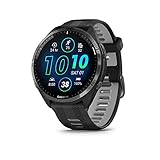
🏆 #1 Best Overall

- Easy-to-use running watch monitors heart rate (this is not a medical device) at the wrist and uses GPS to track how far, how fast and where you’ve run.Special Feature:Bluetooth.
- Battery life: up to 2 weeks in smartwatch mode; up to 20 hours in GPS mode
- Plan your race day strategy with the PacePro feature (not compatible with on-device courses), which offers GPS-based pace guidance for a selected course or distance
- Run your best with helpful training tools, including race time predictions and finish time estimates
- Track all the ways you move with built-in activity profiles for running, cycling, track run, virtual run, pool swim, Pilates, HIIT, breathwork and more
Older phones may technically connect but often struggle with background syncing, notifications, or GPS data transfer. If your phone is several years old and running an outdated OS, pairing issues are far more common than Garmin advertises.
The Garmin Connect app installed in advance
Garmin watches do not pair directly through your phone’s Bluetooth menu. All pairing, syncing, and updates are handled through the Garmin Connect app, which must be downloaded from the App Store or Google Play before you start.
Installing the app first prevents the most common beginner mistake: attempting to pair via Bluetooth settings and creating a “ghost connection” that blocks proper setup. Garmin Connect is also where firmware updates, activity data, health metrics, and device settings live, so it’s essential from day one.
An active Garmin account ready to sign in
You’ll need a Garmin account to complete pairing and activate the watch. Creating one takes only a few minutes, but doing it ahead of time avoids delays when the watch is already waiting to connect.
If you’ve owned a Garmin before, make sure you remember your login details. Using the same account preserves training history, body metrics, and device backups, which is especially valuable for long‑term fitness tracking.
A fully charged watch and sufficient phone battery
Your Garmin watch should be charged to at least 50 percent before pairing. Initial setup may include firmware updates, sensor calibration, and background syncing, all of which consume more power than normal use.
Your phone should also have adequate battery life and not be in Low Power or Battery Saver mode. These modes often restrict Bluetooth performance and background app activity, causing pairing to stall or fail silently.
Bluetooth, internet access, and system permissions enabled
Bluetooth must be turned on, but that’s only part of the equation. Garmin Connect also requires access to location services, notifications, background app refresh, and in some cases storage or media access.
On Android, location permission is mandatory for Bluetooth scanning, even if you don’t plan to use GPS activities immediately. On iPhone, notification permission is optional but should be enabled during setup to avoid repeating steps later.
A distraction‑free setup environment
Pairing works best in a quiet Bluetooth environment with minimal interference. Avoid crowded gyms, airports, or rooms full of other smart devices during initial setup.
Keep the watch and phone within arm’s reach of each other and avoid switching apps mid‑process. Once pairing is complete, the connection becomes far more resilient in real‑world daily use.
Understanding Garmin Pairing: How Garmin Connect, Bluetooth, and Your Watch Work Together
Once your phone, account, and permissions are ready, it helps to understand what actually happens during pairing. Garmin watches don’t connect in the same simple way as headphones or car stereos, and knowing the roles each component plays can prevent a lot of frustration.
At a high level, three things must cooperate perfectly: the watch hardware, Bluetooth on your phone, and the Garmin Connect app acting as the control center. If any one of those breaks the chain, pairing either fails outright or appears to succeed but behaves unreliably afterward.
The Garmin watch: a low‑power computer with radios
Every modern Garmin watch is essentially a small, rugged computer with multiple wireless radios inside. Bluetooth Low Energy is used for constant communication with your phone, while GPS, Wi‑Fi, and ANT+ handle location tracking, syncing over networks, and sensor connections.
The watch itself does not initiate pairing through your phone’s Bluetooth settings menu. Instead, it waits in a discoverable state that is specifically designed to be recognized by Garmin Connect, not by the operating system alone.
This design prioritizes battery life and stability. Even watches with long battery endurance like the Fenix, Enduro, or Instinct rely on Bluetooth Low Energy to maintain an all‑day connection without draining power or overheating the case.
Garmin Connect: the true pairing engine
Garmin Connect is not just a companion app; it is the authority that manages the relationship between your watch and phone. All pairing, authentication, firmware updates, and data syncing are handled inside the app.
When you pair a watch, Garmin Connect verifies the device, links it to your Garmin account, assigns permissions, and establishes background services that keep the connection alive. This is why pairing through system Bluetooth settings alone almost always causes problems.
Think of Garmin Connect as the watch’s operating headquarters. Activities, heart rate trends, sleep data, training load, notifications, and even watch face downloads all flow through it.
Why pairing must start inside the app, not Bluetooth settings
A common mistake is opening the phone’s Bluetooth menu, seeing the watch name, and tapping it manually. While this may create a partial connection, it bypasses the setup logic Garmin requires and often leads to sync failures, missing notifications, or repeated disconnects.
Garmin watches use a secure handshake that is only completed when Garmin Connect initiates the pairing. This handshake links the watch ID to your account and assigns background permissions that the phone’s Bluetooth menu cannot provide.
If your watch ever shows as paired in Bluetooth but not visible in Garmin Connect, the connection is incomplete and should be removed and restarted properly.
Bluetooth Low Energy and why distance matters during setup
Garmin relies on Bluetooth Low Energy rather than classic Bluetooth. This is excellent for battery life but more sensitive to distance, interference, and aggressive power management during initial pairing.
During setup, the watch and phone should be within arm’s reach, ideally on the same surface. Walking away, locking the phone, or switching apps can interrupt the handshake and force the process to restart.
Once pairing is complete, the connection becomes much more resilient. Daily use allows for brief disconnects, pocket storage, and movement without constant drops.
iPhone vs Android: how the pairing experience differs
On iPhone, Bluetooth scanning works quietly in the background, but iOS is strict about permissions. If notification access or background app refresh is denied during setup, the watch may pair successfully but fail to deliver alerts or sync consistently.
Android allows deeper system access but requires location permission for Bluetooth discovery. This often confuses users because the watch does not use GPS data during pairing, yet Android blocks scanning without it.
Android phones are also more aggressive with battery optimization. If Garmin Connect is restricted, the watch may disconnect whenever the screen turns off, even though pairing technically succeeded.
Permissions are not optional extras
During pairing, Garmin Connect requests access to several system features, and each one supports a specific function. Location enables Bluetooth scanning on Android. Notifications allow alerts to appear on the watch. Background activity keeps the connection alive when the app is closed.
Denying these does not always stop pairing immediately, which is why issues often appear later. Missed notifications, delayed syncs, and random disconnects are usually permission‑related rather than hardware faults.
Granting permissions during setup is faster than fixing them later, especially on iOS where changing notification behavior requires extra steps.
Wi‑Fi, updates, and why first pairing can feel slow
Some Garmin models support Wi‑Fi, but Wi‑Fi does not replace Bluetooth for pairing. Bluetooth is still required to establish the initial connection and link the watch to your account.
During first setup, Garmin Connect may trigger firmware updates, sensor calibration, or map preparation in the background. These tasks can make pairing feel slow even though everything is working correctly.
It’s normal for the watch to restart or appear unresponsive during this stage. Interrupting the process by closing the app or toggling Bluetooth can cause the setup to fail and require a full reset.
What “paired” really means in daily use
A properly paired Garmin watch maintains a quiet, continuous relationship with your phone. It syncs automatically, delivers notifications reliably, and uploads activities without manual intervention.
The watch remains comfortable and unobtrusive because Bluetooth Low Energy minimizes power draw, allowing slim cases, lightweight materials, and multi‑day battery life even on smaller models.
When pairing is done correctly from the start, the experience fades into the background, which is exactly how Garmin designs its ecosystem to function.
Step-by-Step: How to Pair a Garmin Watch with an iPhone (iOS)
Once you understand what “paired” really means, the actual process on an iPhone becomes far less intimidating. Garmin’s iOS setup is tightly controlled by Apple’s permission system, which is great for privacy but unforgiving if steps are skipped.
Follow these steps in order, without jumping ahead, and pairing is usually smooth even for first-time smartwatch users.
Before you start: prepare both devices
Make sure your iPhone is running a current version of iOS and has at least 30 percent battery. Low power mode can interfere with Bluetooth stability and background syncing during setup.
Charge your Garmin watch until it shows at least one bar of battery, ideally more. Initial pairing, firmware checks, and sensor calibration draw more power than normal daily use.
Keep the watch and iPhone within arm’s reach of each other and avoid pairing in a busy Bluetooth environment like a gym or airport.
Install Garmin Connect from the App Store
Open the App Store on your iPhone and search for Garmin Connect. Download and install the app; this is the only supported way to pair a Garmin watch with iOS.
Do not attempt to pair the watch through the iPhone’s Bluetooth settings first. Garmin watches must be paired through the app, or the connection will fail or remain unstable.
Once installed, open Garmin Connect and either sign in to your Garmin account or create one. This account stores your activities, health data, and device settings.
Turn on the watch and start pairing mode
Power on your Garmin watch using the top-left or designated power button, depending on the model. Most new watches automatically enter pairing mode on first boot.
If the watch has been used before, open the menu, navigate to Settings, then Phone or Connectivity, and select Pair Phone. The watch should display a pairing screen or QR code.
This step is crucial because it tells the watch to listen for Garmin Connect rather than generic Bluetooth requests.
Begin pairing inside Garmin Connect
In Garmin Connect, tap More in the bottom-right corner, then select Garmin Devices and Add Device. Choose Watch from the device list.
The app will begin searching for nearby Garmin watches using Bluetooth Low Energy. Keep the app open and the phone unlocked during this scan.
When your watch appears, select it to continue. If prompted, confirm the pairing code shown on both the iPhone and the watch.
Grant iOS permissions when prompted
Garmin Connect will request several permissions in sequence, and each one affects daily usability. Tap Allow for Bluetooth, Notifications, Location, and Background App Refresh when prompted.
Notification access controls calls, texts, and app alerts on your wrist. Location improves activity accuracy and is required for Bluetooth scanning on iOS.
If you accidentally deny a permission, pairing may still finish, but features like notifications, auto-sync, and weather will not work correctly.
Wait while the initial sync completes
Once paired, Garmin Connect will begin syncing the watch. This can include firmware checks, sensor configuration, and loading default watch faces or widgets.
Rank #2

- Easy-to-use running smartwatch with built-in GPS for pace/distance and wrist-based heart rate; brilliant AMOLED touchscreen display with traditional button controls; lightweight design in 43 mm size
- Up to 11 days of battery life in smartwatch mode and up to 19 hours in GPS mode
- Reach your goals with personalized daily suggested workouts that adapt based on performance and recovery; use Garmin Coach and race adaptive training plans to get workout suggestions for specific events
- 25+ built-in activity profiles include running, cycling, HIIT, strength and more
- As soon as you wake up, get your morning report with an overview of your sleep, recovery and training outlook alongside weather and HRV status (data presented is intended to be a close estimation of metrics tracked)
Some models may restart during this phase, especially higher-end watches with AMOLED displays, multi-band GPS, or onboard maps. This is normal and expected.
Do not force-close the app, toggle Bluetooth, or lock the phone for long periods until the sync finishes.
Confirm the connection is fully active
When setup is complete, Garmin Connect will show the watch on the Devices screen with a green dot or connected status. The watch should also display a small phone or Bluetooth icon.
Try a quick manual sync by pulling down on the Garmin Connect home screen. The sync should complete within a few seconds once initial setup is done.
If your watch supports notifications, send yourself a test message to confirm alerts appear on the watch.
Adjust key iOS settings for long-term stability
Open the iPhone Settings app, scroll to Garmin Connect, and ensure Background App Refresh is enabled. This keeps syncs reliable even when the app is not open.
Check Notifications and make sure Allow Notifications is on, with banners enabled if you want visible alerts. If Focus modes are active, allow Garmin notifications through those filters.
Leave Bluetooth enabled at all times. Garmin watches are designed around low-energy Bluetooth and have minimal impact on iPhone battery life.
If pairing fails on the first attempt
If the app cannot find the watch, force-close Garmin Connect, toggle Bluetooth off and on, then reopen the app and try again. This clears most temporary scanning issues.
If the watch appears in the iPhone’s Bluetooth menu as an accessory, remove it from there and restart the pairing process inside Garmin Connect. iOS-level pairing can block proper app-based pairing.
As a last resort, restart both devices and repeat the steps from the beginning without skipping permissions or screens.
Step-by-Step: How to Pair a Garmin Watch with an Android Phone
If you’re coming from the iPhone setup above, the overall pairing flow on Android will feel familiar, but Android adds a few extra permission steps that directly affect sync reliability, notifications, and battery behavior.
Taking a minute to get these right during setup saves hours of troubleshooting later, especially on phones from Samsung, Google Pixel, Xiaomi, OnePlus, and other brands that aggressively manage background apps.
Before you start: quick Android-specific checks
Make sure Bluetooth is turned on and that your phone is connected to the internet via Wi‑Fi or mobile data. Garmin Connect needs an active connection to register the watch and check firmware during pairing.
Disable battery saver or power-saving modes temporarily. These can interfere with Bluetooth discovery and background setup tasks, particularly on midrange Android devices.
If the watch was previously paired to another phone, reset it from the watch settings menu. Garmin watches can only maintain one active phone connection at a time.
Install and open Garmin Connect
Open the Google Play Store, search for Garmin Connect, and install the app published by Garmin. Avoid third-party companion apps, as they cannot complete pairing or firmware updates.
Launch Garmin Connect and sign in with your Garmin account, or create one if this is your first Garmin device. Account setup is required to store activity data, health metrics, and sync settings.
When prompted, allow the app to access Bluetooth and location. Location access is mandatory on Android for Bluetooth scanning, even though Garmin does not track your location unless you record activities.
Put the watch into pairing mode
Most new Garmin watches power on directly into pairing mode and display a pairing code. This includes popular lines like Venu, Forerunner, vívoactive, Instinct, and fēnix.
If the watch is already set up, open the menu on the watch, go to Settings, then Phone or Connectivity, and choose Pair Phone or Add Phone.
Keep the watch awake and close to the phone. Metal bezels, sapphire glass, and rugged cases do not affect Bluetooth range, but distance and interference can.
Add the watch inside Garmin Connect
In Garmin Connect, tap the profile icon in the top corner, then select Add Device. The app will begin scanning for nearby Garmin watches.
When your watch appears, select it and confirm that the pairing code shown on the phone matches the code on the watch. Approve the pairing on both devices.
Do not pair the watch directly through Android’s Bluetooth settings. Garmin watches must be paired through Garmin Connect to function correctly.
Grant all requested permissions
Android will prompt you to approve multiple permissions during setup. Allow all of them, including notifications, background activity, and location access set to Allow all the time.
When asked about notification access, enable it immediately. This controls call alerts, messages, and app notifications on the watch.
If your phone asks to exclude Garmin Connect from battery optimization, accept it. This is critical for stable syncing and timely notifications, especially overnight.
Wait for the initial sync to complete
Once paired, Garmin Connect will begin syncing the watch. This may include firmware updates, widget installation, sensor calibration, and loading default data fields.
Higher-end models with AMOLED displays, offline maps, or multi-band GPS can take longer during first sync and may restart once or twice. This is normal behavior.
Keep the app open and avoid switching apps, locking the screen for long periods, or turning off Bluetooth until syncing finishes.
Confirm the connection is fully active
When setup is complete, the watch will appear on the Devices screen in Garmin Connect with a connected status indicator. The watch itself should also show a phone or Bluetooth icon.
Pull down on the Garmin Connect home screen to trigger a manual sync. Once initial setup is done, this should complete quickly.
Send yourself a test notification, such as a text or app alert, to confirm notifications are working as expected.
Adjust Android settings for long-term stability
Open your phone’s Settings app, go to Apps, find Garmin Connect, and set Battery usage to Unrestricted or Not optimized. Different manufacturers use different labels, but the goal is to prevent Android from suspending the app.
Confirm Notifications are fully enabled and not limited by Do Not Disturb or Focus-style modes. Some Android skins hide notification controls inside multiple menus.
Leave Bluetooth enabled at all times. Garmin watches use low-energy Bluetooth, and continuous connection has minimal impact on phone battery life.
If pairing fails or the watch is not found
Force-close Garmin Connect, toggle Bluetooth off and back on, then reopen the app and try again. This resolves most temporary scanning issues.
If the watch appears in Android’s Bluetooth device list, remove or forget it there, then restart pairing inside Garmin Connect. System-level pairing can block proper app pairing.
As a last step, restart both the phone and the watch, confirm the watch is in pairing mode, and repeat the process from the beginning without skipping permission screens.
Critical Permission Settings That Make or Break the Connection (iOS vs Android)
Even when pairing appears successful, missing or restricted permissions can quietly break syncing, notifications, or background updates. Garmin watches rely on a constant low-energy Bluetooth link, plus system-level access that both iOS and Android aggressively limit by default.
If anything feels unreliable after pairing, this is the first place to look before resetting the watch or reinstalling the app.
Why Garmin permissions matter more than you expect
Garmin watches do far more than mirror notifications. They continuously exchange health metrics, activity files, sensor data, and system status with your phone throughout the day.
If the operating system pauses Garmin Connect, blocks background Bluetooth, or limits location access, the watch may appear connected but fail to sync workouts, update weather, or deliver alerts.
This applies equally to entry-level models and premium devices with AMOLED displays, offline maps, or multi-band GPS, though higher-end watches tend to expose problems faster because they move more data.
iPhone (iOS): permissions that must be enabled
On iPhone, open Settings, scroll down to Garmin Connect, and review each permission carefully. iOS will often allow partial access that looks correct but still breaks key features.
Bluetooth must be enabled. Without this, the watch cannot maintain a live connection, even if it paired successfully earlier.
Notifications should be set to Allow Notifications with Lock Screen, Notification Center, and Banners enabled. If alerts are silent or inconsistent, also enable Time Sensitive Notifications when available.
Location must be set to Always, not While Using the App. Weather updates, GPS-assisted syncing, and some activity features depend on background location access.
Motion & Fitness must be enabled. This allows Garmin Connect to read and write step counts, activity data, and movement metrics without interruption.
Background App Refresh must be turned on for Garmin Connect, and globally enabled for iOS. If disabled, syncing may only occur when the app is open.
iOS Focus modes and notification filtering
Even with notifications enabled, Focus modes can silently block alerts. Check Settings, Focus, then review each active mode such as Sleep, Work, or Personal.
Make sure Garmin Connect and key apps like Messages or Phone are allowed within each Focus profile. Otherwise, the watch may appear broken when notifications are simply filtered upstream.
This is one of the most common issues for users who upgrade iPhones or restore settings from an older device.
Android: permissions that must be enabled
Android offers more control than iOS, but that also means more places for things to go wrong. Open Settings, Apps, Garmin Connect, then step through every permission category.
Rank #3

- Nautical smartwatch features a 1.4" stunning AMOLED display with a titanium bezel and built-in LED flashlight
- Built-in inReach technology for two-way satellite and LTE connectivity (active subscription required; coverage limitations may apply, e.g., satellite coverage up to 50 miles offshore; some jurisdictions regulate or prohibit the use of satellite communication devices)
- Boat mode brings your vessel-connected apps to the forefront that let you control your autopilot and give you access to trolling motor and other boat data — so you can easily take command from your smartwatch
- Keep your focus on the water, and control your compatible chartplotter via Bluetooth connectivity with voice commands
- Enjoy comprehensive connectivity and remote control capabilities with select compatible Garmin chartplotters, autopilots, Force trolling motors, Fusion stereos and more
Bluetooth or Nearby Devices must be allowed. On newer Android versions, Garmin Connect needs explicit Nearby Devices access to scan and maintain the connection.
Location must be set to Allow all the time. Garmin uses location not just for GPS activities, but also to support Bluetooth scanning and background sync stability.
Notifications must be fully enabled, including pop-ups, lock screen notifications, and notification categories inside Garmin Connect itself.
Files and media access should be allowed if requested. This supports activity file storage, firmware updates, and map downloads on compatible watches.
Android battery optimization and background access
This is where most long-term Android connection problems originate. In the App Battery settings for Garmin Connect, select Unrestricted, Not optimized, or Allow background activity, depending on your phone brand.
Some manufacturers also include Auto-launch, Background running, or App management menus outside standard Android settings. Garmin Connect must be allowed to start itself and stay running in the background.
If the app is put to sleep, the watch may disconnect overnight, miss alarms, or fail to sync morning activities until you manually open the app.
Manufacturer-specific Android restrictions to double-check
Samsung, Xiaomi, Oppo, Vivo, OnePlus, and Huawei devices often add extra layers of app control. These can override Android’s normal permission settings without warning.
Look for menus labeled Battery protection, App power saving, Deep sleep, or Background limits. Garmin Connect should be excluded from all aggressive power-saving features.
If you recently transferred data from an old phone, these restrictions may already be applied automatically.
Quick permission sanity check if things still feel unstable
Open Garmin Connect and confirm the app shows the watch as connected. Lock the phone screen for a few minutes, then unlock it and trigger a manual sync.
Send a test notification and confirm it appears on the watch immediately. Then start a short activity and save it to confirm background syncing works without reopening the app.
If any step fails, return to the permission menus and re-check access before moving on to resets or re-pairing.
What to Do If Pairing Fails: The Most Common Garmin Pairing Problems and Fixes
If you have verified permissions and background access and pairing still fails, the issue is usually simpler than it feels. Most Garmin connection problems fall into a handful of repeatable patterns, and each one has a clear fix once you know where to look.
Work through the sections below in order. Stop as soon as pairing succeeds.
The phone cannot find the watch during pairing
If Garmin Connect keeps searching but never discovers your watch, Bluetooth is either blocked, already occupied, or the watch is not in pairing mode.
On the watch, open Settings > Phone > Pair Phone or Pair Smartphone and confirm it shows a pairing screen or code. If the watch is sitting on the normal watch face, it is not advertising itself for pairing.
On the phone, turn Bluetooth off for 10 seconds, then turn it back on. Stay inside the Garmin Connect app and do not open the phone’s Bluetooth menu during scanning.
Keep the watch and phone within 30 cm of each other during discovery. Garmin watches use low-energy Bluetooth, which is stable but slower to handshake than audio devices.
You paired through the phone’s Bluetooth menu instead of Garmin Connect
This is one of the most common first-time setup mistakes, especially on iPhone.
If the watch appears in iOS Settings > Bluetooth as a connected device, pairing will fail inside Garmin Connect. The app must control the pairing process from start to finish.
Open the phone’s Bluetooth menu, tap the Garmin device, and choose Forget or Remove. Then restart both the phone and the watch before trying again inside Garmin Connect.
On Android, the same rule applies. If the watch shows as paired outside the app, remove it and restart before retrying.
The watch says it is already paired to another phone
Garmin watches can only maintain one primary phone connection at a time. This often happens if the watch was previously used, tested in-store, or paired to an old phone.
On the watch, go to Settings > Phone > Status or Paired Devices. If another phone is listed, remove it.
If you no longer have access to the original phone, perform a factory reset on the watch. This clears old Bluetooth keys and forces a clean pairing.
Pairing stalls on a spinning circle or freezes partway through
This usually indicates a permission handshake failure or a temporary Bluetooth lockup.
Close Garmin Connect completely. Do not leave it running in the app switcher.
Restart the phone, then restart the watch. On most Garmin models, holding the top-left or power button for 15 seconds forces a reboot without erasing data.
Open Garmin Connect first, wait until it fully loads, then begin pairing again from inside the app.
iPhone-specific pairing problems to check
On iPhone, Bluetooth alone is not enough. Garmin Connect also requires Location Services set to Always or While Using the App, with Precise Location enabled.
Go to Settings > General > Background App Refresh and confirm it is turned on globally and enabled for Garmin Connect.
If pairing repeatedly fails after an iOS update, reset Network Settings under Settings > General > Transfer or Reset iPhone. This erases saved Wi‑Fi and Bluetooth data but often resolves stubborn pairing bugs.
Android-specific pairing problems to check
Android phones vary widely by manufacturer, which can interfere with pairing even when permissions look correct.
Disable any system-wide Battery Saver, Power Saving Mode, or Ultra Battery mode before pairing. These can block Bluetooth scanning in the background.
Turn off VPN apps temporarily. Some VPNs interfere with device discovery and Garmin account authentication during setup.
If your phone supports Dual Apps or App Cloning, ensure Garmin Connect is not duplicated. Only the original app instance can pair correctly.
Bluetooth conflicts from other devices nearby
Too many active Bluetooth connections can confuse the pairing process, especially in gyms, offices, or homes with multiple wearables.
Temporarily disconnect wireless headphones, cycling sensors, car infotainment systems, and other watches during pairing.
If you own multiple Garmin devices, power off the ones you are not pairing. This prevents the app from trying to talk to the wrong device.
Low battery on the watch or phone
Garmin watches may limit Bluetooth behavior when the battery is critically low, even if the screen is still on.
Charge the watch to at least 20 percent before pairing. For new devices, a full charge is ideal.
Ensure the phone is also above 20 percent or plugged in. Some phones restrict background processes aggressively when battery is low.
When a factory reset is the right move
If pairing has failed multiple times after permission checks, restarts, and Bluetooth cleanup, a factory reset is often faster than continued troubleshooting.
On the watch, go to Settings > System > Reset > Delete Data and Reset Settings. This removes activities, settings, and old Bluetooth keys.
After resetting, do not restore from backups during initial pairing. Pair the watch as new inside Garmin Connect, then sync your account data afterward.
Compatibility issues with older phones
Very old phones may technically install Garmin Connect but struggle with modern Bluetooth requirements.
Check Garmin’s official compatibility list for your watch model and phone OS version. Watches with advanced features like music storage, maps, or AMOLED displays are more demanding during setup.
If pairing works intermittently but never stabilizes, the issue may be hardware limitations rather than settings.
If nothing works after all fixes
At this point, confirm the watch can pair to a different phone, even temporarily. This isolates whether the issue is the watch or the phone.
If the watch pairs successfully elsewhere, the original phone likely has a deeper Bluetooth or OS-level issue.
If it fails everywhere, contact Garmin Support with the exact watch model, phone model, and OS version. They can confirm known issues, firmware bugs, or warranty-related hardware faults.
Re-Pairing or Switching Phones: How to Connect a Garmin Watch to a New Smartphone
If you have reached this point, pairing problems are no longer about basic setup. Re-pairing usually happens because you upgraded phones, reset your device, or inherited a Garmin that was previously linked to someone else.
Garmin watches can only maintain one primary phone connection at a time. That old Bluetooth relationship must be fully removed before a new phone can take over.
Before you start: what to know about Garmin re-pairing
Garmin watches store encrypted Bluetooth keys tied to the last phone they were paired with. Simply installing Garmin Connect on a new phone is not enough if those keys remain.
Rank #4
- Brilliant AMOLED touchscreen display with traditional button controls and lightweight titanium bezel
- Battery life: up to 23 days of battery life in smartwatch mode, up to 31 hours in GPS mode
- Confidently run any route using full-color, built-in maps and multi-band GPS
- Training readiness score is based on sleep quality, recovery, training load and HRV status to determine if you’re primed to go hard and reap the rewards (data presented is intended to be a close estimation of metrics tracked)
- Plan race strategy with personalized daily suggested workouts based on the race and course that you input into the Garmin Connect app and then view the race widget on your watch; daily suggested workouts adapt after every run to match performance and recovery
This applies to every Garmin family, from Forerunner and Venu to Fenix, Epix, Instinct, and Edge wearables with screens. Touchscreen or button-driven models follow the same pairing logic even if the menus look different.
If you still have the old phone, the process is easier. If you do not, a factory reset is almost always required.
Option 1: Switching phones when you still have the old phone
This is the cleanest and safest way to move a Garmin watch to a new phone without data issues.
On the old phone, open the Garmin Connect app. Go to the device page, tap the menu, and choose Remove Device.
Wait until the app confirms the device is removed. This step clears Garmin’s cloud-side pairing record, which helps avoid sync conflicts later.
Next, on the watch, go to Settings > Phone > Pair Phone or Settings > Connectivity > Phone, depending on the model. Leave this screen open.
Now install Garmin Connect on the new phone and sign in with the same Garmin account. Add the watch as a new device and follow the on-screen pairing code instructions.
Option 2: Switching phones when you no longer have the old phone
If the old phone is lost, wiped, or inaccessible, the watch still believes it is paired. In this situation, a factory reset is the most reliable solution.
On the watch, open Settings > System > Reset > Delete Data and Reset Settings. On some older models, this may be under Settings > System > Reset > Factory Reset.
This process removes Bluetooth keys, Wi‑Fi profiles, music downloads, and local activity history stored on the watch. Your Garmin account data in the cloud remains safe.
Once reset, the watch will restart and display the pairing screen. Pair it immediately with the new phone using Garmin Connect.
Step-by-step pairing on the new phone
Install the latest version of Garmin Connect from the App Store or Google Play. Do not pair through the phone’s Bluetooth menu first.
Open Garmin Connect, sign in, and choose Add Device. Select your watch model if prompted.
When the watch displays a six-digit code, confirm it matches the one shown in the app. This secure handshake is essential for stable syncing, notifications, and features like music or payments.
Allow all requested permissions during setup. Skipping permissions often causes silent failures later.
iPhone-specific tips when re-pairing
On iPhone, go to Settings > Bluetooth and remove the watch if it still appears in the device list. Tap the “i” icon and choose Forget This Device.
Then go to Settings > Privacy & Security > Bluetooth and ensure Garmin Connect is enabled. Also check Location Services and Background App Refresh for Garmin Connect.
iOS aggressively manages background apps, especially on smaller phones or older batteries. Keeping Garmin Connect allowed to refresh in the background is critical for notifications and sync reliability.
Android-specific tips when re-pairing
On Android, open Settings > Bluetooth and remove any existing Garmin entries before pairing again.
Then go to Settings > Apps > Garmin Connect > Permissions and allow all requested items, including Location, Nearby Devices, and Physical Activity if listed.
Disable battery optimization for Garmin Connect. On many Android phones this is found under Battery > App Management or Background Usage, and it prevents the system from killing the app during pairing or syncing.
What happens to your data when switching phones
Activities, health metrics, and training history are stored in your Garmin account, not permanently on the phone. As soon as pairing is complete and syncing begins, your data will reappear.
Watch-specific settings like custom data screens, widget order, and alerts may need to be reconfigured. Higher-end models with maps, music storage, or AMOLED displays take longer to fully rebuild after pairing.
For watches with limited internal storage, such as entry-level Forerunners, the process is faster but still benefits from a full sync before first use.
Common re-pairing mistakes to avoid
Do not pair through the phone’s Bluetooth settings before using Garmin Connect. This almost always causes incomplete pairing.
Do not restore watch settings from a backup during initial setup if you are troubleshooting. Pair cleanly first, then customize.
Avoid pairing while wearing the watch loosely or while it is charging from a low-quality cable. Stable power and proximity improve Bluetooth reliability during setup.
If the watch refuses to pair after switching phones
Restart both the phone and the watch and try again. This clears cached Bluetooth states that often block re-pairing.
Confirm no other nearby phones or tablets are signed into your Garmin account with Bluetooth enabled. Only one active pairing should exist during setup.
If the watch repeatedly fails at the pairing code stage, contact Garmin Support with your watch model, phone model, and OS version. Re-pairing issues are sometimes linked to specific firmware builds, and Garmin can push fixes or confirm known issues.
Bluetooth, Wi‑Fi, and App Sync Explained: Keeping Your Garmin Reliably Connected
Once pairing succeeds, most ongoing connection problems come down to misunderstanding how Bluetooth, Wi‑Fi, and Garmin Connect share responsibilities. Your watch is not constantly using all three, and knowing what each one actually does makes troubleshooting far less frustrating.
Think of Bluetooth as the always-on bridge, Wi‑Fi as the high-speed helper used occasionally, and the Garmin Connect app as the control center that makes everything talk properly.
Bluetooth: The constant connection that matters most
Bluetooth is the primary link between your Garmin watch and your phone. It handles notifications, live syncing, weather updates, Find My Phone, and background health data transfers throughout the day.
This connection is designed to be low power and persistent, which is why Garmin watches can last days or weeks on a charge even while staying connected. If Bluetooth drops, syncing stops, notifications disappear, and the app may appear “stuck” even though nothing is broken.
On iPhone, Bluetooth reliability depends heavily on Garmin Connect being allowed to run in the background. If iOS suspends the app, the watch may show as connected but fail to sync until the app is opened manually.
On Android, aggressive battery management is the most common cause of Bluetooth dropouts. Even if pairing succeeded earlier, the system can quietly restrict Garmin Connect after a few hours or days.
What Bluetooth does not do (and why that matters)
Bluetooth does not update watch firmware, download maps, or sync large music libraries efficiently. Trying to force these tasks over Bluetooth alone often leads to partial transfers or stalled progress bars.
This is why some users believe their watch is “frozen” during updates. In reality, the watch is waiting for Wi‑Fi access or a stronger data path to complete the task.
Understanding this division prevents unnecessary resets and factory wipes that don’t address the real issue.
Wi‑Fi: Used sparingly, but critical for updates and large syncs
Wi‑Fi is not required for daily use, notifications, or activity syncing. Many Garmin watches will work perfectly for months without ever connecting to Wi‑Fi.
Where Wi‑Fi matters is firmware updates, map updates, safety feature data, and music downloads on supported models. Watches like the Fenix, Epix, Venu, and higher-end Forerunners rely on Wi‑Fi to move large files reliably.
Wi‑Fi setup happens either during initial pairing or later through Garmin Connect. If Wi‑Fi credentials are incorrect or the network blocks device connections, updates may repeatedly fail without a clear error message.
How to tell if your watch is using Wi‑Fi or Bluetooth
During a firmware update, the watch screen usually displays a Wi‑Fi icon or mentions “downloading” rather than “syncing.” If the watch is only connected via Bluetooth, updates may start but never complete.
Music syncs that stall at a fixed percentage are almost always a Wi‑Fi issue, not a Bluetooth one. Re-entering Wi‑Fi credentials in Garmin Connect often resolves this instantly.
If your watch supports Wi‑Fi but you never see it connect, check that the network uses a standard 2.4 GHz band. Many Garmin watches struggle with enterprise, mesh, or captive portal networks.
Garmin Connect: The real engine behind syncing
Garmin Connect is not just a viewer for your data. It actively manages pairing, permissions, firmware delivery, account sync, and cloud backups.
If Garmin Connect is logged out, outdated, or restricted by the operating system, the watch may appear paired but behave inconsistently. This is why reinstalling the app often fixes issues that resets do not.
Always update Garmin Connect before troubleshooting deeper. App updates frequently include fixes for specific phone models or OS versions that affect Bluetooth stability.
Background sync versus manual sync
Background sync happens automatically when Bluetooth is stable and the app is allowed to run quietly. You should not need to open Garmin Connect daily for data to transfer.
Manual sync, triggered by opening the app or pulling down on the home screen, forces the app to check for pending uploads, firmware notices, and account changes. This is useful after long periods offline or after switching phones.
If manual sync works but background sync does not, the issue is almost always permissions or battery optimization, not the watch itself.
Why notifications sometimes lag or arrive all at once
Notification delays are usually caused by the phone, not the watch. If the phone suspends Bluetooth activity, notifications queue up and then deliver in a burst when the connection wakes.
On iPhone, this often happens when Low Power Mode is enabled for long periods. On Android, it is commonly tied to app sleeping or adaptive battery features.
Ensuring Garmin Connect and your messaging apps are excluded from battery limits restores real-time delivery.
How battery life and materials affect connectivity
Garmin’s use of polymer cases, titanium bezels, and fiber-reinforced materials helps maintain strong Bluetooth antennas without compromising durability. Heavier steel bezels and sapphire glass do not harm connectivity, but tight wrist fit and body positioning can affect signal slightly.
💰 Best Value

- Designed with a bright, colorful AMOLED display, get a more complete picture of your health, thanks to battery life of up to 11 days in smartwatch mode
- Body Battery energy monitoring helps you understand when you’re charged up or need to rest, with even more personalized insights based on sleep, naps, stress levels, workouts and more (data presented is intended to be a close estimation of metrics tracked)
- Get a sleep score and personalized sleep coaching for how much sleep you need — and get tips on how to improve plus key metrics such as HRV status to better understand your health (data presented is intended to be a close estimation of metrics tracked)
- Find new ways to keep your body moving with more than 30 built-in indoor and GPS sports apps, including walking, running, cycling, HIIT, swimming, golf and more
- Wheelchair mode tracks pushes — rather than steps — and includes push and handcycle activities with preloaded workouts for strength, cardio, HIIT, Pilates and yoga, challenges specific to wheelchair users and more (data presented is intended to be a close estimation of metrics tracked)
Wearing the watch comfortably snug, not overly tight, improves both heart rate accuracy and Bluetooth reliability. Extremely loose wear can increase dropouts during movement-heavy activities.
Long battery life also reduces connection issues over time. Watches that are frequently run down to near zero are more prone to temporary sync instability after charging.
When syncing feels slow but is actually normal
Large activity files, such as long GPS runs, hikes with maps, or multi-day events, take longer to sync. This is especially true on AMOLED models with higher-resolution data previews.
Health metrics like Body Battery, HRV status, and sleep stages may populate gradually after syncing begins. This delay is expected and does not mean data was lost.
Leaving the watch and phone near each other for a few minutes after activity ensures a clean transfer without repeated sync attempts.
Quick checks to keep connections stable long-term
Keep Bluetooth enabled at all times, even if you rarely open the app. Garmin watches are designed around constant low-energy connectivity.
Update Garmin Connect, phone OS, and watch firmware regularly. Compatibility issues often arise when one component lags behind.
If problems appear suddenly after months of flawless use, assume a phone software change first. Rechecking permissions and battery settings usually restores stability without resetting the watch.
Model-Specific Notes: Differences Between Venu, Forerunner, Fenix, Epix, Instinct, and Older Garmin Watches
Although the pairing steps inside Garmin Connect look similar, the experience can feel very different depending on which Garmin family you’re using. Hardware controls, screen type, materials, and software generation all influence how smooth the first connection is and how reliable it stays afterward.
Garmin Venu Series (Venu, Venu Sq, Venu 2, Venu 3)
Venu models rely heavily on the touchscreen during setup, with minimal button interaction. When pairing, wake the screen fully and keep it active, as the AMOLED display can dim quickly and interrupt the on-watch prompts.
Because these watches prioritize everyday comfort and style, they use lighter polymer cases with aluminum or stainless accents, which helps Bluetooth stability in daily wear. Battery life is shorter than Fenix or Instinct models, so low battery during setup is a common cause of failed pairing attempts.
On iPhone and Android, Venu models are the most sensitive to notification permissions. If alerts don’t appear after pairing, revisit notification access in the phone settings before resetting the watch.
Garmin Forerunner Series (45 through 965)
Forerunners are button-driven, even on models with touchscreens, so pairing prompts are navigated using physical controls. This makes them less prone to accidental screen timeouts during setup, especially on older or smaller models.
These watches are optimized for training and recovery, with lightweight polymer cases and excellent antenna placement. Connectivity is generally very stable, but long activity files from GPS runs or intervals may take longer to sync immediately after pairing.
Some older Forerunners may ask to confirm a six-digit code on both the phone and watch. If the code never appears on the watch, cancel pairing on the phone and restart from Garmin Connect rather than Bluetooth settings.
Garmin Fenix Series
Fenix watches use a fully button-based interface and a more complex internal menu structure. During pairing, the watch may display a “Pair Phone” screen rather than automatically prompting, so entering the settings menu manually is sometimes required.
The heavier construction, often with stainless steel or titanium bezels and sapphire glass, does not hurt connectivity but does benefit from a snug, centered fit on the wrist. A loose fit can reduce both heart rate accuracy and Bluetooth consistency during movement.
Fenix models support advanced features like maps and multi-band GPS, which generate larger data files. After initial pairing, allow extra time for the first full sync to complete without interrupting it.
Garmin Epix Series
Epix models combine the Fenix-style button layout with a high-resolution AMOLED display. The pairing flow mirrors the Fenix, but the brighter screen makes on-watch prompts easier to follow, especially indoors.
Battery life is shorter than Fenix due to the display, so pairing should be done with at least 30 percent charge. Low power mode can silently disable Bluetooth during setup, causing Garmin Connect to lose the watch mid-process.
Once paired, Epix watches handle notifications and app syncing similarly to Venu, making permission settings on the phone just as important as the initial Bluetooth connection.
Garmin Instinct Series
Instinct watches are rugged, monochrome, and entirely button-controlled. The pairing process is simple but less visually guided, so it’s easy to miss confirmation screens if you’re tapping quickly through menus.
These models excel at long battery life and durability, using fiber-reinforced polymer cases that maintain strong signal reliability. Because they often stay powered on for weeks, they are less prone to post-charge sync instability.
Instinct watches limit smart features compared to Venu or Epix. If music controls, images, or rich notifications are missing after pairing, this is a design choice rather than a connection problem.
Older Garmin Watches and Legacy Models
Older models, especially pre-2018 devices, may not support full smartphone pairing through Garmin Connect Mobile alone. Some require an initial sync via Garmin Express on a computer before phone pairing becomes available.
These watches may appear as classic Bluetooth devices in phone settings, but pairing them there often breaks Garmin Connect detection. Always start pairing from inside the Garmin Connect app unless the watch manual explicitly says otherwise.
Software updates for older watches are less frequent, and compatibility with newer phone operating systems can vary. If pairing fails repeatedly, updating the watch firmware via a computer is often the most effective fix.
Why model differences matter during troubleshooting
Understanding your watch family helps narrow down problems quickly. Touchscreen-focused models usually fail due to permissions or screen timeouts, while button-driven watches fail due to skipped prompts or partial pairing attempts.
Battery life, materials, and intended use all shape how the watch behaves during setup. Matching your troubleshooting steps to your specific model saves time and prevents unnecessary resets.
Final Checks After Pairing: Confirm Notifications, Health Sync, and Battery Optimization
Once your Garmin shows as connected in the Garmin Connect app, you’re only about 80 percent finished. The last step is confirming that data is flowing both ways, notifications arrive reliably, and battery-saving settings aren’t silently limiting everyday features.
These checks take just a few minutes, but they prevent the most common “it paired but doesn’t work right” complaints that show up days later.
Confirm smartphone notifications are actually enabled
Start inside the Garmin Connect app. Tap the device icon, open Notifications & Alerts, then Smart Notifications, and confirm they’re turned on for both general use and during activities if your model supports it.
On iPhone, this step depends heavily on system permissions. Go to iOS Settings, then Notifications, find Garmin Connect, and make sure Allow Notifications is enabled with alerts, sounds, and banners allowed.
Also check iOS Settings, then Bluetooth, tap the small “i” next to your Garmin, and confirm Share System Notifications is turned on. If this is disabled, your watch will stay connected but never receive alerts.
On Android, open phone Settings, then Apps, then Garmin Connect, and confirm Notifications are allowed and not restricted. On newer Android versions, also check Special App Access and make sure Garmin Connect is excluded from notification filtering or focus modes.
Send yourself a test message or email while wearing the watch. You should feel a vibration or hear a tone within a few seconds, even if the screen is off.
Verify health and activity data is syncing correctly
Wear the watch for at least 10 to 15 minutes, then open Garmin Connect and pull down on the home screen to force a manual sync. You should see steps, heart rate, and body battery or stress data appear without delay.
If data appears on the watch but not in the app, the connection is active but syncing permissions may be limited. On iPhone, open iOS Settings, then Privacy & Security, then Health, then Garmin Connect, and allow all relevant categories like steps, heart rate, and workouts.
On Android, check that Garmin Connect has permission for Physical Activity and Location set to “Allow all the time.” Location access affects activity syncing even for indoor workouts.
For watches with advanced sensors, like Epix, Fenix, or Venu models, confirm sleep tracking the following morning. Sleep data is often the first sign that background syncing is working properly overnight.
Check background app behavior to prevent sync dropouts
Garmin Connect must be allowed to run in the background. If your phone aggressively closes it, the watch may appear connected but stop syncing silently.
On iPhone, go to iOS Settings, then General, then Background App Refresh, and make sure it’s enabled for Garmin Connect. Also disable Low Power Mode if you notice missed syncs or delayed notifications.
On Android, this step is critical. Go to Settings, then Battery, then App Battery Management or App Power Usage, find Garmin Connect, and set it to Unrestricted or Not Optimized depending on your phone brand.
Manufacturers like Samsung, Xiaomi, and OnePlus are especially aggressive with battery control. If you skip this step, notifications may work for a few hours and then disappear without warning.
Review watch-side battery and power settings
On the watch itself, check Power Modes or Battery Saver settings. Some models automatically enable battery-saving features after setup or firmware updates.
Battery Saver can limit Bluetooth activity, reduce vibration strength, or block notifications entirely. Make sure it’s off during normal daily use.
If your watch supports custom power modes, confirm that your default mode allows phone connection and notifications. This is especially important on Fenix, Enduro, and Instinct models designed for long endurance use.
Update firmware before assuming something is broken
After pairing, many Garmin watches immediately download pending updates. Let these install fully, even if the watch restarts once or twice.
Firmware updates often fix notification reliability, Bluetooth stability, and sensor accuracy. Skipping them can leave you troubleshooting problems that Garmin has already resolved.
Keep the watch on the charger and the phone nearby until updates finish. Interrupting this process is one of the easiest ways to create sync issues later.
Final real-world test before you’re done
Put the phone in your pocket, walk around for a few minutes, and let the watch sit idle. You’re checking comfort, strap fit, vibration strength, and whether notifications are noticeable without being intrusive.
Send a message, start and stop a short activity, then sync again. If everything appears in Garmin Connect and alerts arrive on time, your setup is complete.
At this point, your Garmin is doing what it was designed to do: tracking health accurately, syncing reliably, and delivering just enough smart features without draining the battery. With these final checks done, you can trust the connection and focus on wearing the watch, not fixing it.