Trying to pair Bluetooth headphones to an Apple Watch can feel deceptively simple, right up until nothing shows up on the screen or the audio keeps jumping back to your iPhone. This usually isn’t user error. It’s almost always about compatibility, software versions, or how Apple handles Bluetooth priorities behind the scenes.
Before getting into the actual pairing steps, it’s worth taking two minutes to confirm that your Apple Watch and headphones are fully capable of working together. Knowing what models, software versions, and headphone features are required will save you a lot of frustration later, especially if you plan to use your watch for workouts, runs, or phone-free listening.
This section walks through exactly what you need in plain language, explains which Apple Watch models support standalone Bluetooth audio, and highlights the headphone features that matter most for reliable connections and call quality.
Apple Watch models that support Bluetooth headphones
Every Apple Watch model with built-in Bluetooth can technically connect to wireless headphones, but how well it works depends on the generation. All Apple Watch Series 3 and newer models support direct Bluetooth audio playback without needing your iPhone nearby, which is essential for music, podcasts, and calls on the go.
🏆 #1 Best Overall

- 【Sports Comfort & IPX7 Waterproof】Designed for extended workouts, the BX17 earbuds feature flexible ear hooks and three sizes of silicone tips for a secure, personalized fit. The IPX7 waterproof rating ensures protection against sweat, rain, and accidental submersion (up to 1 meter for 30 minutes), making them ideal for intense training, running, or outdoor adventures
- 【Immersive Sound & Noise Cancellation】Equipped with 14.3mm dynamic drivers and advanced acoustic tuning, these earbuds deliver powerful bass, crisp highs, and balanced mids. The ergonomic design enhances passive noise isolation, while the built-in microphone ensures clear voice pickup during calls—even in noisy environments
- 【Type-C Fast Charging & Tactile Controls】Recharge the case in 1.5 hours via USB-C and get back to your routine quickly. Intuitive physical buttons let you adjust volume, skip tracks, answer calls, and activate voice assistants without touching your phone—perfect for sweaty or gloved hands
- 【80-Hour Playtime & Real-Time LED Display】Enjoy up to 15 hours of playtime per charge (80 hours total with the portable charging case). The dual LED screens on the case display precise battery levels at a glance, so you’ll never run out of power mid-workout
- 【Auto-Pairing & Universal Compatibility】Hall switch technology enables instant pairing: simply open the case to auto-connect to your last-used device. Compatible with iOS, Android, tablets, and laptops (Bluetooth 5.3), these earbuds ensure stable connectivity up to 33 feet
This includes Apple Watch Series 3 through Series 9, Apple Watch SE (both generations), and all Apple Watch Ultra models. Older models like Series 0, Series 1, and Series 2 are either unsupported or extremely limited and are not recommended for Bluetooth headphone use today due to outdated hardware and software constraints.
Cellular capability is not required for Bluetooth pairing itself. A GPS-only Apple Watch can still connect to headphones and play downloaded music or podcasts, but cellular models add the ability to stream content and take calls when you’re away from your iPhone.
Minimum watchOS version you should be running
Your Apple Watch must be running a relatively modern version of watchOS for stable Bluetooth audio performance. As a general rule, watchOS 7 or newer delivers the most reliable headphone pairing, faster device discovery, and fewer dropouts during workouts or calls.
If your watch is on an older version, you may see issues like headphones failing to appear in the Bluetooth list, audio stuttering, or connections dropping when the screen turns off. Updating watchOS also improves battery efficiency during audio playback, which matters more than you might expect on longer runs or walks.
To check your watchOS version, open the Watch app on your iPhone, go to General, then About. If an update is available, install it before attempting to pair new headphones.
Bluetooth headphone compatibility explained simply
Most modern Bluetooth headphones will work with an Apple Watch, including true wireless earbuds, over-ear headphones, and sports-focused models. The key requirement is standard Bluetooth audio support, which nearly all mainstream brands offer today.
Apple-branded headphones like AirPods, AirPods Pro, AirPods Max, and Beats models pair especially smoothly thanks to iCloud syncing, but they are not required. Headphones from Sony, Bose, Jabra, Samsung, Anker, Jaybird, and similar brands work just as well when paired directly through the Watch’s Bluetooth settings.
What matters more than brand is that your headphones can enter pairing mode reliably. If your headphones are already paired to multiple devices, especially your iPhone, they may automatically reconnect to the phone instead of the watch unless pairing mode is triggered manually.
Headphone features that affect call quality and reliability
If you plan to take calls directly on your Apple Watch, your headphones need a built-in microphone and support for Bluetooth call profiles. Most earbuds do, but some budget or older models prioritize audio playback only, resulting in poor call quality or one-way audio.
Noise cancellation, transparency modes, and spatial audio settings are controlled by the headphones themselves, not the watch. These features work normally once connected, but toggling them may require using the headphone controls rather than the Watch interface, depending on the brand.
For workouts, sweat resistance and a secure fit matter more than sound quality. Dropouts are often caused by earbuds shifting during movement, not Bluetooth instability, especially on smaller watches like the 40mm or 41mm models.
Understanding when audio connects to the Watch versus the iPhone
One of the most common points of confusion is that Bluetooth headphones will always prefer the last connected device. If your iPhone is nearby and unlocked, your headphones may silently connect to it instead of the Apple Watch, even if you started playback on the watch.
To ensure the headphones connect to the Apple Watch, your iPhone should be out of Bluetooth range, powered off, or manually disconnected from the headphones. This is especially important when you’re trying to listen to downloaded music or use Fitness+ workouts directly from the watch.
Once you understand this priority behavior, pairing becomes far more predictable and far less frustrating. The next step is actually putting the headphones into pairing mode and connecting them through the Apple Watch settings the right way.
Understanding Apple Watch Bluetooth Audio: When Your Headphones Connect to the Watch vs the iPhone
Once you’ve wrapped your head around pairing mode and device priority, the next piece is understanding how Apple decides where your audio actually goes. This matters because your headphones can be paired to both the Apple Watch and the iPhone at the same time, but they can only actively connect to one device.
This behavior is intentional, and once you know the rules, you can predict it instead of fighting it.
Why your headphones usually default to the iPhone
In Apple’s ecosystem, the iPhone is treated as the primary audio hub. If your iPhone is nearby, powered on, and has Bluetooth enabled, most headphones will reconnect to it automatically, even if you tap play on the Apple Watch.
This is why music sometimes starts playing from your phone when you expected it to come from your watch. The headphones are doing exactly what they were designed to do: reconnect to the last active or most recently used device, which is almost always the iPhone.
It’s especially common with AirPods and Beats headphones, which are deeply integrated into iCloud and aggressively switch back to the iPhone when it’s available.
When audio will correctly route from the Apple Watch
Your headphones will connect directly to the Apple Watch when the watch is acting as the audio source. That typically happens in three scenarios: your iPhone is out of Bluetooth range, your iPhone is powered off, or Bluetooth is disabled on the phone.
This is the expected setup for phone-free workouts, outdoor runs, gym sessions, or walks where you’re relying on downloaded music, podcasts, or cellular streaming from the watch. GPS-only watches require downloaded content, while cellular models can stream directly over LTE or 5G without the phone.
When the watch is clearly the only available source, the connection is stable and reliable, even on smaller 40mm or 41mm cases where antenna size is more limited.
How the Apple Watch decides where sound goes
The Apple Watch does not “pull” your headphones away from the iPhone automatically. Instead, it waits for the headphones to become available, then connects if it sees them as free.
If you start playback on the watch while the headphones are already connected to the iPhone, the watch will usually play through its built-in speaker instead. This can be confusing the first time it happens, especially indoors.
A quick way to confirm what’s happening is to swipe up to Control Center on the watch and tap the AirPlay icon. If your headphones are listed and selected, audio is routing correctly. If not, the watch hasn’t secured the connection yet.
AirPods behavior versus third-party Bluetooth headphones
AirPods and Beats headphones support automatic switching through your Apple ID, but that doesn’t always mean smarter switching. In practice, they favor the iPhone unless the watch is clearly in use and the phone is unavailable.
Third-party Bluetooth headphones tend to behave more predictably. Once you manually connect them to the Apple Watch, they usually stay connected until another device actively interrupts the connection.
This makes non-Apple earbuds a solid choice for workouts or travel, especially if you want fewer surprises when leaving your phone behind.
Common situations that cause unexpected audio switching
Notifications on your iPhone can pull your headphones back mid-session. A message alert, phone call, or app notification can cause the headphones to briefly reconnect to the phone, even if you started playback on the watch.
This is most noticeable when both devices are on your body, such as wearing the watch and carrying the phone in a pocket or armband. The fix is simple but intentional: either disable Bluetooth on the iPhone or place it far enough away that it’s no longer competing for the connection.
For workouts, many users find it easiest to leave the phone in a locker, car, or at home entirely. That way, the Apple Watch becomes the only audio source, and the Bluetooth connection stays locked in for the entire session.
Step-by-Step: How to Pair Bluetooth Headphones Directly to Your Apple Watch
Once you understand how the Apple Watch and iPhone compete for Bluetooth connections, pairing headphones directly to the watch becomes much more predictable. The key is to set the conditions so the watch is clearly the device in charge before you start.
The steps below work across Apple Watch Series 4 and newer, including Apple Watch SE and Ultra models, running recent versions of watchOS. The interface wording may vary slightly, but the flow is the same.
Before you start: quick compatibility and setup checks
First, make sure your Apple Watch supports Bluetooth audio playback. Any modern Apple Watch does, but very old models running outdated software may behave inconsistently. Updating watchOS is strongly recommended, as Bluetooth stability has improved significantly over time.
Your headphones must support standard Bluetooth audio profiles. Almost all wireless earbuds and over-ear headphones do, including AirPods, Beats, and third-party brands like Sony, Bose, Jabra, and Anker. There is no requirement for Apple-specific chips.
Battery level matters more than most people expect. If either the watch or the headphones are very low on power, pairing can fail or drop out mid-process. Aim for at least 30 percent battery on both devices before starting.
Step 1: Put your headphones into pairing mode
Start by placing your headphones into pairing mode, not just turning them on. This is critical, because the Apple Watch will only detect devices that are actively advertising themselves as available.
Most earbuds enter pairing mode by pressing and holding a button on the charging case or on the earbuds themselves. Over-ear headphones usually require holding the power or Bluetooth button until a light flashes or a voice prompt confirms pairing mode.
If your headphones have previously been paired to your iPhone, it can help to temporarily turn Bluetooth off on the phone. This prevents the headphones from reconnecting to the iPhone before the watch sees them.
Step 2: Open Bluetooth settings on the Apple Watch
On your Apple Watch, press the Digital Crown to access the app grid or list, then open the Settings app. Scroll down and tap Bluetooth.
The watch will immediately begin searching for nearby Bluetooth devices. This scan happens automatically, so there is no separate search button to press.
Keep the watch close to the headphones during this step. Bluetooth range is limited during pairing, and physical proximity improves reliability.
Rank #2

- 65 Hours Playtime: Low power consumption technology applied, BERIBES bluetooth headphones with built-in 500mAh battery can continually play more than 65 hours, standby more than 950 hours after one fully charge. By included 3.5mm audio cable, the wireless headphones over ear can be easily switched to wired mode when powers off. No power shortage problem anymore.
- Optional 6 Music Modes: Adopted most advanced dual 40mm dynamic sound unit and 6 EQ modes, BERIBES updated headphones wireless bluetooth black were born for audiophiles. Simply switch the headphone between balanced sound, extra powerful bass and mid treble enhancement modes. No matter you prefer rock, Jazz, Rhythm & Blues or classic music, BERIBES has always been committed to providing our customers with good sound quality as the focal point of our engineering.
- All Day Comfort: Made by premium materials, 0.38lb BERIBES over the ear headphones wireless bluetooth for work are the most lightweight headphones in the market. Adjustable headband makes it easy to fit all sizes heads without pains. Softer and more comfortable memory protein earmuffs protect your ears in long term using.
- Latest Bluetooth 6.0 and Microphone: Carrying latest Bluetooth 6.0 chip, after booting, 1-3 seconds to quickly pair bluetooth. Beribes bluetooth headphones with microphone has faster and more stable transmitter range up to 33ft. Two smart devices can be connected to Beribes over-ear headphones at the same time, makes you able to pick up a call from your phones when watching movie on your pad without switching.(There are updates for both the old and new Bluetooth versions, but this will not affect the quality of the product or its normal use.)
- Packaging Component: Package include a Foldable Deep Bass Headphone, 3.5MM Audio Cable, Type-c Charging Cable and User Manual.
Step 3: Select your headphones from the device list
Under the heading for available devices, you should see the name of your headphones appear within a few seconds. Tap the name once to initiate pairing.
Some headphones connect instantly, while others may take up to 20 seconds. During this time, the watch may display a spinning indicator or briefly pause.
If prompted for a passcode, enter 0000 unless your headphone manufacturer specifies otherwise. Most modern headphones do not require a code.
Step 4: Confirm the connection is active
Once paired, your headphones will move from the available list to the connected section in Bluetooth settings. This confirms that the Apple Watch has successfully established the connection.
To double-check audio routing, swipe up to open Control Center on the watch and tap the AirPlay icon. Your headphones should appear as the selected output device.
At this point, any music, podcasts, workout audio cues, or calls initiated from the watch will play through the headphones.
Step 5: Start playback from the Apple Watch, not the iPhone
This step prevents most pairing confusion. Start audio directly from the watch using apps like Music, Podcasts, Audiobooks, or a third-party streaming app that supports watchOS.
If you press play on the iPhone instead, your headphones may switch back to the phone even though they are paired to the watch. The watch needs to be the device that initiates playback to maintain control.
For offline listening, make sure music or podcasts are downloaded to the watch ahead of time. Streaming over Wi‑Fi or cellular works well, but downloads are more reliable for workouts and travel.
What to expect once pairing is complete
After the first successful pairing, your Apple Watch remembers the headphones. In most cases, they will reconnect automatically when powered on and within range, as long as another device does not intercept the connection.
The watch prioritizes stability over speed, so reconnection may take a few seconds longer than with an iPhone. This is normal behavior and helps reduce dropouts during movement-heavy activities like running.
Audio quality is consistent with typical Bluetooth performance. While the Apple Watch does not support advanced codecs beyond standard Bluetooth, spoken content and music sound clear, and call quality is generally solid for everyday use.
If your headphones do not appear or fail to connect
If the headphones do not show up, confirm they are still in pairing mode. Many devices exit pairing mode after 30 to 60 seconds and quietly reconnect to the last device they used.
Toggle Bluetooth off and back on in the Apple Watch settings to restart the scan. This often clears minor detection issues without needing a full restart.
As a last resort, restart both the Apple Watch and the headphones, then repeat the process from the beginning. This resolves the majority of stubborn pairing failures without deeper troubleshooting.
Pairing AirPods vs Third-Party Bluetooth Headphones: What’s Different and What to Expect
Once you understand the general pairing process, the experience can feel very different depending on whether you are using AirPods or non-Apple Bluetooth headphones. The Apple Watch supports both well, but Apple’s ecosystem adds conveniences that change how much manual setup you need to do.
Pairing AirPods: Mostly automatic, minimal setup
AirPods are designed to pair to your Apple Watch almost automatically if they are already connected to your iPhone using the same Apple ID. In most cases, you do not need to go through the Bluetooth pairing screen on the watch at all.
Simply put the AirPods in your ears, open Control Center on the Apple Watch, tap the audio output icon, and select your AirPods if they are not already active. The watch recognizes them as a known device and connects within a few seconds.
This works because AirPods sync their pairing information through iCloud. The Apple Watch, iPhone, and iPad all share that connection data, so the watch treats AirPods as a trusted accessory rather than a new Bluetooth device.
What AirPods users should realistically expect
Connection speed with AirPods is usually faster than with third-party headphones, but it is not instant. It can take a moment for the watch to assert control, especially if the AirPods were last used with your iPhone or Mac.
Automatic switching can occasionally cause confusion. If audio suddenly jumps back to the iPhone, it usually means the phone initiated playback or took priority due to proximity or recent use.
Battery status for AirPods is visible directly on the Apple Watch, which helps during workouts or long walks without your phone. This level of integration is unique to Apple’s own earbuds and does improve day-to-day usability.
Pairing third-party Bluetooth headphones: Manual but reliable
Non-Apple Bluetooth headphones must be paired directly to the Apple Watch using the Bluetooth settings menu. This is a one-time manual process, similar to pairing them with a phone or laptop.
You must place the headphones into pairing mode and keep them there until they appear on the watch’s device list. Once paired, the Apple Watch remembers them and reconnects automatically when they are powered on and nearby.
The connection process may take slightly longer than with AirPods, but stability is generally very good once connected. For workouts, runs, or commuting, most modern Bluetooth headphones perform consistently with the Apple Watch.
What’s different in daily use with third-party headphones
Third-party headphones do not benefit from iCloud syncing, so they will not automatically switch between Apple devices as seamlessly. You may need to manually disconnect them from your phone if they keep stealing the connection.
Battery status is often less visible or not displayed at all on the Apple Watch. This depends on the headphone brand and how well it reports battery data over Bluetooth.
Control buttons on the headphones usually still work for play, pause, and volume, but advanced features like voice assistant integration or automatic ear detection may not function the same way they do on an iPhone.
Call handling and microphone expectations
Both AirPods and most third-party Bluetooth headphones support calls directly through the Apple Watch, including cellular models. Audio quality is typically clear enough for short conversations and quick check-ins.
AirPods generally provide more consistent microphone performance because they are tuned for Apple’s hardware and software. With third-party headphones, call quality depends heavily on mic placement and environmental noise.
If call audio routes to the watch speaker instead of your headphones, double-check the audio output selection during the call. This is more common with third-party devices but easy to correct once you know where to look.
Which option is better for Apple Watch–only use?
If you frequently leave your iPhone behind, AirPods offer the smoothest experience overall. Faster reconnection, visible battery levels, and fewer manual steps make them feel purpose-built for Apple Watch use.
That said, many third-party Bluetooth headphones work extremely well and offer advantages like better battery life, stronger bass, or a more secure fit for intense workouts. Once paired correctly, the Apple Watch treats them as dependable audio companions.
The key difference is not sound quality or range, but how much intervention is required when switching devices. Knowing these trade-offs helps set expectations and avoids frustration when your audio does not connect the way you expected.
How to Switch Audio Output on Apple Watch for Music, Podcasts, and Calls
Once your headphones are paired, the next hurdle is understanding how the Apple Watch decides where audio plays. Unlike the iPhone, the Watch often makes automatic choices, which is convenient when it works and confusing when it does not.
The good news is that you can manually override audio output at almost any time. Knowing where to look makes the difference between a smooth, phone-free run and music blaring from your wrist.
Switching audio output from Control Center
The fastest way to change audio output is through the Apple Watch Control Center. This works whether you are listening to music, a podcast, or about to take a call.
Press the side button on the Watch to open Control Center, then tap the AirPlay icon that looks like a triangle with circles above it. You will see a list of available audio devices, including paired Bluetooth headphones and the Watch speaker.
Tap your headphones to switch audio instantly. If they do not appear, make sure they are powered on and already paired to the Watch, not just to your iPhone.
Changing audio output from the Now Playing screen
If audio is already playing, the Now Playing screen gives you another reliable way to switch output. This method is especially useful during workouts when you are already inside a music or podcast app.
Open the Now Playing app or tap the media controls from your workout screen. Look for the AirPlay icon, usually near the volume control.
Tap it and select your headphones from the list. The audio should move over within a second or two, even if it was previously coming from the Watch speaker.
Rank #3
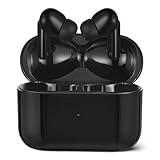
- True wireless earbuds provide a snug in-ear fit; Bluetooth 5.4 for fast, reliable connectivity
- Built-in mic and easy controls for play/pause, next/previous, up/down volume, answer/reject call, and voice assistant
- Includes 3 sets of eartips (S, M, L) to ensure comfort, a USB-C 10-inch charging cable, and a charging case
- Featuring up to 28 hours of total battery life (8h from earbuds + 20h from charging case) and IPX4 water-resistant earbuds for all-day audio
- First-Time Connection: Remove insulating film, place earbuds in charging case, close lid, then open to enter pairing mode. Reconnect: Open case to auto-reconnect. If unsuccessful, close/reopen lid several times and ensure Bluetooth is enabled. For persistent issues, perform forced pairing/factory reset (see User Manual). New Device: Earbuds enter pairing mode automatically if no reconnection occurs within 30 seconds. Alternatively, disconnect from previous device or perform forced pairing/factory reset (see User Manual)
Switching audio during calls
Calls behave slightly differently than music and podcasts. The Apple Watch sometimes defaults to its built-in speaker, particularly with third-party Bluetooth headphones.
When a call is active, look at the call screen and tap the audio output or speaker icon. From there, choose your Bluetooth headphones instead of the Watch speaker.
If you miss this step and start talking, you can still switch mid-call without hanging up. The change is immediate and does not affect call quality.
What to do if audio keeps going to the iPhone instead
One common frustration is audio stubbornly playing on the iPhone even though you started playback from the Watch. This usually happens when the headphones are still actively connected to the phone.
To fix this, pause playback, then open Control Center on the Watch and manually select your headphones. If that does not work, briefly disable Bluetooth on the iPhone or move it out of range so the Watch takes priority.
Cellular Apple Watch models are more aggressive about claiming audio when the phone is not nearby. GPS-only models rely more heavily on which device the headphones last connected to.
How automatic switching works with AirPods
AirPods use Apple’s automatic device switching, which can feel magical or unpredictable depending on the situation. If your AirPods were recently used with the iPhone, they may jump back to it even after you start playback on the Watch.
Manually selecting the AirPods from the Watch’s Control Center usually locks them in place. For longer sessions, this prevents the connection from flipping back when notifications or sounds play on the iPhone.
If automatic switching becomes annoying, you can adjust AirPods behavior in the iPhone’s Bluetooth settings to reduce how aggressively they move between devices.
Troubleshooting missing or unavailable audio devices
If your headphones do not show up as an option, first confirm they are turned on and within range. Bluetooth range is shorter with the Watch than with an iPhone, especially outdoors.
Restarting the headphones and toggling Bluetooth off and on in the Watch settings often resolves temporary connection glitches. This is particularly helpful with older or budget Bluetooth models.
As a last resort, unpair and re-pair the headphones directly from the Apple Watch. While slightly tedious, it resets the connection and usually restores normal audio switching behavior.
Using Bluetooth Headphones Without Your iPhone Nearby: Cellular, GPS, and Offline Playback Explained
Once your headphones are paired and behaving properly, the next question is whether the Apple Watch can truly replace the iPhone for audio. The answer depends on which Apple Watch model you own and how you prepare your content ahead of time.
This is where the differences between GPS-only and Cellular Apple Watch models become especially important, and where offline playback settings quietly make or break the experience.
Apple Watch GPS vs Cellular: What actually changes
Every Apple Watch can connect directly to Bluetooth headphones, but not every model can stream audio on its own. GPS-only Apple Watch models require either a nearby iPhone or pre-downloaded content stored on the Watch itself.
Cellular Apple Watch models include an LTE radio and their own data connection, allowing them to stream music, podcasts, and radio without the iPhone present. This makes a major difference for runners, gym sessions, and walks where carrying a phone feels unnecessary.
From a daily usability perspective, Cellular models feel more independent, but they also consume more battery when streaming over LTE. Expect noticeably faster battery drain compared to offline playback or iPhone-assisted listening.
Listening with a GPS-only Apple Watch (no iPhone nearby)
If you have a GPS-only Apple Watch and leave your iPhone behind, Bluetooth headphones will still connect, but only offline audio will work. Streaming apps cannot pull new content without an internet connection.
To make this setup work smoothly, you must download music, podcasts, or audiobooks to the Watch in advance. Apple Music, Spotify, Audible, and several fitness apps support offline syncing directly to the Watch.
Storage space varies by model, but most modern Apple Watches have enough room for several playlists or long podcast queues. Syncing is best done while the Watch is charging, as transfers can be slow and are sometimes paused to preserve battery.
Streaming and calls with a Cellular Apple Watch
With a Cellular Apple Watch, Bluetooth headphones unlock a phone-free experience that feels surprisingly complete. You can stream Apple Music, Spotify, podcasts, and even take phone calls directly through the Watch.
Call quality is generally very good, especially with headphones that have strong microphones and noise reduction. The Watch itself handles the call routing, while the headphones function just like they would with an iPhone.
That said, LTE signal strength matters. Indoors or in areas with weak coverage, audio may buffer or drop, and the Watch will use more power trying to maintain a connection.
Offline playback: the most reliable option for any model
Regardless of whether your Watch has Cellular, offline playback is the most stable and battery-friendly way to use Bluetooth headphones. Once content is downloaded, playback does not rely on signal strength or nearby devices.
This is especially useful for workouts, travel, or long listening sessions where interruptions are frustrating. It also minimizes the chance of your headphones trying to reconnect to a missing iPhone mid-session.
If you notice playback failing when you step away from your phone, it is often because the app is trying to stream instead of switching to downloaded content. Double-check that downloads are complete and not just marked as available.
How to check what the Watch is using for audio
When listening without your iPhone nearby, Control Center becomes your best diagnostic tool. Swipe up and confirm that your Bluetooth headphones are selected as the output device.
If audio suddenly stops or refuses to play, open the app you are using and look for indicators like “streaming,” “offline,” or “downloading.” These labels explain most playback failures without requiring deeper troubleshooting.
On Cellular models, you can also check signal strength in Control Center. Weak LTE combined with active Bluetooth is a common reason for stuttering audio or dropped connections.
Battery and comfort considerations for long sessions
Streaming over Cellular with Bluetooth headphones is the most demanding setup for the Apple Watch. Smaller case sizes and older models will show battery loss much faster during long listening sessions.
Offline playback dramatically improves endurance and keeps the Watch cooler against the wrist, improving comfort during workouts or extended wear. This matters more than people expect, especially with aluminum cases and sport bands.
If your primary goal is phone-free listening, choosing comfortable headphones with stable Bluetooth performance and planning offline content in advance will deliver a smoother, more predictable experience than relying on streaming alone.
Common Bluetooth Pairing Problems on Apple Watch (and How to Fix Them)
Even when everything looks correctly set up, Bluetooth audio can behave unpredictably on the Apple Watch. Most issues are not hardware failures, but small software handoff problems between the Watch, the iPhone, and the headphones themselves.
The good news is that nearly all pairing problems can be fixed in a few minutes once you know where to look. The sections below cover the most common real-world issues and the fastest, least disruptive fixes.
Headphones will not appear in the Bluetooth list
If your headphones never show up under Settings > Bluetooth on the Watch, they are usually not in pairing mode. Many headphones power on without automatically entering pairing, especially if they were previously connected to a phone or tablet.
Put the headphones into pairing mode manually, often by holding the power or Bluetooth button until the indicator light flashes. Keep them close to the Watch, ideally within a few inches, since the Watch’s Bluetooth radio is lower power than an iPhone’s.
If they still do not appear, turn Bluetooth off and back on from the Watch’s Settings menu, not Control Center. This forces a fresh device scan and often reveals stubborn accessories.
Headphones connect to the iPhone instead of the Apple Watch
This is one of the most common frustrations, especially with AirPods and popular fitness headphones that aggressively reconnect to the last device used. If your iPhone is nearby, it will usually win the connection unless you intervene.
Temporarily turn Bluetooth off on the iPhone, then connect the headphones directly from the Watch. Once paired, the Watch will remember the connection and prioritize it during phone-free sessions.
For AirPods, opening Control Center on the Watch and manually selecting them as the audio output is often enough to pull the connection away from the iPhone without disabling Bluetooth entirely.
Headphones connect but audio still plays through the Watch speaker
When pairing appears successful but sound comes from the Watch speaker, the audio output is usually set incorrectly. This often happens when switching between apps or resuming playback after a pause.
Swipe up to open Control Center on the Watch, tap the audio output icon, and explicitly select your Bluetooth headphones. Do not assume the Watch will switch automatically, especially if the iPhone was recently nearby.
Rank #4

- NOTE: If headset is too tight we suggest placing them over a ball or something of similar size/shape. Leave undisturbed for at least 24 hours. Repeat if necessary. Please also try length adjustments of either earpiece until both sides best fit you.
- JBL PURE BASS SOUND: These wirelss headpones feature the renowned JBL Pure Bass sound, which can be found in the most famous venues all around the world.
- WIRELESS BLUETOOTH: These headphones stream wirelessly from your device and can even switch between two devices so that you don't miss a call.
- UP TO 40 HOURS BATTERY WITH SPEED CHARGE: For long-lasting fun, listen wirelessly for up to 40 hours and recharge the battery in as little as 2 hours with the convenient Type-C USB cable. A quick 5-minute recharge gives you 2 additional hours of music.
- MICROPHONE ON EAR CUP FOR HANDS-FREE CALLS: Easily control your sound and manage your calls from your headphones with the convenient buttons on the ear-cup.
If the issue repeats, restart the Watch. Minor audio routing bugs can linger until a reboot clears the connection state.
Pairing succeeds, but audio drops or stutters
Intermittent audio is usually caused by interference, distance, or battery strain rather than a bad pairing. The Apple Watch has a smaller antenna than an iPhone, and certain arm positions can briefly block signal during workouts.
Try wearing the Watch on the opposite wrist from where your headphones’ main Bluetooth antenna sits, which is often the right earbud. Keeping the Watch and headphones on the same side of the body improves stability.
Low battery on either device can also trigger stuttering. Streaming over Cellular while using Bluetooth is especially demanding, so switching to downloaded content often fixes this instantly.
Headphones disconnect after a few minutes
Sudden disconnects usually point to power management behavior. Some headphones automatically shut down or switch devices when they think no audio is playing, even during short pauses.
Make sure playback is actively running before starting a workout or locking the screen. If you are using a third-party app, confirm that it supports background playback on watchOS.
Updating the headphones’ firmware through their companion iPhone app can also resolve aggressive sleep behavior that conflicts with the Watch.
Previously paired headphones will not reconnect
If headphones worked before but refuse to reconnect, the Bluetooth pairing record may be corrupted. This is more common after watchOS updates or switching between multiple Apple Watches.
On the Watch, go to Settings > Bluetooth, tap the device name, and choose Forget Device. Then reset the headphones and pair them again as if they were new.
If the Watch still struggles, restart both the Watch and the iPhone. Even though pairing happens on the Watch, the iPhone plays a role in managing Bluetooth profiles behind the scenes.
Bluetooth works for music but not for calls
Some headphones support media audio but handle call audio differently, especially older or budget models. The Watch treats calls as a separate Bluetooth profile, which can expose compatibility gaps.
Check that your headphones explicitly support Bluetooth calling and not just media playback. If calls default to the Watch speaker, manually select the headphones during the call using the audio button.
For Cellular Apple Watch models, call quality is also affected by signal strength. Weak LTE combined with Bluetooth can cause the Watch to fall back to its internal speaker.
Nothing works after multiple attempts
If pairing fails repeatedly despite trying different fixes, a full reset cycle is the cleanest solution. Restart the Watch, reset the headphones, and ensure watchOS is fully up to date.
Avoid pairing through the iPhone first, as this can confuse device priorities. Always initiate pairing directly from the Watch for the most reliable result.
While rare, some older Bluetooth headphones simply do not play well with watchOS due to outdated protocols. In those cases, newer headphones with stable multipoint or Apple-focused tuning deliver a noticeably smoother experience in daily use.
Advanced Troubleshooting: Resetting Connections, Updating Software, and Eliminating Interference
When basic fixes stop working, it usually means the issue is no longer just pairing, but how the Apple Watch, headphones, and surrounding environment are interacting. At this stage, the goal is to strip the connection back to a clean slate, confirm software compatibility, and remove anything that could be disrupting Bluetooth stability.
Reset Bluetooth connections the right way
If your Watch connects inconsistently, drops audio mid-playback, or refuses to see headphones that pair fine with other devices, a deeper Bluetooth reset often helps. This goes beyond simply forgetting the device once.
Start by forgetting the headphones on the Apple Watch under Settings > Bluetooth. Then power off the Watch completely, not just a restart, and leave it off for at least 30 seconds before turning it back on.
Next, reset the headphones to factory pairing mode using the manufacturer’s instructions. This clears hidden pairing records that can linger when headphones have bounced between an iPhone, iPad, Mac, and Watch, which is common with daily Apple ecosystem use.
Check watchOS and headphone firmware compatibility
watchOS updates frequently improve Bluetooth behavior, especially for audio stability and call handling. Running an older version of watchOS can cause unexplained issues, even if everything worked fine months ago.
On the paired iPhone, open the Watch app, go to General > Software Update, and install the latest version available. Make sure the Watch has at least 50 percent battery and is on its charger during the update.
Equally important is headphone firmware. Many modern earbuds and over-ear headphones quietly fix connection bugs through firmware updates pushed via their iPhone companion apps, which can directly impact how well they behave with the Watch.
Reduce Bluetooth and wireless interference
Bluetooth operates in the crowded 2.4GHz band, which is shared with Wi‑Fi routers, gym equipment, smart home devices, and even microwaves. In busy environments, interference can overwhelm the Watch’s smaller Bluetooth antenna.
If audio stutters or cuts out, try moving a few feet away from other electronics or switching Wi‑Fi networks on nearby devices. Gyms and offices are common problem areas due to the sheer number of wireless signals competing for space.
Wearing position also matters more than people expect. Thick jackets, metal watch bands, or even crossing your arms can momentarily block the signal path between the Watch and headphones, especially with true wireless earbuds.
Understand how the iPhone can interfere even when you do not want it to
When your iPhone is nearby, it may automatically reclaim the headphone connection, especially if music, notifications, or calls are active. This can make it seem like the Watch is failing when it is actually being overridden.
To test Watch-only playback, temporarily enable Airplane Mode on the iPhone while leaving Bluetooth on for the Watch. This forces the headphones to stay locked to the Watch and helps confirm whether the issue is device switching rather than pairing.
This behavior is more noticeable with headphones that lack strong multipoint management. Apple’s own AirPods handle this transition more gracefully, but even they can hesitate if multiple devices are competing simultaneously.
As a last resort: reset network settings
If Bluetooth problems persist across multiple headphones, the issue may lie deeper in the Watch’s network configuration. Resetting network settings can clear stubborn bugs without erasing your Watch data.
On the Apple Watch, go to Settings > General > Reset > Reset Network Settings. This removes all Wi‑Fi and Bluetooth connections, so you will need to re-pair headphones afterward.
While this step sounds drastic, it often restores rock-solid Bluetooth performance, especially on Watches that have gone through several watchOS upgrades over the years. For daily usability, it can be the difference between unreliable audio and a setup that just works every time you head out without your iPhone.
Battery Life and Audio Performance Tips When Using Bluetooth Headphones with Apple Watch
Once Bluetooth stability is sorted, the next thing most people notice is battery impact. Streaming audio directly from the Apple Watch is incredibly freeing, but it draws power from both the Watch and your headphones more aggressively than phone-based playback.
The good news is that with a few adjustments, you can get predictable battery life and better-sounding audio without sacrificing everyday usability.
Understand how Apple Watch battery drains during Bluetooth audio
Playing music, podcasts, or calls over Bluetooth taxes several systems at once. The Watch is powering the display, maintaining a Bluetooth connection, decoding audio, and often tracking a workout or heart rate at the same time.
In real-world use, continuous streaming can drain 15 to 25 percent of the Watch battery per hour depending on model, watchOS version, and whether GPS or cellular is active. Smaller cases like the 41mm tend to lose charge slightly faster than larger 45mm or Ultra models due to battery capacity.
If you are heading out for a long walk or run, starting with at least 60 percent battery is a safe baseline for Watch-only listening.
Lower volume thoughtfully to extend both Watch and headphone battery
High volume does not just affect your ears. It increases power draw on the Bluetooth radio and the headphone amplifiers, shortening battery life on both ends.
A practical tip is to set volume from the Watch itself rather than the earbuds. Apple Watch volume adjustments are more granular, helping you find a comfortable level without unnecessary output spikes.
If your headphones support active noise cancellation, you can often listen at lower volumes while still hearing clearly, which offsets the extra power used by ANC.
Choose downloaded audio over streaming whenever possible
Streaming Apple Music, Spotify, or podcasts over Wi‑Fi or cellular is convenient, but it is the most demanding scenario for battery life. Downloaded playlists and episodes stored directly on the Watch are significantly more efficient.
Before heading out without your iPhone, sync your most-used playlists or shows while the Watch is charging. This not only saves battery but also eliminates buffering, dropouts, and audio quality fluctuations caused by weak networks.
💰 Best Value

- Hybrid Active Noise Cancelling: 2 internal and 2 external mics work in tandem to detect external noise and effectively reduce up to 90% of it, no matter in trains or offices.
- Immerse Yourself in Detailed Audio: The noise cancelling headphones have oversized 40mm dynamic drivers that produce detailed sound and thumping beats with BassUp technology for your every travel, commuting and gaming. Compatible with Hi-Res certified audio via the AUX cable for more detail.
- 40-Hour Long Battery Life and Fast Charging: With 40 hours of battery life with ANC on and 60 hours in normal mode, you can commute in peace with your Bluetooth headphones without thinking about recharging. Fast charge for 5 mins to get an extra 4 hours of music listening for daily users.
- Dual-Connections: Connect to two devices simultaneously with Bluetooth 5.0 and instantly switch between them. Whether you're working on your laptop, or need to take a phone call, audio from your Bluetooth headphones will automatically play from the device you need to hear from.
- App for EQ Customization: Download the soundcore app to tailor your sound using the customizable EQ, with 22 presets, or adjust it yourself. You can also switch between 3 modes: ANC, Normal, and Transparency, and relax with white noise.
For runners and gym users, downloaded audio is one of the biggest quality-of-life improvements you can make.
Be mindful of workout tracking and GPS usage
Many people pair Bluetooth headphones with the Apple Watch specifically for workouts. That combination often means GPS, heart-rate monitoring, and motion sensors are running continuously alongside audio playback.
Outdoor runs with GPS enabled will drain the battery faster than indoor workouts. If you are training on a treadmill or indoor track, manually selecting an indoor workout can noticeably extend listening time.
On Apple Watch Ultra models, battery life is more forgiving, but even then, stacking GPS, cellular streaming, and Bluetooth audio will shorten sessions faster than expected.
Headphone choice affects audio quality and stability
Not all Bluetooth headphones behave the same with the Apple Watch. Models with efficient Bluetooth chipsets and stable firmware tend to maintain a stronger connection and consume less power.
Apple AirPods and Beats models are optimized for watchOS and generally deliver smoother switching, better call quality, and consistent volume levels. Third-party headphones can still work very well, but cheaper models may exhibit hiss, compression artifacts, or faster battery drain.
True wireless earbuds are the most comfortable for workouts, but over-ear Bluetooth headphones often deliver richer sound and longer playback time if you are using the Watch for casual listening at home.
Limit background features that quietly drain power
Several Apple Watch features run in the background and add up during audio sessions. Always-on display, frequent notifications, and background app refresh all contribute to faster battery loss.
If you plan a long listening session, enabling Theater Mode or temporarily disabling Always On Display can extend playback time without affecting audio controls. You can still raise your wrist or tap the screen to adjust volume or skip tracks.
This is especially useful on older Watch models where battery health has declined after years of daily wear.
Keep watchOS and headphone firmware up to date
Bluetooth performance and power efficiency improve quietly with software updates. Apple frequently refines audio handling, connection stability, and background power management in watchOS updates.
Likewise, many headphones receive firmware updates through their companion apps that improve battery reporting and Bluetooth behavior. Updating both sides reduces the chances of stutters, sudden disconnects, or unexplained battery drain.
If your setup once worked well and suddenly does not, checking for updates should be one of the first steps before changing hardware.
Charge strategically for daily wearability
If you rely on Bluetooth headphones with the Apple Watch daily, charging habits matter. Topping up the Watch while showering or during short breaks can keep it comfortably above 50 percent without long downtime.
Fast charging on newer models makes this easier, especially with compact chargers that fit in a gym bag or desk drawer. Consistent partial charges are better for long-term battery health than regularly running the Watch to zero.
With a little planning, the Apple Watch becomes a reliable standalone audio device that fits naturally into workouts, commutes, and casual listening without constant battery anxiety.
Real-World Use Cases: Workouts, Calls, Navigation Prompts, and Streaming on the Go
Once your Bluetooth headphones are paired and you have battery habits dialed in, the Apple Watch starts to make sense as a truly independent audio device. This is where the setup moves from “it works” to “this actually fits my daily routine.”
The examples below reflect how the Watch behaves in real life, including when it takes control from the iPhone and when things may not go exactly as expected.
Workouts without your iPhone
This is the most common and most satisfying use case for Bluetooth headphones on the Apple Watch. Whether you are running, lifting, cycling, or walking, the Watch can stream music or podcasts directly to your headphones without your phone nearby.
For this to work smoothly, your audio needs to be either downloaded to the Watch or streamed via Wi‑Fi or cellular. GPS-only models require pre-downloaded content, while cellular models can stream Apple Music, Podcasts, or supported third-party apps on the go.
During workouts, the Watch prioritizes stability and keeps the Bluetooth connection locked to the headphones you selected. If your headphones suddenly switch back to your iPhone mid-run, it usually means the phone came back into range and was already playing audio. Pausing playback on the iPhone before starting a workout avoids this handoff confusion.
From a comfort standpoint, this setup shines with lighter headphones and secure-fitting earbuds. The Apple Watch itself is compact and balanced, especially on sport bands or trail loops, so nothing pulls or shifts during movement.
Taking calls directly from the Apple Watch
Bluetooth headphones also transform the Apple Watch into a surprisingly capable calling device. Calls can route through the Watch using its built-in microphones, but pairing headphones improves clarity, privacy, and wind resistance.
If you answer a call on the Watch while wearing Bluetooth headphones, audio usually routes automatically to them. If it does not, tapping the audio source icon on the call screen lets you switch manually in seconds.
Call quality depends heavily on your headphones’ microphone design. Earbuds with beamforming mics tend to perform best, while older or budget models may sound distant. The Watch handles the connection reliably, but the headset ultimately controls how you sound to the person on the other end.
Cellular models excel here because they allow calls without the iPhone nearby. GPS-only models still work well as long as the Watch remains connected to the iPhone over Bluetooth.
Navigation prompts while walking, running, or driving
Turn-by-turn directions are one of the most underrated reasons to pair Bluetooth headphones with the Apple Watch. Spoken navigation prompts from Apple Maps or supported apps play directly through your headphones, leaving your hands and eyes free.
This is especially useful when walking in unfamiliar areas or running with routes loaded ahead of time. Subtle audio cues reduce the need to constantly check the screen, which improves safety and battery efficiency.
If navigation prompts are silent, the issue is often volume-related rather than a broken connection. Navigation audio has its own volume level, which can be adjusted while prompts are actively playing using the Digital Crown.
Haptic taps on the wrist still work alongside audio cues, giving you redundant feedback without distraction.
Streaming music and podcasts on the go
Streaming directly from the Apple Watch feels almost futuristic the first time you leave your phone behind. With a cellular model, you can stream Apple Music, Apple Podcasts, and select third-party apps anywhere with coverage.
Wi‑Fi streaming works well at home, hotels, and gyms, but cellular streaming is where Bluetooth headphones truly shine. Expect slightly higher battery drain, especially during longer sessions, but stability is generally excellent with modern headphones.
If streaming stutters or pauses, check signal strength first. The Watch has a smaller antenna than the iPhone, so marginal coverage areas can affect playback. Downloading playlists or episodes ahead of time remains the most reliable option for long outings.
Sound quality is consistent with what you would expect from Bluetooth audio. While the Watch does not support advanced codecs like LDAC, real-world listening is clean and well-balanced, especially with Apple and Beats headphones that are tuned for watchOS.
Understanding when audio connects to the Watch versus the iPhone
One of the most common sources of confusion is knowing which device your headphones are actually connected to. Apple’s ecosystem tries to be helpful, but it can feel unpredictable if you are not expecting it.
As a general rule, audio plays from the device that started playback. If you begin music on the Watch, headphones stay connected to the Watch until playback stops or you manually switch. If you start audio on the iPhone, the headphones may jump back to the phone when it comes within range.
You can always confirm and override this by opening Control Center on the Watch and checking the audio output icon. Taking control here prevents accidental switching during workouts or walks.
When this setup makes the most sense
Using Bluetooth headphones with the Apple Watch works best for people who value freedom from their phone. Runners, gym-goers, commuters, and travelers benefit the most, especially with lightweight headphones and a cellular-capable Watch.
It is less ideal for marathon listening sessions or critical calls in weak signal areas, where the iPhone’s larger battery and antenna still win. Knowing these limits helps set realistic expectations and avoids frustration.
In day-to-day use, the Watch feels less like an accessory and more like a standalone tool when audio is involved. With the right pairing habits and a little awareness of how Apple handles connections, Bluetooth headphones unlock the Apple Watch’s full potential.
At that point, you are no longer just connecting headphones. You are choosing when to stay connected to your phone and when to leave it behind entirely, without giving up music, directions, or calls along the way.