If you’re already recording workouts on a Garmin watch, it’s natural to wonder whether linking it to Strava is actually worth the effort or just another account connection you’ll forget about. The short answer is that the two platforms complement each other extremely well, each covering gaps the other leaves behind. When connected properly, your Garmin becomes the data engine while Strava becomes the social, analytical, and motivational layer on top.
Most people searching for this setup want one simple thing: finish a run, ride, or workout and have it appear everywhere it matters without extra taps, exports, or uploads. Linking Garmin Connect to Strava does exactly that, but the real value goes deeper than automatic syncing. It changes how you review performance, stay motivated long-term, and even how you decide what watch features matter to you.
This section breaks down what you genuinely gain from linking accounts, what data moves between platforms, and who benefits most from the connection before we get into the step-by-step setup.
Your activities sync automatically, with no manual uploads
Once Garmin and Strava are linked, every supported activity recorded on your Garmin watch syncs to Garmin Connect first, then pushes automatically to Strava. This includes runs, rides, swims, hikes, strength training, and most multisport activities, provided they’re saved normally on the watch.
🏆 #1 Best Overall

- Easy-to-use running watch monitors heart rate (this is not a medical device) at the wrist and uses GPS to track how far, how fast and where you’ve run.Special Feature:Bluetooth.
- Battery life: up to 2 weeks in smartwatch mode; up to 20 hours in GPS mode
- Plan your race day strategy with the PacePro feature (not compatible with on-device courses), which offers GPS-based pace guidance for a selected course or distance
- Run your best with helpful training tools, including race time predictions and finish time estimates
- Track all the ways you move with built-in activity profiles for running, cycling, track run, virtual run, pool swim, Pilates, HIIT, breathwork and more
In real-world use, this means you finish a workout, your watch syncs via Bluetooth or Wi‑Fi, and within seconds or minutes the activity appears on Strava without you doing anything else. For daily users, this alone removes friction and ensures consistency across platforms, especially if you train frequently or use multiple devices.
Strava’s social and competitive features unlock motivation Garmin doesn’t offer
Garmin Connect is excellent for personal metrics, but it’s intentionally conservative when it comes to social features. Strava, by contrast, thrives on shared activity, whether that’s kudos from friends, club challenges, or segment leaderboards.
When your Garmin activities flow into Strava, you automatically participate in local segments, monthly challenges, and community events. For runners and cyclists especially, this can be a powerful motivator that encourages more consistent training without changing your hardware or recording habits.
You get a different perspective on the same performance data
Garmin Connect and Strava interpret the same workout data in very different ways. Garmin focuses on physiology, training load, recovery time, and long-term readiness, while Strava emphasizes pace trends, power curves, segments, and relative performance.
Linking accounts lets you benefit from both viewpoints without duplicating effort. You might check Garmin for sleep, heart rate variability, and training status, then open Strava to analyze pacing, elevation profiles, or compare efforts against past performances and other athletes.
Your Garmin hardware works with a much wider fitness ecosystem
Strava acts as a hub for many third-party fitness apps, coaching platforms, and training plans. When Garmin feeds data into Strava, that same activity can then flow onward to services like training analysis tools, virtual cycling platforms, or coaching dashboards.
This matters if you plan to evolve your training over time. Even if you start as a casual runner, linking Garmin to Strava keeps your data portable and future-proof, especially if you later add indoor trainers, power meters, or structured plans.
Strava preserves your activity history if you change watches later
Many users don’t realize this benefit until it’s too late. Garmin Connect is closely tied to Garmin hardware, while Strava is device-agnostic. By syncing your Garmin data to Strava from day one, you build a long-term training history that stays intact even if you switch brands in the future.
For users who upgrade watches every few years or experiment with different ecosystems, this makes Strava a neutral archive of your fitness journey. Your past efforts remain visible and comparable regardless of what’s on your wrist.
What data actually syncs, and what stays exclusive to Garmin
When linked, Strava receives core activity data such as distance, time, pace, speed, elevation, GPS route, heart rate, cadence, and power if available. For most runners and cyclists, this covers everything needed for meaningful analysis and comparison.
Some advanced Garmin-exclusive metrics, like Body Battery, Training Readiness, detailed sleep stages, and certain Firstbeat-derived insights, remain inside Garmin Connect only. This isn’t a drawback, but rather a reminder that Garmin is still the primary source, with Strava acting as a powerful companion rather than a replacement.
What You Need Before You Start: Compatible Garmin Devices, Accounts, and Permissions
Before you connect anything, it helps to understand what Strava expects from Garmin and what Garmin needs from you. Most connection problems come down to missing accounts, outdated apps, or permissions that were skipped during setup.
Taking a minute to confirm the basics now will save you from duplicated activities, partial uploads, or workouts that never appear in Strava.
Compatible Garmin watches and devices
Nearly all modern Garmin fitness devices can sync to Strava, as long as they upload activities to Garmin Connect. This includes popular watches like the Forerunner series, Fenix and Epix models, Venu and Vivoactive watches, Instinct models, and legacy multisport lines.
Garmin Edge bike computers, handheld GPS units used for activities, and some Garmin indoor trainers are also supported, provided they push completed workouts into Garmin Connect. If your activity shows up in Garmin Connect, it can be sent to Strava.
Older Garmin devices that rely on manual file transfers or Garmin Express only may require extra steps, but the vast majority of users with Bluetooth-enabled watches from the last several years are fully compatible.
A Garmin Connect account (mobile or web)
Garmin Connect is the system of record for your Garmin device. Your watch syncs to Garmin Connect first, and Strava pulls activities from there, not directly from your watch.
You’ll need an active Garmin Connect account, which you can access through the Garmin Connect mobile app on iOS or Android, or via the Garmin Connect website on a computer. Both routes work for linking to Strava, and they use the same underlying account.
Make sure your device is already paired and syncing reliably with Garmin Connect before you try linking anything to Strava. If Garmin Connect isn’t receiving your workouts, Strava won’t either.
A Strava account (free or paid)
You’ll also need a Strava account, but it doesn’t have to be a paid subscription. Garmin-to-Strava syncing works on Strava’s free tier, and premium features like segments or advanced analytics are optional extras.
You can create your Strava account on the Strava mobile app or through the Strava website. Just make sure you know the login details, since you’ll be asked to authorize Garmin during the connection process.
If you already have historical activities in Strava from another device or app, linking Garmin will simply add new workouts going forward unless you manually upload older files.
Garmin Connect and Strava apps installed and updated
While you can link accounts using a web browser, having both apps installed on your phone makes troubleshooting and verification much easier. The Garmin Connect app handles device syncing, while the Strava app lets you immediately confirm whether activities are arriving correctly.
Both apps should be updated to the latest version before you start. Outdated app versions are a common cause of authorization errors or missing permission prompts.
After updating, it’s worth opening each app once to ensure you’re logged in and not stuck at a welcome or setup screen.
Stable internet and background sync enabled
Garmin-to-Strava syncing happens in the cloud, not directly from your watch to Strava. That means your phone or computer needs a stable internet connection when Garmin Connect uploads your activity.
On smartphones, background app refresh and Bluetooth permissions should be enabled for Garmin Connect. If your phone aggressively restricts background activity, uploads can stall, especially right after finishing a workout.
If you notice delays, opening Garmin Connect manually while connected to Wi‑Fi often forces a successful upload.
Required permissions and data access
When you link Garmin Connect to Strava, you’ll be asked to authorize data sharing. This permission allows Garmin to send activity files, GPS routes, heart rate, cadence, power data, and basic profile information to Strava.
You don’t need to grant access to everything Garmin tracks. Metrics like sleep, Body Battery, and Training Readiness stay inside Garmin Connect regardless, and Strava won’t request them.
If you previously denied permissions or canceled the authorization screen, the connection may exist but not function correctly. This can be fixed later by reauthorizing the connection, which we’ll cover in the step-by-step section.
Privacy settings that won’t block uploads
Garmin and Strava both have privacy controls, and overly strict settings can make it look like syncing is broken when it isn’t. Activities marked as private will still sync, but they may not appear where you expect in Strava feeds or leaderboards.
If you use safety features like privacy zones or hidden start points, those settings carry over cleanly and won’t prevent uploads. However, disabling activity sharing entirely in either app will stop syncing.
Before linking accounts, it’s a good idea to confirm that activity visibility in both Garmin Connect and Strava is set to something other than “Only Me,” unless you intentionally want everything private.
Understanding what won’t sync retroactively
By default, Garmin only sends activities to Strava from the moment you connect the accounts forward. Past workouts already stored in Garmin Connect do not automatically backfill into Strava.
This isn’t a setup error; it’s a design choice. If your goal is to preserve long-term history in Strava, linking early is the easiest path.
Manual uploads of older activities are possible, but they’re handled separately and work best once the live connection is already functioning properly.
How Garmin–Strava Sync Works: What Data Syncs Automatically (and What Doesn’t)
Once your accounts are linked, Garmin Connect becomes the source of truth and Strava acts as the destination. Every time your watch finishes an activity and uploads to Garmin Connect, that activity is automatically pushed to Strava without any extra taps.
This process happens in the background and usually completes within seconds. If syncing feels inconsistent, it’s almost always related to connectivity, permissions, or how the activity itself was recorded rather than a broken link.
Rank #2

- Designed with a bright, colorful AMOLED display, get a more complete picture of your health, thanks to battery life of up to 11 days in smartwatch mode
- Body Battery energy monitoring helps you understand when you’re charged up or need to rest, with even more personalized insights based on sleep, naps, stress levels, workouts and more (data presented is intended to be a close estimation of metrics tracked)
- Get a sleep score and personalized sleep coaching for how much sleep you need — and get tips on how to improve plus key metrics such as HRV status to better understand your health (data presented is intended to be a close estimation of metrics tracked)
- Find new ways to keep your body moving with more than 30 built-in indoor and GPS sports apps, including walking, running, cycling, HIIT, swimming, golf and more
- Wheelchair mode tracks pushes — rather than steps — and includes push and handcycle activities with preloaded workouts for strength, cardio, HIIT, Pilates and yoga, challenges specific to wheelchair users and more (data presented is intended to be a close estimation of metrics tracked)
Activities that sync automatically
Any activity you record on a Garmin watch and successfully upload to Garmin Connect will sync to Strava by default. This includes running, cycling, walking, hiking, swimming, strength training, indoor workouts, and most custom activity profiles.
Both GPS-based and indoor activities sync reliably. Even workouts recorded without GPS, like treadmill runs or indoor cycling, still appear in Strava with duration, distance (if available), and effort data.
If you use multiple Garmin devices, such as a Forerunner for running and an Edge bike computer for cycling, activities from all devices flow into Strava through the same connection.
Performance and sensor data that carries over
Garmin sends a rich activity file to Strava, not just a basic summary. GPS route maps, pace or speed, elapsed time, elevation gain, heart rate, cadence, and power data all sync automatically when available.
For runners, this means splits, lap times, heart rate zones, and cadence charts show up as expected. Cyclists get power curves, cadence, speed, and elevation profiles, assuming the sensors were paired and active during the ride.
Data accuracy depends on the hardware. A chest strap, power meter, or multi-band GPS watch will improve what Strava displays, but the sync itself doesn’t change or smooth your data.
Training metrics that stay in Garmin Connect
Garmin-exclusive metrics do not transfer to Strava, even though they’re calculated from the same workout. Training Load, Training Effect, VO2 max trends, Body Battery, Training Readiness, and recovery time remain visible only in Garmin Connect.
Sleep tracking, stress tracking, and daily health stats never sync to Strava. Strava is activity-focused, while Garmin Connect is designed to be a full health and training ecosystem.
This separation is intentional and not a limitation of your device. Even premium Garmin watches with advanced analytics won’t expose those metrics to Strava.
How edits and deletions behave after syncing
If you edit an activity title, description, or privacy setting in Garmin Connect before it syncs, those changes usually carry over. Once the activity appears in Strava, edits made in Garmin do not update Strava retroactively.
Deleting an activity in Garmin Connect will remove it from Strava if the deletion happens shortly after upload. If the activity has been on Strava for a while, you may need to delete it manually in Strava as well.
Edits made directly in Strava never sync back to Garmin. The data flow is strictly one-way.
Privacy settings and visibility on Strava
Activities marked as private or “Only Me” in Garmin Connect still sync to Strava, but they arrive with matching visibility restrictions. This often leads users to think the sync failed when the activity is simply hidden from feeds or leaderboards.
Privacy zones and hidden start points carry over correctly. Your map will look truncated in Strava the same way it does in Garmin, without breaking the upload.
If you want all new activities to appear publicly on Strava, double-check default visibility settings in both apps before troubleshooting the sync itself.
What doesn’t sync at all
Historical activities recorded before you linked Garmin and Strava do not sync automatically. This includes months or years of past workouts already stored in Garmin Connect.
Manually created activities in Garmin Connect, such as added workouts without device data, also do not push to Strava. Only activities generated by a Garmin device or imported into Garmin as a proper activity file will sync.
Third-party workouts that sync into Garmin Connect from other platforms usually stop there. Garmin does not act as a relay to forward those activities on to Strava.
When syncing actually happens
The sync occurs only after the activity successfully uploads to Garmin Connect. If your watch hasn’t synced yet, Strava won’t see anything.
This is why battery life, Bluetooth stability, and Wi‑Fi connectivity matter. A low battery watch or interrupted upload can delay Strava updates even though the activity looks complete on your wrist.
Once Garmin Connect shows the activity with full details, Strava typically receives it almost immediately. If it doesn’t, that’s when troubleshooting steps become relevant.
Step-by-Step: How to Connect Garmin to Strava Using Garmin Connect (Mobile App)
Now that you know when syncing happens and what does or doesn’t transfer, the next step is making sure the connection itself is set up correctly. Using the Garmin Connect mobile app is the most common and reliable way to link accounts, especially if you primarily sync your watch over Bluetooth.
These steps apply to both iOS and Android. Menu names are identical, though button placement may vary slightly depending on screen size and app version.
Step 1: Open Garmin Connect and confirm your device is syncing normally
Before linking anything, open the Garmin Connect app and make sure your watch is already paired and syncing without errors. You should see recent activities, battery level, and health stats updating inside the app.
If your device struggles to sync here, fix that first. Strava cannot receive activities that haven’t fully uploaded to Garmin Connect, regardless of how well the accounts are linked.
Step 2: Open the Garmin Connect menu
From the Garmin Connect home screen, tap the three-line menu icon. On iOS this is usually in the bottom-right corner; on Android it’s typically in the top-left.
This menu is your control center for devices, settings, and third-party connections, including Strava.
Step 3: Go to Settings → Connected Apps
Inside the menu, tap Settings, then select Connected Apps. This section shows every service that can exchange data with Garmin Connect.
If Strava is already listed here, it may be connected, partially authorized, or broken. We’ll address that shortly.
Step 4: Select Strava from the list
Scroll through the available apps and tap Strava. Garmin may briefly explain what data is shared, including activities, routes, and basic metadata like time, distance, and elevation.
Tap Connect or Get Started to proceed. This action hands off authorization to Strava’s login system.
Step 5: Log into your Strava account
You’ll be redirected to a Strava login screen, either in-app or in your mobile browser. Sign in using the same Strava account you normally use for activities.
If you have multiple Strava accounts or previously logged in through a browser, double-check you’re authorizing the correct one. Many sync issues come from accidentally linking a secondary or inactive Strava profile.
Step 6: Approve data access permissions
Strava will ask you to approve Garmin’s access to your activity data. This permission is required for automatic uploads and cannot be skipped.
Once approved, you’ll be returned to Garmin Connect, where Strava should now appear as Connected. At this point, the pipeline is open, but it only applies to future activities.
Step 7: Verify the connection inside Garmin Connect
Tap Strava again inside Connected Apps to confirm the status shows Connected with no warnings. Some versions of the app also show the last sync timestamp here.
There is no manual “sync now” button for Strava. As long as this status is active, Garmin will push new activities automatically after each successful upload.
Step 8: Record a short test activity
To confirm everything is working, record a short walk, run, or ride with your Garmin watch. Sync it to Garmin Connect as you normally would over Bluetooth or Wi‑Fi.
Once it appears in Garmin Connect with full details, check Strava. In most cases the activity shows up within seconds, complete with GPS map, heart rate, and elevation data.
Rank #3

- Easy-to-use running smartwatch with built-in GPS for pace/distance and wrist-based heart rate; brilliant AMOLED touchscreen display with traditional button controls; lightweight design in 43 mm size
- Up to 11 days of battery life in smartwatch mode and up to 19 hours in GPS mode
- Reach your goals with personalized daily suggested workouts that adapt based on performance and recovery; use Garmin Coach and race adaptive training plans to get workout suggestions for specific events
- 25+ built-in activity profiles include running, cycling, HIIT, strength and more
- As soon as you wake up, get your morning report with an overview of your sleep, recovery and training outlook alongside weather and HRV status (data presented is intended to be a close estimation of metrics tracked)
What you should expect after linking
From this point forward, every activity recorded on your Garmin device will automatically sync to Strava. This includes runs, rides, swims, strength training, and most other activity profiles supported by your watch.
Battery life, comfort, and durability still matter here. A long-lasting Garmin watch that syncs reliably at the end of a workout ensures your data reaches Strava without delays, especially after long rides or GPS-heavy runs.
If Strava doesn’t appear or won’t connect
If Strava doesn’t show up in the Connected Apps list, make sure your Garmin Connect app is fully updated. Older app versions can hide or break third-party integrations.
If the app shows Strava as connected but activities still don’t sync, disconnect Strava, close the Garmin Connect app completely, reopen it, and repeat the linking process. This refreshes permissions and resolves most silent authorization failures.
By walking through these steps carefully, you eliminate the most common causes of Garmin-to-Strava sync problems before they ever affect your training log.
Step-by-Step: How to Link Garmin and Strava Using Garmin Connect on Desktop
If you prefer working on a bigger screen or want more visibility into permissions and account settings, linking Garmin and Strava through Garmin Connect on desktop is just as reliable as the mobile app. In some cases, it’s actually easier to spot authorization issues here, especially if you’ve previously connected Strava and removed it.
The end result is the same: once linked, Garmin automatically sends new activities to Strava without any manual exporting or file uploads.
Step 1: Open Garmin Connect in a desktop browser
On your computer, go to connect.garmin.com and sign in using the same Garmin account you use on your watch and mobile app. This is critical, as linking Strava to the wrong Garmin account is a common cause of missing activities.
Garmin Connect works best in modern browsers like Chrome, Edge, or Safari. If you’re using an older browser or have aggressive ad-blockers enabled, temporarily disabling extensions can prevent permission pop-ups from being blocked.
Step 2: Navigate to Account Settings
Once logged in, look to the top-right corner of the screen and click the circular profile icon. From the dropdown menu, select Account Settings.
This area controls devices, privacy, and third-party connections. You don’t need your watch connected to the computer for this step, since all syncing permissions are managed at the account level.
Step 3: Open Account Information and Connected Apps
Inside Account Settings, select Account Information from the left-hand menu. Scroll until you see the section labeled Connected Apps.
This is the desktop equivalent of the Connected Apps screen in the mobile app. Any services already linked to Garmin Connect will appear here, including Strava if it has been connected before.
Step 4: Find Strava and select Connect
In the list of available apps, locate Strava and click the Connect button next to it. You’ll be redirected to Strava’s authorization page in a new browser tab or window.
If Strava does not appear in the list, refresh the page once. If it still doesn’t show, log out of Garmin Connect, log back in, and repeat this step.
Step 5: Sign in to Strava and authorize access
On the Strava page, log in using your Strava credentials if prompted. You’ll then see a permissions screen explaining what Garmin will share with Strava.
This includes activity files, GPS routes, heart rate, elevation, and timing data. Click Authorize to complete the connection. Without full authorization, activities may sync incompletely or not at all.
Step 6: Confirm the connection in Garmin Connect
After authorization, you’ll be redirected back to Garmin Connect. Return to the Connected Apps section and confirm that Strava now shows as Connected.
If you see any warning icons or incomplete status messages, click into Strava’s entry to review permissions. A clean “Connected” status means Garmin is ready to push new activities automatically.
Important limitations to understand on desktop
Just like with mobile linking, this connection only applies to future activities. Garmin does not retroactively send past workouts to Strava once the accounts are linked.
There is also no manual sync button for Strava on desktop. As long as your watch successfully uploads to Garmin Connect after a workout, Garmin handles the rest in the background.
When desktop linking works better than mobile
Desktop linking is especially useful if you’re managing multiple Garmin devices, switching Strava accounts, or troubleshooting a connection that appears active but doesn’t sync.
It’s also a good option if your watch syncs via Wi‑Fi or USB rather than Bluetooth. Long battery life and stable firmware on Garmin devices help here, as failed uploads to Garmin Connect are the most common reason Strava never receives an activity.
Once Strava shows as connected on desktop with no errors, the system behaves identically to a mobile-based connection. Record your next run, ride, or walk, sync your watch to Garmin Connect, and your activity should appear on Strava automatically within moments.
After Connecting: How to Confirm Your Activities Are Syncing Correctly
Once Garmin and Strava are linked, the final step is making sure real activities move cleanly from your watch to Strava. This confirmation process takes only a few minutes and prevents the most common “it’s connected but nothing shows up” frustrations.
Do a short test activity
The simplest way to verify syncing is to record a brief test workout. A 5–10 minute walk, run, or ride is enough and avoids cluttering your training history.
Save the activity on your Garmin watch as normal. Make sure the activity fully ends and is saved before moving on, especially on models with physical buttons where an incomplete save can block uploads.
Confirm the activity appears in Garmin Connect first
Before checking Strava, always confirm the activity successfully uploaded to Garmin Connect. Open the Garmin Connect app or website and look under Activities or the calendar view.
If the activity is not visible in Garmin Connect, it cannot reach Strava. This usually points to a Bluetooth, Wi‑Fi, or USB sync issue rather than a Strava problem.
Check Strava within the expected sync window
Once the activity appears in Garmin Connect, it should arrive in Strava automatically. In most cases, this happens within seconds, though it can occasionally take a few minutes during busy server periods.
Refresh your Strava app or reload the Activities page on desktop. Newly synced workouts appear at the top of your feed and include the Garmin device name in the activity details.
Verify activity details transferred correctly
Open the activity in Strava and review key data fields. Distance, duration, GPS route, elevation, heart rate, and average pace or speed should closely match what you see in Garmin Connect.
Minor differences in elevation gain are normal due to Strava’s elevation correction, which uses map data instead of your watch’s barometric sensor. Large discrepancies, missing GPS maps, or no heart rate data usually indicate permission or recording issues rather than sync failure.
Check your Strava privacy settings
If the activity synced but you cannot see it on your public feed, privacy settings may be hiding it. Open the activity in Strava and confirm it is not set to Only You.
This is especially common for first-time users, as Strava sometimes defaults new activities to private. Changing the visibility does not affect future syncs.
Understand what will not sync automatically
Only activities recorded after the connection was established will sync. Past workouts stored in Garmin Connect will remain there unless manually exported and uploaded.
Edits made in Garmin Connect after an activity syncs, such as changing the activity type or trimming time, do not always push back to Strava. For best results, make edits directly in Strava once the activity appears.
Watch-specific factors that affect syncing
Garmin devices with long battery life and background Wi‑Fi syncing, such as Forerunner, Fenix, and Epix models, usually upload reliably even hours after an activity. If your watch battery dies before syncing, the activity may remain stuck on the device.
Comfort and fit also matter more than people expect. A loose strap can cause heart rate dropouts that appear as missing data in Strava, even though the sync itself worked correctly.
Rank #4

- Make a bold statement with this rugged GPS smartwatch, featuring a 0.9” display with solar charging lens and unlimited battery life with solar charging (assumes all-day wear with 3 hours per day outside in 50,000 lux conditions)
- Engineered with a supertough 45 mm fiber-reinforced polymer case and metal-reinforced bezel
- Built-in LED flashlight with variable intensities and strobe modes gives you greater visibility in the outdoors and provides convenient illumination when you need it
- Know your body better with health monitoring features, including wrist-based heart rate, advanced sleep monitoring, Pulse Ox and more (this is not a medical device, and data presented is intended to be a close estimation of metrics tracked; Pulse Ox not available in all countries)
- Navigate confidently with a 3-axis compass, barometric altimeter and multi-band GPS with SatIQ technology, which delivers superior positioning while also optimizing battery life
If your test activity doesn’t appear on Strava
First, confirm the activity exists in Garmin Connect. If it does, revisit Garmin Connect’s Connected Apps section and verify Strava still shows as Connected with no warnings.
If needed, disconnect Strava, restart the Garmin Connect app, and reconnect it. This resets permissions without deleting any existing activities and resolves most first-time sync failures.
Confirm ongoing automatic syncing
Once your test activity appears correctly, no further action is required. Every future workout recorded on your Garmin watch will follow the same path: watch to Garmin Connect, then automatically to Strava.
As long as your watch syncs reliably to Garmin Connect and the connection remains authorized, Strava will continue receiving your activities quietly in the background.
Common Garmin–Strava Sync Problems and How to Fix Them (Troubleshooting Guide)
Even when everything is connected correctly, real-world use can expose small gaps between Garmin Connect and Strava. The issues below are the ones I see most often across Forerunner, Fenix, Epix, Venu, and Edge devices, along with the fastest, least painful fixes.
Activity shows in Garmin Connect but not in Strava
This is the most common complaint and almost always a permission or visibility issue rather than a device failure. Start by opening Garmin Connect and confirming the activity is fully uploaded and visible there.
Next, check Strava’s activity feed filters. If you have filters set to only show certain activity types or recent workouts, the activity may be synced but hidden from view.
If the activity still does not appear, disconnect Strava from Garmin Connect, force-close the Garmin Connect app, reopen it, and reconnect Strava. This refreshes the authorization token and usually triggers a backlog sync within a few minutes.
Garmin says “Connected” but nothing syncs automatically
A connected status does not always mean the connection is healthy. If automatic syncing suddenly stops after working previously, permissions may have expired silently in the background.
Open Garmin Connect, go to Settings, Connected Apps, select Strava, and confirm there are no warning messages. If anything looks off, remove Strava and reconnect it rather than waiting for it to recover on its own.
Also check that you are logged into the same Garmin account on all devices. Mixing accounts between phone, desktop, and watch is a subtle but frequent cause of sync failures.
Activities sync late or only when the app is opened
Delayed syncing is usually related to battery-saving settings rather than the watch itself. Phones that aggressively restrict background apps can prevent Garmin Connect from uploading activities automatically.
On iPhone, ensure Background App Refresh is enabled for Garmin Connect. On Android, exclude Garmin Connect from battery optimization and allow background data usage.
Watches with long battery life, such as Fenix and Enduro models, may store activities for hours before syncing. This is normal behavior as long as the activity eventually appears once the app opens or Wi‑Fi connects.
Duplicate activities appearing in Strava
Duplicates typically happen when the same activity is uploaded more than once through different paths. This can occur if you manually upload a FIT file to Strava while the Garmin connection is still active.
Delete the duplicate in Strava rather than in Garmin Connect. Removing it from Strava does not affect the original file stored in Garmin’s ecosystem.
If duplicates keep happening, confirm that only one Garmin account is linked to your Strava profile and that you are not also syncing through a third-party platform at the same time.
Heart rate, GPS, or elevation data missing in Strava
When data is missing but the activity appears, the sync itself worked correctly. The issue usually originates from recording conditions rather than software.
For heart rate, check strap tightness and sensor placement. Optical sensors need firm contact, especially during intervals or colder weather, and a loose fit can result in flat or missing data once viewed in Strava.
For GPS and elevation, allow the watch to acquire a full satellite lock before starting the activity. Multi-band GPS models improve accuracy but still need that initial lock to populate clean data downstream.
Changes made in Garmin Connect do not appear in Strava
This behavior is expected and often misunderstood. Once an activity syncs to Strava, most edits made later in Garmin Connect do not overwrite Strava’s version.
If you need to change the activity type, trim time, or adjust visibility, make those edits directly in Strava after the sync completes. This avoids conflicts and ensures the data you see matches what others see.
For future activities, wait until the activity appears in Strava before making major edits to avoid rework.
Strava syncs some activity types but not others
Garmin records a wide range of activity profiles, including indoor workouts, strength training, yoga, and custom modes. Strava does not treat all of these equally.
Check Strava’s supported activity types and privacy defaults. Some activities may sync but default to private or appear under a generic category.
If a specific activity type never syncs, confirm it is enabled in Strava’s settings and that you are not using a highly customized Garmin activity profile unsupported by Strava.
Sync fails after switching phones or reinstalling apps
Changing phones or reinstalling Garmin Connect can break the existing authorization link even if everything looks normal at first glance. This is especially common when moving between Android and iOS.
After setting up the new phone, always revisit Garmin Connect’s Connected Apps section and reconnect Strava manually. Do not assume the old connection carried over correctly.
Once reconnected, record a short test activity to confirm the new setup is syncing before relying on it for longer workouts.
Nothing syncs at all, even after reconnecting
If none of the above fixes work, perform a clean reset of the connection. Disconnect Strava from Garmin Connect, log out of Garmin Connect completely, restart your phone, then log back in and reconnect Strava.
Make sure your watch firmware and Garmin Connect app are fully up to date. Older firmware versions can introduce sync bugs, particularly on newer phones.
As a final check, log into Garmin Connect on the web and confirm the activity appears there. If it does not, the issue is between the watch and Garmin Connect rather than Strava.
Advanced Tips: Managing Privacy, Activity Types, and Duplicate Uploads
Once your Garmin-to-Strava connection is stable, a few deeper settings can dramatically improve how your activities appear and who can see them. These tweaks are especially useful if you train in mixed environments, use multiple devices, or care about controlling what gets shared publicly.
Fine-tuning privacy before and after sync
Garmin and Strava handle privacy separately, and Strava always has the final say once an activity arrives. Even if an activity is set to “Only Me” in Garmin Connect, it can still upload as public in Strava if your Strava defaults allow it.
To stay consistent, open Strava on mobile or web and check your default activity privacy settings. Set your preferred visibility for new uploads there, then treat Garmin’s privacy controls as secondary.
For sensitive workouts, like runs starting from home or recovery walks, Strava’s map visibility and privacy zone tools are worth setting up. These protect start and end points without affecting your stats or sync reliability.
Controlling which activity types sync cleanly
Garmin devices support dozens of activity profiles, from trail running and gravel cycling to HIIT and breathwork. Strava supports fewer categories and will sometimes reclassify or generalize what Garmin sends over.
If you care about clean categorization, stick to mainstream profiles like Run, Ride, Walk, Swim, or Strength on your watch. Highly customized or copied activity profiles can still sync, but they may appear under a generic “Workout” label in Strava.
You can always change the activity type inside Strava after syncing, but it is best to wait until the upload finishes. Editing too early can cause mismatched stats or temporary display glitches.
💰 Best Value
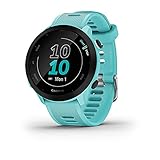
- Easy-to-use running watch monitors heart rate (this is not a medical device) at the wrist and uses GPS to track how far, how fast and where you’ve run
- Battery life: up to 2 weeks in smartwatch mode; up to 20 hours in GPS mode
- Plan your race day strategy with the PacePro feature (not compatible with on-device courses), which offers GPS-based pace guidance for a selected course or distance
- Run your best with helpful training tools, including race time predictions and finish time estimates
- Track all the ways you move with built-in activity profiles for running, cycling, track run, virtual run, pool swim, Pilates, HIIT, breathwork and more
Preventing and fixing duplicate uploads
Duplicate activities usually happen when more than one service is pushing data into Strava. Common examples include syncing Garmin to Apple Health, then Apple Health to Strava, or manually uploading files alongside automatic sync.
The cleanest setup is one source feeding Strava directly. If Garmin is your primary device, disable Strava uploads from Apple Health, TrainingPeaks, or other platforms unless you explicitly need them.
If duplicates already exist, delete the extra copy in Strava rather than in Garmin Connect. Removing it from Strava does not affect your original Garmin data and avoids re-triggering another sync.
Managing edits without breaking sync logic
Garmin treats synced activities as read-only once they leave its ecosystem. If you change titles, descriptions, gear, or activity types, do it in Strava and consider Garmin Connect your archive of raw data.
Avoid deleting and re-uploading activities unless absolutely necessary. This can confuse Strava’s duplicate detection and may remove kudos, comments, or segment efforts tied to the original upload.
If you must re-upload a corrected activity file, delete the old Strava entry first, wait a few minutes, then upload the new file manually. This reduces the chance of Strava blocking it as a duplicate.
Understanding delays and partial data syncs
Most activities sync within seconds, but longer workouts, low-connectivity uploads, or server congestion can cause delays. This is normal and does not mean the connection is broken.
If an activity appears without heart rate, power, or GPS details at first, give it time before troubleshooting. Strava sometimes processes advanced metrics after the initial upload completes.
When metrics never appear, confirm the data exists in Garmin Connect. If it is missing there, the issue is with recording or device settings, not the Strava connection.
When multiple Garmin devices are in play
Using more than one Garmin watch or head unit on the same account is fully supported, but consistency matters. Make sure all devices sync through the same Garmin Connect account tied to Strava.
Mixed use, like a Forerunner for runs and an Edge for cycling, works best when both devices are fully updated and synced before checking Strava. This avoids partial uploads or timing mismatches.
If you frequently switch devices, keep an eye on battery levels and sync status. A workout recorded on a low-battery device may save locally but fail to upload until it reconnects later, creating confusion if you expect instant Strava updates.
FAQs and Expert Notes: Unsyncing, Re-Syncing Old Activities, and Best Practices
By this point, your Garmin and Strava accounts should be talking to each other reliably. This final section answers the questions that come up after the initial setup, especially when you want more control over what syncs, what doesn’t, and how to keep everything running smoothly long term.
How do I disconnect Garmin from Strava?
If you ever want to stop activities from flowing into Strava, the cleanest method is to disconnect the integration inside Garmin Connect. On mobile or desktop, go to Settings, then Connected Apps, select Strava, and choose Disconnect.
This immediately stops future uploads but does not delete activities already on Strava. Anything synced before disconnection remains visible, along with kudos, comments, and segment results.
Avoid disconnecting and reconnecting repeatedly unless you have a specific reason. Frequent toggling can cause missed uploads or confusion about which activities were already sent.
What happens if I reconnect later?
Reconnecting Garmin to Strava does not trigger a full historical re-sync by default. Only new activities recorded after reconnection will upload automatically.
This behavior is intentional and prevents duplicate activities. Garmin and Strava both assume that older workouts have already been handled unless you take manual action.
If your goal is a fresh start with only new workouts going forward, reconnecting is safe and simple. Just don’t expect past activities to suddenly appear.
Can I re-sync old Garmin activities to Strava?
Yes, but it requires a manual process. Garmin does not offer a one-click option to bulk resend old activities to Strava.
To re-sync a specific workout, export the activity file from Garmin Connect, usually as a FIT or GPX file, then upload it manually to Strava using the web interface. This gives you full control over what gets added back.
If the activity already exists on Strava, delete it there first before uploading the file. Waiting a few minutes between deletion and re-upload helps Strava recognize it as a new entry rather than a duplicate.
Why are some old activities missing from Strava?
Most commonly, this happens when the Garmin–Strava connection was created after those activities were recorded. Garmin only auto-syncs workouts logged after the link is active.
Privacy settings can also block uploads. Activities marked as private or hidden in Garmin Connect may not transfer, depending on your account configuration.
In rare cases, server outages or interrupted uploads can skip an activity. If it shows correctly in Garmin Connect but never appeared in Strava, manual upload is the fastest fix.
Does unsyncing delete data from either platform?
No. Disconnecting only stops future sharing and does not remove historical data from Garmin Connect or Strava.
Garmin remains your source of truth for raw activity files, including full sensor data, battery usage, and device-specific metrics. Strava focuses on analysis, social features, and segments built on top of that data.
Think of the connection as a one-way bridge for new activities, not a live mirror that deletes content when unplugged.
Best practices for long-term, trouble-free syncing
Sync your Garmin device to Garmin Connect as soon as possible after finishing a workout. This reduces the risk of corrupted uploads, missing metrics, or time zone issues, especially after travel.
Keep both Garmin Connect and Strava apps updated. Software updates often include quiet fixes for background syncing, battery optimization conflicts, and permission handling on iOS and Android.
Let Garmin handle recording and Strava handle presentation. Record, edit, and correct data in Garmin first when needed, then do titles, descriptions, gear, and privacy tweaks in Strava.
Managing privacy and visibility without breaking sync
Set your default privacy preferences in Strava, not Garmin. Strava applies visibility rules after the upload, which avoids conflicts or partial data displays.
If you want certain activities to stay private, like indoor workouts or test sessions, change their visibility in Strava after they sync. This preserves the data while keeping it off your public feed.
Avoid making activities private in Garmin with the expectation that Strava will override it later. In some cases, those workouts may never upload at all.
Expert note on battery life and upload reliability
Low battery devices can record activities correctly but delay uploads until they recharge and reconnect. This is especially common with longer GPS workouts on older watches or head units.
If an activity does not appear on Strava right away, check the sync status in Garmin Connect before troubleshooting further. Patience often solves what looks like a broken connection.
As a rule, syncing once per day and keeping your device comfortably above low-battery warnings leads to the most consistent results.
Final takeaway
When Garmin and Strava are linked correctly, the system largely takes care of itself. Most issues come from disconnecting too often, re-uploading without deleting first, or expecting old activities to sync automatically.
Treat Garmin Connect as your recording and storage hub, and Strava as your analysis and sharing layer. Follow the best practices above, and your activities will move between platforms quietly, reliably, and without frustration.
Once set up this way, you can focus on training, not troubleshooting, and trust that every run, ride, or workout ends up exactly where it should.