If you have ever assumed getting music onto a Wear OS watch would be as simple as syncing a playlist and heading out the door, you are not alone. Wear OS music support has changed repeatedly over the years, with Google retiring services, apps gaining and losing features, and hardware differences between watches quietly shaping what is possible. The result is a lot of confusion, especially for people who want reliable, phone-free music for workouts or commuting.
This section is about setting realistic expectations before you start tapping download buttons. By the end, you will understand exactly how Wear OS handles music playback, which methods actually work today, and why some watches feel liberating while others feel oddly restricted. That context matters, because choosing the right approach now saves hours of troubleshooting later.
What “music playback” really means on Wear OS
At a basic level, Wear OS can play audio directly from the watch to Bluetooth headphones or earbuds, without your phone nearby. This works across modern Wear OS 3 and newer watches from Samsung, Google, Mobvoi, and Fossil, as long as Bluetooth audio is supported, which it almost always is.
However, there are three very different ways music reaches your watch: streaming over Wi‑Fi or LTE, offline downloads stored on the watch, and manually transferred local audio files. Each method has different requirements, app support, and limitations, and not all watches handle all three equally well.
🏆 #1 Best Overall

- AI Smartwatch with App Downloads & 32GB Storage – Download apps directly to your watch and store music, videos, and files with built-in 32GB storage, giving you smartphone-like functionality on your wrist.
- 2.04” Full Touch Display with Custom Watch Faces – Enjoy a large, vivid 2.04-inch full screen with smooth touch response and customizable watch faces to match your style, mood, or daily activity.
- Voice Assistant, Music & Video Playback – Control tasks hands-free using the built-in voice assistant, listen to music, or watch videos anytime, making your smartwatch more than just a fitness tracker.
- Advanced Health Tracking All Day – Monitor heart rate, blood oxygen (SpO₂), sleep quality, and daily activity 24/7 to help you stay informed and maintain a healthier lifestyle.
- 100+ Sports Modes & Smart Activity Tracking – Track over 100 sports and workouts with accurate motion data, ideal for gym training, outdoor exercise, and everyday fitness goals.
Streaming music directly from the watch
Streaming means your watch pulls music in real time over an internet connection, either Wi‑Fi or built‑in LTE on cellular models. This is the most hands-off option, but also the least reliable for workouts, especially outdoors.
On Wear OS, streaming support is app-dependent. Spotify, YouTube Music, and a small number of regional services offer watch apps capable of streaming, but performance depends heavily on signal strength and battery capacity. LTE watches drain power quickly when streaming, often losing 20 to 30 percent battery in a long run, while Wi‑Fi streaming is only practical indoors.
Offline downloads for phone-free listening
Offline playback is what most people actually want: music stored locally on the watch, playing without a phone or internet connection. This is supported by Spotify and YouTube Music on Wear OS, but only for users with paid subscriptions.
Offline downloads are also limited by watch storage. Many Wear OS watches offer between 8GB and 32GB total storage, but only a portion is available for media after system files and apps. In real-world use, that usually translates to a few hundred songs at most, which is plenty for workouts but not for massive libraries.
Local file transfers and sideloaded music
If you own MP3s, AAC files, or other local audio, you can still get them onto many Wear OS watches, but the process is far less polished. This typically involves transferring files from your phone or computer using a file manager app or companion software, then playing them through a third-party music player.
This method works best for tech-savvy users and older Wear OS models, but it comes with trade-offs. Playlist management is manual, album art support is inconsistent, and background playback controls are often less refined than official streaming apps.
Why your watch model matters more than you think
Not all Wear OS watches are created equal when it comes to music. Processor speed affects download times and UI responsiveness, while RAM impacts how reliably music apps stay open during workouts. Cheaper or older models may stutter when syncing playlists or drop Bluetooth connections under load.
Comfort and design also matter more than expected. A heavy watch with a thick case can become distracting during long runs, and poor strap materials can trap sweat, making music playback the least of your concerns. Samsung’s Galaxy Watch line and Google’s Pixel Watch tend to balance performance, comfort, and battery life better than most budget options.
Bluetooth headphones are mandatory
Wear OS watches do not have usable speakers for music listening. Even models with loud notification speakers are not designed for continuous audio playback, both for sound quality and battery reasons.
That means Bluetooth headphones or earbuds are non-negotiable. Stable Bluetooth connections are generally good on modern Wear OS hardware, but cheaper earbuds can introduce lag, dropouts, or pairing issues, especially during workouts with lots of arm movement.
Battery life is the silent limitation
Music playback is one of the most battery-intensive things a Wear OS watch can do. Offline playback with Bluetooth headphones is the most efficient option, but even then, long sessions can cut daily battery life in half.
Streaming over LTE is the worst-case scenario, often forcing a recharge before the day is over. If your watch already struggles to last a full day with notifications and fitness tracking, music playback will expose that weakness quickly.
What Wear OS cannot do anymore
Google Play Music is gone, and with it the simple drag-and-drop syncing many early Wear OS users loved. There is no universal music manager built into Wear OS today, and Google has largely left music playback to third-party apps.
There is also no guarantee that every Android music service will ever support Wear OS properly. App availability, offline support, and download limits are controlled by each service, not by Google or your watch manufacturer.
Why understanding these limits matters before setup
Knowing what your watch can and cannot do helps you choose the right music strategy from the start. Some users are best served by Spotify offline playlists, others by YouTube Music, and some by local file transfers if subscriptions are not appealing.
In the next part of this guide, we will break down exactly which music apps work on Wear OS today, what features they support, and how to decide which option fits your watch, your workouts, and your daily routine.
What You Need Before You Start: Subscriptions, Storage, Headphones, and Connectivity
Before you install apps or start syncing playlists, it is worth pausing to make sure your watch, phone, and accessories are actually ready for on‑wrist music. Most Wear OS music frustrations come from missing one of these prerequisites, not from the watch itself.
Think of this as laying the foundation. Once these pieces are in place, the setup steps in the next sections become far smoother and far less error‑prone.
Music subscriptions: what is required and what is optional
For most people, a paid subscription is the simplest path to offline music on a Wear OS watch. Spotify Premium and YouTube Music Premium are currently the most reliable options, and both allow direct downloads to the watch for phone‑free listening.
Free tiers usually work only for streaming with your phone nearby. Offline playback, background listening, and LTE streaming are almost always locked behind a subscription, even if the app itself installs on the watch.
If you prefer owning your music outright, local MP3 or AAC files are still viable. This route avoids subscriptions entirely, but it requires manual transfers and third‑party apps, and it demands more patience during setup.
Storage space: the hidden bottleneck on many watches
Wear OS watches rarely advertise usable storage clearly, and the number on the spec sheet is misleading. A watch listed with 16 GB of storage may only have 6 to 9 GB available once the system, apps, and cached data are accounted for.
As a rough guide, a one‑hour playlist at standard streaming quality takes about 50 to 70 MB. High‑quality downloads can double that, and podcasts or audiobooks can consume even more space than music.
Older models from Fossil, Mobvoi, and early Samsung Galaxy Watch generations are especially tight on storage. Newer Pixel Watch and Galaxy Watch models are better, but still not generous compared to a phone.
Bluetooth headphones: compatibility matters more than brand
Any Bluetooth headphones can pair with a Wear OS watch, but not all perform equally in real‑world use. Fitness‑focused earbuds with stable connections and physical buttons tend to work better than touch‑only models during workouts.
Codec support is basic on Wear OS. SBC is universal, AAC works well on many watches, and advanced codecs like aptX are hit or miss depending on the chipset and manufacturer.
If your earbuds struggle to reconnect automatically or drop audio when you swing your arms, the problem is usually the earbuds, not the watch. This becomes painfully obvious during runs, gym sessions, or outdoor walks.
Connectivity: phone, Wi‑Fi, and LTE all play different roles
Most music syncing still happens through your phone, even when downloading directly to the watch. The Wear OS app on your phone acts as the control hub, and breaking that connection mid‑sync is a common cause of failed downloads.
Wi‑Fi dramatically speeds up playlist downloads compared to Bluetooth alone. If your watch supports Wi‑Fi and you are syncing large playlists, keep it on the charger and connected to a stable network.
LTE is optional and power‑hungry. It allows true phone‑free streaming, but battery drain is severe, and not all music apps support LTE streaming equally well.
Battery health and charging habits
Downloading music is almost as demanding as playing it. Large playlist syncs can heat the watch, slow performance, and drain the battery quickly if done off the charger.
For best results, charge the watch to at least 70 percent before syncing and leave it on the charger during large downloads. This reduces failures and prevents the system from throttling background tasks.
Watches with smaller cases and thinner profiles, while more comfortable for daily wear, typically have smaller batteries. That trade‑off becomes very obvious once music enters the picture.
Account logins and permissions you will be asked for
Music apps on Wear OS require the same account you use on your phone. If your phone app is logged into a different account than your watch app, downloads may silently fail or never start.
Expect permission prompts for storage access, background activity, and Bluetooth. Denying these can break offline playback, especially on newer versions of Android and Wear OS with aggressive battery management.
If something feels stuck, signing out and back in on both phone and watch is often faster than troubleshooting individual permission toggles.
Model‑specific quirks worth knowing upfront
Samsung Galaxy Watches running Wear OS often prioritize Samsung services in system menus, but Spotify and YouTube Music work normally once installed. Just be prepared for extra prompts related to Samsung accounts.
Pixel Watch models offer the cleanest Wear OS experience, but limited battery capacity means music playback has a bigger impact on daily endurance than on bulkier rivals.
Mobvoi and Fossil watches can handle music well, but older hardware may slow during downloads or struggle with large libraries. Keeping playlists small improves reliability and responsiveness.
Streaming Music on Wear OS: Spotify, YouTube Music, and Other Supported Apps
Once you understand the battery, storage, and account quirks outlined above, streaming apps become the most convenient way to get music onto a Wear OS watch. These apps handle syncing, playback controls, and Bluetooth audio far better than manual file transfers, but each service behaves a little differently depending on your watch model and subscription tier.
Not every music app on Android has a proper Wear OS counterpart, and fewer still support offline playback. Knowing which ones are worth installing saves a lot of frustration.
Spotify on Wear OS: the most complete option overall
Spotify remains the most full‑featured music app on Wear OS and works across Pixel Watch, Samsung Galaxy Watch, Fossil, and Mobvoi models. It supports streaming, offline downloads, playback directly from the watch, and Bluetooth headphone control without needing your phone nearby.
To use offline playback, you need a Spotify Premium subscription. Free accounts can stream when connected to your phone but cannot download music to the watch itself.
How to download Spotify music to your watch
Install Spotify on both your phone and watch, then log into the same account on both devices. On the watch, navigate to a playlist or album and tap Download, then leave the watch on its charger while syncing.
Downloads are initiated from the watch, not the phone. This surprises many users and is a common reason people think downloads are broken when nothing starts.
Spotify playback experience and battery impact
Once synced, Spotify plays reliably over Bluetooth headphones with minimal stutter on modern Wear OS hardware. Galaxy Watch 5 and 6 models handle this especially well thanks to larger batteries and efficient Bluetooth radios.
Expect roughly 10 to 20 percent battery drain per hour of offline playback depending on volume, watch size, and whether fitness tracking is running simultaneously. LTE streaming drains significantly more and is best reserved for short sessions.
Common Spotify issues and quick fixes
If downloads stall at 0 percent, confirm the watch is connected to Wi‑Fi and placed on the charger. Spotify will often refuse to sync large playlists over Bluetooth alone.
If music disappears after syncing, check that Spotify has not been set to automatically clear downloads when storage runs low. Clearing the app cache on the watch and restarting it resolves most stubborn cases.
YouTube Music on Wear OS: tightly integrated, slightly fussier
YouTube Music is Google’s default music service on Wear OS and comes preinstalled on Pixel Watch models. It also works on Samsung and other Wear OS watches, though it may need to be manually installed from the Play Store.
Offline downloads require a YouTube Music Premium or YouTube Premium subscription. Without it, playback is limited to phone‑connected streaming.
Rank #2

- Includes all versa 2 features plus a premium jacquard woven band, an extra classic silicone band
- Use amazon Alexa built in to get quick news and information, check the weather, set timers and alarms, control your smart home devices and more all through the sound of your voice (third party app may be required; amazon Alexa not available in all countries)
- Based on your heart rate, time asleep and restlessness, sleep score helps you better understand your sleep quality each night. Also, track your time in light, deep and REM sleep stages and get personal insights. Operating temperature is -10° to 60° C
- Control your Spotify app, download Pandora stations and add Deezer playlists plus store and play 300 plus songs on your wrist (subscription required; Pandora is us only)
- With a larger display and an always on option, your information’s always a quick glance away (always on display requires more frequent charging)
Downloading playlists with YouTube Music
Downloads are triggered from the watch app, not the phone, similar to Spotify. Choose a playlist, album, or station, then tap Download and keep the watch charging during the process.
Sync speeds are often slower than Spotify, especially on watches with older processors or limited RAM. Smaller playlists tend to download more reliably than large mixed libraries.
YouTube Music strengths and weaknesses on the wrist
YouTube Music excels if your library is built around uploads, remixes, or live recordings that are not available on Spotify. Voice search also works well on Pixel Watch models thanks to deeper Google Assistant integration.
Battery drain is slightly higher than Spotify in many cases, particularly during streaming. Offline playback narrows the gap, but YouTube Music is still a heavier app overall.
Troubleshooting YouTube Music sync problems
If downloads repeatedly fail, confirm Background activity and Battery usage are unrestricted for the app in the watch settings. Wear OS can aggressively suspend YouTube Music during long syncs.
Signing out of your Google account on the watch and signing back in often fixes cases where playlists appear but never download.
Other music apps: what works and what doesn’t
Amazon Music technically has a Wear OS app, but support is inconsistent and offline playback is limited or absent depending on region and watch model. It is not a reliable choice for phone‑free workouts.
SoundCloud offers basic streaming controls on Wear OS but does not support offline downloads. It works best as a remote control for your phone rather than a standalone music solution.
Several services that once supported Wear OS, including Deezer, no longer offer a fully functional watch app with offline playback. If offline music is your priority, avoid relying on legacy support claims in app descriptions.
What is still not supported on Wear OS
Apple Music does not have a Wear OS app and cannot download or stream directly on the watch. It can only be controlled from the phone via generic media controls.
Podcast apps vary widely, and many rely on phone playback rather than true on‑watch downloads. Music apps remain the most mature category for standalone Wear OS audio.
Streaming over LTE versus offline playback
If your watch has LTE, Spotify and YouTube Music can stream without a phone, but this is the most battery‑intensive option. Smaller watches like the Pixel Watch can lose a third of their battery in under two hours of LTE streaming.
Offline playback paired with Bluetooth headphones offers the best balance of reliability, audio quality, and battery life. Even on LTE models, downloading music first is the smarter long‑term approach.
Storage considerations across different watch models
Most Wear OS watches offer between 8GB and 32GB of internal storage, but only a portion is available for media. System files and apps consume more space than most people expect.
High‑capacity models like the Galaxy Watch 6 Classic are better suited for large playlists, while slimmer watches benefit from curated workout mixes rather than full libraries. Keeping music storage intentional improves performance and reduces sync failures.
How to Download Music for Offline Listening on Wear OS (Phone-Free Playback)
With storage limits and battery life already in mind, the next step is getting music physically onto the watch so it plays without a phone or LTE connection. Offline playback is where Wear OS shines when everything is set up correctly, but the process varies sharply by app and watch brand.
Before you start, you’ll need three things: a compatible music service subscription, Bluetooth headphones paired directly to the watch, and enough free storage to hold your downloads. It also helps to have the watch on its charger and connected to Wi‑Fi, since syncing over Bluetooth alone is slow and error‑prone.
Downloading music using Spotify on Wear OS
Spotify remains the most reliable and widely supported offline music option on Wear OS. Offline downloads require Spotify Premium and a watch running Wear OS 2.0 or newer, which includes essentially every modern model from Samsung, Google, Fossil, and Mobvoi.
Start by installing Spotify on both your phone and your watch, then open Spotify on the watch while it’s connected to Wi‑Fi. Navigate to Your Library, choose a playlist or album, and tap Download to watch.
Downloads are initiated on the watch, not pushed from the phone, which is a common point of confusion. You cannot download individual songs; only full playlists, albums, or podcasts marked as downloadable.
Spotify limits offline storage to roughly 50 hours of music per device, but real-world limits are often lower due to watch storage constraints. On an 8GB watch like the Pixel Watch, expect room for about 4 to 6 hours of music after system files.
Battery drain during playback is moderate and predictable. With Bluetooth headphones and offline playback, most watches manage 5 to 7 hours of continuous listening, making Spotify ideal for long runs, gym sessions, or commuting.
Downloading music using YouTube Music on Wear OS
YouTube Music has improved significantly on Wear OS, particularly on newer watches running Wear OS 3 or later. Offline downloads require a YouTube Music Premium subscription.
Install YouTube Music on the watch and ensure it’s connected to Wi‑Fi. From the Library or Downloads section, select a playlist or album and choose Download.
Unlike Spotify, YouTube Music’s watch app can feel slower and less responsive, especially on older processors like the Exynos W920 or Snapdragon Wear 4100. Be patient during large downloads and keep the watch on its charger to avoid stalls.
Audio quality is solid, but battery consumption is slightly higher than Spotify during playback. If you already subscribe to YouTube Music, it works well enough for offline use, but it’s less forgiving of interrupted downloads.
Transferring your own MP3 files to Wear OS (local music files)
If you own your music or want full control without subscriptions, local file transfers are still possible on Wear OS. This method works across most brands but requires more manual setup.
The simplest approach is using a file manager app on the watch, such as NavExplorer or similar tools that support Wi‑Fi or Bluetooth transfers. You copy MP3 files from your phone or computer into the watch’s Music folder.
Once transferred, you’ll need a compatible offline music player installed on the watch. Options are limited compared to phones, but basic players handle playlists, album art, and Bluetooth output reliably.
This method avoids subscription fees and streaming limits, but it is storage‑intensive and lacks cloud syncing. It works best for smaller, carefully curated libraries rather than full collections.
Samsung Galaxy Watch considerations
Samsung Galaxy Watch models running Wear OS include additional flexibility thanks to Samsung Music. You can sync MP3 files directly from your phone using the Galaxy Wearable app without third‑party tools.
This is one of the smoothest local file workflows on Wear OS, especially for users who already manage music files. Playback is stable, battery impact is low, and integration with Samsung earbuds is seamless.
However, Samsung Music does not support streaming services. You’ll still need Spotify or YouTube Music if you want subscription-based offline downloads.
Common problems with offline downloads and how to fix them
If downloads never start or stall at 0 percent, the watch is usually not on Wi‑Fi. Wear OS often defaults to Bluetooth, which is too slow for music syncing, so manually enable Wi‑Fi in settings.
When music appears downloaded but won’t play without a phone, confirm that Bluetooth headphones are connected directly to the watch. Playback will fail if the watch is trying to route audio through a missing phone connection.
Storage errors are common on smaller watches. Delete unused apps, watch faces, and old playlists, then restart the watch before retrying downloads.
If an app repeatedly crashes or refuses to sync, uninstall it from the watch, reboot, and reinstall directly from the Play Store on the watch. This clears corrupted cache files that updates sometimes leave behind.
Managing storage and playlists for long-term reliability
Wear OS watches perform best with smaller, intentional playlists rather than massive libraries. A few workout mixes or albums load faster, sync more reliably, and reduce background processing.
High-resolution audio offers no real benefit on smartwatch hardware and Bluetooth earbuds. Standard quality downloads save space and improve battery life without audible downsides.
Treat your watch like a lightweight music companion, not a phone replacement. When curated carefully, offline playback on Wear OS is one of the most liberating features for workouts and daily wear.
Using LTE vs Bluetooth Models: How Music Works Without Your Phone Nearby
Once you’ve set up offline playlists or transferred local files, the next big variable is your watch’s connectivity. Whether your Wear OS model is Bluetooth-only or includes LTE dramatically changes how music behaves when your phone isn’t around.
This distinction affects not just streaming, but battery life, reliability, and what you can realistically expect during workouts, commutes, or travel.
Bluetooth-only Wear OS watches: offline is the whole game
On Bluetooth-only models, all phone-free music listening depends on files stored directly on the watch. There is no fallback to streaming once you leave your phone behind.
This means Spotify, YouTube Music, or Samsung Music must finish downloading playlists in advance over Wi‑Fi. If the music isn’t already stored locally, playback simply won’t start.
In daily use, this setup is surprisingly reliable. During runs or gym sessions, Bluetooth watches paired with true wireless earbuds maintain a stable connection and minimal lag, provided the earbuds connect directly to the watch and not to your phone.
Battery drain is also more predictable. Playing downloaded music over Bluetooth typically uses less power than LTE streaming, making Bluetooth-only watches better suited to longer workouts or all-day wear on smaller cases like 40–42mm models.
LTE Wear OS watches: streaming freedom with real trade-offs
LTE-equipped watches add a second option: live streaming without your phone nearby. If your watch has an active LTE plan and signal, apps like Spotify or YouTube Music can stream tracks on demand.
This is useful for spontaneous listening, discovering new music, or loading playlists you forgot to download before heading out. It’s also convenient for commuters who want full streaming access without carrying a phone.
The trade-off is battery life. Continuous LTE streaming is one of the fastest ways to drain a smartwatch battery, especially on compact cases or watches with smaller cells. Expect noticeably shorter runtime compared to offline playback.
Signal quality also matters. In weak LTE areas, streams may pause, buffer, or fail entirely, while downloaded music would have played flawlessly.
How LTE actually behaves with offline music
Even on LTE models, offline downloads still behave exactly like they do on Bluetooth-only watches. Once music is stored locally, playback does not use LTE at all.
Rank #3

- 【Ultimate Convenience】Seamlessly transition from tracking your heart rate during an intense workout to immersing yourself in your favorite playlists without missing a beat. This multifunctional smartwatch with integrated wireless headphones simplifies your life by consolidating essential tech into one sleek device.
- 【Smart Connectivity】Stay effortlessly connected wherever you are. With Bluetooth connectivity, this smartwatch lets you take calls, receive notifications, and control your music playlist directly from your wrist. Experience the convenience of hands-free communication and entertainment, keeping you in the loop without slowing you down.
- 【Buit-in Bluetooth Earbuds】Cutting-edge Bluetooth 5.3 technology,Enjoy seamless connectivity and faster transmission with the most advanced Bluetooth version available. Stay connected without interruptions or audio drops. Unparalleled sound quality,Immerse yourself in rich, high-quality audio with crystal-clear sound and deep bass. Experience your favorite music and calls like never before.
- 【All-in-One Design】The Ateclouds Smart Watch combines a smartwatch, Bluetooth Earbuds, MP3 player, and Bluetooth speaker in one stylish device.No need to carry multiple gadgets anymore.Apart from being a smartwatch, this device allows you to listen to music, answer calls,track your fitness activities, and even use it as a portable Bluetooth speaker. It's the ultimate companion for your active lifestyle.
- 【More Practical Functions】Make Answer/Calls,Recording,Find mobile phone,Call reminder,Sedentary reminder,Smart alarm clock,Sleep management,Remote Camera, Step counting, Weather,Stopwatch Calories,Time display,Heart rate,Blood oxygen,Information reminder(Facebook,Twitter,Whatsapp,Instagram,SMS) and so on.
This is important because Wear OS does not intelligently switch between offline and streaming mid-playlist. If you start playing a downloaded playlist, the watch stays offline unless you manually select content that isn’t stored.
For battery health and reliability, most experienced users treat LTE as a backup rather than a default. Download core playlists, then use LTE only when needed.
Headphones matter more than connectivity
Regardless of LTE or Bluetooth model, your headphones must pair directly with the watch. Wear OS cannot play audio without a Bluetooth audio device, even if LTE is active.
Some connection issues blamed on LTE are actually earbud problems. If playback fails, recheck that the earbuds are connected to the watch’s Bluetooth menu, not remembered as a phone accessory.
Higher-end earbuds with multipoint Bluetooth can occasionally confuse Wear OS. If you experience random dropouts, disabling multipoint or forgetting the phone connection often stabilizes playback.
Data plans, costs, and hidden limitations
LTE music streaming uses your watch’s cellular data plan, not your phone’s. Many carriers cap smartwatch data speeds or deprioritize traffic during congestion, which can affect audio quality.
Most music apps default to standard streaming quality on Wear OS, which helps reduce data use but may still consume hundreds of megabytes over a week of listening.
If you don’t already have an LTE plan, adding one purely for music rarely makes financial sense. Offline downloads on a Bluetooth model deliver nearly the same experience for workouts and daily wear.
Choosing the right model for your listening habits
If your priority is dependable music during workouts, Bluetooth-only watches offer the best balance of battery life, simplicity, and value. Once set up, they just work.
LTE models make sense for users who truly want phone-free independence across calls, messages, navigation, and occasional music streaming. For music alone, LTE is a convenience, not a necessity.
In real-world wear, the most satisfying setup combines offline playlists, direct Bluetooth earbuds, and realistic expectations about storage and battery. When you treat LTE as optional and offline as essential, Wear OS delivers its best music experience.
Transferring Local MP3 Files to a Wear OS Watch (Manual and Third-Party Methods)
If streaming and app-based downloads feel restrictive, local MP3 transfers remain the most flexible way to get music onto a Wear OS watch. This approach works without subscriptions, avoids data usage entirely, and gives you full control over files, formats, and playlists.
Local transfers are especially useful for workouts, travel, or older music libraries that never lived in a streaming service. The trade-off is that setup varies by brand and software version, and the experience is more utilitarian than polished.
Before you start: what actually works on Wear OS
Wear OS does not support drag-and-drop file transfer like a USB flash drive. Even when connected to a computer, most watches expose only charging, not storage access.
Music must be transferred through a companion phone app, a third-party Wear OS music player, or a Wi‑Fi-based sync tool. Once files are on the watch, playback depends entirely on the app you use.
File compatibility is generally solid. MP3 works universally, AAC usually works, and FLAC support varies by app and can impact battery life on smaller processors.
Method 1: Using manufacturer tools (Samsung-only)
Samsung remains the exception in the Wear OS world. Galaxy Watch models running Wear OS include built-in music transfer tools inside the Galaxy Wearable app.
On your phone, open Galaxy Wearable, navigate to Watch settings, then Music or Manage content. From there, you can select MP3 files stored on your phone and transfer them directly to the watch.
The process runs over Bluetooth or Wi‑Fi, depending on file size and connection quality. Large transfers are noticeably faster when both devices are on the same Wi‑Fi network.
Playback happens through Samsung Music on the watch. The app is basic but reliable, supports playlists, and handles Bluetooth earbuds well during workouts.
This method is limited to Samsung watches, but it remains the cleanest local music solution on Wear OS. Battery impact is predictable, and files remain accessible even after resets if backed up properly.
Method 2: Third-party Wear OS music players (most watches)
For non-Samsung watches from Google, Fossil, Mobvoi, and others, third-party apps fill the gap. These apps handle both file transfer and on-watch playback.
NavMusic is the most established option. It installs on both phone and watch, allowing you to select folders or tracks on your phone and sync them wirelessly to the watch.
WearMedia is another option with a simpler interface, though transfer speeds can be slower on older watches. Both apps store files locally and work fully offline once synced.
Transfers usually happen over Wi‑Fi, even if initiated via Bluetooth. Keeping the watch on its charger during large syncs helps avoid timeouts and battery drain.
These apps are not pretty, but they are functional. Expect basic album art, simple playlists, and no cloud sync, but reliable playback during runs or gym sessions.
Method 3: Advanced manual transfers using ADB (power users)
For users comfortable with developer tools, Android Debug Bridge allows direct file pushing to a Wear OS watch. This is the most manual method and the least beginner-friendly.
You must enable Developer options on the watch, turn on ADB debugging, and connect via Wi‑Fi ADB from a computer. Files are then pushed directly into the watch’s internal storage.
This method bypasses phone apps entirely but still requires a compatible music player on the watch to see and play the files. Not all players scan arbitrary directories correctly.
ADB transfers are fast and precise, but fragile. A software update, permission change, or factory reset can break the workflow, making it best suited for enthusiasts rather than everyday users.
Storage limits and real-world file management
Most Wear OS watches offer between 8GB and 32GB of total storage. After system files and apps, usable space for music is often closer to half of that.
A typical 5MB MP3 means roughly 500 to 1,000 songs at most, depending on your watch. High-bitrate files reduce that quickly and offer minimal benefit through Bluetooth earbuds.
Creating workout-length playlists rather than dumping entire libraries keeps syncing faster and navigation easier on small screens. This also improves battery life during playback.
Common problems and how to fix them
If files transfer but do not appear in the music app, force-close the app and trigger a manual rescan if available. Rebooting the watch often fixes indexing issues.
If transfers fail repeatedly, check Wi‑Fi permissions and battery optimization settings on your phone. Aggressive background limits can interrupt long syncs.
Playback stuttering usually points to Bluetooth issues, not the music files themselves. Re-pair earbuds directly with the watch and remove the phone connection to stabilize audio.
If an app stops working after a Wear OS update, check Play Store compatibility notes. Third-party music apps sometimes lag behind system updates, especially on newer Pixel Watch releases.
Local MP3 transfers are not the most elegant part of Wear OS, but they remain the most dependable. Once set up correctly, they deliver exactly what many smartwatch owners want: simple, phone-free music that works every time you lace up and head out the door.
Model-Specific Notes: Pixel Watch, Galaxy Watch, Fossil, Mobvoi, and Storage Limits
All Wear OS watches technically support the same core methods for getting music onboard, but in daily use they behave very differently. Hardware choices, software forks, and manufacturer priorities all shape how painless—or frustrating—offline music becomes.
What follows are the real-world differences you will run into depending on which watch is on your wrist, and what that means for storage, syncing, and playback reliability.
Pixel Watch and Pixel Watch 2
Pixel Watch models offer the cleanest Wear OS experience, but they are also the most tightly controlled. Google’s own hardware runs the latest Wear OS versions first, which is great for stability but sometimes rough on third-party music apps immediately after updates.
You get YouTube Music preinstalled, and it is the most reliable way to download music directly to the watch. With a YouTube Music Premium subscription, you can sync playlists over Wi‑Fi, store them locally, and play them back without your phone, which works well for runs and gym sessions.
Local MP3 transfers are possible, but more finicky here than on older Wear OS devices. Some file managers and music players struggle with Pixel Watch’s stricter storage permissions, especially after major system updates. If you rely on manual transfers, expect occasional rescans or app resets.
Storage is limited in practice. The original Pixel Watch has 32GB total, but after system files you are working with closer to 20GB. The Pixel Watch 2 is similar. That is plenty for several long playlists, but not for dumping a lossless library.
Battery life also matters. Offline playback with Bluetooth earbuds typically drains a Pixel Watch faster than streaming from a phone, so shorter playlists and moderate bitrates make a noticeable difference in real-world usability.
Samsung Galaxy Watch (Wear OS models)
Samsung’s Galaxy Watch 4, 5, 6, and newer models run Wear OS with One UI Watch layered on top. This changes the music experience more than most buyers expect.
Samsung Music is preinstalled and remains one of the best local music players on any smartwatch. It handles MP3 transfers cleanly, scans folders reliably, and works even if you never touch a streaming service. For users who want drag-and-drop simplicity, this is a major advantage.
Spotify also works exceptionally well on Galaxy Watch models. Offline downloads are stable, syncing is faster than on many other Wear OS watches, and playback controls integrate smoothly with Samsung’s system UI. A Spotify Premium subscription is still required for downloads.
YouTube Music is available, but it does not feel as deeply integrated here as it does on Pixel Watch. It works, but Samsung clearly optimizes more for Spotify and its own local playback tools.
Samsung typically includes 16GB or 32GB of storage depending on the generation. Usable space is slightly better than Pixel Watch because Samsung’s system partition is less aggressive, but you still want to be selective with what you store.
From a comfort and wearability standpoint, Galaxy Watch models are among the easiest to use for workouts with music. Physical buttons, strong Bluetooth performance, and reliable battery life make them a safe choice if offline playback is a priority.
Rank #4
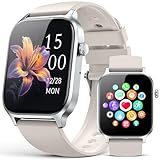
- 【Consistent Bluetooth Calling】This men and women smart watch comes with the latest Bluetooth 5.3 technology, delivering superior call performance, extended wireless range, and minimized power drain. Stay connected via vibration alerts for incoming calls, text messages, and notifications from apps including Facebook, WhatsApp, and Instagram.
- 【110 Sports Modes & All-Round Fitness Monitoring】This smartwatch suitable for both women and men, boasts a 1.85 inch HD display that delivers sharp, clear visuals. It comes equipped with 110 sports modes to keep track of a wide range of activities like walking, running, cycling, and climbing. Additionally, it integrates fitness tracker and sleep monitor, allowing you to gain a comprehensive insight into your health status. (Note: Generally, the step count on the watch will be synchronized and shown only after 15 steps have been taken.)
- 【24/7 Activity Tracking】This fitness tracker logs your steps, distance, calories burned, and rest patterns. Sync the data to check your daily progress and access personalized activity insights via the accompanying app.
- 【Versatile Compatibility & Long Battery Performance】This smartwatch pairs smoothly with both Android and iOS devices (iOS 9.0 or later, Android 6.0 or later) . A 2.5-hour full charge provides up to 7 days of everyday use or 30 days of standby mode.
- 【Practical Daily Multitools】Enjoy an extensive selection of useful features with the fitness watch, like Weather, Music Control, Find My Phone, Sedentary Reminder, Remote Photography, Rehydration Reminder, Flashlight, SOS, Games, Calculator, and others.
Fossil, Skagen, and other Fossil Group watches
Fossil Group watches like the Fossil Gen 6, Skagen Falster, and Diesel variants sit in the middle of the Wear OS music experience. They are flexible, but not always polished.
These watches generally work well with third-party music players like NavMusic or WearMedia for local MP3 playback. File transfers over Wi‑Fi are usually stable, and storage permissions tend to be less restrictive than on Pixel Watch.
Spotify offline works, but syncing can be slower and less predictable, especially if the watch is older or running a slightly delayed Wear OS update. Leaving the watch on its charger during downloads is often necessary to avoid interruptions.
Most Fossil Group watches ship with 8GB of total storage, which is the biggest limitation here. After system files, you may only have 3–4GB available for music. That translates to a few hundred songs at most, making playlist curation essential.
Battery life during music playback is acceptable but not standout. Expect faster drain than Samsung or Pixel Watch 2, especially if you are also tracking workouts or GPS.
Mobvoi TicWatch models
Mobvoi’s TicWatch lineup is popular with power users, but music support varies sharply by model and software version. Some older TicWatch models run customized or lagging Wear OS builds, which can complicate app compatibility.
Local MP3 playback is often the most dependable option here. Many TicWatch owners rely on manual file transfers paired with lightweight music players, avoiding streaming apps entirely for consistency.
Spotify support exists on newer TicWatch models, but offline syncing can be hit or miss depending on firmware. If downloads fail repeatedly, it is often due to background process limits or aggressive battery management.
Storage is usually 8GB, similar to Fossil, with limited usable space. The upside is that Mobvoi watches often include larger batteries, which helps offset the power drain from offline playback during long workouts.
Physically, TicWatch models tend to be thicker and heavier, which may matter if you plan to run or train with music frequently. The tradeoff is endurance, not elegance.
Understanding storage limits across Wear OS watches
No Wear OS smartwatch offers expandable storage, and none are designed to be full music libraries. Even at 32GB, practical limits are far lower once system files, apps, and cached data are accounted for.
Bluetooth audio compresses sound aggressively, so high-bitrate or lossless files offer little benefit. MP3s at moderate bitrates strike the best balance between quality, storage efficiency, and battery life.
If your watch supports streaming app downloads, treat offline storage as temporary. Rotate playlists in and out based on workouts, commutes, or trips rather than keeping everything synced permanently.
Choosing a watch for music is less about raw storage numbers and more about how well the software handles syncing, rescanning, and playback. In real use, a stable 8GB watch with good local playback can be more satisfying than a larger-capacity model that fights you at every step.
Battery Life, Audio Quality, and Workout Use: Real-World Music Playback Tips
Once you understand storage limits and app behavior, the next friction point is endurance. Music playback is one of the most power-hungry things a Wear OS watch can do, especially when combined with workouts, GPS, and Bluetooth headphones.
The good news is that with a few practical adjustments, most modern Wear OS watches can handle offline music reliably for runs, gym sessions, and commutes without dying halfway through.
How much battery music playback really uses
Offline music playback over Bluetooth typically consumes 8 to 15 percent battery per hour on most Wear OS watches. Add GPS tracking and a fitness app, and that can climb to 20 percent per hour or more.
Watches with larger batteries like the Galaxy Watch 5 Pro, Pixel Watch 2, or TicWatch Pro models fare noticeably better than slimmer Fossil or Skagen designs. Case thickness and weight may be less elegant, but the endurance tradeoff is real when you leave your phone behind.
Streaming over LTE is the worst-case scenario for battery life. Even watches with strong cellular radios will drain rapidly if you stream music instead of playing downloaded tracks.
Offline downloads vs streaming during workouts
For workouts, offline playback is always the smarter choice. It reduces battery drain, avoids signal dropouts, and prevents playback from stuttering when you move between coverage zones.
Spotify and YouTube Music both support offline playback on Wear OS, but only with an active subscription. You must download playlists while the watch is on Wi‑Fi and charging, not during a workout.
If you rely on local MP3 files, playback is often even more efficient. Lightweight players place less strain on background services, which can extend battery life during long sessions.
Audio quality: what actually matters on a smartwatch
Wear OS watches use Bluetooth audio codecs optimized for stability, not fidelity. Most models rely on SBC or basic AAC, regardless of the source file quality.
High-bitrate MP3s, FLAC, or lossless streams offer no meaningful advantage on-wrist. The bottleneck is the Bluetooth connection and the earbuds, not the file itself.
For the best balance, MP3 files in the 192 to 256 kbps range are ideal. They sound good enough for workouts, sync faster, and take up less space, which also helps system performance.
Headphones, pairing stability, and connection quirks
Your listening experience depends as much on earbuds as the watch. True wireless earbuds with stable Bluetooth 5.x connections tend to behave better than older models designed primarily for phones.
If your watch frequently drops audio, re-pair the earbuds directly to the watch rather than relying on phone-based pairing. Some earbuds remember multiple devices but prioritize the phone unless explicitly reconnected.
During workouts, avoid wearing the watch under tight sleeves or gloves. Body obstruction can weaken the Bluetooth signal, especially on watches with metal cases or compact antenna designs.
Balancing fitness tracking and music playback
Running GPS, heart rate monitoring, and music simultaneously is a stress test for any smartwatch. Watches with dual-band GPS or continuous heart rate sampling will burn more power when music is added.
If battery life is tight, reduce GPS accuracy settings for short runs or indoor workouts. Turning off always-on display during exercise can also save several percentage points per hour.
For strength training or treadmill sessions, disabling GPS entirely while keeping music and heart rate active dramatically improves endurance without sacrificing useful data.
Comfort and wearability during music-heavy workouts
Heavier watches become more noticeable when worn for long runs with music. Models like the Galaxy Watch 5 Pro or TicWatch Pro can feel top-heavy on smaller wrists, especially when sweat loosens the strap.
A snug, breathable strap matters more than case material. Silicone and fluoroelastomer bands stay stable during movement, while leather and metal bracelets are poor choices for music-driven workouts.
If your watch shifts during movement, Bluetooth dropouts are more likely. Secure fit improves both comfort and audio stability.
Heat, throttling, and long-session reliability
Extended music playback can cause some Wear OS watches to warm up, particularly during outdoor workouts. When heat builds up, the system may throttle background tasks.
This can lead to delayed track changes, skipped songs, or stalled fitness syncing after the workout ends. Let the watch cool down before charging to avoid compounding the issue.
Keeping your music library lean and limiting background apps reduces system load. Watches with cleaner software builds tend to handle long sessions more gracefully.
Practical battery-saving habits that actually work
Download playlists only when charging and connected to Wi‑Fi. Syncing over Bluetooth from the phone uses more power and is more prone to failure.
Disable LTE unless you truly need it. Even idle cellular radios can drain battery during music playback.
Reboot the watch once a week if you use music often. It clears stalled services and improves playback reliability, especially on watches with limited RAM.
These small habits add up, turning music playback from a gamble into a dependable part of your daily routine.
Common Problems and Fixes: Sync Failures, Missing Downloads, and Playback Issues
Even with good battery habits and a secure fit, music on Wear OS can still misbehave. Most issues come down to how apps sync content, how storage is allocated, or how Bluetooth audio is handled under load.
The good news is that nearly all problems fall into a few repeatable patterns. Once you know what to look for, fixes are usually quick and don’t require a factory reset.
Playlists refuse to sync or get stuck “waiting”
This is the most common complaint, especially with YouTube Music and Spotify offline downloads. In almost every case, the watch is trying to sync over Bluetooth instead of Wi‑Fi, or the app has stalled in the background.
First, place the watch on its charger and confirm it’s connected to Wi‑Fi directly, not just tethered to the phone. On many Samsung and Pixel watches, the Wi‑Fi icon will briefly appear only during active data transfer, so don’t assume it’s connected unless you see download progress moving.
If the sync is frozen, force close the music app on the watch, not the phone. Go to Settings > Apps > App info on the watch, stop the app, then reopen it and manually trigger the download again.
If that fails, restart both the watch and the phone. Wear OS relies on background services on both devices, and a stalled phone-side service can silently block syncs without throwing an error.
Music shows as downloaded, but won’t play offline
This usually happens when the watch hasn’t completed license validation. Streaming services require periodic online checks, even for offline files.
Open the music app on the watch while connected to Wi‑Fi and start playback once. Let a song play for 10 to 15 seconds to refresh the offline license, then try again in airplane mode.
If the app still refuses to play, check that you’re signed into the same account on both phone and watch. Logging out and back in on the watch often resolves mismatched credentials, especially after a phone upgrade or password change.
Downloaded songs disappear after a reboot
If music vanishes after restarting the watch, storage permissions or background restrictions are usually to blame. Some Wear OS builds aggressively manage storage when space is low.
💰 Best Value

- Fits wrists with a circumference of 125-190 mm.Supported Application:GPS. Connectivity technology:GPS. Wireless comm standard:Bluetooth
- Get an uninterrupted picture of your health with up to 6 days of battery life in smartwatch mode
- Go longer with up to 6 hours of battery life in GPS mode with music
- See everything clearly on a bright color display that includes an always-on mode, perfect for quick glances
- Health is important to you, so monitor everything from your Body Battery energy levels, respiration, hydration and stress to sleep, your menstrual cycle, estimated heart rate and more
Check available storage in Settings > Storage. If you’re under 1 GB free, the system may purge cached media files without warning. Deleting unused apps often fixes this permanently.
Also disable battery optimization for your music app on the watch if the option is available. On watches with heavier skins, like Samsung’s One UI Watch, aggressive power management can interrupt downloads before they’re properly indexed.
Local MP3 files won’t transfer or show up
For users transferring their own files using apps like NavMusic or Wear Media, file format and folder structure matter more than expected.
Stick to standard MP3 or AAC files with basic metadata. Very high bitrates, unusual codecs, or malformed ID3 tags can cause files to transfer successfully but never appear in the app.
If you’re transferring via companion apps or Wi‑Fi tools, keep the watch awake during the process. Screens turning off mid-transfer can interrupt indexing, especially on watches with slower internal storage.
Bluetooth headphones cut out, lag, or won’t reconnect
Audio dropouts often have less to do with the music app and more to do with Bluetooth stability. Wear OS watches have smaller antennas, and interference becomes obvious during movement.
Pair headphones directly with the watch, not through the phone. Dual connections can confuse routing and cause random pauses or skipped tracks.
If dropouts persist, forget the headphones on both the phone and watch, then pair them fresh to the watch first. Compact earbuds with low-latency codecs tend to work better than older or multi-device models.
Playback stutters during workouts or GPS use
When music stutters during runs, the watch is usually under load. GPS, heart rate, and music decoding all compete for limited processing power.
Try switching to downloaded music instead of streaming. Offline playback reduces CPU and radio usage significantly and is more reliable during long sessions.
On watches with older chipsets or limited RAM, disabling always-on display and reducing background notifications can stabilize playback without affecting fitness tracking accuracy.
Streaming works, but offline downloads are missing
Not all Wear OS music apps support offline playback, and some limit it by region or subscription tier.
Spotify requires a Premium subscription and only allows playlists, not individual albums, on the watch. YouTube Music also requires a paid plan and can be inconsistent on older Wear OS versions.
If offline options never appear, update the app on both phone and watch, then check the watch-specific settings inside the app. Some features are hidden until the watch is detected as compatible.
Music drains the battery faster than expected
Rapid battery drain usually means LTE or background syncing is active. Cellular streaming is the fastest way to kill a watch mid-workout.
Switch to offline playback and disable LTE unless you truly need it. Even on LTE models, downloaded music paired with Bluetooth headphones uses far less power.
If battery life is still poor, check for stuck downloads or syncing services running in the background. A quick reboot often restores normal consumption.
When a reset actually makes sense
Factory resets should be the last resort, but they can help if multiple apps fail to sync and basic troubleshooting hasn’t worked.
Before resetting, uninstall and reinstall the music app on the watch, then clear its cache on the phone. This preserves your setup while fixing most corruption issues.
If you do reset, set up Wi‑Fi and music apps first before installing everything else. A clean initial sync often prevents the same issues from returning.
Frequently Asked Questions: Music Ownership, DRM Limits, and Future Wear OS Changes
After troubleshooting sync issues and battery drain, many Wear OS owners hit a deeper set of questions that aren’t about settings at all. These come down to what you actually own, what the watch is allowed to play, and how stable these options will be long-term as Google continues to evolve Wear OS.
This final section clears up the most common points of confusion so you know exactly where you stand today and what to expect tomorrow.
Do I actually own the music I download to my Wear OS watch?
In most cases, no. Music downloaded from Spotify, YouTube Music, or similar services is a temporary, encrypted cache tied to your account and subscription.
Even though the files live in the watch’s internal storage, they cannot be copied off, backed up, or played by other apps. If your subscription lapses, the app is uninstalled, or the DRM license expires, playback stops.
The only true ownership scenario is when you transfer your own DRM-free audio files, such as MP3s or FLACs you purchased outright or ripped from CDs. Those files remain playable as long as the watch and app support the format.
Why can’t I just drag music onto my watch like a USB drive?
Wear OS deliberately blocks direct file access for most users. When connected to a phone, the watch exposes no standard storage mount, and Bluetooth file transfer is disabled.
This is partly for security and partly to enforce DRM rules for streaming services. Google wants media transfers to happen through approved apps and APIs, not raw file access.
Some third-party tools use Wi‑Fi transfer or companion phone apps to move local music over, but these still rely on a media player app on the watch to index and play the files.
Which music formats actually work on Wear OS?
Most Wear OS music players support MP3 and AAC without issue. FLAC support varies by app and chipset, and high-bitrate files can stress older processors.
WAV files technically work but are inefficient, consuming large amounts of storage and battery during decoding. OGG and ALAC support is inconsistent and often unreliable.
If you are transferring your own music, MP3 at 256 kbps or AAC is the safest balance of sound quality, storage use, and playback stability on small watch speakers and Bluetooth headphones.
Is there a storage limit for offline music?
Yes, and it’s usually tighter than people expect. Many Wear OS watches ship with 8 GB to 32 GB of total storage, but a large portion is reserved for the system.
After apps, updates, and cached data, you may realistically have 2 to 6 GB available for music on older models. That translates to roughly 400 to 1,000 songs depending on bitrate.
Some apps also impose their own limits, either silently or through playlist caps, to prevent performance issues on watches with limited RAM.
Why does offline music sometimes stop working even though it’s downloaded?
This is almost always DRM-related. Streaming apps periodically require an online check-in to refresh licenses, even for offline content.
If the watch hasn’t connected to Wi‑Fi or your phone for an extended period, the app may lock playback until it re-verifies your subscription. This often surprises users who go fully phone-free for days at a time.
To avoid this, open the music app on the watch while connected at least once every week. This refreshes licenses and keeps downloads playable.
Can I use LTE watches for streaming instead of downloads?
You can, but it’s rarely ideal. LTE streaming works on supported models like the Pixel Watch LTE or Galaxy Watch LTE, but battery life drops dramatically.
Continuous streaming over cellular can cut endurance to a few hours, especially if GPS and heart rate tracking are active. Heat buildup can also cause performance throttling.
For workouts or long outings, LTE is best used for short bursts or emergencies. Offline music paired with Bluetooth headphones remains the most reliable setup.
Why did Google kill Google Play Music, and could this happen again?
Google Play Music was replaced by YouTube Music as part of Google’s broader content consolidation strategy. Wear OS users felt this change more sharply because feature parity lagged behind.
There is always some risk of app changes or removals in Google’s ecosystem, especially for niche features like on-watch playback. However, Wear OS 3 and newer versions show more stability than earlier generations.
Choosing widely supported services and keeping local backups of music you own reduces your exposure to sudden platform shifts.
Will future Wear OS updates improve offline music support?
Incrementally, yes, but not dramatically. Google’s focus has been on performance, battery efficiency, and health tracking rather than expanding media features.
Newer chipsets like Snapdragon W5 improve decoding efficiency and multitasking, which helps music playback indirectly. Larger storage options on recent watches also make offline libraries more practical.
That said, Wear OS is unlikely to become a full-fledged music management platform. It works best as a playback device, not a library organizer.
Is local music transfer worth the effort in 2026?
For many users, yes. If you value phone-free reliability, dislike subscription lock-in, or use niche audio formats, local files are the most future-proof option.
Once set up, local playback avoids DRM checks, subscription issues, and surprise app changes. It also uses less battery than streaming and behaves consistently across workouts.
The tradeoff is convenience. Streaming apps are easier to manage day-to-day, while local music rewards users willing to spend a little time upfront.
What’s the most reliable setup overall?
For most Wear OS owners, the sweet spot is offline downloads from a major service combined with Bluetooth headphones and LTE disabled.
If absolute reliability matters more than convenience, transfer your own DRM-free music and use a dedicated watch music player. This setup survives app updates, subscription changes, and poor connectivity.
No matter which route you choose, understanding these limitations upfront turns Wear OS music from a frustration into one of the platform’s most underrated features.
With the right expectations and setup, your watch becomes a genuinely capable, comfortable, and distraction-free music companion—on the treadmill, on the trail, or anywhere you want to leave your phone behind.