Smart Stack is one of those Apple Watch features that almost everyone has used, but very few people have actually understood. You’ve probably stumbled into it by accident with a swipe up, flicked past a few cards showing weather or activity, and then gone straight back to your watch face without thinking much more about it.
That’s a shame, because Smart Stack is quietly one of the most powerful interface changes Apple has made to watchOS in years. When it’s tuned properly, it can replace half your app launching, reduce how often you fiddle with complications, and make the watch feel faster and more anticipatory instead of reactive.
What most users miss is that Smart Stack isn’t just a suggestion feed you’re stuck with. It’s a system you can actively shape, prioritize, and control, and once you understand how Apple designed it to work, the rest of this guide clicks into place.
Smart Stack is not a widget screen, it’s a context engine
At a basic level, Smart Stack is a vertical stack of widgets you access by swiping up from the watch face or rotating the Digital Crown. Each widget is a glanceable card tied to an app, showing live information without opening the full app.
🏆 #1 Best Overall

- Water Resistant: Our innovative splash-proof stretchy apple watch band allows droplets slides away which makes it handle sweat, light rain, and even accidental splashes without any issues. For some types of spills on this apple watch strap, like coffee, just a quick rinse under water within 1 minute and you will get a clean band
- Variety of Colors: With 10 colors in one pack to match any outfit, these apple watch bands for women and men offers a fashionable touch to iWatch. With a range of color options, you can easily switch up your look to suit any occasion, from professional meetings to casual outings. Enjoy the versatility of a band that complements your lifestyle and personal style effortlessly
- Comfort & Durability: Enjoy all-day comfort with our iwatch bands for women, designed to fit your wrist without any constriction. Crafted from soft, skin-friendly and durable sweat-wicking nylon, this apple watch se band is lightweight and breathable, preventing irritation and ensuring your wrist stays comfortable and cool, even during workouts
- Customizable Fit: Find your perfect fit with these iphone watch bands for women. Featuring a reinforced stainless steel buckle, these wristbands are fully adjustable to your desired length. The stretchable design ensures a snug and comfortable fit, suitable for both women and men with wrist sizes from 4.5" to 8.7"
- Compatible Models: Butifacion elastic apple watch sport band compatible with Apple Watch 38mm 40mm 41mm 42mm 44mm 45mm 46mm 49mm, iWatch Series Ultra/Ultra 2//Ultra 3 & Series 11/10/9/8/7/6/5/4/3/2/1/SE 3. The Water-Resistant design and comfortable material makes it suitable for everyday activities and outdoor fun, also ideal as a surprise for Birthdays, Mother's Day, Father's Day, Valentine's Day, Christmas and Thanksgiving Day
What’s happening under the hood is more interesting. watchOS uses time of day, location, recent behavior, scheduled events, and sensor data to decide which widgets surface first. Morning might prioritize Weather and Calendar, a workout time might surface Fitness or Music, and travel days often push Maps or Wallet.
Apple’s intent is that Smart Stack becomes the second layer of your watch face, not a replacement for it. The watch face shows what you always want, while Smart Stack adapts to what you need right now.
Why it feels “random” to most users
Many Apple Watch owners assume Smart Stack is fully automatic and therefore untouchable. When widgets appear that feel irrelevant, users mentally dismiss the feature instead of realizing they can intervene.
Part of the confusion comes from how subtle Apple made the controls. Editing, pinning, and deleting widgets isn’t obvious unless you long-press inside the stack, and Apple rarely explains how pinned widgets interact with smart suggestions.
The result is a stack that technically works, but never quite aligns with how you actually use your watch. It’s not broken, it’s just under-trained.
Smart Stack shines on smaller displays and busy days
On 41mm and 45mm Apple Watch models, screen real estate is always at a premium. Stuffing too many complications onto a watch face can hurt readability and battery efficiency, especially with always-on displays.
Smart Stack lets you keep a cleaner face while still having fast access to dense information. One or two complications handle essentials, while Smart Stack becomes your rotating dashboard for everything else.
This is especially valuable on long days where your needs change hour by hour. Commute, work, exercise, errands, and wind-down all demand different data, and Smart Stack is designed to pivot with you instead of locking you into one layout.
Why power users get more value than casual users
Power users tend to interact with their Apple Watch in short, intentional bursts. They don’t want to scroll app grids, wait for animations, or hunt for icons.
A well-tuned Smart Stack reduces friction. Instead of thinking “which app do I need,” you start thinking “the watch already knows.” That’s when Smart Stack stops feeling like a feature and starts feeling like an assistant.
The key difference is ownership. Once you understand that you can decide which widgets are always available, which ones are allowed to float in and out, and which ones should never appear, Smart Stack becomes predictable, fast, and genuinely useful.
What you’ll learn next and why it matters
The rest of this guide is about turning Smart Stack from a passive feed into an active tool. You’ll learn how to edit the stack, pin widgets that matter, remove the ones that don’t, and strike the right balance between manual control and Apple’s smart suggestions.
By the end, Smart Stack won’t just show you information. It will save you time, reduce screen clutter, and make your Apple Watch feel more personal, more proactive, and far more capable than most people ever realize.
How Apple Decides What Appears in Smart Stack: Context, Sensors, and On‑Device Intelligence
Before you start pinning, deleting, or rearranging widgets, it helps to understand what Smart Stack is actually doing behind the scenes. Apple isn’t randomly rotating widgets or guessing based on vague habits. It’s using a layered system of context signals, sensor data, and on-device machine learning to decide what deserves your attention in that moment.
Once you understand those inputs, Smart Stack stops feeling unpredictable. You can tell why a widget shows up, when it’s likely to return, and how your edits shape future suggestions.
Time and routine are the foundation
The simplest signal Smart Stack uses is time. watchOS looks at the hour, the day of the week, and your historical behavior during similar windows.
If you regularly start a workout around 6 p.m., the Workout widget will surface reliably at that time. If you check Weather first thing in the morning or wind down with a Mindfulness session before bed, those widgets learn to claim priority in those slots.
This routine-based logic is why Smart Stack often feels accurate after a few weeks of use. It’s not just reacting to today, it’s comparing today to dozens of similar days stored locally on your watch.
Location awareness without constant tracking
Smart Stack also responds to where you are, but in a restrained, battery-conscious way. It doesn’t track you continuously like turn-by-turn navigation.
Instead, it uses significant location changes and known places. Arriving at the gym can surface Workout or Music. Reaching a familiar commute route may surface Maps or transit widgets. Landing at an airport can trigger boarding passes or travel-related widgets if they’re available.
Because this logic relies on broader location states rather than precise GPS polling, it has minimal impact on battery life even on smaller 41mm models with tighter power budgets.
Motion, activity, and sensor cues
The Apple Watch’s motion sensors quietly play a major role. Accelerometer and gyroscope data tell watchOS whether you’re walking, running, cycling, or mostly stationary.
That’s why activity-related widgets rise during movement-heavy periods, while timers, calendars, or focus-related widgets appear during sedentary work hours. The watch doesn’t need you to start a workout for this to work; it’s constantly classifying motion in the background.
Heart rate trends, not raw readings, also influence suggestions. Elevated heart rate during typical exercise windows reinforces fitness widget priority, while calmer patterns push recovery or mindfulness tools later in the day.
Calendar, reminders, and live data urgency
Smart Stack gives extra weight to widgets tied to time-sensitive information. Calendar events, reminders, timers, and live activities are treated as high urgency signals.
As an event approaches, its widget will climb the stack even if you rarely open the Calendar app manually. Timers jump to the top because they represent active commitments, not passive information.
This urgency bias is intentional. Apple prioritizes things that can expire, be missed, or require action, even over widgets you personally open more often.
App usage patterns matter more than installs
Simply having an app installed doesn’t guarantee its widget will appear. Smart Stack looks at how often you interact with the app, when you use it, and whether you act on its information.
If you open the Weather app daily but ignore a third-party news app, Weather earns higher priority regardless of how visually rich the other widget might be. This helps keep the stack relevant rather than promotional.
For power users with many apps installed, this filtering is crucial. It prevents Smart Stack from becoming cluttered just because your watch is capable of running more software.
On-device intelligence and privacy boundaries
All of this decision-making happens on the watch itself. Apple’s models for Smart Stack personalization run locally, using on-device intelligence rather than cloud profiling.
That’s why Smart Stack can adapt quickly even without an internet connection and why changes you make feel immediate. Pinning or removing a widget reshapes the local model instead of waiting for a server-side update.
It also means your routines, locations, and habits aren’t being uploaded or shared. The watch learns you, for you.
Why Smart Stack sometimes feels wrong
When Smart Stack misses the mark, it’s usually because signals conflict. You might be in a location associated with workouts, at a time associated with meetings, while standing still and wearing a Focus mode that suppresses notifications.
In those moments, watchOS makes a best guess, and sometimes it’s not the one you want. This is exactly where manual control comes in.
By pinning widgets you always want access to and removing those that confuse the model, you’re not fighting Smart Stack. You’re training it, narrowing its options, and making its predictions faster and more accurate over time.
Understanding the system makes editing smarter
Once you see Smart Stack as a context engine rather than a static list, your editing choices become strategic. You’ll know which widgets benefit from Apple’s automation and which ones should be locked in place.
That understanding is what turns Smart Stack from a clever idea into a reliable daily tool. And it’s the foundation for deciding what to pin, what to delete, and what to let the watch handle on its own.
How to Access and Navigate Smart Stack Like a Power User (Gestures, Crown, and UI Changes)
If Smart Stack is the brain of watchOS, access is the nervous system. How quickly and consistently you can reach the stack determines whether it feels like a helpful assistant or an extra layer in the way.
Apple has refined Smart Stack access over recent watchOS updates, but many users still rely on a single gesture and miss faster, more precise ways to move through it. Power use is about combining gestures, Crown input, and subtle UI cues so Smart Stack becomes instinctive.
Rank #2
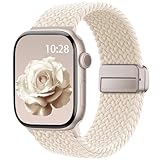
- Compatible Models: The HEARTBOOM magnetic nylon sport bands compatible for iWatch all versions. Suitable for Apple Watch Series 3/2/1 (38mm), Series 4/5/6/SE/SE 2/SE 3 (40mm), Series 7/8/9 (41mm), Series 11/10 (42mm). Pls check the model on the back of your watch to select the correct size
- Comfortable & Fit: HEARTBOOM stretchy apple watch band is made of recycled polyamide with a fabric weave, which is skin-friendly, breathable, lightweight, washable, sweat-resistant and quick-drying. Perfect for Fitness, Running, Yoga and daily wear, as it ensures that your wrist remains comfy and gentle feeling
- Multi Colors & Freely Adjustable: Our iwatch bands come with Various rich & muted colors for your choices, personalize your smartwatch to fit your outfit in daily life and easy change for every occasion. Suitable for women and men with 5.5"-9.6"(140mm~244mm) wrists. One size fit for most people,no need to measure your wrist to choose the size like the traditional braided bands
- Confidently Secure with Upgraded Magnets: Experience the perfect blend of style and security with our braided stretch band for Apple Watch. The enhanced magnetic Closure creates a strong, reliable connection that is easily adjustable for a flawless custom fit. Designed for all-day comfort and peace of mind, it stays put during any activity. Tool-free installation and one-click removal make it incredibly easy to use
- Perfect Gift: This apple watch bands blend fashion with functionality, look more fashionable and youthful. It's a a thoughtful and well-made gift. Suitable for Christmas, New Year's, Father's Day, Mother's Day and birthdays as a surprise for your parents, loved ones, and friends.We offer 24/7 friendly support
Accessing Smart Stack: the swipe that replaced a button
On modern watchOS versions, Smart Stack is accessed by swiping up from the bottom edge of the watch face. This replaced the old Control Center gesture and is now universal across most Apple Watch models, from aluminum Series watches to the Ultra with its larger sapphire display.
The swipe works from almost any watch face, whether you’re using a minimalist time-only face or a dense modular layout packed with complications. The key detail is starting the swipe at the very edge of the display, not the middle, which reduces accidental activations during workouts or one-handed use.
If you’re wearing gloves, using the Apple Watch Ultra during outdoor activities, or interacting mid-motion, the gesture can feel inconsistent. That’s intentional. Apple prioritizes avoiding false triggers, which is why power users often combine swipe access with the Digital Crown for reliability.
Using the Digital Crown for precision and speed
Once Smart Stack is open, the Digital Crown becomes the fastest and most accurate way to navigate it. Scrolling with the Crown is smoother than touch, especially on smaller case sizes like 41mm or when your finger covers too much of the display.
Crown scrolling also respects widget boundaries more clearly. You’ll feel the subtle haptic ticks as you move from one widget to the next, which makes it easier to stop exactly where you want without overshooting.
This matters in real-world use. If you’re quickly checking weather before stepping outside, or jumping to a pinned calendar widget before a meeting, Crown navigation is faster, more deliberate, and easier to do without looking directly at the screen.
Understanding the Smart Stack layout and visual cues
Smart Stack isn’t just a vertical list. The UI communicates priority, context, and system confidence through size, placement, and animation.
Pinned widgets sit at the top with a stable position. They don’t shift based on time or location, which trains your muscle memory. Suggested widgets appear below and may change order depending on your context, often accompanied by subtle animation that signals the watch is making a proactive suggestion.
Full-screen widgets, like Now Playing or Workout, take visual precedence when they’re most relevant. Smaller widgets, such as Weather or Battery, are designed for quick glances rather than extended interaction.
Once you notice these cues, you stop fighting the stack. You instinctively scroll past suggestions when they’re not relevant and slow down when the UI is signaling something important.
Tapping vs scrolling: when touch still makes sense
Touch input still has a role, especially for interacting within a widget rather than navigating between them. Tapping a Smart Stack widget expands it or launches the full app, depending on how that widget is designed.
For widgets that support multiple data points, like Activity or Calendar, touch interaction is often faster than Crown scrolling once you’re already inside. The trick is separating navigation from interaction: Crown to move, touch to act.
This distinction reduces friction. You’re not constantly switching input methods without realizing it, which makes Smart Stack feel more intentional and less fiddly.
How UI changes in recent watchOS versions affect navigation
Recent watchOS updates have made Smart Stack more visually layered and more context-aware. Widgets now animate in and out with more fluid transitions, which isn’t just cosmetic. It helps you understand why something appeared and when it’s safe to ignore it.
Apple has also improved legibility for quick glances. Text sizing, contrast, and spacing adapt better across display types, from OLED Retina screens on standard models to the brighter, flatter display of Apple Watch Ultra.
These changes benefit daily wearability. Whether you’re checking your watch in bright sunlight, during a workout, or while half-distracted in a meeting, Smart Stack is designed to be readable in under a second.
One-handed use and real-world comfort
Smart Stack navigation is optimized for one-handed use, which matters more than it sounds. Most people interact with their watch while walking, carrying something, or mid-task.
Using the Digital Crown with your index finger while your thumb stabilizes the case is often more comfortable than repeated swipes, especially on heavier stainless steel or titanium models. Over time, this reduces fatigue and makes Smart Stack feel like a natural extension of your movement rather than an interruption.
Comfort isn’t just about straps or materials. It’s about how quickly you can get information and move on. Power users optimize navigation because it directly impacts how useful the watch feels throughout the day.
Why mastering access changes how Smart Stack behaves
The more consistently you access Smart Stack in intentional ways, the more predictable it becomes. You’re not randomly opening it or abandoning it mid-scroll, which gives the system cleaner signals about what you actually use.
This sets the stage for smarter editing. Once access and navigation feel effortless, pinning, reordering, and deleting widgets becomes a strategic choice rather than trial and error.
Before you decide what stays or goes, you need to move through Smart Stack with confidence. Access is the foundation. Everything else builds on it.
Editing Smart Stack Widgets: Adding, Removing, and Reordering for Faster Daily Use
Once Smart Stack access feels second nature, editing it becomes far more intuitive. You’re no longer guessing where things live or scrolling aimlessly, which makes every edit feel deliberate.
This is where Smart Stack shifts from a clever feature into a genuinely time-saving system. By choosing what appears, what disappears, and what stays near the top, you reduce friction every time you glance at your wrist.
How to enter Smart Stack edit mode
Open Smart Stack the way you normally do, either with a swipe up or by rotating the Digital Crown. Scroll all the way to the bottom and tap Edit, or simply long-press anywhere on the stack to enter editing mode directly.
The interface changes immediately, with pinned widgets separated from suggested ones. This visual split matters, because it shows you which widgets are under your control and which are managed by watchOS.
On larger displays like the Apple Watch Ultra or 45mm Series models, the extra screen space makes this layout especially clear. On smaller cases, the same logic applies, just with tighter spacing and more reliance on Crown scrolling.
Adding widgets you actually use
In edit mode, tap the plus button to open the widget gallery. This list pulls from apps already installed on your watch, so you’re not adding clutter from apps you never use.
Think in terms of daily triggers rather than features. Weather makes sense if you step outside frequently, Calendar if meetings structure your day, and Now Playing if you often control audio from your wrist.
Adding too many widgets works against Smart Stack’s strength. A well-optimized stack usually has three to five pinned widgets that reflect repeat behaviors, not occasional edge cases.
Removing widgets that slow you down
Every widget you don’t use adds scroll time and visual noise. In edit mode, tap the minus icon on any widget you want gone, then confirm the removal.
This doesn’t delete the app or prevent Smart Stack from surfacing it again as a suggestion when context demands it. You’re simply telling the system that this widget doesn’t deserve permanent space.
For battery-conscious users, especially on older models or smaller cases, fewer active widgets also means fewer background refreshes competing for resources. The difference isn’t dramatic, but over a full day it contributes to a smoother experience.
Reordering for muscle memory, not aesthetics
Pinned widgets appear at the top of Smart Stack in the order you set. To reorder them, tap and drag a widget using its handle until it sits exactly where you want.
Place the widget you access most often at the very top. This minimizes Crown rotations and makes one-handed use more reliable, particularly on heavier stainless steel or titanium models where extra movement can feel awkward.
Over time, your hand learns the distance instinctively. That muscle memory is what makes Smart Stack feel fast rather than flashy.
Understanding the line between pinned and suggested widgets
Pinned widgets stay exactly where you put them. Suggested widgets appear below and change throughout the day based on time, location, activity, and usage patterns.
Resist the urge to pin everything. Let watchOS handle things like Workout suggestions when you arrive at the gym or Home controls when you’re near your house.
A smart balance keeps the stack responsive. Pinned widgets cover your non-negotiables, while suggestions handle context without you micromanaging it.
Editing directly on the watch, and why that matters
Smart Stack editing happens on the Apple Watch itself, not in the iPhone Watch app. That’s intentional, because context matters more on-wrist than on-phone.
Rank #3

- 【Fit All Models】SuperNaNa Sport silicone watch band compatible with apple watch bands 40mm 38mm 42mm 44mm 41mm 45mm 46mm 49mm women men,Soft breathable replacement sport strap for iwatch bands series 11 series 10 series 9 series 8 series 7 series 6 series 5 series 4 series 3 series 2 series 1. and iwatch Ultra 3 2, Ultra, SE(2nd Gen). All iwatch versions can attach perfectly and seamlessl.
- 【Soft Silicone Material】apple watch bands for women men are made of premium soft silicone, prevents skin from irritation, lightweight, persistent, skin-friendly, touch comfortable, water-resistant and sweat-proof; iphone watch bands for women perfectly fit for runs, hiking, rides, camping, climbing, swims, workouts, traveling and more outdoor activities. iWatch bands 40mm womens completely unburdened to wear on the wrist, perfect for all day.
- 【Adjustable size for all wrist】Our Sport apple watch strap compatible for 38mm/40mm/41mm/42mm(series 11 10), this size fits for 5.1"-7.1" (130mm-180mm) wrist; soft silicone iwatch strap compatible for 42mm(series 3 2 1)/44mm/45mm/46mm/49mm, this size fits for 5.9" - 7.9" (150mm-200mm) wrist. Please check the size on the back of your watch to choose the right size.
- 【Easy installation & removal】Our watch bands for women come with Innovative pin-and-tuck closure design, which locks onto smart watch interface precisely and securely. No tool needed,easy to install and remove,provides a secure and comfortable fit for extended wear.
- 【20+ Colors Choice】Silicone iwatch bands for women come with 20+ different cute colors available for women men. black starlight apple watch band etc colors personalize your Apple Watch and fit your daily mood and outfit. A idear option for your smartwatch accessories.
You’re editing based on how the watch feels during real use: while walking, during workouts, or when checking it discreetly in a meeting. This leads to better decisions than configuring everything from a couch with your phone.
The physicality of the watch, its size, weight, and strap comfort, all influence how often you’re willing to interact. Editing Smart Stack in that same environment keeps your setup grounded in reality, not theory.
When to revisit your setup
Your Smart Stack should evolve as your routines change. New workouts, a job shift, seasonal weather, or even a strap change that alters comfort can affect which widgets earn priority.
A quick monthly check-in is usually enough. If you find yourself scrolling past the same widget repeatedly, that’s your cue to remove or demote it.
The goal isn’t perfection. It’s reducing friction so the Apple Watch delivers information quickly, quietly, and exactly when you need it.
Pinning Widgets Explained: When to Override Apple’s Suggestions and When Not To
Once you understand how Smart Stack learns your habits, pinning becomes less about control and more about restraint. The goal isn’t to outsmart watchOS, but to decide where human judgment beats automation.
Apple’s suggestions are often excellent, but they’re still probabilistic. Pinning is your way of telling the system which information is mission-critical, regardless of time, place, or activity.
What pinning actually does inside Smart Stack
Pinned widgets lock their position at the top of the Smart Stack, always appearing before any suggested widgets. They do not change order, disappear, or get replaced based on context.
This matters because the first one or two scrolls of the Digital Crown are where Smart Stack feels fastest. On larger Apple Watch Ultra or heavier stainless steel models, minimizing scrolling reduces wrist movement and makes one-handed use more comfortable.
Think of pinned widgets as fixed instruments on a watch dial. They’re the readouts you want available instantly, not the ones that politely wait their turn.
Widgets that earn a permanent spot
Pin widgets that you check multiple times a day, every day, without exception. Weather conditions, calendar overview, activity rings, battery status, or a medication reminder often fall into this category.
These are widgets that don’t depend on location or time to be useful. Whether you’re at home, commuting, or traveling, they deliver value consistently and justify overriding Apple’s adaptive logic.
If removing that widget would slow you down or force a second interaction, it deserves to be pinned. That’s the simplest litmus test.
When Apple’s suggestions are genuinely better than pinning
Context-sensitive widgets work best when left unpinned. Workout controls appearing when you arrive at the gym or navigation surfacing during a commute are classic examples.
Pinning these actually makes Smart Stack worse. You end up scrolling past static widgets to reach something watchOS would have surfaced automatically at the right moment.
This is where Apple’s machine learning shines, using time of day, location, and recent behavior in ways that are difficult to replicate manually. Trust it here.
The hidden cost of over-pinning
Every pinned widget pushes suggested widgets further down the stack. Too many pins increase scroll distance and dilute the immediacy Smart Stack is designed for.
On smaller case sizes, like the 41mm or 42mm models, this becomes noticeable quickly. On Ultra, it shows up as unnecessary Digital Crown rotations that break the fluid feel of the interface.
If your Smart Stack starts feeling crowded or sluggish, it’s usually not a performance issue. It’s a signal that you’ve pinned too much.
Pinning based on lifestyle, not features
Pinning should reflect how you live, not everything your Apple Watch can do. A frequent traveler might pin World Clock or Flighty, while a remote worker might prioritize Calendar and Focus status.
Fitness-focused users often over-pin workout-related widgets, forgetting that watchOS already surfaces them intelligently. In practice, pinning Activity Rings is usually enough, letting workouts appear when they’re actually relevant.
Your strap choice and comfort also play a role. If a tighter sport band makes frequent interactions easier, you might tolerate more pinned widgets than someone wearing a looser leather strap during office hours.
A practical rule for deciding what stays pinned
Ask yourself whether you’d be annoyed if a widget wasn’t there when you needed it. If the answer is yes, pin it. If the answer is “Apple usually gets this right,” leave it suggested.
Smart Stack works best as a partnership. You define the non-negotiables, and watchOS handles the rest quietly in the background.
When that balance is right, the Apple Watch stops feeling like a gadget you manage and starts behaving like a tool that anticipates you.
Deleting Widgets Without Breaking Smart Suggestions (Common Mistakes to Avoid)
Once you’ve trimmed back pins and let Smart Stack breathe, the next instinct is often to start deleting widgets altogether. That’s where many users accidentally kneecap watchOS’s ability to anticipate their needs.
Deleting a widget is not the same as unpinning it. When you remove a widget entirely, you’re also removing one of the signals Smart Stack relies on to make intelligent suggestions.
Unpin first, delete second
The most common mistake is deleting a widget when all you really wanted was to stop seeing it at the top of the stack. Unpinning keeps the widget available for Smart Suggestions, while deleting removes it from the ecosystem entirely.
For example, Weather or Workout might feel redundant day to day, but watchOS is exceptionally good at surfacing them when conditions change. If you delete them outright, you’re forcing yourself to manually dig for information later.
A good rule is to unpin a widget and live with it for a few days before deleting. If Smart Stack never surfaces it when you expect, that’s when deletion makes sense.
Deleting context-aware widgets weakens predictions
Some widgets carry more intelligence than others. Weather, Calendar, Activity, Maps, Music, and third-party apps with location or time awareness feed Smart Stack valuable context.
When you delete these, Smart Stack doesn’t just lose a card. It loses a data source that helps it decide what else to show and when.
This is especially noticeable during routines like commuting, workouts, or travel. On watches with smaller displays, like the 40mm–42mm range, the loss feels sharper because every swipe matters more.
Avoid “clean slate” resets unless something is broken
Many users periodically delete most widgets to “start fresh,” assuming Smart Stack will relearn quickly. In practice, this often leads to several days of generic, less helpful suggestions.
WatchOS does adapt, but it learns best from continuity. A sudden wipe removes historical behavior patterns tied to time, location, and usage frequency.
If Smart Stack feels off, it’s better to make incremental changes. Remove one or two widgets at a time and observe how suggestions adjust before going further.
Third-party widgets: delete selectively, not emotionally
Third-party apps are where deletion decisions require the most restraint. Some apps look noisy until you realize they only surface at exactly the right moment.
Fitness apps, navigation tools, airline trackers, and smart home widgets often stay quiet until they’re contextually relevant. Deleting them because they feel inactive defeats their purpose.
Battery life also factors in here. Well-built widgets are designed to be lightweight, and removing them rarely yields meaningful battery gains, even on older Apple Watch models with smaller batteries.
Understand the difference between clutter and choice
A cluttered Smart Stack is one that forces you to scroll unnecessarily. A healthy Smart Stack still contains options you don’t see every hour.
Rank #4

- Newest Engraved Flower Design: SNBLK Apple watch band has clear vivid flower patterns made by advanced laser carving technology. Unique and stylish design that is sure to add a touch of elegance to your everyday outfit. One with sunflowers and the other with roses. Their cute floral print is perfect for anyone who loves nature and wants to add a personal touch to their daily wear. In addition, it's a thoughtful and well-made gift that is sure to be appreciated by anyone who receives it
- Comfortable to Wear: The Apple watch bands are made of high-quality soft silicone material that provides a comfortable and flexible fit on your wrist. The soft and lightweight nature of the band makes it perfect for everyday use, as it ensures that your skin remains comfy and free from irritation even when you wear the watch for extended periods of time. Plus, the silicone material is water-resistant and sweat-proof, making it perfect for use during physical activities or outdoor adventures
- Compatible Models & Size Options: These flower bands are designed for iWatch all versions. Suitable for Apple Watch Series 3/2/1(38mm),Series 4/5/6/SE/SE 2/3(40mm),Series 7/8/9(41mm),Series 11/10(42mm);For Series 3/2/1(42mm),Series 4/5/6/SE/SE 2/3(44mm),Series 7/8/9(45mm),Series 11/10(46mm),Ultra 3/Ultra 2/Ultra(49mm); 38/40/41/42mm Size fits 5.1"-7.1" (130mm-180mm) wrist, 44/45/46/49/42mm Size fits 5.9"-7.9" (150mm-200mm). Pls check the model on the back of your watch to select the correct size
- Enjoy the Thrill of Experimenting with Diverse Combinations: Enhance your iWatch with our stylish and intricately engraved printed strap, allowing you to personalize your smartwatch and effortlessly match your mood and outfit every day. Mix and match straps of various colors to elevate the look of your iWatch and showcase your distinct style. With a 6-pack of replacement, you can effortlessly transform your watch for various occasions, whether it's for sports, leisure, work, or everyday life
- Unmatched Durability: Our iWatch bands are built to withstand the test of time. Made from premium-grade silicone, it exhibits exceptional resistance to wear, tear, and daily use. Whether you're an athlete pushing your limits or a professional with a busy lifestyle, it is designed to keep up with your active routine, ensuring it remains in pristine condition. In addition, they comes with double hole and metal snap fastener, easier to take on/put off, no worry of loosing your watch any more
Deleting too aggressively narrows watchOS’s ability to choose for you. The result is a stack that feels fast but dumb, responsive but reactive instead of proactive.
This matters most in real-world wear. Whether you’re wearing a stainless steel model at the office or an Ultra with a trail loop outdoors, the best Smart Stack minimizes interaction without limiting capability.
The safest way to delete a widget
If you’re confident a widget no longer fits your life, delete it intentionally. Ask whether it’s tied to a habit you’ve genuinely abandoned, not just one you’re temporarily ignoring.
Seasonal widgets are a good example. If you no longer travel frequently or have stopped structured workouts, removing those widgets can actually sharpen Smart Stack’s focus.
The goal isn’t minimalism for its own sake. It’s preserving enough flexibility that your Apple Watch continues to feel like it understands you, even as your routines change.
Best Smart Stack Setups for Real Life: Workdays, Fitness, Travel, and Sleep
Once you’ve trimmed the obvious clutter, the next step is shaping Smart Stack around how your days actually unfold. This is where pinning becomes strategic rather than defensive, and where letting watchOS make suggestions starts to pay off.
Think of the setups below as starting points, not rigid templates. The goal is to reduce friction in the moments when glancing at your wrist should be faster than pulling out your phone.
Workdays: Information without interruption
On a typical workday, Smart Stack should surface quiet, glanceable information that supports focus rather than demanding interaction. Calendar, Reminders, and Weather work best when they’re allowed to float contextually rather than pinned.
A single pinned widget can make sense here, usually Calendar if your day is meeting-heavy or Reminders if tasks drive your workflow. Pinning more than one tends to slow scrolling, especially on smaller cases like the 41mm and 45mm models where vertical space is tighter.
Let Smart Stack suggest Messages and Mail instead of forcing them to the top. watchOS is surprisingly good at surfacing conversations when you’re actively communicating and staying out of the way when you’re not.
If you wear a heavier stainless steel or titanium watch to the office, comfort isn’t an issue, but interaction speed is. A clean Smart Stack keeps wrist movements subtle and reduces the need for exaggerated scrolling gestures during meetings.
Fitness days: Pin what starts the workout, not what analyzes it
For training days, the most important moment is the start of the workout, not the data review afterward. Pinning the Workout widget makes sense if you exercise regularly at predictable times.
Avoid pinning metrics-heavy widgets like Heart Rate or third-party fitness dashboards. Smart Stack already prioritizes them once a workout is active, and pinning them only adds redundancy.
Third-party apps like Strava, TrainingPeaks, or Nike Run Club should usually stay unpinned. They tend to surface automatically when your behavior signals exercise, especially if you launch workouts from them even occasionally.
This setup matters even more on Apple Watch Ultra models, where the larger display encourages more widgets. Extra space doesn’t mean extra efficiency, and a shorter stack keeps interaction fast even with gloves, sweat, or motion.
Travel: Let Smart Stack do the thinking for you
Travel is where deleting too aggressively earlier can come back to haunt you. Widgets for Flights, Maps, Wallet, and third-party airline or hotel apps often feel unnecessary until the exact moment they’re indispensable.
Resist the urge to pin travel widgets unless you’re mid-trip. Smart Stack uses location changes, time zones, and motion patterns to surface them automatically, often more accurately than manual pinning.
Wallet is a special case. If you rely on boarding passes or transit cards frequently, a temporary pin during travel days can save time, then be removed once you’re home.
Battery life matters here, especially on GPS-heavy days. Well-optimized widgets won’t drain your watch noticeably, even on older aluminum models, and keeping them available is usually worth the minimal power cost.
Sleep and wind-down: Fewer widgets, stronger signals
Smart Stack doesn’t disappear when you sleep, but its role changes. Sleep, Alarm, and Wind Down widgets should remain unpinned and suggestion-driven, allowing watchOS to surface them based on time of day.
Pinning sleep-related widgets can actually work against you, especially if they sit above more relevant daytime information. Let the system take over once your routines become predictable.
If you use third-party sleep tracking apps, keep their widgets installed but unpinned. They’ll surface around bedtime without cluttering your daytime stack.
Comfort plays a role here too. Whether you’re wearing a lightweight Sport Loop or a more rigid band, fewer interactions at night mean fewer accidental wake-ups and a calmer pre-sleep experience.
The common thread across all these setups is intention. Pin only what you want guaranteed access to, delete only what no longer reflects your habits, and let Smart Stack handle the rest through context and timing.
How Smart Stack Affects Battery Life, Performance, and Responsiveness
Once you start curating Smart Stack with intention, the next question naturally follows: what does all of this do to battery life and day‑to‑day performance? The short answer is that Smart Stack itself is lightweight, but how you use it determines whether it feels invisible or occasionally sluggish.
Understanding that balance helps you decide when pinning is helpful, when deletion is smart, and when letting watchOS handle suggestions is actually the most efficient option.
Smart Stack is passive, but widgets are not equal
Smart Stack doesn’t constantly run in the background. It’s more like a display layer that pulls from widgets when needed, which is why Apple can keep it responsive even on older chips like the S6 and S7.
That said, widgets tied to live data behave differently. Weather, Stocks, Fitness rings, third‑party sports scores, and navigation widgets refresh more often than static widgets like Calendar or Reminders.
The more live-data widgets you pin near the top, the more frequently the watch has to wake radios, update sensors, or request data, which adds up over a long day.
Pinning affects predictability more than power
Pinning a widget doesn’t automatically mean higher battery drain. What it does is force that widget to stay available regardless of context, even when it’s not useful.
For example, pinning Weather and Fitness is usually harmless because those widgets already update frequently as part of normal watchOS behavior. Pinning Maps, third‑party transit apps, or live sports trackers can increase background activity, especially if location or network access is involved.
If you notice battery dipping faster than expected, unpin location-aware widgets first before deleting them entirely. Often, letting them surface contextually is enough to reduce unnecessary refresh cycles.
Why a shorter stack feels faster on the wrist
Responsiveness isn’t just about processor speed. It’s also about how much scrolling, swiping, and visual parsing your brain has to do during quick interactions.
A long Smart Stack forces the watch to animate more widgets and load previews you may never look at. On stainless steel or Ultra models with heavier cases, this can feel especially noticeable when you’re moving, wearing gloves, or using the watch mid-workout.
Keeping the stack lean improves perceived speed. The Digital Crown scrolls more predictably, widgets load instantly, and the entire interaction feels closer to checking a mechanical watch complication than navigating a tiny computer.
Older Apple Watches benefit the most from curation
On Series 6, SE (1st gen), and earlier models still running recent watchOS versions, Smart Stack optimization matters more. These watches have less headroom for animations, background tasks, and frequent widget refreshes.
Reducing pinned widgets and deleting unused third‑party widgets can noticeably improve fluidity. You’ll see fewer dropped frames when scrolling, faster wake times when raising your wrist, and less lag when launching apps from widgets.
Battery life benefits too, especially on aluminum cases with smaller batteries. Even a 5–10 percent gain by evening can be the difference between sleep tracking confidence and low power anxiety.
Third-party widgets: powerful, but use selectively
Third‑party widgets are where Smart Stack becomes genuinely personal, but they’re also the biggest variable in performance. App quality matters more here than brand reputation or App Store ratings.
Well-built widgets follow Apple’s refresh guidelines and stay dormant until surfaced. Poorly optimized ones may ping for updates more often than necessary or fail to cache data efficiently.
💰 Best Value
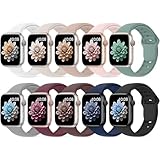
- 【Compatible Models】: UJUTL Sport silicone bands perfect compatible with Apple Watch Bands Series 11 10 -(42mm), Series 9 8 7 -(41mm), Series 6 5 4 SE3 SE2 -(40mm), Series 3 2 1 SE -(38mm), Check your watch size before ordering, Size fits 5.3"-7.6" (135mm-193mm) wrist
- 【Newest Original Design 】: The breathable groove design wicks away moisture to keep you cool during workouts and daily activities, Hidden buckle design that does not come into contact with any metal, Keep the irritate away from you
- 【Premium Material】: Comfort & Breathability - Made of high quality silicone, these bands provide soft, irritation-free wear for sensitive wrist, Durable & Easy to Clean - Non-sticky, stain-resistant silicone stays fresh through sweat, rain, and daily use. Simply wipe with a damp cloth for instant refresh
- 【10 Colors in One Pack】: Available in a variety of colors, these bands can be easily swapped out to match your outfit or mood, perfect for mixing styles with outfits or seasons. Also proper to be used as gifts for Wedding, birthday, Valentines' day, Mothers' day, father' day, Christmas, Thanksgiving Day etc
- 【Worry-Free Purchase】: To ensure 100% customer satisfaction, we provide 24/7 online support. If you encounter any issues with our product, please contact us immediately—we will prioritize resolving your concerns and offer tailored solutions promptly
If a widget feels slow to load or consistently causes stutters when scrolling the stack, that’s your cue to unpin it or remove it entirely. Smart Stack should feel instantaneous, not like launching a full app.
Responsiveness is also about comfort and materials
Physical factors play a subtle role in how Smart Stack performance feels. Heavier cases, rigid metal bands, or loose bracelets amplify the sensation of lag because wrist stability is lower during interaction.
A lightweight Sport Loop or well-fitted Solo Loop reduces micro-movements, making scrolling feel smoother and taps more reliable. When interactions are shorter because your stack is optimized, comfort compounds the perception of speed.
This is one of those moments where hardware and software alignment actually matters in daily use, not just on spec sheets.
What Apple Watch Ultra and newer chips change
On Apple Watch Ultra and Series 9 and newer, raw performance largely masks poor Smart Stack habits. The S9 and later chips handle animations and widget loading with ease, even with longer stacks.
But efficiency still matters. GPS-heavy widgets, frequent refreshes, and excessive pinning can still impact battery life, especially on multi-day adventures where Ultra owners expect extended endurance.
Even on the fastest Apple Watch, Smart Stack works best when it’s curated. Power doesn’t eliminate friction; it just hides it until you start paying attention.
The practical rule: design for absence, not presence
The goal isn’t to fill Smart Stack with everything you might need. It’s to make sure the right thing appears at the right moment without you thinking about it.
If a widget needs to be there every time, pin it. If it’s only useful occasionally, trust suggestions. If you haven’t scrolled to it in weeks, delete it.
That mindset keeps battery usage predictable, performance snappy, and Smart Stack feeling like an extension of your habits rather than another interface you have to manage.
Advanced Tips and Troubleshooting: Widgets Not Updating, Missing Apps, and Resetting Smart Stack Behavior
Once you’ve curated your Smart Stack with intention, the last step is making sure it behaves the way Apple promises. When widgets stop updating, apps seem to vanish, or suggestions feel stuck in the past, it usually isn’t random.
Smart Stack relies on context signals like location, time, motion, and recent app usage. When those signals break down, the stack loses its “smart” edge—but the fixes are usually straightforward.
When widgets aren’t updating in real time
The most common complaint is a widget that looks correct but shows stale data. Weather not refreshing, calendar events lagging behind, or Activity rings taking too long to update all fall into this category.
Start by opening the full app once on your Apple Watch. This forces a background refresh and often kickstarts the widget again, especially for third-party apps that are conservative with background activity.
If the issue persists, check Background App Refresh in the Watch app on your iPhone. Go to General > Background App Refresh and make sure it’s enabled globally and for the specific app in question.
Battery optimization versus widget accuracy
Low Power Mode and aggressive battery-saving behaviors directly affect Smart Stack accuracy. When Low Power Mode is active, many widgets intentionally stop refreshing to preserve battery life.
This is most noticeable on cellular models or Apple Watch Ultra during long outdoor sessions. GPS-heavy widgets like Maps, Compass, or Weather can pause updates until the watch exits power-saving mode.
If you rely on live data, consider keeping Low Power Mode off during active parts of your day and enabling it only when you truly need to extend battery life.
Why some apps never appear as widgets
Not every app supports Smart Stack widgets, even if it has complications or a full watch app. Widget support requires developers to build a specific watchOS widget extension.
If an app doesn’t show up when you tap Edit Stack, it likely hasn’t been updated for modern watchOS widget APIs. This is common with older fitness accessories, niche utilities, or apps that haven’t seen recent updates.
As a workaround, pin apps that do support widgets and use Smart Stack as a quick launcher rather than expecting full app coverage.
Region, language, and permission conflicts
Smart suggestions depend heavily on permissions. Location, Motion & Fitness, Siri, and Notifications all influence which widgets appear and when.
If you recently changed region, language, or privacy settings, Smart Stack may need time to relearn patterns. Missing location access alone can prevent Weather, Sunrise/Sunset, and travel-related widgets from surfacing.
Double-check permissions in the Watch app under Privacy and confirm they match your intended use, especially after restoring from a backup or pairing a new watch.
Resetting Smart Stack behavior without resetting your watch
When Smart Stack feels stuck showing the wrong widgets at the wrong times, you don’t need to wipe your Apple Watch. A soft reset of behavior is usually enough.
Unpin all widgets except one essential anchor, like Weather or Calendar. Then remove any widgets you never want to see again.
Over the next few days, interact intentionally with the apps you do want surfaced. Open them at consistent times, respond to notifications, and let the system rebuild its prediction model.
The nuclear option: restarting and re-syncing
If widgets refuse to update or disappear entirely, a restart can resolve deeper sync issues. Restart both the Apple Watch and the paired iPhone, starting with the phone first.
This clears temporary caches and re-establishes background communication, which Smart Stack relies on heavily. It’s especially effective after watchOS updates or when migrating to a new iPhone.
In rare cases, unpairing and re-pairing the watch restores missing widget functionality, but this should be a last resort rather than a routine fix.
When hardware subtly affects Smart Stack reliability
Loose-fitting bands and heavier stainless steel or titanium cases can introduce inconsistent wrist detection. That affects motion tracking, raise-to-wake behavior, and context signals used by Smart Stack.
A snug, comfortable fit improves interaction accuracy and reduces accidental gestures that confuse usage patterns. This is where lightweight aluminum models or Apple Watch Ultra with a properly adjusted band often feel more predictable in daily use.
Comfort isn’t just about wearability—it feeds directly into how confidently the system understands your habits.
Knowing when Smart Stack isn’t the right tool
Some workflows simply don’t benefit from Smart Stack suggestions. If you need guaranteed access to a function, a pinned widget or traditional complication is still the better choice.
Smart Stack excels at surfacing what you didn’t think to open yet. It’s less reliable for mission-critical actions that must appear every time without fail.
Understanding that boundary prevents frustration and helps you design a setup that feels intentional rather than experimental.
Final takeaway: control creates intelligence
Smart Stack becomes genuinely useful when you treat it as a living system, not a static feature. Editing, pinning, deleting, and occasionally resetting its behavior keeps it aligned with how you actually use your Apple Watch.
The reward is subtle but meaningful. Faster interactions, fewer taps, better battery predictability, and a watch that feels proactive instead of noisy.
When Smart Stack fades into the background and simply shows up when needed, that’s when you know it’s working exactly as intended.