If you’ve ever opened the Fitbit app and wondered why some goals are easy to change while others feel locked down, you’re not alone. Fitbit’s goal system is powerful, but it isn’t completely free-form, and understanding those boundaries upfront saves a lot of frustration later.
This section breaks down exactly which goals you can customize, which ones are fixed or semi-fixed, and how those rules differ between the Fitbit app and your device itself. Once you know how Fitbit thinks about goals, adjusting them to fit your lifestyle becomes far more intuitive instead of trial-and-error.
How Fitbit Organizes Goals Behind the Scenes
Fitbit doesn’t treat all goals equally. Some are designed as primary daily targets that drive motivation and on-device feedback, while others act more like reference metrics that support long-term trends.
At a system level, Fitbit splits goals into activity goals, health goals, and habit-based goals. Activity goals are the most customizable and the most visible on your watch or tracker, while health goals tend to be more guided and sometimes restricted by Fitbit’s algorithms.
🏆 #1 Best Overall

- Inspire 3 is the tracker that helps you find your energy, do what you love and feel your best. All you have to do is wear it.Operating temperature: 0° to 40°C
- Move more: Daily Readiness Score(1), Active Zone Minutes, all-day activity tracking and 24/7 heart rate, 20+ exercise modes, automatic exercise tracking and reminders to move
- Stress less: always-on wellness tracking, daily Stress Management Score, mindfulness sessions, relax breathing sessions, irregular heart rhythm notifications(2), SpO2(3), menstrual health tracking, resting heart rate and high/low heart rate notifications
- Sleep better: automatic sleep tracking, personalized Sleep Profile(1), daily detailed Sleep Score, smart wake vibrating alarm, sleep mode
- Comfortably connected day and night: calls, texts & smartphone app notifications(4), color touchscreen with customizable clock faces, super lightweight and water resistant to 50 meters, up to 10 day battery life(5)
This structure explains why you might be able to freely change your daily step count but not fully control how certain health metrics behave.
Goals You Can Fully Customize
Steps are the most flexible and universally supported goal across every Fitbit model. You can set any daily step target you want in the app, and it will sync directly to your device, updating progress rings, vibrations, and celebrations in real time.
Distance goals are also adjustable, though they’re typically derived from your step goal rather than standing alone. When you change your distance target, Fitbit still relies on stride length and step detection, so accuracy depends on having your height and walking stride set correctly in your profile.
Active Zone Minutes allow customization as well, but within a defined framework. You can change the daily or weekly target number, but the way minutes are earned, based on heart-rate zones, is fixed and can’t be altered manually.
Goals You Can Customize, With Limitations
Calories burned can be set as a daily goal, but this number is heavily influenced by Fitbit’s own calculations. Your age, weight, height, sex, heart rate, and activity history all feed into calorie burn estimates, and you can’t override those formulas.
Sleep goals let you adjust your target sleep duration, usually between a lower and upper hourly range. However, Fitbit still evaluates sleep quality using stages like REM, deep, and light sleep, which you cannot customize or disable.
Hourly movement goals, such as reminders to move each hour, are customizable in timing and frequency. That said, the definition of “movement” is fixed, and small actions like wrist motion won’t always count toward completing an hourly goal.
Goals You Cannot Directly Customize
Resting heart rate has no manual goal setting at all. Fitbit treats it strictly as a passive health metric, tracking trends over time rather than pushing you toward a daily target.
Cardio fitness scores and VO2 max estimates also fall into this category. These metrics update automatically based on workouts, heart rate, and consistency, and there’s no way to set a numeric goal for them within the app.
Some advanced health metrics, like stress management scores or readiness-style insights on newer models, are guided rather than user-defined. You can influence them through behavior, but not by setting a direct target.
Device vs App: Where Customization Actually Happens
Nearly all goal customization happens in the Fitbit app, not on the device itself. Even higher-end Fitbit smartwatches rely on the app as the control center for goal management.
Your device mainly acts as a display and feedback tool, showing progress, buzzing when milestones are hit, and keeping you aware throughout the day. If a goal isn’t adjustable in the app, it won’t become adjustable on the watch.
This app-first approach also means changes don’t always appear instantly. Sync delays, Bluetooth issues, or background app restrictions on iOS and Android can temporarily prevent updated goals from showing on your wrist.
Why Fitbit Restricts Certain Goals
Fitbit’s limitations aren’t arbitrary. Many health-related metrics rely on long-term data trends, and allowing manual targets could lead to misleading feedback or unhealthy behavior patterns.
Battery life and device simplicity also play a role. Fitbit devices prioritize all-day wearability, comfort, and multi-day battery life, which means the interface has to stay streamlined rather than overloaded with complex goal controls.
Once you understand which goals are meant to be motivational and which are meant to be informational, Fitbit’s design choices make a lot more sense.
Before You Start: Device Compatibility, App Versions, and Sync Requirements
Before you start adjusting goals in the Fitbit app, it’s worth pausing to make sure your setup can actually support the changes you’re about to make. Most goal-setting issues come down to compatibility, outdated software, or a sync that hasn’t completed properly.
Fitbit’s ecosystem looks simple on the surface, but the experience varies slightly depending on which device you wear, which phone you use, and how recently everything has synced. Getting these basics right avoids the common “why didn’t my goal change?” frustration later.
Which Fitbit Devices Support Custom Goals
All current Fitbit trackers and smartwatches support goal customization through the Fitbit app. This includes everyday bands like Inspire and Charge, as well as smartwatch-style models like Versa and Sense.
Older models that still sync with the modern Fitbit app generally support step, distance, calorie, and active zone minute goals, but may not support newer goal types like sleep stage targets or advanced health insights. If your device has a small monochrome display or limited on-device menus, that’s normal and doesn’t limit goal setting as long as it syncs.
Your device’s role is primarily to track data and provide feedback through vibrations, on-screen progress rings, or milestone alerts. The actual goal values always live in the app, regardless of screen size, materials, or overall form factor.
Fitbit App Version and Operating System Requirements
Goal controls are only available in the current Fitbit app, not older legacy versions. If your app hasn’t been updated in a while, goal menus may look different, be missing, or fail to save changes.
On iPhone, the Fitbit app requires a relatively recent version of iOS to function properly in the background. On Android, aggressive battery optimization or background restrictions can interfere with syncing and delay goal updates.
If you’re using a work phone, older handset, or a heavily customized Android skin, double-check that Bluetooth access, background activity, and location permissions are enabled. Fitbit relies on all three to keep goals and progress aligned between your phone and your wrist.
Why Syncing Matters Before Changing Goals
Before adjusting any goal, your Fitbit must complete a full sync with the app. If the app hasn’t pulled in the latest activity data, it may reject changes or overwrite them with older settings.
A proper sync ensures your new goal applies to the current day rather than being pushed to the next one. This is especially important for daily step counts, active zone minutes, and calorie burn targets that reset every night.
To force a clean sync, open the Fitbit app, pull down on the dashboard until the sync animation finishes, and wait for confirmation. Skipping this step is one of the most common reasons goals don’t appear correctly on the device.
Bluetooth Connection and Background App Behavior
Fitbit uses Bluetooth Low Energy to preserve battery life and allow all-day wear without constant charging. This means syncing happens in short bursts rather than continuously.
If Bluetooth is off, unstable, or restricted by your phone’s power-saving features, goal changes may appear in the app but never reach the device. This can create the impression that the watch or tracker “ignored” your update.
Keeping the Fitbit app allowed to refresh in the background improves reliability. It also ensures milestone alerts, vibrations, and progress indicators update in real-world daily use, not just when the app is open.
Multiple Devices and Account Conflicts
If you’ve used more than one Fitbit device on the same account, make sure the correct device is set as active. Goals apply at the account level, but syncing conflicts can occur if an old tracker hasn’t been removed.
Wearing multiple devices in the same day can also confuse goal progress if they aren’t managed properly in the app. Fitbit expects one primary tracker for activity and goal tracking at any given time.
Checking your device list before changing goals helps ensure the updates land where you expect. This is especially important when upgrading from an older tracker to a newer watch with different sensors and tracking capabilities.
What to Do If Goals Don’t Update Immediately
Even with everything set up correctly, goal changes may take a few minutes to appear on your wrist. This delay is normal and doesn’t indicate a problem with the device.
If the goal still hasn’t updated, try closing and reopening the Fitbit app, toggling Bluetooth off and on, and manually syncing again. Restarting the device itself can also clear stalled connections without affecting your data.
Once your app, device, and sync are aligned, goal changes become smooth and predictable. With these basics handled, you’re ready to dive into setting and fine-tuning each specific goal type with confidence.
How to Change Your Primary Daily Goal (Steps, Distance, or Calories)
With syncing behavior and device alignment out of the way, you can now focus on the goal that drives most of your daily Fitbit experience. Your primary daily goal controls what progress ring you see first, what your watch face emphasizes, and which milestone vibrations you feel throughout the day.
By default, Fitbit sets this to steps, but that isn’t mandatory. Distance and calories burned can be just as meaningful depending on how you train, commute, or structure your day.
What “Primary Daily Goal” Actually Means on Fitbit
Your primary daily goal is the main activity metric Fitbit treats as your headline objective. It’s the stat most prominently displayed on-device and often the one tied to celebratory animations, buzzes, and reminders.
Changing this goal doesn’t disable step tracking or other metrics. It simply changes what Fitbit prioritizes visually and motivationally during everyday wear.
This distinction matters more on watches with larger displays, like the Versa and Sense series, where the primary goal dominates dashboards and complications.
Changing Your Primary Goal in the Fitbit App (iOS and Android)
Open the Fitbit app and make sure it’s synced with your device. From the Today tab, tap your profile picture in the top corner to access account settings.
Select Activity & Wellness, then tap Daily Activity. This is where Fitbit stores all primary movement-based goals.
At the top of this screen, you’ll see Primary Goal. Tap it, then choose between Steps, Distance, or Calories Burned.
Once selected, you can immediately adjust the numerical target below. For example, you might switch from 10,000 steps to 5 miles, or from steps to a calorie goal that better matches gym-focused training.
After confirming, return to the main screen and pull down to manually sync. Your device should reflect the change within a minute or two.
How the Goal Change Appears on Your Fitbit Device
On most trackers, the primary goal becomes the first stat shown when you swipe through daily metrics. Progress bars, rings, or numeric counters will now reference your new goal.
On smartwatches, this change is even more noticeable. Many default watch faces automatically re-center their progress arc or gauge around the new primary metric without requiring a face change.
If you’re using a custom watch face, check its settings. Some faces allow you to manually select which stat appears front and center, independent of your primary goal.
Rank #2

- Inspire 3 is the tracker that helps you find your energy, do what you love and feel your best. All you have to do is wear it. Compatibility-Apple iOS 15 or higher, Android OS 9 or higher
- Move more: Daily Readiness Score(1), Active Zone Minutes, all-day activity tracking and 24/7 heart rate, 20+ exercise modes, automatic exercise tracking and reminders to move
- Stress less: always-on wellness tracking, daily Stress Management Score, mindfulness sessions, relax breathing sessions, irregular heart rhythm notifications(2), SpO2(3), menstrual health tracking, resting heart rate and high/low heart rate notifications
- Sleep better: automatic sleep tracking, personalized Sleep Profile(1), daily detailed Sleep Score, smart wake vibrating alarm, sleep mode
- Comfortably connected day and night: calls, texts & smartphone app notifications(4), color touchscreen with customizable clock faces, super lightweight and water resistant to 50 meters, up to 10 day battery life(5)
Choosing Between Steps, Distance, and Calories
Steps work best for general movement awareness and are ideal for office workers or casual fitness users. They’re easy to understand and consistent across devices.
Distance is useful if you walk or run with purpose, especially outdoors. It aligns well with training plans, commute tracking, and endurance goals, but depends more heavily on stride length accuracy and GPS use.
Calories burned suits users focused on energy balance, weight management, or mixed workouts. It incorporates heart rate, movement, and personal data, making it more dynamic but also more sensitive to sensor accuracy and daily variability.
Device-Specific Notes That Can Affect Your Experience
Trackers without built-in GPS estimate distance based on steps and stride length, which can slightly skew distance-based goals. Watches with GPS, like the Sense or Charge series, deliver more reliable distance tracking during outdoor activities.
Calorie goals rely heavily on heart rate data. For best results, ensure your device fits snugly, especially during workouts, and that heart rate tracking is enabled at all times.
Battery life can also factor in. More frequent GPS use to support distance accuracy may shorten runtime, particularly on smaller devices, so adjust expectations accordingly.
Common Pitfalls When Switching Primary Goals
Some users expect historical data to reorganize around the new goal. Fitbit doesn’t retroactively change past achievements, so your previous step streaks or badges remain step-based.
If the device doesn’t update, it’s almost always a sync delay rather than a failed change. Keeping the app open for a moment after syncing improves reliability.
Also remember that challenges and competitions may still be step-focused. Changing your primary goal won’t remove steps from social or leaderboard features.
When It Makes Sense to Revisit This Setting
Your ideal primary goal can change over time. Many users switch to calories during weight-loss phases, distance during training cycles, and steps during maintenance or recovery periods.
Because the setting is quick to adjust, it’s worth revisiting whenever your routine, fitness level, or motivation style shifts. Fitbit is designed to adapt with you, not lock you into one definition of progress.
Once your primary daily goal reflects what you actually care about, the device becomes far more intuitive to wear and respond to throughout the day.
Setting and Adjusting Active Zone Minutes & Exercise Goals
Once your primary daily goal is dialed in, Active Zone Minutes and exercise targets become the next layer of personalization. These goals shift the focus from sheer volume to intensity and consistency, which is where Fitbit’s heart-rate-driven tracking really starts to matter.
Unlike steps or distance, these settings respond directly to how hard and how often you move. That makes them especially useful if your routine includes workouts, sports, or brisk daily activity rather than just walking.
What Active Zone Minutes Actually Measure
Active Zone Minutes, often shortened to AZM, are based on time spent in elevated heart rate zones. Moderate-intensity activity earns one minute per minute, while vigorous activity earns two minutes per minute.
Your heart rate zones are personalized using age, resting heart rate, and overall activity history. This means two users doing the same workout may earn different AZM totals, depending on fitness level and cardiovascular response.
Because AZM relies so heavily on heart rate accuracy, comfort and fit matter. The band should sit snugly above the wrist bone, tight enough to stay stable but not restrictive during movement.
How to Change Your Active Zone Minutes Goal in the Fitbit App
Open the Fitbit app on your phone and tap the Today tab. Find Active Zone Minutes on the dashboard, then tap it to open the detailed view.
In the top corner, tap the settings or gear icon, then select Set goal. From here, you can increase or decrease your daily or weekly AZM target based on how aggressive you want your activity goals to be.
Fitbit’s default is typically 150 minutes per week, which aligns with general health guidelines. Many users lower this when starting out or increase it during training blocks, depending on recovery needs and schedule.
Daily vs Weekly AZM Goals: Which Makes More Sense
Weekly AZM goals are more forgiving and better suited to real-world schedules. They allow you to stack effort-heavy days with lighter recovery days without feeling like you failed.
Daily AZM goals create stronger day-to-day accountability but can feel punishing if you miss a workout or have a sedentary workday. They work best for users with very consistent routines.
You can switch between daily and weekly perspectives without losing data. The underlying activity remains the same; only how progress is framed changes.
Setting and Adjusting Exercise Goals
Exercise goals track how often you log workouts, not how intense they are. This makes them ideal for building habits, especially if you’re trying to train regularly rather than push hard every session.
To adjust this, open the Fitbit app, go to the Today tab, and tap Exercise. Enter the settings menu and choose your target number of exercise days per week.
You can also manage this through your profile settings under Activity & Wellness, depending on app version. The layout may look slightly different on iOS and Android, but the goal controls function the same way.
Choosing the Right Exercise Target for Your Routine
If you’re new to structured workouts, starting with two or three exercise days per week is realistic and sustainable. Fitbit will still track spontaneous activity separately through steps and AZM.
More experienced users often set higher exercise goals while relying on AZM to regulate intensity. This combination encourages regular training without forcing every session to be high effort.
Remember that an exercise counts when it’s logged or auto-detected. Short walks, bike rides, or low-impact sessions can all qualify if they meet Fitbit’s detection thresholds.
How Device Type Affects AZM and Exercise Tracking
Devices with continuous heart rate tracking, like the Charge, Sense, and Versa lines, tend to deliver more reliable AZM data during varied workouts. Older or slimmer trackers may lag slightly during rapid intensity changes.
GPS-equipped watches improve exercise tracking for outdoor activities by pairing pace and distance with heart rate. This is especially noticeable during runs, hikes, or cycling sessions.
Battery life plays a role here as well. Frequent GPS workouts can reduce runtime, so users on smaller devices may prefer indoor tracking or fewer long sessions between charges.
Common Issues and How to Avoid Them
If you feel like you’re working hard but not earning AZM, the most common cause is a loose fit or paused heart rate tracking. Repositioning the band often solves the issue immediately.
Exercise goals sometimes appear missed even after a workout if the session wasn’t logged or auto-detected. Manually starting workouts ensures they count toward your goal every time.
Finally, remember that changing goals doesn’t retroactively adjust past weeks. The new target applies moving forward, so give it a few days before judging whether it fits your lifestyle.
By tuning Active Zone Minutes and exercise goals together, your Fitbit shifts from a passive tracker to an active training partner. The more closely these settings reflect how you actually move, the more motivating and accurate the experience becomes.
How to Customize Sleep Goals and Sleep Schedule Targets
After dialing in activity and exercise targets, sleep is the next area where Fitbit becomes more personal and more useful. Sleep goals work quietly in the background, shaping reminders, insights, and long-term trends without demanding constant attention.
Unlike steps or Active Zone Minutes, sleep goals are less about daily pressure and more about consistency. Setting them correctly helps Fitbit coach you toward better rest without turning bedtime into another metric you feel judged by.
Understanding Fitbit’s Sleep Goals vs Sleep Schedules
Fitbit separates sleep tracking into two related but distinct tools: a nightly sleep duration goal and a sleep schedule. The sleep goal focuses on how long you sleep, while the schedule defines when you aim to be asleep and awake.
Your sleep goal is measured in total hours per night. The sleep schedule sets a target bedtime and wake-up time for specific days of the week.
Both influence reminders and insights, but only sleep duration affects your sleep goal streaks and trends. You can use one without the other, though they work best together.
How to Change Your Sleep Duration Goal
Open the Fitbit app and tap the Sleep tile from the Today or Health tab. If prompted, allow access to sleep data so the goal settings appear.
Tap the gear icon or the three-dot menu in the top corner, then select Sleep goal. From here, you can adjust your target sleep duration, typically between 5 and 9 hours.
Most adults start with 7 or 8 hours, but the ideal number depends on your recovery, training load, and daily schedule. Fitbit does not enforce a “perfect” number, so choose a goal that feels achievable on most nights.
Changes apply immediately and affect upcoming nights only. Past sleep scores and averages remain unchanged, which helps preserve accurate long-term trends.
Setting or Editing a Sleep Schedule
From the same Sleep section in the app, look for Sleep Schedule or Bedtime Schedule. Tap into it to set a target bedtime and wake-up time.
You can apply the schedule to all days or customize it by weekday. This is especially useful if your workdays and weekends look very different.
Once enabled, Fitbit uses this schedule to send bedtime reminders and wake alarms on compatible devices. The reminders are gentle nudges, not alerts that interrupt other notifications.
Using Smart Wake and Device Alarms
On devices like the Charge, Sense, Versa, and newer Inspire models, you can pair your sleep schedule with Smart Wake. This feature wakes you during a lighter sleep stage within a set window before your alarm.
Rank #3
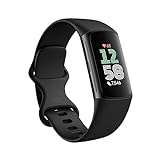
- Find your way seamlessly during runs or rides with turn-by-turn directions from Google Maps on Fitbit Charge 6[7, 8]; and when you need a snack break on the go, just tap to pay with Google Wallet[8, 9]
To enable it, open the alarm settings in the Fitbit app or directly on the device, then toggle Smart Wake on. Set the wake window, usually 15 to 30 minutes, based on how flexible your mornings are.
Smart Wake relies on continuous heart rate and motion tracking, so a snug but comfortable fit is important. A loose band can reduce accuracy and cause missed wake windows.
How Sleep Goals Affect Sleep Scores and Insights
Your sleep goal does not directly change your sleep score calculation, but it shapes how Fitbit frames your results. Nights that meet or exceed your goal are highlighted more positively in trends and weekly summaries.
If your goal is set unrealistically high, even solid nights can feel like failures. This is one of the most common reasons users disengage from sleep tracking.
Adjusting the goal downward during stressful weeks or heavy training blocks can make the data more motivating and more honest.
Device Differences That Matter for Sleep Tracking
Fitbit devices with continuous heart rate sensors and SpO2 tracking, such as Sense, Versa, and Charge models, provide richer sleep insights. These include sleep stages, oxygen variation, and skin temperature trends.
Slimmer trackers with longer battery life, like Inspire models, still track sleep duration and stages reliably but may offer fewer advanced metrics. The upside is comfort, especially for side sleepers or smaller wrists.
Battery life plays a practical role here. Devices that last several days reduce the risk of missing sleep data due to overnight charging.
Common Sleep Goal Mistakes and How to Fix Them
One frequent issue is forgetting to wear the device to bed after charging. If sleep data looks inconsistent, check your charging routine and aim to top up earlier in the evening.
Another problem is setting different bedtimes without adjusting the schedule. Fitbit will still track sleep, but reminders and insights may feel off or irrelevant.
If naps are affecting your totals, remember that Fitbit tracks them separately and does not count them toward your nightly sleep goal. This is intentional and helps keep nighttime patterns clear.
Adjusting Sleep Goals as Your Lifestyle Changes
Sleep needs shift with training volume, stress, illness, and travel. There is no downside to revisiting your sleep goal every few months.
Athletes increasing mileage may benefit from a higher sleep target, while busy periods may call for a more realistic baseline. Fitbit is designed to adapt with you, not lock you into one ideal.
Treat sleep goals as guidance rather than rules. When set thoughtfully, they become one of the most supportive features in the Fitbit ecosystem.
Changing Calorie Burn and Weight-Related Goals Safely
Once sleep goals are dialed in, many users naturally turn their attention to calorie burn and weight-related targets. These goals can be powerful motivators, but they also require more care than steps or active minutes because they directly influence how you think about food, recovery, and progress.
Fitbit treats calorie burn and weight goals as longer-term signals rather than daily checkboxes. Understanding how the system calculates them helps you make changes that support your health instead of quietly working against it.
How Fitbit Calculates Calories Burned
Fitbit’s calorie burn estimate is built from your resting metabolic rate, heart rate data, movement, age, height, weight, and sex assigned at birth. Devices with continuous heart rate tracking, like Charge, Versa, and Sense models, produce noticeably more accurate estimates than basic pedometer-style trackers.
Even on the same day, calorie burn can vary widely depending on stress, sleep quality, and non-exercise movement. This is why Fitbit focuses on trends over time rather than a single “perfect” daily number.
If you switch between devices or upgrade to a newer model, expect your calorie totals to shift slightly. This is normal and reflects better sensors and algorithms, not a sudden change in your metabolism.
Where to Change Calorie Burn Goals in the Fitbit App
In the Fitbit app, tap the Today tab, then tap the Calories tile. From there, select the gear icon to adjust your daily calorie burn goal.
On some versions of the app, calorie goals are tied to weight goals rather than set independently. If you do not see a direct calorie target, check your weight goal settings instead, as Fitbit will automatically calculate a recommended burn based on that objective.
Changes made in the app sync to your device within a few minutes as long as Bluetooth is enabled. There is no need to restart your tracker or watch.
Setting Realistic Daily Calorie Targets
A common mistake is setting calorie burn goals that require intense exercise every single day. This often leads to fatigue, inconsistent tracking, and eventually ignoring the metric altogether.
A safer approach is to base your goal on your average calorie burn from the past two to three weeks. Aim for a modest increase that can be achieved through normal daily movement, not just workouts.
Rest days matter here. Fitbit counts total daily burn, not exercise calories alone, so a well-set goal should still feel achievable on lighter days.
Understanding Fitbit Weight Goals and Timelines
Weight goals live under the Account or Profile section of the Fitbit app, where you can set a target weight and pace. Fitbit typically recommends gradual changes, usually no more than 0.5 to 1 pound per week.
This pace is intentional. Faster targets may look appealing, but they can distort calorie goals and encourage behavior that is hard to sustain or unhealthy over time.
If your weight goal feels aggressive, the app will often reflect this with a high daily calorie burn target. Adjusting the timeline rather than the final number is often the smarter fix.
How Calorie Burn and Weight Goals Interact
Fitbit links calorie burn goals directly to weight change expectations. A more ambitious weight loss goal increases your daily burn target, while maintenance or gain lowers it.
This relationship can be useful, but it also means that small changes in your weight goal can significantly alter your daily numbers. If your calorie target suddenly feels unrealistic, revisit the weight settings first.
For users focused on fitness performance rather than the scale, setting a maintenance weight often results in more balanced and less stressful calorie guidance.
When and Why to Adjust Weight Goals
Life changes quickly, and weight goals should keep pace. Illness, injury, travel, hormonal shifts, and training cycles all affect how your body responds.
There is no penalty for adjusting your goal. Fitbit does not erase your data or treat changes as failures; it simply recalculates future guidance.
Many experienced users revisit weight settings every few months to keep expectations aligned with reality. This is especially helpful during periods of high stress or reduced training.
Health and Safety Considerations
Calorie and weight goals can become counterproductive if they dominate decision-making. If you notice anxiety around daily numbers or feel pressure to “earn” food, it may be time to loosen or pause these targets.
Fitbit allows you to remove weight goals entirely while still tracking activity and health metrics. This can be a healthy reset without abandoning the ecosystem.
For anyone managing medical conditions, pregnancy, or recovery from disordered eating, calorie and weight goals should be discussed with a healthcare professional before making changes.
Device Comfort, Battery Life, and Accurate Data
Accurate calorie tracking depends on consistent wear. Devices with better comfort, lighter cases, and flexible bands are more likely to stay on your wrist all day, especially during sleep and desk work.
Battery life plays a role as well. Trackers like Inspire and Charge models reduce gaps in data by lasting several days, while smartwatch-style devices may require more intentional charging habits.
A secure but comfortable fit improves heart rate accuracy, which directly affects calorie calculations. If your numbers seem off, check strap tightness and wear position before changing goals.
Using Trends Instead of Daily Wins
Calorie burn and weight metrics are best viewed over weeks, not days. Fitbit’s weekly and monthly charts provide a clearer picture of whether your goals are supporting progress.
Instead of chasing daily targets, look for consistency in averages. This mindset reduces pressure and aligns better with how bodies actually change.
When used this way, calorie and weight goals become informative tools rather than strict rules, fitting naturally into the broader Fitbit experience.
Goal Setting for Specific Fitbit Devices (Charge, Inspire, Versa, Sense, Pixel Watch)
With the fundamentals in place, it helps to understand how goal setting actually behaves on different Fitbit models. While nearly all goals are created and managed in the Fitbit app, the way they surface on your wrist varies by device size, screen type, and software layer.
Some Fitbits act more like passive windows into your goals, while others let you adjust targets directly on the watch. Knowing what your specific model can and cannot do prevents frustration and helps you use the system as it was designed.
Fitbit Charge Series (Charge 5 and Charge 6)
The Charge line sits in the middle ground between a tracker and a smartwatch. Its slim case, lightweight aluminum body, and curved AMOLED display make it comfortable for all-day wear, which is ideal for consistent goal tracking.
On Charge devices, all goal changes are made in the Fitbit app on your phone. Open the app, tap Today, select the relevant metric like steps, Active Zone Minutes, calories, or distance, then tap the gear icon to adjust the goal value.
Once synced, the Charge displays progress toward those goals through stat tiles and progress rings. You cannot edit goals directly on the band, but you can swipe to view daily totals and see how close you are in real time.
Sleep goals work the same way. Set your target sleep duration in the app, and the Charge shows progress after each night, along with sleep stage breakdowns that help contextualize whether the goal is realistic.
Rank #4

- Fitbit Charge 6 tracks key metrics from calories and Active Zone Minutes to Daily Readiness and sleep[4]; move more with 40+ exercise modes, built-in GPS, all-day activity tracking, 24/7 heart rate, automatic exercising tracking, and more
- See your heart rate in real time when you link your Charge 6 to compatible exercise machines, like treadmills, ellipticals, and more[5]; and stay connected with YouTube Music controls[6]
- Explore advanced health insights with Fitbit Charge 6; track your response to stress with a stress management score; learn about the quality of your sleep with a personalized nightly Sleep Score; and wake up more naturally with the Smart Wake alarm
- Find your way seamlessly during runs or rides with turn-by-turn directions from Google Maps on Fitbit Charge 6[7,8]; and when you need a snack break on the go, just tap to pay with Google Wallet[8,9]
- Please refer to the “Legal” section below for all applicable legal disclaimers denoted by the bracketed numbers in the preceding bullet points (e.g., [1], [2], etc
Because Charge models offer multi-day battery life, typically around a week depending on GPS use, they tend to deliver more complete data. Fewer missed hours means your goals are based on a fuller picture of your activity and recovery.
Fitbit Inspire Series (Inspire 2 and Inspire 3)
Inspire trackers are designed for simplicity and long-term comfort. Their small footprint, lightweight plastic case, and soft silicone bands make them easy to forget you are wearing, which is exactly the point for beginners.
Goal setting on Inspire devices is entirely app-based. In the Fitbit app, tap Today, choose a metric such as steps, hourly movement, distance, or calories, and adjust the goal from the settings menu.
On the device itself, Inspire shows basic progress indicators rather than detailed graphs. You will see percentage completion or simple numeric progress, which keeps the experience encouraging without overwhelming new users.
Sleep goals are especially popular on Inspire models because of their long battery life, often lasting up to ten days. This makes overnight tracking more reliable and reduces the risk of missing data that could skew sleep goal feedback.
Inspire does not support advanced on-device customization, but that limitation is part of its value. It focuses on consistency, making it easier to stick with goals rather than constantly tweak them.
Fitbit Versa Series (Versa 3 and Versa 4)
Versa watches lean more toward a traditional smartwatch experience, with larger square cases, bright color displays, and physical or haptic buttons. They are heavier than trackers but still comfortable for daily wear and workouts.
Most goal changes still happen in the Fitbit app, but Versa models allow limited goal adjustments directly on the watch for certain activities. For example, when starting a workout, you can sometimes set time, distance, or calorie targets before you begin.
Daily goals like steps, Active Zone Minutes, and calories are best managed in the app. After syncing, progress rings and complication-style widgets on the watch face give you constant visual feedback throughout the day.
Sleep goals sync automatically and appear in the morning summary on the watch. This quick glance can reinforce whether your target aligns with how rested you actually feel, not just the number on the screen.
Battery life on Versa models is typically several days, but shorter than Inspire or Charge. Regular charging becomes part of the routine, and keeping the battery topped up helps maintain accurate goal tracking.
Fitbit Sense Series (Sense and Sense 2)
Sense devices add health-focused sensors like EDA for stress tracking and skin temperature variation. Their stainless steel or aluminum cases feel more premium, and they are built for users who want deeper wellness insights alongside fitness goals.
Goal setting for steps, calories, distance, and Active Zone Minutes is handled through the Fitbit app, just like other models. What sets Sense apart is how those goals are contextualized with stress, readiness, and recovery data.
When you view daily goals on the watch, Sense often pairs them with health signals. For example, a high stress day may coincide with lower activity progress, offering useful perspective rather than silent judgment.
Exercise-specific goals can be adjusted on the watch before starting a workout, especially for guided sessions. This is helpful for users who train by time or heart rate rather than steps.
Sense battery life usually spans several days, but heavy use of GPS and health sensors can shorten it. Consistent charging habits help ensure your goals reflect complete, uninterrupted data.
Google Pixel Watch with Fitbit
The Pixel Watch blends Google’s Wear OS with Fitbit’s tracking platform. Its compact, domed design and premium materials make it one of the most stylish Fitbit-enabled devices, though comfort and battery life depend heavily on usage.
Goal setting is split between the Fitbit app and the watch interface. Core daily goals like steps, calories, distance, and Active Zone Minutes are still best managed in the Fitbit app on your phone.
On the watch itself, you can view goal progress through Fitbit tiles and watch faces, and in some cases adjust exercise goals when starting a workout. The experience feels more interactive but also more layered than on classic Fitbit devices.
Sleep goals sync from the app and appear in both Fitbit and Google Health-style summaries. Because battery life is typically around a day, nightly charging habits become crucial for reliable sleep goal tracking.
The Pixel Watch suits users who value smart features and design as much as fitness. As long as charging and sync routines are consistent, goal tracking remains accurate and flexible.
Common Device-Specific Pitfalls to Avoid
A frequent issue across all models is changing goals in one place and forgetting to sync. If your watch seems stuck on an old target, opening the Fitbit app and forcing a sync usually resolves it.
Another pitfall is assuming on-device limitations mean a goal cannot be changed. In most cases, the app offers more control than the watch itself, especially for trackers like Inspire and Charge.
Finally, remember that device comfort and wear time affect goal accuracy more than the model name. A simpler tracker worn consistently often supports goals better than a feature-rich watch that spends hours off your wrist.
Using the Fitbit App: iOS vs Android Differences That Matter
Once device-specific quirks are out of the way, the Fitbit app becomes the real control center for setting and adjusting goals. While the core features are the same on iOS and Android, the day-to-day experience differs in ways that can affect how quickly and confidently you make changes.
These differences are subtle rather than dramatic, but they matter most when you are trying to fine-tune goals or troubleshoot why something is not updating on your wrist.
Navigation and Menu Layout
On iOS, the Fitbit app leans into a cleaner, more linear layout. Goal settings are typically accessed by tapping your profile photo, selecting Activity & Wellness, and then choosing the specific category such as Activity, Exercise, or Sleep.
Android places similar options behind slightly different menus, often with deeper nesting. Depending on your device and app version, you may need to tap your profile icon, then Fitbit Settings, before seeing goal-related options.
In real-world use, iOS tends to surface goal settings faster, while Android offers more customization once you dig in. Neither is better overall, but the path to the same setting can feel less obvious on Android for new users.
Setting and Changing Daily Activity Goals
Steps, distance, calories, and Active Zone Minutes are handled almost identically on both platforms. From the Activity section, tapping a metric lets you adjust its daily target using a numeric input or slider.
On iOS, changes usually feel instant, with confirmation screens and smoother animations. Android sometimes requires backing out of the menu to confirm the change has saved, especially on older phones or heavily customized Android skins.
If a goal appears unchanged on your watch, Android users are more likely to need a manual sync. Pulling down on the dashboard to force a sync often resolves this within seconds.
Sleep Goals and Bedtime Settings
Sleep goals are one area where iOS and Android diverge more noticeably. On iOS, sleep duration goals and bedtime reminders are grouped clearly under the Sleep tile, with simple toggles and time pickers.
Android includes the same features but may separate sleep duration goals from bedtime and wake reminders. This can make it feel like settings are missing when they are simply located in another submenu.
Because sleep tracking relies heavily on consistent wear time and charging habits, Android users should double-check notification permissions. Missed reminders often trace back to aggressive battery optimization settings rather than Fitbit itself.
Exercise-Specific Goals and Custom Workouts
Both platforms allow you to set goals for individual exercises such as runs, walks, bike rides, or gym sessions. These goals can be based on distance, time, calories burned, or Active Zone Minutes.
iOS tends to mirror the watch experience more closely, especially on devices like Versa and Sense. What you set in the app usually appears on the watch without extra steps.
Android gives more flexibility with custom exercises, but syncing those changes can take longer. Starting an exercise on the watch before syncing may temporarily show the old goal, which updates after the session ends.
Sync Behavior and Reliability
Sync reliability is one of the most practical differences between iOS and Android. Apple’s tighter control over Bluetooth and background processes generally results in more consistent automatic syncing.
Android’s openness allows more customization but also more points of failure. Background app restrictions, power-saving modes, and manufacturer-specific software can interrupt syncing without warning.
For Android users, keeping the Fitbit app excluded from battery optimization is essential. This single setting often determines whether goal changes reflect immediately or lag behind for hours.
Notifications, Permissions, and System-Level Quirks
On iOS, Fitbit benefits from predictable permission handling. Once notifications, motion access, and background refresh are enabled, they rarely need attention again.
Android permissions are more fragmented. Updates to the operating system or phone manufacturer software can reset permissions, affecting reminders, goal celebrations, and even daily progress notifications.
If goal reminders stop appearing, Android users should revisit notification settings inside both the Fitbit app and the system settings. This step is less commonly required on iOS but still worth checking after major updates.
Which Platform Feels Better for Goal Management?
iOS generally offers a smoother, more intuitive experience for users who want to set goals once and trust them to work quietly in the background. It pairs well with Fitbit devices known for long battery life and set-it-and-forget-it comfort.
Android shines for users who like flexibility and deeper control, especially when paired with Wear OS devices like the Pixel Watch. The tradeoff is a greater need to manage permissions and syncing behavior.
Understanding these platform differences helps explain why two users with the same Fitbit can have very different experiences. Once you know where to look and what to adjust, both iOS and Android support highly personalized, reliable goal tracking.
Common Goal-Setting Problems and How to Fix Them
Even with the right platform and permissions in place, goal-setting issues can still surface. Most problems are small, easy to fix, and tied to how Fitbit handles syncing, device capabilities, or account-level settings.
The key is knowing whether the issue lives on the device, in the app, or in Fitbit’s cloud. Once you identify that layer, the fix is usually straightforward.
💰 Best Value

- Enduring Battery Life: Keep moving with a 7-day battery life and water resistance for all your activities, rain or shine.
Goal Changes Don’t Sync to the Fitbit Device
This is the most common frustration, especially after adjusting step, distance, or active zone minute goals. The Fitbit app may show the new target, but the watch or tracker still displays the old one.
Start by manually syncing from the Fitbit app rather than waiting for automatic sync. If that fails, restart the Fitbit device and force close and reopen the app before syncing again.
On trackers with long battery life like the Charge series or Inspire models, syncing can be less frequent to save power. Plugging the device into the charger often triggers a fresh sync and resolves stubborn goal mismatches.
You Can’t Change Certain Goals at All
Not every Fitbit goal is fully customizable on every device. Some older trackers and kid-focused models limit which goals you can adjust, especially calorie burn or distance.
Check whether the goal is controlled at the account level rather than the device level. Sleep goals, for example, are managed entirely in the app and won’t appear on the device until after the next sync.
If a goal is greyed out or missing, it may simply not be supported by your specific model. Entry-level trackers prioritize steps and active minutes, while smartwatch-style devices like Sense and Versa offer broader goal flexibility.
Daily Goals Reset or Change Unexpectedly
If your goals seem to revert without warning, time zone or date settings are often the culprit. Fitbit uses your phone’s system clock to determine daily cycles.
Traveling across time zones or manually changing the phone’s time can cause Fitbit to recalculate the day and reset progress. This can make it appear as if a goal has changed or been missed.
To fix this, ensure automatic time and time zone settings are enabled on your phone. Then sync the Fitbit app to realign the daily goal window.
Sleep Goals Don’t Match Actual Sleep Needs
Many users leave the default eight-hour sleep goal in place, even if it doesn’t reflect their schedule or recovery needs. This can make sleep tracking feel discouraging rather than helpful.
Sleep goals can be adjusted in 30-minute increments inside the Fitbit app under sleep settings. The device itself does not control this goal, even on watches with larger displays.
If you wear your Fitbit primarily for comfort at night, lighter models with slimmer cases and softer bands often provide more accurate sleep data simply because they’re easier to wear consistently. Goal accuracy improves when wear consistency improves.
Active Zone Minutes Feel Too Hard or Too Easy
Active Zone Minutes are based on heart rate zones, which rely on your age and resting heart rate. If those inputs are inaccurate, the goal can feel unrealistic.
Check your profile details in the Fitbit app, especially age, height, and weight. These values directly affect how heart rate zones and calorie estimates are calculated.
If you’ve recently improved your fitness or changed activity types, your heart rate response may no longer match Fitbit’s assumptions. Give the system time to recalibrate, or adjust the goal itself to better reflect your current training load.
Calories Burned Goals Don’t Seem Accurate
Calorie goals are estimates, not precise measurements. Differences in metabolism, muscle mass, and activity type can make Fitbit’s numbers feel off.
Make sure your dominant hand, stride length, and body metrics are correctly entered in the app. These inputs influence movement efficiency and energy calculations.
Devices with continuous heart rate tracking and better sensor contact, often those with slightly heavier cases or more secure straps, tend to deliver more consistent calorie data during workouts. Fit and wearability matter more here than raw specs.
Goals Change on One Phone but Not Another
If you switch between phones or use multiple devices with the same Fitbit account, goal changes may not propagate evenly. This usually happens when one device hasn’t synced recently.
Always sync after changing goals, especially before logging out of the app or switching phones. Fitbit stores goals in the cloud, but local app data can lag behind.
For users who bounce between iOS and Android, consistency improves when you stick to one primary phone for goal management. Secondary devices should be used for viewing progress, not editing targets.
Reminders and Celebrations Stop Appearing
Goal reminders and milestone celebrations depend on notification permissions, not just goal settings. If these alerts disappear, the goal may still be active but silent.
Check notification settings inside the Fitbit app first, then verify system-level notification permissions. On Android, confirm that the app is excluded from battery optimization.
On iOS, focus on background app refresh and notification style settings. Banners and alerts must be enabled for reminders to appear reliably throughout the day.
The Goal Is Technically Working but Feels Unmotivating
Sometimes the issue isn’t a bug but a mismatch between the goal and your lifestyle. A step goal that’s too high can feel punishing, while one that’s too low loses meaning.
Fitbit goals are meant to be adjusted as your routine changes. Seasonal activity shifts, new jobs, injuries, or training plans all justify revisiting your targets.
Treat goals as living settings, not permanent commitments. The best Fitbit experience comes from goals that adapt to how you actually move, sleep, and recover day to day.
Expert Tips: Choosing Realistic Fitbit Goals That Actually Improve Results
If a goal technically works but doesn’t motivate you, it’s usually because it’s disconnected from how you actually live. Fitbit’s flexibility is its strength here, but only if you use goals as tools, not rules you feel stuck with. The tips below are how I help long-term Fitbit users turn tracking into real progress instead of background noise.
Start With Your Baseline, Not an Ideal Version of Yourself
Before raising any goal, look at your last 7 to 14 days of averages in the Fitbit app. That data reflects your real routine, your job, your commute, and how often you actually wear your tracker.
A realistic improvement is usually a 5 to 15 percent increase from your current baseline. If you average 6,000 steps, jumping straight to 10,000 may feel inspiring for a week but unsustainable long-term.
Fitbit’s strength is passive tracking, especially with all-day wear and automatic activity detection. Let the data tell you where to nudge upward instead of guessing.
Match the Goal Type to What You Want to Change
Steps are great for overall movement, but they’re not ideal for every lifestyle. If you cycle, lift weights, or do shorter high-intensity workouts, Active Zone Minutes often reflect effort more accurately.
Calories can be useful for awareness, but they’re heavily influenced by heart rate accuracy, sensor contact, and body metrics. Devices with snug bands and stable fit, like those with silicone sport straps or slightly heavier cases, tend to produce more consistent results here.
Sleep goals work best when they focus on schedule consistency rather than chasing perfect duration every night. A stable bedtime window often improves sleep scores more than adding an extra hour in bed.
Use Multiple Smaller Goals Instead of One Big One
Fitbit allows you to set goals across steps, distance, activity minutes, calories, and sleep at the same time. You don’t need every goal maxed out for progress to count.
For example, a modest step goal paired with a realistic Active Zone Minutes target often feels more achievable than relying on steps alone. This spreads effort across daily movement and intentional exercise.
Smaller wins trigger Fitbit’s celebrations and reminders more often, which reinforces consistency. Motivation tends to come from momentum, not from one massive target.
Adjust Goals to Your Schedule, Not the Other Way Around
Workdays, weekends, and recovery days rarely look the same. Fitbit goals don’t auto-adjust for this, so you should.
Many experienced users lower step or calorie goals slightly during busy work weeks, then raise them during lighter weeks or training phases. This keeps reminders encouraging instead of nagging.
If your device supports it, reliable battery life and comfortable all-day wear matter here. A tracker that dies early or feels bulky at night undermines even the best goal settings.
Let Your Device Capabilities Guide Expectations
Entry-level Fitbit models track steps and sleep well but may estimate calories and intensity less precisely. Advanced models with continuous heart rate, better sensor arrays, and tighter skin contact support more nuanced goals.
If your tracker struggles during certain workouts, like strength training or interval sessions, lean on duration-based or frequency goals instead of calorie targets. This avoids frustration caused by data gaps rather than effort.
Goals should reflect what your specific Fitbit does well, not what another model promises on paper.
Revisit Goals After Life Changes, Not Just Milestones
New jobs, injuries, travel, seasonal weather, or stress all affect activity and recovery. These are signals to adjust goals, not push harder.
Fitbit goals are easy to change for a reason. Regularly checking in keeps the app aligned with your reality, which makes long-term adherence far more likely.
Think of goal changes as maintenance, the same way you’d update an app or swap a worn strap for comfort.
Focus on Consistency First, Optimization Later
The most effective Fitbit users don’t chase perfect numbers every day. They focus on showing up, wearing the device consistently, and syncing regularly.
Once consistency is locked in, fine-tuning goals becomes meaningful instead of stressful. That’s when features like weekly trends, readiness indicators, and sleep insights start paying off.
Fitbit works best when goals support your habits, not when habits are forced to obey the goals.
In the end, realistic Fitbit goals are the ones you forget about until the celebration pops up. Set targets that fit your body, your device, and your daily life, and the results tend to follow naturally without burnout.