Unboxing a new Wear OS 3 smartwatch is exciting, but this is also where many first-time owners hit avoidable roadblocks. Pairing failures, missing features, or a watch that feels half-finished almost always trace back to things that should have been checked before pressing the power button. Spending a few minutes preparing your phone, accounts, and expectations will save you hours of frustration later.
Wear OS 3 is more powerful and polished than earlier versions, but it is also more opinionated. Google, Samsung, and Pixel-branded watches all share the same core platform while behaving differently during setup depending on your phone, region, and accounts. This section walks through exactly what needs to be compatible, signed in, updated, and physically present before you begin, so the rest of the setup process feels smooth and intentional rather than trial-and-error.
Phone compatibility: what actually works and what doesn’t
Every Wear OS 3 smartwatch requires an Android phone. iPhones are not supported at all, regardless of brand, and there is no workaround or partial functionality. If you are switching from an iPhone, you must complete that transition before attempting setup.
As a baseline, your phone should be running Android 9 or newer, though Android 11 or later is strongly recommended for stability and feature parity. Older phones may pair initially but can struggle with background permissions, notification syncing, or health data reliability.
🏆 #1 Best Overall

- 【Bluetooth Call and Voice Assistant】: Smart watch built-in microphone and HD speaker, you can make and receive calls directly from this smart watches for men. You can also use the built-in voice assistant to ask questions, control music playback and more
- 【Smart Notification and Quick Reply】: When you receive a message, call, or notification, this digital smart watch will remind you by vibration or ringing, so you will not miss important calls and messages from your lover/friend. Make your life simpler and smarter. The quick reply function for Android phones allows you to send preset short replies to received messages.
- 【24 Hour Health Monitoring】: This smart watch is compatible for most iphone and Android phones, and the digital chip inside is scientifically developed using the latest technology. The chip uses advanced sensors to monitor heart rate, blood oxygen and female cycle, and can also perform timely sleep quality tracking at night. All recorded data can be synced to your phone for analysis, providing valuable insights into your health and promoting lifestyle adjustments. (non-medical standard)
- 【IP68 Waterproof】: Sports watch is IP68 waterproof, and can be used normally even when washing hands, washing face or sweating. (Note: Not suitable for long-term immersion in water)
- 【100+ Sports Modes】: The sports watch is equipped with more than a hundred sports modes, including walking, running, cycling, hiking, yoga, football, strength training, etc, helping you achieve a healthier lifestyle.Receive real-time stats directly on your wrist and record your stats in the "Halofit" app
Samsung Galaxy Watch models running Wear OS 3 are officially supported only on Android phones and work best with Samsung phones. They can pair with non-Samsung Android devices, but features like ECG, blood pressure, and advanced sleep coaching may require Samsung Health Monitor and a Samsung account, and in some regions those features are restricted regardless of phone.
Google Pixel Watch models are more neutral and work well across most modern Android phones. However, certain Pixel-exclusive integrations, like deeper Fitbit syncing and faster updates, feel smoother on Pixel phones specifically.
If your phone uses aggressive battery management, common on some budget and older Android models, you may need to manually disable battery optimization later to ensure notifications and health tracking remain reliable.
Accounts you should have ready before setup
A Google account is mandatory for every Wear OS 3 smartwatch. This account handles app downloads, Google Assistant, Gmail, Calendar, Google Wallet, and cloud backups. Make sure you know your login details and have two-factor authentication access available if enabled.
Samsung Galaxy Watch users will also need a Samsung account. This is required for Samsung Health, watch backups, firmware updates, and Samsung-exclusive features. Signing in during setup is faster than trying to add the account later through menus.
Health-focused watches like the Pixel Watch rely heavily on Fitbit accounts. If you have used Fitbit before, sign in with that existing account. If not, you will be prompted to create one, and doing so before setup can reduce interruptions.
If you plan to use contactless payments, ensure Google Wallet is already set up on your phone with at least one supported card. Bank verification sometimes requires SMS or app confirmation, which is much easier to complete on the phone first.
Apps you may need to install in advance
Most Wear OS 3 watches will prompt you to install the correct companion app automatically, but having it ready can speed things up. Google Pixel Watch uses the Pixel Watch app, while Samsung Galaxy Watch models rely on the Galaxy Wearable app plus additional plugins.
Some manufacturers, such as Fossil, Mobvoi, or Xiaomi, may require their own branded companion apps layered on top of Google services. These apps manage firmware updates, watch faces, and hardware features like buttons and rotating crowns.
Make sure the Google Play Services app on your phone is fully up to date. Outdated Play Services is one of the most common reasons pairing stalls or fails silently.
What should be in the box and why it matters
Every Wear OS 3 smartwatch box should include the watch itself, a charging cable or puck, and at least one strap or bracelet already attached. Charging hardware is critical because most watches ship with partial battery and will refuse to update or pair below a certain charge level.
Many newer models do not include a wall adapter. You will need a USB-A or USB-C power source capable of delivering stable power. Unreliable chargers can cause setup interruptions or failed firmware updates.
Check that the strap fits comfortably before setup. Wrist size affects heart rate accuracy, sleep tracking, and overall comfort, especially on heavier stainless steel or aluminum cases with thicknesses around 12–14mm.
If your watch includes a secondary strap size in the box, common with sport-focused models, choose the correct one now. Re-adjusting later often means re-running fit calibration steps in health apps.
Connectivity and environment checks before powering on
Ensure your phone has Bluetooth enabled and stable internet access, preferably via Wi‑Fi. Initial setup involves firmware checks, app downloads, and account verification that can fail on weak mobile data connections.
Keep the phone and watch close together during pairing. Wear OS setup relies on continuous Bluetooth communication, and even walking into another room can cause timeouts.
If you are in a region with restricted health features, be aware that changing regions later can require a factory reset. It is better to confirm regional availability before setup than to discover limitations after data has been logged.
Small preparation steps that prevent big problems
Update your phone’s operating system before starting. Mixing a freshly released watch firmware with an outdated phone OS is a recipe for bugs that are difficult to diagnose.
Disable VPNs temporarily during setup. VPNs can interfere with account authentication, Play Store access, and firmware downloads.
Finally, plan for 20–30 uninterrupted minutes. Wear OS 3 setup is not complicated, but rushing it often leads to skipped permissions that later affect notifications, battery life, and health tracking accuracy.
Charging and Powering On for the First Time: Avoiding Early Setup Mistakes
With the environment prepared and your phone ready, the next step is deceptively simple: power. This is also where a surprising number of first-time Wear OS 3 setups go wrong, usually because the watch is rushed into pairing before it is truly ready.
Think of this stage as conditioning the watch for its first real workload. Charging properly and powering on at the right moment reduces the risk of pairing loops, stalled updates, and unexplained battery drain during the critical first hour.
Charge fully before you even think about pairing
Place the watch on its included charger and leave it there until it reaches at least 80 percent, even if the screen lights up immediately. Wear OS 3 devices often ship with 30–50 percent battery, which is enough to turn on but not enough to safely complete updates and account syncing.
Some watches will technically allow pairing below this level, but they may pause mid-setup and refuse to continue until recharged. This is especially common on models with larger displays and faster processors, like the Pixel Watch or Galaxy Watch with LTE radios active.
If your watch has a larger stainless steel case or thicker construction, typically around 12–14mm, it may generate more heat during updates. Charging to a higher level first helps the system manage thermals and avoid throttling or temporary shutdowns.
Use the right charger and power source
Only use the charger that came in the box, at least for first-time setup. Wear OS charging pucks are often proprietary, with specific coil alignment and power profiles that third-party chargers do not always respect.
Connect the charger directly to a wall adapter or a reliable powered USB port. Avoid laptops with aggressive power-saving modes, cheap USB hubs, or battery packs that cycle power on and off.
If your watch supports fast charging, do not assume any USB-C adapter will work. Inconsistent power delivery can cause the watch to repeatedly wake and sleep, interrupting background initialization tasks that are invisible to the user.
Check charging alignment and heat management
Confirm that the watch is seated correctly on the charger. Most Wear OS 3 watches use magnets, but a slightly misaligned puck can result in slow or intermittent charging.
You should see a charging animation or percentage within a few seconds. If the screen flickers or the charging indicator disappears, reseat the watch and try again.
Place the watch on a hard, flat surface while charging. Soft surfaces trap heat, and overheating during the first boot can delay updates or force the system to temporarily shut down to protect internal components.
Powering on: when and how to do it properly
Once the watch has sufficient charge, power it on using the physical button, usually located on the right side of the case. Hold it for several seconds until you see the manufacturer logo.
Do not attempt to power on the watch while it is still actively charging unless the manufacturer specifically recommends it. Let the device finish charging first, then remove it from the puck before booting.
If the watch powers on automatically when removed from the charger, that is normal. Allow it to complete its initial boot cycle without pressing any buttons or interacting with the screen.
What the first boot is actually doing
During the first startup, the watch is initializing system partitions, checking internal sensors, and preparing the Wear OS environment. This process can take longer than a normal reboot, sometimes up to a few minutes.
You may see progress bars, logos, or brief black screens. This is expected behavior, especially on watches with newer processors or fresh firmware builds.
Interrupting this process by force-restarting the watch can cause setup instability later, including missing system apps or broken health tracking initialization.
Language, region, and early prompts: choose carefully
Most Wear OS 3 watches will ask you to select a language or region before pairing. Take your time here, because changing these settings later often requires a factory reset.
Regional selection affects health features, contactless payments, voice assistant behavior, and even which apps appear in the Play Store. For example, ECG, blood pressure tracking, and Google Wallet availability can vary by country.
If you are unsure, match the watch region to the Google account region on your phone. Mismatches are a common cause of missing features after setup.
Common early mistakes to avoid at this stage
Do not start pairing from the phone before the watch explicitly tells you it is ready. Premature pairing attempts can leave the watch in a half-connected state that requires a reset.
Avoid wearing the watch during setup. Wrist detection and heart rate calibration can interfere with early configuration steps, especially if the strap is not yet adjusted properly.
Resist the urge to explore menus or swipe around while the watch is preparing itself. Wear OS may queue background tasks that are easily disrupted by constant interaction.
If the watch will not turn on or seems stuck
If nothing happens when you press the power button, return the watch to the charger and leave it for at least 15 minutes. Some units ship in a deep sleep mode and require sustained charging before responding.
For a frozen logo or unresponsive screen, try a forced restart by holding the main button for 10–15 seconds. This does not erase data at this stage and is safe if the watch has not yet been paired.
If the watch repeatedly reboots or overheats before reaching the setup screen, stop and let it cool completely. Persistent issues at this stage may indicate a faulty unit, and it is better to exchange it before completing setup and logging personal data.
Taking an extra few minutes here may feel cautious, but it sets the foundation for everything that follows. A fully charged, calmly powered-on Wear OS 3 watch is far more likely to pair cleanly, update smoothly, and deliver reliable battery life from day one.
Installing the Correct Companion App: Pixel Watch vs Samsung Galaxy Watch vs Other Wear OS 3 Brands
Once the watch is powered on and sitting at the welcome screen, the next critical step happens on your phone. Wear OS 3 no longer uses a single universal app, and installing the wrong companion app is one of the most common causes of failed pairing, missing features, or endless setup loops.
Before you open the Play Store, pause and identify exactly which brand of Wear OS 3 watch you are setting up. Pixel Watch, Samsung Galaxy Watch, and other Wear OS 3 models all use different companion apps, even though they run the same core operating system.
Pixel Watch: Use the Google Pixel Watch App (Not Wear OS)
If you are setting up a Google Pixel Watch or Pixel Watch 2, you must install the Google Pixel Watch app from the Play Store. The older Wear OS app is not used and will not detect the watch at all.
The Pixel Watch app handles pairing, software updates, Google account sync, Fitbit integration, and device settings. It is also where you manage watch faces, tiles, notification mirroring, and LTE plans if you bought the cellular version.
Make sure you are signed into the correct Google account on your phone before opening the app. The Pixel Watch ties deeply into Google services, and switching accounts later can disable Fitbit data sync, Google Wallet, and Assistant features unless you factory reset the watch.
During setup, the app will prompt you to grant Bluetooth, location, and notification permissions. Allow all of them when asked. Restricting permissions at this stage often leads to delayed notifications, unreliable step tracking, or pairing timeouts.
Samsung Galaxy Watch: Galaxy Wearable App Plus Required Plugins
Samsung Galaxy Watch models running Wear OS 3, including the Galaxy Watch 4, 5, 6, and newer variants, require the Galaxy Wearable app. This app is Samsung’s control center for pairing, updates, and customization.
In addition to Galaxy Wearable, your phone will automatically download a Samsung Watch Plugin and Samsung Health during setup. These background components are essential and should not be uninstalled, even if you are using a non-Samsung Android phone.
Samsung’s setup flow is more layered than Google’s. You may be asked to sign into a Samsung account, a Google account, or both. A Samsung account is required for Samsung Health features like body composition, ECG, and blood pressure tracking, depending on your region.
If you are using a Samsung phone, much of this happens automatically. On non-Samsung Android phones, expect a few extra permission prompts and background downloads. Be patient and keep the phone screen awake until setup completes.
Other Wear OS 3 Brands: Fossil, TicWatch, Montblanc, and More
Most non-Google, non-Samsung Wear OS 3 watches use a brand-specific companion app. Fossil, Skagen, Mobvoi (TicWatch), Montblanc, and others each require their own app, typically named after the brand.
Rank #2

- 【1.83" HD Display & Customizable Watch Faces】Immerse yourself in a vibrant 1.83" IPS display, boasting a sharp resolution of 240*284 for crystal-clear visuals. Effortlessly personalize your smart watch with a wide array of customizable watch faces to suit your personal style for every occasion—whether trendy, artistic, or minimalist—ideal for casual, sporty, or professional. Its sleek, modern design complements any outfit, blending technology and fashion seamlessly for everyday wear
- 【120 Sports Modes & Advanced Health Tracking】Our TG08 smart watches for women men come equipped with 120 sports modes, allowing you to effortlessly track a variety of activities such as walking, running, cycling, and swimming. With integrated heart rate and sleep monitors, you can maintain a comprehensive overview of your health, achieve your fitness goals, and maintain a balanced, active lifestyle with ease. TG08L is your ideal companion for a healthier and more informed lifestyle
- 【Stay Connected Anytime, Anywhere】Stay informed and in control with Bluetooth call and music control features. Receive real-time notifications for calls, messages, and social media apps like Facebook, WhatsApp, Twitter, and Instagram directly on your smartwatch. Easily manage calls, control your music playlist, and stay updated without needing to reach for your phone. Perfect for work, workouts, or on-the-go, this watch keeps you connected and never miss important updates wherever you are
- 【IP67 Waterproof & Long-Lasting Battery】Designed to keep up with your active lifestyle, this smartwatch features an IP67 waterproof rating, ensuring it can withstand splashes, sweat, and even brief submersion, making it perfect for workouts, outdoor adventures, or rainy days. Its reliable 350mAh battery offering 5-7 days of active use and up to 30 days in standby mode, significantly reducing frequent charging. Ideal for all-day wear, whether you’re at the gym, outdoors, or simply on the go
- 【Multifunction & Wide Compatibility】Seamlessly handle heart rate monitoring, sleep tracking, and enjoy conveniences like camera/music control, Seamlessly handle heart rate monitoring, sleep tracking, and more-all directly from your wrist. This 1.83" HD smartwatch is compatible with iPhone (iOS 9.0+) & Android (5.0+), ensuring smooth daily connectivity and convenience throughout your day. More than just a timepiece, it’s a stylish, all-in-one wearable for smarter, healthier living
The Play Store listing or the watch’s on-screen QR code will point you to the correct app. Do not assume the Wear OS app will work, even if you used it with an older Wear OS 2 watch from the same brand.
These companion apps vary in polish and depth. Some focus heavily on design, straps, and watch face customization, while others emphasize battery modes, fitness tracking, or hardware controls like rotating crowns and pushers.
Expect differences in update speed and feature rollout. Google’s Pixel Watch receives updates first, Samsung follows closely, and other brands may lag slightly depending on their software team and hardware constraints.
Phone Compatibility Checks Before You Tap “Pair”
All Wear OS 3 watches require an Android phone. iPhones are not supported, even for basic pairing, and there are no reliable workarounds.
Check your Android version before proceeding. Most Wear OS 3 watches require Android 8 or newer, but Samsung models often require Android 10 or newer for full functionality. Using an older phone can lead to silent failures during setup.
Disable battery optimization for the companion app once installed. Aggressive background management on some phones, especially from Xiaomi, OnePlus, and Oppo, can interrupt pairing or delay notifications later.
Common App Installation Mistakes That Cause Setup Failures
Do not install multiple companion apps “just in case.” Having Galaxy Wearable, Pixel Watch, and a third-party brand app installed simultaneously can confuse Bluetooth pairing and cause the wrong app to intercept the connection.
Avoid starting setup from the watch and the phone at the same time unless instructed. Always follow the flow shown on the watch screen first, then respond on the phone when prompted.
If pairing fails repeatedly, uninstall the companion app, restart both devices, reinstall the app, and try again. This clears cached pairing attempts that can block new connections.
What to Do If the App Cannot Find Your Watch
First, confirm Bluetooth is enabled and location services are turned on. Wear OS pairing uses location data to scan for nearby devices, even though the watch does not use GPS at this stage.
Move the phone and watch within a few inches of each other. Early pairing is sensitive, especially with metal cases and dense wireless environments.
If the app still cannot detect the watch, restart both devices and try again before resetting the watch. A full reset should be the last step, not the first reaction.
With the correct companion app installed and ready, you are now positioned for a clean pairing, fast updates, and a smoother first day experience. The next steps build directly on this foundation, so taking the time to get this part right pays off immediately.
Pairing Your Wear OS 3 Watch with Your Android Phone: Step-by-Step Walkthrough
At this point, your phone is compatible, the correct companion app is installed, and you’ve avoided the most common setup traps. Pairing is where Wear OS 3 either feels effortless or needlessly frustrating, depending on how closely you follow the on-screen flow.
The key principle to remember is this: let the watch lead, and let the phone respond. Wear OS 3 pairing is initiated from the watch first, then confirmed on the phone, not the other way around.
Power On the Watch and Select Your Language
Press and hold the side button until the watch vibrates and the boot logo appears. First boot can take up to a minute, especially on watches with larger batteries like the Galaxy Watch 5 Pro or rugged models from Mobvoi.
Once powered on, select your language directly on the watch. This choice determines the language used during pairing prompts, permissions, and voice assistant setup later, so choose carefully.
After language selection, you’ll see a screen prompting you to continue setup on your phone. This is your cue to stop tapping on the watch and switch attention to the companion app.
Open the Companion App and Start Pairing
Open the companion app you installed earlier, such as Pixel Watch app, Galaxy Wearable, or your brand-specific Wear OS app. Make sure Bluetooth and location are both enabled before you tap “Start” or “Set up new watch.”
The app will begin scanning for nearby Wear OS devices. Keep the phone within a few inches of the watch, ideally on the same surface, to reduce interference from metal cases, desks, or other wireless devices.
When the watch appears in the app list, tap it once and wait. Avoid backing out or switching apps during this stage, as Android may pause Bluetooth scanning in the background.
Confirm the Pairing Code on Both Devices
A numeric pairing code will appear simultaneously on the watch and your phone. Carefully confirm that the numbers match exactly before approving the connection.
If the codes do not match, cancel immediately and restart the pairing process. Mismatched codes can result in unstable connections that cause notification delays, battery drain, or failed updates later.
Once confirmed, the watch and phone will establish a secure Bluetooth connection. This can take 10 to 30 seconds depending on the watch’s processor and the phone’s Bluetooth chipset.
Grant Required Permissions Without Skipping
After pairing, Android will prompt you to grant several permissions, including contacts, notifications, phone access, location, and calendar. These are not optional if you want the watch to function as intended.
Declining permissions now often leads to broken features later, such as missing notifications, unreliable call handling, or incomplete health data. You can adjust permissions later, but starting with full access ensures a smoother setup.
On phones with aggressive security layers, you may be redirected to system settings rather than a single confirmation screen. Follow each prompt until the app returns you to the setup flow.
Sign In to Your Google Account on the Watch
Wear OS 3 requires a Google account on the watch itself, even if your phone is already signed in. In most cases, the app will offer to copy your existing Google account automatically.
Accepting the account transfer is faster and avoids typing passwords on a small display. This step enables Play Store access, Google Assistant, backups, and cloud sync.
Samsung watches may also prompt you to sign into a Samsung account at this stage. This is required for Samsung Health, backups, and features like Find My Watch.
Wait Patiently During Initial Sync and Updates
Once account setup begins, the watch may appear idle while syncing data in the background. This includes system components, Play Services, and essential apps.
Do not remove the watch from Bluetooth range or let the phone lock aggressively during this phase. Initial sync can take 10 to 20 minutes, especially on LTE-capable watches or models with larger displays.
Some watches will immediately begin downloading firmware or Wear OS updates. If prompted, place the watch on its charger and keep the phone nearby to avoid interruptions.
What You Should See When Pairing Is Successful
When pairing completes correctly, the watch will display its default watch face and respond instantly to button presses and swipes. Notifications from your phone should begin appearing within a minute.
On the phone, the companion app should show the watch as connected with battery percentage visible. If the app still says “connecting” after several minutes, pairing did not complete cleanly.
At this stage, the watch should feel physically comfortable on the wrist, with the strap adjusted snugly but not tight. Proper fit matters immediately for heart rate accuracy, comfort during sleep tracking, and overall daily wearability.
Troubleshooting Pairing Issues Before Resetting
If the pairing process stalls or fails, first toggle Bluetooth off and back on from the phone, then reopen the companion app. This often resolves handshake failures without starting over.
If the app crashes or freezes, force close it, reopen it, and wait for it to reconnect. Do not restart pairing unless the app explicitly instructs you to do so.
Only perform a factory reset on the watch if the app cannot reconnect after multiple attempts and both devices have been restarted. Resetting too early can lock the watch into repeated failed pairing loops.
Once pairing is complete and stable, you’re ready to move beyond basic connectivity and into configuring accounts, health tracking, payments, and daily-use features that define the Wear OS 3 experience.
Signing In and Syncing Your Google Account: What Data Syncs and Why It Matters
Once pairing is stable, the setup flow naturally moves to signing in with your Google account. This step is not just administrative housekeeping—it is what turns a Wear OS 3 watch from a basic timepiece into a fully connected extension of your Android phone.
Most watches will prompt you to sign in on the phone first, then securely pass credentials to the watch in the background. On Pixel Watch and most non-Samsung Wear OS models, this happens automatically using the primary Google account already on your phone.
Why Google Account Sign-In Is Mandatory on Wear OS 3
Wear OS 3 is deeply tied to Google Play Services, and many core features simply do not function without an account. App downloads, cloud backups, voice assistant features, and even time synchronization rely on it.
Skipping sign-in, if the option is even presented, limits the watch to offline functions like basic timekeeping and local sensors. For most users, that defeats the purpose of buying a modern smartwatch with a fast processor, high-resolution display, and all-day comfort.
What Data Actually Syncs to the Watch
When you sign in, your Google account syncs several categories of data, but not everything at once. Understanding what moves over helps explain why this stage can take several minutes.
The most immediate sync includes your Google profile, device settings, time zone, language, and system preferences. This ensures the watch matches your phone’s regional behavior and avoids issues like incorrect time or notification delays.
Apps you previously installed on other Wear OS devices may begin downloading automatically. This is especially common if you are upgrading from an older watch or moving between models with similar screen sizes and hardware capabilities.
Health, Fitness, and Sensor Data Syncing
Health data sync depends on the platform your watch uses. Pixel Watch relies on Fitbit, while Samsung Galaxy Watch uses Samsung Health layered on top of Wear OS.
Your Google account does not directly store raw heart rate or sleep data, but it acts as the identity layer that links services together. Once signed in, the watch can hand off sensor data—heart rate, SpO2, steps, workouts—to the appropriate health app on the phone.
This is where fit and comfort matter immediately. A properly adjusted strap and a watch case that sits flat against the wrist improve sensor accuracy, especially during sleep tracking and workouts.
Contacts, Calendar, and Notification Sync
Signing in allows the watch to mirror your Google Calendar events, reminders, and contacts. This enables glanceable agenda views, vibration alerts for meetings, and caller identification during incoming calls.
Notifications are handled through Google Play Services rather than stored locally. The watch only receives what your phone sends, which keeps battery drain in check and prevents data duplication.
If notifications appear late or inconsistently, it is often because the account sync has not fully completed yet. Give the system several minutes before assuming something is wrong.
Payments, Assistant, and Voice Features
Google Wallet setup depends on a successful account sync. While cards are added later in the process, the account connection is what enables secure tokenization and NFC payments at the hardware level.
Google Assistant also activates at this stage. Voice recognition models, language packs, and assistant preferences sync silently in the background, which is why the watch may feel warm during initial setup.
On watches with smaller cases or tighter thermal tolerances, this background processing can temporarily affect battery percentage. This is normal and settles once setup finishes.
Brand-Specific Differences to Expect
Samsung Galaxy Watch models require both a Google account and a Samsung account. The Google account handles Play Store apps and core Wear OS features, while the Samsung account manages backups, health data, and proprietary features like advanced sleep coaching.
Pixel Watch keeps things simpler, using your Google account as the primary identity and Fitbit as the health layer. Other Wear OS 3 watches from brands like Fossil or Mobvoi typically follow a similar structure, though companion apps may differ slightly in layout.
Rank #3
![Apple Watch Series 11 [GPS 42mm] Smartwatch with Rose Gold Aluminum Case with Light Blush Sport Band - S/M. Sleep Score, Fitness Tracker, Health Monitoring, Always-On Display, Water Resistant](https://m.media-amazon.com/images/I/31J+F-pXaWL._SL160_.jpg)
- HYPERTENSION NOTIFICATIONS — Apple Watch Series 11 can spot signs of chronic high blood pressure and notify you of possible hypertension.*
- KNOW YOUR SLEEP SCORE — Sleep score provides an easy way to help track and understand the quality of your sleep, so you can make it more restorative.
- EVEN MORE HEALTH INSIGHTS — Take an ECG anytime.* Get notifications for a high and low heart rate, an irregular rhythm,* and possible sleep apnea.* View overnight health metrics with the Vitals app* and take readings of your blood oxygen.*
- STUNNING DESIGN — Thin and lightweight, Series 11 is comfortable to wear around the clock — while exercising and even when you’re sleeping, so it can help track your key metrics.
- A POWERFUL FITNESS PARTNER — With advanced metrics for all your workouts, plus features like Pacer, Heart Rate Zones, training load, Workout Buddy powered by Apple Intelligence from your nearby iPhone,* and more. Series 11 also comes with three months of Apple Fitness+ free.*
Regardless of brand, the underlying Wear OS account behavior is consistent, which helps if you switch watches later without wanting to start from scratch.
Multiple Google Accounts and Work Profiles
If your phone uses multiple Google accounts, the setup app will ask which one to use. Choose the account tied to your Play Store purchases, calendar, and personal notifications.
Work profiles and managed accounts may sync partially or not at all, depending on company policies. In many cases, calendar events will appear, but email and messaging notifications may be restricted.
This is not a watch limitation but a security decision enforced by Android device management rules.
Privacy, Permissions, and What You Can Control
During sign-in, you will see permission prompts for location, sensors, contacts, and background activity. Granting these upfront prevents feature gaps later, especially for fitness tracking and navigation.
You can always fine-tune permissions later from the phone’s companion app. Wear OS 3 is designed to be conservative with background access, which helps balance privacy with all-day battery life.
Nothing is permanently locked in at this stage, so do not overthink each prompt. The goal is to get the watch fully functional first.
Troubleshooting Google Account Sync Issues
If the watch gets stuck on a “signing in” or “syncing account” screen for more than 15 minutes, check that the phone has an active internet connection. Wi‑Fi instability is a common culprit, especially during large app syncs.
Force close the companion app, reopen it, and wait for it to reconnect before taking further action. Avoid removing the Google account or resetting the watch unless the app explicitly fails and shows an error.
On rare occasions, disabling battery optimization for the companion app on the phone resolves stalled account syncs. This prevents Android from suspending background processes during setup.
Once the account sync completes, the watch transitions from setup mode into real-world use. From here, you can confidently move on to health tracking configuration, payments, and fine-tuning daily features that define how the watch feels on your wrist every day.
Essential Permissions Explained: Location, Notifications, Health, and Battery Optimization
Once your Google account finishes syncing, Wear OS 3 shifts from setup mode into everyday operation. This is the point where permissions stop being abstract pop-ups and start directly shaping how useful, comfortable, and reliable the watch feels on your wrist.
These permissions are not just about privacy; they determine whether navigation works, whether workouts map correctly, whether notifications arrive on time, and whether the battery lasts a full day. Understanding what each one does makes it much easier to decide what to allow and what to adjust later.
Location Permission: GPS, Navigation, and Context-Aware Features
Location access is foundational for most Wear OS 3 watches, especially models with built-in GPS like the Pixel Watch, Galaxy Watch 5 and 6 series, and TicWatch Pro models. Without it, outdoor workouts lose distance accuracy, turn-by-turn navigation breaks, and weather data becomes unreliable.
When prompted, choose Allow all the time rather than Only while using the app. Wear OS relies on background location access to track walks, runs, and bike rides when the screen is off, which is how the watch preserves battery life during longer activities.
On Samsung Galaxy Watch models, location permission also affects features like automatic workout detection and route tracking in Samsung Health. On Pixel Watch, Google Maps and safety features such as Emergency SOS are heavily dependent on consistent location access.
If battery life is a concern, know that modern Wear OS GPS chips are far more efficient than older generations. In real-world use, a 40 to 44 mm watch case with aluminum or stainless steel construction can still comfortably track an hour-long GPS workout with minimal battery impact.
Notification Access: The Core Smartwatch Experience
Notification permission is arguably the most important approval during setup. Without it, your watch becomes a fitness tracker rather than a true smartwatch.
Granting notification access allows the watch to mirror calls, messages, app alerts, and system notifications from your phone. This is handled through the Wear OS companion app or, on Samsung phones, through a mix of the Wear OS app and Galaxy Wearable.
After setup, take a few minutes to fine-tune which apps are allowed to send notifications to the watch. Social media and email alerts can quickly overwhelm a small circular or square display, while messaging and calendar notifications usually provide the most value.
If notifications feel delayed or inconsistent, check that the companion app itself has notification permission and is not restricted in the background. This is a common issue on phones with aggressive power management, particularly from Xiaomi, OnePlus, and some Samsung models.
Health and Sensor Permissions: Making the Hardware Worth Wearing
Health permissions unlock the real value of the watch’s sensors, including heart rate monitoring, blood oxygen tracking, sleep analysis, and activity detection. These sensors are tightly integrated into the watch’s caseback, materials, and fit, so software access is just as important as hardware comfort.
Grant access to body sensors, physical activity, and health data when prompted. Without these, features like automatic workout detection, sleep tracking, and daily readiness scores simply do not function.
Samsung Health and Fitbit handle data differently, but both rely on continuous sensor access to build accurate long-term trends. Occasional denial of permissions leads to gaps in data that reduce the usefulness of insights over time.
If you wear the watch loosely for comfort or swap between silicone, fabric, and metal straps, consistent sensor access helps compensate for imperfect fit. The watch software can smooth readings, but only if it is allowed to collect them in the first place.
Battery Optimization: The Permission That Quietly Breaks Everything
Battery optimization is the most misunderstood setting in the entire setup process. Android’s power-saving systems are designed for phones, not for always-connected wearables that rely on constant background syncing.
During setup, disable battery optimization or set the companion app to Unrestricted or Allow background activity. This prevents Android from suspending Bluetooth connections, delaying notifications, or interrupting health data sync.
This step is especially critical if your watch has a smaller battery capacity, such as a 40 or 41 mm case designed for comfort and all-day wearability. Ironically, aggressive battery optimization on the phone often causes more battery drain on the watch due to repeated reconnection attempts.
If you experience random disconnections, missed notifications, or workouts failing to sync, battery optimization is the first setting to revisit. Fixing it often resolves issues that look like hardware defects but are actually software restrictions.
Brand-Specific Permission Quirks to Watch For
Samsung Galaxy Watch models sometimes split permissions across multiple apps, including Galaxy Wearable, Samsung Health, and Wear OS services. Make sure all related apps are allowed to run in the background, especially on non-Samsung phones.
Pixel Watch relies heavily on Google Play Services, Fitbit, and Wear OS services working together. If any one of these is restricted, health data or notifications may partially fail without obvious error messages.
Third-party Wear OS watches may prompt for permissions slightly later, after initial setup completes. If features feel missing, revisit the companion app’s permission section rather than assuming the watch is limited.
Getting these permissions right upfront ensures the watch delivers on its promise: a comfortable, well-finished piece of hardware that quietly supports your day without constant troubleshooting. From here, the focus shifts from making things work to tailoring how the watch fits your routines, habits, and wrist.
Health, Fitness, and Sleep Tracking Setup: Google Fit, Fitbit, Samsung Health, and Sensor Calibration
With permissions and background activity sorted, this is where your Wear OS 3 watch starts earning its place on your wrist. Health, fitness, and sleep tracking rely on a mix of hardware sensors and software profiles, and a few minutes of careful setup now can dramatically improve accuracy and comfort over the long term.
Most Wear OS 3 watches use optical heart rate sensors, blood oxygen (SpO₂) LEDs, accelerometers, gyroscopes, and sometimes skin temperature or bioimpedance sensors. These components are compactly packed into a case that’s designed to balance comfort, durability, and all-day wear, but they need correct personal data and calibration to perform well.
Choosing the Right Health Platform for Your Watch
Wear OS 3 does not use a single universal health app. The experience depends heavily on the brand of watch you’re wearing and which ecosystem it’s designed around.
Pixel Watch models center everything around Fitbit. During setup, you’ll be prompted to sign in with a Fitbit account, which can be linked to your Google account. Even if you previously used Google Fit, the Pixel Watch routes heart rate, sleep, activity, and readiness-style metrics through Fitbit instead.
Samsung Galaxy Watch models rely on Samsung Health. This applies even when paired with non-Samsung Android phones. Google Fit can still be installed for data sharing, but Samsung Health is the primary system that controls sensors, workouts, and sleep tracking.
Other Wear OS 3 watches, such as those from Fossil, Mobvoi, or Montblanc, usually default to Google Fit. Some brands layer their own fitness apps on top, but Google Fit is typically the core platform handling steps, heart rate, and activity minutes.
Before moving on, make sure you open the main health app on your phone at least once. This finalizes account linking, applies regional health rules, and prevents silent tracking failures later.
Entering Personal Profile Data for Accurate Tracking
Regardless of platform, accurate health data starts with accurate personal information. Height, weight, age, and biological sex are not just cosmetic fields; they directly affect calorie burn estimates, heart rate zones, and sleep metrics.
In Fitbit, this information is found under your profile in the Fitbit app. In Samsung Health, it lives under Settings and Personal Profile. In Google Fit, it’s under Profile Settings.
Take a moment to verify units as well. Mismatched metric and imperial settings are a common cause of strange distance or calorie numbers, especially for users switching phones or regions.
If your watch supports advanced features like VO₂ max estimates, running power, or body composition scans, correct profile data is mandatory for those features to activate or display meaningful results.
Heart Rate, SpO₂, and Continuous Tracking Settings
Most Wear OS 3 watches can track heart rate continuously, periodically, or only during workouts. The default is often a balanced mode designed to preserve battery life on smaller cases with slimmer profiles.
If you want more detailed health insights, enable continuous or frequent heart rate tracking in your health app settings. Be aware that this will increase power consumption slightly, especially on compact 40 to 42 mm watches designed for lighter wrists.
SpO₂ tracking is usually limited to sleep or manual checks. Night-time SpO₂ monitoring is useful for sleep insights but requires the watch to fit snugly without being uncomfortable. A loose strap is the most common reason for missing or spotty readings.
Skin temperature tracking, where available, works as a relative measurement rather than an absolute one. It needs several nights of consistent wear before trends appear, so don’t worry if early data looks incomplete.
Sleep Tracking Setup and Wrist Fit Guidance
Sleep tracking is one of the most sensitive features when it comes to comfort and fit. A watch that feels perfect during the day can shift or loosen overnight, affecting both data quality and comfort.
Adjust your strap so the watch sits flat against the top of your wrist, about a finger’s width behind the wrist bone. It should be snug enough to prevent movement but loose enough to avoid pressure marks by morning.
In Fitbit, sleep tracking is enabled automatically once permissions are granted. Samsung Health may ask you to enable sleep tracking and optional features like snore detection, which requires your phone to be plugged in and nearby overnight.
For Google Fit-based watches, sleep tracking may rely on a combination of Google Fit and a manufacturer app. Confirm that both have permission to access sensors and background activity, or sleep data may not appear consistently.
Workout Detection and Activity Preferences
Wear OS 3 watches can automatically detect common activities like walking and running, but manual workout tracking provides more reliable data. Open the workout app on your watch and scroll through the available activities to see what’s supported.
If you exercise outdoors, enable GPS tracking and allow precise location access. The first GPS lock of the day can take a minute or two, especially on watches with smaller antennas tucked into slim cases, so start your workout only after the GPS indicator confirms a lock.
Strength training, HIIT, and indoor workouts rely heavily on motion sensors and heart rate patterns. Don’t expect perfect rep counts, but heart rate trends and workout duration are usually reliable once calibration is complete.
Customizing activity shortcuts on the watch face or hardware buttons makes workouts easier to start, especially when you’re already moving or wearing gloves.
Sensor Calibration: Improving Accuracy Over Time
Some sensors calibrate automatically as you use the watch, but you can help the process along. For step tracking and distance accuracy, take a few outdoor walks or runs with GPS enabled so the watch can align motion data with real-world distance.
Compass calibration is often overlooked. If your watch includes a compass, follow the on-screen calibration steps when prompted, usually involving a figure-eight motion. This improves navigation, maps, and directional accuracy.
Rank #4

- Bluetooth Call and Message Alerts: Smart watch is equipped with HD speaker, after connecting to your smartphone via bluetooth, you can answer or make calls, view call history and store contacts through directly use the smartwatch. The smartwatches also provides notifications of social media messages (WhatsApp, Twitter, Facebook, Instagram usw.) So that you will never miss any important information.
- Smart watch for men women is equipped with a 320*380 extra-large hd full touch color screen, delivering exceptional picture quality and highly responsive touch sensitivity, which can bring you a unique visual and better interactive experience, lock screen and wake up easily by raising your wrist. Though “Gloryfit” app, you can download more than 102 free personalised watch faces and set it as your desktop for fitness tracker.
- 24/7 Heart Rate Monitor and Sleep Tracker Monitor: The fitness tracker watch for men has a built-in high-performance sensor that can record our heart rate changes in real time. Monitor your heart rate 26 hours a day and keep an eye on your health. Synchronize to the mobile phone app"Gloryfit", you can understand your sleep status(deep /light /wakeful sleep) by fitness tracker watch develop a better sleep habit and a healthier lifestyle.
- IP68 waterproof and 110+ Sports Modes: The fitness tracker provides up to 112+ sports modes, covering running, cycling, walking, basketball, yoga, football and so on. Activity trackers bracelets meet the waterproof requirements for most sports enthusiasts' daily activities, such as washing hands or exercising in the rain, meeting daily needs (note: Do not recommended for use in hot water or seawater.)
- Multifunction and Compatibility: This step counter watch also has many useful functions, such as weather forecast, music control, sedentary reminder, stopwatch, alarm clock, timer, track female cycle, screen light time, find phone etc. The smart watch with 2 hrs of charging, 5-7 days of normal use and about 30 days of standby time. This smart watches for women/man compatible with ios 9.0 and android 6.2 and above devices.
For watches that support blood pressure or ECG features in certain regions, calibration may require pairing with a traditional cuff or completing guided measurements. These features are highly regulated and may not be available in all countries.
If readings seem consistently off, don’t assume the hardware is faulty. Rechecking fit, cleaning the sensor area, and restarting the watch resolves most accuracy complaints.
Troubleshooting Missing or Inconsistent Health Data
If steps, heart rate, or sleep data are missing, start by checking app permissions on your phone. Health apps need access to body sensors, physical activity, location, and background activity to function reliably.
Next, verify that only one app is set as the primary health tracker. Running Google Fit and Samsung Health or Fitbit in parallel without proper syncing can cause data gaps or duplication.
Bluetooth instability can also interrupt data syncing. If workouts appear on the watch but not on your phone, toggle Bluetooth off and on, then open the health app to force a sync.
Finally, give the system time. Many health features, especially sleep insights and readiness-style metrics, require several days of consistent wear before they become meaningful. Once dialed in, your Wear OS 3 watch becomes less of a gadget and more of a quietly capable daily companion that adapts to how you actually live and move.
Payments, Connectivity, and Smart Features: Google Wallet, LTE/eSIM, Calls, and Assistant Setup
Once health tracking is stable and syncing correctly, it’s time to unlock the features that make a Wear OS 3 watch feel genuinely independent. Payments, mobile connectivity, calling, and voice control are where setup mistakes can quietly limit the experience if they’re skipped or rushed.
This is also the point where brand differences matter most. A Pixel Watch behaves differently from a Galaxy Watch, and LTE models add another layer that’s worth setting up carefully from the start.
Setting Up Google Wallet for Contactless Payments
Google Wallet is the default payment system on Wear OS 3, even on Samsung watches that also support Samsung Pay in certain regions. On most watches, Wallet is preinstalled, but it still requires manual setup from the paired phone.
Open the Google Wallet app on your phone, add your debit or credit card, and complete bank verification first. Once the card works on your phone, open the Wallet app on the watch and follow the prompts to sync cards over.
You’ll be required to set a screen lock on the watch before payments are enabled. This can be a PIN, pattern, or password, and it’s mandatory even if you rarely lock the screen otherwise.
For real-world use, Wallet works best when the watch fits snugly and sits flat against the wrist. Loose fit or excessive movement can cause payment terminals to reject taps, especially with smaller cases like the Pixel Watch or Galaxy Watch 40mm.
If Wallet fails to authenticate at a terminal, wake the watch fully before tapping. Some terminals also require the watch to stay close for a second longer than a phone, which feels awkward at first but becomes second nature.
Troubleshooting Google Wallet Issues
If cards don’t appear on the watch, confirm that the same Google account is signed into both the phone and the watch. Mismatched accounts are the most common cause of missing cards.
Bank support varies by country and card type. If a card works on your phone but not on the watch, check your bank’s Wear OS support list rather than assuming the watch is faulty.
If payments suddenly stop working, restarting the watch and re-entering your PIN often resolves temporary security lockouts triggered by software updates or failed taps.
LTE and eSIM Setup: Using Your Watch Without Your Phone
If you bought an LTE-enabled Wear OS 3 watch, eSIM setup is handled almost entirely through your phone. You’ll need an active mobile plan that supports smartwatch add-ons, which typically cost a small monthly fee.
During setup, the companion app will detect LTE hardware and guide you through carrier activation. This usually involves logging into your carrier account, confirming the device, and downloading an eSIM profile to the watch.
Activation can take several minutes, and the watch may restart more than once. Keep it on the charger during this process, as LTE radios draw significantly more power than Bluetooth.
Once active, LTE allows calls, messages, streaming, navigation, and emergency features without your phone nearby. Battery life will drop noticeably when LTE is used heavily, especially on smaller watches with compact batteries.
For most users, LTE shines during workouts, short errands, or travel days when carrying a phone feels unnecessary. It’s less ideal for all-day standalone use unless you’re comfortable charging daily.
Common LTE and Connectivity Problems
If LTE shows as connected but data doesn’t work, toggle Airplane Mode on and off to reset the modem. This fixes more issues than most carrier troubleshooting steps.
Make sure Bluetooth and Wi‑Fi are enabled even on LTE watches. Wear OS intelligently switches between connections to save battery, and disabling Bluetooth can actually worsen reliability.
If calls fail on LTE but data works, confirm that your carrier plan includes voice support for wearables. Some cheaper plans are data-only by default.
Calls, Messages, and Notifications on Your Wrist
Wear OS 3 supports full calling and messaging, but behavior depends on your phone brand. Pixel Watches integrate tightly with Google Messages, while Galaxy Watches lean toward Samsung’s messaging app by default.
During setup, allow call, contacts, and SMS permissions without restriction. Limiting these permissions often causes delayed notifications or missing caller ID information later.
Speaker and microphone quality varies by model. Larger cases like the Galaxy Watch 6 Classic or Pixel Watch 2 XL-style designs handle calls better in noisy environments than compact 40mm watches.
For privacy and comfort, many users prefer short calls only. The watch excels at quick replies, call screening, and answering while your phone is charging or out of reach.
Google Assistant and Voice Control Setup
Google Assistant is built into Wear OS 3 and becomes more useful once permissions are fully enabled. During setup, grant microphone access, voice match (if prompted), and background activity permissions.
You can trigger Assistant by saying the wake phrase, holding the side button, or using a tile shortcut. Button activation is the most reliable and battery-friendly option.
Assistant works best for quick actions like setting timers, sending messages, starting workouts, or controlling smart home devices. Long conversational queries are better handled on the phone.
If Assistant responses feel slow or inconsistent, check that the watch has a stable internet connection. Many Assistant commands rely on cloud processing, even for simple tasks.
Smart Feature Reliability and Daily Use Tips
These features become more dependable after a few days of regular use as background services settle and permissions stabilize. Early hiccups are normal and usually fade without intervention.
Keep automatic updates enabled for Google apps on the watch. Wallet, Assistant, and connectivity services receive fixes independently of full system updates.
A well-set-up Wear OS 3 watch should feel predictable rather than impressive. Payments work without thinking, calls connect when needed, and voice commands quietly save time, which is exactly how these features are meant to fit into daily wear.
Post-Setup Customization That Actually Improves Daily Use: Watch Faces, Tiles, Apps, and Battery Tweaks
Once core features like notifications, Assistant, and payments are stable, customization is where a Wear OS 3 watch turns from a gadget into something you genuinely rely on. This is also where many new owners accidentally hurt battery life or usability without realizing it.
The goal here is restraint. A few smart choices will improve glanceability, comfort, and endurance far more than loading every feature Google offers.
Choosing a Watch Face That Works All Day, Not Just in Photos
Start with the watch face, because it controls how often you interact with the screen and how much power the display consumes. Highly animated faces with live weather, seconds hands, and multiple real-time complications look impressive but are constant battery drains.
For most users, a clean digital or hybrid face with two to four complications is the sweet spot. Time, date, battery level, and one contextual item like weather or next calendar event cover nearly everything you check instinctively.
On AMOLED-based watches like the Galaxy Watch 6 or Pixel Watch 2, darker faces with fewer bright pixels noticeably reduce power draw. Always-on display works best with minimalist AOD modes that strip animations and color, so confirm the face supports a proper low-power version.
If you use rotating bezels or crowns, test how the face responds to hardware input. Some faces scroll complications smoothly, while others ignore physical controls and force touch interaction, which is slower and less precise when walking or wearing gloves.
Complications: Fewer, Smarter, and Placed with Intent
Complications are useful only if they surface information without demanding attention. Avoid stacking multiple data-heavy complications that update constantly, such as live heart rate plus weather plus step graphs.
Prioritize complications that update on demand or at longer intervals. Battery percentage, next alarm, calendar events, and Google Wallet status are low-impact and genuinely useful.
Placement matters more than most people expect. Complications near the edges are easier to tap one-handed, especially on larger 44mm to 47mm cases. Center complications look symmetrical but are easier to trigger accidentally when waking the screen.
Tiles: Build a Side-Scroll That Matches Your Day
Tiles are where Wear OS quietly excels, but only if you trim them aggressively. Too many tiles slow navigation and increase background syncing.
Start with three to five tiles total. A good baseline stack is Weather, Calendar or Agenda, Health summary, Media controls, and one utility like Timer or Alarm.
Reorder tiles so the most-used ones sit one swipe away from the watch face. Long-press the screen or use the companion phone app to remove anything you have not used in the past week.
Brand-specific tiles behave differently. Samsung Health tiles are visually rich but heavier on battery than Google Fit summaries. Pixel Watch tiles are lighter and faster but offer less customization. Choose consistency over features.
App Pruning: What Belongs on the Watch and What Does Not
Most Wear OS apps install automatically during setup, and many of them never need to live on your wrist. Every extra app increases background processes, notification noise, and update activity.
Uninstall apps that duplicate phone-only tasks such as shopping, news reading, or social media scrolling. These add little value on a small screen and frequently cause notification overload.
Keep apps that support quick actions. Messaging, music controls, workouts, navigation prompts, payments, timers, and authenticator apps earn their place.
If an app exists only to mirror phone notifications, manage it at the notification level instead of keeping a dedicated watch app installed. This alone can improve battery consistency over a full day.
Notification Tuning That Prevents Burnout
By default, Wear OS mirrors nearly everything from your phone. That feels exciting on day one and exhausting by day three.
Go into notification settings on the phone companion app and disable alerts from low-priority apps individually. Focus on messages, calls, calendar events, and navigation first.
Enable vibration-only notifications for most apps and reserve sound for calls or alarms. Smaller watch cases transmit vibration clearly without needing audio, which also saves power.
If notifications arrive late or in batches, confirm the phone is not aggressively killing background services. Battery optimization on the phone can silently break watch reliability.
Battery Tweaks That Actually Make a Measurable Difference
Battery life complaints usually come from a handful of settings, not from defective hardware. Small adjustments here have outsized impact.
Reduce screen timeout to the shortest comfortable duration. One or two seconds less adds up over hundreds of wake-ups per day.
💰 Best Value
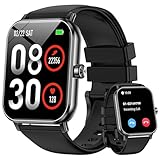
- 1.85'' Display & 300+ Watch Faces: Smart watch for men women adopts 1.85 HD screen that provides excellent visual experience. There are 300+ watch faces built-in, which can be changed by long-pressing the screen or selected/cutomized through the “Da Fit” app
- Bluetooth Calls & Smart Reminders: Fitness tracker makes calls directly from your wrist with clear audio. Receive real-time notifications for SMS and apps, ensuring you never miss important messages while driving or exercising hands-free (No reply)
- 24/7 Health Monitoring: Smart watches for men equipped with a high-performance optical sensor that can record your activities throughout the day, monitor your heart rate, sleep status and other data, and help you develop a healthier lifestyle
- 130+ Sport Modes : Built-in 3-axis gravity sensor enables this fitness watch to accurately track daily steps, distance and calories for safer and more effective workouts. These data can be viewed on the watch or mobile phone APP (note: step counting starts after 20 steps)
- 5 ATM Waterproof: Multifunctional fitness tracker watch features 5 ATM waterproof performance, wearable for swimming, handwashing and rainy days. No worry about sweat or rain damage during outdoor workouts with multiple sports modes (note: high water temperatures can affect service life)
Disable continuous heart rate tracking unless you actively use it for training or medical reasons. Periodic tracking still provides useful trends with far less drain.
Turn off Wi‑Fi on the watch unless you regularly leave your phone behind. Bluetooth is more efficient for day-to-day syncing and keeps power usage predictable.
If you use always-on display, confirm tilt-to-wake behavior. On some models, disabling tilt while keeping AOD active results in fewer full screen wake-ups and smoother endurance.
Comfort and Wearability Tweaks That Affect Daily Use
Comfort influences how often you actually wear the watch, which matters more than specs. Factory straps often prioritize appearance over breathability.
If you sleep with the watch, consider switching to a softer fluoroelastomer or fabric strap at night. This reduces skin irritation and improves sensor contact for sleep tracking.
Case size also plays a role. Larger watches distribute weight better for workouts but can dig into the wrist during typing or sleep. Adjust strap tightness slightly looser for daily wear and snugger only during exercise.
When to Stop Tweaking and Let the Watch Settle
After customization, give the watch three to five days of normal use. Background services recalibrate, battery predictions stabilize, and usage patterns normalize.
Avoid constant setting changes during this period. Chasing minor battery fluctuations often creates more problems than it solves.
A properly tuned Wear OS 3 watch should fade into the background. You glance, swipe, or tap without thinking, and the device supports your routine instead of demanding attention.
Troubleshooting Common Wear OS 3 Setup Problems: Pairing Failures, Sync Issues, Battery Drain, and Reset Fixes
Even after careful setup, Wear OS 3 can hit snags in the first few days. Most issues are software- or permission-related, not hardware defects, and they’re usually fixable in minutes.
Think of this section as a controlled reset of expectations. Instead of endlessly toggling settings, work through these problems methodically and the watch will return to being the quiet helper it’s meant to be.
Wear OS 3 Won’t Pair With Your Phone
Pairing failures almost always trace back to Bluetooth conflicts or leftover data from a previous attempt. Wear OS 3 is stricter than older versions and doesn’t tolerate partial connections.
Start by confirming your phone meets the minimum requirements. You need Android 8 or newer for most Wear OS 3 watches, while Samsung Galaxy Watch models typically require Android 10 and a recent version of One UI.
On your phone, open Bluetooth settings and remove any previous listings for the watch. If the watch appears multiple times or as “unknown,” delete all entries.
Restart both devices. This clears cached Bluetooth sessions that can silently block pairing.
Open the correct companion app before starting again. Pixel Watch uses the Google Pixel Watch app, Samsung Galaxy Watch uses Galaxy Wearable, and other brands rely on the Wear OS app plus a manufacturer plugin.
During pairing, keep the watch and phone within 12 inches of each other. Wear OS uses a short-range handshake during initial setup, and distance matters more than people expect.
If pairing stalls on a spinning screen for more than two minutes, cancel the process on both devices and start fresh. Waiting rarely fixes it.
Setup Gets Stuck on Google Account or Permissions
This step trips up many first-time users because Wear OS 3 splits responsibility between Google services and the manufacturer app.
If Google account login loops or fails, confirm the phone is already signed into the correct Google account. Wear OS mirrors the phone’s account rather than creating a new one on the watch.
Check that Google Play Services is fully updated on the phone. An outdated version can block account syncing without showing an error.
Permissions matter more than they seem. Location, Contacts, Phone, and Calendar access are required for core features like notifications, weather, assistant, and call handling.
If you skipped permissions during setup, open the companion app and review permissions manually. Missing one can cause partial functionality that feels like a bug.
On Samsung watches, confirm that Samsung Health, Samsung Accessory Service, and Galaxy Wearable all have unrestricted background activity.
Notifications Aren’t Syncing Properly
Notification issues are usually caused by aggressive battery optimization on the phone, not the watch.
Open your phone’s battery settings and exclude the companion app from optimization. On Pixel phones this is under App battery usage, while Samsung phones place it under Background usage limits.
Confirm notification mirroring is enabled inside the companion app. Wear OS 3 lets you filter notifications per app, and it’s easy to accidentally block key ones.
If notifications arrive late, check Do Not Disturb modes on both devices. Wear OS can mirror phone DND or run independently depending on your settings.
Messaging apps with their own battery controls, like WhatsApp or Telegram, may need manual permission adjustments to stay reliable.
Health and Fitness Data Isn’t Syncing
Fitness sync issues often look serious but are usually just delayed background updates.
Open the health app directly on the phone, such as Google Fit or Samsung Health, and force a manual sync. This often pulls in missing data immediately.
Make sure the watch is worn snugly during workouts. Poor sensor contact leads to incomplete heart rate and activity logs, which then appear as sync failures.
If workouts appear on the watch but not the phone, confirm both apps are signed into the same account. This is common when switching phones or restoring from backups.
Give new watches a few days to normalize. Sleep tracking and resting heart rate need multiple nights to establish baselines.
Unexpected Battery Drain After Setup
Heavy battery drain in the first 48 hours is normal. The watch is downloading updates, indexing apps, and syncing data continuously.
If drain remains severe after three days, review what’s running in the background. Third-party watch faces and fitness apps are frequent offenders.
Disable Wi‑Fi on the watch unless you regularly use it independently from your phone. Bluetooth is more efficient and sufficient for most users.
Check GPS usage. Some workout apps leave location services active even after sessions end.
If the watch feels warm while idle, reboot it. Stuck background processes can cause heat and drain without showing in battery stats.
Charging Problems and Slow Charging
Wear OS watches are sensitive to charger alignment. Even slight misplacement can result in slow or inconsistent charging.
Clean the charging contacts on both the watch and puck. Skin oils and dust build up faster than expected, especially on watches worn during workouts.
Use the original charging cable when possible. Third-party chargers sometimes deliver lower wattage or inconsistent power.
Avoid charging on metal surfaces, which can interfere with wireless charging coils on models like Pixel Watch.
When a Restart Fixes Everything
A simple restart solves more Wear OS issues than any setting tweak.
Restart the watch first, then the phone. This resets the connection handshake and clears stalled services.
If something feels “off” but you can’t pinpoint it, reboot before diving into menus. It saves time and frustration.
How and When to Factory Reset a Wear OS 3 Watch
A factory reset is the nuclear option, but it’s sometimes the cleanest solution.
Reset if pairing repeatedly fails, core apps won’t sync, or the watch was previously paired to another phone.
From the watch, go to Settings, System, Disconnect and reset. Confirm the reset and wait for the watch to reboot.
After resetting, delete any remaining watch entries from your phone’s Bluetooth list and companion app before pairing again.
Set aside 20 uninterrupted minutes for the process. Rushing a re-pair often recreates the same problems.
Knowing When the Problem Isn’t the Watch
Some issues originate on the phone side. Aggressive power management, outdated software, or conflicting apps can sabotage Wear OS stability.
If problems persist across multiple resets, test the watch with another Android phone if possible. This quickly reveals whether the issue is device-specific.
Carrier-branded phones and heavily customized Android skins are more likely to interfere with background syncing.
Final Reality Check: What “Normal” Looks Like
A properly functioning Wear OS 3 watch connects quietly, syncs without manual intervention, and lasts a full day with room to spare.
You shouldn’t need daily reboots or constant troubleshooting. If you do, something upstream is wrong.
Once these issues are resolved, the watch should feel settled, comfortable on the wrist, responsive in daily use, and dependable for health tracking and notifications. At that point, setup ends and ownership finally begins.