Garmin Wi‑Fi is one of those features you barely notice when it works and immediately miss when it doesn’t. If syncing feels slow, updates refuse to install, or music won’t download unless your phone is nearby, Wi‑Fi is usually the missing piece. Understanding what it actually does sets the foundation for everything that follows in this guide.
Unlike Bluetooth, which handles quick data transfers and notifications, Garmin Wi‑Fi is designed for heavy lifting. It enables faster syncing, background updates, and direct downloads that don’t rely on your phone staying connected the entire time. Once Wi‑Fi is set up correctly, many everyday Garmin frustrations quietly disappear.
What Garmin Wi‑Fi actually does on your watch
Garmin Wi‑Fi allows your watch to connect directly to your home or trusted networks, bypassing the limitations of Bluetooth. This is especially important for large data transfers that would otherwise be slow or unreliable through your phone. The watch only uses Wi‑Fi when needed, not continuously.
When connected to Wi‑Fi, your watch can sync activities, health data, and settings directly to Garmin Connect. This happens automatically when charging on many models, which is why users often see data upload overnight without opening the app. It also enables background syncing that doesn’t interrupt daily use.
🏆 #1 Best Overall

- Easy-to-use running watch monitors heart rate (this is not a medical device) at the wrist and uses GPS to track how far, how fast and where you’ve run.Special Feature:Bluetooth.
- Battery life: up to 2 weeks in smartwatch mode; up to 20 hours in GPS mode
- Plan your race day strategy with the PacePro feature (not compatible with on-device courses), which offers GPS-based pace guidance for a selected course or distance
- Run your best with helpful training tools, including race time predictions and finish time estimates
- Track all the ways you move with built-in activity profiles for running, cycling, track run, virtual run, pool swim, Pilates, HIIT, breathwork and more
Wi‑Fi is also required for features that simply won’t work over Bluetooth alone. These include music downloads, firmware updates, map updates, and installing larger apps or watch faces from the Connect IQ store.
Why Wi‑Fi matters for software updates and stability
Garmin firmware updates can be large, especially on watches with advanced training metrics, AMOLED displays, or full-color maps. Over Bluetooth, these updates are slower and more prone to failure if your phone locks, switches apps, or loses signal. Wi‑Fi provides a stable, high-bandwidth connection that dramatically reduces update errors.
Many Garmin watches are designed to check for updates automatically while charging and connected to Wi‑Fi. This means bug fixes, performance improvements, and new features can install without you doing anything beyond wearing the watch as usual. Without Wi‑Fi configured, updates may sit pending indefinitely.
Map updates are where Wi‑Fi becomes essential rather than optional. Watches like the Fenix, Epix, Enduro, and Forerunner 965 rely on Wi‑Fi to download regional maps that can be several gigabytes in size. These updates are not practical over Bluetooth and often won’t even start without Wi‑Fi enabled.
How Wi‑Fi enables offline music and audio features
If your Garmin supports onboard music, Wi‑Fi is how that music gets there. Spotify, Amazon Music, and Deezer downloads require a Wi‑Fi connection because of file size and digital rights management. Bluetooth syncing from your phone is not supported for these services.
Once music is downloaded over Wi‑Fi, playback is completely offline. You can leave your phone at home and pair Bluetooth headphones directly to the watch for runs or workouts. This is one of the biggest quality-of-life upgrades Wi‑Fi-enabled Garmin models offer.
Wi‑Fi also handles podcast and playlist refreshes in the background. As long as the watch is charging and connected, new episodes or updated playlists can sync automatically without manual intervention.
Which Garmin watches support Wi‑Fi (and which don’t)
Not every Garmin watch includes Wi‑Fi, and this often surprises buyers. Wi‑Fi is typically reserved for mid-range and premium models where music, maps, or advanced features justify the extra hardware. Entry-level watches focus on Bluetooth-only connectivity to preserve cost and battery life.
Models that commonly include Wi‑Fi are the Fenix series, Epix series, Enduro series, most Forerunner Music editions, Venu and Venu Sq Music, and select Vivoactive models. Variants without music or maps often omit Wi‑Fi even if they look similar externally.
If your watch doesn’t support Wi‑Fi, you’re not missing basic activity tracking or health metrics. You’ll still sync through Bluetooth using Garmin Connect on your phone, but updates, downloads, and syncing will be slower and more hands-on.
Battery impact and real-world usage expectations
Garmin Wi‑Fi is designed to be power-efficient and event-based. The watch does not stay connected continuously and typically activates Wi‑Fi only during syncing, downloads, or updates. In daily use, the battery impact is minimal.
Most watches prioritize Wi‑Fi use while charging, which prevents unnecessary drain during workouts or sleep tracking. This approach aligns with Garmin’s reputation for long battery life, even on feature-rich models with AMOLED displays or solar charging.
If you notice higher battery drain, it’s usually due to repeated failed sync attempts or interrupted downloads. Proper setup and a stable network eliminate most battery-related concerns tied to Wi‑Fi.
Why proper Wi‑Fi setup prevents common Garmin frustrations
Many sync issues blamed on Garmin Connect are actually Wi‑Fi configuration problems. Incorrect passwords, incompatible network types, or router security settings can quietly block connections. When Wi‑Fi works, syncing becomes faster and largely invisible.
Garmin watches support 2.4 GHz networks but generally do not support 5 GHz-only networks or captive portals like hotel or public Wi‑Fi. This limitation is intentional to maximize compatibility and reliability, but it means home network setup matters.
Once Wi‑Fi is configured correctly, your watch becomes far more independent. Updates install reliably, music stays fresh, and data syncs without constant phone involvement, setting the stage for the step-by-step setup process that follows next.
Which Garmin Watches Support Wi‑Fi — Full Model Categories Explained
Now that you understand why Wi‑Fi setup matters for reliability, speed, and battery efficiency, the next step is confirming whether your specific Garmin model actually supports it. This is more important than it sounds, because Garmin often releases multiple versions of the same watch that look nearly identical but differ internally.
As a rule, Garmin reserves Wi‑Fi for higher-tier models designed for music storage, onboard maps, or frequent software updates without phone involvement. Entry-level and non‑music variants usually rely on Bluetooth only, even though they share the same case size, screen, and sensor layout.
Fēnix Series: Full Wi‑Fi Support Across Modern Generations
All recent Garmin Fēnix models include Wi‑Fi as standard equipment. This applies to Fēnix 5 Plus and newer, including Fēnix 6, Fēnix 7, Fēnix 7 Pro, and Fēnix E, as well as Sapphire, Solar, and AMOLED-equipped variants like the Fēnix 7X Pro and Fēnix 8 AMOLED.
These watches combine multi-band GPS, metal or titanium cases, sapphire or Power Glass lenses, and long battery life that often exceeds two weeks in smartwatch mode. Wi‑Fi plays a key role in keeping large map files, firmware updates, and music libraries synced efficiently, especially when the watch is charging overnight.
From a daily wear perspective, Fēnix watches are heavier and thicker than lifestyle-focused models, but Wi‑Fi reduces phone dependency, which many endurance athletes and outdoor users value. If you own a Fēnix from the last several generations, you can safely assume Wi‑Fi is available.
epix Series: AMOLED Performance With Always-On Wi‑Fi Capability
The epix (Gen 2) and epix Pro models include Wi‑Fi across all sizes. These watches share much of the Fēnix platform but replace the memory-in-pixel display with a high-resolution AMOLED screen that prioritizes clarity and indoor readability.
Because epix models often handle frequent software updates, Connect IQ apps, and music syncing, Wi‑Fi is essential to maintaining a smooth ownership experience. Battery life is shorter than solar Fēnix models, but Wi‑Fi usage is still optimized to occur primarily while charging.
If you chose epix for its premium materials, refined finishing, and modern display, Wi‑Fi support is already baked in and expected.
Forerunner Series: Music and High-End Training Models Only
Wi‑Fi support in the Forerunner line depends heavily on the specific model and edition. Generally, Forerunner watches with Music in the name or advanced mapping features include Wi‑Fi, while basic training models do not.
Models that support Wi‑Fi include the Forerunner 245 Music, 255 Music, 265, 645 Music, 745, 945, 955, and 965. These watches are designed for runners and triathletes who benefit from standalone music playback, faster sync times, and frequent training plan updates.
Non‑music versions such as the Forerunner 55, 165, and standard 245 or 255 models do not include Wi‑Fi. They are lighter, more affordable, and excellent for tracking workouts, but all syncing happens over Bluetooth through your phone.
Venu and Venu Sq Series: Lifestyle Watches With Smart Features
Most Venu models include Wi‑Fi, but again, the distinction comes down to music support. Venu, Venu 2, Venu 2 Plus, Venu 3, and Venu 3S all support Wi‑Fi, as they are positioned as premium lifestyle smartwatches with AMOLED displays and onboard storage.
In the Venu Sq line, only the Venu Sq Music Edition supports Wi‑Fi. The standard Venu Sq looks nearly identical, uses the same aluminum case and lightweight design, but omits Wi‑Fi entirely.
These watches are comfortable for all-day wear, thinner than Fēnix or epix, and well suited for users who want health tracking, notifications, and music without committing to a rugged sports watch.
vívoactive Series: Select Models With Wi‑Fi
Wi‑Fi support in the vívoactive line is limited to specific generations and editions. The vívoactive 3 Music and vívoactive 4 include Wi‑Fi, while the vívoactive 5 removes Wi‑Fi entirely despite being a newer model.
This change reflects Garmin’s shift toward Bluetooth-first syncing on midrange lifestyle watches. While the vívoactive 5 improves screen technology and health metrics, users who rely on Wi‑Fi for music syncing or phone-free updates may find this omission surprising.
If Wi‑Fi matters to you in this category, always verify the exact model name rather than assuming newer equals better connectivity.
Enduro Series: Ultra-Endurance Watches With Wi‑Fi Included
The Enduro and Enduro 2 both support Wi‑Fi. These watches are built for extreme battery life, with solar-assisted charging, lightweight titanium cases, and minimal lifestyle features.
Wi‑Fi is primarily used for firmware updates, map syncing, and occasional data transfers while charging. It is not intended for frequent daily syncing, but it ensures the watch remains current without relying on a phone.
Given the Enduro’s purpose-built nature, Wi‑Fi support is about maintenance and reliability rather than convenience.
Garmin Models That Do Not Support Wi‑Fi
Several popular Garmin lines never include Wi‑Fi, regardless of generation. This includes the Instinct series, Lily, Vivomove hybrids, Vivosmart bands, and most Garmin kids’ watches.
These devices prioritize battery life, durability, or minimalist design. They rely exclusively on Bluetooth syncing through the Garmin Connect app, which works reliably but requires your phone to be nearby.
If your watch falls into one of these categories, you won’t see Wi‑Fi options in the settings at all, and that’s normal behavior, not a defect.
Why Model Variants Matter More Than Appearance
Garmin frequently uses the same case, screen size, and button layout across multiple variants. A Forerunner 255 and 255 Music feel identical on the wrist, but only one includes Wi‑Fi and onboard storage.
Always check the exact model name in Garmin Connect or on the box, especially when buying refurbished or secondhand. Wi‑Fi capability is determined by internal hardware, not software updates.
Confirming support before setup saves time and prevents frustration as you move into adding a network and troubleshooting connections in the next steps.
Before You Start: Wi‑Fi Requirements, Battery Levels, and Network Limitations
Once you’ve confirmed that your exact Garmin model supports Wi‑Fi, a few practical checks will save you from most setup failures. Garmin’s Wi‑Fi implementation is reliable, but it is also conservative by design, prioritizing battery health, security, and background syncing over speed or flexibility.
Taking two minutes to prepare your watch, charger, and network now prevents the most common “network not found” or “connection failed” errors later.
Minimum Battery Level and Charging Expectations
Most Garmin watches require a minimum battery level of around 30 percent before Wi‑Fi options become available. For larger downloads like maps, music, or firmware updates, Garmin strongly prefers the watch to be actively charging.
If the battery is low, the Wi‑Fi menu may still appear but syncing will silently pause or fail. This is intentional behavior to protect battery longevity, especially on models with smaller lithium cells or solar-assisted charging systems like the Fenix and Enduro lines.
For the smoothest setup, place the watch on its charger and keep it there until the initial Wi‑Fi sync completes. This also improves antenna stability, which can matter on metal-cased watches with titanium or stainless steel bezels.
Supported Wi‑Fi Bands and Router Compatibility
Garmin watches only support 2.4 GHz Wi‑Fi networks. They do not connect to 5 GHz-only networks, even if your phone or laptop can see them.
Many modern routers broadcast a single network name for both 2.4 GHz and 5 GHz bands. If your router uses band steering, the watch may still connect successfully, but some setups require you to temporarily enable a dedicated 2.4 GHz SSID during setup.
Rank #2

- Designed with a bright, colorful AMOLED display, get a more complete picture of your health, thanks to battery life of up to 11 days in smartwatch mode
- Body Battery energy monitoring helps you understand when you’re charged up or need to rest, with even more personalized insights based on sleep, naps, stress levels, workouts and more (data presented is intended to be a close estimation of metrics tracked)
- Get a sleep score and personalized sleep coaching for how much sleep you need — and get tips on how to improve plus key metrics such as HRV status to better understand your health (data presented is intended to be a close estimation of metrics tracked)
- Find new ways to keep your body moving with more than 30 built-in indoor and GPS sports apps, including walking, running, cycling, HIIT, swimming, golf and more
- Wheelchair mode tracks pushes — rather than steps — and includes push and handcycle activities with preloaded workouts for strength, cardio, HIIT, Pilates and yoga, challenges specific to wheelchair users and more (data presented is intended to be a close estimation of metrics tracked)
If your router is configured as 5 GHz-only, the network will never appear on the watch. This is one of the most common reasons users believe their Wi‑Fi hardware is faulty when it is working exactly as designed.
Security Types Garmin Watches Can and Cannot Use
Garmin watches support standard WPA2-Personal security, which covers the majority of home networks. Some newer models also handle WPA2/WPA3 mixed modes, but pure WPA3-only networks can cause setup failures.
Enterprise networks that require username-based authentication, certificates, or device approval are not supported. This includes most corporate offices, universities, hospitals, and managed apartment complexes.
Public Wi‑Fi networks that use captive portals, where you must accept terms or log in through a browser, are also incompatible. If a network requires a web page to finish connecting, the watch cannot complete the process.
Distance, Interference, and Real-World Placement
Garmin watch antennas are small and optimized for short-range, low-power connections. During setup, the watch should be within the same room as the router, ideally within 10 to 15 feet.
Dense walls, metal shelving, and even large appliances can interfere with initial pairing. This is more noticeable on watches with metal cases and sapphire glass, where durability and premium materials slightly reduce signal transparency.
Once a network is saved, the watch is more forgiving, but initial setup is the most sensitive phase. If a network fails to add, moving closer to the router often resolves the issue immediately.
Time, Date, and Software Must Be Correct
Your watch must have the correct time and date set before Wi‑Fi authentication can succeed. If the watch has not synced recently and the clock is off, secure networks may reject the connection.
If you’re setting up Wi‑Fi on a brand-new or recently reset watch, first complete Bluetooth pairing with the Garmin Connect app. This ensures the watch firmware, time zone, and base software are properly initialized.
Skipping this step can lead to confusing Wi‑Fi errors that disappear as soon as the watch completes its first Bluetooth sync.
Network Name and Password Details That Matter
Garmin watches are case-sensitive when entering Wi‑Fi passwords. A single incorrect character will cause the connection to fail without detailed error messaging.
Networks with very long names, special characters, or emojis can sometimes appear but fail during authentication. While rare, simplifying the SSID name can help if you repeatedly encounter unexplained failures.
If your router uses MAC address filtering, you must allow the watch before it can connect. Otherwise, the network may appear available but never successfully authenticate.
What Wi‑Fi Is Actually Used For on Garmin Watches
Wi‑Fi on Garmin watches is designed for background tasks while charging, not continuous connectivity. Typical uses include firmware updates, map downloads, music syncing, and sending large activity files to Garmin Connect.
Daily activity syncing, notifications, and live data rely primarily on Bluetooth. This design choice preserves battery life and keeps the watch comfortable for 24/7 wear, even on lightweight models with slim case profiles.
Understanding this division helps set expectations and prevents unnecessary troubleshooting when Bluetooth behavior is mistaken for a Wi‑Fi issue.
Situations Where Wi‑Fi Will Be Temporarily Disabled
Wi‑Fi automatically shuts off during activities, airplane mode, and certain battery saver profiles. Some watches also pause Wi‑Fi if skin temperature rises significantly during charging, as a safety precaution.
If Wi‑Fi options seem to disappear, check that the watch is not mid-activity, in power-saving mode, or locked into a custom battery profile. These modes prioritize tracking accuracy and comfort over connectivity.
Once these conditions are cleared, Wi‑Fi settings should reappear without requiring a restart or reset.
How to Add a New Wi‑Fi Network Using Garmin Connect (Phone App Method)
Once your watch is fully paired, updated, and out of any restricted modes, the Garmin Connect phone app becomes the most reliable way to add Wi‑Fi. This method avoids awkward on‑watch text entry and works consistently across touchscreen and button‑only models.
The phone app method is also future‑proof. Even if Garmin slightly changes on‑watch menus through firmware updates, the Connect app workflow has remained stable across generations, from older Forerunner Music models to newer Fenix, Epix, and Venu lines.
Before You Start: Confirm Your Watch Supports Wi‑Fi
Not all Garmin watches include Wi‑Fi hardware, so it’s worth checking before you go hunting for missing menus. Wi‑Fi is typically included on Music editions, premium multisport watches, and AMOLED lifestyle models.
Common Wi‑Fi–enabled families include Forerunner Music variants (245 Music, 255 Music, 265, 955, 965), Fenix and Epix series, Venu and Venu Sq Music, Vivoactive Music models, MARQ, and many D2 aviation watches. If your watch lacks onboard music, maps, or large update capabilities, it likely relies solely on Bluetooth and USB.
If the Wi‑Fi menu never appears in Garmin Connect for your device, that’s usually a hardware limitation rather than a setup error.
Step‑by‑Step: Adding a Wi‑Fi Network in Garmin Connect
Start by opening the Garmin Connect app on your phone and confirming your watch is connected over Bluetooth. The watch icon at the top should be solid, not showing a syncing error or disconnected status.
Tap the watch icon, then select your device from the list if you have multiple Garmins paired. This opens the device‑specific settings panel.
Scroll down and tap Connectivity, then select Wi‑Fi. On some Android versions, Wi‑Fi appears directly in the device menu without the Connectivity label, but the destination is the same.
Tap Add Network. Garmin Connect will now scan for nearby 2.4 GHz Wi‑Fi networks using your phone as an interface.
Select your home or office network from the list. Hidden networks can be added manually, but visible networks are always more reliable.
Enter the Wi‑Fi password carefully. Passwords are case‑sensitive, and the app does not auto‑correct or warn you about trailing spaces.
Tap Connect or Save, depending on your app version. The credentials are now securely transferred to the watch.
At this stage, the watch may not connect immediately. Garmin watches typically wait until they are charging and idle before activating Wi‑Fi to protect battery life and internal temperature.
What to Expect After Adding the Network
Once the network is saved, you won’t see a constant Wi‑Fi icon on the watch. This is normal and often confuses first‑time users.
Wi‑Fi activates automatically when the watch is placed on the charger, is not in an activity, and has pending tasks such as updates, music transfers, or large sync jobs. This design keeps slim, lightweight cases comfortable for all‑day wear without sacrificing battery longevity.
On larger models like Fenix or Epix, Wi‑Fi transfers may feel faster thanks to larger batteries and better thermal headroom, but the behavior is functionally the same across the lineup.
How to Add Multiple Networks and Switch Between Them
Garmin watches can store multiple Wi‑Fi networks at once. This is useful if you regularly sync at home, work, or a gym with compatible security settings.
Repeat the same Add Network process for each location. The watch will automatically choose a known network when conditions allow, without requiring manual switching.
If two saved networks are available at the same time, the watch generally prioritizes the strongest signal. There is no user‑controlled priority list, but this rarely causes real‑world issues.
Editing or Removing a Saved Wi‑Fi Network
To manage existing networks, return to the Wi‑Fi menu inside your device settings in Garmin Connect. You’ll see a list of saved networks.
Tap a network to remove it. Garmin does not allow password editing for security reasons, so changing a router password requires deleting the old network and adding it again.
If you’ve recently upgraded your router or changed encryption settings, removing and re‑adding the network is often faster than troubleshooting repeated sync failures.
Common Problems During Setup and How to Fix Them Immediately
If your network does not appear in the list, confirm your router is broadcasting on 2.4 GHz. Most Garmin watches do not support 5 GHz Wi‑Fi, even if your phone does.
If the password is accepted but the watch never connects, place the watch on its charger and wait several minutes. Wi‑Fi will not activate while the watch is worn or actively in use.
If Garmin Connect shows a generic connection failure, toggle Bluetooth off and back on in your phone’s system settings, then retry adding the network. This refreshes the credential handoff process between phone and watch.
For persistent issues, restart both the phone and the watch before attempting to add the network again. This clears cached connection states without affecting your data or settings.
Why the Phone App Method Is Preferable to On‑Watch Setup
Entering passwords on a small screen with buttons or a compact touchscreen increases the chance of silent errors. The phone app eliminates this friction and dramatically improves first‑time success rates.
This approach also works consistently across case sizes, display types, and control layouts, whether you’re using a rugged sapphire‑equipped multisport watch or a slimmer lifestyle model designed for comfort and daily wear.
Once added through Garmin Connect, the network behaves identically to one added directly on the watch, with no performance or reliability penalty.
How to Add or Manage Wi‑Fi Networks Directly on Your Garmin Watch
If you don’t have your phone nearby or prefer handling everything from the watch itself, many Garmin models let you add and manage Wi‑Fi networks directly on the device. This method is slower than using Garmin Connect on your phone, but it’s useful when traveling, setting up a secondary network, or recovering from sync issues.
Rank #3

- Easy-to-use running smartwatch with built-in GPS for pace/distance and wrist-based heart rate; brilliant AMOLED touchscreen display with traditional button controls; lightweight design in 43 mm size
- Up to 11 days of battery life in smartwatch mode and up to 19 hours in GPS mode
- Reach your goals with personalized daily suggested workouts that adapt based on performance and recovery; use Garmin Coach and race adaptive training plans to get workout suggestions for specific events
- 25+ built-in activity profiles include running, cycling, HIIT, strength and more
- As soon as you wake up, get your morning report with an overview of your sleep, recovery and training outlook alongside weather and HRV status (data presented is intended to be a close estimation of metrics tracked)
Not every Garmin supports Wi‑Fi, so this section assumes you’re using a compatible model such as the Forerunner 245 Music and newer, Forerunner 945 and 965, fēnix series, epix series, Enduro, MARQ, Venu, or Venu Sq Music. Entry‑level and non‑music models typically rely on Bluetooth only.
Before You Start: What the Watch Needs to Connect Successfully
Garmin watches only connect to 2.4 GHz Wi‑Fi networks using WPA or WPA2 security. WPA3‑only networks, captive portals (like hotels or gyms), and enterprise networks with username logins are not supported.
For best results, place the watch on its charger and keep it within a few feet of the router. Wi‑Fi radios on Garmin watches are low‑power to preserve battery life, and connection reliability drops quickly with distance.
Make sure the watch is idle, not recording an activity, and not being worn. Many models will silently refuse Wi‑Fi connections while on the wrist.
Step‑by‑Step: Adding a New Wi‑Fi Network on the Watch
Start by opening the main menu on your watch. On most button‑based models, hold the top left button. On touchscreen models, press the button or swipe to access the menu.
Navigate to Settings, then select Wi‑Fi. Choose Add Network or My Networks, depending on your model and software version.
The watch will scan for nearby 2.4 GHz networks. Select your network from the list. If it doesn’t appear, move closer to the router and wait a few seconds for the scan to refresh.
When prompted, enter the password using the on‑screen keyboard or button controls. This is the most error‑prone step, especially on smaller displays, so take your time and double‑check each character.
Confirm the password and wait. The watch may appear idle for up to a minute before showing a success message. This delay is normal and not an error.
What Happens After the Network Is Added
Once saved, the watch will automatically use Wi‑Fi when it’s charging and within range of a known network. You don’t need to manually connect each time.
Wi‑Fi is used for software updates, map downloads, music syncs, and large data transfers. Everyday activity syncing still happens over Bluetooth to preserve battery life and maintain a seamless phone connection.
On larger watches like the fēnix or epix series, Wi‑Fi downloads are noticeably faster, especially for maps and music, thanks to larger batteries and better thermal headroom during charging.
Managing Saved Wi‑Fi Networks on the Watch
To view or remove saved networks, return to Settings and open the Wi‑Fi menu. Select Saved Networks or My Networks.
Tap or select a network to remove it. Garmin does not allow editing an existing password, so any password change requires deleting and re‑adding the network.
If you’ve moved houses, upgraded routers, or switched encryption types, clearing old networks prevents the watch from repeatedly attempting failed connections in the background.
Common On‑Watch Setup Problems and Immediate Fixes
If your network never appears, confirm your router is broadcasting a visible SSID on 2.4 GHz. Some modern routers hide 2.4 GHz under a shared name with 5 GHz, which can confuse older Garmin models.
If the password is accepted but the connection fails, place the watch on the charger and retry. Many users miss this requirement and assume the Wi‑Fi radio is faulty.
If the watch connects once but won’t reconnect later, restart the watch and power‑cycle the router. This clears stale DHCP leases that can block low‑power devices.
If the Wi‑Fi menu is missing entirely, your model does not support Wi‑Fi, or the feature is disabled by region or software version. In that case, all syncing must be done through Bluetooth and Garmin Connect.
When On‑Watch Setup Makes Sense and When It Doesn’t
Adding networks directly on the watch is practical for advanced users who understand their network setup and are comfortable with small inputs. It’s also useful for secondary locations where your phone isn’t available.
For most users, especially on compact or button‑only watches, the phone app method remains faster, more reliable, and less frustrating. The end result is identical, but the path there matters for your sanity.
Understanding both methods gives you flexibility, which is especially valuable if you rely on Wi‑Fi for music downloads, frequent software updates, or long‑term device ownership across multiple routers and environments.
Understanding Wi‑Fi vs Bluetooth Syncing on Garmin Watches (When Each Is Used)
Now that you know how to add, remove, and manage Wi‑Fi networks, it helps to understand why Garmin uses both Wi‑Fi and Bluetooth in the first place. These two connection types are not interchangeable, and your watch automatically switches between them depending on what it’s trying to do.
This distinction explains many “why is my watch not syncing?” moments, especially for users who assume Wi‑Fi replaces Bluetooth entirely. In reality, Bluetooth remains the backbone of daily use, while Wi‑Fi steps in for heavier lifting.
Bluetooth Syncing: The Always‑On, Everyday Connection
Bluetooth is the primary connection between your Garmin watch and your phone. It handles automatic activity uploads, notifications, weather updates, calendar syncing, and most background data transfers throughout the day.
Because Bluetooth Low Energy is extremely power‑efficient, it allows the watch to maintain a constant link without destroying battery life. This is why even compact, lightweight models with smaller batteries rely on Bluetooth for routine syncing.
In practical use, Bluetooth syncing happens silently. You finish an activity, open the Garmin Connect app, and the data transfers within seconds, even on entry‑level watches with no Wi‑Fi hardware at all.
Wi‑Fi Syncing: Used for Large Files and Phone‑Free Updates
Wi‑Fi is only activated when the watch needs more bandwidth or independence from your phone. This includes software updates, Connect IQ app and watch face downloads, map updates, and offline music syncing.
Music is the most common trigger for Wi‑Fi usage. Downloading Spotify, Amazon Music, or Deezer playlists would be painfully slow over Bluetooth, so the watch waits until it’s charging and connected to Wi‑Fi.
Wi‑Fi also allows syncing without your phone nearby. If your watch is on the charger overnight and connected to a known network, it can upload activities and install updates entirely on its own.
Why Your Watch Often Requires the Charger for Wi‑Fi
Garmin intentionally limits Wi‑Fi use to charging scenarios on most models. The Wi‑Fi radio draws significantly more power than Bluetooth, and unrestricted use would dramatically reduce battery life.
This design choice protects long‑term battery health, especially on watches built for multi‑day endurance and outdoor use. It’s also why many users mistakenly think Wi‑Fi is broken when the real issue is that the watch isn’t charging.
Some premium models may briefly use Wi‑Fi off‑charger for specific tasks, but charging remains the expected state for reliable Wi‑Fi operation across the lineup.
Which Garmin Watches Actually Support Wi‑Fi
Not all Garmin watches include Wi‑Fi hardware. Typically, Wi‑Fi appears on mid‑range to high‑end models such as Forerunner Music editions, Fenix, Epix, Enduro, Venu, Vivoactive, and select MARQ variants.
Entry‑level fitness watches and older models rely entirely on Bluetooth. These devices still sync perfectly well for activities and health data, but they must stay paired to your phone for updates and downloads.
If your watch lacks a Wi‑Fi menu entirely, this is normal behavior, not a fault. Bluetooth syncing is the intended and fully supported method for those models.
How Garmin Decides Which Connection to Use
You don’t manually choose between Wi‑Fi and Bluetooth for syncing. The watch automatically selects the best option based on file size, power state, and availability.
Small data transfers always go over Bluetooth, even if Wi‑Fi is configured. Larger downloads wait until Wi‑Fi is available and the watch is charging.
If both connections are present, Bluetooth still handles real‑time phone interactions, while Wi‑Fi operates quietly in the background for scheduled or queued tasks.
Common Misunderstandings That Cause Sync Confusion
One frequent misconception is that adding Wi‑Fi means Bluetooth is no longer required. In reality, Bluetooth must remain enabled for notifications, phone syncing, and initial setup tasks.
Another common issue is expecting instant Wi‑Fi syncing after adding a network. If the watch isn’t charging or doesn’t need to transfer large files, it may not use Wi‑Fi at all.
Understanding this behavior prevents unnecessary resets, router changes, or warranty concerns. In most cases, the watch is behaving exactly as designed.
Real‑World Impact on Battery Life and Daily Usability
Bluetooth syncing has minimal impact on battery life, even on smaller watches designed for comfort and all‑day wear. This allows Garmin to prioritize slim cases, lighter materials, and longer real‑world endurance.
Wi‑Fi usage, while less frequent, is optimized for convenience rather than constant availability. By confining it to charging periods, Garmin preserves multi‑day battery claims without sacrificing modern features.
Once you understand when each connection is used, Wi‑Fi stops feeling unreliable and starts feeling invisible, which is exactly how Garmin intends it to work.
Common Garmin Wi‑Fi Problems — Symptoms, Causes, and Quick Fixes
Once you understand that Wi‑Fi operates quietly in the background, most connection issues become easier to diagnose. The problems below are rarely hardware failures and almost always trace back to power state, network compatibility, or how Garmin schedules transfers.
Each scenario includes what you’ll see on the watch, why it happens, and the fastest fix that actually works in day‑to‑day use.
Wi‑Fi Network Won’t Appear on the Watch
Symptom: Your home network doesn’t show up when adding Wi‑Fi, even though other devices see it instantly.
Cause: Garmin watches only support 2.4 GHz Wi‑Fi networks. Many modern routers default to 5 GHz or hide 2.4 GHz behind a single combined SSID.
Rank #4

- Make a bold statement with this rugged GPS smartwatch, featuring a 0.9” display with solar charging lens and unlimited battery life with solar charging (assumes all-day wear with 3 hours per day outside in 50,000 lux conditions)
- Engineered with a supertough 45 mm fiber-reinforced polymer case and metal-reinforced bezel
- Built-in LED flashlight with variable intensities and strobe modes gives you greater visibility in the outdoors and provides convenient illumination when you need it
- Know your body better with health monitoring features, including wrist-based heart rate, advanced sleep monitoring, Pulse Ox and more (this is not a medical device, and data presented is intended to be a close estimation of metrics tracked; Pulse Ox not available in all countries)
- Navigate confidently with a 3-axis compass, barometric altimeter and multi-band GPS with SatIQ technology, which delivers superior positioning while also optimizing battery life
Quick fix: Log into your router settings and confirm that a 2.4 GHz band is enabled and broadcasting. If your router uses a combined SSID, temporarily split the bands or enable compatibility mode, then add the network from Garmin Connect.
Wi‑Fi Connects but Sync Never Starts
Symptom: The watch shows a saved Wi‑Fi network, but updates, music, or maps never download.
Cause: Garmin restricts Wi‑Fi transfers to charging periods and larger queued files. If the watch isn’t plugged in or nothing large is pending, Wi‑Fi remains idle by design.
Quick fix: Place the watch on its charger and leave it for several minutes. If needed, manually queue a large task like a firmware update or music download to trigger Wi‑Fi usage.
Firmware Updates Stuck or Fail Repeatedly
Symptom: Software updates start, pause indefinitely, or fail partway through.
Cause: Unstable Wi‑Fi, weak signal at the charger location, or interrupted power during the update process.
Quick fix: Move the charger closer to the router, preferably within the same room. Use a wall outlet rather than a laptop USB port, and avoid moving the watch until the update completes.
Music Downloads Fail or Stop Mid‑Transfer
Symptom: Spotify, Deezer, or Amazon Music downloads stall or restart repeatedly.
Cause: Music files are large and sensitive to signal drops. Even minor Wi‑Fi instability can interrupt downloads, especially on smaller watches with compact antennas.
Quick fix: Charge the watch in a location with strong Wi‑Fi and minimal interference. Keep Bluetooth enabled on the phone, as some music services still rely on the phone app to manage queues and authentication.
“Incorrect Password” Error on a Known Network
Symptom: The watch refuses to connect even though the password is correct and works on other devices.
Cause: Garmin watches don’t support certain advanced authentication methods or special characters used by enterprise or mesh systems.
Quick fix: Re‑enter the password carefully in Garmin Connect and avoid copy‑paste errors. If the network uses WPA3 only, switch the router to WPA2/WPA3 mixed mode for compatibility.
Wi‑Fi Works Once, Then Never Reconnects
Symptom: Initial setup succeeds, but future downloads never trigger again.
Cause: The saved network may be corrupted after a failed sync or interrupted update.
Quick fix: In Garmin Connect, remove the Wi‑Fi network from the watch, restart both the phone and watch, then add the network again from scratch. This resolves most persistent reconnection issues without a full reset.
Watch Drains Battery Faster After Adding Wi‑Fi
Symptom: Battery life drops noticeably, especially on smaller or lighter models designed for comfort and all‑day wear.
Cause: The watch is repeatedly scanning for a weak or unreachable Wi‑Fi network, increasing background power use.
Quick fix: Remove Wi‑Fi networks you don’t regularly use, such as hotels or gyms. Garmin watches are optimized for long battery life when Wi‑Fi is limited to known, stable locations.
Public or Workplace Wi‑Fi Won’t Work
Symptom: The network appears, but the watch never completes setup or downloads.
Cause: Garmin watches cannot authenticate through captive portals that require a browser login, terms acceptance, or two‑step verification.
Quick fix: Use a personal home network or mobile hotspot with standard password protection. For travel, downloading music and updates in advance is far more reliable.
Wi‑Fi Menu Missing After Setup
Symptom: The Wi‑Fi option disappears from settings after pairing or updating.
Cause: The model does not support standalone Wi‑Fi management, or the menu is hidden unless accessed through Garmin Connect.
Quick fix: Open Garmin Connect on your phone and navigate to the device settings to manage Wi‑Fi there. If the model relies entirely on Bluetooth, this behavior is normal and not a defect.
When to Reset — and When Not To
Symptom: Multiple Wi‑Fi issues persist despite basic fixes.
Cause: Users often reset too early, erasing data when the issue is network‑related rather than device‑related.
Quick fix: Try removing and re‑adding the Wi‑Fi network first, then restart both devices. A full factory reset should only be used if Wi‑Fi fails across multiple known‑good networks and after a recent firmware update.
Understanding these patterns keeps Wi‑Fi from becoming a source of frustration. In real‑world use, Garmin’s approach favors reliability, battery longevity, and comfort over constant connectivity, which is why most Wi‑Fi issues are solved by timing, power, and network compatibility rather than hardware replacement.
Advanced Troubleshooting: Router Settings, 2.4 GHz Networks, and Firmware Issues
When basic fixes don’t stick, the problem is usually not the watch itself but the environment it’s trying to connect to. Garmin Wi‑Fi is deliberately conservative to protect battery life, thermal limits, and long‑term durability on compact cases designed for all‑day wear. Understanding how your router, network band, and firmware interact with the watch clears up most stubborn issues.
Why 2.4 GHz Matters More Than Speed
Nearly all Garmin watches that support Wi‑Fi are designed to connect only to 2.4 GHz networks. This band offers longer range and better wall penetration, which suits a small antenna embedded in a lightweight polymer or metal case.
If your router combines 2.4 GHz and 5 GHz under a single network name, the watch may fail to connect even if your phone works fine. Many modern routers aggressively steer devices to 5 GHz, which Garmin watches simply cannot use.
The most reliable fix is to temporarily create a dedicated 2.4 GHz SSID during setup. Once the watch is connected and downloads are complete, you can often disable the separate network without issues, as the watch only wakes Wi‑Fi intermittently.
Router Security Settings That Commonly Break Garmin Wi‑Fi
Garmin watches support standard WPA2‑Personal security with a password. They do not support enterprise authentication, advanced certificate systems, or mixed legacy modes that some routers enable by default.
If your router is set to WPA3‑only or a WPA2/WPA3 mixed mode, switch it to WPA2‑Personal temporarily. This change does not reduce security in a meaningful way for home use and dramatically improves compatibility with wearables.
MAC address filtering, hidden SSIDs, and custom DNS filtering can also block the connection silently. If your network is locked down for smart‑home or office use, try disabling these features during setup to confirm whether they are the root cause.
Channel Width, Interference, and Mesh Networks
Garmin watches are low‑power devices and can struggle in crowded wireless environments. Wide channel widths, especially 40 MHz on 2.4 GHz, can introduce instability rather than speed.
Setting your router’s 2.4 GHz channel width to 20 MHz improves reliability. Manually selecting a less crowded channel, typically 1, 6, or 11, can also help if you live in an apartment building or dense neighborhood.
Mesh Wi‑Fi systems add another layer of complexity. Some watches connect successfully during setup but fail during downloads as the mesh hands them off between nodes. Performing setup near the primary router node, not a satellite, reduces this risk.
Firmware Mismatch Between Watch and Garmin Connect
Wi‑Fi setup depends on the watch firmware and the version of Garmin Connect working together. If either is out of date, the connection process may fail without a clear error message.
Before troubleshooting further, update Garmin Connect on your phone and check for watch firmware updates over Bluetooth. Many Wi‑Fi bugs are fixed quietly in firmware releases, especially around music downloads and background syncing.
If the watch recently updated and Wi‑Fi broke afterward, restart the watch and phone before making any network changes. The update may not have finalized properly until after a reboot, particularly on models with smaller memory footprints.
When Wi‑Fi Works for Syncing but Not for Music or Apps
Music downloads and Connect IQ installs stress Wi‑Fi far more than basic syncing. These tasks keep the radio active longer, which exposes weak signal strength or marginal router settings.
Place the watch on its charger during downloads. This stabilizes power delivery and prevents the system from throttling Wi‑Fi to protect battery health, which is especially important on slim, lightweight models.
If downloads consistently fail at the same percentage, delete the partially downloaded content and try again on a stronger 2.4 GHz signal. Repeated retries without cleanup can trap the watch in a loop that looks like a network failure.
Regional Router Settings and Hidden Compatibility Issues
Some routers allow region‑specific wireless settings that affect channel availability. If your router region does not match your actual location, the watch may see the network but refuse to connect.
Check that your router’s country or region setting matches where you live. This is more common on imported routers or advanced firmware like OpenWRT and can cause intermittent Garmin Wi‑Fi issues that are hard to diagnose.
In rare cases, enabling legacy compatibility modes on the router improves stability for wearables without impacting phones, laptops, or newer devices.
Last‑Resort Firmware Recovery Without Data Loss
If Wi‑Fi fails across multiple known‑good 2.4 GHz networks after firmware updates, a soft recovery is worth trying before a full reset. Power the watch off completely, leave it off for at least one minute, then restart and re‑add the network through Garmin Connect.
💰 Best Value
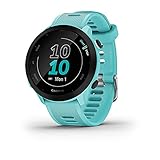
- Easy-to-use running watch monitors heart rate (this is not a medical device) at the wrist and uses GPS to track how far, how fast and where you’ve run
- Battery life: up to 2 weeks in smartwatch mode; up to 20 hours in GPS mode
- Plan your race day strategy with the PacePro feature (not compatible with on-device courses), which offers GPS-based pace guidance for a selected course or distance
- Run your best with helpful training tools, including race time predictions and finish time estimates
- Track all the ways you move with built-in activity profiles for running, cycling, track run, virtual run, pool swim, Pilates, HIIT, breathwork and more
This process clears temporary network states without touching activities, health data, or personalization. It aligns with Garmin’s design philosophy of preserving user data whenever possible.
Only consider a factory reset if Wi‑Fi fails on different routers, different locations, and after confirming firmware and router compatibility. At that point, the issue is likely a corrupted network profile rather than normal environmental interference.
How to Remove, Edit, or Switch Wi‑Fi Networks on Garmin
Once you’ve ruled out firmware glitches and router-side issues, managing the saved Wi‑Fi networks on the watch itself is the next logical step. Garmin watches store network profiles locally, and an outdated password or weak network entry can quietly block successful connections even when stronger options are available.
This is especially relevant if you’ve changed routers, updated your Wi‑Fi password, moved locations, or rely on multiple networks for music downloads, map updates, or app installs.
Understanding How Garmin Stores Wi‑Fi Networks
Garmin watches do not automatically hop between networks the way phones do. Instead, they try saved networks in order and connect to the first one that meets signal and security requirements.
If a saved network is still visible but no longer valid, the watch may repeatedly attempt and fail before trying another option. That delay often looks like a Wi‑Fi bug when it’s really a stale network profile.
Most Garmin models with Wi‑Fi support store multiple networks, but they do not expose priority controls. The most reliable way to force a switch is to remove or update older entries.
Removing a Wi‑Fi Network Using Garmin Connect (Recommended)
For most users, Garmin Connect on your phone is the easiest and safest way to manage Wi‑Fi networks. This method works across current Wi‑Fi–enabled models such as Forerunner Music editions, Venu series, vivoactive Music models, fenix, epix, Enduro, MARQ, and select D2 aviation watches.
Open the Garmin Connect app and select your watch from the device list. Navigate to Settings, then Wi‑Fi, and you’ll see all saved networks synced to the watch.
Tap the network you want to remove and select Forget or Remove. The change is applied immediately to the watch, and no reboot is required.
If you’re troubleshooting, remove all saved networks and add one known‑good 2.4 GHz network first. This clean slate approach eliminates conflicts caused by overlapping router names or repeated password changes.
Editing a Wi‑Fi Network After a Password Change
Garmin does not allow direct editing of a saved network’s password. If your router password changes, the existing network must be removed and re‑added.
Delete the old network entry in Garmin Connect, then use Add Network to enter the updated credentials. Re‑adding ensures the watch generates a fresh security handshake rather than reusing cached authentication data.
This step alone resolves a large percentage of “connected but not syncing” complaints, especially after ISP modem replacements or mesh system updates.
Adding or Switching to a New Wi‑Fi Network
To switch networks intentionally, first remove the network you no longer want the watch to prefer. Then add the new network through Garmin Connect and wait for the sync to complete before initiating downloads or updates.
When adding a network, keep the watch close to the router and place it on the charger. Wi‑Fi radios on slim, lightweight Garmin watches are power‑managed aggressively, and charging prevents throttling during the initial handshake.
If you’re adding a temporary network, such as a hotel or work connection, remember that captive portals are not supported. The network must allow direct internet access without browser-based login screens.
Managing Wi‑Fi Directly on the Watch (Model Dependent)
Some higher‑end models allow limited Wi‑Fi management directly on the watch. This is most common on fenix, epix, and MARQ series watches with more robust onboard menus.
From the watch, open the main menu, navigate to Settings, then Connectivity or Wi‑Fi. You may be able to view saved networks and initiate a new connection, but text entry is slower and less forgiving than using the phone app.
If your model supports on‑watch removal, use it only when your phone is unavailable. Garmin Connect remains the more reliable tool for managing credentials and avoiding entry errors.
What to Do If the Watch Keeps Reconnecting to the Wrong Network
If the watch insists on reconnecting to a weak or distant network, that profile needs to be removed entirely. Simply turning Wi‑Fi off and on does not reset network preference behavior.
After removal, restart the watch and add only the network you want it to use. This forces the Wi‑Fi stack to rebuild its internal list and prevents fallback attempts to outdated entries.
This scenario commonly affects users who train at home but sync music or maps at work, where both networks were previously saved.
Wi‑Fi Network Limits and Model Variations
Most Garmin watches can store several Wi‑Fi networks, but entry limits vary by model and firmware generation. When the limit is reached, adding a new network may silently fail or overwrite older entries.
Music‑focused models prioritize Wi‑Fi stability for large downloads, while adventure models balance Wi‑Fi with battery life and GPS performance. That design trade‑off explains why Wi‑Fi behavior can feel different between a Forerunner Music and a fenix, even on the same network.
If you regularly switch environments, periodically reviewing and cleaning saved networks keeps syncing fast and predictable.
When Removing Networks Solves Problems Instantly
If downloads stall at the same percentage, firmware updates fail repeatedly, or music syncs only succeed on the charger, removing and re‑adding Wi‑Fi networks is often the fix. These symptoms point to corrupted or mismatched network credentials rather than hardware failure.
Garmin watches are built for durability and long-term wear, but their compact antennas and conservative power management mean they’re less tolerant of messy network histories than phones or tablets.
Keeping the Wi‑Fi list lean improves daily usability, reduces sync time, and minimizes background radio activity, which helps preserve battery life without sacrificing core features like music, maps, or app updates.
When Wi‑Fi Still Won’t Work: Factory Resets, Garmin Support, and Long‑Term Fixes
If removing networks and re‑adding credentials hasn’t stabilized Wi‑Fi, the issue usually goes deeper than a single saved profile. At this stage, you’re dealing with corrupted system settings, firmware mismatches, or network environments that push the limits of a smartwatch radio.
The good news is that Garmin watches are designed to recover cleanly when reset properly, and true hardware failures are rare. The steps below move from least disruptive to most comprehensive, so you can stop as soon as Wi‑Fi reliability returns.
When a Factory Reset Is the Right Call
A factory reset is appropriate when Wi‑Fi fails across multiple known‑good networks, firmware updates refuse to complete, or the watch disconnects immediately after a successful password entry. These symptoms suggest the internal Wi‑Fi stack or system database is no longer behaving predictably.
Before resetting, sync the watch with Garmin Connect over Bluetooth if possible. This preserves activity history, training load, body battery trends, and health metrics that live in your account rather than on the device itself.
A reset does not affect your Garmin account, purchased apps, or music licenses, but it does erase on‑device settings like Wi‑Fi networks, custom data screens, and third‑party watch faces.
How to Perform a Proper Factory Reset
On most modern Garmin watches, hold the Light button to open the controls menu, then navigate to Settings, System, Reset, and choose Delete Data and Reset Settings. The wording may vary slightly by model, especially between Forerunner, fenix, and Venu families.
If the watch is unresponsive or stuck during setup, power it off completely, then hold the appropriate buttons during startup to access the reset prompt. Garmin’s button combinations differ by model, so it’s worth checking the official support page for your exact device.
After the reset, set the watch up as new rather than restoring settings immediately. Add Wi‑Fi before installing apps or syncing music, and test a download while the watch is on the charger to confirm stability.
Why Resets Often Fix “Unfixable” Wi‑Fi Problems
Garmin watches prioritize battery life, which means their radios operate with tighter power limits than phones or laptops. Over time, partial firmware updates, interrupted syncs, or failed music transfers can leave background services in an inconsistent state.
A factory reset clears these low‑level conflicts and forces the watch to rebuild its network configuration from scratch. In real‑world use, this often restores normal Wi‑Fi behavior immediately, especially on music‑capable models that move large files.
This is also why a reset can improve overall responsiveness, battery life, and syncing speed, not just Wi‑Fi reliability.
When to Contact Garmin Support Instead
If Wi‑Fi still fails after a clean reset and firmware update, it’s time to involve Garmin Support. Consistent failure across multiple networks, including simple home routers using 2.4 GHz and basic security, points away from user error.
Support can check diagnostic logs, confirm known firmware issues, and verify whether your model has region‑specific Wi‑Fi limitations. In rare cases, especially after water ingress or impact damage, the internal antenna may be compromised.
Garmin’s support experience is generally strong, and warranty replacements are not uncommon when hardware faults are confirmed. Having your serial number, firmware version, and a brief list of troubleshooting steps you’ve already tried speeds the process significantly.
Long‑Term Wi‑Fi Stability Tips for Daily Use
Once Wi‑Fi is working again, keeping it reliable comes down to simple habits. Limit saved networks to places you actually use, and remove old entries when you change routers or move homes.
Avoid enterprise, captive portal, or mesh extender networks for initial setup, as these are less predictable for low‑power devices. A straightforward 2.4 GHz home network with standard WPA2 security remains the most compatible option across Garmin’s lineup.
Charging during large downloads, keeping firmware up to date, and periodically restarting the watch all help maintain a clean software state without affecting comfort, durability, or everyday wearability.
Knowing When Wi‑Fi Is Worth Using at All
Not every Garmin feature depends on Wi‑Fi, and many users overestimate how often it’s required. Bluetooth handles activity syncing, notifications, and most daily data transfers efficiently with minimal battery impact.
Wi‑Fi matters most for music downloads, map updates, and large firmware files, especially on watches with onboard storage and stainless steel or titanium cases that slightly attenuate signal compared to polymer bodies.
Understanding this balance helps set realistic expectations and ensures Wi‑Fi enhances your experience rather than becoming a constant point of friction.
Final Takeaway: A Stable Setup Pays Off Long Term
Garmin watches are built for years of use, from daily training to long outdoor sessions, and a stable Wi‑Fi setup supports that longevity. When issues arise, systematic cleanup, a proper reset, and knowing when to escalate prevent wasted time and unnecessary frustration.
Once dialed in, Wi‑Fi becomes a quiet background feature that keeps maps current, music ready, and software optimized without demanding attention. That reliability is what lets you focus on training, recovery, and wearing the watch as it was intended, not troubleshooting it.