Setting up the Huawei Watch GT 4 on Android is straightforward once you know what Huawei expects from your phone, your accounts, and your region. Most setup problems don’t come from the watch itself, but from missing app sources, restricted permissions, or region-specific limitations that aren’t explained clearly on the box.
Before you even power on the watch, this section walks you through everything that needs to be ready on your Android phone. Taking five minutes here will save you from pairing failures, missing features, or battery drain issues later in the process.
You’ll learn which Android versions work best, why the Huawei Health app behaves differently depending on how you install it, what kind of Huawei ID you actually need, and which features vary by country. Once these basics are locked in, the rest of the setup becomes almost frictionless.
Android phone requirements and compatibility
The Huawei Watch GT 4 is compatible with most modern Android phones, but the experience is best on devices running Android 8.0 or newer. In real-world use, Android 10 and above offers more stable background syncing, better notification handling, and fewer permission-related interruptions.
🏆 #1 Best Overall

- 【Slimmer, but Stronger】HUAWEI WATCH GT 5 46mm is just 10.7mm thick and 48g. This smart watch is crafted with ultra-hard coatings on the body and screen, as well as uniform nano-film water-proof finish on the entire device.
- 【All-new Running and Cycling Experience】With seamless wrist-based navigation and real-time, map-based routes, you can run like wind and ride the roads.
- 【Emotional wellbeing assistant】Stay attuned to your mental health with the exclusive Emotional wellbeing app, which uses HUAWEI TruSense data to tell you how you're feeling in the moment.
- 【Leading Edge Health】HUAWEI WATCH GT 5 features in fast, accurate and comprehensive health tracking.
There is no dependency on Google services for basic functionality, which means Samsung, Pixel, Xiaomi, OnePlus, and other Android brands work equally well. However, heavily customized Android skins with aggressive battery management can interfere with background syncing unless adjusted later.
You do not need a Huawei phone to use the GT 4, and you are not locked out of core features like heart rate tracking, sleep analysis, GPS workouts, or offline music storage. What matters more is how you install and configure the companion app.
Installing Huawei Health the right way on Android
The Huawei Watch GT 4 requires the Huawei Health app, but this is where many Android users stumble. In most regions, the Google Play Store version of Huawei Health is outdated and lacks support for newer watches and features.
Huawei officially recommends installing Huawei Health through the Huawei AppGallery instead. This usually means downloading the AppGallery APK directly from Huawei’s website, then installing Huawei Health from within AppGallery.
This extra step is essential for full compatibility, firmware updates, watch face downloads, and stable syncing. Without it, the watch may pair initially but fail to update, miss features, or lose connection unpredictably.
Huawei ID account requirements
You will need a Huawei ID to complete setup and unlock most features. This account is required for cloud sync, watch faces, health history backup, and firmware updates.
Creating a Huawei ID is free and only takes a few minutes, but the country or region you choose during account creation matters more than you might expect. Some features are tied directly to the account region, not the physical location of your phone or watch.
If you already have a Huawei ID from a tablet, laptop, or older phone, you can use it here. Just be aware that changing the account region later is difficult and sometimes impossible without creating a new ID.
Regional limitations you should know about
The Huawei Watch GT 4’s hardware is identical worldwide, but software features can vary by region. NFC payments, voice assistant availability, music streaming integrations, and certain health features depend on where your Huawei ID is registered.
For example, NFC support on the GT 4 is present physically but often disabled or limited outside select regions. Similarly, some advanced health metrics or third-party service integrations may not appear in the app depending on regional regulations.
If you imported your watch from another country or are considering changing your Huawei ID region to unlock features, understand that this can affect warranty support and app behavior. For most users, it’s better to stick with your actual country and focus on stability.
Permissions and system settings to prepare in advance
Before pairing, it helps to know that the Huawei Health app will request extensive permissions. These include Bluetooth, location access, notifications, background activity, and battery optimization exemptions.
Location permission is required even if you don’t plan to use GPS workouts immediately. Android uses location services to scan for Bluetooth devices, and denying this can prevent the watch from pairing entirely.
Battery optimization settings are especially important on phones from Samsung, Xiaomi, Oppo, and Vivo. If the system restricts Huawei Health in the background, you’ll experience delayed notifications, missing sleep data, or failed syncs.
Storage, connectivity, and charging basics
Make sure your phone has at least a few hundred megabytes of free storage. Firmware updates, offline maps for workouts, and watch face downloads all consume space over time.
A stable Wi‑Fi or mobile data connection is recommended during setup, especially for the first firmware update. Initial updates can take longer than expected and should not be interrupted.
Finally, charge the Huawei Watch GT 4 to at least 50 percent before starting. The watch will refuse firmware updates if the battery is too low, and an interrupted update can delay setup significantly.
With these prerequisites handled, you’re ready to move on to installing the apps, pairing the watch, and configuring permissions properly so the GT 4 works reliably from day one.
Installing Huawei Health on Android the Right Way (Play Store vs APK, AppGallery, and Security Prompts)
With your phone and watch prepped, the next step is getting the correct version of Huawei Health installed. This part matters more than it seems, because the app source you choose directly affects firmware updates, watch face downloads, and long‑term stability with the Watch GT 4.
On Android, there are three realistic installation paths: the Google Play Store, Huawei AppGallery, or a manual APK install. Each works, but they are not equal.
Option 1: Google Play Store (quickest, but most limited)
Huawei Health is still available on the Play Store in many regions, and for basic pairing it will function. If you search for Huawei Health and install it like any other app, the GT 4 will pair and sync core health data without issue.
The limitation is updates. Play Store builds often lag behind Huawei’s own releases, which can delay firmware updates, break new watch face compatibility, or cause pairing errors after major Android version updates.
If you already have Huawei Health installed from the Play Store, it’s strongly recommended to uninstall it before switching to another source. Mixing versions can lead to corrupted data and persistent sync failures.
Option 2: Huawei AppGallery (recommended for most Android users)
Installing Huawei Health through Huawei’s own AppGallery provides the most reliable experience on non‑Huawei Android phones. This version receives updates first and fully supports Watch GT 4 firmware, watch faces, workouts, and battery optimizations.
To do this, open your phone’s browser and go to Huawei’s official AppGallery download page. Download and install AppGallery, then open it and search for Huawei Health.
Once installed, log in with your Huawei ID or create one if needed. The app may immediately prompt you to update Huawei Health again from within AppGallery, which is normal and should be allowed.
Option 3: Manual APK install (only if AppGallery isn’t available)
In rare cases where AppGallery cannot be installed due to device restrictions, a direct APK from Huawei’s official site can work. This approach requires extra caution and ongoing manual updates.
Only download APKs from Huawei’s own domain. Third‑party APK sites often bundle outdated versions or modified installers that cause pairing errors or trigger Android security warnings.
After installation, you’ll need to periodically check for updates manually. If you skip updates, features like sleep tracking refinements or GPS stability improvements may never reach your watch.
Handling Android security prompts during installation
During installation from AppGallery or an APK, Android will display warnings about installing apps from unknown sources. This is expected behavior and does not mean the app is unsafe when downloaded from Huawei directly.
When prompted, allow installation from your browser or file manager. You can revoke this permission later in system settings once setup is complete.
Some phones will also warn that Huawei Health wants extensive permissions. This is not excessive for a smartwatch companion app, and denying permissions now will cause problems later.
Critical permissions to grant immediately
When you first open Huawei Health, grant Bluetooth, location, and notification access without restriction. Bluetooth and location are required for pairing and background sync, even when you are not actively using the app.
Allow background activity and remove battery restrictions when prompted. On aggressive Android skins, failing to do this results in delayed notifications, missing heart rate data, or workouts that fail to sync.
If your phone asks whether to allow precise location, select yes. This improves GPS lock speed and accuracy during outdoor runs and walks recorded by the Watch GT 4.
Disabling system battery optimizations manually
Some phones do not clearly explain battery restrictions during setup. After installation, go to your phone’s battery or app management settings and manually exclude Huawei Health from optimization.
This step is essential on Samsung, Xiaomi, Oppo, Realme, Vivo, and OnePlus devices. Without it, the app may appear to work for a day or two, then silently stop syncing in the background.
Keeping Huawei Health active ensures consistent sleep tracking, real‑time heart rate monitoring, and reliable notification delivery, which are core to the GT 4’s daily usability and long battery life benefits.
Verifying you have the correct app version before pairing
Before pairing the watch, open Huawei Health and check the app version in the settings menu. Compare it with the latest version listed in AppGallery.
If the app prompts you to install Huawei Mobile Services or update system components, allow it. These services run quietly in the background and are required for stable operation on Android.
Once the app opens without errors and permissions are granted, you’re ready to move on to pairing the Huawei Watch GT 4 and completing its first firmware update without interruptions.
First Power-On and Initial Watch Configuration: Language, Wrist Fit, and Navigation Basics
With Huawei Health now fully prepared in the background, it’s time to wake up the Watch GT 4 itself. This first power-on sequence is simple, but a few small choices here directly affect comfort, accuracy, and how intuitive the watch feels during daily use.
Do not rush this stage. A correct physical fit and a quick understanding of the controls will pay off in more reliable health data and a smoother pairing process in the next section.
Powering on the Huawei Watch GT 4 for the first time
To turn on the Watch GT 4, press and hold the upper side button for about three seconds until the Huawei logo appears. The watch will vibrate lightly, confirming the motor is active and functioning normally.
Initial boot time usually takes under a minute. If the screen stays black after 10 seconds, place the watch on the charger for a few minutes and try again, as some units ship in a low-power state.
Selecting language and regional defaults
Once the display wakes, you’ll be prompted to select a system language directly on the watch. This determines not just menus, but also voice prompts, workout feedback, and certain notification behaviors.
Choose the same language you use on your Android phone whenever possible. Mismatched language settings can occasionally cause notification text truncation or delayed sync during early setup.
Region selection is handled later through the Huawei Health app, not on the watch itself. At this stage, you only need to confirm the language and proceed.
Adjusting the strap for correct wrist fit
Before moving further, take a moment to fit the watch properly on your wrist. The Watch GT 4 uses Huawei’s TruSeen heart rate sensor, which relies on consistent skin contact for accurate readings.
The watch should sit about one finger’s width above your wrist bone, snug but not tight. If it slides during movement or leaves deep pressure marks, adjust the strap until it feels secure but breathable.
Huawei includes either a fluoroelastomer sport strap or a woven composite strap depending on the model. Both are lightweight and flexible, but the sport strap is better for workouts, while the woven option prioritizes all-day comfort and ventilation.
Understanding the Watch GT 4’s physical controls
The Watch GT 4 uses a two-button layout on the right side of the case. The upper button acts as the main home and app access control.
A single press opens the app grid or list, depending on your default layout. A long press opens the power menu, where you can restart or power off the watch later.
The lower button is customizable, but out of the box it launches workouts. This makes sense given the GT 4’s fitness focus and excellent battery life, which can stretch to 10–14 days depending on usage.
Learning the touchscreen navigation gestures
Navigation on the Watch GT 4 is gesture-based and very responsive thanks to its AMOLED display and high touch sampling rate. Swiping down opens quick settings like Do Not Disturb, brightness, and battery percentage.
Swiping up reveals notifications once the watch is paired. Left and right swipes cycle through smart cards, which show weather, activity rings, heart rate, stress, and sleep summaries.
Rank #2

- Comfortable All-day Wearing: Ultra-thin at 8.99 mm, weighing just 15g, paired with skin-friendly fluoroelastomer straps, the slim HUAWEI Band 10 offers you a lightweight feel at all hours.
- Emotional Wellbeing Assistant: The Emotional wellbeing assistant displays your mental wellness with timely tips that help harness the power of positive thinking, and perceptive pet-themed watch faces that show your mood in the moment.
- AI-powered Fitness Monitoring: HUAWEI Band 10 provides a wealth of data for 100 sports modes, especially the ultra-accurate swimming data.
- Pro-Level Sleep Analysis: The smart band can help track your heart rate, SpO2, respiratory rate, and any abnormal breathing, provide high-level insights on your sleep duration, quality rating, deep sleep ratio and more.
If gestures feel unresponsive during this stage, that’s normal before pairing. Full responsiveness improves once the watch completes its initial sync with Huawei Health.
Checking display comfort and readability
The Watch GT 4’s screen is bright and sharp, with excellent outdoor visibility even before fine-tuning settings. At first boot, brightness is set to an adaptive default that balances clarity and battery efficiency.
You can safely leave brightness unchanged for now. Manual brightness adjustments and always-on display options are best configured after pairing, once firmware updates are complete.
If you notice the screen turning off too quickly, don’t worry. Screen timeout settings are also adjusted later through the watch settings menu or the Huawei Health app.
What to do if the watch feels unresponsive or skips steps
If the watch fails to register swipes or button presses during first setup, restart it by holding the upper button until the power menu appears. This resolves nearly all first-boot glitches.
Avoid attempting pairing if the watch UI feels unstable. A clean restart ensures the QR code and pairing prompts display correctly in the next stage.
Once the watch is powered on, language selected, and fit adjusted, leave it on your wrist. Keeping skin contact helps the sensors initialize properly ahead of pairing and calibration.
At this point, the Watch GT 4 is ready to connect to your Android phone, sync its first firmware update, and unlock its full health, fitness, and notification features through Huawei Health.
Pairing Huawei Watch GT 4 with Your Android Phone Step by Step (Bluetooth, QR Codes, and Common Pairing Errors)
With the watch powered on, stable on your wrist, and responding smoothly to gestures, you’re ready for the most important part of the setup: pairing it to your Android phone through Huawei Health. This process unlocks notifications, health tracking history, firmware updates, and long-term battery optimization.
Huawei’s pairing flow is reliable once you follow the correct order. Most pairing issues come from skipping permissions, using Android’s Bluetooth menu instead of Huawei Health, or scanning the wrong QR code.
Before you start: quick pairing checklist
Place your phone and watch close together, ideally within 30 cm. Disable any active VPN on your phone, as it can interfere with device discovery inside Huawei Health.
Make sure Bluetooth is turned on in Android settings, but do not manually connect to the watch from there. The Watch GT 4 must be paired exclusively through the Huawei Health app to function correctly.
If you previously tried pairing and it failed, restart both the phone and the watch before continuing. This clears cached Bluetooth sessions that often cause repeat errors.
Opening Huawei Health and preparing the app
Launch the Huawei Health app you installed earlier. If this is your first time opening it, sign in with your Huawei ID and complete the initial onboarding screens.
Grant all requested permissions when prompted, including location, Bluetooth access, notifications, and background activity. These permissions are not optional if you want stable syncing and reliable notification delivery.
Once inside the main dashboard, tap the Devices tab at the bottom. This is the only place where pairing should be initiated.
Starting pairing from the Huawei Health app
In the Devices tab, tap Add, then select Smart Watch. Scroll until you see Huawei Watch GT 4, then choose the correct size variant if prompted.
Huawei Health will now start scanning for nearby devices. At the same time, your watch should automatically display a pairing QR code if it hasn’t been paired before.
If the QR code does not appear, swipe up on the watch, open Settings, then choose Pair or Connect Phone to manually trigger it.
Scanning the QR code on the watch
When prompted in Huawei Health, allow camera access and scan the QR code shown on the Watch GT 4 screen. This QR-based pairing is faster and more reliable than manual Bluetooth selection.
After scanning, the watch will display a pairing request with a numeric code. Confirm the code on both the watch and the phone to complete authentication.
You’ll feel a short vibration on the watch once pairing succeeds. Keep both devices still until Huawei Health confirms the connection.
What happens immediately after pairing
The watch will begin its first full sync, which includes device registration, baseline health calibration, and checking for firmware updates. This can take several minutes, especially on a new device.
During this phase, the watch may feel warmer than usual and battery drain will be slightly higher. This is normal and settles after the first update cycle.
Do not force-close Huawei Health or turn off Bluetooth during this process. Interrupting the initial sync is one of the most common causes of pairing instability later on.
Allowing background activity and battery exclusions
Once pairing completes, Huawei Health will prompt you to disable battery optimization for the app. Follow this prompt carefully.
On most Android phones, this means setting Huawei Health to Unrestricted or Allow background activity. Without this, notifications may arrive late or not at all, and health data syncing becomes inconsistent.
Also allow Huawei Health to run on startup if your phone supports this option. This ensures the Watch GT 4 stays connected throughout the day without manual intervention.
Common pairing errors and how to fix them
If Huawei Health cannot find the watch, check that the watch is not already listed under Android’s Bluetooth paired devices. If it is, remove it there, restart both devices, and try again from Huawei Health.
If the QR code scan fails repeatedly, clean the watch screen, increase display brightness temporarily, and ensure your phone camera focuses correctly. Low light or reflections can cause scanning errors.
If pairing stalls at “Connecting” or “Authorizing,” turn Bluetooth off and back on, reopen Huawei Health, and retry. This usually resolves handshake timeouts.
What to do if pairing worked but disconnects immediately
This typically points to restricted background permissions. Go back into Android settings and confirm Huawei Health has permission to run in the background and ignore battery optimization.
Also check that no other wearable apps, such as Google Fit, Samsung Health, or older Huawei Health installs, are trying to access the same Bluetooth profile simultaneously.
If disconnections persist, unpair the watch from Huawei Health, restart both devices, and repeat the pairing process from scratch. A clean re-pair is often faster than troubleshooting lingering connection issues.
Confirming a successful pairing
Once fully paired, the Watch GT 4 will show the correct time, battery percentage, and phone connection icon. Swiping up should now display synced notifications if any are pending.
In Huawei Health, the watch should appear under Devices with a green connection indicator. Tapping it should show battery status, storage usage, and available updates.
At this stage, the watch is functionally connected, but it’s not yet optimized. Firmware updates, health feature activation, and notification fine-tuning come next and are critical for day-to-day reliability.
Granting Critical Permissions for Full Functionality (Notifications, Background Activity, Location, and Battery Exemptions)
With pairing confirmed, the next step is making sure Android doesn’t quietly restrict Huawei Health in ways that break daily usability. Unlike Wear OS watches, the Watch GT 4 relies heavily on the phone app staying alive in the background to deliver notifications, sync health data, and maintain a stable Bluetooth link.
This is the single most important setup stage for long-term reliability. Skipping or partially completing these permissions is the number one reason users experience missed notifications, delayed health syncing, or random disconnections days later.
Allowing Notification Access (Essential for Alerts)
Start by granting Huawei Health full notification access, otherwise the watch cannot mirror calls, messages, or app alerts. During initial setup, Android usually prompts for this, but it’s common to dismiss it accidentally.
On your phone, go to Settings > Notifications > Notification access (path wording may vary by brand). Enable Huawei Health and confirm the warning prompt.
Next, open the Huawei Health app itself, go to Devices > Watch GT 4 > Notifications. From here, toggle on the apps you actually want alerts from rather than enabling everything.
Keeping the list focused improves clarity on the watch’s AMOLED display and reduces unnecessary vibrations. The GT 4’s vibration motor is precise but strong, so selective notifications make daily wear far more comfortable.
Background Activity and “Always Allowed” App Behavior
Android is aggressive about suspending apps that run in the background, especially on phones from Samsung, Xiaomi, OnePlus, Oppo, and Vivo. Huawei Health must be explicitly allowed to run without restrictions.
Open Settings > Apps > Huawei Health > Battery. Set it to Unrestricted or Allow background activity, depending on your Android version.
Also check Settings > Apps > Huawei Health > Mobile data and Wi‑Fi. Enable Allow background data usage and unrestricted data if available.
This ensures continuous Bluetooth communication, which is critical for features like real-time heart rate syncing, activity tracking, and maintaining accurate stress and sleep data on the watch.
Battery Optimization Exemptions (Critical for Stable Connections)
Battery optimization is the silent killer of smartwatch reliability on Android. Even if background activity is allowed, system-level optimizers can still shut Huawei Health down overnight or during long idle periods.
Navigate to Settings > Battery > Battery optimization (or App battery management). Find Huawei Health and set it to Not optimized or Don’t restrict.
Some brands add extra layers. Samsung users should also check Settings > Battery and device care > Background usage limits and ensure Huawei Health is not listed under Sleeping apps or Deep sleeping apps.
Xiaomi, Oppo, and Vivo devices may require disabling proprietary “AI battery” or “App freezer” features for Huawei Health specifically. This step alone resolves most unexplained disconnects.
Location Permissions for GPS and Outdoor Tracking
Location access is required even though the Watch GT 4 has built-in GPS. The phone assists with initial GPS lock, route syncing, weather data, and location-based features.
Go to Settings > Apps > Huawei Health > Permissions > Location. Set this to Allow all the time or Allow while using the app, and enable Precise location if prompted.
Without this, outdoor workouts may take longer to lock GPS, routes may fail to sync back to the phone, and weather updates on the watch face can become inconsistent.
For runners and cyclists, this directly affects route accuracy and post-workout analysis, which is where the GT 4’s dual-band positioning really shows its value.
Disabling System-Level App Killers and Task Managers
Many Android skins include built-in task managers that override standard battery settings. These often close Huawei Health when you clear recent apps or lock the screen.
Rank #3
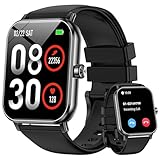
- 1.85'' Display & 300+ Watch Faces: Smart watch for men women adopts 1.85 HD screen that provides excellent visual experience. There are 300+ watch faces built-in, which can be changed by long-pressing the screen or selected/cutomized through the “Da Fit” app
- Bluetooth Calls & Smart Reminders: Fitness tracker makes calls directly from your wrist with clear audio. Receive real-time notifications for SMS and apps, ensuring you never miss important messages while driving or exercising hands-free (No reply)
- 24/7 Health Monitoring: Smart watches for men equipped with a high-performance optical sensor that can record your activities throughout the day, monitor your heart rate, sleep status and other data, and help you develop a healthier lifestyle
- 130+ Sport Modes : Built-in 3-axis gravity sensor enables this fitness watch to accurately track daily steps, distance and calories for safer and more effective workouts. These data can be viewed on the watch or mobile phone APP (note: step counting starts after 20 steps)
- 5 ATM Waterproof: Multifunctional fitness tracker watch features 5 ATM waterproof performance, wearable for swimming, handwashing and rainy days. No worry about sweat or rain damage during outdoor workouts with multiple sports modes (note: high water temperatures can affect service life)
Open your phone’s recent apps view, locate Huawei Health, and tap the lock or pin icon if available. This prevents the system from force-closing it during memory cleanup.
Also check for settings like Auto-launch, Startup manager, or App launch control. Make sure Huawei Health is allowed to start automatically in the background.
This is especially important if you rely on continuous health tracking or want notifications to arrive instantly rather than in delayed batches.
Verifying Permissions Are Actually Working
Once all permissions are set, send yourself a test notification from a messaging app. The alert should appear on the Watch GT 4 within a second or two.
Lock your phone for five to ten minutes, then unlock it and check Huawei Health. The watch should still show as connected, with no reconnection delay.
If notifications only arrive when the phone screen is on, something is still restricting background activity. Recheck battery optimization and system app killers before moving on.
Why This Matters for Daily Wear and Battery Life
When permissions are configured correctly, the Watch GT 4 delivers excellent real-world battery life, often lasting well over a week with notifications, workouts, and sleep tracking enabled. Ironically, restricting the app often causes more battery drain due to repeated reconnections.
The watch itself is lightweight, well-balanced on the wrist, and comfortable for 24/7 wear, but its software experience depends entirely on this behind-the-scenes setup. A properly configured phone ensures the hardware performs as intended.
With permissions locked in, the Watch GT 4 transitions from “paired” to genuinely reliable, setting the foundation for firmware updates, health feature activation, and long-term daily use without frustration.
Updating Watch Firmware and Core Apps: Why This Step Matters Before Daily Use
With permissions stable and background activity protected, the next critical step is updating the watch itself. This is where many early issues are quietly resolved before they ever become daily annoyances.
Huawei ships the Watch GT 4 with functional software, but not always the most current build. Firmware and core app updates often unlock health features, improve sensor accuracy, refine animations, and fix connection quirks that only appear after extended wear.
Why You Should Update Before Wearing the Watch Daily
Early firmware versions can behave differently once the watch is worn 24/7. Sleep tracking gaps, delayed notifications, or inconsistent heart rate readings are far more common on out-of-box software.
Updates frequently recalibrate the optical heart rate sensor, SpO₂ tracking, and sleep algorithms. These changes directly affect data accuracy, especially during the first few nights of wear when the watch is learning your patterns.
Battery life is also impacted. A Watch GT 4 running current firmware typically delivers seven to ten days of real-world use, depending on display size, GPS usage, and notification volume, while older builds may drain faster due to background sync inefficiencies.
How to Check and Install Firmware Updates on Android
Open the Huawei Health app on your phone and make sure the Watch GT 4 shows as Connected on the Devices tab. If the connection icon flickers or shows syncing, wait until it stabilizes before proceeding.
Tap the watch image, then open Device settings and look for Firmware update. If an update is available, Huawei Health will display the version number and estimated installation time.
Keep the watch on your wrist or place it on a stable surface, and ensure battery levels are above 20 percent on both the watch and phone. Firmware updates typically take 5 to 15 minutes, during which the watch may reboot more than once.
Do Not Skip Core App and Feature Updates
Firmware is only part of the update process. Huawei also updates core watch apps such as Health, Workout, Sleep, and Watch Faces independently of system firmware.
In Huawei Health, scroll to App updates or Manage apps within the watch settings. Install all pending updates, even if the firmware itself is already current.
These app-level updates often introduce new workout modes, improved GPS tracking logic, or refinements to UI elements like swipe gestures and menus. They can also resolve issues like workouts failing to save or metrics appearing delayed in the app.
What to Expect During and After the Update
During installation, the watch may become warm and temporarily unresponsive. This is normal, especially on the 46 mm version with its larger battery and display.
After the update completes, the watch may take several minutes to resync health data and re-establish background connections. Leave Huawei Health open until syncing finishes to avoid partial data gaps.
It is also normal to see slightly higher battery drain during the first 24 hours after an update. The system is rebuilding caches and recalibrating sensors based on your wear patterns.
Troubleshooting Stuck or Failed Updates
If the update appears stuck for more than 20 minutes, first check that Huawei Health is not being restricted again. Reconfirm that battery optimization is disabled and the app remains locked in recent apps.
Toggle Bluetooth off and on, then reopen Huawei Health. In most cases, the update resumes automatically without data loss.
If the update fails repeatedly, restart both the phone and the watch, reconnect through Huawei Health, and try again over a stable Wi‑Fi connection. Avoid mobile data during firmware updates, as packet drops can cause silent failures.
Regional Limitations and Feature Activation After Updates
Some features activate only after specific firmware versions but remain region-dependent. ECG, certain health insights, and music storage options may still be unavailable depending on your country and Huawei account region.
Firmware updates ensure the watch is technically capable, even if features are not immediately visible. This future-proofs the Watch GT 4 in case regional support expands later.
Keeping the watch updated also improves compatibility with newer Android versions, reducing the risk of connection issues after phone OS updates.
Why This Step Protects Long-Term Comfort and Wearability
The Watch GT 4 is designed for continuous wear, with a slim case profile, smooth caseback finishing, and balanced weight that suits sleep tracking and all-day comfort. Software stability is what allows that hardware to disappear on the wrist.
Updated firmware reduces unnecessary vibrations, improves raise-to-wake sensitivity, and smooths UI animations, all of which subtly affect comfort and perceived quality over time.
Once updates are complete, the watch behaves less like a newly paired gadget and more like a reliable daily companion, ready for workouts, sleep, notifications, and long battery cycles without constant troubleshooting.
Setting Up Health, Fitness, and Sensors Correctly (Heart Rate, SpO₂, Sleep, GPS, and TruSeen/TruSleep)
With firmware updated and the connection stabilized, the Watch GT 4 is ready to behave like a health instrument rather than just a timepiece. This is the stage where correct permissions, sensor calibration, and wear habits directly affect data accuracy and battery life.
Huawei’s sensors are reliable when set up properly, but they assume continuous background access and consistent wrist contact. Rushing this step is the most common reason new users see erratic heart rate graphs, missing sleep stages, or slow GPS locks.
Confirming Health Permissions in Huawei Health (Critical First Step)
Before touching any sensor toggles, open Huawei Health on your Android phone and go to Devices > Watch GT 4 > Health Monitoring. Make sure every available permission is enabled, including physical activity, location, background activity, and notifications.
On Android 12 and newer, also open system Settings > Apps > Huawei Health > Permissions and confirm Location is set to Allow all the time, not only while using the app. This directly affects GPS accuracy and workout route maps.
If your phone supports precise location toggles, enable precise location. Coarse location can delay GPS lock by several minutes, especially in urban areas.
Setting Up Continuous Heart Rate Tracking (TruSeen)
From Huawei Health, navigate to Health > Heart Rate > Settings. Enable continuous heart rate monitoring and set the measurement mode to Smart rather than Real-time unless you have a specific medical need.
Smart mode dynamically adjusts sampling based on movement and rest, preserving battery life while still providing accurate daily trends. Real-time mode increases sensor usage and can reduce battery life by several days on the GT 4.
Ensure heart rate alerts are configured thoughtfully. High and low alerts are useful, but aggressive thresholds can trigger false alarms during workouts or sleep.
Proper Watch Fit for Accurate Heart Rate and SpO₂
Sensor accuracy on the GT 4 depends heavily on fit. The watch should sit about one finger-width above the wrist bone, snug enough that it does not slide during movement but not tight enough to restrict circulation.
The polished caseback and curved lugs are designed for long-term comfort, but loose wear introduces light leakage that affects optical readings. This is especially noticeable during high-intensity workouts and overnight tracking.
If you switch between the fluoroelastomer sport strap and a leather or metal band, recalibrate your expectations. Softer straps generally maintain more consistent sensor contact during sleep and exercise.
Enabling SpO₂ Monitoring and Understanding Its Limits
Open Huawei Health > Health > SpO₂ and enable automatic measurements. You can choose all-day tracking or sleep-only monitoring depending on battery priorities.
SpO₂ readings are most reliable when you are still and relaxed. Expect less frequent or missing readings during daytime movement, which is normal and not a malfunction.
For spot checks, initiate a manual SpO₂ measurement from the watch while seated and keep your arm still at heart level. Cold skin or loose fit can cause failed readings.
Activating TruSleep and Improving Sleep Accuracy
Go to Huawei Health > Health > Sleep > Settings and ensure TruSleep is enabled. This unlocks detailed sleep stages, breathing analysis, and overnight heart rate variability trends.
Wear the watch consistently for several nights to allow baseline calibration. Early sleep data may look sparse or generic until the system adapts to your habits.
Because the GT 4 is relatively slim and well-balanced, most users tolerate overnight wear easily. If sleep data looks fragmented, check that raise-to-wake and notification vibrations are not waking you unnecessarily.
Optimizing Sleep Tracking for Comfort and Battery
Disable unnecessary nighttime notifications from within Huawei Health or Android’s notification settings. Excess vibrations affect both sleep quality and data accuracy.
Consider enabling Do Not Disturb or Sleep Mode on the watch itself. This reduces screen activations and preserves battery during long overnight sessions.
If battery drops more than expected overnight, review whether continuous SpO₂ and real-time heart rate are both enabled, as this combination is the most power-intensive.
Setting Up GPS for Accurate Outdoor Workouts
The Watch GT 4 uses onboard multi-band GNSS, but initial setup matters. Open Huawei Health, start an outdoor workout once, and allow it to acquire GPS with your phone nearby.
The first GPS lock can take longer as satellite data caches. Subsequent workouts should lock within seconds if location permissions are correct.
For best accuracy, wait for the watch to confirm GPS readiness before starting a run or walk. Starting too early results in clipped routes and skewed pace data.
Choosing the Right Workout Profiles
Huawei offers a wide range of workout modes, but accuracy improves when you select the closest match. Use dedicated profiles for running, walking, cycling, or strength training instead of generic workouts.
Rank #4

- Stylish Design, Vibrant Display: The lightweight aluminum build blends effortless style with workout durability, while the vivid 1.97" AMOLED display keeps your data easy to read, even under bright sunlight.
- All-in-One Activity Tracking: The Amazfit Bip 6 fitness tracker watch offers 140+ workout modes including HYROX Race and Strength Training, plus personalized AI coaching and 50m water resistance.
- Up to 14 Days Battery Life: The Amazfit Bip 6 smart watch powers through your training and recovery for up to two weeks at a time - no nightly charging needed.
- Accurate GPS Tracking & Navigation: Stay on course with free downloadable maps and turn-by-turn directions. Support from 5 satellite systems ensures precise tracking of every move and fast GPS connection.
- 24/7 Health Monitoring: The Amazfit Bip 6 smartwatch provides precise, real-time monitoring of heart rate, sleep, blood-oxygen and stress, empowering you with actionable insights to optimize your health and fitness.
Each profile adjusts sensor sampling, motion algorithms, and GPS behavior differently. This directly affects calorie estimates, heart rate zones, and recovery insights.
Avoid stacking multiple workouts back-to-back without a pause. Let the watch end one session cleanly before starting another to prevent data overlap.
Calibrating Motion and Fitness Metrics Over Time
The GT 4 refines its estimates as it learns your stride length, resting heart rate, and recovery patterns. Regular outdoor walks or runs with GPS improve indoor workout accuracy later.
Keep your height, weight, age, and gender information up to date in Huawei Health. These values influence calorie burn, VO₂max estimates, and training load calculations.
If metrics seem off after strap changes or long inactivity, a few consistent workouts usually bring readings back in line without manual resets.
Common Sensor Issues and Quick Fixes
If heart rate or SpO₂ readings disappear intermittently, check that Huawei Health is still allowed to run in the background. Android updates sometimes reset this silently.
For GPS issues, toggle Location off and on at the system level, then restart the watch. This clears cached satellite data without affecting workouts or health history.
If sleep tracking stops entirely, remove the watch from Huawei Health, restart both devices, and re-pair. Health data stored in the app remains intact after re-pairing.
Balancing Health Tracking with Battery Life
The Watch GT 4 is capable of long battery cycles, but only if sensors are configured sensibly. Continuous heart rate with smart sampling, sleep tracking, and periodic SpO₂ offers the best balance for most users.
Running real-time heart rate, all-day SpO₂, frequent GPS workouts, and always-on display simultaneously will shorten battery life significantly. This is expected behavior, not a defect.
Adjust settings based on how you actually use the watch. The goal is consistent, reliable data without turning daily charging into part of your routine.
Notifications, Calls, and App Sync on Android: What Works, What’s Limited, and How to Fix Missed Alerts
Once health tracking is stable and battery behavior is predictable, the next make-or-break area for daily usability is notifications. This is where the Huawei Watch GT 4 feels either seamless or frustrating on Android, depending almost entirely on how permissions and background behavior are handled.
Unlike Wear OS watches, the GT 4 relies on Huawei Health acting as a constant bridge. If that bridge is interrupted, notifications, call alerts, and app sync are the first things to suffer.
What Notification Features Work Reliably on Android
On a properly configured Android phone, the Watch GT 4 handles core notifications very well. Incoming alerts from WhatsApp, Telegram, Gmail, Outlook, SMS, and most mainstream apps arrive quickly and are easy to read on the AMOLED display.
The watch supports vibration patterns, notification stacking, and basic interaction like dismissing alerts directly from the wrist. Message replies are limited to preset responses and emojis, but delivery reliability is solid once permissions are locked in.
Notification readability is one of the GT 4’s quiet strengths. The curved glass, high contrast, and generous screen size make longer messages easier to scan than on many slimmer fitness watches.
App Notifications: How Huawei Health Handles Sync
Huawei Health does not mirror all apps by default. You must explicitly enable notifications for each app you want pushed to the watch.
Open Huawei Health, go to Devices, select your Watch GT 4, then Notifications, and toggle on App notifications. From there, review the app list carefully, as newly installed apps will not automatically sync.
If an app doesn’t appear in the list, it usually means Android notification access has not been granted fully. This is common after initial setup or after a system update.
Call Alerts, Bluetooth Calling, and What’s Supported
The Watch GT 4 supports incoming call alerts on Android without issue. When your phone rings, the watch vibrates and shows caller information, provided contacts access is enabled.
Bluetooth calling, where you answer and speak directly from the watch, is supported on most Android phones. Audio quality is clear indoors, but the small microphone struggles outdoors or in wind.
If you never plan to take calls on your wrist, disabling Bluetooth calling improves battery life slightly and reduces accidental call pickups during workouts.
What’s Limited or Not Supported on Android
There is no deep app ecosystem on the GT 4 like Wear OS or watchOS. You cannot install third-party messaging apps, email clients, or voice assistants on the watch itself.
There is no Google Assistant, no Google Maps navigation, and no interactive notifications beyond basic replies. These are platform limitations, not setup errors.
Payment features depend heavily on region. NFC hardware exists on some models, but contactless payments are unavailable in many countries on Android, making this function unreliable to plan around.
The Most Common Reason Notifications Stop Working
Missed alerts are almost always caused by Android’s battery management shutting Huawei Health down in the background. This can happen silently, even if notifications worked fine for weeks.
Manufacturers like Samsung, Xiaomi, OnePlus, and Pixel each handle background apps differently. A system update can reset these rules without warning.
If notifications arrive late, only when the app is open, or stop overnight, assume background restrictions are the cause.
Step-by-Step: Locking Huawei Health in the Background
Open your phone’s Settings, go to Apps, find Huawei Health, and enter Battery settings. Set it to Unrestricted or No restrictions, depending on your phone brand.
Next, allow Background data usage and disable any option that says Pause app activity if unused. These options are aggressive and break wearable sync.
On some phones, you must also pin Huawei Health in the recent apps view. This prevents the system from force-closing it during memory cleanup.
Notification Access and System Permissions Checklist
Go to Settings, Privacy, Special app access, then Notification access. Confirm Huawei Health is enabled.
Check Contacts, Phone, SMS, and Call logs permissions if you want full call alerts and caller ID. Missing any of these can cause partial functionality.
Location permission should be set to Allow all the time for reliable syncing and weather updates, even if you rarely use GPS workouts.
Fixing Delayed or Duplicate Notifications
If notifications arrive late or appear twice, toggle Bluetooth off and on, then restart both the phone and watch. This clears stuck sync sessions.
Open Huawei Health, pull down to force a manual sync, and wait until the watch status shows connected and up to date.
Avoid pairing the watch with multiple phones or tablets. The GT 4 is designed for a single active connection, and switching devices frequently causes sync conflicts.
Do Not Disturb, Sleep Mode, and Silent Hours Confusion
The Watch GT 4 has its own Do Not Disturb settings independent of your phone. If notifications vanish at night or during workouts, check the watch’s DND schedule.
Sleep mode automatically silences alerts unless manually overridden. This is intentional behavior and often mistaken for a sync failure.
Workout mode can also suppress notifications depending on settings. If you want alerts during exercise, confirm this is enabled in the watch’s system preferences.
How Firmware Updates Affect Notifications
Firmware updates occasionally reset notification permissions or background rules. This is especially common after major HarmonyOS revisions.
After every watch update, open Huawei Health and recheck Notifications, Battery permissions, and Notification access. It takes two minutes and prevents hours of frustration later.
Updates often improve Bluetooth stability and notification speed, so staying current is worthwhile as long as permissions are re-verified afterward.
When Re-Pairing Is the Only Real Fix
If notifications remain unreliable despite correct permissions, remove the Watch GT 4 from Huawei Health and unpair it from Bluetooth settings.
Restart both devices before pairing again. This clears corrupted Bluetooth profiles and stale background services.
Health data stored in Huawei Health is not deleted during re-pairing, making this a safe last-resort fix when alerts refuse to behave.
Real-World Expectation: Daily Reliability Once Set Correctly
Once notifications and calls are configured properly, the Watch GT 4 is extremely consistent day to day. Alerts arrive quickly, vibrations are noticeable without being harsh, and the watch remains comfortable enough for all-day wear.
The stainless steel case, curved lugs, and balanced weight help maintain wrist contact without pressure points, which matters for vibration delivery as much as heart rate accuracy.
The setup is more hands-on than Wear OS, but the payoff is long battery life with dependable alerts, as long as Huawei Health is allowed to do its job in the background.
Battery Optimization and Power Management Tips for Maximum Real-World Battery Life
Once notifications are stable and syncing reliably, the next lever that determines long-term satisfaction with the Watch GT 4 is battery behavior. Huawei’s efficiency advantage only shows up in daily use if a few key settings are tuned with Android’s background rules in mind.
This section focuses on preserving real-world battery life without crippling health tracking, notifications, or workout accuracy.
Understand What Actually Drains the Watch GT 4 Battery
The Watch GT 4 uses a low-power chipset and HarmonyOS, so standby drain is minimal by default. Most battery loss comes from active sensors, screen usage, and wireless activity rather than the watch simply being worn.
Continuous heart rate tracking, SpO₂ spot checks, GPS workouts, and always-on display are the biggest contributors. Notifications themselves use very little power, but frequent wake-ups from aggressive app syncing can add up over time.
Knowing this helps you target the settings that matter instead of disabling features blindly.
Optimize Always-On Display Without Losing Readability
Always-on display is one of the most visible battery trade-offs. On the GT 4, it can reduce total battery life by several days depending on brightness and watch face complexity.
If you want AOD enabled, choose a simple analog or minimal digital face. Faces with moving elements, second hands, or frequent refresh behavior drain noticeably more power.
💰 Best Value

- Long Battery Life - Unleash your potential with up to 10 days on a single charge, ensuring you stay connected and active without frequent recharging, more accurate tracking with extra battery life.
- Vibrant AMOLED Display - Track workouts and explore with ease on a stunning AMOLED display that offers crystal-clear visuals, making it perfect for both indoor and outdoor use.
- Advanced Health Monitoring - Stay on top of your health with comprehensive tracking features including heart rate, SpO2, and stress monitoring, providing you with valuable insights to maintain your well-being.
- Premium Style and Comfort - Experience the perfect blend of premium style and all-day comfort, making the moto watch 120 an ideal accessory for any occasion.
- Compatibility - Designed for versatility, the moto watch 120 is compatible with both iPhone and Android phones, ensuring seamless integration with your favorite devices.
You can also schedule AOD to turn off at night using Sleep Mode, which preserves battery without affecting daytime usability.
Fine-Tune Screen Wake Behavior and Brightness
Raise-to-wake is well tuned on the GT 4, but excessive screen activation adds unnecessary drain. If you notice the display waking too easily, reduce wrist sensitivity in the watch settings.
Set brightness to automatic and manually lower the baseline one notch. The AMOLED panel remains readable outdoors while consuming less power during indoor use.
Shortening screen timeout by a few seconds also adds up over a full day, especially if you receive frequent notifications.
GPS and Workout Tracking: Smart Use Without Sacrificing Accuracy
The dual-band GPS system in the Watch GT 4 is accurate but power-hungry during long workouts. For everyday walks or treadmill sessions, consider indoor modes or workouts that don’t require GPS lock.
For outdoor runs and cycling, let the watch acquire GPS before starting the session rather than moving immediately. Faster satellite lock reduces total active time and improves tracking precision.
If you train daily, expect battery life to drop proportionally, but this is normal behavior rather than a setup fault.
Health Monitoring Settings That Matter Most
Continuous heart rate monitoring is efficient and should stay enabled for accurate daily metrics. It has minimal impact compared to GPS or display usage.
SpO₂ monitoring can be set to manual or sleep-only checks instead of all-day tracking. This preserves battery while still delivering meaningful sleep and recovery insights.
Stress monitoring uses heart rate variability and is lightweight, but disabling it can add a small buffer if you are chasing maximum endurance between charges.
Sleep Tracking and Night-Time Power Savings
Sleep tracking is one of the Watch GT 4’s strengths and consumes little power when paired with Sleep Mode. Make sure Sleep Mode is scheduled to activate automatically based on your usual bedtime.
This dims the display, limits background wake-ups, and disables unnecessary screen activations while preserving full sleep data collection.
Charging during a morning routine instead of overnight keeps battery cycles shallow and improves long-term battery health.
Notification Efficiency Without Over-Syncing
Once notifications are working correctly, resist the urge to enable every app. Each active app increases background sync activity between the phone and watch.
Limit notifications to messaging, calls, and a small number of priority apps. This keeps Bluetooth traffic low and reduces unnecessary screen wake-ups.
The GT 4’s vibration motor is efficient, but fewer interruptions mean fewer activations overall.
Android Battery Management: The Hidden Factor
Even though the watch has its own battery, Android’s treatment of Huawei Health affects overall power behavior. Aggressive background restrictions can cause reconnection loops that increase drain on both devices.
Confirm Huawei Health is set to unrestricted battery usage and excluded from system-level optimizations. This stabilizes Bluetooth communication and prevents repeated handshake attempts.
Stable background behavior saves more power over time than any single watch-side toggle.
Firmware Updates and Battery Recalibration
After major firmware updates, battery estimates may appear inconsistent for the first few days. This is normal while the system recalibrates usage patterns.
Avoid charging multiple times per day during this period. Let the watch discharge naturally to around 15–20 percent before charging again.
Within two or three cycles, battery predictions stabilize and real-world endurance returns to expected levels.
Charging Habits That Preserve Long-Term Battery Health
The GT 4 charges quickly, which makes short top-ups practical. Charging during showers or desk breaks reduces the need for deep discharge cycles.
Avoid leaving the watch on the charger overnight repeatedly, especially if it reaches 100 percent early. While modern batteries are protected, long-term health benefits from avoiding constant full charge states.
Using the official charger ensures proper thermal management, which matters for a sealed stainless steel case.
What Battery Life You Should Realistically Expect
With notifications enabled, continuous heart rate tracking, sleep tracking, and a few GPS workouts per week, most users see 7 to 10 days comfortably. Disabling always-on display and limiting GPS extends this even further.
Heavier training schedules, AOD use, and frequent outdoor workouts naturally reduce endurance, but the watch still outperforms most Wear OS alternatives.
The key takeaway is that the Watch GT 4 rewards thoughtful setup. When display behavior, health tracking, and Android background rules are aligned, battery anxiety largely disappears.
Common Setup Problems and Fixes: Pairing Drops, Missing Features, Regional Locks, and Reset Procedures
Even after a careful initial setup, some issues only surface once the watch settles into daily use. Most problems with the Huawei Watch GT 4 on Android come down to Bluetooth stability, Android background controls, or Huawei’s region-based software rules rather than hardware faults.
The good news is that nearly all of these problems are predictable and fixable. Working through them methodically prevents frustration and avoids unnecessary factory resets or returns.
Bluetooth Pairing Drops or Reconnection Loops
Intermittent disconnections usually show up as delayed notifications, missing workout syncs, or repeated “connected/disconnected” alerts. This is almost always caused by Android’s battery management interfering with Huawei Health running in the background.
Start by opening your phone’s Battery or App Management settings and setting Huawei Health to unrestricted or not optimized. On Samsung, Xiaomi, OnePlus, and Pixel phones, this step alone resolves most pairing drops.
Next, confirm that Bluetooth is allowed to run in the background and that location services are enabled. Huawei Health uses location permission to stabilize Bluetooth scanning, even if you are not actively tracking GPS workouts.
If drops continue, open Huawei Health, go to Devices, select your Watch GT 4, and toggle Bluetooth off and back on from within the app rather than system settings. This forces a fresh handshake without breaking the pairing record.
Watch Fails to Pair During Initial Setup
If the watch never completes pairing or the QR code pairing screen loops, check for leftover Bluetooth profiles. Go to your phone’s Bluetooth settings and remove any previous Huawei or Watch GT entries before trying again.
Ensure the watch is charged above 30 percent. Low battery states can interrupt the pairing handshake, especially during first-time firmware checks.
If pairing still fails, restart both the phone and the watch, then launch Huawei Health first before enabling Bluetooth. Starting the process from the app side is more reliable than pairing from Android’s Bluetooth menu.
Notifications Not Appearing or Arriving Late
Missing notifications are usually permission-related rather than a hardware issue. Open Huawei Health, go to Notifications, and confirm each app you want mirrored is explicitly enabled.
Then check system-level notification access. On most Android phones, Huawei Health must be granted Notification Access separately under Special App Permissions.
If notifications arrive late, background restrictions are the likely culprit. Confirm Huawei Health is excluded from battery optimization and allowed to run in the background with no data restrictions, including on mobile data if you use the watch away from Wi‑Fi.
Missing Features or Greyed-Out Options
Some features may appear unavailable after setup, including music controls, reply options, or advanced health metrics. In most cases, this is due to incomplete permissions or outdated firmware.
Open Huawei Health, go to Me, then Check for updates to confirm both the app and watch firmware are current. Feature availability often changes with firmware revisions, especially early in a product’s lifecycle.
Also verify that all requested permissions are granted, including Contacts, Phone, Storage, and Location. Declining non-obvious permissions during setup can quietly disable related features without clear warnings.
Regional Locks and Feature Availability
Huawei applies region-based restrictions that affect certain features depending on where your Huawei ID is registered. Common examples include ECG availability, health insights, and some watch faces.
Your region is determined by the country selected when creating your Huawei ID, not your physical location. Changing this later requires logging out of Huawei Health, creating or signing into a Huawei ID registered in a different region, and pairing the watch again.
Be aware that changing regions can affect language defaults, content availability, and future updates. For most users, it is better to accept regional limitations than repeatedly switching accounts, especially if health data continuity matters.
Health Data Not Syncing or Appearing Incomplete
If workouts, sleep, or heart rate data appear on the watch but not in Huawei Health, force a manual sync by opening the app and pulling down on the main dashboard.
Confirm that Huawei Health has permission to run in the background and access storage. On some phones, disabling background data prevents health records from writing properly to local storage before cloud sync.
Occasional delays are normal, especially after long GPS workouts. Persistent gaps usually indicate background process restrictions or aggressive task killers.
Resetting the Watch Safely When Things Go Wrong
A factory reset should be a last resort, but it is sometimes necessary after failed pairings or corrupted sync states. Before resetting, confirm your health data has synced successfully to Huawei Health.
To reset from the watch, go to Settings, System, Reset. The process takes only a few minutes and returns the watch to its out-of-box state.
After resetting, remove the watch from Huawei Health and your phone’s Bluetooth settings before pairing again. Skipping this cleanup step can cause pairing loops or partial connections.
When to Suspect a Hardware Issue
True hardware faults are rare on the Watch GT 4. Persistent Bluetooth failures across multiple phones, inability to charge reliably, or a touchscreen that does not respond after a reset may indicate a defective unit.
Before contacting support, test the watch with a different Android phone if possible. This helps isolate whether the issue lies with the watch or your phone’s software environment.
Huawei’s warranty support is generally responsive, but documenting troubleshooting steps speeds up the process significantly.
Final Thoughts on Avoiding Setup Frustration
Most setup problems stem from Android’s well-intentioned but aggressive power management and Huawei’s ecosystem boundaries. Once permissions, background behavior, and region settings are aligned, the Watch GT 4 becomes remarkably stable.
Taking time to fix small issues early pays off in daily reliability, accurate health tracking, and the long battery life the GT 4 is known for. With a clean setup and realistic expectations, the watch delivers a polished, comfortable, and dependable experience on Android.