Yes, but only on certain Galaxy Watch models, and with important limitations. You can use Google Pay on Galaxy Watches that run Wear OS by Google, but you cannot fully replace Samsung Pay as the system-level default on most models. What you can do is install Google Pay, set it up for contactless payments, and make it the app you actually use day to day instead of Samsung Pay.
This distinction matters because many owners expect a clean “switch” like on a phone. On Galaxy Watch, the reality is more nuanced, depending on your watch generation, software version, and how Samsung handles hardware shortcuts and defaults. Understanding those boundaries upfront will save you a lot of frustration.
Which Galaxy Watches support Google Pay at all
Google Pay is supported only on Galaxy Watch models that run Wear OS by Google. That includes Galaxy Watch 4, Watch 4 Classic, Watch 5, Watch 5 Pro, Watch 6, Watch 6 Classic, and newer generations running One UI Watch on top of Wear OS.
Older models like the original Galaxy Watch, Galaxy Watch Active, and Watch Active 2 run Samsung’s Tizen OS. On those watches, Google Pay cannot be installed at all, and Samsung Pay is your only contactless payment option.
🏆 #1 Best Overall
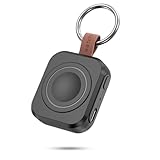
- Designed for Samsung Watch: This portable charger for Samsung Watch 8/8 Classic/7/ 7 Ultra / 6 /6 Classic / 5 / 5 Pro / 4 /3, Active 2 / Active 1 ensures seamless compatibility with new and old watches. This for Samsung galaxy watch charger can be carried around without a power source and can solve your low battery anxiety anytime.
- Easy Charging: Simply place the watch in the center of the charging area and press the power button to start charging immediately. The built-in magnets hold the watch in place, ensuring that the charging contacts are perfectly aligned for efficient charging. Once charging is complete, the portable galaxy watch charger can be turned off by pressing the power button twice; if no manual operation is required, the galaxy watch will automatically power off after 30s of inactivity.
- 1200mAh Battery: The portable watch charger has a built-in 1200mAh battery that can charge your watch 1-2 times. Ideal goods for traveling, exercising or extended outdoor activities.
- Compact and Portable: The 1200mAh galaxy watch ultra charger measures 5 x 4.6 x 1.5 cm (2*1.8*0.6 in), which is small enough to fit in a pocket or small purse. The watch charger comes with a keychain and eliminates the need for a charging cable, making it perfect for traveling and carrying.
- Package Includes: 1*Portable charger for samsung galaxy watch, 1*USB-C Charging Cable (1 meter), 1*Instruction Manual. It is very suitable as a Christmas gift, New Year's gift, Valentine's Day gift, Mother's Day gift, Father's Day gift, etc. to give to family and friends on special days.
Can Google Pay become the default payment app
On Galaxy Watch 4 and newer, Google Pay can be installed from the Play Store and used for tap-to-pay at terminals, but Samsung Pay usually remains tied to the hardware button shortcut. This means you cannot globally replace Samsung Pay in the same way you might change a default browser or assistant.
In practice, Google Pay becomes your functional default if you choose to open it manually or assign it to a customizable button or tile. Samsung Pay may still be present on the watch, but you do not have to use it for payments.
What “replacement” really looks like in daily use
If your goal is to walk up to a terminal and pay with Google Pay, that is absolutely possible on supported models. The NFC hardware, payment security, and transaction speed are comparable to Samsung Pay, with no noticeable impact on battery life during normal use.
If your goal is to remove Samsung Pay entirely, remap its dedicated shortcut, or prevent it from launching at all, that is where limitations appear. Samsung does not currently allow full removal or reassignment of the Samsung Pay button on most Galaxy Watch models.
Bottom line before you proceed
If you own a Galaxy Watch 4 or newer, you can use Google Pay reliably, securely, and comfortably for everyday payments, even if Samsung Pay stays installed in the background. If you own an older Tizen-based Galaxy Watch, switching is not possible.
The next sections will walk through exactly how to install Google Pay, configure it correctly, manage shortcuts, and avoid the common setup traps that cause payments to fail at the register.
Galaxy Watch Compatibility Breakdown: Which Models and Wear OS Versions Support Google Pay
Before you invest time setting up Google Pay, it’s worth confirming that your specific Galaxy Watch model and software version actually support it. Samsung’s lineup spans two operating systems and several hardware generations, and that divide is what determines whether switching away from Samsung Pay is even possible.
Wear OS vs Tizen: the non‑negotiable dividing line
Google Pay on a Galaxy Watch requires Wear OS by Google. If your watch runs Tizen, there is no workaround, no sideloading trick, and no firmware update that will change this.
Tizen-based watches include the original Galaxy Watch, Galaxy Watch Active, and Galaxy Watch Active 2. These models were well-built for their time, with solid stainless steel or aluminum cases, good comfort, and reliable NFC hardware, but their software platform is effectively closed to Google’s payment system.
Fully supported models: Galaxy Watch 4 and newer
Every Galaxy Watch starting with the Galaxy Watch 4 series supports Google Pay, provided it is running One UI Watch on top of Wear OS. This includes:
Galaxy Watch 4 and Watch 4 Classic
Galaxy Watch 5 and Watch 5 Pro
Galaxy Watch 6 and Watch 6 Classic
Galaxy Watch 7 series and newer generations
These watches use Samsung’s Exynos wearable chipsets, have NFC built in as standard, and offer enough processing headroom that Google Pay runs smoothly without lag. In real-world use, tapping to pay feels just as quick as Samsung Pay, with no noticeable hit to battery life during a normal day.
Wear OS version requirements and updates
At a minimum, your watch must be running Wear OS 3 or newer. In practice, any Galaxy Watch 4 or later that is still receiving updates will meet this requirement automatically.
To check this on your watch, open Settings, scroll to About watch, then Software information. Look for Wear OS version and One UI Watch version. If your watch is significantly behind on updates, install the latest firmware before setting up Google Pay to avoid activation and syncing errors.
Regional availability and country-specific limitations
Even on supported hardware, Google Pay availability depends on your country and your bank. Google Pay works on Galaxy Watch in most regions where Google Pay is supported on phones, including North America and much of Europe.
If Google Pay does not appear in the Play Store on your watch, it is usually a regional restriction rather than a hardware problem. Changing regions or sideloading the app is unreliable and often breaks payment certification, so it is not recommended for everyday use.
Phone compatibility still matters
Your Galaxy Watch must be paired with an Android phone that supports Google Pay. In most cases, this means a phone running Android 8 or newer with Google Play Services enabled.
Samsung phones offer the smoothest setup experience, but Pixel and other Android devices work just as well. iPhones are not supported for Google Pay on Galaxy Watch under any circumstances.
Default app behavior by model generation
On Galaxy Watch 4 and newer, Google Pay can be installed and used normally, but Samsung Pay remains tied to the long-press or double-press of the back or home button on many models. This is a software limitation imposed by Samsung, not a missing setting.
Some newer watches allow limited button customization, but you should assume that Samsung Pay cannot be fully replaced at the system level. In daily use, most people treat Google Pay as their default by launching it from a tile, app list, or reassigned shortcut instead.
Quick compatibility checklist before moving on
If your watch is Galaxy Watch 4 or newer, runs Wear OS, has NFC, and shows Google Pay in the Play Store, you are fully compatible. If your watch runs Tizen or cannot install Google Pay from the Play Store, switching is not possible.
Once you’ve confirmed compatibility, the next step is installing Google Pay correctly and configuring it so payments work reliably at the terminal, without awkward delays or failed taps.
Samsung Pay vs Google Pay on Galaxy Watch: Practical Differences That Matter Day to Day
Once compatibility is confirmed, the real decision comes down to how each payment app behaves in everyday use. On paper they both tap and pay, but the experience on your wrist can feel noticeably different depending on which one you rely on.
How you launch payments in real life
Samsung Pay still has the deepest system integration on Galaxy Watch. On most models, a long-press of the back or home button opens Samsung Pay instantly, even if you never use it.
Google Pay does not get that same privileged shortcut. In daily use, you open it from a tile, the app drawer, or a custom shortcut if your model supports button reassignment, which adds one extra step at the checkout.
Speed at the terminal
Google Pay is typically faster once it is open. Authentication and NFC handoff feel snappier, especially on Galaxy Watch 5 and newer hardware with more responsive touchscreens and faster processors.
Samsung Pay can feel slightly slower to wake, particularly if the watch has been idle or the display is off. That delay is small, but it is noticeable when a line is forming behind you.
Reliability across stores and terminals
Google Pay behaves almost identically to Google Pay on your phone. If a terminal accepts contactless cards, it almost always accepts Google Pay with no special positioning or retries.
Samsung Pay is equally reliable for NFC payments, but older expectations around MST still confuse users. Galaxy Watch models do not support MST, so Samsung Pay offers no advantage at older swipe-only terminals.
Bank and card support differences
Google Pay usually supports a wider range of banks in regions where it is available. If your card already works on Google Pay on your phone, it will almost always work on your watch with minimal setup.
Samsung Pay support varies more by country and bank. Some cards work on Samsung phones but not on Samsung Pay for wearables, which can be frustrating if you are trying to standardize payments across devices.
Daily battery impact
Neither app is a major battery drain on its own. Payments are quick NFC bursts, not background services running all day.
That said, Samsung Pay’s deeper system hooks mean it occasionally wakes the watch more aggressively when tied to hardware buttons. Google Pay tends to stay dormant until you explicitly open it, which can help slightly on smaller watches like the Galaxy Watch 4 40mm.
Security and unlock behavior
Both apps rely on the same core security model. As long as your watch stays on your wrist and unlocked, payments work without repeated PIN prompts.
If the watch is removed, both Samsung Pay and Google Pay require reauthentication. In practice, Google Pay’s prompts feel clearer and more consistent, especially if you switch between phone and watch payments often.
Consistency with your phone and other devices
Google Pay shines if you already live in Google’s ecosystem. Cards, transaction history, and default payment preferences sync cleanly between your phone, watch, and even Chrome on desktop.
Samsung Pay works best if your phone is also a Samsung and you are invested in Samsung Wallet features like passes and loyalty cards. Mixing Samsung Pay on the watch with Google Pay on the phone often feels disjointed.
Travel and regional behavior
Google Pay is generally more predictable when traveling. If your card works in a new country on your phone, it usually works the same way on your watch.
Samsung Pay can behave differently across regions, especially if your watch firmware or Samsung account is tied to a specific country. This is one of the most common reasons frequent travelers prefer Google Pay on Galaxy Watch.
What this means for everyday use
If you value one-button access above all else, Samsung Pay still feels more integrated, even if you never intend to use it. That hardware shortcut is difficult to ignore.
If you care more about speed, bank compatibility, and consistency with your phone, Google Pay tends to feel more modern and predictable, even with the extra tap required to launch it.
Before You Start: Requirements, Regional Limitations, and Bank Compatibility Checks
Before you dive into changing payment apps, it is worth slowing down for a minute and confirming that your watch, phone, region, and bank all support Google Pay in the way you expect. This step avoids the most common frustration point: following the steps perfectly, only to discover a hidden limitation tied to software version or country settings.
Galaxy Watch model and Wear OS requirements
Switching from Samsung Pay to Google Pay is only fully supported on Galaxy Watch models that run Wear OS by Google. This includes the Galaxy Watch 4, Watch 4 Classic, Watch 5 and Watch 5 Pro, Watch 6 and Watch 6 Classic, and the Galaxy Watch FE.
Older models like the original Galaxy Watch, Galaxy Watch Active, and Active 2 run Samsung’s older Tizen operating system. On those watches, Google Pay is not supported at all, and Samsung Pay cannot be replaced or disabled as the default payment service.
If you are unsure which OS your watch is running, open Settings on the watch, scroll to About watch, and check the software platform. If it does not say Wear OS, this guide will not apply to your device.
Rank #2

- Compatible Model: Only designed for Samsung Galaxy Watch FE 40mm 2024 release & 5 40mm 2022 release & Galaxy 4 40 mm 2021 release! Not for galaxy watch 8 40/44mm, watch 7 40/44mm,watch 6 40/44mm,watch 5 pro 45mm, watch 5/4 44mm
- Waterproof & Anti-Fog: HASDON for Samsung Galaxy FE/watch 5/ watch 4 screen protector and case help you solve the problem of insensitive touch screen. Water and fog will not trap in the screen and affect the touch screen, no worry about daily use
- High Sensitivity Touch: Ultra-Thin tempered glass with 99.99% transparency keep watch's original response sensitivity, make sure the application is launched quickly, giving you a bare metal touch
- FULL PROTECTIVE: This 40mm for Samsung Galaxy Watch FE/Galaxy Watch 5 & Galaxy Watch 4 Bumper Cover + Tempered Glass Screen Protector can protect your watch from dust, dirt, scratches damages
- Easy to Install: Easy to install and remove without removing the band. Install the case first, then use a suction cup to grasp the screen protector to alignment of the screen. Accurate holes access to all controls and sensors, firm and secure
One UI Watch version and software updates
Even on supported hardware, your One UI Watch version matters. Google Pay integration improves noticeably from One UI Watch 4 onward, especially around default app handling and NFC behavior.
Make sure your watch is fully updated by opening the Galaxy Wearable app on your phone, going to Watch settings, then Watch software update. An outdated firmware can prevent Google Pay from appearing as a default option or cause NFC conflicts with Samsung Pay.
Battery level also matters during setup. If your watch is low on charge, background services like Google Pay setup may fail silently, leaving you stuck in a loop during card verification.
Phone requirements and pairing limitations
Your paired phone must be an Android device with Google Play Services and the Google Wallet app installed. While Galaxy Watches technically pair with non-Samsung Android phones, Samsung Pay features are reduced on non-Samsung phones, which can actually make Google Pay the smoother option.
If you are using a Samsung phone, both Samsung Wallet and Google Wallet can coexist. This is normal and does not cause problems, but it can be confusing during setup if you accidentally add cards to the wrong app.
On non-Samsung phones, you may not be able to manage Samsung Pay at all. In those cases, Google Pay often becomes the only practical contactless payment option on the watch.
Regional availability and account country mismatches
Google Pay availability on Galaxy Watch is tied to the country set on your Google account and the region your watch firmware was sold for. If either one is unsupported, Google Pay may install but fail during card setup.
This is especially common for users who bought their watch abroad or imported a different region model. Even if Google Pay works perfectly on your phone, the watch may still be restricted.
Samsung Pay has even stricter regional controls. In some regions, Samsung Pay may be preinstalled and deeply tied to the system, making it impossible to fully remove or reassign hardware shortcuts. Knowing this upfront helps set realistic expectations.
Bank and card compatibility on Galaxy Watch
Not all banks that support Google Pay on phones support it on Wear OS watches. This is a critical detail that is often overlooked until the final setup screen.
Before switching, open Google Wallet on your phone, select your card, and check whether it explicitly says the card is eligible for payments on wearable devices. If it is not, the card will not sync to your watch even if phone payments work flawlessly.
Some banks require an extra verification step specifically for watches, such as an SMS code or in-app approval. If your bank app is not installed or you are traveling, this can block setup until you regain access.
NFC behavior and default payment app limitations
Galaxy Watches only allow one active NFC payment service at a time. You can install both Samsung Pay and Google Pay, but only one can be set as the default tap-and-pay app.
On many models, Samsung Pay remains tied to a hardware button shortcut that cannot be reassigned. Even if Google Pay is set as default for NFC payments, pressing and holding the button may still launch Samsung Pay.
This does not mean Google Pay is not working. It simply means you will need to launch Google Pay manually or via a tile instead of relying on the button shortcut.
Real-world usability considerations before switching
Smaller watches like the Galaxy Watch 4 40mm or Watch 6 40mm benefit slightly from Google Pay’s lighter background behavior, which can help preserve battery over long days. Larger models like the Watch 5 Pro or Watch 6 Classic are less affected, but the difference is still noticeable for heavy NFC users.
Comfort and daily wear also matter. If you frequently remove your watch, both apps will ask for a PIN again, but Google Pay’s prompts are often clearer when switching between phone and watch payments.
Taking five minutes to confirm compatibility now will save you a lot of trial and error later. Once these requirements are met, the actual switch is straightforward, but skipping these checks is the fastest way to end up stuck halfway through the process.
Step-by-Step Guide: Installing Google Pay on a Wear OS Galaxy Watch
Once you have confirmed card and bank compatibility, the actual installation process is mostly painless. The exact steps vary slightly depending on whether Google Pay is already present on your watch or needs to be installed from scratch.
This guide assumes you are using a Galaxy Watch running Wear OS powered by Samsung, such as the Galaxy Watch 4, Watch 5, Watch 6, Watch 5 Pro, or Watch 6 Classic, paired with an Android phone.
Step 1: Confirm your Galaxy Watch model and Wear OS version
Before installing anything, verify that your watch actually supports Google Pay. All Galaxy Watch models from the Galaxy Watch 4 onward support Google Pay because they run Wear OS rather than Samsung’s older Tizen system.
On your watch, open Settings, scroll to About watch, and check the Wear OS version. Wear OS 3 or newer is required, which includes One UI Watch 4, 4.5, 5, and 6.
If you are using a Galaxy Watch Active 2 or an original Galaxy Watch, Google Pay cannot be installed. These models are limited to Samsung Pay only, regardless of region or phone pairing.
Step 2: Make sure your phone is properly paired and up to date
Google Pay installation depends on a healthy connection between your watch and phone. Open the Galaxy Wearable app on your phone and confirm that the watch shows as connected.
Update the Galaxy Wearable app, the Google Play Store app on your phone, and Google Play Services. Outdated services are one of the most common causes of Google Pay failing to appear on the watch.
If you recently switched phones or reset the watch, give the system a few minutes to fully resync. Payment apps are often delayed until background setup finishes.
Step 3: Check whether Google Pay is already installed on the watch
On many Galaxy Watches, Google Pay comes preinstalled but not fully configured. Swipe up on the watch to open the app drawer and look for Google Pay or Google Wallet.
If it is present, open it. You may be prompted to continue setup on your phone, which is normal and means you can skip the Play Store installation step.
If the app is not listed, you will need to install it manually from the Play Store.
Step 4: Install Google Pay from the Play Store (if missing)
You can install Google Pay either directly on the watch or from your phone. Installing from the phone is often faster and more reliable.
On your phone, open the Google Play Store, search for Google Wallet, and look for an option that mentions your Galaxy Watch. Tap Install and choose your watch from the device list.
Alternatively, on the watch itself, open the Play Store, search for Google Wallet, and install it directly. This works best on larger models like the Watch 5 Pro or Watch 6 Classic, where the screen and bezel make navigation easier.
Step 5: Launch Google Pay and begin initial setup
Once installed, open Google Pay on the watch. You will usually see a message instructing you to continue setup on your phone.
On your phone, Google Wallet should open automatically. If it does not, open it manually and look for a prompt related to your watch.
At this stage, Google Pay is establishing a secure link between the phone, the watch, and Google’s payment system. Do not close apps or disable Bluetooth during this process.
Step 6: Add or sync payment cards to the watch
If you already have cards in Google Wallet on your phone and they are eligible for wearable payments, you will be given the option to add them to the watch.
Select the card, review the terms, and complete any bank verification steps. This may involve an SMS code, a banking app approval, or a phone call.
Cards are stored securely on the watch itself, allowing payments even when the phone is not nearby, as long as the watch remains unlocked on your wrist.
Step 7: Set a watch PIN or lock method if prompted
For security reasons, Google Pay requires a screen lock on the watch. If you do not already have one, you will be prompted to set a PIN or pattern.
This is where daily comfort and wear habits matter. Watches with heavier cases like the Watch 5 Pro may shift slightly on the wrist, triggering more frequent re-locks if the strap is worn loosely.
A snug but comfortable fit improves both payment reliability and battery efficiency, especially for all-day wear.
Step 8: Set Google Pay as the default tap-and-pay app
After setup, open Settings on the watch, go to Connections, then NFC, and look for Tap & pay or Contactless payments.
Select Google Pay as the default payment app. This ensures that tapping the watch to a terminal triggers Google Pay instead of Samsung Pay.
Remember that this setting controls NFC behavior only. It does not override Samsung Pay’s hardware button shortcut on most Galaxy Watch models.
Step 9: Add Google Pay to tiles or the app launcher for quick access
Because the Samsung Pay button shortcut often cannot be reassigned, quick access to Google Pay matters for real-world usability.
Rank #3

- Cute Floral Engraved Design: The Galaxy Watch 7 Band features precision laser engraving technology, creating vivid and lifelike floral patterns that add 3D elegance and a luxurious tactile feel. Perfect for any occasion, pretty roses bring timeless sophistication for formal events, while vibrant sunflowers radiate youthful energy for casual wear. This stylish Samsung watch bands for women is a beautiful floral print that celebrates and love nature, adding a personal look to your daily outfit
- High Quality Silicone Material: Crafted from premium silicone, the Samsung Watch 7 Bands are ultra-lightweight, skin-friendly, and hypoallergenic, ensuring a soft, smooth, irritation-free, and comfortable wearing experience all day long. Designed with waterproof and sweatproof properties, they’re effortless to clean and maintain. The bands’ ergonomic design and secure fit ensure they stay comfortably in place during any activity—whether you’re hitting the gym, working, sleeping, or playing sport
- Compatible Models: SNBLK 20mm silicone Samsung Watch bands are wildly compatible with Samsung Galaxy Watch 7 40mm 44mm/Galaxy Watch 6 40mm 44mm/Galaxy Watch 4 40mm 44mm/Watch 5 40mm 44mm/Galaxy Watch 6 classic 43mm 47mm/Galaxy Watch 5 pro 45mm/Samsung Galaxy Watch 42mm/Galaxy Watch FE/Galaxy Watch Active 2 40mm 44mm /Samsung Galaxy Watch 3 41mm/Samsung Galaxy Watch 4 Classic 42mm 46mm/Samsung Gear s2 Watch/Samsung Gear Sport Watch; Also works with any other smartwatch model with 20mm lugs
- Diverse Color Styles: This 6-pack of engraved bands offers multi-color combinations to match your mood and outfit. Featuring neutral tones like black, white, and starlight, plus vibrant hues such as red, purple, and green, it suits any occasion. Perfect for quick strap changes, this set is ideal for any occasion—whether it's an anniversary, birthday, or holiday. A practical and thoughtful gift, it’s designed for your wife, friends, or loved ones who appreciate both style and functionality
- Easy Adjustment & Installation: Featuring cleverly designed spring bars, it ensures quick and secure installation or removal for precise fit every time. The band is easy to adjust and wear, allowing you to customize the length for a perfect fit. Designed to accommodate wrists ranging from 5.5" to 7.6" (140mm to 195mm), it offers versatile adjustability for a wide range of users. While the durable buckle design provides a secure and seamless fit, ensuring stability and safety during any activity
Swipe right to manage tiles on the watch and add the Google Pay tile if available. This allows you to reach it with a single swipe instead of digging through the app drawer.
On rotating bezel models like the Watch 6 Classic, the tile-based approach feels especially natural and reduces friction during checkout.
Step 10: Test a contactless payment before relying on it
Before leaving home without your wallet, test Google Pay at a contactless terminal. Open Google Pay manually on the watch, hold it near the reader, and wait for confirmation.
If the terminal responds slowly, keep the watch steady for an extra second. Thicker cases and sapphire crystal, while great for durability, can slightly affect NFC positioning.
Once the test payment succeeds, Google Pay is fully active on your Galaxy Watch and ready for daily use.
How to Set Google Pay as the Default Payment App (and What ‘Default’ Really Means)
At this point, Google Pay should be installed, set up, and successfully tested on your Galaxy Watch. The next step is understanding what “default” actually controls on Samsung’s Wear OS watches, because it does not behave the way many users expect coming from a phone.
On Galaxy Watch models, setting a default payment app affects NFC tap behavior only. It does not automatically change button shortcuts or remove Samsung Pay from the system.
Where the Default Payment Setting Lives on Galaxy Watch
The default payment option is controlled at the system NFC level, not inside Google Pay itself. This setting tells the watch which app should respond when the NFC chip detects a payment terminal.
On your watch, open Settings, then go to Connections, tap NFC, and look for Tap & pay or Contactless payments. The exact wording varies slightly by One UI Watch version, but the structure is consistent from the Galaxy Watch 4 onward.
From there, select Google Pay as the default app. Once selected, NFC payments triggered by proximity to a terminal will route through Google Pay instead of Samsung Pay.
What “Default” Actually Changes in Daily Use
When Google Pay is set as default, you can simply wake the watch and hold it near a payment terminal without opening an app. The watch will automatically use Google Pay for the transaction, assuming the watch is unlocked and worn snugly on your wrist.
This behavior mirrors how contactless payments work on most Wear OS watches from other brands. It is especially convenient for quick purchases where you do not want to interact with the screen at all.
However, this only applies to passive NFC taps. It does not affect how payment apps launch when you press buttons or open shortcuts.
Why the Samsung Pay Button Still Launches Samsung Pay
On most Galaxy Watch models, including the Watch 4, Watch 5, Watch 6, and Watch 6 Classic, the Samsung Pay shortcut is hard-coded to the lower hardware button. Samsung does not currently allow this shortcut to be reassigned to Google Pay.
This means pressing and holding the button will still open Samsung Pay, even if Google Pay is set as the default NFC app. This behavior is intentional and consistent across regions.
If you never use Samsung Pay, this can feel redundant, but it does not interfere with Google Pay’s ability to handle tap-to-pay transactions at terminals.
The Practical Workaround for Faster Google Pay Access
Since the hardware button cannot be changed, quick access comes down to tiles and app placement. Adding Google Pay as a tile is the fastest method for most users.
Tiles are particularly comfortable to use on larger watches like the Watch 5 Pro or Watch 6 Classic, where the extra screen real estate makes swiping and tapping easier during checkout. On rotating bezel models, one twist of the bezel often gets you straight to the Google Pay tile.
You can also move Google Pay to the first page of the app launcher. This reduces friction if you prefer launching it manually before tapping.
Model and Software Compatibility You Should Be Aware Of
True default app switching is supported only on Galaxy Watch models running Wear OS powered by Samsung. This includes the Galaxy Watch 4 series and newer.
Older Galaxy Watch models running Tizen, such as the Galaxy Watch Active 2 or original Galaxy Watch, do not support Google Pay at all. On those watches, Samsung Pay is the only contactless payment option.
If you do not see a Tap & pay or Contactless payments option in NFC settings, double-check that your watch is updated to the latest One UI Watch version and that Google Pay is installed and fully set up.
Common Pitfalls That Make It Feel Like the Default Didn’t Change
One of the most common issues is testing payments by pressing the Samsung Pay button out of habit. This will always open Samsung Pay, regardless of your default NFC setting.
Another frequent problem is the watch being locked. Google Pay requires the watch to remain unlocked while worn, and loose straps can cause wrist detection to disengage, especially on heavier cases with titanium or stainless steel builds.
Battery saver modes can also interfere. If NFC is disabled automatically to conserve power, neither payment app will work until NFC is re-enabled.
How to Confirm Google Pay Is Truly the Active NFC App
The simplest confirmation is a real-world tap test without opening any app. Wake the watch, do not press any buttons, and hold it near a payment terminal.
If Google Pay appears automatically and the payment completes, it is functioning as the default NFC app. If Samsung Pay launches instead, revisit the NFC settings and confirm the selection.
Once this behavior is consistent, you can safely rely on Google Pay for everyday purchases, even if Samsung Pay remains installed in the background.
Remapping Buttons and Shortcuts: Replacing the Samsung Pay Button with Google Pay
Once Google Pay is confirmed as the active NFC payment app, the next friction point is muscle memory. On most Galaxy Watch models, the lower hardware button is still labeled and behaviorally tied to Samsung Pay, which can make the switch feel incomplete.
This is where expectations need to be set clearly. You cannot fully replace the dedicated Samsung Pay button at a system level, but you can significantly reduce how often you ever need to see Samsung Pay again.
Why the Samsung Pay Button Can’t Be Fully Reassigned
On Galaxy Watch 4, 5, and 6 series models running Wear OS with One UI Watch, Samsung hardcodes the long-press action of the lower button to Samsung Pay. This applies regardless of which NFC payment app is set as default.
Samsung treats this button as a branded hardware shortcut rather than a general-purpose key. Even if Samsung Pay is disabled for tap-to-pay, the button itself will still open the Samsung Pay app shell.
This is a software limitation, not a configuration issue, and there is currently no official workaround without third-party tools that are unreliable and often break after updates.
What You Can Remap: The Upper Button and Double-Press Actions
The good news is that the upper button offers meaningful flexibility. You can assign Google Pay to a double-press shortcut, which quickly becomes second nature in daily use.
On your watch, go to Settings, then Advanced features, then Customize buttons. Select the Double press option for the Home button and choose Google Pay from the app list.
This works consistently across Galaxy Watch 4 and newer models and is the fastest hardware-based way to launch Google Pay without relying on tiles or the app drawer.
Using Tiles as a Practical Replacement for the Pay Button
Tiles are often overlooked, but they provide a smoother experience than the Samsung Pay button once set up correctly. A single swipe from the watch face can be faster than a long-press, especially on rotating-bezel models like the Galaxy Watch 6 Classic.
Add the Google Pay tile and place it immediately next to your main watch face. This minimizes swipes and makes payments feel intentional rather than accidental.
In real-world use, this method is also more comfortable. It avoids awkward button presses when wearing tighter straps, metal bracelets, or heavier stainless steel and titanium cases that can shift slightly on the wrist.
App Drawer Placement and Gesture-Based Habits
Another small but effective change is moving Google Pay to the first page of the app launcher. This ensures it appears immediately when you swipe up, without scrolling.
This approach works well if you already rely on gesture navigation rather than buttons. It is especially useful on larger 44mm and 47mm cases where screen real estate makes touch interactions easier and more precise.
Over time, this trains you to stop reaching for the Samsung Pay button entirely, reducing frustration and accidental launches.
Disabling Samsung Pay Notifications to Reduce Clutter
Even if you cannot remove Samsung Pay entirely, you can make it far less intrusive. Open Samsung Pay on the watch, go into its settings, and disable promotional notifications and reminders.
You can also restrict its notifications from the Galaxy Wearable app on your phone. This prevents Samsung Pay from surfacing when you are actively trying to commit to Google Pay as your primary payment method.
This step does not affect NFC behavior, battery life, or payment reliability, but it does make the overall software experience feel cleaner and more intentional.
Rank #4

- Please note: Compatible with Galaxy Watch 7, 6, 5, 4 (44mm) Only
- Made from the high quality tempered-glass for maximum scratch protection
- 9H hardness, 99.99% HD clarity, and maintains the original touch experience
- Hydrophobic and oleo-phobic coating to reduce sweat and reduce fingerprints
- Include 3 pcs tempered glass screen protectors
Troubleshooting: When Shortcuts Don’t Behave as Expected
If Google Pay does not appear as an option when customizing buttons, confirm that it is installed directly on the watch, not just on the paired phone. Open the Play Store on the watch itself and check for updates.
Some users report inconsistent behavior immediately after setup. Restarting the watch forces One UI Watch to refresh shortcut mappings and usually resolves missing or unresponsive button actions.
If you are using power-saving modes, be aware that background restrictions can delay app launches. While this does not affect NFC tap-to-pay directly, it can make button-based shortcuts feel laggy or unreliable until power saver is turned off.
Setting Expectations for Daily Use
In day-to-day wear, most users stop missing the Samsung Pay button after a few days. Double-press shortcuts and tiles quickly become more natural, especially when paired with a secure but comfortable strap fit that keeps wrist detection active.
The end result is not a perfect replacement of Samsung’s hardware shortcut, but a workflow that prioritizes Google Pay in every practical scenario. Once habits adjust, payments become just as fast and often more reliable, particularly if Google Pay better matches your phone ecosystem and card support.
What Happens to Samsung Pay After the Switch: Can It Be Disabled or Removed?
Once Google Pay is set up and working on your Galaxy Watch, Samsung Pay does not disappear. It remains part of the system, even if you never open it again, which can feel confusing if you are expecting a clean handover.
This behavior is intentional and tied to how Samsung integrates payments into One UI Watch. Understanding what can and cannot be changed helps set realistic expectations and prevents wasted time searching for options that simply do not exist.
Samsung Pay Cannot Be Fully Uninstalled on Most Galaxy Watches
On Galaxy Watch models running Wear OS with One UI Watch, Samsung Pay is a system-level app. This means it cannot be fully removed or uninstalled like a third-party app, even if you prefer Google Pay for all payments.
This applies to Galaxy Watch 4, Watch 4 Classic, Watch 5, Watch 5 Pro, Watch 6, Watch 6 Classic, and newer models. Samsung treats Samsung Pay as a core service, similar to Samsung Health or system dialer functions.
Even if you never add a card to Samsung Pay, the app package remains present in the background. It does not actively drain battery or interfere with Google Pay, but it does occupy a small amount of system space and retains its shortcut bindings unless changed.
Disabling Samsung Pay: What You Can and Cannot Do
While you cannot remove Samsung Pay entirely, you can limit its presence. On supported models, you can disable auto-launch triggers and notifications, which significantly reduces accidental activation.
From the watch itself, open Samsung Pay, go to settings, and turn off options related to promotions, tips, and reminders. This ensures the app stays silent and does not surface during daily use.
From the Galaxy Wearable app on your phone, navigate to Notifications, find Samsung Pay, and turn notifications off completely. This step is especially useful if Samsung Pay keeps prompting you to finish setup or add cards.
What you cannot do is disable Samsung Pay at the system level. There is no toggle to turn it off entirely, and force-disabling it through developer tools is not supported and can cause instability after software updates.
The Side Button and Shortcut Limitation Explained
The biggest frustration for many users is the long-press or double-press behavior of the side button. On most Galaxy Watch models, Samsung Pay is permanently tied to the long-press of the lower button.
This shortcut cannot be reassigned to Google Pay. Even if Google Pay is set as your default tap-to-pay app, the hardware shortcut remains reserved for Samsung Pay.
The workaround is behavioral rather than technical. Use double-press shortcuts, tiles, or app drawer placement for Google Pay, and avoid long-pressing the Samsung Pay button entirely. Over time, this becomes muscle memory, especially with a comfortable strap fit that keeps the watch stable during quick interactions.
Does Samsung Pay Still Affect NFC, Battery Life, or Payments?
Once Google Pay is set as the default contactless payment app, Samsung Pay no longer controls NFC transactions. Tapping your watch to a terminal will always trigger Google Pay, regardless of whether Samsung Pay is installed.
Battery life impact is negligible. Samsung Pay does not actively run in the background unless launched, and it does not poll NFC or location services on its own.
From a real-world wearability perspective, there is no change to comfort, weight, or daily usability. The watch remains just as responsive during workouts, sleep tracking, and all-day wear, whether Samsung Pay is configured or ignored.
Older Models and Software Versions: Important Differences
If you are using an older Galaxy Watch running Tizen OS, such as the original Galaxy Watch, Watch Active, or Watch Active 2, Google Pay is not supported at all. On these models, Samsung Pay is the only payment option, and switching is not possible.
On early Wear OS transitions, particularly Galaxy Watch 4 units that have not been updated in a long time, Google Pay support may be limited or hidden until both the watch and phone apps are fully updated. In these cases, Samsung Pay may appear unavoidable simply because Google Pay is not yet available.
Always confirm your One UI Watch version and Wear OS version before assuming a limitation is permanent. Software updates frequently expand payment compatibility without changing hardware capabilities.
What Happens If You Set Up Both Apps?
You can technically keep both Samsung Pay and Google Pay set up with cards. In this scenario, Google Pay handles all tap-to-pay transactions if it is set as the default payment app, while Samsung Pay only activates when launched manually or via its hardware shortcut.
This setup does not cause conflicts at payment terminals. The watch will not ask which app to use during a tap; it simply follows the default NFC setting.
For users who travel frequently or rely on a specific bank that supports one service better than the other, keeping both installed can add flexibility without sacrificing reliability.
When Samsung Pay Still Makes Sense to Keep Around
In some regions, Samsung Pay supports banks, transit systems, or loyalty integrations that Google Pay does not. Even if Google Pay is your primary choice, Samsung Pay can act as a fallback without affecting daily performance.
Samsung Pay also integrates tightly with Samsung accounts and customer support. If you ever need help with payment issues tied specifically to Samsung hardware, having the app available can simplify troubleshooting.
The key takeaway is that switching to Google Pay is about prioritization, not removal. Samsung Pay becomes dormant rather than deleted, and once configured properly, it fades into the background of an otherwise smooth, modern smartwatch experience.
Common Problems and Fixes: Google Pay Not Showing, Not Working, or Still Opening Samsung Pay
Even after following the correct setup steps, payment behavior on Galaxy Watch models can feel inconsistent at first. This is usually down to software versions, default app settings, or hardware shortcuts that still point to Samsung Pay.
The good news is that most issues are fixable in a few minutes once you know where to look. The sections below cover the most common failure points seen on Galaxy Watch 4, 5, 6, and newer models running Wear OS with One UI Watch.
Google Pay Does Not Appear on the Watch
If Google Pay is missing entirely from the watch app list or Play Store, start by checking software compatibility. Google Pay requires Wear OS 3 or newer, which means Galaxy Watch 4 or later with an up-to-date One UI Watch version.
On the watch, go to Settings → About watch → Software information and confirm both Wear OS and One UI Watch versions. If the watch has not been updated in a long time, initiate updates from both the watch and the Galaxy Wearable app on your phone.
Also confirm that Google Pay is installed on your paired phone and that you are signed into a Google account. The watch version of Google Pay will not appear if the phone app is missing or disabled.
If the Play Store on the watch still does not show Google Pay, open the Play Store app, scroll to Manage apps, and check for pending updates. A partially updated system can hide compatible apps even when the hardware supports them.
Google Pay Is Installed but Cannot Be Set as Default
This usually means Samsung Pay is still assigned as the default NFC service. On the watch, open Settings → Connections → NFC → Contactless payments and confirm Google Pay is selected.
If that menu does not show Google Pay as an option, restart both the watch and the phone. This refreshes the system permissions that allow Google Pay to register as a payment service.
On some One UI Watch builds, the default payment setting lives inside the Google Pay app itself. Open Google Pay on the watch, complete setup, and accept all permissions before returning to NFC settings.
The Samsung Pay Button Still Opens Samsung Pay
This is expected behavior on most Galaxy Watch models. The lower hardware button is permanently mapped to Samsung Pay and cannot be reassigned to Google Pay, even if Google Pay is the default NFC app.
This shortcut does not affect tap-to-pay behavior. When you tap the watch at a terminal, Google Pay will still be used as long as it is set as the default payment app.
If you want faster access to Google Pay, add it as a tile or app shortcut. Swiping to a Google Pay tile is often quicker in daily use than relying on the hardware button.
Google Pay Opens but Payments Fail at the Terminal
First, confirm the watch is unlocked and worn snugly. Google Pay requires wrist detection and an unlocked state, and a loose fit or recent removal can silently block payments.
Check that NFC is enabled and that Airplane mode or Power saving mode is not restricting connectivity. Some aggressive battery-saving profiles can interfere with NFC on older firmware.
If failures persist, remove the card from Google Pay and add it again using the phone app. Bank tokenization errors are common after system updates and usually resolve with a fresh card setup.
Google Pay Works Once, Then Stops Working
Intermittent behavior often points to background restrictions. On the phone, open Settings → Apps → Google Pay and ensure background activity and battery usage are unrestricted.
💰 Best Value

- Made from the high quality tempered-glass for maximum scratch protection and no residue when removed
- 2.5D rounded edge glass for comfort on the fingers and hand
- 9H hardness, 99.99% HD clarity, and maintains the original touch experience
- Hydrophobic and oleo-phobic coating to reduce sweat and reduce fingerprints
- Include 3 pcs tempered glass screen protectors
Do the same for Google Play Services, which handles payment authentication. If Play Services is outdated or restricted, payments may fail without a clear error message.
Restarting the watch after changing these settings helps lock them in. This is especially important on Galaxy Watch models with smaller batteries where the system is aggressive about background management.
Samsung Pay Keeps Taking Over After Updates
Major One UI Watch updates sometimes reset default app preferences. After any system update, recheck NFC default settings to confirm Google Pay is still selected.
Also verify that Samsung Pay has not re-enabled itself with onboarding prompts. You do not need to remove Samsung Pay, but declining prompts prevents it from feeling intrusive.
This behavior is more common on early Galaxy Watch 4 units and becomes less frequent on Watch 5 and newer hardware with newer firmware.
Google Pay Is Not Supported in Your Region or Bank
Availability depends on both country and bank support. Even if Google Pay installs successfully, some cards will fail verification if the issuing bank is unsupported in your region.
In these cases, Samsung Pay may still work because Samsung has different banking agreements. Keeping both apps installed lets you choose the service that actually processes payments reliably where you live.
You can check supported banks directly inside the Google Pay phone app before spending time troubleshooting the watch.
Older Galaxy Watch Models That Cannot Switch
Galaxy Watch Active 2 and earlier Tizen-based models do not support Google Pay on the watch itself. These watches are permanently tied to Samsung Pay for contactless payments.
No software update or workaround changes this limitation. If Google Pay on the wrist is a priority, upgrading to a Wear OS-based Galaxy Watch is required.
Understanding this hardware boundary helps avoid unnecessary resets, factory wipes, or app reinstalls that will not change the outcome.
Frequently Asked Questions and Real-World Tips for Contactless Payments on Galaxy Watch
Once you understand which Galaxy Watch models support Google Pay and how default NFC behavior works, a few practical questions usually come up in daily use. This section addresses those real-world concerns, based on how these watches behave outside of setup screens and menus.
Can I Completely Remove Samsung Pay After Switching to Google Pay?
On Wear OS–based Galaxy Watch models, Samsung Pay cannot be fully uninstalled. It is treated as a system app, even if you never use it.
The good news is that it does not interfere with Google Pay once Google Pay is set as the default NFC payment app. As long as you avoid launching Samsung Pay manually, it stays dormant in everyday use.
Disabling notifications for Samsung Pay on both the watch and phone further reduces its presence without affecting system stability.
Which Galaxy Watch Models Actually Support Google Pay?
Google Pay works on Galaxy Watch 4, Watch 4 Classic, Watch 5, Watch 5 Pro, Watch 6, Watch 6 Classic, and newer Wear OS–based models. These watches use Google’s payment framework through Wear OS and Google Play Services.
Older models like the Galaxy Watch Active, Active 2, and the original Galaxy Watch run Tizen and are locked to Samsung Pay. No update or reset changes that limitation.
If you are buying used or refurbished, confirm the model generation, not just the name, since the design language stayed similar across generations.
Does Google Pay Drain Battery Faster Than Samsung Pay?
In day-to-day use, there is no meaningful battery life difference. Google Pay only activates NFC briefly during payment and does not run continuously in the background.
On smaller watches like the Galaxy Watch 4 (40 mm) or Watch 6 (40 mm), battery life is more affected by display size, LTE radios, and health tracking than by payment apps.
If battery life feels shorter after switching, the cause is usually background restrictions being lifted for Google Play Services, not Google Pay itself.
Do I Still Need My Phone Nearby to Pay?
No phone connection is required at the moment of payment. Once your cards are added and verified, Google Pay works independently on the watch.
However, the watch does need an internet connection occasionally to refresh tokens. This happens automatically when connected to Wi‑Fi or your phone via Bluetooth.
If you go days without syncing, payments can fail silently, so keeping regular connectivity avoids surprises at the checkout.
What Is the Fastest Way to Open Google Pay on the Watch?
Unlike Samsung Pay, Google Pay does not use a long-press hardware shortcut by default on Galaxy Watch. You must either open it from the app list or assign it to a tile.
Adding Google Pay as a tile is the most practical option. One swipe brings it into view, which is often faster than navigating the app drawer in a store line.
Some users also map Google Pay to a double-press shortcut if the watch model and One UI Watch version allow custom app shortcuts.
Why Does the Terminal Sometimes Not Recognize the Watch?
Most failures come down to positioning. Galaxy Watches have the NFC antenna near the center of the case back, not near the bezel or screen edge.
Hold the watch flat against the terminal for a full second. Rotating your wrist slightly inward often improves detection, especially on thicker models like the Watch 5 Pro with a raised case back.
Metal watch bands do not interfere with NFC, but thick protective cases can reduce reliability.
Can I Use Google Pay for Transit and Access Cards?
Google Pay on Galaxy Watch supports transit cards in select regions, but availability is more limited than on phones. Many transit systems still require phone-based Google Pay.
Access cards for offices or gyms are generally not supported on Galaxy Watch, even if they work on Android phones. This is a platform limitation, not a Samsung issue.
For commuters, it is worth testing Google Pay on the watch during off-peak hours before relying on it for daily travel.
Is Google Pay Secure on Galaxy Watch?
Payments require the watch to be unlocked with a PIN, pattern, or wrist detection. Once removed from your wrist, the watch locks automatically.
Tokenization is handled by Google Pay and your bank, meaning your actual card number is never shared with the terminal.
In practical terms, security is comparable to paying with a phone or modern contactless card, with the added benefit of automatic locking.
What Should I Check Before Paying for the First Time in Public?
Confirm Google Pay is set as the default NFC payment app in the watch settings. This prevents accidental Samsung Pay launches.
Make a small test payment at a familiar store. This verifies card approval, NFC positioning, and authentication behavior under real conditions.
Once it works once, it tends to remain reliable unless a system update changes defaults.
Real-World Tip: Keep Both Apps Installed Strategically
In some regions, Samsung Pay supports banks or terminals that Google Pay does not. Keeping both apps gives you flexibility rather than forcing a single solution.
Use Google Pay as your default, but keep Samsung Pay as a backup. This is especially useful when traveling or dealing with older payment terminals.
Think of it as redundancy rather than clutter, particularly on a device meant for everyday convenience.
Final Takeaway for Everyday Use
Switching from Samsung Pay to Google Pay on a Galaxy Watch is straightforward on Wear OS models, but understanding defaults, shortcuts, and regional limitations makes the difference between frustration and confidence.
Once configured properly, Google Pay feels natural on the wrist, with minimal battery impact and strong security. For most users, a quick setup check after updates and a test payment or two is all it takes to make contactless payments part of a smooth daily routine.
If your watch supports it, the experience is less about replacing Samsung Pay and more about choosing the tool that fits your habits, banks, and locations best.