If you’ve ever saved a great route on Strava only to stand outside scrolling through your watch menus wondering where it went, you’re not alone. Syncing Strava routes to a Garmin watch is reliable once it’s set up properly, but most problems happen before the sync even begins. Getting the prerequisites right removes nearly all of the friction later.
This section walks through exactly what you need in place before you attempt your first route sync. You’ll learn which Strava account features matter, how Garmin Connect fits into the process, and which Garmin watches actually support on-device navigation. By the time you reach the next step, you’ll know with certainty whether your setup is ready or needs a quick fix.
A Strava account with access to routes
You need a Strava account that can create and save routes. Route syncing relies on Strava’s Routes feature, which is part of Strava’s subscription tier. Free accounts can view routes shared by others, but they cannot reliably create or manage personal routes for syncing.
Make sure you can open Strava on the web or mobile app, go to the Maps or Routes section, and see a list of saved routes. If you can star or favorite a route, you’re in the right place. This starred status is critical because Garmin only pulls routes that are explicitly saved in Strava.
🏆 #1 Best Overall

- Easy-to-use running smartwatch with built-in GPS for pace/distance and wrist-based heart rate; brilliant AMOLED touchscreen display with traditional button controls; lightweight design in 43 mm size
- Up to 11 days of battery life in smartwatch mode and up to 19 hours in GPS mode
- Reach your goals with personalized daily suggested workouts that adapt based on performance and recovery; use Garmin Coach and race adaptive training plans to get workout suggestions for specific events
- 25+ built-in activity profiles include running, cycling, HIIT, strength and more
- As soon as you wake up, get your morning report with an overview of your sleep, recovery and training outlook alongside weather and HRV status (data presented is intended to be a close estimation of metrics tracked)
It’s worth checking this on a desktop browser if possible. The web interface gives clearer visibility into route details, distance, elevation, and whether the route was saved correctly, which helps prevent sync issues later.
Garmin Connect account linked to your watch
Garmin Connect acts as the bridge between Strava and your watch. You must have an active Garmin Connect account and your watch must already be paired to it, either through the Garmin Connect mobile app or Garmin Express on a computer.
Open Garmin Connect and confirm that your watch syncs activities normally. If recent runs or rides are appearing in the app, pairing is working. If not, fix this first, because route syncing will fail if the watch isn’t communicating reliably.
Also confirm that Garmin Connect has permission to sync with Strava. This connection is managed in Garmin Connect’s settings under Connected Apps. If Strava is not listed or shows a connection error, reconnect it now to avoid silent failures later.
A Garmin watch that supports course navigation
Not every Garmin watch can follow routes, even if it has GPS. You need a model that supports Courses or Navigation, which allows breadcrumb or turn-by-turn guidance on the screen.
Most Forerunner models above the entry level support this, including the Forerunner 255, 265, 955, and 965. Fenix, Epix, Enduro, Instinct, and most Edge cycling computers fully support Strava route syncing. Entry-level watches like the Forerunner 55 or Venu Sq often record GPS but cannot load courses.
You can check this by browsing your watch’s activity settings. If you see options like Courses, Navigation, or Follow Route, you’re good. If those menus don’t exist, Strava routes won’t appear no matter how well everything else is set up.
A phone or computer for initial setup
While routes ultimately live on your watch, the setup process is smoother if you have access to both a phone and a computer. Phones are ideal for syncing and quick checks, but computers offer clearer controls when linking accounts or troubleshooting permissions.
Make sure your Garmin Connect app is up to date and that background app refresh and Bluetooth permissions are enabled. On iOS and Android, aggressive battery-saving settings are one of the most common reasons routes fail to transfer.
Once all of these pieces are in place, syncing routes becomes a predictable, repeatable process instead of trial and error. With the foundation set, you’re ready to move into the actual syncing methods and choose the one that best fits how you plan routes day to day.
Which Garmin Watches Support Strava Route Sync (And Navigation Limits to Know)
With accounts connected and syncing behaving normally, the next gatekeeper is the watch itself. Strava can only push routes to Garmin models that support Courses or on-device Navigation, and Garmin’s lineup is broader and more nuanced than it first appears.
A watch may have excellent GPS accuracy, long battery life, and solid training metrics, yet still be unable to follow a route. This is where many first-time users get stuck, so it’s worth being precise before you try to sync anything.
Garmin watches that fully support Strava route sync
If your watch supports Courses and Navigation in Garmin Connect, Strava routes can sync directly and appear on the watch without manual file transfers. These models are designed for runners and cyclists who train away from familiar roads and want guidance on the wrist.
Most modern mid-range and premium Garmin watches fall into this category. This includes Forerunner 255 and 265, Forerunner 955 and 965, the Fenix series, Epix (Gen 2), Enduro, and Instinct models, as well as all Garmin Edge cycling computers.
In daily use, these watches handle route syncing reliably and store multiple courses at once. Larger displays like the 1.4-inch screen on the Forerunner 965 or the sapphire-equipped Epix make map readability far better during fast-paced activities, while lighter watches like the Forerunner 255 remain comfortable for long runs despite simpler breadcrumb-style navigation.
Breadcrumb navigation vs full maps: what your watch actually shows
Not all supported watches offer the same navigation experience. Garmin broadly splits route following into breadcrumb navigation and full onboard mapping, and this directly affects how Strava routes look on your wrist.
Breadcrumb navigation shows a line to follow on a blank background with your position overlaid. This is common on watches like the Forerunner 255, Forerunner 265, Instinct, and older Fenix models without full maps, and it works well for staying on course but won’t show street names or nearby trails.
Full mapping watches such as the Forerunner 955, Forerunner 965, Epix, and recent Fenix models display detailed topographic or road maps beneath the route. These are heavier and slightly thicker watches, but the added context is invaluable for complex trail networks, city riding, or rerouting on the fly.
Turn-by-turn cues and course alerts: model-specific limits
Strava routes synced to Garmin are treated as Courses, not native Garmin routes. That distinction matters, because turn-by-turn alerts depend on both the watch model and how the route was created.
Most modern Forerunner, Fenix, Epix, and Edge devices will provide turn prompts when the course contains proper navigation cues. However, breadcrumb-only watches may simply show upcoming turns visually without text alerts or distance warnings.
If you rely on audible or vibration alerts for turns while running or cycling, full mapping watches tend to deliver a more predictable experience. On lighter training-focused watches, you should expect visual guidance first, with alerts as a bonus rather than a guarantee.
Garmin watches that do not support Strava route sync
Some Garmin watches record GPS beautifully but cannot load or follow routes at all. In these cases, Strava route syncing will never work, regardless of account connections or troubleshooting steps.
Common examples include the Forerunner 45, Forerunner 55, Venu Sq, Venu Sq 2, Lily, and most Garmin fitness trackers. These watches prioritize health tracking, slim cases, and everyday wearability over navigation features.
If your watch lacks a Courses or Navigation menu inside an activity profile, that limitation is hardware-based. No software update or workaround can add route following to these models.
How to confirm route support on your specific watch
Before moving on, it’s worth verifying route support directly on your device. This avoids chasing sync issues that aren’t actually fixable.
On the watch, open an activity like Run or Bike, then look for options labeled Navigation, Courses, or Follow Course. If those options exist, your watch can receive Strava routes once syncing is enabled.
You can also check in Garmin Connect under your device specifications, where navigation support is clearly listed. If navigation is missing there, Strava routes won’t appear, even though activities sync normally.
Storage limits, performance, and real-world usability
Even supported watches have limits. Most Garmin watches can store dozens of courses, but older or lower-memory models may slow down when overloaded with long or complex routes.
Long Strava routes with dense GPS points can also affect battery life during navigation, especially on AMOLED models at high brightness. Watches like the Forerunner 965 and Epix offset this with large batteries, while lighter models may need power management adjustments for ultra-distance events.
From a comfort standpoint, navigation-heavy watches tend to be larger and heavier, often with reinforced polymer cases, metal bezels, and thicker straps for stability. If you train daily and only navigate occasionally, choosing a lighter watch with breadcrumb navigation can be a better long-term value than jumping straight to a full mapping flagship.
Understanding what your Garmin watch can and cannot do sets expectations correctly. Once you know your model’s navigation level, the actual process of syncing Strava routes becomes straightforward instead of frustrating.
Method 1: Automatic Strava Route Sync to Garmin (Recommended Setup)
Now that you’ve confirmed your watch actually supports route navigation, this is the cleanest and least error-prone way to get Strava routes onto your Garmin. Once set up, it runs quietly in the background and requires almost no ongoing maintenance.
Automatic sync is ideal if you regularly create or save routes in Strava and want them to appear on your watch without manual file handling, cables, or repeated exports.
What you need before starting
Automatic route sync relies on Strava’s Courses feature and Garmin’s cloud connection, so a few prerequisites matter.
You need an active Strava account with access to Routes (called Courses in Strava’s backend), which currently requires Strava Premium. Free accounts can record activities but cannot create or save routes for syncing.
Your Garmin watch must support Courses or Navigation, and it must already be paired with the Garmin Connect app on your phone or Garmin Connect Web. If activity sync is already working, you’re most of the way there.
Step 1: Connect Strava and Garmin Connect (if not already linked)
Most users already have this connection for activity syncing, but route sync will not work unless it’s enabled properly.
On your phone or computer, log into Garmin Connect. Go to Account Settings, then Connected Apps, and select Strava.
If Strava is not listed, choose Connect and follow the login prompts. Approve all requested permissions, especially those related to courses and routes, not just activities.
If Strava is already connected, it’s still worth opening the connection and confirming it hasn’t been restricted. Revoking and reauthorizing can fix silent sync failures later.
Step 2: Enable automatic course sync inside Strava
Strava controls which routes get pushed to Garmin, and this step is where many people unknowingly get stuck.
In Strava, open Settings, then find the section for My Apps or Partner Integrations. Select Garmin from the list.
Make sure the option to sync Courses or Routes is enabled. If this toggle is off, activities may sync normally while routes never appear on your watch.
Strava only syncs routes that are saved to your account. Simply viewing a public route or starring it without saving does not trigger sync.
Step 3: Create or save a route in Strava
Automatic sync only works on routes that Strava recognizes as yours.
In the Strava app or web interface, go to Maps, then Routes, and create a new route. Alternatively, open an existing public route and choose Save to Your Routes.
Once saved, the route is queued for export. There is no manual “send to Garmin” button, which often makes users think nothing happened.
Most routes sync within a few minutes, but first-time setups can take up to 30 minutes, especially if permissions were just granted.
Step 4: Sync Garmin Connect to push the route to your watch
Strava sends the route to Garmin’s servers, but Garmin Connect still needs to deliver it to your device.
Open the Garmin Connect app on your phone and pull down to force a sync. Keep the app open until syncing completes, especially on older phones that aggressively suspend background apps.
If you use Garmin Express on a computer, connecting your watch via USB and syncing there can be faster for large or complex routes.
Rank #2
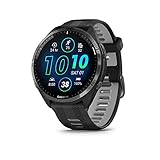
- Brilliant AMOLED touchscreen display with traditional button controls and lightweight titanium bezel
- Battery life: up to 23 days of battery life in smartwatch mode, up to 31 hours in GPS mode
- Confidently run any route using full-color, built-in maps and multi-band GPS
- Training readiness score is based on sleep quality, recovery, training load and HRV status to determine if you’re primed to go hard and reap the rewards (data presented is intended to be a close estimation of metrics tracked)
- Plan race strategy with personalized daily suggested workouts based on the race and course that you input into the Garmin Connect app and then view the race widget on your watch; daily suggested workouts adapt after every run to match performance and recovery
Once synced, the route is stored directly on the watch. You do not need your phone with you to follow it during an activity.
Step 5: Find the route on your Garmin watch
The exact menu wording varies slightly by model, but the structure is consistent across Garmin’s ecosystem.
Open the activity you plan to use, such as Run, Trail Run, or Bike. Before starting the activity, scroll to Navigation or Courses.
Select Courses, then choose the Strava route you synced. On mapping watches like the Forerunner 965, Fenix 7, or Epix, you’ll see a full-color map preview. Breadcrumb-only watches show a simplified line trace.
Once loaded, start the activity normally. Turn prompts and off-course alerts can be adjusted depending on how actively you want the watch to guide you.
Which Garmin watches work best with automatic Strava route sync
Any Garmin watch that supports Courses can use this method, but the experience varies by hardware.
Full mapping models with AMOLED or MIP displays offer the best usability for complex routes, especially in cities or trail networks. Larger screens, metal bezels, and thicker cases add weight, but they also improve durability and readability during long sessions.
Lighter watches with breadcrumb navigation are more comfortable for daily training and racing, but they rely more on vibration alerts and line-following rather than visual context. Battery life is typically better on simpler displays, especially if you reduce backlight usage during navigation.
Common mistakes that prevent automatic sync
Most automatic sync failures are setup-related rather than hardware faults.
Saving a route incorrectly is the most common issue. If the route is not listed under Your Routes in Strava, it will not sync.
Another frequent problem is partial app permissions. If Strava can upload activities but not courses, the integration looks fine on the surface while routes never appear.
Finally, overloaded course storage can cause new routes to be ignored. Deleting unused courses from your watch can immediately fix this, especially on older models with limited memory.
Battery and performance considerations when using synced routes
Navigation changes how your watch behaves in real-world use.
Following routes keeps the GPS active continuously and often increases screen-on time. On AMOLED models, high brightness settings can significantly reduce battery life during long runs or rides.
For ultra-distance events or all-day adventures, switching to gesture-based display wake, reducing map detail, or using power modes can preserve battery without losing navigation reliability.
Automatic Strava sync doesn’t add overhead itself, but it does encourage more frequent route use, which makes understanding your watch’s battery profile essential for consistent training and event planning.
Method 2: Manual GPX Export from Strava to Garmin Connect (Desktop & Mobile)
When automatic sync behaves unpredictably or you want full control over what lands on your watch, manual GPX export is the most reliable fallback.
This method bypasses Strava’s integration layer entirely and feeds the route directly into Garmin Connect. It takes a few more steps, but it works on virtually every Garmin watch that supports Courses, regardless of age or mapping capability.
Manual export is also the preferred option for one-off events, shared GPX files, or last-minute route changes when you don’t want to wait for background syncs to catch up.
What you need before starting
You’ll need access to Strava on the web to download the GPX file. Strava’s mobile app does not support GPX export for routes.
You’ll also need a Garmin account with Garmin Connect installed on your phone, or access to Garmin Connect on desktop. Your watch must support Courses, which includes most Forerunner, Fenix, Epix, Enduro, Instinct, Edge, and select Venu models.
If your watch only supports breadcrumb navigation, the route will still load, but without full turn-by-turn or contextual maps.
Step-by-step: Export a GPX file from Strava (Desktop)
Open Strava in a desktop browser and log into your account.
Navigate to Dashboard > Training > My Routes, or open the specific route directly if it’s already saved. The route must be saved to your account to export it.
On the route page, click the three-dot menu in the top-right corner and select Export GPX. The file will download to your computer, usually to your default Downloads folder.
If you don’t see the export option, double-check that you’re viewing your own route and not someone else’s shared route without edit permissions.
Option A: Upload GPX to Garmin Connect (Desktop)
Go to connect.garmin.com and sign in.
From the left-hand menu, open Training > Courses. This is where all manually imported routes live.
Click Import in the top-right corner and select the GPX file you downloaded from Strava. Garmin Connect will process the file and convert it into a Course.
Once imported, open the course, verify the map preview, and click Send to Device. Choose your Garmin watch from the list and wait for the sync confirmation.
If your watch is connected via USB or actively syncing over Bluetooth or Wi‑Fi, the course should appear within seconds.
Option B: Upload GPX using Garmin Connect Mobile
If you prefer working from your phone, you can still complete the process after downloading the GPX file on a computer and transferring it to your phone.
Upload the GPX file to a cloud service like iCloud Drive, Google Drive, or email it to yourself. Open the file on your phone and choose Open in Garmin Connect.
Garmin Connect will automatically recognize the GPX and prompt you to save it as a Course. Once saved, sync your watch as usual through the app.
On iOS, this flow is generally smoother than Android, but both platforms support it. If the file opens as plain text instead of importing, the file association may be broken, which is covered in troubleshooting below.
Sending the course to your watch and finding it on-device
After the course is in Garmin Connect, syncing is straightforward.
Open Garmin Connect, pull down to force a manual sync, and wait for the confirmation banner. Larger GPX files with dense mapping data may take longer, especially on older watches with slower processors.
On your watch, open the activity profile you plan to use, such as Run, Trail Run, Ride, or Gravel Ride. Look for Navigation or Courses, then select the imported route.
On full mapping watches, you’ll see the route overlaid on the map with zoom and pan controls. On breadcrumb-only models, you’ll see a line to follow with off-course alerts handled primarily through vibration.
Common problems with manual GPX imports and how to fix them
If the course doesn’t appear in Garmin Connect after import, the GPX file may be corrupted or exported incorrectly. Re-download the file from Strava and confirm it ends in .gpx, not .fit or .tcx.
If the course shows in Garmin Connect but won’t sync to the watch, check course storage limits. Older watches can silently refuse new routes when memory is full, even though activities still sync normally.
When the route appears on the watch but navigation fails to start, confirm you selected it from within the correct activity profile. Courses are activity-specific, and a cycling route won’t appear inside a running profile on some models.
If turn prompts or distance cues are missing, that’s a limitation of the original GPX file. Strava exports route geometry, not always turn metadata, so breadcrumb navigation is normal behavior on many watches.
Why manual GPX still matters for serious training and events
Manual import gives you predictability when it counts.
For races, unsupported events, or last-minute course changes, this method avoids dependency on background sync timing, permissions, or server delays. You control exactly when the route is loaded and verified.
It’s also the only way to use GPX files from sources outside Strava, which makes it essential for trail networks, event organizers, and custom course designers who care more about accuracy than automation.
How to Find and Start a Synced Strava Route on Your Garmin Watch
Once a Strava route has successfully synced, either automatically or via manual GPX import, the final step happens entirely on your wrist. This is where model differences, button layouts, and software versions matter, so the exact path can look slightly different depending on your Garmin.
The good news is that Garmin’s navigation logic is consistent across most modern watches. If you understand the flow once, you can apply it whether you’re using a Forerunner 265, Fenix 7, Epix, Instinct 2, or Edge-style interface on a watch.
Open the Correct Activity Profile First
From the watch face, press the top-left or top-right button (depending on model) to open the activity list. Choose the activity you intend to use for the route, such as Run, Trail Run, Ride, Gravel Ride, or Hike.
This step is critical. Garmin treats courses as activity-specific, so a cycling route synced from Strava may not appear if you open a running profile, even though the file is on the watch.
If you regularly use the same route for multiple sports, you may need to duplicate it inside Garmin Connect and assign it to different activity types.
Rank #3

- Our brightest AMOLED touchscreen display with button controls and an aluminum bezel in 42 mm size to fit smaller wrists
- Up to 10 days of battery life in smartwatch mode and up to 18 hours in GPS mode for a more complete picture of your training and recovery
- Train for an event, achieve a milestone, or improve your fitness with Garmin Coach training plans; these running and triathlon plans are personalized to you and adapt based on your performance and recovery
- Training readiness score is based on sleep quality, recovery, training load and HRV status to determine if you’re primed to go hard and get the most out of your workout (data presented is intended to be a close estimation of metrics tracked)
- Built-in microphone and speaker let you make and take phone calls from your wrist when your watch is paired to your smartphone — and you can even use your smartphone’s voice assistant to respond to text messages and more
Navigate to Courses or Navigation
Before pressing Start, scroll down within the activity settings. Look for Courses, Navigation, or Training, depending on your watch and firmware.
On newer Forerunner, Fenix, and Epix models, this is typically labeled Courses. On Instinct and older devices, it may appear as Navigate or simply Courses under the activity options.
Select this menu, and you’ll see a list of all routes currently stored on the watch for that activity.
Select Your Synced Strava Route
Scroll through the list until you find your Strava route. Routes retain their original Strava name, so if you didn’t rename it clearly, this is where vague titles like “Morning Ride” can become frustrating.
Select the route to open its preview screen. Most watches will show total distance, elevation gain, and an outline of the course before you commit.
If the route does not appear here, it usually means one of three things: it hasn’t finished syncing, it’s assigned to a different activity type, or the watch has reached its course storage limit.
Preview the Route Before Starting
On full mapping watches like the Fenix 7, Epix, and Forerunner 955/965, you’ll see the route overlaid on a color map. You can zoom, pan, and inspect tricky sections, which is worth doing before a long run or unfamiliar trail.
Breadcrumb-only watches, such as Instinct models, will show a simple line representation. You won’t see roads or terrain, but off-course alerts and vibration prompts still work reliably.
Take a moment here to confirm direction. If the route was created in reverse on Strava, Garmin will follow it exactly as drawn.
Start Navigation and Begin Your Activity
Once the route preview is open, select Do Course or Navigate. The watch will return you to the activity start screen with navigation armed in the background.
Wait for GPS lock as usual. This is especially important for accurate turn alerts and distance-to-next prompts, particularly on watches with multi-band GPS where initial lock may take slightly longer but improves accuracy.
Press Start, and begin your activity. The watch will automatically switch between data screens and navigation screens as alerts trigger.
What You’ll See During the Activity
During the session, your Garmin will guide you using the level of navigation your hardware supports. Mapping watches show your position in real time, with upcoming turns, distance-to-next, and off-course warnings.
On breadcrumb models, guidance is more minimal. Expect vibration alerts when you stray off the line, but fewer visual cues and no street-level context.
Battery impact is worth noting. Navigation with maps draws more power, especially on AMOLED models like the Epix, but even long Strava routes are usually manageable within Garmin’s advertised battery estimates.
If the Route Doesn’t Show Up on the Watch
If you don’t see your Strava route where expected, sync the watch manually through Garmin Connect and wait for the completion confirmation. Background sync delays are common if the app was closed or the phone was in low-power mode.
Double-check that the route appears under Courses in the Garmin Connect app or web dashboard. If it’s there but not on the watch, storage limits or activity mismatches are the most common culprits.
As a last resort, restarting both the watch and the Garmin Connect app often forces a clean sync, especially on older watches with slower processors.
Once you’ve done this a few times, starting a Strava route becomes second nature. The key is always the same: pick the right activity, confirm the course, and let the watch handle the rest while you focus on the effort.
Key Navigation Features on Garmin Watches: Turn Prompts, ClimbPro, and Re-Routing
Once the route is running, this is where Garmin’s navigation experience separates itself from simpler GPS tracking. Depending on your watch model, screen type, and activity profile, you’ll see different layers of guidance designed to keep you on course without constant interaction.
Understanding what each feature does ahead of time helps avoid confusion mid-run or ride, especially if you’re following a Strava route for the first time.
Turn Prompts and Course Alerts
Turn prompts are the most immediately useful navigation feature for runners and cyclists following Strava routes. When enabled, your watch vibrates and displays an on-screen alert as you approach a turn, usually with a distance countdown like “Turn in 50 m.”
On full mapping watches, this is paired with a clear visual arrow and street context, making it easy to glance down and confirm direction. On smaller or MIP displays like the Forerunner 255 or Instinct series, the alert is simpler but still effective.
Accuracy depends heavily on GPS lock quality and map data. Multi-band models such as the Forerunner 965, Epix Pro, and Fenix 7 Pro tend to deliver cleaner turn timing, while older single-band models may trigger alerts slightly early or late in dense urban areas.
If you don’t see turn prompts at all, check that Course Alerts are enabled in the activity’s navigation settings on the watch. Some users accidentally disable them while customizing data screens.
ClimbPro: Elevation Awareness That Actually Helps
ClimbPro is one of Garmin’s standout features for elevation-heavy routes, and it works seamlessly with Strava courses that include elevation data. When active, the watch automatically detects upcoming climbs and displays a dedicated ClimbPro screen.
You’ll see remaining distance, elevation gain left, average gradient, and a color-coded profile of the climb. For cyclists, this is invaluable pacing information. For trail runners and mountain runners, it removes the mental guesswork of “how much longer does this climb go on?”
ClimbPro only works on watches with onboard maps and barometric altimeters, such as the Fenix, Epix, Enduro, and higher-end Forerunner models. It does not appear on breadcrumb-only devices, even if the route contains elevation data.
Battery impact is modest. The feature uses existing elevation data rather than constant recalculation, so it doesn’t dramatically shorten runtime compared to basic navigation.
Off-Course Warnings and Re-Routing Behavior
If you miss a turn or intentionally detour, Garmin watches handle it differently than phone-based navigation apps. Most Garmin devices will alert you that you are off course with a vibration and on-screen message, rather than automatically recalculating a new route.
This is by design. Garmin prioritizes keeping you aligned with the original Strava route, which is especially important for races, planned workouts, or pre-scouted training loops.
Higher-end mapping watches offer optional re-routing, but it’s limited and depends on map quality and activity type. When enabled, the watch may suggest a path back to the course rather than creating a completely new one.
If re-routing is important to you, verify that it’s turned on under Navigation Settings for the specific activity. Also note that re-routing consumes more battery and can be slower on watches with less processing power.
Map Screens, Data Screens, and How Garmin Switches Between Them
During navigation, Garmin intelligently rotates between your normal data screens and navigation-specific screens. Turn alerts, off-course warnings, and ClimbPro automatically take priority without requiring button presses.
You can still manually scroll through screens if you want to keep an eye on pace, heart rate, or power. The navigation layer runs in the background, which is why setup before pressing Start is so important.
On AMOLED watches like the Epix or Forerunner 965, maps are vivid and easy to read but draw more power. MIP displays like the Fenix 7 or Forerunner 955 trade visual flair for exceptional battery endurance, making them better suited for ultra-distance routes.
Model Limitations and What to Expect by Watch Type
Not all Garmin watches offer the same navigation depth, even if they sync Strava routes successfully. Full mapping watches provide turn-by-turn prompts, ClimbPro, re-routing options, and detailed map visuals.
Mid-range devices often support breadcrumb navigation with off-course alerts and basic turn prompts, but no street names or climb segmentation. Entry-level models may only show a line to follow, with minimal alerts.
If you’re unsure what your watch supports, check the Navigation and Sensors section on Garmin’s product page for your model. Knowing these limits ahead of time prevents frustration and helps you decide whether a Strava route is best suited for running, riding, or casual exploration on your device.
Battery Life and Real-World Navigation Tips for Long Runs and Rides
Once your Strava route is synced and loaded, battery management becomes the deciding factor in whether navigation feels effortless or stressful. Navigation adds constant GPS use, screen wake-ups, and background processing, which can quietly drain even a well-charged watch on long days out.
This is where understanding your Garmin’s real-world behavior matters more than headline battery specs. A 30-hour GPS rating can shrink quickly if settings aren’t aligned with the route you’re following.
Choose the Right GPS Mode Before You Start
Multi-band or multi-GNSS modes deliver excellent accuracy, especially in cities, forests, or mountains, but they are the single biggest battery drain during navigation. For most road runs, bike paths, and open terrain, standard GPS or GPS + GLONASS is more than accurate enough.
If you’re following a Strava route for several hours, switching to a lower GPS mode can add significant endurance without compromising turn alerts. This setting is activity-specific, so check it for Run, Trail Run, Ride, or Gravel before pressing Start.
Maps vs Breadcrumbs: Battery Cost Differences
Full-color maps with street names, contour lines, and POIs are incredibly useful, but they come with a power cost. Watches like the Fenix 7, Epix, and Forerunner 955/965 constantly refresh map tiles as you move, especially when zooming or panning.
If your route is straightforward, resist the urge to manually zoom the map during the activity. Let turn prompts and off-course alerts do the work, and glance only when needed to preserve battery over long distances.
AMOLED vs MIP Displays in the Real World
AMOLED screens look fantastic for maps, particularly in shaded trails or early morning runs, but they reward restraint. Keeping always-on display enabled during navigation can cut battery life dramatically on long rides.
MIP displays are less flashy but excel in endurance scenarios, staying readable in bright sun while sipping power. For ultras, long gravel rides, or all-day adventures, MIP-based Garmins remain the safer choice if battery anxiety is a concern.
Use Power Modes Without Breaking Navigation
Garmin’s Power Manager can extend runtime, but not all power modes play nicely with navigation. Aggressive battery saver profiles may disable maps, turn alerts, or background route tracking.
Instead, create a custom power mode that dims the backlight, reduces vibration strength, and limits phone notifications while keeping GPS and navigation fully active. Test this setup on a short route before trusting it on race day or a long solo outing.
ClimbPro, Re-Routing, and Hidden Battery Drains
Features like ClimbPro and re-routing are incredibly useful, especially on hilly Strava routes, but they rely on continuous elevation processing and map recalculation. On watches with slower processors, this can quietly increase power consumption.
If you already know the course or are following a race route, consider disabling re-routing to reduce background workload. ClimbPro is worth keeping on for long climbs, but it’s less essential for flat routes where battery conservation is the priority.
Rank #4

- Easy-to-use running watch monitors heart rate (this is not a medical device) at the wrist and uses GPS to track how far, how fast and where you’ve run.Special Feature:Bluetooth.
- Battery life: up to 2 weeks in smartwatch mode; up to 20 hours in GPS mode
- Plan your race day strategy with the PacePro feature (not compatible with on-device courses), which offers GPS-based pace guidance for a selected course or distance
- Run your best with helpful training tools, including race time predictions and finish time estimates
- Track all the ways you move with built-in activity profiles for running, cycling, track run, virtual run, pool swim, Pilates, HIIT, breathwork and more
Pre-Load Everything Before You Leave
Always sync routes, maps, and firmware updates before heading out, ideally while connected to Wi‑Fi or your phone at home. Starting an activity while the watch is still indexing maps or syncing data can cause lag and unnecessary battery draw early in the session.
Open the course once on the watch before starting the activity to confirm it loads correctly. This quick check helps avoid mid-run surprises and ensures navigation engages instantly when you hit Start.
Solar Charging and Environmental Factors
Solar-equipped models like the Fenix 7 Solar or Enduro can meaningfully extend navigation time, but only in the right conditions. Bright daylight during long rides helps offset GPS drain, while shaded trails and overcast weather limit its impact.
Cold temperatures also reduce battery efficiency, particularly on long winter runs. If conditions are harsh, assume shorter-than-normal runtime and plan charging or route length accordingly.
Comfort, Fit, and Button Use on Long Days
Navigation encourages more wrist interaction, especially when checking turns or elevation. A secure but comfortable strap fit reduces the need to adjust the watch mid-activity, which keeps accidental screen wakes and button presses to a minimum.
Physical buttons remain more reliable than touch when sweating, wearing gloves, or riding over rough terrain. If your watch supports disabling touch during activities, enabling it can prevent unintended map zooms that waste both time and battery.
Know When to Trust the Watch and When Not To
Garmin navigation is excellent for staying on course, but it’s not a replacement for situational awareness. If the watch suggests a strange detour or struggles with re-routing, stopping briefly to assess the environment often saves more battery than blindly following recalculations.
Think of your Garmin as a highly capable guide, not an infallible one. Using it efficiently ensures your Strava route gets you home with battery to spare, not a dead screen miles from the finish.
Common Problems and Fixes: Strava Routes Not Syncing to Garmin
Even when everything looks set up correctly, route syncing can occasionally break down. Most issues come down to permissions, timing, or small platform mismatches rather than anything being “wrong” with your watch.
Below are the most common real‑world problems I see when testing Garmin watches with Strava routes, along with the fastest, least frustrating fixes.
Route Doesn’t Appear in Garmin Connect at All
If a Strava route never shows up in Garmin Connect, the connection between the two services is usually the culprit. Strava activities may still sync fine, which makes this problem especially confusing.
Start by opening Strava on the web, not the mobile app. Go to Settings, then Applications, Services, and Devices, and confirm that Garmin is listed and authorized.
If Garmin is already connected, disconnect it completely, wait a minute, then reconnect from Strava’s side. This refreshes route permissions, which sometimes fail silently even when activity syncing continues to work.
Route Shows in Garmin Connect but Not on the Watch
This is one of the most common complaints and is almost always a sync timing issue. Garmin Connect may have the route, but the watch hasn’t pulled it down yet.
Open Garmin Connect and manually sync the watch, keeping the app open until the sync completes. On Wi‑Fi–enabled models like the Fenix, Epix, or Forerunner 9xx series, syncing over Wi‑Fi is faster and more reliable for large routes.
If the route still doesn’t appear, restart the watch and sync again. A reboot clears the navigation cache and often makes the route appear instantly afterward.
Route Is on the Watch but Missing Turn‑by‑Turn Navigation
Seeing a breadcrumb line without turn prompts usually means the route was created without proper mapping data. This often happens with freehand-drawn routes or routes imported from older GPX files.
Open the route in Strava and confirm it snaps cleanly to known roads or trails. If it doesn’t, recreate the route using Strava’s routing tools and save it again.
Also check that your watch supports turn‑by‑turn navigation for that activity type. Entry-level Garmin models may show the course line but won’t generate prompts, especially for trail or mixed-surface routes.
Wrong Activity Type Preventing Sync
Garmin sorts routes by activity, and mismatches can hide routes even when they’re synced correctly. A cycling route won’t appear when browsing running courses on the watch.
On the watch, make sure you’re checking Courses inside the same activity profile the route was created for. If needed, open the route in Garmin Connect and change the activity type to match how you plan to use it.
This matters more on watches with multiple sport-specific profiles, where Garmin keeps course lists tightly filtered to reduce clutter.
Strava Route Exceeds Garmin Limits
Garmin watches have limits on route size, point density, and overall file complexity. Long routes with heavy elevation data or dense urban mapping can fail silently during transfer.
If a very long route won’t sync, try splitting it into two smaller routes in Strava. This not only improves sync reliability but also makes navigation faster and reduces battery drain during use.
Older or non-map-based models are especially sensitive to this, even if Strava itself handles the route without issue.
Using Strava Mobile App Instead of Web
The Strava mobile app is fine for viewing routes, but route management and third‑party syncing behave more reliably on the desktop site. Some users save routes in the app and expect instant sync, which doesn’t always happen.
After saving or starring a route, open Strava on the web once and confirm it appears under My Routes. That confirmation step often triggers proper handoff to Garmin Connect.
If you prefer mobile-only workflows, allow a few minutes after saving the route before forcing a Garmin sync.
Garmin Connect App Permissions or Background Limits
On both iOS and Android, aggressive battery optimization can interrupt route transfers. Garmin Connect may appear to sync but never finishes pushing navigation files to the watch.
Check that Garmin Connect has background app refresh enabled and is excluded from battery-saving modes. On Android, disable system-level battery optimization for Garmin Connect entirely.
Keeping the phone screen awake during the sync also helps, especially on older devices.
Watch Storage Nearly Full
Navigation files require more storage than activities, especially on watches with onboard maps. When storage gets tight, route transfers may fail without an error message.
Delete unused courses, old activities, and unused music files if your watch supports offline audio. Sync again once space is freed.
This is more common on watches that double as music players, where large playlists quietly consume internal storage.
Firmware or App Version Mismatch
Outdated software can break syncing in subtle ways. This often shows up after a Strava or Garmin Connect update, not before.
Check for watch firmware updates in Garmin Connect and install them before troubleshooting further. Also confirm Garmin Connect itself is fully up to date in your app store.
Keeping both sides current minimizes compatibility issues, especially with newer Strava route features.
Manual Export as a Reliable Backup
If automatic syncing fails repeatedly, manual GPX export is the most dependable fallback. Download the GPX file from Strava on the web and import it directly into Garmin Connect.
Once imported, sync the watch normally. The route behaves exactly like an automatically synced one, including turn prompts and elevation data where supported.
This method is slower but invaluable before race day or long adventures where navigation reliability matters more than convenience.
When All Else Fails: Reset the Connection, Not the Watch
A full watch reset is almost never necessary for route syncing issues. The problem nearly always lives in account permissions or cached sync data.
Disconnect Garmin from Strava, log out of Garmin Connect, restart both phone and watch, then reconnect everything fresh. This clears lingering sync errors without wiping settings, data fields, or activity history.
It’s a few extra minutes of setup, but far less painful than rebuilding the watch from scratch.
Advanced Tips: Managing Route Limits, Course Naming, and Third-Party Alternatives
Once syncing works reliably, the next frustrations usually come from scale. Large route libraries, confusing course names, or juggling multiple planning platforms can quietly undermine an otherwise solid setup.
These advanced tips focus on keeping your Garmin watch fast, organized, and predictable when navigating in the real world.
Understanding Garmin Route and Course Limits
Most Garmin watches impose a soft cap on how many courses they can store at once. Depending on model and firmware, this is typically between 50 and 100 courses, even if storage space remains.
When you exceed that limit, new routes may fail to sync or simply never appear on the watch. Garmin rarely surfaces a clear error message, which makes this issue easy to misdiagnose.
If you rotate routes frequently, treat your watch like a working library, not an archive. Keep only upcoming or frequently used courses on the device and delete the rest.
How Route Complexity Affects Syncing and Performance
Routes with excessive points, dense city turns, or long off-road tracks require more processing and storage. This is especially noticeable on older watches or models without the latest chipset and memory.
If a route loads slowly, redraws lag during navigation, or drains battery faster than expected, the route itself may be the problem. Simplifying the route in Strava before syncing can dramatically improve performance.
For long trail runs or gravel rides, prioritizing clean geometry over perfect map fidelity often results in smoother turn-by-turn guidance and better battery life.
💰 Best Value

- Brilliant AMOLED touchscreen display with traditional button controls; lightweight design in 46 mm size
- Up to 13 days of battery life in smartwatch mode and up to 20 hours in GPS mode
- As soon as you wake up, get your morning report with an overview of your sleep, recovery and training outlook alongside HRV status, training readiness and weather (data presented is intended to be a close estimation of metrics tracked)
- Plan race strategy with personalized daily suggested workouts based on the race and course that you input into the Garmin Connect app and then view the race widget on your watch; daily suggested workouts adapt after every run to match performance and recovery
- Training readiness score is based on sleep quality, recovery, training load and HRV status to determine if you’re primed to go hard and get the most out of your workout (data presented is intended to be a close estimation of metrics tracked)
Best Practices for Course Naming and Organization
Garmin displays course names exactly as received from Strava, including emojis, symbols, and long titles. On smaller watch screens, this can make it hard to distinguish routes mid-activity.
Rename routes in Strava using short, descriptive titles before syncing. Including distance, direction, or key landmarks helps, such as “18km River Loop CW” or “Saturday Long Ride 90k.”
If you reuse routes across seasons, add subtle versioning like “Winter” or “Trail” rather than creating near-identical duplicates that clutter the course list.
Managing Multiple Sports Profiles and Shared Routes
Garmin treats courses as universal, but how they behave depends on the activity profile used. A cycling route loaded during a run will still navigate, but pace alerts, ClimbPro, and turn prompts may behave differently.
Before race day or key workouts, load the course while the correct sport profile is active on the watch. This ensures the navigation features align with how you actually plan to use the route.
This is particularly important on multisport watches where battery profiles, map detail, and alert behavior vary between run, trail run, bike, and hike modes.
When Strava Isn’t the Best Tool for Route Creation
Strava is excellent for discovering popular routes, but it is not always ideal for precise planning. Its routing engine favors popularity over technical accuracy, especially for trails and remote roads.
If you notice frequent recalculations, missing turns, or awkward detours, the issue often starts at route creation. In those cases, switching platforms can save time and frustration.
Using Strava primarily as a library and discovery tool, rather than your sole planner, gives you more control over the final navigation experience.
Third-Party Route Platforms That Work Well With Garmin
Komoot integrates tightly with Garmin and excels at surface-specific routing, especially for hiking, gravel, and bikepacking. Its route detail translates cleanly to Garmin watches with strong turn-by-turn reliability.
Ride with GPS is favored by cyclists who want granular control over elevation, cue sheets, and route shaping. Courses sync smoothly to Garmin and are often more predictable than Strava-generated routes.
AllTrails works well for hiking-focused watches, but routes may need manual GPX export for consistent results. This extra step is worth it for trail accuracy on supported devices.
Mixing Platforms Without Creating Sync Chaos
You can safely connect multiple route platforms to Garmin Connect, but discipline matters. If everything syncs automatically, your course list can fill up faster than expected.
Choose one primary platform for auto-sync and use manual GPX imports for everything else. This keeps your watch organized and avoids hitting course limits unexpectedly.
Before big events or travel, do a quick audit of your courses and remove anything you won’t realistically use. A lean setup syncs faster, navigates more reliably, and keeps your focus on the activity, not the device.
FAQ: Strava Routes, Segments, Courses, and Garmin Navigation Explained
If you have ever wondered why something that looks simple in Strava behaves differently on your Garmin watch, you are not alone. The confusion usually comes down to terminology and how each platform treats routes, segments, and navigation.
This FAQ ties together everything you have set up so far and explains what actually happens when a Strava route lands on your wrist.
What is the difference between a Strava route and a Garmin course?
A Strava route is a planning file created or saved inside Strava. It lives in Strava’s ecosystem and reflects how Strava thinks the route should be followed.
Once that route syncs to Garmin Connect, it becomes a Garmin course. A course is Garmin’s navigation format, optimized for watch-based guidance, alerts, and map rendering.
The conversion step matters. Any quirks you see on the watch usually come from how Garmin interprets the route data rather than an error on the watch itself.
Do Strava routes automatically sync to Garmin?
They do, but only if two conditions are met. Your Strava and Garmin Connect accounts must be connected, and the route must be starred in Strava.
Once starred, the route syncs through Garmin Connect and appears under Training, Courses. Depending on your watch and sync method, this can take anywhere from a few seconds to a few minutes.
If a route is not starred, Garmin will never see it, even if the accounts are linked correctly.
Why do some routes sync but others don’t?
The most common reason is course limits. Many Garmin watches cap the number of stored courses, especially older or entry-level models.
Another frequent issue is route complexity. Extremely dense routes with thousands of points, overlapping paths, or rapid direction changes can fail silently during sync.
If a route refuses to appear, unstar and re-star it in Strava, sync Garmin Connect again, and confirm you still have room on the watch.
What Garmin watches support Strava route navigation?
Most Garmin watches with breadcrumb or full map navigation support Strava routes. This includes Forerunner models with navigation, Fenix, Epix, Enduro, Instinct Solar variants, and Edge bike computers.
Watches without navigation hardware may still sync the course but cannot display turn guidance or maps. In those cases, the route exists but offers limited value.
If your watch supports onboard maps, you will get the best experience with clear turns, elevation context, and rerouting behavior.
What’s the difference between routes and segments on Garmin?
Routes are about navigation. They guide you from start to finish, showing where to go.
Segments are performance-focused. Live Segments on Garmin watches compare your effort against previous attempts or other athletes on a specific stretch.
Starring a segment in Strava does not create a navigable route. You can follow a route and still trigger segments along the way, but they are separate systems.
Can I navigate a Strava route and still get Live Segments?
Yes, on supported watches. Garmin treats navigation and Live Segments as parallel features.
As long as the segment exists on the route and Live Segments are enabled on your device, you will receive segment alerts during the activity.
Battery impact increases slightly when running navigation and segments together, especially on long activities with maps enabled.
Why does my watch say “Course Calculating” or reroute unexpectedly?
This usually comes from mismatches between the route and the map data on your watch. Trails, private roads, or recently changed paths are common triggers.
Some activity profiles also handle routing differently. Trail Run and Hike modes are generally more forgiving than Road Run or Bike.
If recalculation becomes distracting, disable course recalculation in the activity settings and rely on breadcrumb guidance instead.
Is manual GPX export better than automatic Strava sync?
Manual GPX export gives you more control. You can inspect the route, simplify it, or edit it in Garmin Connect or another platform before sending it to the watch.
Automatic sync is faster and more convenient for everyday use, especially for familiar routes or last-minute planning.
Many experienced users rely on auto-sync for simple sessions and manual GPX uploads for races, long adventures, or unfamiliar terrain.
Why does the route look different on my watch than in Strava?
Garmin simplifies routes to improve performance and battery life. Tight switchbacks, overlapping paths, and minor deviations may be smoothed out.
Map style also plays a role. Garmin maps emphasize navigability rather than visual detail, which can make routes appear less precise at a glance.
As long as turns and alerts are accurate, minor visual differences are normal and rarely affect real-world navigation.
How many courses should I keep on my watch?
Fewer is better. Keeping only routes you actively use improves sync speed and reduces the chance of failed transfers.
Before events or trips, clear out old courses you no longer need. This is especially important on watches with limited storage or older processors.
A clean course list makes on-watch selection faster and navigation more reliable when it matters most.
What’s the best workflow for reliable Garmin navigation using Strava?
Use Strava for discovery and inspiration, star only the routes you actually plan to use, and let Garmin handle the navigation.
For complex routes, race courses, or technical trails, consider building or refining the route outside Strava before syncing it.
This balanced approach keeps your watch fast, your navigation predictable, and your focus where it belongs: on the run or ride.
Final takeaway: keeping Strava and Garmin working together
When you understand how routes become courses, and how Garmin interprets them on the watch, most navigation problems disappear. Strava is your route library, Garmin is your navigation engine, and Garmin Connect is the bridge between them.
Keep your setup intentional, your course list lean, and your expectations aligned with your watch’s capabilities. Do that, and syncing Strava routes to your Garmin becomes a dependable tool rather than a recurring frustration.
With the right workflow in place, your watch fades into the background and simply does its job, guiding you turn by turn while you focus on the effort, the terrain, and the experience.