Sleep tracking on the Google Pixel Watch is designed to be automatic and low-effort, but a few key pieces need to be in place before it works reliably night after night. If you’ve ever woken up to missing data, partial sleep logs, or confusing results, it usually comes down to setup details rather than the watch itself. Getting these basics right upfront makes a bigger difference than any advanced tweak later on.
This section walks through exactly what you need before your first tracked night of sleep, from compatible phones and required apps to battery levels and how the watch should actually fit on your wrist. Once these fundamentals are covered, the Pixel Watch and Fitbit software do the heavy lifting in the background while you sleep.
Compatible Google Pixel Watch models
All Google Pixel Watch models support sleep tracking, including the original Pixel Watch, Pixel Watch 2, and newer LTE or Wi‑Fi variants. The hardware across these models includes optical heart rate sensors, blood oxygen monitoring during sleep, skin temperature variation tracking, and motion sensors that work together to estimate sleep stages and duration.
There’s no performance penalty between sizes or finishes, so whether you’re wearing the smaller case or a larger Pixel Watch with a metal or matte finish, sleep tracking accuracy is the same. Comfort matters more than aesthetics here, especially if you’re a side sleeper or sensitive to wrist pressure overnight.
🏆 #1 Best Overall

- Inspire 3 is the tracker that helps you find your energy, do what you love and feel your best. All you have to do is wear it.Operating temperature: 0° to 40°C
- Move more: Daily Readiness Score(1), Active Zone Minutes, all-day activity tracking and 24/7 heart rate, 20+ exercise modes, automatic exercise tracking and reminders to move
- Stress less: always-on wellness tracking, daily Stress Management Score, mindfulness sessions, relax breathing sessions, irregular heart rhythm notifications(2), SpO2(3), menstrual health tracking, resting heart rate and high/low heart rate notifications
- Sleep better: automatic sleep tracking, personalized Sleep Profile(1), daily detailed Sleep Score, smart wake vibrating alarm, sleep mode
- Comfortably connected day and night: calls, texts & smartphone app notifications(4), color touchscreen with customizable clock faces, super lightweight and water resistant to 50 meters, up to 10 day battery life(5)
An Android phone that meets requirements
You’ll need an Android phone running a recent version of Android to set up and view sleep data. Pixel phones offer the smoothest experience, but most modern Android devices work as long as they support Google Play Services and Bluetooth LE.
Sleep tracking happens on the watch itself, so your phone doesn’t need to be nearby while you sleep. However, the watch must sync with your phone at least once daily for sleep data to appear in the Fitbit app.
The Fitbit app and a Google account
Sleep tracking on the Pixel Watch runs through Fitbit, not the Google Fit app. The Fitbit app must be installed on your phone and linked to the same Google account used during Pixel Watch setup.
You don’t need a Fitbit Premium subscription to track sleep stages, duration, or sleep score. Premium adds trends, deeper insights, and coaching, but the core sleep tracking features are fully usable without paying anything extra.
Battery charge that realistically lasts the night
The Pixel Watch needs enough battery to make it through your entire sleep window. As a rule of thumb, starting the night with at least 30 to 35 percent battery is the minimum, while 50 percent or more is ideal if you use always-on display or sleep with SpO2 tracking enabled.
Battery size varies slightly by generation, but real-world overnight drain is similar across models. Charging the watch while you wind down in the evening, then putting it on just before bed, is the easiest habit to build.
A comfortable, secure fit on your wrist
Sleep tracking accuracy depends heavily on consistent skin contact. The watch should feel snug but not tight, sitting just above the wrist bone so the sensors stay flat against your skin when you move.
Soft-touch bands like the active silicone strap or woven fabric options tend to be more comfortable overnight than metal bracelets. If the watch slides around or leaves gaps under the sensor, heart rate and sleep stage detection can become unreliable.
Sleep settings enabled on the watch
Sleep tracking is usually turned on by default, but it’s worth confirming. Inside the Fitbit app, sleep tracking, heart rate tracking, and SpO2 during sleep should all be enabled for full overnight data.
Sleep mode is optional but recommended. It silences notifications, dims the screen, and reduces accidental wake-ups from wrist movement, which improves both comfort and battery life while you’re asleep.
Basic expectations about how Pixel Watch tracks sleep
The Pixel Watch doesn’t require you to manually start or stop sleep tracking. It automatically detects when you fall asleep based on movement, heart rate changes, and breathing patterns.
Sleep stages, duration, and sleep score appear after the watch syncs with your phone in the morning. If you understand that everything happens passively and review data after waking, you’re less likely to worry when the watch appears to “do nothing” overnight.
How Sleep Tracking Works on Pixel Watch (Sensors, Fitbit, and Automatic Detection)
Once you understand the basics around battery, fit, and settings, it helps to know what the Pixel Watch is actually doing while you sleep. Unlike older fitness trackers that relied mostly on motion, Google’s approach combines multiple sensors with Fitbit’s long-running sleep algorithms to build a fuller picture of your night.
Everything happens automatically in the background, but there’s a lot more going on than just counting hours asleep.
The sensors doing the work overnight
At the core of sleep tracking is the optical heart rate sensor on the back of the Pixel Watch. It measures your heart rate continuously throughout the night and looks for the subtle changes that happen as your body moves between light, deep, and REM sleep.
The accelerometer tracks wrist movement and micro-movements. This helps the watch tell the difference between tossing and turning, briefly waking up, and being fully asleep, which is especially important if you don’t stay perfectly still at night.
On newer Pixel Watch models, the blood oxygen sensor also runs during sleep if enabled. SpO2 doesn’t directly determine sleep stages, but it adds context around breathing quality and potential disruptions, especially for users who snore or wake up feeling unrested.
How Fitbit turns sensor data into sleep stages
The Pixel Watch relies on the Fitbit platform for all sleep analysis, so the real magic happens inside the Fitbit app. Fitbit combines heart rate variability, breathing rate, and movement data to estimate when you’re awake, in light sleep, deep sleep, or REM sleep.
These stages aren’t measured the same way as a medical sleep study, but in everyday use they’re consistent enough to spot trends. Over multiple nights, patterns like short deep sleep, frequent awakenings, or irregular bedtimes become easier to recognize.
Fitbit also calculates a sleep score, which blends duration, restlessness, heart rate patterns, and stage distribution into a single number. It’s not something to obsess over nightly, but it’s a helpful snapshot of overall sleep quality.
Automatic sleep detection and why you don’t need to press anything
One of the Pixel Watch’s strengths is that sleep tracking is fully automatic. You don’t need to start a sleep session or remember to tap a button before bed.
The watch looks for a combination of reduced movement, lowered heart rate, and consistent patterns that suggest you’ve fallen asleep. When you wake up and start moving again, it automatically ends the sleep session.
If you lie still in bed reading or watching videos, the watch usually won’t log that time as sleep unless your body signals change. Likewise, brief nighttime wake-ups are often recorded as awakenings rather than ending the entire sleep session.
Sleep mode vs automatic detection
Sleep mode doesn’t control whether sleep tracking works, but it supports it. When enabled, it minimizes screen wake-ups, silences notifications, and reduces accidental touches that can drain battery or disturb you.
Automatic detection still functions even if you forget to turn on Sleep mode. However, using it consistently improves comfort and helps ensure the watch lasts through the night, especially on smaller Pixel Watch cases with tighter battery margins.
Think of Sleep mode as a helper, not a requirement.
What sleep data the Pixel Watch actually records
After syncing in the morning, you’ll see total sleep time, time spent in each sleep stage, number of awakenings, and a sleep score. You’ll also see resting heart rate and breathing rate trends tied to that night.
With SpO2 enabled, you may also see overnight oxygen variation data. This doesn’t diagnose anything, but it can highlight nights where breathing was more irregular than usual.
Over time, Fitbit adds weekly and monthly views that show averages rather than single-night fluctuations. This is where the data becomes most useful for everyday users.
Where to view and interpret your sleep results
All sleep data lives inside the Fitbit app, not directly on the watch. Open the app, tap the Sleep tile, and select a night to see detailed breakdowns.
The key is to focus on consistency rather than perfection. If your sleep score dips occasionally, that’s normal. What matters more is whether your total sleep time, deep sleep, or awakenings improve or decline over weeks.
The Pixel Watch is best used as a long-term companion rather than a nightly judge. Treated that way, the insights become far more actionable.
Common reasons sleep tracking may seem inaccurate
Loose fit is the most common culprit. If the watch shifts during the night, heart rate data becomes noisy, which affects sleep stage estimates.
Low battery can also cause partial or missing sleep records. If the watch powers off before morning, the night may not save properly in Fitbit.
Finally, irregular schedules can confuse automatic detection. Very late nights, naps close to bedtime, or extended periods lying still while awake can occasionally lead to slightly off sleep start or end times, which you can manually edit in the Fitbit app if needed.
Step-by-Step: Setting Up Sleep Tracking in the Fitbit App
Once you understand what the Pixel Watch records and why fit and battery matter, the next step is making sure the Fitbit app is configured correctly. This setup only takes a few minutes, but it directly affects how reliable your sleep data is night after night.
1. Make sure your Pixel Watch is properly paired to Fitbit
Sleep tracking on the Pixel Watch is handled entirely through Fitbit, not the Google Watch app alone. When you first set up the watch, you should be prompted to sign in with or create a Fitbit account.
Open the Fitbit app on your phone and tap the Devices icon to confirm your Pixel Watch appears as connected and syncing. If it doesn’t, sleep data won’t save, even if the watch is worn correctly overnight.
2. Confirm sleep tracking is enabled on your watch
In the Fitbit app, tap your profile picture, select your Pixel Watch, and scroll to the sleep settings. Sleep tracking is enabled by default, but it’s worth confirming nothing was disabled during setup or troubleshooting.
Rank #2

- Inspire 3 is the tracker that helps you find your energy, do what you love and feel your best. All you have to do is wear it. Compatibility-Apple iOS 15 or higher, Android OS 9 or higher
- Move more: Daily Readiness Score(1), Active Zone Minutes, all-day activity tracking and 24/7 heart rate, 20+ exercise modes, automatic exercise tracking and reminders to move
- Stress less: always-on wellness tracking, daily Stress Management Score, mindfulness sessions, relax breathing sessions, irregular heart rhythm notifications(2), SpO2(3), menstrual health tracking, resting heart rate and high/low heart rate notifications
- Sleep better: automatic sleep tracking, personalized Sleep Profile(1), daily detailed Sleep Score, smart wake vibrating alarm, sleep mode
- Comfortably connected day and night: calls, texts & smartphone app notifications(4), color touchscreen with customizable clock faces, super lightweight and water resistant to 50 meters, up to 10 day battery life(5)
This is also where Fitbit manages background permissions, which are critical on Android. Make sure the app is allowed to run in the background and isn’t restricted by battery optimization, or sync delays can occur.
3. Set your sleep schedule and sleep goal
From the Today tab in the Fitbit app, tap the Sleep tile and look for the sleep goal or schedule settings. Enter your typical bedtime, wake time, and total sleep goal based on what’s realistic for your routine.
This doesn’t force the watch to track sleep, but it helps Fitbit interpret patterns and provide more relevant insights. Over time, the app compares your actual sleep against these targets to highlight trends rather than one-off nights.
4. Enable SpO2 and health metrics (optional but recommended)
If you want oxygen variation data, open the Fitbit app, go to Health Metrics, and make sure SpO2 tracking is turned on. This feature runs automatically overnight and doesn’t require manual activation before bed.
Keep in mind that SpO2 uses extra battery, especially on smaller Pixel Watch cases. If you’re cutting it close on charge, prioritize getting through the night first and add this later.
5. Decide whether to use Sleep mode
Sleep tracking works whether or not Sleep mode is enabled, but using it can improve the experience. Sleep mode dims the screen, silences notifications, and reduces accidental wake-ups from wrist movement.
You can schedule Sleep mode to turn on automatically from the watch settings or toggle it manually before bed. Think of it as comfort insurance rather than a technical requirement.
6. Wear the watch correctly before going to bed
About 30 minutes before sleep, put the watch on snugly above the wrist bone. It should feel secure without cutting off circulation, especially if you tend to move a lot during sleep.
Silicone bands generally perform best overnight, while metal bracelets or bulky third-party straps can affect comfort and sensor contact. This is one of the most overlooked factors in accurate sleep tracking.
7. Sync in the morning to lock in your sleep data
When you wake up, open the Fitbit app and let it sync fully. Sleep data is processed on the phone, so a successful sync is what turns raw sensor readings into a sleep score and stage breakdown.
If the night doesn’t appear right away, give it a few minutes and refresh the app. Editing sleep start or end times is possible if detection was slightly off, but frequent edits usually point to fit or battery issues rather than software problems.
8. Understand what requires Fitbit Premium and what doesn’t
Basic sleep tracking, scores, stages, and trends are included for free. Fitbit Premium adds features like Sleep Profile and deeper insights after at least 14 nights of data, but it’s not required for everyday use.
For most Pixel Watch owners, the standard sleep data is more than enough to spot patterns and make practical adjustments. Premium is best treated as an optional layer, not a necessity for accurate tracking.
Wearing Your Pixel Watch Correctly for Accurate Sleep Data
Once sleep tracking is enabled and your battery plan is sorted, how you actually wear the Pixel Watch becomes the biggest factor in whether the data is reliable or frustrating. The watch relies on continuous heart rate, motion, and skin contact throughout the night, so small fit issues can quietly skew results.
This is less about perfection and more about consistency. Wearing the watch the same way each night helps Fitbit’s algorithms learn your patterns and produce cleaner sleep stage and score data over time.
Get the fit right: snug, not tight
The Pixel Watch should sit just above your wrist bone, not directly on it. This placement keeps the heart rate sensor stable when you bend your wrist during sleep.
Tighten the band enough that the watch doesn’t slide when you roll over, but not so much that it leaves deep marks or causes tingling. If the watch shifts even a few millimeters during the night, heart rate readings can drop out, which often shows up as missing sleep stages.
Choose the right band for overnight comfort
Silicone and soft fluoroelastomer bands are the most reliable options for sleep tracking. They maintain even pressure across the back of the case and don’t loosen as your wrist size subtly changes overnight.
Metal bracelets, leather straps, and stiff third-party bands tend to move more during sleep and can create pressure points. On the Pixel Watch’s compact 41mm case, even small gaps between the sensor and skin can reduce accuracy.
Wear it on your non-dominant wrist when possible
Most people get better results wearing the Pixel Watch on their non-dominant wrist. There’s less unconscious movement, which means fewer false wake-ups and more stable motion data.
If you prefer the dominant wrist, sleep tracking still works, but you may see slightly more fragmented sleep graphs. What matters most is sticking to the same wrist consistently so trends remain comparable.
Account for restless sleeping and side sleeping
If you toss and turn or sleep on your side with your arm under a pillow, pay extra attention to fit. A slightly tighter band can prevent brief sensor lift-offs when pressure is applied to the watch face.
The Pixel Watch’s domed glass and smooth caseback help with comfort, but bulkier protective cases can interfere with skin contact. If you use a case during the day, consider removing it at night for better sensor performance.
Keep the sensors clean and unobstructed
Before bed, quickly wipe the back of the watch with a dry cloth to remove sweat, lotion, or dust. Even a thin film can interfere with optical heart rate readings during long, low-movement periods like deep sleep.
If you have tattoos under the sensor area, accuracy can vary. Wearing the watch slightly higher on the arm or switching wrists often improves consistency.
Be mindful of overnight battery behavior
The Pixel Watch automatically adjusts sensor sampling during sleep to balance accuracy and battery life. As long as you start the night above roughly 30 percent, you should get full sleep data without interruption.
If the watch dies overnight, the Fitbit app may show partial or missing sleep. When that happens repeatedly, it’s usually a charging habit or fit issue rather than a tracking failure.
Consistency matters more than perfection
You don’t need to obsess over millimeter-level placement every night. What matters is wearing the Pixel Watch in a similar position, with a similar band, and similar tightness each time you go to bed.
Over several nights, Fitbit’s sleep tracking becomes more reliable as it recognizes your baseline heart rate, movement patterns, and sleep timing. Treat the watch like a routine part of getting ready for bed, not a medical device that needs constant adjustment.
What Sleep Metrics the Pixel Watch Tracks (Stages, Score, SpO2, Breathing, and More)
Once you’ve nailed fit and nightly consistency, the real value of sleep tracking comes from understanding what the Pixel Watch actually measures while you’re asleep. All sleep data flows through the Fitbit app, where it’s organized into clear metrics designed to be easy to interpret without medical knowledge.
These metrics are built from a combination of motion data, optical heart rate readings, blood oxygen trends, and breathing patterns collected throughout the night. The watch does this automatically once it detects you’ve fallen asleep, with no manual input required.
Sleep stages: Awake, Light, Deep, and REM
The foundation of Pixel Watch sleep tracking is sleep stages. Fitbit breaks your night into Awake, Light, Deep, and REM sleep, displayed as a timeline and total minutes for each stage.
Light sleep makes up the bulk of most nights and acts as a transition state, while deep sleep is associated with physical recovery and muscle repair. REM sleep is tied to memory consolidation and mental processing, which is why shorter REM periods often follow late nights or alcohol use.
Stage detection relies heavily on heart rate variability and movement rather than brain waves, so the exact boundaries aren’t clinical-grade. What matters more is how your stage distribution changes over time rather than any single night looking “perfect.”
Total sleep time and sleep schedule consistency
Alongside stages, the Pixel Watch tracks total sleep duration and the exact times you fell asleep and woke up. This includes brief awakenings you may not remember, which often explain why you feel groggy despite spending enough hours in bed.
Fitbit also looks at how consistent your sleep schedule is across the week. Going to bed and waking up at wildly different times can lower your overall sleep assessment even if your total hours look solid.
For people with irregular schedules, this metric can be more revealing than sleep stages alone. It highlights habits rather than judging one-off late nights.
Sleep Score and nightly breakdown
Each night is summarized with a Sleep Score ranging from 0 to 100. This score blends duration, depth, restlessness, and recovery signals into a single number that’s easy to scan in the morning.
Tapping into the score reveals a breakdown showing how much weight came from time asleep, deep and REM sleep, and restoration. If your score dips, this view usually makes it clear whether the issue was short sleep, frequent awakenings, or elevated overnight heart rate.
Rank #3
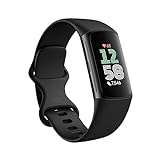
- Find your way seamlessly during runs or rides with turn-by-turn directions from Google Maps on Fitbit Charge 6[7, 8]; and when you need a snack break on the go, just tap to pay with Google Wallet[8, 9]
The score is best used as a trend indicator, not a grade. A run of lower scores often reflects lifestyle changes like stress, travel, or illness rather than a problem with the watch itself.
Heart rate, resting heart rate, and overnight trends
Throughout the night, the Pixel Watch tracks your heart rate continuously. Fitbit uses this to calculate your average sleeping heart rate and how it compares to your daytime resting heart rate.
A lower and more stable heart rate during sleep generally signals better recovery. Spikes or elevated averages can correlate with stress, dehydration, late meals, or poor sleep conditions.
Over time, these trends are far more informative than any single reading. Many users find this metric lines up closely with how refreshed they feel in the morning.
Breathing rate during sleep
The Pixel Watch estimates your breathing rate by analyzing subtle motion and heart rate patterns while you sleep. This results in an average breaths-per-minute figure for the night.
Most people have a very narrow personal range, so deviations stand out quickly. A higher-than-usual breathing rate often shows up during illness, congestion, or nights with restless sleep.
Fitbit flags unusual changes rather than focusing on absolute numbers. This makes it easier to spot patterns without needing to know what’s “normal” on paper.
Blood oxygen saturation (SpO2)
On supported Pixel Watch models and in supported regions, the watch measures blood oxygen saturation during sleep. This is shown as an average percentage and, in some cases, nightly variation.
SpO2 tracking happens in the background and doesn’t display real-time readings overnight. Fitbit focuses on longer-term trends rather than alerting you to brief dips that are common and usually harmless.
Because SpO2 relies on consistent skin contact, fit matters here more than almost any other metric. Loose bands or thick cases can lead to missing or inconsistent data.
Skin temperature variation and stress signals
Pixel Watch models that support skin temperature tracking record relative changes compared to your personal baseline. This data is collected only during sleep, when external conditions are more stable.
Temperature variation can reflect factors like illness, alcohol use, menstrual cycle changes, or sleeping in a warmer room. Fitbit presents this as a deviation, not an absolute temperature, which keeps the focus on trends.
Newer models also layer in overnight stress-related signals, using heart rate variability and other indicators to show how taxed your body may be while you rest.
Sleep Profile and long-term insights
After enough nights of data, Fitbit generates a monthly Sleep Profile. This compares your sleep patterns to broader ranges and assigns an animal-based profile that reflects timing, depth, and consistency.
While the animal labels are lighthearted, the underlying analysis is serious. It’s one of the better ways to see how your habits stack up over weeks rather than days.
This long-term view is where the Pixel Watch really shines, especially if you wear it nightly and keep your setup consistent.
How to View and Understand Your Sleep Data in the Fitbit App
Once you’ve built a few nights of consistent tracking, the Fitbit app becomes the control center for everything your Pixel Watch records overnight. This is where nightly details, trends, and longer-term insights all come together in a way that’s easy to check first thing in the morning or review over time.
Where to find your sleep reports
Open the Fitbit app on your Android phone and tap the Today tab at the bottom. Your most recent sleep session appears near the top, usually alongside steps and heart rate.
Tap the sleep card to open a detailed breakdown for that night. You can swipe left or right to move between days, which makes it easy to compare weekdays, weekends, or nights after travel.
Understanding your sleep score
At the top of each sleep report is your sleep score, typically ranging from 0 to 100. This score combines total sleep time, sleep stages, and restlessness into a single snapshot.
Rather than chasing a perfect number, use the score to spot patterns. If your Pixel Watch is consistently scoring lower after late workouts, alcohol, or short nights, that context matters more than any single reading.
Reading your sleep stages chart
Scroll down and you’ll see a timeline showing light sleep, deep sleep, REM, and awake periods. This chart reflects how your body moved through the night, not how “good” or “bad” your sleep was.
It’s normal for stages to cycle several times per night, and brief awakenings are expected. What you’re looking for is balance over time, not perfection on a single night.
Sleep duration and schedule consistency
Below the stages, Fitbit shows total time asleep alongside your bedtime and wake time. This is one of the most useful sections for everyday improvement.
If your total sleep looks fine but your schedule shifts wildly from night to night, Fitbit will often flag this. The Pixel Watch tends to reward consistency more than sheer hours, especially when calculating long-term insights.
Health metrics collected during sleep
Scrolling further reveals sleep heart rate, breathing rate, SpO2 averages, and skin temperature variation, depending on your Pixel Watch model and region. These metrics are measured automatically while you sleep and don’t require manual input.
Fitbit presents these numbers alongside your personal baseline, which makes them easier to interpret. Small nightly changes are normal, while sustained shifts over several nights are what deserve attention.
Sleep Profile and trends over time
If you’ve been wearing your Pixel Watch most nights, the Trends tab shows weekly and monthly views of your sleep habits. This is where patterns become obvious, especially around duration, timing, and restlessness.
Your monthly Sleep Profile also lives here once enough data is collected. While the animal-based label is playful, the supporting charts offer meaningful insight into how regular and restorative your sleep really is.
What requires Fitbit Premium and what doesn’t
Core sleep tracking, including sleep stages, duration, and basic metrics, works without a Fitbit Premium subscription. This makes the Pixel Watch useful straight out of the box.
Premium unlocks deeper trend analysis, detailed sleep insights, and guided recommendations. If you’re serious about improving sleep habits, these extras can be helpful, but they’re not required for reliable tracking.
Tips for getting the most accurate readings
For the cleanest data, wear your Pixel Watch snugly, about a finger’s width above the wrist bone. A loose fit can affect heart rate and SpO2 readings, especially if you move a lot at night.
Try to charge the watch before bed so battery-saving modes don’t interfere with tracking. Consistent wear, consistent fit, and consistent sleep times are what allow Fitbit’s analysis to become truly useful over weeks and months.
Troubleshooting missing or incomplete sleep data
If a night doesn’t appear, first check that the watch battery didn’t drop too low during sleep. Extremely short sleep sessions or naps may also be ignored or merged into the following night.
Make sure sleep tracking is enabled in the Fitbit app and that your Pixel Watch is syncing properly each morning. When in doubt, a quick manual sync usually brings missing data back within a few minutes.
Using Sleep Scores, Trends, and Insights to Improve Your Sleep
Once your Pixel Watch is reliably collecting sleep data, the real value comes from how you use it night after night. Fitbit’s scoring system and long-term trends are designed to highlight habits you can actually change, not just report what already happened.
Understanding your nightly Sleep Score
Your Sleep Score is a single number that summarizes the quality of your night, typically on a scale from poor to excellent. It’s calculated using sleep duration, time spent in different sleep stages, and how often your sleep was disrupted.
Rather than chasing a perfect score, focus on consistency. A steady run of similar scores usually matters more than one unusually high or low night, especially if your bedtime or wake time varied.
Breaking down sleep stages without overthinking them
Fitbit breaks sleep into light, deep, and REM stages, using heart rate, movement, and blood oxygen patterns detected by the Pixel Watch’s sensors. These stages naturally fluctuate from night to night, even when nothing feels different.
Rank #4

- Fitbit Charge 6 tracks key metrics from calories and Active Zone Minutes to Daily Readiness and sleep[4]; move more with 40+ exercise modes, built-in GPS, all-day activity tracking, 24/7 heart rate, automatic exercising tracking, and more
- See your heart rate in real time when you link your Charge 6 to compatible exercise machines, like treadmills, ellipticals, and more[5]; and stay connected with YouTube Music controls[6]
- Explore advanced health insights with Fitbit Charge 6; track your response to stress with a stress management score; learn about the quality of your sleep with a personalized nightly Sleep Score; and wake up more naturally with the Smart Wake alarm
- Find your way seamlessly during runs or rides with turn-by-turn directions from Google Maps on Fitbit Charge 6[7,8]; and when you need a snack break on the go, just tap to pay with Google Wallet[8,9]
- Please refer to the “Legal” section below for all applicable legal disclaimers denoted by the bracketed numbers in the preceding bullet points (e.g., [1], [2], etc
Use the stage breakdown to spot trends, not to micromanage individual nights. If deep or REM sleep is consistently short over weeks, that’s when it’s worth looking at bedtime routines, caffeine timing, or late-night screen use.
Using weekly and monthly trends to spot habits
The Trends view in the Fitbit app is where sleep tracking becomes genuinely actionable. Weekly and monthly charts reveal whether you’re gradually sleeping less, going to bed later, or waking more often during the night.
This long-term perspective is especially helpful if you wear your Pixel Watch every night. It smooths out anomalies caused by travel, stress, or one bad evening and shows what your body is actually adapting to over time.
Interpreting sleep timing and regularity
Beyond total sleep time, pay close attention to sleep start and wake times in the Trends section. Irregular schedules often correlate with lower Sleep Scores, even if total hours look fine.
The Pixel Watch is light, slim, and comfortable enough for all-night wear, which makes it easier to stick to consistent sleep timing. That comfort matters more than most people realize when trying to improve regularity.
Using Fitbit insights and recommendations
If you have Fitbit Premium, you’ll see short insights tied directly to your recent data. These might point out later bedtimes, increased restlessness, or links between activity levels and sleep quality.
Treat these insights as gentle nudges, not diagnoses. They’re most effective when you test one small change at a time, like shifting bedtime by 15 minutes or cutting off caffeine earlier in the afternoon.
Connecting sleep data with daily activity and stress
Sleep doesn’t exist in isolation, and the Fitbit app makes it easy to compare sleep with steps, workouts, and stress indicators. Poor sleep often shows up after intense training days or prolonged stress, which can explain lower scores.
The Pixel Watch’s all-day heart rate tracking and optional stress metrics add context here. Seeing how demanding days affect your nights can help you plan recovery, rest days, or lighter evenings more intentionally.
Setting realistic goals using your own data
Instead of aiming for generic sleep targets, use your personal averages as a baseline. If you’re consistently sleeping six and a half hours, aiming for seven is more realistic than jumping straight to eight.
Because the Pixel Watch balances strong health tracking with solid battery life, it supports gradual improvement without feeling intrusive. Small, sustainable adjustments tend to show up clearly in trend charts within a few weeks.
Knowing when to trust the data and when to listen to your body
Sleep tracking on the Pixel Watch is accurate enough for habit-building, but it’s not a medical device. Occasional mismatches between how you feel and what the score shows are normal.
If you feel rested despite a lower score, trust that experience. The goal of using Sleep Scores and insights is to guide better routines over time, not to create anxiety around individual nights.
Battery Life, Bedtime Mode, and Charging Tips for Overnight Tracking
Once you’re comfortable interpreting sleep scores and trends, the next challenge is consistency. Reliable sleep tracking on the Pixel Watch depends heavily on battery habits, bedtime settings, and how you fit charging into your day so the watch is always ready when you go to bed.
Google’s Pixel Watch line prioritizes comfort and compact dimensions, which makes it easy to wear overnight, but also means battery management matters more than on larger, thicker wearables. With a few smart adjustments, overnight tracking can become automatic rather than something you have to think about every evening.
What to expect from Pixel Watch battery life overnight
Most Pixel Watch models can comfortably handle a full night of sleep tracking using around 10 to 15 percent battery, depending on settings and model generation. Heart rate, motion sensors, and blood oxygen tracking (on supported models) run continuously while you sleep, but the display remains off most of the time.
In real-world use, that means going to bed with at least 30 percent battery is usually safe, while 40 percent gives more breathing room. If you regularly wake up with under 20 percent remaining, it’s a sign that daytime usage or background features may need adjustment.
How Bedtime Mode improves sleep tracking and battery life
Bedtime Mode is one of the most important tools for overnight tracking. When enabled, it silences notifications, disables raise-to-wake, and turns off the always-on display so the screen doesn’t light up with every movement.
You can activate Bedtime Mode manually from the quick settings panel or schedule it to turn on automatically based on your preferred sleep hours. Scheduling it removes friction and ensures the watch is always in the right state, even on nights when you forget to toggle it yourself.
Setting up Bedtime Mode the right way
To schedule Bedtime Mode, open the Fitbit app on your phone, go to the sleep section, and set your target sleep schedule. This schedule syncs with the Pixel Watch and automatically enables Bedtime Mode at night and turns it off in the morning.
If you work irregular hours, manual activation may be more reliable. A quick swipe down on the watch face lets you toggle Bedtime Mode in seconds, and it becomes second nature after a few nights.
Charging routines that actually work for overnight wear
The easiest way to ensure consistent sleep tracking is to avoid charging right before bed. Instead, top up the Pixel Watch while showering, during dinner, or while winding down in the evening when you’re less active.
Because the Pixel Watch charges relatively quickly on its magnetic puck, even 20 to 30 minutes can add a meaningful boost. Many long-term users find that a short daily charge is better than waiting for the battery to dip dangerously low.
Using daily wear patterns to protect battery health
Sleep tracking benefits from all-day wear, but certain features can quietly drain battery if left unchecked. Frequent GPS workouts, high screen brightness, and constant notifications add up and can leave you short by bedtime.
If overnight battery anxiety becomes a pattern, consider reducing screen brightness, turning off always-on display during the day, or limiting non-essential notifications. These changes rarely affect the core health experience but can significantly extend overnight reliability.
Comfort and fit considerations for sleeping with the Pixel Watch
Battery life isn’t just about power, it’s also about wearability. The Pixel Watch’s rounded case, lightweight feel, and soft-touch straps are designed to sit comfortably against the wrist without pressure points during sleep.
For overnight wear, flexible silicone or woven bands tend to perform better than stiff or metal options. A slightly looser fit than daytime wear can improve comfort while still allowing accurate heart rate and movement tracking.
What happens if the battery dies overnight
If the Pixel Watch runs out of battery during the night, sleep tracking simply stops at that point. You’ll still see partial data for the time it recorded, but sleep stages and scores may be incomplete or missing.
One or two nights of partial data won’t disrupt long-term trends, but frequent interruptions can make insights less useful. That’s why building a predictable charging routine matters more than chasing perfect battery percentages.
When to adjust expectations or routines
If you’re consistently struggling to keep enough charge for overnight tracking, it may be a sign your usage pattern doesn’t align with all-day wear. In those cases, prioritizing overnight tracking and charging during low-activity periods is usually the best compromise.
The Pixel Watch is designed to support daily habits, not dominate them. Once battery management fades into the background, sleep tracking becomes what it should be: a quiet, automatic tool that works night after night without demanding attention.
Common Sleep Tracking Problems and How to Fix Them
Even with a solid charging routine and a comfortable fit, sleep tracking doesn’t always look perfect night after night. Most issues with the Pixel Watch come down to setup details, permissions, or simple habits that are easy to overlook.
The good news is that almost all common sleep tracking problems are fixable in a few minutes, without resetting the watch or digging into advanced settings.
Sleep data didn’t record at all
If you wake up and see no sleep data, the most common cause is that the watch wasn’t worn long enough during your sleep window. The Pixel Watch needs at least three hours of wear, with sufficient battery, to generate a sleep session.
Double-check that the watch stayed on your wrist overnight and didn’t loosen or slide off. Very loose bands, especially smooth silicone ones, can rotate enough to break heart rate tracking without you noticing.
Battery was too low to track sleep
Sleep tracking won’t start if the Pixel Watch battery is critically low when you fall asleep. As a rule of thumb, aim for at least 30 percent before bed to ensure uninterrupted tracking through the night.
If this keeps happening, shorten evening workouts, lower screen brightness, or charge briefly before bed instead of waiting until the battery feels “low enough.” Consistency matters more than squeezing every last percent out of the day.
Sleep stages look inaccurate or inconsistent
Occasional odd nights are normal, but consistently strange sleep stages often point to fit issues. The Pixel Watch relies on heart rate variability, movement, and blood oxygen trends, all of which depend on good skin contact.
Try wearing the watch slightly higher on the wrist at night and snug enough that it doesn’t shift when you roll over. A softer band can also help maintain sensor contact without creating pressure points.
💰 Best Value

- Enduring Battery Life: Keep moving with a 7-day battery life and water resistance for all your activities, rain or shine.
Sleep tracking is on, but Fitbit shows gaps
Gaps in sleep data usually mean the watch temporarily lost heart rate readings. This can happen if the strap is too loose, the wrist gets cold, or the watch is pressed against a pillow at an awkward angle.
Cleaning the sensor area regularly helps, especially if lotion, sweat, or dust has built up. Even a thin film can interfere with optical sensors over long periods.
Sleep score or details are missing
If you see sleep duration but no score or breakdown, the Fitbit app may not have synced fully. Open the Fitbit app on your phone and pull down on the dashboard to force a manual sync.
Also make sure you’re signed into the correct Google account linked to your Pixel Watch. Account mismatches are a surprisingly common cause of missing historical data.
Sleep tracking isn’t enabled in Fitbit
Sleep tracking is enabled by default, but it can be turned off accidentally during setup or troubleshooting. Open the Fitbit app, tap your profile icon, select your Pixel Watch, and confirm that sleep tracking is switched on.
While you’re there, check that heart rate tracking is enabled as well. Sleep stages and scores won’t work without continuous heart rate data overnight.
Watch records naps as full sleep sessions
The Pixel Watch automatically detects sleep, including longer naps. Occasionally, extended afternoon naps can be logged as main sleep, especially if your schedule is irregular.
You can manually edit or delete these sessions in the Fitbit app to keep your nightly trends accurate. This doesn’t affect future tracking and helps the app better understand your routine over time.
Sleep tracking stops after software updates
After a Wear OS or Fitbit app update, background permissions can reset. If sleep tracking suddenly stops, check that the Fitbit app has permission to run in the background and access sensors without restriction.
On some Android phones, aggressive battery optimization can pause syncing overnight. Exempting Fitbit from battery-saving rules usually restores normal behavior.
Sleep data looks different compared to other devices
No consumer wearable measures sleep directly, and each brand interprets movement and heart signals slightly differently. The Pixel Watch tends to prioritize consistency and long-term trends over nightly perfection.
Focus on patterns across weeks rather than single-night results. When the watch is worn consistently and charged reliably, its insights become far more useful than any one score.
When a factory reset actually makes sense
A full reset should be a last resort, but it can help if sleep tracking has completely stopped despite correct settings, good fit, and adequate battery. Before resetting, sync the watch and confirm your data is backed up in the Fitbit app.
After a reset, re-pair the watch, verify permissions, and wear it consistently for several nights. Most users find that sleep tracking stabilizes quickly once the system has fresh data to work with.
Pixel Watch Sleep Tracking FAQs: Accuracy, Privacy, and Fitbit Premium Explained
Once you’ve confirmed that sleep tracking is running reliably night after night, it’s natural to start asking bigger questions. How accurate is the Pixel Watch really, what happens to your data, and do you actually need to pay for Fitbit Premium to make sleep tracking worthwhile? This final section clears up the most common concerns I hear from Pixel Watch owners.
How accurate is sleep tracking on the Pixel Watch?
The Pixel Watch uses a combination of movement sensors, continuous heart rate tracking, and blood oxygen trends to estimate sleep stages. Like every consumer wearable, it does not measure brain waves, so accuracy is based on patterns rather than direct measurement.
In real-world use, Pixel Watch sleep duration and bedtimes are typically very reliable, especially when the watch fits snugly and is worn consistently. Sleep stages such as REM, light, and deep sleep are best treated as estimates that become more meaningful when viewed over weeks rather than night by night.
Compared to other major smartwatches, Pixel Watch tracking is competitive and often excellent for spotting trends like improving sleep consistency or chronic short sleep. If you wake up feeling rested and the data shows solid duration and low restlessness, the watch is usually telling the right story.
Why sleep stage data can change after you wake up
It’s common to see sleep data adjust slightly after you first check it in the morning. The Fitbit system continues processing heart rate and motion patterns for a short time after you wake to refine sleep stages.
This is normal behavior and not a syncing issue. Waiting a few minutes before reviewing your sleep report often results in more stable and accurate breakdowns.
Does the Pixel Watch track naps accurately?
The Pixel Watch can detect naps, but they work best when they last at least an hour and include sustained periods of low movement. Short power naps may not always register, especially if you’re sitting upright or moving occasionally.
When naps are detected, they appear separately in the Fitbit app and contribute to your overall sleep insights. If a nap is misclassified, manual edits help keep long-term data clean without affecting future tracking.
Is Fitbit Premium required for sleep tracking?
You do not need Fitbit Premium to track sleep on the Pixel Watch. Core features like sleep duration, sleep stages, sleep score, and basic trends are available for free.
Fitbit Premium adds deeper insights rather than essential functionality. This includes long-term sleep profiles, more detailed sleep analytics, and guided programs focused on improving sleep habits.
For most users, the free experience is more than enough to understand sleep quality and consistency. Premium is best viewed as optional coaching rather than a requirement.
What extra sleep features do you get with Fitbit Premium?
With Premium, you gain access to monthly sleep trends, personalized sleep animals, and deeper breakdowns of restlessness and recovery. These features can be motivating if you enjoy structured goals or want more context around lifestyle changes.
Premium also integrates sleep data with broader wellness reports, linking sleep to stress, activity, and readiness. If you’re actively working on improving sleep for health reasons, the added insights can feel worthwhile.
If you’re simply checking how long and how well you slept, Premium is easy to skip without losing core functionality.
How private is your sleep data?
Sleep data from the Pixel Watch is stored in your Fitbit account and governed by Google’s health data privacy policies. You control what’s collected, what’s shared, and whether data is used for research or insights.
Your sleep information is not sold to advertisers, and it is separated from ad-targeting systems. You can review, export, or delete your sleep data at any time from the Fitbit app or Google account settings.
For users who value privacy, the Pixel Watch offers clearer controls than many competing wearables. Taking a few minutes to review privacy settings after setup is always a smart move.
Can the Pixel Watch replace a medical sleep test?
The Pixel Watch is not a medical device and cannot diagnose sleep disorders like sleep apnea on its own. While trends such as frequent restlessness or low oxygen variation can raise awareness, they are not diagnostic tools.
That said, long-term sleep data can be extremely useful when talking to a healthcare professional. Consistent records of sleep duration, disruptions, and patterns often provide helpful context for medical conversations.
Think of the Pixel Watch as an early awareness and habit-building tool, not a replacement for clinical testing.
Does sleep tracking affect battery life or comfort?
Overnight sleep tracking uses relatively little power compared to workouts or GPS. On most Pixel Watch models, going to bed with 30 to 40 percent battery is enough to comfortably track sleep and make it through the morning.
Comfort matters more than specs here. The Pixel Watch’s compact case, smooth back, and soft strap options make it easy to wear overnight, but a snug fit is essential for reliable heart rate data.
If the watch feels loose or shifts while you sleep, both comfort and accuracy suffer. Swapping to a lighter or more flexible band often makes a bigger difference than changing settings.
What matters most for reliable sleep tracking long term
Consistency is more important than chasing perfect numbers. Wearing the watch nightly, keeping it charged, and maintaining a regular sleep schedule does more for accuracy than any single feature.
Check your data weekly instead of obsessing over nightly scores. Over time, the Pixel Watch and Fitbit app do an excellent job of highlighting habits that help or hurt your sleep.
When set up correctly and worn comfortably, the Pixel Watch becomes a dependable companion for understanding your sleep. It won’t judge, it won’t overwhelm, and it quietly gives you the information you need to rest better, night after night.