If your Wear OS watch is acting up, draining battery faster than usual, or simply not responding the way it should, the solution often starts with the right power option. Many users instinctively turn the watch off, but that is not always the most effective choice. Understanding how Power Off, Restart, and Force Restart actually work will save you time and prevent unnecessary frustration.
Wear OS handles power states much like an Android phone, but with a few smartwatch-specific quirks tied to limited hardware, smaller batteries, and constant background syncing. Choosing the correct option can clear temporary software bugs, stabilize Bluetooth connections, and even improve overall smoothness without touching your data or settings.
Before diving into step-by-step instructions later in this guide, it is worth knowing what each power option really does and when you should use it. This context will help you decide quickly, especially if your watch screen is frozen or the buttons are not responding normally.
Power Off: When You Want the Watch Completely Shut Down
Power Off fully turns your Wear OS smartwatch off, cutting all power to the processor, sensors, radios, and display. The watch will not track steps, heart rate, sleep, or notifications until you manually turn it back on using the hardware button. This is the deepest shutdown state available through normal menus.
🏆 #1 Best Overall
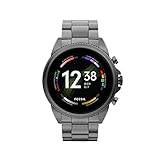
- COMPATIBILITY - Smartwatches with Wear OS by Google are compatible with phones running the latest version of Android or iOS. Qualcomm 4100+ chipset has 30% enhanced performance. Improved power, more reliable connection and up to 4x range with Bluetooth 5.
- ALEXA ENABLED - Get a little extra help with Alexa built-in. Easily access the Amazon Alexa app to get quick news and information, check the weather, set timers and alarms, control smart home devices, and more - all through the sound of your voice.
- HEALTH - Automatically tracks activity goals, steps, sleep, cardio and more. Activity modes with GPS keep you on track with your distance and path. Advanced sensors provide data to power your health and fitness tracker apps. Swimproof.
- PERSONALIZED STYLE - Always-on display now brighter with more colors and higher pixel count. Thousands of watch faces to personalize your look and always see the time. Hundreds of apps from fitness, music, social, news, stop watches and more.
- STAY CONNECTED - Notifications for calls, texts, apps. Automatic time zone and calendar syncing. Answer and make calls directly on your watch when your phone is out of reach. This smart watch features a speaker, microphone, and customizable buttons.
This option is best when you are not wearing the watch for an extended period, such as overnight charging on a travel day, storing it in a drawer, or troubleshooting severe battery drain. It can also help if the watch feels unusually warm, as shutting down allows internal components to cool and reset electrically.
Power Off does not fix minor software hiccups on its own unless the watch is later restarted cleanly. Many users expect it to behave like a restart, but if you power off and forget to turn the watch back on, it will simply stay inert and disconnected from your phone.
Restart: The Go-To Fix for Most Wear OS Problems
Restart is the most useful and most misunderstood power option on Wear OS. It shuts down the operating system and immediately boots it back up, refreshing system processes without wiping apps, data, or settings. Think of it as a clean software reset rather than a full shutdown.
If your watch feels laggy, apps are crashing, tiles are not loading, or notifications are delayed, restarting is usually the correct first step. It also helps resolve Bluetooth and Wi‑Fi handshake issues that can occur between the watch and your Android phone, especially after system updates or long uptimes.
From daily testing across devices like the Pixel Watch, Galaxy Watch, and TicWatch models, a simple restart often restores smooth scrolling, improves battery stability, and fixes sensor glitches. For most users, this should be the default choice when something feels “off” but the watch is still responsive.
Force Restart: For Frozen or Unresponsive Watches
Force Restart is designed for situations where the screen is frozen, touch input does not work, or the watch will not respond to normal button presses. This method bypasses on-screen menus and forces the hardware to reboot by holding specific buttons for an extended time. It does not erase data, but it is more abrupt than a standard restart.
You should only use a force restart if the watch is completely unresponsive or stuck in a boot loop. For example, if the display is locked on a logo, an app has frozen the UI, or the watch will not wake at all, this is the correct approach. It is effectively the smartwatch equivalent of a hard reboot on a computer.
While force restarting is safe for Wear OS devices, it should not be part of regular maintenance. Repeatedly forcing reboots can indicate deeper software issues, outdated firmware, or problematic third-party apps, which may require updates or further troubleshooting later in this guide.
How to Turn Off a Wear OS Smartwatch Using the On-Screen Menu
If your watch is still responsive, the on-screen power menu is the cleanest and safest way to shut it down. This method relies entirely on the software interface, so it avoids the abrupt behavior of force restarts and is ideal when you intentionally want the watch powered off for a while.
Turning the watch off completely is useful if you are storing it, traveling, troubleshooting persistent battery drain, or switching between watches. It also ensures the system shuts down properly without risking temporary glitches or corrupted background processes.
Step-by-Step: Accessing the Power Menu
Start by waking the watch so you are on the main watch face. From there, press and hold the primary hardware button, usually the side button or crown, for about one to two seconds until the power menu appears on the screen.
On most Wear OS devices, including the Pixel Watch, Fossil Gen series, and TicWatch models, this action brings up a vertical or radial menu with options like Power off, Restart, and Emergency. Samsung Galaxy Watch models running Wear OS show a similar menu, although the layout and icons may differ slightly due to Samsung’s One UI Watch skin.
Once the menu is visible, tap Power off. The screen will usually dim or display a brief shutdown animation before the watch fully turns off.
What to Expect After Powering Off
When powered off, the display will go completely black and the watch will stop all background activity. Sensors, Bluetooth, Wi‑Fi, and health tracking are disabled, which means no notifications, step tracking, or sleep monitoring until the watch is turned back on.
Battery drain stops almost entirely in this state, which is why powering off is preferable to leaving a watch idle in a drawer for days or weeks. This is especially helpful for smaller watches like the Pixel Watch, where battery capacity is more limited compared to larger Galaxy Watch models.
To turn the watch back on later, press and hold the same hardware button until you see the manufacturer logo.
If the Power Menu Does Not Appear
If pressing and holding the button does nothing, first make sure the watch is not in a deep sleep or stuck in ambient mode. Try waking it with a tap or wrist raise, then repeat the button press.
If the watch responds slowly or the menu flashes briefly and disappears, that can indicate temporary software lag. In that case, a normal restart, rather than a full power-off, is often the better first step and is covered in the surrounding sections of this guide.
If the watch remains unresponsive and the on-screen menu cannot be accessed at all, you will need to use a force restart instead. That scenario usually points to a frozen system rather than a normal shutdown situation and should be treated as troubleshooting, not routine use.
How to Restart a Wear OS Smartwatch (Standard Reboot Method)
A standard restart is the safest and most effective first fix when a Wear OS watch feels sluggish, apps stop responding, or Bluetooth and notifications become unreliable. Unlike powering the watch completely off, a restart refreshes the system while keeping your settings, data, and watch faces exactly as they were.
If your watch is still responsive enough to show menus and register taps, this is the method you should always try before moving on to more aggressive troubleshooting.
Restarting Using the Power Button Menu
On most Wear OS smartwatches, the restart option lives in the same menu you use to power the watch off. Press and hold the main hardware button until the power menu appears on the screen.
Once the menu is visible, tap Restart. The screen will briefly go dark, and you’ll usually see the brand logo or a short boot animation as the watch reboots.
This process typically takes between 30 seconds and two minutes depending on the model, processor, and how many background services were running. Watches like the Pixel Watch and Galaxy Watch 6 tend to reboot faster than older Fossil Gen or TicWatch models with heavier software layers.
Restarting from the On-Screen Settings Menu
If the hardware button works but you prefer not to long-press it, you can also restart through the system settings. Swipe down from the watch face to access quick settings, then open Settings.
Scroll to System, then tap Restart. On some Samsung Galaxy Watch models, this may appear under General or Battery and device care due to One UI Watch customization.
This method is useful if your button feels stiff, recessed, or less responsive, which can happen over time depending on case design, water exposure, or dust buildup.
What Happens During a Restart
During a restart, Wear OS closes all running apps, resets system services, and reloads Bluetooth, Wi‑Fi, and sensor connections. This often clears temporary memory issues that cause stuttering animations, delayed notifications, or inconsistent heart rate and GPS tracking.
Battery usage may actually improve after a restart, especially if a misbehaving app was stuck running in the background. You won’t lose any data, watch faces, or health history, making this a low-risk maintenance step.
From a daily usability perspective, restarting once every week or two can help maintain smooth performance, particularly on watches with smaller batteries or older chipsets.
If the Restart Option Is Missing or Greyed Out
If you see the power menu but Restart is missing or cannot be selected, the watch may be in a restricted state. This can happen during an active software update, while charging on some models, or if the system is partially frozen.
Wait a minute to see if the option becomes available, then try again. If the screen remains responsive but the restart option never appears, powering off and then manually turning the watch back on achieves a similar result.
If the watch stops responding entirely while attempting to restart, that’s a sign the system is locked up. In that case, a force restart will be required, which is covered later in this guide.
How to Know a Restart Was Successful
A successful restart ends with the watch returning to your usual watch face and reconnecting to your phone automatically. You should see notifications resume, and tiles or apps should open more smoothly than before.
If the watch repeatedly reboots or gets stuck on the logo screen, that points to a deeper software issue rather than a simple performance hiccup. At that stage, troubleshooting steps like force restart, update checks, or a factory reset may be necessary.
As long as the watch boots normally and feels more responsive afterward, a standard restart has done exactly what it’s supposed to do.
Using Hardware Buttons: Powering Off or Restarting Without the Touchscreen
When the touchscreen is lagging, unresponsive, or completely frozen, the physical buttons on your Wear OS watch become the most reliable way to regain control. Every Wear OS smartwatch includes at least one hardware button, and most support a button-based power menu even if the display isn’t behaving normally.
This method is especially useful if the watch is stuck on an app, not registering taps, or misreading swipes due to moisture, sweat, or a temporary software hang.
Standard Method: Using the Primary Power Button
On most Wear OS watches, the main button on the side of the case doubles as the power button. This includes Google Pixel Watch, Samsung Galaxy Watch models running Wear OS, Fossil Gen series, Mobvoi TicWatch, and many others.
Press and hold the main side button for about 2 to 4 seconds. A power menu should appear on the screen with options like Power off, Restart, or Emergency, even if touch input was previously unreliable.
Once the menu appears, you can usually release the button and tap Restart or Power off. If touch input is still inconsistent, wait a moment and try tapping again, as the system often becomes responsive once the menu loads.
If the Menu Appears but Touch Still Doesn’t Work
Some Wear OS versions allow limited navigation using buttons once the power menu is open. On watches with multiple buttons, such as Samsung Galaxy Watch Classic models or Fossil watches with two secondary pushers, you may be able to cycle options using the top or bottom buttons.
Rank #2
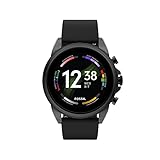
- COMPATIBILITY - Smartwatches with Wear OS by Google are compatible with phones running the latest version of Android or iOS. Qualcomm 4100+ chipset has 30% enhanced performance. Improved power, more reliable connection and up to 4x range with Bluetooth 5.
- ALEXA ENABLED - Get a little extra help with Alexa built-in. Easily access the Amazon Alexa app to get quick news and information, check the weather, set timers and alarms, control smart home devices, and more - all through the sound of your voice.
- HEALTH - Automatically tracks activity goals, steps, sleep, cardio and more. Activity modes with GPS keep you on track with your distance and path. Advanced sensors provide data to power your health and fitness tracker apps. Swimproof.
- PERSONALIZED STYLE - Always-on display now brighter with more colors and higher pixel count. Thousands of watch faces to personalize your look and always see the time. Hundreds of apps from fitness, music, social, news, stop watches and more.
- STAY CONNECTED - Notifications for calls, texts, apps. Automatic time zone and calendar syncing. Answer and make calls directly on your watch when your phone is out of reach. This smart watch features a speaker, microphone, and customizable buttons.
Press the main power button again to confirm the highlighted option, if your watch supports this behavior. Button navigation is not universal, but it’s worth trying before moving on to a force restart.
If your watch doesn’t support button navigation and touch input remains dead, a force restart using buttons is the next step and is covered later in this guide.
Samsung Galaxy Watch (Wear OS) Button Variations
Samsung’s Galaxy Watch models running Wear OS use a slightly different button layout. The top button functions as the Home/Power button, while the bottom button is typically Back.
Press and hold the top button until the power menu appears. From there, you can tap Power off or Restart, or in some cases use the buttons to assist selection if touch responsiveness is delayed.
On rotating bezel models, the bezel will not work if the system is frozen, so rely on the buttons alone in these situations.
Google Pixel Watch and Pixel Watch 2
The Pixel Watch uses a single side button paired with a rotating crown. Press and hold the side button for a few seconds until the power menu appears.
If the touchscreen is partially working, tapping Restart is the fastest fix. If not, try rotating the crown slightly after the menu appears, as this can sometimes wake limited system input even when touch feels unreliable.
Because the Pixel Watch has a compact case and small battery, restarting promptly when issues appear helps preserve battery life and prevent further slowdowns.
What Powering Off Does Versus Restarting
Restarting is generally the better option when troubleshooting. It clears temporary system issues while immediately bringing the watch back online, reconnecting Bluetooth, Wi‑Fi, sensors, and health tracking.
Powering off fully shuts the watch down and requires a manual button press to turn it back on. This is useful if you won’t be wearing the watch for a while, are trying to conserve battery, or suspect overheating after heavy GPS or LTE use.
From a daily wear perspective, restarting is quicker and less disruptive, especially if you rely on notifications, step tracking, or sleep data.
Turning the Watch Back On Using Buttons
If you’ve powered the watch off completely, turning it back on is straightforward. Press and hold the main power button for 2 to 3 seconds until the manufacturer logo appears.
Release the button once the logo shows. The watch will take anywhere from 30 seconds to a couple of minutes to boot, depending on the chipset, storage speed, and how many apps are installed.
During startup, the case may feel slightly warm and animations may be slower than usual. This is normal and settles once background services finish loading.
When Hardware Buttons Are the Best Choice
Using hardware buttons is ideal when the screen won’t respond, when water or sweat is interfering with touch input, or when an app has locked the interface. It’s also helpful for users with gloves on or reduced dexterity.
From a durability standpoint, physical buttons are designed for repeated use and won’t harm the watch when used for restarts. Regular restarts via buttons are just as safe as restarting through on-screen menus.
If holding the button does nothing at all, or the watch remains stuck on a logo or black screen, that indicates a deeper freeze. In those cases, a force restart or recovery-style action is required, which is addressed in the next section of this guide.
Force Restarting a Frozen or Unresponsive Wear OS Watch
When a standard restart doesn’t work and the screen won’t respond at all, a force restart is the next step. This is a hardware-level reboot that cuts power to the system temporarily and forces Wear OS to reload, even if the interface is completely locked up.
A force restart does not erase your data, reset your watch, or unpair it from your phone. Think of it as pulling the plug on a computer that’s frozen, then turning it back on cleanly.
When You Should Use a Force Restart
A force restart is appropriate when the watch is stuck on a black screen, frozen on a watch face, looping on a boot logo, or ignoring all touch input. It’s also useful if the watch feels warm, apps won’t close, or Bluetooth and Wi‑Fi refuse to reconnect after a normal restart attempt.
From real-world testing across Samsung Galaxy Watch, Pixel Watch, Fossil Gen series, and Mobvoi TicWatch models, force restarts are often enough to fix lag caused by runaway apps, GPS crashes, or system services hanging in the background.
If the watch still vibrates, makes sounds, or shows a static image but won’t respond, you’re firmly in force-restart territory.
How to Force Restart Most Wear OS Watches
On the majority of Wear OS devices, the process is simple and relies on a long press of the main power button. Press and hold the power button continuously for 10 to 15 seconds, even if nothing appears to happen at first.
Keep holding until the screen goes fully black and the manufacturer logo appears. Once you see the logo, release the button and allow the watch to boot normally.
During this process, the case may feel warm and the first boot animation may stutter slightly. That’s normal, especially on watches with older Snapdragon Wear chipsets or slower internal storage.
Force Restarting Samsung Galaxy Watch Models (Wear OS)
Samsung’s Wear OS Galaxy Watch models, such as the Galaxy Watch 4, 5, 6, and later, use a slightly different button combination. Press and hold both the Home button and the Back button at the same time.
Continue holding both buttons for about 7 to 10 seconds until the screen turns off and the Samsung logo appears. Release both buttons once the logo shows.
This method works even if the watch is completely frozen or stuck mid-animation. It’s particularly useful after heavy LTE use, long workouts, or One UI Watch updates that didn’t settle cleanly.
What to Do If the Screen Stays Black
If the screen remains black after a force restart attempt, don’t assume the watch is dead right away. Charge the watch for at least 15 to 20 minutes using the original charger, ensuring proper alignment with the charging pins or wireless coil.
After charging briefly, try the force restart again while the watch is still on the charger. Some Wear OS watches, especially smaller models with compact batteries, need a minimum charge level before they’ll show any sign of life.
If you feel a vibration or see a brief flash during charging, that’s a good sign the hardware is intact.
If the Watch Is Stuck in a Boot Loop
A boot loop is when the watch repeatedly shows the logo and restarts without fully loading Wear OS. This often happens after a failed update, corrupted app data, or low storage space.
Start by performing a force restart once more and letting the watch sit untouched for several minutes after the logo appears. Interrupting repeated boots too quickly can actually prolong the issue.
If the loop continues after several minutes, the next step is accessing recovery mode or performing a factory reset, which is covered later in this guide. At this stage, a force restart has done all it can safely do.
Is Force Restarting Safe for Daily Use?
Occasional force restarts are safe and won’t damage the buttons, battery, or internal components. Physical buttons on Wear OS watches are designed for repeated use and tested for thousands of presses.
That said, needing frequent force restarts is a sign something else is wrong. Common causes include poorly optimized third-party apps, low storage, outdated firmware, or degraded battery health affecting voltage stability.
From a daily wearability standpoint, a stable watch should rarely need more than an occasional normal restart. Force restarts should be the exception, not the routine.
After the Watch Powers Back On
Once the watch successfully reboots, give it a few minutes to fully settle. Background services like fitness tracking, notifications, Google Assistant, and cloud sync all restart at once and may temporarily slow things down.
Check that Bluetooth reconnects to your phone, notifications resume, and health sensors like heart rate and step tracking are working normally. If the watch feels smoother and battery drain returns to normal, the force restart did its job.
If freezes return quickly, especially during the same apps or actions, that’s a signal to dig deeper into app behavior or system settings in the next troubleshooting steps.
Brand-Specific Notes: Samsung Galaxy Watch, Pixel Watch, Fossil, TicWatch, and Others
While Wear OS follows a shared foundation, each manufacturer layers its own hardware layout, button logic, and software shortcuts on top. That means powering off or restarting can feel slightly different depending on what’s on your wrist, especially if you’ve switched brands before.
The notes below focus on the most common Wear OS families and highlight the small differences that matter when your watch is frozen, lagging, or simply refusing to respond.
Rank #3

- 1.4" Super AMOLED, 450x450px 321ppi, Exynos W920 Dual-core 1.18GHz, 590mAh Battery, Android Wear OS 3.5, One UI Watch 4.5, Bluetooth 5.2, Wi-Fi
- GPS route and Auto Workout Tracking, 2x tougher Sapphire crystal glass face , Water-resistant.
- Advanced Sleep Coaching analyzes your sleep stages, then provides tips, and sleep reports to manage your overall sleep quality.
- Get more accurate wellness readings with the redesigned BioActive Sensor. The improved shape gets closer to your skin to track your heart rate and more.
- Compatible with Android devices. NO Cellular / LTE Compatibility.
Samsung Galaxy Watch (Galaxy Watch 4, 5, 6, and newer)
Samsung’s Galaxy Watch line uses Wear OS with One UI Watch on top, and the button behavior is more customizable than most. On models with two side buttons, the top button is the Home key, while the bottom button is typically mapped to Back or a shortcut.
For a normal power menu, press and hold the top Home button for about two seconds until the Power off and Restart options appear. If you’ve remapped the long-press action in settings, you may need to hold both buttons instead.
For a force restart, press and hold both buttons together for about 7 to 10 seconds. Keep holding until the screen goes black and the Samsung logo appears, even if the watch vibrates partway through.
Galaxy Watches are generally smooth day to day, but they’re also more sensitive to low battery voltage. If force restarts become frequent, especially below 20 percent battery, it can be an early sign of battery wear rather than a software fault.
Google Pixel Watch (Pixel Watch and Pixel Watch 2)
The Pixel Watch uses a crown and a single side button, and Google keeps the behavior close to “stock” Wear OS. The crown is used for navigation, but it does not trigger power actions.
To power off or restart normally, press and hold the side button for a few seconds until the on-screen power menu appears. From there, tap Power off or Restart.
If the watch is frozen or the screen won’t respond, press and hold the side button and the crown at the same time for about 8 seconds. Release only when the Google logo appears.
Because the Pixel Watch is compact and uses a tightly packed internal design, heat buildup during updates or heavy fitness tracking can temporarily cause sluggishness. A clean restart often resolves this without needing deeper troubleshooting.
Fossil, Skagen, Michael Kors, and Other Fossil Group Watches
Most Fossil Group Wear OS watches use a three-button layout with a rotating crown in the center. The crown doubles as the main Home and power button.
For a standard restart or shutdown, press and hold the crown until the power menu appears on the screen. This usually takes about two seconds.
If the watch is unresponsive, press and hold the crown for a full 10 to 15 seconds. Fossil watches often take longer than expected to force reboot, so don’t release too early.
These watches prioritize slim cases and lighter weight, which makes them comfortable for all-day wear but also means smaller batteries. Performance hiccups often improve after a restart combined with disabling unused apps or watch faces.
TicWatch (Mobvoi TicWatch Pro, E, and newer models)
TicWatch models usually feature two side buttons, though only one may be programmable. Mobvoi’s Wear OS skin is light, but power controls can feel less obvious at first.
To access the power menu, press and hold the main button until the on-screen options appear. On some models, this may take longer than expected compared to Samsung or Google watches.
For a force restart, press and hold the main button for at least 10 seconds. Some TicWatch models require closer to 12 seconds before the screen cuts out and restarts.
Dual-display models like the TicWatch Pro can be confusing during restarts because the low-power LCD may remain visible briefly. This is normal and doesn’t mean the restart failed.
Other Wear OS Watches (Xiaomi, Oppo, Tag Heuer, and niche brands)
Most other Wear OS watches follow one of two patterns: either a single-button long press for power, or a two-button combination for force restart. Luxury-oriented models like Tag Heuer often mirror standard Wear OS behavior despite their premium materials and finishing.
If you’re unsure, start by pressing and holding the primary button for up to 15 seconds. If nothing happens, try holding all physical buttons simultaneously for another 10 seconds.
Higher-end watches with sapphire crystals, ceramic bezels, or metal bracelets don’t behave differently internally, but owners are often more hesitant to force restart. Rest assured, the internal electronics are designed to handle it just like sportier models.
When Brand Differences Actually Matter
Brand-specific behavior matters most when the watch is frozen, stuck on a logo, or draining battery abnormally fast. Knowing which button combination applies to your model saves time and avoids unnecessary panic.
From a daily usability standpoint, a properly functioning Wear OS watch should restart cleanly regardless of brand. Once you’ve learned your model’s button logic, handling restarts becomes second nature and part of normal smartwatch ownership rather than a stress point.
When You Should Restart vs Power Off Your Wear OS Watch (Real-World Scenarios)
Once you know how your specific watch handles power controls, the next question is knowing which option to use. Restarting and powering off solve different problems, and choosing the right one saves time, battery, and frustration.
In day-to-day use, most issues are minor software hiccups rather than hardware faults. Understanding the intent behind each option helps you treat your Wear OS watch more like a small computer than a traditional timepiece.
Restart the Watch When Performance Feels “Off”
A restart is the best first step when your watch feels slow, warm on the wrist, or slightly unresponsive. This commonly happens after long periods of use, heavy notification syncing, or workouts that heavily tax GPS and heart rate sensors.
Restarting clears temporary memory without disrupting settings, apps, or watch faces. On watches like the Pixel Watch or Galaxy Watch, this often restores smooth scrolling and improves touch accuracy within a minute.
If apps are crashing or refusing to open, a restart is usually enough. This includes fitness apps failing to sync, Google Assistant not responding, or tiles loading slowly.
Restart If Connectivity Issues Appear Suddenly
When Bluetooth disconnects from your phone, Wi‑Fi won’t reconnect, or LTE models struggle to regain signal, restarting is usually the fastest fix. Wear OS radios occasionally get stuck after switching networks or leaving airplane mode.
This is especially common if you move between locations frequently or use features like Google Wallet, Maps navigation, or music streaming on the watch itself. A restart forces the radios to reinitialize without draining the battery unnecessarily.
If the issue persists after one restart, then move on to phone-side troubleshooting. In most cases, the watch itself just needed a clean reset of its connections.
Power Off When You’re Not Wearing the Watch for a While
Powering off makes more sense if you won’t wear the watch for several hours or days. This includes overnight charging breaks, travel days, or switching between multiple watches in your collection.
Unlike a restart, powering off stops all background processes completely. This prevents idle battery drain and preserves long-term battery health, especially on smaller cases like the Pixel Watch or compact Fossil models.
If your watch uses premium materials like stainless steel, ceramic, or sapphire crystal, powering it off also avoids unnecessary heat cycles when it’s sitting unused. That’s not a durability risk, but it’s a sensible habit.
Power Off Before Long-Term Storage or Travel
If you’re packing the watch away for weeks, always power it off rather than letting it die naturally. Letting the battery fully drain and stay empty for long periods can reduce overall battery longevity.
For flights or international travel where you won’t rely on notifications or fitness tracking, powering off also avoids accidental wake-ups in a bag. Some Wear OS watches can turn on from button pressure alone.
When you power it back on, expect slightly longer boot times. That’s normal and not a sign of trouble.
Restart First, Power Off Second for Battery Drain Issues
If your watch suddenly starts losing battery much faster than usual, restart it before powering it off. Many battery drain problems are caused by a stuck app, sensor, or sync process rather than a failing battery.
A restart often restores normal battery life within one charge cycle. This is common after software updates, new watch face installs, or enabling features like continuous SpO2 or always-on display.
If the drain continues even after a restart, then power off the watch and charge it fully before turning it back on. This resets power usage patterns without jumping straight to factory resets.
Restart for Software Updates That Don’t Finish Cleanly
Wear OS updates sometimes download correctly but stall during installation or optimization. If your watch feels stuck after an update or behaves oddly afterward, a restart is usually recommended.
Restarting helps finalize background processes and indexing tasks that don’t always complete automatically. This can improve battery life and reduce heat after major version updates.
Only power off if the watch becomes extremely hot or fully unresponsive during an update. In normal cases, restarting is safer and faster.
Force Restart Only When the Watch Is Frozen
If the screen is stuck, touch input doesn’t work, or the watch won’t respond to normal power options, a force restart is appropriate. This is not harmful and is designed into the hardware.
Rank #4

- 【Commpatible Watches】This charger compatible with Fossil Gen 6, Gen 5E, Gen 5 Garrett Hr/ Carlyle/Julianna, Fossil Gen 4 Explorist HR/Venture HR/Sport, Michael Kors Gen 6, Gen 5E MKGO, Gen 5, Gen 4.
- 【Premium & Speedy】The Gen 6/5/4 charging cable is made of premium copper wire provides a original charging speed, about 2.5 hours a full charge. Note: please use the recommend USB adapter (5V/1A)
- 【Ultra Safe Charging】The Gen 6/5/4 charger built-in over-voltage protection, over-current protection, short-circuit protection. Provides stable and safe charging for your smart watch.
- 【More Convenient】With a replacement charger cable will make your smart watch charged more convenient when you are at home, in office or on travel.
- 【Package List】1pcs charger cables (Note: the smart watch is not included!!!). If any problem, please contact us online.
Force restarts are especially useful if the watch is stuck on a logo, boot loop, or black screen with vibration feedback. Luxury models with metal bracelets or sapphire glass behave the same internally, despite feeling more delicate.
If force restarting becomes frequent, that’s a sign of deeper software instability. At that point, restarting is no longer a solution, but it remains the correct immediate response.
Choosing the Right Action Becomes Second Nature
In practice, restarting handles 90 percent of everyday problems without disrupting your setup. Powering off is more about intentional downtime, storage, or preserving battery when the watch isn’t needed.
Treat your Wear OS watch like a daily-wear tool rather than a fragile gadget. Once you match the action to the situation, power management becomes routine rather than something you only think about when something goes wrong.
Common Problems Fixed by Restarting a Wear OS Smartwatch
Once you get comfortable choosing between a restart, power off, or force restart, it helps to know what problems a simple restart actually solves. In day-to-day use, restarting is less about “fixing” the watch and more about clearing small software hiccups that naturally build up over time.
Below are the most common real-world issues that restarting a Wear OS smartwatch reliably fixes, based on long-term testing across Pixel Watch, Galaxy Watch, Fossil, and Mobvoi models.
Sluggish Performance and UI Lag
If your watch feels slower than usual, animations stutter, or swiping between tiles isn’t as fluid, a restart is often all it needs. Wear OS runs multiple background services for health tracking, notifications, and connectivity, and these can occasionally pile up.
This is especially noticeable on smaller cases with limited RAM, like 40–41 mm models, or after long days with heavy notification traffic. Restarting clears cached processes and restores the smoothness you expect from daily interactions.
You’ll usually notice the improvement immediately, particularly when opening apps like Google Maps, Spotify, or Google Assistant.
Apps Freezing, Crashing, or Refusing to Open
When an app gets stuck loading, closes unexpectedly, or won’t respond to touch, restarting the watch resets that app’s runtime environment. This is common after app updates or when switching between Wi‑Fi, LTE, and Bluetooth connections.
Fitness apps that rely on sensors, like heart rate or GPS, are especially prone to this. A restart reinitializes the sensors without affecting your saved data or workout history.
If the same app keeps failing after restarts, that points to an app-specific bug, not a hardware problem.
Bluetooth Connection Issues With Your Phone
If your watch shows as disconnected, won’t sync notifications, or refuses to reconnect after leaving range, restarting both the watch and phone is the fastest fix. Wear OS relies on a persistent Bluetooth handshake that can break silently.
This often happens after Android phone updates, airplane mode use, or switching between multiple paired devices. Restarting forces a clean reconnection without requiring you to unpair or reset the watch.
You’ll know it worked when notifications resume instantly and the companion app shows a stable connection.
Wi‑Fi, LTE, or GPS Not Working Properly
When maps won’t load, music streaming stalls, or GPS struggles to lock during workouts, restarting refreshes the wireless radios. This applies equally to LTE models with stainless steel cases and sport-focused aluminum versions.
GPS problems are common if you’ve recently traveled, switched regions, or updated the watch software. Restarting recalibrates location services and often shortens GPS lock time on the next workout.
This is far less disruptive than resetting network settings and should always be the first step.
Battery Drain That Doesn’t Match Your Usage
If your battery percentage drops faster than expected without a clear reason, restarting helps stop rogue background activity. This is particularly useful after installing new apps, enabling health features, or changing watch faces.
Restarting resets power management without deleting data or settings. On watches with smaller batteries, like compact Pixel Watch models, this can restore normal all-day endurance.
If the battery graph looks stable again after restarting, the issue was almost certainly software-related.
Notifications Arriving Late or Not at All
Delayed notifications, missing alerts, or vibrations without content are classic signs that system processes need a reset. Restarting restarts the notification service and syncs it cleanly with your phone.
This is common after toggling Do Not Disturb, bedtime mode, or theater mode repeatedly. It can also happen if the watch has been on for weeks without a restart.
Once restarted, notifications should arrive instantly and consistently again.
Touchscreen or Button Input Feeling Unreliable
If swipes don’t register properly or the side button feels responsive but doesn’t trigger actions, restarting recalibrates input handling. This applies regardless of materials, whether it’s a sapphire-covered flagship or a plastic-backed sport model.
Restarting won’t fix physical damage, but it does resolve software misreads that feel like hardware issues. Many users mistake this for wear-and-tear when it’s actually temporary software confusion.
If input feels normal again after restarting, there’s no cause for concern.
Health and Fitness Tracking Acting Inconsistent
Heart rate gaps, step count freezes, or workouts that won’t start often resolve after a restart. Wear OS continuously manages sensors in the background, and those services occasionally need a clean restart.
This is especially important before long runs, hikes, or sleep tracking sessions. Restarting ensures sensors start fresh and record data accurately.
It’s a good habit before events where reliable tracking really matters.
Watch Face or Tiles Not Updating Correctly
If complications show outdated weather, missing calendar events, or frozen stats, restarting forces a full refresh. This is common with third-party watch faces that pull live data.
Restarting also fixes tiles that won’t load or swipe smoothly. It restores the intended flow between glanceable information and deeper apps.
This keeps the watch feeling like a useful daily companion rather than a static display.
General Weird Behavior With No Clear Cause
Sometimes the watch just feels off, without one obvious problem. Minor haptics misfires, inconsistent brightness, or odd animations often disappear after a restart.
Wear OS is designed to be restarted safely and regularly. Treat it like a smartphone on your wrist, not a mechanical watch that should run uninterrupted.
If something feels wrong but not serious, restarting is always the correct first move before deeper troubleshooting.
Troubleshooting: What to Do If Your Wear OS Watch Won’t Turn Off or Restart
When restarting fixes issues but your watch refuses to power down or reboot, the problem usually isn’t serious. In most cases, Wear OS is stuck in a temporary software loop, similar to a frozen phone.
The steps below move from gentle to more forceful methods. Follow them in order to avoid unnecessary stress on the buttons or battery.
If the Screen Is Frozen but the Watch Is Still On
If the display won’t respond to taps or swipes but the watch face is still visible, start with a long button press. On most Wear OS watches, press and hold the side button for at least 10 to 15 seconds.
Do not release the button when the power menu appears. Keep holding until the screen goes black or the watch vibrates and reboots.
This works across brands, including Samsung Galaxy Watch models, Pixel Watch, Fossil, and Mobvoi, even if the touchscreen is completely unresponsive.
If the Power Menu Appears but Nothing Happens
Sometimes the power menu shows Restart or Power off, but tapping does nothing. This usually means the system interface itself is stuck.
💰 Best Value

- Designed with a bright, colorful AMOLED display, get a more complete picture of your health, thanks to battery life of up to 11 days in smartwatch mode (5 days display always-on)
- Body Battery energy monitoring helps you understand when you’re charged up or need to rest, with even more personalized insights based on sleep, naps, stress levels, workouts and more (data presented is intended to be a close estimation of metrics tracked)
- Get a sleep score and personalized sleep coaching for how much sleep you need — and get tips on how to improve plus key metrics such as HRV status to better understand your health (data presented is intended to be a close estimation of metrics tracked)
- Find new ways to keep your body moving with more than 30 built-in indoor and GPS sports apps, including walking, running, cycling, HIIT, swimming, golf and more
- Wheelchair mode tracks pushes — rather than steps — and includes push and handcycle activities with preloaded workouts for strength, cardio, HIIT, Pilates and yoga, challenges specific to wheelchair users and more (data presented is intended to be a close estimation of metrics tracked)
Instead of tapping, use the physical button again. Hold it down continuously for 10 to 20 seconds to force a restart, ignoring anything shown on screen.
This method bypasses the software menu entirely and directly resets the system, which is safe for everyday troubleshooting.
If the Watch Appears Completely Unresponsive
If the screen is black and the watch won’t turn on or off, it may be locked in a deep freeze or have a drained battery. Place the watch on its charger and leave it there for at least 10 minutes.
After charging briefly, press and hold the side button for 15 seconds while it’s still on the charger. Many Wear OS watches will only respond to a forced reboot once they have minimal power.
This is common after a full battery drain, especially on models with smaller batteries or older lithium cells that struggle in cold conditions.
If Your Watch Has Multiple Buttons
Some Wear OS watches, particularly Samsung Galaxy Watch models and certain Fossil designs, include two or three buttons. If the standard long press fails, try a button combination.
On many Galaxy Watch models, press and hold both side buttons simultaneously for about 10 seconds. Release only when the Samsung logo appears.
Button layouts and timing can vary slightly by generation, but dual-button holds are designed specifically for recovery-style restarts.
If the Watch Is Stuck in a Boot Loop
A boot loop happens when the watch keeps restarting or never gets past the logo screen. This is usually caused by a failed update, a corrupted app, or low battery during a system process.
First, place the watch on its charger and allow it to charge uninterrupted for at least 30 minutes. Then attempt a forced restart using the long button press method.
If the loop continues, avoid repeated restarts back-to-back. Letting the watch sit powered on and charging can sometimes allow background repair processes to finish.
If Buttons Feel Clicky but Do Nothing
If the button physically clicks but doesn’t trigger a restart, software is almost always the issue rather than the hardware. True button failure is rare, even on aluminum or plastic-cased models.
Try pressing the button firmly and consistently, not rapidly. Holding steady pressure matters more than repeated tapping.
If restarting eventually works, there’s no impact on durability or water resistance, whether your watch uses stainless steel, aluminum, or a resin-backed case.
If the Watch Overheats or Won’t Shut Down
In rare cases, a runaway app or sensor service can cause the watch to heat up and refuse to power off normally. Remove the watch from your wrist immediately for comfort and safety.
Place it on a flat surface, away from direct sunlight, and allow it to cool for a few minutes. Then attempt a forced restart using the long press method.
Overheating events don’t usually cause permanent damage, but repeated incidents may affect battery longevity over time.
If Nothing Works at All
If the watch will not respond to charging, button presses, or extended waiting, the battery may be fully depleted or the system may have crashed during an update.
Leave the watch on its charger for at least one full hour, using the original charging puck or cable if possible. Third-party chargers sometimes don’t deliver consistent power.
After an hour, try the forced restart again. If the watch still shows no signs of life, it’s time to contact the manufacturer or retailer for service options.
When Restarting Isn’t Enough
If your watch repeatedly freezes, refuses to restart, or behaves unpredictably after power cycles, the issue may be deeper than a temporary glitch. Frequent crashes can point to problematic apps, failed updates, or long-term battery degradation.
At that stage, a factory reset or professional support is the next step, which is covered later in this guide. For now, knowing how to reliably force a restart gives you control in nearly every everyday failure scenario.
Most Wear OS issues feel dramatic in the moment, but they’re rarely permanent. A calm, deliberate restart approach solves far more problems than users expect.
After the Restart: Tips to Improve Performance, Battery Life, and Stability
A successful restart is often the turning point, but it’s also the best moment to set your Wear OS watch up for smoother day-to-day use. Think of this as a quick tune-up after clearing the system’s head.
The steps below focus on real-world improvements you’ll notice on your wrist, not hidden developer tweaks or risky changes.
Give the Watch a Few Minutes to Settle
Right after a restart, Wear OS reloads background services, reconnects to your phone, and syncs health data. During this short window, the watch may feel warm or slightly sluggish.
Give it five to ten minutes before judging performance or battery drain. This is completely normal, especially on watches with smaller batteries like the Pixel Watch or compact Fossil models.
Check for Apps That Immediately Misbehave
If the watch felt better before but slows down again shortly after restarting, a third-party app is often the cause. Watch for apps that crash, keep the screen awake, or trigger repeated vibration alerts.
Open the app list and uninstall anything you don’t actively use, especially older watch faces, fitness tools, or notification companions that haven’t been updated in a while. Fewer apps mean less background load on the processor and memory.
Review Watch Face and Tile Choices
Highly animated or data-heavy watch faces can quietly hurt performance and battery life. Faces that constantly pull weather, heart rate, steps, and calendar data demand more from the system.
Switching to a simpler face often makes the watch feel faster and cooler on the wrist. On smaller cases or lighter aluminum builds, this can also improve comfort during long wear.
Reconfirm Connectivity Settings
After a restart, Bluetooth and Wi‑Fi reconnect automatically, but it’s worth confirming everything paired correctly. Open the phone’s Wear OS app and make sure the watch shows as connected and synced.
If you don’t use Wi‑Fi on the watch, turning it off can save battery without affecting notifications. LTE models should also be checked to ensure cellular isn’t staying active when your phone is nearby.
Calibrate Expectations for Battery Life
A restart won’t magically extend battery life, but it often restores it to normal levels. If you were seeing sudden drops before, track usage over the next full day instead of just a few hours.
Most Wear OS watches are designed for one full day of mixed use, including notifications, health tracking, and light workouts. Stainless steel models with larger cases often dissipate heat better, while smaller resin-backed designs prioritize weight and comfort over raw endurance.
Update Software When the System Is Stable
If your watch restarted due to freezing or crashing, wait until it’s stable before installing updates. Open Settings and manually check for system and app updates rather than letting them run unexpectedly.
Updates fix bugs but also stress the system during installation. Charging the watch and keeping it off your wrist during updates improves reliability and comfort.
Restart Periodically, Not Constantly
You don’t need to restart daily, but an occasional reboot keeps things running smoothly. Many experienced Wear OS users restart once every one to two weeks, or after a major update.
This routine helps clear minor glitches before they turn into freezes or battery drain. It’s a simple habit that improves long-term stability without affecting durability or water resistance.
Know When a Reset Is the Next Step
If performance problems return quickly after multiple restarts, the issue may be deeper than temporary system clutter. Persistent lag, overheating, or abnormal battery loss can point to corrupted data or aging hardware.
At that point, a factory reset or support visit makes sense, and it’s covered later in this guide. For now, a clean restart paired with smart settings changes solves the vast majority of everyday Wear OS frustrations.
Restarting gives you control, but what you do next determines how good the watch feels on your wrist. With a few thoughtful adjustments, your Wear OS smartwatch can feel faster, last longer, and stay reliable through daily wear.