If your Fitbit has ever felt sluggish, refused to sync, or teased a feature you couldn’t access yet, software updates are usually the missing piece. Fitbit updates aren’t just cosmetic tweaks or optional extras. They directly affect how accurately your tracker measures health data, how reliably it syncs with your phone, and how smoothly it runs day to day.
Many users delay updates out of caution, especially if their device “still works.” In practice, staying current is one of the simplest ways to prevent problems before they start. Updates often resolve hidden bugs, improve battery behavior, and unlock features that were already built into your hardware but disabled until the software caught up.
Understanding why these updates matter makes the update process feel less intimidating and more worthwhile. Once you know what changes behind the scenes, it becomes clear why Fitbit pushes updates regularly and why installing them correctly can dramatically improve real-world usability.
New Features You Already Paid For
Fitbit frequently ships hardware with sensors and capabilities that are activated or refined later through software updates. This is how features like new sleep metrics, readiness-style insights, advanced heart rate analysis, and expanded workout modes appear months after you bought the device.
🏆 #1 Best Overall
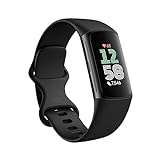
- Find your way seamlessly during runs or rides with turn-by-turn directions from Google Maps on Fitbit Charge 6[7, 8]; and when you need a snack break on the go, just tap to pay with Google Wallet[8, 9]
Updates can also introduce interface improvements that make daily navigation easier on small screens. Things like clearer stat layouts, smoother swipe gestures, improved haptic feedback, or new watch faces can make an older tracker feel noticeably more modern without changing anything physically.
On smartwatch-style models such as Versa and Sense, updates may expand app compatibility or improve voice assistant behavior. These changes don’t just add features; they improve how usable the watch feels throughout a normal day of notifications, workouts, and sleep tracking.
Bug Fixes That Quietly Solve Annoying Problems
Some of the most important Fitbit updates fix issues you might not even realize are software-related. Random syncing failures, delayed notifications, inaccurate step counts, or workouts that fail to save are often caused by firmware bugs rather than hardware defects.
Fitbit uses updates to patch problems discovered after release, including issues that only appear on certain Android or iOS versions. This is especially important because phone operating systems update far more frequently than wearables, and compatibility gaps can appear quickly if your Fitbit software falls behind.
Installing updates regularly reduces the chance of your tracker getting stuck in a loop of partial syncs, missing data, or connection dropouts. Many “my Fitbit stopped working” complaints are resolved simply by bringing the device firmware and app version back into alignment.
Performance and Battery Life Improvements
Firmware updates often fine-tune how your Fitbit manages power, sensors, and background processes. This can result in longer battery life, more stable heart rate tracking, and fewer random slowdowns, especially on devices that are worn continuously.
Improvements to GPS handling, workout detection, and sleep tracking efficiency can also reduce unnecessary battery drain. In real-world use, this may mean an extra day or two between charges or more consistent overnight tracking without gaps.
Performance tweaks are particularly noticeable on older devices that receive optimization-focused updates. Even if no flashy features are added, these behind-the-scenes changes can make your tracker feel more responsive and reliable during everyday wear.
Accuracy, Health Metrics, and Trustworthy Data
Your Fitbit’s value depends heavily on how accurate its data is over time. Updates frequently refine the algorithms that interpret heart rate variability, sleep stages, SpO2 trends, and activity intensity, improving consistency rather than changing the sensors themselves.
As Fitbit’s health platform evolves, updates help ensure your historical data remains comparable and meaningful. Without updates, you may see discrepancies between your device data and what the Fitbit app expects, leading to confusing or incomplete insights.
For users who rely on Fitbit for wellness tracking, fitness goals, or long-term trends, keeping the software current helps maintain confidence in the numbers you see every morning. Accurate data starts with up-to-date firmware running smoothly on your wrist.
Before You Update: What to Check (Battery Level, App Version, Phone Compatibility, Wi‑Fi & Bluetooth)
Once you understand why updates matter for accuracy, battery life, and long‑term reliability, the next step is making sure your Fitbit and phone are actually ready to accept one. Most failed updates don’t happen because the file is bad, but because one small prerequisite was overlooked.
Taking a few minutes to check the basics dramatically reduces the chance of stalled downloads, mid‑update freezes, or devices that won’t reconnect afterward. Think of this as preparing a stable environment so the update can complete cleanly the first time.
Check Your Fitbit’s Battery Level First
Battery level is the single most common reason Fitbit updates fail. Most Fitbit trackers and smartwatches require at least 50 percent battery before an update will even begin, and some models quietly expect closer to 60 percent to finish safely.
If your device is below that threshold, charge it fully before starting. Updating while the battery is borderline can cause the firmware transfer to stop mid‑process, which may leave the device unresponsive until it’s restarted or recharged.
For everyday wearables like the Charge, Inspire, Versa, and Sense lines, it’s best to keep the device on the charger during the entire update. This avoids power dips caused by screen wake‑ups, sensor checks, or background syncing while the firmware is installing.
Confirm You’re Running the Latest Fitbit App Version
Your Fitbit does not update itself directly from the internet. All firmware updates are delivered through the Fitbit app, so if the app is outdated, your tracker may never see the update prompt at all.
Open the App Store on iPhone or Google Play Store on Android and manually check for Fitbit app updates. Do this even if automatic updates are enabled, as background updates sometimes pause without warning.
Running an older app version can cause mismatches where the app expects different firmware behavior than what’s installed on your wrist. This is a common cause of endless syncing screens, partial downloads, or update buttons that appear but do nothing when tapped.
Verify Phone Compatibility and Operating System Support
Fitbit firmware updates rely heavily on your phone’s operating system and Bluetooth stack. If your phone is running an unsupported or heavily outdated version of Android or iOS, updates may fail silently or never start.
As a general rule, Fitbit supports recent versions of iOS and Android, but older phones may fall off the compatibility list over time. Devices that technically still sync may struggle during larger firmware updates that require more memory or background permissions.
If you’ve recently updated your phone’s OS and noticed syncing issues afterward, updating the Fitbit app before attempting a firmware update is especially important. OS changes can temporarily disrupt how Bluetooth and background services behave until apps are updated to match.
Make Sure Bluetooth Is Stable and Uninterrupted
Bluetooth is the bridge between your phone and your Fitbit during an update, and stability matters more than speed. Firmware updates are transferred in chunks, and any interruption can force the process to restart or fail.
Keep your Fitbit close to your phone, ideally within arm’s reach, for the entire update. Avoid putting the phone in a pocket, moving between rooms, or letting the screen lock for long periods while the update is running.
If you’ve had connection problems in the past, toggling Bluetooth off and back on before starting can help reset the connection. In stubborn cases, restarting both the phone and the Fitbit can clear background Bluetooth glitches before the update begins.
Ensure Reliable Wi‑Fi or Mobile Data on Your Phone
While the Fitbit itself doesn’t connect directly to Wi‑Fi for updates, your phone does. The firmware file is downloaded to your phone first, then transferred to the device over Bluetooth.
A weak or unstable internet connection can cause the download to stall before the update ever reaches your Fitbit. Whenever possible, use a stable Wi‑Fi network instead of mobile data, especially for larger updates on smartwatch models with more features.
Avoid public or heavily restricted networks that block background downloads. If the app can’t fully download the firmware package, the update process may loop indefinitely or fail without a clear error message.
Check Account Sign‑In and App Permissions
Make sure you’re signed into the correct Fitbit account in the app. Firmware updates are tied to your account profile, and being logged out or partially signed in can prevent update prompts from appearing.
On both Android and iOS, confirm that the Fitbit app has permission to use Bluetooth and run in the background. Battery optimization or power‑saving modes can quietly stop the update process when the screen turns off.
If your phone aggressively manages background apps, temporarily disabling battery restrictions for Fitbit during the update can prevent interruptions. This is especially important on Android devices with manufacturer‑specific power management features.
Set Aside Enough Time to Finish the Update
Most Fitbit updates take between 10 and 40 minutes, depending on the model and size of the firmware. Smartwatches with GPS, music storage, or advanced health features often take longer than basic trackers.
Start the update when you won’t need to leave the house, answer calls, or switch devices. Interruptions are one of the main reasons updates stall at high percentages and appear frozen.
Once the update begins, let it run its course even if progress seems slow. A calm, uninterrupted update window gives your Fitbit the best chance to install the firmware cleanly and return to normal use without follow‑up troubleshooting.
How Fitbit Updates Work: Automatic vs Manual Updates Explained
With your Fitbit charged, connected, and given enough uninterrupted time, the next piece of the puzzle is understanding how updates are actually delivered. Fitbit uses a hybrid system that combines automatic background updates with user‑initiated manual installs, depending on your device, app version, and rollout timing.
Knowing which update method your Fitbit is using helps set realistic expectations. It also explains why some users see update prompts immediately while others don’t, even on the same model.
Automatic Updates: What Fitbit Does in the Background
For most users, Fitbit updates are designed to happen automatically with minimal effort. When a new firmware version becomes available for your specific model, the Fitbit app quietly prepares the update in the background.
If your tracker or smartwatch is syncing regularly, sufficiently charged, and connected to the app, the update may install during a routine sync. In some cases, you’ll only notice the update after your device restarts or shows a brief “updating” message on the screen.
Automatic updates are more common on newer Fitbit models, including Versa, Sense, and Charge series devices. These watches have larger batteries, more internal storage, and displays that can clearly guide you through on‑device progress screens.
Fitbit staggers automatic updates over days or weeks rather than releasing them to everyone at once. This staged rollout helps catch bugs early but means your friend’s Fitbit might update before yours even if everything is working correctly.
When Automatic Updates Don’t Trigger
Automatic updates depend heavily on consistent syncing habits. If your Fitbit only syncs occasionally or your phone restricts background activity, the update may never start on its own.
Older trackers with smaller displays and simpler firmware, such as Inspire or Ace models, are more likely to wait for user interaction. These devices rely on the app to explicitly push the update rather than installing it silently.
If your Fitbit hasn’t synced in several days, the app may need a full manual sync before it even checks for available firmware. This is why regular syncing isn’t just about seeing your steps; it directly affects update availability.
Manual Updates: When You Need to Step In
Manual updates are initiated directly from the Fitbit app when an update is ready but hasn’t been installed yet. You’ll typically see an update banner, a device notification, or a prompt within your device settings page.
To access a manual update, open the Fitbit app, tap your profile icon, select your device, and look for an Update or Firmware Update option. If it appears, the update is ready and waiting for you to start it.
Manual updates give you more control over timing, which is useful if you want to ensure your battery is fully charged or you’re connected to Wi‑Fi. Once started, the process works the same way as an automatic update, with the phone transferring firmware to the device over Bluetooth.
Why Some Updates Are Manual Only
Certain updates introduce major feature changes, interface updates, or health tracking improvements that require user acknowledgment. Fitbit often flags these updates as manual to ensure you’re aware of the installation and can prepare properly.
Updates that significantly alter battery behavior, sensor calibration, or system stability are also more likely to require a manual start. This reduces the risk of interrupted installs and gives users time to read any on‑screen instructions.
If an update fails automatically due to a previous interruption, the app may switch to a manual prompt as a safeguard. This is common after stalled downloads, phone restarts, or Bluetooth dropouts.
Device Differences: Trackers vs Smartwatches
Fitbit trackers and smartwatches handle updates differently due to hardware limitations. Slim trackers prioritize battery life and simplicity, which often means fewer background processes and more reliance on manual updates.
Smartwatches like the Sense or Versa families have larger screens, faster processors, and more complex software. These devices can display detailed progress bars, reboot sequences, and update confirmations directly on the watch.
Rank #2

- Enduring Battery Life: Keep moving with a 7-day battery life and water resistance for all your activities, rain or shine.
Because of their size and comfort‑focused design, trackers may appear inactive during parts of an update even when progress is happening. This is normal and doesn’t mean the update has frozen unless the app shows an error.
How Long Updates Usually Take
Update duration varies widely based on device type and firmware size. Basic trackers may finish in 10 to 15 minutes, while feature‑rich smartwatches can take 30 minutes or more.
Larger updates that include new health metrics, GPS improvements, or interface changes naturally take longer to transfer over Bluetooth. Slower progress doesn’t indicate a problem unless the app stops responding entirely.
Your Fitbit may restart multiple times during installation. As long as the app indicates progress and your device remains connected, let the process continue without interference.
How to Tell Which Update Method Your Fitbit Is Using
The Fitbit app is the clearest indicator of whether an update is automatic or manual. If you see no prompts but your device suddenly restarts after syncing, it likely updated automatically.
If the app displays a visible update card or asks you to confirm installation, you’re dealing with a manual update. Follow the on‑screen steps carefully and keep the app open until completion.
In both cases, the underlying process is the same. The difference is simply whether Fitbit initiates the install quietly or waits for your approval, based on device type, update importance, and current conditions.
Step‑by‑Step: How to Update Your Fitbit Using the Fitbit App (Android & iPhone)
Now that you know how Fitbit decides when and how updates happen, this is the practical, device‑agnostic process most owners will use. Whether you’re on Android or iPhone, the steps are nearly identical, with only small interface differences depending on app version and device type.
This method applies to all current Fitbit trackers and smartwatches, including Charge, Inspire, Luxe, Sense, Versa, and Ace models. If your Fitbit can sync with the Fitbit app, this update path will work.
Before You Start: Prepare Your Fitbit and Phone
Taking a minute to prepare prevents nearly every failed update scenario. Fitbit updates are sensitive to battery level, Bluetooth stability, and background app restrictions.
First, charge your Fitbit to at least 50 percent, though closer to 75 percent is safer for larger smartwatch updates. If the device powers off mid‑update, the installation can fail and require recovery.
Next, place your Fitbit close to your phone, ideally within arm’s reach. Bluetooth updates are low‑power but easily disrupted by distance, walls, or switching rooms.
On your phone, make sure Bluetooth is turned on and stable. Disable battery saver or low power mode temporarily, as these can pause background Bluetooth transfers without warning.
Finally, connect your phone to reliable Wi‑Fi if possible. While the update itself transfers over Bluetooth, the firmware file downloads to your phone first, and slow or unstable internet can delay or corrupt that download.
Open the Fitbit App and Force a Fresh Sync
Launch the Fitbit app and wait for the dashboard to fully load. If you see your device icon syncing automatically, let it finish before doing anything else.
If it doesn’t sync on its own, pull down on the dashboard to force a manual sync. This refreshes Fitbit’s servers and is often what triggers an update prompt to appear.
A completed sync confirms that your phone and Fitbit are communicating correctly. If syncing fails here, resolve that first before attempting any update.
Check for an Update Prompt
Once syncing finishes, look for an update notification card at the top of the dashboard. This may say something like “Update available” or “Firmware update ready.”
If you don’t see a prompt, tap your profile picture in the top corner, then select your Fitbit device from the list. Any available update will appear clearly within the device settings page.
Not seeing an update doesn’t always mean something is wrong. Fitbit rolls out firmware gradually, so two identical devices may receive updates days or weeks apart.
Start the Update and Follow On‑Screen Instructions
When you see the update option, tap it and read any instructions shown on screen. Fitbit often warns you to keep the app open and your device nearby for the entire process.
Confirm the update to begin. The app will first download the firmware to your phone, then transfer it to your Fitbit over Bluetooth.
During this stage, your Fitbit screen may go blank, show a progress bar, display a Fitbit logo, or appear inactive. Trackers with small displays often look idle even while updating, which is normal.
Keep the App Open and Avoid Interruptions
Do not close the Fitbit app, switch users, or lock your phone for extended periods during the update. On both Android and iOS, backgrounding the app can pause or cancel the transfer.
Avoid incoming calls, Bluetooth audio devices, or switching to other Bluetooth accessories. The cleaner the connection, the faster and safer the update completes.
If your Fitbit restarts once or multiple times, let it continue. Reboots are part of the installation process, especially on Sense and Versa smartwatches.
Wait for Confirmation That the Update Is Complete
The update is not finished until the Fitbit app explicitly says so. Look for a confirmation message such as “Update complete” or a return to the normal device dashboard.
Your Fitbit should reconnect automatically and resume syncing. The home screen or watch face should appear normally, with no update symbols or progress indicators.
If the app still shows syncing after several minutes, wait patiently. Final configuration steps sometimes take longer than the file transfer itself.
Confirm the Update Installed Successfully
To double‑check, open the Fitbit app, tap your profile icon, and select your device. Scroll to the firmware version number and compare it to the version listed in the update notes.
You may also notice subtle changes like new health metrics, updated menus, smoother scrolling, or improved battery behavior over the next day or two. Not every update adds visible features, as many focus on stability and accuracy.
If everything syncs normally and no update prompt reappears, the installation was successful.
What to Do If the Update Stalls or Fails
If the progress bar appears frozen for more than 20 minutes on a tracker or 40 minutes on a smartwatch, don’t panic. First, check whether the app still shows activity or percentage movement.
If nothing has changed, force‑close the Fitbit app, reopen it, and allow it to reconnect. In many cases, the update resumes automatically without restarting from scratch.
If the app reports an error, restart both your phone and your Fitbit, then try again with the device on the charger. A fresh Bluetooth session resolves most repeat failures.
For persistent issues, unpairing and re‑pairing the Fitbit within the app can help, but this should be a last resort. Only do this if the app explicitly instructs you or repeated update attempts fail at the same point.
Battery and Performance Tips After Updating
It’s normal for battery life to seem slightly worse for the first 24 to 48 hours after an update. Your Fitbit may be re‑indexing data, recalibrating sensors, or optimizing background processes.
Keep syncing regularly during this period and avoid judging battery performance too quickly. Most devices stabilize after a couple of full charge cycles.
If you notice ongoing issues like overheating, rapid drain, or missing data, another restart often clears residual glitches left behind after major firmware changes.
Device‑Specific Notes: Updating Fitbit Trackers vs Smartwatches (Charge, Inspire, Versa, Sense, Luxe)
Now that you know what a normal update looks like and how to recover from stalls or errors, it helps to understand how the process differs depending on the Fitbit you’re wearing. Trackers and smartwatches use the same Fitbit app, but their hardware, battery size, and software complexity change how updates behave in the real world.
These differences explain why one device may update in 10 minutes while another takes close to an hour, even on the same phone and Wi‑Fi connection.
Fitbit Trackers (Charge, Inspire, Luxe)
Fitbit trackers are lighter, slimmer, and designed around efficiency. Their smaller batteries and simpler interfaces usually make updates quicker, but they are also more sensitive to low battery levels and Bluetooth interruptions.
Models like Charge 5 and Charge 6 typically complete firmware updates in 10 to 20 minutes. Inspire 2 and Inspire 3 are often even faster, while Luxe sits somewhere in between due to its color display and slightly richer software layer.
Because these trackers rely almost entirely on the phone during the update, keeping the Fitbit app open is especially important. Locking your phone, switching apps aggressively, or letting the screen sleep for long periods can interrupt the transfer.
Charging behavior matters more on trackers than many users expect. Even if the app allows an update to start at 30 percent, aiming for 50 percent or higher reduces the risk of mid‑update shutdowns that can trigger retry loops.
From a wearability standpoint, trackers stay comfortable during updates because you’re encouraged to remove them and place them on the charger. This also prevents accidental button presses or wrist movement that can disrupt Bluetooth stability.
Fitbit Smartwatches (Versa and Sense Series)
Versa and Sense models function more like compact computers on your wrist. They run larger firmware packages, manage more sensors, and handle features like voice assistants, on‑device apps, and advanced health tracking.
As a result, updates commonly take 30 to 45 minutes and sometimes longer for major releases. This is normal behavior, especially on Sense and Sense 2, which include ECG, EDA stress tracking, and more complex background processes.
During smartwatch updates, you’ll often see the progress bar pause at certain percentages. This usually indicates internal installation steps rather than a problem, so resist the urge to restart unless the app clearly reports a failure.
Smartwatches are also heavier and larger, with thicker cases and stronger vibration motors. Leaving them untouched on the charger prevents unnecessary wake events that can slow down the update process.
Battery capacity is less of a concern on Versa and Sense, but charging is still required. Fitbit intentionally blocks smartwatch updates unless the device detects sufficient power to finish safely.
Rank #3

- Fitbit Charge 6 tracks key metrics from calories and Active Zone Minutes to Daily Readiness and sleep[4]; move more with 40+ exercise modes, built-in GPS, all-day activity tracking, 24/7 heart rate, automatic exercising tracking, and more
- See your heart rate in real time when you link your Charge 6 to compatible exercise machines, like treadmills, ellipticals, and more[5]; and stay connected with YouTube Music controls[6]
- Explore advanced health insights with Fitbit Charge 6; track your response to stress with a stress management score; learn about the quality of your sleep with a personalized nightly Sleep Score; and wake up more naturally with the Smart Wake alarm
- Find your way seamlessly during runs or rides with turn-by-turn directions from Google Maps on Fitbit Charge 6[7,8]; and when you need a snack break on the go, just tap to pay with Google Wallet[8,9]
- Please refer to the “Legal” section below for all applicable legal disclaimers denoted by the bracketed numbers in the preceding bullet points (e.g., [1], [2], etc
Model‑Specific Quirks Worth Knowing
Charge models with physical or haptic side buttons may briefly reboot more than once during updates. This is expected behavior and does not indicate a failed installation.
Inspire models lack onboard controls, so all update prompts and confirmations happen exclusively through the app. If the app loses connection, the tracker has no way to recover on its own until the phone reconnects.
Luxe uses a stainless steel case with a bright AMOLED display, which can generate more heat during updates. If it feels warm, that’s normal, but removing it from direct sunlight or hot surfaces helps keep the process smooth.
Versa 3, Versa 4, Sense, and Sense 2 occasionally install updates in two phases: a download stage and an on‑device optimization stage. The second phase may continue even after the app appears idle.
Android vs iPhone Behavior Differences
On Android, battery optimization settings can interfere with longer updates, especially on smartwatches. Disabling background restrictions for the Fitbit app before starting an update improves reliability.
On iPhone, iOS tends to manage Bluetooth more aggressively when the screen locks. Keeping the phone awake or occasionally tapping the screen during long updates can prevent silent disconnects.
Both platforms handle trackers and smartwatches the same at a high level, but these small operating system behaviors often explain why an update succeeds on one phone and struggles on another.
Why Update Size and Features Matter by Device Type
Trackers usually receive updates focused on sensor accuracy, battery efficiency, and stability. You may not see dramatic interface changes, but step counting, heart rate tracking, and sleep metrics often improve quietly.
Smartwatches are more likely to gain visible features, menu changes, or expanded health tools. These enhancements increase update size, which directly affects installation time and sensitivity to interruptions.
Understanding this difference helps set expectations. A long update on a Sense or Versa is not a warning sign, while a stalled update on a simple tracker usually points to a connection or battery issue that needs attention.
By matching your expectations to your specific Fitbit model, you can approach updates with confidence instead of frustration, knowing what’s normal behavior and what actually needs fixing.
How Long Fitbit Updates Take and What You’ll See on Screen
Once you tap Update, the experience can feel uncertain if you don’t know what’s normal. Fitbit updates are intentionally quiet and minimal on-screen, so understanding the timing and visual cues prevents unnecessary restarts or panic.
The exact duration depends on your device type, update size, battery level, and Bluetooth stability. What matters most is recognizing which stage you’re in and what the screen behavior means at each step.
Typical Update Time by Fitbit Device Type
Most Fitbit trackers complete updates in 5 to 15 minutes. This includes devices like Inspire, Inspire HR, Inspire 2, Inspire 3, Charge 4, and Charge 5, which use smaller firmware packages focused on sensors and efficiency.
Smartwatches such as Versa 3, Versa 4, Sense, Sense 2, and Luxe usually take 15 to 40 minutes. Larger displays, onboard storage, and more complex software features increase both download and installation time.
Occasionally, major feature updates or recovery installs can stretch past 45 minutes. As long as progress continues or the device remains responsive, this is still within normal limits.
The Three Update Stages You’ll See in the Fitbit App
The first stage is Downloading, which appears inside the Fitbit app as a percentage bar. This step depends heavily on your phone’s internet connection and usually completes within a few minutes on Wi‑Fi.
Next comes Transferring to device, where data moves over Bluetooth to your Fitbit. This is the slowest and most interruption‑sensitive stage, especially for smartwatches with metal cases or larger displays.
The final stage is Installing or Updating, where the Fitbit works independently. The app may appear idle or show a static message, but the device itself is actively rewriting firmware during this phase.
What You’ll See on the Fitbit Screen During an Update
Most trackers display a progress bar, percentage, or simple loading icon. Some models briefly show the Fitbit logo or a spinning circle without additional text.
Smartwatches often dim the screen, reboot automatically, or display a gear icon during installation. It’s normal for the screen to turn off and back on several times without warning.
If the screen looks frozen but still responds to touch or button presses, the update is likely still progressing. A completely black, unresponsive screen for more than 10 minutes is the point where troubleshooting becomes appropriate.
Why Updates Sometimes Appear Stuck When They Aren’t
Fitbit updates do not always update progress indicators smoothly. Long pauses at 0 percent, 50 percent, or 75 percent are common, particularly during optimization and verification steps.
During these pauses, the device may be unpacking files or recalibrating sensors like heart rate, SpO2, or GPS. These background tasks don’t always trigger visible progress changes.
As long as the Fitbit app hasn’t thrown an error and the device hasn’t disconnected, waiting is almost always the correct action.
Heat, Charging, and Physical Placement During Updates
It’s normal for your Fitbit to feel slightly warm during an update, especially models with AMOLED displays or stainless steel cases. Firmware installation temporarily increases processor activity and power draw.
If the device feels hot to the touch, move it off charging pads, remove it from direct sunlight, and place it on a cool surface. Avoid wearing it during updates to reduce heat buildup and Bluetooth interference.
Keeping the device stationary helps maintain a stable connection. Movement, wrist detection, or repeated screen wake-ups can slow transfers on some models.
How to Know When the Update Is Fully Complete
A successful update ends with a confirmation message in the Fitbit app stating that your device is up to date. The device itself may restart once more before returning to the clock face or home screen.
You can also confirm completion by checking the firmware version under Device Settings in the app. If the version number matches the update notes, installation finished correctly.
Syncing once more after the update ensures health data, watch faces, and settings realign properly. This final sync is quick and helps catch any small post-update hiccups.
When Waiting Longer Is Still the Right Choice
If an update has been running for less than an hour and shows no error messages, patience is usually safer than intervention. Interrupting power or Bluetooth during firmware writing is the most common cause of corrupted installs.
Only consider force-closing the app or restarting the phone if the app explicitly reports a failure or disconnect. Even then, restarting the update process is usually safe because Fitbit includes recovery protections.
Understanding what you’re seeing on screen transforms the update from a guessing game into a predictable process. Once you know the stages and expected timing, updates become routine maintenance rather than a source of stress.
How to Confirm Your Fitbit Updated Successfully
Once the update process finishes, the goal is to make sure the new firmware fully installed, synced correctly, and didn’t leave behind any hidden issues. Taking a few minutes to confirm everything now can prevent battery drain, tracking errors, or sync problems later.
The checks below work across Fitbit trackers and smartwatches, whether you’re using Android or iOS, and apply equally to Charge, Inspire, Luxe, Versa, Sense, and Pixel Watch–era Fitbit devices.
Check the “Up to Date” Status in the Fitbit App
Start with the simplest and most reliable confirmation: the Fitbit app itself. Open the app, tap your profile icon in the top corner, then select your Fitbit device from the device list.
Under the device name, you should see a clear message stating that your device is up to date. If the app immediately prompts another update or shows an incomplete progress bar, the previous update did not fully finalize.
This status is pulled directly from Fitbit’s servers, not just the device memory, which makes it the most trustworthy first check.
Verify the Firmware Version Number
For deeper confirmation, compare the firmware version installed on your Fitbit with the version listed in the update notes. In the Fitbit app, go to Device Settings, then scroll to Device Info or About, depending on your model.
The firmware number should exactly match the version announced in the update notification or release notes. Even a small mismatch usually means the update paused or rolled back.
This step is especially important if the update was meant to add new features, improve GPS accuracy, adjust heart rate algorithms, or fix battery-related bugs.
Confirm the Device Restarted Properly
Most Fitbit updates include at least one automatic restart. After the update, your device should boot cleanly back to the clock face or home screen without freezing, flickering, or repeated restarts.
If the screen remains black longer than a few minutes, or the Fitbit logo keeps looping, the update may not have completed correctly. In that case, a manual restart using the device’s button or charging cable sequence is often enough to stabilize it.
A normal restart with no warnings is a strong sign the firmware installed as intended.
Perform a Manual Sync After the Update
Even if the app says the update succeeded, manually syncing once more helps lock everything into place. Pull down on the main dashboard screen in the Fitbit app until the sync animation completes.
This post-update sync ensures health metrics, clock faces, notification permissions, and background services align with the new firmware. It also helps catch any silent sync errors before they cause missing data later in the day.
A successful sync should finish quickly, usually in under 30 seconds on modern phones.
Check That Core Features Are Working Normally
After updating, take a moment to test everyday functions. Swipe through menus, start a quick exercise, check heart rate, and wake the screen several times.
Pay attention to responsiveness, vibration strength, touchscreen accuracy, and button behavior. Updates sometimes tweak performance, and any major lag or unresponsiveness usually shows up immediately.
If your Fitbit tracks sleep, steps, or heart rate in the background, wearing it for an hour or two will confirm sensors and motion tracking are behaving normally.
Rank #4

- Fitbit Charge 6 tracks key metrics from calories and Active Zone Minutes to Daily Readiness and sleep[4]; move more with 40+ exercise modes, built-in GPS, all-day activity tracking, 24/7 heart rate, automatic exercising tracking, and more
- See your heart rate in real time when you link your Charge 6 to compatible exercise machines, like treadmills, ellipticals, and more[5]; and stay connected with YouTube Music controls[6]
- Explore advanced health insights with Fitbit Charge 6; track your response to stress with a stress management score; learn about the quality of your sleep with a personalized nightly Sleep Score; and wake up more naturally with the Smart Wake alarm
- Find your way seamlessly during runs or rides with turn-by-turn directions from Google Maps on Fitbit Charge 6[7,8]; and when you need a snack break on the go, just tap to pay with Google Wallet[8,9]
- Please refer to the “Legal” section below for all applicable legal disclaimers denoted by the bracketed numbers in the preceding bullet points (e.g., [1], [2], etc
Look for New Features or Interface Changes
Many Fitbit updates quietly add or adjust features rather than announcing them prominently. You may notice updated menus, redesigned tiles, improved animations, or new health metrics in the app.
For smartwatch-style models like Versa and Sense, check app tiles, quick settings, and watch face compatibility. Some older watch faces may update or reload after a firmware change.
Seeing these changes is another sign the update applied correctly rather than partially installing.
Monitor Battery Behavior Over the Next 24 Hours
Battery performance is one of the most revealing indicators of update health. A slight increase in battery drain during the first day is normal while background services reindex data.
What’s not normal is rapid battery loss, overheating during idle use, or the device failing to hold a charge overnight. These symptoms usually point to an update that didn’t finalize cleanly.
If battery behavior stabilizes within a day, the firmware is running as expected.
Confirm Notifications and Phone Connectivity
Updates can reset or alter notification permissions, especially on Android. Send a test notification or call to confirm alerts arrive on your wrist.
If notifications are missing, revisit Bluetooth permissions and background app access rather than assuming the update failed. This is a common post-update adjustment, not a firmware defect.
Stable Bluetooth connection and reliable notifications indicate the device and phone are communicating properly under the new software.
What to Do If Something Doesn’t Look Right
If any of the checks above fail, don’t panic or immediately reset the device. First, restart both your Fitbit and your phone, then run another manual sync.
If the app still shows inconsistent firmware information or features don’t work correctly, rechecking for updates can sometimes trigger a repair install. Fitbit’s update system is designed to recover without data loss in most cases.
Only move to factory resets or support escalation if the device cannot sync, restart, or display properly after basic troubleshooting.
Common Fitbit Update Problems and How to Fix Them (Stuck Downloads, Sync Errors, Battery Issues)
Even when you follow every step correctly, Fitbit updates can occasionally misbehave. Most problems fall into a few predictable categories, and the fixes are usually simpler than they first appear.
The key is to identify where the update process stalled and address that specific failure point rather than jumping straight to a reset.
Fitbit Update Stuck on “Preparing,” “Downloading,” or “Installing”
A stuck progress bar is the most common update complaint across Fitbit trackers and smartwatches. This usually happens when Bluetooth communication is interrupted or the app loses focus in the background.
Start by keeping the Fitbit app open on your phone and the screen awake for several minutes. On both Android and iOS, background app restrictions can pause data transfer if the phone locks.
If the progress hasn’t moved after 10–15 minutes, force-close the Fitbit app, reopen it, and manually sync. In many cases, the update resumes exactly where it left off rather than starting over.
Fixing a Completely Frozen Update Screen
If the device screen itself appears frozen or stuck on an update icon, don’t immediately panic. Fitbit firmware installs in stages, and some models pause visually while writing system files.
Give it at least 30 minutes while keeping the tracker or watch on its charger. Interrupting power during this stage is the most common cause of failed updates.
If nothing changes after that window, perform a restart specific to your model rather than a factory reset. Most Fitbit devices support a soft reboot using the charging cable or side button, which safely clears temporary firmware states without erasing your data.
Sync Errors After an Update Attempt
Sync failures often appear immediately after an update attempt, even if the update itself finished. The Fitbit app may show repeated “Sync failed” messages or refuse to reconnect.
First, toggle Bluetooth off and back on from your phone’s system settings, not just the quick toggle. This forces the phone to renegotiate the connection profile used by the updated firmware.
Next, restart both your phone and your Fitbit, then open the app and sync manually. This reset sequence resolves the majority of post-update sync errors without further action.
When the Fitbit App Can’t Find Your Device
If the app suddenly says your Fitbit is not found, the pairing handshake may have broken during the update. This is more common on Android due to aggressive background process management.
Keep the Fitbit close to your phone, ideally within a few inches, and open the app’s device screen rather than the dashboard. This screen forces an active scan instead of a passive background check.
If the device still doesn’t appear, log out of the Fitbit app, restart your phone, then log back in. This refreshes cached Bluetooth credentials without deleting your Fitbit account or health data.
Battery Too Low to Update or Draining During the Process
Fitbit updates require a minimum battery level, typically around 40–50 percent depending on the model. If the update keeps failing due to low battery, charge the device fully before trying again.
Use the original charging cable if possible and avoid USB ports that provide unstable power, such as car adapters or keyboards. Inconsistent power can cause the update to restart repeatedly.
If the battery drains unusually fast during or immediately after the update, leave the device on the charger for an additional 30 minutes after completion. This allows background optimization tasks to finish without drawing from the battery.
Post-Update Battery Drain That Doesn’t Improve
Some battery drain in the first 24 hours is normal, but persistent rapid loss is not. This usually means the update didn’t finalize correctly or an app process is stuck.
Restart the Fitbit once more after the update has completed. This clears leftover install processes that don’t always terminate automatically.
If battery life is still poor after a full day, manually sync again and check for a secondary firmware patch. Fitbit occasionally pushes small follow-up fixes that only appear after the initial update installs.
Update Fails Repeatedly on iPhone
On iOS, update failures are often tied to background app restrictions or Low Power Mode. If Low Power Mode is enabled, turn it off before retrying the update.
Make sure the Fitbit app has permission to run in the background and use Bluetooth at all times. These settings are found under iOS system privacy and battery menus, not inside the Fitbit app itself.
Also confirm that iOS is reasonably up to date. Very old iOS versions can struggle with newer Fitbit firmware communication protocols.
Update Fails Repeatedly on Android
Android devices vary widely in how they handle background apps, especially on brands that aggressively optimize battery usage. Disable battery optimization for the Fitbit app temporarily.
Keep Wi‑Fi enabled during the update even though Bluetooth handles the device connection. The firmware file itself is downloaded over the internet, and unstable mobile data can cause silent failures.
If the update keeps restarting, try switching from Wi‑Fi to mobile data or vice versa. Network-level interruptions can break the update before it even reaches the device.
When to Unpair and Re‑Pair Your Fitbit
Unpairing should be a last resort, not a first step. Do this only if syncing is impossible and restarts haven’t helped.
Before unpairing, make sure your Fitbit has synced at least once recently so your data is backed up to your account. Health and activity data is stored in the cloud, not on the device.
After re‑pairing, the app will usually recheck firmware automatically and repair any incomplete installations without requiring a full reset.
Signs the Problem Is Hardware, Not Software
If the device won’t power on, won’t charge, or overheats during every update attempt, the issue may be physical rather than firmware-related. Charging port corrosion and aging batteries are common culprits on older models.
Check the charging contacts for debris or discoloration and clean them gently if needed. Poor contact can interrupt power mid-update and cause repeated failures.
If the device cannot stay powered even while charging, further update attempts won’t succeed. At that point, contacting Fitbit support is more effective than repeated troubleshooting.
When to Contact Fitbit Support
Reach out to Fitbit support if the device is stuck in a reboot loop, cannot complete setup after updating, or shows error screens that persist after restarts.
Have your device model, app version, phone OS version, and approximate update time ready. This speeds up diagnostics and avoids unnecessary reset instructions.
Support can also push repair firmware remotely in some cases, which isn’t available through the consumer app interface.
Advanced Troubleshooting: When Updates Fail Repeatedly
If you’ve worked through restarts, network changes, re‑pairing, and basic checks but the update still won’t complete, it’s time to go deeper. At this stage, the goal is to remove anything that could be silently interfering with the firmware install, even if the device appears to be working normally day to day.
These steps apply across Fitbit trackers and smartwatches, whether you’re using an older Inspire or Charge, or a newer Sense or Versa running more complex software.
Check for Stalled or Corrupted Partial Updates
Some failed updates don’t fully stop; they stall in the background and block future attempts. You may see the update restart at the same percentage every time or fail instantly after downloading.
Open the Fitbit app, tap your device, and check the firmware version listed under Device Information. If the version number hasn’t changed after multiple attempts, the update never completed and needs to be cleared.
💰 Best Value

- Inspire 3 is the tracker that helps you find your energy, do what you love and feel your best. All you have to do is wear it.Operating temperature: 0° to 40°C
- Move more: Daily Readiness Score(1), Active Zone Minutes, all-day activity tracking and 24/7 heart rate, 20+ exercise modes, automatic exercise tracking and reminders to move
- Stress less: always-on wellness tracking, daily Stress Management Score, mindfulness sessions, relax breathing sessions, irregular heart rhythm notifications(2), SpO2(3), menstrual health tracking, resting heart rate and high/low heart rate notifications
- Sleep better: automatic sleep tracking, personalized Sleep Profile(1), daily detailed Sleep Score, smart wake vibrating alarm, sleep mode
- Comfortably connected day and night: calls, texts & smartphone app notifications(4), color touchscreen with customizable clock faces, super lightweight and water resistant to 50 meters, up to 10 day battery life(5)
Force‑closing the Fitbit app, restarting your phone, and restarting the Fitbit itself in that exact order can help clear the stalled state before retrying the update.
Verify Storage and System Space on the Device
Fitbit devices don’t show available storage, but they do have limits. Watches with apps, music, or custom clock faces are more likely to hit these limits during updates.
Try removing third‑party apps, deleting stored music or podcasts, and switching to a default clock face. This frees internal space and reduces the chance of the update failing mid‑install.
After the update completes, you can reinstall apps and restore your preferred clock face without affecting performance.
Account and App-Level Conflicts
Occasionally, the issue isn’t the device or phone, but the Fitbit account session itself. This can happen after long periods without updates or after switching phones.
Log out of the Fitbit app, fully close it, then log back in before attempting the update again. This forces the app to refresh your device profile and firmware eligibility.
Make sure you’re signed into only one phone or tablet at a time. Multiple active connections can confuse the update process and cause repeated failures.
Platform-Specific Issues on Android and iOS
On Android, aggressive battery optimization can pause the Fitbit app during long updates. Disable battery optimization for the Fitbit app and keep the screen on until the update finishes.
On iOS, Low Power Mode can interrupt background processes. Turn it off before updating, and avoid switching apps while the firmware installs.
In both cases, keep the phone close to the Fitbit and avoid Bluetooth accessories that may compete for signal stability during the update.
When a Factory Reset Is the Only Option
A factory reset should only be used when the device cannot complete an update after all other steps. This erases the device but not your cloud‑stored health data.
Use the reset method specific to your model, either through the device settings or using button combinations while charging. Follow the on‑screen prompts carefully to avoid interrupting the reset.
Once reset, set the device up as new in the Fitbit app rather than restoring settings immediately. This gives the firmware a clean environment to install correctly.
Older Models and End‑of‑Support Reality
If you’re using an older Fitbit, repeated update failures may be a sign the device is at or near the end of active software support. In these cases, updates may be limited to critical fixes or unavailable entirely.
Battery wear also plays a role. Aging batteries struggle to maintain stable voltage during firmware installs, even when the device appears to charge normally.
If updates consistently fail on an older device despite perfect conditions, replacement may be more practical than continued troubleshooting.
Environmental and Charging Factors People Overlook
Temperature matters more than most users realize. Updating in very hot or cold environments can cause the device to throttle or shut down during installation.
Use the original charging cable if possible, and plug it directly into a wall adapter rather than a laptop USB port. Consistent power delivery reduces update interruptions.
Make sure the device sits securely on the charger throughout the update. Even brief contact loss can corrupt the firmware install.
When Repeated Failures Mean It’s Time to Escalate
If the device fails after a factory reset, fresh pairing, stable Wi‑Fi, full battery, and a clean app install, the issue is no longer user‑resolvable.
At this point, document exactly where the update fails, including percentages, error messages, or reboot behavior. This information helps Fitbit support determine whether repair firmware or a replacement is appropriate.
Continuing to retry the update without changing conditions can worsen the problem, especially if the device is stuck in a partial firmware state.
Best Practices After Updating: Restarting, Re‑Syncing, and Checking Settings
Once the update process completes without errors, you’re not quite finished yet. The steps immediately after a firmware update are what determine whether your Fitbit runs smoothly or develops the subtle glitches people often blame on “bad updates.”
Taking a few extra minutes here helps stabilize the software, restore accurate tracking, and confirm that new features are working as intended.
Restart the Fitbit to Clear Residual Processes
Even if your Fitbit restarts automatically after an update, performing a manual restart is still a smart move. Firmware installs can leave background processes hanging, especially on devices that have been running continuously for weeks.
Restarting flushes temporary memory, reinitializes sensors, and ensures the new firmware is controlling power management correctly. This is particularly important for heart rate accuracy, GPS stability, and battery life consistency.
Most models can be restarted directly from the device settings menu. If your Fitbit doesn’t offer that option, a short button‑press sequence while connected to the charger usually triggers a proper reboot.
Force a Fresh Sync With the Fitbit App
After restarting the device, open the Fitbit app and manually initiate a sync rather than waiting for it to happen in the background. This ensures the app and the device are communicating using the updated firmware profile.
During this sync, watch for errors, repeated retries, or unusually long syncing times. A clean sync should complete within a minute or two for most trackers and smartwatches.
If syncing stalls, toggle Bluetooth off and back on, then retry. On Android, make sure background activity and battery optimization are disabled for the Fitbit app so the sync isn’t being throttled by the system.
Review Key Settings That Often Reset After Updates
Firmware updates sometimes revert certain settings to default values without warning. This doesn’t mean the update failed, only that the device is reapplying a baseline configuration.
Check your dominant wrist setting, stride length, heart rate tracking mode, and sleep sensitivity. These directly affect calorie burn estimates, distance tracking, and sleep stage accuracy.
Also confirm that notifications, alarms, and Do Not Disturb schedules are still set the way you expect. Many users assume these features are broken post‑update when they simply need to be re‑enabled.
Verify Permissions on Your Phone
Phone operating systems update frequently, and a Fitbit firmware update can sometimes trigger new permission prompts. If the app doesn’t have full access, features may silently stop working.
Confirm Bluetooth, location access, background app refresh, and notification permissions are all enabled. GPS‑enabled workouts in particular rely on precise location permissions, even if your Fitbit has built‑in GPS.
On iOS, check that Bluetooth sharing is allowed for the Fitbit app. On Android, ensure the app is excluded from battery saver and adaptive power features.
Check Battery Behavior Over the First 48 Hours
Battery life can fluctuate immediately after an update as the device rebuilds internal indexes and recalibrates power usage. This is normal and usually stabilizes within a day or two.
Avoid judging battery performance based on the first charge cycle alone. Let the battery drop to around 20 percent, then charge it fully without interruption to help recalibrate the percentage readings.
If rapid drain continues beyond 48 hours, restart the device again and review which features are active. Always‑on display modes, continuous SpO₂ tracking, and frequent GPS use have a noticeable impact on smaller trackers.
Update Watch Faces and Apps Separately
On Fitbit smartwatches, the core firmware update doesn’t always update installed apps or watch faces. Older versions may behave unpredictably with newer firmware.
Open the app gallery and check for updates to any installed apps or faces. If you notice lag, display glitches, or touch issues, switching to a default watch face temporarily can help isolate the problem.
This is also a good time to remove apps you no longer use. Reducing background processes improves responsiveness and helps maintain smooth scrolling and gesture recognition.
Wear It Normally and Observe Real‑World Behavior
Once everything is synced and configured, wear your Fitbit through a normal day rather than stress‑testing it immediately. Pay attention to comfort, strap fit, skin contact, and sensor alignment.
Check that heart rate readings look realistic during rest and activity, sleep tracking logs correctly overnight, and workouts record without dropouts. These real‑world checks are far more meaningful than staring at menus.
Minor quirks often resolve themselves after one or two full wear cycles as the firmware settles into regular use.
When to Act If Something Still Feels Off
If you notice persistent issues such as inaccurate heart rate data, repeated sync failures, or UI freezing after 48 hours, don’t ignore them. Restart both the Fitbit and your phone, then force another sync.
Document what’s happening and when it occurs. Consistent patterns make troubleshooting far easier if you need to contact Fitbit support or decide whether a factory reset is worth attempting.
At this stage, you’re no longer guessing. You’ve given the update every opportunity to succeed under real‑world conditions.
Final Thoughts: Locking in a Successful Update
A Fitbit update isn’t just about installing new firmware. It’s about stabilizing the device, confirming compatibility with your phone, and restoring accurate health and fitness tracking you can trust.
By restarting properly, re‑syncing intentionally, and reviewing critical settings, you turn a routine update into a reliable long‑term improvement. These habits reduce bugs, extend battery health, and keep your tracker feeling responsive on your wrist.
Treat post‑update care as part of ownership, not an optional extra. Your Fitbit will reward you with better performance, clearer data, and fewer surprises down the road.