If you’ve ever seen an update notification on your Garmin watch or phone and wondered whether it’s really worth bothering, you’re not alone. For many owners, especially first-time smartwatch users, software updates can feel optional, a bit mysterious, or even risky. In reality, keeping your Garmin watch updated is one of the simplest ways to make sure it performs the way Garmin intended, day in and day out.
Garmin doesn’t just push updates to fix obscure bugs for power users. Updates directly affect how your watch tracks workouts, measures health metrics, manages battery life, and even how smooth it feels to use on your wrist. Skipping updates can mean missing out on meaningful improvements that quietly make the watch more accurate, more reliable, and more enjoyable to wear every day.
Before getting into the step-by-step ways to update your watch, it helps to understand what those updates actually do, and why they matter whether you’re a casual step-counter or training for your next race.
New Features Can Arrive Long After You Bought the Watch
One of Garmin’s biggest strengths is how long it continues to support its watches after launch. Major software updates often add brand-new features months or even years later, extending the value of the hardware already on your wrist. Things like new activity profiles, additional training metrics, improved sleep tracking, or expanded health insights are frequently delivered through updates rather than requiring a new model.
🏆 #1 Best Overall

- Easy-to-use running watch monitors heart rate (this is not a medical device) at the wrist and uses GPS to track how far, how fast and where you’ve run.Special Feature:Bluetooth.
- Battery life: up to 2 weeks in smartwatch mode; up to 20 hours in GPS mode
- Plan your race day strategy with the PacePro feature (not compatible with on-device courses), which offers GPS-based pace guidance for a selected course or distance
- Run your best with helpful training tools, including race time predictions and finish time estimates
- Track all the ways you move with built-in activity profiles for running, cycling, track run, virtual run, pool swim, Pilates, HIIT, breathwork and more
For example, updates have historically introduced features like enhanced Body Battery calculations, new recovery and readiness metrics, additional sport modes, and deeper GPS or heart rate analysis. On higher-end models, updates may also refine mapping tools, navigation prompts, or training plans that directly impact athletes and outdoor users. If your watch supports the feature at a hardware level, an update is often how you unlock it.
This means an out-of-date watch isn’t just slightly behind; it may be missing capabilities you already paid for. Keeping software current ensures you’re getting the full intended experience, not a snapshot frozen at the day you first turned it on.
Bug Fixes Improve Accuracy and Daily Reliability
No smartwatch software is perfect, and Garmin is no exception. Updates routinely address bugs that affect tracking accuracy, sensor behavior, syncing reliability, and general stability. These fixes may sound minor on paper, but they can make a noticeable difference in real-world use.
Issues like GPS tracks drifting, heart rate spikes during workouts, inconsistent step counts, or workouts failing to save properly are often resolved through software updates. Even small glitches, such as buttons becoming less responsive or screens lagging during activity transitions, are commonly cleaned up over time.
For users who rely on their watch for structured training, navigation, or health monitoring, these fixes matter. Accurate data is the foundation of meaningful insights, and updates help ensure your watch is recording what your body is actually doing, not just what the software guesses.
Performance and Battery Life Often Get Better, Not Worse
A common fear is that updating software will slow a device down or reduce battery life. With Garmin watches, the opposite is often true. Many updates include performance optimizations that make menus smoother, activities start faster, and syncing more reliable across iOS, Android, Windows, and macOS.
Battery efficiency is a frequent focus of Garmin updates. Tweaks to background processes, GPS handling, sensor polling, and power management can result in longer battery life during both smartwatch use and long GPS activities. This is especially important for endurance athletes and outdoor users who rely on multi-day battery performance.
While battery improvements aren’t always dramatic overnight, staying current ensures you’re benefiting from ongoing refinements rather than running older, less efficient software.
Better Compatibility With Phones, Apps, and Accessories
Your Garmin watch doesn’t exist in isolation. It constantly interacts with the Garmin Connect app, your smartphone’s operating system, third-party apps, and accessories like heart rate straps, bike sensors, and smart trainers. Software updates help keep everything working together as expected.
As iOS and Android receive their own updates, Garmin often adjusts watch software to maintain stable Bluetooth connections, notification handling, and syncing behavior. Without these updates, users may experience dropped connections, delayed notifications, or failed uploads to Garmin Connect.
Updates also improve compatibility with newer accessories and standards. If you add a new sensor, pair new earbuds, or start using additional Garmin services, having current software reduces friction and setup headaches.
Security, Stability, and Long-Term Support
While Garmin doesn’t frame updates in dramatic security language, they do matter for protecting data and ensuring system stability. Updates can address vulnerabilities, improve data handling, and reinforce the reliability of syncing personal health and activity information to your account.
Staying updated also matters for long-term support. Over time, Garmin phases out support for older software versions. Keeping your watch current ensures continued access to Garmin Connect features, cloud syncing, and customer support if something goes wrong.
In practical terms, an updated watch is simply easier to live with. It behaves more predictably, integrates more smoothly into your daily routine, and is less likely to surprise you with errors at the worst possible moment.
All of this leads to a simple takeaway: updating your Garmin watch isn’t a chore, it’s routine maintenance that protects performance, accuracy, and value. Next, we’ll walk through the official ways to update your watch, starting with the easiest option for most users and working up to computer and Wi‑Fi-based methods, so you can choose what works best for your setup.
Before You Start: What You’ll Need and How to Prepare Your Garmin Watch for an Update
Before diving into the update process itself, it’s worth taking a few minutes to get everything lined up. Garmin updates are generally reliable, but like any software update on a device you wear all day, preparation helps avoid interruptions, failed installs, or unnecessary frustration.
Think of this as a quick pre-flight check. Once these basics are covered, updating your watch is usually smooth and hands-off.
A Sufficient Battery Charge (This Matters More Than You Think)
Make sure your Garmin watch has at least 50 percent battery before starting an update. For larger updates or older models, Garmin often recommends closer to 75 percent to be safe.
If the watch runs out of power mid-update, the process can fail or stall, and in rare cases require recovery through a computer. Placing the watch on its charging cable during the update is the safest option, especially for models with smaller batteries like the Venu Sq, Forerunner 55, or vivoactive series.
If you’re using a solar model such as the fēnix Solar or Instinct Solar, don’t rely on ambient charging alone. Use the cable and treat it like any other update.
Your Update Method: Phone, Computer, or Wi‑Fi
Garmin supports three official update paths, and which one you’ll use determines what you need on hand.
Most users update through the Garmin Connect app on a smartphone. For this, you’ll need an iPhone or Android phone with Bluetooth enabled and the Garmin Connect app installed and signed in.
If you prefer or need to update via a computer, you’ll need a Windows PC or Mac with Garmin Express installed, plus the watch’s charging/data cable. This method is often more reliable for large updates or watches that haven’t been updated in a long time.
Some higher-end Garmin watches support direct Wi‑Fi updates. This includes many fēnix, Epix, Enduro, and Forerunner models. For these, your watch must already be connected to a known Wi‑Fi network and plugged into power.
A Stable Internet Connection
Updates are downloaded either to your phone, your computer, or directly to the watch, depending on the method. In all cases, a stable internet connection is important.
Avoid starting updates on weak public Wi‑Fi or while switching between networks. If you’re using a phone, staying on home Wi‑Fi rather than mobile data reduces the chance of interruptions and speeds things up.
For Wi‑Fi-enabled watches, ensure the network is one you’ve successfully used before. Garmin watches can be picky about captive portals, enterprise networks, and hotel Wi‑Fi login screens.
Updated Garmin Software on Your Phone or Computer
Before updating the watch, make sure the supporting software is current.
On phones, open the App Store or Google Play Store and confirm Garmin Connect is fully up to date. Older app versions can fail to recognize new firmware or stall during transfer.
On computers, launch Garmin Express and allow it to update itself if prompted. Garmin Express updates frequently, especially when new watch models or major firmware releases roll out.
This small step eliminates a surprising number of update issues before they start.
Confirm Your Watch Is Properly Paired and Syncing
Your watch should already be paired and syncing normally with your phone or computer before you attempt an update. If syncs have been failing, notifications aren’t arriving, or uploads to Garmin Connect are delayed, address that first.
A quick manual sync from Garmin Connect is a good test. If the sync completes without errors, you’re in good shape to proceed.
If the watch hasn’t synced in weeks or months, using Garmin Express on a computer for the first update back is often the most dependable route.
Optional but Smart: Sync and Back Up Your Data
Garmin watches store activity data locally until it syncs to your account. While updates are designed to preserve data, syncing beforehand ensures everything is safely backed up to Garmin Connect.
This is especially important if you’ve recorded long activities, training plans, or structured workouts that haven’t uploaded yet. Once synced, your history, metrics, and personal records are safe even if something goes wrong.
You don’t need to manually back up files unless you’re troubleshooting. A successful sync to Garmin Connect is sufficient for most users.
Check Your Current Software Version
Knowing what software version you’re currently running helps you understand whether an update is actually pending.
On most Garmin watches, you can find this by opening the menu, navigating to Settings, then About, and looking for Software Version. The exact path varies slightly by model, but it’s consistent across the Garmin ecosystem.
You can also see the installed software version in the Garmin Connect app under your device details. This makes it easy to compare against Garmin’s latest release notes later, especially if you’re tracking specific bug fixes or features.
Remove Anything That Could Interrupt the Update
During an update, keep the watch close to the phone or computer it’s connected to. Avoid starting workouts, pairing new accessories, or changing system settings mid-process.
If your watch uses a metal bracelet, silicone strap, or nylon band, there’s nothing special you need to do for comfort or fit, but make sure the charging cable is securely seated. Garmin’s proprietary connectors can loosen if the watch is bumped or moved.
Once the update starts, patience is key. Some updates appear to pause, restart, or sit on a progress screen longer than expected. This is normal and not a sign that something has gone wrong.
With these preparations out of the way, you’re ready to move on to the actual update steps. Next, we’ll start with updating through the Garmin Connect app, which is the easiest and most common method for most Garmin watch owners.
How to Check Your Current Garmin Software Version (On-Watch and in Garmin Connect)
Before you start any update, it’s worth confirming exactly what software your Garmin is running right now. This removes guesswork and helps you tell whether an update is genuinely pending or if your watch is already up to date.
Garmin devices can report their software version directly on the watch itself and inside Garmin Connect. If you use a computer, Garmin Express also shows this information clearly.
Check the Software Version Directly on Your Garmin Watch
The most reliable place to find your current software version is on the watch itself. This works even if your phone isn’t nearby or the watch hasn’t synced recently.
On most Garmin watches, hold the top-left button to open the main menu. From there, go to Settings, then About, and look for Software Version or SW Version.
Touchscreen models like the Venu, vívoactive, and some Forerunners follow the same structure, just accessed through taps and swipes instead of buttons. The wording may vary slightly, but it will always be listed on the About screen.
You may also see additional numbers for GPS, sensor hub, or Connect IQ versions. For update purposes, the main Software Version number is the one to note.
Check Your Software Version in the Garmin Connect App (iOS and Android)
If your watch is already synced, Garmin Connect makes version checking quick and easy. This is especially useful if you want to compare your version with Garmin’s online release notes later.
Rank #2

- Easy-to-use running smartwatch with built-in GPS for pace/distance and wrist-based heart rate; brilliant AMOLED touchscreen display with traditional button controls; lightweight design in 43 mm size
- Up to 11 days of battery life in smartwatch mode and up to 19 hours in GPS mode
- Reach your goals with personalized daily suggested workouts that adapt based on performance and recovery; use Garmin Coach and race adaptive training plans to get workout suggestions for specific events
- 25+ built-in activity profiles include running, cycling, HIIT, strength and more
- As soon as you wake up, get your morning report with an overview of your sleep, recovery and training outlook alongside weather and HRV status (data presented is intended to be a close estimation of metrics tracked)
Open the Garmin Connect app and make sure your watch has synced recently. Tap the device icon at the top of the app, then select your Garmin watch from the device list.
Scroll down to Device Information or About. You’ll see the current software version listed along with model name, unit ID, and sometimes hardware revision.
If the app shows “Update Available” near the top of the device screen, that means your watch is running older software and is eligible for a newer version.
Check the Software Version Using Garmin Express on a Computer
If you update or manage your watch using a Windows PC or Mac, Garmin Express also displays the installed software version.
Connect your watch to the computer using the charging cable and open Garmin Express. Select your device once it appears on the home screen.
The current software version is shown on the main device page. If an update is available, Garmin Express will clearly flag it and tell you what version you’re moving to.
This method is particularly helpful if you’re troubleshooting update issues or if your watch isn’t syncing reliably with a phone.
What to Do If Versions Don’t Match Across Devices
Sometimes the version shown on your watch and the one shown in Garmin Connect don’t immediately match. This usually means the watch hasn’t completed a full sync yet.
Trigger a manual sync in Garmin Connect and wait for it to finish. If the numbers still differ, trust the version shown on the watch itself, as that reflects what’s actually installed.
Garmin updates can roll out gradually by model and region, so seeing a newer version online doesn’t always mean it’s available for your watch yet. Confirming your current version helps set realistic expectations before moving on to the update process.
Method 1: Updating Your Garmin Watch Using the Garmin Connect App (iPhone & Android)
Now that you’ve confirmed your current software version, the most straightforward way to update most Garmin watches is directly through the Garmin Connect app on your phone. For many owners, this is the default and most convenient method, especially if your watch is already paired and syncing reliably.
Garmin Connect handles the download on your phone and then transfers the update to your watch over Bluetooth. This process is designed to be hands-off, but it does require a bit of patience and the right setup to avoid interruptions.
Before You Start: What You’ll Need
Make sure your watch has at least 50 percent battery before starting. For larger updates or older models, Garmin may require closer to 60 percent to proceed.
Your phone should have a stable internet connection, ideally Wi‑Fi. Mobile data works, but slower or unstable connections can cause stalled downloads.
Keep the watch within a few feet of your phone throughout the process. Bluetooth range and signal quality matter, especially during the transfer stage.
Step-by-Step: Updating Through the Garmin Connect App
Open the Garmin Connect app on your iPhone or Android device and wait for your watch to finish syncing. You’ll see a brief sync animation or progress bar at the top.
Tap the device icon in the top right corner of the app, then select your Garmin watch from the list. This opens the device management screen specific to your model.
If an update is available, you’ll usually see a message at the top that says Update Available or Software Update Ready. Tap it to view basic details and begin the process.
Follow the on-screen prompts to start the update. Garmin Connect will first download the update file to your phone, which can take a few minutes depending on size and connection speed.
Once the download finishes, the app will begin transferring the update to your watch. Your watch screen may display a progress bar, a “Transferring” message, or a Garmin logo.
What to Expect During the Update
During installation, your watch may restart one or more times. This is normal and doesn’t indicate a problem.
The update process can take anywhere from 5 to 30 minutes depending on the model, update size, and Bluetooth stability. Higher-end multisport watches often take longer due to larger firmware packages.
Avoid pressing buttons, starting activities, or force-closing the app while the update is in progress. Let the process finish completely before interacting with the watch.
Keeping the Update From Failing Midway
Leave the Garmin Connect app open and visible on your phone during the transfer. Backgrounding the app can slow or pause Bluetooth communication on some phones.
Disable aggressive battery-saving modes on Android if enabled. These can restrict Bluetooth activity and interrupt the update.
If possible, place the watch on its charger during the update. This helps maintain battery stability and prevents auto-shutdowns on older or smaller models.
How to Confirm the Update Installed Correctly
Once the update finishes, Garmin Connect will usually display a confirmation message. The watch may restart one final time and return to the watch face.
To double-check, return to the device page in Garmin Connect, scroll to Device Information or About, and verify that the software version now matches the latest release.
You can also check directly on the watch using its Settings menu, which is the most reliable confirmation if there’s any doubt.
If the Update Doesn’t Appear in Garmin Connect
If you don’t see an update notice, start by manually syncing. Pull down on the main Garmin Connect screen or tap Sync from the device page.
Confirm that your watch is still paired correctly. If the app shows “Not Connected,” toggle Bluetooth off and on again on your phone and retry.
Remember that Garmin rolls out updates gradually. Even if release notes are public, your specific model or region may not receive it immediately.
What to Do If the Update Gets Stuck or Fails
If progress seems frozen for more than 30 minutes, first wait a bit longer. Some stages appear inactive even though the watch is still processing.
If nothing changes after extended waiting, close Garmin Connect completely, reopen it, and trigger another sync. The update usually resumes where it left off.
As a last resort, restart both your phone and your watch, then open Garmin Connect and sync again. The app will typically detect the incomplete update and prompt you to finish it.
Models That Work Best With App-Based Updates
Most modern Garmin watches support updates through Garmin Connect, including Venu, Vivoactive, Forerunner, Fenix, Epix, Instinct, and Lily series models.
Watches with smaller batteries or older Bluetooth hardware may update more slowly, but the process is the same. Comfort, strap material, or case size don’t affect updates, but battery health over time can.
If your watch consistently struggles to update through the app, using a computer-based update via Garmin Express is often more reliable, especially for large firmware releases.
Method 2: Updating Your Garmin Watch Using Garmin Express on Windows or macOS
If app-based updates feel unreliable or your watch keeps stalling mid-install, Garmin Express is the most dependable alternative. This desktop tool communicates directly with your watch over USB, bypassing Bluetooth and phone-related hiccups entirely.
Garmin Express is especially useful for large firmware updates, older models, or watches that haven’t been updated in a long time. It also handles map updates, sensor firmware, and bundled fixes more gracefully than the mobile app.
What You’ll Need Before You Start
You’ll need a Windows PC or Mac with an internet connection and a USB port. Use the original Garmin charging/data cable if possible, as some third-party cables only provide power and won’t transfer data reliably.
Make sure your watch has at least 50 percent battery before starting. Even though it’s connected to a computer, Garmin blocks updates on low battery to prevent corruption.
Step 1: Install Garmin Express on Your Computer
Open a browser and go to Garmin’s official website, then download Garmin Express for Windows or macOS. Run the installer and follow the on-screen instructions to complete setup.
Once installed, launch Garmin Express. You’ll be prompted to sign in with your Garmin account, which should be the same account you use with Garmin Connect on your phone.
Step 2: Connect Your Garmin Watch via USB
Plug your watch into the computer using the charging cable. Most Garmin watches automatically enter data transfer mode, though some models may briefly show a USB or syncing icon.
Garmin Express should detect the watch within a few seconds. If this is your first time using Express, you’ll be asked to add the device and confirm ownership.
Step 3: Check for Available Software Updates
Once your watch appears in Garmin Express, the app will automatically check for updates. If an update is available, you’ll see a clear prompt explaining what’s included, such as bug fixes, performance improvements, or new features.
Click Install or Install All if multiple updates are listed. This can include watch firmware, GPS chipset updates, sensor firmware, and maps on supported models.
Step 4: Let the Update Complete Without Interruptions
During the update, keep the watch connected and avoid putting your computer to sleep. Progress bars may pause briefly at certain percentages, which is normal, especially on larger updates.
Your watch may restart one or more times during this process. On rugged models like Fenix, Epix, or Instinct, updates can take longer due to larger firmware packages and durability-focused hardware.
Step 5: Confirm the Update Finished Successfully
When Garmin Express shows the update as complete, safely disconnect the watch. It should boot back to the normal watch face after a final restart.
Rank #3

- Nautical smartwatch features a 1.4" stunning AMOLED display with a titanium bezel and built-in LED flashlight
- Built-in inReach technology for two-way satellite and LTE connectivity (active subscription required; coverage limitations may apply, e.g., satellite coverage up to 50 miles offshore; some jurisdictions regulate or prohibit the use of satellite communication devices)
- Boat mode brings your vessel-connected apps to the forefront that let you control your autopilot and give you access to trolling motor and other boat data — so you can easily take command from your smartwatch
- Keep your focus on the water, and control your compatible chartplotter via Bluetooth connectivity with voice commands
- Enjoy comprehensive connectivity and remote control capabilities with select compatible Garmin chartplotters, autopilots, Force trolling motors, Fusion stereos and more
To confirm, go to Settings > About on the watch and check the software version. You can also verify in Garmin Express or later in the Garmin Connect app on your phone.
Why Garmin Express Is Often More Reliable
USB-based updates avoid Bluetooth interference, background app restrictions, and phone battery limitations. This makes Garmin Express ideal for users who wear their watch daily and don’t want updates failing overnight.
It’s also better suited for watches with metal cases, sapphire displays, or thicker builds, where heat management and longer update cycles are more common. Comfort, strap material, or case size don’t affect the update itself, but older batteries can slow things down.
If Garmin Express Doesn’t Detect Your Watch
First, try a different USB port on your computer and reconnect the cable firmly to the watch. Avoid USB hubs, as they can interfere with stable data transfer.
If the watch still isn’t detected, restart both the computer and the watch, then reopen Garmin Express. On macOS, ensure Garmin Express has permission under Privacy and Security to access removable devices.
If the Update Fails or Gets Stuck in Garmin Express
If progress hasn’t moved for more than 45 minutes, don’t immediately unplug the watch. Some updates, especially map or GPS chipset updates, appear frozen while still working in the background.
If it truly stops responding, close Garmin Express, reopen it, and reconnect the watch. The software usually resumes or re-offers the update without harming the device.
When Garmin Express Is the Best Choice
Garmin Express is the preferred method for older watches, models with limited Bluetooth performance, or users managing multiple Garmin devices. It’s also the safest option before a big race, trip, or training block when you need absolute reliability.
If app updates repeatedly fail or feel unpredictable, using Garmin Express isn’t a downgrade. It’s the same official update pipeline, just delivered in a more controlled and stable way.
Method 3: Updating Your Garmin Watch Over Wi‑Fi (For Supported Models)
If you’d rather update without a phone or computer, some Garmin watches can download and install software updates directly over Wi‑Fi. This method sits neatly between Garmin Connect and Garmin Express, offering more independence than Bluetooth while avoiding cables entirely.
Wi‑Fi updates are especially useful for larger, premium Garmin watches that already handle maps, music, or onboard storage. These models are built to manage bigger downloads and longer update cycles without relying on a nearby phone.
Which Garmin Watches Support Wi‑Fi Updates
Wi‑Fi updating is typically available on higher-end and mid-range models with built-in Wi‑Fi hardware. Common examples include Fenix series watches, Epix models, Forerunner 945 and newer 9xx series, Enduro, quatix, MARQ, and many Venu and Venu Sq Music editions.
If your watch supports music downloads, map updates, or syncing over Wi‑Fi, it almost certainly supports Wi‑Fi software updates too. You can confirm by checking for Wi‑Fi settings directly on the watch.
What You’ll Need Before Updating Over Wi‑Fi
Your watch must be connected to a stable Wi‑Fi network, ideally a home network rather than public Wi‑Fi. Most Garmin watches only support 2.4 GHz networks, so dual-band routers may require manual setup.
Battery level matters more here than with Bluetooth updates. Garmin recommends at least 50 percent battery, but in real-world use, charging the watch during the update is the safest option, especially for metal-cased or sapphire-display models that dissipate heat more slowly.
How to Set Up Wi‑Fi on Your Garmin Watch
On the watch, open the menu using the top-left or designated menu button. Navigate to Settings, then Connectivity, and select Wi‑Fi.
Choose Add Network and select your Wi‑Fi network from the list. Enter the password using the watch buttons or touchscreen, then wait for confirmation that the connection is saved.
Once connected, the watch remembers the network and can use it automatically for future updates. You only need to do this setup once unless you change routers or networks.
How to Update Your Garmin Watch Over Wi‑Fi
After Wi‑Fi is configured, open the watch menu and go to Settings, then System, then Software Update. Select Check for Updates.
If an update is available, the watch will begin downloading it over Wi‑Fi. Larger updates, such as GPS firmware or feature updates, may take several minutes before installation begins.
Once the download completes, the watch will prompt you to install the update or may install it automatically. During installation, the watch will restart one or more times, which is completely normal.
What to Expect During a Wi‑Fi Update
Wi‑Fi updates are usually faster than Bluetooth but slower than Garmin Express for very large files. Map-heavy watches with stainless steel or titanium cases can feel warm during long installs, which is expected and not a sign of trouble.
You can leave the watch on the charger and nearby, but avoid pressing buttons unless prompted. Interrupting power during installation is the most common cause of update issues.
If the Watch Says “No Updates Available”
Garmin rolls out updates in phases, so not every watch sees the update on the same day. If you know a new version exists, wait 24 to 48 hours and check again.
You can also trigger detection by restarting the watch, reconnecting to Wi‑Fi, and manually checking for updates. If it still doesn’t appear, Garmin Express often sees updates earlier.
If the Wi‑Fi Update Is Slow or Stuck
If the progress bar hasn’t moved for 30 minutes, don’t cancel immediately. Some updates pause visually while decompressing files in the background.
If it truly stalls for more than an hour, restart the watch and reconnect to Wi‑Fi. The update usually resumes or restarts safely without losing data.
When Wi‑Fi Updating Makes the Most Sense
Wi‑Fi updates are ideal if you don’t want to rely on your phone and don’t have regular access to a computer. They’re also convenient for users who charge their watch overnight and want updates to happen quietly in the background.
For endurance athletes or frequent travelers, Wi‑Fi updates can keep features, GPS accuracy, and battery optimizations current without carrying extra cables. If reliability is critical before an event, Garmin Express still wins, but Wi‑Fi is a strong, hands-off alternative for day-to-day use.
What Happens During a Garmin Update: Timeframes, Battery Impact, and What’s Normal
Once you tap install, your Garmin goes through a predictable sequence that can look a little dramatic if you’ve never watched it closely. Progress bars pause, the screen goes dark, and the watch may reboot more than once.
All of that is expected behavior. Understanding what’s normal during this window helps you avoid unnecessary restarts, button presses, or panic disconnects.
Typical Update Timeframes by Update Type
Small firmware updates, like bug fixes or sensor tweaks, usually take 5 to 10 minutes from install to finish. These are common on models like Venu Sq, Forerunner 55, or older Vivoactive watches.
Larger feature updates often take 10 to 25 minutes. These may include new sport profiles, interface changes, or battery optimizations and are common on Forerunner 255/265, Fenix, Epix, and Instinct series watches.
Map updates are in a category of their own. Full regional maps on watches like Fenix, Epix, Enduro, or Forerunner 965 can take 30 minutes to well over an hour, especially over Wi‑Fi or Bluetooth.
Why Progress Bars Sometimes Appear Frozen
Garmin updates don’t always show continuous movement. The watch may pause at a certain percentage while verifying files or unpacking compressed data internally.
This is especially common during map installs or major system updates. If the watch is still on and hasn’t shown an error message, it’s usually working as intended.
As a rule of thumb, no movement for 20 to 30 minutes can still be normal for large updates. Only intervene if nothing changes after an hour or more.
Battery Requirements and Power Use During Updates
Garmin requires a minimum battery level before installing updates, typically around 20 to 50 percent depending on the model. If the battery is too low, the watch will block installation to prevent corruption.
During the update itself, battery drain is higher than normal. The processor runs continuously, the screen may stay active, and storage is being rewritten.
For longer updates, especially maps, keeping the watch on its charger is strongly recommended. This applies equally to polymer, stainless steel, and titanium-cased models.
Is It Normal for the Watch to Feel Warm?
Yes, mild warmth is completely normal during updates. The watch is under sustained load, similar to syncing a long activity or navigating with maps for an extended time.
Metal-cased watches like Fenix, Epix, or MARQ may feel warmer than lightweight polymer models because the case conducts heat more efficiently. This does not indicate damage or overheating.
As long as the watch isn’t uncomfortably hot to the touch and hasn’t displayed a warning, there’s no cause for concern.
Automatic Restarts and Screen Changes
Most updates trigger at least one restart. Some larger updates or map installs can cause two or three restarts as different components are updated in sequence.
You may briefly see a triangle, progress ring, Garmin logo, or a plain black screen. These transitions are normal and vary slightly by model and software generation.
Avoid pressing buttons unless the watch specifically instructs you to do so. Button input during reboots can delay or interrupt the process.
What You Can and Can’t Do During an Update
While the update is installing, you won’t be able to track activities, sync data, or use smart features like notifications or music controls. This is temporary and restores automatically when the update finishes.
You can safely leave the watch alone on a table or charger. Moving it, wearing it, or placing it near your phone or Wi‑Fi router is fine.
Do not power the watch off manually, force a reset, or disconnect it from a computer mid-install. Most update failures happen due to interrupted power rather than faulty software.
Your Data Is Safe During Updates
Activities, health metrics, settings, and watch faces are stored separately from the system files being updated. A normal update does not erase workouts, steps, sleep data, or body battery history.
Even if an update fails and retries, your data remains intact. In rare recovery scenarios, you may need to resync with Garmin Connect afterward, but information is preserved.
Rank #4
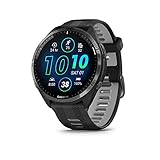
- Brilliant AMOLED touchscreen display with traditional button controls and lightweight titanium bezel
- Battery life: up to 23 days of battery life in smartwatch mode, up to 31 hours in GPS mode
- Confidently run any route using full-color, built-in maps and multi-band GPS
- Training readiness score is based on sleep quality, recovery, training load and HRV status to determine if you’re primed to go hard and reap the rewards (data presented is intended to be a close estimation of metrics tracked)
- Plan race strategy with personalized daily suggested workouts based on the race and course that you input into the Garmin Connect app and then view the race widget on your watch; daily suggested workouts adapt after every run to match performance and recovery
This separation is one reason Garmin updates can take longer than phone updates. The system prioritizes data integrity over speed.
What Happens Right After the Update Completes
Once finished, the watch typically displays a brief “Update Complete” or boots straight to the watch face. Initial startup may be slightly slower than usual as background processes settle.
You may notice higher battery drain for a few hours after a major update. This is normal while sensors recalibrate and files reindex.
After one or two charge cycles, battery life should return to normal or improve if the update included efficiency optimizations.
When an Update Is Truly Not Normal
If the watch repeatedly reboots for more than 15 minutes without progress, shows an explicit error message, or won’t power on at all, that’s not expected behavior.
In these cases, placing the watch on a charger and connecting it to Garmin Express is the safest next step. The software can often detect and repair incomplete installs automatically.
Most update-related issues are recoverable, and true “bricking” is extremely rare when official Garmin tools are used.
How to Confirm the Update Was Successful and What Changed After Updating
Once the watch has settled after rebooting, it’s worth taking a minute to confirm the update actually installed and to understand what’s different. This step reassures you that everything completed correctly and helps you spot new features or settings that may need attention.
Check the Software Version Directly on Your Watch
The most reliable confirmation is on the watch itself. Open the main menu, go to Settings, then About, System, or Software depending on your model.
You’ll see a software or firmware version number listed. Compare this number to the latest version shown in Garmin Connect, Garmin Express, or on Garmin’s support site for your specific watch.
If the version number matches the current release, the update installed successfully even if you didn’t see a confirmation message during reboot.
Confirm the Version in Garmin Connect (iOS and Android)
Open the Garmin Connect app and tap the device icon in the top right corner. Select your watch, then choose About or Device Information.
The software version shown here should match what you see on the watch. If Connect shows “Up to date” with no pending downloads, the update is complete.
If the app still shows an update available but the watch version is current, pull down to refresh the device screen. Occasionally the app lags behind the watch by a minute or two.
Confirm the Version Using Garmin Express on a Computer
If you updated through a computer, open Garmin Express and select your watch. The device summary page will show the installed software version and confirm that no updates are available.
Garmin Express is also useful for spotting secondary updates, such as GPS chipset updates, map updates, or language files. These often install silently alongside the main system software.
If Express shows your device as fully updated, the software installation was successful even if the watch restarted multiple times.
What New Features or Changes to Look For
Garmin updates can include visible features, background improvements, or both. Common changes include new sport profiles, expanded health metrics, improved sleep tracking, or tweaks to training readiness and recovery insights.
You may also notice smoother scrolling, faster menu response, or more stable GPS performance. These aren’t always listed prominently but often make a real difference in daily use and long workouts.
For models with maps or music storage, updates sometimes improve route recalculation speed, map clarity, or Bluetooth headphone stability.
Where to Find the Official Change Log
Garmin doesn’t always show full release notes on the watch itself. In Garmin Connect, tap your device, then look for Release Notes or What’s New if available.
For the most detailed breakdown, search your watch model plus “software update” on Garmin’s support site. Garmin publishes model-specific change logs that explain exactly what was added, fixed, or optimized.
Reading the notes helps you understand why battery life, sensor behavior, or certain menus may feel slightly different after updating.
Settings That May Need Rechecking After an Update
Most updates preserve your settings, but it’s smart to review a few key areas. Check alerts, vibration strength, backlight timeout, and power modes, especially if you rely on custom battery profiles.
For athletes, confirm data screens on your favorite activities. Occasionally new fields are added or default layouts are refreshed, which can shift what you see mid-workout.
If you use third-party watch faces or Connect IQ apps, open them once after updating to ensure they’re compatible with the new software version.
Sensor Recalibration and Short-Term Behavior Changes
After a major update, sensors like heart rate, Pulse Ox, altimeter, and GPS may take a day or two to fully settle. You might see slightly different readings during this period.
This doesn’t indicate a problem. The watch is recalibrating and optimizing sensor algorithms based on the new software.
Wearing the watch snugly during workouts and syncing regularly with Garmin Connect helps this process complete faster.
What to Do If the Version Didn’t Change
If the software version number hasn’t updated, don’t panic. First, restart the watch manually and check again.
If it still shows the old version, place the watch on a charger and open Garmin Connect or Garmin Express to force another sync. Updates sometimes download but wait for sufficient battery or idle time before installing.
If the update continues to fail, using Garmin Express on a computer is often the fastest and most reliable way to complete the installation.
Knowing When Everything Is Truly Finished
Your watch is fully updated when the software version matches the latest release, no updates appear in Garmin Connect or Express, and normal battery behavior returns after a day or two.
At that point, you can resume training, sleep tracking, and daily wear with confidence. Any improvements included in the update are now active and working in the background, even if they aren’t immediately obvious on the surface.
Common Garmin Update Problems and Step‑by‑Step Fixes (Sync Errors, Stuck Updates, Failed Installs)
Even when everything looks finished, update issues can still surface. Most Garmin update problems fall into a few predictable categories, and the fixes are usually straightforward once you know where to look.
The sections below walk through the most common scenarios, starting with the least disruptive fixes and working toward more reliable recovery options.
Garmin Watch Won’t Sync or Find the Update
If your watch isn’t detecting an available update, the issue is usually the connection between the watch and Garmin Connect rather than the watch itself.
Start by closing Garmin Connect completely on your phone, then reopening it. On iOS, swipe the app away from the app switcher. On Android, force close it from the app settings.
Next, manually trigger a sync. Open Garmin Connect, pull down on the home screen to refresh, and keep the app open until syncing completes.
If syncing stalls, toggle Bluetooth off and back on in your phone’s system settings. This refreshes the Bluetooth handshake without requiring a full re-pair.
Make sure your watch is close to the phone and not connected to another device. Garmin watches can only maintain one active Bluetooth connection at a time.
Update Downloaded but Won’t Install on the Watch
This is one of the most common situations and usually relates to battery level or idle time.
Place the watch on its charger, even if the battery looks fine. Many Garmin models require external power to begin the install phase, especially for larger firmware updates.
Leave the watch untouched for at least 15 to 30 minutes. Installation often waits until the watch detects inactivity to avoid interrupting tracking or navigation.
If nothing happens, restart the watch manually. Hold the power button until it shuts down, wait a few seconds, then turn it back on and reconnect to Garmin Connect.
Update Stuck on “Installing” or Progress Bar Frozen
A frozen progress bar looks alarming, but it’s rarely fatal.
First, give it time. Some updates appear stalled while background components install, particularly on watches with onboard maps like the Fenix, Epix, or Forerunner 955 and 965.
If the screen hasn’t changed after 30 minutes, place the watch on the charger and leave it connected for another 15 minutes.
Only if the watch is completely unresponsive should you perform a forced restart. Hold the power button for 15 to 20 seconds until the screen goes dark, then restart and allow the update process to resume.
Garmin Connect Says Update Failed
When Garmin Connect reports a failed update, it usually means the download was interrupted.
Restart both your phone and the watch. This clears cached update files that can block a retry.
💰 Best Value

- Designed with a bright, colorful AMOLED display, get a more complete picture of your health, thanks to battery life of up to 11 days in smartwatch mode
- Body Battery energy monitoring helps you understand when you’re charged up or need to rest, with even more personalized insights based on sleep, naps, stress levels, workouts and more (data presented is intended to be a close estimation of metrics tracked)
- Get a sleep score and personalized sleep coaching for how much sleep you need — and get tips on how to improve plus key metrics such as HRV status to better understand your health (data presented is intended to be a close estimation of metrics tracked)
- Find new ways to keep your body moving with more than 30 built-in indoor and GPS sports apps, including walking, running, cycling, HIIT, swimming, golf and more
- Wheelchair mode tracks pushes — rather than steps — and includes push and handcycle activities with preloaded workouts for strength, cardio, HIIT, Pilates and yoga, challenges specific to wheelchair users and more (data presented is intended to be a close estimation of metrics tracked)
Open Garmin Connect again and initiate a fresh sync. In many cases, the update will resume automatically without re-downloading everything.
If the failure repeats, switch networks. Move from cellular to Wi‑Fi or vice versa, then try again.
Watch Stuck in a Restart Loop After Updating
A restart loop is rare but can happen if system files didn’t finalize correctly.
Connect the watch to its charger and let it sit for at least 10 minutes. Some watches complete background recovery steps while charging.
If the loop continues, connect the watch to a computer and open Garmin Express. The software often detects the issue and offers to repair or reinstall the firmware.
Avoid factory resets at this stage unless Garmin support specifically recommends it, as resets can erase stored activities and settings.
Using Garmin Express to Fix Persistent Update Problems
Garmin Express is the most reliable tool when mobile updates fail repeatedly.
Install Garmin Express on a Windows or macOS computer, connect your watch using the charging cable, and let the software detect it.
If an update is incomplete, Express may prompt you to reinstall or repair the software. Follow the on-screen steps and keep the watch connected until finished.
For watches with maps, Express can also separately update map files, which are too large to handle reliably over Bluetooth.
Wi‑Fi Update Problems on Compatible Garmin Watches
Watches that support Wi‑Fi updates, such as many Forerunner, Fenix, Epix, and Venu models, can sometimes struggle with network setup.
Make sure the watch is connected to a 2.4 GHz Wi‑Fi network. Many Garmin watches don’t support 5 GHz networks.
Check that your Wi‑Fi password hasn’t changed and that the watch is within range of the router during the update.
If Wi‑Fi updates repeatedly fail, switch to Garmin Express for that update cycle. Once the software is current, Wi‑Fi updates usually work again for smaller patches.
Update Completed but Battery Life Is Suddenly Worse
A short-term battery dip after updating is normal, especially after major software releases.
The watch may be reindexing files, recalibrating sensors, or syncing additional data in the background for a day or two.
Wear the watch normally, keep it synced, and avoid making aggressive battery-saving changes immediately. Battery behavior typically stabilizes within 48 hours.
If battery drain continues beyond a few days, restarting the watch and checking for background apps or third-party watch faces is the next step.
When to Contact Garmin Support
If your watch won’t power on, can’t be detected by Garmin Express, or repeatedly fails updates after following all steps above, it’s time to contact Garmin support.
Have your watch model, software version, and a brief description of what you’ve tried ready. This speeds up the process significantly.
Garmin support can guide you through advanced recovery steps or arrange a repair if the issue is hardware-related rather than software-based.
Advanced Tips, Best Practices, and When to Contact Garmin Support
Once you’ve worked through the standard update paths and troubleshooting steps, a few advanced habits can make future updates smoother and help you get the most from your Garmin over the long term. These aren’t required, but they’re the kind of small details experienced Garmin users rely on.
Check Your Software Version Before and After Updating
Before starting an update, it’s worth confirming what version your watch is currently running. On most Garmin watches, go to Menu > System > About to see the software version.
After the update completes, revisit the same screen to confirm the version number has changed. This simple check prevents confusion when new features don’t immediately appear or when an update silently failed in the background.
In Garmin Connect, you can also view the installed software version under Device Settings, which is useful when troubleshooting sync or battery issues later.
Update at the Right Time, Not Right Before an Event
Avoid updating your watch the night before a race, long hike, or important training session. Even though most updates are stable, major releases can temporarily affect battery life, sensor calibration, or data fields.
Give yourself at least 24 to 48 hours after a significant update. This allows the watch to finish background processes and lets you confirm GPS lock speed, heart rate behavior, and battery performance during normal wear.
This is especially important for larger, heavier watches like the Fenix and Epix series, where multi-band GPS, mapping, and training features are tightly integrated.
Keep Battery Levels High During Updates
Garmin watches usually require at least 20 to 30 percent battery to begin an update, but aiming higher is smarter. A charge of 50 percent or more reduces the risk of interruption, especially for map updates or older models.
If possible, leave the watch connected to its charger during the update. This minimizes heat buildup and avoids sudden shutdowns that could corrupt the installation.
For slim, lightweight models like the Venu Sq or Forerunner 55, shorter updates are common, but the same rule still applies.
Be Selective With Third-Party Watch Faces and Apps
Third-party watch faces and Connect IQ apps add personality and function, but poorly optimized ones can interfere with battery performance after an update.
If you notice sluggish menus, delayed button presses, or excessive drain after updating, temporarily switch to a built-in Garmin watch face. If performance improves, update or remove the third-party face.
This is a common issue on AMOLED models like Venu and Epix, where brightness, animations, and data refresh rates have a larger impact on daily usability.
Manage Map and Storage Space Proactively
Watches with onboard maps, such as Fenix, Epix, and higher-end Forerunners, benefit from occasional storage housekeeping. Full storage can cause map updates to fail or slow future software installs.
Use Garmin Express to remove unused regional maps or courses you no longer need. Keeping at least a few gigabytes free helps updates install cleanly and keeps map rendering responsive during activities.
This also improves real-world wearability, as navigation features respond faster and consume less battery during long sessions.
Consider Garmin Beta Software Only If You’re Comfortable Experimenting
Garmin offers optional beta software programs for many watches, providing early access to new features and fixes. These versions are generally stable, but they are still test releases.
If you rely on your watch daily for training, health tracking, or sleep data, staying on the public release channel is the safest option. Beta software is better suited for experienced users who enjoy testing and providing feedback.
You can always leave the beta program later, but doing so may require waiting for the next public release to fully realign your software.
Restart After Major Updates for Best Results
Many Garmin watches automatically restart after updating, but manually restarting once more can help clear temporary files and stabilize performance.
This is particularly useful after updates that mention GPS, heart rate, sleep tracking, or battery improvements in the release notes. A clean restart helps ensure sensors recalibrate properly.
It’s a small step that often resolves minor quirks without deeper troubleshooting.
When to Contact Garmin Support and What to Expect
If your watch repeatedly fails updates, won’t appear in Garmin Express, or becomes unresponsive despite charging and restarting, contacting Garmin support is the right move.
Before reaching out, note your watch model, serial number, software version, and exactly where the update process fails. Screenshots from Garmin Connect or Express can also help speed things up.
Garmin’s support team can walk you through recovery modes, firmware repairs, or confirm whether the issue is hardware-related. In many cases, especially for newer models, they may offer a replacement if the problem can’t be resolved remotely.
Final Thoughts: Keeping Your Garmin Running at Its Best
Keeping your Garmin watch updated isn’t just about new features. It’s about accuracy, battery efficiency, comfort in daily wear, and long-term reliability.
By updating at the right time, using the right method, and knowing when to seek help, you ensure your watch continues to perform as intended whether it’s tracking workouts, monitoring health, or guiding you through mapped routes.
With these best practices in place, software updates become a routine part of ownership rather than a source of stress, letting you focus on using your Garmin the way it was designed to be used.