If you’ve ever patted every pocket, checked the couch cushions, and retraced your steps while your phone stays stubbornly silent, your Wear OS watch is already the solution sitting on your wrist. Unlike voice assistants or logging into a browser, a smartwatch is instant-access hardware that’s always on, always connected, and designed for moments like this. One quick gesture can turn panic into a ringing phone in seconds.
A Wear OS watch is faster because it removes friction. There’s no unlocking, no app hunting, and no guessing which Google account you’re signed into. Whether you’re wearing a Pixel Watch, Galaxy Watch, or another Wear OS model, the phone-finding tool is built directly into the system UI and optimized for speed.
This guide will show exactly why your watch is the most reliable way to locate a misplaced phone, what needs to be set up beforehand, and what actually happens behind the scenes when you tap that icon. Understanding this makes the difference between finding your phone in 10 seconds or assuming it’s gone for good.
It works even when your phone is on silent
One of the biggest advantages of using a Wear OS watch is that it can force your phone to ring at full volume, even if it’s set to silent or vibrate. This is not a normal notification sound; it’s a system-level alert designed specifically to be heard. In real-world use, this means you’ll hear it under couch cushions, inside backpacks, or buried under laundry.
🏆 #1 Best Overall
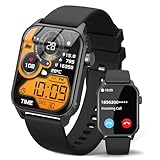
- 【1.83" HD Display & Customizable Watch Faces】Immerse yourself in a vibrant 1.83-inch IPS display, boasting a sharp resolution of 240*284 for crystal-clear visuals. Effortlessly personalize your smart watch with a wide array of customizable watch faces to suit your personal style for every occasion—whether trendy, artistic, or minimalist—ideal for casual, sporty, or professional. Its sleek, modern design complements any outfit, blending technology and fashion seamlessly for everyday wear
- 【120 Sports Modes & Advanced Health Tracking】Our TK29 smart watches for women men come equipped with 120 sports modes, allowing you to effortlessly track a variety of activities such as walking, running, cycling, and swimming. With integrated heart rate and sleep monitors, you can maintain a comprehensive overview of your health, achieve your fitness goals, and maintain a balanced, active lifestyle with ease. Your ideal wellness companion (Note: Step recording starts after exceeding 20 steps)
- 【IP67 Waterproof & Long-Lasting Battery】Designed to keep up with your active lifestyle, this smartwatch features an IP67 waterproof rating, ensuring it can withstand splashes, sweat, and even brief submersion, making it perfect for workouts, outdoor adventures, or rainy days. Its reliable 350mAh battery offering 5-7 days of active use and up to 30 days in standby mode, significantly reducing frequent charging. Ideal for all-day wear, whether you’re at the gym, outdoors, or simply on the go
- 【Stay Connected Anytime, Anywhere】Stay informed and in control with Bluetooth call and music control features. Receive real-time notifications for calls, messages, and social media apps like Facebook, WhatsApp, Twitter, and Instagram directly on your smartwatch. Easily manage calls, control your music playlist, and stay updated without needing to reach for your phone. Perfect for work, workouts, or on-the-go, this watch keeps you connected and never miss important updates wherever you are
- 【Multifunction & Wide Compatibility】Seamlessly handle heart rate monitoring, sleep tracking, and enjoy conveniences like camera/music control, Seamlessly handle heart rate monitoring, sleep tracking, and more-all directly from your wrist. This 1.83 inches HD smartwatch is compatible with iPhone (iOS 9.0+) & Android (5.0+), ensuring smooth daily connectivity and convenience throughout your day. More than just a timepiece, it’s a stylish, all-in-one wearable for smarter, healthier living
This feature works because your watch communicates directly with your phone over Bluetooth or Wi‑Fi, bypassing the phone’s sound profile. As long as the devices are connected, the watch can override silent mode without you touching the phone at all.
It’s faster than using another device or Google Find My Device
Using Google’s Find My Device from a laptop or tablet works, but it’s slower and less precise when your phone is nearby. You need internet access, a browser, login credentials, and enough patience to wait for the phone to respond. A Wear OS watch skips all of that.
Because the watch is already paired and authenticated, it acts instantly. In daily use, tapping “Find my phone” on a watch takes one or two seconds, compared to a minute or more using another device. When your phone is somewhere in the same home or office, that speed matters.
No setup in the moment, just muscle memory
The phone-finding shortcut on Wear OS is designed for habitual use. On most watches, it’s either a quick settings tile or a single swipe and tap away, which means you don’t need to think when you’re stressed. After using it once or twice, it becomes muscle memory.
This is especially helpful for beginners who don’t want to manage third-party apps or complicated automations. The feature is part of the core Wear OS experience, maintained by Google and Samsung, and it continues to work reliably across software updates.
It works with minimal battery impact
Unlike GPS-based tracking or cloud location services, finding your phone with a Wear OS watch doesn’t significantly drain either device. The alert relies on short-range communication and a simple command, not constant location polling. Even if your watch is near the end of its battery day, this feature still works.
For everyday wearability, this matters. Pixel Watch and Galaxy Watch models are designed for all-day use, and the phone-finding tool doesn’t compromise fitness tracking, notifications, or sleep tracking later on.
You’ll know immediately if your phone is out of range
Another underrated benefit is instant feedback. If your phone is connected, it rings. If it’s not, the watch tells you right away instead of leaving you guessing. This saves time and helps you decide whether to keep searching nearby or switch to a location-based recovery method.
This clarity is especially useful in real life, like when you leave your phone at a café or in a car. Your watch becomes the first line of confirmation before you escalate to more advanced recovery tools.
What You Need Before It Works: Bluetooth, Wi‑Fi, Accounts, and Permissions
All of that speed and reliability only happens if a few basics are in place beforehand. The good news is that most Wear OS owners already have everything set up without realizing it, but it’s worth knowing what actually makes the phone‑finding feature work so you can fix it quickly if something breaks.
Bluetooth is the primary connection (and the most important one)
For most day‑to‑day scenarios, Bluetooth is what your watch uses to make your phone ring. As long as your Wear OS watch is paired and currently connected over Bluetooth, the command is instant.
You don’t need to be actively using Bluetooth audio or notifications for this to work. Even if your watch is just sitting on your wrist doing step tracking, the background Bluetooth link is enough to trigger the alert.
If Bluetooth is turned off on your phone, the watch will usually tell you right away that it can’t reach the device. That’s your signal to stop searching nearby and switch to a longer‑range recovery method instead.
Wi‑Fi helps when Bluetooth drops, but it’s secondary
Some newer Wear OS watches, including recent Pixel Watch and Galaxy Watch models, can stay loosely connected to your phone over Wi‑Fi when Bluetooth disconnects. This only works if both devices are on the same Wi‑Fi network and signed into the same account.
In real‑world use, Wi‑Fi is a backup rather than the default. It can save you if you left your phone upstairs or in another part of a large house where Bluetooth struggles, but it’s not something you need to manage manually.
If your watch shows it’s completely offline, the phone‑finding shortcut won’t work until one of these connections is restored. That feedback is still useful because it immediately narrows down whether your phone is nearby or truly gone.
You must be signed into the same Google account
Account authentication is what allows the watch to issue trusted commands to your phone. Your Wear OS watch and Android phone need to be signed into the same Google account for the built‑in “Find my phone” feature to function correctly.
This is usually handled during initial setup and never touched again. If you’ve recently switched phones, restored a backup, or added a second Google account, it’s worth checking that the primary account matches on both devices.
Samsung Galaxy Watch users should also make sure their Samsung account is active on both devices. While the ringing command itself is handled through Wear OS, Samsung’s ecosystem services help keep the connection stable in the background.
System permissions must stay enabled
The phone‑finding feature relies on system‑level permissions, not a third‑party app. On your phone, Bluetooth access, notifications, and background activity for Wear OS or the companion app must remain enabled.
If you’ve aggressively optimized battery settings or restricted background activity, this is where things can silently break. Android’s battery management can sometimes pause background connections if it thinks they’re unnecessary.
A quick check in your phone’s settings to allow unrestricted background activity for Wear OS can prevent intermittent failures later. This is especially important on phones with heavy power‑saving modes enabled.
Your phone will ring even if it’s on silent
One of the most reassuring details is that the alert bypasses silent mode. As long as the phone is powered on and reachable, it will ring at full volume even if Do Not Disturb or silent mode is enabled.
This is intentional and built into the system. You don’t need to change sound profiles or volume levels ahead of time for the feature to work.
If the phone doesn’t ring and the watch reports it’s connected, that usually points to a deeper system issue, like a crashed service or an overly restricted background permission.
Battery levels matter less than you think
Unlike GPS tracking or cloud‑based location tools, this feature doesn’t demand much power. Even a watch near the end of its battery day can still trigger a phone alert.
The bigger risk is a phone that’s fully powered off or completely out of battery. In that case, no short‑range tool will help, and the watch will tell you immediately that it can’t connect.
Knowing these prerequisites ahead of time means you’re not troubleshooting while stressed. When everything is set correctly, finding your phone becomes a reflex, not a process.
Using the Built‑In ‘Find My Phone’ Feature on Wear OS (Step‑by‑Step)
Once the permissions and background access are in place, actually triggering the alert is refreshingly quick. Wear OS treats phone‑finding as a system function, so it’s never buried behind third‑party apps or complicated menus.
The exact path can vary slightly depending on your watch brand and Wear OS version, but the core behavior is consistent across Pixel Watch, Samsung Galaxy Watch, and most other Wear OS devices.
Step 1: Wake your watch and access the feature
Start by waking your watch and opening the app launcher. On most watches, this means pressing the side button or crown once.
Look for an app labeled Find My Phone, Find Phone, or a phone‑with‑soundwave icon. On Pixel Watch, it’s a standalone system app; on Samsung Galaxy Watch, it may appear as Find My Phone or be accessible via Quick Settings.
If you don’t see it immediately, scroll through the full app list. It’s installed by default and can’t be deleted.
Alternative access: Quick Settings or tiles
Many users prefer faster access than digging through the app drawer. Swiping down from the top of the watch face opens Quick Settings on most Wear OS watches.
If your watch supports it, you can add the Find My Phone shortcut here. On Samsung watches, this is especially useful since Quick Settings are customizable.
Some Wear OS versions also support tiles. Swiping left or right from the watch face may reveal a dedicated Find My Phone tile if it’s enabled.
Step 2: Tap to trigger the alert
Once you open Find My Phone, a single tap is usually all it takes. There’s no confirmation screen or delay.
Your phone should immediately start ringing at full volume, regardless of silent mode or Do Not Disturb. The sound is a sharp, repeating tone designed to cut through ambient noise.
Rank #2
![Apple Watch Series 11 [GPS 46mm] Smartwatch with Jet Black Aluminum Case with Black Sport Band - M/L. Sleep Score, Fitness Tracker, Health Monitoring, Always-On Display, Water Resistant](https://m.media-amazon.com/images/I/312K597M2uL._SL160_.jpg)
- HYPERTENSION NOTIFICATIONS — Apple Watch Series 11 can spot signs of chronic high blood pressure and notify you of possible hypertension.*
- KNOW YOUR SLEEP SCORE — Sleep score provides an easy way to help track and understand the quality of your sleep, so you can make it more restorative.
- EVEN MORE HEALTH INSIGHTS — Take an ECG anytime.* Get notifications for a high and low heart rate, an irregular rhythm,* and possible sleep apnea.* View overnight health metrics with the Vitals app* and take readings of your blood oxygen.*
- STUNNING DESIGN — Thin and lightweight, Series 11 is comfortable to wear around the clock — while exercising and even when you’re sleeping, so it can help track your key metrics.
- A POWERFUL FITNESS PARTNER — With advanced metrics for all your workouts, plus features like Pacer, Heart Rate Zones, training load, Workout Buddy powered by Apple Intelligence from your nearby iPhone,* and more. Series 11 also comes with three months of Apple Fitness+ free.*
The watch screen will typically show a ringing indicator or brief animation while the alert is active.
What you’ll feel and hear on the watch
Most Wear OS watches provide haptic feedback the moment the signal is sent. This vibration confirms the command was delivered successfully.
If the watch can’t reach your phone, you’ll usually see an error message or a brief “not connected” notice instead of haptic confirmation.
That instant feedback saves time. You know immediately whether to start listening or switch to a backup plan.
Step 3: Follow the sound and stop the alert
As you move closer to your phone, the sound doesn’t get louder automatically, but its direction becomes clearer. This works well in apartments, cars, and office spaces where phones often disappear under cushions or bags.
Once you find your phone, unlocking it or tapping the on‑screen stop prompt will silence the alert. Some phones also allow you to stop the ringing directly from the watch.
There’s no penalty for letting it ring a bit longer. The alert is designed to be persistent without harming the speaker.
How connection range affects success
Most of the time, the alert is sent over Bluetooth. That gives you a reliable range of roughly 30 feet indoors, sometimes more in open spaces.
If both the watch and phone are connected to Wi‑Fi and signed into the same Google account, some Wear OS setups can still trigger the alert beyond Bluetooth range. This varies by device and software version.
If you’ve walked too far away or left the phone in another building, the watch will usually fail fast rather than hanging indefinitely.
What happens if your phone is locked or face‑down
A locked phone makes no difference. The alert bypasses lock screens, biometrics, and notification restrictions.
If the phone is face‑down, in a drawer, or under fabric, the sound still plays at maximum volume. In real‑world use, this is one of the reasons the feature works better than notification‑based ringing apps.
Even rugged phone cases or desk mats rarely muffle it enough to miss entirely.
Common mistakes that stop it from working
The most frequent issue is Bluetooth being turned off on the phone. The watch may still appear functional, but the direct connection isn’t there.
Another common problem is background restriction after a phone reboot or system update. Android sometimes resets battery optimization settings without warning.
If Find My Phone suddenly stops working after months of reliability, checking those two things usually fixes it in under a minute.
Using it regularly without draining battery
Triggering the alert uses a negligible amount of power on both devices. It doesn’t activate GPS, cellular radios, or continuous scanning.
On watches like the Pixel Watch or Galaxy Watch, even a nearly depleted battery can still send the command. The action itself is lightweight.
That’s why it’s safe to rely on this feature daily. It’s built for habitual use, not emergency-only situations.
What Happens If Your Phone Is on Silent, Vibrate, or Do Not Disturb
If you’re already using the Find My Phone feature regularly, this is the part that usually reassures people the most. Wear OS is designed to cut through the exact sound settings that make a misplaced phone hard to locate in the first place.
In practice, the alert behaves very differently from a normal notification or incoming call.
When your phone is set to Silent or Vibrate
Silent and Vibrate modes do not stop the Wear OS alert. When you trigger Find My Phone from your watch, the phone forces the speaker to play a loud, repeating tone at near-maximum volume.
This happens even if the ringer volume is set to zero and vibration-only is enabled. The system treats this as a device-locating command, not a user notification.
On Pixel phones and most Samsung Galaxy models, the sound ramps up immediately and keeps playing until you dismiss it on the phone or stop it from the watch. There’s no subtle chime here; it’s meant to be obvious across a room.
When Do Not Disturb is enabled
Do Not Disturb also doesn’t block the alert. Priority settings, exceptions, and schedules are ignored for this specific action.
Whether DND is set to block all sounds, only allow starred contacts, or silence everything overnight, the phone will still ring audibly when summoned from a Wear OS watch.
This is especially useful if you misplace your phone at night or during work hours when DND is active. The alert doesn’t respect quiet hours because its job is to help you physically locate the device, not notify you politely.
Why the alert bypasses sound controls
Under the hood, Find My Phone uses a system-level command rather than the standard notification pipeline. That’s why it isn’t affected by ringer modes, app permissions, or notification channels.
It also explains why the sound is consistent across different apps and watch brands. Whether you’re using a Pixel Watch, Galaxy Watch, or another Wear OS device, the behavior is largely the same because Android handles it at the OS level.
From a usability standpoint, this is intentional. If silent mode could block the alert, the feature would fail precisely when people rely on it most.
What you’ll hear in real-world use
The tone itself is usually a sharp, repeating beep rather than your custom ringtone. It’s chosen to cut through background noise and be easy to locate directionally as you move around a room.
Even when the phone is in a pocket, bag, or under couch cushions, the sound is typically loud enough to pinpoint within seconds. Speaker quality matters less than you might expect; even older phones manage to be audible.
If your phone supports stereo speakers, both will usually fire, which helps the sound carry further and feel harder to ignore.
Situations where sound still won’t play
There are only a few edge cases where silent settings aren’t the issue but the alert still won’t sound. A powered-off phone can’t be reached at all, and neither can a phone with a fully drained battery.
If the phone is connected but the speaker hardware itself is damaged, you may feel vibration without sound or get no response. That’s rare, but it’s worth knowing.
Aside from those scenarios, silent mode, vibrate, and Do Not Disturb are effectively non-factors. If your watch can connect to the phone, the phone will make noise.
Finding Your Phone When It’s Not Nearby: Bluetooth Range vs Wi‑Fi and LTE
Everything described so far assumes your watch can still talk directly to your phone. Once that connection drops, the experience changes in important ways, and this is where many first-time Wear OS users get confused.
Understanding what happens when Bluetooth disconnects will save you time and frustration, especially if your phone is genuinely lost rather than just misplaced nearby.
Rank #3

- Bluetooth Call and Message Alerts: Smart watch is equipped with HD speaker, after connecting to your smartphone via bluetooth, you can answer or make calls, view call history and store contacts through directly use the smartwatch. The smartwatches also provides notifications of social media messages (WhatsApp, Twitter, Facebook, Instagram usw.) So that you will never miss any important information.
- Smart watch for men women is equipped with a 320*380 extra-large hd full touch color screen, delivering exceptional picture quality and highly responsive touch sensitivity, which can bring you a unique visual and better interactive experience, lock screen and wake up easily by raising your wrist. Though “Gloryfit” app, you can download more than 102 free personalised watch faces and set it as your desktop for fitness tracker.
- 24/7 Heart Rate Monitor and Sleep Tracker Monitor: The fitness tracker watch for men has a built-in high-performance sensor that can record our heart rate changes in real time. Monitor your heart rate 26 hours a day and keep an eye on your health. Synchronize to the mobile phone app"Gloryfit", you can understand your sleep status(deep /light /wakeful sleep) by fitness tracker watch develop a better sleep habit and a healthier lifestyle.
- IP68 waterproof and 110+ Sports Modes: The fitness tracker provides up to 112+ sports modes, covering running, cycling, walking, basketball, yoga, football and so on. Activity trackers bracelets meet the waterproof requirements for most sports enthusiasts' daily activities, such as washing hands or exercising in the rain, meeting daily needs (note: Do not recommended for use in hot water or seawater.)
- Multifunction and Compatibility: This step counter watch also has many useful functions, such as weather forecast, music control, sedentary reminder, stopwatch, alarm clock, timer, track female cycle, screen light time, find phone etc. The smart watch with 2 hrs of charging, 5-7 days of normal use and about 30 days of standby time. This smart watches for women/man compatible with ios 9.0 and android 6.2 and above devices.
What “out of range” actually means for Wear OS
In normal use, Find My Phone on a Wear OS watch relies on a direct Bluetooth connection. Bluetooth range is usually around 30 feet indoors, sometimes less if walls, floors, or metal objects interfere.
If you walk far enough away, the watch loses that link. At that point, the instant ringing behavior you just learned about simply can’t happen, because there’s no local connection to trigger it.
Most watches make this obvious by greying out the Find My Phone shortcut or showing a disconnected phone icon. If you tap it anyway and nothing happens, range is almost always the reason.
Why Wi‑Fi on your watch doesn’t replace Bluetooth
Many Wear OS watches automatically connect to Wi‑Fi when Bluetooth drops, which creates the impression they should still be able to ring your phone. Unfortunately, Find My Phone doesn’t work that way.
The built-in ping feature is designed for close-range recovery, not long-distance tracking. Even if both devices are on the same Wi‑Fi network, the watch can’t send the system-level ring command without a Bluetooth link.
This is a design choice rather than a technical limitation. Google treats nearby phone finding and remote phone tracking as two separate tools with different reliability expectations.
What changes if you have an LTE-enabled smartwatch
An LTE Wear OS watch, like the Pixel Watch LTE or Galaxy Watch LTE, can stay connected to the internet without your phone nearby. That helps with calls, messages, streaming, and navigation, but it doesn’t magically extend the Find My Phone ping.
You still can’t make your phone ring remotely using the watch’s built-in shortcut once Bluetooth is gone. LTE keeps your watch useful, but it doesn’t override how Android’s local phone-finding command works.
Where LTE does help is as a bridge to Google’s Find My Device service, which is a different workflow entirely.
Using Google Find My Device when Bluetooth is gone
If your phone is truly not nearby, the fastest reliable option is Google Find My Device. This works over the internet, not Bluetooth, and can locate your phone on a map, lock it, or make it ring if it’s powered on.
You can access Find My Device from any browser, another phone, or even directly from some Wear OS watches via a web shortcut or companion app. You’ll need to be signed into the same Google account on both devices for it to work.
The ring command here behaves differently. It respects network delays, may take several seconds to trigger, and won’t help if the phone is offline or out of battery.
How to tell which method you should use right now
If your watch shows a connected phone icon and Find My Phone is tappable, use the watch shortcut. It’s faster, louder, and far more precise for finding a phone under cushions, in bags, or in another room.
If the watch shows your phone as disconnected, stop retrying the ping. Switch immediately to Find My Device instead, because no amount of tapping will bring back a Bluetooth-only feature.
This mental shortcut helps: watch ping for nearby, Google Find My Device for lost or left behind.
Common pitfalls that make it feel broken
A frequent mistake is assuming Wi‑Fi or LTE means unlimited range. It doesn’t, at least not for the built-in Find My Phone button.
Another issue is forgetting that both devices must be signed into the same Google account. If you recently changed accounts or reset your phone, remote finding may silently fail.
Finally, battery life matters more than people expect. A phone that died hours ago won’t ring or update its location, regardless of how advanced your watch is.
Real-world expectations to keep things stress-free
Wear OS is excellent at helping you find a phone that’s nearby but hidden. It’s not a replacement for long-range tracking tools, and it’s not meant to be.
Once you treat Bluetooth pinging and internet-based finding as complementary tools rather than one system, the whole experience feels far more reliable.
Using Google’s Find My Device from Your Watch (and When It Helps)
When the Bluetooth-based phone ping isn’t an option, Google’s Find My Device becomes your backup plan. This is the same system you’d use from a laptop or another phone, but in some situations you can trigger it directly from your Wear OS watch.
Think of this as the long‑range tool. It’s slower and less precise than a local ping, but it works when your phone is no longer nearby and still has power.
How to access Find My Device on a Wear OS watch
Not every Wear OS watch ships with a dedicated Find My Device app preinstalled. On Pixel Watch models and many recent Galaxy Watches, the most reliable method is using a browser shortcut or a small helper app tied to your Google account.
On your watch, open the app launcher and look for Find My Device. If it’s not there, open the Play Store on the watch and search for it, or add a web shortcut to google.com/find through your paired phone.
Once opened, you’ll be prompted to confirm the Google account. This must be the same account signed into your missing phone, or the device simply won’t appear.
What you can actually do from the watch
After your phone loads on the Find My Device screen, you’ll see its last known location on a map. This is useful if you left your phone at work, in a café, or somewhere outside Bluetooth range.
You can trigger a ring command from here, even if the phone is set to silent or vibrate. The ring plays at full volume for several minutes, assuming the phone is online and powered on.
Some watches also let you lock the phone remotely. That’s useful if you think the phone is genuinely lost rather than just misplaced under a sofa.
Why it feels slower than “Find My Phone”
Find My Device works over the internet, not a direct radio link. Your watch sends the request to Google’s servers, which then relay it to your phone.
That round trip introduces delay. It’s normal for the ring command to take 5 to 30 seconds to trigger, especially if the phone is switching between Wi‑Fi and mobile data.
Location updates are also periodic, not live. The map shows where the phone was recently, not necessarily where it is this exact second.
When this method is the right choice
Use Find My Device when your watch shows the phone as disconnected and you know it’s not nearby. This includes leaving the phone behind at a friend’s house, in a car, or in another building entirely.
It’s also the only option if your watch has LTE and your phone doesn’t. In that case, your watch may still be fully online while your phone is miles away.
If you’re unsure whether the phone is close or far, check the connection icon first. Disconnected almost always means it’s time to switch methods.
Important limitations to keep in mind
Find My Device cannot reach a phone that’s powered off or completely out of battery. No ring, no lock, and no new location update will appear.
If the phone is online but in a low-signal area, commands may queue and arrive late. This can make it feel unreliable even though it’s technically working.
Account mismatches are another silent failure point. If you recently reset your phone, changed your primary Google account, or use a work profile, double-check which account your watch is signed into.
How silent mode and Do Not Disturb behave
Unlike Bluetooth pings, Find My Device forces an audible ring regardless of silent mode. This is intentional and designed for recovery situations.
Rank #4
![Apple Watch Series 11 [GPS 42mm] Smartwatch with Rose Gold Aluminum Case with Light Blush Sport Band - S/M. Sleep Score, Fitness Tracker, Health Monitoring, Always-On Display, Water Resistant](https://m.media-amazon.com/images/I/31J+F-pXaWL._SL160_.jpg)
- HYPERTENSION NOTIFICATIONS — Apple Watch Series 11 can spot signs of chronic high blood pressure and notify you of possible hypertension.*
- KNOW YOUR SLEEP SCORE — Sleep score provides an easy way to help track and understand the quality of your sleep, so you can make it more restorative.
- EVEN MORE HEALTH INSIGHTS — Take an ECG anytime.* Get notifications for a high and low heart rate, an irregular rhythm,* and possible sleep apnea.* View overnight health metrics with the Vitals app* and take readings of your blood oxygen.*
- STUNNING DESIGN — Thin and lightweight, Series 11 is comfortable to wear around the clock — while exercising and even when you’re sleeping, so it can help track your key metrics.
- A POWERFUL FITNESS PARTNER — With advanced metrics for all your workouts, plus features like Pacer, Heart Rate Zones, training load, Workout Buddy powered by Apple Intelligence from your nearby iPhone,* and more. Series 11 also comes with three months of Apple Fitness+ free.*
Do Not Disturb doesn’t block it either. If the phone is online, it will make noise.
That makes this method especially useful if you know the phone is nearby but unreachable by Bluetooth, such as inside a locked car or a different floor of a building.
Battery and connectivity considerations on the watch
Using Find My Device from your watch requires the watch itself to be online. On Wi‑Fi‑only watches, that means being connected to a known network.
LTE watches are more flexible, but repeated location refreshes and retries can drain the watch battery faster than a simple Bluetooth ping. It’s best used purposefully, not as a constant refresh tool.
Comfort and wearability matter here too. A watch that’s easy to wear all day, with reliable battery life, is more likely to be on your wrist when your phone goes missing.
Brand-Specific Differences: Pixel Watch vs Samsung Galaxy Watch vs Others
Once you understand the core methods, the experience starts to diverge depending on which Wear OS watch you’re wearing. The goal is always the same, but how quickly you can trigger it and how reliable it feels in daily use varies by brand.
Some of these differences are software choices, others are about hardware, battery life, and how tightly the watch is integrated with your phone. If you know what to expect from your specific watch, you’ll lose far less time when your phone goes missing.
Google Pixel Watch
On the Pixel Watch, finding your phone is baked directly into the system UI. Swipe down from the watch face, tap the phone-with-sound-waves icon, and your paired Pixel or Android phone immediately starts ringing over Bluetooth.
This method works even if the phone is set to silent or vibrate, as long as Bluetooth is connected. In real-world use, it’s one of the fastest implementations on Wear OS, with almost no delay between tap and sound.
The Pixel Watch’s strength here is consistency. Google controls both the watch software and the Find My Device integration, so switching from a local Bluetooth ping to a cloud-based ring feels seamless.
If the phone is out of Bluetooth range, the Pixel Watch automatically routes you into Find My Device when you search from the apps list. On LTE models, this works anywhere the watch has cellular coverage, which is especially useful if the phone was left behind entirely.
Comfort and wearability matter in these moments, and the Pixel Watch’s compact case and balanced weight make it easy to keep on all day. Battery life is solid for a full day, but heavy LTE usage while searching remotely can noticeably drain it, so it’s best used deliberately.
Samsung Galaxy Watch (Wear OS models)
Samsung’s Galaxy Watch line approaches this differently, layering Samsung’s own ecosystem on top of Wear OS. The quickest option is still the Bluetooth-based “Find my phone” tile or quick panel shortcut, which triggers a loud ring regardless of sound settings.
If you’re using a Samsung phone, this feature is extremely reliable and often feels faster than third-party Android pairings. The watch and phone stay tightly synced through Samsung’s background services, which helps maintain a stable Bluetooth connection.
For longer-distance recovery, Samsung pushes you toward SmartThings Find rather than Google’s Find My Device. From the watch, you’ll typically open the SmartThings or Find app, which can ring the phone over the internet if it’s online.
This works well, but it adds an extra layer of software and login dependency. If you’re signed into the wrong Samsung account or recently switched phones, this is where failures usually happen.
Galaxy Watches are generally larger and heavier than the Pixel Watch, with excellent displays and strong durability, especially on the Classic and Pro models. Battery life tends to be better for Bluetooth-based searches, but LTE searches and SmartThings refreshes can still drain power faster than expected.
Other Wear OS watches (Fossil, TicWatch, OnePlus Watch, and more)
On non-Google, non-Samsung Wear OS watches, the experience is more variable. Most still include a basic Bluetooth “ring my phone” function, but where it lives in the interface can differ significantly.
Some brands place it in quick settings, others require opening a companion app or assigning it to a hardware button. If you’re not sure where it is, it’s worth finding and testing it now rather than during a real panic moment.
Find My Device support is generally present, but it’s often less prominent. You may need to open the Google Find My Device app from the watch’s app drawer, and the interface can feel slower depending on processor performance and network strength.
Hardware plays a role here too. Watches with slower chips or less memory may take longer to load apps, which makes remote searching feel less responsive even when everything is technically working.
Battery life varies widely across these models. Some, like TicWatch with its dual-display design, are excellent for all-day wear and standby but feel clunkier when loading apps, while slimmer fashion-focused watches trade endurance for comfort and design.
What matters most when choosing the right method
Regardless of brand, the most reliable method is always the simplest one that fits the situation. If the watch shows a Bluetooth connection, use the local ring first before jumping to cloud-based tools.
If the watch is disconnected, brand differences matter more. Pixel Watch users will usually default to Google’s ecosystem, Samsung users to SmartThings, and everyone else to Find My Device with slightly more manual steps.
The best watch for finding your phone is ultimately the one you’re actually wearing. Comfort, battery life, and software reliability all influence whether your watch is on your wrist when your phone disappears, which matters far more than any single feature on paper.
Common Problems and Fixes When ‘Find My Phone’ Doesn’t Work
Even with the right watch and the right feature, finding your phone doesn’t always go smoothly. Most failures come down to connection status, permissions, or simple settings that are easy to miss in day-to-day use.
The good news is that almost all issues can be fixed in under a minute once you know where to look. Work through the scenarios below in order, starting with the simplest checks.
Your phone doesn’t ring at all
If you tap “Find my phone” and nothing happens, the first thing to check is whether your watch is still connected via Bluetooth. On most Wear OS watches, a disconnected icon or cloud symbol in quick settings means local ringing won’t work.
If Bluetooth is disconnected, move closer to where you last had your phone and wait a few seconds. The watch often reconnects automatically, especially on Pixel Watch and Galaxy Watch models with stable radios.
If the watch shows connected but the phone stays silent, make sure the phone is powered on. A dead battery means Bluetooth ringing is impossible, and you’ll need to switch to a cloud-based option like Google Find My Device instead.
Your phone is on silent or vibrate
One of the most common worries is that silent mode will block the ring. In most cases, it won’t.
The built-in “ring my phone” feature on Wear OS forces the phone to play a loud tone even if it’s set to silent or vibrate. This is true for Pixel Watch, Galaxy Watch, and most other Wear OS models using the standard Google or Samsung tools.
If your phone still isn’t making noise, check whether Do Not Disturb is enabled with exceptions disabled. Some custom Android setups or aggressive battery-saving modes can suppress the ring until DND is turned off.
The watch says it can’t connect to your phone
This usually means Bluetooth has dropped, often because the phone is out of range, powered off, or stuck in airplane mode. Standard Bluetooth range indoors is roughly one or two rooms, less through thick walls or floors.
If you think the phone is nearby, walk slowly around your space while keeping the watch awake. Many people find the phone reconnects once they’re within range, letting the ring command go through.
If you’re clearly out of range, skip Bluetooth and open Google Find My Device on the watch instead. This uses Wi‑Fi or LTE on the watch and doesn’t require a local connection.
Find My Device loads but won’t locate your phone
When Find My Device opens but shows an error or outdated location, it’s usually an account or network issue. Make sure the watch is signed into the same Google account as the phone.
Next, confirm the watch has an active internet connection. On Wi‑Fi-only watches, this means being connected to a known network; on LTE models, it means having a live cellular signal and an active plan.
💰 Best Value
![Apple Watch Series 11 [GPS 42mm] Smartwatch with Jet Black Aluminum Case with Black Sport Band - S/M. Sleep Score, Fitness Tracker, Health Monitoring, Always-On Display, Water Resistant](https://m.media-amazon.com/images/I/31ybzrJZckL._SL160_.jpg)
- HYPERTENSION NOTIFICATIONS — Apple Watch Series 11 can spot signs of chronic high blood pressure and notify you of possible hypertension.*
- KNOW YOUR SLEEP SCORE — Sleep score provides an easy way to help track and understand the quality of your sleep, so you can make it more restorative.
- EVEN MORE HEALTH INSIGHTS — Take an ECG anytime.* Get notifications for a high and low heart rate, an irregular rhythm,* and possible sleep apnea.* View overnight health metrics with the Vitals app* and take readings of your blood oxygen.*
- STUNNING DESIGN — Thin and lightweight, Series 11 is comfortable to wear around the clock — while exercising and even when you’re sleeping, so it can help track your key metrics.
- A POWERFUL FITNESS PARTNER — With advanced metrics for all your workouts, plus features like Pacer, Heart Rate Zones, training load, Workout Buddy powered by Apple Intelligence from your nearby iPhone,* and more. Series 11 also comes with three months of Apple Fitness+ free.*
Location services must also be enabled on the phone. If location was turned off entirely, Find My Device can’t update the phone’s position and may only show the last known location.
The feature is missing or hard to find on your watch
On some Wear OS watches, especially older or brand-skinned models, the phone-finding feature isn’t obvious. It may live in quick settings, the app drawer, or inside a companion app rather than as a standalone tile.
If you can’t find it, open the Play Store on the watch and search for “Find My Device.” Installing or updating the app often makes it appear correctly in the app list.
It’s also worth checking whether your watch software is up to date. Outdated Wear OS versions can hide features or behave inconsistently, especially on watches with slower processors or limited memory.
The watch is too slow or unresponsive to trigger the ring
Performance matters more than most people expect here. Watches with older chips or heavy software skins can take several seconds to open apps, which feels like the feature isn’t working when it actually is.
Keep the watch awake while launching the feature, and give it a few extra seconds before trying again. If the watch frequently stutters, restarting it can clear background processes and improve responsiveness.
Battery health plays a role too. When a watch is in extreme power-saving mode, background connectivity can be limited, delaying or blocking the command.
Your phone rings, but you still can’t find it
This sounds obvious, but it happens often. Phones get muffled under cushions, inside bags, or buried under clothing, especially if the speaker is facing down.
Trigger the ring repeatedly while moving around the room and listening carefully. The sound pulses rather than playing continuously, which helps you pinpoint direction.
If your phone supports vibration along with ringing, placing your hand on surfaces like couches or beds can help you feel the vibration even when the sound is muted.
Nothing works and you’re completely stuck
If Bluetooth ringing fails and Find My Device can’t connect, your phone is likely powered off, fully out of range, or offline. At that point, the watch has done everything it can locally.
Switch to another device, like a tablet or computer, and sign in to google.com/find using the same account. This gives you the full Find My Device interface, including last location, battery status, and the ability to secure the phone.
This is also a good reminder to test your watch’s phone-finding feature while everything is working. Knowing which method is fastest on your specific watch makes a huge difference when you actually need it.
Pro Tips to Make Phone-Finding Faster Next Time (Tiles, Shortcuts, and Habits)
Once you’ve gone through the process a few times, it becomes clear that speed matters more than anything. When your phone is missing, you don’t want to dig through menus or wait for apps to load on a small screen. A few small setup tweaks and daily habits can turn phone-finding into a near-instant action.
Add the “Find My Phone” tile for one-swipe access
Tiles are one of the most underused features on Wear OS, and they’re perfect for this. Adding the Find My Phone tile lets you swipe left or right from the watch face and trigger the ring without opening any apps.
On most Wear OS watches, long-press the watch face, swipe to Tiles, and add the Find My Phone or Find Device tile from the list. On Pixel Watch and Galaxy Watch models, this tile is lightweight and loads quickly, even on older hardware with slower processors.
If you regularly misplace your phone at home, position this tile close to your default face so you only need one or two swipes. Over time, this becomes muscle memory and saves valuable seconds.
Map phone-finding to a hardware shortcut
Many Wear OS watches allow you to assign apps or actions to physical buttons, and this is one of the fastest methods available. A double-press or long-press is much faster than navigating the touchscreen, especially when your hands are wet, gloved, or busy.
On Pixel Watch, you can assign Find My Device to the crown press shortcut in settings. Samsung Galaxy Watch models let you map it to a double-press of the home key through Advanced Features.
This is particularly useful on watches with smaller displays or thicker bezels, where touch accuracy can be hit-or-miss. Hardware shortcuts also work reliably when the watch is slightly laggy or waking from sleep.
Use Google Assistant when your hands are full
Voice commands are surprisingly effective for this task. Saying “Hey Google, find my phone” or “ring my phone” triggers the same action without touching the screen.
This works best when the watch has a strong Bluetooth or Wi‑Fi connection and enough battery to keep the microphone active. If your watch supports LTE, Assistant can still trigger Find My Device even when your phone isn’t nearby, as long as the phone is online.
Assistant-based triggering is ideal in kitchens, garages, or bedrooms where your phone may be buried under objects or surfaces.
Keep Bluetooth and location on by default
Phone-finding depends heavily on background connectivity. Turning off Bluetooth or location to save battery may seem harmless, but it adds friction when you actually need the feature.
Modern Wear OS watches are designed to manage Bluetooth efficiently, and the battery impact is minimal compared to the convenience gained. Keeping location enabled also improves accuracy if the watch needs to fall back to Find My Device instead of local ringing.
If battery life is a concern, focus on reducing display brightness or limiting background apps instead. Connectivity is the foundation of reliable phone-finding.
Make sure the watch stays logged into your Google account
This sounds basic, but account sync issues are a common failure point. If your watch is logged out, partially synced, or stuck mid-update, cloud-based phone finding won’t work.
Periodically open Settings on the watch and confirm your Google account is active and syncing properly. This is especially important after switching phones, resetting the watch, or restoring from a backup.
A properly synced account ensures Find My Device works even when Bluetooth is out of range.
Test the feature occasionally, not just in emergencies
The worst time to discover a problem is when your phone is already lost. Trigger the ring once every few weeks to make sure everything works as expected.
This helps you learn how quickly your specific watch responds, how loud your phone rings, and whether vibration is enabled. Watches with slower chips or heavier software skins may take a second longer, and knowing that ahead of time avoids unnecessary panic.
It also reinforces the habit of reaching for your watch first instead of tearing the house apart.
Build a simple daily habit that prevents misplacement
No technology replaces good habits. Try placing your phone in the same spot at home every time, such as a bedside table or entryway shelf.
When you do misplace it, always use the watch first instead of searching manually. Over time, this trains you to rely on the fastest solution instead of wasting minutes checking pockets and cushions.
Combined with quick-access tiles or shortcuts, this habit turns your Wear OS watch into a genuinely useful everyday tool, not just a backup.
In the end, finding your phone with a Wear OS smartwatch should feel effortless. A little setup now means fewer interruptions later, less frustration, and one more reason your watch earns its place on your wrist every day.