Heading out for a run before sunrise or a long solo ride on quiet roads always carries a small question mark, even if you train regularly and know your route well. Garmin LiveTrack exists to remove some of that uncertainty by letting people you trust see where you are in real time, without you needing to stop, message, or think about it mid-activity. It’s one of those features many Garmin owners know exists but don’t fully understand until they actually need it.
At its core, LiveTrack is about visibility and reassurance, not performance metrics or social sharing. This section will explain exactly what LiveTrack does, how it works behind the scenes, and where its limits are, so you can decide when it genuinely adds safety and when it doesn’t replace other tools. Getting this distinction right matters if you’re relying on it during solo runs, long rides, or unfamiliar routes.
What Garmin LiveTrack actually does
Garmin LiveTrack allows selected contacts to view your location, route, pace, and activity progress on a live web page while you’re actively recording an activity. Once enabled, your watch shares GPS data through your phone or a connected cellular link, updating your position at regular intervals until you end the activity. Your contacts don’t need a Garmin account or app, just the link sent to them.
From a practical safety standpoint, this means someone at home can see if you’ve stopped unexpectedly, turned around early, or deviated far from your planned route. For runners and cyclists, it’s especially useful during long efforts, trail runs, or rides where phone reception might be inconsistent but still available enough for periodic updates. The system is designed to work quietly in the background without distracting you during the activity.
🏆 #1 Best Overall

- Easy-to-use running smartwatch with built-in GPS for pace/distance and wrist-based heart rate; brilliant AMOLED touchscreen display with traditional button controls; lightweight design in 43 mm size
- Up to 11 days of battery life in smartwatch mode and up to 19 hours in GPS mode
- Reach your goals with personalized daily suggested workouts that adapt based on performance and recovery; use Garmin Coach and race adaptive training plans to get workout suggestions for specific events
- 25+ built-in activity profiles include running, cycling, HIIT, strength and more
- As soon as you wake up, get your morning report with an overview of your sleep, recovery and training outlook alongside weather and HRV status (data presented is intended to be a close estimation of metrics tracked)
How LiveTrack works behind the scenes
LiveTrack depends on a data connection, either through your paired smartphone or a Garmin watch with built-in LTE support. Most Garmin watches use your phone’s Bluetooth connection and mobile data, which means your phone must be with you, powered on, and connected to a network. Watches like the Forerunner 945 LTE or Bounce can send LiveTrack data independently, but this still relies on network coverage and an active subscription.
Battery impact is generally modest, but it’s not zero. Continuous GPS tracking combined with data transmission will drain your watch and phone faster than a basic offline activity, especially on older devices or during multi-hour efforts. In real-world use, it’s wise to factor LiveTrack into your battery planning the same way you would navigation or music playback.
What LiveTrack is not
LiveTrack is not an emergency response system by itself. It does not automatically alert emergency services, call for help, or guarantee that someone will notice a problem in real time. If no one is actively watching your LiveTrack link, its safety value drops significantly.
It’s also not a replacement for Garmin’s Incident Detection or Assistance features. Those tools are designed to send alerts automatically when a crash or fall is detected, whereas LiveTrack is passive and observational. Think of LiveTrack as shared awareness, not automated intervention.
Privacy and control considerations
One of LiveTrack’s strengths is that it’s opt-in and activity-based. You choose when it runs, who receives the link, and whether invitations are sent automatically or manually. Once the activity ends, the live map stops updating, and the link no longer provides real-time visibility.
This makes LiveTrack suitable for daily training without permanently sharing your location. However, it also means forgetting to start LiveTrack or losing connectivity removes that layer of safety entirely. For consistent use, many athletes pair LiveTrack with automatic start settings and a short pre-run check to confirm the connection is active.
Who LiveTrack is best suited for
LiveTrack shines for solo runners, cyclists, and endurance athletes training outdoors, especially those who value reassurance for family members or training partners. It’s particularly effective for predictable activities like long runs, commutes by bike, or events where someone expects you back at a certain time. For casual users, it adds peace of mind without changing how you train.
Where it’s less effective is in remote areas with no data coverage, ultra-long efforts where battery life is critical, or situations requiring guaranteed emergency response. Understanding these boundaries helps you use LiveTrack as a safety enhancer rather than a false safety net, setting the stage for using it correctly and confidently in real-world conditions.
How Garmin LiveTrack Works Behind the Scenes: GPS, Your Phone, and Garmin Connect
Understanding what LiveTrack relies on under the hood helps explain both its strengths and its limitations. At its core, LiveTrack is not a single feature running on your watch, but a chain of systems working together in real time. When one link in that chain breaks, LiveTrack stops being effective, even if your activity recording continues normally.
Step one: GPS tracking on your watch
Everything starts on your Garmin watch itself. During an outdoor activity, the watch uses its built-in GNSS receiver to calculate your position, pace, distance, and route, just as it would for any run or ride. LiveTrack does not change how GPS recording works or reduce accuracy to save power.
Whether you are using GPS-only, multi-band, or multi-GNSS modes depends on your watch model and activity settings. Higher-accuracy modes improve positional detail for viewers but also increase battery drain, which matters on long sessions. The watch continues recording even if LiveTrack later loses connectivity.
Step two: Passing data to your phone
For most Garmin users, your smartphone is the critical middleman. The watch sends location updates to your phone over Bluetooth at regular intervals while the activity is running. These updates are lightweight packets, not full map files, which helps keep battery usage reasonable on both devices.
If your phone moves out of Bluetooth range, is put into aggressive battery-saving mode, or loses mobile data, LiveTrack updates stop immediately. Your watch will not warn you loudly when this happens, so a quick pre-run check of Bluetooth and data status is one of the most important habits to build.
Step three: Garmin Connect and the live map
Once your phone receives location data, the Garmin Connect app sends it to Garmin’s servers using your phone’s internet connection. This is what allows friends or family to open a LiveTrack link in a browser and see your movement on a live-updating map. No Garmin account is required for viewers, which makes sharing simple.
The live map refresh rate is intentionally conservative. Viewers may see updates every few seconds rather than continuous movement, which balances responsiveness with data usage and server load. Small pauses or brief delays are normal and do not indicate a problem unless updates stop entirely.
What changes with LTE-enabled Garmin watches
Some newer Garmin watches with LTE capability can run LiveTrack without a phone nearby. In this setup, the watch sends GPS data directly to Garmin Connect servers over its cellular connection. This removes the Bluetooth and phone dependency but introduces new considerations.
LTE LiveTrack relies on your Garmin subscription, regional coverage, and cellular signal strength. Battery drain is higher than phone-tethered LiveTrack, especially on long runs or rides. For many athletes, LTE adds redundancy rather than replacing the phone entirely.
Why battery life and data settings matter
LiveTrack adds overhead compared to recording an activity offline. GPS sampling, Bluetooth transmission, background app activity, and mobile data all draw power. On watches with smaller cases or older battery cells, this can shorten usable activity time noticeably.
On the phone side, background app restrictions are the most common cause of LiveTrack failure. Both iOS and Android can suspend Garmin Connect if battery optimization is too aggressive, especially when the screen is locked. Allowing background activity and disabling data restrictions for Garmin Connect dramatically improves reliability.
What LiveTrack does not share in real time
LiveTrack focuses on location and basic activity status. Heart rate, power, cadence, and other detailed metrics are not streamed live in most setups. Viewers typically see your position, elapsed time, and sometimes pace or speed, depending on the activity and device.
This design choice keeps LiveTrack lightweight and privacy-conscious. It also means LiveTrack is about situational awareness rather than performance analysis, which still happens after the activity syncs fully to Garmin Connect.
Failure points to be aware of
LiveTrack can fail quietly if GPS is active but connectivity drops. Common causes include tunnels, rural areas with weak mobile signal, phone OS updates resetting permissions, or simply forgetting to unlock the phone after starting the activity. The activity itself continues recording even if LiveTrack stops.
Because of this, LiveTrack works best as part of a routine. Starting the activity, confirming the LiveTrack icon or notification, and ensuring your phone has signal takes less than a minute and dramatically increases real-world safety value.
Why this system design makes sense
Garmin’s approach prioritizes flexibility and battery efficiency over constant connectivity. By offloading data transmission to the phone or LTE only when needed, LiveTrack remains usable across a wide range of devices, from compact running watches to large adventure models.
Once you understand that LiveTrack is a relay rather than a broadcast beacon, it becomes easier to use it intentionally. You are not just starting an activity, you are activating a live connection that depends on GPS accuracy, connectivity stability, and thoughtful setup before you head out the door.
Compatible Garmin Watches and Devices: What You Need Before You Start
Before you rely on LiveTrack for safety, it helps to understand which Garmin devices actually support it and what they need to function properly. LiveTrack is widely available, but it is not universal, and the experience varies depending on whether your device relies on a phone connection or has its own cellular link.
At a practical level, LiveTrack requires three things working together: a compatible Garmin device, a reliable data connection, and Garmin Connect running with the right permissions. Miss one of those, and the feature either will not start or will stop quietly in the background.
Garmin watches that support LiveTrack
Most modern Garmin GPS watches support LiveTrack, especially models designed for running, cycling, and outdoor training. This includes popular families like Forerunner, Fenix, Epix, Venu, Vivoactive, and Instinct, as well as multisport-focused lines like Enduro and tactix.
If your watch can record a GPS activity and sync to Garmin Connect, there is a very good chance LiveTrack is supported. Older entry-level models or basic fitness trackers without onboard GPS typically do not offer LiveTrack because they lack continuous location data.
Phone-connected vs LTE-enabled watches
The biggest functional difference is whether your watch relies on your phone or has built-in cellular connectivity. Most Garmin watches use Bluetooth to relay LiveTrack data through your smartphone, which then sends location updates over mobile data.
LTE-enabled models like certain Forerunner variants allow LiveTrack to function independently of your phone. This is particularly valuable for runners who prefer to leave their phone at home, but it comes with higher battery use and requires an active Garmin cellular subscription.
Compatible smartphones and operating systems
For phone-based LiveTrack, Garmin Connect must be installed on a compatible Android or iOS device. Both platforms work well, but Android users need to pay closer attention to battery optimization and background data settings to avoid dropouts.
Your phone does not need to be new or powerful, but it does need a stable data connection. LiveTrack is lightweight, yet it still depends on consistent mobile signal, especially in suburban and rural areas where coverage can fluctuate.
Cycling computers and other Garmin devices
LiveTrack is not limited to watches. Garmin Edge cycling computers support LiveTrack and are commonly used by road cyclists and gravel riders who want family or training partners to follow long rides in real time.
Some outdoor handhelds and marine devices also support LiveTrack when paired with a phone. The underlying principle is the same: GPS position from the device, data transmission via phone or LTE, and viewing through a shared link.
What you do not need to use LiveTrack
LiveTrack does not require any special sensors, chest straps, or premium software tiers. You do not need Garmin Connect IQ apps, third-party safety services, or a paid Garmin Connect subscription.
From a comfort and wearability perspective, there is no downside to leaving LiveTrack enabled. It does not change how the watch fits, feels, or records your activity, and battery impact is modest on phone-connected models during typical runs or rides.
Rank #2
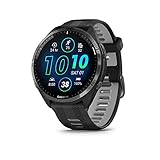
- Brilliant AMOLED touchscreen display with traditional button controls and lightweight titanium bezel
- Battery life: up to 23 days of battery life in smartwatch mode, up to 31 hours in GPS mode
- Confidently run any route using full-color, built-in maps and multi-band GPS
- Training readiness score is based on sleep quality, recovery, training load and HRV status to determine if you’re primed to go hard and reap the rewards (data presented is intended to be a close estimation of metrics tracked)
- Plan race strategy with personalized daily suggested workouts based on the race and course that you input into the Garmin Connect app and then view the race widget on your watch; daily suggested workouts adapt after every run to match performance and recovery
How to quickly confirm your device is supported
The simplest way to check compatibility is inside the Garmin Connect app. If LiveTrack appears in the Safety or Activity Sharing settings for your device, it is supported and ready to configure.
This quick check avoids guesswork and ensures you are not assuming protection that is not actually active. Once confirmed, the next step is setting LiveTrack up correctly so it works reliably when you need it most.
Step-by-Step: How to Set Up Garmin LiveTrack in Garmin Connect
Once you have confirmed that your watch, cycling computer, and phone support LiveTrack, the actual setup is straightforward. Most issues people experience later come from skipping small permissions or notification steps, so it is worth taking a few extra minutes here to do it properly.
Step 1: Open Garmin Connect and select your device
Start by opening the Garmin Connect app on your phone and making sure your Garmin device is connected and syncing normally. You should see the device icon at the top of the app, indicating an active Bluetooth connection.
Tap the device icon, then choose your watch or Edge computer from the device list. This takes you into the device-specific settings where LiveTrack lives.
Step 2: Navigate to LiveTrack settings
Inside your device settings, scroll until you find the Safety or Safety & Tracking section. On most current versions of Garmin Connect, LiveTrack sits either directly under Safety or under Activity Sharing.
Tap LiveTrack to enter the setup screen. If you do not see LiveTrack here, double-check compatibility or ensure your app and device firmware are fully up to date.
Step 3: Turn LiveTrack on and choose how it activates
Toggle LiveTrack on to enable the feature. You will then be asked how you want LiveTrack to start.
You can choose automatic start, where LiveTrack begins every time you start a supported activity like a run or ride, or manual start, where you trigger it each time. Automatic start is strongly recommended for safety, as it removes the risk of forgetting to enable sharing before heading out.
Step 4: Add LiveTrack recipients
Next, choose who can follow your activity. Garmin allows you to send LiveTrack links via email or text message.
Add trusted contacts such as a partner, family member, close friend, or coach. These recipients will receive a link that opens in any web browser, showing your live location, route, pace, and elapsed time without needing a Garmin account.
Step 5: Customize what others can see
Within the LiveTrack settings, you can adjust what data is shared. Location is always included, but you can also choose to display pace, heart rate, and elevation depending on your comfort level.
For safety-focused use, location and elapsed time are usually sufficient. If you are sharing for training oversight or group rides, the additional metrics can be helpful without adding complexity.
Step 6: Grant phone permissions for reliable tracking
This step is critical and often overlooked. Garmin Connect needs permission to run in the background, access location services, and use mobile data continuously during activities.
On iOS, ensure Location Access is set to Always and that Background App Refresh is enabled. On Android, disable battery optimization for Garmin Connect and allow unrestricted background data to prevent LiveTrack from stopping mid-activity.
Step 7: Confirm notification and messaging access
LiveTrack sends initial messages when your activity starts and can update viewers if the connection drops. Make sure Garmin Connect is allowed to send notifications and messages on your phone.
If messages fail to send, your contacts may never receive the LiveTrack link, even though the activity is recording normally on your watch or Edge.
Step 8: Start a test activity before relying on it
Before using LiveTrack on an important solo run or long ride, do a short test activity. Start a walk or quick spin around the block and ask one of your recipients to confirm they can see your location updating in real time.
This test confirms that Bluetooth, mobile data, and permissions are all working together. It also gives you peace of mind that LiveTrack will behave as expected when you actually need it.
Special notes for LTE watches and cycling computers
If you are using an LTE-enabled watch like certain Forerunner or Fenix variants, LiveTrack can function without your phone nearby. In this case, setup still happens through Garmin Connect, but data transmission occurs directly from the watch using its cellular connection.
For Garmin Edge cycling computers, the setup process is nearly identical. The key difference is that LiveTrack starts when you begin a ride on the Edge, using your paired phone or cellular connection, and is especially useful for long road or gravel rides where visibility and safety matter most.
How to Start and Stop LiveTrack During a Run or Ride (On-Watch Walkthrough)
Once everything is configured in Garmin Connect, using LiveTrack during an actual run or ride is refreshingly simple. The key thing to understand is that LiveTrack is tied directly to starting and stopping an activity on your watch or cycling computer.
If you’ve completed the setup and test from the previous section, there’s nothing extra to toggle mid-workout. LiveTrack activates automatically in the background when the activity begins and ends when you save or discard it.
Starting LiveTrack from your Garmin watch
Put on your watch and make sure it’s comfortably secured, especially for running where wrist movement can affect GPS and heart rate accuracy. A snug fit improves tracking reliability and ensures your location updates are smooth and consistent for anyone following you.
Press the top-right button (or equivalent Start button) to open the activity list. Select your activity type, such as Run, Trail Run, Bike, or Gravel Ride, depending on what you’re about to do.
Wait for GPS to lock before starting. On most modern Garmin watches, you’ll see the GPS icon turn green, which indicates your position is locked and accurate enough for LiveTrack sharing.
Press Start to begin the activity. At this moment, LiveTrack is triggered automatically through your phone or LTE connection, and Garmin Connect sends your viewers a message or email with the live tracking link.
What happens on-screen when LiveTrack is active
Your watch does not display a large LiveTrack warning or confirmation once the activity starts. This is intentional, as Garmin treats LiveTrack as a background safety feature rather than a data screen you interact with.
On some models, you may briefly see a small LiveTrack icon or notification during the first few seconds of the activity. After that, the watch behaves exactly as it normally would during a run or ride.
This design choice keeps the interface clean and avoids distractions, especially during intervals, navigation prompts, or structured workouts.
Using LiveTrack during the activity
You don’t need to do anything special to maintain LiveTrack once the activity is running. As long as your watch stays connected to your phone or cellular network, your location updates automatically at regular intervals.
If Bluetooth disconnects briefly or mobile signal drops, LiveTrack may pause temporarily. When the connection is restored, Garmin Connect attempts to resume tracking without any action required from you.
This makes LiveTrack well suited for long outdoor runs, rural cycling routes, and mixed-signal environments where connectivity can fluctuate.
Pausing an activity vs stopping LiveTrack
Pausing your run or ride does not end LiveTrack. If you stop at a traffic light, refill bottles, or take a short break, your viewers can still see your last known location.
This is useful for safety, as it shows that you’ve stopped intentionally rather than disappearing mid-activity. It also avoids unnecessary message alerts to your contacts.
LiveTrack only stops when the activity itself is ended and saved or discarded.
Stopping LiveTrack at the end of your run or ride
When you’re finished, press the Start/Stop button to end the activity. You’ll see the usual options to Resume, Save, or Discard.
Rank #3

- Our brightest AMOLED touchscreen display with button controls and an aluminum bezel in 42 mm size to fit smaller wrists
- Up to 10 days of battery life in smartwatch mode and up to 18 hours in GPS mode for a more complete picture of your training and recovery
- Train for an event, achieve a milestone, or improve your fitness with Garmin Coach training plans; these running and triathlon plans are personalized to you and adapt based on your performance and recovery
- Training readiness score is based on sleep quality, recovery, training load and HRV status to determine if you’re primed to go hard and get the most out of your workout (data presented is intended to be a close estimation of metrics tracked)
- Built-in microphone and speaker let you make and take phone calls from your wrist when your watch is paired to your smartphone — and you can even use your smartphone’s voice assistant to respond to text messages and more
Choose Save to end the activity normally. LiveTrack stops automatically at this point, and your shared link will no longer update.
If you choose Discard, LiveTrack still ends immediately, but the activity will not be saved to Garmin Connect. This can be useful if you accidentally started an activity and don’t want to keep the data.
What your viewers see when LiveTrack ends
Once the activity stops, viewers won’t receive a separate “ended” message. Instead, the LiveTrack page simply stops updating and shows your final location and completed route.
This behavior avoids unnecessary notifications while still making it clear that the session has finished. For family members or partners following along, this is usually enough confirmation that you’re done and safe.
If needed, they can still view the completed activity later in Garmin Connect, provided you share your activities publicly or with them.
Practical tips for smoother LiveTrack sessions
Start your activity outdoors with a clear view of the sky whenever possible. This helps the watch lock GPS faster and improves early tracking accuracy.
Make sure your phone is carried securely and won’t lose signal due to aggressive battery saving or airplane mode. A lightweight running belt or cycling jersey pocket works better than a loose pocket.
If you’re heading out for a long session, consider battery impact. LiveTrack adds minimal drain on the watch itself, but extended GPS use and data transmission can reduce phone battery life faster than usual.
Differences when using Garmin Edge cycling computers
On a Garmin Edge device, the process is almost identical. Select your ride profile, wait for GPS, and press Start.
LiveTrack begins automatically when the ride starts and uses your paired phone or built-in cellular connection, depending on the model. The larger screen makes it easier to confirm GPS lock and sensor connections before rolling out.
Stopping the ride on the Edge ends LiveTrack instantly, just like on a watch, keeping the experience consistent across Garmin’s ecosystem.
What Your Contacts Actually See: LiveTrack Viewer Experience Explained
Up to this point, everything has focused on what happens on your watch or Edge device. Just as important is the experience on the other end, because LiveTrack only works as a safety tool if your contacts understand what they’re looking at and how to use it.
When LiveTrack starts, your chosen contacts receive a text message or email containing a secure web link. They don’t need a Garmin account, the Garmin Connect app, or any technical setup beyond opening that link in a browser.
The LiveTrack viewer page at a glance
The link opens a clean, mobile-friendly map view that centers on your current GPS position. Your location updates automatically as you move, typically every few seconds, depending on signal quality and network coverage.
Your name or device name appears at the top, along with the activity type such as Run, Ride, or Walk. This helps viewers immediately understand what you’re doing and sets expectations for speed and route changes.
Below the map, viewers can see basic stats like elapsed time, distance covered, and current pace or speed. These aren’t meant for performance analysis, but they add context so followers can tell whether things look normal for you.
How real-time tracking behaves during your activity
As you move, the route draws itself on the map, creating a breadcrumb trail of where you’ve been. If you stop at a traffic light, aid station, or café, your icon pauses in place rather than jumping erratically.
Small GPS variations are normal, especially in cities or wooded areas, and viewers may notice slight wobbles in the track. This doesn’t indicate a problem; it’s simply the reality of satellite positioning in challenging environments.
If your phone temporarily loses signal, the map may stop updating for a short time. Once connectivity returns, LiveTrack usually catches up without requiring any action from you or your viewer.
What viewers can and cannot do
LiveTrack is strictly view-only for your contacts. They can’t message you through the map, control your device, or see personal health data like heart rate or stress.
The page also doesn’t expose historical activity details beyond the current session. This keeps the experience focused on safety and situational awareness rather than training metrics.
For many runners and cyclists, this simplicity is a benefit. A partner or family member can quickly check where you are without needing to understand Garmin’s broader ecosystem.
How alerts and incidents appear to viewers
If you’ve enabled incident detection or assistance, LiveTrack becomes even more valuable. In the event of a detected incident or a manual assistance trigger, viewers receive a separate alert with a link pointing to your last known location.
On the map, your position is clearly marked, making it easier for someone to decide whether to call you, check in, or contact emergency services. This is where LiveTrack shifts from convenience to genuine safety support.
It’s worth explaining this behavior to close contacts ahead of time, so they know that an alert means something needs attention, not just a routine update.
What happens if you pause, resume, or change direction
Pausing an activity doesn’t end LiveTrack. Viewers will simply see your location remain stationary, which often matches real-world behavior like stretching or waiting for traffic.
When you resume, tracking continues seamlessly, with no new link or notification sent. Direction changes are reflected naturally as the route redraws itself in real time.
This continuity is reassuring for viewers, especially during long runs or rides where stops are expected rather than alarming.
Privacy, access, and link security
Each LiveTrack link is unique to that activity session. Once the session ends, the link stops updating and effectively becomes inactive.
Only people you’ve chosen receive the link, and it can’t be used to track you outside of that specific activity. This balance between visibility and control is one of LiveTrack’s understated strengths.
If privacy is a concern, you can always review and adjust your LiveTrack contact list in Garmin Connect, tailoring it differently for solo runs, long rides, or group events.
Real-World Safety Use Cases for Runners and Cyclists
With privacy and behavior clearly understood, it helps to see how LiveTrack fits into everyday training scenarios. These are the situations where sharing your location quietly in the background can make a meaningful difference without changing how you run or ride.
Solo early-morning or late-night runs
Running outside of daylight hours is common, especially for people fitting training around work or family schedules. LiveTrack allows a partner or family member to see that you’re moving as expected, rather than wondering whether a delay is cause for concern.
If your pace suddenly drops or your location stops changing for an unusual amount of time, it’s immediately visible on the map. Combined with incident detection on supported Garmin watches, this gives an extra layer of reassurance without requiring constant check-in messages.
Long-distance training runs away from familiar routes
Marathon and ultra training often pushes runners into longer, less predictable routes. When you’re several miles from home, LiveTrack lets someone follow your progress without needing to know the planned route in advance.
This is especially useful when fatigue sets in and decision-making isn’t as sharp. If you detour, shorten the run, or stop for a break, viewers can see those changes unfold naturally rather than guessing what happened.
Cycling on open roads with traffic exposure
For cyclists, LiveTrack is particularly valuable on roads shared with cars. If you’re riding solo, a contact can see your exact position and direction, which is far more useful than a vague “out riding” message.
Rank #4

- Easy-to-use running watch monitors heart rate (this is not a medical device) at the wrist and uses GPS to track how far, how fast and where you’ve run.Special Feature:Bluetooth.
- Battery life: up to 2 weeks in smartwatch mode; up to 20 hours in GPS mode
- Plan your race day strategy with the PacePro feature (not compatible with on-device courses), which offers GPS-based pace guidance for a selected course or distance
- Run your best with helpful training tools, including race time predictions and finish time estimates
- Track all the ways you move with built-in activity profiles for running, cycling, track run, virtual run, pool swim, Pilates, HIIT, breathwork and more
In the event of a crash or mechanical issue, incident alerts can direct someone to your last known location quickly. Even without an alert, a stationary position on a roadside map often prompts a timely check-in call.
Remote rides with limited cell coverage
Many popular cycling and trail-running routes dip in and out of cellular service. LiveTrack will update whenever a connection is available, so viewers may see brief pauses rather than a complete disappearance.
Knowing this behavior ahead of time helps contacts interpret gaps calmly. A paused track in a known low-signal area is far less worrying than silence with no context.
Trail runs and off-road adventures
Trail running introduces variables that don’t exist on pavement, such as uneven footing, weather changes, and limited access points. LiveTrack provides a visual reference that helps others understand where you are relative to trailheads, roads, or known landmarks.
If you take a wrong turn or decide to cut a run short, the live map removes guesswork. This can be invaluable when help needs to reach you from the nearest access point rather than your planned start location.
Group rides and staggered starts
LiveTrack isn’t just for emergencies. In group rides where people start at different times or split based on pace, sharing a LiveTrack link helps riders regroup without constant messaging.
It also gives someone at home a clearer picture of when the group is likely to finish. That’s particularly useful on long weekend rides where finish times can drift as conditions change.
Commuting by bike in urban environments
Urban cycling comes with frequent stops, traffic lights, and unpredictable delays. LiveTrack’s ability to show pauses and resumes accurately means a stationary dot isn’t automatically alarming.
For daily bike commuters, this can become a quiet habit that adds reassurance without feeling intrusive. The small size and comfort of most Garmin watches, combined with strong battery life, make it practical to leave LiveTrack enabled even on shorter rides.
Traveling and running in unfamiliar cities
Running while traveling often means unfamiliar streets, different traffic patterns, and less intuitive navigation. LiveTrack lets someone back home follow along without needing to know the city or route.
If you need directions, assistance, or simply reassurance in an unfamiliar environment, knowing someone can see where you are adds confidence. It’s a subtle but powerful way to reduce the mental load of running somewhere new.
Using LiveTrack as a confidence tool, not a crutch
Across all these scenarios, the real strength of LiveTrack is how little attention it demands. Once enabled, it works quietly in the background, relying on the Garmin Connect app and your phone’s data connection without draining your watch battery aggressively.
Used thoughtfully, it supports independence rather than replacing it. You still train, explore, and push yourself as normal, but with the comfort of knowing someone can see what’s happening if something doesn’t go as planned.
Battery Life, Data Usage, and Reliability: What to Expect in Real Conditions
Once LiveTrack becomes part of your routine, the next questions are practical ones. How much battery does it really use, how much mobile data does it consume, and how reliable is it when conditions aren’t perfect.
Understanding these trade-offs helps you use LiveTrack confidently rather than wondering if it’s quietly draining your watch or phone in the background.
How LiveTrack affects watch battery life
LiveTrack itself is lightweight on the watch. The biggest battery draw still comes from GPS tracking, heart rate monitoring, and any connected sensors you’re using during the activity.
In real-world testing across Forerunner, Fenix, and Venu-series watches, enabling LiveTrack typically has a negligible impact compared to recording the same activity without it. On a one-hour run or ride, most users won’t see a measurable difference in watch battery percentage.
Where battery impact becomes more noticeable is on very long activities. Multi-hour rides, ultras, or all-day hikes stack GPS usage, screen wake-ups, and Bluetooth communication, which can shave some margin off your remaining battery even if LiveTrack isn’t the primary cause.
Phone battery drain: the hidden cost
LiveTrack relies heavily on your smartphone. The Garmin Connect app maintains a Bluetooth connection to the watch and periodically uploads location updates using your phone’s data connection.
On shorter activities, the impact is modest. Expect slightly higher drain than recording an activity without LiveTrack, similar to running a navigation app in the background without the screen constantly on.
Over longer sessions, especially with poor signal, phone battery drain increases. If you’re heading out for a long ride or run, starting with a well-charged phone matters more for LiveTrack reliability than starting with a fully charged watch.
What about LTE-enabled Garmin watches?
Garmin watches with LTE support, such as the Forerunner 945 LTE, handle LiveTrack differently. These models can share location and trigger safety features without a phone nearby, using Garmin’s LTE service instead of your personal data plan.
Battery impact is higher when LTE is active compared to Bluetooth tethering. Garmin manages this by limiting how often data is transmitted, prioritizing safety and efficiency over constant real-time streaming.
For runners who leave their phone behind, LTE-based LiveTrack offers peace of mind with a clear trade-off. You gain independence at the cost of shorter maximum activity duration when LTE features are enabled.
How much mobile data does LiveTrack use?
LiveTrack is surprisingly efficient with data. For most runs or rides, data usage is measured in megabytes, not hundreds of megabytes.
A typical one-hour activity usually consumes less data than streaming a single song. Even frequent users who enable LiveTrack several times a week are unlikely to notice a meaningful change in their monthly data usage unless they are already on a very limited plan.
The biggest data spikes tend to happen when signal quality fluctuates. In areas with patchy coverage, the app may retry uploads, increasing usage slightly while also affecting reliability.
Reliability in urban, rural, and remote environments
In cities with strong mobile coverage, LiveTrack is generally stable and accurate. Updates are frequent, pauses are clearly shown, and viewers see near real-time progress.
In rural areas, reliability depends almost entirely on your phone’s signal rather than the watch itself. LiveTrack may lag, update in bursts, or temporarily stop transmitting until coverage improves.
In remote or mountainous terrain with no mobile signal, LiveTrack cannot update at all unless you’re using an LTE-capable Garmin watch within supported coverage. Viewers will see your last known location, which is still useful context but not a substitute for full tracking.
Understanding delays and “frozen” locations
A paused or unmoving dot on a LiveTrack map isn’t always cause for concern. Traffic lights, coffee stops, trail junctions, or brief signal loss can all make the map appear static.
Garmin does a good job of distinguishing between pauses and movement once the connection stabilizes again. That’s why setting expectations with whoever you share your link with is important, especially for longer activities.
Explaining that brief gaps or delayed updates are normal helps prevent unnecessary worry when LiveTrack is working as designed.
Best practices for dependable LiveTrack sessions
Before starting, open Garmin Connect and make sure it’s running normally in the background. Battery-saving modes or aggressive app-killing settings on some Android phones can interrupt LiveTrack unexpectedly.
Starting your activity with clear GPS lock and strong mobile signal improves early reliability. If LiveTrack connects cleanly at the beginning, it’s more likely to remain stable throughout the session.
For longer outings, carrying a small battery pack for your phone can extend LiveTrack reliability far more effectively than trying to conserve watch battery alone.
LiveTrack vs Incident Detection & Assistance: How Garmin’s Safety Features Work Together
Once you understand LiveTrack’s strengths and limitations, the next step is knowing how it fits into Garmin’s wider safety system. LiveTrack, Incident Detection, and Assistance are designed to complement each other rather than overlap, covering different scenarios before, during, and after an activity.
💰 Best Value

- Brilliant AMOLED touchscreen display with traditional button controls; lightweight design in 46 mm size
- Up to 13 days of battery life in smartwatch mode and up to 20 hours in GPS mode
- As soon as you wake up, get your morning report with an overview of your sleep, recovery and training outlook alongside HRV status, training readiness and weather (data presented is intended to be a close estimation of metrics tracked)
- Plan race strategy with personalized daily suggested workouts based on the race and course that you input into the Garmin Connect app and then view the race widget on your watch; daily suggested workouts adapt after every run to match performance and recovery
- Training readiness score is based on sleep quality, recovery, training load and HRV status to determine if you’re primed to go hard and get the most out of your workout (data presented is intended to be a close estimation of metrics tracked)
Think of LiveTrack as continuous awareness, while Incident Detection and Assistance are emergency triggers. Used together, they create a layered safety net that works in both predictable and unexpected situations.
LiveTrack: proactive visibility rather than emergency response
LiveTrack’s role is preventative. It lets trusted contacts follow your progress in real time, see your pace and location, and understand where you are supposed to be during a run or ride.
Because it’s always-on once the activity starts, LiveTrack is especially valuable for longer solo sessions, early-morning runs, or routes that pass through isolated areas. Friends or family don’t need an alert to check in; they can simply open the link and see that everything looks normal.
Importantly, LiveTrack does not automatically assume something is wrong if you stop moving. A long pause could mean a café stop, a traffic light, or a stretch break, which is why LiveTrack alone isn’t designed to trigger emergency responses.
Incident Detection: automatic alerts when something goes wrong
Incident Detection fills the gap LiveTrack intentionally leaves open. Using accelerometer data, GPS speed changes, and impact detection, compatible Garmin watches can recognize a sudden stop or crash during activities like running or cycling.
When an incident is detected, your watch starts a countdown and vibrates to get your attention. If you don’t cancel the alert within the set time, Garmin sends an automatic message with your last known location to your emergency contacts.
This feature is reactive rather than continuous. It only activates when the watch believes an abnormal event has occurred, which is why it works best as a backup to LiveTrack, not a replacement.
Assistance: manual control when you know you need help
Assistance is the manual counterpart to Incident Detection. If you feel unsafe, unwell, or simply need help, you can trigger an alert yourself by holding a button or using a touch gesture, depending on your watch model.
This is particularly useful in situations where there’s no crash or sudden impact, such as heat exhaustion, getting lost, or feeling threatened. LiveTrack viewers might see you slowing down or stopping, but Assistance ensures an explicit call for help is sent.
Like Incident Detection, Assistance relies on your connected phone or LTE capability to send messages. It doesn’t require an activity to be running, which makes it valuable even outside workouts.
How these features work together in real-world scenarios
During a normal solo run, LiveTrack provides passive reassurance. A partner can see your route unfolding and know you’re moving as expected, without any alerts being triggered.
If you trip and fall hard enough to register as an incident, Incident Detection takes over automatically. At that point, LiveTrack gives added context by showing where you were headed and how long you’d been stationary.
If you sense danger before anything happens, Assistance lets you escalate the situation instantly. The combination ensures coverage whether the problem is gradual, sudden, or perceived only by you.
Limitations you should understand before relying on them
All three features depend on connectivity. Without mobile signal, alerts cannot be sent in real time, and LiveTrack updates will freeze at the last known location.
Incident Detection isn’t perfect and can be triggered accidentally by sharp braking on a bike or abrupt movements. That’s why it always gives you a chance to cancel before notifying contacts.
LiveTrack viewers should never assume silence means danger. A stable but unmoving dot often reflects connectivity issues rather than an emergency, which is why pairing LiveTrack with Incident Detection or Assistance is critical.
Choosing the right setup for your activities
For urban runners with strong mobile coverage, LiveTrack plus Incident Detection offers a solid balance of awareness and automatic response. The watch stays comfortable, battery impact remains modest, and alerts are reliable.
Cyclists, especially those riding on roads or gravel, benefit heavily from Incident Detection layered on top of LiveTrack. The higher speeds and greater crash risk make automatic alerts far more relevant.
For trail runners or endurance athletes heading into less predictable environments, using all three features together provides the most complete safety coverage. Even when LiveTrack can’t update consistently, the emergency features still give you a way to call for help when it matters most.
Limitations, Privacy Considerations, and Best Practices for Using LiveTrack Safely
Understanding where LiveTrack excels, and where it falls short, is what turns it from a nice-to-have feature into a genuinely reliable safety tool. Used thoughtfully, it adds confidence without compromising privacy or draining your watch at the wrong moment.
Connectivity and coverage are the biggest limiting factors
LiveTrack relies entirely on a data connection, either through your phone or, on LTE-capable Garmin watches, through the watch itself. If mobile coverage drops, the map view freezes at the last known location, even though your activity continues recording normally on the watch.
This is especially relevant for trail runners, cyclists in rural areas, or anyone training in mountain regions. LiveTrack should be seen as situational awareness, not a guarantee of continuous visibility in every environment.
Battery life also plays a role on longer outings. While LiveTrack itself is relatively efficient, combining GPS, sensors, music playback, and mobile data can shorten real-world endurance, particularly on smaller watches with lighter housings.
Privacy trade-offs you should actively manage
LiveTrack shares your real-time location, route, pace, and elapsed time with anyone who has the viewing link. While links are hard to guess and typically expire after the activity, they should still be treated as sensitive.
It’s best practice to send LiveTrack links only to trusted contacts rather than posting them publicly. For recurring training routes near your home, consider starting LiveTrack after you’ve moved away from your exact address.
Garmin Connect allows you to control who receives LiveTrack links and whether they’re sent automatically. Reviewing these settings periodically helps prevent accidental oversharing as your training habits evolve.
Why LiveTrack should never be your only safety plan
LiveTrack is observational, not reactive. It shows where you are, but it doesn’t notify contacts if something goes wrong unless it’s paired with Incident Detection or Assistance.
A viewer seeing you stop moving has no way to know whether you’re stretching, resting, or in trouble. This is why LiveTrack works best as context layered on top of features that actively send alerts when action is needed.
For this reason alone, LiveTrack should be considered complementary rather than sufficient on its own, particularly for high-risk activities like road cycling or solo trail runs.
Best practices for using LiveTrack confidently and responsibly
Before heading out, confirm that your phone has sufficient battery and that Bluetooth connectivity is stable. A loose connection or aggressive background app management can silently interrupt updates.
Tell your contacts what LiveTrack is and what it isn’t. Let them know that pauses or frozen locations don’t automatically indicate danger, and explain which emergency features you’re also using.
Start LiveTrack manually for intentional sessions rather than relying solely on auto-start, especially when safety is the goal. That moment of confirmation ensures everything is connected and working as expected.
Device comfort, fit, and durability matter more than you think
A watch that’s uncomfortable or poorly fitted is more likely to be adjusted mid-activity, increasing the chance of accidental button presses or disrupted sensors. Secure straps, breathable materials, and a case size appropriate for your wrist improve reliability as much as comfort.
For cyclists, a snug fit reduces false Incident Detection triggers from vibration. For runners, consistent wrist contact improves GPS and heart rate accuracy, which in turn makes LiveTrack data clearer for viewers.
Durable construction and water resistance also matter in real-world use. A watch built to handle sweat, rain, and knocks is more likely to stay functional when safety features are needed most.
When LiveTrack makes the most sense to use
LiveTrack shines during solo sessions, longer efforts, and unfamiliar routes. It’s especially valuable when your schedule deviates from the norm, such as early-morning runs, late-evening rides, or travel workouts in new cities.
For short, routine workouts in well-covered areas, it may be unnecessary. Choosing when to enable LiveTrack helps balance awareness, privacy, and battery life without overusing the feature.
Bringing it all together
Garmin LiveTrack isn’t about constant monitoring or worst-case thinking. It’s about giving the people who care about you a window into your activity, without getting in the way of the run or ride itself.
When paired with Incident Detection and Assistance, set up thoughtfully, and used with an understanding of its limits, LiveTrack becomes a quiet but powerful layer of reassurance. It doesn’t replace preparation or awareness, but it does make heading out alone feel more confident, controlled, and connected.