Garmin Maps are one of those features that sound simple on the spec sheet but feel confusing the moment you actually try to use them. If you have ever opened the map screen on your watch and wondered where the roads came from, why some trails appear and others do not, or why navigation works differently depending on the model, you are not alone.
At their core, Garmin Maps turn your watch into a standalone navigation device, not just a breadcrumb tracker. Unlike basic GPS watches that only draw a line showing where you have been, mapping-enabled Garmin watches display actual cartography with roads, trails, contour lines, water features, and points of interest directly on the watch screen.
Before you start downloading maps or following routes, it helps to understand how Garmin’s mapping system is built, which watches support it, and what your watch is actually doing in the background when you hit “Navigate.”
Garmin Maps vs basic GPS tracking
Every Garmin watch with GPS can record your position, but not every Garmin watch has maps. On non-mapping watches like the Forerunner 55 or Instinct (original), GPS creates a breadcrumb trail that you can follow back, but there is no underlying map data.
🏆 #1 Best Overall

- Bright, high-resolution 5” glass capacitive touchscreen display lets you easily view your route
- Get more situational awareness with alerts for school zones, speed changes, sharp curves and more
- View food, fuel and rest areas along your active route, and see upcoming cities and milestones
- View Tripadvisor traveler ratings for top-rated restaurants, hotels and attractions to help you make the most of road trips
- Directory of U.S. national parks simplifies navigation to entrances, visitor centers and landmarks within the parks
Mapping watches like the Fenix series, Epix, Forerunner 945/955/965, Enduro, and certain Edge bike computers store actual map files in their internal memory. These maps are rendered in real time as you move, allowing turn prompts, street names, trail intersections, and off-course alerts.
This distinction matters in real-world use. With maps, you can navigate unfamiliar cities, complex trail networks, or long bike routes without preloading every turn into your head.
What kind of maps Garmin uses
Garmin watches primarily rely on vector-based maps, not static images. Vector maps are lightweight, scalable, and interactive, which is why your watch can zoom, pan, rotate, and redraw the map smoothly even on a small screen.
Most modern mapping watches come with preloaded TopoActive maps for your region. These include roads, trails, elevation contours, parks, and land features, optimized for outdoor use rather than car navigation. Some models also support additional map types like ski maps, golf course maps, or marine charts.
Because these are real map files stored on the watch, they work completely offline once installed. No phone signal or data connection is required during your activity.
Which Garmin watches actually support maps
Garmin’s lineup can be confusing, especially since two watches may look similar but behave very differently when it comes to navigation. Generally, mapping is reserved for mid-range to high-end models with enough storage and processing power.
Examples include the Fenix 6 and newer, Epix Gen 2, Forerunner 945, 955, and 965, Enduro models, and Edge cycling computers like the Edge 530 and 840. Watches like the Venu, Vivoactive, and lower-end Forerunners usually offer breadcrumb navigation at best, but no full maps.
Storage is a key limiter here. Mapping watches typically have anywhere from 8GB to 32GB of internal memory, which directly affects how many regions or map layers you can install.
How maps live on your watch
Garmin Maps are stored locally on your device as map files, not streamed from your phone. When you install or update maps, you are physically transferring large data files to the watch’s internal storage.
This is why map updates often require Garmin Express on a computer, especially for full regional maps. Garmin Connect on your phone can handle smaller downloads like courses or points of interest, but it is not always practical for multi-gigabyte map files.
Once installed, the watch’s GPS chip determines your location, and the software draws your position on top of the stored map data in real time.
How navigation works during an activity
When you start a run, hike, or ride with navigation enabled, your watch combines three things: GPS positioning, map data, and a course or destination. The GPS tells the watch where you are, the map shows what is around you, and the course defines where you want to go.
You can navigate in several ways. You might follow a preloaded course, navigate to a saved location, select a point of interest like a café or summit, or even ask some models to calculate a round-trip route automatically.
During the activity, the watch gives turn alerts, distance-to-next cues, and off-course warnings depending on the mode and map detail available.
Why maps feel different across models
Even within Garmin’s mapping lineup, the experience can vary noticeably. Screen size, resolution, and display technology play a big role in usability.
An Epix with an AMOLED display shows richer colors and clearer contrast, making dense trail maps easier to read at a glance. A Fenix with a memory-in-pixel display favors battery life and sunlight readability, which many ultrarunners and hikers still prefer.
Battery life also changes behavior. Mapping and navigation consume more power than basic tracking, so Garmin carefully balances refresh rates and GPS modes depending on the watch and activity profile.
What maps do not do
Garmin Maps are not Google Maps on your wrist. They do not show live traffic, storefront reviews, or dynamically reroute around congestion.
Route calculation is designed for outdoor efficiency and battery conservation, not urban convenience. You usually get one clear route and guidance along it, rather than constant recalculation.
Understanding these limits helps set expectations and makes Garmin’s approach feel purposeful rather than outdated.
How this sets you up for the next steps
Once you understand that Garmin Maps are offline, device-stored, and deeply tied to your watch model and storage, everything else starts to make sense. Downloading maps, updating regions, and loading routes are all about managing what lives on the watch and how it is accessed during an activity.
With that foundation in place, the next step is learning how to actually get the right maps onto your watch and keep them current, without wasting storage or battery life.
Which Garmin Watches Support Full Maps (And What ‘Mapping’ Really Means by Model)
With the basics of how Garmin Maps work now clear, the next question is the one most owners ask first: does my watch actually support maps, or just navigation cues. Garmin uses the word “mapping” broadly, but the real-world experience ranges from breadcrumb lines on a blank screen to full-color, routable maps with points of interest.
Understanding where your watch sits on that spectrum will save you a lot of frustration later when you start downloading regions, loading courses, or expecting turn-by-turn guidance.
Full maps vs. basic navigation: the critical difference
When Garmin says a watch has full maps, it means the device can store detailed cartographic data internally. You see trails, roads, elevation contours, water, parks, and named points of interest rendered directly on the watch screen.
These maps are routable. The watch can calculate paths along trails or roads, give turn alerts, and warn you when you leave the route, all without a phone connection.
By contrast, watches without full maps can still navigate. They show a breadcrumb trail of where you’ve been or where a course goes, but that line floats on an empty background. You follow the line, not the terrain.
Garmin watches with full onboard maps
As of the current lineup, full mapping is reserved for Garmin’s higher-end multisport and outdoor watches. This is primarily a hardware decision driven by storage capacity, processing power, and screen size.
You get full maps on the following families:
– Fenix series (Fenix 6 Pro and newer, including Fenix 7 and 7 Pro models)
– Epix (Gen 2 and Pro)
– Enduro series
– MARQ (all current MARQ Gen 2 models)
– Tactix series
– Certain Forerunner models, most notably the Forerunner 955 and 965
– Select D2 aviation models
These watches ship with preloaded regional maps and enough internal storage to manage multiple countries or large trail networks. They are designed to be worn for long efforts, so battery life is tuned to keep navigation usable for hours or days.
How mapping feels on Fenix vs. Epix
On paper, a Fenix 7 and an Epix Gen 2 support the same maps. In practice, they feel very different on the wrist.
The Epix’s AMOLED display offers higher resolution and stronger color separation. Dense trail junctions, contour lines, and urban detail are easier to parse quickly, especially when zooming and panning mid-run or hike.
The Fenix’s memory-in-pixel display trades visual richness for endurance. It remains readable in harsh sunlight and consumes far less power during long navigations, which is why it remains popular with ultrarunners, mountaineers, and expedition users.
Forerunner mapping: powerful but purpose-built
The Forerunner 955 and 965 bring full maps to Garmin’s performance running line. These watches are lighter and slimmer than a Fenix, making them more comfortable for daily training and racing.
Mapping on a Forerunner is optimized for speed and clarity rather than exploration. You get excellent course following, turn alerts, and off-course warnings, but fewer on-watch map management tools compared to a Fenix or Epix.
Battery life remains strong, but heavy map panning or frequent route recalculation will drain it faster than on Garmin’s outdoor-focused models.
Watches without full maps: what you still get
Models like the Forerunner 255, Instinct series, Venu, Vivoactive, and older Forerunners do not support full maps. That does not mean they are useless for navigation.
These watches support breadcrumb navigation, course following, and back-to-start features. You can load a GPX course from Garmin Connect, follow it during an activity, and receive alerts if you drift off the line.
For road running, track workouts, or simple trail routes, this can be more than sufficient. The trade-off is that you must rely on the course itself, not the surrounding terrain, to make decisions.
Instinct and the outdoor exception
The Instinct line deserves special mention. Despite lacking full maps, Instinct watches are extremely capable outdoor tools.
You get multi-band GPS on newer models, strong track recording, TracBack routing, and excellent battery life in a rugged, lightweight case. For users who prefer simplicity or already plan routes carefully in advance, this approach can feel refreshing rather than limiting.
What you give up is on-the-fly decision making using visible trails or nearby points of interest.
Storage, performance, and why Garmin draws the line
Full maps require significant internal storage, often several gigabytes per region. They also demand more processing power to handle zooming, panning, and route calculation without lag.
This is why Garmin restricts mapping to larger, more expensive watches with thicker cases and higher price tags. It is not just a software lock; it is a hardware reality.
In real-world use, this also affects comfort and wearability. A Fenix or Epix is heavier on the wrist than a Forerunner 255, but that weight supports features designed for longer, more complex adventures.
How to check if your watch supports maps
The fastest way is on the watch itself. If you can open a Map screen outside of an activity and pan around visible roads or trails, you have full maps.
In Garmin Connect or Garmin Express, full mapping watches show downloadable map regions under device settings. Non-mapping watches will not display these options.
Knowing this before you start downloading files or planning routes helps you choose the right workflow, which becomes especially important in the next steps of managing and updating maps efficiently.
Choosing the right Garmin for your navigation needs
If your activities involve complex trail networks, multi-day hikes, bikepacking, or unfamiliar terrain, full maps are worth the investment. They reduce mental load and make mid-activity decisions safer and faster.
If you mostly run roads, follow known routes, or rely on preplanned courses, breadcrumb navigation may be all you need. Garmin’s lineup is broad by design, and mapping is one of the clearest dividing lines between models.
Once you know exactly what your watch can and cannot display, learning how to download the right maps and keep them current becomes straightforward rather than overwhelming.
Understanding Map Types: TopoActive, City Navigator, Ski, Golf and Third‑Party Maps
Once you know your watch supports full maps, the next decision is which maps you actually need. Garmin offers several map types that look similar at first glance but behave very differently once you start navigating.
Choosing the right combination matters for storage space, routing accuracy, battery life during navigation, and how readable the map feels on a small wrist-mounted screen.
TopoActive maps: the everyday default for outdoor users
TopoActive maps come preloaded on most mapping-enabled Garmin watches, including Fenix, Epix, Enduro, and many higher-end Forerunners. They are designed to be a general-purpose outdoor map rather than a specialist one.
These maps include elevation contours, trails, unpaved roads, waterways, and land features alongside basic road data. For hiking, trail running, gravel riding, and general exploration, this is the map most users rely on daily.
TopoActive maps support turn-by-turn routing for walking, hiking, running, and cycling. That means if you load a course or ask the watch to navigate to a point, it can calculate a sensible route rather than just drawing a straight line.
On-watch performance is tuned for battery efficiency. Zooming and panning are smooth but intentionally conservative to preserve power during long activities, especially on solar-assisted models like Fenix Solar or Enduro.
Rank #2

- Compact, lightweight satellite communicator enables two-way messaging and interactive SOS globally (Active satellite subscription required. Some jurisdictions regulate or prohibit the use of satellite communication devices.).Special Feature:Bluetooth.Water Resistant: Yes
- Navigate back to where you started by using TracBack routing
- Share your location with loved ones back home at any time (active satellite subscription required) by using your MapShare page or with your coordinates embedded in your messages
- Get accurate heading information using the digital compass — even when you’re not moving
- Sync with the Garmin Explore app and website on your compatible smartphone for trip planning and topographical mapping, and create waypoints, courses, activities and collections you can sync to your device
City Navigator: road-focused maps for cyclists and drivers
City Navigator maps are optimized for paved roads, intersections, and address-based navigation. They are commonly used on Garmin Edge bike computers and automotive GPS units but are also compatible with some watches.
If you do a lot of road cycling, touring, or urban navigation, City Navigator offers clearer street labeling and more reliable turn prompts in dense areas. Lane-level detail and intersection logic are stronger than on TopoActive.
These maps are not typically preinstalled on watches and often require a separate download or purchase through Garmin Express. They also take up more storage, which can matter on watches with limited internal memory.
For most runners and hikers, City Navigator is unnecessary. It shines when your activities are primarily road-based and you care more about street accuracy than trail visibility.
Ski maps: resort navigation without guesswork
Ski maps are included on many adventure-focused watches and activate automatically when you start a ski or snowboard activity. They are built around resort layouts rather than traditional navigation.
These maps show named runs, lift lines, difficulty ratings, and resort boundaries. When you glance at the map mid-run, it is immediately clear which piste you are on and how to reach another lift.
Ski maps do not offer turn-by-turn navigation in the traditional sense. Instead, they provide spatial awareness, helping you orient yourself quickly in unfamiliar resorts without pulling out a phone.
Because they are seasonal and region-specific, ski maps usually occupy less space than full road maps. Updates are tied to Garmin’s seasonal data refresh rather than frequent road changes.
Golf maps: precision mapping for the course
Garmin’s golf maps are highly specialized and behave differently from other map types. They focus on individual holes rather than navigation from point to point.
These maps show greens, hazards, bunkers, and fairway layouts with front, middle, and back distances. On higher-end watches, you can move the pin location manually for more accurate yardage.
Golf maps are optimized for clarity on small displays and prioritize readability over geographic scale. You are not navigating across terrain so much as making precise distance decisions shot by shot.
Most golf-capable Garmin watches include thousands of courses preloaded, with updates delivered through Garmin Connect or Express. Storage impact is modest because the data is tightly structured.
Third‑party maps: OpenStreetMap and beyond
Garmin allows third-party maps to be installed manually, most commonly based on OpenStreetMap data. These are popular with users who want niche coverage or enhanced trail detail.
Examples include regional trail-focused maps, heatmap-style overlays, or cycling-specific maps with surface type emphasis. Some users prefer these for backcountry use where official maps lag behind local trail changes.
Installing third-party maps usually requires Garmin Express and a USB connection to your watch. File management is manual, which means you need to pay attention to storage limits and map naming to avoid conflicts.
Quality varies widely. Some third-party maps route beautifully, while others are better suited for visual reference only. Testing them on a short activity before committing to a long adventure is essential.
How map types affect battery life and performance
Different maps place different demands on your watch’s hardware. Road-heavy maps with dense labels require more frequent redraws, which can slightly increase power consumption during navigation.
TopoActive maps strike a balance between detail and efficiency, which is why Garmin ships them as the default. They are designed to work well with wrist-sized processors and limited RAM.
If you notice sluggish panning or delayed turn prompts, it is often due to overlapping map layers rather than the watch itself. Disabling unused maps can noticeably improve responsiveness.
Choosing the right map mix for your activities
Most users are best served by keeping TopoActive maps enabled and adding specialist maps only when there is a clear need. This keeps storage tidy and performance predictable.
Road cyclists may benefit from City Navigator, resort skiers from ski maps, and dedicated golfers from keeping course data fully updated. Third-party maps are powerful tools but reward users who are comfortable managing files.
Garmin’s strength is flexibility, but restraint matters. A clean, purposeful map setup makes on-watch navigation faster, clearer, and far less distracting when you are deep into an activity.
How to Download Garmin Maps: On‑Watch Wi‑Fi vs Garmin Express on Your Computer
Once you have a clear idea of which maps you actually need, the next decision is how to get them onto your watch. Garmin gives you two official methods, and while both achieve the same end result, they feel very different in day‑to‑day use.
On‑watch Wi‑Fi downloads are convenient and cable‑free, while Garmin Express on a computer offers more control and reliability for large files. Knowing when to use each can save hours of waiting, failed installs, or mysterious storage warnings before an activity.
Which Garmin watches can download maps directly over Wi‑Fi
On‑watch map downloads are available on Garmin models with built‑in Wi‑Fi and full mapping support. This includes most recent Fenix, Epix, Forerunner 955 and 965, Enduro, tactix, and higher‑end Edge bike computers.
Entry‑level Forerunner models and Instinct watches generally lack on‑device map downloads, even if they support breadcrumb navigation. If your watch can display full TopoActive maps, chances are it can also download them over Wi‑Fi.
You will need a stable Wi‑Fi network, sufficient battery charge, and enough free storage before starting. Garmin recommends at least 50 percent battery, but in practice, plugging the watch into a charger avoids interruptions.
Downloading maps directly on your watch using Wi‑Fi
On supported watches, map downloads happen entirely on the device without needing a phone or computer. This is the fastest way to add a new region when you realize you are missing coverage just before a trip.
From the watch, open the Map Manager, then select Add Map or Manage Maps depending on the model. You will see available regions for TopoActive, ski, or golf maps based on your device and location.
Select the region you want, confirm the download, and leave the watch connected to Wi‑Fi. Large regions can take anywhere from 20 minutes to several hours, especially for TopoActive maps with elevation data.
During the download, the watch may appear idle or dim the screen to save power. This is normal, and interrupting the process can corrupt the map file, forcing you to restart.
When on‑watch downloads make the most sense
Wi‑Fi downloads are ideal for quick additions and casual users who do not want to deal with cables or desktop software. They work well for adding a neighboring country, a ski resort map, or refreshing an existing map while traveling.
They also shine for people who primarily live in Garmin Connect and rarely use a computer. The experience feels closer to a smartphone app install than traditional GPS device management.
The trade‑off is speed and visibility. You cannot easily see detailed file sizes, storage breakdowns, or partial installs, which can matter if your watch is already packed with music, courses, and activities.
Downloading Garmin maps using Garmin Express on your computer
Garmin Express remains the most powerful and predictable way to manage maps. It works on both Windows and macOS and requires a USB connection to your watch.
Once connected, Garmin Express scans your device and shows all available map updates and optional regions. This is where you will see full TopoActive continent downloads, City Navigator regions, and firmware‑linked map updates.
Downloads are generally faster and more stable than Wi‑Fi, especially for multi‑gigabyte files. You can also pause, resume, or troubleshoot downloads far more easily.
Step‑by‑step: installing maps with Garmin Express
Install Garmin Express on your computer and sign in with the same Garmin account used by your watch. Connect the watch via USB and wait for it to be recognized.
Open the device page, then go to Map Options or Map Details. From there, you can add new regions, remove unused maps, or update existing ones.
Select the maps you want and start the download. The software will automatically handle file placement, but it will warn you if storage space is tight.
When the install finishes, safely eject the watch before unplugging. The first boot after a large map install can take longer than usual, which is normal.
Why advanced users still prefer Garmin Express
Garmin Express gives you full transparency over what is installed and how much space each map consumes. This is critical if you are juggling TopoActive maps, third‑party maps, music, and long activity histories on a watch with limited storage.
It is also the only practical way to manage third‑party maps, rename map files, or recover from failed installs. If something goes wrong, Express provides clearer error messages than on‑watch downloads.
For long‑term ownership, especially on adventure‑focused watches like the Fenix or Epix, Garmin Express feels less convenient but far more dependable.
Choosing the right method for your setup
If you value simplicity and flexibility, on‑watch Wi‑Fi downloads are perfectly adequate for most users. They fit well into a phone‑centric lifestyle and reduce friction when you just want to get outside.
If you care about control, speed, and map hygiene, Garmin Express is worth keeping installed. Many experienced users rely on Wi‑Fi for small additions and Express for major updates or seasonal map refreshes.
The good news is that you are not locked into one approach. Garmin allows you to mix both methods freely, and understanding their strengths lets you manage maps confidently instead of fighting your device before every adventure.
Keeping Garmin Maps Updated: Firmware, Map Updates and Storage Management
Once you are comfortable downloading and managing maps, the next step is keeping everything current and running smoothly over time. Garmin maps do not exist in isolation, and their accuracy, performance, and reliability are closely tied to firmware updates and smart storage management.
This is the part many users overlook until something breaks. Staying ahead of updates prevents missing trails, slow redraws, and frustrating “map not available” messages right before an activity.
Why firmware updates matter for maps
Garmin firmware updates are not just about new sports profiles or UI tweaks. They often include improvements to map rendering speed, routing logic, elevation data handling, and stability when navigating long courses.
On watches like the Fenix 7, Epix (Gen 2), and Forerunner 965, firmware updates have significantly improved how smoothly maps pan and zoom, especially during active navigation. Older firmware can feel sluggish, particularly when following complex trail networks or dense urban routes.
If you experience slow map loading, missing turn prompts, or occasional freezes during navigation, outdated firmware is often the cause rather than the map itself.
How to check and install firmware updates
Firmware updates can be installed directly on the watch via Wi‑Fi or through Garmin Express on a computer. On‑watch updates are convenient, but they require sufficient battery and a stable Wi‑Fi connection.
To check on the watch, go to Settings, System, Software Update. If an update is available, the watch will prompt you to install it, usually requiring a restart.
Garmin Express remains the most reliable option if you want certainty. It shows pending firmware updates clearly and reduces the risk of failed installs, which can occasionally happen during large updates over Wi‑Fi.
Understanding Garmin map update cycles
Garmin’s built‑in maps, such as TopoActive and Cycle Map regions, are typically updated several times per year. These updates include new trails, road changes, and refined points of interest rather than constant real‑time updates.
Unlike firmware, map updates are not automatic unless you manually trigger them. Many users assume maps stay current because the watch syncs daily, but this only applies to activities and settings.
Rank #3
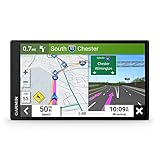
- 7” high-resolution navigator includes map updates of North America .Special Feature:Easy-To-Read Display; Voice Assist; Hands-Free Calling; Live Traffic and Weather; Traffic Cams and Parking; Smart Notifications,Driver Alerts; Tripadvisor; National Parks Directory; Find Places by Name; Garmin Real Directions Feature.
- Hands-free calling when paired with your compatible smartphone with BLUETOOTH technology and convenient Garmin voice assist lets you ask for directions to places you want to go
- Road trip–ready features include the HISTORY database of notable sites, a U.S. national parks directory, Tripadvisor traveler ratings and millions of Foursquare POIs
- Driver alerts for things such as school zones, sharp curves and speed changes help encourage safer driving and increase situational awareness
- Access live traffic, fuel prices, parking, weather and smart notifications when you pair this navigator with your compatible smartphone running the Garmin Drive app
If you rely on maps for navigation in fast‑changing areas, such as urban cycling or popular trail networks, checking for map updates every few months is a good habit.
Updating maps on the watch versus Garmin Express
On‑watch map updates work well for small regional refreshes and users with plenty of storage. You can initiate them from the Map Manager menu, select the region, and let the watch download over Wi‑Fi.
The limitation is visibility. You see very little detail about what changed, how large the update is, or what will be removed if space runs out.
Garmin Express gives you clearer control. You can see version numbers, exact file sizes, and manage multiple map regions in one session, which is especially useful before a big trip or race.
Managing storage space intelligently
Storage is the hidden constraint that shapes the Garmin mapping experience. Even premium watches balance map data against music, workouts, apps, and long activity histories.
A Fenix 7X or Epix has generous storage, but it can still fill up quickly if you install multiple continents, third‑party maps, and offline music playlists. Mid‑range models like the Forerunner 955 or 965 require more careful planning.
If storage is tight, prioritize maps you actually use. There is no performance benefit to keeping unused regions installed.
Removing unused maps without breaking navigation
Removing maps does not affect activities, courses, or GPX routes. It simply frees space by deleting map tiles you are unlikely to open.
In Garmin Express, uncheck regions you do not need and apply the changes. On the watch, go to Map Manager, select a map, and disable or uninstall it.
Be cautious not to remove global basemaps or time zone maps, which are small but essential. Garmin labels these clearly, and they should always remain installed.
Third‑party maps and their update responsibility
If you use OpenStreetMap‑based or community maps, updates are entirely your responsibility. Garmin will not refresh these automatically.
Most third‑party map providers release updates periodically, often quarterly or biannually. Updating usually involves downloading a new file and replacing the old one via Garmin Express.
It is good practice to delete the old version first rather than overwriting it, which avoids duplicate files and confusing map names on the watch.
Balancing maps, music, and performance
Maps and music compete for the same internal storage. If you regularly navigate long routes and stream music from the watch, this balance matters.
For navigation‑heavy users, maps should take priority. Music can be refreshed or reduced temporarily, while missing maps can derail an entire activity.
Performance is also affected by clutter. Fewer active maps result in faster map selection and less strain on the watch during complex navigation tasks.
Signs your maps or firmware need attention
There are subtle indicators that something is outdated or misconfigured. Slow redraws, missing trails you know exist, and delayed turn alerts are common symptoms.
Unexpected battery drain during navigation can also be firmware‑related, particularly after major updates that optimize power usage. Watches like the Instinct 2 Solar handle this differently due to their simpler mapping capabilities, but the principle still applies.
If navigation feels less reliable than it used to, checking firmware and map versions should be your first step before troubleshooting anything else.
Planning updates around real‑world use
Avoid updating maps or firmware the night before a race, hike, or trip. Large installs can take time, and first boots after updates are slower than usual.
Instead, update a few days in advance and do a short test activity. This confirms that maps load correctly, routing behaves as expected, and battery life remains stable.
Treat updates as part of your prep, just like charging the watch or syncing routes. It turns maintenance into confidence rather than stress.
How to Load Routes and Courses from Garmin Connect, Komoot, Strava and GPX Files
Once your maps and firmware are up to date, the next step is getting actual routes onto the watch. This is where Garmin’s ecosystem becomes genuinely powerful, because you can plan once and reuse the same course across running, hiking, cycling, or trail activities.
Garmin uses the term “Courses” rather than routes. A course is a predefined path that the watch can display on the map, follow with breadcrumb lines, and use for turn prompts on compatible models.
Understanding course compatibility across Garmin watches
Not every Garmin watch handles courses the same way, and this affects how you load and use them. Mapping-focused watches like Fenix, Epix, Enduro, Forerunner 955/965, and many Edge bike computers offer full on-watch maps with turn-by-turn guidance.
Watches such as the Forerunner 255, Venu Sq, and Instinct 2 support breadcrumb navigation without full maps. You still follow a line, but the surrounding terrain is not displayed.
Older or entry-level models may limit how many courses you can store at once. If syncs fail or courses disappear, storage limits are often the reason rather than a software bug.
Loading courses directly from Garmin Connect
Garmin Connect is the most reliable and device-agnostic way to create and send courses. It works identically on iOS, Android, and the web, and does not require third-party accounts.
In the Garmin Connect app, go to Training, then Courses, and choose Create Course. You can select running, hiking, cycling, gravel, or trail, which influences how Garmin’s routing engine behaves.
Once created, save the course and choose Send to Device. The next sync pushes it to your watch, where it appears under Navigation or Courses depending on the model.
For watches with maps, Garmin’s popularity routing often produces surprisingly good trail and road choices. If a course looks odd, you can edit it manually by dragging points before sending it.
Using Komoot for trail, hiking, and adventure routes
Komoot is particularly strong for hiking, mountain routes, and off-road adventures. Its surface-type awareness and trail tagging often outperform Garmin’s native planner for complex terrain.
To use Komoot with Garmin, link your accounts through Garmin Connect. Once linked, any Komoot route you mark as “Planned” or “Tour” becomes eligible to sync.
After syncing, the course appears on your watch like any native Garmin course. Turn prompts and elevation profiles carry over cleanly on Fenix, Epix, and Forerunner mapping models.
Komoot regions are unlocked separately, but once the route is synced, it lives locally on the watch. You do not need a phone connection during the activity.
Syncing routes from Strava
Strava routes work well for runners and cyclists who already plan everything inside Strava. The integration is simpler than it used to be, but it still has a few caveats.
First, link Strava to Garmin Connect. Then, in Strava, open a route and mark it as a Favorite. Only favorited routes are sent to Garmin.
Once synced, the course appears alongside your other Garmin courses. On supported watches, you get breadcrumb lines and, in some cases, turn alerts, though these are usually less detailed than Komoot or Garmin-native routes.
Strava routes can occasionally include odd loops or GPS artifacts. It is worth previewing the course on the watch before race day, especially for long events.
Importing GPX files manually
GPX files are the universal format for routes, and they are essential if you use niche planning tools or receive routes from event organizers. This method gives you the most control but requires a bit more setup.
The simplest approach is through Garmin Connect on the web. Upload the GPX file under Training and Courses, save it, then sync it to your watch.
You can also use Garmin Express on a computer and place the GPX file directly into the “NewFiles” or “Courses” folder on the device. This is useful when syncing fails or when handling large numbers of routes.
After a proper sync or eject cycle, the watch converts the GPX into a usable course automatically. If it does not appear, restarting the watch usually resolves it.
Managing multiple courses on the watch
It is easy to overload the watch with dozens of courses, especially before a trip. Too many active courses can slow browsing and make it harder to find the one you need at the start line.
Delete old or unused courses periodically through Garmin Connect or directly on the watch. This keeps navigation menus responsive and avoids accidental selection.
For multi-day adventures, naming courses clearly matters. Include direction, distance, or day number so you can identify them quickly on a small screen.
Starting navigation during an activity
Most Garmin watches allow you to load a course before starting an activity. Select the activity type, choose Navigation or Courses, then pick the route.
You can also start an activity first and load the course afterward, which is useful if you forget until you are already moving. Battery impact is minimal, but map redraws may lag briefly on older hardware.
Once active, the watch overlays the course on the map or breadcrumb screen. Off-course alerts, turn prompts, and distance-to-next cues depend on the device and the course source.
Common sync issues and how to avoid them
If a course does not appear, the most common cause is incomplete syncing. Keep the app open and the watch awake until the transfer finishes.
Another frequent issue is mismatched activity type. A cycling course may not appear if you are browsing running courses, particularly on Edge devices and older Forerunners.
When all else fails, remove the course, re-add it, and sync again. This simple reset solves the majority of course-related problems without touching maps or firmware.
Using Maps and Navigation on the Watch: Turn‑by‑Turn, Breadcrumb Trails and ClimbPro
Once a course is loaded and selected, the watch shifts from setup mode into active navigation. This is where Garmin’s approach really separates basic GPS tracking from true on‑watch guidance.
Exactly what you see depends on your device class. Full‑map watches like Fenix, Epix, Enduro, Tactix, and higher‑end Forerunners show vector maps, while Instinct and older Forerunners rely on breadcrumb trails without background maps.
Map screen vs breadcrumb screen: knowing what your watch is showing
On mapping‑enabled watches, the primary navigation screen is a full color map with your position arrow moving in real time. Roads, trails, paths, water features, and contours appear depending on the installed map type.
You can pan and zoom the map using buttons or touch on supported models. This is useful for checking upcoming junctions or understanding how far off‑course you are without stopping the activity.
Breadcrumb‑only watches display a simplified line representing your course and your track. There is no terrain or road context, but direction, distance, and off‑course alerts still work reliably.
Rank #4

- 6” high-resolution navigator includes map updates of North America
- Hands-free calling when paired with your compatible smartphone with BLUETOOTH technology and convenient Garmin voice assist lets you ask for directions to places you want to go
- Road trip–ready features include the HISTORY database of notable sites, a U.S. national parks directory, Tripadvisor traveler ratings and millions of Foursquare POIs
- Driver alerts for things such as school zones, sharp curves and speed changes help encourage safer driving and increase situational awareness
- Access live traffic, fuel prices, parking, weather and smart notifications when you pair this navigator with your compatible smartphone running the Garmin Drive app
For trail running, hiking, and bikepacking, full maps provide better situational awareness. For straightforward routes or race courses, breadcrumb navigation is often sufficient and easier to read at speed.
Turn‑by‑turn navigation: when it works and when it doesn’t
Turn‑by‑turn prompts depend on both the watch and the course source. Courses created in Garmin Connect, Garmin Explore, or third‑party platforms with cue data typically generate on‑screen turn alerts.
When enabled, the watch vibrates and displays a prompt before a turn, with distance countdown and direction arrows. On AMOLED models like Epix or Forerunner 965, these prompts are large and easy to glance at mid‑stride.
GPX files without embedded cues may still show the course line but lack turn notifications. This is common with older GPX exports from mapping websites or manually drawn routes.
For cycling, turn prompts are more reliable due to road‑based routing. For trail running and hiking, expect fewer cues and rely more on map context and off‑course alerts.
Off‑course alerts and re‑routing behavior
Most Garmin watches notify you when you stray beyond a set distance from the course. The alert appears quickly and helps catch wrong turns early, especially in dense trail networks.
Garmin watches do not automatically re‑route during course navigation in the way car GPS units do. The watch expects you to rejoin the original line rather than generating a new path.
On watches with maps, you can visually navigate back to the course using roads or trails shown on screen. This manual flexibility is often preferable in outdoor environments where automatic re‑routing may be unsafe or impractical.
If you intentionally deviate, the watch continues recording your activity normally. Once you rejoin the course, turn prompts and distance tracking resume.
Using distance, elevation, and next‑point data screens
Beyond the map itself, navigation unlocks additional data fields. These include distance to next turn, distance to destination, time to destination, and elevation remaining.
You can customize activity data screens to include these fields before starting. This is especially useful for endurance events where pacing depends on upcoming terrain.
Elevation data is pulled from the course profile, not just live barometric readings. This gives a more accurate picture of what is still ahead rather than what you have already climbed.
Battery impact from these screens is minimal compared to GPS itself. The bigger drain comes from frequent map redraws and high screen brightness.
ClimbPro: understanding climbs before they break you
ClimbPro is one of Garmin’s most useful navigation features for hilly routes. It automatically detects significant climbs from the course profile and breaks them into individual segments.
When approaching a climb, the watch switches to a ClimbPro screen showing gradient, remaining distance, elevation gain, and current climb progress. This works even if the climb has multiple pitches.
ClimbPro requires a preloaded course. It does not activate during free‑run or free‑ride activities without navigation enabled.
On cycling watches and large‑screen models, ClimbPro is especially clear and readable. On smaller watches, the data is still useful but benefits from slower glances rather than constant viewing.
For pacing long climbs, ClimbPro helps avoid early overexertion. Knowing whether a steep section is 200 meters or 2 kilometers long changes how you manage effort.
Navigation during races vs everyday training
In races, navigation is often about reassurance rather than decision‑making. A quick glance confirms you are still on course, reducing mental load and stress.
Turn alerts can be disabled if they become distracting, especially in tightly packed trail races. The breadcrumb or map line alone is usually enough.
For everyday training and exploration, navigation becomes a discovery tool. Round‑trip routing, saved places, and on‑the‑fly course loading are better suited to relaxed sessions.
Touchscreen models feel faster when browsing maps mid‑activity. Button‑only watches remain more reliable in rain, snow, or gloves, which matters in mountain and winter use.
Practical tips for smooth navigation on the wrist
Lock the screen or buttons once navigation is active to avoid accidental zooming or panning. This is particularly important on touch‑enabled AMOLED displays.
Set map orientation to Track Up for running and cycling, and North Up for hiking if you frequently stop to reference terrain. The right orientation reduces mental recalibration.
Keep course names short and descriptive so they display cleanly on the watch. Long names often truncate and become confusing during quick selection.
Finally, trust the watch but verify with awareness. Garmin navigation is extremely reliable, but understanding what the watch is showing ensures you stay confident when terrain, weather, or fatigue complicate decisions.
Real‑World Navigation Walkthroughs: Running, Hiking, Trail Running and Cycling
All the theory around maps, courses, and navigation only really clicks once you use it mid‑activity. The way Garmin Maps behave changes subtly depending on whether you are running through a city, hiking slowly in the mountains, threading singletrack, or riding at speed on a bike.
The following walkthroughs are based on how current map‑enabled Garmin watches actually behave in the field, including Fenix, Epix, Forerunner 955/965, Instinct 2X Solar, and Edge cycling computers where relevant.
Road and urban running with courses
For road running, navigation is mostly about guidance rather than exploration. You typically preload a course created in Garmin Connect, Strava, Komoot, or similar, sync it to the watch, and select it before starting the Run activity.
Once navigation is active, the map zoom level automatically adjusts to your pace. At running speed, streets ahead are visible without constant manual zooming, which makes quick glances enough to confirm direction.
Turn prompts appear as vibration alerts with distance countdowns, usually between 30 and 100 meters depending on speed. In dense urban areas, this reduces missed turns at intersections without forcing you to stare at the screen.
On AMOLED watches like the Epix or Forerunner 965, the clarity of street names and road outlines is excellent, even in bright daylight. On MIP displays like Fenix or Instinct 2X, contrast is lower but readability remains solid with sunlight.
Battery impact during a one‑hour run is minimal. Navigation typically adds only a few percentage points of drain compared to a non‑mapped run, making it practical for daily training.
If you deviate from the course, most modern Garmin watches offer off‑course alerts. These are particularly useful in unfamiliar cities but can be turned off if you prefer a quieter experience.
Free running with on‑the‑fly routing
When you want flexibility rather than a strict route, Garmin’s round‑trip and point‑to‑point routing becomes useful. From the watch, you can choose a distance or select a saved place and let the watch generate a course based on popularity routing.
This works best in areas with good OpenStreetMap data and strong Garmin heatmap coverage. Urban and suburban environments tend to produce cleaner routes than very remote areas.
The watch creates the course in seconds and immediately loads navigation. If the route feels wrong, you can discard it and regenerate another without ending the activity.
This feature shines on touch‑enabled models, where selecting locations and adjusting distance feels natural. Button‑only watches can still do it, but the process is slower and better suited to pre‑run planning.
Hiking with full topo maps and slower pacing
Hiking is where Garmin’s maps start to feel more like a dedicated handheld GPS. Topographic contours, water features, trails, and land boundaries provide meaningful context beyond a simple breadcrumb line.
At walking speed, the map zooms in automatically, making junctions and terrain features easier to interpret. North Up orientation often works better here, especially when stopping frequently to check surroundings.
Elevation shading and contour lines help you anticipate climbs and descents even before ClimbPro triggers. This is particularly helpful on multi‑hour hikes where energy management matters.
Battery life remains strong in hiking mode. A Fenix or Instinct 2X can navigate all day and still have power to spare, especially if you reduce backlight use and disable unnecessary sensors.
Waypoints such as huts, trailheads, or water sources can be saved in advance or during the hike. These appear directly on the map and can be navigated to independently of a course.
Trail running on singletrack and technical terrain
Trail running places the highest demand on map clarity and responsiveness. Singletrack often splits and rejoins quickly, making it essential that the map refreshes smoothly and stays oriented correctly.
Track Up orientation works best at running pace, especially on winding trails. It reduces mental processing and helps you instinctively follow the correct line.
On watches with smaller displays, such as the Fenix 7S or Forerunner 955, glancing discipline matters. Quick checks at junctions are more effective than trying to follow the map continuously.
ClimbPro becomes especially valuable when trail routes include multiple short, steep climbs. Knowing whether a brutal section lasts 100 meters or 800 meters directly influences pacing decisions.
Off‑course alerts are useful but can trigger frequently in areas with parallel trails or switchbacks. Many experienced trail runners leave alerts on but rely more on visual confirmation at key intersections.
Ultra and long‑distance trail navigation
During ultra‑distance efforts, navigation becomes as much about reducing cognitive load as it is about staying on course. The goal is to remove decision‑making when fatigue sets in.
Garmin watches handle long courses well, even those spanning hundreds of kilometers. Course segmentation and clear naming help when loading multi‑stage routes.
Battery management becomes critical here. Using GPS‑only mode, lowering screen brightness, and avoiding constant map interaction can extend runtime significantly.
Solar‑assisted models like the Fenix Solar or Instinct 2X gain measurable benefit in daylight ultras, especially when map usage is intermittent rather than continuous.
Cycling navigation on the wrist and on Edge devices
Cycling introduces higher speeds, which changes how navigation is consumed. On watches, turn alerts and vibration cues become more important because reading the map at speed is less practical.
Garmin’s map zoom scales aggressively during cycling, showing further ahead to account for faster movement. This reduces sudden surprises at junctions.
For longer or technical rides, Edge cycling computers offer a clear advantage. Larger screens, constant map visibility, and better rerouting logic make them the preferred choice for serious cyclists.
That said, a Fenix or Forerunner can still function as a reliable backup or minimalist solution. For gravel riding and bikepacking, wrist‑based navigation works well when paired with frequent stops.
ClimbPro is especially strong on cycling devices, displaying upcoming climbs with grade, distance, and elevation gain. On watches, the feature remains useful but benefits from slower glances during climbs.
💰 Best Value

- Explore confidently with the reliable handheld GPS
- 2.2” sunlight-readable color display with 240 x 320 display pixels for improved readability
- Preloaded with Topo Active maps with routable roads and trails for cycling and hiking
- Support for GPS and GLONASS satellite systems allows for tracking in more challenging environments than GPS alone
- 8 GB of internal memory for map downloads plus a micro SD card slot
Rerouting, recalculation, and real‑world flexibility
If you miss a turn, Garmin’s behavior depends on the device and settings. Some watches simply alert you and expect manual correction, while others offer automatic rerouting.
Automatic rerouting works best in populated areas with strong map data. In remote or trail‑heavy regions, it is often better to manually rejoin the course using the map.
The key is understanding that navigation is a guide, not an authority. Terrain conditions, closures, and weather may require real‑time decisions that override the suggested path.
Knowing how your watch behaves when things don’t go perfectly is what turns Garmin Maps from a feature into a trusted tool.
Advanced Mapping Features: Course Recalculation, Round‑Trip Routing and POI Search
Once you understand how your Garmin behaves when you miss a turn, the next step is using the smarter tools built into Garmin Maps to stay flexible rather than locked to a single line. These features are what separate basic breadcrumb navigation from something you can genuinely rely on mid‑run, mid‑ride, or deep into a hike.
Not every Garmin watch supports all of these tools, and performance varies by model. Fenix, Epix, Enduro, Forerunner 955/965, and most Edge devices deliver the full experience, while Instinct models focus more on track navigation without full on‑device routing.
Course recalculation: letting the watch adapt when plans change
Course recalculation allows your Garmin to generate a new route back to your course or destination when you go off track. Instead of just warning you that you missed a turn, the watch actively finds an alternative path using the underlying map data.
On watches that support it, recalculation can be automatic or manual. Automatic recalculation kicks in as soon as you deviate, while manual recalculation prompts you to confirm before the watch reroutes.
You’ll find this setting under Navigation or Routing within the activity profile or system settings, depending on the device. On Fenix and Epix models, it’s typically nested under Map Settings during an active course.
In practice, recalculation works best on roads, bike paths, and established trails. Urban runs and road cycling benefit the most, especially when detours or missed turns are common.
On remote trails, recalculation can sometimes produce odd suggestions that ignore terrain reality. In those cases, it’s often smarter to pan the map, manually rejoin the course, and continue without accepting a full reroute.
Battery impact is modest but real. Recalculation requires more processing and map interaction, so for ultras or multi‑day hikes, disabling auto recalculation can preserve battery life.
Round‑trip routing: building routes directly on the watch
Round‑trip routing is one of Garmin’s most underrated features for runners and cyclists who want structure without pre‑planning. It lets you generate a looped course directly on the watch based on distance and direction.
You start by selecting Round‑Trip Course from the Navigation or Training menu. The watch then asks for a target distance and, on some models, a preferred direction or terrain type.
Using popularity routing and heatmap data where available, Garmin generates two or three loop options. You can preview elevation, distance, and shape before choosing one to follow.
This feature shines for travel, hotel runs, and unfamiliar areas. Instead of guessing turns or constantly checking your phone, you get a purpose‑built route that returns you close to your starting point.
Accuracy depends heavily on map quality and region. In areas with sparse path data, loops may favor roads over trails, even if you’re trail running.
Round‑trip routing is available on most mid‑to‑high‑end mapping watches, but Edge devices execute it faster and with more detailed previews. On smaller watch screens, patience and zoom control matter.
POI search: finding places mid‑activity
Points of Interest search lets you navigate to locations like water sources, parking, summits, cafes, or restrooms directly from the watch. This is especially valuable when plans change mid‑activity.
Access POI search from the Map or Navigation menu, then choose a category or search near your current location. Results are sorted by distance, not relevance, which is ideal when you’re tired and need something close.
On hiking and trail watches, natural POIs like peaks, lakes, and campsites are often included. In urban areas, you’ll see services like food, lodging, and transport.
Once selected, the watch creates a route from your current position rather than forcing you back to the original course. This is where recalculation and POI search work together seamlessly.
POI databases are map‑dependent. If you use third‑party maps like OpenTopoMap or Trailforks overlays, POI availability and accuracy may differ from Garmin’s default maps.
Practical combinations: using features together in the real world
These tools are most powerful when combined. A runner might generate a round‑trip route, deviate for a closed path, let recalculation guide them back, then search for a water fountain near the end.
Cyclists often use POI search mid‑ride to find food stops, then resume their original course without ending the activity. Edge devices handle this fluidly, but watches are more than capable with a bit of menu navigation.
Hikers benefit from disabling automatic recalculation while still using POI search for shelters or trail junctions. This keeps navigation intentional rather than reactive.
The common thread is control. Garmin Maps doesn’t force decisions, but it gives you options when the original plan no longer fits the situation.
Common Garmin Maps Problems (and Fixes): Missing Maps, Slow Loading and Battery Drain
Once you start combining POI search, recalculation, and on‑watch routing, small issues become more noticeable. The good news is that most Garmin Maps problems aren’t hardware failures or “bad GPS” at all, but predictable software or storage issues with clear fixes.
This section walks through the most common complaints I see from runners, hikers, and cyclists using Fenix, Epix, Forerunner, Instinct crossover models, and Edge devices, along with practical steps to solve them before they ruin an activity.
Maps missing from the watch
A blank grid, straight breadcrumb line, or “Map not installed” message usually means the watch doesn’t actually have usable maps loaded. This can happen even on models that ship with maps if a region was removed to free space or a sync failed.
First, confirm that your watch supports full maps. Devices like Fenix, Epix, Forerunner 955/965, and most Edge units do, while models like Venu Sq or Forerunner 55 only support breadcrumb navigation.
On the watch, go to Settings → Map → Map Information (or Map Manager on newer software). If nothing is listed or the region you need is disabled, the map won’t appear during navigation.
Fixing missing or deleted maps using Garmin Express
Garmin Express remains the most reliable way to install or restore maps. Connect your watch to a computer with the charging cable and open Garmin Express.
Select your device, then choose Map Details or Manage Maps. From here you can reinstall preloaded maps, add additional regions, or remove unused areas to free storage.
Large regions like “TopoActive Europe” can take an hour or more, so keep the watch connected and awake. Interrupting this process is the fastest way to end up with half‑installed maps.
Downloading maps over Wi‑Fi (and when not to)
Many newer watches allow direct map downloads over Wi‑Fi through Garmin Connect. This works well for small regions or city areas but can be slow for full continents.
If a Wi‑Fi download stalls or fails repeatedly, switch to Garmin Express. A wired connection is still more stable, especially on watches with limited internal storage like the Fenix 6 or Forerunner 955.
After installation, reboot the watch. Garmin Maps often won’t fully index until after a restart, which can make it seem like the download failed when it didn’t.
Slow map loading and laggy panning
If the map takes several seconds to appear or stutters when you pan and zoom, the watch is usually under storage or processing strain. This is more noticeable on older or smaller watches with lower‑resolution screens.
Start by disabling maps you don’t need. In Map Manager, turn off regions you aren’t using rather than deleting them entirely.
Reducing map detail also helps. In Settings → Map → Detail, switch from High to Normal. You’ll lose some minor trail markings but gain smoother performance during activities.
Course loading takes forever
Long courses with thousands of points can slow everything down, especially on watches. This often happens with GPX files exported directly from Strava, Komoot, or AllTrails without simplification.
Before syncing a course, run it through Garmin Connect or a third‑party tool that reduces point density. The route will look identical on the screen but load and recalculate much faster.
Edge devices handle complex courses better due to larger processors and screens, which is why cyclists rarely notice this issue compared to runners and hikers.
Battery drain when using maps
Maps are one of the biggest battery drains on Garmin devices because they keep the GPS, processor, and screen active. This doesn’t mean something is wrong, but it does mean expectations need adjusting.
On AMOLED watches like Epix or Forerunner 965, always‑on display plus maps can halve battery life on long hikes. Switching to gesture‑based display dramatically improves endurance.
On MIP screen watches like Fenix or Instinct Crossover, backlight behavior matters more. Reduce backlight timeout and brightness in activity settings rather than global settings.
Extending battery life during navigation
Use GPS modes wisely. Multi‑band GNSS improves accuracy in forests and cities but increases power draw. For long trail runs or hikes, All Systems often strikes the best balance.
Disable features you don’t need mid‑activity. Music, LiveTrack, and frequent wrist gestures all compound battery drain when maps are active.
For ultra‑long days, consider UltraTrac or Expedition mode for navigation rather than full activity tracking. You’ll still see your position on the map, just with reduced recording frequency.
Third‑party maps not showing correctly
If you’re using OpenTopoMap, Trailforks overlays, or custom IMG files, missing detail or strange behavior is usually a compatibility issue. Not all maps support routing, POIs, or proper zoom scaling.
Make sure third‑party maps are enabled and placed above or below Garmin maps correctly in the draw order. Conflicts can cause blank sections or overlapping trails.
If routing fails entirely, switch back to Garmin’s default maps for that activity. Third‑party maps are excellent for visual context, but Garmin’s own maps handle turn‑by‑turn navigation more reliably.
When a restart actually fixes everything
It sounds basic, but restarting the watch solves a surprising number of map issues. Indexing errors, stuck downloads, and lag often clear immediately after a reboot.
If problems persist, sync once with Garmin Connect, then restart again. This forces the watch to recheck map permissions and activity profiles.
Only consider a factory reset as a last resort. It fixes almost everything, but you’ll need to reinstall maps, re‑sync activities, and reconfigure settings.
Knowing what’s normal versus what’s not
Maps will always be slower than simple breadcrumb tracks, and battery drain is unavoidable when navigating actively. That’s the tradeoff for having a full topo map on your wrist.
What’s not normal is missing maps on a supported device, minute‑long load times for short routes, or battery dropping 30 percent in an hour under moderate use. Those issues nearly always have a fix.
Once your maps are properly installed, trimmed to your needs, and paired with sensible settings, Garmin navigation becomes something you trust rather than babysit. That confidence is what turns features into real‑world tools instead of menu clutter.