If you have ever stood on a start line wondering how fast is too fast, PacePro exists for that exact moment. It is Garmin’s attempt to turn a vague race goal into a concrete, mile‑by‑mile execution plan that lives on your wrist, not in your head. When used correctly, it removes a huge amount of decision‑making from race day and replaces it with calm, repeatable guidance.
Before going any further, it is important to strip away the marketing language and understand what PacePro actually does in real running terms. This feature is powerful, but only when you know its boundaries and how it thinks. Misunderstand it, and it can feel confusing or even counterproductive during a race.
What follows is a plain‑English explanation of what PacePro is, what it is not, and why that distinction matters when the gun goes off.
What Garmin PacePro actually is
At its core, PacePro is a pre‑planned pacing strategy that breaks your race into segments and assigns a target pace for each one. Those segments are usually miles or kilometers, and the targets are calculated before race day based on your finish time goal, the course distance, and optionally the elevation profile.
🏆 #1 Best Overall

- Easy-to-use running smartwatch with built-in GPS for pace/distance and wrist-based heart rate; brilliant AMOLED touchscreen display with traditional button controls; lightweight design in 43 mm size
- Up to 11 days of battery life in smartwatch mode and up to 19 hours in GPS mode
- Reach your goals with personalized daily suggested workouts that adapt based on performance and recovery; use Garmin Coach and race adaptive training plans to get workout suggestions for specific events
- 25+ built-in activity profiles include running, cycling, HIIT, strength and more
- As soon as you wake up, get your morning report with an overview of your sleep, recovery and training outlook alongside weather and HRV status (data presented is intended to be a close estimation of metrics tracked)
Unlike simply setting an average pace alert, PacePro adapts pacing across the course. If the route has hills, it can deliberately slow you on climbs and speed you up on descents so that effort stays more even. On your watch, this shows up as a per‑segment target pace and a live “ahead or behind plan” field that updates continuously.
The key detail many runners miss is that PacePro is deterministic, not reactive. Once the plan is created, the watch is comparing what you are doing to that plan; it is not recalculating your pacing on the fly based on heart rate, fatigue, weather, or how good you feel that day.
What PacePro is not
PacePro is not a real‑time coach making decisions for you. It will not tell you to back off because your heart rate is spiking, nor will it adjust if the course is crowded, the GPS drifts, or you stop for a bathroom break. It also does not know your fitness unless you set a realistic goal in the first place.
It is also not the same as power‑based pacing or effort‑based guidance. PacePro works in pace units, not watts or perceived exertion, even though grade adjustment tries to approximate effort changes. If you blindly chase the on‑screen pace without listening to your body, especially late in a race, you can still blow up.
Finally, PacePro is not magic. It does not create fitness, and it does not fix poor race strategy like starting too aggressively or ignoring fueling. Think of it as a pacing map, not an autopilot.
Why PacePro feels different from regular pace screens
Standard pace fields tell you what is happening right now or what has happened so far. PacePro tells you what should be happening at this exact point in the race if you want to hit your goal time. That subtle shift turns your watch from a passive display into an active reference point.
The “ahead/behind” indicator is especially important. Instead of obsessing over current pace fluctuations caused by GPS noise or tight turns, you get a cumulative view of execution. Being five seconds slow early is framed as manageable, not catastrophic, which can dramatically reduce panic pacing.
This is where PacePro shines for recreational and serious runners alike. It keeps you anchored to a long‑term plan when adrenaline, crowds, and terrain all try to pull you off it.
How much control you really have over PacePro
PacePro is only as smart as the inputs you give it. You choose the goal time, whether pacing is even or grade‑adjusted, and how aggressive the strategy should be relative to climbs and descents. On supported watches, you can also fine‑tune splits manually after the plan is created.
Once the race starts, control shifts back to you. You decide whether to obey the plan, ignore it temporarily, or abandon it altogether. The watch will not force you to run a pace; it will simply report how your choices compare to the strategy you set.
Understanding this balance of planning versus execution is critical. PacePro is best used as a calm reference and accountability tool, not a rigid command system that overrides common sense.
Who PacePro is best suited for
PacePro is ideal for runners who already understand their approximate race capabilities and want help executing them more precisely. It works especially well for half marathons and marathons, where small pacing errors compound over time and terrain variation matters.
It is less useful for runners who have no clear finish goal or who race entirely by feel. It can also feel overwhelming if you prefer minimal data on race day, since it adds another metric to monitor alongside distance and time.
For runners willing to do a bit of setup work before race day, PacePro becomes a quiet but steady guide. It does not replace experience, but it does amplify good planning into more consistent execution.
Which Garmin Watches Support PacePro and What You Need Before Race Day
Before you build a PacePro strategy or rely on it in a crowded starting corral, you need to confirm two things: that your Garmin watch actually supports PacePro, and that you have the right setup in place well before race morning. This is where many runners stumble, not because PacePro is complicated, but because support and preparation vary significantly across Garmin’s lineup.
Garmin has expanded PacePro support steadily over the years, but it remains a feature tied to mid‑ and high‑tier performance watches. Knowing where your device sits in that hierarchy will save you frustration and last‑minute scrambling.
Garmin watch families that support PacePro
PacePro is supported on most of Garmin’s dedicated running and multisport watches released in the last several years. This includes the Forerunner 245 and newer, the Forerunner 255, 265, 745, 955, 965, and the flagship Forerunner 9xx series as a whole.
The fēnix line also fully supports PacePro, including fēnix 5 Plus and newer models, fēnix 6, 7, and 7 Pro variants. These watches combine robust GPS accuracy, long battery life, and premium materials like stainless steel or titanium cases, which makes them popular for runners who also want an everyday watch that can handle abuse and long events.
Enduro, Enduro 2, and the Epix (Gen 2 and Pro) series also support PacePro. The Epix deserves special mention because its AMOLED display makes PacePro data screens exceptionally easy to read at race effort, especially in changing light conditions, without sacrificing serious battery life in GPS mode.
Models that do not support PacePro
PacePro is not available on Garmin’s lifestyle or entry‑level fitness watches. This includes most Venu models, Vivoactive watches, Lily, and basic fitness trackers like the vívosmart series.
Older Forerunner models such as the Forerunner 45 and 55 also lack PacePro, even though they are capable GPS running watches. If your watch does not support courses, advanced workouts, or structured race strategies, it almost certainly does not support PacePro.
If you are shopping specifically for PacePro, this distinction matters. It is not about screen size or aesthetics; it is about whether the watch has the processing power, software framework, and navigation features PacePro relies on.
How to double‑check PacePro support on your specific watch
The fastest way to confirm support is through Garmin Connect. Open the app, tap Training, then Training Plans or PacePro Strategies. If your watch appears as a compatible device when you try to create or sync a strategy, you are good to go.
You can also check directly on the watch. If your Run activity settings include a PacePro option or allow PacePro strategies to be added as a workout, the feature is supported. If it is missing entirely, no software update or setting change will unlock it.
This is worth confirming weeks before race day, not the night before. PacePro strategies need to be synced and tested, and some older devices require firmware updates to ensure full compatibility.
What you need set up before race day
Having a supported watch is only the first requirement. PacePro works best when the underlying data feeding it is clean, current, and aligned with your race conditions.
First, your watch firmware and Garmin Connect app should be fully up to date. Garmin frequently refines PacePro behavior, GPS accuracy, and course handling through updates, and running outdated software can lead to missing options or unreliable alerts.
Second, you need a confirmed race distance and course profile. PacePro can be built without a course, but grade‑adjusted pacing only works properly when a GPS course with accurate elevation data is loaded. For hilly races, this is not optional if you want realistic split targets.
Why courses matter more than most runners realize
When a course is loaded, PacePro distributes effort based on climbs and descents rather than raw distance alone. Long uphill sections are assigned slower target paces, while downhills and flats absorb time back gradually.
This only works if the course elevation data is reasonably accurate. Poorly mapped routes or last‑minute course changes can throw off pacing targets, which is why it is smart to load the official race course if available and review it visually inside Garmin Connect.
If you cannot get an official course, creating your own from a reliable GPX source is still far better than running PacePro blind. Even approximate elevation data improves pacing realism compared to an even‑split plan on rolling terrain.
Battery life, GPS settings, and race‑length reality checks
PacePro itself is not battery‑intensive, but the race length you are targeting absolutely matters. A marathon or ultra on a watch with marginal battery life can turn PacePro into a non‑issue if the watch dies late in the race.
Before race day, test your GPS mode and data screen setup during long runs. Multi‑band GPS improves accuracy in urban races and wooded areas, but it can reduce battery life on some models. On newer watches like the Forerunner 965 or fēnix 7 Pro, the tradeoff is minimal, but on older hardware it can be significant.
Make sure you understand your watch’s real‑world battery performance, not just the advertised specs. Nothing undermines pacing confidence faster than a low‑battery warning at mile 20.
Physical comfort and wearability on race day
This is often overlooked, but PacePro is only useful if you can glance at it easily under stress. Strap comfort, watch weight, and screen readability all matter when fatigue sets in.
Heavier metal‑cased watches like the fēnix or Epix are extremely durable and stable on the wrist, but some runners prefer the lighter feel of a Forerunner for long races. Nylon straps can reduce pressure and improve comfort compared to silicone, especially in hot or wet conditions.
Whatever your setup, race day should not be the first time you wear it for hours at a time. Comfort issues become pacing distractions faster than most runners expect.
Practice syncing and using PacePro before race week
Finally, PacePro should never be a race‑day experiment. Build at least one practice strategy, sync it to your watch, and run with it during a long training session.
This lets you confirm how alerts feel, how often you look at the PacePro screen, and whether the targets align with perceived effort. It also gives you time to adjust split behavior or data fields without pressure.
Once all of this is in place, PacePro stops being a feature you hope works and becomes a tool you trust. That confidence, more than any split calculation, is what makes it valuable on the start line.
Understanding PacePro Strategies: Even Split vs Negative Split vs Grade‑Adjusted Pacing
Once you’ve confirmed your watch setup, battery confidence, and comfort, the next decision is strategic rather than technical. PacePro is not a single pacing mode; it’s a framework that lets you choose how effort and time are distributed across the race.
Garmin gives you three core approaches that look similar on the watch but behave very differently on the road. Choosing the right one depends on race distance, course profile, and how well you understand your own pacing discipline under fatigue.
Even split pacing: simple, predictable, and surprisingly hard to execute
Even split pacing is the most straightforward PacePro strategy. You set a goal time, and Garmin assigns the same target pace to every mile or kilometer from start to finish.
This approach works best on flat to gently rolling courses where elevation changes are minor and evenly spaced. Think flat city half marathons, looped courses, or races where elevation gain is negligible enough that terrain never dictates effort.
The challenge with even splits isn’t the math, it’s the psychology. Early miles feel artificially easy, and many runners ignore the watch because the pace feels too conservative. PacePro becomes most valuable here by acting as a governor, especially in crowded starts where adrenaline can quietly sabotage the back half of the race.
On the watch, even split PacePro screens are clean and low cognitive load. You’ll typically see target pace, actual pace, and time ahead or behind schedule, which makes it easy to correct small errors without obsessing over every step.
This strategy is ideal for runners new to structured pacing or racing shorter distances like 5Ks and 10Ks. It’s also the least forgiving if the course includes meaningful hills, because the watch will still expect the same pace uphill unless you explicitly enable grade adjustments.
Negative split pacing: controlled restraint early, aggression late
Negative split PacePro strategies deliberately slow the early miles and progressively increase pace as the race unfolds. Garmin lets you define how aggressive that progression is, either by total time distribution or pace deltas.
This is a powerful tool for runners who consistently go out too fast, particularly in half marathons and marathons. By baking patience into the strategy, the watch becomes a guardrail against emotional pacing decisions in the opening miles.
In practice, negative split pacing feels almost uncomfortable early on. PacePro will show you “ahead” of schedule later, but early it often displays a neutral or slightly conservative target that feels slower than race energy suggests.
Where this shines is in races with strong late‑race crowd energy or flatter back halves. It also pairs well with runners who know they handle fatigue better than surges, letting them close strong without blowing up.
One caveat is that negative split strategies assume discipline and confidence. If you panic when others pass you early, you’re more likely to abandon the plan. Practicing this strategy in long runs is critical so the early restraint feels intentional, not accidental.
Grade‑adjusted pacing: effort‑based intelligence for real courses
Grade‑adjusted pacing is where PacePro separates itself from basic pace alerts. Instead of locking you into a fixed speed, Garmin adjusts target pace based on elevation changes so your effort stays consistent across climbs and descents.
Rank #2

- Easy-to-use running watch monitors heart rate (this is not a medical device) at the wrist and uses GPS to track how far, how fast and where you’ve run.Special Feature:Bluetooth.
- Battery life: up to 2 weeks in smartwatch mode; up to 20 hours in GPS mode
- Plan your race day strategy with the PacePro feature (not compatible with on-device courses), which offers GPS-based pace guidance for a selected course or distance
- Run your best with helpful training tools, including race time predictions and finish time estimates
- Track all the ways you move with built-in activity profiles for running, cycling, track run, virtual run, pool swim, Pilates, HIIT, breathwork and more
On hilly courses, this is often the most realistic and race‑savvy approach. PacePro will intentionally slow your target pace on climbs and speed it up on descents, preserving energy rather than demanding an unsustainable uphill split.
This is especially valuable in marathons with rolling terrain, trail races, or courses with late climbs. Without grade adjustment, even experienced runners tend to burn matches early by chasing flat‑equivalent paces uphill.
On the watch, grade‑adjusted pacing requires a little trust. Seeing a slower pace target on a hill can trigger doubt, especially if runners around you are pushing. The payoff is later, when your legs still respond on flats and descents instead of feeling hollow.
Accuracy matters here. Grade‑adjusted PacePro relies heavily on course elevation data, which means loading the correct course file is essential. Multi‑band GPS and barometric altimeters on higher‑end Garmin models improve reliability, but even then, expect small real‑world deviations.
Choosing the right strategy for your race and your watch
The “best” PacePro strategy isn’t universal. Flat races reward simplicity, while complex courses reward adaptability.
If your watch has a smaller screen or you prefer minimal interaction under stress, even split pacing keeps the display easy to read. Larger AMOLED screens like those on the Forerunner 965 or Epix make grade‑adjusted data easier to interpret at a glance, especially when fatigue narrows attention.
Battery life also plays a role. Grade‑adjusted strategies paired with course navigation and multi‑band GPS demand more power. On older watches or very long races, simplifying the strategy can preserve confidence late in the event.
Ultimately, PacePro works best when it reflects how you actually race, not how you wish you raced. The more honest you are about your tendencies, the more effective the strategy becomes once the gun goes off.
Step‑by‑Step: How to Create a PacePro Plan in Garmin Connect (With Course and Without)
Once you’ve settled on a pacing strategy that matches your course and your watch, the next step is turning that intent into a PacePro plan inside Garmin Connect. This part matters more than most runners realize, because small setup choices directly affect what your watch tells you when fatigue, crowds, and adrenaline are all competing for attention.
The good news is that Garmin has made PacePro creation fairly consistent across devices. Whether you’re using a Forerunner, Fenix, Epix, or Enduro, the underlying workflow in Garmin Connect is the same, with only minor visual differences between mobile and desktop.
Before you start: what you’ll need
You’ll need the Garmin Connect app on your phone or access to Garmin Connect on the web. Creating PacePro plans is much easier on a larger screen, especially when reviewing elevation profiles, but the mobile app works fine if you’re comfortable zooming and scrolling.
Your watch must support PacePro. Most mid‑range and higher Garmin running watches released in the last several years do, but older or entry‑level models may not. Make sure your watch firmware is up to date, since PacePro features and syncing reliability have improved over time.
Finally, decide whether you’re using an official course file or running a simple distance-based race. That single choice determines which setup path you’ll follow.
Option 1: Creating a PacePro plan using a course (recommended for races)
Using a course unlocks the full power of PacePro, including grade‑adjusted pacing and segment‑by‑segment targets based on elevation. For most road races, trail races, and anything with meaningful terrain, this is the approach you want.
Start by opening Garmin Connect. On mobile, tap Training, then Courses, and either select an existing course or search for one created by the community. On desktop, go to Training, Courses, and browse or import a GPX file from the race organizer.
Once the course is saved, open it and select Create PacePro Plan. Garmin will automatically analyze the distance and elevation profile before moving you into the PacePro setup screen.
Setting your target time or average pace
The first major decision is whether you want to pace by total finish time or average pace. For most runners, entering a finish time is more intuitive and aligns better with race goals.
Enter your target time honestly. PacePro is not a magic tool; it simply distributes effort across the course. If your target time is overly aggressive, the pacing guidance will reflect that and may become discouraging late in the race.
Garmin will immediately show a projected pacing breakdown based on your input. This is your first chance to sanity-check the plan against your training and recent race performances.
Choosing pacing strategy: even splits vs grade adjusted
With a course loaded, you’ll see the option to toggle grade‑adjusted pacing on or off. Leaving it off creates even effort splits that ignore elevation changes. Turning it on tells PacePro to slow you on climbs and speed you up on descents.
For flat courses with minor undulations, even splits keep things simple and predictable. On rolling or hilly courses, grade‑adjusted pacing is almost always the smarter option, especially if you tend to overcook early climbs.
Garmin will visually show how pacing changes across the course. Spend time here. If the plan asks for extreme pace swings that don’t match your running style or fitness, adjust your target time or turn grade adjustment off.
Fine‑tuning split length and pacing bias
Next, choose how often PacePro gives you new targets. Most watches default to one‑kilometer or one‑mile splits, but you can adjust this depending on preference and race format.
Shorter splits provide more frequent feedback but can feel noisy in crowded races or GPS‑challenged environments. Longer splits smooth out variability and reduce mental load, which many runners prefer in marathons and ultras.
Some versions of PacePro also allow a pacing bias, letting you start slightly conservative or slightly aggressive. For most recreational runners, a conservative or neutral bias leads to better late‑race outcomes, even if it feels restrained early.
Reviewing the plan against the elevation profile
Before saving, scroll through the entire course and examine how PacePro distributes pace. Look closely at early climbs, late descents, and any sections where fatigue will likely peak.
Ask yourself whether the targets feel runnable when tired, not just on fresh legs. This step separates runners who trust the tool from those who abandon it mid‑race.
If something feels off, go back and adjust the finish time, split length, or pacing strategy. This is far easier to fix now than at mile 18 when your watch buzzes with an unrealistic target.
Saving and syncing the plan to your watch
Once satisfied, save the PacePro plan. Garmin Connect will prompt you to sync it to your watch during your next sync cycle.
On most watches, the plan will appear under Training, PacePro Plans. You can pair it with the course or load it independently, but pairing the plan with the course improves accuracy, especially for grade‑adjusted pacing.
Do a quick check on the watch itself. Scroll through the PacePro screens to ensure the data fields are readable and make sense to you. Screen clarity matters more on race day than theoretical precision.
Option 2: Creating a PacePro plan without a course
If you don’t have a course file, PacePro can still be useful, but with limitations. Without elevation data, PacePro becomes a distance‑based pacing tool rather than an effort‑based one.
Open Garmin Connect and go to Training, PacePro Plans, then choose Create Plan Without Course. You’ll manually enter the race distance and your target time or pace.
Garmin will divide the race into equal splits based on your chosen distance and generate uniform pacing targets. There’s no grade adjustment here, so all splits assume flat terrain.
When pacing without a course actually makes sense
This approach works well for track races, flat out‑and‑back routes, or events where the official course file is unreliable or unavailable. It’s also useful for pacing long training runs that simulate race effort without strict terrain demands.
For watches with smaller screens or runners who want minimal decision‑making mid‑race, this simplified pacing can feel less intrusive. Battery life is also slightly better without navigation and elevation processing running simultaneously.
Just remember that hills will be on you to manage. PacePro won’t protect you from pushing too hard uphill without a course to reference.
Common setup mistakes to avoid
One of the biggest errors is creating the plan but forgetting to sync it to the watch. Always confirm the plan appears on the device before race morning.
Another mistake is choosing a split length that doesn’t match how you think under stress. If you’ve never paced by kilometer before, race day is not the time to start.
Finally, avoid obsessing over perfect numbers. PacePro is a guide, not a contract. Your job on race day is to use the information to stay controlled, not to chase every second the watch suggests.
Done right, setting up PacePro becomes a rehearsal for race execution itself. The more intentional you are during setup, the calmer and more confident you’ll feel when the watch vibrates and the race finally begins.
Fine‑Tuning Your PacePro Plan: Elevation, Split Bias, and Time Targets Explained
Once you’re comfortable creating a basic PacePro plan, this is where the real performance gains live. Fine‑tuning turns PacePro from a simple pacing calculator into a race‑execution tool that actively manages effort, terrain, and fatigue.
These settings matter most when you’re using a course file with elevation data, but even flat races benefit from thoughtful adjustments. The goal is not perfection on paper, but a plan that matches how your body actually performs on race day.
How elevation really affects PacePro pacing
When a course is loaded, PacePro analyzes elevation changes and redistributes your effort accordingly. Instead of holding an identical pace on every split, the system allows you to run slower uphill and faster downhill while still protecting your overall time goal.
This is effort‑based pacing, not ego‑based pacing. On rolling or hilly courses, it’s one of the most effective ways to avoid early burnout caused by overcooking climbs.
Garmin uses grade-adjusted pacing logic rather than raw elevation gain alone. A short, steep hill may trigger a bigger pace adjustment than a long, gradual incline, which aligns well with how runners experience effort in the real world.
Understanding Split Bias: Negative, Even, or Positive pacing
Split Bias controls how aggressively PacePro shifts effort between the first and second half of the race. This is one of the most misunderstood settings, but also one of the most powerful.
An Even split bias aims to keep effort consistent across the entire race. This works well for shorter distances, flat courses, or runners who are new to structured pacing and want simplicity.
Negative split bias intentionally holds you back early and gives you permission to push later. For half marathons and marathons, this is usually the smartest option, especially if conditions are unpredictable or the course gets tougher late.
Positive split bias is rarely recommended outside of very specific scenarios, such as courses with major early climbs followed by long descents. Even then, it requires discipline, because the watch will encourage faster early pacing than most runners are used to seeing.
Choosing the right split length for your brain under stress
PacePro allows you to define split length, typically by mile or kilometer. This seems minor, but it has a big impact on how usable the data feels mid‑race.
Shorter splits give more frequent feedback and tighter control, which can be helpful for experienced racers who like constant confirmation. The downside is mental overload, especially on smaller watch displays or during crowded race starts.
Longer splits smooth out noise and reduce decision fatigue. Many marathoners prefer kilometer splits even if they train by mile, simply because it keeps them focused on effort rather than micro‑adjustments.
Rank #3
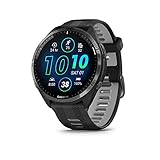
- Brilliant AMOLED touchscreen display with traditional button controls and lightweight titanium bezel
- Battery life: up to 23 days of battery life in smartwatch mode, up to 31 hours in GPS mode
- Confidently run any route using full-color, built-in maps and multi-band GPS
- Training readiness score is based on sleep quality, recovery, training load and HRV status to determine if you’re primed to go hard and reap the rewards (data presented is intended to be a close estimation of metrics tracked)
- Plan race strategy with personalized daily suggested workouts based on the race and course that you input into the Garmin Connect app and then view the race widget on your watch; daily suggested workouts adapt after every run to match performance and recovery
Setting a realistic time target that PacePro can actually support
PacePro assumes your target time is achievable given your fitness and the course profile. If the goal is wildly optimistic, the pacing suggestions will become aggressive in ways that don’t align with human physiology.
A good rule is to base your target on recent race data, not wishful thinking. If you’re between two goal times, choose the slower one and use split bias to build confidence late rather than forcing heroics early.
Remember that PacePro doesn’t know race-day weather, crowd density, or how you slept the night before. A slightly conservative target often produces a faster actual result because it keeps you composed when others are blowing up.
What those pace ranges on the watch really mean
During the race, PacePro doesn’t usually show a single exact pace. Instead, you’ll see a target range for the current split.
That range is intentional. It accounts for GPS variation, terrain transitions, and natural stride changes, especially on hills or through aid stations.
Staying inside the range matters more than hitting the exact midpoint. If you’re consistently drifting toward the fast edge early, that’s your cue to dial back before fatigue compounds.
How elevation bias and split bias interact on hilly courses
On courses with significant elevation change, split bias and elevation adjustment work together. A negative split bias doesn’t mean you’ll always run faster later in raw pace terms.
Instead, it often means you’ll tolerate more effort later, especially on climbs that appear in the second half. This is where PacePro shines, because it encourages patience early even when the terrain feels easy.
Runners who ignore this interaction often feel confused when early downhill splits look slower than expected. Trust the effort logic, not just the numbers.
Device considerations that affect how PacePro feels in use
Not all Garmin watches present PacePro data the same way. Larger displays like those on the Forerunner 965 or Fenix series make it easier to read pace ranges, split countdowns, and elevation context at a glance.
Battery life is generally a non‑issue for PacePro itself, but combining it with navigation, music, and multi-band GPS can increase drain on older devices. Make sure your watch comfortably covers your expected race duration with margin to spare.
Comfort also matters more than you think. A watch that bounces or chafes becomes a distraction when you’re relying on frequent pacing cues, especially late in the race when form deteriorates.
When to break the plan and why that’s not failure
Even the best PacePro plan is still a model. If conditions change dramatically, such as extreme heat, unexpected wind, or a delayed start, it’s smart to adjust on the fly.
Garmin won’t automatically recalibrate the plan mid‑race. That means the runner, not the watch, must decide when effort cues matter more than pace targets.
The most successful racers treat PacePro as a steady voice of reason, not an authority figure. Use it to stay honest early, then race with awareness when it counts most.
Loading and Managing PacePro Plans on Your Watch Before the Race
Once you’ve built a PacePro strategy that reflects the course and your intended effort, the next step is making sure it’s actually available and usable on race morning. This is where many runners stumble, not because PacePro is complicated, but because Garmin’s ecosystem spans the phone app, web tools, and the watch itself.
Think of this stage as pre‑race logistics rather than training. A clean setup now removes friction when nerves are high and time is tight.
Creating or finalizing the PacePro plan in Garmin Connect
PacePro plans are created inside Garmin Connect, either on the mobile app or the web interface, and both ultimately sync to the watch the same way. For most runners, the mobile app is faster and more intuitive, especially if you’re adjusting things close to race day.
Open Garmin Connect, go to Training, then PacePro Pacing Strategies, and either create a new plan or revisit one you’ve already built. Double‑check the course, target time, split bias, and elevation adjustment, even if you set it up weeks ago.
Courses can update, GPS tracks can change slightly, and it’s common to tweak goal time based on taper feedback. Treat this as a final equipment check, not a formality.
Syncing the plan to your watch and confirming it actually transferred
Saving a PacePro plan in Garmin Connect doesn’t automatically mean it’s on your watch. You must sync and then confirm it appears where you expect it.
After saving the plan, initiate a full sync with your watch through the Garmin Connect app. Wait for the sync to fully complete rather than letting it run in the background, especially on older phones or watches with slower Bluetooth handshakes.
On the watch itself, go to Activities, select Run, then look for PacePro Plans or Pacing Strategies depending on model. If you don’t see your plan there, it’s not race‑ready yet.
Understanding where PacePro lives on different Garmin models
Garmin’s menu structure varies by watch family, and this can cause confusion on race morning if you’re switching devices or haven’t used PacePro recently. On Forerunner and Fenix models, PacePro is typically accessed within the Run activity settings rather than as a standalone workout.
Higher‑end watches like the Forerunner 965 or Fenix 7 series benefit from larger, higher‑resolution displays, making it easier to preview splits and elevation context directly on the watch. Smaller or older models may show less detail, but the pacing logic remains the same.
If your watch supports touchscreen input, practice navigating the PacePro screens using both touch and buttons. Wet conditions or sweaty hands can make touchscreens unreliable, and knowing the button flow is valuable insurance.
Assigning the PacePro plan to the correct run profile
Garmin allows multiple run profiles, such as outdoor run, trail run, or race‑specific profiles with custom data screens. PacePro plans must be loaded into the specific activity you’ll use on race day.
If you normally train with a customized Run profile, make sure you haven’t created the PacePro plan under a different one. A common mistake is building the plan, then starting the race with a profile that doesn’t have PacePro enabled.
Open the Run activity settings, confirm the PacePro plan is selected, and verify that your usual data screens are still present. You don’t want to sacrifice key fields like lap time or heart rate just to access pacing guidance.
Previewing splits and elevation on the watch before race day
Before you ever toe the line, scroll through the PacePro plan on your watch and review how it presents information. Look at target pace ranges, split distances, and how elevation changes are displayed.
This preview helps you mentally rehearse the race. You’ll start to recognize where patience is required and where the plan allows more aggression, which reduces decision‑making under fatigue.
If the pacing ranges feel unreadable or cluttered on your screen, adjust your data layout now. Clarity beats density when you’re running at threshold.
Managing multiple PacePro plans and avoiding race‑day mix‑ups
It’s easy to accumulate PacePro plans if you experiment with different goal times or course profiles. Garmin doesn’t always make it obvious which plan is active, so organization matters.
Rename plans clearly in Garmin Connect, including race name and target time. “Spring Half 1:38” is far better than a default timestamped title when you’re standing in a corral.
Delete or archive old plans you no longer need. Fewer choices reduce the chance of selecting the wrong strategy under stress.
Battery, GPS, and sensor checks that affect PacePro reliability
PacePro itself uses minimal battery, but it relies on accurate GPS and consistent sensor data to feel trustworthy. The night before the race, fully charge the watch and confirm battery health comfortably exceeds your expected finish time.
If your watch supports multi‑band GPS, decide in advance whether to use it. It improves pace stability in urban or tree‑covered courses but increases power draw, which matters on older or smaller devices.
Also confirm that any external sensors you rely on, like a chest heart rate strap, are paired and functioning. While PacePro is pace‑driven, many runners use heart rate as a secondary effort check.
Locking in settings so nothing changes on race morning
Once everything looks right, resist the urge to keep tweaking. Lock in your PacePro plan, confirm it’s selected in the correct run profile, and leave it alone.
On race morning, your job is simply to select the activity, confirm the plan is active, wait for GPS lock, and start running. The more you can turn the watch into a predictable tool rather than a puzzle, the calmer and more focused you’ll feel.
At this point, PacePro should feel like a quiet assistant that’s already been briefed, not something you’re still trying to explain your goals to while the gun is about to go off.
Race‑Day Execution: How to Read PacePro Screens, Alerts, and Split Feedback While Running
By the time the gun goes off, all the planning is done. Now the job is execution, and that comes down to understanding exactly what your Garmin is telling you, at a glance, while your brain is busy managing effort, breathing, and positioning.
PacePro is designed to reduce decision‑making mid‑race, but only if you know how to interpret its screens and alerts instinctively. The goal is to glance, confirm, and keep running, not to analyze numbers every 10 seconds.
The primary PacePro data screen: what you’re actually seeing
When PacePro is active, Garmin automatically adds a dedicated PacePro screen to your run profile. This screen looks different from your usual pace or lap screens, and that’s intentional.
At the top, you’ll see the current split target pace. This is the grade‑adjusted pace Garmin calculated for the specific segment you’re in, not your average pace for the race.
Below that is your actual current pace for the split. This updates continuously and is the number you compare against the target, especially in the first half of each segment.
The most important field is the split pace delta. This shows how far ahead or behind you are for the current PacePro segment, typically in seconds. Negative means you’re ahead; positive means you’re behind.
This delta is your primary decision‑making metric. It tells you whether to slightly ease off, maintain, or gently bring the pace back without overcorrecting.
Understanding split structure: why PacePro feels different from mile laps
PacePro splits are not always fixed mile or kilometer laps. They are dynamically created based on the course profile and the pacing strategy you selected.
On flat courses, splits may closely resemble standard distance markers. On hilly or rolling courses, splits can be shorter or longer to isolate climbs and descents.
This is why you might see a split end unexpectedly halfway up a hill or just after a crest. Garmin is closing one effort block and opening another with a new pace target.
Trust the structure. The split boundaries are part of how PacePro smooths effort across terrain rather than forcing you to run rigid, distance‑based laps.
Mid‑split alerts: what the beeps and vibrations actually mean
PacePro uses alerts sparingly compared to generic pace alerts, which is a good thing on race day. Most watches will alert you at the start of each new split.
Rank #4

- Brilliant AMOLED touchscreen display with traditional button controls; lightweight design in 46 mm size
- Up to 13 days of battery life in smartwatch mode and up to 20 hours in GPS mode
- As soon as you wake up, get your morning report with an overview of your sleep, recovery and training outlook alongside HRV status, training readiness and weather (data presented is intended to be a close estimation of metrics tracked)
- Plan race strategy with personalized daily suggested workouts based on the race and course that you input into the Garmin Connect app and then view the race widget on your watch; daily suggested workouts adapt after every run to match performance and recovery
- Training readiness score is based on sleep quality, recovery, training load and HRV status to determine if you’re primed to go hard and get the most out of your workout (data presented is intended to be a close estimation of metrics tracked)
This alert usually includes a vibration and a brief on‑screen message indicating the new target pace. You don’t need to read it word‑for‑word; the vibration itself is the cue to check the screen when convenient.
If you drift significantly ahead or behind the target, some watches may provide additional pacing feedback depending on your alert settings. These are nudges, not alarms.
The key is to respond gradually. If you’re 5 to 10 seconds ahead, ease slightly. If you’re behind, bring the pace back over 20 to 30 seconds rather than surging.
How to pace hills using the PacePro screen without fighting the terrain
Hills are where PacePro earns its value, but only if you let go of traditional pace thinking.
On climbs, the target pace will slow, sometimes dramatically. This is not a mistake. The watch is telling you to protect effort, not ego.
Your current pace may look uncomfortably slow compared to flat running, but the split delta is what matters. If you’re close to zero, you’re executing correctly.
On descents, the opposite happens. Target pace speeds up, and PacePro encourages you to take advantage of gravity while staying controlled. This is where many runners hesitate unnecessarily.
Use cadence and form cues rather than forcing turnover. Let the faster target pace come from terrain assistance, not muscle strain.
End‑of‑split feedback: what to absorb and what to ignore
When a split ends, your watch will briefly show a summary for that segment. This usually includes split distance, split time, and average split pace.
This screen is informational, not instructional. Once the next split starts, its data is no longer actionable.
Avoid the temptation to judge the split emotionally. A “slow” split on a hill may be exactly what your race plan required.
The only takeaway that matters is whether you stayed reasonably close to the target and avoided large spikes in effort.
Using PacePro alongside other data fields without overload
Most runners pair the PacePro screen with one or two additional screens they can swipe to if needed. Common choices are heart rate and overall average pace.
Heart rate is best used as a sanity check. If PacePro says you’re on target but heart rate is far above expected early in the race, that’s a cue to back off slightly.
Overall average pace is useful late in the race when you’re gauging finish outcomes, but it should not override split‑by‑split execution earlier on.
Avoid stacking too many metrics. If you find yourself scrolling constantly, you’ve added friction where PacePro is meant to remove it.
Manual lap presses and why you should usually avoid them
During a PacePro‑guided race, manual lap presses are almost always unnecessary. They don’t reset PacePro splits and can add confusion to post‑race analysis.
If you accidentally hit the lap button, don’t panic. PacePro continues unaffected in the background.
The only exception is if you’re using manual laps for nutrition or mental checkpoints and have practiced this setup extensively in training. Even then, keep it minimal.
Race day is not the time to experiment with new button habits.
What to do if PacePro feels “off” mid‑race
Occasionally, GPS conditions, tight turns, or crowded starts can cause the early splits to feel inaccurate. This is most common in the first kilometer or mile.
If the split delta looks erratic early, prioritize perceived effort and heart rate until the data stabilizes. PacePro typically settles once GPS tracking smooths out.
Do not chase early errors aggressively. Overcorrecting in the first third of the race causes more damage than running slightly off target for a short time.
Once the splits normalize, re‑engage with the plan calmly and resume using the delta as your guide.
Late‑race execution: when to follow PacePro and when to race
In the final third of the race, PacePro’s guidance becomes a framework rather than a rulebook.
If you’re feeling strong and consistently ahead by small margins, holding or very slightly increasing effort is reasonable, especially in the final splits.
If fatigue is setting in, PacePro can prevent panic. Staying close to target, even if it feels conservative, often produces a stronger finish than chasing time.
The watch can guide you to the line, but the decision to empty the tank in the final stretch is still yours. PacePro sets the stage; you deliver the performance.
Choosing the Right PacePro Strategy for 5K, 10K, Half Marathon, and Marathon Courses
Once you understand when to trust PacePro and when to race by feel, the next lever to pull is the strategy itself. PacePro is only as effective as the pacing model you choose for the distance and terrain in front of you.
Different race lengths place very different demands on physiology, psychology, and execution. Garmin gives you the same PacePro tools for every event, but how you apply them should change dramatically from a fast 5K to a rolling marathon.
5K: Keep PacePro Simple and Slightly Conservative
For a 5K, PacePro works best as a restraint tool rather than a precision instrument. The race is short enough that GPS noise, crowded starts, and rapid pace changes can overwhelm overly complex pacing plans.
Choose a flat or very lightly rolling PacePro strategy with minimal grade adjustment. Aggressive uphill/downhill compensation often produces unrealistic split targets that distract more than they help at 5K intensity.
Set your goal pace based on a recent race or time trial, not a hopeful number. PacePro should keep you from going out too fast in the first kilometer, then largely fade into the background once rhythm and effort take over.
Avoid negative split strategies here unless you are highly disciplined. Most recreational runners benefit more from even pacing with a slight allowance to push in the final kilometer.
10K: Even Effort With Light Terrain Awareness
The 10K is where PacePro starts to show real value without becoming overbearing. The duration is long enough for pacing mistakes to compound, but short enough that effort still matters more than fuel or long-term fatigue.
Enable grade-adjusted pacing if the course has meaningful elevation changes, but keep the pacing range tight. You want gentle nudges, not dramatic swings in target pace.
An even or very mild negative split works well for most runners. PacePro can help prevent the common mistake of running the first half too close to 5K effort, which often leads to a late fade.
During the final third, this is where the earlier advice applies most cleanly. If you’re within a few seconds of target and feeling strong, let effort lead and use PacePro as confirmation rather than command.
Half Marathon: Let PacePro Manage the Middle Miles
The half marathon is PacePro’s sweet spot for many runners. It’s long enough that pacing discipline matters enormously, but short enough that you’re still racing rather than surviving.
Grade-adjusted pacing is strongly recommended on rolling or hilly courses. Garmin’s split-by-split guidance helps distribute effort more evenly than trying to manually adjust pace on every climb.
Choose a strategy that protects the opening miles. A slightly conservative first 5K, followed by long steady middle splits, sets up far better outcomes than chasing goal pace immediately.
This is also where Garmin’s stable GPS tracking and battery performance matter. Modern Forerunner and Fenix watches easily handle the duration without battery anxiety, letting you focus on execution instead of device management.
If fatigue shows up after mile 10 or kilometer 16, PacePro becomes a governor. Staying close to target, even if it feels modest, often results in passing runners who went out too hard.
Marathon: Build a Strategy Around Energy, Not Ego
In the marathon, PacePro shifts from a pacing aid to a full race management system. The goal is not perfect splits, but controlled energy expenditure across changing terrain and accumulating fatigue.
Grade-adjusted pacing is essential unless the course is exceptionally flat. Downhills should feel controlled, not free speed, and PacePro helps prevent the quad damage that shows up late when downhill pace is unchecked.
Choose a conservative early strategy, even if it feels almost too easy. A marathon PacePro plan that looks boring on paper often produces the strongest final 10K.
Avoid aggressive negative splits unless you have proven marathon experience. For most runners, an even-effort plan with a small fade allowance late is more realistic and more successful.
This is where trust matters most. When the watch says stay patient at mile 18, it’s reflecting the plan you committed to while fresh, not the emotions of the moment.
Course Type Matters as Much as Distance
Distance alone doesn’t determine the right PacePro strategy. A flat urban course, a rolling park loop, and a net-downhill point-to-point all demand different pacing philosophies.
For flat courses, simpler is better. Minimize grade adjustment and focus on steady splits to reduce mental load.
For rolling courses, let PacePro smooth the effort. Slightly slower uphill targets and controlled downhills preserve energy without sacrificing time.
For highly variable or technical courses, accept that PacePro is a guide, not an absolute. Use it to shape effort trends rather than chasing every second of split delta.
Choosing the right PacePro strategy is about matching the tool to the reality of the race. When the strategy fits the distance and terrain, the watch disappears into the background and your execution improves without you forcing it.
💰 Best Value

- Easy-to-use running watch monitors heart rate (this is not a medical device) at the wrist and uses GPS to track how far, how fast and where you’ve run.Control Method:Application.Special Feature:Bluetooth.
- Battery life: up to 2 weeks in smartwatch mode; up to 20 hours in GPS mode
- Plan your race day strategy with the PacePro feature (not compatible with on-device courses), which offers GPS-based pace guidance for a selected course or distance
- Run your best with helpful training tools, including race time predictions and finish time estimates
- Track all the ways you move with built-in activity profiles for running, cycling, track run, virtual run, pool swim, Pilates, HIIT, breathwork and more
Common PacePro Mistakes (And How They Can Ruin Your Race If You’re Not Careful)
When PacePro works well, it fades into the background and quietly keeps you honest. When it’s misused, it can pull you away from good instincts, amplify bad decisions, and turn a smart race plan into a frustrating tug-of-war with your watch.
Most PacePro failures aren’t software problems. They’re planning errors, expectation mismatches, or race-day execution mistakes that show up once fatigue and adrenaline enter the equation.
Setting an Unrealistic Goal Pace Because It “Feels Possible”
PacePro is brutally honest. If you feed it an overly optimistic finish time, it will distribute that ambition across every mile, including the early ones where restraint matters most.
Many runners build plans based on peak fitness or perfect conditions rather than realistic race-day execution. The watch then asks for splits you can technically hit early, but that accumulate debt you pay for later.
The fix is simple but uncomfortable. Base your PacePro target on recent race results or sustained workouts, not what you hope might happen if everything clicks.
Overusing Grade Adjustment on Courses That Don’t Need It
Grade-adjusted pacing is powerful, but it’s not mandatory for every race. On flat or gently rolling courses, aggressive grade adjustment can introduce unnecessary pace fluctuations.
Small GPS elevation errors can trigger split targets that feel erratic, especially in urban environments with bridges or short ramps. That leads to constant pace chasing instead of steady effort.
For flat races, keep grade adjustment minimal or off. Save it for courses where elevation meaningfully affects energy cost, not cosmetic changes in elevation data.
Chasing Every Second of Split Delta
PacePro displays whether you’re ahead or behind plan, and it’s tempting to correct every small deviation immediately. That behavior turns the watch into a stress machine instead of a guide.
Short-term pace noise from GPS smoothing, crowd congestion, or aid stations can create false urgency. Trying to “fix” those seconds often costs more energy than it saves.
Use split deltas as trend indicators, not commands. If you’re consistently off target for several minutes, adjust gently rather than forcing instant correction.
Ignoring How PacePro Interacts With Your Watch Settings
PacePro doesn’t exist in isolation. Data screens, auto lap behavior, alerts, and smoothing settings all affect how usable it feels on race day.
If your watch vibrates constantly with pace alerts layered on top of PacePro guidance, cognitive overload sets in fast. Battery-hungry settings like always-on backlight or music can also compromise longer races.
Before race day, simplify. One PacePro screen, minimal alerts, and enough battery headroom to finish comfortably is the goal.
Letting Downhills Turn Into Free Speed
Even with grade adjustment enabled, many runners subconsciously overrun downhills. The watch may show a faster target, but that doesn’t mean unlimited acceleration.
Excessive downhill pace damages quads and connective tissue, especially in longer races. The time gained early is often repaid with interest late.
Treat downhill targets as ceilings, not invitations. Controlled efficiency beats aggressive speed when fatigue arrives.
Trusting PacePro More Than Your Internal Feedback
PacePro is a plan built in calm conditions. Your body on race day is dynamic, affected by weather, nutrition, sleep, and stress.
If the watch says push but your breathing, form, or perceived effort say otherwise, something has changed. Blind obedience can turn a manageable rough patch into a full blow-up.
Use PacePro as a decision aid, not a dictator. Adjust effort when reality diverges meaningfully from expectation.
Failing to Account for Race-Day Logistics
Crowded starts, narrow sections, aid stations, and course bottlenecks all distort early splits. PacePro doesn’t know you spent 20 seconds weaving or grabbing a cup.
Trying to “make back” lost time immediately often spikes effort at the worst possible moment. Early patience matters more than mathematical perfection.
Accept that the first mile or two may be messy. Let PacePro settle you into rhythm once the race opens up.
Practicing With PacePro Once, Then Using It Cold on Race Day
PacePro looks intuitive, but interpreting it under stress is a learned skill. Many runners first experience it in a race environment where mistakes are costly.
Without practice, it’s easy to misread split targets, misunderstand alerts, or overreact to data. That learning curve shouldn’t happen mid-race.
Use PacePro in long runs or tune-up races. Familiarity turns the watch from a distraction into a trusted partner.
Assuming PacePro Can Fix Poor Fitness or Bad Training
PacePro optimizes execution, not physiology. It can help you distribute effort efficiently, but it cannot create endurance you didn’t build.
When training gaps exist, even the best pacing plan eventually collides with reality. The watch doesn’t fail; it reveals the limit.
Use PacePro to express your fitness honestly. When preparation and pacing align, the results feel almost boring in the best possible way.
Advanced Tips: When to Trust PacePro, When to Override It, and How Pros Actually Use It
By this point, it should be clear that PacePro works best when it’s treated as a smart framework, not a rigid script. The most effective runners learn when to lean into its guidance and when to deliberately ignore it in favor of real-world feedback.
This is where PacePro stops being a beginner feature and becomes a genuinely powerful race-day tool.
When PacePro Is at Its Absolute Best
PacePro shines most when the course profile is honest and predictable. Rolling terrain, long sustained climbs, and extended descents are where grade-adjusted pacing saves you from emotional decision-making.
In these situations, trust the watch more than your instincts early. Feeling “too slow” uphill or “too easy” downhill is often exactly what proper pacing feels like before fatigue sets in.
It’s also highly reliable when conditions match your planning assumptions. Similar weather, similar fitness, and a realistic goal time make PacePro’s split targets remarkably accurate over long distances.
When You Should Override PacePro Without Guilt
There are moments where strict adherence becomes counterproductive. Sudden heat, headwinds, unexpected stomach issues, or cramping are signals that the cost of staying on pace has increased.
If heart rate is drifting abnormally high at a given pace or your breathing becomes unsustainably ragged, slow down even if PacePro says you’re “behind.” Protecting your finish is always the higher priority.
Likewise, late-race strength should be used, not suppressed. If you reach the final third feeling controlled and stable, it’s acceptable to outrun the plan slightly and race the people around you.
Understanding the Difference Between Pace and Effort Alerts
Many runners misinterpret PacePro alerts as pace commands rather than effort guidance. The watch is showing what pace corresponds to even effort based on elevation, not what speed you must force yourself to hold.
On steep climbs, the “slow” target pace is permission to work, not relax. On descents, the “fast” target is a ceiling, not an obligation to sprint.
The best use of PacePro is pairing it with perceived exertion. Let the watch guide the shape of the effort curve while your body confirms whether that effort is sustainable.
How Experienced and Elite Runners Actually Use PacePro
Contrary to popular belief, faster runners don’t stare at PacePro all race long. Many use it primarily in the first half to prevent overcooking the early miles when adrenaline is high.
Pros often check PacePro selectively, usually on climbs or key course segments, then run by feel elsewhere. The data is a guardrail, not the steering wheel.
Some elites even build intentionally conservative PacePro plans. They know racing decisions happen late, and they want the watch to slow them down early so they can make those decisions with reserves intact.
Building Flexibility Into Your PacePro Strategy
One advanced tactic is creating a PacePro plan that’s slightly slower than your absolute best-case scenario. This gives you margin for errors, crowds, or weather without psychological stress.
Another is focusing on lap-by-lap execution rather than cumulative time. If each split feels controlled, the finish time often takes care of itself.
Remember that Garmin watches differ slightly in interface and battery life. Whether you’re using a Forerunner 255, 265, 955, 965, or a Fenix or Epix series watch, make sure PacePro screens are easy to read and alerts are set clearly to avoid cognitive overload.
Letting PacePro Fade Into the Background Late in the Race
The deeper you go into a race, the less you should micromanage numbers. Late-stage racing is about managing discomfort, maintaining form, and responding to competitors.
At this point, PacePro has already done its job by putting you in position. Obsessing over missed seconds rarely produces better outcomes.
Glance at it occasionally for reassurance, but let internal cues take the lead. The watch helped you arrive here; now it’s about execution.
The Real Value of PacePro for Recreational Runners
For non-elite runners, PacePro’s biggest benefit isn’t speed, it’s restraint. It prevents early mistakes that silently ruin races long before the finish line.
It also removes mental math from race day. Instead of constantly recalculating pace, you focus on posture, breathing, fueling, and staying relaxed.
Used well, PacePro makes racing feel calmer and more controlled, even when the effort is high.
Final Takeaway: PacePro as a Racing Skill, Not a Shortcut
PacePro doesn’t replace experience, but it accelerates learning. Every race you run with it improves your understanding of pacing, effort, and terrain management.
Trust it when conditions are stable, override it when reality changes, and practice using it until interaction becomes instinctive.
When preparation, restraint, and smart pacing align, PacePro fades into the background and your best races feel almost uneventful. That quiet efficiency is the real sign it’s working.