If your Garmin watch is frozen mid-activity, refusing to sync, or suddenly chewing through battery life, the word “reset” gets thrown around fast. The problem is that Garmin owners often jump straight to a factory reset when a much simpler fix would have solved it in under a minute. Knowing the difference saves you time, preserves your data, and avoids unnecessary setup headaches.
A soft reboot and a factory reset are not interchangeable, even though Garmin’s menus don’t always make that obvious. One is a safe, non-destructive restart meant to clear temporary software hiccups, while the other wipes the watch back to day-one condition. In the sections below, you’ll learn exactly what each reset does, what problems it can realistically fix, and how to decide which one your watch actually needs before you touch a single button.
What a soft reboot really does
A soft reboot is essentially a forced restart of your Garmin watch, similar to rebooting a phone or computer. It clears temporary system memory, stops stuck background processes, and reloads the operating system without touching your personal data. Your activities, health metrics, watch faces, apps, settings, and paired phone connection remain intact.
This is the reset you want when the watch is frozen, buttons stop responding, GPS refuses to lock, Bluetooth won’t sync, or battery drain suddenly spikes after a software update. On most Garmin models, this is done by holding the power or light button for 15 to 20 seconds until the screen goes black, then releasing and turning the watch back on. It’s safe, reversible, and should always be your first move.
🏆 #1 Best Overall

- Easy-to-use running watch monitors heart rate (this is not a medical device) at the wrist and uses GPS to track how far, how fast and where you’ve run.Special Feature:Bluetooth.
- Battery life: up to 2 weeks in smartwatch mode; up to 20 hours in GPS mode
- Plan your race day strategy with the PacePro feature (not compatible with on-device courses), which offers GPS-based pace guidance for a selected course or distance
- Run your best with helpful training tools, including race time predictions and finish time estimates
- Track all the ways you move with built-in activity profiles for running, cycling, track run, virtual run, pool swim, Pilates, HIIT, breathwork and more
Soft reboots are especially effective on watches with heavier software loads like the Fenix, Epix, Venu, Forerunner, and Instinct lines. These models juggle GPS, heart rate, Pulse Ox, music storage, and third-party apps, which occasionally leads to minor system lockups. A reboot resets the software without affecting how the watch fits, feels, or performs day to day.
What a factory reset actually does
A factory reset completely erases the watch and restores it to its original out-of-the-box state. All settings, installed apps, custom watch faces, Wi‑Fi networks, payment wallets, and on-device data are deleted. Afterward, the watch behaves as if it has never been paired to a phone.
This type of reset is designed for deeper software corruption, persistent syncing failures, repeated crashes, or when preparing the watch for sale or transfer to another user. It is also sometimes required after a failed firmware update that leaves the watch unstable or stuck in a reboot loop. Unlike a soft reboot, there is no quick undo.
While Garmin stores synced activities and health data in your Garmin Connect account, anything not yet synced will be lost. That includes unsynced activities, some on-watch settings, and locally stored music files. Battery calibration data may also reset, which can temporarily affect estimated battery life for a few charge cycles.
Which reset you actually need for common problems
If your watch turns on but behaves strangely, a soft reboot is almost always the correct first step. Frozen screens, laggy menus, GPS dropouts, incorrect step counts for a single day, or failed sync attempts usually clear up immediately after a restart. This applies whether you’re wearing a lightweight Forerunner or a heavier, metal-cased Fenix that’s seen years of updates.
A factory reset should only come into play when problems persist after multiple soft reboots or survive across days. Examples include the watch refusing to pair with any phone, repeated crashes during workouts, corrupted activity files, or settings that won’t save no matter what you do. It’s also the right choice if you’re handing the watch down or selling it and want to protect your data.
If the watch won’t power on at all, neither reset may solve the issue. At that point, charging port damage, battery failure, or hardware faults become more likely, especially on older models or watches exposed to saltwater, sweat buildup, or physical impact.
Data loss, backups, and what resets cannot fix
A soft reboot carries virtually no risk to your data, which is why it’s always recommended first. A factory reset, however, assumes your data is already safely stored in Garmin Connect. Before doing one, syncing the watch fully through the Garmin Connect app or Garmin Express on a computer is critical.
Even a factory reset will not fix hardware issues like cracked sensors, failing batteries, water intrusion, or worn buttons. It also won’t improve GPS accuracy limited by antenna design, body positioning, or dense urban environments. Resets are powerful tools, but they’re not magic, and knowing their limits helps you avoid chasing the wrong solution.
Understanding the difference between these two resets puts you in control of your watch again. The next step is learning exactly how to perform each reset on your specific Garmin model, without guessing or risking unnecessary data loss.
Problems a Soft Reboot Can Fix (Freezes, Battery Drain, Sync Errors) — and When It’s the Right First Step
Right after understanding the difference between a soft reboot and a factory reset, the practical question becomes when a simple restart is enough. In real-world Garmin use, a soft reboot resolves the majority of day-to-day glitches without touching your data, settings, or training history. It’s the least disruptive fix and the one you should reach for first whenever the watch still powers on and responds, even if it’s behaving poorly.
Frozen screens and unresponsive buttons
A frozen display is the most common reason Garmin owners panic, especially mid-workout or right after saving an activity. This often happens when the watch’s software gets stuck processing sensor data, GPS files, or Connect IQ elements in the background. A soft reboot clears the temporary memory and reloads the operating system cleanly.
This applies across the lineup, from touch-driven Venu models to button-heavy Fenix and Instinct watches with metal cases and thicker seals. Even if the buttons feel physically fine and the case hasn’t taken a hit, the software can still stall after long uptimes or dense activity files. Restarting restores responsiveness without risking activity loss already saved to the device.
Sudden battery drain or overheating
If your Garmin normally lasts days but suddenly drops 20 to 30 percent in a few hours, a background process is often to blame. GPS services stuck running, a sensor failing to sleep, or a third-party watch face misbehaving can all drain the battery rapidly. You may also notice the case feeling warmer than usual, particularly on slim polymer watches with smaller batteries like Forerunners.
A soft reboot forces all those processes to shut down and restart correctly. In many cases, battery life returns to normal immediately after the reboot, without recalibrating or changing any settings. This is especially important before assuming the battery itself is degrading, which is far more common on older devices but rarely happens overnight.
Sync failures with Garmin Connect
Sync errors are frustrating because the watch appears fine, but data won’t move to your phone. You might see endless “syncing” messages, partial uploads, or yesterday’s activities refusing to transfer. This can happen after app updates, Bluetooth hiccups, or switching phones.
Restarting the watch refreshes the Bluetooth stack and clears stalled connections. On models that support Wi‑Fi syncing, it also resets the wireless radio without requiring you to re-enter networks. If the watch pairs again and syncs normally after a reboot, you’ve avoided the far more disruptive step of re-pairing or resetting entirely.
GPS dropouts and sensor misreads
Occasional GPS dropouts, incorrect elevation spikes, or wildly inaccurate heart rate during a single workout don’t always mean hardware failure. These issues often stem from temporary sensor calibration errors or background conflicts, especially after firmware updates or long periods without restarting.
A soft reboot reinitializes the GPS chipset, barometer, accelerometer, and optical heart rate sensor. On rugged watches like the Fenix or Epix with multi-band GPS and heavier cases, this can restore accuracy without touching your activity profiles or satellite settings. It’s a sensible first move before recalibrating sensors or changing recording modes.
Post-update glitches and interface lag
Garmin firmware updates are generally stable, but they can introduce temporary quirks. Laggy menus, delayed touch response, missing widgets, or unusual vibrations are often seen immediately after an update finishes. The software may technically be installed, but background services haven’t fully settled.
Restarting the watch after any major update is good practice, even if Garmin doesn’t explicitly prompt you to do so. It ensures the new firmware loads cleanly and prevents small issues from compounding into larger ones over the next few days of use.
When a soft reboot is the correct first step
If your watch turns on, charges normally, and still recognizes button presses or touch input, a soft reboot should always come before deeper troubleshooting. It carries virtually no risk, takes under a minute, and fixes issues tied to memory, connectivity, and temporary software conflicts. This is true whether you wear your Garmin daily for health tracking or only for long weekend training sessions.
However, if the same issue returns immediately after multiple reboots, or persists across days and activities, the problem is likely deeper than temporary software state. That’s the point where a factory reset becomes the logical next step, not before. Knowing this boundary saves time, preserves data, and keeps troubleshooting focused instead of destructive.
Problems That Require a Full Factory Reset (Corrupt Firmware, Setup Loops, Selling Your Watch)
When a soft reboot no longer produces lasting results, the issue usually isn’t a temporary background conflict. At this stage, the watch’s operating system, configuration files, or user profile data may be compromised in a way that only a full reset can correct.
A factory reset wipes the watch back to its original out-of-the-box state. It removes user data, settings, paired phones, and stored profiles so the software can rebuild itself cleanly from a known-good baseline.
Corrupt firmware or failed updates
Firmware corruption typically shows up after an interrupted update, low battery during installation, or repeated update retries. Symptoms include boot screens that never finish loading, random shutdowns, frozen menus, or buttons and touch controls that stop responding consistently.
On advanced models like the Fenix, Epix, or Forerunner 9xx series, the firmware manages complex subsystems such as multi-band GPS, offline maps, and advanced training metrics. If one of those software layers fails to initialize, the watch can become unstable even though the hardware itself is perfectly fine.
A factory reset forces the watch to discard corrupted configuration files and rebuild its internal software structure. In many cases, this is enough to restore normal operation without requiring service or replacement.
Endless setup loops and pairing failures
A setup loop happens when the watch repeatedly asks you to select a language, pair with Garmin Connect, or complete initial setup, but never progresses past that point. You may finish pairing successfully, only to be kicked back to the welcome screen moments later.
This is most common when the watch was partially reset, paired to multiple phones, or restored from an incomplete backup. Bluetooth pairing credentials and user profiles can become mismatched, preventing the setup process from completing.
A full factory reset clears all pairing data on the watch itself. When combined with removing the device from Garmin Connect on your phone, it allows you to start fresh and complete setup as if the watch were brand new.
Persistent syncing, battery drain, or sensor failures
If syncing issues, abnormal battery drain, or sensor dropouts return immediately after multiple soft reboots, the underlying problem is often stored data rather than active software. Corrupt activity files, broken widgets, or third-party data fields can continuously crash background services.
This is especially noticeable on watches with long battery life and heavy daily usage. Over months of activities, sleep tracking, maps, and music storage, small errors can accumulate and impact performance, comfort, and daily usability.
A factory reset removes these problematic data elements entirely. While it’s more disruptive, it often restores normal battery life, stable syncing, and reliable heart rate, GPS, and barometer readings.
Preparing to sell, gift, or hand down your watch
Any time a Garmin watch is leaving your possession, a factory reset isn’t optional, it’s essential. Your personal data includes health metrics, location history, training load, body battery trends, and in some cases stored Wi‑Fi networks and payment credentials.
Resetting the watch ensures the next owner starts with a clean slate. It also prevents pairing conflicts when they connect the watch to their own phone and Garmin account.
From a value perspective, a properly reset watch is more appealing to buyers. It demonstrates care, avoids setup friction, and reduces the risk of post-sale issues that lead to returns or disputes.
What a factory reset deletes and what it doesn’t
A factory reset deletes all activities stored on the watch, custom data screens, watch faces, widgets, alarms, paired sensors, and personal settings. It also removes music files, maps added manually, and any third-party Connect IQ content.
Your data stored in Garmin Connect is not deleted as long as activities were synced before the reset. Training history, health stats, badges, and VO2 max estimates remain tied to your account and can be restored once the watch is set up again.
If the watch won’t sync at all, assume unsynced activities will be lost. In those cases, the reset is about restoring function rather than preserving incomplete data.
Why a factory reset should be deliberate, not automatic
A factory reset is powerful, but it’s not a universal fix. It won’t repair physical button damage, cracked displays, degraded batteries, or failing sensors caused by impact or water intrusion.
That’s why it comes after soft reboots, charging checks, and pairing troubleshooting. When used at the right time, it’s often the clean break that restores a Garmin watch to the stable, reliable tool it was designed to be.
Understanding when you’ve crossed that threshold prevents frustration and unnecessary data loss. It also keeps troubleshooting efficient, focused, and grounded in how Garmin’s software actually behaves in real-world use.
Rank #2

- Easy-to-use running smartwatch with built-in GPS for pace/distance and wrist-based heart rate; brilliant AMOLED touchscreen display with traditional button controls; lightweight design in 43 mm size
- Up to 11 days of battery life in smartwatch mode and up to 19 hours in GPS mode
- Reach your goals with personalized daily suggested workouts that adapt based on performance and recovery; use Garmin Coach and race adaptive training plans to get workout suggestions for specific events
- 25+ built-in activity profiles include running, cycling, HIIT, strength and more
- As soon as you wake up, get your morning report with an overview of your sleep, recovery and training outlook alongside weather and HRV status (data presented is intended to be a close estimation of metrics tracked)
Before You Reset: What Data Is Lost, What’s Safe, and How to Back Up Garmin Connect Properly
Once you’ve decided a reset is on the table, the next step is slowing down and protecting your data. Garmin watches store information in two places at once: locally on the watch and in the cloud through Garmin Connect.
Understanding what lives where is the difference between a stress-free reset and realizing too late that something important is gone for good.
Soft reboot vs factory reset: the data risk difference
A soft reboot, sometimes called a restart, is the safest option. It simply power-cycles the watch to clear temporary software hiccups, memory stalls, or sensor glitches.
No activities, health data, settings, or pairing information are deleted during a soft reboot. Think of it as closing and reopening the operating system without touching your personal data.
A factory reset is different by design. It wipes the watch’s internal storage and returns it to out-of-the-box condition, which is why preparation matters.
Data that is deleted from the watch during a factory reset
A factory reset removes everything stored locally on the device. This includes unsynced activities, custom activity profiles, data screens, alerts, alarms, watch faces, widgets, and system preferences.
All paired accessories are removed as well, such as heart rate straps, cycling power meters, foot pods, radar units, and Bluetooth headphones. Wi‑Fi networks and Garmin Pay wallets are also erased.
On music-capable models, downloaded playlists from Spotify, Amazon Music, or local MP3 files are deleted. Maps added manually via a computer, such as regional Topo files, are removed and must be reinstalled later.
Data that remains safe in Garmin Connect
Anything that has successfully synced to Garmin Connect is preserved. This includes activity history, training load, VO2 max estimates, race predictors, body battery trends, sleep history, and long-term health metrics.
Badges, challenges, personal records, and account-level settings stay tied to your Garmin account, not the watch. When you reconnect the same watch after a reset, much of this data reappears automatically.
The key condition is syncing. If the watch hasn’t synced recently, Garmin Connect cannot protect what it never received.
What cannot be recovered if it never synced
Activities that exist only on the watch are permanently lost after a factory reset. There is no hidden backup on the device and no recovery tool once storage is wiped.
This matters most for athletes who train offline, travel without their phone, or use older models with limited storage. If the watch is frozen but still powers on, syncing one last time is worth the effort.
If syncing is impossible due to crashes or boot loops, accept the trade-off. The reset is about restoring function, not rescuing corrupted data.
How to properly back up your data in Garmin Connect
Start by opening Garmin Connect on your phone or computer and confirming your account is signed in. Place the watch near your phone or connect it via USB if you’re using Garmin Express.
Wait for the sync to complete fully. Don’t rely on a quick spinner; confirm the last sync time updates and recent activities appear in your history.
For added assurance, log into Garmin Connect on the web and check that your recent workouts, health stats, and training metrics are visible there. The web view reflects what’s actually stored in the cloud.
Backing up settings, watch faces, and Connect IQ apps
Garmin does not create a full device image backup that restores every setting exactly as before. However, many preferences are linked to your account and reapply automatically after setup.
Take a few minutes to note anything custom. This includes preferred watch faces, data screen layouts, button shortcuts, alert thresholds, and sensor calibration values.
Connect IQ apps and watch faces can be reinstalled easily, but your layout choices and per-field configurations usually need to be rebuilt manually. Knowing this upfront avoids frustration later.
Special considerations for training-focused and outdoor models
High-end models like the Fenix, Epix, Enduro, Forerunner 9xx series, and Instinct store large amounts of activity data and maps locally. These watches are designed for durability and long battery life, but resets are still absolute.
If you’ve added third-party maps, course files, or structured workouts via a computer, those need to be backed up separately or re-downloaded after the reset. Garmin Connect only preserves what it manages directly.
For multi-band GPS users and endurance athletes, expect the watch to take a few days to re-learn performance baselines after a reset. This is normal behavior, not a sign something went wrong.
When backing up is more important than fixing the problem
If your issue is minor, like sluggish menus, delayed GPS lock, or a single misbehaving widget, a soft reboot is usually enough and carries zero data risk.
When crashes, battery drain, or syncing failures push you toward a factory reset, the backup step becomes non-negotiable. Five extra minutes can save months of training history.
Approaching the reset deliberately keeps the process controlled, predictable, and aligned with how Garmin watches are meant to be maintained over years of daily wear.
How to Perform a Soft Reboot on Any Garmin Watch (Button Hold Method Explained)
If backing up feels excessive for what you’re dealing with, this is where the soft reboot earns its place. A soft reboot restarts the watch’s operating system without erasing activities, settings, health data, or Connect IQ content.
Think of it as a controlled power cycle rather than a reset. It clears temporary memory, stops runaway background processes, and often fixes freezes, lag, sync hiccups, and unexplained battery drain.
What a soft reboot does and does not do
A soft reboot reloads the firmware and restarts all system services, including Bluetooth, GPS, sensors, and background widgets. It does not touch stored activities, training history, body battery data, or personalized settings.
It also does not roll back firmware versions, uninstall apps, or repair corrupted files. If the watch boots normally afterward, you’ve lost nothing and gained a clean slate at the software level.
The universal Garmin button-hold method
Garmin’s hardware-based reboot shortcut works across nearly every model, from touchscreen Venu watches to button-heavy Fenix and Forerunner units. It bypasses menus entirely, which is crucial when the screen is frozen or unresponsive.
Step 1: Locate the power or light button. On most Garmin watches, this is the top-left button, regardless of whether the device has a touchscreen.
Step 2: Press and hold that button continuously. Do not tap it and do not release early, even if the screen changes.
Step 3: Keep holding for 15 to 30 seconds. The screen will go blank, and on some models you may see the Garmin logo briefly before shutdown.
Step 4: Release the button once the watch is fully off. Wait 5 to 10 seconds.
Step 5: Press the same button once to power the watch back on.
If the watch was completely frozen, the shutdown may feel abrupt or delayed. That’s normal, and it does not indicate damage.
What you should see during a successful soft reboot
On most modern Garmin watches, the screen goes black first, followed by a clean startup with the Garmin logo. Boot time varies by model, with AMOLED models like Venu and Epix often restarting faster than map-heavy Fenix or Enduro watches.
Once restarted, the watch should return to the watch face without setup prompts. If you’re asked to pair the watch again or choose a language, that means a factory reset occurred instead, which is rare with this method but possible if buttons were held in a specific sequence.
Touchscreen models vs button-driven models
Touchscreen watches such as Venu Sq, Venu 2, Vivoactive, and Epix still rely on the physical button for a soft reboot. Swiping, tapping, or holding the screen will not force a restart.
Button-focused models like Fenix, Instinct, Forerunner, and Enduro respond more predictably to the long hold. Their rugged case construction and thicker buttons are designed for this exact kind of recovery in outdoor and endurance use.
If the watch won’t turn back on immediately
After a forced shutdown, some Garmin watches take longer to reinitialize, especially if the battery was low or the system was under heavy load. Give it a full minute before assuming something is wrong.
If nothing happens, connect the watch to its charging cable and let it sit for 10 minutes. A drained or confused battery controller can prevent an immediate restart, even though no data has been lost.
Rank #3

- Nautical smartwatch features a 1.4" stunning AMOLED display with a titanium bezel and built-in LED flashlight
- Built-in inReach technology for two-way satellite and LTE connectivity (active subscription required; coverage limitations may apply, e.g., satellite coverage up to 50 miles offshore; some jurisdictions regulate or prohibit the use of satellite communication devices)
- Boat mode brings your vessel-connected apps to the forefront that let you control your autopilot and give you access to trolling motor and other boat data — so you can easily take command from your smartwatch
- Keep your focus on the water, and control your compatible chartplotter via Bluetooth connectivity with voice commands
- Enjoy comprehensive connectivity and remote control capabilities with select compatible Garmin chartplotters, autopilots, Force trolling motors, Fusion stereos and more
Problems a soft reboot usually fixes
This method is highly effective for stuck activities, frozen touchscreens, missing notifications, Bluetooth connection failures, and menus that feel unusually slow. It also helps when GPS takes longer than normal to lock or when widgets refuse to refresh.
In real-world use, many battery drain complaints resolve after a soft reboot because it terminates background processes that failed to close properly. This is especially common after firmware updates or long GPS activities.
When a soft reboot is not enough
If the watch crashes repeatedly, fails to sync even after rebooting, or drains from full to empty in a few hours, you’re likely dealing with corrupted settings or firmware conflicts. A soft reboot can’t rebuild those structures.
Likewise, if the watch won’t boot past the logo or keeps restarting on its own, the next step is a factory reset. At that point, the preparation steps you read earlier become essential.
How often it’s safe to do this
There’s no penalty for soft rebooting a Garmin watch. You can do it as often as needed without affecting battery health, durability, or long-term reliability.
For athletes and outdoor users, treating a soft reboot as routine maintenance is realistic. If your watch is worn daily, exposed to sweat, weather, maps, and long activities, an occasional restart keeps the software behaving as predictably as the hardware is built to be.
Factory Reset via the Watch Menu: Step-by-Step Instructions for Modern Garmin Models
When a soft reboot can’t stabilize the system, a factory reset clears corrupted settings and rebuilds the software environment from scratch. This process uses the watch’s internal reset tools, which is the safest and most reliable method when the device is still responsive enough to navigate menus.
Before you begin, make sure you’ve synced the watch with Garmin Connect if possible. Activities, training history, and health data live in your Garmin account, but device-specific settings, watch faces, and on-device maps customizations will be erased.
What this method works on
These steps apply to most modern Garmin watches released in the last several years. That includes the Forerunner series, Fēnix and epix lines, Venu and Venu Sq models, vívoactive, Instinct, Enduro, MARQ, and most Approach golf watches.
Button layouts and wording may vary slightly depending on whether your watch uses physical buttons, a touchscreen, or both. The menu path is consistent enough that you can follow this even if your exact wording differs by a line or two.
Standard factory reset steps (menu-based reset)
Start with the watch powered on and sitting at the watch face. If the watch is mid-activity, stop and save or discard the activity first.
Press and hold the Menu button. On most models this is the top-left button, while touchscreen models may use a swipe-down or long-press gesture to open settings.
Scroll to System. On some watches this may be labeled Settings first, with System nested inside.
Select Reset. If you see multiple reset options, choose Factory Reset or Reset Default Settings.
Confirm the reset when prompted. The watch will warn you that user data and settings will be deleted.
Wait for the reboot to complete. The watch will restart automatically and may take several minutes to reinitialize, especially on models with maps or music storage.
If your watch shows multiple reset options
Some Garmin watches offer both Reset Settings and Delete Data and Reset Settings. The first option preserves user data but clears preferences, while the second performs a full factory reset.
If you’re troubleshooting crashes, boot loops, extreme battery drain, or sync failures, choose the full delete option. Resetting settings alone is rarely enough once firmware or system databases are compromised.
Touchscreen-focused models (Venu, vívoactive, Venu Sq)
On touchscreen-first watches, open the Settings menu using a swipe or side button, then follow the same System > Reset path. Touchscreens can feel unresponsive when the system is unstable, so take your time and confirm each tap registers before moving on.
If the screen lags during this process, that’s another sign a factory reset is appropriate. Don’t abandon the reset midway unless the watch becomes completely unresponsive.
Button-driven models (Forerunner, Fēnix, Instinct, Enduro)
Button-only watches are often easier to reset because they remain usable even when touch input fails. Use the Up and Down buttons to scroll and the GPS or Select button to confirm.
These models are built for durability and outdoor abuse, so a factory reset won’t affect water resistance, button feel, or structural integrity. You’re strictly dealing with software and stored configuration.
What gets erased and what comes back automatically
A factory reset removes on-device settings, custom data screens, paired sensors, Wi‑Fi networks, music files, maps preferences, and third-party apps or watch faces. The watch returns to the same state it was in when first unboxed.
Once you pair it again with Garmin Connect, your activity history, VO2 max, training load, Body Battery trends, and health stats resync from the cloud. Courses, workouts, and apps may need to be reinstalled manually depending on model and storage.
First startup after the reset
After rebooting, the watch will walk you through language selection, wrist preference, and basic profile details. This is also when sensors recalibrate, which is why GPS and heart rate may behave slightly differently for the first activity or two.
Give the watch a full charge after setup. Battery estimates stabilize after the system rebuilds indexes and background services, which can temporarily increase drain during the first day.
When this method is not enough
If the watch can’t stay powered on long enough to access menus, or it’s stuck on the Garmin logo, you won’t be able to use a menu-based reset. In those cases, a button-combination reset or recovery via Garmin Express is required.
At this point, you’re no longer dealing with simple configuration issues. The next steps focus on forcing recovery mode and reloading firmware, which is a different process entirely.
Factory Reset Using Button Combinations (For Frozen or Unresponsive Garmin Watches)
When a Garmin watch won’t respond to touch, won’t get past the Garmin logo, or crashes before menus load, a button-combination factory reset is the most reliable way to regain control. This process bypasses the operating system and forces the watch to clear user data at a lower level.
You’ll use physical buttons only, which is why this method works even when the screen is frozen or the software is corrupted. The exact timing matters, so read through the steps once before starting.
Before you start: what to expect and how to prepare
This reset erases everything stored on the watch, just like a menu-based factory reset. Activities already synced to Garmin Connect are safe, but anything not synced is permanently lost.
If the watch still turns on at all, let the battery charge for at least 20–30 minutes first. A reset can fail or loop if power drops mid-process, especially on older units with degraded batteries.
Five-button Garmin watches (Fēnix, Epix, Forerunner 9xx, Enduro, Tactix)
These models use the classic Garmin layout: Light (top left), Up/Menu (left middle), Down (left bottom), GPS/Select (top right), and Back/Lap (bottom right). The reset sequence is consistent across generations, though screen prompts may vary slightly.
Step 1: Power the watch completely off.
Hold the Light button until the screen goes dark, even if it takes 15 seconds or more.
Step 2: Press and hold the Back/Lap button and the GPS/Select button together.
Keep both buttons held down.
Step 3: While holding those two buttons, press and release the Light button once.
The watch will power on, but do not release the other buttons yet.
Step 4: Continue holding Back/Lap and GPS/Select until you see a prompt or hear a beep.
This usually takes 5–10 seconds. Some models show a “Clear user data?” message; others confirm with a tone.
Step 5: Release the buttons and confirm if prompted.
The watch will erase data and reboot automatically.
If you release the buttons too early and the watch boots normally, power it off and try again. Timing is the most common point of failure, not a hardware issue.
Button-only four-button models (Instinct, Instinct Solar, older Forerunner variants)
Instinct models are built for durability and simplicity, which also makes recovery straightforward. Their monochrome displays may not show detailed prompts, so listen for beeps or vibration.
Step 1: Power the watch off using the Light button.
Wait a few seconds to ensure it is fully shut down.
Step 2: Press and hold the Menu button (left middle).
Keep it held.
Step 3: Press and release the Light button while still holding Menu.
The watch will begin to power on.
Rank #4
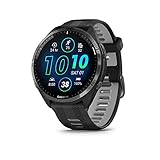
- Brilliant AMOLED touchscreen display with traditional button controls and lightweight titanium bezel
- Battery life: up to 23 days of battery life in smartwatch mode, up to 31 hours in GPS mode
- Confidently run any route using full-color, built-in maps and multi-band GPS
- Training readiness score is based on sleep quality, recovery, training load and HRV status to determine if you’re primed to go hard and reap the rewards (data presented is intended to be a close estimation of metrics tracked)
- Plan race strategy with personalized daily suggested workouts based on the race and course that you input into the Garmin Connect app and then view the race widget on your watch; daily suggested workouts adapt after every run to match performance and recovery
Step 4: Continue holding Menu until the reset confirmation appears or the watch beeps.
Release the button and allow the reset to complete.
Because Instinct models emphasize long battery life and rugged casing, a successful reset won’t affect solar charging, button stiffness, gasket sealing, or water resistance.
Two- and three-button watches (Venu Sq, Forerunner 55, Forerunner 165)
Simpler Garmin watches rely on fewer buttons, which changes the reset sequence slightly. These models are more touch-dependent day to day, but still support button-based recovery.
Step 1: Power the watch off completely.
If it’s stuck, hold the power button for 15–20 seconds until the screen goes black.
Step 2: Press and hold the main button (or top button, depending on model).
Keep it held.
Step 3: Power the watch on while continuing to hold the button.
Release only when the reset or clear-data prompt appears.
On some Venu and Forerunner models, the watch may reset immediately without asking for confirmation. This is normal behavior.
If the watch is stuck on the Garmin logo
A logo freeze usually means the firmware can’t finish loading. Button-combination resets still work, but you may need to be patient.
Hold the power button for a full 20–30 seconds to force shutdown, even if nothing appears to happen. Then immediately begin the reset sequence for your model without letting the watch try to boot normally first.
If the logo reappears repeatedly and the reset never triggers, the firmware itself may need to be reinstalled through Garmin Express using a computer.
What a successful reset looks like
After the reset, the watch will behave like a brand-new unit. You’ll see language selection, wrist preference, and pairing instructions rather than your usual watch face.
Buttons should feel the same, screen brightness and sharpness will be unchanged, and physical comfort on the wrist remains identical. Any difference you notice at this stage is software recalibration, not hardware wear.
Common mistakes that cause resets to fail
Releasing buttons too early is the most frequent issue, especially on five-button models. If the watch boots normally, the reset never engaged.
Another common problem is insufficient battery charge. Watches with aging batteries may power-cycle during reset, which can leave them stuck until charged longer or connected to a computer.
If you’ve followed the correct sequence multiple times and the watch still won’t reset, the issue has likely moved beyond user data corruption. At that point, recovery mode and firmware reload are the next logical steps.
Model-Specific Reset Notes: Fenix, Forerunner, Venu, Vivoactive, Instinct, and Edge Cases
Different Garmin families share the same core software philosophy, but their hardware layouts, button counts, and touchscreen behavior change how resets actually work in the real world. If a generic reset sequence didn’t behave as expected, the notes below explain why and how to adjust without guessing.
Fenix Series (Fenix 5, 6, 7, 7 Pro, Epix Gen 2)
Fenix models use a five-button layout with no reliance on touch for resets, which makes them the most reliable when firmware freezes occur. The left-side buttons are critical here, especially the top-left Light button, which controls power and forced shutdown.
For a soft reboot, holding the Light button for 15–20 seconds is usually sufficient, even if the screen is unresponsive. This does not affect activities, training load, maps, or battery calibration, and it’s the first step for sudden battery drain or sensor dropouts.
Factory resets on Fenix watches require holding specific button combinations during boot, often involving Back/Lap and Down/Menu. Because these watches store maps and large activity files, resets may take longer to complete, and the watch can appear idle before the setup screen appears.
Physically, nothing changes after reset. The case weight, sapphire or Gorilla Glass lens clarity, and strap comfort remain identical, which helps confirm the issue was software-only rather than button or sensor wear.
Forerunner Series (45 through 965)
Forerunner watches vary more than any other Garmin line, ranging from lightweight button-only designs to touchscreen hybrids like the 955 and 965. Reset behavior depends heavily on whether the model includes touch input.
Entry-level and midrange models with five buttons behave similarly to Fenix but reset faster due to smaller storage and simpler firmware. Soft reboots are highly effective for syncing failures, GPS lock delays, and Bluetooth instability.
Touchscreen Forerunners may reset immediately without confirmation when using button-based factory resets. This is expected and not a malfunction, especially on AMOLED models where Garmin prioritizes speed over prompts.
Because Forerunners are extremely light and thin, especially on nylon or silicone straps, users sometimes assume battery degradation after glitches. A reset often recalibrates power reporting and restores normal multi-day endurance.
Venu Series (Venu, Venu Sq, Venu 2, Venu 3)
Venu watches rely more heavily on touchscreen input and AMOLED displays, which changes reset behavior significantly. When the screen freezes, touch-based menus are unusable, making button resets the only option.
Soft reboots solve most Venu issues, including rapid battery drain, display wake failures, and notification lag. These watches are more sensitive to third-party watch faces and Connect IQ apps, which is why reboots often feel more effective here than on sport-first models.
Factory resets on Venu models may occur without warning once the button sequence is detected. After reset, display brightness and color remain unchanged, and comfort is identical thanks to the same case curvature and lightweight aluminum construction.
If a Venu repeatedly freezes shortly after reset, uninstalling non-Garmin watch faces before restoring settings often prevents the issue from returning.
Vivoactive Series
Vivoactive watches sit between lifestyle and fitness, combining touchscreens with minimal buttons. This makes them slightly more prone to UI freezes but also quick to recover.
Soft reboots are usually all that’s needed for sluggish menus, delayed heart rate readings, or failed Wi‑Fi syncs. These models boot quickly, so if the watch restarts normally, the reboot worked even if no logo animation appeared.
Factory resets clear stored activities and personalization but do not change how the watch feels on the wrist. Case dimensions, screen sharpness, and band fit remain constant, confirming no physical reset or recalibration occurred.
Instinct and Instinct Solar
Instinct models are the most forgiving when it comes to resets, thanks to their monochrome displays and simplified firmware. Button-only control means resets work even when the screen appears completely dead.
Soft reboots fix most issues related to altimeter drift, compass errors, and erratic solar charging estimates. Because these watches emphasize durability over visuals, users often mistake software hiccups for hardware faults.
Factory resets on Instinct models take slightly longer, especially on Solar editions recalculating charging history. After reset, battery life often stabilizes, but the rugged polymer case, weight, and strap stiffness remain unchanged.
Edge Cases and Less Common Scenarios
Older Garmin models or region-specific variants may not show reset prompts at all. In these cases, the absence of a message does not mean failure; the appearance of the setup screen is the only confirmation that matters.
Watches with severely degraded batteries may shut down mid-reset. Charging for at least 30 minutes or connecting to Garmin Express on a computer provides enough stable power to complete the process.
If a watch resets successfully but immediately reboots or freezes during setup, firmware corruption is likely. At that point, reinstalling the software through Garmin Express is more effective than repeating resets.
When preparing a watch for resale or hand-down, always perform a factory reset from the watch itself rather than relying on Garmin Connect removal alone. This ensures personal data, Wi‑Fi credentials, and paired sensors are fully erased regardless of model.
After the Reset: Restoring Data, Re-Pairing to Your Phone, and Avoiding Common Setup Mistakes
Once the watch reaches the initial setup screen, the reset itself is complete. What happens next determines whether the device feels “fixed” or immediately starts acting up again.
The goal after any reset is to restore only what you actually need, re-establish a clean connection to your phone, and avoid reintroducing the same settings or sync conflicts that caused problems in the first place.
Restoring Your Garmin Data the Right Way
Garmin activity data is tied to your Garmin account, not stored permanently on the watch. If your watch was syncing successfully before the reset, your activities, training history, body battery trends, and health metrics are already safe in Garmin Connect.
After re-pairing, the watch will gradually pull back recent data such as VO2 max estimates, training status, personal records, and activity goals. This happens in the background and can take several minutes, especially on watches with large AMOLED displays and more complex widgets like the Fenix, Epix, or Forerunner 9xx series.
What does not automatically return are on-watch customizations. Watch faces, data screen layouts, button shortcuts, alarms, Wi‑Fi networks, and paired sensors must be set up again manually. This is intentional and often beneficial, as corrupted settings are a common cause of glitches.
💰 Best Value

- Designed with a bright, colorful AMOLED display, get a more complete picture of your health, thanks to battery life of up to 11 days in smartwatch mode
- Body Battery energy monitoring helps you understand when you’re charged up or need to rest, with even more personalized insights based on sleep, naps, stress levels, workouts and more (data presented is intended to be a close estimation of metrics tracked)
- Get a sleep score and personalized sleep coaching for how much sleep you need — and get tips on how to improve plus key metrics such as HRV status to better understand your health (data presented is intended to be a close estimation of metrics tracked)
- Find new ways to keep your body moving with more than 30 built-in indoor and GPS sports apps, including walking, running, cycling, HIIT, swimming, golf and more
- Wheelchair mode tracks pushes — rather than steps — and includes push and handcycle activities with preloaded workouts for strength, cardio, HIIT, Pilates and yoga, challenges specific to wheelchair users and more (data presented is intended to be a close estimation of metrics tracked)
If you used Garmin Express on a computer before the reset, plug the watch in after pairing to ensure firmware and system files fully sync. This is especially useful for Edge cases like repeated reboots or missing widgets after setup.
Re-Pairing the Watch to Your Phone Without Sync Errors
Before opening Garmin Connect, remove the watch from your phone’s Bluetooth list if it still appears there. This step is critical on both iOS and Android and is frequently skipped.
On iPhones, go to Settings, Bluetooth, find the old Garmin entry, and choose “Forget This Device.” On Android, remove it from the paired devices list and restart Bluetooth before continuing.
Now open Garmin Connect and follow the in-app pairing process from scratch. Do not pair the watch directly through the phone’s Bluetooth menu, even if the phone prompts you to. Garmin Connect handles permissions, background sync, notifications, and battery optimization settings that manual pairing misses.
During pairing, keep the watch close to the phone and avoid switching apps. Larger watches with metal bezels or sapphire glass, like the Fenix and Epix lines, can take a few extra seconds to establish a stable connection due to antenna shielding.
Battery Behavior After a Reset: What’s Normal and What’s Not
It is normal for battery estimates to fluctuate for the first one to three charge cycles after a factory reset. The watch is recalibrating usage patterns, sensor frequency, display behavior, and solar input if applicable.
On AMOLED models, brightness defaults and gesture settings often change after reset, which can temporarily increase drain. On MIP-based watches like the Instinct or older Forerunners, GPS and sensor sampling settings may revert to higher accuracy modes.
If battery drain remains extreme after two full charge cycles, check for third-party watch faces or Connect IQ apps. Reinstall them one at a time rather than all at once to identify any that cause excessive background activity.
Physical aspects such as case size, weight distribution, strap stiffness, and wrist comfort are unaffected by resets. If the watch suddenly feels heavier or less comfortable, the cause is almost always tighter default strap settings or changed sleep tracking posture reminders.
Common Setup Mistakes That Reintroduce Problems
The most common mistake is restoring everything immediately. Syncing dozens of data fields, widgets, and Connect IQ apps at once increases the chance of freezes, lag, or battery drain returning.
Another frequent issue is skipping permission prompts during pairing. Notification access, background app refresh, and battery optimization exclusions are required for reliable syncing and smart features. If alerts stop working later, revisit these settings before blaming the watch.
Avoid setting up Wi‑Fi, music syncing, and payments all in one session. These features stress the system more than basic activity tracking and are best added after the watch has completed at least one successful sync and activity recording.
For watches being handed down or sold, do not log into your personal Garmin account during setup “just to test it.” This can reattach the device to your profile and create confusion for the next owner. The setup screen alone confirms the reset was successful.
When to Stop Troubleshooting and Escalate
If the watch cannot complete setup, freezes during pairing, or fails to stay powered on even while charging, repeated resets will not help. These symptoms point to firmware corruption or battery degradation rather than settings conflicts.
At this stage, connect the watch to a computer and use Garmin Express to reinstall software. If Express cannot detect the device or the watch disconnects repeatedly, contact Garmin support with the model and serial number ready.
Garmin’s hardware is generally durable, with cases, buttons, and straps built to outlast years of use. When software recovery fails, it is usually a power or internal memory issue rather than normal wear, regardless of how pristine the watch looks on the wrist.
When a Reset Won’t Fix the Issue: Firmware Bugs, Hardware Faults, and When to Contact Garmin Support
By this point, you have ruled out the most common causes of Garmin watch problems: temporary software glitches, corrupted settings, and messy restores. If issues persist after a clean factory reset and cautious setup, it is time to shift your thinking from user-fixable problems to underlying software or hardware causes.
This is also where many owners waste time repeating resets that will never work. Knowing when to stop troubleshooting is just as important as knowing how to start.
Signs You’re Dealing With a Firmware Bug
Firmware bugs usually appear immediately after a software update or when a specific feature is used. Common symptoms include random reboots during activities, GPS taking dramatically longer to lock, widgets freezing while buttons still respond, or battery drain that begins overnight with no usage change.
Unlike normal glitches, firmware bugs often affect many users of the same model at once. If your Forerunner, Fēnix, or Venu starts misbehaving right after an update, a reset may temporarily mask the problem but will not eliminate it.
Before assuming hardware failure, check Garmin Connect release notes and user forums for your model. If others report identical behavior, the best fix is often waiting for a corrective update rather than forcing repeated resets that add wear to buttons and charging ports.
When Reinstalling Firmware Is Worth Trying
If a reset fails but the watch still powers on reliably, reinstalling firmware through Garmin Express is the last meaningful DIY step. This process replaces the operating system itself rather than just clearing user data.
Connect the watch to a computer using the original charging cable if possible. Intermittent USB connections can interrupt the install and leave the watch in worse shape than before.
If Garmin Express cannot recognize the device, loses connection repeatedly, or stalls during installation, stop and move on to support. These are strong indicators of internal storage or power stability issues.
Symptoms That Point to Hardware Faults
Some problems simply cannot be fixed with software. Rapid battery drops from 40 percent to zero, failure to power on despite charging, or the watch heating up while idle usually indicate battery degradation.
Button failures are another common hardware issue, especially on older adventure models with heavy use. If a button feels mushy, fails to register consistently, or triggers actions without being pressed, resets will not help.
Display issues also fall into this category. Flickering screens, dead pixels, or ghosting that persists through resets suggest panel or connector failure, even if the glass looks perfect and the case shows no damage.
Water Damage and Environmental Wear
Garmin watches are built for real-world use, with reinforced cases, sealed buttons, and durable straps designed for sweat, rain, and swimming. That said, water resistance is not permanent.
Hot showers, saltwater exposure without rinsing, and aging seals can allow moisture inside the case. Symptoms often include fogging under the display, erratic touch response, or sudden shutdowns days or weeks after exposure.
Once moisture enters the watch, resets and firmware reinstalls are ineffective. Continued use can worsen corrosion and reduce the chance of successful repair or replacement.
When to Contact Garmin Support Immediately
Contact Garmin support if the watch cannot complete initial setup, will not stay powered on while charging, or repeatedly disconnects during pairing with multiple phones. These are not configuration errors.
You should also escalate if Garmin Express fails to detect the device or reports installation errors more than once. Have your model name, serial number, and proof of purchase ready if available.
Garmin support is generally pragmatic and device-focused rather than script-driven. In many regions, they will offer refurbished replacements for out-of-warranty devices at reduced cost if a known hardware issue is identified.
What Garmin Support Can and Cannot Fix
Support can diagnose firmware corruption, battery health issues, button failures, and charging faults. They can also confirm whether your device is affected by a known software bug or recall.
They cannot recover unsynced activities from a watch that will not power on or complete a sync. This is why regular syncing matters, especially for long events or training blocks.
Cosmetic wear, strap degradation, and minor scratches are considered normal use. These do not affect eligibility for support unless they are directly linked to functional failure.
Making the Call: Repair, Replace, or Move On
If your watch is several years old and experiencing battery or button failure, replacement may offer better value than repair. Newer models bring improved GPS accuracy, longer battery life, lighter cases, and more comfortable strap designs that matter in daily wear.
For newer or premium models, especially Fēnix and Epix lines with sapphire lenses and metal cases, Garmin’s replacement programs can extend useful life significantly. This often preserves the familiar fit, weight, and on-wrist balance you are already used to.
The key is recognizing when troubleshooting has delivered all it can. A reset is a tool, not a cure-all.
Final Takeaway
Soft reboots and factory resets solve the majority of Garmin watch problems when used correctly and followed by careful setup. When they do not, the cause is almost always deeper than settings or user error.
Firmware bugs require patience and updates, not repeated resets. Hardware faults require support, not guesswork.
Knowing the difference saves time, protects your data, and helps you decide confidently whether to fix, replace, or retire your watch. That clarity is the real goal of troubleshooting, and it is what keeps your Garmin working for your training, health, and everyday wear rather than fighting against it.