You start a run, glance down a few minutes later, and your heart sinks. The workout timer has stopped. Sometimes it pauses once. Other times it happens over and over, breaking your session into useless fragments. By the time you finish, your distance, pace, calories, and rings are all wrong.
For many Apple Watch users, this doesn’t happen during casual walks. It shows up during the workouts that actually matter: outdoor runs, treadmill sessions, gym training, cycling, or brisk walks where your arms move differently. That unpredictability is what makes it so infuriating. You can’t trust the data, and you don’t know what you did wrong.
This section walks through exactly how this problem shows up in real life, why it feels so disruptive, and how to recognize the specific behavior your watch is exhibiting. Once you can identify the pattern, fixing it becomes much easier.
The workout pauses without you touching anything
The most common scenario is an automatic pause that happens mid-workout, even though you never pressed the side button or Digital Crown. You’re still moving, your heart rate is elevated, but the watch decides the workout has stopped.
🏆 #1 Best Overall
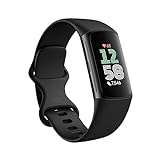
- Find your way seamlessly during runs or rides with turn-by-turn directions from Google Maps on Fitbit Charge 6[7, 8]; and when you need a snack break on the go, just tap to pay with Google Wallet[8, 9]
This is especially common during runs with relaxed arm swing, pushing a stroller, carrying weights, or using gym machines where your wrist stays relatively still. From the watch’s perspective, motion data suddenly looks inconsistent, triggering a pause when it shouldn’t.
The workout pauses repeatedly, sometimes every few minutes
Some users don’t experience a single pause but a pattern of interruptions. You resume the workout, only for it to pause again shortly after. This can happen dozens of times in one session.
When this occurs, the watch is usually losing confidence that it’s still on your wrist or that the activity qualifies as continuous movement. Each pause resets focus and breaks your rhythm, turning what should be a seamless training session into a constant distraction.
The pause happens when you sweat, adjust your grip, or change intensity
Many people notice the issue starts once they’re fully warmed up. Heavy sweat, rain, or sunscreen can affect how the sensors read your skin. A slightly loose band that felt fine at the start can begin to shift as moisture builds.
Changes in intensity can also trigger it. Transitioning from running to walking, slowing down for recovery intervals, or stopping briefly at traffic lights can confuse the workout logic if other factors are already borderline.
The workout ends up missing chunks of time and distance
Even if you catch the pause and resume quickly, the damage is already done. Those missing minutes mean lost distance, inaccurate pace averages, and calorie counts that don’t reflect your actual effort.
For users who train with goals, follow structured plans, or rely on Apple Fitness rings for motivation, this undermines the entire purpose of wearing the watch. The hardware is capable, the sensors are sophisticated, yet the data becomes unreliable.
Why this feels worse than a simple software glitch
This problem hits at trust. The Apple Watch is marketed as a dependable fitness companion, something you don’t have to think about once you press Start. When it keeps pausing workouts, it forces you to babysit the screen instead of focusing on movement.
It’s also frustrating because the cause isn’t obvious. The watch doesn’t explain why it paused. There’s no warning, no clear error message, just a stopped timer and lost progress. That lack of feedback makes the issue feel random, even though it usually isn’t.
Recognizing the pattern is the first step to fixing it
Whether your workouts pause due to wrist detection, band fit, motion patterns, sensor interference, or software behavior, the way it manifests gives important clues. A pause during sweaty runs points to a different cause than pauses during strength training or treadmill walks.
In the next sections, we’ll break down each root cause one by one, explain why the Apple Watch behaves this way, and show you exactly how to stop workouts from pausing so your tracking becomes reliable again.
How Apple Watch Decides When to Pause a Workout: Sensors, Wrist Detection, and Software Logic Explained
Once you understand how the Apple Watch decides whether a workout is still “active,” the random pauses start to feel far less mysterious. The watch isn’t guessing or glitching arbitrarily; it’s constantly running a series of checks using sensors, motion data, and software rules to confirm that the watch is on your wrist and that you’re actually exercising.
When even one of those signals becomes uncertain, the system can interpret that as a reason to pause, especially if multiple factors stack up at the same time.
The core rule: Apple Watch must believe it’s on your wrist and in motion
At the most basic level, a workout continues only if the watch believes two things are true. First, it must detect consistent skin contact on your wrist. Second, it must detect movement patterns that match the selected workout type.
If either signal drops below Apple’s confidence threshold, the workout logic starts to behave defensively. That’s when pauses happen, often without explanation on the screen.
Wrist detection is the gatekeeper for all workouts
Wrist detection uses the optical heart rate sensor on the back of the watch, combined with skin-contact sensors and ambient light readings. If light leaks under the watch or heart rate data becomes intermittent, watchOS may assume the watch is no longer being worn.
When that happens during a workout, the watch can pause automatically because it treats “not on wrist” as a safety and accuracy issue. This is why band fit, wrist position, sweat, and tattoos matter far more during workouts than during normal daily wear.
Why heart rate stability matters more than people realize
During workouts, heart rate data isn’t just logged for fitness metrics; it’s also used as a confirmation signal. A stable, readable heart rate reinforces that the watch is still on your wrist and that the activity is ongoing.
If heart rate readings drop out repeatedly, flatten unnaturally, or fail to register during movement, the software may treat that as unreliable tracking. Combined with reduced motion or a loose fit, this can push the workout into a paused state.
Motion sensors interpret your activity, not just raw movement
The accelerometer and gyroscope inside the Apple Watch don’t just measure movement; they analyze motion patterns. Running, walking, cycling, rowing, and strength training all have distinct signatures the watch expects to see.
If your movement doesn’t match the expected pattern for that workout type, the watch becomes less confident. Slow walking during a run, long pauses between strength sets, or gripping gym equipment tightly can all confuse the motion model.
Auto-pause logic is conservative by design
For workouts like outdoor running or cycling, auto-pause is designed to stop tracking when movement genuinely stops. Traffic lights, water breaks, or walking during intervals can trigger it if speed drops sharply.
The issue arises when auto-pause combines with borderline wrist detection or weak heart rate data. In those cases, the watch may pause even though you’re still moving, because the overall confidence score falls too low.
Software uses multiple signals at once, not a single trigger
Apple Watch rarely pauses a workout because of one isolated issue. Instead, watchOS weighs several inputs at the same time: wrist contact, heart rate consistency, motion pattern, and workout type expectations.
This explains why pauses feel inconsistent. The same slowdown or grip position might be fine one day and cause a pause another day, depending on sweat, strap tightness, battery level, or sensor cleanliness.
Why strength training and gym workouts pause more often
Strength training is especially vulnerable because motion is irregular and wrist angles change constantly. Holding dumbbells, barbells, or machines can reduce skin contact and block heart rate readings.
During rest periods, motion drops to near zero, which removes another confirmation signal. If wrist detection is already marginal, the watch may assume the workout has stopped altogether.
Environmental and physical factors influence sensor confidence
Sweat can create micro-slippage between the watch and your skin, especially with sport bands or solo loops that stretch slightly over time. Cold weather can reduce blood flow at the wrist, weakening heart rate signals.
Tattoos, darker ink saturation, and uneven skin texture can interfere with optical sensors as well. These factors don’t always cause issues, but they reduce the margin for error when combined with movement changes.
watchOS updates can subtly change workout behavior
Apple regularly tweaks workout algorithms through watchOS updates, often without detailed public explanations. These changes can adjust how aggressively auto-pause triggers or how strictly wrist detection is enforced.
That’s why some users notice new pausing behavior after an update, even though their hardware and habits haven’t changed. The underlying logic has shifted, not necessarily the sensors themselves.
Battery and performance constraints also play a quiet role
When battery levels drop or background processes compete for resources, sensor sampling rates can be reduced. This doesn’t usually stop workouts, but it can lower data quality.
Lower-quality data increases uncertainty, which again feeds into the conservative decision-making that leads to pauses. It’s subtle, but it helps explain why long workouts or older batteries sometimes correlate with this issue.
Why Apple prioritizes false pauses over false tracking
From Apple’s perspective, it’s better to pause a workout than to log inaccurate data. Recording movement when the watch isn’t securely worn could inflate distance, calories, or heart rate metrics.
That philosophy protects data integrity, but it shifts the burden onto the user when real-world conditions don’t fit neatly into the algorithm’s expectations. Understanding this trade-off is key to fixing the problem.
This logic explains why fixes focus on confidence, not just settings
Because pausing is triggered by uncertainty, most solutions aim to increase sensor confidence rather than disable features entirely. Better band fit, cleaner sensors, adjusted settings, and choosing the right workout type all reinforce the signals the watch relies on.
In the next sections, we’ll map each common pause scenario to its specific root cause and show exactly which adjustments restore that confidence, so your Apple Watch keeps tracking from start to finish.
Cause #1: Wrist Detection Failing (Loose Bands, Tattoos, Sweat, and Skin Contact Issues) — How to Fix It Properly
Once you understand that Apple Watch pauses workouts when sensor confidence drops, wrist detection becomes the most common and most misunderstood trigger. In real-world testing, this single factor explains more unexplained pauses than software bugs or workout settings combined.
Wrist detection isn’t just about whether the watch is on your arm. It’s about whether the optical heart rate sensors, motion sensors, and skin-contact detection all agree that the watch is securely worn and tracking a living, moving wrist.
Why wrist detection matters so much during workouts
Apple Watch uses green LED optical sensors to read blood flow, alongside accelerometers and gyroscopes to confirm motion patterns. If skin contact weakens, heart rate data becomes inconsistent or drops out entirely.
When that happens during an active workout, the system assumes the watch may have shifted, been removed, or is no longer tracking reliably. To protect data accuracy, watchOS pauses the workout instead of guessing.
Loose bands are the number one culprit
A band that feels comfortable for daily wear can still be too loose for exercise. During running, strength training, or cycling, repeated micro-movements let light leak under the sensor array.
This light leakage disrupts heart rate readings, especially during arm swing or wrist flexion. Once the signal degrades enough, the watch treats it as a loss of wrist contact.
How tight is tight enough without cutting off circulation
For workouts, the Apple Watch should sit snugly above the wrist bone, not sliding when you shake your arm. You should be able to slide one finger under the band, but not rotate the case freely around your wrist.
Many athletes tighten the band one notch more than their all-day fit, then loosen it again afterward. This small adjustment alone often eliminates mid-workout pauses.
Band material and design matter more than most users realize
Sport Bands and Sport Loops are designed for consistent skin contact under sweat and motion. Leather bands, metal bracelets, and third-party fashion straps often shift or gap during workouts.
Metal bracelets in particular can lift the sensor slightly during wrist extension, especially during push-ups, lifting, or rowing. If you train regularly, a dedicated workout band improves both comfort and tracking reliability.
Tattoos can interfere with optical sensors
Dark, dense, or highly pigmented tattoos under the sensor can absorb or scatter the green LED light used for heart rate monitoring. This makes it harder for the watch to detect blood flow accurately.
When heart rate readings drop out repeatedly, wrist detection confidence drops with them. The watch may interpret this as loss of contact and pause the workout.
Workarounds for tattoo-related wrist detection issues
If possible, wear the watch slightly higher on the arm where tattoo coverage is lighter. Even moving it a few centimeters can improve sensor reliability.
Some users switch the watch to the opposite wrist if one arm is heavily tattooed. While not ideal, this often restores consistent tracking during workouts.
Sweat, water, and sunscreen can reduce sensor accuracy
Sweat acts as both a lubricant and a reflective surface, allowing the watch to slide and light to scatter. Sunscreen and lotions create a thin film that interferes with optical readings.
During longer workouts, especially in heat, this effect becomes more pronounced. The watch may start strong, then pause once sweat buildup increases.
How to maintain clean, reliable sensor contact
Before workouts, wipe the back of the watch with a dry or slightly damp cloth to remove residue. Make sure your skin is dry before starting the session.
For long or high-sweat workouts, briefly tightening the band mid-session can restore proper contact without stopping the workout. Afterward, clean both the watch and band to prevent buildup over time.
Wrist flexion during strength training causes false removal signals
Exercises that involve gripping, wrist bending, or weight bearing can momentarily lift the sensor off the skin. This is especially common during push-ups, planks, kettlebell work, and heavy lifts.
During these movements, heart rate data can drop out for seconds at a time. If it happens repeatedly, the workout may pause even though you’re still active.
Best practices for gym and mixed training sessions
Wear the watch slightly higher up the forearm for strength workouts to reduce wrist flexion interference. This positioning keeps the sensor flatter against the skin during lifts.
Alternatively, consider using workout types that rely less on continuous heart rate confidence if your training style involves frequent wrist movement.
Check that Wrist Detection is actually enabled
Wrist detection can be turned off manually, often unintentionally during troubleshooting or privacy adjustments. When disabled, the watch behaves more conservatively during workouts.
On your iPhone, go to the Watch app, tap Passcode, and confirm that Wrist Detection is enabled. Restart the watch after enabling it to reset sensor behavior.
Signs wrist detection is the root cause of your pauses
If your workout pauses when your arm relaxes, when sweat increases, or during certain exercises, wrist detection is likely failing intermittently. Pauses that stop immediately when you adjust the band are another clear indicator.
Fixing wrist detection doesn’t require disabling features or sacrificing data quality. It simply means giving the sensors the stable contact they were designed around, so the watch can stay confident and keep tracking without interruption.
Cause #2: Auto‑Pause Settings Enabled or Misconfigured for Specific Workout Types (Running, Cycling, Walking)
Once wrist detection is behaving properly, the next most common reason workouts keep stopping is Auto‑Pause. This feature is designed to help runners and cyclists by pausing tracking when movement drops below a threshold, but it can be far too aggressive in real‑world conditions.
Rank #2

- Inspire 3 is the tracker that helps you find your energy, do what you love and feel your best. All you have to do is wear it.Operating temperature: 0° to 40°C
- Move more: Daily Readiness Score(1), Active Zone Minutes, all-day activity tracking and 24/7 heart rate, 20+ exercise modes, automatic exercise tracking and reminders to move
- Stress less: always-on wellness tracking, daily Stress Management Score, mindfulness sessions, relax breathing sessions, irregular heart rhythm notifications(2), SpO2(3), menstrual health tracking, resting heart rate and high/low heart rate notifications
- Sleep better: automatic sleep tracking, personalized Sleep Profile(1), daily detailed Sleep Score, smart wake vibrating alarm, sleep mode
- Comfortably connected day and night: calls, texts & smartphone app notifications(4), color touchscreen with customizable clock faces, super lightweight and water resistant to 50 meters, up to 10 day battery life(5)
Auto‑Pause doesn’t behave the same across all workout types. It’s tuned differently for Outdoor Run, Outdoor Walk, Outdoor Cycle, and treadmill sessions, which means a setting that works for one activity can quietly break another.
What Auto‑Pause is actually doing behind the scenes
Auto‑Pause uses a combination of motion sensors, GPS speed, and cadence to decide whether you’ve “stopped.” When speed drops below a preset threshold for a few seconds, the watch pauses the workout automatically.
That logic works well for steady outdoor running with clear GPS signal. It struggles during stop‑and‑go training, hill repeats, crowded sidewalks, traffic lights, or indoor environments where GPS isn’t involved.
If your workout pauses even though you’re still moving, it’s usually because your speed or arm swing briefly dips below what the algorithm expects.
Workout‑specific Auto‑Pause settings most people miss
Auto‑Pause is not a global switch. It’s configured per workout type, which means you can have it enabled for Outdoor Run but disabled for Outdoor Walk without realizing it.
On your iPhone, open the Watch app, tap Workout, then tap Auto‑Pause. You’ll see individual toggles for Running and Cycling, depending on your watchOS version.
If you start workouts directly from the watch, also check on‑device settings. Open the Workout app on the watch, tap the three dots next to a workout type, scroll down, and review Auto‑Pause for that specific activity.
Why walking workouts pause more often than running
Walking is the most sensitive workout type when Auto‑Pause is enabled. Casual pace changes, short stops, uneven terrain, or pushing a stroller can all trigger pauses.
Arm swing matters more than people realize. If you’re holding a phone, coffee, leash, or treadmill rail, the watch may think you’ve stopped even when your legs are still moving.
For outdoor walks, especially urban or fitness walks with variable pace, Auto‑Pause often causes more harm than help.
Cycling pauses caused by speed dips and GPS lag
Cycling Auto‑Pause relies heavily on speed. Short coasts, tight turns, climbs, or brief traffic slowdowns can drop you below the pause threshold.
GPS signal instability makes this worse. Tree cover, tall buildings, or riding alongside traffic can delay speed updates just long enough to trigger a pause.
If your ride resumes automatically a few seconds later without you touching the watch, Auto‑Pause is almost certainly responsible.
Treadmill and indoor workouts: when Auto‑Pause shouldn’t be used
Auto‑Pause is not recommended for treadmill running or indoor walking. These workouts rely on arm motion rather than GPS, and hand placement on rails or consoles confuses the motion sensors.
If your treadmill session pauses every time you adjust speed or wipe sweat, Auto‑Pause is misfiring due to reduced arm swing.
For indoor workouts, manual pause gives you more control and preserves cleaner data.
How to correctly disable Auto‑Pause (step‑by‑step)
On your iPhone, open the Watch app and tap Workout. Tap Auto‑Pause and turn it off for Running and Cycling.
Then, on the watch itself, open the Workout app. Tap the three dots next to each workout type you actually use, scroll down, and confirm Auto‑Pause is off there as well.
Restart the watch after changing these settings. This clears cached workout behavior and ensures the new thresholds are applied cleanly.
When Auto‑Pause should stay enabled
Auto‑Pause can still be useful for structured outdoor runs or bike rides where you want clean splits and don’t want to manually pause at stops.
If you train in open areas with consistent pace and strong GPS signal, leaving it on may improve data accuracy rather than hurt it.
The key is matching the feature to how you actually move, not how the algorithm assumes you move.
Clear signs Auto‑Pause is the cause of your workout interruptions
Your workout pauses at stoplights, water breaks, hills, or crowded sections but resumes on its own when you speed up. The watch never locks, and heart rate tracking continues during the pause.
Disabling Auto‑Pause immediately stops the problem without changing band fit, wrist position, or sensor contact.
If that describes your experience, this setting—not the hardware—is what’s breaking your workout flow.
Cause #3: Band Fit, Case Size, and Placement Errors That Break Heart Rate and Motion Tracking
If Auto‑Pause isn’t the culprit and your workout still stops unexpectedly, the next place to look is how the watch physically sits on your wrist.
Apple Watch workout tracking depends on constant skin contact for heart rate and stable motion data from the accelerometer and gyroscope. When that contact breaks—even briefly—the system may interpret it as you stopping, removing the watch, or failing Wrist Detection, which can trigger a pause.
This is one of the most common real‑world causes because it feels harmless. A watch that’s comfortable for all‑day wear can be too loose, too low, or poorly positioned for high‑motion workouts.
Why band fit matters more during workouts than daily wear
During a workout, Apple Watch increases sensor sampling and tightens its expectations for clean data. If the case shifts, lifts, or rocks on your wrist, the optical heart rate sensor loses its light seal against the skin.
When heart rate data drops out repeatedly, the workout algorithm may assume you’ve stopped moving or removed the watch. In some scenarios, especially walking and indoor workouts, that loss alone is enough to trigger a pause.
A band that feels “fine” while typing or commuting often becomes a problem once sweat, arm swing, and vibration are added.
Loose bands: the most common hidden cause of workout pauses
If your watch slides up and down your wrist, rotates during arm swing, or leaves red marks only after you tighten it mid‑workout, it’s too loose at the start.
As sweat builds, friction drops. The case lifts microscopically with each stride, breaking heart rate contact just long enough to confuse the tracking system.
The fix is simple but specific: tighten the band one notch before starting the workout, not after it begins. You want firm contact without cutting off circulation or causing tingling.
Over‑tight bands can also cause tracking failures
Cranking the band down as tight as possible seems logical, but it can backfire.
Over‑tight bands restrict blood flow at the wrist, which makes optical heart rate readings less reliable. When readings flatten or disappear, the watch may again assume the workout has stopped.
The correct fit is snug and stable, not compressive. You should be able to slide a finger under the band with effort, but the case should not lift when you shake your arm.
Incorrect placement: too close to the wrist bone
Apple recommends wearing the watch slightly above the wrist bone during workouts, and this guidance matters more than most people realize.
When the case sits directly on the wrist bone, the sensor struggles to maintain consistent contact as the joint flexes. Each bend creates gaps that disrupt heart rate and motion data.
Slide the watch about one finger’s width up your forearm before starting your workout. This single adjustment fixes pausing issues for a surprising number of users.
Case size and wrist size mismatches
Larger Apple Watch cases can be more stable for workouts, but only if your wrist can support them properly.
On smaller wrists, larger cases tend to rock side to side, especially with sport bands or solo loops that stretch slightly under load. That rocking motion interrupts sensor contact even if the band feels tight.
If you’re between sizes or notice frequent tracking issues, switching to a smaller case or a more structured band can dramatically improve workout reliability.
Band material matters more than style during training
Not all Apple Watch bands behave the same once sweat enters the equation.
Silicone sport bands and fluoroelastomer designs maintain shape and tension when wet, making them the most reliable for workouts. Braided solo loops, leather bands, and fabric loops can loosen as they absorb moisture.
Metal link bracelets look premium but allow micro‑movement during high‑impact activities. For serious training, prioritize stability and sensor contact over aesthetics.
Wrist orientation and workout type interactions
Certain workouts amplify placement problems.
Indoor walking, treadmill running, and elliptical sessions rely heavily on arm swing. If you rest your hands on rails, carry weights, or grip machines, the watch sees irregular motion combined with unstable contact and may pause.
In these cases, proper placement and fit become even more critical because motion data alone isn’t enough to compensate for poor heart rate readings.
How to test if band fit or placement is causing the pauses
Before changing settings or blaming software, do a controlled test.
Tighten the band one notch, move the watch slightly higher on your arm, and start a short walk or run without touching the screen. If the workout runs continuously without pausing, fit and placement were the root cause.
If the watch still pauses despite stable contact and consistent movement, the issue likely lies elsewhere—settings, software, or sensor interference—which we’ll address next.
Cause #4: Touchscreen Input and Water Lock Issues Triggering Accidental Pauses During Exercise
If your watch fit is solid and sensor contact is stable, yet workouts still pause without warning, the next thing to examine is how the screen itself is being triggered during movement.
Unlike heart rate dropouts, these pauses are usually caused by accidental touch input or incomplete use of Water Lock, especially during sweaty, rainy, or high‑motion workouts.
How accidental screen touches pause workouts
Apple Watch workout controls are designed for quick access, but that also makes them vulnerable to unintended input.
During running, cycling, or strength training, the screen can register touches from sweat, sleeves, gloves, or even wrist flexion. A long press, swipe, or edge contact can bring up the workout control screen and trigger a pause without you ever realizing it happened.
This is more common on larger case sizes like 45 mm or 49 mm models, where the display surface extends closer to the wrist bone and clothing contact points during arm swing.
Sweat and moisture mimic touch input
Capacitive touchscreens don’t distinguish well between fingers and water.
As sweat builds up, especially during longer workouts or in humid conditions, moisture can create false touch signals. Raindrops during outdoor runs or splashes during cycling have the same effect.
This is why workouts may pause more often later in a session rather than at the start, even if nothing about your movement changes.
When Water Lock is off—or not fully engaged
Water Lock disables touchscreen input during a workout, but many users assume it’s automatically enabled.
While swimming workouts activate Water Lock by default, most land‑based workouts do not. If you’re running in heavy rain, sweating heavily, or doing high‑intensity training, the touchscreen remains fully active unless you manually turn Water Lock on.
Even more confusing, partially activating Water Lock or accidentally disabling it mid‑workout re‑enables the screen without obvious feedback.
How to properly use Water Lock for non‑swimming workouts
Water Lock isn’t just for the pool.
Rank #3

- 【BUILT-IN GPS SMART WATCH – GO FURTHER, FREER, SMARTER】No phone? No problem. This fitness watch for women, featuring the latest 2025 technology, includes an advanced professional-grade GPS chip that precisely tracks every route, distance, pace (real-time & average), and calorie burned—completely phone-free. Whether you're chasing new personal records or exploring off the beaten path, your full journey is automatically mapped and synced in the app. Train smarter. Move with purpose. Own your progress. Own your journey.
- 【BLUETOOTH 5.3 CALLS & SMART NOTIFICATIONS】Stay effortlessly connected with this smart watch for men and women, featuring dual Bluetooth modes (BT 3.0 + BLE 5.3) and a premium microphone for crystal-clear calls right from your wrist—perfect for driving, workouts, or busy days. Receive instant alerts for calls, texts, and popular social apps like WhatsApp and Facebook. Just raise your wrist to view notifications and never miss an important moment.
- 【100+ SPORT MODES & IP68 WATERPROOF & DUSTPROOF】This sport watch is a versatile activity and fitness tracker with 100+ modes including running, cycling, yoga, and more. It features quick-access buttons and automatic running/cycling detection to start workouts instantly. Accurately track heart rate, calories, distance, pace, and more. Set daily goals on your fitness tracker watch and stay motivated with achievement badges. With IP68 waterproof and dustproof rating, it resists rain and sweat for any challenge. Not suitable for showering, swimming, or sauna.
- 【24/7 HEALTH ASSISTANT & SMART REMINDERS】This health watch continuously monitors heart rate, blood oxygen, and stress levels for comprehensive wellness tracking. Sleep monitoring includes deep, light, REM sleep, and naps to give you a full picture of your rest. Stay on track with smart reminders for sedentary breaks, hydration, medication, and hand washing. Women can also monitor menstrual health. Includes guided breathing exercises to help you relax. Your ultimate health watch with event reminders for a healthier life.
- 【ULTRA HD DISPLAY, LIGHTWEIGHT & CUSTOMIZABLE DIALS】This stylish wrist watch features a 1.27-inch (32mm) 360×360 ultra HD color display with a 1.69-inch (43mm) dial, offering vivid details and responsive touch. Its minimalist design fits both business and casual looks. Switch freely among built-in designer dials or create your own DIY watch face using photos, colors, and styles to showcase your unique personality. Perfect as a cool digital watch and fashion wrist watch.
Before starting a run, walk, or gym session where sweat or rain is likely, swipe up to Control Center and tap the Water Lock icon. Confirm the droplet icon appears at the top of the screen before you begin.
When your workout ends, rotate the Digital Crown fully until the water eject sound finishes. Stopping early can leave residual moisture that continues to interfere with touch detection.
Clothing, gloves, and wrist position conflicts
Long sleeves, compression tops, and jackets frequently brush the watch face during arm swing.
This is especially problematic in cooler weather when cuffs sit tightly around the wrist. Gloves can also press against the lower edge of the display during wrist flexion, activating on‑screen controls.
Wearing the watch slightly higher on the arm and ensuring sleeves sit above the case edge can dramatically reduce accidental pauses.
Side button and Digital Crown presses during movement
Not all pauses come from the screen itself.
During certain exercises, wrist flexion can press the side button or rotate the Digital Crown, which can interrupt or pause a workout depending on your settings. This is common during push‑ups, kettlebell swings, rowing, and cycling in aggressive riding positions.
If your watch frequently pauses during these activities but not during steady running, physical button contact is a strong indicator.
How to confirm touchscreen input is the root cause
You can test this quickly without changing your workout routine.
Enable Water Lock before starting your next workout and avoid touching the screen entirely. If the workout runs continuously without pausing, accidental input was the cause.
For added confirmation, repeat the workout once without Water Lock under similar conditions. A pause returning only when the screen is active points directly to touch interference.
Preventive fixes that actually work long term
Make Water Lock part of your pre‑workout routine for any high‑sweat or wet conditions.
Pair it with a snug, non‑stretch band made from fluoroelastomer or silicone to limit screen movement. Keep sleeves and gloves clear of the case edge, and consider rotating the watch slightly inward on the wrist if button presses are an issue.
These changes don’t affect workout tracking accuracy, battery life, or comfort in daily wear, but they significantly improve workout reliability during real‑world training conditions.
Cause #5: watchOS Bugs, Corrupt Settings, and Post‑Update Glitches That Interrupt Workouts
If you’ve ruled out accidental touches, button presses, band fit, and wrist detection issues, the problem often lives deeper in software.
watchOS updates, background processes, or corrupted system settings can silently interfere with workout sessions, causing unexplained pauses even when you’re moving continuously and wearing the watch correctly.
This is one of the most frustrating causes because nothing about your behavior has changed, yet workout reliability suddenly drops.
Why watchOS glitches can pause workouts mid‑activity
Apple Watch relies on multiple systems running simultaneously during a workout: motion sensors, heart‑rate tracking, GPS, wrist detection, and background health services.
After a watchOS update or prolonged uptime without restarts, these systems can fall out of sync. When that happens, the watch may briefly think the workout conditions are no longer valid and pause the session.
This is most common after major watchOS releases or incremental updates that adjust fitness algorithms, heart‑rate sampling, or battery optimization behavior.
Signs your issue is software, not hardware or fit
Workouts pause even when the watch is secure, sleeves are clear, and Water Lock is enabled.
Pauses happen inconsistently across different activities, or begin immediately after updating watchOS.
Restarting the workout temporarily helps, but the issue returns on the next session or the next day.
These patterns strongly suggest a background software conflict rather than physical interaction.
Fix #1: Restart the Apple Watch and iPhone properly
A basic restart fixes more workout pausing issues than most people expect.
Power off your Apple Watch completely, not just sleep mode. Leave it off for at least 30 seconds before turning it back on.
Restart your paired iPhone as well. Workout data and wrist detection logic are partially coordinated through the phone, especially for GPS and Health syncing.
This clears stuck background processes that can interrupt workouts.
Fix #2: Check for partially installed or pending watchOS updates
Incomplete updates can leave system services unstable even if the watch appears up to date.
On your iPhone, open the Watch app, go to General, then Software Update. Confirm the update is fully installed and not paused due to low battery or storage.
If an update recently installed, give the watch a full charge cycle and restart it once more to stabilize post‑update behavior.
Fix #3: Reset workout‑related system settings without erasing data
Corrupted settings can persist across restarts.
On the Apple Watch, open Settings, go to General, then Reset, and choose Reset Settings. This does not erase apps, data, or workouts.
You’ll need to reconfigure things like notifications, display preferences, and wrist orientation, but workout history and Health data remain intact.
This step often resolves stubborn auto‑pause behavior caused by misfiring system rules.
Fix #4: Unpair and re‑pair the Apple Watch if pauses continue
If resets don’t work, the pairing profile itself may be damaged.
Unpair the Apple Watch from the iPhone using the Watch app, then set it up again as a new watch rather than restoring from backup if possible.
This rebuilds the entire software environment, including motion calibration, wrist detection logic, and Health permissions. It’s time‑consuming, but it’s one of the most reliable fixes for chronic workout interruptions.
Third‑party apps that interfere with workouts
Fitness overlays, heart‑rate monitors, cycling apps, and gym integrations can hook into workout sessions.
If a third‑party app crashes or loses sensor access mid‑workout, it can force the system workout to pause or behave erratically.
Temporarily remove non‑essential fitness apps from the watch and test workouts using Apple’s built‑in Workout app alone. If the pauses stop, reintroduce apps one at a time to identify the conflict.
Battery optimization and background limits
Low battery or aggressive background management can interrupt workouts.
If your watch regularly drops below 20 percent during exercise, watchOS may throttle background services to preserve power, especially on older models.
Ensure workouts start with at least 30 percent battery, disable unnecessary background apps, and keep Low Power Mode off during training sessions.
Why this happens more on older Apple Watch models
Older hardware with less memory is more sensitive to software inefficiencies.
As watchOS adds features, background services consume more resources, increasing the chance of temporary freezes or logic errors during workouts.
This doesn’t mean the watch is failing, but it does mean keeping software clean, updated, and lean becomes more important over time to maintain reliable tracking.
When workout pauses persist despite perfect fit and form, software instability is often the missing explanation. Addressing watchOS health restores the consistent, uninterrupted tracking Apple Watch is capable of delivering in real‑world training.
Cause #6: Third‑Party Workout Apps, Background App Conflicts, and iPhone Pairing Problems
When fit, sensors, and watchOS settings all check out, the next place to look is the software ecosystem around your workouts.
Apple Watch workouts don’t run in isolation. They share motion data, heart‑rate access, GPS priority, and background time with other apps, and conflicts here can silently trigger pauses.
Problem: Third‑party workout or fitness apps interrupt Apple’s Workout engine
Many fitness apps integrate deeply with watchOS to read heart rate, motion, cadence, or GPS during active workouts.
Apps for running plans, cycling computers, gym machines, or external heart‑rate straps can hook into the same system resources the Workout app uses.
If one of these apps freezes, loses permission, or fails to refresh in the background, watchOS may pause the active workout to prevent corrupt or incomplete data.
Root cause: Sensor contention and failed background refresh
watchOS prioritizes a single “primary” workout session at a time.
When another app requests heart‑rate or motion data mid‑session, the system has to arbitrate access. On newer watches this is usually seamless, but on older models or cluttered setups it can fail.
The result isn’t always an error message. Instead, the workout simply pauses as the system attempts to recover sensor control.
Fix: Isolate the Apple Workout app and test clean sessions
Remove non‑essential fitness apps from the watch, not just the iPhone.
On the iPhone, open the Watch app, go to Installed on Apple Watch, and temporarily remove third‑party workout, gym, or health apps that run natively on the watch.
Run several workouts using Apple’s built‑in Workout app only. If pauses stop completely, re‑install apps one at a time until the culprit reveals itself.
Problem: Background app conflicts during workouts
Even apps that aren’t fitness‑focused can interfere.
Navigation apps, music streamers, messaging apps, and voice assistants can all request background time, haptics, or screen wake events during workouts.
If multiple apps wake simultaneously, watchOS may briefly suspend the workout session, especially if memory pressure spikes.
Root cause: Limited RAM and background execution limits
Apple Watch hardware prioritizes battery life and thermal stability over raw performance.
When background apps exceed allowed execution time or memory usage, watchOS forcibly suspends them. In edge cases, this suspension can cascade into the active workout state.
Rank #4

- 24H Accurate Heart Rate Monitoring: Go beyond basic tracking. Our watch automatically monitors your heart rate, blood oxygen (SpO2), and sleep patterns throughout the day and night. Gain deep insights into your body's trends and make informed decisions for a healthier lifestyle.
- Practical Sports Modes & Smart Activity Tracking: From running and swimming to yoga and hiking, track a wide range of activities with precision. It automatically records your steps, distance, calories burned, and duration, helping you analyze your performance and crush your fitness goals.
- 1-Week Battery Life & All-Day Wear: Say goodbye to daily charging. With an incredible up to 7-10 days of battery life on a single charge, you can wear it day and night for uninterrupted sleep tracking and worry-free travel. Stay connected to your data without the hassle.
- Comfortable to Wear & IP68 Waterproof: The lightweight, skin-friendly band is crafted for all-day comfort, even while you sleep. With IP68 waterproof, it withstands rain, sweat, It is not suitable for swimming or showering.
- Ease of Use and Personalized Insights via Powerful App: The display is bright and easy to read, even outdoors. Unlock the full potential of your watch. Sync with our dedicated app to view detailed health reports, customize watch faces, set sedentary reminders, and manage your preferences with ease.
This behavior is far more common on Series 4, Series 5, and first‑generation SE models, which have less RAM and slower storage.
Fix: Reduce background load during workouts
Before training, close unused apps by pressing the side button and swiping them away.
Disable Background App Refresh for non‑essential apps in the Watch app under General → Background App Refresh.
During workouts, stick to one music app, avoid live navigation unless necessary, and delay replying to messages until after the session ends.
Problem: Workout pauses triggered by iPhone pairing instability
Even though workouts run on the watch, many rely on the paired iPhone for GPS assistance, data syncing, and third‑party app coordination.
If Bluetooth or Wi‑Fi connectivity between the watch and iPhone drops repeatedly, watchOS can misinterpret the interruption as a workout interruption.
This is especially common during outdoor workouts when the phone is in a pocket, armband, backpack, or gym locker.
Root cause: Bluetooth handoff failures and delayed sync events
Apple Watch constantly negotiates which device handles GPS, data uploads, and app communication.
If the connection becomes unstable, the system may briefly pause the workout while attempting to re‑establish a clean data stream.
You won’t see a warning, but the pause is logged internally to prevent mismatched metrics like distance spikes or heart‑rate gaps.
Fix: Stabilize the watch–iPhone relationship
Keep the iPhone within consistent Bluetooth range during workouts, ideally on the same side of the body as the watch.
Avoid placing the phone in metal lockers or bags that block signal during active sessions.
If problems persist, toggle Bluetooth off and back on from the iPhone, then restart both devices to refresh the pairing stack.
Problem: Corrupt app permissions or Health data access
Workout pauses can also happen when an app suddenly loses permission to read or write Health data.
This can occur after watchOS updates, app updates, or restoring from an older backup.
When the system can’t write workout data reliably, it may pause the session to prevent partial saves.
Root cause: Permission mismatches after updates or restores
Health permissions are granular and tied to specific app versions.
If an app updates but permissions don’t migrate cleanly, watchOS may block data access mid‑workout without prompting the user.
This behavior looks like a random pause, but it’s actually a safety mechanism.
Fix: Reset Health permissions for workout‑related apps
On the iPhone, open the Health app, tap Sharing, then Apps, and review permissions for Workout and any third‑party fitness apps.
Toggle permissions off and back on to refresh access rights.
If a specific app repeatedly causes pauses, keep it disabled or uninstall it until the developer updates compatibility with your watchOS version.
Why this issue feels random but isn’t
Third‑party conflicts rarely trigger pauses at the same time or distance twice.
They depend on background timing, signal strength, battery state, and memory availability, which is why users often describe the problem as unpredictable.
Once the conflicting app or pairing weakness is removed, workouts usually return to being rock‑solid without any hardware changes.
When Apple Watch pauses workouts despite proper fit, stable sensors, and correct settings, the surrounding software environment is often the silent disruptor. Cleaning up app interactions and strengthening the iPhone connection restores the consistent, uninterrupted tracking most users expect from Apple’s fitness platform.
Cause #7: Battery, Thermal, and Performance Throttling That Forces Workout Interruptions
Even when fit, sensors, and software permissions are dialed in, workouts can still pause if the Apple Watch is quietly protecting itself.
At this stage, the interruptions are no longer about accuracy or settings. They’re about power, heat, and system stability under load.
Apple doesn’t surface these limits clearly, which makes the pauses feel sudden and unexplained.
Problem: Workouts pause when battery drops quickly or the watch heats up
Some users notice workouts pausing late into a run, long gym sessions, or outdoor activities in warm weather.
Others see pauses when starting a workout with a low battery, even if the watch doesn’t shut down.
In both cases, the watch appears responsive, but the Workout app halts or pauses without warning.
Root cause: Automatic system protection under power or thermal stress
Apple Watch actively manages performance to prevent battery damage, overheating, or data corruption.
When battery voltage dips too fast or internal temperature crosses safe thresholds, watchOS deprioritizes non-essential tasks.
Live workout recording is considered interruptible because it relies on continuous sensor sampling, GPS polling, and background writes.
Pausing the workout reduces CPU load, sensor activity, and power draw in seconds.
This behavior is most common on older Apple Watch models, smaller case sizes, or devices with degraded batteries.
Why workouts are especially vulnerable
Workouts are one of the most demanding tasks the Apple Watch performs.
GPS tracking, heart rate sampling, motion sensors, Bluetooth audio, and screen wake-ups often run simultaneously.
Add cellular data, streaming music, or third-party fitness apps, and the system load increases sharply.
If the watch detects instability, it pauses the workout rather than risk a crash or corrupted session file.
Common scenarios that trigger throttling
Long outdoor workouts in hot or humid conditions are the biggest trigger.
Wearing the watch under tight sleeves, gloves, or wrist wraps traps heat against the aluminum or stainless steel case.
Starting workouts below 20 percent battery, especially on Series 4–6 models, increases the chance of power throttling.
Streaming music directly from the watch, using cellular data, or tracking GPS routes indoors near poor signal also adds strain.
Fix: Start workouts with enough battery headroom
Charge the watch to at least 30–40 percent before any workout longer than 30 minutes.
For runs, rides, or hikes over an hour, aim for 60 percent or higher.
Battery headroom gives watchOS room to absorb voltage drops without triggering protective pauses.
This alone resolves many “random” interruptions.
Fix: Reduce heat buildup during workouts
Wear the watch slightly looser during training to allow airflow around the case.
Avoid covering it with sweatbands, gloves, or tight sleeves, especially outdoors.
If you’re training in hot weather, consider lowering screen wake frequency by disabling Always On Display during workouts.
Less screen activity means less heat.
Fix: Limit high-drain features while training
Download music or podcasts to the watch instead of streaming them.
If you don’t need cellular during a workout, turn it off temporarily.
Stick to Apple’s built-in Workout app when troubleshooting, as many third-party apps add extra background processing.
Reducing concurrent tasks keeps the system stable under load.
Fix: Check battery health on older watches
On the iPhone, open the Watch app, go to Battery, then Battery Health.
If maximum capacity is below 80 percent, performance throttling becomes far more aggressive.
In this state, even moderate workouts can trigger pauses.
Battery replacement often restores workout reliability more than any software tweak.
Why this feels like a software bug but isn’t
Apple Watch rarely shows explicit warnings when it throttles performance.
There’s no alert saying the watch is hot or the battery is stressed unless conditions are extreme.
Instead, users only see the symptom: a paused workout.
💰 Best Value

- 【Superb Visual Experience & Effortless Operation】Diving into the latest 1.58'' ultra high resolution display technology, every interaction on the fitness watch is a visual delight with vibrant colors and crisp clarity. Its always on display clock makes the time conveniently visible. Experience convenience like never before with the intuitive full touch controls and the side button, switch between apps, and customize settings with seamless precision.
- 【Comprehensive 24/7 Health Monitoring】The fitness watches for women and men packs 24/7 heart rate, 24/7 blood pressure and blood oxygen monitors. You could check those real-time health metrics anytime, anywhere on your wrist and view the data record in the App. The heart rate monitor watch also tracks different sleep stages for light and deep sleep,and the time when you wake up, helps you to get a better understanding of your sleep quality.
- 【120+ exercise modes & All-Day Activity Tracking】There are more than 120 exercise modes available in the activity trackers and smartwatches, covering almost all daily sports activities you can imagine, gives you new ways to train and advanced metrics for more information about your workout performance. The all-day activity tracking feature monitors your steps, distance, and calories burned all the day, so you can see how much progress you've made towards your fitness goals.
- 【Messages & Incoming Calls Notification】With this smart watch fitness trackers for iPhone and android phones, you can receive notifications for incoming calls and read messages directly from your wrist without taking out your phone. Never miss a beat, stay in touch with loved ones, and stay informed of important updates wherever you are.
- 【Essential Assistant for Daily Life】The fitness watches for women and men provide you with more features including drinking water and sedentary reminder, women's menstrual period reminder, breath training, real-time weather display, remote camera shooting, music control,timer, stopwatch, finding phone, alarm clock, making it a considerate life assistant. With the GPS connectivity, you could get a map of your workout route in the app for outdoor activity by connecting to your phone GPS.
Because the watch keeps running, the interruption feels illogical, even though it’s intentional.
When this cause is most likely
If workouts pause later in the session rather than at the start.
If pauses are more common outdoors, during summer, or during long GPS activities.
If the watch is several years old or struggles to last a full day.
When these patterns match your experience, battery and thermal protection is often the missing explanation.
At this point, the Apple Watch isn’t malfunctioning. It’s enforcing limits designed to preserve hardware longevity, even if that means sacrificing uninterrupted tracking in the moment.
When It’s Actually a Hardware Problem: Sensors, Digital Crown Faults, and When to Contact Apple Support
If you’ve worked through settings, fit, battery health, and heat management, yet workouts still pause randomly, it’s time to consider the less common but very real possibility of a hardware fault.
Apple Watch is built to tolerate sweat, movement, and daily wear, but its workout reliability depends on a tight chain of sensors and physical inputs working perfectly together.
When one of those components misbehaves, the watch can pause workouts without warning, even if everything looks normal on the surface.
Problem: Workouts pause despite correct settings and fit
You’ve confirmed Wrist Detection is on, Auto-Pause is off, the band fit is secure, and the watch isn’t overheating.
Pauses still happen during steady movement, sometimes multiple times in one session.
This pattern usually points away from software and toward sensor input inconsistencies.
Cause: Wrist detection sensors losing reliable skin contact
Apple Watch relies on optical heart rate sensors and skin contact detection to confirm the watch is still on your wrist.
If those sensors intermittently lose contact, the watch assumes it’s been removed and pauses the workout for data integrity.
This can happen even with a snug band if the sensor window is compromised.
What can interfere with sensor reliability
Scratches, micro-cracks, or clouding on the rear crystal can scatter light from the heart rate LEDs.
Dried sweat, salt residue, sunscreen, or lotion buildup can block optical readings in ways that aren’t visually obvious.
Third-party bands with rigid lugs or uneven tension can lift the sensor slightly during arm swing, especially while running.
Fix: Inspect and clean the sensor area thoroughly
Remove the band and clean the back of the watch with a slightly damp, lint-free cloth.
If buildup is stubborn, use a drop of water only, no soap or alcohol, and dry completely.
Check the rear crystal under bright light for cracks or deep scratches that cross the sensor area.
If damage is visible, cleaning won’t fix the problem.
Problem: Workouts pause when arms bend or wrists rotate
Some users notice pauses during push-ups, kettlebell work, rowing, or cycling on the hoods.
The pauses often coincide with wrist flexion or pressure near the Digital Crown.
This points to unintended physical input rather than sensor dropout.
Cause: Digital Crown or side button registering false presses
Apple Watch pauses workouts when the Digital Crown and side button are pressed together.
A crown that’s overly sensitive, contaminated with grit, or slightly misaligned can register presses during wrist movement.
Tight gloves, wrist wraps, or even bone contact during flexion can trigger this combination accidentally.
Fix: Test the Digital Crown for mechanical issues
Rotate the Digital Crown slowly and listen for grinding, clicking, or resistance.
Rinse the crown under lightly running water while rotating it if Apple’s guidelines allow for your model, then dry it thoroughly.
If the crown feels loose, mushy, or inconsistent, that’s a mechanical fault that settings cannot fix.
Problem: Pauses happen during smooth, uninterrupted motion
This is most noticeable during treadmill running, indoor cycling, or long outdoor walks where your pace never changes.
Heart rate graphs may show sudden dropouts right before pauses.
This suggests the issue isn’t movement-related at all.
Cause: Internal sensor or motion hardware degradation
The accelerometer, gyroscope, and heart rate sensor work together to classify activity and confirm motion.
After years of use, heavy vibration, or impacts, one of these components can degrade.
The watch then receives conflicting data and pauses the workout to avoid recording inaccurate metrics.
When this is more likely
The watch is three or more years old and used frequently for workouts.
It has experienced drops, heavy gym use, or repeated exposure to water beyond casual swimming.
Battery health is still acceptable, but workout behavior has become increasingly erratic.
Problem: Pauses started after water exposure
The watch is water resistant, not waterproof.
Seals age, especially after temperature swings, soap exposure, or saltwater use.
Cause: Moisture affecting internal components
Even minor moisture intrusion can interfere with sensors or button contacts.
The watch may otherwise function normally, making the issue feel random and confusing.
Over time, corrosion worsens and pauses become more frequent.
Fix: Stop troubleshooting and escalate
At this stage, resets and setting changes are unlikely to help.
Continuing workouts won’t dry or repair internal damage.
Professional diagnostics are required.
When to contact Apple Support immediately
Workouts pause across multiple activity types and environments.
Pauses persist after unpairing and setting up the watch as new.
The Digital Crown behaves inconsistently or feels physically wrong.
Sensor dropouts appear in Health data with no pattern tied to fit or motion.
What Apple can actually check
Apple Support can run remote diagnostics that test sensor consistency and button inputs.
In-store technicians can inspect the rear crystal, crown assembly, and internal seals.
If the watch is under warranty or AppleCare+, repairs or replacements are often straightforward.
Out-of-warranty costs vary by model, but Apple will quote clearly before proceeding.
Is repair worth it?
For newer models with good battery health, sensor or crown repair can restore full workout reliability and extend usable life significantly.
For older watches with degraded batteries and multiple issues, upgrading may provide better value and improved tracking accuracy.
Newer models also bring more efficient processors, better thermal management, and improved heart rate sensors, which reduce the likelihood of pauses returning.
Final takeaway
Most workout pauses are caused by settings, fit, or power management, not hardware failure.
But when every software fix has been exhausted and the behavior persists, the watch itself is sending unreliable signals.
Knowing when to stop tweaking and start diagnosing saves time, frustration, and lost training data.
By understanding the difference between protective behavior and true hardware faults, you can make a confident decision, either restoring your current watch or moving on with clarity.
That’s how you get back to uninterrupted workouts and fitness data you can trust.