Spotify on Apple Watch has quietly matured into something far more capable than most users realize, but it still isn’t a complete replacement for the iPhone app. In 2026, the experience sits somewhere between a true wrist-first music player and a powerful remote control, depending on how you use it and what hardware you pair it with. Understanding that balance is the key to avoiding frustration and unlocking the features that actually make a difference day to day.
If you’ve ever wondered why some things feel effortless on your Watch while others still push you back to your phone, you’re not imagining it. Spotify’s watchOS app is shaped as much by Apple’s platform rules and battery constraints as it is by Spotify’s own design decisions. Before diving into hidden playback tricks and power-user workflows, it’s worth getting crystal clear on what Spotify genuinely supports on Apple Watch in 2026, and where the hard limits still are.
What follows isn’t a spec-sheet rundown. It’s a real-world breakdown of how Spotify behaves on the wrist, across cellular and GPS models, with AirPods and third-party headphones, during workouts, commutes, and everyday listening.
Native playback without your iPhone (with caveats)
Spotify can now stream and play music, podcasts, and audiobooks directly from Apple Watch models with cellular or Wi‑Fi connectivity, no iPhone required. This works reliably on Series 6 and newer watches running recent versions of watchOS, provided you have a Spotify Premium subscription. Free-tier users still can’t initiate standalone playback from the Watch alone.
🏆 #1 Best Overall

- Water Resistant: Our innovative splash-proof stretchy apple watch band allows droplets slides away which makes it handle sweat, light rain, and even accidental splashes without any issues. For some types of spills on this apple watch strap, like coffee, just a quick rinse under water within 1 minute and you will get a clean band
- Variety of Colors: With 10 colors in one pack to match any outfit, these apple watch bands for women and men offers a fashionable touch to iWatch. With a range of color options, you can easily switch up your look to suit any occasion, from professional meetings to casual outings. Enjoy the versatility of a band that complements your lifestyle and personal style effortlessly
- Comfort & Durability: Enjoy all-day comfort with our iwatch bands for women, designed to fit your wrist without any constriction. Crafted from soft, skin-friendly and durable sweat-wicking nylon, this apple watch se band is lightweight and breathable, preventing irritation and ensuring your wrist stays comfortable and cool, even during workouts
- Customizable Fit: Find your perfect fit with these iphone watch bands for women. Featuring a reinforced stainless steel buckle, these wristbands are fully adjustable to your desired length. The stretchable design ensures a snug and comfortable fit, suitable for both women and men with wrist sizes from 4.5" to 8.7"
- Compatible Models: Butifacion elastic apple watch sport band compatible with Apple Watch 38mm 40mm 41mm 42mm 44mm 45mm 46mm 49mm, iWatch Series Ultra/Ultra 2//Ultra 3 & Series 11/10/9/8/7/6/5/4/3/2/1/SE 3. The Water-Resistant design and comfortable material makes it suitable for everyday activities and outdoor fun, also ideal as a surprise for Birthdays, Mother's Day, Father's Day, Valentine's Day, Christmas and Thanksgiving Day
Downloads for offline listening are supported and genuinely useful, especially for workouts and travel. However, storage management remains basic, with no granular bitrate control or detailed file size breakdown on the Watch itself. Expect roughly 8–10 hours of offline playback before battery drain becomes a concern on smaller case sizes like the 41mm, slightly more on Ultra models thanks to their larger batteries.
Streaming performance depends heavily on your Watch model
On cellular Apple Watches, Spotify streaming quality dynamically adjusts to preserve battery life and connection stability. This means audio quality can fluctuate more than it does on iPhone, especially in areas with weaker LTE coverage. The Apple Watch Ultra and Ultra 2 handle this better thanks to improved antennas and thermal headroom.
Wi‑Fi streaming at home or in the gym is generally stable, but it’s not instantaneous. There’s often a short delay when loading playlists or jumping between albums, which is normal behavior rather than a bug. Spotify prioritizes connection reliability over speed on watchOS, even in 2026.
Full playback control, but limited music discovery
From the wrist, you get solid playback controls: play, pause, skip, shuffle, repeat, and volume via the Digital Crown. You can also switch output between AirPods, Beats, and most Bluetooth headphones directly from the Watch’s audio picker. Latency is low, and volume changes feel precise, especially with Apple’s own earbuds.
What you don’t get is meaningful music discovery. You can browse your library, recent playlists, and followed podcasts, but exploring new releases, algorithmic radio stations, or editorial playlists is still clunky. Search technically exists, but it’s slow and best avoided unless you already know exactly what you’re looking for.
Offline playback shines during workouts
Spotify integrates cleanly with Apple’s Workout app, making it easy to start a run, ride, or gym session while listening offline. Playback controls remain accessible via the Now Playing screen, and Spotify doesn’t interfere with heart rate tracking, GPS, or metrics collection. Battery impact during workouts is predictable and manageable if you’re using downloaded content.
The experience is particularly strong on Apple Watch Ultra models, where the larger case improves on-wrist comfort during long sessions and the bigger battery absorbs extended playback without anxiety. On standard aluminum models, especially smaller sizes, you’ll want to keep workouts under a few hours if Spotify is playing continuously.
Spotify is still not a system-level audio citizen
Despite improvements, Spotify doesn’t enjoy the same deep system integration as Apple Music. Siri support is functional but inconsistent, especially for complex requests or podcast navigation. You can ask Siri to play saved playlists or resume recent content, but voice-driven discovery remains hit-or-miss.
There’s also no automatic handoff between Apple devices that matches Apple Music’s seamlessness. Switching from Watch to iPhone or HomePod sometimes requires manual intervention, which can break the illusion of a unified audio ecosystem.
Battery life is the quiet limiting factor
Spotify is efficient by smartwatch standards, but audio streaming is still one of the most power-hungry things you can do on an Apple Watch. Streaming over cellular drains battery significantly faster than offline playback, and marathon listening sessions will test even the Ultra’s endurance.
For daily usability, this means Spotify on Apple Watch works best in intentional bursts: workouts, commutes, short walks, or phone-free errands. Treat it like a specialized tool rather than an all-day music machine, and the experience becomes far more satisfying.
With those capabilities and constraints in mind, the real magic lies in how you use Spotify on the Watch, not just what it technically supports. Once you understand the boundaries, there are several lesser-known tricks that dramatically improve playback control, speed, and convenience straight from your wrist.
Trick 1: Use Your Apple Watch as a True Standalone Spotify Player (Without Your iPhone)
Once you accept Spotify’s boundaries on watchOS, the biggest mindset shift is realizing your Apple Watch doesn’t have to be a remote control. In the right configuration, it becomes a genuinely independent Spotify player, handling music, podcasts, and playback without your iPhone anywhere nearby.
This is the foundation that makes every other trick worthwhile. Get this part right, and your Watch turns into a lightweight, distraction-free audio hub for workouts, errands, and phone-free days.
What “standalone” really means on Apple Watch
A true standalone setup means Spotify plays directly from the Watch itself, not mirrored from your iPhone. Audio streams over Wi‑Fi or cellular, or plays from music downloaded to the Watch’s local storage.
This works on Apple Watch Series 3 and newer, but the experience improves dramatically on newer models with faster chips, better Bluetooth stability, and stronger battery life. Cellular models unlock the most freedom, while GPS-only models still work perfectly if you preload content.
Offline playback is the secret weapon
If you want reliability and battery efficiency, offline playback is non-negotiable. Spotify lets you download playlists, albums, and podcasts directly to the Watch, turning it into a self-contained music player that doesn’t depend on signal quality.
Downloads are managed from the iPhone Spotify app, not the Watch. Tap the three-dot menu on a playlist, choose Download to Apple Watch, then leave the Watch charging and connected to Wi‑Fi until syncing finishes.
How much can you actually store?
Spotify doesn’t publish hard limits, but real-world use reveals practical constraints. Depending on your Watch model and how much storage is reserved for apps and system data, expect room for roughly 1,000 to 3,000 songs at standard quality.
Ultra and larger-case models don’t store more music by default, but their battery capacity makes long offline sessions far more comfortable. On smaller aluminum cases, storage fills faster, and aggressive downloading can crowd out other apps.
Streaming over cellular: powerful, but costly
With a cellular Apple Watch and an active data plan, Spotify can stream directly without your phone or Wi‑Fi. This is ideal for spontaneous listening or discovering new music on the go, especially during long outdoor workouts.
The trade-off is battery drain. Cellular streaming can cut battery life in half compared to offline playback, and on smaller watches, that impact is noticeable within an hour or two of continuous listening.
Pairing headphones directly to the Watch
For standalone playback, your headphones must connect to the Watch itself, not your iPhone. AirPods make this nearly invisible, switching automatically once the phone is out of range.
Third-party Bluetooth headphones work just as well, but pairing is handled in the Watch’s Bluetooth settings, not inside Spotify. Once paired, connection stability is excellent, even during runs or gym sessions.
Controlling playback entirely from your wrist
The Spotify Watch app gives you core controls: play, pause, skip, shuffle, repeat, and volume via the Digital Crown. You can also switch between downloaded content and streaming without touching your phone.
What you won’t get is deep browsing or playlist creation. Think of the Watch interface as optimized for quick decisions and muscle memory, not exploration.
When standalone Spotify makes the most sense
This setup shines during workouts, walks, commutes, and errands where carrying a phone feels unnecessary. It also pairs naturally with fitness tracking, keeping your focus on movement instead of notifications.
For long listening sessions at home or discovery-heavy browsing, the iPhone still wins. The Watch excels when you treat it like a purpose-built audio tool rather than a miniature phone.
Model choice and comfort matter more than you expect
Larger cases, like the Apple Watch Ultra or 45mm Series models, feel more comfortable during extended playback because controls are easier to hit mid-motion. The larger battery also smooths out the anxiety of cellular streaming.
Smaller cases remain perfectly usable, especially for offline playlists, but demand more intentional battery management. Strap choice also plays a role, with breathable sport bands reducing fatigue during long listening workouts.
Mastering standalone playback changes how you think about Spotify on Apple Watch. Instead of an accessory, it becomes a reliable, self-contained music companion that earns its place on your wrist.
Trick 2: Download Spotify Playlists Properly for Offline Listening
Once you’ve tasted true standalone playback, offline listening becomes the next logical upgrade. Downloaded playlists are what turn the Apple Watch from a convenient controller into a genuinely independent music device, especially when you’re running, flying, or deliberately leaving your phone behind.
Spotify’s offline system on Apple Watch works well, but only if you understand its rules. Miss a step and you’ll end up with half-downloaded playlists, stalled syncs, or music that mysteriously refuses to play when you need it most.
Understand what can and can’t be downloaded
First, a reality check: offline downloads on Apple Watch are available only to Spotify Premium subscribers. Free accounts can stream when connected, but they can’t store music locally on the Watch.
You can download playlists, albums, and podcasts, but not individual tracks unless they’re part of a playlist. If you rely heavily on liked songs, make sure they’re inside your Liked Songs playlist or a custom collection before attempting a download.
Start downloads from the iPhone, finish them on the Watch
The most reliable way to download music is to initiate the process from your iPhone. Open Spotify on your phone, go to the playlist or album you want, and tap Download as usual.
Once that playlist appears in the Spotify app on your Apple Watch, keep the Watch on its charger and connected to Wi‑Fi. The actual transfer happens Watch-side, and charging prevents watchOS from throttling the process to save battery.
Be patient: Apple Watch downloads are intentionally slow
Spotify downloads on Apple Watch are not fast, even on newer models. A 100-song playlist can easily take 30–60 minutes, and that’s normal.
Avoid the temptation to tap around or leave the Spotify app entirely during the initial sync. Letting the Watch sit, screen occasionally awake, dramatically improves reliability compared to trying to download on the move.
Know where to check download progress
On the Watch, open Spotify and scroll to Downloads. You’ll see a clear progress indicator for each playlist or album.
Rank #2
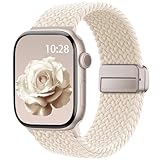
- Compatible Models: The HEARTBOOM magnetic nylon sport bands compatible for iWatch all versions. Suitable for Apple Watch Series 3/2/1 (38mm), Series 4/5/6/SE/SE 2/SE 3 (40mm), Series 7/8/9 (41mm), Series 11/10 (42mm). Pls check the model on the back of your watch to select the correct size
- Comfortable & Fit: HEARTBOOM stretchy apple watch band is made of recycled polyamide with a fabric weave, which is skin-friendly, breathable, lightweight, washable, sweat-resistant and quick-drying. Perfect for Fitness, Running, Yoga and daily wear, as it ensures that your wrist remains comfy and gentle feeling
- Multi Colors & Freely Adjustable: Our iwatch bands come with Various rich & muted colors for your choices, personalize your smartwatch to fit your outfit in daily life and easy change for every occasion. Suitable for women and men with 5.5"-9.6"(140mm~244mm) wrists. One size fit for most people,no need to measure your wrist to choose the size like the traditional braided bands
- Confidently Secure with Upgraded Magnets: Experience the perfect blend of style and security with our braided stretch band for Apple Watch. The enhanced magnetic Closure creates a strong, reliable connection that is easily adjustable for a flawless custom fit. Designed for all-day comfort and peace of mind, it stays put during any activity. Tool-free installation and one-click removal make it incredibly easy to use
- Perfect Gift: This apple watch bands blend fashion with functionality, look more fashionable and youthful. It's a a thoughtful and well-made gift. Suitable for Christmas, New Year's, Father's Day, Mother's Day and birthdays as a surprise for your parents, loved ones, and friends.We offer 24/7 friendly support
If a download appears stuck, it usually isn’t broken. Place the Watch back on the charger, confirm Wi‑Fi is active, and give it time. Force-quitting Spotify should be a last resort, not the first fix.
Manage storage like a minimalist, not a hoarder
Apple Watch storage is limited, even on higher-end models. Large playlists can quickly crowd out space needed for apps, updates, and system functions.
A smart strategy is to create Watch-specific playlists capped at 50–100 tracks. These load faster, sync more reliably, and are easier to rotate depending on your workouts, routines, or travel plans.
Offline playback saves more battery than you think
Streaming over cellular is one of the fastest ways to drain an Apple Watch battery. Downloaded music, by contrast, is surprisingly efficient.
This is where larger models like the Ultra or 45mm Series Watches really shine, pairing bigger batteries with offline playback for multi-hour listening sessions. Smaller models benefit even more from downloads, often making the difference between finishing a workout strong or watching the battery dip into red.
Test your downloads before you trust them
Before heading out, switch the Watch to Airplane Mode and try playing your downloaded playlists. This confirms that the files are actually stored locally and not quietly streaming from your phone or the cloud.
It’s a simple habit, but it prevents the most frustrating Spotify-on-Watch moment of all: pressing play mid-run and getting silence. Offline confidence comes from verification, not assumption.
When downloads are handled properly, Spotify on Apple Watch feels faster, more dependable, and more intentional. You stop thinking about connectivity altogether, which is exactly when wearable tech is doing its job.
Trick 3: Master Playback Controls with the Digital Crown, Complications, and Now Playing
Once your music is reliably on the Watch, the next leap forward is control. Spotify’s playback experience becomes dramatically better when you stop tapping tiny icons and start using the Watch’s physical inputs and system-level shortcuts the way Apple intended.
This is where the Apple Watch stops feeling like a remote and starts feeling like an instrument.
Use the Digital Crown the right way, not the obvious way
The Digital Crown is your most precise playback tool, but Spotify doesn’t always surface its full potential upfront. When a track is playing, rotating the Crown adjusts volume smoothly and far more accurately than tapping the on-screen plus and minus buttons.
This matters in real-world use. During a run, a commute, or a crowded gym, being able to nudge volume by feel without looking at the display is faster, safer, and less distracting.
If you’re wearing gloves or your fingers are sweaty, the Crown is also more reliable than touch. Apple’s haptic feedback gives you subtle confirmation with each adjustment, which is especially noticeable on stainless steel and titanium models where the Crown has more tactile resistance.
Unlock scrubbing and track control inside the Now Playing screen
Spotify’s own player view is only half the story. When music is playing, press the side button or tap into the system-level Now Playing app, and you gain deeper control.
From here, the Digital Crown can scrub through a track rather than change volume, depending on your watchOS settings. This is invaluable for podcasts, long mixes, or skipping past intros without fumbling with the screen.
The Now Playing interface also surfaces device output more clearly. Switching between AirPods, Beats, car audio, or a nearby speaker is faster here than inside Spotify itself, especially when your Watch is acting independently from the iPhone.
Customize complications for instant playback access
Complications are the fastest way to control Spotify without opening the app. Adding Spotify to a watch face lets you jump straight into playback with a single tap, bypassing menus entirely.
On modular and infograph faces, the larger complications are worth using. They’re easier to hit mid-motion and more reliable when you’re walking, running, or cycling.
For smaller cases like the 41mm or SE models, a corner complication keeps Spotify accessible without crowding the face. On larger watches like the 45mm Series or Ultra, a central complication feels natural and balanced, matching the Watch’s physical presence and making playback control feel effortless.
Let Now Playing work even when Spotify isn’t front and center
One of the most overlooked tricks is letting Spotify fade into the background. Once playback starts, you don’t need to keep the Spotify app open.
The Now Playing app automatically takes over, giving you consistent controls across all audio apps. This means you can check a workout, reply to a message, or glance at a notification without losing immediate access to pause, skip, or adjust volume.
Battery-wise, this is also smarter. Leaving Spotify active on-screen keeps the display awake longer, while Now Playing integrates more efficiently with watchOS power management, especially on longer listening sessions.
Use hardware buttons and headphones to reduce screen time
If you’re using AirPods or Beats, their physical controls pair beautifully with Spotify on Apple Watch. Single presses, double taps, or stem squeezes handle play, pause, and skipping without ever touching the Watch.
This is particularly effective on cellular or offline runs, where minimizing screen interaction preserves battery and focus. Combined with the Digital Crown for volume, you can manage an entire workout’s soundtrack without breaking stride.
Over time, this becomes second nature. The Watch stays comfortable, your wrist stays relaxed, and Spotify fades into the background the way good audio control should.
Match your controls to how you actually wear the Watch
Comfort and ergonomics matter more than specs. If you wear your Watch tight for workouts, Crown rotation feels more deliberate and controlled. If you wear it looser day to day, tapping complications may be faster.
Material plays a role too. Aluminum models feel lighter and quicker for repeated interactions, while steel and titanium add a sense of precision and stability when using the Crown extensively.
The key is consistency. Once you settle on a control method that matches your Watch size, band choice, and daily routine, Spotify becomes frictionless. You stop thinking about how to control playback, and that’s when you know you’ve mastered it.
Trick 4: Switch Seamlessly Between iPhone, AirPods, Speakers, and Car Using Spotify Connect
Once playback feels second nature on your wrist, the next leap is realizing the Apple Watch doesn’t have to be the place where music actually plays. It can be the remote control that quietly orchestrates everything around you, and Spotify Connect is what makes that possible.
Instead of stopping playback, reconnecting Bluetooth, or pulling out your phone, Spotify Connect lets your Watch hand off audio instantly between devices. The music never restarts, the queue stays intact, and the transition feels almost invisible.
Understand what Spotify Connect really does on Apple Watch
Spotify Connect isn’t Bluetooth streaming in the traditional sense. Your Apple Watch sends a control signal, telling Spotify’s servers which device should handle playback, whether that’s your iPhone, AirPods, a smart speaker, or your car’s infotainment system.
That distinction matters for battery life and reliability. The Watch isn’t pushing audio data, so it stays cooler, drains less power, and maintains a more stable connection, especially during longer sessions or when you’re moving between rooms.
It also means your music continues even if your Watch screen sleeps or your wrist drops. Control stays local, playback lives elsewhere.
How to switch playback devices directly from your wrist
While music is playing, open Spotify or the Now Playing screen on your Apple Watch. Tap the device icon at the bottom, which looks like a speaker with waves.
You’ll see a list of available Spotify Connect devices on the same account. This can include your iPhone, AirPods, Beats headphones, HomePod, smart speakers, TVs, and many modern cars.
Tap a device, and within a second or two the audio jumps over, picking up exactly where it left off. No pause, no buffering, and no need to unlock your phone.
Move between Watch, iPhone, and AirPods without breaking flow
This is where the Watch shines in real life. Start a playlist on a run using offline playback or cellular, then switch to your iPhone and AirPods when you get home without touching your phone.
The queue, shuffle state, and volume logic all remain intact. Even podcasts resume at the same timestamp, which is something traditional Bluetooth handoffs often fail to manage cleanly.
From a comfort standpoint, this is less wrist interaction and less pocket fumbling. The Watch stays doing what it’s good at: quick, glanceable control.
Use Spotify Connect as a car control shortcut
If your car supports Spotify Connect natively, or even through Android Auto-style integrations, your Apple Watch can act as a discreet car remote. Start playback before you drive, then switch output to the car system once it appears in the device list.
Rank #3

- 【Fit All Models】SuperNaNa Sport silicone watch band compatible with apple watch bands 40mm 38mm 42mm 44mm 41mm 45mm 46mm 49mm women men,Soft breathable replacement sport strap for iwatch bands series 11 series 10 series 9 series 8 series 7 series 6 series 5 series 4 series 3 series 2 series 1. and iwatch Ultra 3 2, Ultra, SE(2nd Gen). All iwatch versions can attach perfectly and seamlessl.
- 【Soft Silicone Material】apple watch bands for women men are made of premium soft silicone, prevents skin from irritation, lightweight, persistent, skin-friendly, touch comfortable, water-resistant and sweat-proof; iphone watch bands for women perfectly fit for runs, hiking, rides, camping, climbing, swims, workouts, traveling and more outdoor activities. iWatch bands 40mm womens completely unburdened to wear on the wrist, perfect for all day.
- 【Adjustable size for all wrist】Our Sport apple watch strap compatible for 38mm/40mm/41mm/42mm(series 11 10), this size fits for 5.1"-7.1" (130mm-180mm) wrist; soft silicone iwatch strap compatible for 42mm(series 3 2 1)/44mm/45mm/46mm/49mm, this size fits for 5.9" - 7.9" (150mm-200mm) wrist. Please check the size on the back of your watch to choose the right size.
- 【Easy installation & removal】Our watch bands for women come with Innovative pin-and-tuck closure design, which locks onto smart watch interface precisely and securely. No tool needed,easy to install and remove,provides a secure and comfortable fit for extended wear.
- 【20+ Colors Choice】Silicone iwatch bands for women come with 20+ different cute colors available for women men. black starlight apple watch band etc colors personalize your Apple Watch and fit your daily mood and outfit. A idear option for your smartwatch accessories.
This avoids the awkward delay of car Bluetooth reconnecting or resuming the wrong app. It also reduces screen time on your phone, which matters for safety and focus.
Volume is still handled by your car controls, while track skipping and pausing stay on your wrist. It’s a surprisingly refined division of labor.
Why this saves battery on Apple Watch
Because Spotify Connect shifts playback to another device, your Watch avoids sustained audio processing and radio use. This is especially noticeable on cellular models, where streaming directly can drain smaller cases faster.
On longer days, this can be the difference between finishing with 40 percent battery versus scrambling for a charger. The effect is even more pronounced on 41mm and older aluminum models with smaller batteries.
The Watch remains responsive, cool on the wrist, and better suited for all-day wear.
Know the limits so you don’t fight the system
Spotify Connect requires all devices to be on the same Spotify account. If a speaker or car system isn’t logged into your account, it won’t appear, no matter how close it is.
Offline downloads on Apple Watch can’t be cast to external speakers using Connect. In those cases, you’re truly playing locally, which is ideal for runs but not for room-filling audio.
Finally, some Bluetooth-only speakers won’t show up unless they’re paired through your phone first. Once paired, though, switching becomes effortless.
Think of the Watch as the conductor, not the player
The mental shift is important. The Apple Watch isn’t trying to replace your phone, headphones, or speakers. It’s the control surface that ties them together.
When you treat Spotify on Apple Watch this way, interactions become lighter and more intentional. A tap to switch rooms, a glance to skip a track, a Crown turn to fine-tune volume.
That’s when Spotify Connect stops feeling like a feature and starts feeling like a workflow you didn’t know you were missing.
Trick 5: Control Spotify with Siri — What Works, What’s Still Limited, and Smart Workarounds
Once you start treating the Apple Watch as a control hub rather than a standalone player, voice control feels like the natural next step. Siri is always there on your wrist, but with Spotify, the experience is a mix of genuinely useful commands and hard platform limits you need to understand upfront.
Used the right way, Siri can reduce taps, screen time, and mid-workout fumbling. Used the wrong way, it can feel frustratingly inconsistent.
What Siri can reliably do with Spotify on Apple Watch
The good news is that basic playback commands work well and have become more consistent in recent watchOS releases. These commands control whatever Spotify session is currently active, whether it’s playing on the Watch, your iPhone, or another Spotify Connect device.
Simple phrases like “Hey Siri, pause Spotify,” “Play,” “Skip this track,” or “Turn the volume down” are the most dependable. They’re fast, hands-free, and especially useful when your Watch screen is wet, gloved, or hard to reach.
Volume control deserves special mention. Siri adjusts Spotify volume in small, precise steps, which can be easier than rotating the Digital Crown during movement. On smaller 41mm and 40mm cases, this is often the least fiddly way to manage audio mid-activity.
Where Siri still falls short with Spotify
Siri cannot natively browse Spotify’s catalog on Apple Watch. Asking for specific playlists, albums, or artists often results in a handoff to Apple Music or a generic “I can’t help with that” response.
Commands like “Play my Discover Weekly” or “Shuffle my Liked Songs” may work on iPhone, but they’re unreliable or unsupported directly from the Watch. This is a Spotify limitation, not a hardware issue, and it applies across aluminum, stainless steel, and Ultra models alike.
Siri also can’t switch Spotify Connect devices by voice. You still need to tap the device picker on-screen to move playback from your Watch to a speaker, car system, or phone.
The golden rule: control what’s already playing
The most reliable mental model is this: Siri is excellent at controlling an active Spotify session, but poor at starting a new one from scratch. If something is already playing, Siri becomes a powerful remote.
That’s why this trick pairs so well with the previous Spotify Connect workflow. Start playback with a tap or two, then let Siri handle pausing, skipping, and volume while you stay focused on driving, training, or cooking.
Once you adopt this rhythm, Siri feels less like a search tool and more like an invisible set of playback buttons.
Smart workaround #1: Pre-load your listening before you need it
Before a run, commute, or workout, open Spotify on your Watch and start the playlist or album you plan to use. From that point on, Siri works smoothly for the rest of the session.
This approach is especially effective for offline downloads stored on the Watch. Even in airplane mode or poor cellular conditions, Siri can still pause, resume, and skip tracks without delay.
It’s a small habit change that dramatically improves reliability.
Smart workaround #2: Use Shortcuts to unlock deeper control
Apple Shortcuts can bridge some of Siri’s Spotify gaps. While Spotify’s Shortcut actions are limited, you can still create voice triggers that open specific playlists or resume playback instantly.
For example, a Shortcut called “Gym music” can open Spotify and start playback with one Siri command. It’s not true voice browsing, but it’s faster than navigating the app on a small display mid-session.
Once set up, these shortcuts sync to Apple Watch automatically and work across case sizes and materials without impacting comfort or battery life.
Smart workaround #3: Let your iPhone do the heavy lifting
If your Watch is paired to an iPhone nearby, Siri sometimes routes complex requests through the phone without making it obvious. Saying “Hey Siri, play Spotify” while wearing your Watch can trigger playback on your iPhone, which you then control from your wrist.
This hybrid approach preserves battery life on cellular models and avoids the Watch’s smaller processor handling unnecessary tasks. It also keeps the Watch cooler during longer listening sessions.
Think of it as distributed computing for your audio, optimized for all-day wearability.
Why Siri control is still worth using despite the limits
Even with its constraints, Siri meaningfully improves day-to-day Spotify use on Apple Watch. Fewer taps mean less distraction, less screen wake time, and better battery efficiency over long days.
On lighter aluminum models and smaller cases especially, this keeps the Watch comfortable and responsive instead of warm and overworked. On Ultra models, it complements the action-oriented design by keeping your hands free.
Siri won’t replace the Spotify interface, but when you understand exactly what it’s good at, it becomes one of the most practical playback tools on your wrist.
Trick 6: Save Battery While Streaming Spotify on Apple Watch
Once you start relying on Spotify directly from your wrist, battery life quickly becomes the limiting factor. Streaming audio is one of the most power-hungry things an Apple Watch can do, especially on cellular models or smaller case sizes with less thermal and battery headroom.
The good news is that a few intentional settings and habits can dramatically extend listening time without compromising convenience or comfort.
Prefer downloads over streaming whenever possible
The single biggest battery saver is simple: download playlists, albums, or podcasts to the Watch instead of streaming them. When Spotify plays locally stored audio, the Watch avoids constant radio use, which is where most of the drain comes from.
This matters most on cellular Apple Watch models, but even GPS-only versions benefit. Bluetooth playback from local storage is significantly more efficient and keeps the Watch cooler against the wrist during long sessions.
For workouts, commutes, or regular routines, downloading just one or two playlists can easily double your usable listening time.
Be selective with cellular and Wi‑Fi use
If you own an Apple Watch with cellular, Spotify will happily stream over LTE even when your iPhone is nearby. That convenience comes at a steep energy cost, particularly on aluminum models with smaller batteries.
Rank #4

- Newest Engraved Flower Design: SNBLK Apple watch band has clear vivid flower patterns made by advanced laser carving technology. Unique and stylish design that is sure to add a touch of elegance to your everyday outfit. One with sunflowers and the other with roses. Their cute floral print is perfect for anyone who loves nature and wants to add a personal touch to their daily wear. In addition, it's a thoughtful and well-made gift that is sure to be appreciated by anyone who receives it
- Comfortable to Wear: The Apple watch bands are made of high-quality soft silicone material that provides a comfortable and flexible fit on your wrist. The soft and lightweight nature of the band makes it perfect for everyday use, as it ensures that your skin remains comfy and free from irritation even when you wear the watch for extended periods of time. Plus, the silicone material is water-resistant and sweat-proof, making it perfect for use during physical activities or outdoor adventures
- Compatible Models & Size Options: These flower bands are designed for iWatch all versions. Suitable for Apple Watch Series 3/2/1(38mm),Series 4/5/6/SE/SE 2/3(40mm),Series 7/8/9(41mm),Series 11/10(42mm);For Series 3/2/1(42mm),Series 4/5/6/SE/SE 2/3(44mm),Series 7/8/9(45mm),Series 11/10(46mm),Ultra 3/Ultra 2/Ultra(49mm); 38/40/41/42mm Size fits 5.1"-7.1" (130mm-180mm) wrist, 44/45/46/49/42mm Size fits 5.9"-7.9" (150mm-200mm). Pls check the model on the back of your watch to select the correct size
- Enjoy the Thrill of Experimenting with Diverse Combinations: Enhance your iWatch with our stylish and intricately engraved printed strap, allowing you to personalize your smartwatch and effortlessly match your mood and outfit every day. Mix and match straps of various colors to elevate the look of your iWatch and showcase your distinct style. With a 6-pack of replacement, you can effortlessly transform your watch for various occasions, whether it's for sports, leisure, work, or everyday life
- Unmatched Durability: Our iWatch bands are built to withstand the test of time. Made from premium-grade silicone, it exhibits exceptional resistance to wear, tear, and daily use. Whether you're an athlete pushing your limits or a professional with a busy lifestyle, it is designed to keep up with your active routine, ensuring it remains in pristine condition. In addition, they comes with double hole and metal snap fastener, easier to take on/put off, no worry of loosing your watch any more
When your iPhone is within range, make sure Bluetooth stays connected and let the phone handle the data stream. You’ll still get full playback control on your wrist, but the Watch avoids doing the heavy networking work itself.
On Wi‑Fi, the drain is lower than cellular but still higher than local playback. If you notice faster-than-expected battery loss at home or the gym, this is often the reason.
Lower screen wake and interaction time during playback
Spotify doesn’t need the display to be active to keep music playing, but frequent glances and taps add up. Each screen wake triggers the OLED display, processor activity, and background refresh.
During long listening sessions, resist the urge to constantly check track progress or album art. Instead, rely on haptic feedback from AirPods or headphone controls for skipping tracks and pausing playback.
This is especially noticeable on larger displays like the 45mm and Ultra models, where the brighter, bigger screen consumes more power per wake.
Turn off unnecessary background refresh for Spotify
Background App Refresh can quietly drain battery when Spotify is allowed to update itself too often. While some background access is helpful, especially for handoff and playback continuity, it doesn’t need full freedom.
On your iPhone, go to Watch app, General, Background App Refresh, and review Spotify’s setting. If you mainly use Spotify manually or via downloads, limiting background refresh can reduce idle drain without breaking playback.
This is a subtle optimization, but over a full day of wear, it adds up.
Use headphones with strong independent controls
Your choice of headphones directly affects battery life on the Watch. AirPods and Beats models with onboard controls let you skip tracks, pause, and adjust volume without touching the screen or invoking Siri.
That means fewer display activations, less voice processing, and shorter active CPU time. In real-world use, this can preserve several percentage points of battery over an hour-long workout or walk.
It’s a small ecosystem advantage, but one that fits Apple Watch’s design philosophy of minimizing interaction friction.
Watch temperature and comfort are silent indicators
If your Apple Watch feels warm during Spotify playback, that’s a sign it’s working harder than it should. Streaming over cellular, high screen brightness, and constant interaction all contribute to heat, which in turn accelerates battery drain.
This is most noticeable during workouts or outdoor use, where sweat, bands, and tight fit reduce heat dissipation. Loosening the strap slightly or switching to offline playback can make a tangible difference in both comfort and endurance.
On Ultra models with titanium cases, heat is managed better, but even there, efficiency still matters for all-day wear.
Match listening habits to your Watch’s size and role
Smaller Apple Watch cases prioritize comfort and discretion, but they also have less battery capacity. If you’re wearing a 41mm or older 40mm model, treating Spotify as a downloaded-player-first experience makes far more sense.
Larger Watches and the Ultra can handle longer streaming sessions, but even then, smart power management preserves battery for fitness tracking, notifications, and sleep monitoring later in the day.
Think of Spotify on Apple Watch not as a phone replacement, but as a purpose-built companion. When you respect its strengths and limits, you get reliable playback without sacrificing the rest of the Watch experience.
Trick 7: Use Spotify Complications and the Dock for Faster Access Mid-Workout or on the Move
After thinking about battery, heat, and interaction efficiency, the final piece of the puzzle is access speed. The less time you spend hunting for Spotify on your Watch, the less friction you introduce during workouts, commutes, or quick listening breaks.
Complications and the Dock turn Spotify from “just another app” into something that feels purpose-built for motion, where every tap matters.
Add Spotify complications where your eyes already go
Spotify’s Apple Watch complications are deceptively simple, but they’re one of the fastest ways to regain control mid-activity. Depending on the watch face, the complication acts as a persistent shortcut straight into playback, bypassing the app grid entirely.
On Infograph and Modular faces, the larger rectangular Spotify complication is the most useful. It opens directly into the Now Playing screen, letting you pause, skip, or switch output in a single tap, even when your heart rate is elevated or your hands are sweaty.
Smaller circular complications work well on utility-focused faces like Activity Analog or California, especially if you want music access without sacrificing readability. The key is placing Spotify where your glance naturally lands, not where it looks symmetrical.
Choose faces that respect motion and legibility
Not all watch faces are equal once you’re moving. Faces with dense complications may look powerful at rest, but they’re harder to parse during a run or while carrying groceries.
Modular Duo, Modular Ultra, and Infograph Modular are particularly effective because they combine large touch targets with clear separation between elements. On Apple Watch Ultra, the larger display and flat sapphire crystal make these faces especially comfortable to use mid-stride, even with gloves or damp fingers.
Comfort matters here too. A breathable sport band or trail loop keeps the Watch stable, which makes hitting a complication accurately far easier than on a loose leather or metal bracelet.
Pin Spotify to the Dock for guaranteed access
The Dock is your insurance policy when complications aren’t visible, such as during workouts or when another app takes over the screen. By pinning Spotify to the Dock, it becomes available with a single side button press and one tap.
To do this, open the Watch app on iPhone, go to Dock, switch to Favorites, and add Spotify. Place it near the top so it’s always within thumb reach.
This is especially useful during workouts where Apple’s Workout app dominates the display. Instead of ending a session or fumbling with Siri, the Dock gives you a reliable, low-effort way back to playback controls.
Use the Dock instead of Siri when timing matters
Siri is powerful, but it isn’t always fast or reliable in noisy environments. Wind, traffic, gym music, or breathless commands can turn a simple “skip track” into a frustrating delay.
The Dock avoids voice processing entirely, which means faster response and less battery impact. One physical button press is often quicker than raising your wrist, waiting for Siri to listen, and hoping it understands you.
This becomes second nature after a few days and aligns perfectly with Apple Watch’s philosophy of tactile, glanceable control.
Combine complications with offline playlists for peak efficiency
When Spotify complications are paired with downloaded playlists, the experience feels markedly more refined. Launch times are shorter, controls respond instantly, and the Watch stays cooler during extended sessions.
This is particularly noticeable on smaller case sizes, where limited battery capacity rewards efficient workflows. Even on larger models, reduced processing overhead leaves more power for GPS tracking, heart rate monitoring, and post-workout recovery metrics.
It’s not just about speed, but about preserving the Watch’s role as an all-day wearable, not a single-task device.
Think of Spotify as part of your Watch layout, not an app
The biggest mental shift is treating Spotify like a core function rather than something you open occasionally. Once it’s embedded into your watch face and Dock, it becomes as immediate as checking the time or starting a workout.
That’s when Spotify on Apple Watch stops feeling compromised and starts feeling intentional. Fast access, minimal interaction, and fewer distractions let you stay focused on movement, not menus.
In real-world use, this trick doesn’t just save seconds. It preserves momentum, comfort, and battery, which is exactly what the Apple Watch is designed to do best.
Spotify vs Apple Music on Apple Watch: Playback Experience Compared
Once Spotify is treated as part of your Watch layout rather than a standalone app, the natural question follows: how does it really stack up against Apple Music on Apple Watch? The answer isn’t about which service is “better” overall, but how each behaves when playback, speed, and wrist-first control matter most.
Setup and offline playback: similar goals, different friction
Both Spotify and Apple Music now support offline playback directly on Apple Watch, which levels the field compared to a few years ago. You can download playlists, albums, and podcasts to the Watch and leave your iPhone behind for runs, gym sessions, or commutes.
Apple Music still feels slightly more seamless during setup, especially for first-time users. Downloads tend to queue faster, progress indicators are clearer, and syncing feels more tightly integrated with watchOS, particularly on newer models with faster chips.
💰 Best Value
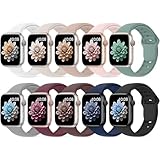
- 【Compatible Models】: UJUTL Sport silicone bands perfect compatible with Apple Watch Bands Series 11 10 -(42mm), Series 9 8 7 -(41mm), Series 6 5 4 SE3 SE2 -(40mm), Series 3 2 1 SE -(38mm), Check your watch size before ordering, Size fits 5.3"-7.6" (135mm-193mm) wrist
- 【Newest Original Design 】: The breathable groove design wicks away moisture to keep you cool during workouts and daily activities, Hidden buckle design that does not come into contact with any metal, Keep the irritate away from you
- 【Premium Material】: Comfort & Breathability - Made of high quality silicone, these bands provide soft, irritation-free wear for sensitive wrist, Durable & Easy to Clean - Non-sticky, stain-resistant silicone stays fresh through sweat, rain, and daily use. Simply wipe with a damp cloth for instant refresh
- 【10 Colors in One Pack】: Available in a variety of colors, these bands can be easily swapped out to match your outfit or mood, perfect for mixing styles with outfits or seasons. Also proper to be used as gifts for Wedding, birthday, Valentines' day, Mothers' day, father' day, Christmas, Thanksgiving Day etc
- 【Worry-Free Purchase】: To ensure 100% customer satisfaction, we provide 24/7 online support. If you encounter any issues with our product, please contact us immediately—we will prioritize resolving your concerns and offer tailored solutions promptly
Spotify’s offline experience has improved significantly, but it rewards preparation. Downloads work best when the Watch is charging and on Wi‑Fi, and large playlists benefit from being curated rather than dumped wholesale. Once content is stored locally, though, day-to-day playback is just as reliable.
Playback control and interface design on the wrist
Apple Music’s playback screen feels like an extension of watchOS itself. Buttons are large, spacing is generous, and gestures behave exactly as expected, especially on smaller case sizes like 41mm where precision matters.
Spotify’s interface is more utilitarian, but also more flexible. It prioritizes quick access to playlists, recent listening, and devices, which suits users who jump between headphones, speakers, and cars throughout the day.
Where Spotify quietly wins is in predictability. Once playback starts, controls respond consistently, and there’s less visual flourish competing for attention. That restraint aligns well with the Apple Watch’s role as a glanceable device rather than a miniature phone.
Phone-free streaming and real-world independence
With cellular Apple Watch models, both services can stream music without an iPhone nearby. In practice, Apple Music connects slightly faster when initiating a fresh stream, especially in areas with weaker reception.
Spotify’s strength shows up once playback is underway. Queue management, playlist continuation, and reconnection after brief signal drops tend to be smoother, particularly during workouts where arm movement and sweat can interfere with connectivity.
For users who rely heavily on offline playlists, the difference narrows dramatically. When content is stored locally, both services deliver stable, interruption-free playback that feels purpose-built for movement.
Battery impact and thermal behavior
Battery efficiency is where Apple Music maintains a modest edge. Its deep integration with watchOS results in slightly lower drain during long listening sessions, especially when paired with GPS workouts and continuous heart rate tracking.
Spotify, however, performs best when used intentionally. Offline playback, Dock access, and complication-based launches keep processor usage low and help prevent excess heat buildup, even on smaller aluminum cases with limited thermal mass.
In daily use, the difference is rarely deal-breaking. But for marathon training sessions or all-day wear on Series SE or older models, Apple Music’s efficiency can translate into a noticeable battery buffer by evening.
Audio quality, headphones, and ecosystem fit
Both services deliver excellent audio quality over Bluetooth, and on the Watch itself, codec differences are largely academic. The limiting factor is almost always the headphones, not the streaming service.
Apple Music integrates more tightly with AirPods, offering smoother automatic switching and more reliable on-wrist volume adjustments. Spotify works perfectly well with AirPods too, but shines when you mix brands, whether that’s Beats, third-party sport earbuds, or in-car systems.
If your audio ecosystem extends beyond Apple hardware, Spotify’s neutrality becomes a real advantage. The Watch acts as a universal controller rather than a gatekeeper.
Which playback experience feels better day to day?
Apple Music feels like the default, and that’s not accidental. It’s polished, efficient, and deeply aligned with Apple Watch design priorities, making it ideal for users who want minimal setup and maximum battery confidence.
Spotify feels more intentional. It asks you to think about playlists, layout, and access points, but rewards that effort with flexibility, consistency, and device-agnostic control.
If your goal is to master playback from the wrist, Spotify holds its own surprisingly well. It may not be the most “Apple-like” experience, but once optimized, it becomes one of the most practical and adaptable music companions the Apple Watch offers.
Common Spotify on Apple Watch Problems — and How to Fix Them
Even when Spotify is set up thoughtfully, the Apple Watch experience can occasionally feel temperamental. Most issues stem from how watchOS handles connectivity, background syncing, and power management rather than from Spotify itself.
The good news is that nearly every common frustration has a reliable fix once you understand what the Watch is actually trying to do behind the scenes.
Spotify won’t play directly from the Apple Watch
If Spotify keeps defaulting to your iPhone or another device, you’re likely in remote-control mode rather than true on-watch playback. This happens automatically when the Watch detects a nearby iPhone and prioritizes it as the audio source.
To force on-watch playback, tap the device icon at the bottom of the Spotify screen and explicitly select Apple Watch or a connected Bluetooth headset. Once chosen, the Watch will stay in standalone mode until you change it again.
For workouts or phone-free sessions, enabling Airplane Mode on the Watch (then manually re-enabling Bluetooth) can also prevent the iPhone from hijacking playback.
Downloads are stuck, slow, or never finish syncing
Spotify downloads on Apple Watch rely on a surprisingly specific set of conditions. The Watch needs to be on its charger, connected to Wi‑Fi, and within Bluetooth range of your iPhone for the most reliable syncing.
If downloads stall, place the Watch on its charger, open Spotify on both the iPhone and Watch, and leave them untouched for several minutes. Closing the app or letting the screen sleep too aggressively can pause transfers.
If a playlist refuses to download, removing it and re-adding it often clears corrupted sync data without requiring a full reinstall.
Playback randomly stops during workouts
This is one of the most common complaints, especially during GPS-heavy activities like running or cycling. The Watch is juggling location tracking, heart rate sensors, and Bluetooth audio, which can overwhelm older chips or lower-memory models.
Using offline playlists dramatically improves stability by removing cellular or Wi‑Fi dependency. It also reduces processor spikes, which helps on aluminum cases that dissipate heat less efficiently than stainless steel or titanium.
Wearing snug, well-seated earbuds and keeping the Watch band secure improves Bluetooth reliability during arm movement, which is often the hidden culprit.
The Spotify app feels slow or unresponsive
Spotify’s watchOS app is functional but not lightweight. On older Series models or the SE, animations and library loading can lag, especially if your Spotify library is large.
Limiting downloads to a handful of core playlists keeps navigation faster and reduces background indexing. Removing unused playlists from the Watch has a noticeable effect on responsiveness.
A quick Watch restart can also clear memory pressure, restoring smoother scrolling and faster tap response without touching your music data.
Volume controls don’t respond consistently
When using AirPods or Beats, volume is often managed by the headphones themselves rather than the Digital Crown. This can make it seem like the Watch isn’t responding when it actually isn’t the active controller.
Try adjusting volume directly from the headphones first, then fine-tune with the Crown. For third-party earbuds, ensure they’re fully connected before launching Spotify, as partial connections can disable on-watch volume input.
If volume jumps erratically, disconnecting and reconnecting Bluetooth from Control Center usually stabilizes it instantly.
Spotify won’t open or crashes on launch
This typically points to a version mismatch between the iPhone app, watchOS, and the Watch app extension. Spotify updates frequently, and the Watch component can lag behind if auto-updates are disabled.
Updating Spotify on the iPhone, then restarting both devices, resolves most launch issues. If the problem persists, deleting the Watch app and reinstalling it from the Watch app on iPhone is faster than a full reinstall cycle.
Crashes are far less common on newer models with more RAM, but even Series 6 and SE users can expect stable performance once versions are aligned.
Battery drain feels worse with Spotify than expected
Spotify itself isn’t unusually power-hungry, but certain usage patterns amplify drain. Streaming over cellular while tracking workouts is the most demanding scenario the Watch faces.
Offline playback, Dock-based launching, and complication shortcuts reduce background wake-ups and keep the processor in a lower-power state. This matters more on smaller cases, where battery capacity and thermal headroom are limited.
If battery anxiety is a priority, Spotify rewards intentional use far more than casual, always-streaming habits.
When all else fails: reset strategically
A full unpair-and-repair of the Apple Watch is rarely necessary. Most issues resolve with app-level resets, playlist re-syncing, or Bluetooth refreshes.
Think of Spotify on Apple Watch as a precision tool rather than a fire-and-forget app. Once tuned, it’s stable, flexible, and genuinely useful, even during demanding workouts or long, phone-free days.
Mastering these fixes doesn’t just solve problems. It turns Spotify into a dependable playback companion that finally feels at home on your wrist.