Spotify on Wear OS is not just a remote control for your phone, but it is also not a full mirror of the phone app either. The experience sits somewhere in between, and understanding that difference is the key to enjoying it rather than fighting its limits. If your goal is to leave your phone behind for a run, gym session, or quick errand, Spotify on a compatible Wear OS watch can absolutely do that.
What you will learn here is exactly what the app can and cannot do on your wrist, how offline playback really works, and why the behavior feels different from Spotify on your phone. Once this clicks, managing downloads, storage, and battery life becomes far more predictable. That sets you up perfectly for the step-by-step download process covered next.
Standalone playback versus remote control mode
Spotify on Wear OS operates in two distinct modes depending on whether your watch has its own internet connection. On Bluetooth-only watches, Spotify behaves mainly as a remote control when your phone is nearby. You browse, skip tracks, and adjust volume, but the audio is streamed and handled entirely by the phone.
On LTE-enabled Wear OS watches, Spotify can stream directly over cellular without your phone. This is true standalone playback, with audio going straight from the watch to Bluetooth earbuds. It feels liberating, but it is also more demanding on battery and data.
🏆 #1 Best Overall
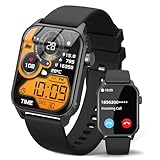
- 【1.83" HD Display & Customizable Watch Faces】Immerse yourself in a vibrant 1.83-inch IPS display, boasting a sharp resolution of 240*284 for crystal-clear visuals. Effortlessly personalize your smart watch with a wide array of customizable watch faces to suit your personal style for every occasion—whether trendy, artistic, or minimalist—ideal for casual, sporty, or professional. Its sleek, modern design complements any outfit, blending technology and fashion seamlessly for everyday wear
- 【120 Sports Modes & Advanced Health Tracking】Our TK29 smart watches for women men come equipped with 120 sports modes, allowing you to effortlessly track a variety of activities such as walking, running, cycling, and swimming. With integrated heart rate and sleep monitors, you can maintain a comprehensive overview of your health, achieve your fitness goals, and maintain a balanced, active lifestyle with ease. Your ideal wellness companion (Note: Step recording starts after exceeding 20 steps)
- 【IP67 Waterproof & Long-Lasting Battery】Designed to keep up with your active lifestyle, this smartwatch features an IP67 waterproof rating, ensuring it can withstand splashes, sweat, and even brief submersion, making it perfect for workouts, outdoor adventures, or rainy days. Its reliable 350mAh battery offering 5-7 days of active use and up to 30 days in standby mode, significantly reducing frequent charging. Ideal for all-day wear, whether you’re at the gym, outdoors, or simply on the go
- 【Stay Connected Anytime, Anywhere】Stay informed and in control with Bluetooth call and music control features. Receive real-time notifications for calls, messages, and social media apps like Facebook, WhatsApp, Twitter, and Instagram directly on your smartwatch. Easily manage calls, control your music playlist, and stay updated without needing to reach for your phone. Perfect for work, workouts, or on-the-go, this watch keeps you connected and never miss important updates wherever you are
- 【Multifunction & Wide Compatibility】Seamlessly handle heart rate monitoring, sleep tracking, and enjoy conveniences like camera/music control, Seamlessly handle heart rate monitoring, sleep tracking, and more-all directly from your wrist. This 1.83 inches HD smartwatch is compatible with iPhone (iOS 9.0+) & Android (5.0+), ensuring smooth daily connectivity and convenience throughout your day. More than just a timepiece, it’s a stylish, all-in-one wearable for smarter, healthier living
Offline downloads work the same way on both Bluetooth and LTE models. Once playlists are downloaded to the watch, no phone or cellular connection is required. This is the most reliable and battery-efficient way to use Spotify on Wear OS.
How offline playback actually works on a watch
Offline Spotify on Wear OS is playlist-based, not library-based. You cannot download individual albums or tracks unless they are inside a playlist. Liked Songs counts as a playlist, which is why most people rely on it heavily.
Downloads are encrypted and tied to your Spotify account. You cannot access the files outside the app, and logging out removes access to downloaded music. Periodic online check-ins are required to keep downloads valid, just like on your phone.
Playback happens directly on the watch’s processor and storage. Audio is streamed over Bluetooth to headphones, which means both the watch and earbuds affect sound stability. In real-world use, modern Wear OS watches handle this smoothly during workouts.
What’s missing compared to Spotify on your phone
The Wear OS Spotify app is intentionally simplified. There is no full search experience, no advanced recommendation browsing, and no podcast management depth like on the phone. You are expected to prepare playlists in advance on your phone.
Audio quality controls are limited. You cannot manually force streaming bitrate from the watch app, and offline downloads default to a balanced setting chosen by Spotify. For most earbuds and workout environments, this is more than adequate.
There is also no Spotify Connect speaker switching from the watch alone. You can control playback on another device only if the phone is still involved. This reinforces that the watch app prioritizes personal listening, not home audio control.
Storage limits and real-world capacity
Wear OS watches vary widely in usable storage. Many popular models offer 8 GB total, with roughly 3 to 4 GB available for apps and media after system files. Premium models may offer 16 GB or more, which dramatically improves the Spotify experience.
In practical terms, 1 GB stores roughly 150 to 200 songs at Spotify’s typical offline quality. That means even modest storage can hold several long workout playlists. You will, however, need to manage downloads more actively than on a phone.
Spotify does not show remaining storage inside the app. You must check storage from the watch’s system settings. This catches many first-time users off guard when downloads silently fail.
Battery impact during workouts and daily use
Offline playback is significantly easier on battery than streaming over LTE. On most modern Wear OS watches, offline Spotify with Bluetooth earbuds consumes roughly 5 to 8 percent battery per hour. GPS tracking during workouts adds additional drain.
LTE streaming is the most demanding scenario. Expect noticeably faster battery loss, especially on smaller watches with compact batteries. For long runs or hikes, offline playlists are strongly recommended.
Thermal comfort matters too. Continuous streaming or downloads can warm the watch, especially during exercise. This is normal, but another reason to download playlists ahead of time.
Supported devices and version requirements
Spotify requires Wear OS 2.0 or later, but the best experience is on Wear OS 3 and newer. Performance, download reliability, and Bluetooth stability are all improved on newer software. Older watches may technically support Spotify but feel sluggish.
Most recent Samsung Galaxy Watch models, Google Pixel Watch, and Fossil-made Wear OS watches work well. Budget or older models with limited RAM can struggle with large playlists. Checking both storage size and RAM is just as important as checking compatibility.
Spotify Premium is required for offline downloads. Free accounts can only use the app as a remote control when the phone is nearby. This is non-negotiable and applies universally.
Why the experience feels different from phone playback
Spotify on your phone is designed for discovery, constant connectivity, and background multitasking. Spotify on Wear OS is designed for intention. You choose what you want in advance, download it, and press play.
The smaller screen, limited input methods, and focus on fitness make this trade-off sensible. Once set up correctly, the watch becomes a surprisingly reliable music player. The key is accepting that preparation replaces spontaneity.
Understanding these differences makes the next step straightforward. When you know what Spotify on Wear OS is built to do, downloading and managing offline playlists becomes a tool rather than a frustration.
Wear OS Devices That Support Spotify Offline Downloads: What Works and What Doesn’t
Once you accept that preparation replaces spontaneity on the wrist, the next question becomes obvious: which Wear OS watches actually handle Spotify offline well in day-to-day use. Compatibility on paper and reliability in real workouts are not always the same thing.
Spotify’s Wear OS app is broadly available, but offline downloads expose the limits of older hardware, small storage pools, and half-finished software updates. Here’s how the landscape breaks down right now.
Wear OS 3 and newer: the safe zone
If your watch runs Wear OS 3, 4, or newer, you’re in the best possible position for offline Spotify playback. These versions brought major improvements to app performance, background downloads, and Bluetooth stability, which directly affect music reliability.
Google’s own Pixel Watch and Pixel Watch 2 handle offline playlists smoothly despite their compact size. Storage is limited compared to some rivals, but the software experience is polished, and downloads rarely fail when initiated on Wi‑Fi while charging.
Samsung’s Galaxy Watch lineup, starting with the Galaxy Watch 4 and continuing through Watch 5, Watch 6, and newer models, offers the most consistently good Spotify experience. Samsung’s Exynos chips, ample RAM, and generous internal storage make large playlists practical, even for long runs or gym sessions.
Fossil Group watches: capable, but storage-aware
Fossil-made Wear OS watches, including Fossil Gen 6, Skagen Falster Gen 6, and related models, support Spotify offline downloads and generally perform well. Download speeds are reasonable, and playback stability is good once files are stored locally.
The main limitation here is storage. Many of these watches offer around 8GB total, with a meaningful chunk already used by the system. You’ll want to be selective with playlists rather than trying to mirror your phone library.
Battery life is another consideration. Streaming from local storage is efficient, but extended workouts with Bluetooth earbuds will still drain faster than basic fitness tracking.
Premium and luxury Wear OS watches: powerful but not magically different
High-end Wear OS watches like the TAG Heuer Connected Calibre E4, Montblanc Summit series, and similar luxury models fully support Spotify offline playback. Their stronger processors and higher-quality materials don’t change how Spotify works, but they do improve responsiveness.
These watches tend to be larger and heavier, which can help with battery capacity but may affect comfort during long runs. If you’re buying one primarily for fitness-focused, phone-free listening, the value proposition is more about craftsmanship than functionality.
Offline downloads behave the same as on mainstream Wear OS watches. Spotify doesn’t unlock extra features just because the watch costs more.
Wear OS 2 watches: technically supported, practically limited
Spotify technically runs on Wear OS 2, but offline downloads are where problems start to appear. Older processors, less RAM, and slower internal storage make large playlist downloads unreliable.
You may see stalled downloads, failed syncs, or sluggish navigation within the app. Bluetooth audio can also be less stable, especially with newer earbuds using modern codecs.
If your watch is stuck on Wear OS 2 and you plan to rely heavily on offline Spotify, expectations should be modest. Small playlists for short workouts are usually fine; anything beyond that becomes frustrating.
Mobvoi, Xiaomi, and newer third-party Wear OS devices
Mobvoi’s TicWatch Pro 3 and TicWatch Pro 5 support Spotify offline downloads and have the hardware to handle it well. The caveat is software update timing, which can lag behind Google and Samsung. When updates are current, Spotify works as expected.
Xiaomi Watch 2 Pro and OnePlus Watch 2, both running modern Wear OS versions, also support offline playlists properly. These newer entrants tend to offer strong battery life, which pairs well with downloaded music during long sessions away from the phone.
As always, confirm that the watch is running a current Wear OS version before assuming smooth performance. Hardware alone isn’t enough.
What doesn’t support Spotify offline at all
Any watch running Wear OS 1.x is effectively excluded from reliable Spotify use, offline or otherwise. App support is minimal, and performance is inadequate by today’s standards.
Non–Wear OS platforms, such as Fitbit OS or proprietary fitness watch systems, are a different category entirely. Some offer Spotify integration, but the app behavior, controls, and offline handling are not the same and shouldn’t be confused with Wear OS support.
Garmin watches, for example, support Spotify offline on certain models, but this is a separate ecosystem with its own rules and limitations.
Storage, not LTE, is the real gatekeeper
It’s worth emphasizing that LTE has nothing to do with offline Spotify support. LTE enables streaming without a phone, but offline playback only cares about local storage and Spotify Premium status.
A watch with plenty of storage but no LTE can be a better offline music companion than an LTE watch with limited internal space. Checking available storage before downloading playlists avoids most frustrations.
If phone-free listening is your priority, prioritize modern Wear OS versions, adequate storage, and proven Bluetooth stability. Everything else is secondary.
Spotify Account Requirements Explained: Free vs Premium on Wear OS
Once you’ve confirmed your watch supports Spotify offline in theory, the next real divider is your Spotify account tier. On Wear OS, the difference between Free and Premium isn’t subtle, and it directly determines whether phone-free listening is possible or merely aspirational.
This is one of the most common points of confusion for smartwatch owners, especially those upgrading from phone-based listening where Spotify Free can feel more flexible than it actually is on wearables.
What Spotify Free can and can’t do on Wear OS
With a Spotify Free account, the Wear OS app functions strictly as a remote control and streaming companion. You can browse your library, select playlists, and control playback, but the audio itself must come from your paired phone.
There is no offline playback on the watch with a Free account. You cannot download playlists, albums, or podcasts to the watch’s internal storage, regardless of how much space is available.
Streaming directly from the watch without a phone is also blocked. Even if your watch has LTE and a strong data connection, Spotify Free on Wear OS will not stream audio independently.
Ad behavior is another limitation. Ads still play, and skipping is restricted, which becomes especially frustrating on a small, wrist-based interface during workouts or commutes.
In practice, Spotify Free on Wear OS is best treated as a convenience controller. It’s fine for pausing music mid-run or changing tracks while your phone stays in a pocket or bag, but it doesn’t unlock the core smartwatch benefit of leaving your phone behind.
Why Spotify Premium is required for offline listening
Spotify Premium is mandatory for downloading music to a Wear OS watch. This includes playlists, albums, and podcasts, all of which can be stored locally and played back over Bluetooth headphones without a phone nearby.
Once downloaded, playback is fully independent. The watch doesn’t need Wi‑Fi, LTE, or a phone connection, making it ideal for gym sessions, outdoor runs, flights, or travel where connectivity is unreliable.
Rank #2
![Apple Watch Series 11 [GPS 46mm] Smartwatch with Jet Black Aluminum Case with Black Sport Band - M/L. Sleep Score, Fitness Tracker, Health Monitoring, Always-On Display, Water Resistant](https://m.media-amazon.com/images/I/312K597M2uL._SL160_.jpg)
- HYPERTENSION NOTIFICATIONS — Apple Watch Series 11 can spot signs of chronic high blood pressure and notify you of possible hypertension.*
- KNOW YOUR SLEEP SCORE — Sleep score provides an easy way to help track and understand the quality of your sleep, so you can make it more restorative.
- EVEN MORE HEALTH INSIGHTS — Take an ECG anytime.* Get notifications for a high and low heart rate, an irregular rhythm,* and possible sleep apnea.* View overnight health metrics with the Vitals app* and take readings of your blood oxygen.*
- STUNNING DESIGN — Thin and lightweight, Series 11 is comfortable to wear around the clock — while exercising and even when you’re sleeping, so it can help track your key metrics.
- A POWERFUL FITNESS PARTNER — With advanced metrics for all your workouts, plus features like Pacer, Heart Rate Zones, training load, Workout Buddy powered by Apple Intelligence from your nearby iPhone,* and more. Series 11 also comes with three months of Apple Fitness+ free.*
Premium also removes ads and unlocks full track skipping. On a watch, this matters more than it does on a phone, because navigating interruptions on a small touchscreen or with hardware buttons breaks the flow quickly.
From a real-world usability perspective, Premium transforms Spotify from an accessory into a core watch feature. Without it, much of the hardware capability you paid for, including storage and Bluetooth audio support, goes unused.
Premium features that matter specifically on a smartwatch
Offline downloads are the headline feature, but Premium brings several quieter benefits that make Spotify more watch-friendly. Higher-quality audio streams and downloads sound noticeably better on good workout earbuds, especially at higher volumes where compression artifacts become more obvious.
Unlimited skips are another practical advantage. When you’re mid-interval or wearing gloves, being able to reliably skip tracks without friction matters more than it does on a phone.
Premium also allows full control over playlists and albums, rather than shuffle-only behavior. On a watch, shuffle-only playback makes it harder to curate a consistent workout or commute soundtrack.
These details may sound minor, but together they define whether Spotify on Wear OS feels intentional or compromised.
Account rules that affect multiple watches
Spotify allows offline downloads on up to five devices per account, and Wear OS watches count toward that limit. If you already use Spotify offline on multiple phones, tablets, or laptops, your watch can quietly push you over the cap.
When that happens, Spotify will prompt you to remove offline access from another device before downloads complete. This often surfaces for the first time during watch setup, not during normal phone use.
If you frequently rotate devices or upgrade hardware, it’s worth periodically checking your device list in Spotify settings. Keeping it tidy prevents confusing download failures on the watch.
Family, Duo, and student plans on Wear OS
Spotify Family and Duo plans work on Wear OS without restrictions, as long as the individual profile on the watch has Premium access. Each family member’s account is treated separately for downloads and device limits.
Student Premium accounts also support offline playback on Wear OS. There are no feature reductions compared to standard Premium, which makes this one of the better value options for smartwatch owners on a budget.
What doesn’t work is sharing a single Premium account across multiple watches simultaneously. Spotify’s device and concurrency rules still apply, and trying to bend them usually results in playback interruptions.
Is Premium worth it purely for smartwatch use?
If your goal is phone-free listening, Premium isn’t optional. Without it, Spotify on Wear OS never becomes more than a companion screen.
For runners, gym users, and travelers, Premium often justifies itself through convenience alone. Being able to leave a phone behind reduces weight, improves comfort, and extends battery life on the phone itself, even if the watch works a little harder.
If you always carry your phone and only want occasional wrist controls, Spotify Free can be sufficient. But if offline playlists are the reason you’re exploring Spotify on Wear OS in the first place, Premium is the requirement that unlocks everything else that follows.
How to Download Spotify Playlists and Podcasts for Offline Listening on Wear OS (Step-by-Step)
Once you’ve confirmed Premium access and cleared any device-limit issues, downloading music directly to your watch is straightforward. The process is done primarily on the watch itself, not from the phone app, which catches many first-time users off guard.
Think of the Wear OS Spotify app as a self-contained player. It syncs with your account, but downloads are initiated, stored, and managed locally on the watch.
Before you start: quick checklist
Your Wear OS watch needs to be connected to Wi‑Fi for downloads. Bluetooth alone isn’t enough, and cellular LTE models still rely on Wi‑Fi for faster, more reliable syncing.
Make sure the watch has at least 20–30 percent battery before starting. Spotify will often pause or refuse downloads if battery saver modes are active or charge is too low.
Finally, pair Bluetooth headphones directly to the watch ahead of time. You don’t need them for downloading, but Spotify will sometimes prompt you to set an audio output before offline playback works properly.
Step 1: Open Spotify on your Wear OS watch
Press the crown or side button to open the app drawer, then launch Spotify on the watch itself. This is important, as downloads cannot be triggered from the phone app.
If this is your first launch, the watch may take a few seconds to sync your library. Playlists, saved albums, and followed podcasts should appear automatically once the sync completes.
If your library looks empty, leave the app open for a minute. Wear OS aggressively pauses background sync if you swipe away too quickly.
Step 2: Navigate to the playlist, album, or podcast
Scroll using the touchscreen or rotating crown, depending on your watch. On devices like the Pixel Watch or Galaxy Watch, crown scrolling is noticeably more precise and less fatiguing during long lists.
Tap Your Library to see saved playlists, albums, and podcasts. Only content already added to your Spotify library can be downloaded to the watch.
Search is limited on Wear OS, so it’s best to organize playlists on your phone beforehand. Shorter playlist names also make navigation easier on small displays.
Step 3: Start the download on the watch
Open the playlist, album, or podcast you want. Look for the download icon, usually a downward arrow near the top of the screen.
Tap the icon once to begin downloading. You’ll see a progress indicator, either as a circular ring or percentage, depending on the watch and Spotify app version.
Downloads continue in the background, but for best results, keep the screen on and the app open. Wear OS may throttle background activity if you switch apps too often.
Step 4: Wait for downloads to complete
Download speed depends on your Wi‑Fi connection and the watch’s processor. Newer Wear OS watches with more RAM and faster chips handle this noticeably better than older models.
A typical 50-song playlist can take anywhere from a few minutes to 15 minutes. Podcasts download faster than music because they’re single audio files rather than multiple tracks.
You can check progress by reopening the playlist. A fully downloaded item will show a green indicator or completed icon.
Step 5: Confirm offline playback
Once downloading finishes, disable Wi‑Fi and Bluetooth on the watch to test offline mode. This ensures the content is truly stored locally.
Open Spotify and press play on the downloaded playlist or podcast. If it starts instantly without reconnecting, offline playback is working correctly.
If playback stalls or errors out, re-enable Wi‑Fi briefly and check that the download icon shows as complete, not partially filled.
How many playlists can you download to a Wear OS watch?
Spotify limits Wear OS downloads to roughly 10 hours of content per watch, though this can vary slightly by device and audio quality. This is a Spotify-imposed cap, not strictly a storage issue.
Most Wear OS watches offer between 8GB and 32GB of internal storage, but a large portion is reserved for the system. In real-world use, expect space for several hundred songs at normal quality.
If you hit the limit, Spotify will prompt you to remove existing downloads before adding more. There’s no automatic management, so you’ll need to manually curate playlists.
Managing audio quality and storage trade-offs
Spotify on Wear OS uses a fixed download quality optimized for battery life and storage. You can’t manually set bitrate on the watch like you can on a phone.
In practice, audio quality is more than sufficient for Bluetooth earbuds during workouts or commutes. The limiting factor is usually the headphones, not the file quality.
If storage fills up faster than expected, prioritize shorter playlists or podcast episodes rather than large, mixed libraries.
Downloading podcasts vs music on Wear OS
Podcasts behave slightly differently from playlists. You can download individual episodes or entire podcast feeds, depending on how you’ve followed them.
Episodes download as single files, making them easier to manage and quicker to remove when finished. This is ideal for daily news or workout listening.
Unlike music playlists, podcast downloads don’t auto-update. New episodes must be manually downloaded unless you revisit the podcast page on the watch.
Battery impact during and after downloads
Downloading content is one of the most battery-intensive tasks on a Wear OS watch. Expect noticeable drain during long sessions, especially on smaller watches with compact batteries.
Once downloads are complete, offline playback is actually more battery-efficient than streaming. With Wi‑Fi and LTE disabled, many watches can manage multi-hour listening sessions comfortably.
For best results, download playlists while charging overnight or during downtime, not right before a workout or commute.
Troubleshooting common download issues
If downloads won’t start, double-check that the watch is on Wi‑Fi and not connected only via Bluetooth to your phone. This is the most common failure point.
If a playlist stalls partway through, pause the download, close Spotify, then reopen it. Wear OS memory management can sometimes interrupt long transfers.
When all else fails, restarting the watch often resolves sync issues. It’s not elegant, but it works more often than reinstalling the app.
Tips for a smoother phone-free listening experience
Keep one or two dedicated “watch playlists” rather than syncing your entire library. Short, focused playlists are faster to manage and easier to update.
Rank #3

- Bluetooth Call and Message Alerts: Smart watch is equipped with HD speaker, after connecting to your smartphone via bluetooth, you can answer or make calls, view call history and store contacts through directly use the smartwatch. The smartwatches also provides notifications of social media messages (WhatsApp, Twitter, Facebook, Instagram usw.) So that you will never miss any important information.
- Smart watch for men women is equipped with a 320*380 extra-large hd full touch color screen, delivering exceptional picture quality and highly responsive touch sensitivity, which can bring you a unique visual and better interactive experience, lock screen and wake up easily by raising your wrist. Though “Gloryfit” app, you can download more than 102 free personalised watch faces and set it as your desktop for fitness tracker.
- 24/7 Heart Rate Monitor and Sleep Tracker Monitor: The fitness tracker watch for men has a built-in high-performance sensor that can record our heart rate changes in real time. Monitor your heart rate 26 hours a day and keep an eye on your health. Synchronize to the mobile phone app"Gloryfit", you can understand your sleep status(deep /light /wakeful sleep) by fitness tracker watch develop a better sleep habit and a healthier lifestyle.
- IP68 waterproof and 110+ Sports Modes: The fitness tracker provides up to 112+ sports modes, covering running, cycling, walking, basketball, yoga, football and so on. Activity trackers bracelets meet the waterproof requirements for most sports enthusiasts' daily activities, such as washing hands or exercising in the rain, meeting daily needs (note: Do not recommended for use in hot water or seawater.)
- Multifunction and Compatibility: This step counter watch also has many useful functions, such as weather forecast, music control, sedentary reminder, stopwatch, alarm clock, timer, track female cycle, screen light time, find phone etc. The smart watch with 2 hrs of charging, 5-7 days of normal use and about 30 days of standby time. This smart watches for women/man compatible with ios 9.0 and android 6.2 and above devices.
Rename playlists with clear, short titles so they’re readable at a glance on a small screen. This makes a surprising difference during workouts.
Finally, periodically review downloaded content. Removing old playlists not only frees storage but also keeps Spotify running faster and more reliably on Wear OS.
Managing Offline Music on Your Watch: Storage Limits, File Sizes, and Download Tips
Once you’ve built a habit of downloading playlists instead of streaming, storage management becomes the next thing that quietly shapes your experience. Wear OS watches are capable, but they’re still compact computers with far tighter limits than your phone.
Understanding how Spotify uses that space, and how to work within it, is the difference between a watch that feels effortless and one that constantly nags you with failed downloads.
How much storage do Wear OS watches actually have?
Most Wear OS watches ship with either 8GB or 16GB of internal storage, with a small but growing number offering 32GB. You never get to use all of it, because the operating system, system apps, updates, and cached data already take a meaningful chunk.
On an 8GB watch, it’s common to see only 4–5GB available for apps and media. A 16GB watch usually leaves you with around 10–11GB free, which is far more comfortable for offline music.
Spotify shares this space with everything else on the watch, including workouts, maps, voice recordings, and third-party apps. If your watch feels cramped, Spotify isn’t always the only culprit.
Spotify file sizes on Wear OS: what to expect
Spotify on Wear OS typically downloads music at its “Normal” quality setting, even if your phone uses higher quality streaming. This is intentional, balancing storage use, battery life, and download reliability on smaller hardware.
At this quality, expect roughly 40–50MB per hour of music. A 60-song workout playlist might take around 250–300MB, while a long podcast episode often lands between 20–60MB depending on length.
This means even modest storage can hold several hours of music, but syncing massive playlists quickly eats into your available space.
Real-world limits: playlists, albums, and device caps
Spotify still enforces account-level offline limits, including a maximum number of devices that can hold downloads at the same time. Smartwatches count as one of those devices, just like phones or tablets.
There’s also a practical ceiling on how much a watch can comfortably handle. While Spotify doesn’t publish a song limit for Wear OS, performance tends to degrade if you try to sync thousands of tracks at once.
In testing, smaller, focused playlists behave far better than dumping entire libraries onto the watch. Navigation stays faster, downloads fail less often, and battery impact is easier to control.
How to check and free up storage on your watch
You can view remaining storage directly on the watch by going to Settings, then Storage. This shows how much space Spotify and other apps are consuming.
Inside Spotify, removing downloaded playlists is instant and doesn’t require a restart. The space is freed immediately, which is helpful if you’re about to add something new before heading out.
If storage looks tight even after deleting playlists, clearing old apps, unused watch faces, or offline maps can reclaim more room than you might expect.
Download timing: when and how to sync playlists efficiently
Timing matters more on a watch than on a phone. Downloads are fastest and most reliable when the watch is on Wi‑Fi, charging, and not actively being worn.
If your watch has LTE, avoid relying on it for large downloads. LTE syncing is slower, burns battery aggressively, and is far more likely to stall mid-playlist.
Leaving the watch on its charger with the screen awake, or occasionally tapped to prevent sleep, dramatically improves long download sessions.
Battery-saving tips while downloading offline music
Even with good timing, downloading music stresses the watch more than almost any other task. Smaller cases with compact batteries feel this the most.
Disable always-on display, tilt-to-wake, and background workouts during downloads. Battery saver modes can also interfere with syncing, so turn them off until downloads finish.
Once the music is stored locally, you can safely re-enable everything. Offline playback is one of the most battery-efficient ways to use Spotify on Wear OS.
Optimizing playlists specifically for watch use
Think of watch playlists as tools, not archives. A 30–90 minute playlist is ideal for most workouts and commutes, and much easier to keep updated.
Avoid collaborative or frequently edited playlists for offline use. Any change can trigger partial re-syncs that waste time and battery.
If you rotate music often, it’s faster to delete and re-download a refreshed playlist than to let Spotify reconcile dozens of small changes in the background.
When downloads fail despite enough storage
If Spotify claims there isn’t enough space when there clearly is, it’s often a cache issue rather than a real storage limit. Restarting the watch usually clears it.
Make sure system updates aren’t queued in the background. Wear OS sometimes reserves storage temporarily, which blocks large media downloads until updates complete.
As a last resort, removing Spotify and reinstalling it can reset stubborn storage errors, though this should be rare if you manage playlists proactively.
Listening Without Your Phone: Bluetooth Headphones, LTE Watches, and Real-World Scenarios
Once your playlists are downloaded, Spotify on Wear OS finally does what it’s best at: letting you leave your phone behind without sacrificing convenience. How smooth that experience feels depends on three things working together: your headphones, your watch’s connectivity, and the situation you’re actually using it in.
This is where real-world expectations matter more than feature lists. A 42mm aluminum fitness watch on a morning run behaves very differently from a larger stainless LTE model on a long commute.
Pairing Bluetooth headphones directly to your watch
All phone-free Spotify listening on Wear OS starts with Bluetooth headphones paired directly to the watch. The phone is no longer part of the audio chain once playback begins.
Pairing is done in the watch’s system Bluetooth menu, not inside Spotify. Once paired, the watch remembers the headphones just like a phone would, automatically reconnecting when they power on nearby.
In daily use, connection stability is generally excellent with modern earbuds from brands like Sony, Samsung, Jabra, Beats, and Pixel Buds. Older Bluetooth headphones can work, but they’re more likely to introduce audio dropouts during workouts.
Audio quality and volume behavior on Wear OS
Spotify streams and plays downloads at the same quality settings you’ve chosen in your Spotify account. Wear OS does not downscale audio just because it’s a watch.
Volume control happens on the watch, not the earbuds, which can feel unintuitive at first. Digital crowns, rotating bezels, and side buttons become surprisingly important here, especially mid-run when touchscreens are sweaty or unresponsive.
Smaller watches with compact cases can struggle to drive high-impedance headphones at loud volumes. True wireless earbuds are the most reliable choice for consistent output and battery efficiency.
Using Spotify offline with Bluetooth only (no LTE)
For most people, this is the sweet spot. A Bluetooth-only Wear OS watch with offline playlists offers the best balance of battery life, reliability, and simplicity.
Once downloads are complete, the watch doesn’t need Wi‑Fi, LTE, or a phone connection to play music. Airplane mode even works, which dramatically reduces background battery drain.
In testing, offline Spotify playback with Bluetooth headphones typically uses less battery than GPS workouts alone. That makes it ideal for runs, gym sessions, dog walks, and short errands.
How LTE changes the experience (and when it’s worth it)
LTE-enabled Wear OS watches add flexibility, not magic. Spotify can stream over LTE, but this should be treated as a fallback, not your primary plan.
Streaming over LTE drains battery quickly, especially on smaller cases under 44mm. A long playlist streamed on LTE can cut total battery life in half compared to offline playback.
Where LTE shines is spontaneity. If you forgot to download a playlist or want to browse something new mid-commute, LTE gives you options without turning back for your phone.
Real-world scenario: Running and workouts
For runners, offline Spotify paired with lightweight earbuds is the most reliable setup. No signal drops, no buffering, and no surprise battery hits.
Sweat, motion, and arm swing all stress Bluetooth connections, so earbuds with stable antennas matter more than codec support. Watches with snug lugs and soft silicone straps also stay more comfortable during longer sessions.
If you track workouts simultaneously, expect slightly higher battery use, but offline music remains efficient enough for most 60–90 minute sessions.
Real-world scenario: Commuting and travel
On trains, buses, and flights, offline playlists eliminate dead zones entirely. Underground stations and tunnels are non-issues when the audio is stored locally.
LTE can be helpful here for podcasts or last-minute playlist changes, but it’s rarely worth streaming full albums. Battery anxiety creeps in fast if LTE stays active for long stretches.
Watches with larger cases and batteries handle these mixed-use days better, especially stainless or titanium models that trade weight for endurance.
Real-world scenario: Casual errands and daily wear
Short walks, grocery runs, and quick trips are where phone-free listening feels most liberating. You tap play, your earbuds connect, and you’re moving within seconds.
Offline Spotify works well even if the watch briefly disconnects from the headphones. Playback resumes instantly once the connection re-establishes, without needing a phone as a mediator.
Comfort matters more than specs here. Slimmer watches with lighter materials feel better for all-day wear, even if they store fewer playlists overall.
Rank #4
![Apple Watch Series 11 [GPS 42mm] Smartwatch with Rose Gold Aluminum Case with Light Blush Sport Band - S/M. Sleep Score, Fitness Tracker, Health Monitoring, Always-On Display, Water Resistant](https://m.media-amazon.com/images/I/31J+F-pXaWL._SL160_.jpg)
- HYPERTENSION NOTIFICATIONS — Apple Watch Series 11 can spot signs of chronic high blood pressure and notify you of possible hypertension.*
- KNOW YOUR SLEEP SCORE — Sleep score provides an easy way to help track and understand the quality of your sleep, so you can make it more restorative.
- EVEN MORE HEALTH INSIGHTS — Take an ECG anytime.* Get notifications for a high and low heart rate, an irregular rhythm,* and possible sleep apnea.* View overnight health metrics with the Vitals app* and take readings of your blood oxygen.*
- STUNNING DESIGN — Thin and lightweight, Series 11 is comfortable to wear around the clock — while exercising and even when you’re sleeping, so it can help track your key metrics.
- A POWERFUL FITNESS PARTNER — With advanced metrics for all your workouts, plus features like Pacer, Heart Rate Zones, training load, Workout Buddy powered by Apple Intelligence from your nearby iPhone,* and more. Series 11 also comes with three months of Apple Fitness+ free.*
Common limitations to understand up front
Spotify on Wear OS does not support casting audio from the watch to speakers or cars. Bluetooth headphones are the only supported output.
You also can’t manage downloads deeply on the watch itself. Adding or removing playlists is much easier from the phone, even though playback is independent afterward.
Finally, expect slower interface performance compared to phones. Swiping through large libraries on a small screen takes patience, which is why curated, purpose-built playlists matter so much.
Why offline listening is still the best Wear OS Spotify experience
When everything is set up properly, offline Spotify turns a smartwatch into a genuinely capable standalone music device. It’s reliable, efficient, and surprisingly freeing.
The key is preparation: smart playlist sizes, good headphones, and realistic expectations around LTE. Get those right, and leaving your phone behind stops feeling like a compromise.
Battery Life Impact of Spotify on Wear OS: Offline vs Streaming vs LTE
All the freedom that Spotify brings to Wear OS comes with a very real trade-off: battery life. How you listen matters just as much as what watch you’re wearing, and the gap between offline playback and live streaming is wider than most people expect.
If you’re planning phone-free listening as a regular habit, understanding these differences up front will save you from mid-run shutdowns and end-of-day battery anxiety.
Offline downloads: The most battery-efficient way to use Spotify
Playing downloaded playlists is by far the easiest workload for a Wear OS watch to handle. Once tracks are stored locally, the watch only needs to manage Bluetooth audio and basic app playback, which is well within the comfort zone of modern Snapdragon W5 or Exynos-based Wear OS hardware.
In real-world use, offline Spotify typically drains battery at a similar rate to locally stored podcasts or audiobooks. On watches like the Pixel Watch 2, Galaxy Watch 6, or TicWatch Pro 5, you can expect roughly 8 to 12 percent battery drain per hour during continuous offline playback with Bluetooth earbuds, assuming the screen stays mostly off.
Case size and battery capacity matter here. Larger 44–47mm watches with thicker cases and stainless steel or titanium builds often stretch that endurance further, while slimmer aluminum models trade some runtime for all-day comfort.
Bluetooth and sensor load during workouts
Offline playback stays efficient even during workouts, but added sensors do increase drain. GPS tracking, continuous heart rate monitoring, and active Bluetooth audio together push the watch harder than music alone.
During a GPS workout with offline Spotify, battery drain often rises into the 12 to 18 percent per hour range depending on signal quality and display usage. AMOLED screens set to always-on will shorten that window, especially on bright outdoor runs.
The upside is predictability. Unlike streaming, offline playback produces consistent drain, making it much easier to judge whether your watch can survive a long session or a full day away from the charger.
Wi‑Fi streaming: Convenient, but noticeably less efficient
Streaming Spotify over Wi‑Fi sits in the middle ground. It’s workable at home or in the office, but it demands far more power than offline listening because the watch constantly pulls data while keeping the radio active.
In testing, Wi‑Fi streaming often drains battery 30 to 50 percent faster than offline playback. A watch that manages 10 hours of offline music may drop to 5 or 6 hours when streaming continuously, even before workouts or notifications are factored in.
This mode also introduces instability. If the Wi‑Fi signal weakens, the watch compensates by boosting radio power, which accelerates drain and can lead to stutters or pauses mid-track.
LTE streaming: Maximum freedom, maximum battery hit
Streaming Spotify directly over LTE is the most demanding scenario for any Wear OS watch. The cellular modem is power-hungry by design, and sustained audio streaming keeps it active without rest.
On LTE models, continuous Spotify streaming can consume 20 to 30 percent battery per hour, sometimes more in areas with weak cellular coverage. That means a fully charged watch may struggle to deliver more than 3 to 4 hours of uninterrupted LTE playback.
Thermal management also comes into play. Smaller cases with less internal space for heat dissipation may warm up during extended LTE use, triggering performance throttling that affects both playback and general responsiveness.
Why mixed-use days drain faster than expected
Battery drain rarely comes from Spotify alone. Notifications, background sync, fitness tracking, and frequent screen wake-ups compound the impact, especially when LTE is enabled in the background.
A common pattern is starting the day with offline playback, switching briefly to LTE for a podcast or playlist update, then returning to offline mode. Even short LTE sessions can noticeably dent battery reserves because the modem stays active longer than expected after use.
Watches with larger batteries handle these mixed days better, but even they benefit from disciplined LTE use and pre-downloaded content.
Storage vs endurance: Choosing smarter playlists
Offline efficiency improves when playlists are curated with intention. Shorter playlists download faster, sync more reliably, and reduce background processing during updates.
High-bitrate downloads sound great on premium earbuds, but they take longer to sync and slightly increase processing load. For workouts and daily errands, normal or automatic quality offers the best balance of sound and endurance on a watch-sized battery.
Managing downloads from the phone app also minimizes on-watch screen time, which quietly saves more battery than most users realize.
Practical tips to maximize Spotify battery life on Wear OS
Keep Spotify in offline mode whenever possible, even on LTE models. Turning off cellular data for the app entirely is an effective safeguard if your watch allows per-app data controls.
Disable always-on display during long listening sessions, especially outdoors. Raising brightness to fight sunlight is one of the fastest ways to undo the efficiency gains of offline playback.
Finally, treat LTE as a convenience tool, not a default. Download before you leave, stream only when necessary, and your Wear OS watch will feel far more reliable as a phone-free music companion.
Playback Controls, UI Quirks, and Everyday Usability on a Small Screen
Once you’ve optimized battery use and sorted your offline playlists, the real test begins: how pleasant Spotify actually is to use on a watch when your phone isn’t around. On Wear OS, Spotify is functional and reliable, but it’s also shaped heavily by the constraints of a tiny touchscreen, limited input methods, and variable hardware across different watch models.
Core playback controls: Simple, but not stripped back
The Now Playing screen is intentionally minimal, showing album art, track title, artist, and the essential controls. Play/pause, skip forward, and skip back are always front and center, and on most watches they’re large enough to hit accurately even mid-run.
Volume control is handled through hardware buttons or the rotating crown on supported models, such as the Pixel Watch or Samsung Galaxy Watch series. This physical control is one of the biggest usability wins, letting you adjust volume without obscuring the screen or breaking your stride.
Shuffle and repeat are accessible, but usually one swipe away rather than visible by default. That extra gesture is a small friction point, yet it’s understandable given the limited real estate and the need to prioritize core actions.
Navigating playlists and libraries on a watch display
Browsing your library on Wear OS works best when expectations are kept in check. Recently played playlists, downloads, and liked songs are easy to reach, but deep library exploration is slower than on a phone.
Scrolling long playlists on a 40–44mm display can feel tedious, especially during workouts. Touch accuracy varies by watch size and bezel design, with larger cases and thinner bezels generally offering a more forgiving experience.
This is where pre-curation pays off. Keeping workout playlists short and clearly named makes on-watch navigation far more pleasant, and avoids unnecessary screen time that also chips away at battery life.
Offline playback behavior and subtle limitations
When Spotify is in offline mode, playback is generally rock solid. Once a playlist is fully downloaded, track switching is instant, and there’s no visible difference between offline and streamed playback from a user perspective.
That said, offline mode is strict. If a playlist hasn’t fully synced or a track failed to download properly, it simply won’t play, with little on-screen explanation beyond a skip. There’s no granular error messaging, so verifying downloads on Wi‑Fi before heading out is still essential.
Another quirk is that offline playback relies entirely on the watch’s local storage and processing. On older or lower-powered Wear OS models, opening Spotify while a fitness app is actively tracking can introduce brief stutters when switching tracks.
Interaction during workouts and motion-heavy use
Spotify on Wear OS is clearly designed with workouts in mind, but it’s not completely hands-free. Sweat, rain, or gloves can reduce touch accuracy, making hardware buttons and voice commands more important.
Google Assistant can handle basic playback commands like play, pause, skip, or resume a specific playlist, but reliability varies by region and language. It’s useful in a pinch, though not consistent enough to fully replace touch controls.
Auto-launch behavior also depends on the watch brand. Some watches resume Spotify instantly when Bluetooth earbuds reconnect, while others require a manual tap. It’s a small detail, but one that affects how seamless the phone-free experience feels.
UI consistency across different Wear OS watches
Spotify’s interface is broadly consistent across Wear OS devices, but hardware differences matter. Watches with rotating bezels or crowns make scrolling and volume control noticeably easier than pure touchscreen designs.
Display quality also plays a role. Higher-resolution OLED panels with good brightness make album art and text clearer outdoors, while dimmer screens can force you to wake the display more often, impacting both usability and battery life.
Comfort and fit indirectly affect usability too. A well-balanced watch that doesn’t rotate on the wrist makes one-handed interaction far less frustrating, especially during runs or strength training.
Everyday usability verdict: Good, with realistic expectations
Spotify on Wear OS feels best when treated as a focused playback tool rather than a full library manager. It excels at starting a known playlist, controlling music mid-activity, and staying out of the way once playback begins.
The UI isn’t flashy, and it won’t replace your phone for music discovery, but it doesn’t need to. With thoughtful playlist preparation and an understanding of its quirks, Spotify becomes one of the most practical reasons to own a Wear OS watch, particularly if phone-free listening is part of your daily routine.
Common Spotify on Wear OS Problems (Downloads Failing, Sync Issues, Missing Playlists) and How to Fix Them
Once you start relying on Spotify without your phone, small software quirks become more noticeable. Most problems fall into a few repeat categories, and the good news is that they’re usually fixable without resetting your watch or giving up on offline listening altogether.
These issues tend to show up more often during initial setup, after software updates, or when switching watches. Storage limits, background sync behavior, and Wear OS power management all play a role, so it helps to understand what’s happening behind the scenes.
Offline downloads stuck, slow, or failing entirely
This is the most common complaint, especially on smaller Wear OS watches with limited internal storage. Spotify downloads can appear to start normally, then freeze at a percentage or silently stop once the screen turns off.
First, confirm the basics on the watch itself. Spotify downloads require a Premium account, an active Wi‑Fi connection, and enough free internal storage, not just total storage but genuinely unused space. Many Wear OS watches advertise 16GB or 32GB, but system files, maps, and cached fitness data can consume more than you expect.
Keep the watch awake during the initial download. On many models, downloads pause or fail if the display sleeps or if the watch aggressively enters battery-saving mode. Placing the watch on its charger while connected to Wi‑Fi dramatically improves reliability and speeds up large playlist transfers.
💰 Best Value
![Apple Watch Series 11 [GPS 42mm] Smartwatch with Jet Black Aluminum Case with Black Sport Band - S/M. Sleep Score, Fitness Tracker, Health Monitoring, Always-On Display, Water Resistant](https://m.media-amazon.com/images/I/31ybzrJZckL._SL160_.jpg)
- HYPERTENSION NOTIFICATIONS — Apple Watch Series 11 can spot signs of chronic high blood pressure and notify you of possible hypertension.*
- KNOW YOUR SLEEP SCORE — Sleep score provides an easy way to help track and understand the quality of your sleep, so you can make it more restorative.
- EVEN MORE HEALTH INSIGHTS — Take an ECG anytime.* Get notifications for a high and low heart rate, an irregular rhythm,* and possible sleep apnea.* View overnight health metrics with the Vitals app* and take readings of your blood oxygen.*
- STUNNING DESIGN — Thin and lightweight, Series 11 is comfortable to wear around the clock — while exercising and even when you’re sleeping, so it can help track your key metrics.
- A POWERFUL FITNESS PARTNER — With advanced metrics for all your workouts, plus features like Pacer, Heart Rate Zones, training load, Workout Buddy powered by Apple Intelligence from your nearby iPhone,* and more. Series 11 also comes with three months of Apple Fitness+ free.*
If a playlist refuses to download, remove it from the watch and try again. On the watch, open Spotify, navigate to Downloads, delete the stalled playlist, then re-add it from your library. This forces Spotify to rebuild the download instead of resuming a corrupted sync.
Playlists not appearing on the watch
It’s normal for your full Spotify library to take a few minutes to populate on a new watch. However, if playlists never appear, or only some show up, the issue is usually account sync or filtering behavior rather than a missing feature.
Make sure the watch is signed into the same Spotify account as your phone. This sounds obvious, but it’s easy to accidentally log in with a different email during setup, especially if you use family or shared plans. Logging out and back in on the watch often forces a clean refresh.
Spotify on Wear OS does not display every playlist type equally. Some collaborative playlists, private playlists, or very large playlists may not show up immediately. Try downloading a smaller, standard playlist first to confirm that syncing works at all.
If playlists still don’t appear, open Spotify on your phone while the watch is connected and active. Background syncing between the phone app and watch app often triggers library updates that won’t happen if the phone app hasn’t been opened in days.
Downloads randomly disappearing or requiring re-downloads
This usually ties back to storage pressure or software updates. Wear OS can clear app data in the background if storage runs low or if the system decides an app hasn’t been used recently.
Check available storage on the watch and leave a buffer. As a rule of thumb, keeping at least 1.5–2GB free reduces the risk of Spotify downloads being purged. Watches used heavily for GPS workouts, offline maps, or sleep tracking are more prone to this behavior.
System updates can also invalidate downloads. After a Wear OS update or Spotify app update, it’s not unusual for offline content to require re-downloading. This isn’t ideal, but it’s a known limitation of how DRM and app sandboxing work on wearables.
Playback works online, but not offline
If Spotify plays fine when the watch is connected to your phone or Wi‑Fi but refuses to play offline, the issue is usually incomplete downloads or Bluetooth audio handling.
Confirm that the playlist shows a completed download indicator on the watch, not just on your phone. Downloads must finish on the watch itself; phone downloads do not transfer automatically.
Also verify that Bluetooth earbuds are paired directly to the watch, not relaying through the phone. Some earbuds will auto-connect to the phone first, making it look like offline playback works when it’s actually streaming through your handset.
Restarting both the watch and earbuds can clear stubborn Bluetooth routing issues. This is especially helpful after switching between phone-based listening and phone-free workouts.
Spotify drains the watch battery faster than expected
Offline playback is more battery-efficient than streaming, but Spotify can still be demanding on smaller watches. Continuous Bluetooth audio, background syncing, and frequent screen wake-ups all add up.
Lower the screen brightness and reduce tilt-to-wake sensitivity during workouts. Watches with rotating crowns or bezels help here, since you can control volume and scrolling without lighting up the display as often.
Downloading playlists while charging, disabling background downloads, and keeping playlist sizes reasonable all help maintain battery health. As a reference point, most modern Wear OS watches can handle a 45–90 minute offline workout session with Spotify and Bluetooth earbuds without anxiety, but marathon listening will push limits on smaller batteries.
App crashes, freezes, or refuses to open
This tends to happen after app updates or long periods without restarting the watch. Wear OS watches benefit from the occasional reboot more than phones do.
Force-close Spotify from the watch’s app settings, then reopen it. If that fails, uninstall Spotify from the watch, restart the device, and reinstall it fresh from the Play Store. This clears cached data that can cause persistent bugs.
If crashes continue, check for pending system updates. Spotify is optimized for newer Wear OS versions, and older firmware can introduce instability, especially on watches with less RAM.
When a factory reset is actually worth considering
A full reset should be a last resort, but it can solve deep sync problems caused by interrupted setups or multiple account logins over time. If Spotify fails across downloads, playback, and syncing despite clean reinstalls, a reset may save more time than continued troubleshooting.
Before resetting, back up your watch and note which playlists you want offline. After the reset, install Spotify early in the setup process and complete downloads while charging, before adding other heavy apps like maps or music players.
Done correctly, this often restores Spotify to reliable, predictable behavior and brings back the smooth, phone-free experience that makes Wear OS music playback worth the effort in the first place.
Expert Tips for the Best Phone-Free Spotify Experience on Wear OS Watches
Once Spotify is stable and your playlists are reliably downloading, the difference between a frustrating experience and a genuinely liberating one comes down to how you use it day to day. These expert-level adjustments are based on long-term testing across Pixel Watch, Galaxy Watch, and TicWatch models, and they focus on making phone-free listening predictable, efficient, and enjoyable.
Choose the right playlists for offline, not just your favorites
Offline Spotify works best when you’re selective. Large, constantly changing playlists like Discover Weekly or massive “Liked Songs” libraries are more prone to stalled downloads and sync errors on watches with limited storage.
Create a few purpose-built offline playlists instead. A 30–60 song workout mix or a 90-minute commute playlist is easier for the watch to manage, updates faster, and consumes less storage and battery during indexing.
Think of your watch as a dedicated music player, not a mirror of your phone’s Spotify library. Curated, static playlists lead to far fewer headaches.
Download strategy matters more than most people realize
Always download playlists while the watch is on its charger and connected to Wi‑Fi. Wear OS deprioritizes background downloads aggressively to protect battery life, which means partial or stalled downloads are common if you try to multitask.
Keep the Spotify app open on the watch during downloads and disable screen timeouts temporarily if your watch allows it. If the screen sleeps repeatedly, downloads can pause without warning.
After downloads complete, put the watch in airplane mode and test playback with your earbuds. This confirms true offline functionality before you rely on it outside.
Manage storage like you would on a tiny MP3 player
Most Wear OS watches offer between 4GB and 32GB of total storage, but Spotify can only use a portion of that. System files, watch faces, fitness apps, and cached data add up quickly.
Periodically remove old offline playlists you no longer use. Spotify does not automatically clean up unused downloads, and cluttered storage can slow syncing and increase app crashes.
If your watch supports it, check storage usage in system settings rather than relying on Spotify’s in-app indicators alone. This gives a more accurate picture of when you’re approaching limits.
Use physical controls to save battery and sanity
Watches with rotating crowns or bezels have a real advantage for music control. Adjusting volume, skipping tracks, or scrolling playlists without waking the screen reduces both accidental touches and battery drain.
Map your hardware buttons wisely if your watch allows customization. Assigning Spotify to a shortcut button makes starting playback faster and avoids unnecessary screen navigation.
This also improves usability during workouts, where sweaty fingers and gloves can make touchscreens unreliable.
Pair the right earbuds for consistent phone-free playback
Bluetooth stability is just as important as the watch itself. Earbuds that support modern Bluetooth codecs and fast reconnection tend to behave better with Wear OS watches.
Avoid pairing the same earbuds to multiple devices at once if possible. Many connection dropouts happen because earbuds keep switching back to a nearby phone or tablet.
If you notice stuttering or delayed controls, reset the earbuds and re-pair them directly from the watch. It often fixes issues that no app reinstall will.
Understand battery trade-offs before long sessions
Offline Spotify playback with Bluetooth earbuds is one of the most demanding things a Wear OS watch can do. Expect higher drain than GPS-only workouts or basic notifications.
For longer runs or travel days, reduce brightness, turn off Wi‑Fi, and disable always-on display. Downloaded music does not require a data connection, and eliminating radios saves meaningful battery.
In real-world use, most modern Wear OS watches can comfortably handle a 60–90 minute offline listening session. Beyond that, battery anxiety becomes model-dependent, especially on smaller cases with compact batteries.
Keep Spotify updated, but not blindly
Spotify updates on Wear OS frequently improve stability and offline handling, but they can also introduce temporary bugs. If everything is working perfectly, there’s no urgency to update mid-week before a race or trip.
When you do update, open Spotify once afterward and confirm your offline playlists are still available. Occasionally, downloads need to be revalidated after major app updates.
Pair this habit with periodic watch reboots, which help clear background processes and keep long-term performance smooth.
Know when LTE helps and when it doesn’t
LTE-enabled watches are excellent for streaming Spotify without a phone, but they do not replace offline downloads. Streaming over LTE drains battery far faster than local playback and depends on signal quality.
Offline playlists remain the most reliable option for workouts, flights, and travel. LTE is best treated as a backup for spontaneous listening, not your primary music strategy.
If you own an LTE model, you get flexibility, not immunity from the platform’s limits.
Set realistic expectations and enjoy the freedom
Spotify on Wear OS is not meant to replicate the full phone app experience. It is designed for focused listening, simple controls, and independence from your phone when it matters most.
When set up thoughtfully, it excels at exactly that. A lightweight watch on your wrist, comfortable earbuds, and music that just works without a phone strapped to your arm is still one of Wear OS’s most satisfying everyday wins.
Master these habits, and Spotify becomes less of an app you manage and more of a reliable companion that fades into the background, which is exactly what great wearable technology should do.