If you’ve ever set an alarm on your iPhone expecting your Apple Watch to stay silent, only to have your wrist start tapping at the exact same moment, you’re not missing a setting. That behavior is intentional, deeply baked into how Apple treats alarms, health, and device continuity. The frustration comes from the fact that it feels like a bug, when in Apple’s world it’s a feature.
Before getting into workarounds, it’s important to understand why Apple links alarms across devices in the first place, and why this hasn’t been “fixed” despite years of user complaints. Once you see the logic, the limitations make more sense, and you can decide which imperfect compromise fits your daily routine best.
Apple treats alarms as system-level events, not app-level preferences
At a fundamental level, Apple doesn’t treat alarms like notifications that can be routed, filtered, or silenced per device. Alarms are considered critical system events, closer to emergency alerts than calendar reminders. When an alarm exists on your iPhone, it is assumed to be something you must not miss.
Because the Apple Watch is positioned as an extension of the iPhone rather than a fully independent phone replacement, the system mirrors that alarm to the Watch by default. The logic is simple: if the Watch is on your wrist, it’s the most reliable way to wake you or get your attention, especially if the iPhone is face down, muted, or across the room.
🏆 #1 Best Overall

- 10W Fast Wireless Charger: this wireless charing alarm clock support fast charging and charges universal cellphones with wireless charging in high efficiency way without overheating, which is really handy and space saving while keeps your bedside nightstand neat and clean.
- Wood Alarm Clock with Large Numbers: the 1.8 inches big digits on the 6.5 inches electric clock are easy to see without glasses. Two steps setting makes the wood clock very easy to setup, no reset hassle for daylight saving time with manual DST.
- 5 Level Adjustable Bightness with OFF Display: the dimmable alarm clock has 5 level brightness dimmer with OFF mode so you can dim display brightness per your need, no glaring light for bedside use.
- Extra USB Charging Port: the wireless charger clock also comes with an extra USB ports to charge other electronic devices which is a great handy addtion for bedroom, livign room, office
- 5 Level Volume Control with Battery Backup Alarm: the alarm volume is adjustable to hig or low level so it can serve as a loud alarm clock for heavy sleepers adults and won't blast you awake. Backup battery function will trigger the alarm during power cut, no worry about oversleep. Alarm lasts for 2 minutes and just tap the snooze button on the top for extra 9 mins sleep.
This is also why alarms ignore many of the normal notification rules. Focus modes, notification summaries, and per-app settings don’t apply cleanly, because alarms sit outside that hierarchy.
The Watch isn’t deciding to ring; the iPhone is delegating the alert
A key misunderstanding is that users assume the Apple Watch has its own independent alarm system when paired to an iPhone. In reality, most alarms originate on the iPhone and are then handed off to the Watch when certain conditions are met.
If the Watch is worn, unlocked, and detected on your wrist, the system prioritizes haptic and audio output from the Watch. If it’s not being worn, the iPhone takes over. This handoff is automatic and invisible, with no user-facing toggle to say “always ring on phone only.”
Apple likely avoids exposing that control because it introduces failure states. If you forget you disabled Watch alarms and your phone is in another room, the system has technically done what you asked, but you still missed your alarm.
Sleep alarms, regular alarms, and timers are three different systems
Part of the confusion comes from the fact that not all “alarms” are the same thing in Apple’s ecosystem. Regular Clock app alarms, Sleep schedule alarms, and timers all behave differently across devices.
Sleep alarms are tied directly into the Health and Sleep frameworks. They prioritize gentle haptics, wrist detection, and consistency, because Apple positions sleep tracking as a wellness feature rather than a utility. That’s why sleep alarms almost always mirror to the Watch if it’s worn, and why they’re the hardest to separate.
Timers are more flexible, but still mirror aggressively because they’re considered short-term tasks where immediacy matters. Regular alarms sit somewhere in the middle, but they still follow the same delegation rules rather than offering device-specific routing.
Apple optimizes for the “average” user, not edge-case workflows
From Apple’s perspective, the majority of users benefit from alarm mirroring. The Watch’s haptic motor is quiet, precise, and personal, especially compared to a blaring phone speaker. For most people, this improves daily usability, battery efficiency, and even relationship harmony when waking up early.
Power users, shift workers, parents, and anyone juggling multiple alarms across contexts are the minority. Apple historically avoids adding complexity when it could confuse less technical users, even if it frustrates advanced ones. A single missed alarm is a support nightmare, and Apple designs to minimize that risk above all else.
That’s why the solution hasn’t arrived via a simple toggle. Apple would need to redesign how alarms are classified, routed, and explained in Settings without increasing failure rates, and that’s a much harder problem than it appears.
Why this hasn’t changed across watchOS and iOS updates
Over multiple iOS and watchOS generations, Apple has improved alarm reliability, battery optimization, and sleep tracking accuracy, but not alarm separation. That’s a signal, not an oversight. Internally, alarms intersect with Health data, Focus modes, accessibility features, and device trust states.
Changing alarm behavior would risk breaking sleep tracking consistency, medical reminders, and accessibility use cases where alarms are mission-critical. Apple tends to leave these systems alone unless it can guarantee backward compatibility and near-zero failure.
So while it feels like an obvious fix from the outside, inside Apple’s ecosystem it’s a high-risk change touching some of the most sensitive parts of the OS.
Understanding this context doesn’t make the situation less annoying, but it does explain why the solution space is full of compromises instead of clean answers. From here, the goal isn’t perfection, but choosing which trade-offs you’re willing to live with, and how to bend the system just enough to make it work for you rather than against you.
Alarms vs Sleep Schedules vs Notifications: The Crucial Distinction Most Users Miss
Once you accept that Apple treats alarms as a high-risk system feature, the next frustration usually sounds like this: “Fine, but why do some alerts mirror to the Watch while others don’t?” The answer lies in a distinction Apple never clearly explains to users, yet builds the entire behavior around.
In Apple’s ecosystem, not all “wake-up things” are equal. Alarms, Sleep Schedules, and notifications live in different technical and philosophical buckets, even if they feel interchangeable at 6:30 a.m. when you’re half-awake.
Standard alarms: device-agnostic by design
A standard alarm created in the Clock app is not truly an iPhone alarm or an Apple Watch alarm. It’s a system-level time-based trigger that can be delivered by whichever trusted device Apple believes is best positioned to wake you.
If you’re wearing your Apple Watch and it’s unlocked, charged, and on your wrist, watchOS becomes the preferred delivery device. The Taptic Engine provides a silent, precise wake-up, and Apple assumes this is superior to a phone speaker on a nightstand.
This is why alarms mirror automatically and why there’s no per-alarm routing control. From Apple’s perspective, the alarm’s job is to wake you, not to respect device boundaries. The Watch is treated less like an accessory and more like a second output channel for the same critical event.
Sleep Schedules: Health-first, not convenience-first
Sleep Schedules, configured through the Health app or Sleep Focus, are a different class entirely. These alarms are tied directly to sleep tracking, circadian rhythm modeling, and long-term Health data.
When a Sleep Schedule alarm fires, Apple prioritizes consistency and data integrity over user customization. The Watch isn’t just waking you; it’s also closing a sleep session, recording wake time, and updating trends that may span months or years.
That’s why Sleep alarms are even more tightly coupled across devices than standard alarms. Splitting behavior here risks corrupting Health data or creating edge cases where a user technically “missed” a wake event. Apple would rather annoy you than introduce ambiguity into sleep metrics that people increasingly treat as medical-grade insights.
Notifications: flexible, contextual, and intentionally messy
Notifications operate under a completely different rulebook. They’re app-driven, context-aware, and heavily filtered by Focus modes, wrist detection, screen state, and user preferences.
This is why notifications feel more controllable. You can silence them on the Watch, allow them only on the iPhone, or route them differently based on Focus. Apple accepts occasional missed notifications because the consequences are usually low.
The key difference is trust. Apple trusts users to manage notification risk. It does not extend that trust to alarms, which it assumes must fire no matter what, even if that means vibrating your wrist when you explicitly wish it wouldn’t.
Why this distinction breaks user expectations
From a human perspective, the mental model is simple: an alarm is an alarm. If you set it on your phone, you expect your phone to handle it unless told otherwise.
From Apple’s perspective, the mental model is inverted. The alarm belongs to you, not the device. Whichever device is most capable of delivering it reliably at that moment gets the job.
This mismatch is the root of nearly every complaint. Users think they’re choosing a device; Apple thinks it’s choosing an outcome. Until those models align, frustration is inevitable.
The partial levers Apple does give you (and why they feel unsatisfying)
Apple does allow limited influence, but never full control. Turning off wrist detection, removing the Watch before sleep, or letting the Watch battery die will push alarms back to the iPhone, but all of these are blunt instruments with side effects.
Sleep Focus settings can change notification behavior, but they won’t override alarm routing. Silent modes affect sounds, not delivery. Even third-party alarm apps are constrained by the same system rules once they rely on iOS alarm APIs.
These options feel hacky because they are. They’re not designed as solutions, but as side effects of other systems Apple considers more important, like security, Health accuracy, and battery optimization.
Why understanding this changes how you should approach “fixes”
If you treat alarm mirroring as a bug, you’ll keep looking for a toggle that doesn’t exist. If you understand it as a deliberate architectural choice, the problem becomes one of trade-offs rather than missing features.
The real question stops being “How do I separate alarms?” and becomes “Which system am I willing to bend or sacrifice to get the behavior I want?” Battery life, sleep tracking accuracy, convenience, or device wear habits all become negotiable variables.
That’s uncomfortable, but it’s also empowering. Once you see how Apple categorizes these systems, you can start choosing workarounds that fail in predictable, acceptable ways instead of fighting the OS and hoping it magically behaves differently tomorrow.
How Alarm Mirroring Actually Works Between iOS and watchOS (Behind the Scenes)
Once you stop looking for a missing toggle, the behavior starts to make more sense. Alarm mirroring isn’t a simple “sync” feature that Apple forgot to make configurable. It’s the result of several system-level decisions about reliability, health data, and device priority that are deeply baked into iOS and watchOS.
Understanding those layers is the only way to predict how alarms will behave, and why separating them cleanly has proven so elusive.
Alarms are system events, not app notifications
The most important distinction is that alarms sit outside the normal notification system. When you set an alarm in the Clock app on iPhone, you’re not creating a notification that gets pushed to devices. You’re scheduling a system-level event managed by iOS.
That event is treated as time-critical and non-negotiable. It bypasses Focus modes, ignores notification summaries, and has special permissions to wake hardware, light up screens, and trigger haptics. Apple does this because alarms are considered safety- and routine-critical, closer to phone calls than alerts.
When an Apple Watch is paired and considered available, watchOS registers itself as an eligible endpoint for that system event. From Apple’s perspective, it’s not “mirroring” an alarm. It’s selecting the best device to deliver it.
Why the Apple Watch often wins the delivery decision
If you’re wearing your Apple Watch, wrist detection is on, and the watch has sufficient battery, the system assumes it is the most reliable way to wake you. The watch is physically attached to you, immune to being left on a desk, and capable of silent haptic feedback that won’t disturb others.
That’s why alarms default to the watch when worn. Apple optimizes for successful delivery, not user preference. A missed alarm is considered worse than an annoying one.
This logic is similar to how Apple prioritizes the watch for health alerts or emergency SOS triggers. The watch isn’t treated as a secondary accessory. In these moments, it’s the primary device.
The role of wrist detection and “presence”
Wrist detection is the key sensor input driving alarm routing. When enabled, it tells watchOS whether the device is being worn, locked, and actively monitoring the user.
If the watch believes it’s on your wrist, the system assumes you want alarms delivered there. If wrist detection is off, or the watch is unlocked but not worn, that assumption collapses and the iPhone regains priority.
This is why turning off wrist detection “fixes” alarm separation for some users, but breaks Apple Pay, fitness tracking accuracy, and automatic unlock features. You’re not changing alarm behavior directly. You’re lying to the system about whether the watch is part of your body.
Sleep schedules complicate things further
Sleep alarms are handled differently from standard alarms. When you use a Sleep Schedule through Health or Sleep Focus, the alarm becomes part of a broader sleep session that includes tracking, wake windows, and bedtime routines.
In this mode, Apple strongly prefers the Apple Watch if you wear it to bed. The watch provides heart rate, movement, and sleep stage data that the iPhone cannot. Delivering the wake alarm on the same device that tracked your sleep is considered coherent system behavior.
That’s why Sleep Schedule alarms are even harder to separate. You’re not just fighting the Clock app. You’re fighting the Health framework’s assumptions about continuity and data integrity.
Rank #2

- All-in-One Modern Nightstand Companion: Transform your bedroom with the stylish clock featuring wireless charging, Bluetooth speaker, Fm radio, nightlight.
- Bluetooth Connectivity for Seamless Streaming: Experience exceptional audio with 10W stereo Bluetooth speaker, designed to deliver powerful, crystal-clear sound.
- Convenient for powering Devices: Say goodbye to tangled cords with 10W Qi certified fast wireless charging and USB charging port for your device, keeping your nightstand organized.
- FM Radio for Diverse Entertainment: Stay connected to your favorite local stations with the built-in FM radio. Also set a sleep timer to keep you company with the radio as you fall sleep.
- Dimmable Display for Comfortable Viewing: Customize your sleep environment with a dimmable digital display that adjusts from 0-100% brightness.
Why notification settings don’t apply here
Many users try to solve alarm mirroring by tweaking notification settings, Focus filters, or sound toggles. These controls feel like they should matter, but they operate in a different layer of the OS.
Notifications can be silenced, summarized, delayed, or filtered. Alarms cannot. Even if an alarm is silent on one device, it still has to be delivered somewhere. The system will simply shift the output to haptics or another device instead of failing outright.
This is why putting the watch on silent doesn’t push alarms back to the phone. Silence changes the output, not the routing decision.
Why third-party alarm apps don’t escape these rules
Third-party alarm apps feel like a potential loophole, but they aren’t. If an app wants reliable, background-capable alarms, it must use Apple’s alarm or notification scheduling APIs.
The moment it does, it inherits the same routing logic. The app can customize sounds, interfaces, or pre-alarm routines, but it cannot dictate which device delivers the alarm when a watch is present and worn.
Apps that claim otherwise usually rely on workarounds like persistent notifications, audio playback sessions, or manual confirmations. These can work in narrow cases, but they’re less reliable, more battery-intensive, and often break during iOS updates.
Why Apple hasn’t added a simple “iPhone only” toggle
On the surface, a per-alarm device selector sounds trivial. Architecturally, it cuts across several of Apple’s priorities.
A toggle that lets users force alarms to the iPhone would create failure modes Apple tries hard to avoid: phones left in other rooms, muted speakers, dead batteries, or Focus interactions that silence output. Apple would be knowingly allowing missed alarms in exchange for preference control.
That trade-off runs counter to how Apple designs system-critical features. Consistency and reliability win, even when it frustrates power users.
What this means for choosing your workaround
Once you understand that alarms are device-agnostic system events, the available workarounds make more sense. You’re not separating alarms by setting. You’re influencing which device the system considers “present,” “primary,” or “reliable.”
That’s why every workaround involves a compromise: changing wear habits, disabling sensors, adjusting sleep tracking, or accepting reduced functionality elsewhere. None of them are clean, because the system was never designed to support clean separation in the first place.
The upside is predictability. When you understand the rules Apple is using, you can choose the setup that fails in the least disruptive way for your routine, rather than endlessly toggling settings and hoping the next alarm behaves differently.
What You *Cannot* Do: The Hard Limits Apple Imposes on Alarm Separation
Once you accept that Apple treats alarms as system‑critical events rather than personal preferences, a lot of frustrating behavior stops feeling random. It’s still annoying, but it’s at least predictable.
This section is about drawing a hard line between what feels possible and what Apple simply does not allow, no matter how many toggles you flip or apps you install.
You cannot set an “iPhone-only” alarm when an Apple Watch is worn
There is no supported way to create an alarm on your iPhone that rings audibly on the phone while your Apple Watch is worn and unlocked. If the Watch is on your wrist and passcode‑unlocked, the system assumes it is the primary alert surface.
This applies whether the alarm is created in the Clock app, via Siri, or through a third‑party app that relies on Apple’s alarm APIs. The routing decision happens at the system level, after the alarm is scheduled.
From Apple’s perspective, a vibrating device attached to your body is more reliable than a phone that might be face down, muted, or in another room. User preference does not override that assumption.
You cannot selectively exclude the Apple Watch from specific alarms
Apple does not offer per‑alarm device routing. You cannot say “this alarm goes to my phone, but that one goes to my watch,” even if both alarms are created on the iPhone.
All alarms follow the same logic: if a Watch is present, worn, and unlocked, alerts default to the Watch first. There is no metadata flag for alarm intent, importance, or location context that changes this behavior.
This is why alarms for vastly different purposes, like waking up, medication reminders, or mid‑day timers, all behave identically once a Watch enters the picture.
You cannot fully separate alarms from Sleep schedules
Sleep schedules complicate things further. Alarms tied to Sleep are even more tightly integrated into watchOS because they’re linked to sleep tracking, haptics, and wake‑up routines.
If you use Sleep on Apple Watch, the wake alarm is designed to be delivered on the Watch by default. You cannot redirect that alarm to the iPhone while keeping sleep tracking active on the Watch.
Disabling the Watch’s role in Sleep doesn’t just affect alarms. It also removes overnight heart rate sampling, temperature trends on supported models, and sleep stage tracking, which for many users is too steep a trade‑off.
You cannot rely on notification settings to control alarms
Alarms are not notifications in the conventional sense. They bypass most notification controls, including per‑app notification toggles, sound settings, and Focus filters.
Turning off Clock notifications on the Watch does not stop alarms. Changing notification mirroring settings does not reroute alarms. Even Silence or Theater Mode behaves differently with alarms than with standard alerts.
This is intentional. Apple treats alarms more like emergency signals than informational pings, which is why they punch through settings that normally give users granular control.
You cannot use Focus modes to force alarms back to the iPhone
Focus modes feel like they should help here, but they don’t. Alarms are explicitly allowed through all Focus modes, and Focus does not influence which device delivers them.
Even a custom Focus that silences everything else will still allow alarms to reach the Watch if it’s worn. Focus controls who and what can interrupt you, not where that interruption happens.
This often surprises users who build elaborate Focus setups expecting alarms to respect them. Apple deliberately carved alarms out of that system.
You cannot depend on third‑party alarm apps to break these rules
No third‑party app can override Apple’s alarm routing logic if it uses the system alarm framework. And if it doesn’t, it loses reliability.
Apps that advertise “phone‑only alarms” usually rely on scheduled notifications, looping audio sessions, or persistent background activity. These can fail if the app is force‑closed, if iOS suspends background execution, or after system updates that tighten resource limits.
In practice, these apps trade reliability and battery life for control. Apple prioritizes alarms that work every time, even if they’re less customizable.
You cannot keep full Watch functionality while pretending the Watch isn’t there
Many suggested fixes boil down to making the Watch less “present”: turning off wrist detection, locking the Watch, or taking it off entirely.
Those steps do influence alarm behavior, but they also disable core features like Apple Pay, continuous health tracking, automatic unlock, and accurate fitness data. On modern Apple Watches with always‑on displays, premium materials, and all‑day comfort, wearing the Watch less defeats much of its value.
Apple’s system assumes that if you chose to wear the Watch, you want it to behave like a Watch, not like an accessory that selectively disappears when inconvenient.
The core limitation: alarms are about reliability, not preference
At the heart of all these constraints is Apple’s refusal to let users create ambiguous alarm outcomes. The system is designed to choose the device most likely to wake you, not the one you emotionally prefer.
That’s why there is no master switch, no per‑alarm selector, and no supported way to cleanly split responsibilities between iPhone and Apple Watch. Every workaround works by nudging the system’s assumptions, not by changing the rules.
Understanding these hard limits doesn’t fix the problem, but it does prevent wasted time chasing settings that will never deliver what you want. The next step is choosing which compromise you can live with, knowing exactly what you’re giving up and why.
Partial Workaround #1: Using Apple Watch–Only Alarms (When They Do and Don’t Stay Local)
Once you accept that Apple won’t let you explicitly assign alarms to specific devices, the most common suggestion is deceptively simple: create the alarm directly on the Apple Watch and leave the iPhone out of it.
This does work, sometimes. The frustration comes from understanding when those alarms truly stay local to the Watch, and when they quietly reattach themselves to the iPhone’s alarm system.
What an “Apple Watch–only” alarm actually means
When you create an alarm using the Clock app on the Apple Watch itself, you are not automatically creating a mirrored iPhone alarm. The alarm lives in watchOS, uses the Watch’s haptics and speaker, and can fire without the iPhone making a sound.
In ideal conditions, this gives you the experience many people want: a silent phone on the nightstand and a discreet tap on the wrist that feels personal and controlled.
This works best for users who sleep wearing their Watch, value haptic wakeups, and prefer a less jarring start to the day.
How to create a Watch-local alarm correctly
To maximize the chance that the alarm stays on the Watch, it matters how you create it.
Use the Clock app on the Apple Watch, not Siri on the iPhone and not the iOS Clock app. Scroll to Alarms, tap Add Alarm, and set the time directly on the Watch display.
Using Siri on the Watch usually works, but the phrasing matters. “Set an alarm on my Apple Watch” is more reliable than a generic “Set an alarm,” which can still route through the iPhone if it’s nearby and unlocked.
When Watch-only alarms behave exactly as promised
The cleanest behavior happens when the Apple Watch is worn, unlocked, and paired normally to the iPhone, with Wrist Detection enabled.
In this state, the Watch is treated as the primary alert surface. When the alarm fires, you get haptics and sound on the Watch, while the iPhone remains silent.
Rank #3

- ❗❗❗𝐍𝐨𝐭𝐞: 𝐍𝐨𝐭 𝐂𝐨𝐦𝐩𝐚𝐭𝐢𝐛𝐥𝐞 𝐰𝐢𝐭𝐡 𝐒𝐚𝐦𝐬𝐮𝐧𝐠 𝐚𝐧𝐝 𝐀𝐧𝐝𝐫𝐨𝐢𝐝 𝐝𝐞𝐯𝐢𝐜𝐞𝐬.AirPods don't support wireless charging — they need to be plugged in. (Lightning & USB-C ports are both included)
- 【𝟓 𝐢𝐧 𝟏 𝐌𝐚𝐠𝐧𝐞𝐭𝐢𝐜 𝐖𝐢𝐫𝐞𝐥𝐞𝐬𝐬 𝐂𝐡𝐚𝐫𝐠𝐢𝐧𝐠 𝐒𝐭𝐚𝐭𝐢𝐨𝐧】Multifunctional magnetic wireless charging station,you can have the benefits of a large digital alarm clock, 7 colors night light, iPhone wireless charger, apple watch and airpods charger.Free yourself from charging cables,save space and organize your desk, bedroom and nightstand,it is both useful and good looking.
- 【𝐖𝐢𝐝𝐞𝐥𝐲 𝐂𝐨𝐦𝐩𝐚𝐭𝐢𝐛𝐥𝐞】The magnetic wireless charging station is suitable for multiple devices of Apple products,compatible with iPhone 17 16 15 14 13 12 11 10 9 8 Pro/Pro Max/Plus/mini/air/X/XR/XS/XS series;iWatch 11/10/9/8/7/6/5/4/3/2/SE/Ultra 3 2 1;AirPods 1/2/3/4/Pro/Pro 2/pro 3
- 【𝐀𝐥𝐚𝐫𝐦 𝐂𝐥𝐨𝐜𝐤 𝐰𝐢𝐭𝐡 𝟎-𝟏𝟎𝟎% 𝐀𝐝𝐣𝐮𝐬𝐭𝐚𝐛𝐥𝐞 𝐁𝐫𝐢𝐠𝐡𝐭𝐧𝐞𝐬𝐬】The brightness of LED display is dial-controlled and adjustable(0-100% Dim) or all turn off that can't bother your sleep.The alarm clock has 3 adjustable volume levels that can engage people in deep sleep and time mode [ 12 or 24 HR & AM or PM ] for you to choose. Snooze allows extra 9 minutes of slumber.
- 【𝟕 𝐂𝐨𝐥𝐨𝐫𝐬 𝐃𝐢𝐦𝐦𝐚𝐛𝐥𝐞 𝐍𝐢𝐠𝐡𝐭 𝐋𝐢𝐠𝐡𝐭】The night light has 7 colors (Red,Orange,Yellow, Green,Cyan,Blue,Purple ) switching options and you can turn off or adjust the brightness 10-100% dimmer. A variety of nightlight color options to meet your various scene needs, it can provide light for people who are afraid of the dark, provide soft lighting for people reading, provide ambiance lighting for dating and so on.
This is especially reliable with recent Apple Watch models that have stronger haptic motors, louder speakers, and all-day battery life that supports overnight wear without compromise to comfort or durability.
When Watch-only alarms quietly stop being Watch-only
The illusion breaks as soon as certain conditions change.
If the Watch is charging, taken off, locked, or has Wrist Detection disabled, watchOS assumes it cannot reliably wake you. The system then falls back to the iPhone, even if the alarm was created on the Watch.
From Apple’s perspective, this isn’t a bug. It’s a safety net designed to avoid missed alarms, even if it undermines user intent.
The Sleep Schedule trap: where most people get burned
Sleep Schedule alarms are not Watch-only alarms, even if they feel personal and health-focused.
Sleep schedules are system-level alarms tied to Health and Sleep data, and they always involve the iPhone. When active, they override many assumptions about where alarms should fire.
If you have a Sleep Schedule enabled, creating a separate Watch alarm doesn’t fully isolate behavior. The system may still prioritize the iPhone if it believes that’s the more reliable wake-up device.
Why proximity and charging status matter more than settings
Unlike notifications, alarms are not governed by simple toggles. The system evaluates context.
If the iPhone is nearby, powered, and stationary, while the Watch is off-wrist or charging, the iPhone wins. If the Watch is worn and the iPhone is idle, the Watch usually wins.
This dynamic handoff is invisible to the user, which is why it feels inconsistent even when you haven’t changed any obvious settings.
Battery life, comfort, and the overnight reality
Wearing the Watch overnight is a requirement for this workaround, not a preference.
Modern Apple Watches are comfortable enough for most people, with rounded cases, breathable sport bands, and lightweight materials that don’t interfere with sleep. Battery life, however, becomes part of the alarm equation.
If you need to charge overnight to make it through the next day, this workaround collapses. The moment the Watch hits the charger, the iPhone is back in control.
Who this workaround is actually good for
This approach works best for users who already sleep with their Watch, don’t rely on Sleep Schedule alarms, and want haptic-first wakeups without touching their phone.
It is far less reliable for people who rotate bands, charge overnight, use multiple alarms, or expect deterministic behavior regardless of context.
The workaround isn’t broken. It’s conditional. And unless your habits align with those conditions, Apple Watch–only alarms will feel less like a solution and more like a gamble.
Partial Workaround #2: Leveraging Sleep Focus and Sleep Schedules Strategically
If the first workaround is about physical context, this one is about temporal context. You’re not trying to force alarms to behave independently; you’re guiding the system to make the choice you want by shaping when and how it thinks you’re asleep.
This approach leans into Apple’s Sleep framework instead of fighting it, with the goal of making the Watch the primary wake device without completely surrendering control to the iPhone.
Understanding what Sleep Focus actually controls
Sleep Focus is not just a notification filter. When active, it signals to iOS and watchOS that you are in a protected state tied to Health data, heart rate trends, motion, and charging behavior.
During Sleep Focus, alarm behavior changes. The system strongly prefers the device it believes is physically attached to you, which is usually the Watch if it’s on-wrist and not charging.
This is why Sleep Focus can sometimes succeed where standard alarms fail, even though there is still no explicit “Watch-only alarm” setting.
Using a Sleep Schedule without using its alarm
Here’s the counterintuitive part: the most reliable setup often involves keeping a Sleep Schedule, but disabling its wake-up alarm.
You can do this in the Health app by keeping the schedule active for Sleep tracking, wind-down, and Focus automation, while toggling off the schedule’s alarm itself.
This allows you to manually create alarms on the Watch that occur during the Sleep Focus window, without the system defaulting to the iPhone’s built-in wake alarm logic.
Why manual Watch alarms behave differently during Sleep Focus
When Sleep Focus is active, a manually created Watch alarm is treated less like a general alert and more like a personal wake event.
If the Watch is worn, unlocked, and tracking sleep metrics, watchOS assumes haptics are the least disruptive option. You get wrist taps instead of room-filling audio, even if the iPhone is nearby.
This is one of the few scenarios where Apple’s “gentlest possible wake-up” philosophy aligns with what Watch-first users actually want.
Timing matters more than the alarm itself
For this workaround to hold, the alarm must fire while Sleep Focus is still active. If it goes off even a minute after Sleep Focus ends, the system reverts to normal alarm rules and the iPhone can reclaim priority.
That means your Sleep Focus end time should be set slightly after your latest alarm, not exactly at it.
It feels like a small detail, but in practice this timing buffer is the difference between consistent wrist haptics and unpredictable phone alarms.
Charging strategy becomes part of the setup
This workaround assumes overnight wear, which brings battery management into sharp focus.
Most recent Apple Watch models can handle sleep tracking and still make it through a workday if you top up during evening downtime or while showering in the morning. Thin sport bands, solo loops, and breathable materials matter here, not for aesthetics, but for all-night comfort and sensor contact.
If you regularly charge overnight, this strategy collapses for the same reason as the first workaround: once the Watch is on the charger, the iPhone becomes the assumed wake device.
Where this approach still breaks down
Even with Sleep Focus dialed in, this is not deterministic behavior. If the Watch battery is critically low, loses wrist detection, or the iPhone detects motion suggesting you’re awake, priority can flip.
Multiple alarms complicate things further. The first alarm may come through on the Watch, while a backup alarm defaults to the iPhone, especially if it’s louder or labeled as a standard alarm rather than a wake-up.
Apple’s system optimizes for “don’t miss the alarm,” not “respect device preference,” and that philosophical choice is still the underlying limitation.
Who should actually try this workaround
This strategy works best for users who already value Sleep tracking, prefer haptic wake-ups, and are willing to treat alarm behavior as part of a broader sleep setup rather than a standalone feature.
It is less effective for users who need hard guarantees, rely on multiple staggered alarms, or expect their Watch and iPhone to behave like fully independent alarm clocks.
Like the first workaround, this isn’t about control so much as influence. You’re shaping the conditions under which the system makes its decision, not overriding it outright.
Partial Workaround #3: Notification, Sound, and Haptic Tweaks to Reduce Alarm Annoyance
If the earlier workarounds were about influencing which device gets priority, this one accepts a harder truth: sometimes both devices will alert, and you can’t fully stop it.
What you can do, however, is drastically change how annoying each alert feels. For many users, that’s enough to restore sanity, even if it doesn’t deliver true separation.
Understanding what you’re actually adjusting
Apple treats alarms, notifications, and Focus alerts as overlapping but distinct systems. Alarms are designed to bypass silence and Focus modes, while notifications are meant to be filtered and shaped.
This workaround works by making one device’s alarm unobtrusive and the other’s authoritative. You’re not choosing where the alarm goes; you’re choosing which one actually matters when it happens.
Dialing down the iPhone alarm without disabling it
Start on the iPhone, because it’s usually the louder, more disruptive offender.
In Settings > Sounds & Haptics, you can reduce the overall system volume and turn off vibration for system sounds. This does not silence alarms completely, but it makes them less jarring when they do fire alongside the Watch.
For individual alarms in the Clock app, choose a softer alarm tone instead of the default radar-style sounds. Tones with a gradual ramp feel far less aggressive, especially if your intention is to wake via wrist tap first.
This approach preserves Apple’s “don’t miss the alarm” safety net while minimizing the chance that the phone becomes the primary wake device by brute force.
Making the Apple Watch the more effective alarm
On the Watch, the goal is the opposite: clear, unmistakable haptics that don’t rely on sound.
Rank #4
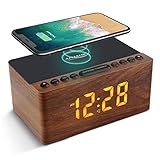
- 【𝐒𝐭𝐲𝐥𝐢𝐬𝐡 𝐖𝐨𝐨𝐝𝐞𝐧 𝐃𝐞𝐬𝐢𝐠𝐧 𝐟𝐨𝐫 𝐃𝐞𝐜𝐨𝐫】You will love the aesthetic of this vintage-looking bedside clock. It’s sleek, clean, modern and looks like a beautiful piece of wood furniture. Taking up about the same space as your iPhone. Its functionality and stylish appearance makes it a perfect gift for your family, lovers or friends.
- 【𝐀𝐥𝐚𝐫𝐦 𝐂𝐥𝐨𝐜𝐤 𝐰𝐢𝐭𝐡 𝐐𝐈 𝐂𝐞𝐫𝐭𝐢𝐟𝐢𝐞𝐝 𝐖𝐢𝐫𝐞𝐥𝐞𝐬𝐬 𝐂𝐡𝐚𝐫𝐠𝐢𝐧𝐠】 Unique top non-slip charging design ! ANJANK alarm clock supports 5W/7.5W/10W adaptive charging, which can charge your smart phone quickly and easily. Besides, it also features an USB port to charge other electronic devices, such as a second phone or watch, powerbank or smartwatch. Simplify your nightly routine, eliminating the need for cumbersome charging cables.
- 【𝐅𝐦 𝐑𝐚𝐝𝐢𝐨 & 𝐒𝐥𝐞𝐞𝐩 𝐓𝐢𝐦𝐞𝐫】 ANJANK wooden radio clock with a frequency range of 87.5-108MHz. It allows you to easily tune and save your favorite channels. With a premium adjustable volume speaker, you can enjoy the clear and pristine sound. Sleep timer function (10-120min) for you to choose.
- 【𝐔𝐩𝐠𝐫𝐚𝐝𝐞𝐝 𝟗 𝐖𝐚𝐤𝐞 𝐮𝐩 𝐒𝐨𝐮𝐧𝐝𝐬 𝐚𝐧𝐝 𝐒𝐧𝐨𝐨𝐳𝐞】Wake up with 8 alarm sounds(Beep、Lullaby、Rain、Waves、Water sounds、Buzzer、Bird sounds、Kanoon) or your favorite radio station — start your day in a good mood.Choose from 9 sounds, and press SNOOZE for 9 extra minutes of sleep.The alarm starts low and gently builds up, so you’re not jolted awake.
- 【𝐋𝐚𝐫𝐠𝐞 𝐁𝐢𝐠 𝐍𝐮𝐦𝐛𝐞𝐫𝐬 𝐰𝐢𝐭𝐡 𝐀𝐝𝐣𝐮𝐬𝐭𝐚𝐛𝐥𝐞 𝐁𝐫𝐢𝐠𝐡𝐭𝐧𝐞𝐬𝐬】1.2" number digits are not only bright and easily visible but also come with a fantastic dim mode. This dimming feature can ensure you a good night's sleep without any disturbance. The clock's ability to adjust its brightness makes it versatile, 💕and even one more which turns off the display altogether, catering to different preferences and lighting needs for you.
In the Watch app on iPhone, go to Sounds & Haptics and set Haptic Alerts to Prominent. This makes the vibration pattern longer and more deliberate, which is critical if you’re a deep sleeper.
You can also lower the Watch’s alarm sound volume or mute it entirely while keeping haptics active. On a 41–45mm Watch case, especially aluminum models with lighter mass, haptics are surprisingly effective when paired with a snug sport band or solo loop that maintains good skin contact overnight.
Comfort matters here. A loose bracelet or heavy metal band dampens haptic transfer, making alarms easier to miss and undermining the entire strategy.
Using Focus filters to reduce secondary noise
While Focus modes don’t block alarms, they do reduce the chaos that often follows them.
By enabling Sleep Focus or a custom Morning Focus with notification filters, you can prevent the immediate flood of alerts that make it feel like multiple alarms are firing. This is especially helpful if you grab your phone to stop an alarm and are instantly hit with banners and sounds.
The psychological effect is real. Even if both devices alert, a calm post-alarm environment makes the experience feel intentional rather than broken.
Strategic use of Silent Mode and theater-style discipline
Some users take this further by leaving the iPhone in Silent Mode overnight and relying on vibration only.
This doesn’t guarantee silence, since alarms can still sound, but in practice it often reduces volume enough that the Watch haptics dominate. Combined with placing the phone face down or farther from the bed, it shifts attention back to the wrist.
The Apple Watch, worn properly, becomes the primary interface by proximity and sensation, not by system logic.
Why this works better for annoyance than control
This workaround doesn’t fight Apple’s alarm hierarchy. It sidesteps it.
Apple’s system is designed to ensure redundancy, not preference. When two devices alert, the platform assumes that’s a feature, not a bug.
By shaping sound, vibration, and context, you’re redefining what “waking up” feels like, even though the system remains technically unchanged.
Who benefits most from this setup
This approach suits users who don’t need strict device separation but are overwhelmed by the double-alarm experience.
It’s especially effective for Watch owners who prioritize comfort, consistent overnight wear, and haptic feedback over loud audio cues. Lightweight cases, breathable bands, and good battery health all contribute to reliability here.
If your frustration is about being startled rather than being woken, this is often the most livable compromise available today.
Where it inevitably falls short
None of these tweaks stop the iPhone from sounding an alarm when the system decides it should.
If your phone is on a charger, if wrist detection fails, or if the Watch battery dips unexpectedly, the iPhone will still step in loudly. No amount of haptic tuning can override that decision.
This workaround reduces friction, not uncertainty. It’s about making the failure mode gentler, not eliminating it entirely.
For many users, that distinction is disappointing. For others, it’s the first setup that finally feels tolerable.
Edge Cases That Break the System: Charging, Wrist Detection, Silent Mode, and Battery State
If the previous workarounds feel fragile, it’s because they are. Apple’s alarm behavior hinges on a handful of sensor-driven assumptions, and when any of those assumptions fail, the system defaults to redundancy.
These edge cases explain why a setup that works flawlessly for weeks can suddenly betray you on a random Tuesday morning.
Charging: When the iPhone Decides It’s Back in Charge
The moment your iPhone is on a charger, Apple treats it as a reliable alarm endpoint again. Even if the Watch is on your wrist and fully capable, the phone assumes it should participate audibly.
This is most noticeable with overnight charging on a bedside MagSafe puck or Lightning cable. The iPhone, stationary and powered, is considered “safe” to make noise, while the Watch is treated as supplemental.
Ironically, this penalizes good battery habits. Users who charge their Watch overnight and wear it to sleep avoid this specific trigger, but anyone charging both devices near the bed will often get the full double-alarm experience.
Wrist Detection: Comfort vs. Certainty
Wrist detection is a quiet gatekeeper in this entire system. If the Apple Watch believes it’s not being worn, alarms revert immediately to the iPhone.
Loose bands, softer solo loops that stretch over time, or sleeping positions that reduce skin contact can all cause brief detection failures. Even a lightweight aluminum case paired with a breathable nylon band, which is excellent for comfort, can introduce just enough movement overnight to confuse the sensor.
From Apple’s perspective, this makes sense. A watch that isn’t securely on-wrist can’t be trusted to wake you, so the phone steps in without hesitation.
Silent Mode Isn’t a Hard Boundary
Many users assume Silent Mode is a firm rule. For alarms, it’s more of a suggestion.
Standard notifications respect Silent Mode, but alarms are treated as safety-critical events. If the system decides sound is necessary to ensure you wake up, it will bypass silence entirely.
This is why leaving the iPhone in Silent Mode reduces annoyance but never guarantees quiet. The volume may be lower, and the Watch haptics may feel dominant, but Apple never promises full suppression.
Battery State: The Invisible Tripwire
Battery anxiety is baked into alarm logic. If the Watch battery is low, charging inconsistently, or projected to die before the alarm, the iPhone preemptively takes over.
This often happens silently. You go to sleep with 28 percent on the Watch, assume you’re safe, and wake up to the phone blaring because watchOS decided that margin wasn’t trustworthy.
Older Watches with degraded batteries are especially prone to this behavior. Thinner cases and lighter builds improve comfort but offer less battery headroom, which increases the likelihood of alarm fallback.
Sleep Schedules Make It Worse, Not Better
Alarms tied to Sleep schedules are the most aggressive about redundancy. They’re treated differently from manually set alarms, with a stronger bias toward making sure you wake up no matter what.
If wrist detection, charging state, or battery confidence is even slightly ambiguous, both devices will alert. This is why users who rely on Sleep Focus often experience more inconsistency than those using standalone alarms.
Apple prioritizes compliance over customization here. The system assumes that missing a wake-up is worse than waking up annoyed.
The Unifying Pattern: Apple Trusts Hardware States, Not Preferences
Across all these edge cases, one pattern emerges. Apple does not honor your intent to separate alarms; it reacts to real-time hardware confidence.
Charging status, sensor contact, power reserve, and motion certainty all outweigh any desire for device-level control. Preferences are static, but sensor data is dynamic, and Apple always sides with the latter.
Understanding this doesn’t fix the problem, but it explains why the problem keeps resurfacing. The system isn’t ignoring you. It simply doesn’t believe your setup is safe enough to trust.
This is why every workaround feels conditional. You’re not choosing where alarms go; you’re trying to keep the system convinced that the Watch deserves to handle the job alone.
Third-Party Apps and Automations: Why They Rarely Solve the Core Alarm Problem
Once it becomes clear that Apple’s own settings won’t fully separate alarms, many users instinctively look outward. Surely an App Store download or a clever Shortcut can force alarms to stay on the Watch or leave the iPhone silent.
This is where expectations usually collide with the realities of iOS and watchOS. Third-party tools can change how you trigger alerts, but they cannot replace or override Apple’s system alarm logic.
Why Third-Party Alarm Apps Can’t Replace the System Alarm
On the surface, third-party alarm apps look promising. Many offer custom sounds, vibration patterns, and Watch-first interfaces that feel more intentional than Apple’s default Clock app.
Under the hood, they all hit the same wall. iOS does not allow third-party apps to schedule true system-level alarms that wake the device from deep sleep with guaranteed reliability.
To compensate, these apps rely on notifications. Notifications are inherently secondary, subject to Focus modes, background execution limits, and connectivity between the iPhone and the Watch.
If your iPhone is in Low Power Mode, has poor network conditions, or aggressively suspends background activity overnight, those alarms can arrive late or not at all. Apple knows this, which is exactly why it doesn’t treat them as equivalent to system alarms.
On the Watch, the problem compounds. Third-party Watch apps cannot run persistently in the background, and they cannot bypass Apple’s decision-making around which device should alert.
So while a third-party app might look like it’s “Watch-only,” it’s still riding on the same infrastructure Apple already distrusts for wake-up-critical events.
💰 Best Value
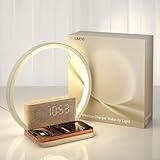
- MULTIFUNCTIONAL DUAL-MODE DIGITAL ALARM CLOCKS: Vivilumens sunrise digital alarm clock offers a range of features that will revolutionize the way you wake up.The alarm clock with wireless charging is also perfect for heavy sleepers adults.The alarm clock has 3 wake-up modes, depending on your preference, choose sunrise wake-up light with soothing sounds, just a wake up light, or traditional alarm bells based. You can choose from different soothing natural sounds for a stress-free rise each morning
- WAKE-UP LIGHT ALARM CLOCKS WITH SNOOZE MODE: This sunrise alarm clock features a wake-up light function that simulates sunrise 10 minutes before the alarm goes off, allowing you to wake up to the gradual brightening of sunlight in your room.In addition, featuring a snooze mode, a gradual 12-level volume adjustment, and You can also press the "Snooze" button, and get an extra 10 minutes of sleeping time or short press "Clock" button to turn off alarms of the day.This clock allows you to gently awaken, even if you're a deep sleeper
- NIGHT LIGHT WITH 10W WIRELESS FAST CHARGING: This lamp features a Qi-compatible charging pad—just place your phone or AirPods on top to charge. No more cables! For best results, align device with the charging area. If charging doesn’t start, adjust its position slightly. Note: Your device must support Qi wireless charging. Always remove phone cases before charging
- TIMEABLE WHITE NOISE SOUND MACHINE - 10 SOOTHING SOUNDS: Alarm clocks for bedrooms plays 10 different white noises and a 30/60/90-minute timer of sound machine, including the sound of 01 birdsong, 02 ocean wave , 03 flowing water, 04 bonfire, 05 summer night, 06 thunderstorm, 07 fan, 08 rain, 09 music box, 10 clock ticking. You can adjust the volume to suit your needs by rotating the knob. Improve your sleeping habits by letting you fall asleep to soothing white noise
- TOUCH BEDISIDE LAMP & SCREEN LIGHT ADJUSTMENT: You can adjust the light brightness by touching any position of the lamp to meet your lighting needs in different scenes.This bedside table lamp offers three-level(30%, 70%, 100%) dimming options.In clock mode,short press the key "SNOOZE" to adjusts the brightness of display screen in 3 levels:brightest, medium, slightly dim, and off in a cycle
Why Shortcuts and Automations Hit a Hard Ceiling
Shortcuts feel more powerful because they’re built by Apple and deeply integrated into the system. Users often try automations like silencing the iPhone at bedtime, toggling Focus modes, or adjusting volumes when a Watch alarm is expected.
These approaches can reduce annoyance, but they don’t actually separate alarms. They merely dampen the consequences when redundancy kicks in.
For example, a Shortcut that lowers iPhone volume before sleep can help, but system alarms are designed to cut through volume changes. Sleep alarms in particular are resistant to automation-based suppression.
Automations also lack context awareness at the moment alarms fire. They cannot evaluate watch battery confidence, wrist detection, or charging state in real time and then enforce a single-device outcome.
Apple keeps those decision points inside protected system processes. Shortcuts operate above that layer, which means they react after the fact, not before it matters.
Focus Modes: Helpful, but Not a True Alarm Firewall
Focus modes are often misunderstood as an alarm control tool. In reality, they’re a notification filter, not an alarm router.
Standard alarms are explicitly exempt from Focus suppression. Sleep Focus may reduce incidental noise, but it does not block the iPhone from alerting if watchOS decides redundancy is required.
This is why users experience the most frustration when combining Sleep schedules with Focus-based workarounds. You think you’ve created a clean, intentional setup, but the alarm logic operates outside those boundaries.
Focus can make wake-ups less chaotic, especially on the iPhone, but it cannot force the Watch to be the sole alarm device.
Why “Watch-Only” Alarm Apps Still Involve the iPhone
Even apps marketed as Apple Watch alarm solutions still depend on the iPhone in subtle but critical ways. The Watch app is usually a remote interface, not an independent scheduler.
The iPhone handles timing, background execution, and fallback logic. The Watch is where the alert is delivered, assuming everything stays ideal.
The moment something deviates — Bluetooth instability, a delayed sync, or a low battery estimate — the system defaults back to the iPhone to protect reliability.
This mirrors Apple’s own logic. Third-party developers aren’t failing; they’re constrained by the same safeguards Apple enforces internally.
The Reliability Paradox: Why Apple Blocks the “Obvious” Solution
From a user perspective, the solution feels trivial. Let me pick a device and accept the risk.
From Apple’s perspective, alarms are safety-critical. They’re treated closer to emergency alerts than standard notifications, especially when tied to Sleep schedules.
Allowing third-party apps or automations to override alarm routing would create edge cases where users miss alarms due to battery drain, sensor misreads, or background process failures. Apple has decided that this risk is unacceptable at scale.
That decision frustrates power users, but it explains why no app or automation has ever truly cracked this problem.
What Third-Party Tools Are Actually Good For
Despite these limitations, third-party apps and Shortcuts aren’t useless. They’re just better suited for secondary alarms, reminders, or gentle nudges rather than primary wake-ups.
They work well for midday alerts, discreet haptics during meetings, or backup reminders that don’t need system-level certainty.
If your goal is to avoid waking a partner or reduce morning chaos, these tools can help shape the experience. They just can’t replace the core alarm mechanism Apple insists on controlling.
Understanding this distinction saves time, money, and frustration. You stop searching for a silver bullet and start choosing which compromises you’re willing to live with.
Choosing the Least-Frustrating Setup for Your Routine (Realistic Recommendations by Use Case)
Once you accept that Apple isn’t going to give you a clean device-level alarm toggle, the question changes. It’s no longer “How do I separate alarms?” but “Which compromise hurts the least for how I actually live?”
Below are setups I’ve used, tested, and seen hold up across watchOS and iOS updates. None are perfect. Some are annoyingly manual. But each aligns with how Apple’s system really behaves, not how we wish it did.
If You Want the Watch to Wake You Quietly (Without Waking a Partner)
This is the most common frustration, and the hardest to fully solve. The least-bad option is to stop using iPhone alarms entirely and rely on the Apple Watch’s Sleep Schedule with Silent Mode enabled on the Watch.
When the Watch is in Silent Mode, Sleep alarms use haptics only. The iPhone may still show the alarm UI, but it won’t sound unless you’ve explicitly allowed sound and the Watch fails to deliver the alert.
This setup works best if you charge the Watch before bed, wear it snugly for reliable haptics, and keep battery health strong. On smaller Watch cases, the haptics are subtle but consistent, while Ultra models deliver stronger taps that are harder to miss.
The trade-off is fragility. If the Watch battery drops too low overnight or Bluetooth behaves oddly, the iPhone will step in loudly. Apple sees that as a feature, not a bug.
If You Want the iPhone to Handle Wake-Ups and the Watch to Stay Out of It
If your Watch vibrating on your wrist feels intrusive or stressful, the cleanest solution is surprisingly simple: don’t use Sleep alarms at all.
Create standard alarms in the iPhone Clock app and take the Watch off your wrist overnight. If the Watch isn’t worn, it can’t intercept or mirror the alarm.
This works well for people who charge overnight and don’t rely on sleep tracking. It’s also the most reliable setup from Apple’s perspective, because the iPhone remains the single point of truth.
The downside is obvious. You lose sleep metrics, wrist-based haptics, and the gentle wake-up experience Apple markets so heavily.
If You Want Different Alarms for Different Contexts
This is where separating intent matters more than separating devices. Use system alarms only for critical wake-ups, and everything else should be handled with reminders, calendar alerts, or third-party apps.
For example, keep your morning alarm tied to Sleep Schedule. Use Reminders with time-based alerts for midday prompts that only need haptics on the Watch.
Third-party apps excel here. They’re responsive, customizable, and great for secondary nudges. Just don’t ask them to replace alarms that absolutely cannot fail.
This mental separation reduces frustration. You stop expecting reminder-grade tools to behave like safety-critical alarms.
If You Want Manual Control and Don’t Mind the Friction
Some users want absolute control, even if it means more taps. For them, the least-frustrating option is managing alarms directly on each device and toggling Watch Silent Mode intentionally.
Create alarms on the iPhone for days you want sound. Use Watch alarms only when you’re confident you’ll be wearing it and it’s adequately charged.
This approach rewards discipline. It also punishes forgetfulness. Miss one Silent Mode toggle or battery check, and the system reasserts itself.
It’s not elegant, but it respects Apple’s hierarchy while still giving you moments of control.
If You Travel, Nap Often, or Work Irregular Hours
Irregular schedules expose the system’s weaknesses quickly. Sleep Schedules are rigid, and alarms don’t adapt well to frequent changes.
In these cases, avoid Sleep alarms altogether. Use one-off iPhone alarms for reliability and Watch-based reminders for gentle cues.
The Apple Watch is excellent for contextual awareness during the day. At night, especially across time zones or inconsistent sleep windows, the iPhone remains the more predictable alarm anchor.
The Setup That Fails the Least Over Time
After years of testing, the most stable long-term strategy is boring but effective. Use Sleep Schedule alarms only if you fully commit to wearing the Watch overnight and maintaining battery health.
Use iPhone alarms when reliability matters more than subtlety. Use third-party tools for everything in between.
This aligns with how Apple designed the system, even if it doesn’t align with how we want to customize it.
What to Expect Going Forward
Apple could fix this tomorrow with a single toggle. The fact that it hasn’t tells you everything you need to know about their priorities.
Alarms are treated as safety infrastructure, not personalization features. Until that philosophy changes, separation will remain partial and conditional.
The goal isn’t to beat the system. It’s to work with its boundaries and choose the setup that causes the fewest bad mornings.
If you approach it that way, the frustration doesn’t disappear, but it becomes manageable. And in the Apple ecosystem, that’s often the most realistic win you’re going to get.