Quick wins for a faster PC:
Clear out junk files and repair common Windows errorsFree Scan →Scan for outdated or missing drivers - takes under a minuteDriver Scan →Some links on this page are affiliate links: if you buy through them we may earn a commission, at no extra cost to you.
Yes—Dexcom G7 can send glucose readings directly to a compatible Apple Watch in near real time using Direct to Watch. The G7 sensor measures glucose and the watch displays the reading; the Apple Watch does not measure blood sugar itself. You still need an iPhone to pair a new sensor and set up the system, but when Direct to Watch is active, you can leave the phone behind for ordinary viewing.
Does Dexcom G7 work with Apple Watch?
Yes. Dexcom’s Direct to Watch feature sends data from a G7 sensor to a compatible Apple Watch over Bluetooth. The watch can show the current glucose reading, trend arrow, graph and configured alerts.
This is a continuous glucose monitor (CGM) display—not a glucose sensor built into the watch. The G7 measures glucose in interstitial fluid and transmits readings to compatible display devices, as described in the FDA’s G7 decision summary. “Real time” means the watch receives and displays the CGM data as it becomes available; it does not guarantee zero delay or uninterrupted readings.
Direct to Watch vs. the regular watch app
| Mode | How readings reach the watch | Can the iPhone be elsewhere? |
|---|---|---|
| Direct to Watch | G7 sensor → Bluetooth → Apple Watch | Yes, while the direct connection is active |
| Standard Smartwatch | G7 sensor → iPhone → Apple Watch | No. The iPhone needs to remain nearby; Dexcom describes the range as approximately 20 feet. |
The normal G7 watch app and its complications can display readings, but they are not proof that Direct to Watch is working. In Standard Smartwatch mode, the iPhone relays the information. Dexcom’s guide to identifying the active mode explains the phone icons shown on the watch.
#1 Best Overall
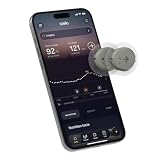
- ✅ For people NOT using insulin, ages 18 years and older
- ❌ Don’t use if: On insulin, on dialysis, if you have problematic hypoglycemia, are modifying medication without HCP consultation, or if you have a history of eating disorders
- YOUR SUCCESS, OUR COMMITMENT: Should you experience an issue with your biosensor before its 15-day wear is up,[2] we’ll replace it for free. [3]
- POWERFUL FEATURES: Get AI-powered coaching, plus discover in-app nutrition & glucose insights, advanced meal and activity logging, trend summaries and deep dives, pattern insights and much more—plus, effortlessly sync your data with Apple Health, Google Health Connect, and Oura.
- PRODUCT SUPPORT: Provided by Stelo through SteloBot, which can be accessed via the Stelo app by going to Settings > Contact. SteloBot virtual support assistant is available 24/7, and live agent support available during regular business hours.
Compatible Apple Watch and iPhone requirements
Dexcom’s current U.S. Direct to Watch list includes Apple Watch Series 6, 7, 8, 9, 10 and 11; Apple Watch SE (2nd and 3rd generation); and Apple Watch Ultra, Ultra 2 and Ultra 3. The watch also needs a supported watchOS version.
Software requirements have changed across Dexcom’s documentation. Older Direct to Watch FAQs describe an iOS 17 and watchOS 10 baseline, while Dexcom’s G7 compatibility page, marked updated July 29, 2026, lists iOS 18.6.0 as the minimum and watchOS 10.6.1 as the supported smartwatch software baseline. The page also shows the highest supported iOS version as 26.5.2 and associates G7 iOS app version 2.12 with that OS. These details can change; check the live compatibility page before updating, setting up or buying a watch. Compatibility may also vary by country and G7 product variant.
Dexcom’s compatible-model list is not a guarantee that every watch and phone combination works in every region. Confirm the exact watch model, iPhone, operating-system versions and local G7 variant in Dexcom’s regional compatibility checker before purchasing hardware. Direct to Watch is currently an Apple Watch feature; Dexcom does not list Wear OS watches as compatible with it.
What’s actually slowing this PC down?
Pick the symptom - the matching free tool is one click away.
Rank #2

- HSA/FSA eligible. No prescription needed.
- 24/7 GLUCOSE TRACKING. See your glucose response to food, exercise, sleep, and other lifestyle factors via the Lingo app.
- OPTIMIZE YOUR NUTRITION. Discover which foods work for you and those that don't. The Lingo app shows you how specific meals and other factors impact your glucose, so you can learn from your insights and build healthier habits.
- NAVIGATE PREDIABETES WITH A NEW VIEW OF YOU. More time in healthy glucose range is linked to lower diabetes risk. Three out of four users with prediabetes say Lingo was effective in helping to achieve their health goals¹.
- HEALTHY GLUCOSE SUPPORTS HEART HEALTH. What you eat matters to your glucose and your heart. Keeping your glucose in a healthy range (70–140 mg/dL) more often can help protect your heart from heart disease²⁻⁴.
How to set up Dexcom G7 on Apple Watch
- Install or update the Dexcom G7 app on a compatible iPhone, then pair and start the G7 sensor using the phone.
- If the watch app is not installed, open the iPhone’s Watch app, select My Watch, scroll to Available Apps, find Dexcom G7 and tap Install.
- In the G7 iPhone app, open Connections > Direct to Watch.
- Follow the on-screen pairing instructions. Keep the iPhone near the watch during setup.
- Confirm that the watch shows a current reading and trend arrow before leaving the phone behind.
Dexcom says a sensor can pair with only one smartwatch at a time. When starting a new sensor, follow the app’s prompt to pair it with the watch; do not assume the old pairing will carry over automatically. If you change G7 settings on the iPhone, open and display the watch app while the phone is nearby so the settings can sync. See Dexcom’s setup and pairing instructions for the current workflow.
What can you see on the watch?
The Dexcom G7 Apple Watch app can display the current glucose value, trend direction, a 1-, 3- or 6-hour graph and Dexcom alerts. Supported watch faces can also show a Dexcom complication—a glanceable display element or shortcut, not a separate sensor. Without Direct to Watch, updated complication data depends on the iPhone connection. See Dexcom’s information about G7 Apple Watch complications.
Watch alerts generally reflect settings in the iPhone G7 app. Keep the necessary notification and alert settings enabled if you rely on wrist alerts, and confirm they work during setup. Direct to Watch does not guarantee that every third-party health or lifestyle app receives the sensor’s real-time data. Dexcom says direct mode cannot share real-time readings directly with some partners, including Sugarmate, Happy Bob and Glooko. Dexcom Follow and other cloud-based sharing features are separate from the sensor-to-watch Bluetooth link and need internet connectivity to share data.
Rank #3

- Long-lasting:Onida dexcom g7 over patches are made with a strong durable adhesive designed to provide extended wear time.Please press carefully around the edges after pasting to make it stick more firmly.
- Waterproof & Sweatproof:Our Dexcom g7 adhesive patches are waterproof and sweatproof,Dexcom patches use the highly breathable woven fabric that will never fray or trap moisture.
- Hypoallergenic:Onida g7 dexcom over patches are hypoallergenic, latex-free and breathable with innovative woven fabric material. Virtually painless removal and no sticky residue on your skin.
- Easy to ues:The design of the back ear allows you to use it independently with one hand, without unnecessary waste.Stabilize and fix your sensor on your skin without moving.
- No-Hole design:Our Dexcom g7 patches are designed no-hole, no-adhesive to protect your sensor,this design does not interfere with sensor readings and makes it easier to replace the adhesive patches.
Can you leave your iPhone behind?
Yes, for viewing on the watch when Direct to Watch is active and communicating. The sensor connects to the watch over Bluetooth, so a cellular Apple Watch plan is not required for that connection. You still need an iPhone for initial sensor pairing and setup, and you may need it to change settings or restore a connection. Remote sharing and other cloud-dependent features may not work without internet access.
A direct connection is not a promise of continuous availability: Bluetooth range, signal loss, sensor issues or water can interrupt updates. Dexcom warns readings may not be available while swimming or bathing. If the watch stops updating, treat its displayed value as unavailable rather than assuming it is current.
Independent reader supportYour contribution helps us test, update, and keep practical guides available for everyone.What do the phone icons mean?
- Gray phone icon: Standard Smartwatch mode. The watch depends on the iPhone nearby for updates.
- Orange phone icon: Direct to Watch is temporarily unavailable and the watch is relying on the phone connection. Bring the iPhone near the watch and wait for direct communication to resume; the icon alone does not mean the sensor is defective.
Check Dexcom’s mode and icon guidance if the indicator is unclear.
Rank #4

- Long-Lasting, 100% Compatible with Dexcom G7 & Stelo Patch: Hold your CGM device firmly to your skin and extend its life without causing it to fall off or hang loose; designed to withstand external and physical force, our diabetic patch enables you to do all the things you care about without your sensor detaching from your skin
- Waterproof and Sweatproof, stays on through anything - Waterproof adhesive of our Dexcom g7 Patch keeps your device secure during showers, swims, and sweaty days. For best results, just blot the patch dry after water exposure.
- Comfortable, Skin-Friendly & Pre-Cut to Fit Your Device: Our breathable overpatches are made of 100% medical-grade adhesive that is zinc oxide-free, hypoallergenic, and not made with natural rubber latex, for zero irritation. Live without limits while wearing your patch.
- 4-Way Stretch, Easy Application: Our patches are ingeniously split into 5 parts for a seamless application; for best results, prep skin with an adhesive barrier solution like Skin Tac, apply the sensor, and apply the patch before bed to allow the adhesive to set well before any activities
- Commitment to Quality: We use only superior materials and adhere to high standards of quality and safety — so you can work hard and play hard without affecting your blood sugar testing
Troubleshooting when readings disappear
- Check the phone icon. If it is gray or orange, bring the iPhone within Bluetooth range of the watch.
- Open the Dexcom G7 iPhone app, then open and display the G7 watch app while both devices are nearby.
- Check Bluetooth, app permissions and notification settings on the devices.
- Confirm the sensor is not still warming up or expired, and that this is the smartwatch paired to the current sensor.
- If settings were recently changed on the iPhone, keep it nearby and display the watch app to sync them.
- Before changing or updating operating systems, check Dexcom’s live compatibility page. Unsupported software can affect function and security.
- If readings remain unavailable, use another approved display device or a blood-glucose meter as directed by your care plan, and contact Dexcom support or your clinician when appropriate.
If you replace or switch watches, expect to repeat the pairing process; Dexcom says one sensor pairs with one smartwatch. During a sensor transition, follow the G7 app’s pairing prompt. For the receiver as another display option, see Dexcom’s G7 setup guidance.
Is an Apple Watch worth buying for Dexcom G7?
Direct to Watch is most useful if you already own a compatible Apple Watch and want wrist access during exercise, work or other times you do not want to carry your iPhone. Check your existing equipment first:
- Identify the exact Apple Watch model.
- Confirm it can run the supported watchOS version.
- Check your iPhone model, iOS version and G7 app compatibility.
- Confirm compatibility for your country and G7 variant.
Consider an upgrade only if phone-free viewing is important enough to justify it and your current watch is not supported. Buying a watch solely for Dexcom is a poor fit if you expect a standalone glucose monitor, need an Android or Wear OS watch, depend on a particular third-party app, or primarily need remote monitoring by family. If you already carry your iPhone and do not need wrist access, the iPhone G7 app may be enough. The G7 receiver is another display option for some users.
Safety: the watch is not a glucose meter
The watch displays readings from the G7 sensor; it does not diagnose diabetes or measure glucose through the skin. CGM readings can be unavailable or may not match how you feel. If a reading does not match symptoms or expectations, follow Dexcom’s instructions and your clinician’s plan for checking with a blood-glucose meter before making treatment decisions. Do not rely on a stale watch display or use a complication as a substitute for clinical advice.
Quick Recap
Product prices and availability are accurate as of the date/time indicated and are subject to change. Any price and availability information displayed on Amazon at the time of purchase will apply.

