Most Fitbit accuracy complaints don’t come from bad hardware. They come from devices that were set up once, quickly, and never fine-tuned again. Fitbit trackers and smartwatches rely heavily on personal data, background permissions, and a few easily overlooked toggles to turn raw sensor data into meaningful insights.
If your step counts feel inflated, calorie burn seems unrealistic, sleep stages look off, or heart rate zones don’t match how hard you’re actually working, this is where the fix usually lives. The good news is that most of these settings are one-time adjustments that take minutes and quietly improve everything your Fitbit measures from that point forward.
This section walks through the foundational setup choices that experienced Fitbit users get right early. Think of this as calibrating the instrument before you trust the readings, setting the stage for better workouts, more reliable health trends, and a smoother daily experience as we move into deeper features later.
Confirm your dominant wrist and wearing position
Fitbit uses wrist movement patterns to interpret steps, active minutes, and even sleep restlessness. If your device is worn on your non-dominant wrist but set as dominant, you can see exaggerated step counts and misread activity intensity.
🏆 #1 Best Overall

- Inspire 3 is the tracker that helps you find your energy, do what you love and feel your best. All you have to do is wear it.Operating temperature: 0° to 40°C
- Move more: Daily Readiness Score(1), Active Zone Minutes, all-day activity tracking and 24/7 heart rate, 20+ exercise modes, automatic exercise tracking and reminders to move
- Stress less: always-on wellness tracking, daily Stress Management Score, mindfulness sessions, relax breathing sessions, irregular heart rhythm notifications(2), SpO2(3), menstrual health tracking, resting heart rate and high/low heart rate notifications
- Sleep better: automatic sleep tracking, personalized Sleep Profile(1), daily detailed Sleep Score, smart wake vibrating alarm, sleep mode
- Comfortably connected day and night: calls, texts & smartphone app notifications(4), color touchscreen with customizable clock faces, super lightweight and water resistant to 50 meters, up to 10 day battery life(5)
Open the Fitbit app, tap your profile photo, select your device, and look for Wrist Placement. Choose non-dominant for most users and make sure the physical wear matches the setting. This single toggle has a disproportionate impact on step accuracy, especially for people who talk with their hands or type frequently.
Also pay attention to where the tracker sits. Fitbit’s optical heart rate sensors work best about one finger-width above the wrist bone, snug but not tight. Too loose causes signal dropouts; too tight can restrict blood flow and skew readings.
Enter precise height, weight, age, and sex data
Fitbit’s calorie burn, distance tracking, VO2 max estimates, and cardio fitness score all rely on your profile data. Even small inaccuracies here compound over time, especially for calorie estimates and running metrics.
In the app, go to Account Settings and review your height, weight, birthday, and sex. Update weight regularly if you’re actively training or changing body composition, as Fitbit does not automatically adjust energy expenditure models unless you tell it.
For runners and walkers, correct height directly affects stride length assumptions. If your distances always feel slightly off, this is often the culprit rather than GPS quality.
Enable continuous heart rate tracking and review zones
Some users disable continuous heart rate to save battery without realizing how much it affects daily metrics. Resting heart rate trends, active zone minutes, sleep stages, stress tracking, and cardio fitness all depend on round-the-clock heart rate data.
Check that Heart Rate is set to On or Auto, not Off. Then review your heart rate zones under Exercise Settings. Fitbit’s default zones are age-based, but they may not reflect your actual fitness level if you’re well-trained or returning after time off.
Advanced users should consider manually adjusting zones based on a known max heart rate from lab testing or recent high-effort workouts. This makes active minutes and training load far more meaningful.
Allow location and background permissions fully
Fitbit’s app needs permission to run in the background to sync data reliably. On both iOS and Android, aggressive battery-saving settings can silently block syncing, GPS activity uploads, and notification reliability.
In your phone’s system settings, ensure Fitbit has permission for Background App Refresh, unrestricted battery usage, and location access set to Always or While Using with Precise Location enabled. This is especially critical for devices with built-in GPS like the Versa, Sense, and Charge series.
If your maps cut out mid-run or stats appear hours late, this step usually resolves it.
Calibrate GPS once for outdoor workouts
Fitbit GPS accuracy improves after a few clean outdoor sessions, but only if you give it the right conditions. Before starting an outdoor run or walk, wait for the GPS lock confirmation on the device screen instead of starting immediately.
Choose open areas away from tall buildings for your first few tracked workouts. This helps the device refine satellite data and improves distance and pace consistency over time, especially on newer or recently reset devices.
You don’t need to do this often, but skipping it can lead to permanently “wobbly” routes and inconsistent pace data.
Review sleep sensitivity and bedtime behavior
Fitbit’s sleep tracking is among its strongest features, but accuracy depends on both settings and habits. In the sleep section of the app, review your sleep sensitivity setting if available on your model.
Normal sensitivity works best for most people. Sensitive can over-detect wake periods if you move frequently, while relaxed may miss brief awakenings. Pair this with consistent wear at night and a snug fit to keep heart rate and movement data stable.
Charging habits matter too. Short daily top-ups rather than full overnight charges keep sleep data complete without sacrificing battery health.
Turn on health metrics you didn’t realize were optional
Some health metrics are opt-in due to privacy and regulatory reasons. This includes breathing rate, blood oxygen variation, skin temperature variation, and heart rate variability.
In the Health Metrics section of the app, make sure everything available for your device is enabled. These metrics don’t give instant gratification, but over weeks they build powerful trend data that helps flag illness, overtraining, or recovery issues early.
They also enrich sleep and readiness-style insights on newer Fitbit models, making daily recommendations more personalized.
Check firmware updates and restart once
Fitbit firmware updates often include sensor tuning, GPS improvements, and bug fixes that never get headline attention. An out-of-date device can quietly underperform even if everything else is set correctly.
After updating, restart the device once. This clears cached sensor states and often resolves odd heart rate spikes, sync lag, or touch responsiveness issues.
Think of this as a baseline reset. Once done, you’re working with the best version of your hardware, ready for deeper optimization in the sections ahead.
Hidden Health Metrics Explained: How to Unlock Deeper Insights from HRV, SpO₂, Resting Heart Rate and Stress Scores
Once your firmware is current and health metrics are enabled, Fitbit quietly starts building one of its most powerful assets: long-term physiological baselines. These aren’t flashy numbers meant to be checked once and forgotten. They’re slow-burn indicators that become meaningful only when you understand how Fitbit captures them and how to read changes over time.
Most of these metrics are calculated during sleep, using a combination of optical heart rate sensors, blood oxygen LEDs, skin temperature sensors, and motion data. That means nightly wear, consistent fit, and stable sleep habits matter more here than during daytime activity tracking.
Heart Rate Variability (HRV): Your Recovery and Stress Canary
Fitbit measures HRV during deep sleep, when your nervous system is least affected by movement, caffeine, or mental stress. You won’t see a live HRV graph during the day, and that’s intentional. Fitbit prioritizes consistency over instant feedback.
To view it, open the Health Metrics section and tap HRV. You’ll see a nightly value and a rolling baseline range once you’ve worn the device consistently for at least a week.
Higher HRV generally reflects better recovery and nervous system balance, while drops can signal accumulated fatigue, illness, dehydration, or psychological stress. What matters most is not how your HRV compares to others, but how it compares to your own recent baseline.
Fitbit devices that track HRV most reliably include Charge series models, Sense, Versa 3 and later, and Pixel Watch generations. A snug but comfortable band is essential, especially for slimmer wrists where sensor lift can reduce signal quality overnight.
SpO₂: Subtle Oxygen Changes, Not Instant Readings
Unlike pulse oximeters that show real-time oxygen saturation, Fitbit’s SpO₂ tracking is trend-based. It looks for variation during sleep rather than absolute daytime values.
You’ll find this data under Health Metrics as either SpO₂ percentage averages or blood oxygen variation graphs, depending on your device and region. The key insight here is consistency. Small nightly fluctuations are normal, but sustained deviations from your baseline deserve attention.
Fitbit uses additional red and infrared LEDs for SpO₂, which consume more battery. On devices like Sense, Versa, and Charge models, this is why SpO₂ is measured primarily during sleep rather than continuously.
If battery life suddenly dips after enabling SpO₂, that’s expected behavior. Short daily charging sessions help maintain full sleep coverage without compromising long-term battery health.
Resting Heart Rate: The Most Underrated Fitness Metric
Resting heart rate is one of Fitbit’s most mature and reliable metrics, yet many users overlook it. Fitbit calculates it using all-day and nighttime heart rate data, filtering out movement and spikes.
You’ll find it under the Heart Rate tile in the app, along with daily trends and long-term averages. Over weeks and months, this number becomes a powerful indicator of cardiovascular fitness and recovery.
A gradual decrease often reflects improved aerobic conditioning or better sleep consistency. A sudden increase, especially if paired with poor sleep or low HRV, can signal overtraining or the onset of illness.
Because resting heart rate relies on clean data, comfort matters. Breathable straps, proper sizing, and avoiding overly loose wear during sleep all contribute to more reliable readings.
Stress Management Score: More Than Just Mindfulness Minutes
Fitbit’s Stress Management Score blends HRV, resting heart rate, sleep quality, and recent activity into a single daily snapshot. It’s easy to dismiss as vague until you understand what’s under the hood.
This score updates each morning and is best viewed alongside the contributing factors shown below it. A lower score doesn’t mean you failed. It often means your body is asking for lighter training, more recovery, or better sleep hygiene.
On supported devices, guided breathing sessions and mindfulness exercises can nudge this score upward over time by improving HRV trends. The benefit is cumulative rather than immediate.
Fitbit’s stress tracking works best when you resist the urge to chase daily perfection. Look for patterns across workweeks, training blocks, or travel periods instead.
How to Turn Raw Metrics Into Real Insight
The biggest mistake users make is checking these metrics in isolation. Fitbit’s strength lies in layering them together.
For example, a night with low HRV, elevated resting heart rate, and increased SpO₂ variation tells a clearer story than any single metric alone. Add poor sleep duration, and the signal becomes hard to ignore.
Use the weekly and monthly views in the Health Metrics section whenever possible. These longer timeframes smooth out noise and highlight meaningful trends tied to training load, stress, or lifestyle changes.
Notifications and readiness-style prompts on newer models are driven by these same metrics. The more consistently you wear your device, the smarter those recommendations become.
Device Fit, Wear Time, and Why Night Wear Is Non-Negotiable
All of these hidden health metrics depend on stable nighttime data. Wearing your Fitbit loosely during the day is fine, but sleep is where precision matters most.
Aim for a fit that stays in contact without leaving deep marks. Materials like silicone or woven fabric straps tend to perform better overnight than heavier metal bands, especially on smaller wrists.
If comfort is an issue, consider swapping straps at night. Fitbit’s quick-release system makes this easy and dramatically improves long-term compliance.
The more nights you capture, the clearer your personal baseline becomes. That baseline is where Fitbit quietly transforms from a step counter into a genuine health insight tool.
Sleep Tracking Power-User Tips: Stages, Sleep Score Hacks, Smart Wake Alarms and Sleep Profile Optimization
Once your device fit and overnight wear are dialed in, sleep tracking becomes the most powerful layer in the Fitbit ecosystem. This is where hardware comfort, sensor accuracy, and software interpretation all intersect.
Many users glance at their Sleep Score and move on. Power users dig into how that score is built, how sleep stages trend over time, and how small setting changes can materially improve data quality and wake-up experience.
Understanding Sleep Stages Beyond the Headline Graph
Fitbit breaks sleep into Awake, Light, Deep, and REM using a combination of movement, heart rate variability, and breathing patterns. The stage breakdown matters more over weeks than on any single night.
Deep sleep is heavily influenced by physical recovery and nervous system load. If you train hard or carry high stress, short-term drops are normal and not automatically a problem.
REM sleep tends to be more sensitive to alcohol, late meals, and irregular bedtimes. If your REM percentage is consistently low, look first at sleep timing consistency rather than duration alone.
Light sleep often gets dismissed, but it makes up the bulk of healthy sleep. A night with long light sleep and short deep sleep is still restorative if total duration and REM are adequate.
How Fitbit Calculates Your Sleep Score (and How to Game It Ethically)
The Sleep Score is built from three pillars: duration, depth, and restoration. Duration is weighted more heavily than most users realize.
A perfectly staged six-hour night will often score lower than a messy but longer seven-and-a-half-hour night. If you want higher scores, prioritize time in bed before chasing perfect stage ratios.
Restoration pulls from resting heart rate and sleep restlessness. Wearing your device snugly overnight improves heart rate confidence and directly improves this component.
Late workouts, heavy meals, and alcohol raise nighttime heart rate. Even moving dinner earlier by 90 minutes can noticeably improve restoration scores within a week.
Sleep Stages Accuracy: What Improves It and What Hurts It
Consistent bedtime routines dramatically improve Fitbit’s stage detection accuracy. Irregular sleep timing creates ambiguous data windows that reduce confidence in stage classification.
Wrist position matters more than most users think. Wearing the device slightly higher on the wrist bone at night reduces micro-movements that confuse sleep staging.
Battery level also plays a role. Fitbit devices tend to record cleaner overnight data when battery is above 30 percent, especially on models with continuous SpO₂ tracking enabled.
If your stages frequently show long “awake” periods you don’t remember, check strap tightness and strap material. Soft-touch silicone or fabric bands reduce false wake detection compared to rigid metal links.
Smart Wake Alarms: The Feature Most Users Underuse
Smart Wake uses movement and sleep stage estimation to wake you during lighter sleep within a preset window. This can significantly reduce sleep inertia compared to fixed alarms.
Rank #2

- Inspire 3 is the tracker that helps you find your energy, do what you love and feel your best. All you have to do is wear it. Compatibility-Apple iOS 15 or higher, Android OS 9 or higher
- Move more: Daily Readiness Score(1), Active Zone Minutes, all-day activity tracking and 24/7 heart rate, 20+ exercise modes, automatic exercise tracking and reminders to move
- Stress less: always-on wellness tracking, daily Stress Management Score, mindfulness sessions, relax breathing sessions, irregular heart rhythm notifications(2), SpO2(3), menstrual health tracking, resting heart rate and high/low heart rate notifications
- Sleep better: automatic sleep tracking, personalized Sleep Profile(1), daily detailed Sleep Score, smart wake vibrating alarm, sleep mode
- Comfortably connected day and night: calls, texts & smartphone app notifications(4), color touchscreen with customizable clock faces, super lightweight and water resistant to 50 meters, up to 10 day battery life(5)
Set the Smart Wake window to 30 minutes, not the default 10. The wider window gives the algorithm more flexibility to find a lighter stage without cutting sleep short.
Haptic-only alarms are more effective than sound for most users. They wake you gently without spiking heart rate or disturbing a bed partner.
Smart Wake works best when your bedtime is consistent. If your sleep schedule shifts wildly, the algorithm has less historical data to predict optimal wake timing.
Sleep Profile: The Long Game Metric Most People Ignore
Sleep Profile compares your monthly sleep patterns against age-based cohorts using ten different metrics. It is not designed for daily optimization but for long-term behavior shaping.
Profiles like “Giraffe” or “Hedgehog” are descriptive, not judgmental. Use them to spot chronic tendencies such as late bedtimes, short REM duration, or irregular schedules.
The fastest way to improve your Sleep Profile is not sleeping longer, but sleeping more consistently. Variability hurts your profile more than slightly short duration.
Check the contributing metrics inside the Sleep Profile breakdown. Improving just one weak area often shifts your profile more than trying to optimize everything at once.
SpO₂, Breathing Rate, and When to Pay Attention
Nighttime SpO₂ tracking runs passively on supported devices and is best viewed as a trend, not a nightly diagnostic. Small nightly fluctuations are normal.
Consistent drops below your personal baseline are more meaningful than single low readings. Travel, altitude, illness, and alcohol can all temporarily affect oxygen saturation.
Breathing rate is one of Fitbit’s most stable sleep metrics. Sudden increases over several nights often correlate with illness, inflammation, or overtraining.
These metrics become far more useful when viewed alongside resting heart rate and HRV. Fitbit’s real strength is pattern recognition across systems.
Nap Detection and Its Hidden Impact on Night Sleep Data
Fitbit automatically tracks naps on many models, but they do not always contribute positively to your Sleep Score. Long or late naps can quietly suppress nighttime deep sleep.
If you nap frequently, check how it affects your bedtime sleep onset. A 20-minute early afternoon nap often improves recovery, while late naps do the opposite.
Power users treat naps as recovery tools, not sleep replacements. Use them strategically during heavy training blocks or poor sleep weeks.
Review naps in the sleep timeline view rather than the daily score. This gives a clearer picture of how naps interact with your main sleep window.
Sleep Mode, Notifications, and Overnight Battery Strategy
Sleep Mode silences notifications and reduces screen wake-ups, which improves both sleep quality and battery efficiency. Enable it on a schedule rather than manually.
Always check overnight battery drain if you use SpO₂ or snore detection features. Some models benefit from charging briefly before bed rather than overnight charging.
If battery anxiety affects wear compliance, disable non-essential nighttime features temporarily. Consistent wear is more valuable than perfect data capture.
Comfort drives compliance. Lighter Fitbit models with softer straps are easier to wear nightly, and nightly wear is the foundation of every advanced sleep insight Fitbit provides.
Advanced Fitness Tracking Tricks: Exercise Modes, GPS Tweaks, Auto-Detection, and Data You Didn’t Know You Were Recording
Once sleep and recovery are dialed in, Fitbit’s real advantage shows up during movement. Exercise data feeds directly into resting heart rate trends, HRV shifts, and readiness-style insights, even if Fitbit doesn’t label it that way.
Many users only scratch the surface by tapping “Exercise” and hitting start. Under the hood, each workout mode changes what sensors are prioritized, how frequently data is sampled, and how that activity influences your long-term metrics.
Choosing the Right Exercise Mode Actually Changes Your Data
Fitbit exercise modes are not just labels for your workout history. Each mode adjusts heart rate smoothing, motion filtering, and calorie modeling based on expected movement patterns.
For example, Walk, Run, and Hike modes prioritize step cadence and GPS path consistency. Interval-heavy activities like Bootcamp or HIIT rely more on heart rate spikes than steady movement.
If your workout doesn’t match the default profile, edit it. In the Fitbit app, you can customize which exercise shortcuts appear on your device and swap in better-fitting modes for how you actually train.
Manual vs Auto-Detected Exercises: When to Trust SmartTrack
Fitbit’s SmartTrack auto-detection works best for steady, rhythmic activities like walking, running, elliptical, and cycling. It usually kicks in after about 10 to 15 minutes, which means warm-up data may be missing.
Auto-detected workouts are logged accurately enough for general trends, but they lack GPS maps and detailed heart rate zones. Calories and intensity minutes are still counted, but precision is lower.
For workouts where pace, distance, or intervals matter, always start the exercise manually. Think outdoor runs, hikes, cycling sessions, or any workout you plan to analyze later.
GPS Accuracy Tweaks That Most Users Never Touch
On GPS-enabled Fitbits, you can often choose between Dynamic, Built-in, or Phone GPS modes. Dynamic balances battery life and accuracy, while Built-in gives the most consistent route tracking.
If your routes look jagged or distances feel off, switch to Built-in GPS for a few sessions and compare results. This uses more battery but dramatically improves consistency, especially in wooded areas or cities.
Before starting any GPS workout, stand still for 10 to 20 seconds. Letting the watch lock onto satellites before moving reduces early-route drift and distance errors.
Understanding Why Pace Sometimes Looks Wrong
Fitbit smooths pace data to make it readable, which can hide short bursts of speed or slowdowns. This is most noticeable during interval training or trail running.
Post-workout, view pace in the app rather than on-device summaries. The app graph shows fluctuations that are flattened on the watch screen.
If pace matters more than average speed, focus on lap splits or heart rate zones instead. These metrics are often more reliable indicators of effort than moment-to-moment pace.
Heart Rate Zones Are More Useful Than Calories
Calories are estimates based on heart rate, movement, and personal stats. Heart rate zones show how your body actually responded to the workout.
Time spent in Fat Burn, Cardio, and Peak zones feeds directly into your cardio fitness score and resting heart rate trends. This makes zone tracking more valuable long-term than calorie totals.
If your heart rate seems slow to rise, tighten the band slightly and wear the device higher on your wrist. Optical sensors need stable skin contact, especially during high-intensity movement.
Hidden Metrics Fitbit Records During Every Workout
Even basic workouts quietly record cadence, pace consistency, heart rate recovery, and movement efficiency. These are not always surfaced clearly but influence your health dashboard over time.
Heart rate recovery, how quickly your heart rate drops after exercise, is one of the strongest fitness indicators Fitbit tracks. You’ll see it indirectly through improving resting heart rate and cardio fitness scores.
Cadence trends matter even if you never look at them. Changes in step rhythm can signal fatigue, injury risk, or efficiency gains before performance drops.
Cardio Fitness Score: The Metric Most People Ignore
Fitbit’s cardio fitness score estimates VO₂ max using heart rate, pace, age, and activity history. It updates quietly after certain workouts, especially runs and brisk walks.
The score responds slowly, so daily fluctuations are meaningless. What matters is the trend over weeks and months.
Consistent zone-based training improves this score faster than random high-effort workouts. Steady aerobic sessions are often more effective than occasional all-out efforts.
Strength Training Mode Isn’t About Reps
Fitbit does not reliably count reps or sets, even when it tries. The real value of Strength mode is heart rate tracking without step interference.
This mode prevents arm movements from inflating step counts and calorie burn. It also keeps intensity minutes accurate during lifting sessions.
If you lift regularly, using Strength mode protects the integrity of your daily activity data. That accuracy carries over into recovery and sleep metrics later.
Editing Workouts After the Fact Improves Long-Term Accuracy
You can edit exercise type, duration, and intensity in the Fitbit app after syncing. This matters more than most users realize.
Correcting misclassified workouts helps Fitbit learn your patterns over time. It improves future auto-detection and calorie estimates.
If a session was logged as “Outdoor Walk” but was actually a loaded hike, changing it improves your activity history and fitness trends.
Battery-Saving Strategies for Heavy Training Weeks
GPS and continuous heart rate tracking are the biggest battery drains. During high-volume weeks, consider alternating GPS and non-GPS sessions.
Short daily charges during showers or meals are better than deep battery depletion. Lithium batteries age better when kept between roughly 20 and 80 percent.
If battery anxiety causes skipped workouts or removed wear time, simplify tracking temporarily. Consistent data beats perfect data every time.
How Exercise Data Feeds Back Into Sleep and Recovery
Hard training days often show up as elevated resting heart rate and suppressed HRV that night. This is normal and useful context, not a problem to fix.
Watch for patterns across several days rather than reacting to one bad night. Fitbit shines when exercise, sleep, and recovery trends are viewed together.
When workouts are logged accurately, your sleep data becomes more actionable. That feedback loop is where Fitbit delivers its most meaningful long-term value.
Battery Life Optimization Secrets: Display, Sensors, Notifications and Charging Habits That Add Days, Not Hours
Accurate training data only matters if your Fitbit stays on your wrist consistently. Battery optimization is what turns good tracking into reliable long-term insight, especially when workouts, sleep, and recovery are all feeding the same data loop.
Most battery drain doesn’t come from workouts alone. It comes from small, always-on behaviors that quietly compound across days.
Display Settings Matter More Than Most Users Realize
The screen is the single largest power draw on nearly every Fitbit model, from Charge trackers to Sense and Versa watches. Even small changes here can add multiple days of wear time.
Always-On Display looks elegant, but it shortens battery life dramatically. If you value multi-day tracking and sleep consistency, disabling it is one of the highest-impact changes you can make.
Lowering screen brightness by one step often has no meaningful impact on visibility indoors. It does, however, noticeably reduce overnight drain and idle consumption.
Raise-to-Wake vs. Tap-to-Wake: Choosing the Lesser Drain
Raise-to-wake feels intuitive, but it triggers the display far more often than most users realize. Every subtle wrist movement while walking, typing, or driving can wake the screen.
If you don’t rely on constant glances, switching to tap-to-wake can noticeably slow battery loss. This is especially effective for users who wear their Fitbit on their non-dominant wrist.
For larger watches like Versa and Sense, the physical dimensions make accidental activations more common. Reducing wake triggers improves both battery life and day-to-day usability.
Heart Rate Sensors: What Needs to Be On, and What Doesn’t
Continuous heart rate tracking is central to Fitbit’s value, and turning it off entirely usually defeats the purpose. The smarter approach is controlling how often enhanced features engage.
Features like stress tracking, EDA scans, and SpO2 monitoring activate additional sensors. These are useful, but not all need to run every night.
Rank #3
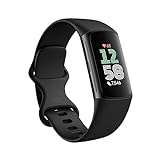
- Find your way seamlessly during runs or rides with turn-by-turn directions from Google Maps on Fitbit Charge 6[7, 8]; and when you need a snack break on the go, just tap to pay with Google Wallet[8, 9]
If battery life becomes tight, disabling nightly SpO2 tracking can reclaim significant power. You still retain resting heart rate, sleep stages, and HRV trends without sacrificing core insights.
GPS Is Powerful, But Strategic Use Is Key
Built-in GPS delivers independence from your phone, but it comes at a steep energy cost. A single long GPS session can consume the equivalent of an entire day of idle use.
For routine runs or walks where pace accuracy matters less, connected GPS via your phone is far more efficient. The phone’s larger battery absorbs most of the load.
Saving onboard GPS for races, unfamiliar routes, or phone-free sessions preserves battery life without compromising training quality.
Notification Tuning Prevents Constant Micro-Drain
Every buzz, vibration, and screen wake triggered by notifications chips away at battery life. Left unchecked, this becomes a silent drain across the entire day.
Limit notifications to essentials like calls, messages, or calendar alerts. Social apps and email previews are rarely urgent enough to justify constant wrist interruptions.
Shortening vibration duration and disabling repeated alerts reduces both power consumption and mental fatigue. Your Fitbit becomes more intentional, not noisier.
Watch Faces Can Be Battery Hogs in Disguise
Third-party watch faces often look impressive but run inefficient code. Constant data refreshes for weather, animations, or live stats increase background drain.
Fitbit’s default faces are usually optimized for the hardware. Simpler designs with static elements consistently outperform complex alternatives in real-world wear.
If you notice unexplained battery loss after changing faces, switch back for a few days and compare. The difference is often immediate and measurable.
Background Syncing and App Permissions Add Up
Frequent syncing sounds harmless, but constant Bluetooth activity increases power draw on both the Fitbit and your phone. Manual sync once or twice daily is usually sufficient.
Check app permissions and disable background refresh where possible. Your data will still sync reliably when you open the app intentionally.
This is especially helpful on older Fitbits where Bluetooth radios are less efficient than newer generations.
Charging Habits That Extend Battery Health Long-Term
How you charge matters just as much as how often. Lithium batteries last longer when they avoid deep discharge cycles.
Topping up during showers or meals keeps the battery in a healthier range. This also prevents emergency charging that interrupts sleep tracking.
Avoid leaving your Fitbit on the charger overnight every night. Once full, prolonged heat exposure slowly degrades battery capacity over time.
Temperature, Fit, and Skin Contact Affect Power Use
Cold environments force the battery to work harder, reducing effective capacity. Winter outdoor workouts often drain more power than expected.
A secure but comfortable fit improves sensor accuracy and reduces repeated retries by optical heart rate sensors. Poor skin contact increases both error rates and power consumption.
Materials matter here. Silicone bands are lightweight and breathable, while metal or leather can affect comfort and sensor stability during longer wear.
When to Use Battery Saver Modes Without Losing Value
Battery Saver modes aren’t just for emergencies. They are effective tools during travel, illness, or rest weeks when detailed tracking matters less.
Most modes preserve steps, sleep duration, and basic heart rate while disabling extras like notifications and animations. This keeps longitudinal data intact.
Used intentionally, Battery Saver extends wear time without turning your Fitbit into a glorified pedometer.
Fitbit App Deep Dive: Dashboards, Data Trends, Exporting Your Data and Custom Views Most Users Miss
Once battery habits are dialed in, the Fitbit app becomes the real long-term value engine. This is where raw sensor data turns into patterns you can actually act on, but only if you know where to look.
Many users open the app, glance at steps and sleep, then close it. The deeper tools are there, quietly shaping better insights for those who take a few minutes to explore.
Rebuilding Your Today Dashboard for Signal, Not Noise
The Today tab is fully customizable, yet most people never change it after initial setup. Tap Edit at the top of the dashboard to add, remove, or reorder tiles based on what actually matters to you.
If you train regularly, move Active Zone Minutes, heart rate, and readiness-style metrics near the top. Casual users may benefit more from sleep score, resting heart rate, and stress management tiles.
Reducing clutter improves how often you notice meaningful changes. A cleaner dashboard also loads faster on older phones and minimizes unnecessary background refresh activity.
Understanding Trend Views Beyond the Daily Snapshot
Almost every Fitbit metric hides deeper time-based insights behind a simple tap. Open any tile, then switch between day, week, month, and year views to see what your body is really doing over time.
Resting heart rate trends are especially powerful. Gradual increases can reflect accumulating fatigue, illness, or stress long before you consciously feel it.
Sleep stages matter less night to night than over weeks. Look for consistency, bedtime drift, and recovery patterns rather than chasing a perfect single-night score.
Weekly and Monthly Reports Most Users Ignore
Fitbit automatically generates weekly summaries, but they’re easy to overlook. These reports highlight changes in activity volume, sleep consistency, and cardio fitness trends.
Open your profile tab and check Notifications and App Settings to ensure weekly summaries are enabled. They often surface insights you would miss scrolling daily tiles.
For users managing training load or lifestyle changes, these summaries act like a low-effort coaching layer without constant manual analysis.
Custom Goals That Go Beyond Step Counts
Steps are the default, but they’re rarely the most meaningful goal. Fitbit allows goals for distance, calories, Active Zone Minutes, floors, and even hourly movement reminders.
Active Zone Minutes are particularly useful because they scale with your personal heart rate zones. This makes them more comparable across different workout types and fitness levels.
Adjust goals seasonally. Higher activity targets during training blocks and gentler goals during recovery periods keep motivation aligned with reality.
Digging Into Health Metrics Most Users Scroll Past
Metrics like breathing rate, skin temperature variation, and blood oxygen trends live deeper in the Health Metrics section. They don’t fluctuate wildly day to day, and that’s the point.
Small sustained changes often matter more than spikes. For example, rising breathing rate combined with poorer sleep quality can signal overtraining or illness.
These metrics work best when you wear your Fitbit consistently at night with a snug but comfortable fit. Loose bands reduce data reliability and flatten trends.
Manual Logging Still Improves Algorithm Accuracy
Even with automatic tracking, manual logs add context algorithms can’t infer. Logging workouts, caffeine, alcohol, or illness helps explain anomalies in heart rate and sleep data.
You don’t need to log everything forever. Short periods of detailed logging recalibrate insights and improve future recommendations.
This is especially helpful when returning from injury, changing medications, or adjusting training intensity.
Exporting Your Fitbit Data for Deeper Analysis
Few users realize how portable their data is. From your Fitbit account on the web, you can export data as CSV or JSON files.
This allows deeper analysis in spreadsheets, training software, or long-term personal health records. Power users often chart resting heart rate or sleep duration across multiple years.
Exporting also protects your data if you switch platforms later. Fitbit remains one of the more transparent ecosystems when it comes to data access.
Connecting Fitbit to Other Platforms Without Duplicates
Fitbit integrates with services like Strava, MyFitnessPal, and Google Health Connect. The key is choosing one primary source for each data type.
Disable duplicate imports where possible to avoid double-counted calories or conflicting activity totals. Clean data makes trends easier to trust.
For fitness-focused users, syncing workouts outward while keeping sleep and health metrics native to Fitbit often works best.
Hidden Custom Views Inside Individual Metrics
Some metrics offer secondary charts that are easy to miss. Heart rate includes resting, sleeping, and exercise-specific breakdowns if you scroll horizontally.
Sleep logs allow you to overlay heart rate and oxygen variation during the same night. This adds context to restless or unusually long sleep sessions.
These layered views are where Fitbit quietly outperforms many competitors, especially for long-term wellness tracking.
Using App Insights to Guide Device Wear, Not Just Data Review
Patterns in the app can inform how you wear your Fitbit. If heart rate graphs show frequent dropouts, band tension or placement may need adjustment.
Sleep inconsistencies may point to charging timing rather than actual rest quality. A quick top-up earlier in the evening often solves missing data.
The app isn’t just reporting outcomes. It’s giving subtle feedback on how your habits, wear style, and routines affect the quality of your data.
Why the Fitbit App Rewards Patience More Than Perfection
Fitbit’s strength isn’t flashy daily metrics but longitudinal consistency. The longer you use it, the more valuable the trend lines become.
Resist the urge to micromanage every dip or spike. Look for direction, not noise.
When you engage with the app as a pattern-recognition tool rather than a daily scorecard, it quietly becomes one of the most powerful health dashboards available to everyday users.
Smart Features Beyond Fitness: Notifications, Quick Replies, Wallet, Voice Assistants and Quality-of-Life Tweaks
Once you’re comfortable using Fitbit as a long-term health dashboard, the next layer of value comes from how it fits into everyday life. These smart features aren’t as flashy as workout modes, but they quietly reduce friction throughout the day.
What makes them powerful is restraint. Fitbit focuses on quick glances, short actions, and minimal interaction, which preserves battery life and keeps the device comfortable enough to wear 24/7.
Notification Controls That Respect Your Attention
Fitbit notifications are intentionally simple, but the real control lives in the app. Inside the Notifications menu, you can fine-tune alerts by category instead of mirroring everything from your phone.
Disabling promotional emails, social media alerts, or news pings dramatically improves signal-to-noise. Most users get better results by allowing calls, texts, calendar events, and one or two priority apps.
On-device, long-pressing a notification lets you dismiss it instantly. This small gesture keeps your wrist interactions brief and avoids accidental screen taps during workouts or sleep hours.
Notification Timing, Not Just Content
Do Not Disturb and Sleep Mode are separate tools, and using both correctly matters. Do Not Disturb blocks notifications while keeping the screen active, which works well during meetings or focused work.
Sleep Mode goes further by disabling raise-to-wake and dimming the display. Activating it manually before bed often improves sleep tracking consistency and prevents battery drain from midnight screen activations.
Rank #4

- Fitbit Charge 6 tracks key metrics from calories and Active Zone Minutes to Daily Readiness and sleep[4]; move more with 40+ exercise modes, built-in GPS, all-day activity tracking, 24/7 heart rate, automatic exercising tracking, and more
- See your heart rate in real time when you link your Charge 6 to compatible exercise machines, like treadmills, ellipticals, and more[5]; and stay connected with YouTube Music controls[6]
- Explore advanced health insights with Fitbit Charge 6; track your response to stress with a stress management score; learn about the quality of your sleep with a personalized nightly Sleep Score; and wake up more naturally with the Smart Wake alarm
- Find your way seamlessly during runs or rides with turn-by-turn directions from Google Maps on Fitbit Charge 6[7,8]; and when you need a snack break on the go, just tap to pay with Google Wallet[8,9]
- Please refer to the “Legal” section below for all applicable legal disclaimers denoted by the bracketed numbers in the preceding bullet points (e.g., [1], [2], etc
On newer Fitbit models, you can schedule these modes so they activate automatically. This turns your watch into a background companion rather than a glowing distraction.
Quick Replies: Small Messages, Big Convenience
Quick Replies are available on Android and supported Fitbit models like Versa and Sense series. They allow you to respond to texts directly from the watch using preset messages.
The hidden value is customization. In the Fitbit app, you can edit reply templates to match how you actually speak, which makes responses feel natural instead of robotic.
Keeping replies short and functional works best. Phrases like “Call you soon,” “In a meeting,” or “On my way” cover most real-world use cases without turning your watch into a typing exercise.
Call Handling Without Reaching for Your Phone
Even without built-in calling on most models, Fitbit handles calls well as a triage tool. You can accept, reject, or silence calls directly from the wrist.
For users who keep their phone in a bag or on a desk, this alone can justify enabling notifications. You stay reachable without breaking flow or pulling out your phone constantly.
Bluetooth connection stability matters here. If call alerts arrive late or drop, resetting the Bluetooth pairing often fixes the issue.
Fitbit Wallet: Lightweight Payments Done Right
Fitbit Wallet doesn’t try to replace your phone. Instead, it offers just enough functionality to be genuinely useful, especially during workouts or errands.
Supported cards vary by region and bank, so checking compatibility upfront avoids frustration. Once set up, payments are fast and don’t require unlocking your phone.
Security is handled intelligently. You’ll need to enter your PIN periodically, especially after removing the watch, but not before every tap. This balances safety with convenience.
Using Wallet Strategically for Battery and Comfort
Wallet works best when paired with a secure but comfortable band. During runs or gym sessions, a snug fit ensures the NFC chip aligns properly with terminals.
Leaving Wallet disabled until you need it can save battery on older devices. You can always re-enable it quickly through the watch settings.
For users who exercise outdoors, Wallet paired with GPS turns your Fitbit into a phone-free setup that still handles essentials.
Voice Assistants: Useful, With Clear Limits
Some Fitbit models support Google Assistant or Amazon Alexa, depending on region and firmware. These assistants are best treated as quick command tools, not conversational AI.
Setting timers, checking the weather, controlling smart home devices, or adding reminders works reliably. Complex queries or follow-ups tend to break the flow and drain battery.
Voice activation can be toggled off if you prefer button-based access. This reduces accidental triggers and slightly improves battery longevity.
Voice Assistant Battery and Privacy Considerations
Leaving the assistant always listening increases background power usage. If battery life matters more than hands-free access, disabling hotword detection is a smart trade-off.
Microphone access is clearly indicated, and Fitbit doesn’t record continuously. Still, users who wear their device overnight often prefer assistants disabled during sleep hours.
Think of voice assistants as situational tools rather than core features. Used sparingly, they add convenience without compromising wearability.
Button, Swipe, and Screen Behavior Tweaks
Physical buttons and gesture controls vary across Fitbit models, but most allow some customization. You can often change which shortcuts appear when you swipe or press and hold.
Reducing the number of enabled shortcuts speeds up navigation and prevents accidental launches. Less clutter makes the interface feel faster and more intentional.
Screen wake behavior is another overlooked setting. Switching from raise-to-wake to tap-only can significantly reduce unwanted activations, especially during sleep or desk work.
Alarms, Timers, and Silent Reliability
Fitbit’s vibration motor is tuned for subtle but effective alerts. Silent alarms are one of the most consistently praised features, especially for early mornings or shared spaces.
Creating alarms directly on the watch is faster than using the app once you’re familiar with the interface. For recurring schedules, syncing through the app remains easier.
Timers are ideal for workouts, cooking, or focus sessions. They run independently of your phone, which makes them surprisingly dependable.
Comfort, Materials, and Everyday Wear Choices
Smart features only matter if the device stays comfortable. Silicone bands work well for workouts, but fabric or woven straps improve breathability for all-day wear.
Switching bands based on activity reduces skin irritation and improves sensor contact. This indirectly improves notification reliability and touch accuracy.
Lighter Fitbit models excel here. Their slim cases and rounded edges make constant wear feel natural, which is why these smart features quietly integrate instead of demanding attention.
Small Tweaks That Add Up Over Time
Turning off unused features like music controls, unused apps, or redundant notifications improves both battery life and responsiveness. Fitbit rewards intentional setup.
Periodic restarts clear minor glitches and keep Bluetooth connections stable. It’s a simple habit that prevents many common issues.
When these smart features are dialed in, Fitbit becomes less of a gadget and more of a background system. It supports your day without asking to be the center of it.
Personalization and Wearability Hacks: Watch Faces, Bands, Fit, Comfort and Skin Health for 24/7 Wear
Once the software experience is dialed in, the next layer of optimization is physical and visual. Personalization isn’t just cosmetic on a Fitbit; it directly affects comfort, sensor accuracy, battery life, and whether the device truly disappears on your wrist.
This is where small, often-overlooked choices turn a good wearable into something you can comfortably wear around the clock.
Choosing Watch Faces That Balance Style, Data, and Battery Life
Watch faces are the most obvious form of personalization, but they also have the biggest impact on usability. Faces packed with real-time stats look impressive, yet they can increase screen wake frequency and drain battery faster, especially on AMOLED models like Versa and Sense.
For everyday wear, faces with dark backgrounds and fewer constantly refreshing elements are more efficient. OLED pixels draw less power when displaying black, so minimalist faces often deliver noticeably longer battery life over a week.
Many users don’t realize you can customize data fields within certain faces. Swapping out rarely used metrics for steps, heart rate, or battery percentage keeps the information relevant without visual clutter.
Matching Watch Faces to Use Cases, Not Just Aesthetics
One underrated trick is rotating faces based on context. A data-heavy face works well for workouts, while a clean, time-forward face feels better for work or sleep.
Changing faces only takes a few taps in the Fitbit app, and the device remembers your previous selections. Treat watch faces like tools rather than permanent skins.
Some Fitbit-exclusive faces also integrate deeper system behaviors, like adaptive dimming or smarter always-on display layouts. These often feel more refined in daily use than third-party designs.
Band Materials Matter More Than Most People Think
The band does more than hold the watch in place. It affects comfort, skin health, and how reliably sensors stay in contact with your wrist.
Silicone bands are durable and water-resistant, making them ideal for workouts and swimming. However, they trap moisture, which can cause irritation if worn nonstop.
Woven, nylon, or fabric bands improve airflow and are far better for all-day and overnight wear. Many long-term Fitbit users switch to fabric bands specifically to improve sleep comfort and reduce skin issues.
Swapping Bands Strategically Throughout the Day
You don’t need one band to do everything. Keeping a silicone band for workouts and a fabric or leather-style band for the rest of the day is one of the simplest upgrades you can make.
Quick-release mechanisms on most Fitbit models make band changes fast and tool-free. This flexibility is a core advantage of Fitbit’s design over bulkier smartwatches.
Leather-style bands look refined but aren’t ideal for sweat or sleep. Treat them as daytime wear options rather than 24/7 solutions.
Getting the Fit Right for Accurate Health Tracking
Fitbit’s heart rate, SpO2, and sleep sensors rely on consistent skin contact. A loose fit may feel comfortable, but it often leads to gaps in data or inconsistent readings.
During daily wear, the watch should sit snugly without leaving deep marks. For workouts, tightening the band one notch improves sensor accuracy during movement.
At night, loosening the band slightly can improve comfort without sacrificing sleep tracking. Fitbit’s algorithms are designed to handle subtle shifts during rest.
Wrist Placement and Case Positioning Tips
The ideal placement is about one finger-width above the wrist bone. Wearing the device too low increases movement and reduces signal quality.
If you experience frequent dropouts in heart rate data, adjusting position often fixes the issue more effectively than any software tweak. This is especially true during strength training or cycling.
Some users alternate wrists overnight to reduce pressure and irritation. Fitbit allows you to specify wrist placement in the app, which helps maintain tracking accuracy.
Managing Skin Health for True 24/7 Wear
Even lightweight Fitbits can cause irritation if worn continuously without care. Skin issues usually come from moisture buildup, friction, or allergens rather than the device itself.
Regularly cleaning both the band and the back of the watch with mild soap and water prevents residue buildup. Drying thoroughly before wearing again is just as important.
Taking short breaks during the day, even 15 minutes, gives your skin time to breathe without disrupting overall tracking trends.
Adjusting for Sensitive Skin and Long-Term Comfort
If you have sensitive skin, fabric bands are generally the safest option. They distribute pressure evenly and reduce hotspots during sleep.
Some users benefit from slightly loosening the band at night and tightening it again in the morning. This simple habit can eliminate redness while preserving sleep data quality.
Pay attention to early warning signs like itching or warmth. Addressing fit or material early prevents long-term discomfort.
Weight, Thickness, and Why Lighter Models Shine at Night
Fitbit’s slim case designs are a major advantage for sleep tracking. Lighter models with rounded edges reduce pressure points, especially for side sleepers.
If your Fitbit feels noticeable at night, it’s often due to band stiffness rather than case size. Switching to a softer strap can completely change the experience.
Over time, comfort becomes the deciding factor in whether users stick with sleep and health tracking. Fitbit’s design philosophy quietly prioritizes this, even if it’s not obvious at first glance.
Making Your Fitbit Feel Personal Without Making It Distracting
True personalization is about reducing friction, not adding features. A watch face that shows only what you care about, paired with a band that disappears on your wrist, creates a sense of calm rather than constant stimulation.
When the device feels comfortable and looks right for your lifestyle, you’re less likely to take it off. That consistency is what makes long-term health insights meaningful.
At its best, a personalized Fitbit stops feeling like technology and starts feeling like a natural extension of your routine.
Fitbit Premium: Which Features Actually Matter, Which Are Optional, and How to Get Value Without Overpaying
Once your Fitbit feels comfortable and truly personal, the next question usually surfaces on its own: is Fitbit Premium actually worth paying for long term?
💰 Best Value

- Enduring Battery Life: Keep moving with a 7-day battery life and water resistance for all your activities, rain or shine.
Premium sits quietly in the background of the app, offering deeper insights rather than new hardware features. The challenge is that some of its tools are genuinely useful, while others are easy to ignore without losing much day-to-day value.
What Fitbit Premium Really Unlocks (And What’s Already Free)
Fitbit Premium does not improve your sensor accuracy, battery life, or basic tracking. Your heart rate, steps, GPS workouts, sleep stages, and SpO2 readings come from the device itself and work the same with or without a subscription.
Premium layers interpretation on top of that data. Think of it as coaching, context, and trend analysis rather than new measurements.
Over the years, Fitbit has moved several once-paid features into the free tier. That shift makes Premium feel less essential for casual users than it used to be.
Daily Readiness Score: The Most Practical Premium Feature
The Daily Readiness Score is where Premium delivers the most immediate value. It combines sleep quality, recent activity, and heart rate variability to suggest whether your body is primed for intensity or recovery.
For users who train frequently or struggle with overdoing it, this score can prevent burnout. It acts like a buffer between motivation and physiology, especially helpful if you tend to push through fatigue.
If you mostly walk, do light workouts, or exercise inconsistently, this feature becomes less impactful. In that case, your own energy levels often tell the same story.
Advanced Sleep Insights and Sleep Profile: Useful, But Not Essential
Premium expands sleep data into longer-term pattern analysis, including monthly Sleep Profiles that group your habits into recognizable trends. These reports are interesting and occasionally eye-opening.
They are best viewed as educational rather than actionable. You may learn that you’re a “late deep sleeper” or that your REM is inconsistent, but the app rarely tells you exactly how to fix it.
If sleep improvement is a major personal goal, Premium can add clarity. If you already focus on bedtime consistency and comfort, the free sleep stages are often enough.
Stress Management Score and Mindfulness Content
The Stress Management Score blends heart rate variability, sleep, and activity into a single daily number. It’s a helpful snapshot, especially during periods of high workload or poor sleep.
The real value here depends on whether you actually engage with the guided breathing and mindfulness sessions. These are well-produced and easy to follow, particularly on larger-screen models like Versa or Sense.
If you never open the mindfulness tab, this entire Premium category becomes noise rather than insight.
Health Metrics Trends: Subtle Value for Long-Term Users
Premium makes it easier to visualize multi-week and multi-month trends in metrics like resting heart rate, breathing rate, and skin temperature variation. These are not diagnostic tools, but they are early signal indicators.
This section shines for users who wear their Fitbit nearly 24/7. Consistent data turns small fluctuations into meaningful patterns.
For inconsistent wearers, Premium health metrics lose context and become harder to interpret correctly.
Workout Programs and Video Coaching: Nice, Not Necessary
Fitbit Premium includes structured workout plans and guided video sessions. These are polished, beginner-friendly, and safe for home use.
However, they don’t adapt deeply to your personal performance data in the way some dedicated training platforms do. Many users try them briefly, then return to their own routines.
If you already follow YouTube workouts, gym programs, or another fitness app, this section is unlikely to justify the subscription on its own.
Who Should Seriously Consider Paying for Premium
Premium makes the most sense for users who wear their Fitbit day and night and enjoy data-driven guidance. Athletes-in-training, recovery-focused users, and sleep-optimization enthusiasts benefit the most.
It’s also valuable during lifestyle changes, such as starting a new fitness routine, managing stress, or recovering from disrupted sleep. In these phases, interpretation matters more than raw numbers.
If your Fitbit is primarily a step counter and notification screen, Premium will feel underwhelming.
How to Use Premium Strategically Without Overpaying
The free trial is not just a demo; it’s a diagnostic period. Use it during a typical month, not during vacation or illness, to see whether the insights actually change your behavior.
Many experienced users subscribe for a few months each year. This approach works well when resetting routines, training for an event, or troubleshooting sleep issues.
Canceling does not erase your historical data. You can always return later without losing continuity.
The Bottom Line Most Fitbit Owners Miss
Fitbit Premium is not a requirement to get accurate tracking or meaningful health data. It’s a refinement layer that rewards consistency and curiosity.
The real mistake isn’t canceling Premium. It’s paying for it while ignoring the features that make it valuable in the first place.
Used intentionally, Premium can sharpen your understanding of your body. Used passively, it becomes an easy subscription to forget.
Troubleshooting and Pro-Level Maintenance: Sync Issues, Sensor Errors, Software Updates and Long-Term Device Care
Once you’ve decided how deeply you want to engage with Fitbit Premium, the next step is making sure your device itself stays reliable. Even the best data interpretation means little if sync breaks, sensors misread, or battery life quietly degrades over time.
This final section focuses on the unglamorous but essential skills experienced Fitbit owners develop. Think of it as long-term ownership knowledge that keeps your tracker accurate, comfortable, and dependable well beyond the first year.
Fixing Sync Issues Before They Become Chronic
Most Fitbit frustrations start with syncing. If your data stops updating, don’t immediately assume the device is failing.
Start by force-closing the Fitbit app, toggling Bluetooth off and on, and reopening the app with the device nearby. This refreshes the Bluetooth handshake, which is often where the connection stalls.
If syncing remains inconsistent, restart the Fitbit itself. On most models, this is done through Settings > Restart, while some older devices require a button press while charging. A restart clears temporary memory issues without deleting any data.
As a deeper fix, remove the device from the Fitbit app and re-add it, but only after confirming your data has synced at least once recently. Unsynced data stored on the device can be lost during re-pairing.
Also check battery level. Many Fitbit models throttle Bluetooth performance when battery drops below roughly 20 percent, which can make syncing appear broken even though the device still tracks steps.
Understanding and Correcting Sensor Errors
Heart rate dropouts, sudden calorie spikes, or missing sleep stages are usually sensor placement issues, not hardware defects. Fitbit’s optical heart rate sensors are highly sensitive to fit, skin contact, and movement.
For daily wear, the band should be snug enough that the device doesn’t slide, but not tight enough to leave deep marks. During workouts, tightening the band one notch improves accuracy, especially for interval training or weightlifting.
Cold weather reduces blood flow at the wrist, which can cause heart rate flatlines during outdoor walks or runs. Wearing the device slightly higher on the forearm helps in these conditions.
If heart rate data disappears entirely, clean the sensor window with water and a microfiber cloth. Sweat residue, sunscreen, and skin oils create a film that interferes with light-based readings over time.
SpO2 and skin temperature metrics require consistent overnight wear. If these metrics appear sporadically, it usually means the device shifted during sleep or battery dropped too low before morning.
When Data Looks “Wrong” but the Device Is Fine
Not all strange data is an error. Fitbit uses trend-based algorithms that can make short-term results feel inaccurate.
Calorie burn is an estimate based on heart rate, movement, and your profile settings. If your weight, height, or age is outdated, daily burn numbers drift quickly. Updating these details often fixes unexplained changes.
Sleep stage percentages vary night to night, even with identical bedtimes. Focus on weekly averages rather than single-night results, especially for REM and deep sleep.
Step counts can increase during activities like cooking, driving on rough roads, or folding laundry. Fitbit prioritizes capturing all movement rather than filtering aggressively, which is why consistency matters more than precision.
Managing Software Updates Without Disrupting Your Routine
Fitbit firmware updates quietly improve sensor accuracy, battery efficiency, and stability. Skipping them long-term can cause compatibility issues with newer app versions.
Install updates when your device is at least 50 percent charged and your phone is on stable Wi‑Fi. Interrupting an update is one of the few ways to genuinely brick a Fitbit.
After major updates, restart the device. This step is rarely mentioned but helps recalibrate background processes and restores normal battery behavior faster.
Occasionally, updates adjust how metrics are calculated. If your heart rate zones or sleep scores shift after an update, give it a week before assuming something is wrong.
Battery Health: Extending Life Beyond the First Year
Lithium batteries degrade slowly, but habits matter. Avoid letting your Fitbit hit zero percent regularly, as deep discharge shortens battery lifespan.
Short, frequent top-ups are better than full drain cycles. Charging while showering or during desk time keeps the battery in a healthier range.
Heat is the silent battery killer. Avoid leaving your Fitbit in hot cars, saunas, or direct sunlight for extended periods, even if it’s water-resistant.
If battery life suddenly drops after months of stable performance, a restart often restores normal behavior. If not, review which features are active, as always-on display, continuous SpO2, and frequent GPS use have cumulative impact.
Water Resistance Is Not Waterproof Forever
Fitbit devices are designed for swimming and sweat, but seals degrade with age. Soap, shampoo, saltwater, and sunscreen accelerate this process.
Rinse your device with fresh water after ocean swims or heavy sweating. Dry it fully before charging to protect the charging contacts.
If you notice fogging under the screen or unresponsive buttons after water exposure, stop charging immediately and allow the device to dry for at least 24 hours.
Band Care, Comfort, and Skin Health
Wrist irritation is often blamed on the device but caused by moisture and friction. Rotate bands and clean both the band and device regularly.
Silicone bands are durable and workout-friendly but trap moisture. Woven or leather bands improve comfort for all-day wear but should be removed for exercise.
If you wear your Fitbit 24/7, switch wrists at night occasionally. This small habit reduces skin stress and improves long-term comfort.
When to Reset, Replace, or Upgrade
A factory reset is a last resort for persistent bugs, freezing, or severe sync issues. Always sync your data first, as resets erase local storage.
If sensors fail consistently across restarts and updates, the issue may be hardware-related. Fitbit support can run diagnostics remotely in some cases.
As a rule of thumb, two to four years is a realistic lifespan for daily-worn Fitbit devices, depending on usage and model. Battery degradation, not software, is usually the limiting factor.
Upgrading isn’t just about new features. Newer models often bring better sensors, brighter displays, improved materials, and more efficient processors that quietly improve daily wearability.
Closing Perspective: Treat Your Fitbit Like a Long-Term Tool
Fitbit works best when treated less like a gadget and more like a piece of personal equipment. Small maintenance habits prevent most issues users blame on software or hardware failure.
Accurate data, stable syncing, and reliable battery life come from understanding how the device behaves in the real world. Once those foundations are solid, the insights become more meaningful.
A well-maintained Fitbit doesn’t just track your activity. It becomes a dependable reference point for how your body responds to daily life, over months and years, not just steps on a screen.