Some links on this page are affiliate links: if you buy through them we may earn a commission, at no extra cost to you.
If Watch app → My Watch → Passcode → Turn Passcode On is dimmed, first check the paired iPhone’s Screen Time restriction: Settings → Screen Time → Content & Privacy Restrictions → Passcode Changes → Allow. Then reopen the Watch app. If that does not restore the control, check for a work, school, MDM, configuration-profile, or Exchange policy. Do not erase or unpair the Apple Watch until those restrictions have been ruled out.
What a grayed-out passcode setting means
A disabled Turn Passcode On or Set Up Passcode control usually means the iPhone is preventing a change to the Apple Watch’s security settings. It does not automatically mean the Watch is defective, and it does not mean that erasing the Watch is the right first step.
The likely causes are:
- Screen Time: Passcode Changes may be set to Don’t Allow.
- Device management: An MDM enrollment or configuration profile may impose passcode rules.
- Exchange policy: A work email account may apply security requirements.
- Incompatible passcode rules: The iPhone may require letters or special characters, while Apple Watch passcodes are numeric.
- Synchronization trouble: The Watch app and Watch may temporarily disagree about their settings.
Apple documents that restrictions on a managed paired iPhone can affect Apple Watch passcode behavior. See Apple’s guidance on Apple Watch passcode restrictions and its device-management security overview.
Quick wins for a faster PC:
Repair Windows errors before they cause bigger problemsFix Now →Scan for outdated or missing drivers - takes under a minuteDriver Scan →Clear out junk files and repair common Windows errorsFree Scan →1. Allow passcode changes in Screen Time
For a personally owned iPhone, this is the best first check. The setting is commonly reported to restore a disabled Watch passcode control, although Apple does not describe this specific symptom as a universal Screen Time bug.
#1 Best Overall
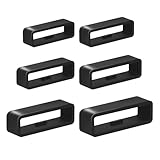
- I was upset when my watch’s band holder broke because I wasn't using my sport watch for long time.Sometimes i didn't want to buy whole new watch band,This kit watch band keeper is a great replacement
- We provide multiple sizes watch strap holder if you aren't sure what size you need. You will receive Six different sizes sturdy, black watch band loops with internal dimensions of 16mm/18mm/20mm/22mm/24mm/26mm
- Are you worried strap retaining rings comes out of the band on occasion ?--Our Bands Keeper Fastener Rings design is Anti-slip. Rubber stop was easy to install. They stretch over existing clasps .Prevent loosening and constraining extra length. Not easy to fall off
- Our replacement watch band comes in a sturdy, clear storage box that opens easily and closes securely.You no longer have to worry about losing the watch band strap loop
- The strap retainer rings is flexible and strong,making it easy to attach to the watch wristband and fits most watches. Whether it's diving or sports,Black is not only stylish,but also works well with various colors of straps
- Open Settings on the iPhone paired with the Watch.
- Tap Screen Time.
- Open Content & Privacy Restrictions.
- Authenticate with the Screen Time passcode if requested.
- Tap Passcode Changes.
- Select Allow.
- Wait briefly, force-close the Watch app, and open it again.
- Go to My Watch → Passcode and check whether Turn Passcode On is available.
Menu names can vary slightly by iOS release, language, and parental-control setup. If Content & Privacy Restrictions is currently off and you cannot see the relevant controls, temporarily enable it, set Passcode Changes to Allow, and test the Watch app again.
If Screen Time still appears to be involved
As a diagnostic—not a guaranteed Apple procedure—temporarily turn off Screen Time, reopen the Watch app, and test again. Some users also report that changing Share Across Devices under Screen Time and restarting the Watch restores the setting. Results are inconsistent, so restore your preferred parental-control configuration after testing.
If the iPhone belongs to a child in Family Sharing, the family organizer may control these settings from the organizer’s device. Apple explains this arrangement in its current Screen Time passcode guidance.
What’s actually slowing this PC down?
Pick the symptom - the matching free tool is one click away.
Rank #2

- You will receive 10pcs black watch strap holder loops
- Compatible with 20mm strap/ watch band
- Made of high quality silicone rubber, skin-friendly. Comfortable and Durable
- Just slide the watch strap through the fastener rings before wear to fix the strap. Easy to install and remove
- Measure the width of your strap in millimeters with a ruler and add 1mm. Suitable for most sports watches
2. Check for a work or school profile
A work or school policy can deliberately disable Watch passcode changes or require a specific passcode configuration. On the paired iPhone, go to:
Settings → General → VPN & Device Management
Look for Mobile Device Management or installed configuration profiles. Open a profile to review its details and any passcode requirements. Apple provides instructions for checking whether an iPhone is managed.
If no profiles appear, Apple says that no device-management profiles are installed on that iPhone. However, an Exchange account can also impose security requirements, so the absence of an MDM profile does not rule out every work-related policy.
Rank #3

- ABUNDANT QUANTITY AND COLORS - The package includes 8 pieces of silicone smartwatch fastener rings in 8 different vibrant colors (black, orange, light pink, white, blue, dark blue, pink, and red). This provides you with ample replacements for daily use and allows you to match your smartwatch with various outfits.
- UNIVERSAL COMPATIBILITY - Designed in an oval shape, these watch belt loop keeper measure approximately 0.82 x 0.23 inches in diameter. They are compatible with most 20 mm/0.79 inches wide smartwatch bands available on the market. Before purchasing, please double-check the size compatibility with your smartwatch strap.
- RELIABLE AND SAFE MATERIAL - These smartwatch fastener loops are made of high-quality silicone material that is safe, tasteless, and comfortable to wear. The watch buckle replacement is also abrasion-resistant, ensuring long-lasting durability. The soft and smooth texture of the loops adds extra comfort to your wrist.
- SECURE AND NON-SLIP DESIGN - The non-slip design of these silicone fastener rings ensures a secure fit. They can be easily inserted into the buckle holes of your watch strap and will stay in place, providing reliable protection for your smartwatch. You can confidently engage in various activities without worrying about your watch coming loose.
- EASY INSTALLATION - Operating these flexible silicone strap loop holders is a breeze. Simply slide them over the clasp of your smartwatch strap when wearing it, and they will securely hold the strap in place. With their user-friendly design, you can effortlessly install them within seconds, saving you time and hassle.
Do not delete a profile casually
A profile may be legitimate, especially on an employer- or school-owned device. Removing it can delete associated settings, apps, certificates, VPN access, email configuration, and data. A supervised device may also prevent removal. Apple describes these consequences in its documentation on reviewing and deleting configuration profiles.
If the profile belongs to an employer or school, contact that organization’s IT administrator. Deleting a related security app does not necessarily remove enrollment or the underlying profile; check VPN & Device Management directly.
3. Check for an incompatible passcode policy
Apple Watch supports numeric passcodes. If a management or Exchange policy requires the iPhone’s passcode to contain letters or special characters, Apple says that a separate Watch passcode cannot be used under that policy.
Rank #4
- You will receive 10pcs black watch strap holder loops
- Compatible with 22mm strap/ watch band
- Made of high quality silicone rubber, skin-friendly. Comfortable and Durable
- Just slide the watch strap through the fastener rings before wear to fix the strap. Easy to install and remove
- Measure the width of your strap in millimeters with a ruler and add 1mm. Suitable for most sports watches
In that situation, the documented alternative is:
- Open the Watch app on the iPhone.
- Tap My Watch.
- Tap Passcode.
- Tap Unlock with iPhone.
This is a policy-compatibility limitation, not something a reset can reliably bypass. A policy may also require a minimum numeric length or other restrictions that the Watch must satisfy.
Independent reader supportYour contribution helps us test, update, and keep practical guides available for everyone.4. Refresh the Watch and iPhone connection
If there is no relevant Screen Time restriction or management policy, try these low-risk steps in order:
Recommended Free Tools
- Close and reopen the Watch app.
- Restart the paired iPhone.
- Restart the Apple Watch.
- Keep both devices nearby, unlocked, and connected while synchronization completes.
- Confirm Bluetooth and Wi-Fi are enabled.
- Check that the Watch is paired to the intended iPhone and that setup is complete.
- Install available iOS and watchOS updates, then check My Watch → Passcode again.
Restarting both devices is a reasonable refresh step, but it is a community troubleshooting suggestion rather than a guaranteed fix. There is also no evidence here of one universal, version-specific Apple software bug explaining every gray passcode control.
Best Value
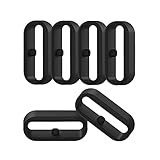
- 【Compatible】Replacement/Extra band keeper Compatible for Fitbit Versa/Versa 2/Versa 3/Versa 4/Versa Lite Edition/Sense/Sense 2 Smartwatch (Tracker or Wristband is NOT included)
- 【Anti-Slip Design】The fastener rings built with a notch to fasten the hole. Easy to hold the extra band in place.
- 【Safe Material 】High quality silicone material, soft and Flexible, comfortable and Durable. Safe to the sensitive skin.
- 【Classic Black】One loop can already keep your wristband safe, Super light weight,secure your wristband in style and give your watch a new look
- 【Comfortable and wear-resistant and easy to install】Featured and durable silicone made. Perfect fit for your activity tracker and comfortable wearing experience. Just slide the fastener over the clasp when you put on your watch simple as that. You don't have to spend money to buy extra watch strap!
5. Unpair only after the non-destructive checks fail
Unpairing can refresh a damaged pairing state, but it is more disruptive and may erase the Watch. Before proceeding, make sure important Watch data is backed up and that you know the Apple Account credentials needed during setup.
To unpair:
Watch app → My Watch → All Watches → info button next to the Watch → Unpair Apple Watch
Pair the Watch again after the unpairing process completes. Re-pairing will not remove an active MDM or Exchange restriction; the same policy can be applied again during setup. If the Watch contains data you cannot afford to lose, contact Apple Support before erasing it.
Free tools Windows power users keep installed
One-click scans. No signup required.
Turn Passcode Off is gray: a different meaning
If Turn Passcode Off is disabled rather than Turn Passcode On, that may be intentional. A work, school, MDM, or Exchange policy may require the Apple Watch to keep a passcode. In that case, a gray control indicates enforcement—not necessarily a malfunction.
If a passcode is already enabled but Apple Pay or Wallet setup still fails, the passcode may not have synchronized correctly, or a separate pairing, Wallet, or policy issue may be involved. Treat the gray passcode control as the underlying problem and complete the restriction checks first.
Quick Recap
When to contact Apple or IT
| Situation | Contact |
|---|---|
| The iPhone has an employer or school profile | IT administrator |
| You cannot remove a management profile | IT administrator; the device may be supervised |
| It is a personal iPhone with no profile, Screen Time is clear, and both devices are updated and restarted | Apple Support |
| Apple Pay remains unavailable after passcode setup | Apple Support or Wallet troubleshooting |
| The Watch has data that is not backed up | Contact Apple before unpairing or erasing |
Quick checklist
- Set Screen Time → Content & Privacy Restrictions → Passcode Changes to Allow.
- Check Settings → General → VPN & Device Management.
- Ask whether an Exchange or management policy requires a complex iPhone passcode.
- Use Unlock with iPhone when Apple’s documented compatibility limitation applies.
- Restart both devices and allow synchronization to finish.
- Install available iOS and watchOS updates.
- Back up before unpairing, and use unpairing only as a last consumer-level repair.
- Contact IT for managed devices or Apple Support for an unexplained restriction on a personal device.
Product prices and availability are accurate as of the date/time indicated and are subject to change. Any price and availability information displayed on Amazon at the time of purchase will apply.

