If you have ever stood at a checkout with your phone dead, your hands full, or your wallet buried somewhere deep in a bag, Google Pay on a smartwatch suddenly makes a lot of sense. On Wear OS, Google Pay turns your watch into a fully independent contactless payment device, letting you tap and pay with a flick of the wrist instead of reaching for your phone. The experience is designed to be fast, discreet, and reliable in everyday situations like buying coffee, groceries, transit tickets, or post-workout snacks.
This section is about setting expectations correctly. Google Pay on Wear OS is not just a mirror of phone payments, and it is not a novelty feature either. It has its own security model, hardware requirements, regional limitations, and usage quirks that can affect whether it feels seamless or frustrating in real-world use.
By the end of this section, you will understand what Google Pay on Wear OS actually does, how it operates independently from your phone, and why using it feels different from tapping your phone at a terminal. That foundation matters before we get into supported watches, countries, banks, and setup steps later in the guide.
Google Pay on Wear OS is a standalone payment system
On supported Wear OS smartwatches, Google Pay works as a standalone wallet stored directly on the watch. Your cards are securely provisioned to the watch itself, not streamed or relayed from your phone at the moment of payment. That means once it is set up, you can leave your phone behind and still pay anywhere contactless payments are accepted.
🏆 #1 Best Overall
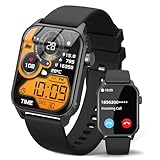
- 【1.83" HD Display & Customizable Watch Faces】Immerse yourself in a vibrant 1.83-inch IPS display, boasting a sharp resolution of 240*284 for crystal-clear visuals. Effortlessly personalize your smart watch with a wide array of customizable watch faces to suit your personal style for every occasion—whether trendy, artistic, or minimalist—ideal for casual, sporty, or professional. Its sleek, modern design complements any outfit, blending technology and fashion seamlessly for everyday wear
- 【120 Sports Modes & Advanced Health Tracking】Our TK29 smart watches for women men come equipped with 120 sports modes, allowing you to effortlessly track a variety of activities such as walking, running, cycling, and swimming. With integrated heart rate and sleep monitors, you can maintain a comprehensive overview of your health, achieve your fitness goals, and maintain a balanced, active lifestyle with ease. Your ideal wellness companion (Note: Step recording starts after exceeding 20 steps)
- 【IP67 Waterproof & Long-Lasting Battery】Designed to keep up with your active lifestyle, this smartwatch features an IP67 waterproof rating, ensuring it can withstand splashes, sweat, and even brief submersion, making it perfect for workouts, outdoor adventures, or rainy days. Its reliable 350mAh battery offering 5-7 days of active use and up to 30 days in standby mode, significantly reducing frequent charging. Ideal for all-day wear, whether you’re at the gym, outdoors, or simply on the go
- 【Stay Connected Anytime, Anywhere】Stay informed and in control with Bluetooth call and music control features. Receive real-time notifications for calls, messages, and social media apps like Facebook, WhatsApp, Twitter, and Instagram directly on your smartwatch. Easily manage calls, control your music playlist, and stay updated without needing to reach for your phone. Perfect for work, workouts, or on-the-go, this watch keeps you connected and never miss important updates wherever you are
- 【Multifunction & Wide Compatibility】Seamlessly handle heart rate monitoring, sleep tracking, and enjoy conveniences like camera/music control, Seamlessly handle heart rate monitoring, sleep tracking, and more-all directly from your wrist. This 1.83 inches HD smartwatch is compatible with iPhone (iOS 9.0+) & Android (5.0+), ensuring smooth daily connectivity and convenience throughout your day. More than just a timepiece, it’s a stylish, all-in-one wearable for smarter, healthier living
This independence is what separates a true payment watch from basic notification-only wearables. The watch uses its own NFC chip and secure element to transmit payment credentials to the terminal. As long as the watch has battery power and has been unlocked recently, it can complete a transaction without any phone nearby.
In daily use, this makes a big difference for workouts, quick errands, or travel. Runners often appreciate being able to stop for a drink without carrying a phone, and commuters benefit from fast taps at transit gates where pulling out a phone can slow things down.
How watch payments differ from Google Pay on your phone
Google Pay on a phone typically relies on biometric authentication like fingerprint or face unlock for each payment. On Wear OS, authentication works differently because watches lack advanced biometrics. Instead, you unlock the watch with a PIN or pattern when you put it on, and it stays unlocked as long as it remains on your wrist.
This wrist-detection model is intentional. The watch uses sensors to detect skin contact, and if it is removed, Google Pay locks automatically and requires the PIN again. In practice, this makes payments quicker than phone taps, but slightly more dependent on good fit and consistent wrist contact.
Another difference is user interface and feedback. On a watch, Google Pay launches as a dedicated app with a large card view and haptic confirmation when a payment succeeds. You are not juggling notifications or switching apps, which makes the experience feel more focused but also more limited in terms of settings and transaction history compared to the phone app.
Security and privacy on a smartwatch
From a security standpoint, Google Pay on Wear OS uses the same tokenization system as phone payments. Your real card number is never shared with the merchant. Instead, a device-specific virtual account number is transmitted, reducing exposure if a terminal is compromised.
If your watch is lost or stolen, payments cannot be made without your PIN. You can also remotely lock or erase the watch through your Google account, just as you would with a phone. In real-world testing, this layered approach feels reassuring rather than intrusive, especially since you only need to enter the PIN once per wear session.
It is worth noting that security can feel stricter on a watch than on a phone if the strap is loose or the watch shifts during activity. Poor fit can cause the watch to think it has been removed, forcing frequent re-entry of the PIN. Comfort, strap choice, and case size all matter more here than people expect.
Connectivity, battery life, and offline behavior
One of the biggest misconceptions is that Google Pay on Wear OS requires an internet connection at the time of payment. In reality, payments work offline because the watch stores a limited number of encrypted payment tokens locally. This is why payments still work in underground transit stations or areas with weak signal.
That said, initial setup and card provisioning do require a phone connection and internet access. Periodically, the watch will also refresh tokens when it reconnects. If you go weeks without syncing, payments may eventually stop working until the watch reconnects to your phone or Wi‑Fi.
Battery life is another practical difference. Using Google Pay itself consumes very little power, but keeping NFC enabled and the watch unlocked does have a small ongoing impact. On modern Wear OS watches with efficient chipsets, this is negligible for most users, but on older or smaller watches, heavy use combined with workouts and GPS can make end-of-day charging more critical.
What Google Pay on Wear OS does not do
Google Pay on Wear OS is focused squarely on tap-to-pay transactions. It does not support peer-to-peer payments, online purchases, or loyalty card management in the same way the phone app does. Transaction history is also more limited on the watch, with most detailed records living on your phone.
It also does not override regional or bank restrictions. If your bank does not support Google Pay in your country, the watch will not magically bypass that limitation. Similarly, some transit systems or payment terminals that work with phones may behave inconsistently with watches due to antenna placement or terminal sensitivity.
Understanding these limits upfront helps avoid disappointment. When it works within its intended scope, Google Pay on Wear OS is one of the most convenient smartwatch features available, but it shines brightest when you know exactly what to expect before relying on it day to day.
Key Requirements for Google Pay on Wear OS: Hardware, Software, and Security Explained
With those limitations and behaviors in mind, it helps to understand what actually needs to be in place before Google Pay on Wear OS will work reliably. This is not just a software toggle; it is a combination of specific hardware components, operating system support, and mandatory security settings that together make contactless payments possible on your wrist.
NFC hardware: the non‑negotiable foundation
At the most basic level, a Wear OS smartwatch must include an NFC chip. Without NFC, the watch cannot communicate with contactless payment terminals, regardless of software updates or apps installed. This immediately rules out many cheaper or fitness-focused Wear OS devices that omit NFC to save cost or space.
NFC placement also matters in real-world use. Watches with poorly positioned antennas or thicker cases can require awkward wrist angles at the terminal, especially on transit gates or older payment readers. Slimmer cases and well-integrated antenna designs, as seen on recent Pixel Watch, Samsung Galaxy Watch, and Fossil Group models, tend to be far more forgiving.
Secure element and payment-grade hardware
Beyond NFC, the watch must include a secure element or equivalent trusted execution environment. This is a tamper-resistant hardware area used to store encrypted payment credentials and generate transaction tokens. It is a core requirement set by payment networks like Visa and Mastercard, not just Google.
This is one reason why Google Pay support cannot be added retroactively to many older or budget Wear OS watches. Even if the processor is fast enough and the software is updated, the absence of certified payment hardware is a hard stop. From a consumer perspective, this hardware-level security is what allows you to tap confidently without exposing your actual card number.
Supported Wear OS versions and Google Wallet integration
On the software side, the watch must run a compatible version of Wear OS with Google’s payment framework enabled. In practical terms, this means Wear OS 2.0 or later, with the modern Google Wallet app handling payments on newer releases. While many people still say “Google Pay,” the underlying system on current watches is Google Wallet.
Software support is not just about the OS version number. Manufacturers must also certify their firmware with Google and payment networks, which is why two watches running similar Wear OS builds may differ in payment support. Regular system updates are important here, as they often include security patches required to keep payments enabled.
Paired Android phone requirements
Every Wear OS watch using Google Pay must be paired with an Android phone that supports Google Wallet. The phone is used for initial setup, card verification, and ongoing account management, even though payments themselves happen independently on the watch.
The phone must be running a supported Android version, have Google Play Services enabled, and be signed into a Google account. Rooted phones or devices with compromised security settings may block card provisioning entirely. In day-to-day use, you rarely need to think about the phone, but it remains a critical part of the ecosystem behind the scenes.
Mandatory lock screen and on-wrist detection
For security reasons, Google Pay on Wear OS only works if the watch has a lock method enabled. This can be a PIN, pattern, or password, depending on the manufacturer’s interface. If you remove the lock, payment functionality is automatically disabled.
On-wrist detection adds another layer. When you take the watch off, it locks itself and requires reauthentication before payments work again. This can feel mildly inconvenient at first, but it is essential protection if the watch is lost or stolen, and it is a key reason why Wear OS payments are trusted by banks.
Regional availability and bank support
Even with the right hardware and software, Google Pay on Wear OS only works in supported countries and with participating banks. Availability is determined by a mix of Google’s regional rollout, local regulations, and agreements with card issuers.
This is where many users run into confusion. A watch purchased in one country may physically support payments but be limited by the region of the paired phone’s Google account or the issuing bank of the card. Before buying a watch primarily for payments, it is worth checking both Google’s country list and your bank’s Wear OS support specifically.
LTE vs Bluetooth models: what actually matters
Whether your watch has LTE or is Bluetooth-only does not affect Google Pay functionality. Payments do not require a live data connection at the terminal, as explained earlier, and LTE does not make taps faster or more reliable.
What LTE does change is independence. An LTE watch can refresh tokens, receive updates, and stay fully functional without your phone nearby, which can indirectly improve reliability if you often leave your phone behind. For pure payment performance, however, NFC quality and software stability matter far more than cellular connectivity.
Battery health and daily usability considerations
While Google Pay itself is efficient, the surrounding requirements influence daily wearability. Keeping the watch unlocked, maintaining on-wrist detection, and occasionally waking the screen at terminals all draw small amounts of power. On watches with compact batteries or older chipsets, this can add up over a long day.
Comfort and fit also play a role. A watch that shifts on the wrist or sits too loosely can break skin contact, triggering repeated lockouts and failed taps. Secure straps, balanced case sizes, and good ergonomics are not just comfort features here; they directly affect how smoothly Google Pay works in everyday use.
Full List of Wear OS Smartwatches That Support Google Pay (2026 Update)
With the practical limitations around region, banks, battery health, and fit in mind, the next step is choosing hardware that actually supports Google Pay reliably. Not every Wear OS watch includes NFC, and even among those that do, software support and update longevity vary widely.
Below is a current, curated list of Wear OS smartwatches that support Google Pay as of early 2026. All models listed include NFC hardware and officially support Google Pay on Wear OS in supported regions.
Google Pixel Watch Series
The Pixel Watch line remains the cleanest reference implementation of Google Pay on Wear OS. Google controls both hardware and software here, which shows in setup reliability and long-term support.
Pixel Watch (1st Gen)
The original Pixel Watch introduced Google’s own hardware vision for Wear OS. It uses a compact 41 mm stainless steel case with a domed Gorilla Glass display that feels elegant but can be prone to edge impacts. Battery life typically lands at one full day, and Google Pay works consistently thanks to a strong NFC antenna and tight OS integration.
Pixel Watch 2
The Pixel Watch 2 refined the formula with a lighter aluminum case, improved sensors, and better efficiency. Comfort is noticeably improved for all-day wear, which matters for maintaining on-wrist detection for payments. Google Pay performance is fast and dependable, with fewer failed taps than most third-party watches.
Pixel Watch 3 (2025)
The Pixel Watch 3 further improves battery longevity and introduces brighter displays with slimmer bezels. Google Pay setup is nearly frictionless when paired with a Pixel phone, and long-term software updates make this one of the safest buys if payments are a priority.
Samsung Galaxy Watch Series (Wear OS models)
Samsung’s Wear OS watches support Google Pay alongside Samsung Wallet, giving users flexibility. NFC performance is generally excellent, though software layers add a bit of complexity during setup.
Galaxy Watch 4 / Watch 4 Classic
These were Samsung’s first Wear OS watches and still support Google Pay after updates. The rotating bezel on the Classic models improves usability at payment terminals by reducing screen touches. Battery life is acceptable but no longer class-leading.
Galaxy Watch 5 / Watch 5 Pro
The Watch 5 series improved durability with sapphire glass and better battery efficiency. The Watch 5 Pro, in particular, offers multi-day battery life, which helps avoid lockouts caused by low power. Google Pay works reliably once set as the default wallet app.
Galaxy Watch 6 / Watch 6 Classic
With thinner bezels and brighter displays, the Watch 6 line is more comfortable for daily wear. NFC sensitivity is strong, and payments are fast, though Samsung’s layered UI means Google Pay setup takes a few extra steps.
Galaxy Watch 7 / Watch 7 Ultra (2025)
Samsung’s latest models emphasize performance and endurance. The Ultra’s larger case and rugged build suit outdoor users, and its oversized battery makes it one of the most dependable Wear OS options for frequent Google Pay use over long days.
Fossil Group Wear OS Watches
Fossil and its sub-brands have long included NFC across most models, making them broadly compatible with Google Pay. Their appeal leans toward traditional watch styling rather than raw performance.
Fossil Gen 6 / Gen 6 Wellness Edition
The Gen 6 series uses a Snapdragon Wear chipset that handles Google Pay smoothly. Cases are slim and comfortable, with stainless steel finishing that feels more like a classic watch than a gadget. Battery life is average but sufficient for daily payments.
Skagen Falster Gen 6
Minimalist design and lighter cases make this a good option for smaller wrists. Google Pay works well, though the smaller battery means charging discipline matters.
Michael Kors Gen 6
Fashion-forward designs with the same internals as Fossil’s Gen 6. NFC performance is solid, but larger cases can feel top-heavy, which may affect consistent on-wrist detection.
Rank #2
![Apple Watch Series 11 [GPS 46mm] Smartwatch with Jet Black Aluminum Case with Black Sport Band - M/L. Sleep Score, Fitness Tracker, Health Monitoring, Always-On Display, Water Resistant](https://m.media-amazon.com/images/I/312K597M2uL._SL160_.jpg)
- HYPERTENSION NOTIFICATIONS — Apple Watch Series 11 can spot signs of chronic high blood pressure and notify you of possible hypertension.*
- KNOW YOUR SLEEP SCORE — Sleep score provides an easy way to help track and understand the quality of your sleep, so you can make it more restorative.
- EVEN MORE HEALTH INSIGHTS — Take an ECG anytime.* Get notifications for a high and low heart rate, an irregular rhythm,* and possible sleep apnea.* View overnight health metrics with the Vitals app* and take readings of your blood oxygen.*
- STUNNING DESIGN — Thin and lightweight, Series 11 is comfortable to wear around the clock — while exercising and even when you’re sleeping, so it can help track your key metrics.
- A POWERFUL FITNESS PARTNER — With advanced metrics for all your workouts, plus features like Pacer, Heart Rate Zones, training load, Workout Buddy powered by Apple Intelligence from your nearby iPhone,* and more. Series 11 also comes with three months of Apple Fitness+ free.*
TicWatch Models with NFC
Mobvoi’s TicWatch lineup is known for aggressive pricing and large batteries. Google Pay support depends on specific variants, so model selection matters.
TicWatch Pro 3 Ultra GPS / LTE
This model includes NFC and supports Google Pay in supported regions. The dual-layer display helps battery life stretch beyond two days, which improves day-to-day payment reliability. The case is bulky, but stable on the wrist.
TicWatch Pro 5
Powered by a newer Snapdragon chipset, the Pro 5 offers excellent performance and some of the best battery life in the Wear OS ecosystem. Google Pay works reliably, though Mobvoi’s update cadence is slower than Google or Samsung.
Luxury and Premium Wear OS Watches
Higher-end Wear OS watches often include NFC and Google Pay support, blending traditional watchmaking materials with smart features. They tend to prioritize finishing and comfort over battery life.
TAG Heuer Connected (Calibre E4 and newer)
TAG Heuer’s Wear OS watches support Google Pay and feature premium materials like ceramic bezels, sapphire crystal, and finely finished cases. Battery life is typically one day, but NFC reliability is excellent.
Montblanc Summit Series
Montblanc’s Wear OS watches support Google Pay and focus on refined aesthetics. They wear comfortably despite larger cases, but battery life is modest and pricing is firmly luxury-tier.
Watches That Do Not Support Google Pay (Common Pitfalls)
Some Wear OS watches either lack NFC entirely or restrict payments by region or firmware. Budget models, older Fossil Gen 5 variants, and certain China-only releases may not support Google Pay even if they run Wear OS.
Hybrid watches, fitness bands, and proprietary platforms like Garmin Pay or Fitbit Pay are not compatible with Google Pay on Wear OS, even if they support contactless payments through other systems.
How to verify Google Pay support before buying
If a model is not clearly listed above, check three things before purchasing. Confirm the presence of NFC hardware, verify that the watch runs standard Wear OS (not a fork), and ensure the manufacturer officially lists Google Pay support for your region.
Retail listings are often vague, so checking the manufacturer’s technical specifications page is more reliable than store descriptions. This extra step can prevent buying a watch that looks capable on paper but cannot actually tap to pay in daily use.
Wear OS Watches That Do NOT Support Google Pay — and Why
Even within the Wear OS ecosystem, Google Pay support is not universal. As the previous sections hinted, the reasons usually come down to missing hardware, regional restrictions, aging software, or deliberate manufacturer choices that aren’t obvious from retail listings.
What follows is a clear breakdown of the main categories of Wear OS watches where Google Pay does not work, along with specific examples and the practical implications for daily use.
Wear OS Watches Without NFC Hardware
The most common and least fixable reason is simple: no NFC chip. Without NFC, contactless payments are physically impossible, regardless of software updates.
Several entry-level and older Wear OS watches fall into this category, often to reduce cost or preserve battery life. These watches still handle notifications, fitness tracking, and basic apps well, but they can never support Google Pay.
Examples include:
– Older budget Fossil-made watches designed for fashion brands where NFC was omitted
– Some early Wear OS models from 2017–2018 aimed at style-first buyers
– Select region-specific variants where NFC was quietly removed
In day-to-day wear, these watches feel no different until you try to pay. At that point, there is no workaround, no app to install, and no update coming.
Older Wear OS Models Limited by Software or Security Updates
Some watches technically include NFC but still do not support Google Pay because they are stuck on outdated Wear OS versions or lack required security certifications.
Google Pay on Wear OS requires up-to-date system components, hardware-backed security, and ongoing firmware support. When manufacturers stop updating a model, Google Pay support can disappear or never be enabled at all.
Common examples include:
– Early Fossil Gen 5 variants sold before Google Pay was widely standardized
– First-generation Wear OS watches using Snapdragon Wear 2100 or 3100 chips
– Discontinued models where firmware updates ended years ago
In practice, these watches may feel sluggish today, with shorter battery life and slower app loading. Even if Google Pay once worked in limited regions, reliability is inconsistent, and many banks no longer approve these devices.
China-Only and Region-Locked Wear OS Watches
Region restrictions are a frequent source of confusion, especially with imports. Some Wear OS watches sold primarily in China or certain Asian markets ship with NFC but do not support Google Pay due to software limitations.
In these cases, the watch may support local payment systems or none at all. Google Pay is either disabled at the firmware level or blocked by regional certification rules.
This most often affects:
– China-only variants of mainstream Wear OS watches
– Imported models sold through grey-market retailers
– Watches running modified or forked versions of Wear OS
For buyers outside the intended market, everything may look correct on paper. In real-world use, Google Pay simply never appears as an option, even after factory resets and updates.
Wear OS Watches Using Alternative Payment Systems
Some manufacturers deliberately choose their own payment platforms instead of Google Pay, even while running Wear OS.
This approach is rare today but still appears in transitional or niche models. The watch may support contactless payments, but only through a proprietary app tied to specific banks or regions.
From a usability standpoint, this is often worse than having no payments at all. Setup is more complex, bank support is limited, and long-term viability is uncertain.
If Google Pay is your priority, any watch advertising a proprietary payment solution instead should be treated with caution.
Hybrid Smartwatches and Misleading “Wear OS” Labeling
Hybrid watches are another common pitfall. Some models are marketed alongside Wear OS watches or appear in the same product families but do not actually run Wear OS.
These watches may offer long battery life, slim cases, and traditional hands, but they rely on companion apps rather than full smartwatch software. Google Pay is not supported on hybrids under any circumstances.
This includes:
– Fossil Hybrid HR models
– Skagen Hybrid and similar fashion-first designs
– Fitness-focused hybrids with e-ink or monochrome displays
They wear comfortably and often look excellent on the wrist, but they are not part of the Google Pay conversation at all.
Why These Limitations Matter in Daily Use
The absence of Google Pay is not just a missing feature; it changes how the watch fits into everyday life. Contactless payments are most valuable when they work instantly, securely, and everywhere your phone would.
A Wear OS watch without Google Pay often feels incomplete once you’ve experienced tap-to-pay convenience. Battery life, comfort, and design still matter, but payments are one of the few smartwatch features that genuinely replace a daily habit.
Understanding these limitations before buying is far easier than discovering them at a checkout terminal.
Regional Availability and Bank Support: Countries, Cards, and Common Limitations
Even if your Wear OS watch supports Google Pay in hardware and software, real-world usability still depends on where you live and which bank issues your card. This is where many buyers run into friction after purchase, especially when importing watches or switching regions.
Google Pay on Wear OS follows the same regional rules as Google Pay on Android phones, but with a few extra caveats tied to watch firmware, card verification, and local banking regulations.
Countries Where Google Pay on Wear OS Is Officially Supported
Google Pay for Wear OS is available in most major Android markets, including the US, UK, much of Western Europe, Australia, Canada, Japan, Singapore, and parts of Eastern Europe. If Google Pay works on your Android phone in a given country, there is a high likelihood it also works on Wear OS there.
That said, watch support sometimes lags behind phone support in newly added regions. It is not uncommon for Google Pay to launch on phones first, with Wear OS support following months later.
Travelers should also be aware that availability is tied to the country of card issuance, not just where you physically are. A US-issued card will continue to work on your watch abroad, but you cannot add a new unsupported regional card while traveling.
Bank and Card Support: The Most Common Deal Breaker
Bank compatibility is the single biggest limitation for Google Pay on Wear OS. Even in supported countries, only specific banks and card networks are approved for use on watches.
Visa and Mastercard dominate support globally, while American Express works in fewer regions and with fewer banks. Local debit networks, prepaid cards, and regional-only schemes are frequently excluded from Wear OS even if they work on phones.
Smaller banks, credit unions, and digital-only fintechs are a mixed bag. Some fully support Wear OS payments, while others restrict cards to phones only due to additional security certification required for wearables.
Debit vs Credit Cards: Subtle but Important Differences
Credit cards tend to work more reliably than debit cards on Wear OS. Many banks approve credit cards for wearable payments first, with debit support arriving later or not at all.
Debit cards that require frequent PIN entry, offline verification, or regional transaction routing may fail silently during setup. The watch may appear to accept the card, only for payments to be declined at the terminal.
If you rely primarily on debit, it is worth checking your bank’s Wear OS-specific support page rather than assuming phone compatibility carries over.
Rank #3

- Bluetooth Call and Message Alerts: Smart watch is equipped with HD speaker, after connecting to your smartphone via bluetooth, you can answer or make calls, view call history and store contacts through directly use the smartwatch. The smartwatches also provides notifications of social media messages (WhatsApp, Twitter, Facebook, Instagram usw.) So that you will never miss any important information.
- Smart watch for men women is equipped with a 320*380 extra-large hd full touch color screen, delivering exceptional picture quality and highly responsive touch sensitivity, which can bring you a unique visual and better interactive experience, lock screen and wake up easily by raising your wrist. Though “Gloryfit” app, you can download more than 102 free personalised watch faces and set it as your desktop for fitness tracker.
- 24/7 Heart Rate Monitor and Sleep Tracker Monitor: The fitness tracker watch for men has a built-in high-performance sensor that can record our heart rate changes in real time. Monitor your heart rate 26 hours a day and keep an eye on your health. Synchronize to the mobile phone app"Gloryfit", you can understand your sleep status(deep /light /wakeful sleep) by fitness tracker watch develop a better sleep habit and a healthier lifestyle.
- IP68 waterproof and 110+ Sports Modes: The fitness tracker provides up to 112+ sports modes, covering running, cycling, walking, basketball, yoga, football and so on. Activity trackers bracelets meet the waterproof requirements for most sports enthusiasts' daily activities, such as washing hands or exercising in the rain, meeting daily needs (note: Do not recommended for use in hot water or seawater.)
- Multifunction and Compatibility: This step counter watch also has many useful functions, such as weather forecast, music control, sedentary reminder, stopwatch, alarm clock, timer, track female cycle, screen light time, find phone etc. The smart watch with 2 hrs of charging, 5-7 days of normal use and about 30 days of standby time. This smart watches for women/man compatible with ios 9.0 and android 6.2 and above devices.
Card Limits, Transaction Caps, and PIN Requirements
Even when supported, wearable payments often come with lower transaction limits than phone payments. This is imposed by banks, not Google, and varies by country.
Many regions allow small payments without PIN entry, but larger transactions may require unlocking the watch or entering a PIN on the terminal. On Wear OS, the watch’s screen lock acts as your primary security layer.
If your watch is removed from your wrist, Google Pay automatically locks. You will need to re-enter your watch PIN or pattern before paying again, which is why a comfortable fit and reliable wrist detection matter in daily use.
Imported Watches and Region-Locked Firmware
Buying an imported Wear OS watch can introduce unexpected payment issues. Some models ship with region-specific firmware that disables Google Pay entirely, even though the hardware supports NFC.
This is most commonly seen with watches intended for markets where Google Pay is restricted or replaced by local payment systems. Flashing firmware or changing system regions is unreliable and may break updates or payment certification.
For payment-heavy users, it is always safer to buy a model officially sold in your country, even if it costs slightly more.
Work Profiles, Corporate Phones, and Google Pay Restrictions
If your paired Android phone uses a work profile, device management policy, or enterprise security layer, Google Pay on Wear OS may be blocked. Some corporate configurations prevent card provisioning on secondary devices like watches.
This can be confusing because Google Pay may work perfectly on the phone itself. The limitation only appears when trying to add the card to the watch.
If you rely on a work-managed phone, confirm with your IT administrator or bank before assuming wearable payments will function.
Age, Account, and Identity Requirements
Google Pay on Wear OS requires a standard Google account in good standing, and most regions enforce age restrictions tied to banking laws. Teen and junior accounts may support phone payments but not wearable payments.
Identity verification failures are also more common on watches. If card provisioning fails repeatedly, completing verification on the phone first often resolves the issue.
Using the same Google account across phone and watch is mandatory. Mismatched accounts will prevent cards from syncing.
Common Real-World Frustrations and How to Avoid Them
The most frequent complaint is discovering bank incompatibility after buying the watch. Checking both Google’s supported banks list and your bank’s own wearable payment documentation before purchase avoids this entirely.
Another issue is assuming all NFC terminals behave the same. Some older payment terminals technically accept contactless cards but fail with wearables due to antenna placement or outdated firmware.
Despite these limitations, when Google Pay on Wear OS is supported in your region with your bank, it is one of the most reliable smartwatch payment systems available. The key is knowing the constraints upfront so the feature integrates seamlessly into daily life rather than becoming an occasional novelty.
Step-by-Step: How to Set Up Google Pay on Your Wear OS Smartwatch
Once you have confirmed regional support, bank compatibility, and account eligibility, the actual setup process is straightforward. Most failures happen before this point, not during it, which is why checking those prerequisites matters.
The steps below apply broadly to Wear OS 3, Wear OS 4, and newer versions running on watches from Google, Samsung, Fossil Group brands, Mobvoi, and others. Menu names may vary slightly by manufacturer skin, but the flow remains consistent.
Before You Start: What You Need Ready
Your smartwatch must be paired to an Android phone signed into the same Google account you intend to use for payments. The watch also needs an active screen lock, such as a PIN, pattern, or password, which is mandatory for NFC payments.
Make sure the Google Wallet app is installed and up to date on both your phone and your watch. On some models, especially older Fossil or Mobvoi watches, the Wallet app may require a manual update from the Play Store on the watch itself.
Battery level matters more than you might expect. If the watch drops below roughly 10–15 percent during setup, card provisioning can silently fail.
Step 1: Open Google Wallet on the Watch
On your smartwatch, press the side button or crown to open the app launcher and locate Google Wallet. If you do not see it, open the Play Store on the watch and search for Google Wallet, then install it.
The first time you open Wallet, you will be prompted to begin setup or continue on your phone. This handoff is intentional and helps avoid the small-screen friction of typing sensitive information on a watch.
If the app opens but shows an empty screen with no option to add cards, this usually indicates an account mismatch or unsupported region.
Step 2: Continue Setup on Your Phone
When prompted, your phone will automatically open Google Wallet and display the option to add a card to your watch. If this does not appear, open Google Wallet manually on the phone, tap Add to Wallet, then select Payment card.
Choose the card you want to add or enter a new one. Even if the card already works for phone payments, wearable provisioning is treated as a separate device by most banks.
This is where bank compatibility is validated. If the bank does not support Wear OS, the process will stop here with a generic error message.
Step 3: Complete Bank Verification
Most banks require an additional verification step before enabling payments on a watch. This can include a one-time SMS code, a banking app approval, or a phone call to automated verification.
Do not skip or exit this step, even if it looks optional. If verification is incomplete, the card may appear on the watch but fail at the terminal later.
Some banks are slow to confirm verification on wearables. Waiting a few minutes and keeping both phone and watch connected often resolves stalled activations.
Step 4: Set or Confirm Your Watch Lock
If your watch does not already have a secure lock, you will be forced to create one before the card activates. This is non-negotiable and enforced by Google Pay’s security model.
Choose a PIN or pattern you can enter comfortably on a small display. On compact watches with tight bezels or rotating crowns, overly complex patterns become frustrating in daily use.
Once set, the watch will require unlocking whenever you put it on, but not for every payment. As long as the watch stays on your wrist, payments remain frictionless.
Step 5: Confirm the Card Is Active on the Watch
Return to Google Wallet on the watch and check that the card appears with no warning icons. Tap the card to confirm it shows Ready to pay or a similar status message.
If the card shows but displays a warning, tap into it for details. Common issues include incomplete verification, expired cards, or temporary bank outages.
At this point, setup is complete. You do not need your phone nearby to make payments, only the unlocked watch.
Optional Settings Worth Adjusting
In Google Wallet on the watch, you can set a default card if multiple cards are installed. This determines which card is used when you tap without opening the Wallet app first.
You can also enable or disable transit payments where supported. In cities with supported transit systems, this allows tap-and-go travel without unlocking the watch, though availability varies by region.
If your watch has limited battery life, such as smaller 40–42mm models, consider disabling Wallet background animations. It does not change functionality but slightly improves standby efficiency.
First Payment: What to Expect at the Terminal
To pay, wake the watch and hold it close to the contactless terminal. On most Wear OS watches, NFC is located near the center or upper half of the case, not the bezel.
You will feel a vibration and see a checkmark when payment succeeds. If nothing happens, rotate your wrist slightly or hold the watch closer, as antenna placement varies by brand and case material.
Metal bracelets, thicker cases, and sapphire crystals do not interfere with NFC, but bulky lugs or tight wrist angles sometimes do. A small adjustment usually fixes it.
Troubleshooting If Setup Fails
If card setup repeatedly fails, remove the card from Google Wallet on both the phone and watch, then restart both devices before trying again. This clears cached provisioning attempts that can block retries.
Check that the Google account on the watch matches the phone exactly, including secondary accounts. Even a single mismatch will prevent card syncing.
When all else fails, adding the card to Google Wallet on the phone first, verifying it fully, and then adding it to the watch afterward succeeds more often than starting from the watch side.
Security and Daily Use Considerations
Google Pay on Wear OS is designed so payments only work while the watch is unlocked and worn. The moment it leaves your wrist, payments are disabled until the lock is re-entered.
Lost or stolen watches can be remotely removed from Google Wallet using your Google account on another device. This is faster than calling your bank and does not affect your physical card.
Rank #4
![Apple Watch Series 11 [GPS 42mm] Smartwatch with Rose Gold Aluminum Case with Light Blush Sport Band - S/M. Sleep Score, Fitness Tracker, Health Monitoring, Always-On Display, Water Resistant](https://m.media-amazon.com/images/I/31J+F-pXaWL._SL160_.jpg)
- HYPERTENSION NOTIFICATIONS — Apple Watch Series 11 can spot signs of chronic high blood pressure and notify you of possible hypertension.*
- KNOW YOUR SLEEP SCORE — Sleep score provides an easy way to help track and understand the quality of your sleep, so you can make it more restorative.
- EVEN MORE HEALTH INSIGHTS — Take an ECG anytime.* Get notifications for a high and low heart rate, an irregular rhythm,* and possible sleep apnea.* View overnight health metrics with the Vitals app* and take readings of your blood oxygen.*
- STUNNING DESIGN — Thin and lightweight, Series 11 is comfortable to wear around the clock — while exercising and even when you’re sleeping, so it can help track your key metrics.
- A POWERFUL FITNESS PARTNER — With advanced metrics for all your workouts, plus features like Pacer, Heart Rate Zones, training load, Workout Buddy powered by Apple Intelligence from your nearby iPhone,* and more. Series 11 also comes with three months of Apple Fitness+ free.*
For everyday wear, especially on lighter aluminum or resin-cased watches, the convenience factor is high enough that many users stop carrying a wallet entirely for short errands.
How to Use Google Pay on Your Watch in Real Life: Stores, Transit, and Daily Scenarios
Once security is in place and your card is live, using Google Pay on a Wear OS watch quickly becomes muscle memory. The experience is shaped less by software and more by where you are, how long your watch has been on your wrist, and how confidently you present it to a terminal.
The sections below reflect how payments actually play out day to day, not just how they work in theory.
Paying in Stores: Groceries, Coffee, and Retail
In most retail environments, paying with your watch is faster than using a phone because there is no need to unlock a screen or align a camera. Simply wake the watch and hold the case near the terminal until you feel the vibration.
Small purchases like coffee or convenience-store items are where Wear OS payments shine. With lighter aluminum or resin cases and compact 40–42mm watches, the motion feels natural and less conspicuous than reaching for a wallet.
Larger steel watches with thicker cases, like 44–46mm models, sometimes require a deliberate wrist angle to hit the NFC sweet spot. Once you learn where the antenna sits on your watch, successful taps become nearly automatic.
Using Google Pay on Public Transit
Transit systems that support contactless payments work particularly well with Wear OS, especially during rush hour. You can tap through gates without stopping, as long as the watch is already unlocked.
Unlike phone payments, you do not need to wake an app or confirm with biometrics at the gate. This makes a noticeable difference when your hands are full or you are moving quickly.
Some transit networks support express-style payments, while others require a standard tap just like a card. If a gate fails to read your watch, pause for a moment and hold it closer, as transit readers are often positioned lower than store terminals.
Gyms, Runs, and Leaving Your Phone Behind
One of the most practical uses of Google Pay on a watch is paying without carrying a phone or wallet. This is ideal for gym check-ins, smoothie bars, or quick stops after a run.
As long as your watch has battery and remains unlocked on your wrist, payments work even when the phone is miles away. LTE is not required for payments, since transactions rely on secure tokens stored on the watch.
Comfort matters here, especially with silicone or fluoroelastomer straps that stay stable during workouts. Heavier metal bracelets can shift during exercise, which may require a more deliberate tap afterward.
Restaurants, Bars, and Tipping Scenarios
In casual restaurants or bars where the terminal is brought to you, watch payments feel natural and discreet. You simply rotate your wrist instead of handing over a card or phone.
Tipping flows the same way it does with a card, handled entirely on the terminal. The watch only replaces the card tap, not the merchant’s payment interface.
In louder or dimmer environments, the haptic confirmation is particularly useful. You do not need to stare at the screen to know the payment went through.
Offline Use and What Happens Without a Connection
Google Pay on Wear OS does not require an active internet connection at the moment of payment. Your watch stores a limited number of secure payment tokens that allow offline transactions.
This is especially useful in underground transit stations, parking garages, or rural shops with spotty coverage. Once the watch reconnects later, transactions sync automatically.
If you travel frequently or stay disconnected for long periods, opening Google Wallet occasionally while connected helps refresh these tokens. This keeps payments reliable even when signal is unpredictable.
Battery Life and Daily Payment Habits
Making payments has a negligible impact on battery life compared to GPS tracking or LTE use. Even smaller watches with modest batteries can handle multiple daily payments without issue.
What matters more is how often the watch wakes and how long the display stays active. Using a shorter screen timeout and disabling unnecessary animations helps preserve power on long days.
For watches with always-on displays, payments still work the same way. You will just need to wake the watch fully before tapping, which happens naturally as you raise your wrist.
Situations Where a Physical Card Still Helps
There are still edge cases where a watch payment may not be accepted. Older terminals, some hotel check-in desks, and certain international merchants still require chip or swipe cards.
Watches also cannot handle identity checks tied to a card, such as age verification or name matching. In those moments, a physical wallet remains necessary.
For most daily errands, though, Google Pay on Wear OS covers far more ground than many users expect. It is best thought of as a primary tool with a backup, not a novelty feature.
Security, PINs, and Lock Behavior: How Safe Google Pay on Wear OS Really Is
Once you start using your watch as a wallet, security stops being abstract and becomes very personal. Google Pay on Wear OS is designed around the assumption that a watch can be lost, taken off, or briefly handled by someone else, and the system responds aggressively to those risks.
The result is a payment setup that is closer to how contactless cards work internally than how phones behave day to day. Convenience is there, but it is deliberately gated behind lock rules that prioritize safety over speed.
Mandatory Screen Lock: Why Google Forces a PIN or Pattern
Every Wear OS watch that supports Google Pay requires a screen lock to be enabled. This can be a PIN or pattern, depending on the manufacturer, but skipping it is not an option.
The lock is not just for payments. It protects the entire watch, including notifications, apps, and Wallet access, which matters because payment credentials are stored in a secure element on the device.
In practice, most users set a simple four-digit PIN. Because you only enter it after putting the watch on or after removing it, it rarely feels intrusive during daily use.
Wrist Detection and Automatic Locking
Wear OS relies heavily on wrist detection to decide when the watch should stay unlocked. As long as the sensors detect continuous skin contact, the watch remains open and ready for payments.
The moment the watch is removed, even briefly, it locks itself automatically. This happens whether you take it off intentionally or it slides off your wrist due to a loose strap.
This behavior is one of the biggest security advantages over contactless cards. A stolen watch cannot be used for payments unless the thief also knows your PIN.
What Happens When You Pay in Real Life
When you tap to pay, the watch must already be unlocked. If it is locked, Google Pay will prompt for your PIN before the payment screen appears.
There is no “tap first, authenticate later” behavior like on some phones. The authentication step always comes before the NFC transaction begins.
This slightly slower flow is intentional. It prevents accidental taps in crowded environments and stops payments if someone else is holding your watch near a terminal.
Biometrics: Why Most Wear OS Watches Do Not Use Them
Unlike smartphones, most Wear OS watches do not rely on fingerprints or face recognition. The hardware simply is not practical on a small, curved case that needs to work while you are moving.
A few newer models experiment with alternative sensors, but Google Pay itself does not depend on biometrics for approval. The PIN and wrist detection combination remains the core security model.
From a reliability standpoint, this is often more consistent than biometrics on a sweaty wrist or during exercise. It may feel old-fashioned, but it works predictably.
Payment Limits and Bank-Level Safeguards
Many banks impose transaction limits on contactless payments, regardless of whether you use a watch, phone, or card. These limits vary by region and issuing bank.
If a transaction exceeds that threshold, the terminal may request chip-and-PIN on a physical card instead. This is a banking rule, not a limitation of Wear OS.
Behind the scenes, Google Pay uses tokenization. Your real card number is never shared with the merchant, and each transaction uses a one-time token approved by your bank.
What to Do If Your Watch Is Lost or Stolen
If your watch goes missing, your payments are still protected by the screen lock. Without the PIN, the watch cannot be used for purchases.
You can also remove the watch from your Google account remotely. This instantly disables Google Pay and Wallet access on that device.
Because cards are tokenized, you typically do not need to cancel your physical card. Removing the device severs its ability to generate valid payment tokens.
NFC Range, Accidental Payments, and Crowded Spaces
NFC on Wear OS watches has an extremely short range. You need to place the watch very close to the terminal for a payment to register.
Accidental payments in crowds are effectively impossible. The watch must be unlocked, Wallet must be active, and the NFC antenna must be within a few centimeters of the reader.
💰 Best Value
![Apple Watch Series 11 [GPS 42mm] Smartwatch with Jet Black Aluminum Case with Black Sport Band - S/M. Sleep Score, Fitness Tracker, Health Monitoring, Always-On Display, Water Resistant](https://m.media-amazon.com/images/I/31ybzrJZckL._SL160_.jpg)
- HYPERTENSION NOTIFICATIONS — Apple Watch Series 11 can spot signs of chronic high blood pressure and notify you of possible hypertension.*
- KNOW YOUR SLEEP SCORE — Sleep score provides an easy way to help track and understand the quality of your sleep, so you can make it more restorative.
- EVEN MORE HEALTH INSIGHTS — Take an ECG anytime.* Get notifications for a high and low heart rate, an irregular rhythm,* and possible sleep apnea.* View overnight health metrics with the Vitals app* and take readings of your blood oxygen.*
- STUNNING DESIGN — Thin and lightweight, Series 11 is comfortable to wear around the clock — while exercising and even when you’re sleeping, so it can help track your key metrics.
- A POWERFUL FITNESS PARTNER — With advanced metrics for all your workouts, plus features like Pacer, Heart Rate Zones, training load, Workout Buddy powered by Apple Intelligence from your nearby iPhone,* and more. Series 11 also comes with three months of Apple Fitness+ free.*
This makes everyday wear safe even in public transport, busy queues, or packed events where physical proximity is unavoidable.
How Security Affects Daily Comfort and Wearability
From a wearability standpoint, secure payment behavior favors a snug fit. Watches that slide around or sit loosely are more likely to trigger wrist-detection lockouts.
Materials and strap choice matter here. Silicone and rubber straps tend to maintain better skin contact during movement, while loose metal bracelets can cause frequent re-locking.
Once fitted correctly, the security system fades into the background. You unlock the watch in the morning, and for the rest of the day, payments feel effortless without sacrificing protection.
Troubleshooting Google Pay on Wear OS: Common Problems and Fixes
Even with a secure fit and a supported watch, contactless payments can occasionally misbehave. Most Google Pay issues on Wear OS come down to setup details, regional restrictions, or how the watch interacts with your wrist and the payment terminal.
Working through the checks below will resolve the vast majority of problems without needing a factory reset or a trip back to the retailer.
Payment Terminal Says “Insert Card” or “Transaction Declined”
If the terminal immediately asks for a physical card, the transaction likely exceeded your bank’s contactless limit. This is common for higher-value purchases and is enforced by the issuing bank, not the watch.
Try a smaller transaction to confirm Google Pay is working. If smaller payments fail too, open Wallet on the watch and make sure the correct card is selected and set as default.
The Watch Vibrates but Nothing Happens
This usually means the NFC antenna did not align correctly with the reader. Unlike phones, the antenna location varies by watch and is often near the back or lower half of the case.
Rotate your wrist slightly and hold it steady for one to two seconds. Thicker cases, ceramic backs, or domed readers may require closer positioning than expected.
Google Wallet or Google Pay Is Missing on the Watch
If Wallet does not appear in the app list, the watch may not officially support Google Pay. Some Wear OS watches include NFC hardware but lack certification for payments.
Check that your watch is running a supported Wear OS version and is sold in a region where Google Pay on Wear OS is enabled. Import models can sometimes block Wallet due to regional firmware restrictions.
Payments Stop Working After Taking the Watch Off
Wrist detection automatically locks the watch when it loses skin contact. If the strap is loose or the case is lightweight, the watch may think it has been removed.
Tighten the strap slightly or switch to a material that maintains better contact, such as silicone or rubber. This is especially noticeable on metal bracelets with micro-adjustment play.
Wallet Keeps Asking for a PIN Before Every Payment
Repeated PIN prompts usually indicate frequent wrist-detection lockouts. This can happen during cold weather, workouts, or with looser fits.
Ensure the watch sits flat against the wrist and avoid wearing it above the wrist bone. Once wrist detection stabilizes, Wallet typically stays unlocked for the rest of the day.
NFC Is On, but Payments Still Fail
Battery saver modes can silently disable NFC on some Wear OS watches. This is common when the battery drops below a certain percentage.
Check battery settings and temporarily disable power-saving features before paying. Watches with smaller batteries or older chipsets are more aggressive here to preserve runtime.
Card Works on Phone but Not on Watch
Cards must be individually authorized for each device. A card working on your phone does not automatically mean it is active on your watch.
Open Google Wallet on your phone, select the card, and confirm that the watch appears as an authorized device. Some banks require an extra verification step for wearables.
Google Pay Worked Before, Then Suddenly Stopped
This often follows a software update, partial sync error, or interrupted setup. The payment token stored on the watch can fail to refresh.
Restart both the watch and phone, then open Wallet on each to force a resync. If that fails, remove the card from the watch and add it again.
Watch Is Supported, but Region or Bank Is Not
Google Pay availability depends on both country and issuing bank. Even popular banks may restrict wearable payments in certain regions.
Check Google’s official supported banks list for your country and confirm wearable support specifically. If your bank only supports phone payments, the watch will be blocked regardless of hardware.
Double-Press Shortcut Does Not Open Wallet
The hardware shortcut can be remapped or disabled by system settings or third-party apps. This is common on watches with customizable buttons or rotating crowns.
Go into button settings on the watch and assign Wallet to the shortcut again. You can always open Wallet manually from the app list as a fallback.
When a Reset Is the Right Move
If payments fail across multiple terminals after trying all fixes, a factory reset can clear corrupted tokens or sync issues. This is a last resort, but it is effective.
After resetting, update the watch fully before adding cards. Doing setup in the correct order avoids repeat issues and restores reliable tap-to-pay performance.
Is Google Pay on Wear OS Worth It? Battery Impact, Convenience, and Buyer Takeaways
After troubleshooting, setup quirks, and regional caveats, the real question becomes practical value. Does tapping your wrist actually improve daily life enough to justify relying on it, and what does it cost you in battery and usability?
Battery Impact: Smaller Than Most People Expect
In real-world testing, Google Pay itself has a minimal impact on battery life. Payments are passive until you actively open Wallet, and the NFC radio only powers on for a few seconds during authentication and the tap.
On modern Wear OS watches with Snapdragon W5 or Exynos W920-class chips, the difference between using Google Pay daily and never using it is often measured in minutes, not hours. The bigger battery drain comes from always-on display brightness, LTE radios, and background health tracking, not contactless payments.
Older Wear OS 2 or early Wear OS 3 models with smaller batteries can feel the hit more, but even there, occasional tap-to-pay does not meaningfully shorten a full day of use. If battery life is already borderline, Google Pay is rarely the tipping point.
Convenience: Where Wear OS Payments Truly Shine
The strongest argument for Google Pay on a smartwatch is speed. A double-press of a button and a wrist tap is faster than pulling out a phone, unlocking it, and aligning it with a terminal, especially when your hands are full or you are on the move.
This convenience is amplified during workouts, commuting, or travel. Running errands with just a watch and earbuds, paying at transit gates, or grabbing coffee without carrying a wallet quickly becomes second nature once it works reliably.
Comfort and fit matter here more than specs. Slimmer watches like the Pixel Watch or Galaxy Watch feel less awkward at terminals, while bulkier adventure models still work well but can require a more deliberate wrist angle.
Security and Peace of Mind in Daily Use
Google Pay on Wear OS is more secure than many first-time users assume. Payments only work when the watch is unlocked and worn, and removing the watch from your wrist immediately disables tap-to-pay until you re-enter your PIN or pattern.
Each transaction uses tokenized credentials rather than exposing your actual card number. In practical terms, losing a watch is far less risky than losing a physical wallet, and you can remotely remove cards through your Google account.
For buyers who hesitate due to security concerns, this layer of protection often ends up being a reason to trust the system rather than avoid it.
Who Benefits Most From Google Pay on Wear OS
If you already wear your smartwatch all day and live in a region with strong bank support, Google Pay feels like a natural extension of the device. It fits best into routines where the watch is not just a notification screen, but a daily tool.
Fitness-focused users benefit from phone-free workouts and post-run purchases. Urban commuters appreciate fast payments at transit barriers, while travelers value having a backup payment method even if their phone battery dies.
Casual smartwatch owners who rarely leave home without a phone may use it less, but even then, it becomes one of those features you miss the moment it is unavailable.
Which Wear OS Watches Deliver the Best Experience
The most reliable Google Pay experience comes from watches with modern processors, solid haptic motors, and responsive buttons. Pixel Watch, Pixel Watch 2, Galaxy Watch 4 through Watch 6, and newer Fossil-made models tend to be the smoothest and fastest at terminals.
Build quality also plays a role. Watches with comfortable case dimensions, well-finished bezels, and secure straps feel more natural when tapping, especially in tight retail spaces.
Budget Wear OS watches can support Google Pay, but slower wake times, weaker vibration feedback, and aggressive battery management can make the experience feel less polished.
Buyer Takeaways: Is It Worth Prioritizing?
If contactless payments are already part of your daily routine on your phone, Google Pay on Wear OS is absolutely worth having. It adds convenience without meaningful battery trade-offs and integrates cleanly into modern Android ecosystems.
It should not be the sole reason you buy a smartwatch, but it is a feature that meaningfully improves daily usability when paired with good hardware and regional support. Think of it as a multiplier, not a headline spec.
For most Android users choosing between similarly priced Wear OS watches, reliable Google Pay support is a strong tie-breaker. Once it becomes part of your routine, tapping your wrist to pay feels less like a novelty and more like how smartwatches were always meant to work.