The Tool Desk
Outbyte PC Repair FREEClear out junk files and repair common Windows errorsFree Scan →Outbyte Driver Updater FREEFix the driver behind crashes, sound loss and screen glitchesFind Drivers →Some links on this page are affiliate links: if you buy through them we may earn a commission, at no extra cost to you.
The most useful “hidden” Galaxy Watch Ultra features are not secret codes—they are easy-to-miss controls that make the watch faster, safer, and more practical. Start by customizing the Quick button, Home and Back buttons, then enable gestures, automatic media controls, useful watch-face complications, Modes, and a battery profile that does not accidentally disable the health tracking you need.
Model note: this guide covers the original Galaxy Watch Ultra (2024), Galaxy Watch Ultra (2025), and the current Galaxy Watch Ultra2. Menu names and availability can differ with One UI Watch, Wear OS, paired-phone software, LTE configuration, country, carrier, and account. Samsung’s Wear OS watches require a compatible Android phone with Google Mobile Services; do not assume iPhone support. See Samsung’s compatibility and setup guidance.
Update everything before looking for a missing feature
Before troubleshooting, update the watch at Settings → Software update → Download and install. Then update Galaxy Wearable, Samsung Health, Google Play Store apps, and the watch itself. Restart both the watch and phone before checking again.
A missing option may mean the watch is running an older One UI Watch release, the paired phone lacks a required One UI version, the feature is unavailable in your country, the watch is an older generation, an app is not installed, or the feature requires LTE, an account, or a network connection.
#1 Best Overall
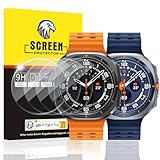
- COMPATIBLE MODELS: EXCLUSIVELY designed for the Samsung Galaxy Watch Ultra & Galaxy Watch Ultra 8/7 (47mm size, 2024 & 2025 Release). NOT compatible with the standard Galaxy Watch 7 (40mm/44mm), Watch 8, FE, or any other models.
- HIGH-LEVEL SCRATCH PROTECTION: Made from durable 9H Hardness Tempered Glass, offering advanced resistance against scratches, scrapes, and impacts from daily wear.
- CRYSTAL CLEAR & RESPONSIVE: Boasts 99% high-definition transparency with an oleophobic coating. This combination delivers virtually invisible clarity, preserves your watch’s original vibrant colors, significantly reduces fingerprints, and ensures full, natural touch-screen sensitivity.
- EASY, BUBBLE-FREE INSTALLATION: Includes a special Alignment Tool & Suction Cup. Use these tools for easy bubble free installation. Removes Cleanly Without Residue.
- COMPLETE 4-PACK VALUE SET: Includes 4x Screen Protectors, 1x Alignment Tool, 1x Suction Cup, and 4 x Cleaning Wipes and dust removal stickers. NOTATION: Please DOUBLE-CHECK your watch is a 'Samsung Galaxy Watch Ultra 47mm' (2024/2025) before ordering to ensure a perfect fit.
1. Make the Quick button do more than launch Samsung Health
The Ultra’s dedicated Quick button is the most useful hardware shortcut to customize. It normally opens Samsung Health, but its available actions can vary by model, software, installed apps, and region.
- Open Settings on the watch.
- Tap Buttons and gestures.
- Choose an option under Quick button.
- Select the action you want.
Good assignments include:
- Samsung Health: useful if you start workouts frequently.
- Timer or stopwatch: practical for training, cooking, or timed intervals.
- Compass or Maps: convenient for outdoor use when the option is available.
- Music controls: useful at the gym or while commuting.
Inspect the current list rather than expecting a fixed set of choices. Apps and updates can change what appears. Holding the Quick button for more than three seconds activates the Ultra’s Siren behavior according to Samsung’s manual, so learn and test that behavior before relying on it.
2. Reassign the Home and Back buttons
The Home button has configurable actions for a double press and a press-and-hold. Samsung documents Samsung Pay and Bixby as the defaults, but the available alternatives vary by watch, phone, region, and installed services.
The Tool Desk
Outbyte Driver Updater FREEScan for outdated or missing drivers - takes under a minuteDriver Scan →Outbyte PC Repair FREEClear out junk files and repair common Windows errorsFree Scan →On the watch, open Settings → Buttons and gestures. For phone-side controls, open Galaxy Wearable → Watch settings → Buttons and gestures. Samsung also documents the Home-button double-press setting in its navigation and controls guide.
Typical setups include:
- Home double press: Google Wallet or Samsung Wallet, depending on your payment setup.
- Home press and hold: your preferred assistant, where supported.
- Back-button short press: the previous screen by default, or a recent-app action if that option is available and you multitask frequently.
Do not assume every payment, assistant, or shortcut appears on every phone-and-watch combination.
3. Enable one-handed wrist and hand gestures
Gestures are especially useful when your other hand is occupied. Open the watch’s gesture settings and test each action while the screen is awake.
Rank #2

- Designed for Galaxy Watch Ultra Only: Cut to the display tolerances of Galaxy Watch Ultra 49mm for optimized watch-face coverage
- 9H Tempered Glass for Sport-Band Lifestyle: 9H surface hardness defeats scratches from keys, gym equipment, weight racks, door frames, and the daily contact a wrist-mounted screen takes. Built for runners, gym-goers, swimmers, climbers, and outdoor users
- Touch Responsiveness Preserved, Zero Delay: Ultra-thin 0.33mm construction maintains the sensitive touch response Galaxy Watch Ultra demands — taps, swipes, edge gestures, and watch-face long-press actions register without delay
- Samsung Health & Samsung Pay Compatible: Optically tuned for the Always-On display. ECG readings, BIA body composition, heart-rate monitoring, sleep tracking, and bedtime BP work uninterrupted. Samsung Pay tap-to-pay also unaffected
- Precision Cut-out, Not Case-Compatible: Designed to cover the watch face while keeping the original watch design. Compatible with Spigen cases.
Dismiss alerts and calls with a wrist twist
Rotate your wrist twice to dismiss supported alerts, alarms, timers, reminders, or incoming calls. Samsung’s manual describes this as a two-rotation gesture that must be enabled under the watch’s gesture settings.
Use Quick launch
Within five seconds after the display turns on, make a fist and bend your wrist down and up twice. This launches the action assigned to Quick launch. It can be sensitive to how tightly the watch is worn and how deliberately the movement is made.
Try Universal gestures on newer software
Some One UI Watch releases add broader hands-free navigation, including a gesture for returning to the previous screen. If the menu exists, open Settings → Accessibility → Interaction and dexterity → Universal gestures, turn it on, follow the tutorial, and test it with the screen awake. Where applicable, review the equivalent controls in Galaxy Wearable → Watch settings → Buttons and gestures.
If gestures trigger accidentally, reduce conflicting shortcuts, adjust sensitivity if offered, tighten the fit slightly, and test without gloves or loose clothing. For a safety-critical or time-sensitive action, use a physical button instead.
4. Stop returning to the app grid
The fastest navigation pattern is usually a combination of tiles, buttons, and edge gestures:
- Swipe left: move through tiles and widgets.
- Swipe right: open notifications.
- Swipe down: open Quick settings.
- Swipe up: open apps.
- Swipe inward from the right edge: return to the previous screen.
- Double press Home: reopen the most recently used app.
- Rotate the digital bezel: scroll through screens and lists.
When a workout or another ongoing activity is running, a small activity icon may appear at the bottom of the display. Tap it to return to that activity instead of finding the app again. On newer software, the Now Bar can keep ongoing activities easier to reach.
Rank #3

- Precision Fit: Tailored specifically for Samsung Galaxy Watch 8/7 Ultra 47mm Smartwatch,This tempered glass protector covers the entire screen,maintaining touchscreen responsiveness and preserving it original quality.(Not applicable to Samsung Galaxy Watch 9 Ultra 2 47mm(2026). Please confirm the model before purchasing)
- 9H Hardness: Only 0.25mm thick but with 9H hardness, the screen protector has a higher hardness. Protect your watch screen from high-impact drops, scratches, scratches, and collisions with keys and knives.
- HD Resolution: High transparency provides clear viewing in HD. The hydrophobic screen coating can effectively protect your watch screen from fingerprints and maintain high-sensitivity touch response.
- Packaging content: protective films*4,Installing suction cups*1 and installation packages*4. (Note: Before pasting the watch film, it is necessary to clean the oil stains, dust, etc. on the dial before pasting!!)
- Easy to Remove without Residue---No bubbles when applied. Excellent product remaining your watch brand-new. When fixed on the screen, it is nearly automatic, non-bubble adhesive, no-bubble installation.
5. Build a watch face around your routine
A practical face can eliminate several taps every day. Long-press the current watch face, swipe to a face you like, and tap Customize. Complications differ by face, app, model, and software, so select from what is actually available on your watch.
Everyday layout
- Time and date
- Weather
- Battery
- Calendar
- Steps or activity
Training layout
- Heart rate
- Workout shortcut
- Stopwatch
- Weather
- Sunrise, sunset, or compass where supported
Travel and outdoor layout
- Two time zones
- Weather
- Compass
- Altitude or barometer where supported
- Battery
Install additional faces through the Play Store on the watch or through Galaxy Wearable on the connected phone. Samsung explains the watch-face and complication controls in its official guide.
6. Use Multi-Info Tiles and the Now Bar when available
One UI 8 Watch adds or expands features such as Multi-Info Tiles, which combine information such as health and weather, and the Now Bar, which keeps ongoing activities accessible. Samsung also lists newer health-oriented features including Running Coach, Vascular Load, and Antioxidant Index on supported devices and markets.
Availability depends on the model, market, paired smartphone, Samsung account, app, network connection, and software version. These features are wellness tools for personal reference, not medical diagnosis or treatment. Update the watch, Galaxy Wearable, and Samsung Health before concluding that a feature is unavailable. Samsung’s One UI 8 Watch announcement lists the relevant qualifications.
7. Make media controls appear automatically
If you often start music on your phone, automatic controls can save a trip through the app launcher.
- Open Settings on the watch.
- Tap Advanced features.
- Tap Media controls.
- Turn on Auto launch media controls.
- Turn on Show ongoing icon.
When compatible playback begins on the connected phone, controls can appear on the watch. Spotify, YouTube Music, and other compatible apps can be installed from the Play Store. Offline music is not uniform: it depends on the individual app, account, downloaded content, storage, and service rules.
Rank #4

- Made from the high quality tempered-glass for maximum scratch protection and no residue when removed
- 2.5D rounded edge glass for comfort on the fingers and hand
- 9H hardness, 99.99% HD clarity, and maintains the original touch experience
- Hydrophobic and oleo-phobic coating to reduce sweat and reduce fingerprints
- Include 3 pcs tempered glass screen protectors
Samsung’s Wear OS support page documents media controls, Play Store installation, and related requirements.
Free tools Windows power users keep installed
One-click scans. No signup required.
8. Install useful apps directly on the watch
- Open Play Store on the watch.
- Tap Search.
- Find the app.
- Tap Install.
- Open it and sign in if required.
- Review permissions and offline-download support.
On the phone, compatible devices may appear on an app’s Play Store page, allowing you to select the watch for installation. Useful categories include maps, music, fitness, timers, weather, and productivity, but compatibility is app-specific.
9. Configure Maps before leaving reliable connectivity
Google Maps on Wear OS can provide driving, transit, walking, or bicycling directions, with voice or keyboard search. Navigation can appear on the watch and connected phone, and it can be stopped from either device.
- Start navigation before entering an area with poor reception.
- Download offline maps where the app supports them.
- Keep the display visible only when needed to reduce battery use.
- Assign a navigation-related action to the Quick button if it appears in your available list.
- Carry a phone for remote areas, emergencies, and longer trips.
Map coverage, turn-by-turn behavior, and offline functions vary by country and app version.
Independent reader supportYour contribution helps us test, update, and keep practical guides available for everyone.10. Extend battery life without blindly disabling health tracking
Low-impact changes
- Reduce unnecessary notifications.
- Remove unused tiles and complications.
- Disable automatic media controls if you do not use them.
- Choose a simpler watch face.
- Turn off Always-On Display if glanceability matters less than endurance.
Moderate changes
- Limit location use outside workouts and navigation.
- Review background activity from apps you rarely use.
- Prefer Bluetooth or Wi-Fi over LTE when practical.
- Disable continuous measurements you do not need.
Use Power saving deliberately
Open Settings → Battery and turn on Power saving when you need extended endurance. Samsung’s update notes say it can limit features such as workout auto-detection and background heart-rate measurements. That may preserve battery, but it can also make health data less complete or less immediate.
Do these 3 things before closing this tab:
1Scan for outdated or missing drivers - takes under a minute2Repair Windows errors before they cause bigger problems3Fix the driver behind crashes, sound loss and screen glitchesUse Power saving for travel or an emergency reserve, not automatically during a serious training session if you expect continuous metrics. Afterward, turn it off and confirm that workout detection, heart-rate measurements, and other desired tracking settings are active again. Exact labels can differ between One UI Watch releases.
Best Value

- Compatibility: Specially Designed Tempered Glass Watch Screen Protector for Samsung Galaxy Watch Ultra 2025/2024 47mm(Please Note: 47mm is the size of the watch, not the size of our watch screen protector)
- Auto-alignment Tool Easy to Install: Each Samsung Galaxy Watch Ultra 47mm screen protector includes an automatic kit to make installation effortless, accurate, hassle-free, and bubble-free.
- Strong Protection: 9H strong-hardness prevents scratches from keys and other outside objects. 99% HD Clarity and Maintains the Original Touch Experience.
- Perfect Touch response: Glass Thin Material gives you the experience of feeling the original screen.
- Orzero Customer Service: Protected by Orzero Service. If there are any quality problems, please feel free to contact us.
Three useful profiles
- Maximum tracking: keep the measurements and display behavior you actually need.
- Balanced: reduce display, notifications, location, and background activity.
- Outdoor emergency: use Power saving, a simple face, minimal apps, and a charged phone as backup.
11. Automate the watch with Modes
One UI 6 Watch supports phone-created Modes such as Sleep, Exercise, and Theater that can change watch behavior. Supported controls can include the watch face, Do Not Disturb, Always-On Display, raise wrist to wake, touch-to-wake behavior, touch-bezel wake, sound mode, and disconnection alerts.
This is an ecosystem feature, not a universal standalone-watch automation system. Samsung’s update notes specify a paired phone running One UI 6.1.1 or later for the Modes integration.
- Sleep Mode: quiet notifications, a sleep-focused face, and less screen activation.
- Exercise Mode: a training face and fewer distractions.
- Theater Mode: muted sounds and reduced screen activation.
- Driving Mode: only the notifications you choose.
12. Use LTE away from your phone—but understand the limits
An LTE Ultra can handle calls and messages through cellular service when it has an active wearable line or plan. Bluetooth and Wi-Fi models can use those connections when available, but an LTE label on the box does not mean cellular service is activated.
You need an LTE model, supported carrier, activated wearable plan, correct Samsung and carrier accounts, and sufficient battery. Some features still require the phone, Wi-Fi, an account, or a supported app. Setup, updates, app management, and some health functions remain tied to the phone ecosystem, so “standalone” is not absolute.
Emergency and location features should not be treated as a substitute for a phone or professional emergency services. Carrier support and behavior vary by country and network.
13. Check safety and health settings
Before relying on the Ultra outdoors or overnight, review:
- Fall detection
- Emergency contacts
- SOS behavior
- Siren behavior
- Heart-rate and workout auto-detection settings
- Sleep tracking
- Blood oxygen and other measurements where supported
- Samsung Health permissions
- Location permissions
Test emergency shortcuts carefully and tell contacts what the watch is configured to do. Availability and behavior vary by model, market, software, phone, carrier, and account. Health measurements are tracking or wellness estimates for personal reference; they do not diagnose conditions or replace professional medical advice.
PC Slower Than It Used to Be?
A free scan shows the junk files, broken settings and background clutter dragging Windows down - then fixes them in one click.Free scan · Windows 10 & 11Crashes, No Sound, or Screen Glitches?
Random freezes, missing sound and display glitches usually trace back to one bad driver. Find and replace yours safely.Free scan · under a minuteWhat differs between Ultra generations?
Samsung’s naming is easy to blur. The original Galaxy Watch Ultra launched in 2024. The Galaxy Watch Ultra (2025) is a later L705-family refresh, and Samsung’s US site currently promotes the Galaxy Watch Ultra2. A software feature may reach more than one generation, while hardware-specific features may not.
| Question | What to verify |
|---|---|
| Is the feature hardware-specific? | Check the exact model’s Samsung product and support page. |
| Is it part of One UI 6 or One UI 8 Watch? | Check the installed watch software and Samsung’s update notes. |
| Does it require a Samsung phone? | Check the feature’s phone, account, and Samsung Health requirements. |
| Does it require LTE? | Confirm that the watch is an LTE model and has an active carrier plan. |
| Is it a health feature? | Confirm market, model, app, phone, and regulatory availability; treat it as wellness information. |
As of the current Samsung US product pages, Ultra2 is listed from $699.99 before trade-in, while Samsung’s September 2025 MSRP sheet listed the Galaxy Watch Ultra LTE at $649.99. These are dated price signals, not guaranteed current sale prices.
Quick Recap
Quick setup checklist
- Customize the Quick button for your most frequent action.
- Set Home double press and press-and-hold actions.
- Choose whether the Back button should retain its default behavior.
- Enable and test wrist gestures and Universal gestures if available.
- Turn on automatic media controls if you control phone music from the watch.
- Create one practical everyday, training, or outdoor watch face.
- Configure Sleep, Exercise, or Theater Mode.
- Review Power saving before a long trip or workout.
- Add emergency contacts and test the Siren and SOS settings responsibly.
- Update Galaxy Wearable, Samsung Health, the watch, and Play Store apps.
Product prices and availability are accurate as of the date/time indicated and are subject to change. Any price and availability information displayed on Amazon at the time of purchase will apply.

