Language settings are one of the first things international users look for when setting up a wearable, and Whoop approaches this a little differently from a traditional smartwatch. There’s no screen on the band itself, no menus to scroll through, and no language toggle living on the hardware. Everything you see, read, and interact with happens inside the Whoop mobile app.
That design makes Whoop extremely lightweight and comfortable for 24/7 wear, but it also means language behavior is tightly tied to your phone’s operating system. Understanding this relationship up front saves a lot of frustration, especially if you’re switching phones, traveling, or buying Whoop from a different region than where you live.
This section breaks down exactly how language works on Whoop, what parts you can control, what parts you can’t, and how the app and device interact behind the scenes so you know what to expect before moving on to the step-by-step instructions.
Whoop has no on-device language because there is no on-device interface
Unlike a smartwatch with a display, buttons, and menus, Whoop is a screenless fitness tracker. The band itself handles data collection only, including heart rate, HRV, sleep stages, skin temperature trends, and strain. It does not display text, notifications, or prompts in any language.
🏆 #1 Best Overall
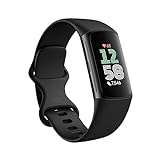
- Find your way seamlessly during runs or rides with turn-by-turn directions from Google Maps on Fitbit Charge 6[7, 8]; and when you need a snack break on the go, just tap to pay with Google Wallet[8, 9]
Because of this, there is no concept of “device language” on Whoop in the traditional sense. You’re never changing language on the band, clasp, or sensor module. All written content, explanations, coaching insights, and metrics live entirely inside the Whoop app on your phone.
This is an important distinction for buyers coming from Apple Watch, Garmin, or Fitbit, where language settings often exist on both the watch and the companion app.
The Whoop app language follows your phone’s system language
Whoop does not currently offer a manual, in-app language selector. Instead, the app automatically uses the primary language set at the operating system level on your iPhone or Android device, as long as that language is supported by Whoop.
On iOS, this typically means the app mirrors your iPhone’s system language unless you’ve assigned a per-app language override in iOS settings. On Android, it follows the system language defined in your device settings or, on newer versions, the app-specific language preference if available.
If your phone is set to a language Whoop supports, the entire app interface, including menus, insights, recovery explanations, sleep coaching, and onboarding screens, will appear in that language without any additional setup.
What happens if your phone language isn’t supported
If your phone’s system language is not currently supported by Whoop, the app defaults to English. There is no partial translation or mixed-language experience. This fallback behavior is consistent across both iOS and Android.
This can surprise users who live in regions where English is not the primary language but whose phone is set to a less common locale. Even if Whoop is officially sold in your country, language availability depends on software support, not region or subscription type.
In these cases, the only way to change the Whoop app language is to change your phone’s system language to one Whoop supports. There is no workaround inside the app itself.
Metrics, data, and numbers stay the same regardless of language
Changing the app language does not affect how Whoop tracks or calculates data. Recovery scores, strain, sleep duration, respiratory rate, and health trends remain identical across all languages. Only the written explanations, labels, and coaching text change.
Units of measurement, such as metric versus imperial, are handled separately from language and can be adjusted inside the app settings. This means you can, for example, use English text while still viewing weights in kilograms and distances in kilometers.
From a daily usability standpoint, language changes do not impact battery life, sensor performance, comfort, or how the band feels during workouts or sleep.
Language support is tied to software updates, not hardware generations
All current Whoop hardware versions behave the same way when it comes to language. Whether you’re using a newer Whoop 4.0 sensor or an older supported model, language handling is identical because it’s controlled entirely by the app.
When Whoop adds new languages, they arrive via app updates through the App Store or Google Play. There’s no need to replace hardware, re-pair the band, or update firmware manually. As long as your phone OS and app are up to date, new language support becomes available automatically.
This also means language availability can change over time, so checking the current supported list before buying, especially for non-English speakers, is a smart move.
Regional availability does not guarantee language availability
Whoop is sold and supported in many countries, but that does not always mean every local language is available in the app. Subscription availability, shipping regions, and customer support coverage are separate from app localization.
For international users, expats, or travelers, the key takeaway is simple: Whoop’s language experience depends on your phone’s language and Whoop’s supported language list, not your physical location or where you purchased the device.
Once you understand this app-first language model, changing or confirming your Whoop language becomes straightforward, and you can decide quickly whether it fits your needs before committing to a subscription.
Can You Change the Language Directly on a Whoop Strap? (Important Limitations)
Once you understand that Whoop’s language system is app-first, the next logical question is whether the strap itself offers any independent control. The short answer is no, and that limitation is intentional by design rather than a missing feature.
There is no on-device language setting
Whoop straps do not have a screen, menus, or a user interface where language could be adjusted. Everything you read, tap, or interpret lives inside the Whoop mobile app, not on the hardware worn on your wrist, bicep, or in apparel.
The strap itself communicates only through LEDs, vibration alerts, and background sensor data collection. None of those elements are language-dependent, which is why there is no language option to change on the device itself.
The strap mirrors the app’s language, not the other way around
Any written content you see, such as recovery explanations, strain descriptions, sleep coaching tips, or journal prompts, is rendered entirely by the app. The strap simply sends raw biometric data like heart rate, skin temperature trends, and motion data back to your phone.
Because of this relationship, changing the language inside the Whoop experience always starts at the phone level. The strap automatically follows whatever language the app is using, without needing to be re-paired or reset.
Firmware resets and re-pairing do not change language
A common troubleshooting assumption is that resetting the strap, updating firmware, or pairing it to a new phone might expose a language option. In practice, none of these actions affect language at all.
Firmware updates focus on sensor accuracy, battery efficiency, Bluetooth stability, and new health features. Language files live in the app, not on the strap’s firmware, so no hardware-level action will unlock additional language choices.
LEDs, vibrations, and alerts are language-neutral
Whoop’s physical feedback system is intentionally simple. Charging indicators, haptic alerts, and status lights behave the same regardless of language, region, or phone settings.
This means international users are not missing critical information at the strap level, even if their preferred language is not supported in the app. All meaningful interpretation still happens on the phone screen.
Using multiple phones does not create separate language profiles
If you pair your Whoop strap with a different phone, the language will follow the app language on that device. There is no language profile stored on the strap itself, and no memory of previous app languages.
This is useful for users who temporarily switch phones or travel internationally, but it also reinforces the limitation that the strap cannot be customized independently.
Unsupported system languages default to English
If your phone is set to a language that Whoop does not currently support, the app defaults to English rather than offering a partial or machine-translated interface. The strap remains unaffected either way, continuing to collect data normally.
For users whose primary language is not yet supported, the only workaround is to temporarily change the phone’s system language to one Whoop recognizes. There is no strap-side override to bypass this behavior.
Right-to-left languages and voice interactions are not factors
Whoop does not support voice prompts, spoken coaching, or audio alerts, so there is no spoken language layer to configure. Likewise, right-to-left interface handling is entirely dependent on app-level support and cannot be influenced by the strap.
From a comfort, materials, and wearability standpoint, nothing changes. The lightweight sensor module, fabric bands, battery pack, and all-day wear characteristics remain identical regardless of language settings.
Understanding these limitations helps set realistic expectations. If you are looking for language customization, your focus should stay firmly on the Whoop mobile app and your phone’s system settings, not the strap itself.
Rank #2

- Inspire 3 is the tracker that helps you find your energy, do what you love and feel your best. All you have to do is wear it.Operating temperature: 0° to 40°C
- Move more: Daily Readiness Score(1), Active Zone Minutes, all-day activity tracking and 24/7 heart rate, 20+ exercise modes, automatic exercise tracking and reminders to move
- Stress less: always-on wellness tracking, daily Stress Management Score, mindfulness sessions, relax breathing sessions, irregular heart rhythm notifications(2), SpO2(3), menstrual health tracking, resting heart rate and high/low heart rate notifications
- Sleep better: automatic sleep tracking, personalized Sleep Profile(1), daily detailed Sleep Score, smart wake vibrating alarm, sleep mode
- Comfortably connected day and night: calls, texts & smartphone app notifications(4), color touchscreen with customizable clock faces, super lightweight and water resistant to 50 meters, up to 10 day battery life(5)
How to Change the Whoop App Language on iPhone (iOS Step-by-Step)
With the strap itself ruled out as a language control, everything now hinges on how iOS handles app languages. On iPhone, Whoop follows Apple’s system-level language framework, which means you can either change the language just for Whoop or change it for the entire phone.
Both methods work reliably, do not affect your data, and do not require re-pairing the strap. The change applies instantly once the app is restarted.
Method 1: Change the language for Whoop only (recommended)
This is the cleanest approach if you want Whoop in a different language without altering the rest of your iPhone. Apple added per-app language controls in iOS 13, and Whoop fully respects them.
Open the iPhone Settings app and scroll down until you find Whoop in the app list. Tap it to access Whoop’s app-specific settings.
Select Language. You will see a list of languages supported by Whoop on iOS.
Choose your preferred language, then fully close the Whoop app from the app switcher and reopen it. The interface will now load in the selected language.
Nothing else changes. Your recovery scores, strain history, sleep data, battery estimates, and coaching insights remain intact, and the strap continues tracking uninterrupted.
Method 2: Change your iPhone’s system language
If you do not see the Language option under Whoop, or if you prefer system-wide consistency, you can change the phone’s primary language instead. Whoop will automatically follow.
Go to Settings, then General, then Language & Region. Tap iPhone Language and select a language that Whoop supports.
Confirm the change and allow iOS to reload the interface. Once the phone finishes switching languages, open Whoop and it will display in the new language automatically.
This method affects every app and menu on your iPhone, so it is less practical for most users. It is mainly useful if your phone is currently set to an unsupported language and Whoop is defaulting to English.
What to do if the language does not change immediately
In most cases, the Whoop app updates its language instantly after a restart. If it does not, force-close the app again and reopen it.
If the issue persists, check that the language you selected is actually supported by Whoop. Unsupported choices will silently fall back to English, even if iOS itself supports that language system-wide.
As a last step, restarting the iPhone resolves rare caching issues, especially after a major iOS update.
What changing the language does and does not affect
Only text inside the Whoop app changes. This includes menus, insights, daily journal prompts, recovery explanations, and coaching guidance.
The strap’s behavior stays identical. Sensor accuracy, sampling rate, comfort on the wrist, battery life, charging behavior, and all-day wearability are completely unaffected.
Metrics like HRV, resting heart rate, sleep staging, and strain calculations are language-agnostic. You are not opting into a different algorithm or regional interpretation by switching languages.
Compatibility notes for older iPhones and iOS versions
Per-app language selection requires iOS 13 or newer. On older iPhones running earlier versions, Whoop can only follow the system language.
Whoop supports current and recent iOS releases, and language handling has been consistent across iOS 15, 16, and 17 in real-world use. There is no difference in battery drain or performance tied to language choice.
If you are setting up Whoop on a new iPhone, it will inherit the phone’s current language during first launch. You can change it at any time afterward without logging out or re-pairing the strap.
How to Change the Whoop App Language on Android (System-Level Control)
On Android, language control for Whoop depends heavily on your Android version. Unlike iOS, per-app language switching arrived later on Android, so some phones still require changing the entire system language to affect the Whoop app.
The Whoop strap itself has no language setting. All language changes happen inside the Android app interface, while tracking accuracy, battery life, comfort, and sensor behavior remain identical.
Android 13 and newer: Using per-app language settings
If your phone is running Android 13 or later, you can usually change Whoop’s language without touching the rest of the system. This is the cleanest and most practical option for most users.
Open Settings on your Android phone, then go to Apps. Scroll down and select Whoop.
Tap Language or App language. You will see a list of languages supported by Whoop.
Choose your preferred language and exit Settings. When you reopen Whoop, the interface updates immediately.
This method only affects Whoop. Your system menus, notifications, and other apps remain unchanged, which is ideal if you want English (or another language) elsewhere on your phone.
Android 12 and older: System-wide language control
On Android versions before Android 13, Whoop follows the phone’s system language with no per-app override. Changing the app language means changing the entire device language.
Open Settings, then go to System. Tap Languages & input, then Languages.
Add your desired language if it is not already listed. Drag it to the top of the list to make it the primary system language.
Force-close Whoop and reopen it. The app will now display in the new language, assuming it is supported.
This affects everything on your phone, including system menus, notifications, and all other apps. For many users, this is more disruptive than it is worth unless the phone was already set to a different primary language.
What to do if the language does not change
First, fully close the Whoop app from the recent apps screen and reopen it. Android sometimes caches UI language until a full restart.
Rank #3

- 【BUILT-IN GPS SMART WATCH – GO FURTHER, FREER, SMARTER】No phone? No problem. This fitness watch for women, featuring the latest 2025 technology, includes an advanced professional-grade GPS chip that precisely tracks every route, distance, pace (real-time & average), and calorie burned—completely phone-free. Whether you're chasing new personal records or exploring off the beaten path, your full journey is automatically mapped and synced in the app. Train smarter. Move with purpose. Own your progress. Own your journey.
- 【BLUETOOTH 5.3 CALLS & SMART NOTIFICATIONS】Stay effortlessly connected with this smart watch for men and women, featuring dual Bluetooth modes (BT 3.0 + BLE 5.3) and a premium microphone for crystal-clear calls right from your wrist—perfect for driving, workouts, or busy days. Receive instant alerts for calls, texts, and popular social apps like WhatsApp and Facebook. Just raise your wrist to view notifications and never miss an important moment.
- 【100+ SPORT MODES & IP68 WATERPROOF & DUSTPROOF】This sport watch is a versatile activity and fitness tracker with 100+ modes including running, cycling, yoga, and more. It features quick-access buttons and automatic running/cycling detection to start workouts instantly. Accurately track heart rate, calories, distance, pace, and more. Set daily goals on your fitness tracker watch and stay motivated with achievement badges. With IP68 waterproof and dustproof rating, it resists rain and sweat for any challenge. Not suitable for showering, swimming, or sauna.
- 【24/7 HEALTH ASSISTANT & SMART REMINDERS】This health watch continuously monitors heart rate, blood oxygen, and stress levels for comprehensive wellness tracking. Sleep monitoring includes deep, light, REM sleep, and naps to give you a full picture of your rest. Stay on track with smart reminders for sedentary breaks, hydration, medication, and hand washing. Women can also monitor menstrual health. Includes guided breathing exercises to help you relax. Your ultimate health watch with event reminders for a healthier life.
- 【ULTRA HD DISPLAY, LIGHTWEIGHT & CUSTOMIZABLE DIALS】This stylish wrist watch features a 1.27-inch (32mm) 360×360 ultra HD color display with a 1.69-inch (43mm) dial, offering vivid details and responsive touch. Its minimalist design fits both business and casual looks. Switch freely among built-in designer dials or create your own DIY watch face using photos, colors, and styles to showcase your unique personality. Perfect as a cool digital watch and fashion wrist watch.
If the app still shows English, confirm that the selected language is officially supported by Whoop. Android may allow you to select a language that Whoop does not yet localize, causing the app to default back to English without warning.
As a final step, restart your phone. This resolves rare cases where Android fails to propagate a new language setting to an already-installed app.
How Android language changes affect the Whoop experience
Only on-screen text changes. Menus, recovery explanations, strain descriptions, journal prompts, and coaching insights all appear in the selected language.
The hardware experience stays the same. The strap’s comfort, materials, clasp feel, water resistance, charging behavior, and real-world battery life are completely unaffected.
Health and fitness data is unchanged. HRV trends, sleep staging, strain scores, recovery calculations, and daily readiness metrics use the same algorithms regardless of language.
Compatibility notes for Android devices and manufacturers
Per-app language control requires Android 13 or newer and is supported most consistently on Google Pixel and near-stock Android devices. Some manufacturer skins may hide or rename the App language menu.
Samsung, Xiaomi, and OnePlus phones running Android 13 generally support per-app languages, but menu paths can vary slightly. If you cannot find the option under Apps, check Advanced settings or search for Language in Settings.
Whoop supports current Android versions reliably, and language switching does not impact app stability, Bluetooth syncing, background data usage, or battery drain. If you are setting up Whoop on a new Android phone, the app adopts the system language on first launch but can be changed later without re-pairing or resetting the strap.
Full List of Supported Languages on Whoop (Current Availability)
With the mechanics of language switching covered, the next step is confirming whether your preferred language is actually available inside the Whoop app. This is important because both iOS and Android may let you select languages that Whoop itself has not fully localized yet, which causes the app to fall back to English.
Whoop’s language support applies to the mobile app experience on iOS and Android. The strap itself has no display, speaker, or haptic language layer, so all localization lives entirely in the software.
Officially supported app languages
As of current availability, Whoop supports the following languages for its mobile app interface, recovery insights, sleep and strain explanations, journal prompts, and coaching content:
– English
– Spanish
– French
– German
– Italian
– Portuguese (Brazilian Portuguese)
– Dutch
These languages are fully localized across the core experience. That includes daily recovery summaries, sleep performance breakdowns, strain guidance, habit journaling, onboarding flows, and most educational content surfaced in the app.
Language consistency across iOS and Android
The supported language list is the same on iOS and Android, but availability may appear slightly different depending on your phone’s system language menu. Some operating systems show a longer list of selectable languages than Whoop actually supports.
If you choose a language outside the official list, the app defaults back to English rather than partially translating menus. This behavior is intentional and prevents mixed-language screens that could affect usability or clarity when reviewing health metrics.
Regional rollout and translation depth
When Whoop adds a new language, it typically rolls out in stages. Core navigation, recovery scores, sleep stages, and strain data are translated first, followed by deeper educational articles and long-form coaching explanations.
Because of this, users in supported languages may occasionally encounter isolated English phrases after a major feature launch. This does not indicate a broken language setting and usually resolves with subsequent app updates.
Languages not currently supported
At the time of writing, Whoop does not offer full localization for languages such as Japanese, Korean, Chinese, Arabic, Hindi, or most Eastern European and Southeast Asian languages. Users in these regions can still use Whoop without restrictions, but the app experience remains English-only.
This limitation does not affect data accuracy, battery life, Bluetooth performance, or the physical wearing experience. The strap’s lightweight design, fabric comfort, clasp security, water resistance, and multi-day battery life remain identical regardless of region or language.
How to verify language support before subscribing
If language availability is a deciding factor before purchasing a Whoop membership, the safest approach is to check the app’s language options directly in the App Store or Play Store description for your region, then confirm inside the app after installation.
Whoop accounts are not region-locked, and language selection can be changed later without re-pairing the strap, losing historical data, or affecting recovery trends. This makes it easy to test compatibility on your phone before committing long-term.
What Happens If Your Preferred Language Isn’t Supported
If your preferred language isn’t on Whoop’s supported list, the experience is simpler than many users expect. The app does not partially translate or mix languages; instead, it cleanly defaults to English across the entire interface.
This design choice prioritizes clarity when reviewing health metrics like Recovery, Strain, and Sleep, where misinterpreted labels or mixed-language screens could lead to confusion or poor training decisions.
The app stays fully functional, just English-only
All features remain available when a language isn’t supported. Daily recovery scores, sleep staging, heart rate variability trends, strain calculations, and workout detection behave exactly the same as they do in supported regions.
There are no hidden feature restrictions tied to language selection. Battery life, Bluetooth stability, sync speed, and background data collection are unaffected because language is purely a presentation layer inside the app.
Your phone’s system language doesn’t force a translation
Whoop does not automatically mirror your iOS or Android system language if that language isn’t supported. Even if your phone is set to Japanese, Arabic, or Hindi, the Whoop app will continue to display in English.
This also means changing your phone’s language will not unlock additional Whoop languages. The only way the app displays another language is if Whoop has officially localized it and added it to the in-app language list.
The strap itself has no language to change
Unlike smartwatches with on-screen menus, the Whoop strap has no display, no text, and no spoken feedback. All language-dependent content lives entirely inside the mobile app.
Because of this, wearing comfort, strap materials, clasp feel, water resistance, and 24/7 wearability are identical worldwide. A user in an unsupported language region is physically wearing the exact same device as a user in a fully localized market.
Notifications and alerts remain clear but untranslated
Push notifications for recovery readiness, sleep completion, or journal reminders continue to arrive normally. However, their wording stays in English if your language isn’t supported.
Numerical values, color-coded indicators, and trend arrows still make notifications easy to understand at a glance. Many users rely primarily on these visual cues rather than long text explanations.
Educational content and coaching are English-only
Long-form articles, in-app coaching explanations, feature tutorials, and habit guidance are not translated unless a language is fully supported. If education and written coaching are central to how you use Whoop, this is the area where the limitation is most noticeable.
That said, the core metrics are highly visual, and experienced users often rely more on charts, percentages, and trends than written explanations once they understand the system.
Rank #4

- 24H Accurate Heart Rate Monitoring: Go beyond basic tracking. Our watch automatically monitors your heart rate, blood oxygen (SpO2), and sleep patterns throughout the day and night. Gain deep insights into your body's trends and make informed decisions for a healthier lifestyle.
- Practical Sports Modes & Smart Activity Tracking: From running and swimming to yoga and hiking, track a wide range of activities with precision. It automatically records your steps, distance, calories burned, and duration, helping you analyze your performance and crush your fitness goals.
- 1-Week Battery Life & All-Day Wear: Say goodbye to daily charging. With an incredible up to 7-10 days of battery life on a single charge, you can wear it day and night for uninterrupted sleep tracking and worry-free travel. Stay connected to your data without the hassle.
- Comfortable to Wear & IP68 Waterproof: The lightweight, skin-friendly band is crafted for all-day comfort, even while you sleep. With IP68 waterproof, it withstands rain, sweat, It is not suitable for swimming or showering.
- Ease of Use and Personalized Insights via Powerful App: The display is bright and easy to read, even outdoors. Unlock the full potential of your watch. Sync with our dedicated app to view detailed health reports, customize watch faces, set sedentary reminders, and manage your preferences with ease.
Units, date formats, and metrics are still customizable
Even without language support, you can still adjust measurement units like kilometers versus miles, kilograms versus pounds, and 24-hour versus 12-hour time formats.
This allows international users to align the app with local conventions, reducing friction even when the interface language itself remains English.
Workarounds some users rely on
Some users pair Whoop with system-level translation tools, especially on Android, to translate on-screen text when reading educational sections. Others rely on third-party fitness platforms or exported data for deeper analysis in their native language.
These are optional workarounds rather than required steps. Whoop’s core value, continuous physiological tracking and recovery insights, remains intact without them.
What this means for long-term use
If your preferred language isn’t supported today, the experience is stable and predictable rather than frustrating. Nothing breaks, nothing degrades over time, and updates do not reset or disrupt your data.
Language support tends to expand gradually, so users who are comfortable with English now may benefit from future localization without needing to change devices, memberships, or historical data.
When it’s worth contacting Whoop support
If language availability is a deal-breaker, reaching out to Whoop support can provide the most up-to-date roadmap information. While they do not guarantee timelines, feedback from international users does influence which languages are prioritized next.
This is especially relevant for regions where Whoop is actively expanding retail availability or partnerships, as language support often follows broader market growth.
Common Language-Related Issues and How to Fix Them
Even when you understand Whoop’s language limitations, a few recurring issues can make the experience feel inconsistent across devices or regions. Most of these are app-level behaviors rather than hardware faults, and nearly all have straightforward fixes once you know where to look.
The app language won’t change after switching my phone’s language
Whoop does not offer an in-app language selector, so the app relies entirely on your phone’s system language. If your phone is set to a supported language and the app still appears in English, the most common cause is that the language is not yet fully localized by Whoop.
On iOS, confirm that the system language is supported and that no app-specific override is forcing English. On Android, check both System Language and App Language settings, as some devices allow individual apps to default back to English.
My phone language is supported, but parts of the app are still in English
Partial localization is normal on Whoop, especially after major app updates. Core navigation, metrics, and daily insights may be translated, while educational articles, help content, or feature explanations remain English-only.
This does not affect data accuracy, recovery scores, strain calculations, or battery performance. It is a content coverage limitation rather than a bug.
The Whoop strap or hardware isn’t showing my selected language
Whoop hardware has no display and no language settings of its own. All language behavior lives inside the mobile app, so there is nothing to change or reset on the device itself.
As long as your strap is paired and syncing correctly, language has zero impact on sensor accuracy, comfort, materials, durability, or real-world wearability.
Language changed back to English after an app update
This can happen if an update introduces new untranslated sections or temporarily defaults the app while localization files update. In most cases, force-closing the app and reopening it resolves the issue.
If not, log out of the Whoop app, restart your phone, and log back in. Your data, membership status, and historical metrics remain intact.
Different language behavior between iOS and Android
Language handling is more consistent on iOS because the app strictly follows the system language. Android devices vary by manufacturer, and some skins apply language rules differently at the app level.
If you are using Android, ensure the Whoop app is set to “Follow system language” rather than a manual override. This is especially important on Samsung, Xiaomi, and OnePlus devices.
Date formats, units, or time look wrong for my region
These settings are independent of language and must be adjusted manually. Inside the Whoop app, you can change distance units, weight units, and time format without changing the interface language.
This is useful for users who prefer English text but want local conventions for training logs, sleep timing, and recovery trends.
I want to use Whoop in a language that isn’t supported yet
If your language is not currently supported, there is no official way to force localization. Third-party screen translation tools can help with educational content, but they are optional and not required for daily use.
Because Whoop’s core experience is driven by charts, percentages, and trend lines, many users find the app usable even without full language support once they learn the system.
Confusion about which languages are actually supported
Whoop language support applies only to the mobile app, not the hardware, and availability can vary by region and app version. If a language is supported, the app will automatically switch when your phone is set to that language.
For the most accurate, up-to-date confirmation, checking Whoop’s official support documentation or contacting support directly is more reliable than app store listings.
When a language issue might indicate a deeper problem
If the app fails to load text properly, shows blank screens, or crashes after a language change, this may indicate a corrupted app install rather than a localization issue. Reinstalling the app typically resolves this without affecting your account or data.
If problems persist across reinstalls and devices, Whoop support can check account-level flags or regional rollout issues that are not visible to users.
Does Language Support Affect Metrics, Insights, or Coaching?
Once language settings are behaving as expected, the next concern many users have is whether switching languages changes how Whoop actually works. The short answer is no, but there are a few nuances worth understanding so expectations stay realistic.
Your raw data and core metrics are identical in every language
Whoop’s physiological data collection is completely language-agnostic. Heart rate, HRV, respiratory rate, blood oxygen, skin temperature trends, strain, recovery, and sleep stages are all calculated on Whoop’s servers using the same algorithms worldwide.
Changing the app language does not alter how data is sampled, processed, or scored. Whether the interface is in English, German, Spanish, or French, your recovery score on a given day will be the same number with the same underlying meaning.
Charts, trends, and percentages do not change—only labels do
All visualizations behave the same regardless of language. Axis scales, color coding, trend lines, and daily comparisons remain consistent, which is why many users can still navigate the app comfortably even in a non-native language.
What does change are the labels, tooltips, and explanatory text attached to those visuals. If you switch languages mid-week, historical charts remain intact and readable, just relabeled going forward.
Coaching insights are translated, not personalized differently
Whoop’s daily coaching messages, sleep summaries, and recovery explanations are translated versions of the same insight logic. The advice itself does not become more or less aggressive, detailed, or conservative based on language choice.
💰 Best Value

- 【Superb Visual Experience & Effortless Operation】Diving into the latest 1.58'' ultra high resolution display technology, every interaction on the fitness watch is a visual delight with vibrant colors and crisp clarity. Its always on display clock makes the time conveniently visible. Experience convenience like never before with the intuitive full touch controls and the side button, switch between apps, and customize settings with seamless precision.
- 【Comprehensive 24/7 Health Monitoring】The fitness watches for women and men packs 24/7 heart rate, 24/7 blood pressure and blood oxygen monitors. You could check those real-time health metrics anytime, anywhere on your wrist and view the data record in the App. The heart rate monitor watch also tracks different sleep stages for light and deep sleep,and the time when you wake up, helps you to get a better understanding of your sleep quality.
- 【120+ exercise modes & All-Day Activity Tracking】There are more than 120 exercise modes available in the activity trackers and smartwatches, covering almost all daily sports activities you can imagine, gives you new ways to train and advanced metrics for more information about your workout performance. The all-day activity tracking feature monitors your steps, distance, and calories burned all the day, so you can see how much progress you've made towards your fitness goals.
- 【Messages & Incoming Calls Notification】With this smart watch fitness trackers for iPhone and android phones, you can receive notifications for incoming calls and read messages directly from your wrist without taking out your phone. Never miss a beat, stay in touch with loved ones, and stay informed of important updates wherever you are.
- 【Essential Assistant for Daily Life】The fitness watches for women and men provide you with more features including drinking water and sedentary reminder, women's menstrual period reminder, breath training, real-time weather display, remote camera shooting, music control,timer, stopwatch, finding phone, alarm clock, making it a considerate life assistant. With the GPS connectivity, you could get a map of your workout route in the app for outdoor activity by connecting to your phone GPS.
That said, translation quality can vary slightly by language, especially for longer educational content. In some languages, phrasing may feel more concise or more literal, but the recommendations and thresholds remain identical.
Behavioral nudges and alerts follow the same rules
Notifications for bedtime consistency, recovery readiness, strain targets, and missed sleep are triggered by the same criteria in every language. Switching languages does not change how often alerts appear or when they fire.
The only difference is how those alerts are phrased on your phone. If you rely heavily on notifications during training or travel, choosing the language you read fastest can reduce friction, even though the logic is unchanged.
Sleep and strain recommendations are not region-specific
Whoop does not adjust sleep need, strain targets, or recovery thresholds based on country, culture, or language. A user training in Japan with the app in Japanese receives the same physiological guidance as a user in Canada using English.
This is important for international users to understand: language support improves accessibility, not localization of training philosophy or health models.
Educational content depth may vary slightly by language
Long-form articles, onboarding explanations, and feature walkthroughs are where language differences are most noticeable. English typically receives updates first, with other languages following as translations are completed.
In practical terms, this means newer features or experimental insights may have more detailed explanations in English initially. Metrics, scores, and daily usability are unaffected while translations catch up.
Community features and journaling remain fully functional
Habit tracking, activity tagging, and journal entries work the same in every language. You can enter custom notes in any language, regardless of the app’s interface language.
Group features, challenges, and shared comparisons display scores and rankings consistently. Language does not affect how your data is compared or how leaderboards function.
Language choice does not affect battery life or device performance
Because the Whoop hardware has no display and no onboard language processing, language settings have zero impact on battery life, sensor accuracy, or strap performance. Battery longevity, typically several days depending on model and usage, remains unchanged.
All localization happens at the app layer, meaning the strap continues to prioritize comfort, lightweight wearability, and uninterrupted data capture regardless of language.
When language choice can indirectly affect understanding
The only real risk of using a less familiar language is misinterpreting coaching advice or recovery context. This is especially true for nuanced concepts like cumulative strain, sleep debt, or recovery trends over time.
If you ever feel unsure about what a recommendation means, switching to a language you fully understand is better than relying on assumptions. The data itself is precise, but clarity matters when decisions affect training load or rest.
Bottom line for metrics-focused users
If your priority is accurate tracking, consistent insights, and reliable coaching, language support does not limit Whoop’s capabilities. Metrics, scores, and recommendations are universal, stable, and unaffected by localization choices.
Language mainly influences how comfortably and confidently you interpret what Whoop is already measuring. Choosing the right one is about comprehension, not performance.
Language Support Considerations Before Buying Whoop Internationally
After understanding that language choice does not change how Whoop measures or scores your body, the next question is whether language support fits your needs before you commit to buying. This matters most for international buyers, multilingual households, and anyone relying on clear coaching guidance to inform training or recovery decisions.
Whoop language lives entirely in the mobile app
Whoop straps have no screen, no menus, and no onboard text, so there is no device language to configure. Every word you see, from recovery explanations to sleep coaching, comes from the iOS or Android app.
This means your experience depends on the app’s available languages and how they interact with your phone’s system language. If a language is not supported, the app will default to English rather than offering partial or mixed translations.
Supported languages can vary by region and update cycle
Whoop continues to expand language support, but availability may differ slightly depending on your region, app version, and operating system. New translations typically roll out with app updates rather than hardware revisions.
Before buying internationally, it is smart to check the current language list in the App Store or Google Play description for your country. This avoids assuming support based on marketing pages that may reflect a different region.
Your phone’s system language plays a key role
In most cases, Whoop follows the primary language set at the operating system level on your phone. If your system language is supported, the app will automatically display in that language without additional setup.
If your system language is unsupported, the app defaults to English rather than letting you manually force a different option. For multilingual users, this makes system language selection more important than it might be on other wearables.
Coaching clarity matters more than raw metrics
While strain, recovery, and sleep scores are numeric and universal, the real value of Whoop comes from how those numbers are explained. Subtle coaching language around overreaching, adaptation, or cumulative fatigue can lose meaning if you are not fully comfortable in the app’s language.
If you plan to rely heavily on daily recommendations, habit suggestions, or long-term trend analysis, choosing a language you read fluently is more important than having access to every feature.
Customer support and help content language
Whoop’s in-app help articles, onboarding tips, and customer support responses are primarily offered in the same languages as the app interface. In regions with newer language support, some help content may still appear in English.
For international buyers who value self-service troubleshooting or detailed explanations, this is worth considering. The hardware is simple and durable, but understanding the software experience makes day-to-day use smoother.
Subscriptions, pricing, and regional policies are separate from language
Language availability does not change subscription pricing, billing currency, or membership terms. Those are determined by your country and purchase channel, not the app language you use.
Returns, shipping timelines, and warranty handling are also region-specific. Before buying, confirm that Whoop officially ships to your country and supports your region, independent of language support.
Whoop is best suited for language-flexible users
Because Whoop prioritizes deep physiological tracking over on-device interaction, it works especially well for users comfortable reading insights on a phone. The strap itself is lightweight, screen-free, and designed for continuous wear, but the app is where all understanding happens.
If you are comfortable using English or another widely supported language, Whoop travels well across borders. If you require full localization in a less common language, checking support in advance avoids disappointment.
Final buying takeaway for international users
Whoop’s tracking accuracy, battery life, comfort, and durability remain the same worldwide, but comprehension depends on app language availability. The experience is strongest when the coaching language feels natural and effortless to understand.
Before buying internationally, confirm app language support for your region, set realistic expectations about updates, and prioritize clarity over convenience. When language and understanding align, Whoop delivers its full value no matter where you train or sleep.